CLI-305
Do Not Delete This SlideWe appreciate hearing from you. To send your feedback, click the following link and type your comments in the message body. Note: The subject-line information is used to route your feedback. If you remove or modify the subject line we may be unable to process your feedback. Your feedback may be used to improve our products, technologies and services.Send feedback
Windows 7 DeploymentEnhancements{name}
What Will We Cover?Review New Deployment Tools and EnhancementsDeploy Operating Systems with Windows Deployment ServicesProvision Virtual Machines with Microsoft Deployment Toolkit
AgendaModifying Windows 7 Operating Systems with Deployment Image Servicing and Management (DISM)Automating Deployment Using Windows Deployment Services (WDS)Provisioning Virtual Machines
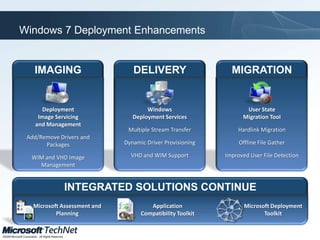
Windows 7 Deployment EnhancementsIMAGINGDELIVERYMIGRATIONUser State Migration ToolHardlink MigrationOffline File GatherImproved User File DetectionWindows Deployment ServicesMultiple Stream TransferDynamic Driver ProvisioningVHD and WIM SupportDeployment Image Servicing and ManagementAdd/Remove Drivers and PackagesWIM and VHD Image ManagementINTEGRATED SOLUTIONS CONTINUEMicrosoft Assessment and PlanningApplication Compatibility ToolkitMicrosoft Deployment Toolkit
Windows 7 Deployment Enhancements - NotesIMAGINGDELIVERYMIGRATIONUser State Migration ToolHardlink MigrationOffline File GatherImproved User File DetectionWindows Deployment ServicesMultiple Stream TransferDynamic Driver ProvisioningVHD and WIM SupportDeployment Image Servicing and ManagementAdd/Remove Drivers and PackagesWIM and VHD Image ManagementINTEGRATED SOLUTIONS CONTINUEMicrosoft Assessment and PlanningApplication Compatibility ToolkitMicrosoft Deployment Toolkit
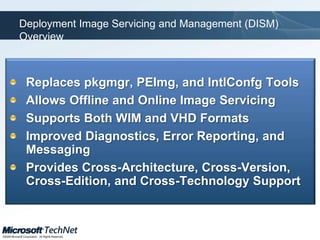
Deployment Image Servicing and Management (DISM) OverviewReplaces pkgmgr, PEImg, and IntlConfg ToolsAllows Offline and Online Image ServicingSupports Both WIM and VHD Formats Improved Diagnostics, Error Reporting, and MessagingProvides Cross-Architecture, Cross-Version, Cross-Edition, and Cross-Technology Support
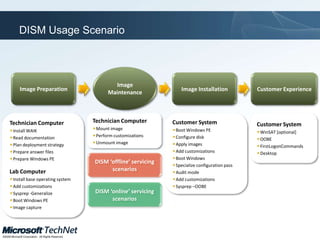
DISM Usage ScenarioImageMaintenanceImage PreparationCustomer ExperienceImage InstallationTechnician ComputerInstall WAIKRead documentationPlan deployment strategyPrepare answer filesPrepare Windows PELab ComputerInstall base operating systemAdd customizationsSysprep -GeneralizeBoot Windows PEImage captureCustomer SystemWinSAT [optional]OOBEFirstLogonCommandsDesktopCustomer SystemBoot Windows PEConfigure diskApply imagesAdd customizationsBoot WindowsSpecialize configuration passAudit modeAdd customizationsSysprep –OOBETechnician ComputerMount imagePerform customizationsUnmount imageDISM ‘offline’ servicing scenariosDISM ‘online’ servicing scenarios
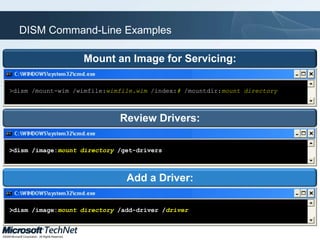
DISM Command-Line ExamplesMount an Image for Servicing:>dism /mount-wim /wimfile:wimfile.wim/index:# /mountdir:mount directoryReview Drivers:>dism /image:mount directory /get-driversAdd a Driver:>dism /image:mount directory /add-driver /driver
Demonstration Environment
Review DISM and Mount an Image FileReview Packages, Features, and DriversChange LanguageSettings in Boot ImageDemonstration: Modifying Windows 7 Operating Systems with DISM
AgendaModifying Windows 7 Operating Systems with DISMAutomating Deployment Using Windows Deployment Services (WDS)Provisioning Virtual Machines
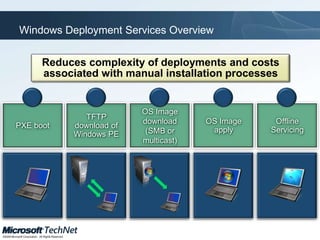
Windows Deployment Services OverviewReduces complexity of deployments and costs associated with manual installation processes12345PXE bootTFTP download of Windows PEOS Image download(SMB or multicast)OS Image applyOffline Servicing
Windows Deployment Services Overview - NotesReduces complexity of deployments and costs associated with manual installation processes12345PXE bootTFTP download of Windows PEOS Image download(SMB or multicast)OS Image applyOffline Servicing
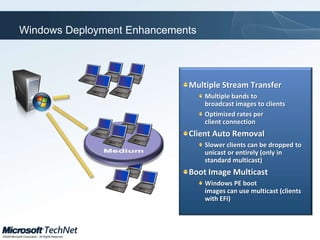
Windows Deployment EnhancementsMultiple Stream TransferMultiple bands to broadcast images to clientsOptimized rates per client connectionClient Auto RemovalSlower clients can be dropped to unicast or entirely (only in standard multicast)Boot Image MulticastWindows PE boot images can use multicast (clients with EFI)Medium
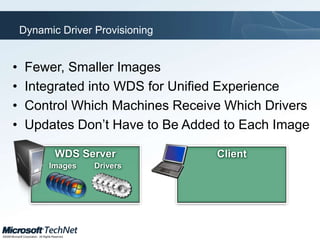
Dynamic Driver ProvisioningFewer, Smaller Images
Integrated into WDS for Unified Experience
Control Which Machines Receive Which Drivers
Updates Don’t Have to Be Added to Each ImageWDS ServerImages 	DriversClient
Configure Windows Deployment ServicesDeploy Windows 7 to a New ComputerUse Multicast Transmissions to Deploy Multiple ClientsDemonstration: Automating Deployment Using Windows Deployment Services
AgendaModifying Windows 7 Operating Systems with DISMAutomating Deployment Using Windows Deployment Services (WDS)Provisioning Virtual Machines
VHD Deployment OverviewVirtualization Increasingly Common in the EnterpriseDifferent Image Formats Have Meant More MaintenanceWIM for physical machinesVHD for virtual machinesNative VHD Boot Enables Unification and Lower Costs
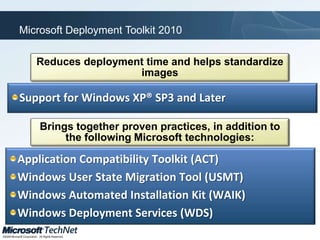
Microsoft Deployment Toolkit 2010Reduces deployment time and helps standardize imagesSupport for Windows XP® SP3 and LaterBrings together proven practices, in addition to the following Microsoft technologies:Application Compatibility Toolkit (ACT) Windows User State Migration Tool (USMT) Windows Automated Installation Kit (WAIK)Windows Deployment Services (WDS)
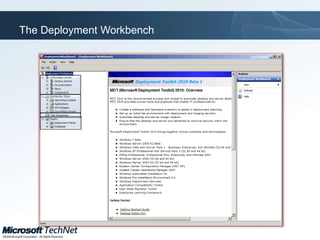
The Deployment Workbench
Attach and Explore a Virtual Hard Disk FileCreate an Unattended Setup FileDeploy Windows 7 with the Microsoft Deployment ToolkitDemonstration: Provisioning Virtual Machines
Session SummaryDISM replaces and enhances several older tools to service and manage imagesWindows Deployment Services enables you to remotely deploy WindowsMDT is another way to create low-touch remote operating system deployments

Windows 7 Deployment Enhancements

  • 1.
  • 2.
    Do Not DeleteThis SlideWe appreciate hearing from you. To send your feedback, click the following link and type your comments in the message body. Note: The subject-line information is used to route your feedback. If you remove or modify the subject line we may be unable to process your feedback. Your feedback may be used to improve our products, technologies and services.Send feedback
  • 3.
  • 4.
    What Will WeCover?Review New Deployment Tools and EnhancementsDeploy Operating Systems with Windows Deployment ServicesProvision Virtual Machines with Microsoft Deployment Toolkit
  • 5.
    AgendaModifying Windows 7Operating Systems with Deployment Image Servicing and Management (DISM)Automating Deployment Using Windows Deployment Services (WDS)Provisioning Virtual Machines
  • 6.
    Windows 7 DeploymentEnhancementsIMAGINGDELIVERYMIGRATIONUser State Migration ToolHardlink MigrationOffline File GatherImproved User File DetectionWindows Deployment ServicesMultiple Stream TransferDynamic Driver ProvisioningVHD and WIM SupportDeployment Image Servicing and ManagementAdd/Remove Drivers and PackagesWIM and VHD Image ManagementINTEGRATED SOLUTIONS CONTINUEMicrosoft Assessment and PlanningApplication Compatibility ToolkitMicrosoft Deployment Toolkit
  • 7.
    Windows 7 DeploymentEnhancements - NotesIMAGINGDELIVERYMIGRATIONUser State Migration ToolHardlink MigrationOffline File GatherImproved User File DetectionWindows Deployment ServicesMultiple Stream TransferDynamic Driver ProvisioningVHD and WIM SupportDeployment Image Servicing and ManagementAdd/Remove Drivers and PackagesWIM and VHD Image ManagementINTEGRATED SOLUTIONS CONTINUEMicrosoft Assessment and PlanningApplication Compatibility ToolkitMicrosoft Deployment Toolkit
  • 8.
    Deployment Image Servicingand Management (DISM) OverviewReplaces pkgmgr, PEImg, and IntlConfg ToolsAllows Offline and Online Image ServicingSupports Both WIM and VHD Formats Improved Diagnostics, Error Reporting, and MessagingProvides Cross-Architecture, Cross-Version, Cross-Edition, and Cross-Technology Support
  • 9.
    DISM Usage ScenarioImageMaintenanceImagePreparationCustomer ExperienceImage InstallationTechnician ComputerInstall WAIKRead documentationPlan deployment strategyPrepare answer filesPrepare Windows PELab ComputerInstall base operating systemAdd customizationsSysprep -GeneralizeBoot Windows PEImage captureCustomer SystemWinSAT [optional]OOBEFirstLogonCommandsDesktopCustomer SystemBoot Windows PEConfigure diskApply imagesAdd customizationsBoot WindowsSpecialize configuration passAudit modeAdd customizationsSysprep –OOBETechnician ComputerMount imagePerform customizationsUnmount imageDISM ‘offline’ servicing scenariosDISM ‘online’ servicing scenarios
  • 10.
    DISM Command-Line ExamplesMountan Image for Servicing:>dism /mount-wim /wimfile:wimfile.wim/index:# /mountdir:mount directoryReview Drivers:>dism /image:mount directory /get-driversAdd a Driver:>dism /image:mount directory /add-driver /driver
  • 11.
  • 12.
    Review DISM andMount an Image FileReview Packages, Features, and DriversChange LanguageSettings in Boot ImageDemonstration: Modifying Windows 7 Operating Systems with DISM
  • 13.
    AgendaModifying Windows 7Operating Systems with DISMAutomating Deployment Using Windows Deployment Services (WDS)Provisioning Virtual Machines
  • 14.
    Windows Deployment ServicesOverviewReduces complexity of deployments and costs associated with manual installation processes12345PXE bootTFTP download of Windows PEOS Image download(SMB or multicast)OS Image applyOffline Servicing
  • 15.
    Windows Deployment ServicesOverview - NotesReduces complexity of deployments and costs associated with manual installation processes12345PXE bootTFTP download of Windows PEOS Image download(SMB or multicast)OS Image applyOffline Servicing
  • 16.
    Windows Deployment EnhancementsMultipleStream TransferMultiple bands to broadcast images to clientsOptimized rates per client connectionClient Auto RemovalSlower clients can be dropped to unicast or entirely (only in standard multicast)Boot Image MulticastWindows PE boot images can use multicast (clients with EFI)Medium
  • 17.
  • 18.
    Integrated into WDSfor Unified Experience
  • 19.
    Control Which MachinesReceive Which Drivers
  • 20.
    Updates Don’t Haveto Be Added to Each ImageWDS ServerImages DriversClient
  • 21.
    Configure Windows DeploymentServicesDeploy Windows 7 to a New ComputerUse Multicast Transmissions to Deploy Multiple ClientsDemonstration: Automating Deployment Using Windows Deployment Services
  • 22.
    AgendaModifying Windows 7Operating Systems with DISMAutomating Deployment Using Windows Deployment Services (WDS)Provisioning Virtual Machines
  • 23.
    VHD Deployment OverviewVirtualizationIncreasingly Common in the EnterpriseDifferent Image Formats Have Meant More MaintenanceWIM for physical machinesVHD for virtual machinesNative VHD Boot Enables Unification and Lower Costs
  • 24.
    Microsoft Deployment Toolkit2010Reduces deployment time and helps standardize imagesSupport for Windows XP® SP3 and LaterBrings together proven practices, in addition to the following Microsoft technologies:Application Compatibility Toolkit (ACT) Windows User State Migration Tool (USMT) Windows Automated Installation Kit (WAIK)Windows Deployment Services (WDS)
  • 25.
  • 26.
    Attach and Explorea Virtual Hard Disk FileCreate an Unattended Setup FileDeploy Windows 7 with the Microsoft Deployment ToolkitDemonstration: Provisioning Virtual Machines
  • 27.
    Session SummaryDISM replacesand enhances several older tools to service and manage imagesWindows Deployment Services enables you to remotely deploy WindowsMDT is another way to create low-touch remote operating system deployments

Editor's Notes

  • #3 Slide Title: FeedbackKeywords: Key Message: Slide Builds: 0Slide Script: Slide Comment: To Send feedback on this slide, use the hyperlink on the feedback slide at the start and end of this deck.Additional Information:
  • #12 Slide Title: Demonstration EnvironmentKeywords: Key Message: Describe the demonstration environment being used.Slide Builds: 0Slide Script: We will mostly be working from a Windows Server 2008 R2 server running in Hyper-V. We’ll use two additional computers to deploy operating systems throughout the course of the demonstration.Slide Transition: So let’s move on to the first demonstration.Slide Comment: To Send feedback on this slide, use the hyperlink on the feedback slide at the start and end of this deck.Additional Information:
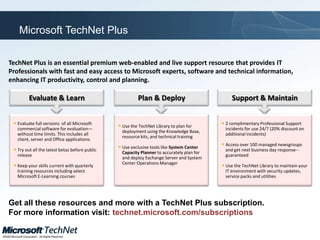
  • #30 Slide Title: TechNet Plus Direct SubscriptionKeywords: Technet, Subscription, Plus, Direct, BenefitsKey Message: TechNet Plus has some new benefits.Slide Builds: 0Slide Script: TechNet Plus is an essential premium web-enabled and live support resource that provides IT Professionals with fast and easy access to Microsoft experts, software and technical information, enhancing IT productivity, control and planning.With convenient access to all these resources in one online location, TechNet Plus provides what you need to help you:Evaluate products & learn new skillsPlan for & deploy new technologiesAnd support & maintain your IT environmentFor evaluation and learning you get access to all Microsoft full-version software for evaluation without time limits. This includes Microsoft Server, Client, and Application software titles. With full-version software, you can make informed decisions about new technologies at your own pace.You also receive access to the latest betas before public release. Be the first to try out the latest pre-release versions of Microsoft operating systems, servers and business applications.TechNet Plus also offers quarterly training resources including select Microsoft E-Learning courses for free so you can keep your skills current, prepare for a certification exam or get ready for a specific project.For planning and deployment the TechNet Library includes resources to help you plan for and deploy new technologies in your IT environment including a complete Knowledge Base, resource kits, utilities and technical training.You also get exclusive tools like System Center Capacity Planner to accurately plan for and deploy Exchange Server and System Center Operations Manager.For support and maintenance TechNet Plus comes with two complimentary Professional Support incidents. You can talk to a Microsoft Support Professional to quickly resolve your mission-critical technical issues fast.TechNet Plus also provides access to over 100 Managed Newsgroups. You can exchange ideas with other professionals and get expert answers to your technical questions within the next business day — guaranteed.You also get access to TechNet Library resources to help you support and maintain your IT environment including security updates and service packs.TechNet Plus offers proven value that far exceeds its cost. The two complimentary Professional Support incidents alone more than offset the cost of a TechNet Plus subscription. Add to that the evaluation and beta software and other technical resources, and TechNet Plus clearly boosts productivity. Every IT Professional on the team needs one.For more information or to purchase a TechNet Plus subscription, please visit: technet.microsoft.com/subscriptions.Slide Transition: Thank you for attending this TechNet event and we hope that you enjoyed learning about the new Microsoft Technologies.Slide Comment: To Send feedback on this slide, use the hyperlink on the feedback slide at the start and end of this deck.Additional Information: technet.microsoft.com/subscriptions
  • #32 Slide Title: FeedbackKeywords: Key Message: Slide Builds: 0Slide Script: Slide Comment: To Send feedback on this slide, use the hyperlink on the feedback slide at the start and end of this deck.Additional Information: