Uploading multiple files
What is NetDrive?
NetDrive is an application that will allow you to connect
all of your web files and folders to a local PC drive from
anywhere in the world.
NetDrive uses secure SSL, so all of your data is
encrypted when using the product.
How to install NetDrive?
To install NetDrive on your home computer or laptop,
begin by downloading the installation executable from
http://www.netdrive.net/download.html
After you have downloaded the executable, double click
on the Netdrive-SETUP.exe icon to begin installation.
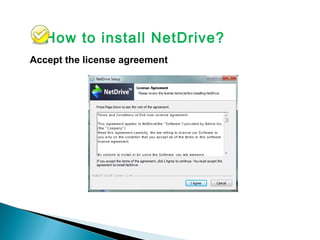
Accept the license agreement
How to install NetDrive?
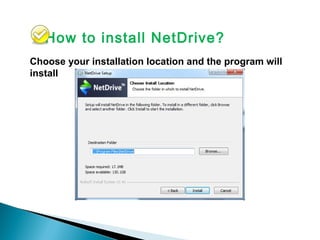
Choose your installation location and the program will
install
How to install NetDrive?
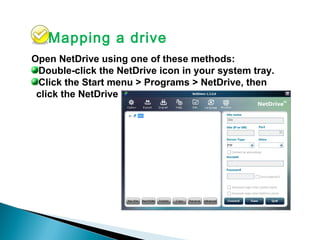
Open NetDrive using one of these methods:
Double-click the NetDrive icon in your system tray.
Click the Start menu > Programs > NetDrive, then
click the NetDrive icon.
Mapping a drive
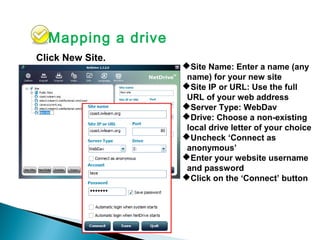
Site Name: Enter a name (any
name) for your new site
Site IP or URL: Use the full
URL of your web address
Server Type: WebDav
Drive: Choose a non-existing
local drive letter of your choice
Uncheck ‘Connect as
anonymous’
Enter your website username
and password
Click on the ‘Connect’ button
Click New Site.
Mapping a drive
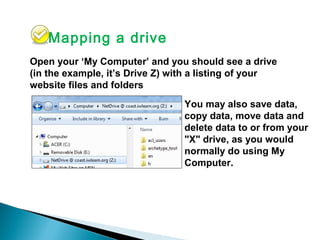
Open your ‘My Computer’ and you should see a drive
(in the example, it’s Drive Z) with a listing of your
website files and folders
You may also save data,
copy data, move data and
delete data to or from your
"X" drive, as you would
normally do using My
Computer.
Mapping a drive
Word of caution
While NetDrive is ideal for batch uploading, copying and
moving web pages within a server’s namespace, please bear in
mind that using Netdrive does not automatically carry and
update links between two or more items automatically nor does
it update a content’s properties (e.g. title, summary, related
items, etc.). In fact, one should always update file title &
description after upload using Plone web interface because
sometimes Netdrive would put description like "Error: may not
be a pdf file...“ when the file is actually OK.
Cut/copy/paste via web interface is much faster.
Word of caution
While NetDrive is ideal for batch uploading, copying and
moving web pages within a server’s namespace, please bear in
mind that using Netdrive does not automatically carry and
update links between two or more items automatically nor does
it update a content’s properties (e.g. title, summary, related
items, etc.). In fact, one should always update file title &
description after upload using Plone web interface because
sometimes Netdrive would put description like "Error: may not
be a pdf file...“ when the file is actually OK.
Cut/copy/paste via web interface is much faster.

Website Toolkit: Netdrive tutorial

  • 1.
  • 2.
    What is NetDrive? NetDriveis an application that will allow you to connect all of your web files and folders to a local PC drive from anywhere in the world. NetDrive uses secure SSL, so all of your data is encrypted when using the product.
  • 3.
    How to installNetDrive? To install NetDrive on your home computer or laptop, begin by downloading the installation executable from http://www.netdrive.net/download.html After you have downloaded the executable, double click on the Netdrive-SETUP.exe icon to begin installation.
  • 4.
    Accept the licenseagreement How to install NetDrive?
  • 5.
    Choose your installationlocation and the program will install How to install NetDrive?
  • 6.
    Open NetDrive usingone of these methods: Double-click the NetDrive icon in your system tray. Click the Start menu > Programs > NetDrive, then click the NetDrive icon. Mapping a drive
  • 7.
    Site Name: Entera name (any name) for your new site Site IP or URL: Use the full URL of your web address Server Type: WebDav Drive: Choose a non-existing local drive letter of your choice Uncheck ‘Connect as anonymous’ Enter your website username and password Click on the ‘Connect’ button Click New Site. Mapping a drive
  • 8.
    Open your ‘MyComputer’ and you should see a drive (in the example, it’s Drive Z) with a listing of your website files and folders You may also save data, copy data, move data and delete data to or from your "X" drive, as you would normally do using My Computer. Mapping a drive
  • 9.
    Word of caution WhileNetDrive is ideal for batch uploading, copying and moving web pages within a server’s namespace, please bear in mind that using Netdrive does not automatically carry and update links between two or more items automatically nor does it update a content’s properties (e.g. title, summary, related items, etc.). In fact, one should always update file title & description after upload using Plone web interface because sometimes Netdrive would put description like "Error: may not be a pdf file...“ when the file is actually OK. Cut/copy/paste via web interface is much faster.
  • 10.
    Word of caution WhileNetDrive is ideal for batch uploading, copying and moving web pages within a server’s namespace, please bear in mind that using Netdrive does not automatically carry and update links between two or more items automatically nor does it update a content’s properties (e.g. title, summary, related items, etc.). In fact, one should always update file title & description after upload using Plone web interface because sometimes Netdrive would put description like "Error: may not be a pdf file...“ when the file is actually OK. Cut/copy/paste via web interface is much faster.