Introduction to Safe Software’s
FME®
Getting Started with FME Desktop
Your Burning Questions Answered
Chris Berger
Desktop Technology Expert
Jovita Chan
Desktop Technology Expert
Your photo here
Presenters
Nampreet Singh
Desktop Technology Experts
AGENDA
1. Overview: FME Desktop
1.1. Intro to Data Inspector
1.2. Intro to Workbench
2. Authoring a Workspace
2.1. Readers, Transformers & Writers
2.2. Attributes
2.3. Parameters
2.4. Debugging
3. Demo
3.1. Converting CAD to GIS
4. Learning Resources & Support
Poll: How long have you
been using FME?
A. Never used it
B. Opened it a few times
C. Less than 6 months
D. More than 6 months
Overview:
FME Desktop
OUR MISSION
To help you maximize the
value of your data.
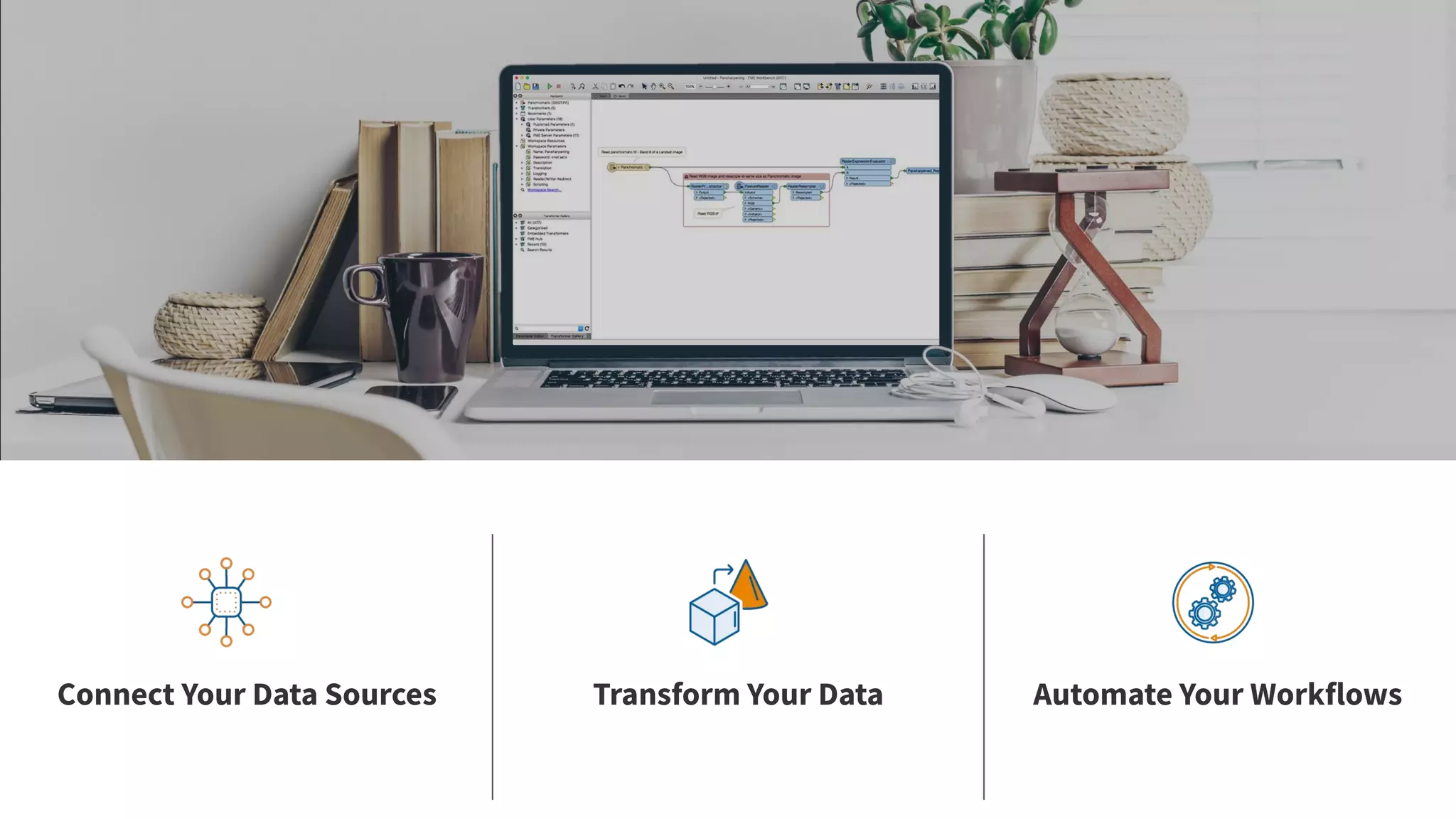
Connect Your Data Sources Transform Your Data Automate Your Workflows
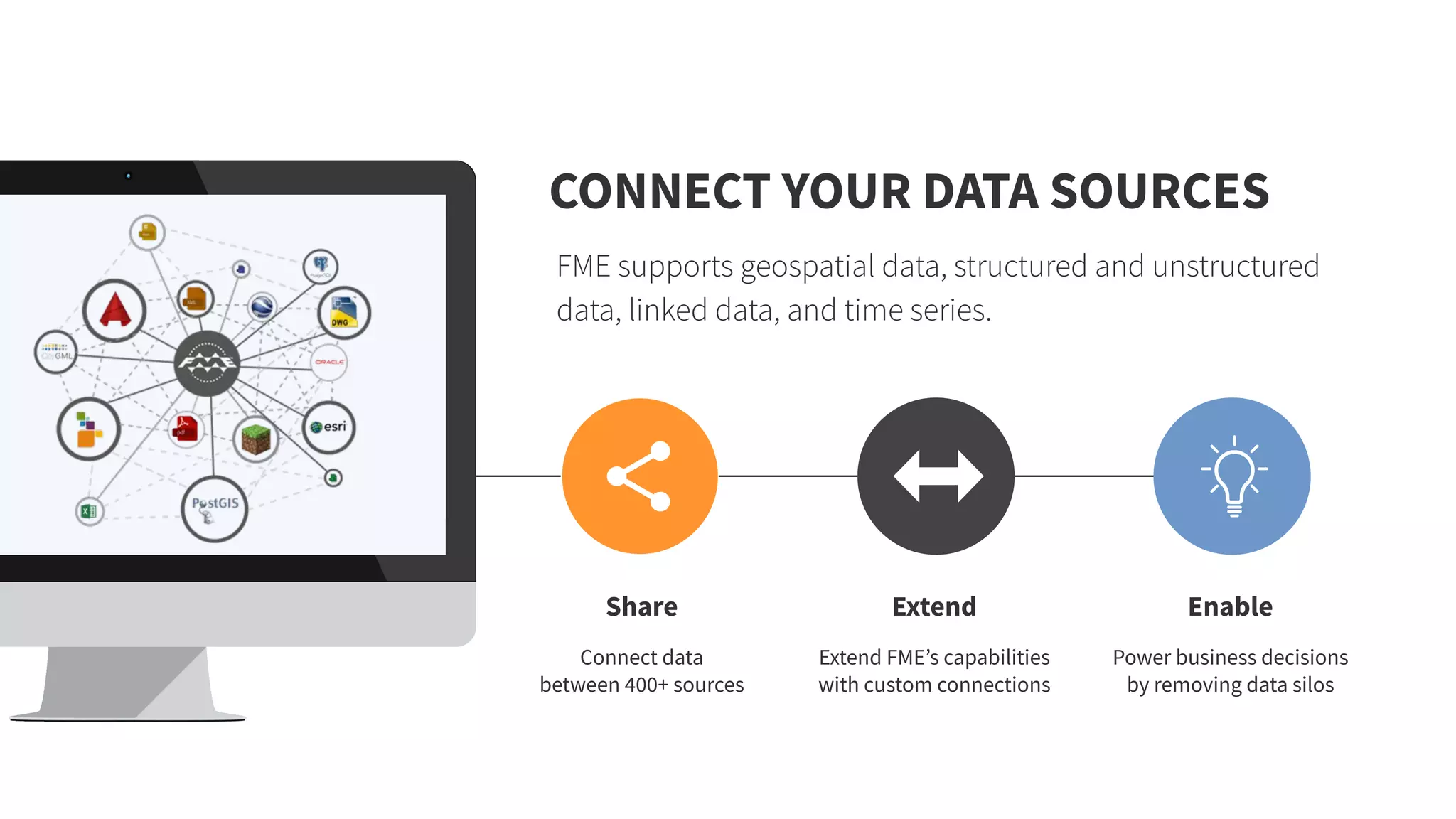
CONNECT YOUR DATA SOURCES
FME supports geospatial data, structured and unstructured
data, linked data, and time series.
Share
Connect data
between 400+ sources
Extend
Extend FME’s capabilities
with custom connections
Enable
Power business decisions
by removing data silos
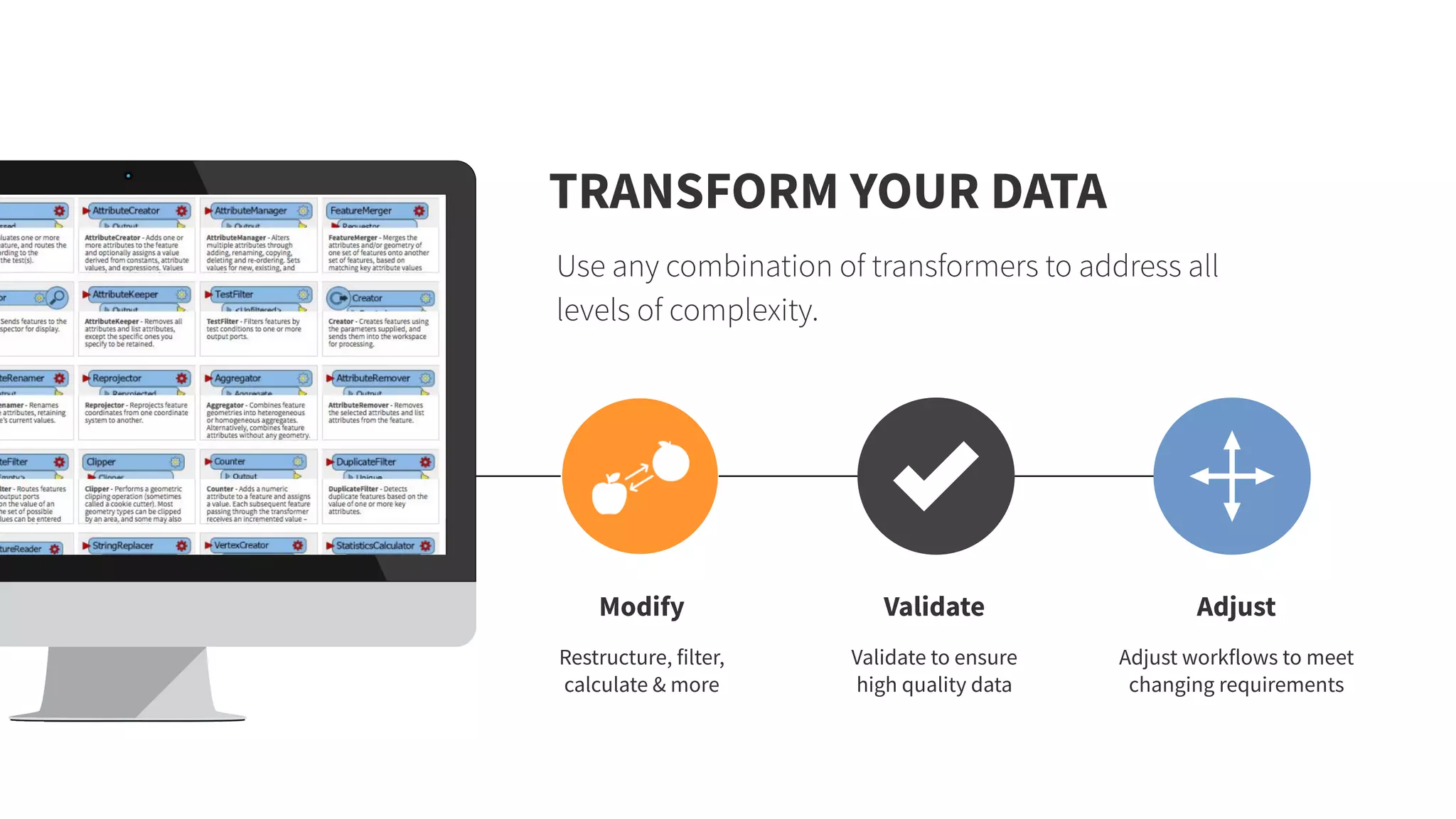
Validate
Validate to ensure
high quality data
Adjust
Adjust workflows to meet
changing requirements
TRANSFORM YOUR DATA
Use any combination of transformers to address all
levels of complexity.
Modify
Restructure, filter,
calculate & more
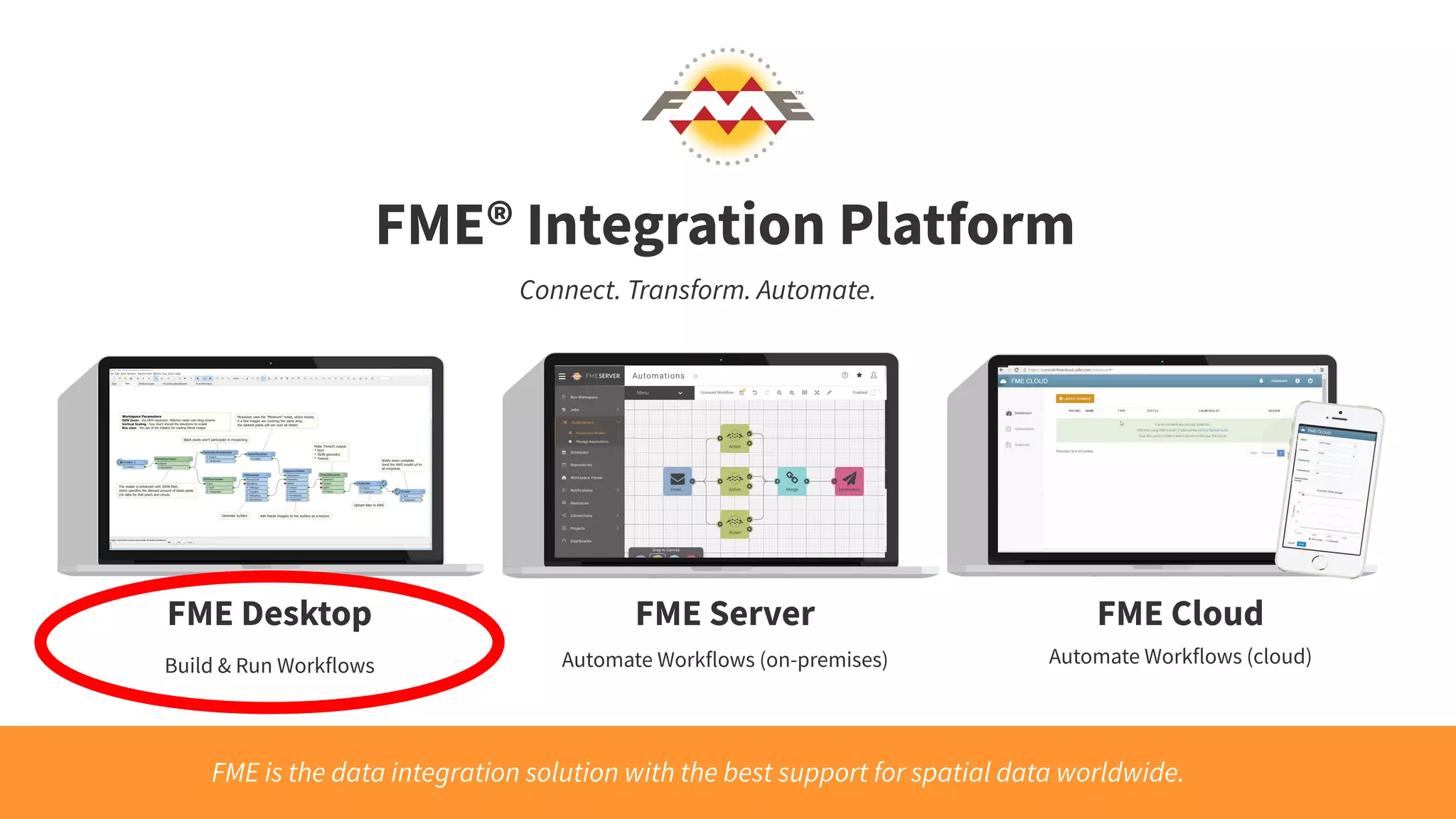
FME® Integration Platform
FME Desktop FME Server FME Cloud
Connect. Transform. Automate.
FME is the data integration solution with the best support for spatial data worldwide.
Build & Run Workflows Automate Workflows (on-premises) Automate Workflows (cloud)
Intro to Data Inspector
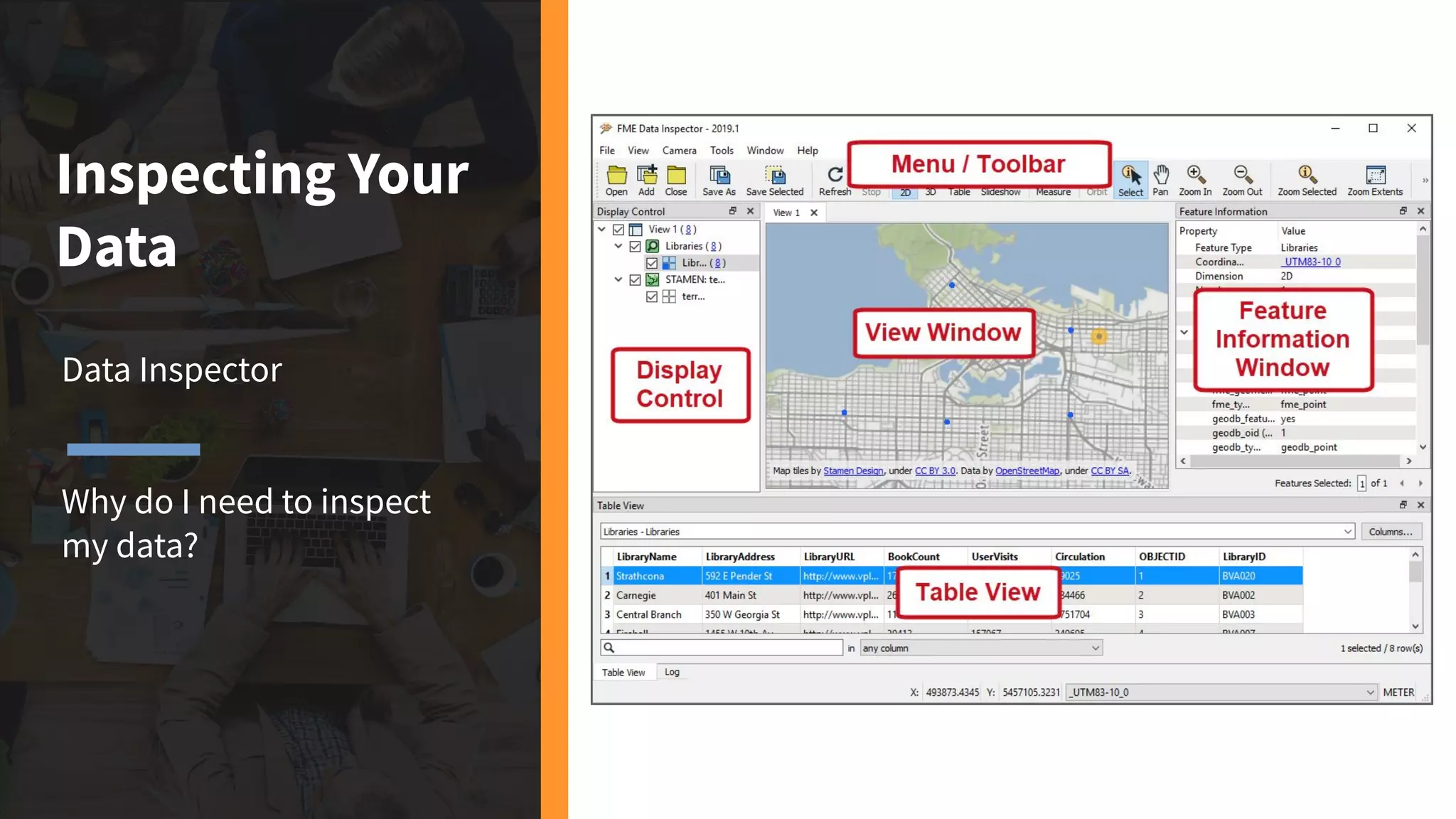
Inspecting Your
Data
Data Inspector
Why do I need to inspect
my data?
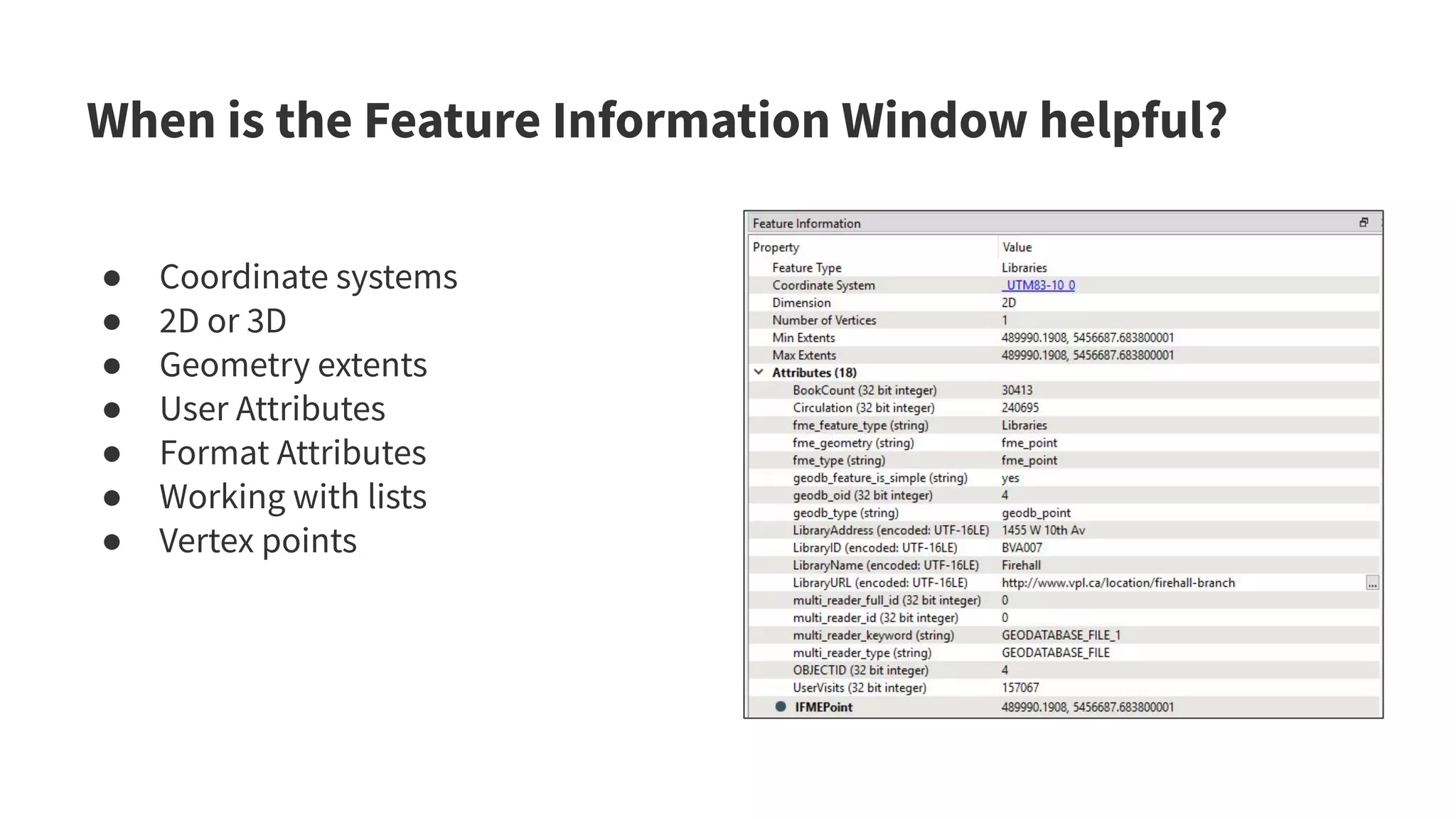
When is the Feature Information Window helpful?
● Coordinate systems
● 2D or 3D
● Geometry extents
● User Attributes
● Format Attributes
● Working with lists
● Vertex points
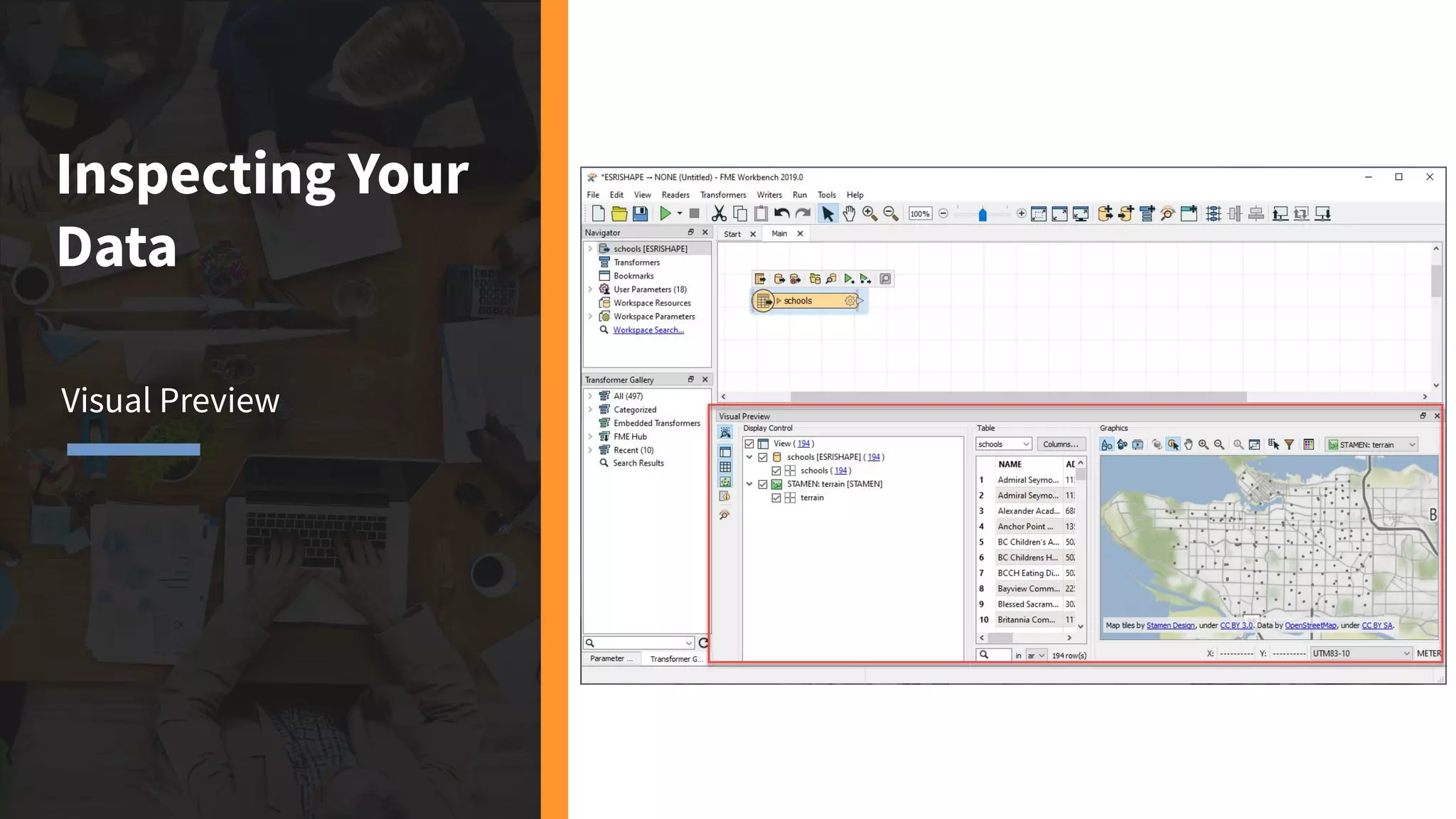
Inspecting Your
Data
Visual Preview
What’s the
Difference?
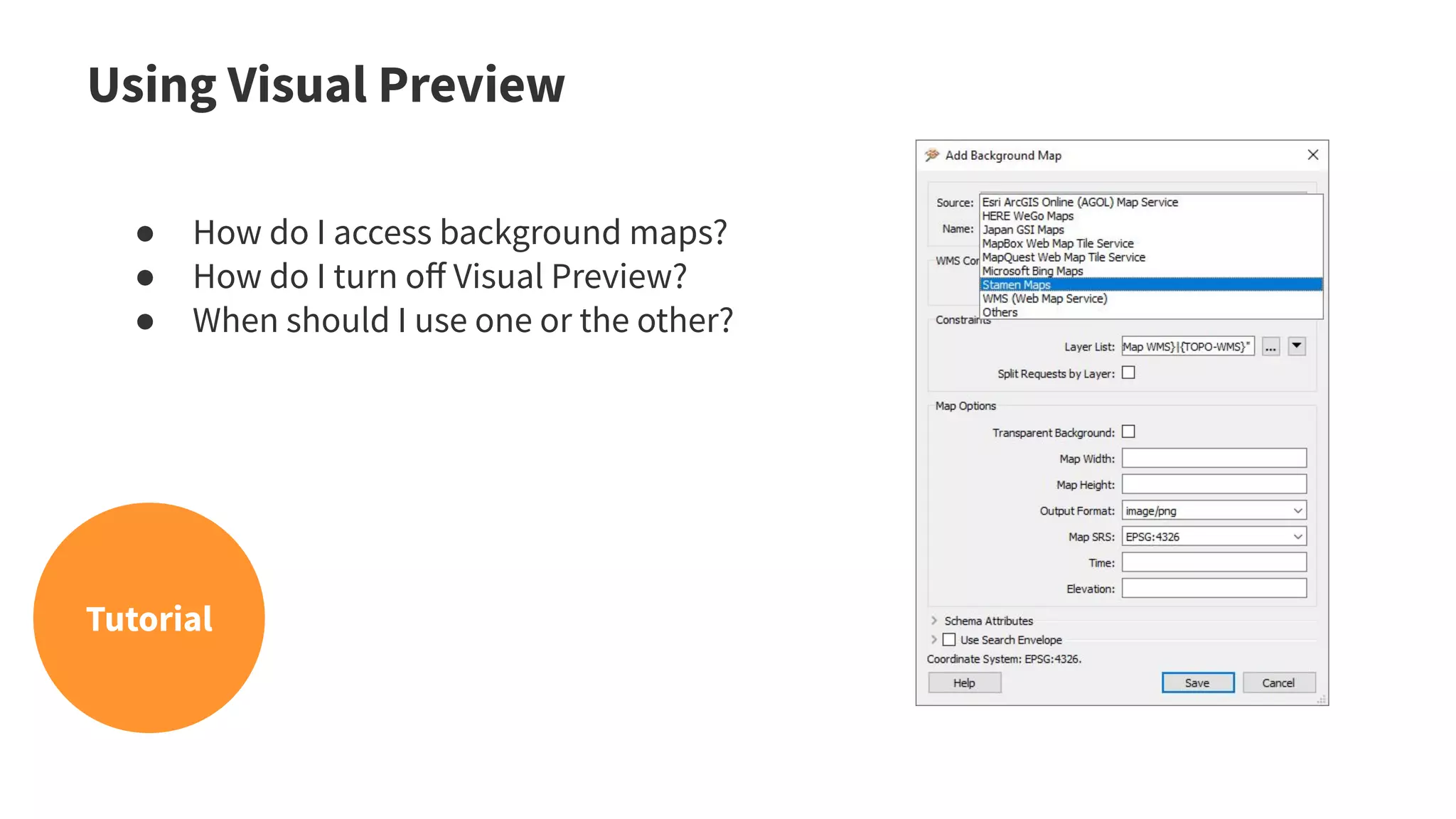
● How do I access background maps?
● How do I turn off Visual Preview?
● When should I use one or the other?
Using Visual Preview
Tutorial
Intro to Workbench
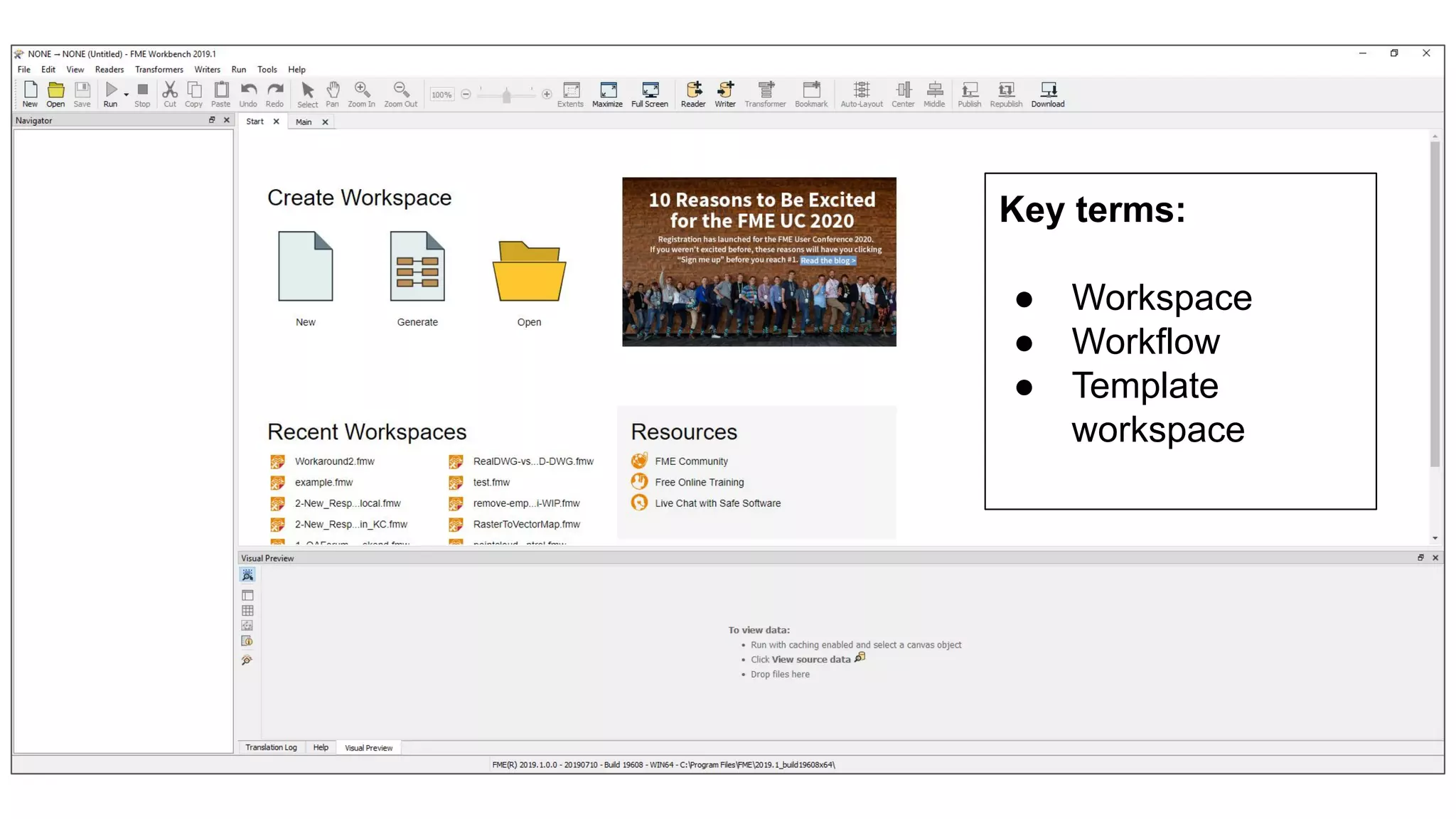
Key terms:
● Workspace
● Workflow
● Template
workspace
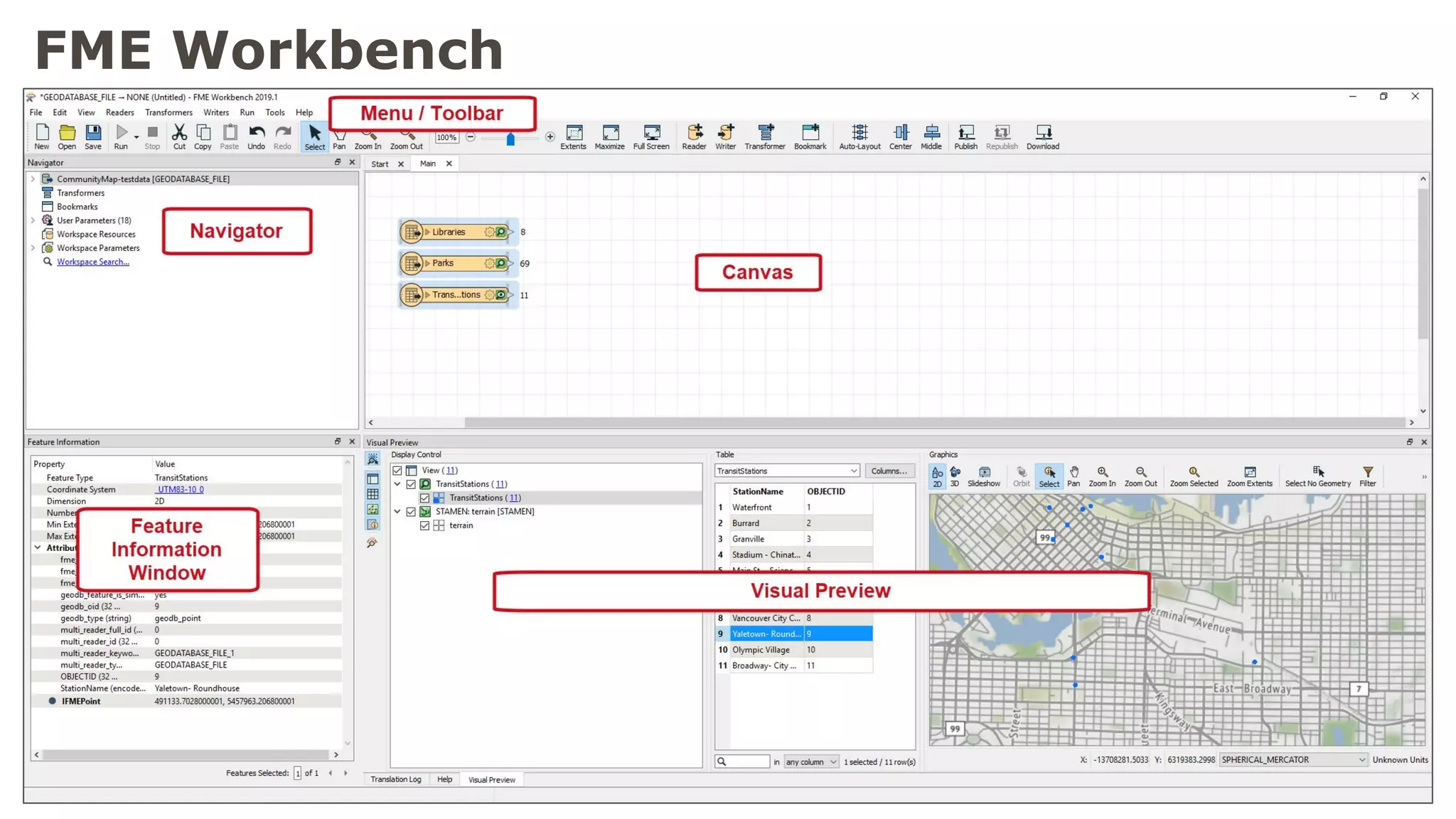
FME Workbench
Authoring a Workspace:
2.1. Readers, Transformers & Writers
Reading Data
Ways to add data:
1. Quick Add
2. Reader Icon
3. Reader Menu
4. Drag & Drop
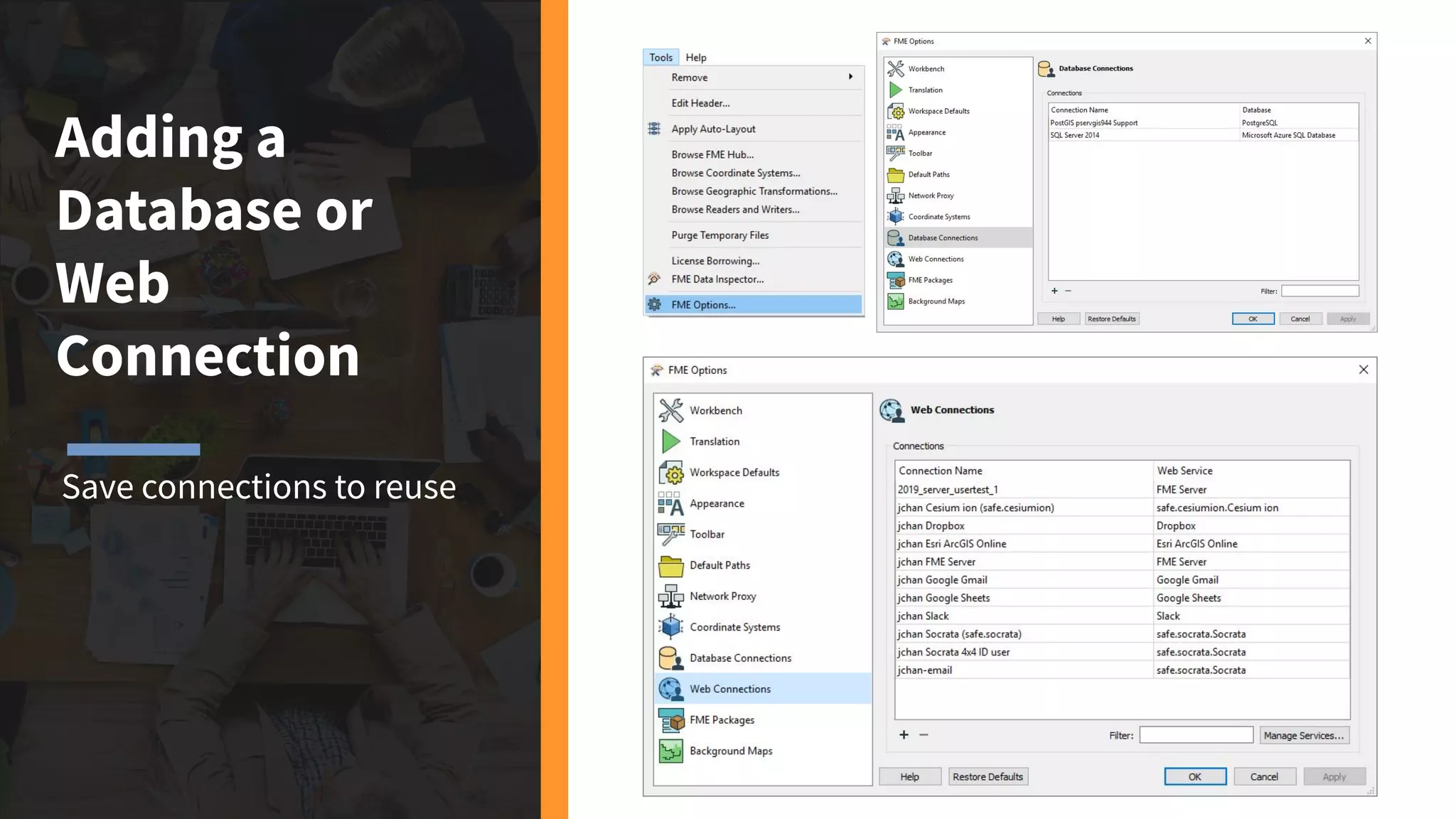
Adding a
Database or
Web
Connection
Save connections to reuse
23
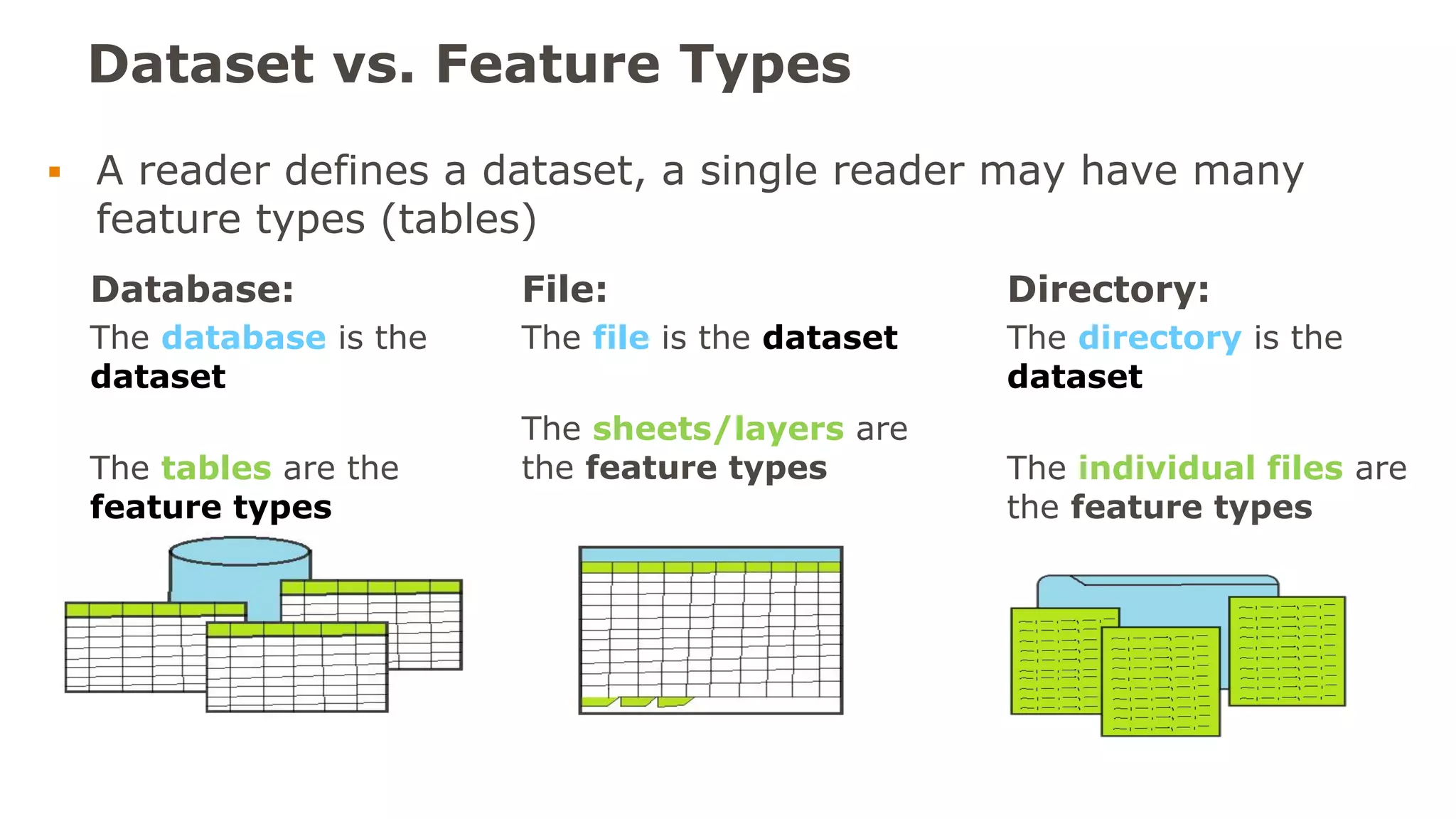
Dataset vs. Feature Types
Database:
The database is the
dataset
The tables are the
feature types
Authoring: Readers, Transformers, Writers
File:
The file is the dataset
The sheets/layers are
the feature types
Directory:
The directory is the
dataset
The individual files are
the feature types
▪ A reader defines a dataset, a single reader may have many
feature types (tables)
Transformers
Adding Transformers:
1. Quick Add
2. Transformer Icon
3. Toolbar Transformer
4. Transformer Gallery
Transformers
Connecting objects on the
Canvas
1. Click and Drag
2. Auto Connect
(previous selected)
3. Hover over
4. Shift click
Writing Data
Ways to add data:
1. Quick Add
2. Writer Icon
3. Writer Menu
Tutorial
27
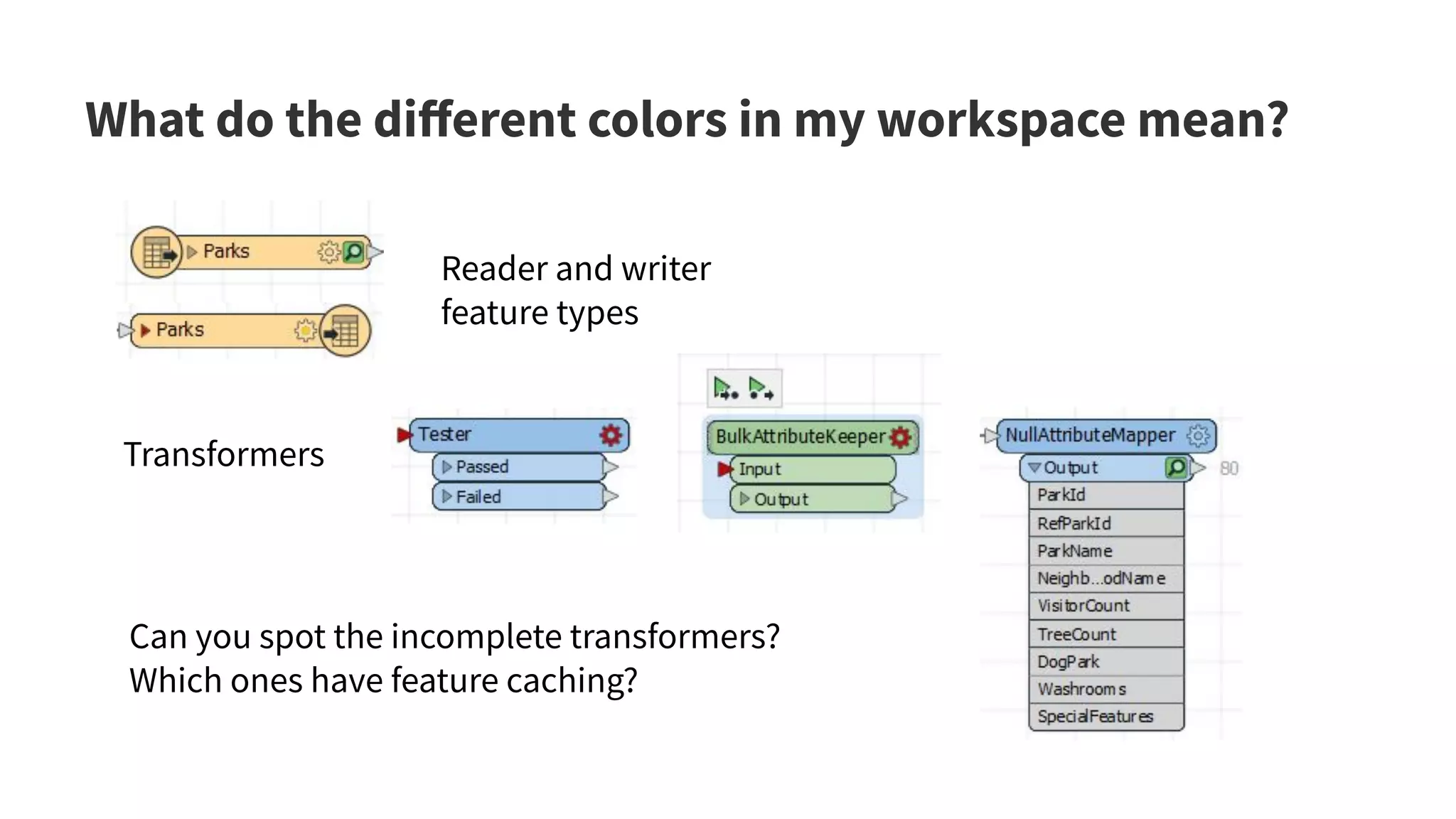
What do the different colors in my workspace mean?
Authoring: Readers, Transformers, Writers
Reader and writer
feature types
Transformers
Can you spot the incomplete transformers?
Which ones have feature caching?
28
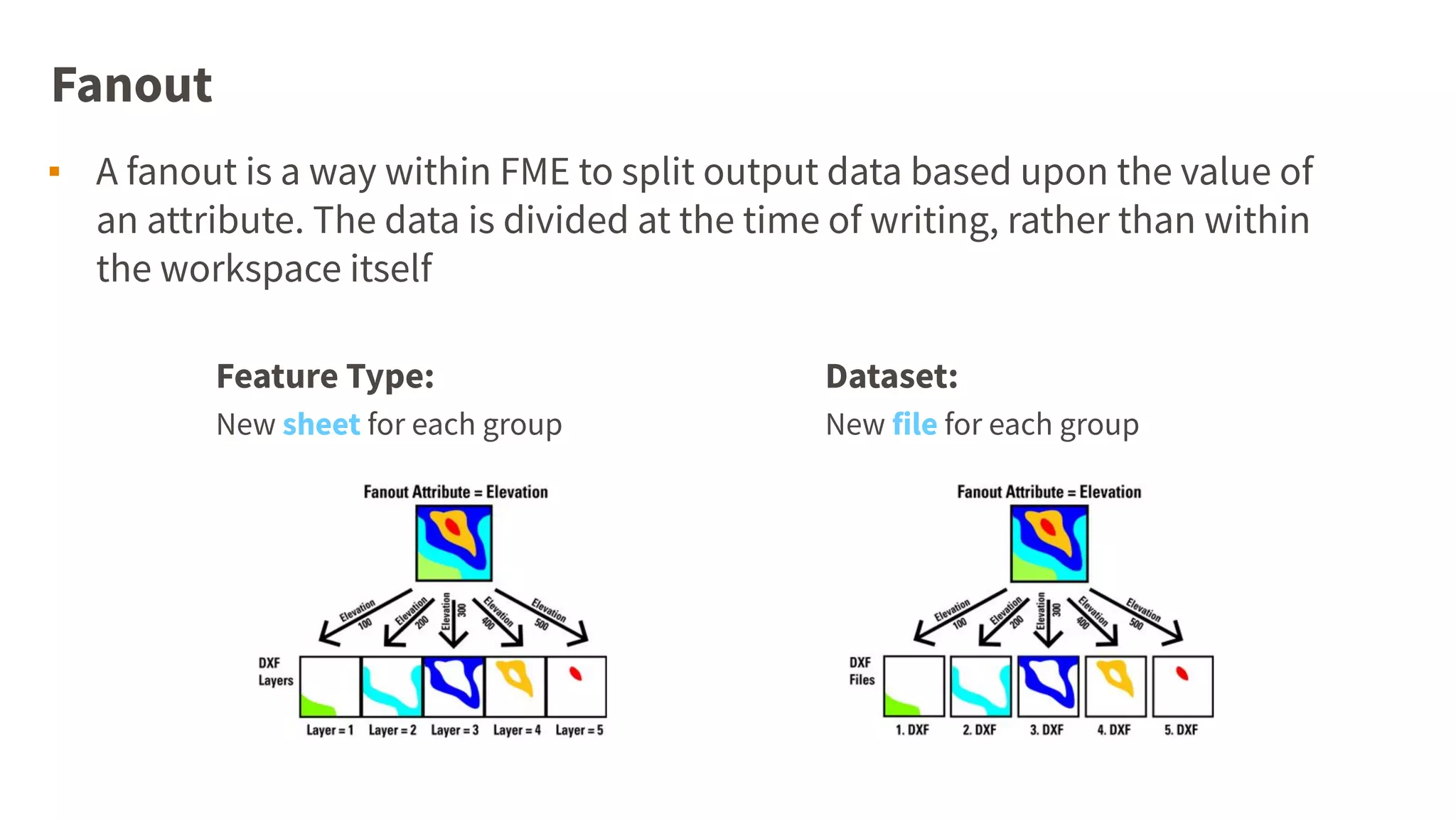
Fanout
Dataset:
New file for each group
▪ A fanout is a way within FME to split output data based upon the value of
an attribute. The data is divided at the time of writing, rather than within
the workspace itself
Feature Type:
New sheet for each group
Authoring a Workspace:
2.2. Attributes
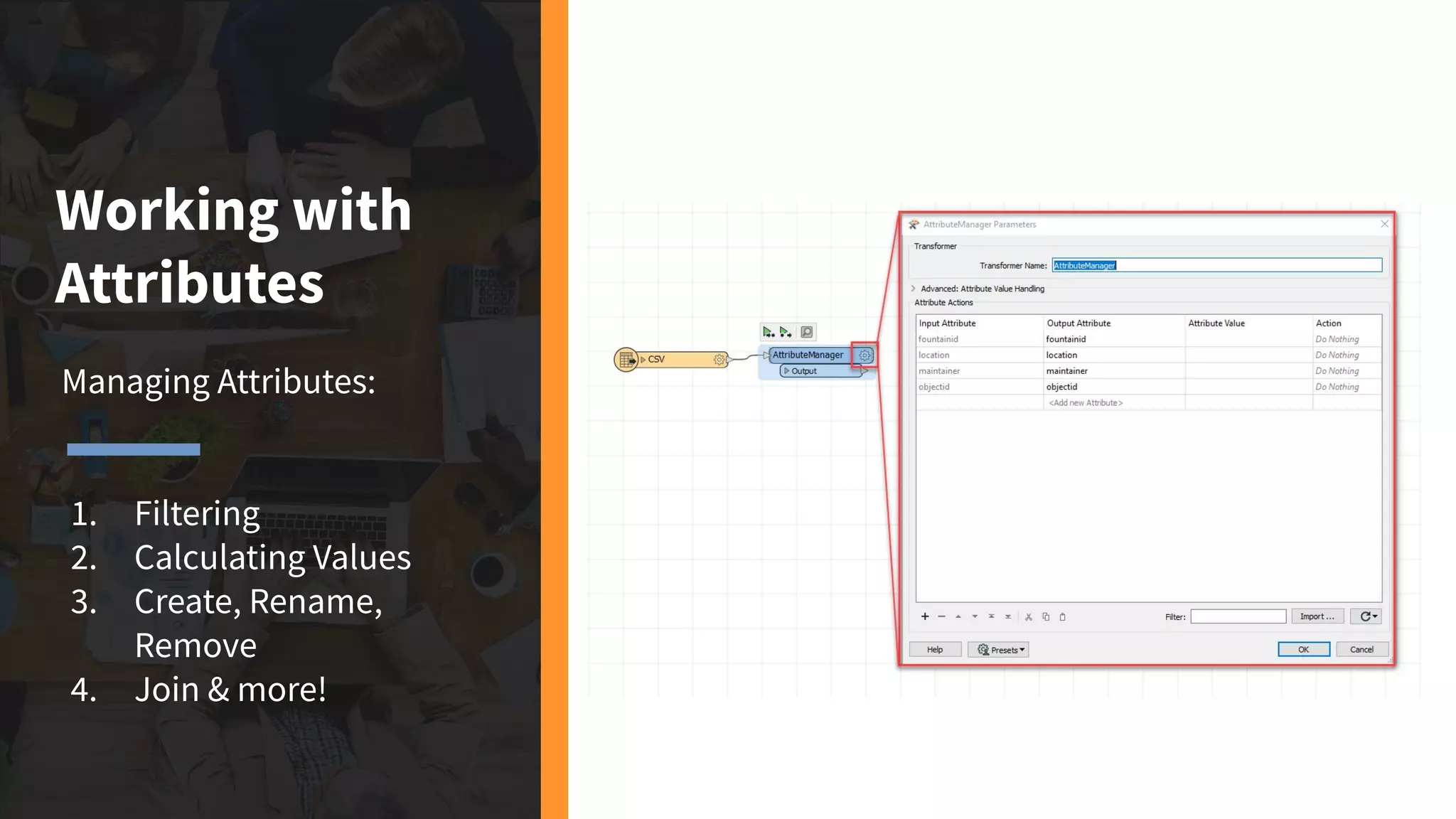
Working with
Attributes
Managing Attributes:
1. Filtering
2. Calculating Values
3. Create, Rename,
Remove
4. Join & more!
Authoring a Workspace:
2.3. Parameters
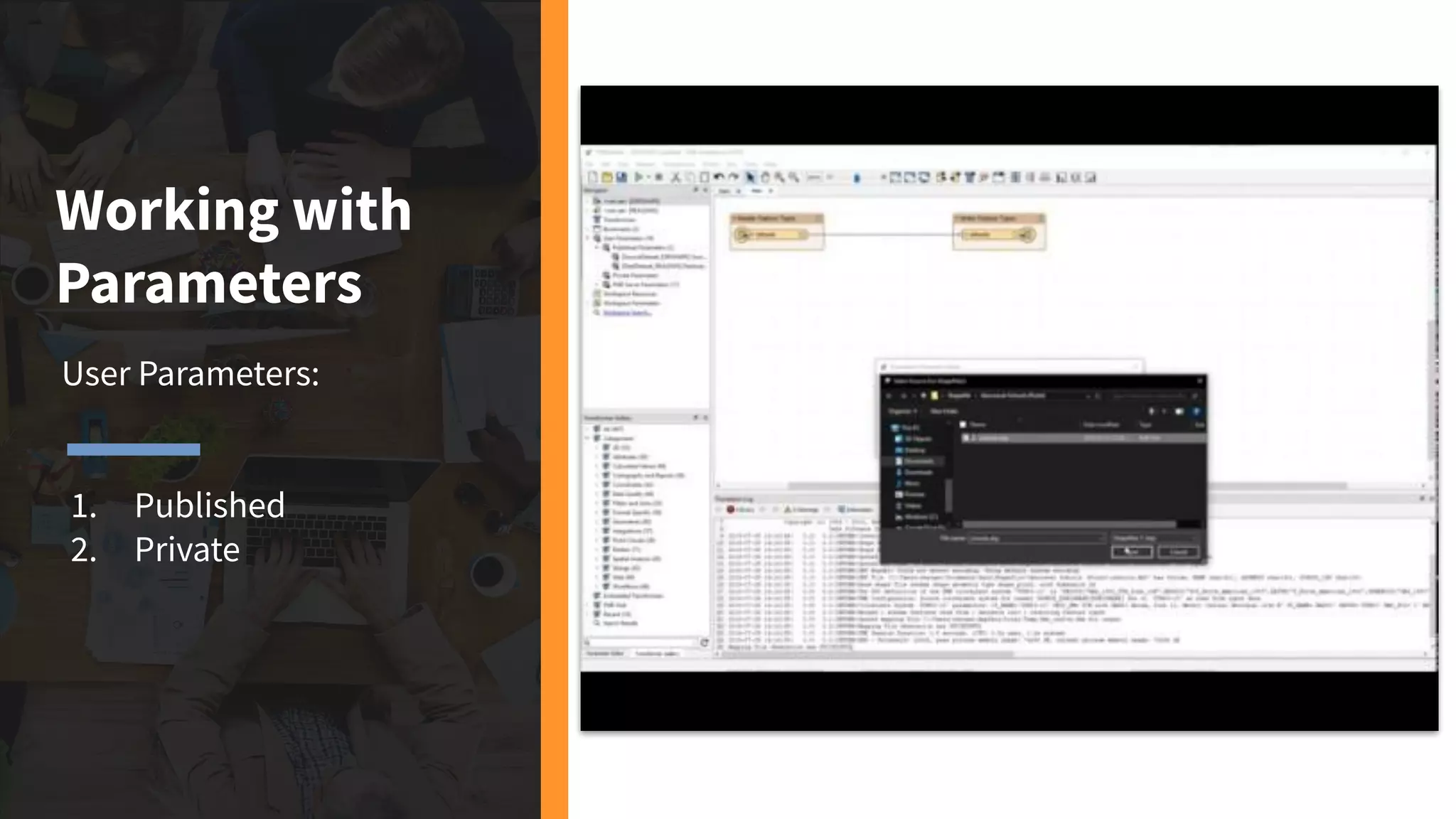
Working with
Parameters
User Parameters:
1. Published
2. Private
Authoring a Workspace:
2.4 Debugging
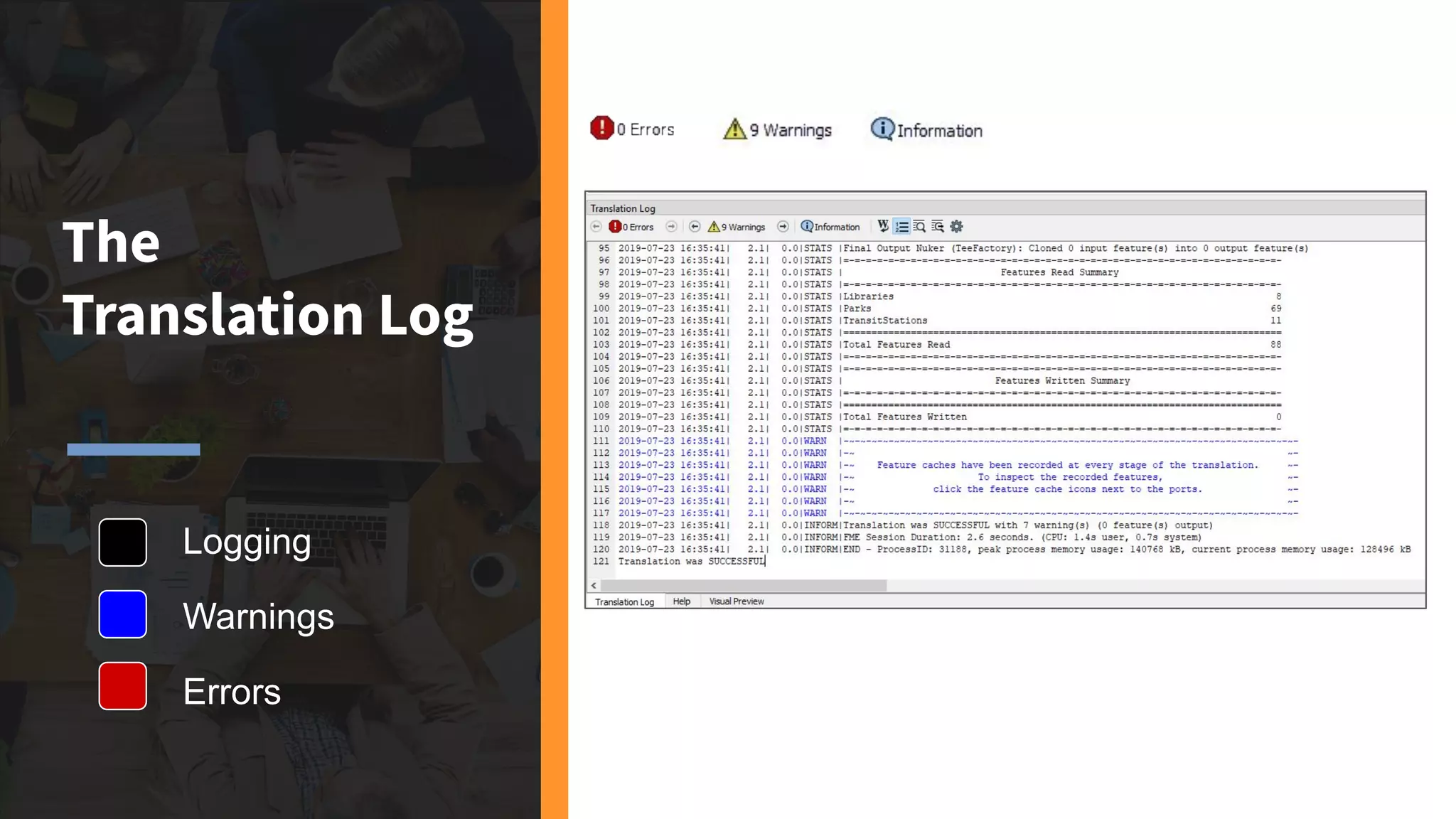
The
Translation Log
Logging
Warnings
Errors
Demo
Converting CAD to GIS
Learning Resources
and Support
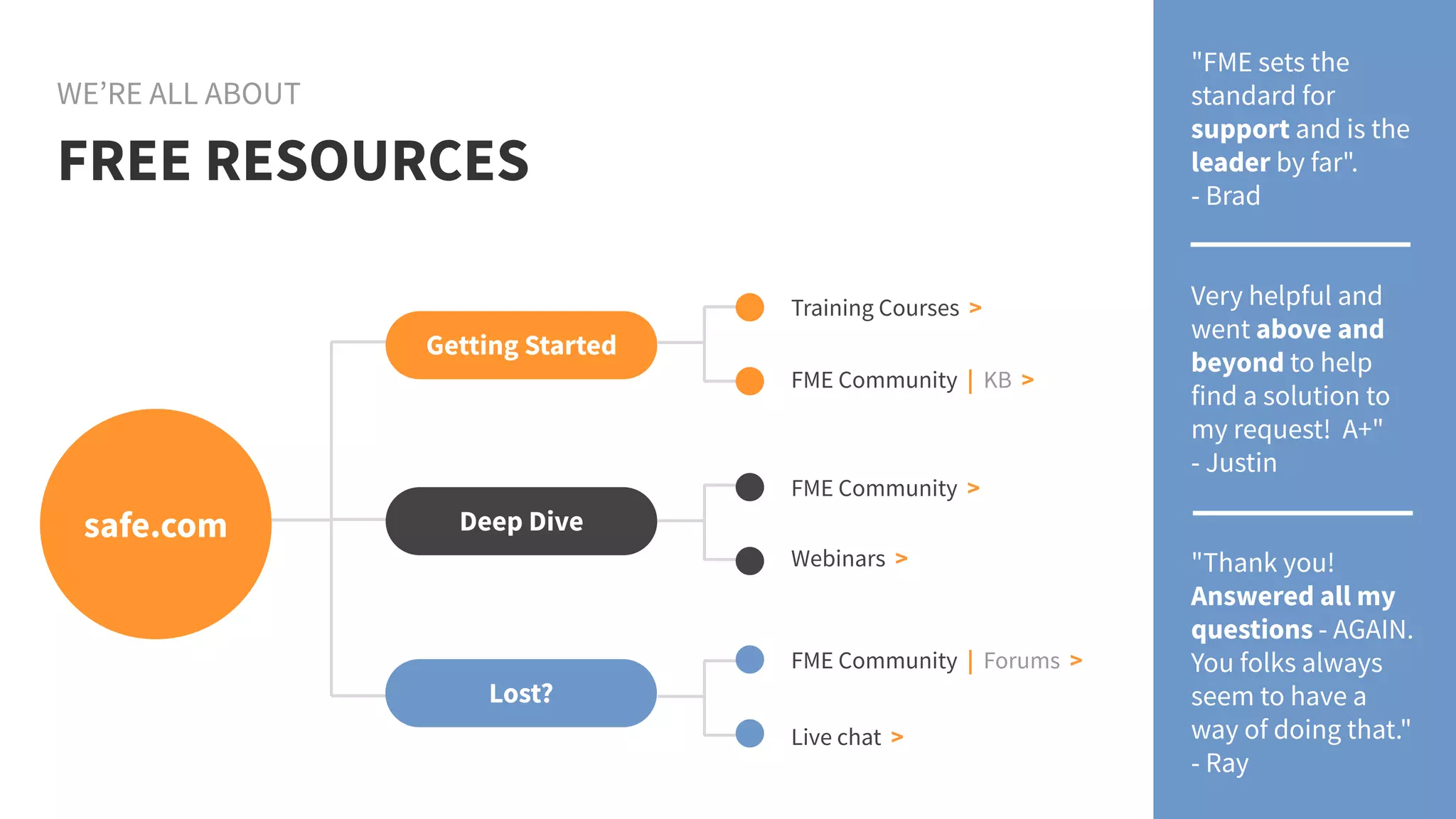
Training Courses >
Live chat >
FREE RESOURCES
WE’RE ALL ABOUT
safe.com
Getting Started
Deep Dive
Lost?
Webinars >
FME Community >
FME Community | Forums >
"FME sets the
standard for
support and is the
leader by far".
- Brad
Very helpful and
went above and
beyond to help
find a solution to
my request! A+"
- Justin
"Thank you!
Answered all my
questions - AGAIN.
You folks always
seem to have a
way of doing that."
- Ray
FME Community | KB >
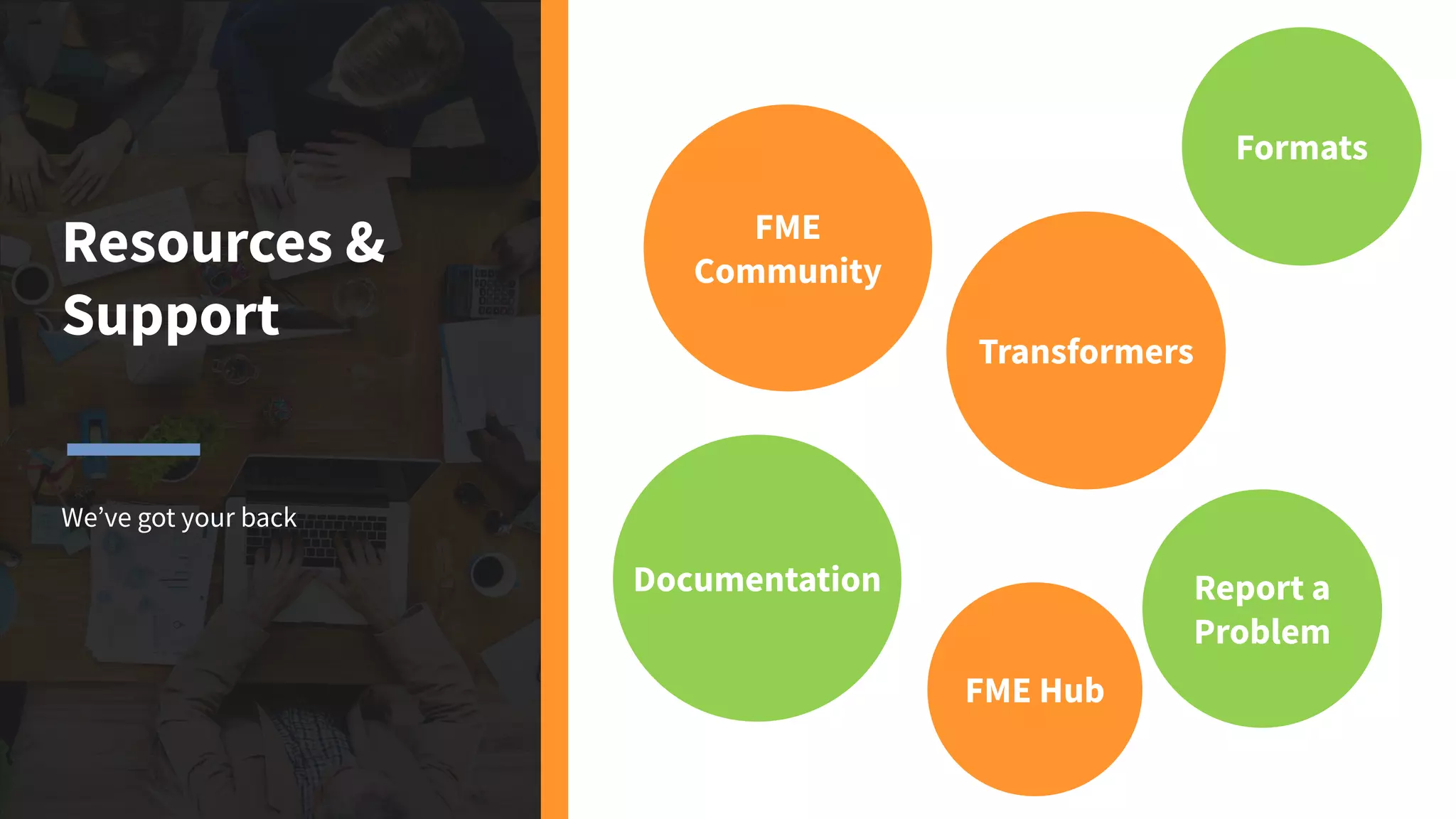
Resources &
Support
We’ve got your back
Transformers
FME Hub
Formats
Documentation
FME
Community
Report a
Problem
Heading:
Text
THANK YOU!
Try FME for free at safe.com/trial
Any questions we can answer?

Webinar Getting Started with FME Desktop: Your Burning Questions Answered