Web Design
Computer Science
National 4
What is a Website
• A website is a collection of web pages all
related to the same topic.
• It contains combination of media such as:
– Text
– Graphics
– Animation
– Sound
– Video
Good or Bad Website
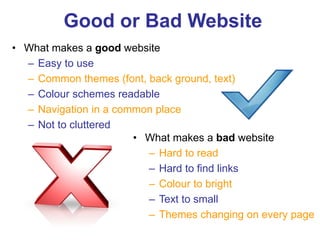
• What makes a good website
– Easy to use
– Common themes (font, back ground, text)
– Colour schemes readable
– Navigation in a common place
– Not to cluttered
• What makes a bad website
– Hard to read
– Hard to find links
– Colour to bright
– Text to small
– Themes changing on every page
Class Discussion Point
• Is this website good or bad?
• Why?
• http://www.paperrad.org/newindex.html
• http://ribbonsofred.com/
Activity
• Collect the website comparison sheet from
your teacher and compare and evaluate
the supplied websites.
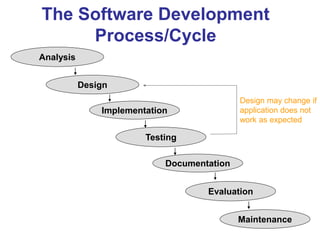
The Software Development
Process/Cycle
Maintenance
Design may change if
application does not
work as expected
Analysis
Design
Implementation
Testing
Documentation
Evaluation
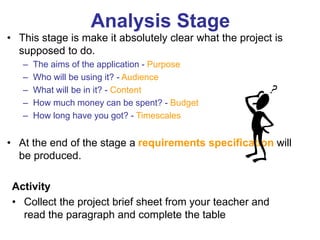
Analysis Stage
• This stage is make it absolutely clear what the project is
supposed to do.
– The aims of the application - Purpose
– Who will be using it? - Audience
– What will be in it? - Content
– How much money can be spent? - Budget
– How long have you got? - Timescales
• At the end of the stage a requirements specification will
be produced.
Activity
• Collect the project brief sheet from your teacher and
read the paragraph and complete the table
It is worthwhile spending time working out important details.
• content of the project
• the number and type of graphics required
• the need for sound files and video clips.
•Most importantly you need to consider how it all links together.
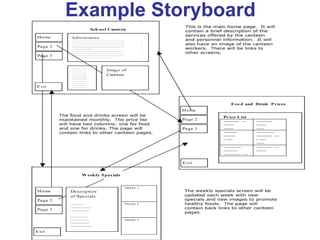
The best way to do all of this is to make out a storyboard.
A storyboard is a detailed plan that defines what the different
parts of the project are and how they are linked together
At the design stage you should also plan out your pages and
decide on a suitable layout.
Design Stage
Example Storyboard
Navigation
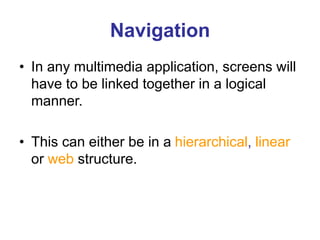
• In any multimedia application, screens will
have to be linked together in a logical
manner.
• This can either be in a hierarchical, linear
or web structure.
Linear
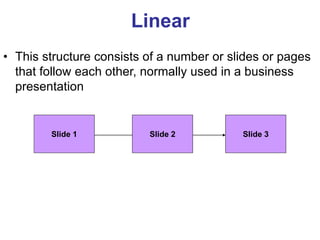
• This structure consists of a number or slides or pages
that follow each other, normally used in a business
presentation
Slide 1 Slide 2 Slide 3
Hierarchical
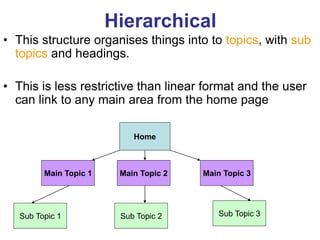
• This structure organises things into to topics, with sub
topics and headings.
• This is less restrictive than linear format and the user
can link to any main area from the home page
Home
Main Topic 1 Main Topic 2 Main Topic 3
Sub Topic 1 Sub Topic 2 Sub Topic 3
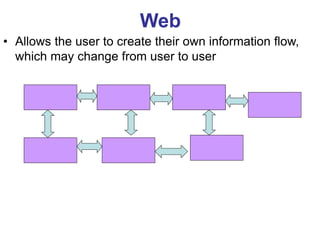
Web
• Allows the user to create their own information flow,
which may change from user to user
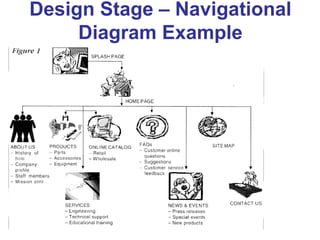
Design Stage – Navigational
Diagram Example
Implementation Stage
• Make it:
– Create and combine all the media elements
using the pre-decided authoring software.
Testing Stage
• Does each screen and link work as
expected?
– If not can it be fixed or does it have to have
the design altered.
Documentation Stage
• Write the documentation:
– The user guide
• Advice on how to use the software and
provide users with any other help.
Evaluation Stage
• Is it Fit for Purpose?
Does it do what you said it would at the analysis
stage
• Is it suitable for your planned Audience?
How do you know? What design features make
it suitable?
• Does the Navigation work as planned?
Evaluation Stage
• Does your final site match your storyboard?
What's good about your design? if no then why
not, what did you change and why?
• What would you do differently next time?
Reflect on your learning. What did you find
difficult? Is there an easier way to do it? What
did you do well? Why?

Web design content

  • 1.
  • 2.
    What is aWebsite • A website is a collection of web pages all related to the same topic. • It contains combination of media such as: – Text – Graphics – Animation – Sound – Video
  • 3.
    Good or BadWebsite • What makes a good website – Easy to use – Common themes (font, back ground, text) – Colour schemes readable – Navigation in a common place – Not to cluttered • What makes a bad website – Hard to read – Hard to find links – Colour to bright – Text to small – Themes changing on every page
  • 4.
    Class Discussion Point •Is this website good or bad? • Why? • http://www.paperrad.org/newindex.html • http://ribbonsofred.com/ Activity • Collect the website comparison sheet from your teacher and compare and evaluate the supplied websites.
  • 5.
    The Software Development Process/Cycle Maintenance Designmay change if application does not work as expected Analysis Design Implementation Testing Documentation Evaluation
  • 6.
    Analysis Stage • Thisstage is make it absolutely clear what the project is supposed to do. – The aims of the application - Purpose – Who will be using it? - Audience – What will be in it? - Content – How much money can be spent? - Budget – How long have you got? - Timescales • At the end of the stage a requirements specification will be produced. Activity • Collect the project brief sheet from your teacher and read the paragraph and complete the table
  • 7.
    It is worthwhilespending time working out important details. • content of the project • the number and type of graphics required • the need for sound files and video clips. •Most importantly you need to consider how it all links together. The best way to do all of this is to make out a storyboard. A storyboard is a detailed plan that defines what the different parts of the project are and how they are linked together At the design stage you should also plan out your pages and decide on a suitable layout. Design Stage
  • 8.
  • 9.
    Navigation • In anymultimedia application, screens will have to be linked together in a logical manner. • This can either be in a hierarchical, linear or web structure.
  • 10.
    Linear • This structureconsists of a number or slides or pages that follow each other, normally used in a business presentation Slide 1 Slide 2 Slide 3
  • 11.
    Hierarchical • This structureorganises things into to topics, with sub topics and headings. • This is less restrictive than linear format and the user can link to any main area from the home page Home Main Topic 1 Main Topic 2 Main Topic 3 Sub Topic 1 Sub Topic 2 Sub Topic 3
  • 12.
    Web • Allows theuser to create their own information flow, which may change from user to user
  • 13.
    Design Stage –Navigational Diagram Example
  • 14.
    Implementation Stage • Makeit: – Create and combine all the media elements using the pre-decided authoring software.
  • 15.
    Testing Stage • Doeseach screen and link work as expected? – If not can it be fixed or does it have to have the design altered.
  • 16.
    Documentation Stage • Writethe documentation: – The user guide • Advice on how to use the software and provide users with any other help.
  • 17.
    Evaluation Stage • Isit Fit for Purpose? Does it do what you said it would at the analysis stage • Is it suitable for your planned Audience? How do you know? What design features make it suitable? • Does the Navigation work as planned?
  • 18.
    Evaluation Stage • Doesyour final site match your storyboard? What's good about your design? if no then why not, what did you change and why? • What would you do differently next time? Reflect on your learning. What did you find difficult? Is there an easier way to do it? What did you do well? Why?