Web Page DesignWeb Page Design
ECE 3940ECE 3940
Megan O’ByrneMegan O’Byrne
10 September 0910 September 09
Designing Your PageDesigning Your Page
Step 1: Design for a Computer MediumStep 1: Design for a Computer Medium
 A computer screen is not a printed pageA computer screen is not a printed page
 Readability changes depending on color, layout,Readability changes depending on color, layout,
and formatand format
 Different browsers, screens and displays canDifferent browsers, screens and displays can
change how a page lookschange how a page looks
FromFrom Principles of Web DesignPrinciples of Web Design
By Joel SklarBy Joel Sklar
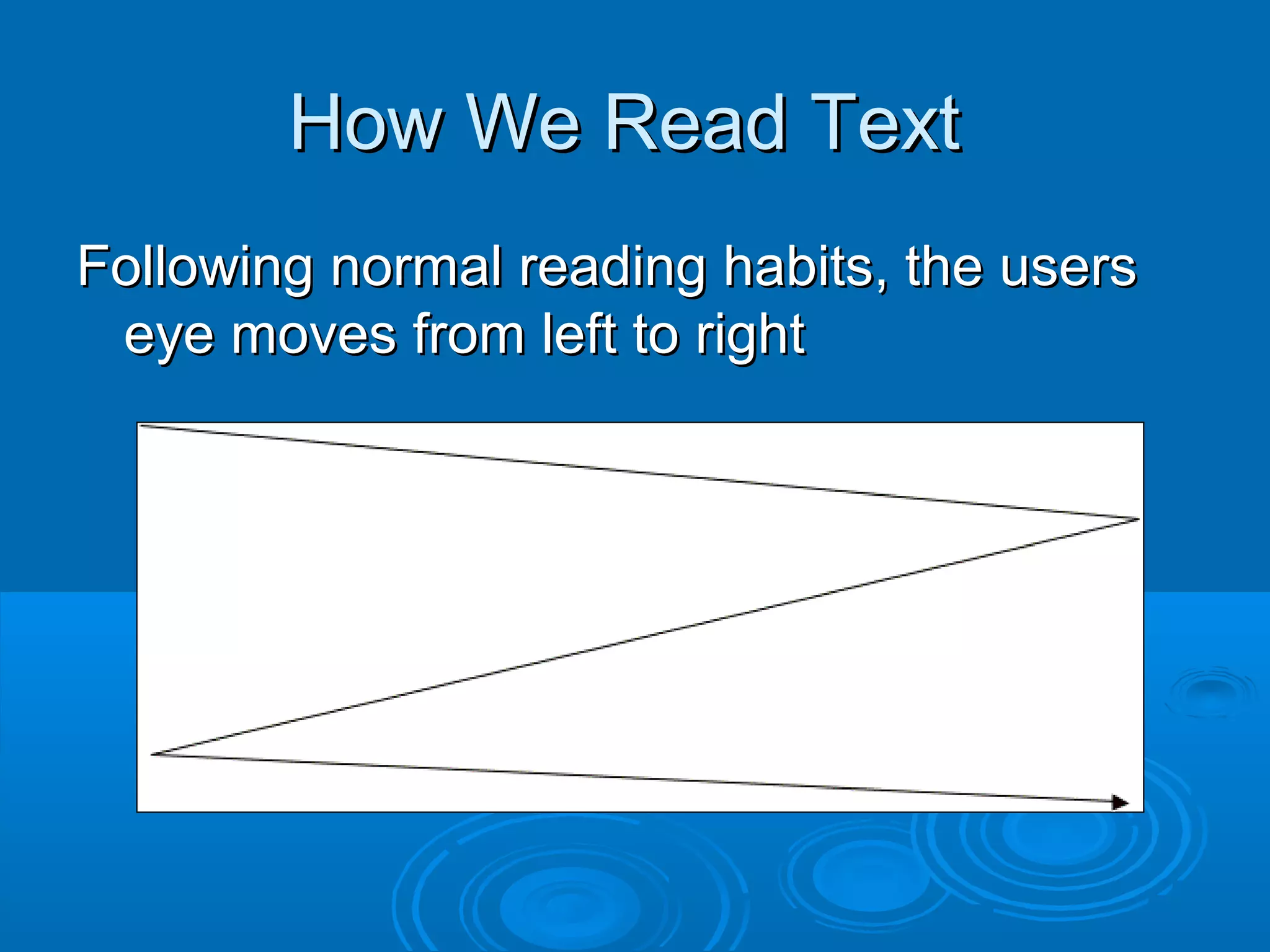
How We Read TextHow We Read Text
Following normal reading habits, the usersFollowing normal reading habits, the users
eye moves from left to righteye moves from left to right
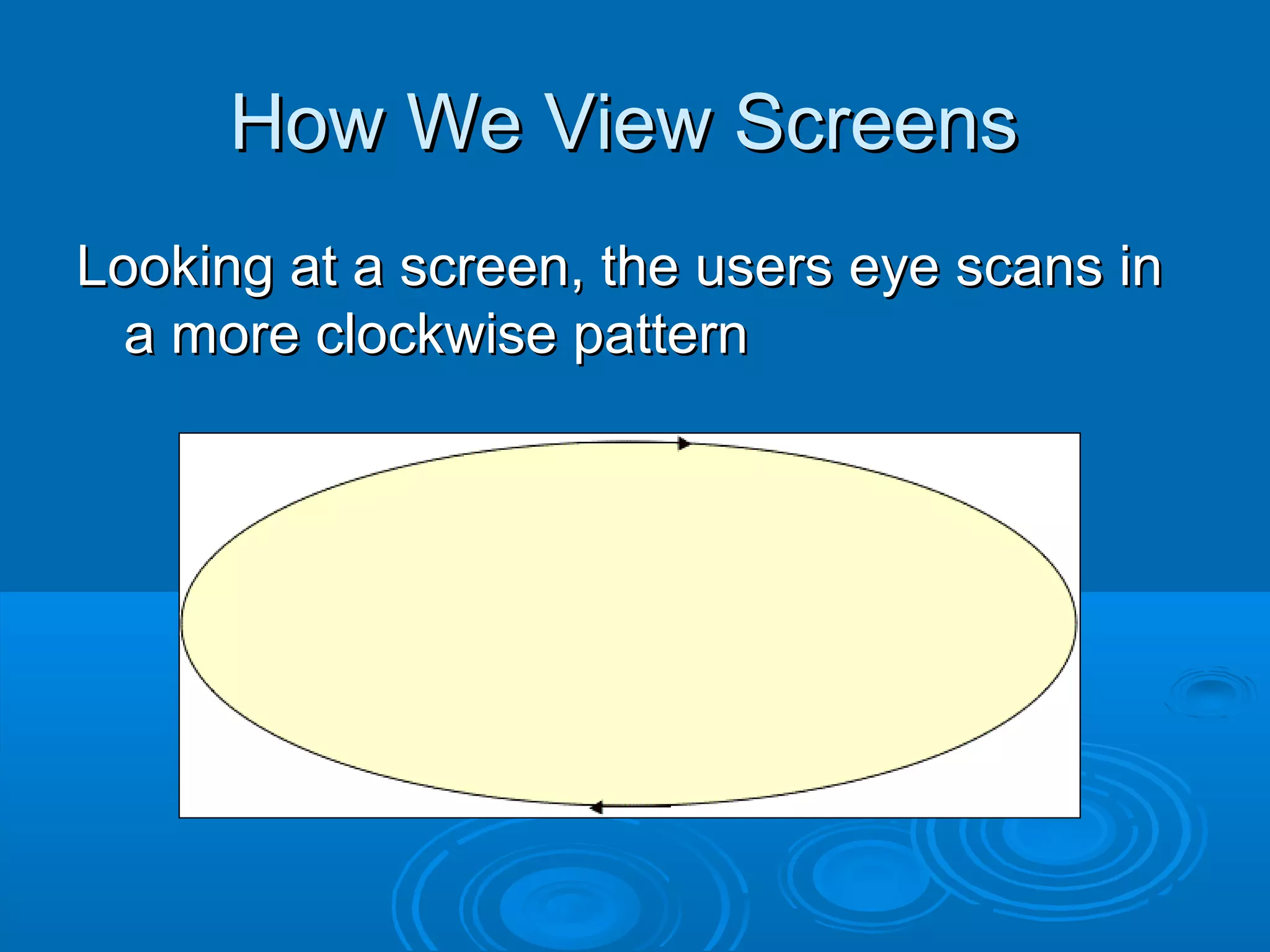
How We View ScreensHow We View Screens
Looking at a screen, the users eye scans inLooking at a screen, the users eye scans in
a more clockwise patterna more clockwise pattern
How Will Your Users Read/View?How Will Your Users Read/View?
 If a page uses a lot of text, the user willIf a page uses a lot of text, the user will
read in a more traditional, left to rightread in a more traditional, left to right
manner.manner.
 If a page has more graphical elements,If a page has more graphical elements,
the user is more likely to take in the wholethe user is more likely to take in the whole
page.page.
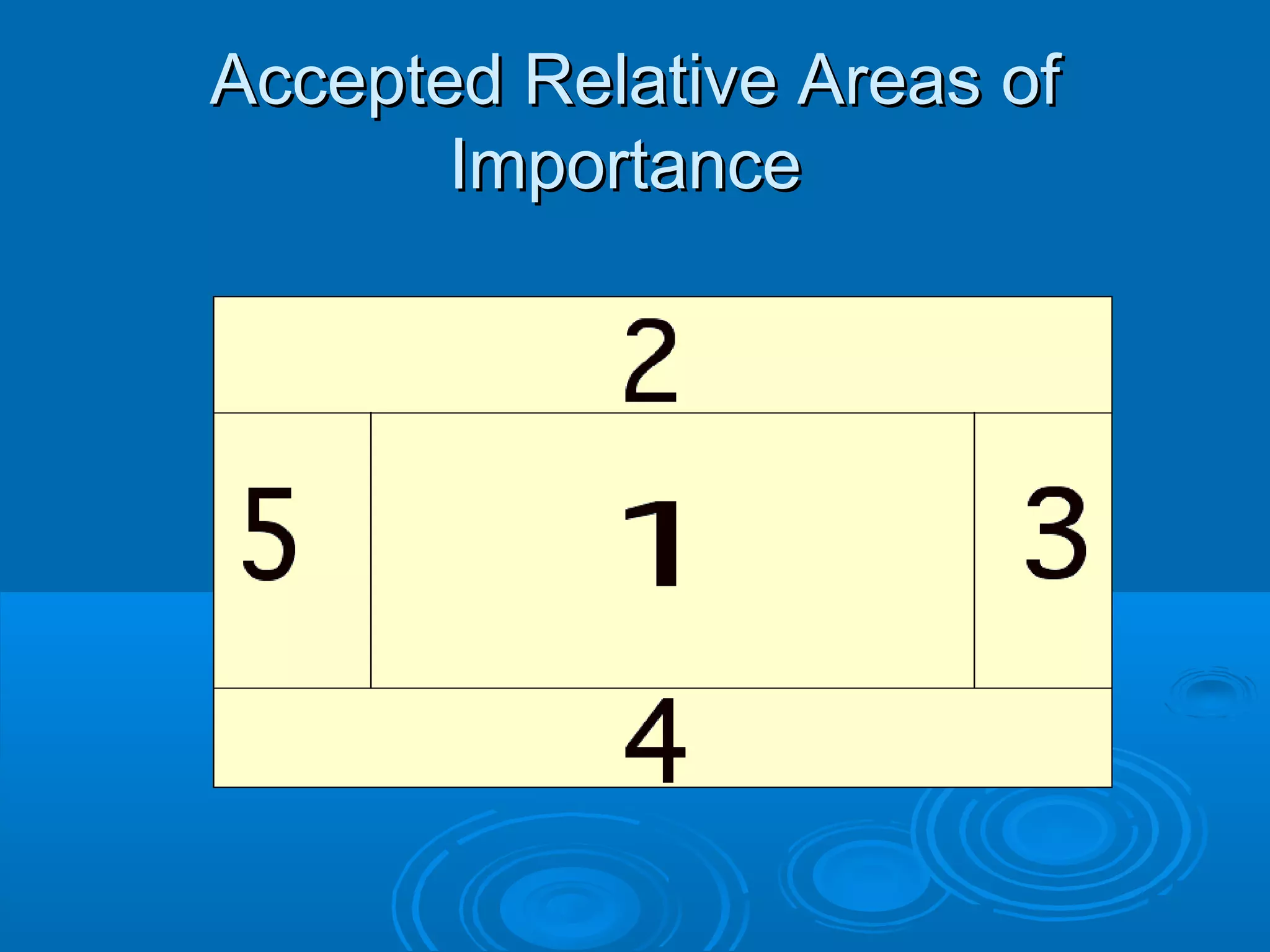
Accepted Relative Areas ofAccepted Relative Areas of
ImportanceImportance
Questions to Ask YourselfQuestions to Ask Yourself
 What is the purpose of my website?What is the purpose of my website?
 Who is my main audience?Who is my main audience?
 My secondary audience?My secondary audience?
 What information do I want to present?What information do I want to present?
Designing Your SiteDesigning Your Site
Step 2: Plan your sites hierarchyStep 2: Plan your sites hierarchy
 How are your pages linked together?How are your pages linked together?
 How many links exactly?How many links exactly?
 Where does the user go next?Where does the user go next?
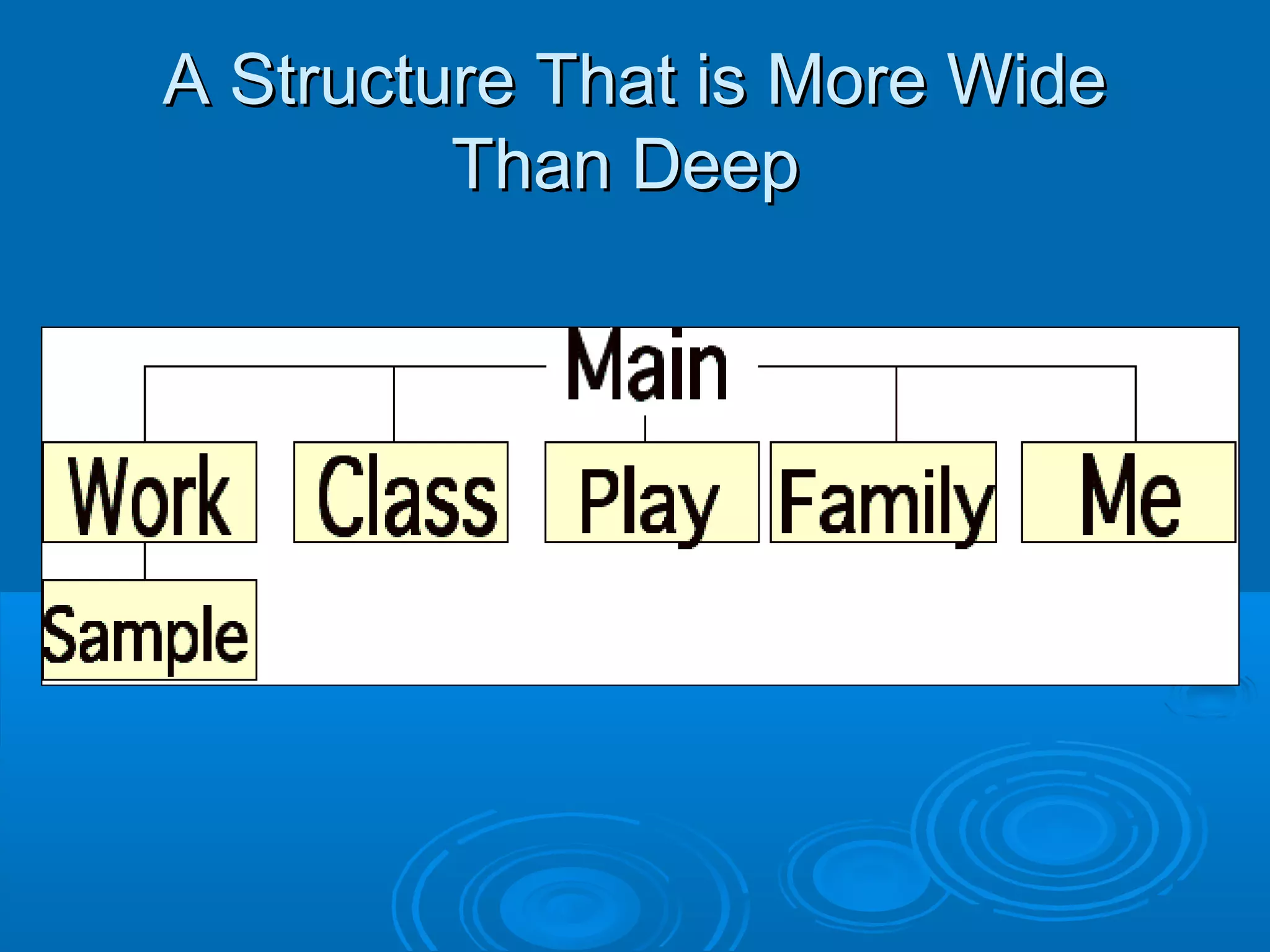
A Structure That is More WideA Structure That is More Wide
Than DeepThan Deep
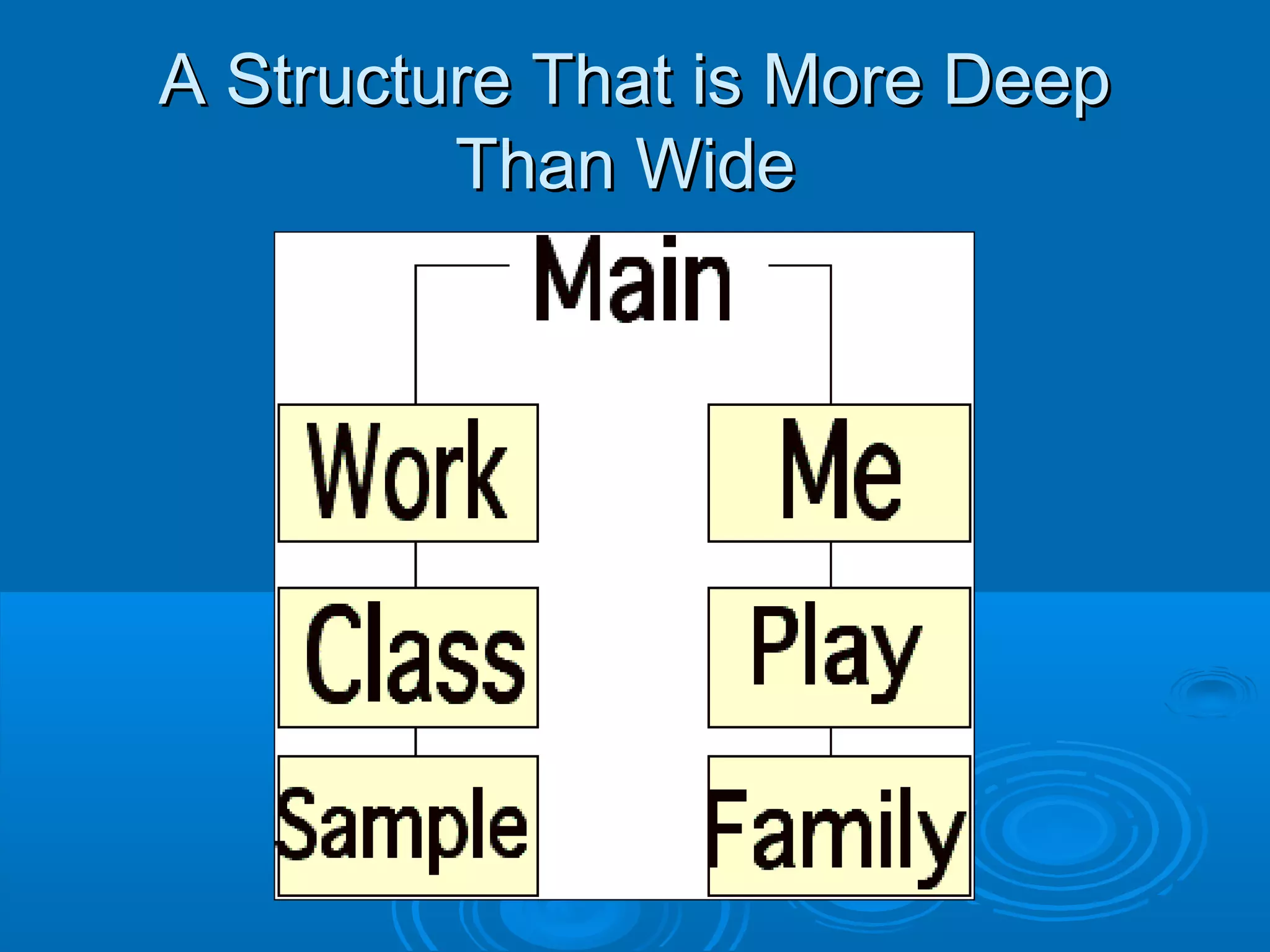
A Structure That is More DeepA Structure That is More Deep
Than WideThan Wide
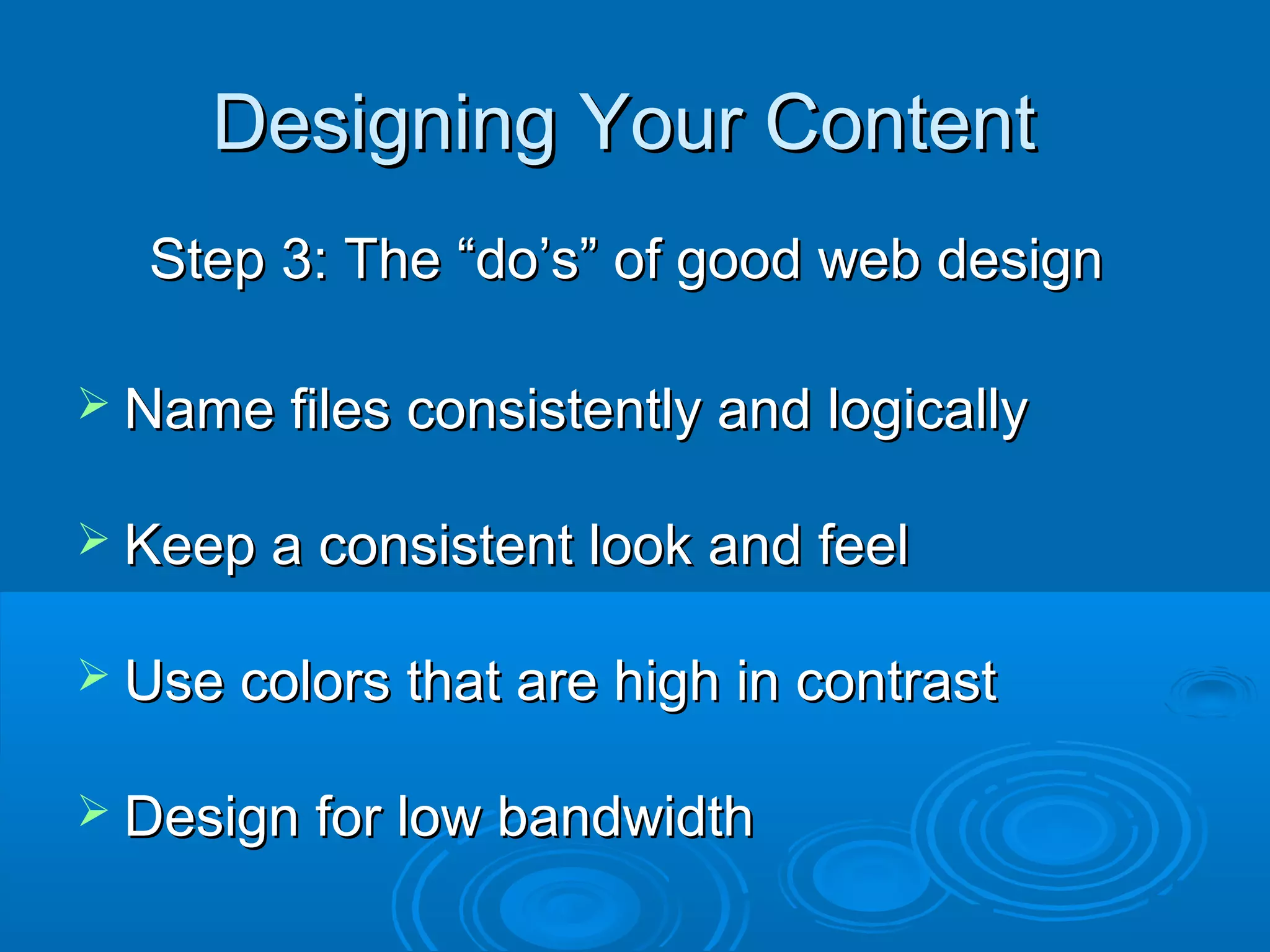
Designing Your ContentDesigning Your Content
Step 3: The “do’s” of good web designStep 3: The “do’s” of good web design
 Name files consistently and logicallyName files consistently and logically
 Keep a consistent look and feelKeep a consistent look and feel
 Use colors that are high in contrastUse colors that are high in contrast
 Design for low bandwidthDesign for low bandwidth
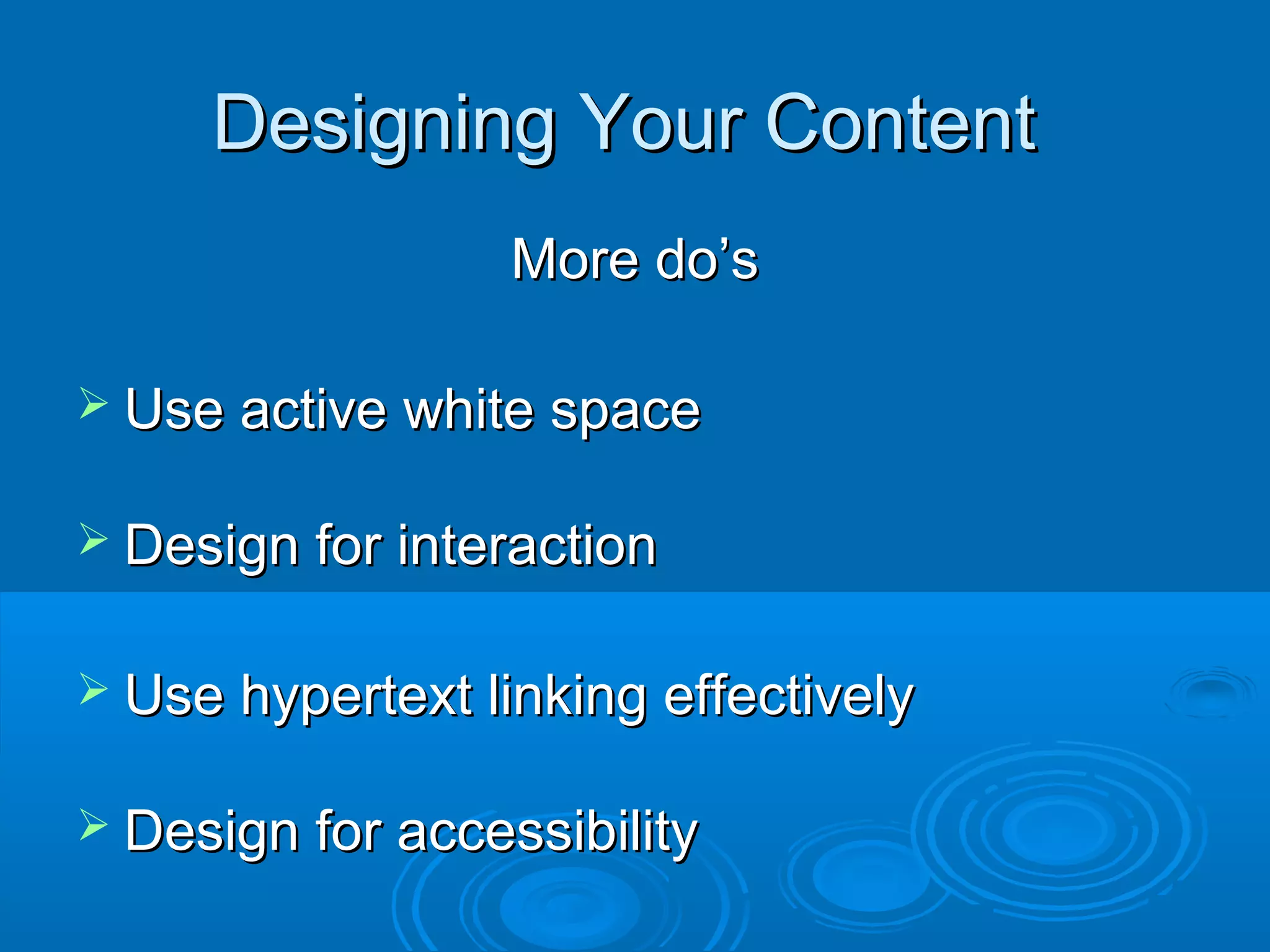
Designing Your ContentDesigning Your Content
More do’sMore do’s
 Use active white spaceUse active white space
 Design for interactionDesign for interaction
 Use hypertext linking effectivelyUse hypertext linking effectively
 Design for accessibilityDesign for accessibility
Designing Your ContentDesigning Your Content
Step 4: Things to avoid, aka, the “don’ts”Step 4: Things to avoid, aka, the “don’ts”
 Don’t overuse mediaDon’t overuse media
 Don’t make users scroll too muchDon’t make users scroll too much
 Don’t flood pages with contentDon’t flood pages with content
 Don’t choose colors or images that makeDon’t choose colors or images that make
the page hard to readthe page hard to read
Designing Your ContentDesigning Your Content
 Don’t forget to title everything: images andDon’t forget to title everything: images and
pagespages
 Don’t assume that your users know whereDon’t assume that your users know where
to goto go
 DON’T USE FRAMES!DON’T USE FRAMES!
Getting StartedGetting Started
 Select a design tool/programSelect a design tool/program
 Determine page layoutDetermine page layout
 Re-read assignment sheet and rubricsRe-read assignment sheet and rubrics
 Consider how best to represent “you”Consider how best to represent “you”
ExamplesExamples
 The worst:The worst: www.webpagesthatsuck.comwww.webpagesthatsuck.com
 Similar to this assignment:Similar to this assignment:
http://iml.jou.ufl.edu/Homepages/http://iml.jou.ufl.edu/Homepages/

Web design

  • 1.
    Web Page DesignWebPage Design ECE 3940ECE 3940 Megan O’ByrneMegan O’Byrne 10 September 0910 September 09
  • 2.
    Designing Your PageDesigningYour Page Step 1: Design for a Computer MediumStep 1: Design for a Computer Medium  A computer screen is not a printed pageA computer screen is not a printed page  Readability changes depending on color, layout,Readability changes depending on color, layout, and formatand format  Different browsers, screens and displays canDifferent browsers, screens and displays can change how a page lookschange how a page looks FromFrom Principles of Web DesignPrinciples of Web Design By Joel SklarBy Joel Sklar
  • 3.
    How We ReadTextHow We Read Text Following normal reading habits, the usersFollowing normal reading habits, the users eye moves from left to righteye moves from left to right
  • 4.
    How We ViewScreensHow We View Screens Looking at a screen, the users eye scans inLooking at a screen, the users eye scans in a more clockwise patterna more clockwise pattern
  • 5.
    How Will YourUsers Read/View?How Will Your Users Read/View?  If a page uses a lot of text, the user willIf a page uses a lot of text, the user will read in a more traditional, left to rightread in a more traditional, left to right manner.manner.  If a page has more graphical elements,If a page has more graphical elements, the user is more likely to take in the wholethe user is more likely to take in the whole page.page.
  • 6.
    Accepted Relative AreasofAccepted Relative Areas of ImportanceImportance
  • 7.
    Questions to AskYourselfQuestions to Ask Yourself  What is the purpose of my website?What is the purpose of my website?  Who is my main audience?Who is my main audience?  My secondary audience?My secondary audience?  What information do I want to present?What information do I want to present?
  • 8.
    Designing Your SiteDesigningYour Site Step 2: Plan your sites hierarchyStep 2: Plan your sites hierarchy  How are your pages linked together?How are your pages linked together?  How many links exactly?How many links exactly?  Where does the user go next?Where does the user go next?
  • 9.
    A Structure Thatis More WideA Structure That is More Wide Than DeepThan Deep
  • 10.
    A Structure Thatis More DeepA Structure That is More Deep Than WideThan Wide
  • 11.
    Designing Your ContentDesigningYour Content Step 3: The “do’s” of good web designStep 3: The “do’s” of good web design  Name files consistently and logicallyName files consistently and logically  Keep a consistent look and feelKeep a consistent look and feel  Use colors that are high in contrastUse colors that are high in contrast  Design for low bandwidthDesign for low bandwidth
  • 12.
    Designing Your ContentDesigningYour Content More do’sMore do’s  Use active white spaceUse active white space  Design for interactionDesign for interaction  Use hypertext linking effectivelyUse hypertext linking effectively  Design for accessibilityDesign for accessibility
  • 13.
    Designing Your ContentDesigningYour Content Step 4: Things to avoid, aka, the “don’ts”Step 4: Things to avoid, aka, the “don’ts”  Don’t overuse mediaDon’t overuse media  Don’t make users scroll too muchDon’t make users scroll too much  Don’t flood pages with contentDon’t flood pages with content  Don’t choose colors or images that makeDon’t choose colors or images that make the page hard to readthe page hard to read
  • 14.
    Designing Your ContentDesigningYour Content  Don’t forget to title everything: images andDon’t forget to title everything: images and pagespages  Don’t assume that your users know whereDon’t assume that your users know where to goto go  DON’T USE FRAMES!DON’T USE FRAMES!
  • 15.
    Getting StartedGetting Started Select a design tool/programSelect a design tool/program  Determine page layoutDetermine page layout  Re-read assignment sheet and rubricsRe-read assignment sheet and rubrics  Consider how best to represent “you”Consider how best to represent “you”
  • 16.
    ExamplesExamples  The worst:Theworst: www.webpagesthatsuck.comwww.webpagesthatsuck.com  Similar to this assignment:Similar to this assignment: http://iml.jou.ufl.edu/Homepages/http://iml.jou.ufl.edu/Homepages/