Web A11y Testing 6 - Windows Magnifier Page 1 of 3
Web Accessibility Testing 5 -
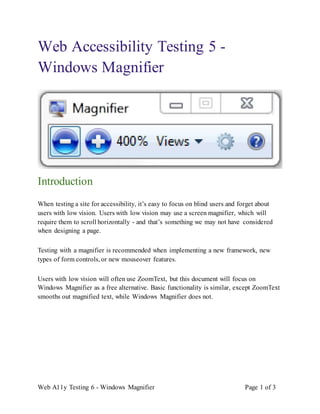
Windows Magnifier
Introduction
When testing a site for accessibility, it’s easy to focus on blind users and forget about
users with low vision. Users with low vision may use a screen magnifier, which will
require them to scroll horizontally - and that’s something we may not have considered
when designing a page.
Testing with a magnifier is recommended when implementing a new framework, new
types of form controls, or new mouseover features.
Users with low vision will often use ZoomText, but this document will focus on
Windows Magnifier as a free alternative. Basic functionality is similar, except ZoomText
smooths out magnified text, while Windows Magnifier does not.
Web A11y Testing 6 - Windows Magnifier Page 2 of 3
Set up Windows Magnifier
1. Add a Windows Magnifer shortcut to your desktop.
2. Right-click on the shortcut, and select Properties.
3. Find the Shortcut Key field, and press the Ctrl+Alt+m keys together
Testing with Windows Magnifier
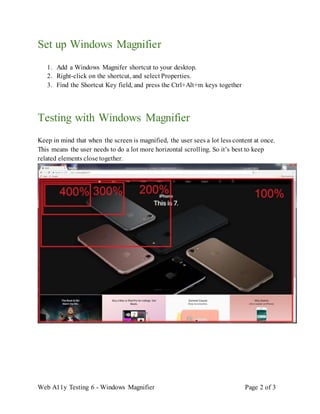
Keep in mind that when the screen is magnified, the user sees a lot less content at once.
This means the user needs to do a lot more horizontal scrolling. So it’s best to keep
related elements close together.
Web A11y Testing 6 - Windows Magnifier Page 3 of 3
Some test steps to try:
1. Windows - Magnifier - set to around 400% - 800%
2. Test any tooltips/rollovers and make sure you can read them - make sure they
don’t disappear when you scroll sideways to read the whole thing
3. Any elements which dynamically appear/change should be adjacent to the
control which activated them
4. Related controls should be near each other - not on opposite sides of the screen
Example of an issue
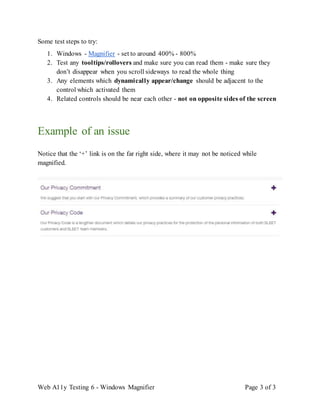
Notice that the ‘+’ link is on the far right side, where it may not be noticed while
magnified.

Web accessibility testing 5 - Windows magnifier

  • 1.
    Web A11y Testing6 - Windows Magnifier Page 1 of 3 Web Accessibility Testing 5 - Windows Magnifier Introduction When testing a site for accessibility, it’s easy to focus on blind users and forget about users with low vision. Users with low vision may use a screen magnifier, which will require them to scroll horizontally - and that’s something we may not have considered when designing a page. Testing with a magnifier is recommended when implementing a new framework, new types of form controls, or new mouseover features. Users with low vision will often use ZoomText, but this document will focus on Windows Magnifier as a free alternative. Basic functionality is similar, except ZoomText smooths out magnified text, while Windows Magnifier does not.
  • 2.
    Web A11y Testing6 - Windows Magnifier Page 2 of 3 Set up Windows Magnifier 1. Add a Windows Magnifer shortcut to your desktop. 2. Right-click on the shortcut, and select Properties. 3. Find the Shortcut Key field, and press the Ctrl+Alt+m keys together Testing with Windows Magnifier Keep in mind that when the screen is magnified, the user sees a lot less content at once. This means the user needs to do a lot more horizontal scrolling. So it’s best to keep related elements close together.
  • 3.
    Web A11y Testing6 - Windows Magnifier Page 3 of 3 Some test steps to try: 1. Windows - Magnifier - set to around 400% - 800% 2. Test any tooltips/rollovers and make sure you can read them - make sure they don’t disappear when you scroll sideways to read the whole thing 3. Any elements which dynamically appear/change should be adjacent to the control which activated them 4. Related controls should be near each other - not on opposite sides of the screen Example of an issue Notice that the ‘+’ link is on the far right side, where it may not be noticed while magnified.