

Web Accessibility
for HigherEd Content
Contributors
Hello!
Norma Stary
Web Content Coordinator, FIT
BA, Mass Communications
MS, Information Design and Technology
Certified Professional in Accessibility Core Concepts, IAAP
2
“ Web accessibility refers to a
set of guidelines that specify
how to make digital content
accessible for all users,
despite differences in ability.
3
Defining “Content”
Simplify the Guidelines and Success Criteria
1
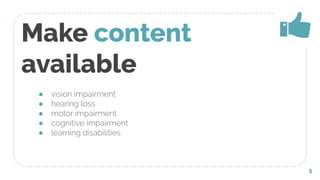
Make content
available
● vision impairment
● hearing loss
● motor impairment
● cognitive impairment
● learning disabilities
5
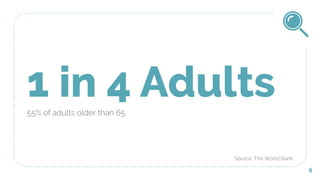
1 in 4 Adults55% of adults older than 65
6
Source: The World Bank
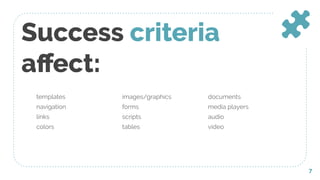
Success criteria
affect:
templates
navigation
links
colors
images/graphics
forms
scripts
tables
documents
media players
audio
video
7
Defining content in
WCAG
● approximately 60 success criteria in WCAG 2.0
● about 25% are specific to body copy elements.
Template issues can be more complicated, but are fixed once.
Body copy guidelines are easier, but must be monitored for the
life of the site.
8
Simplify
WCAG
12 success criteria in 3 categories
9
Text
Keep It Structured and Simple
2
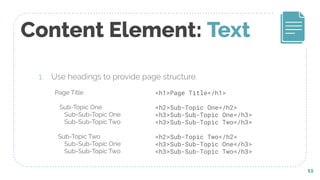
Content Element: Text
1. Use headings to provide page structure.
11
Page Title
Sub-Topic One
Sub-Sub-Topic One
Sub-Sub-Topic Two
Sub-Topic Two
Sub-Sub-Topic One
Sub-Sub-Topic Two
<h1>Page Title</h1>
<h2>Sub-Topic One</h2>
<h3>Sub-Sub-Topic One</h3>
<h3>Sub-Sub-Topic Two</h3>
<h2>Sub-Topic Two</h2>
<h3>Sub-Sub-Topic One</h3>
<h3>Sub-Sub-Topic Two</h3>
Content Element: Text
1. Use headings to provide page structure.
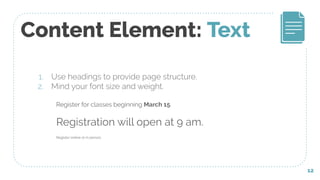
2. Mind your font size and weight.
12
Register for classes beginning March 15.
Registration will open at 9 am.
Register online or in person.
Content Element: Text
1. Use headings to provide page structure.
2. Mind your font size and weight.
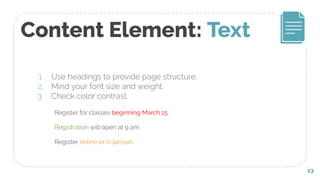
3. Check color contrast.
13
Register for classes beginning March 15.
Registration will open at 9 am.
Register online or in person.
Content Element: Text
1. Use headings to provide page structure.
2. Mind your font size and weight.
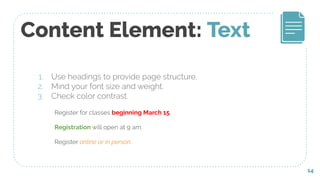
3. Check color contrast.
14
Register for classes beginning March 15.
Registration will open at 9 am.
Register online or in person.
Content Element: Text
1. Use headings to provide page structure.
2. Mind your font size and weight.
3. Check color contrast.
4. Watch out for jargon, acronyms, reading level.
15
Links
It’s All About the Context
3
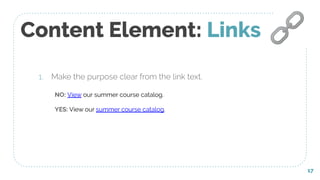
Content Element: Links
1. Make the purpose clear from the link text.
17
🔗
NO: View our summer course catalog.
YES: View our summer course catalog.
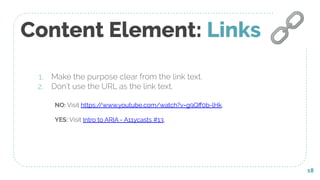
Content Element: Links
1. Make the purpose clear from the link text.
2. Don’t use the URL as the link text.
18
🔗
NO: Visit https://www.youtube.com/watch?v=g9Qff0b-lHk.
YES: Visit Intro to ARIA - A11ycasts #13.
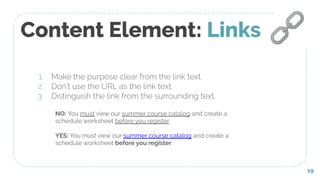
Content Element: Links
1. Make the purpose clear from the link text.
2. Don’t use the URL as the link text.
3. Distinguish the link from the surrounding text.
19
🔗
NO: You must view our summer course catalog and create a
schedule worksheet before you register.
YES: You must view our summer course catalog and create a
schedule worksheet before you register.
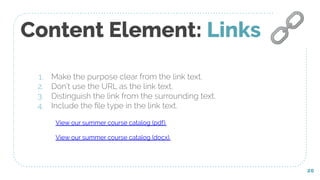
Content Element: Links
1. Make the purpose clear from the link text.
2. Don’t use the URL as the link text.
3. Distinguish the link from the surrounding text.
4. Include the file type in the link text.
20
🔗
View our summer course catalog (pdf).
View our summer course catalog (docx).
Images and Graphics
Present Information in Two Ways
4
Content Element:
Images & Graphics
1. Use thoughtful descriptions (alt-text).
22
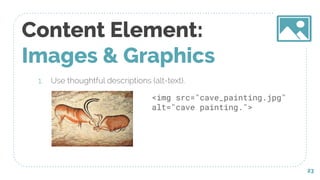
Content Element:
Images & Graphics
1. Use thoughtful descriptions (alt-text).
23
<img src="cave_painting.jpg"
alt="cave painting.">
Content Element:
Images & Graphics
1. Use thoughtful descriptions (alt-text).
24
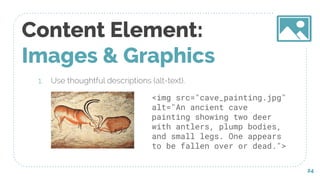
<img src="cave_painting.jpg"
alt="An ancient cave
painting showing two deer
with antlers, plump bodies,
and small legs. One appears
to be fallen over or dead.">
Content Element:
Images & Graphics
1. Use thoughtful descriptions (alt-text).
2. Alt-text for actionable images should describe the action.
25
<img src="submit-button.png" alt="submit.">
Content Element:
Images & Graphics
1. Use thoughtful descriptions (alt-text).
2. Alt-text for actionable images should describe
the action.
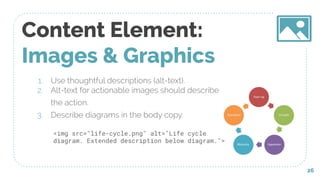
3. Describe diagrams in the body copy.
26
<img src="life-cycle.png" alt="Life cycle
diagram. Extended description below diagram.">
Content Element:
Images & Graphics
1. Use thoughtful descriptions (alt-text).
2. Alt-text for actionable images should describe the action.
3. Describe diagrams in the body copy.
4. Skip the .gifs.
27
Extras
Advanced Tools for Administrators
5
Hide potentially confusing (or duplicate) elements from visitors
who use screen readers:
<span aria-hidden=”true”>text</span>
Hide Things
29
?
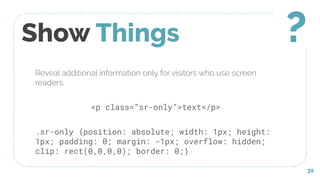
Reveal additional information only for visitors who use screen
readers:
<p class=”sr-only”>text</p>
.sr-only {position: absolute; width: 1px; height:
1px; padding: 0; margin: -1px; overflow: hidden;
clip: rect(0,0,0,0); border: 0;}
Show Things
30
?
Crash Course in Training
Everyone on the Same Page
6
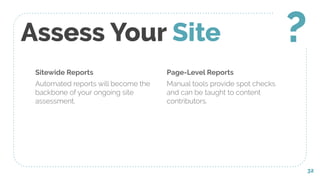
Sitewide Reports
Automated reports will become the
backbone of your ongoing site
assessment.
Assess Your Site
Page-Level Reports
Manual tools provide spot checks
and can be taught to content
contributors.
32
?
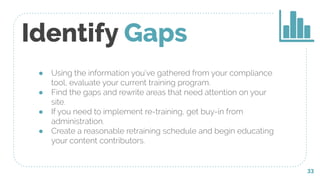
● Using the information you’ve gathered from your compliance
tool, evaluate your current training program.
● Find the gaps and rewrite areas that need attention on your
site.
● If you need to implement re-training, get buy-in from
administration.
● Create a reasonable retraining schedule and begin educating
your content contributors.
Identify Gaps
33
● Train in person or online?
● Revise current materials or start from scratch?
● Engage and empower your editors to increase success.
● Create “light bulb” moments by demonstrating assistive
technology.
Get Down to
Business
34
✔
35
Thanks!
Any questions?
You can find me at:
@nycnorma
norma_stary@fitnyc.edu

Web Accessibility for HigherEd Content Contributors

  • 1.
    Web Accessibility for HigherEdContent Contributors
  • 2.
    Hello! Norma Stary Web ContentCoordinator, FIT BA, Mass Communications MS, Information Design and Technology Certified Professional in Accessibility Core Concepts, IAAP 2
  • 3.
    “ Web accessibilityrefers to a set of guidelines that specify how to make digital content accessible for all users, despite differences in ability. 3
  • 4.
    Defining “Content” Simplify theGuidelines and Success Criteria 1
  • 5.
    Make content available ● visionimpairment ● hearing loss ● motor impairment ● cognitive impairment ● learning disabilities 5
  • 6.
    1 in 4Adults55% of adults older than 65 6 Source: The World Bank
  • 7.
  • 8.
    Defining content in WCAG ●approximately 60 success criteria in WCAG 2.0 ● about 25% are specific to body copy elements. Template issues can be more complicated, but are fixed once. Body copy guidelines are easier, but must be monitored for the life of the site. 8
  • 9.
  • 10.
  • 11.
    Content Element: Text 1.Use headings to provide page structure. 11 Page Title Sub-Topic One Sub-Sub-Topic One Sub-Sub-Topic Two Sub-Topic Two Sub-Sub-Topic One Sub-Sub-Topic Two <h1>Page Title</h1> <h2>Sub-Topic One</h2> <h3>Sub-Sub-Topic One</h3> <h3>Sub-Sub-Topic Two</h3> <h2>Sub-Topic Two</h2> <h3>Sub-Sub-Topic One</h3> <h3>Sub-Sub-Topic Two</h3>
  • 12.
    Content Element: Text 1.Use headings to provide page structure. 2. Mind your font size and weight. 12 Register for classes beginning March 15. Registration will open at 9 am. Register online or in person.
  • 13.
    Content Element: Text 1.Use headings to provide page structure. 2. Mind your font size and weight. 3. Check color contrast. 13 Register for classes beginning March 15. Registration will open at 9 am. Register online or in person.
  • 14.
    Content Element: Text 1.Use headings to provide page structure. 2. Mind your font size and weight. 3. Check color contrast. 14 Register for classes beginning March 15. Registration will open at 9 am. Register online or in person.
  • 15.
    Content Element: Text 1.Use headings to provide page structure. 2. Mind your font size and weight. 3. Check color contrast. 4. Watch out for jargon, acronyms, reading level. 15
  • 16.
  • 17.
    Content Element: Links 1.Make the purpose clear from the link text. 17 🔗 NO: View our summer course catalog. YES: View our summer course catalog.
  • 18.
    Content Element: Links 1.Make the purpose clear from the link text. 2. Don’t use the URL as the link text. 18 🔗 NO: Visit https://www.youtube.com/watch?v=g9Qff0b-lHk. YES: Visit Intro to ARIA - A11ycasts #13.
  • 19.
    Content Element: Links 1.Make the purpose clear from the link text. 2. Don’t use the URL as the link text. 3. Distinguish the link from the surrounding text. 19 🔗 NO: You must view our summer course catalog and create a schedule worksheet before you register. YES: You must view our summer course catalog and create a schedule worksheet before you register.
  • 20.
    Content Element: Links 1.Make the purpose clear from the link text. 2. Don’t use the URL as the link text. 3. Distinguish the link from the surrounding text. 4. Include the file type in the link text. 20 🔗 View our summer course catalog (pdf). View our summer course catalog (docx).
  • 21.
    Images and Graphics PresentInformation in Two Ways 4
  • 22.
    Content Element: Images &Graphics 1. Use thoughtful descriptions (alt-text). 22
  • 23.
    Content Element: Images &Graphics 1. Use thoughtful descriptions (alt-text). 23 <img src="cave_painting.jpg" alt="cave painting.">
  • 24.
    Content Element: Images &Graphics 1. Use thoughtful descriptions (alt-text). 24 <img src="cave_painting.jpg" alt="An ancient cave painting showing two deer with antlers, plump bodies, and small legs. One appears to be fallen over or dead.">
  • 25.
    Content Element: Images &Graphics 1. Use thoughtful descriptions (alt-text). 2. Alt-text for actionable images should describe the action. 25 <img src="submit-button.png" alt="submit.">
  • 26.
    Content Element: Images &Graphics 1. Use thoughtful descriptions (alt-text). 2. Alt-text for actionable images should describe the action. 3. Describe diagrams in the body copy. 26 <img src="life-cycle.png" alt="Life cycle diagram. Extended description below diagram.">
  • 27.
    Content Element: Images &Graphics 1. Use thoughtful descriptions (alt-text). 2. Alt-text for actionable images should describe the action. 3. Describe diagrams in the body copy. 4. Skip the .gifs. 27
  • 28.
    Extras Advanced Tools forAdministrators 5
  • 29.
    Hide potentially confusing(or duplicate) elements from visitors who use screen readers: <span aria-hidden=”true”>text</span> Hide Things 29 ?
  • 30.
    Reveal additional informationonly for visitors who use screen readers: <p class=”sr-only”>text</p> .sr-only {position: absolute; width: 1px; height: 1px; padding: 0; margin: -1px; overflow: hidden; clip: rect(0,0,0,0); border: 0;} Show Things 30 ?
  • 31.
    Crash Course inTraining Everyone on the Same Page 6
  • 32.
    Sitewide Reports Automated reportswill become the backbone of your ongoing site assessment. Assess Your Site Page-Level Reports Manual tools provide spot checks and can be taught to content contributors. 32 ?
  • 33.
    ● Using theinformation you’ve gathered from your compliance tool, evaluate your current training program. ● Find the gaps and rewrite areas that need attention on your site. ● If you need to implement re-training, get buy-in from administration. ● Create a reasonable retraining schedule and begin educating your content contributors. Identify Gaps 33
  • 34.
    ● Train inperson or online? ● Revise current materials or start from scratch? ● Engage and empower your editors to increase success. ● Create “light bulb” moments by demonstrating assistive technology. Get Down to Business 34 ✔
  • 35.
    35 Thanks! Any questions? You canfind me at: @nycnorma norma_stary@fitnyc.edu