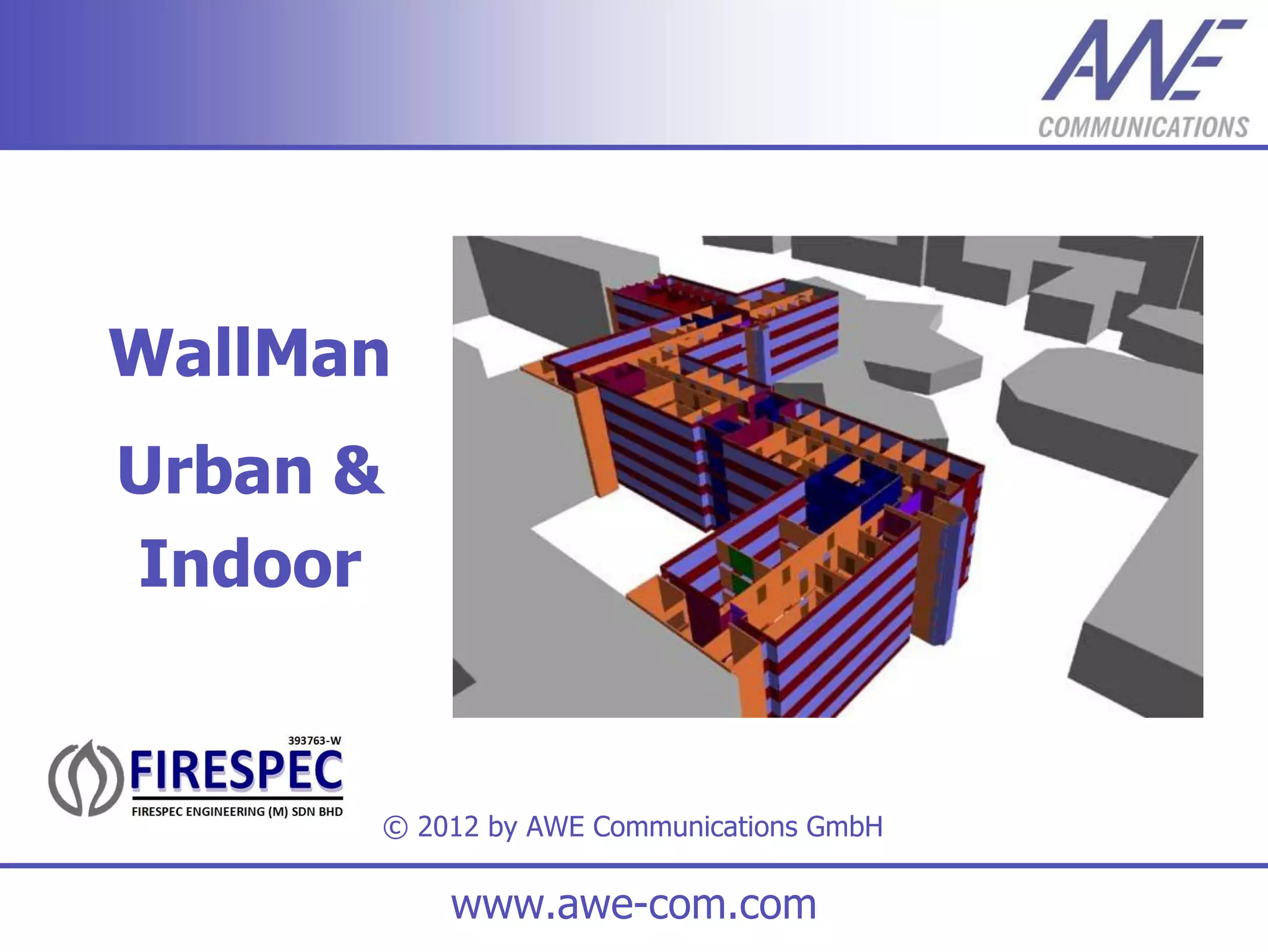
WallMan
Urban &
Indoor


      © 2012 by AWE Communications GmbH

          www.awe-com.com
Outline

   Overview
   Urban & Indoor Databases
   Materials
   Basic Functions
   Import of Data
   Using Background Images
   Working with Pixel Maps
   Time Variance
   Additional Features
   Preprocessing
                      © by AWE Communications GmbH   2
Overview

Overview
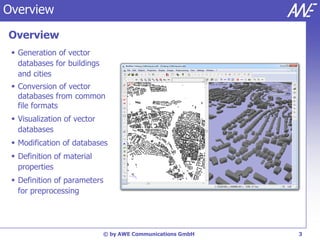
  Generation of vector
   databases for buildings
   and cities
  Conversion of vector
   databases from common
   file formats
  Visualization of vector
   databases
  Modification of databases
  Definition of material
   properties
  Definition of parameters
   for preprocessing


                             © by AWE Communications GmbH   3
Urban & Indoor Databases

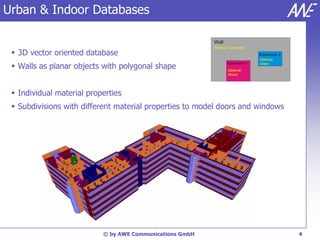
                                                          Wall
                                                          Material: Concrete
  3D vector oriented database                                                   Subdivision 2
                                                                                 Material:

  Walls as planar objects with polygonal shape
                                                                 Subdivision 1   Glass
                                                                  Material:
                                                                  Wood


  Individual material properties
  Subdivisions with different material properties to model doors and windows


                           © by AWE Communications GmbH                                          4
Urban & Indoor Databases
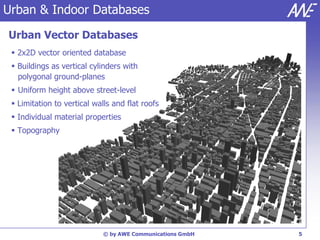
Urban Vector Databases
  2x2D vector oriented database
  Buildings as vertical cylinders with
   polygonal ground-planes
  Uniform height above street-level
  Limitation to vertical walls and flat roofs
  Individual material properties
  Topography


                             © by AWE Communications GmbH   5
Urban & Indoor Databases
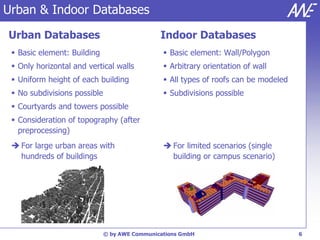
Urban Databases                                Indoor Databases
  Basic element: Building                       Basic element: Wall/Polygon
  Only horizontal and vertical walls            Arbitrary orientation of wall
  Uniform height of each building               All types of roofs can be modeled
  No subdivisions possible                      Subdivisions possible
  Courtyards and towers possible
  Consideration of topography (after
   preprocessing)
  For large urban areas with                    For limited scenarios (single
   hundreds of buildings                          building or campus scenario)


                              © by AWE Communications GmbH                            6
Materials
Material Properties
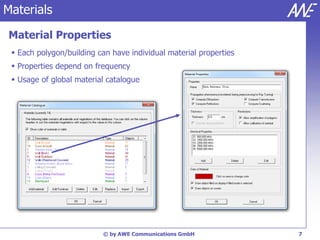
  Each polygon/building can have individual material properties
  Properties depend on frequency
  Usage of global material catalogue


                          © by AWE Communications GmbH             7
Materials

Material Properties
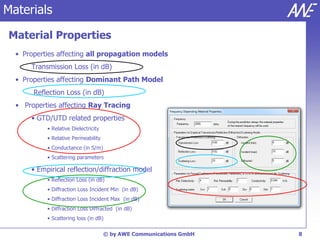
  • Properties affecting all propagation models
      Transmission Loss (in dB)
  • Properties affecting Dominant Path Model
       Reflection Loss (in dB)
  • Properties affecting Ray Tracing
      • GTD/UTD related properties
           • Relative Dielectricity
           • Relative Permeability
           • Conductance (in S/m)
           • Scattering parameters

      • Empirical reflection/diffraction model
           • Reflection Loss (in dB)
           • Diffraction Loss Incident Min (in dB)
           • Diffraction Loss Incident Max (in dB)
           • Diffraction Loss Diffracted (in dB)
           • Scattering loss (in dB)

                                      © by AWE Communications GmbH   8
Materials
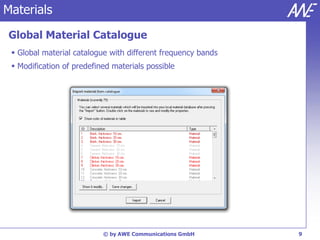
Global Material Catalogue
  Global material catalogue with different frequency bands
  Modification of predefined materials possible


                           © by AWE Communications GmbH       9
Basic Functions

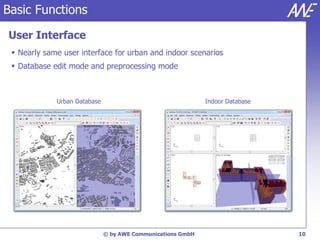
User Interface
  Nearly same user interface for urban and indoor scenarios
  Database edit mode and preprocessing mode


             Urban Database                                  Indoor Database


                              © by AWE Communications GmbH                     10
Basic Functions

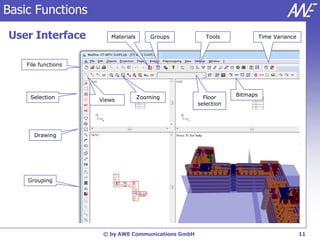
User Interface          Materials       Groups          Tools              Time Variance


    File functions


     Selection                      Zooming            Floor     Bitmaps
                     Views
                                                     selection


      Drawing


    Grouping


                      © by AWE Communications GmbH                                         11
Basic Functions

Functions
  File functions: New, open, save, close
  Edit materials
  Edit project settings
  Change current view
  Zooming (in, out, reset, fit to screen)
  Selection of objects (by number, by materials,..)
  Grouping of several objects
  Several edit functions (move, rotate, scale,..)
  Bitmaps in the background
  Preprocessing of vector databases
 …


                            © by AWE Communications GmbH   12
Basic Functions

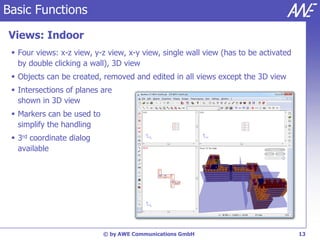
Views: Indoor
  Four views: x-z view, y-z view, x-y view, single wall view (has to be activated
   by double clicking a wall), 3D view
  Objects can be created, removed and edited in all views except the 3D view
  Intersections of planes are
   shown in 3D view
  Markers can be used to
   simplify the handling
  3rd coordinate dialog
   available


                            © by AWE Communications GmbH                             13
Basic Functions

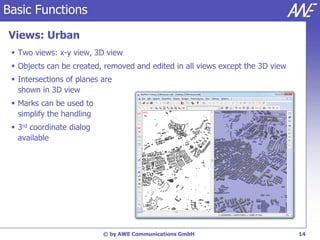
Views: Urban
  Two views: x-y view, 3D view
  Objects can be created, removed and edited in all views except the 3D view
  Intersections of planes are
   shown in 3D view
  Marks can be used to
   simplify the handling
  3rd coordinate dialog
   available


                           © by AWE Communications GmbH                         14
Basic Functions

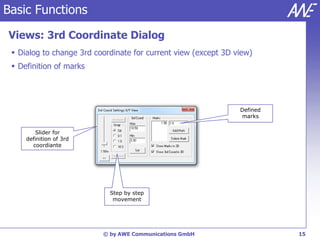
Views: 3rd Coordinate Dialog
  Dialog to change 3rd coordinate for current view (except 3D view)
  Definition of marks


                                                                Defined
                                                                marks


        Slider for
     definition of 3rd
       coordiante


                            Step by step
                             movement


                          © by AWE Communications GmbH                    15
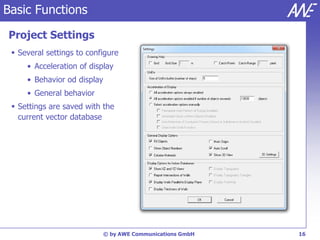
Basic Functions
Project Settings
  Several settings to configure
     • Acceleration of display
     • Behavior od display
     • General behavior
  Settings are saved with the
   current vector database


                             © by AWE Communications GmbH   16
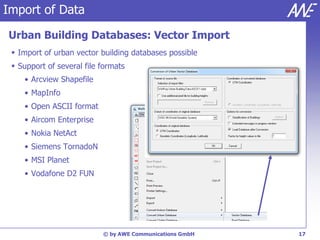
Import of Data

Urban Building Databases: Vector Import
  Import of urban vector building databases possible
  Support of several file formats
    • Arcview Shapefile
    • MapInfo
    • Open ASCII format
    • Aircom Enterprise
    • Nokia NetAct
    • Siemens TornadoN
    • MSI Planet
    • Vodafone D2 FUN


                           © by AWE Communications GmbH   17
Import of Data

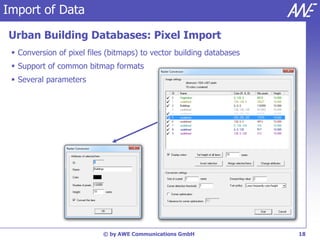
Urban Building Databases: Pixel Import
  Conversion of pixel files (bitmaps) to vector building databases
  Support of common bitmap formats
  Several parameters


                           © by AWE Communications GmbH               18
Import of Data

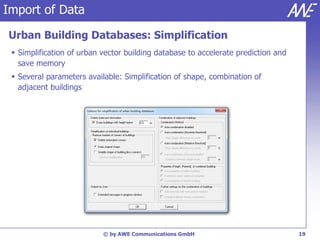
Urban Building Databases: Simplification
  Simplification of urban vector building database to accelerate prediction and
   save memory
  Several parameters available: Simplification of shape, combination of
   adjacent buildings


                           © by AWE Communications GmbH                            19
Import of Data

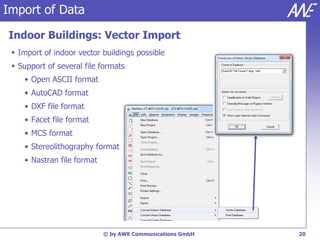
Indoor Buildings: Vector Import
  Import of indoor vector buildings possible
  Support of several file formats
    • Open ASCII format
    • AutoCAD format
    • DXF file format
    • Facet file format
    • MCS format
    • Stereolithography format
    • Nastran file format


                            © by AWE Communications GmbH   20
Import of Data

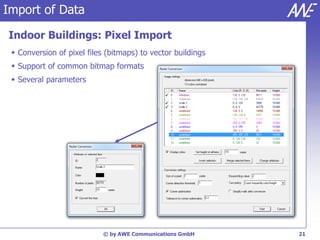
Indoor Buildings: Pixel Import
  Conversion of pixel files (bitmaps) to vector buildings
  Support of common bitmap formats
  Several parameters


                            © by AWE Communications GmbH     21
Import of Data

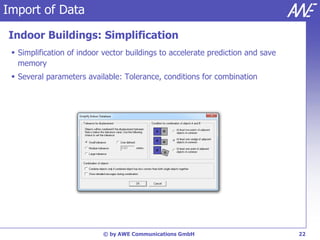
Indoor Buildings: Simplification
  Simplification of indoor vector buildings to accelerate prediction and save
   memory
  Several parameters available: Tolerance, conditions for combination


                           © by AWE Communications GmbH                          22
Using Background Images

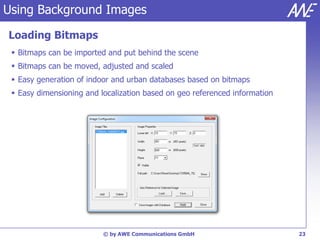
Loading Bitmaps
  Bitmaps can be imported and put behind the scene
  Bitmaps can be moved, adjusted and scaled
  Easy generation of indoor and urban databases based on bitmaps
  Easy dimensioning and localization based on geo referenced information


                          © by AWE Communications GmbH                      23
Using Background Images

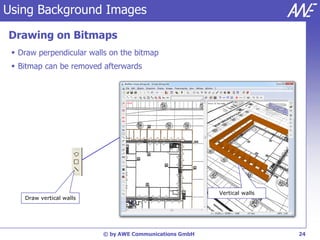
Drawing on Bitmaps
  Draw perpendicular walls on the bitmap
  Bitmap can be removed afterwards


                                                         Vertical walls
    Draw vertical walls


                          © by AWE Communications GmbH                    24
Generating Pixel Maps

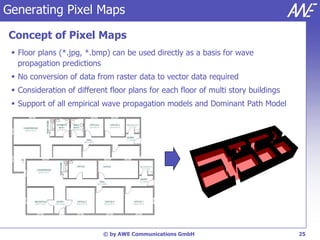
Concept of Pixel Maps
  Floor plans (*.jpg, *.bmp) can be used directly as a basis for wave
   propagation predictions
  No conversion of data from raster data to vector data required
  Consideration of different floor plans for each floor of multi story buildings
  Support of all empirical wave propagation models and Dominant Path Model


                            © by AWE Communications GmbH                            25
Generating Pixel Maps

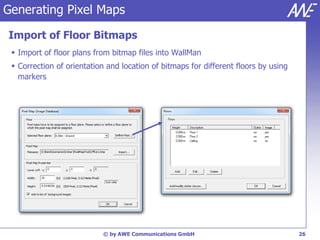
Import of Floor Bitmaps
  Import of floor plans from bitmap files into WallMan
  Correction of orientation and location of bitmaps for different floors by using
   markers


                           © by AWE Communications GmbH                              26
Generating Pixel Maps

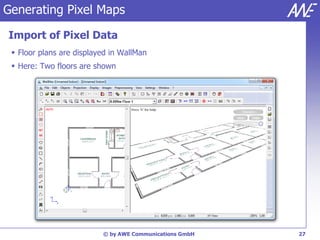
Import of Pixel Data
  Floor plans are displayed in WallMan
  Here: Two floors are shown


                          © by AWE Communications GmbH   27
Generating Pixel Maps

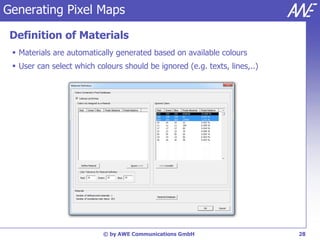
 Definition of Materials
  Materials are automatically generated based on available colours
  User can select which colours should be ignored (e.g. texts, lines,..)


                           © by AWE Communications GmbH                     28
Generating Pixel Maps

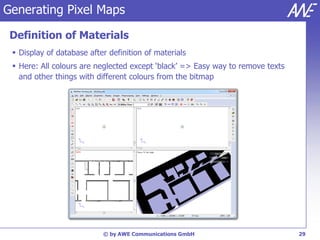
 Definition of Materials
  Display of database after definition of materials
  Here: All colours are neglected except ‘black’ => Easy way to remove texts
   and other things with different colours from the bitmap


                           © by AWE Communications GmbH                         29
Generating Pixel Maps

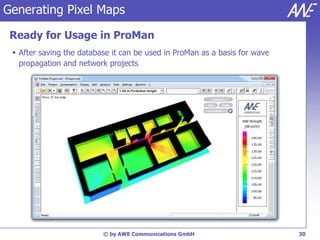
 Ready for Usage in ProMan
  After saving the database it can be used in ProMan as a basis for wave
   propagation and network projects


                          © by AWE Communications GmbH                      30
Time Variance

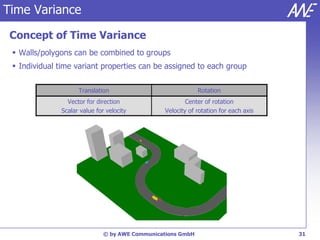
 Concept of Time Variance
  Walls/polygons can be combined to groups
  Individual time variant properties can be assigned to each group

                    Translation                              Rotation
                Vector for direction                    Center of rotation
              Scalar value for velocity         Velocity of rotation for each axis


                              © by AWE Communications GmbH                           31
Time Variance

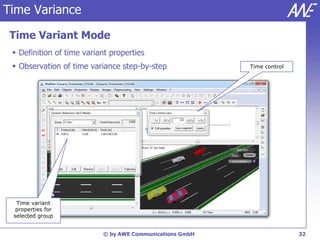
 Time Variant Mode
  Definition of time variant properties
  Observation of time variance step-by-step              Time control


  Time variant
  properties for
 selected group


                           © by AWE Communications GmbH                  32
Time Variance

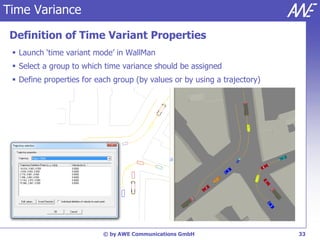
 Definition of Time Variant Properties
  Launch ‘time variant mode’ in WallMan
  Select a group to which time variance should be assigned
  Define properties for each group (by values or by using a trajectory)


                           © by AWE Communications GmbH                    33
Time Variance

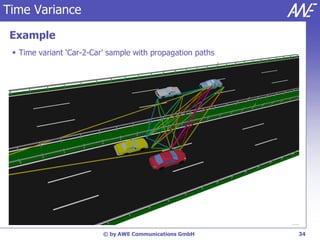
 Example
  Time variant ‘Car-2-Car’ sample with propagation paths


                          © by AWE Communications GmbH      34
Additional Features

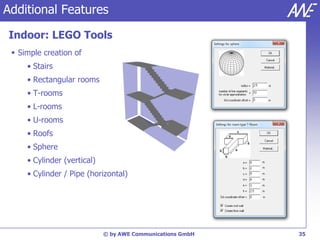
Indoor: LEGO Tools
  Simple creation of
     • Stairs
     • Rectangular rooms
     • T-rooms
     • L-rooms
     • U-rooms
     • Roofs
     • Sphere
     • Cylinder (vertical)
     • Cylinder / Pipe (horizontal)


                             © by AWE Communications GmbH   35
Additional Features

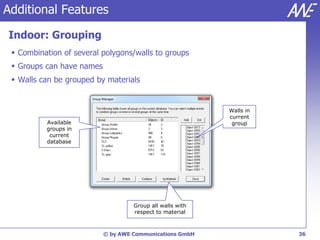
Indoor: Grouping
  Combination of several polygons/walls to groups
  Groups can have names
  Walls can be grouped by materials


                                                           Walls in
                                                           current
          Available                                         group
          groups in
           current
          database


                                    Group all walls with
                                    respect to material


                           © by AWE Communications GmbH               36
Additional Features

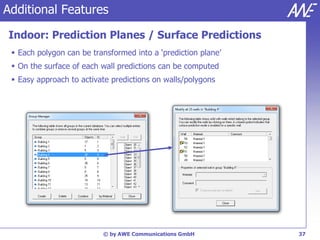
Indoor: Prediction Planes / Surface Predictions
  Each polygon can be transformed into a ‘prediction plane’
  On the surface of each wall predictions can be computed
  Easy approach to activate predictions on walls/polygons


                          © by AWE Communications GmbH         37
Additional Features

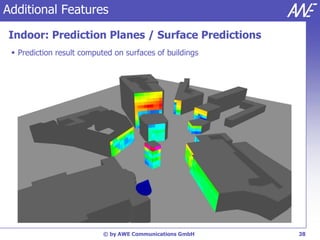
Indoor: Prediction Planes / Surface Predictions
  Prediction result computed on surfaces of buildings


                           © by AWE Communications GmbH   38
Additional Features

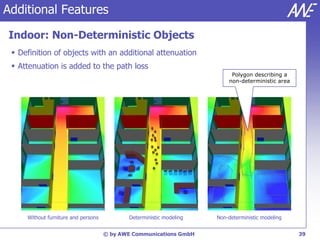
Indoor: Non-Deterministic Objects
  Definition of objects with an additional attenuation
  Attenuation is added to the path loss
                                                                          Polygon describing a
                                                                         non-deterministic area


     Without furniture and persons          Deterministic modeling   Non-deterministic modeling


                                     © by AWE Communications GmbH                                 39
Additional Features

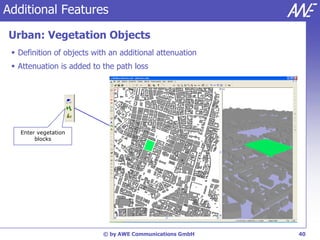
Urban: Vegetation Objects
  Definition of objects with an additional attenuation
  Attenuation is added to the path loss


   Enter vegetation
        blocks


                           © by AWE Communications GmbH   40
Additional Features

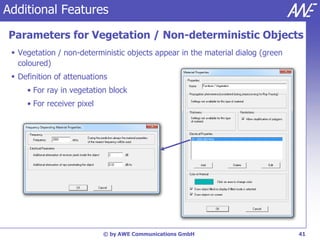
Parameters for Vegetation / Non-deterministic Objects
  Vegetation / non-deterministic objects appear in the material dialog (green
   coloured)
  Definition of attenuations
     • For ray in vegetation block
     • For receiver pixel


                            © by AWE Communications GmbH                         41
Additional Features

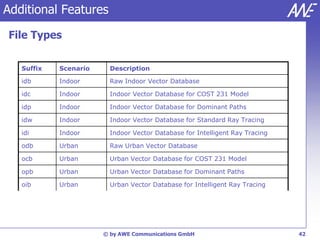
File Types


   Suffix   Scenario     Description

   idb      Indoor       Raw Indoor Vector Database

   idc      Indoor       Indoor Vector Database for COST 231 Model

   idp      Indoor       Indoor Vector Database for Dominant Paths

   idw      Indoor       Indoor Vector Database for Standard Ray Tracing

   idi      Indoor       Indoor Vector Database for Intelligent Ray Tracing

   odb      Urban        Raw Urban Vector Database

   ocb      Urban        Urban Vector Database for COST 231 Model

   opb      Urban        Urban Vector Database for Dominant Paths

   oib      Urban        Urban Vector Database for Intelligent Ray Tracing


                       © by AWE Communications GmbH                           42
Preprocessing

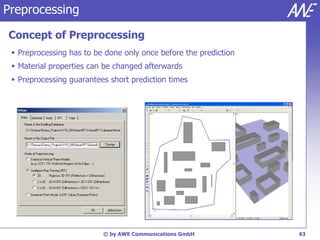
Concept of Preprocessing
  Preprocessing has to be done only once before the prediction
  Material properties can be changed afterwards
  Preprocessing guarantees short prediction times


                          © by AWE Communications GmbH            43
Preprocessing

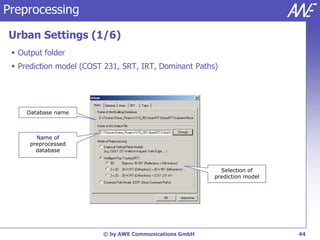
Urban Settings (1/6)
  Output folder
  Prediction model (COST 231, SRT, IRT, Dominant Paths)


     Database name


        Name of
      preprocessed
        database


                                                          Selection of
                                                        prediction model


                         © by AWE Communications GmbH                      44
Preprocessing

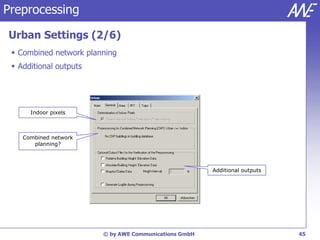
Urban Settings (2/6)
  Combined network planning
  Additional outputs


      Indoor pixels


    Combined network
       planning?


                                                       Additional outputs


                        © by AWE Communications GmbH                        45
Preprocessing

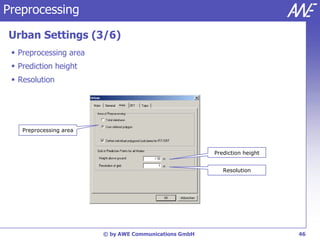
Urban Settings (3/6)
  Preprocessing area
  Prediction height
  Resolution


    Preprocessing area


                                                        Prediction height


                                                           Resolution


                         © by AWE Communications GmbH                       46
Preprocessing

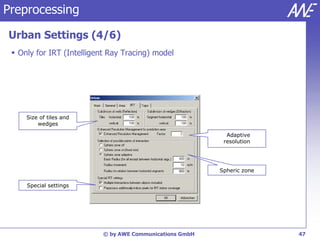
Urban Settings (4/6)
  Only for IRT (Intelligent Ray Tracing) model


     Size of tiles and
         wedges

                                                            Adaptive
                                                           resolution


                                                          Spheric zone

     Special settings


                           © by AWE Communications GmbH                  47
Preprocessing

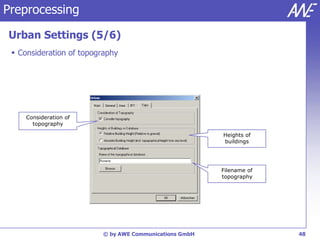
Urban Settings (5/6)
  Consideration of topography


     Consideration of
       topography

                                                        Heights of
                                                        buildings


                                                        Filename of
                                                        topography


                         © by AWE Communications GmbH                 48
Preprocessing

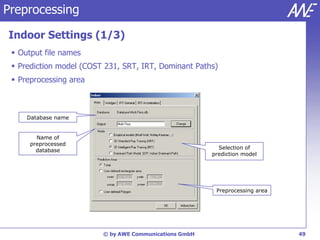
Indoor Settings (1/3)
  Output file names
  Prediction model (COST 231, SRT, IRT, Dominant Paths)
  Preprocessing area


     Database name


        Name of
      preprocessed
                                                          Selection of
        database
                                                        prediction model


                                                         Preprocessing area


                         © by AWE Communications GmbH                         49
Preprocessing

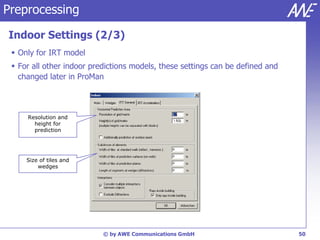
Indoor Settings (2/3)
  Only for IRT model
  For all other indoor predictions models, these settings can be defined and
   changed later in ProMan


     Resolution and
       height for
       prediction


     Size of tiles and
         wedges


                           © by AWE Communications GmbH                         50
Preprocessing

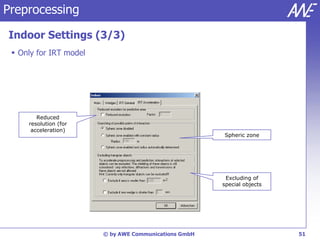
Indoor Settings (3/3)
  Only for IRT model


        Reduced
     resolution (for
      acceleration)
                                                       Spheric zone


                                                        Excluding of
                                                       special objects


                        © by AWE Communications GmbH                     51

Wall man

  • 1.
    WallMan Urban & Indoor © 2012 by AWE Communications GmbH www.awe-com.com
  • 2.
    Outline Overview  Urban & Indoor Databases  Materials  Basic Functions  Import of Data  Using Background Images  Working with Pixel Maps  Time Variance  Additional Features  Preprocessing © by AWE Communications GmbH 2
  • 3.
    Overview Overview  Generationof vector databases for buildings and cities  Conversion of vector databases from common file formats  Visualization of vector databases  Modification of databases  Definition of material properties  Definition of parameters for preprocessing © by AWE Communications GmbH 3
  • 4.
    Urban & IndoorDatabases Wall Material: Concrete  3D vector oriented database Subdivision 2 Material:  Walls as planar objects with polygonal shape Subdivision 1 Glass Material: Wood  Individual material properties  Subdivisions with different material properties to model doors and windows © by AWE Communications GmbH 4
  • 5.
    Urban & IndoorDatabases Urban Vector Databases  2x2D vector oriented database  Buildings as vertical cylinders with polygonal ground-planes  Uniform height above street-level  Limitation to vertical walls and flat roofs  Individual material properties  Topography © by AWE Communications GmbH 5
  • 6.
    Urban & IndoorDatabases Urban Databases Indoor Databases  Basic element: Building  Basic element: Wall/Polygon  Only horizontal and vertical walls  Arbitrary orientation of wall  Uniform height of each building  All types of roofs can be modeled  No subdivisions possible  Subdivisions possible  Courtyards and towers possible  Consideration of topography (after preprocessing)  For large urban areas with  For limited scenarios (single hundreds of buildings building or campus scenario) © by AWE Communications GmbH 6
  • 7.
    Materials Material Properties Each polygon/building can have individual material properties  Properties depend on frequency  Usage of global material catalogue © by AWE Communications GmbH 7
  • 8.
    Materials Material Properties • Properties affecting all propagation models Transmission Loss (in dB) • Properties affecting Dominant Path Model Reflection Loss (in dB) • Properties affecting Ray Tracing • GTD/UTD related properties • Relative Dielectricity • Relative Permeability • Conductance (in S/m) • Scattering parameters • Empirical reflection/diffraction model • Reflection Loss (in dB) • Diffraction Loss Incident Min (in dB) • Diffraction Loss Incident Max (in dB) • Diffraction Loss Diffracted (in dB) • Scattering loss (in dB) © by AWE Communications GmbH 8
  • 9.
    Materials Global Material Catalogue  Global material catalogue with different frequency bands  Modification of predefined materials possible © by AWE Communications GmbH 9
  • 10.
    Basic Functions User Interface  Nearly same user interface for urban and indoor scenarios  Database edit mode and preprocessing mode Urban Database Indoor Database © by AWE Communications GmbH 10
  • 11.
    Basic Functions User Interface Materials Groups Tools Time Variance File functions Selection Zooming Floor Bitmaps Views selection Drawing Grouping © by AWE Communications GmbH 11
  • 12.
    Basic Functions Functions File functions: New, open, save, close  Edit materials  Edit project settings  Change current view  Zooming (in, out, reset, fit to screen)  Selection of objects (by number, by materials,..)  Grouping of several objects  Several edit functions (move, rotate, scale,..)  Bitmaps in the background  Preprocessing of vector databases … © by AWE Communications GmbH 12
  • 13.
    Basic Functions Views: Indoor  Four views: x-z view, y-z view, x-y view, single wall view (has to be activated by double clicking a wall), 3D view  Objects can be created, removed and edited in all views except the 3D view  Intersections of planes are shown in 3D view  Markers can be used to simplify the handling  3rd coordinate dialog available © by AWE Communications GmbH 13
  • 14.
    Basic Functions Views: Urban  Two views: x-y view, 3D view  Objects can be created, removed and edited in all views except the 3D view  Intersections of planes are shown in 3D view  Marks can be used to simplify the handling  3rd coordinate dialog available © by AWE Communications GmbH 14
  • 15.
    Basic Functions Views: 3rdCoordinate Dialog  Dialog to change 3rd coordinate for current view (except 3D view)  Definition of marks Defined marks Slider for definition of 3rd coordiante Step by step movement © by AWE Communications GmbH 15
  • 16.
    Basic Functions Project Settings  Several settings to configure • Acceleration of display • Behavior od display • General behavior  Settings are saved with the current vector database © by AWE Communications GmbH 16
  • 17.
    Import of Data UrbanBuilding Databases: Vector Import  Import of urban vector building databases possible  Support of several file formats • Arcview Shapefile • MapInfo • Open ASCII format • Aircom Enterprise • Nokia NetAct • Siemens TornadoN • MSI Planet • Vodafone D2 FUN © by AWE Communications GmbH 17
  • 18.
    Import of Data UrbanBuilding Databases: Pixel Import  Conversion of pixel files (bitmaps) to vector building databases  Support of common bitmap formats  Several parameters © by AWE Communications GmbH 18
  • 19.
    Import of Data UrbanBuilding Databases: Simplification  Simplification of urban vector building database to accelerate prediction and save memory  Several parameters available: Simplification of shape, combination of adjacent buildings © by AWE Communications GmbH 19
  • 20.
    Import of Data IndoorBuildings: Vector Import  Import of indoor vector buildings possible  Support of several file formats • Open ASCII format • AutoCAD format • DXF file format • Facet file format • MCS format • Stereolithography format • Nastran file format © by AWE Communications GmbH 20
  • 21.
    Import of Data IndoorBuildings: Pixel Import  Conversion of pixel files (bitmaps) to vector buildings  Support of common bitmap formats  Several parameters © by AWE Communications GmbH 21
  • 22.
    Import of Data IndoorBuildings: Simplification  Simplification of indoor vector buildings to accelerate prediction and save memory  Several parameters available: Tolerance, conditions for combination © by AWE Communications GmbH 22
  • 23.
    Using Background Images LoadingBitmaps  Bitmaps can be imported and put behind the scene  Bitmaps can be moved, adjusted and scaled  Easy generation of indoor and urban databases based on bitmaps  Easy dimensioning and localization based on geo referenced information © by AWE Communications GmbH 23
  • 24.
    Using Background Images Drawingon Bitmaps  Draw perpendicular walls on the bitmap  Bitmap can be removed afterwards Vertical walls Draw vertical walls © by AWE Communications GmbH 24
  • 25.
    Generating Pixel Maps Conceptof Pixel Maps  Floor plans (*.jpg, *.bmp) can be used directly as a basis for wave propagation predictions  No conversion of data from raster data to vector data required  Consideration of different floor plans for each floor of multi story buildings  Support of all empirical wave propagation models and Dominant Path Model © by AWE Communications GmbH 25
  • 26.
    Generating Pixel Maps Importof Floor Bitmaps  Import of floor plans from bitmap files into WallMan  Correction of orientation and location of bitmaps for different floors by using markers © by AWE Communications GmbH 26
  • 27.
    Generating Pixel Maps Importof Pixel Data  Floor plans are displayed in WallMan  Here: Two floors are shown © by AWE Communications GmbH 27
  • 28.
    Generating Pixel Maps Definition of Materials  Materials are automatically generated based on available colours  User can select which colours should be ignored (e.g. texts, lines,..) © by AWE Communications GmbH 28
  • 29.
    Generating Pixel Maps Definition of Materials  Display of database after definition of materials  Here: All colours are neglected except ‘black’ => Easy way to remove texts and other things with different colours from the bitmap © by AWE Communications GmbH 29
  • 30.
    Generating Pixel Maps Ready for Usage in ProMan  After saving the database it can be used in ProMan as a basis for wave propagation and network projects © by AWE Communications GmbH 30
  • 31.
    Time Variance Conceptof Time Variance  Walls/polygons can be combined to groups  Individual time variant properties can be assigned to each group Translation Rotation Vector for direction Center of rotation Scalar value for velocity Velocity of rotation for each axis © by AWE Communications GmbH 31
  • 32.
    Time Variance TimeVariant Mode  Definition of time variant properties  Observation of time variance step-by-step Time control Time variant properties for selected group © by AWE Communications GmbH 32
  • 33.
    Time Variance Definitionof Time Variant Properties  Launch ‘time variant mode’ in WallMan  Select a group to which time variance should be assigned  Define properties for each group (by values or by using a trajectory) © by AWE Communications GmbH 33
  • 34.
    Time Variance Example  Time variant ‘Car-2-Car’ sample with propagation paths © by AWE Communications GmbH 34
  • 35.
    Additional Features Indoor: LEGOTools  Simple creation of • Stairs • Rectangular rooms • T-rooms • L-rooms • U-rooms • Roofs • Sphere • Cylinder (vertical) • Cylinder / Pipe (horizontal) © by AWE Communications GmbH 35
  • 36.
    Additional Features Indoor: Grouping  Combination of several polygons/walls to groups  Groups can have names  Walls can be grouped by materials Walls in current Available group groups in current database Group all walls with respect to material © by AWE Communications GmbH 36
  • 37.
    Additional Features Indoor: PredictionPlanes / Surface Predictions  Each polygon can be transformed into a ‘prediction plane’  On the surface of each wall predictions can be computed  Easy approach to activate predictions on walls/polygons © by AWE Communications GmbH 37
  • 38.
    Additional Features Indoor: PredictionPlanes / Surface Predictions  Prediction result computed on surfaces of buildings © by AWE Communications GmbH 38
  • 39.
    Additional Features Indoor: Non-DeterministicObjects  Definition of objects with an additional attenuation  Attenuation is added to the path loss Polygon describing a non-deterministic area Without furniture and persons Deterministic modeling Non-deterministic modeling © by AWE Communications GmbH 39
  • 40.
    Additional Features Urban: VegetationObjects  Definition of objects with an additional attenuation  Attenuation is added to the path loss Enter vegetation blocks © by AWE Communications GmbH 40
  • 41.
    Additional Features Parameters forVegetation / Non-deterministic Objects  Vegetation / non-deterministic objects appear in the material dialog (green coloured)  Definition of attenuations • For ray in vegetation block • For receiver pixel © by AWE Communications GmbH 41
  • 42.
    Additional Features File Types Suffix Scenario Description idb Indoor Raw Indoor Vector Database idc Indoor Indoor Vector Database for COST 231 Model idp Indoor Indoor Vector Database for Dominant Paths idw Indoor Indoor Vector Database for Standard Ray Tracing idi Indoor Indoor Vector Database for Intelligent Ray Tracing odb Urban Raw Urban Vector Database ocb Urban Urban Vector Database for COST 231 Model opb Urban Urban Vector Database for Dominant Paths oib Urban Urban Vector Database for Intelligent Ray Tracing © by AWE Communications GmbH 42
  • 43.
    Preprocessing Concept of Preprocessing  Preprocessing has to be done only once before the prediction  Material properties can be changed afterwards  Preprocessing guarantees short prediction times © by AWE Communications GmbH 43
  • 44.
    Preprocessing Urban Settings (1/6)  Output folder  Prediction model (COST 231, SRT, IRT, Dominant Paths) Database name Name of preprocessed database Selection of prediction model © by AWE Communications GmbH 44
  • 45.
    Preprocessing Urban Settings (2/6)  Combined network planning  Additional outputs Indoor pixels Combined network planning? Additional outputs © by AWE Communications GmbH 45
  • 46.
    Preprocessing Urban Settings (3/6)  Preprocessing area  Prediction height  Resolution Preprocessing area Prediction height Resolution © by AWE Communications GmbH 46
  • 47.
    Preprocessing Urban Settings (4/6)  Only for IRT (Intelligent Ray Tracing) model Size of tiles and wedges Adaptive resolution Spheric zone Special settings © by AWE Communications GmbH 47
  • 48.
    Preprocessing Urban Settings (5/6)  Consideration of topography Consideration of topography Heights of buildings Filename of topography © by AWE Communications GmbH 48
  • 49.
    Preprocessing Indoor Settings (1/3)  Output file names  Prediction model (COST 231, SRT, IRT, Dominant Paths)  Preprocessing area Database name Name of preprocessed Selection of database prediction model Preprocessing area © by AWE Communications GmbH 49
  • 50.
    Preprocessing Indoor Settings (2/3)  Only for IRT model  For all other indoor predictions models, these settings can be defined and changed later in ProMan Resolution and height for prediction Size of tiles and wedges © by AWE Communications GmbH 50
  • 51.
    Preprocessing Indoor Settings (3/3)  Only for IRT model Reduced resolution (for acceleration) Spheric zone Excluding of special objects © by AWE Communications GmbH 51