
Video Content Management


        www.prodigyview.com
Overview
Objective

Learn how to manipulate video content of ProdigyView’s built-in content
management system. Also learn how to upload a video file directly into
the cms.

Requirements

 Installed version of ProdigyView with a database
 Understanding of base content
 Understanding of the DEFINES in ProdigyView
 Understanding of FFMPEG from the FFMPEG tutorial
Estimated Time

14 minutes

                           www.prodigyview.com
Follow Along With Code
                  Example
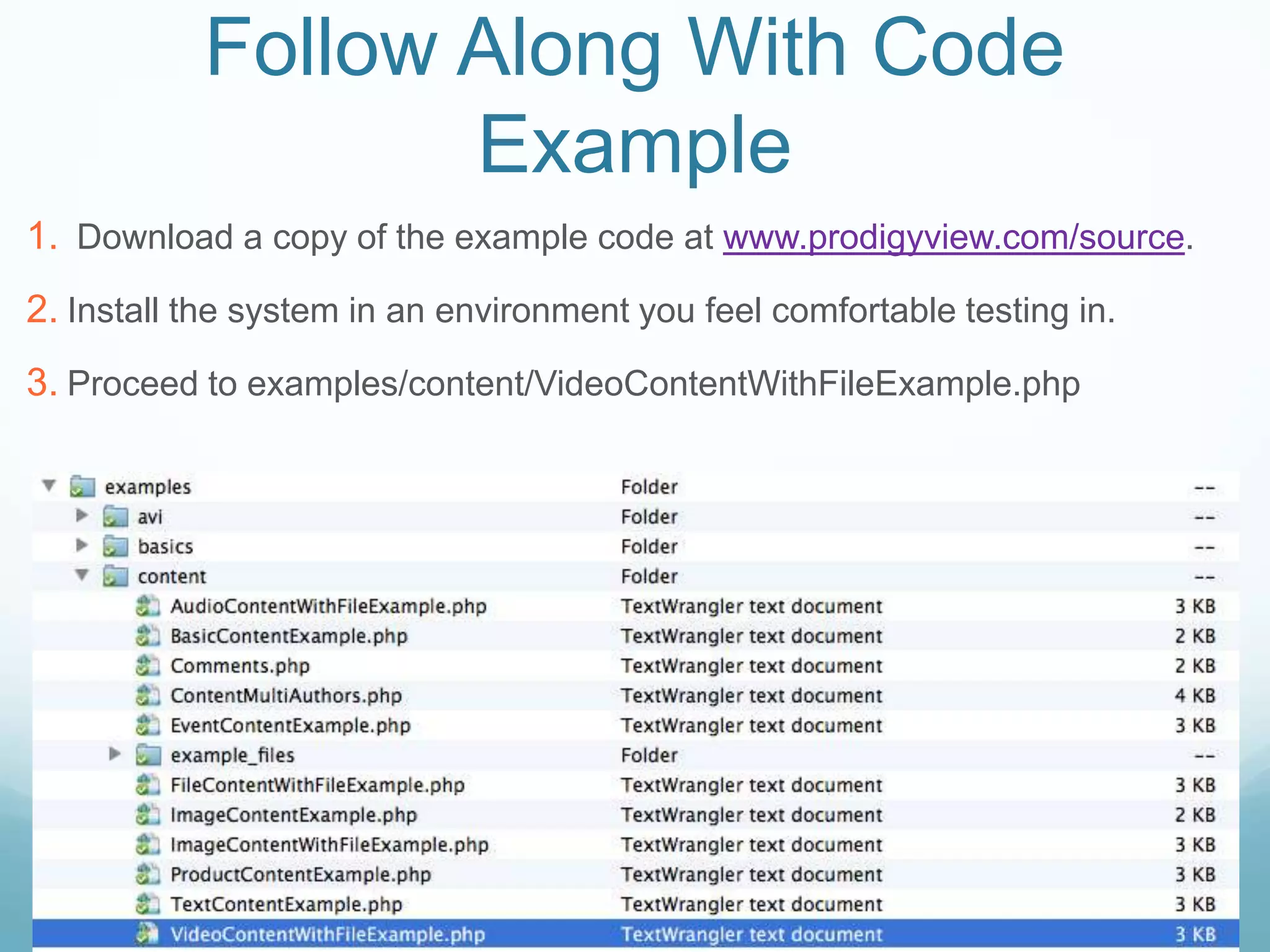
1. Download a copy of the example code at www.prodigyview.com/source.
2. Install the system in an environment you feel comfortable testing in.
3. Proceed to examples/content/VideoContentWithFileExample.php
What Is Video Content?
Video content is content designed to facilitate the storing
and retrieval of video files. Natively, ProdigyView supports
webm, ogv, avi, mp4, mov, asf, and rm files. FFMPEG is
required for conversions. Examples usage of video
content can be:


  Youtube like Site                Conversion Site
  Video Documentary                etc
  Video Blog

                       www.prodigyview.com
Extends Base Content
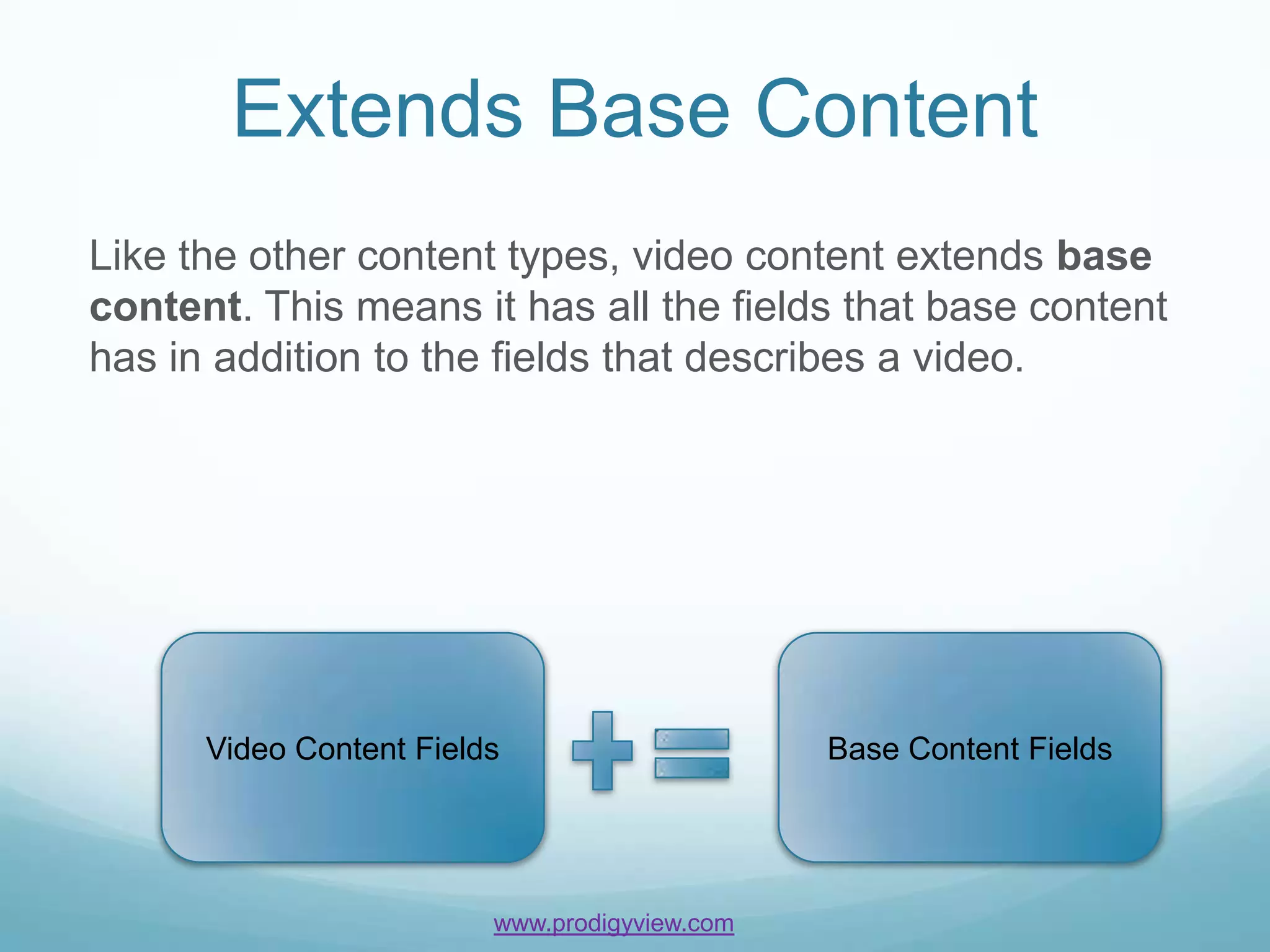
Like the other content types, video content extends base
content. This means it has all the fields that base content
has in addition to the fields that describes a video.


      Video Content Fields                     Base Content Fields


                         www.prodigyview.com
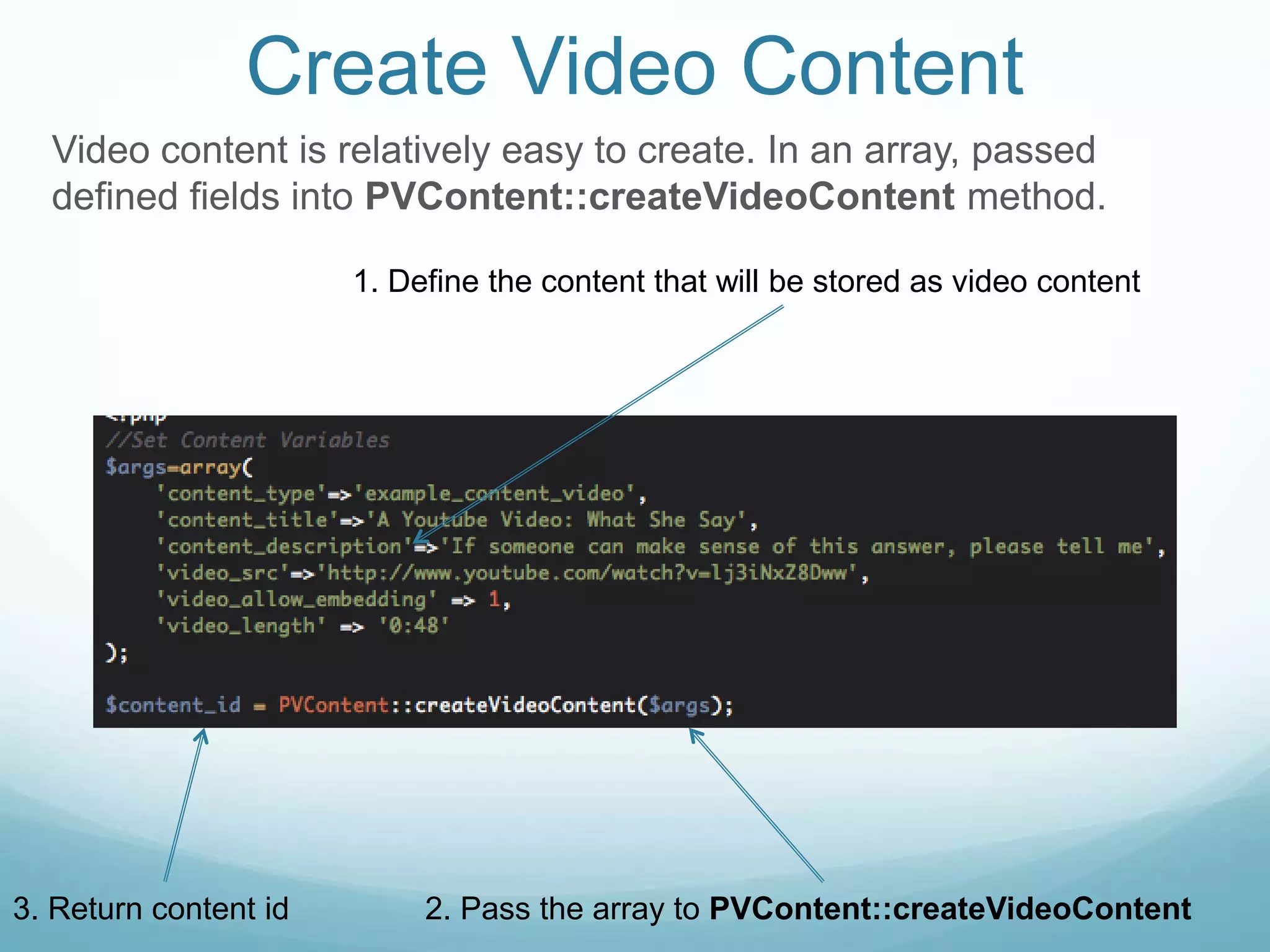
Create Video Content
  Video content is relatively easy to create. In an array, passed
  defined fields into PVContent::createVideoContent method.

                       1. Define the content that will be stored as video content


3. Return content id        2. Pass the array to PVContent::createVideoContent
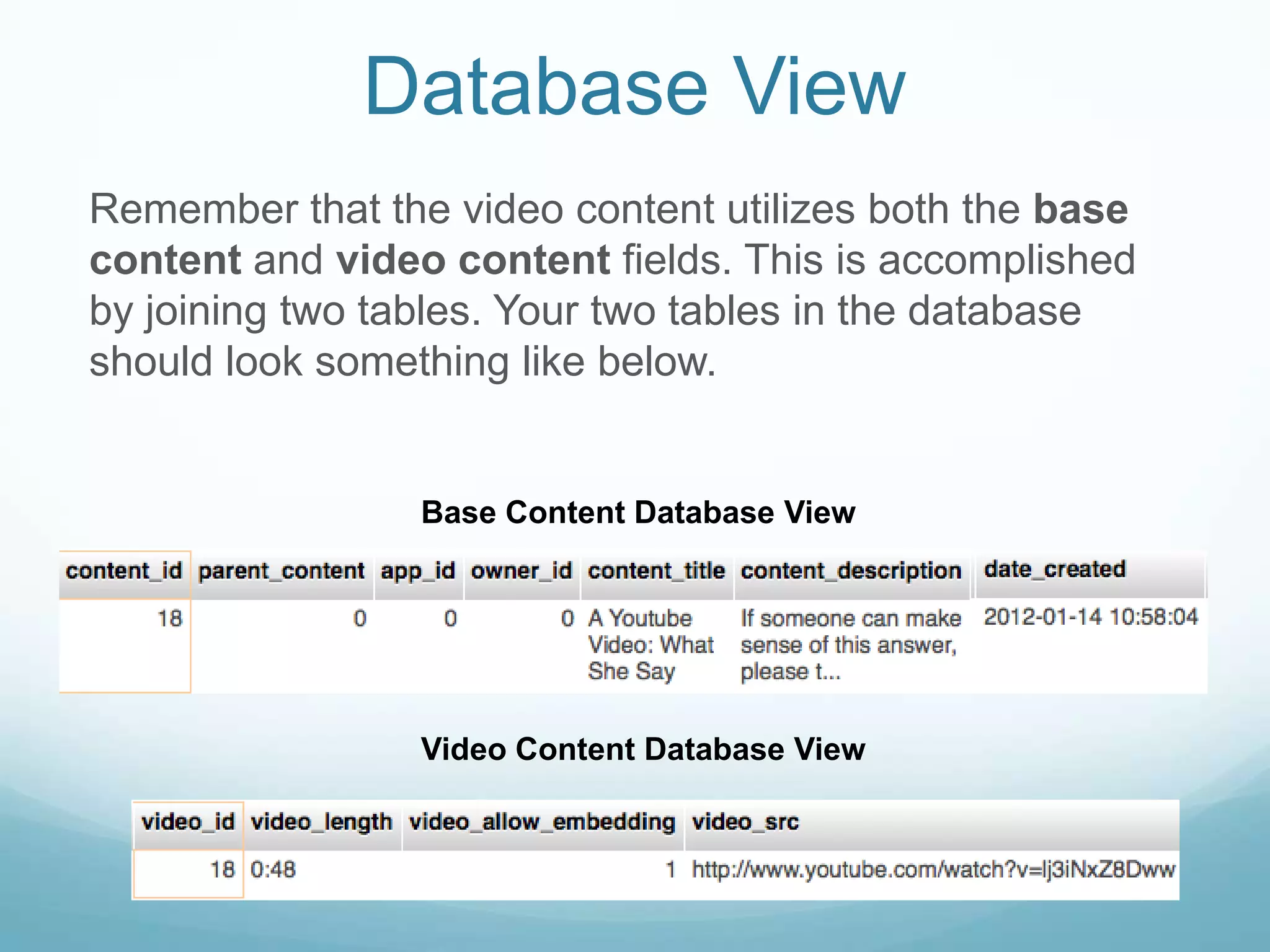
Database View
Remember that the video content utilizes both the base
content and video content fields. This is accomplished
by joining two tables. Your two tables in the database
should look something like below.


                 Base Content Database View


                 Video Content Database View
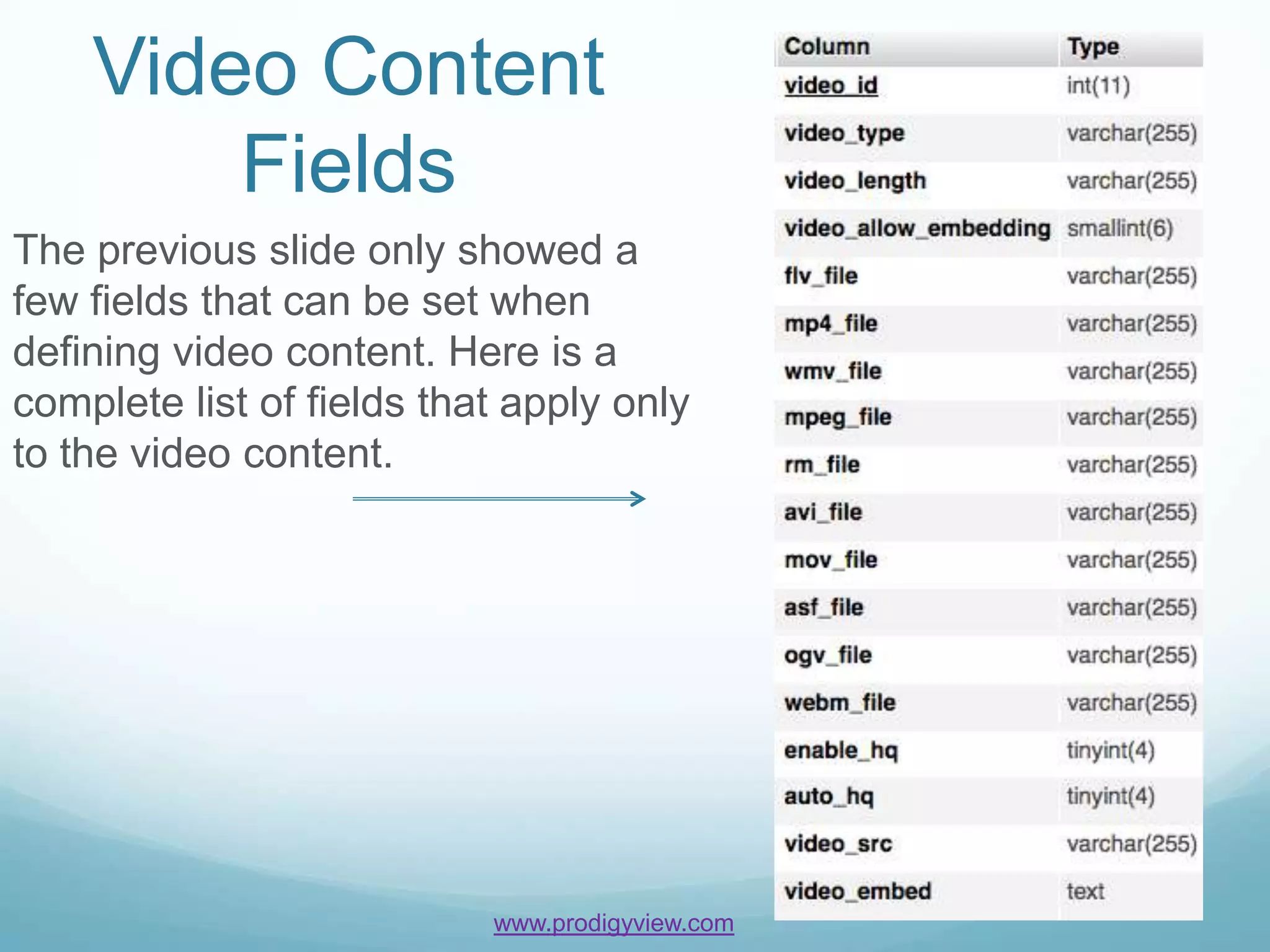
Video Content
        Fields
The previous slide only showed a
few fields that can be set when
defining video content. Here is a
complete list of fields that apply only
to the video content.


                           www.prodigyview.com
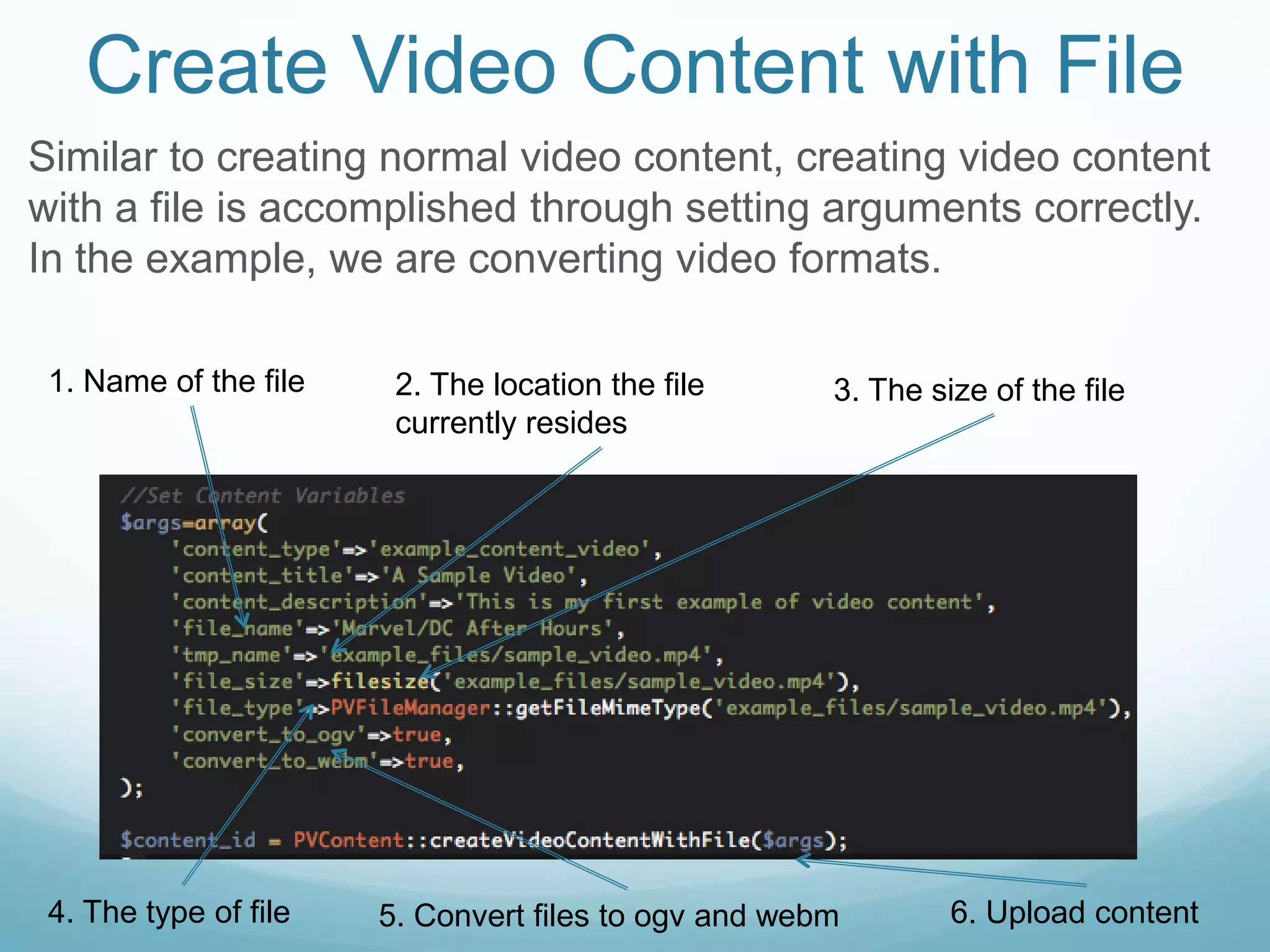
Create Video Content with File
Similar to creating normal video content, creating video content
with a file is accomplished through setting arguments correctly.
In the example, we are converting video formats.

 1. Name of the file    2. The location the file      3. The size of the file
                        currently resides


 4. The type of file   5. Convert files to ogv and webm        6. Upload content
Database View
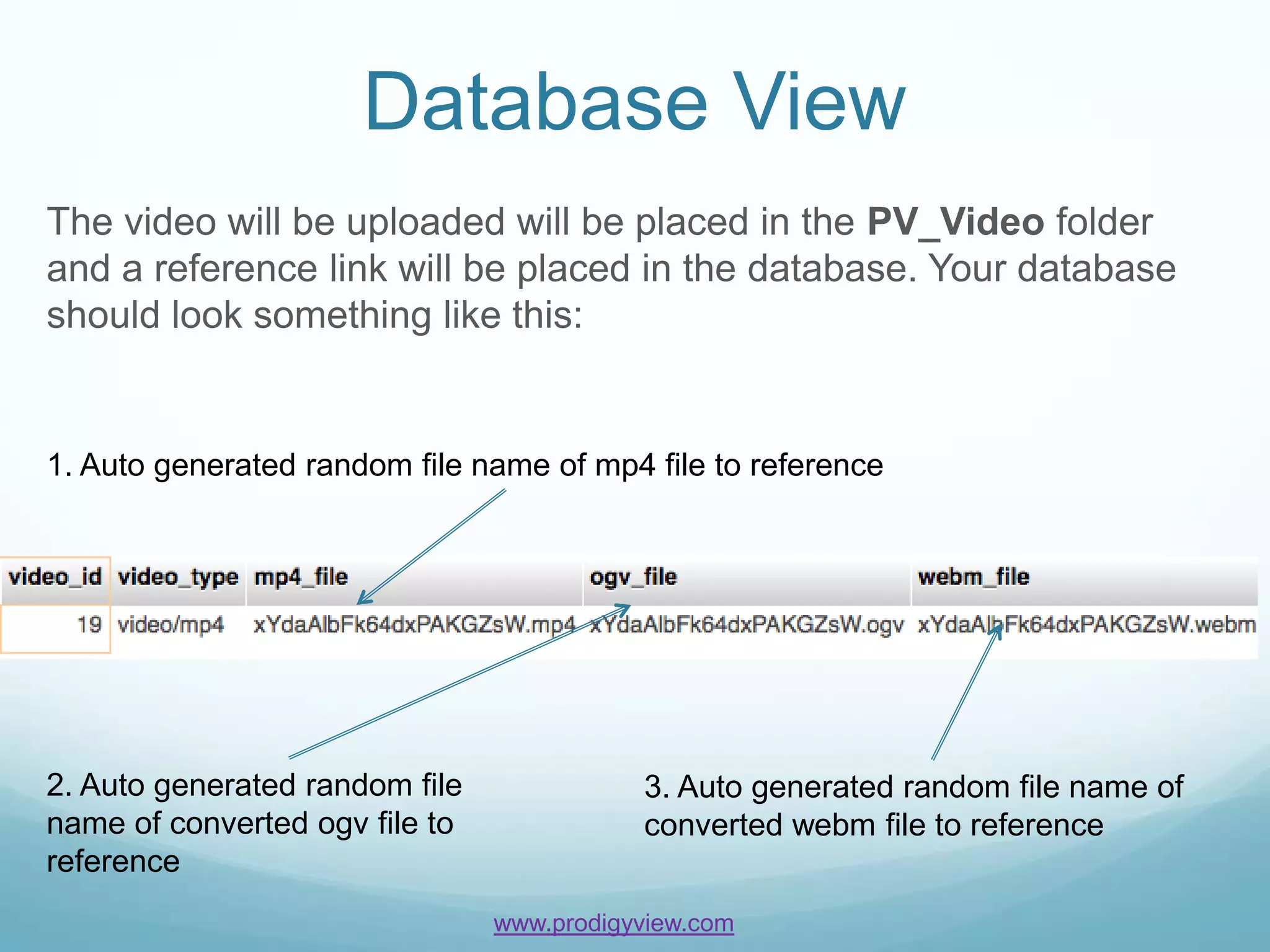
The video will be uploaded will be placed in the PV_Video folder
and a reference link will be placed in the database. Your database
should look something like this:


1. Auto generated random file name of mp4 file to reference


2. Auto generated random file              3. Auto generated random file name of
name of converted ogv file to              converted webm file to reference
reference
                                www.prodigyview.com
Search for Video Content
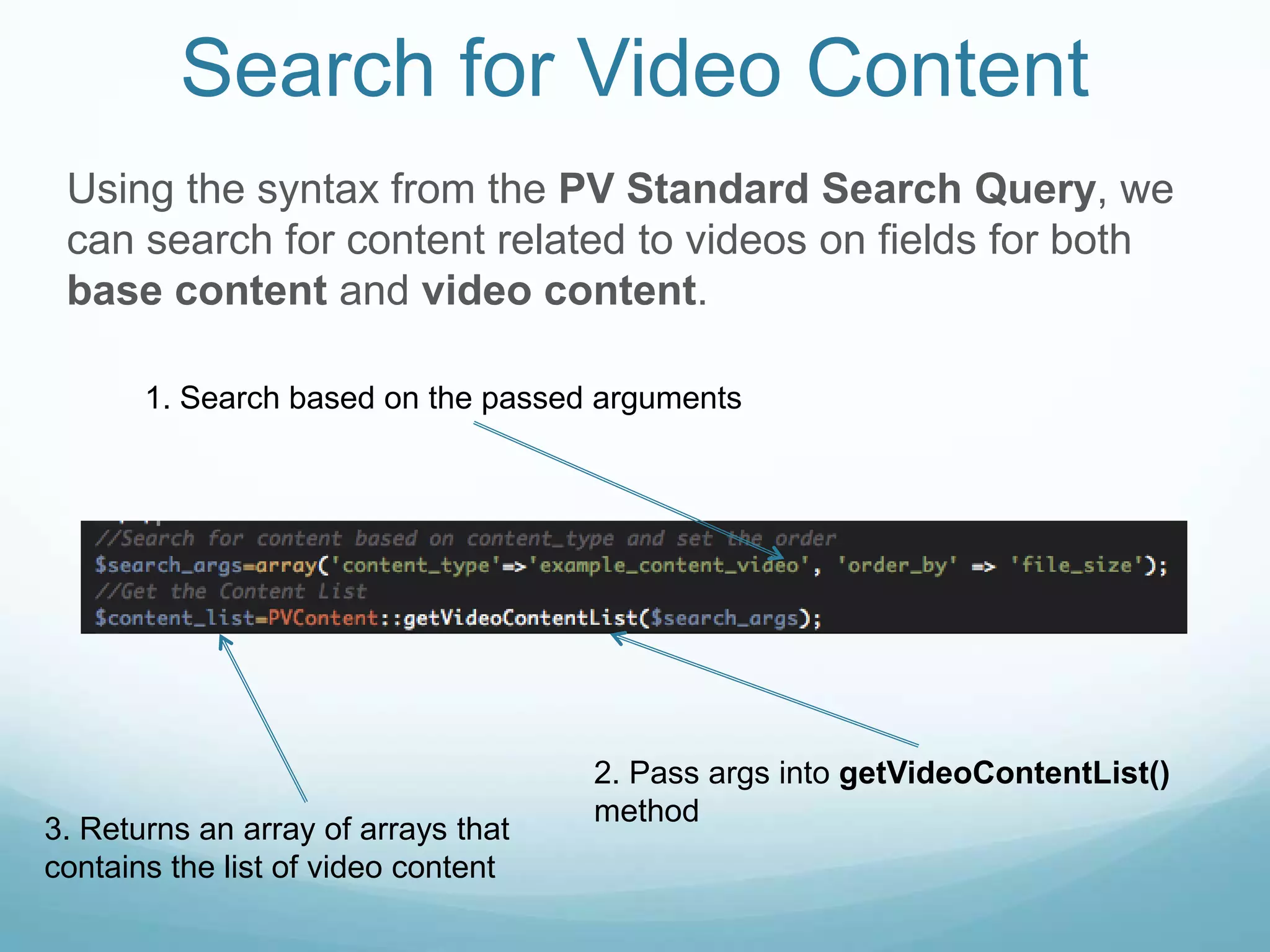
 Using the syntax from the PV Standard Search Query, we
 can search for content related to videos on fields for both
 base content and video content.

       1. Search based on the passed arguments


                                     2. Pass args into getVideoContentList()
                                     method
3. Returns an array of arrays that
contains the list of video content
Iterate Through The List
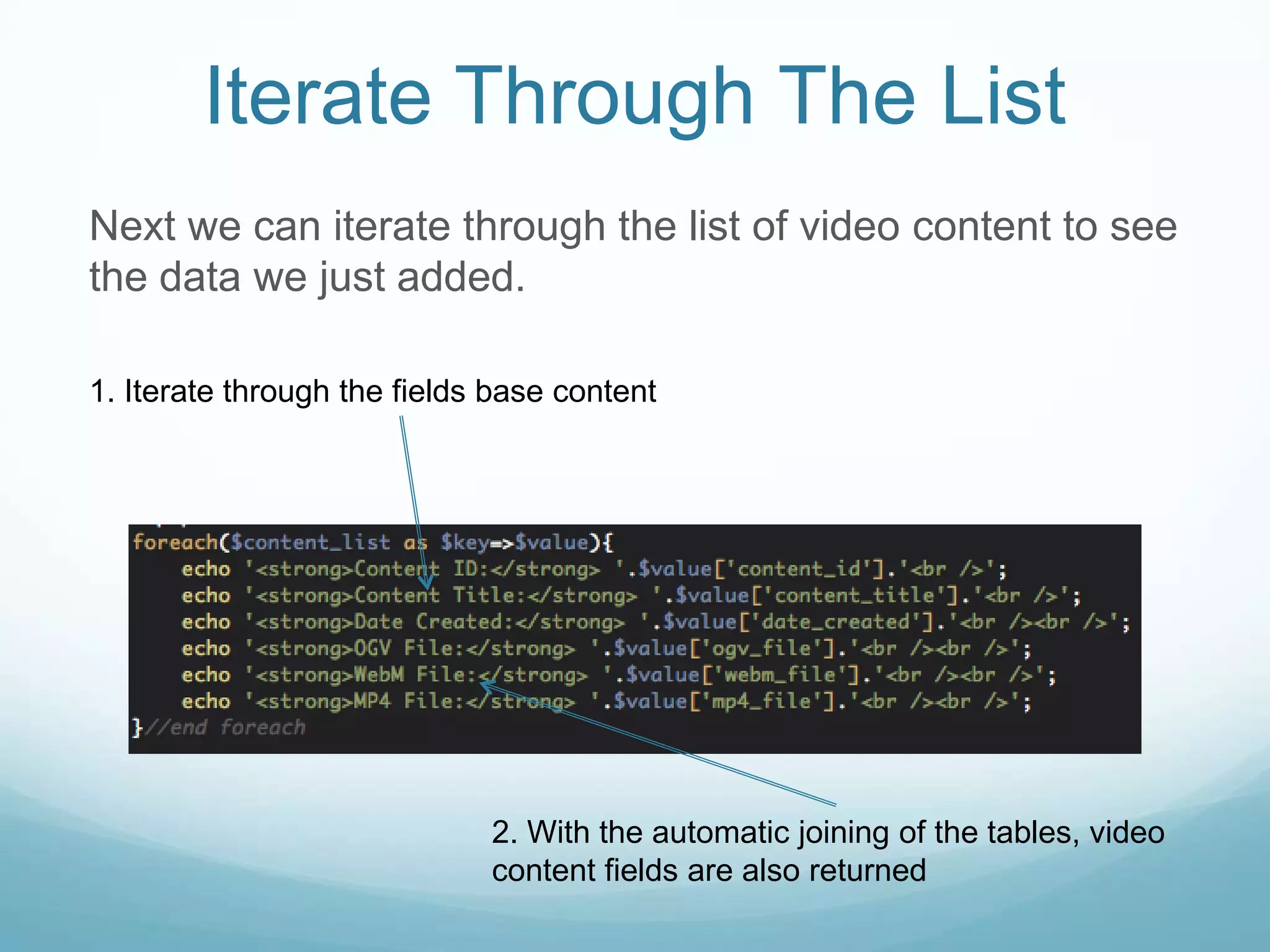
Next we can iterate through the list of video content to see
the data we just added.

1. Iterate through the fields base content


                             2. With the automatic joining of the tables, video
                             content fields are also returned
Retrieving Video Content
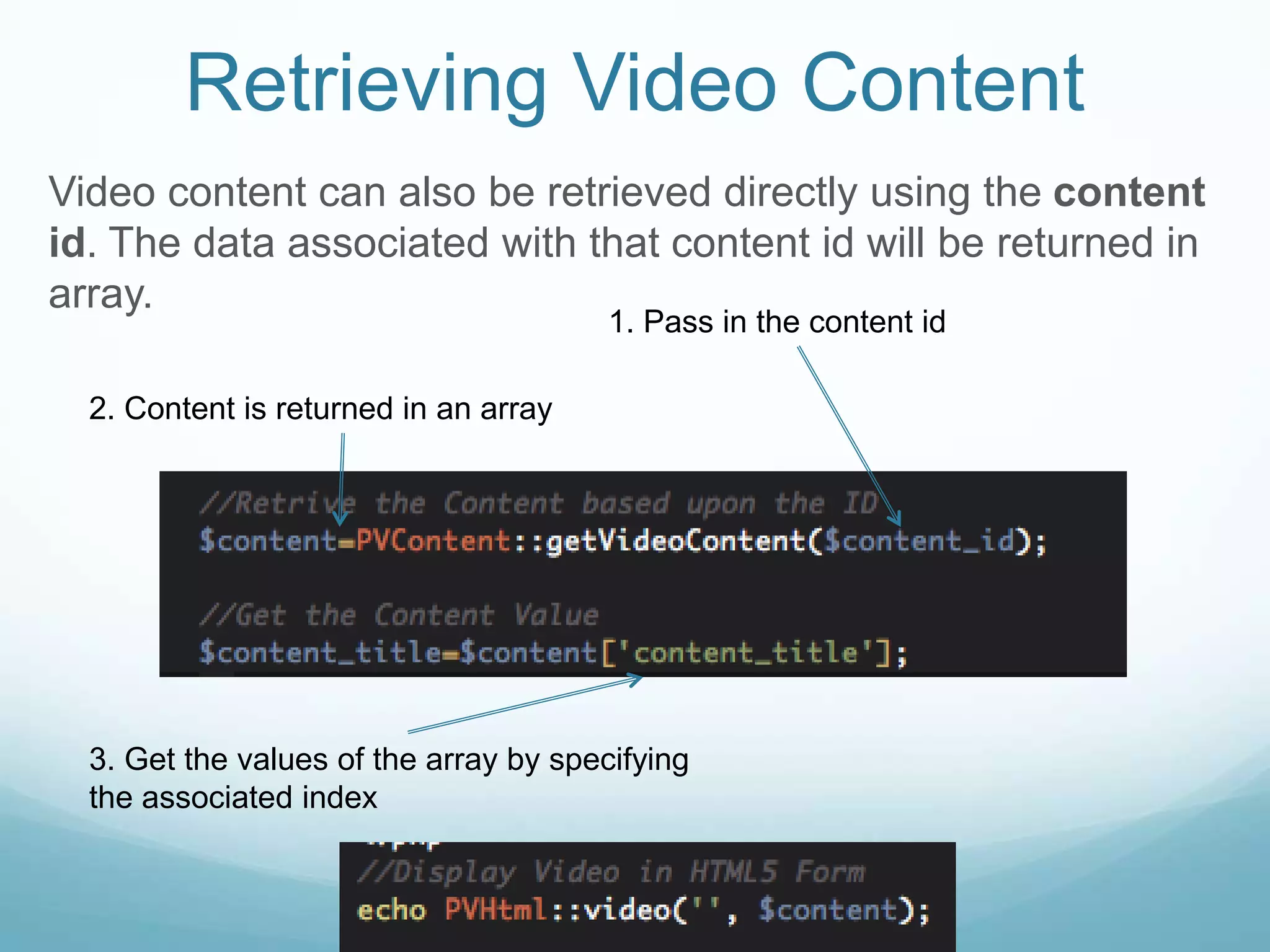
Video content can also be retrieved directly using the content
id. The data associated with that content id will be returned in
array.
                                        1. Pass in the content id

  2. Content is returned in an array


  3. Get the values of the array by specifying
  the associated index
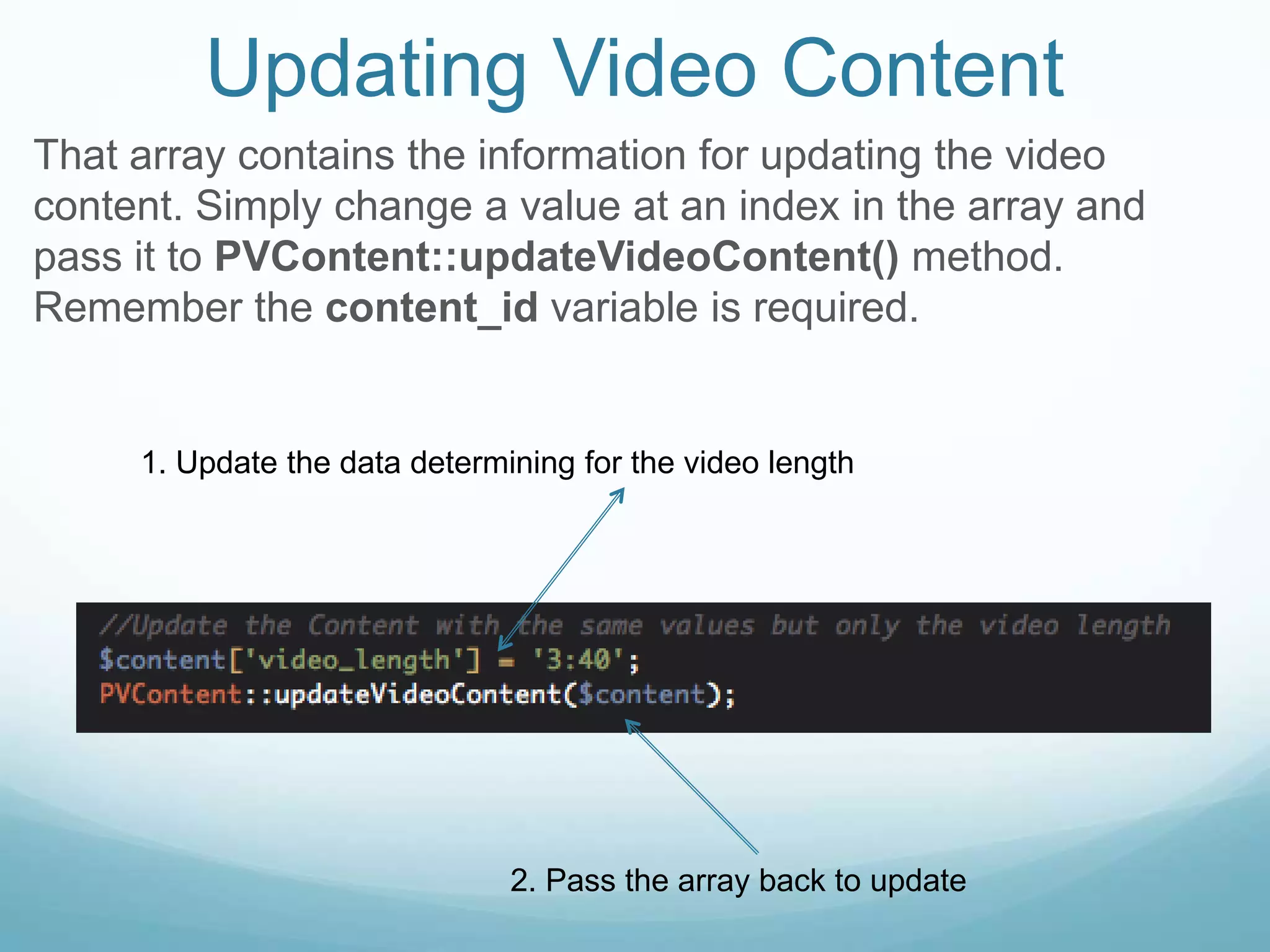
Updating Video Content
That array contains the information for updating the video
content. Simply change a value at an index in the array and
pass it to PVContent::updateVideoContent() method.
Remember the content_id variable is required.


     1. Update the data determining for the video length


                               2. Pass the array back to update
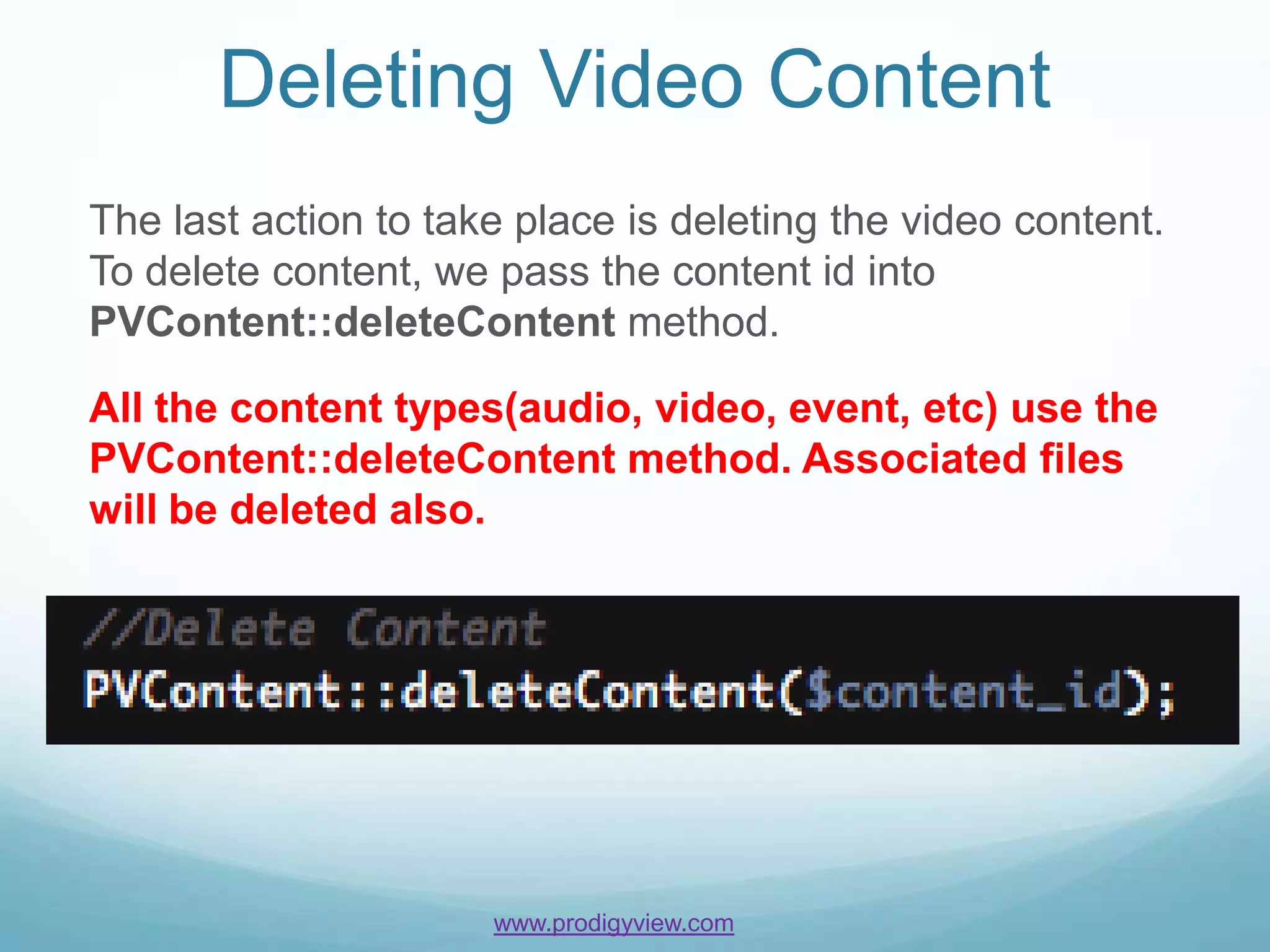
Deleting Video Content
The last action to take place is deleting the video content.
To delete content, we pass the content id into
PVContent::deleteContent method.

All the content types(audio, video, event, etc) use the
PVContent::deleteContent method. Associated files
will be deleted also.


                      www.prodigyview.com
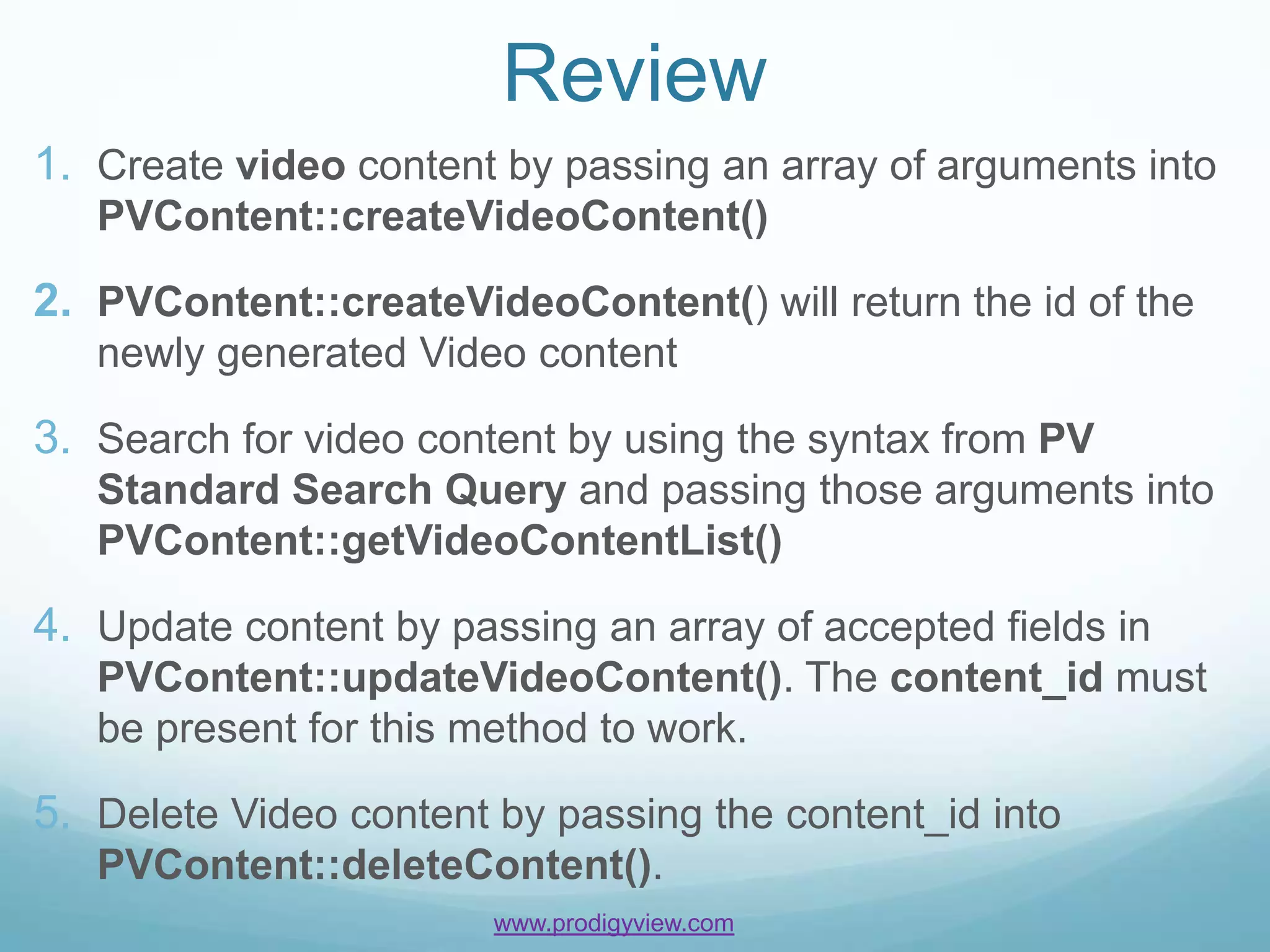
Review
1. Create video content by passing an array of arguments into
   PVContent::createVideoContent()

2. PVContent::createVideoContent() will return the id of the
   newly generated Video content

3. Search for video content by using the syntax from PV
   Standard Search Query and passing those arguments into
   PVContent::getVideoContentList()

4. Update content by passing an array of accepted fields in
   PVContent::updateVideoContent(). The content_id must
   be present for this method to work.

5. Delete Video content by passing the content_id into
   PVContent::deleteContent().
                        www.prodigyview.com
API Reference
For a better understanding of video content, visit the api
by clicking on the link below.

PVContent


                 More Tutorials
For more tutorials, please visit:

http://www.prodigyview.com/tutorials


                       www.prodigyview.com

Video Content Management

  • 1.
    Video Content Management www.prodigyview.com
  • 2.
    Overview Objective Learn how tomanipulate video content of ProdigyView’s built-in content management system. Also learn how to upload a video file directly into the cms. Requirements  Installed version of ProdigyView with a database  Understanding of base content  Understanding of the DEFINES in ProdigyView  Understanding of FFMPEG from the FFMPEG tutorial Estimated Time 14 minutes www.prodigyview.com
  • 3.
    Follow Along WithCode Example 1. Download a copy of the example code at www.prodigyview.com/source. 2. Install the system in an environment you feel comfortable testing in. 3. Proceed to examples/content/VideoContentWithFileExample.php
  • 4.
    What Is VideoContent? Video content is content designed to facilitate the storing and retrieval of video files. Natively, ProdigyView supports webm, ogv, avi, mp4, mov, asf, and rm files. FFMPEG is required for conversions. Examples usage of video content can be:  Youtube like Site  Conversion Site  Video Documentary  etc  Video Blog www.prodigyview.com
  • 5.
    Extends Base Content Likethe other content types, video content extends base content. This means it has all the fields that base content has in addition to the fields that describes a video. Video Content Fields Base Content Fields www.prodigyview.com
  • 6.
    Create Video Content Video content is relatively easy to create. In an array, passed defined fields into PVContent::createVideoContent method. 1. Define the content that will be stored as video content 3. Return content id 2. Pass the array to PVContent::createVideoContent
  • 7.
    Database View Remember thatthe video content utilizes both the base content and video content fields. This is accomplished by joining two tables. Your two tables in the database should look something like below. Base Content Database View Video Content Database View
  • 8.
    Video Content Fields The previous slide only showed a few fields that can be set when defining video content. Here is a complete list of fields that apply only to the video content. www.prodigyview.com
  • 9.
    Create Video Contentwith File Similar to creating normal video content, creating video content with a file is accomplished through setting arguments correctly. In the example, we are converting video formats. 1. Name of the file 2. The location the file 3. The size of the file currently resides 4. The type of file 5. Convert files to ogv and webm 6. Upload content
  • 10.
    Database View The videowill be uploaded will be placed in the PV_Video folder and a reference link will be placed in the database. Your database should look something like this: 1. Auto generated random file name of mp4 file to reference 2. Auto generated random file 3. Auto generated random file name of name of converted ogv file to converted webm file to reference reference www.prodigyview.com
  • 11.
    Search for VideoContent Using the syntax from the PV Standard Search Query, we can search for content related to videos on fields for both base content and video content. 1. Search based on the passed arguments 2. Pass args into getVideoContentList() method 3. Returns an array of arrays that contains the list of video content
  • 12.
    Iterate Through TheList Next we can iterate through the list of video content to see the data we just added. 1. Iterate through the fields base content 2. With the automatic joining of the tables, video content fields are also returned
  • 13.
    Retrieving Video Content Videocontent can also be retrieved directly using the content id. The data associated with that content id will be returned in array. 1. Pass in the content id 2. Content is returned in an array 3. Get the values of the array by specifying the associated index
  • 14.
    Updating Video Content Thatarray contains the information for updating the video content. Simply change a value at an index in the array and pass it to PVContent::updateVideoContent() method. Remember the content_id variable is required. 1. Update the data determining for the video length 2. Pass the array back to update
  • 15.
    Deleting Video Content Thelast action to take place is deleting the video content. To delete content, we pass the content id into PVContent::deleteContent method. All the content types(audio, video, event, etc) use the PVContent::deleteContent method. Associated files will be deleted also. www.prodigyview.com
  • 16.
    Review 1. Create videocontent by passing an array of arguments into PVContent::createVideoContent() 2. PVContent::createVideoContent() will return the id of the newly generated Video content 3. Search for video content by using the syntax from PV Standard Search Query and passing those arguments into PVContent::getVideoContentList() 4. Update content by passing an array of accepted fields in PVContent::updateVideoContent(). The content_id must be present for this method to work. 5. Delete Video content by passing the content_id into PVContent::deleteContent(). www.prodigyview.com
  • 17.
    API Reference For abetter understanding of video content, visit the api by clicking on the link below. PVContent More Tutorials For more tutorials, please visit: http://www.prodigyview.com/tutorials www.prodigyview.com