Utilizing Pro Forma Modeling
In Microsoft Excel
November 20, 2018
Introduction to Bruce Kaufmann
• Currently Senior Consultant – Emergent Partners, LLC
• Owner of Spreadsheet Diagnostics.com
• Previous Experience
• Independent Financial Consultant
• Operations Manager for Specialty Furniture Retailer
• Commercial Banker
Housekeeping
• This presentation is available after the webinar
• Question and Answer session at end of presentation
• Contact information provided at end of presentation
• If you are still stuck after 10 minutes, ask for help!
Using Pro Forma Financials
• Pro Forma – Fancy term for forecast
• Management reports
• Investment decisions
Evaluating Pro Forma Financials
• Integrity of the Excel spreadsheet
• Analysis of the forecast
Evaluation Process
• Audit the spreadsheet for errors
• Confirm the pro forma reflects business operations
• Analyze the financial statement
Assumptions
• You have basic Excel skills
• You use pro forma financial statements to
• Manage a business
• Make investment decisions
What We Will Do
• Learn how to audit a spreadsheet
• Any structural errors that affect the integrity of the data?
• Discuss the accuracy of the spreadsheet
• Does the spreadsheet accurately reflect the company’s
financial structure and operations?
• Analyze the pro forma financial statement
• What do the numbers tell us about the business?
• Tips for working in Excel
• Make your spreadsheet easier to use and to understand
What We Will Not Do
• Learn basic Excel skills
• Create a pro forma financial statement
Auditing the Spreadsheet
Mistakes - Structure
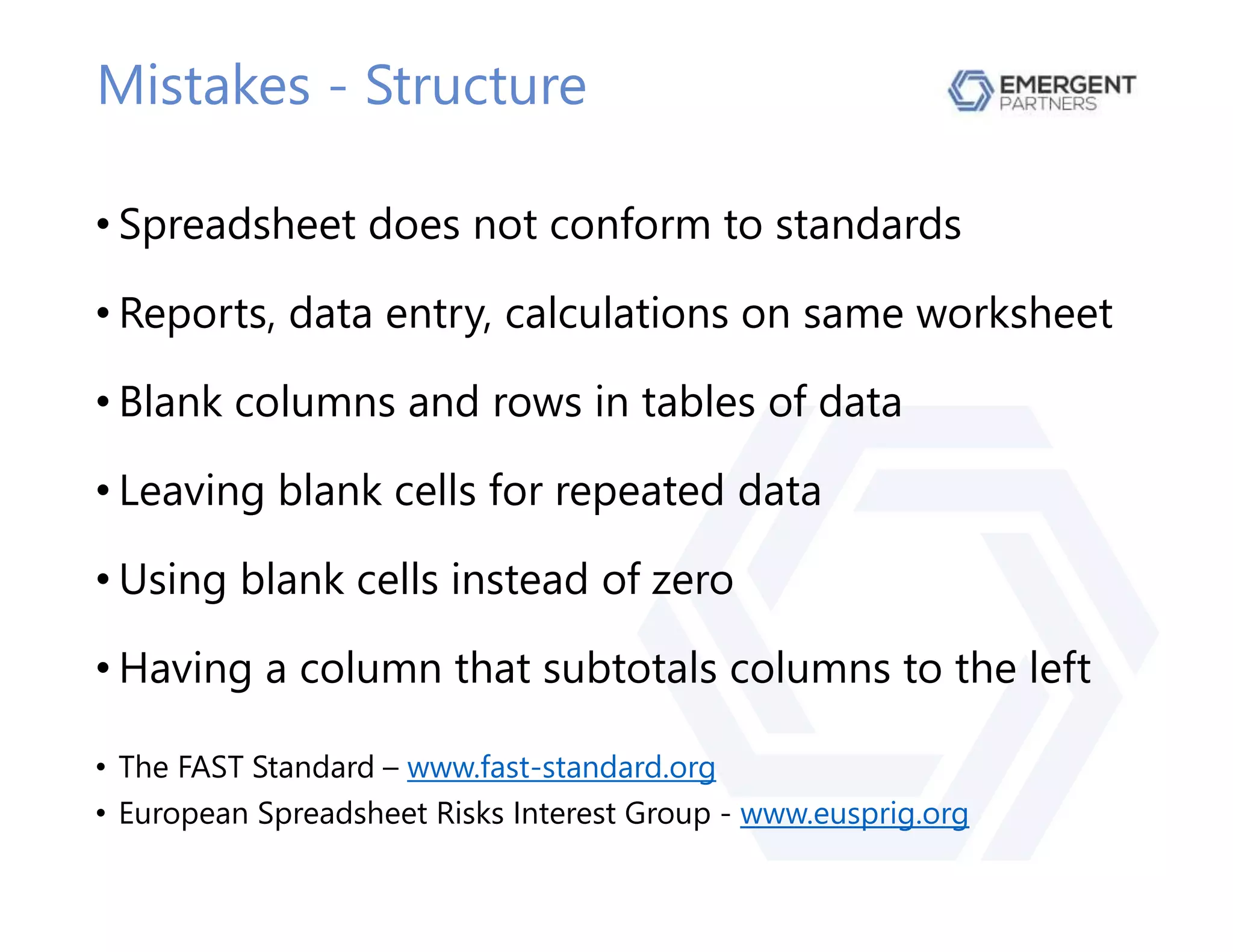
• Spreadsheet does not conform to standards
• Reports, data entry, calculations on same worksheet
• Blank columns and rows in tables of data
• Leaving blank cells for repeated data
• Using blank cells instead of zero
• Having a column that subtotals columns to the left
• The FAST Standard – www.fast-standard.org
• European Spreadsheet Risks Interest Group - www.eusprig.org
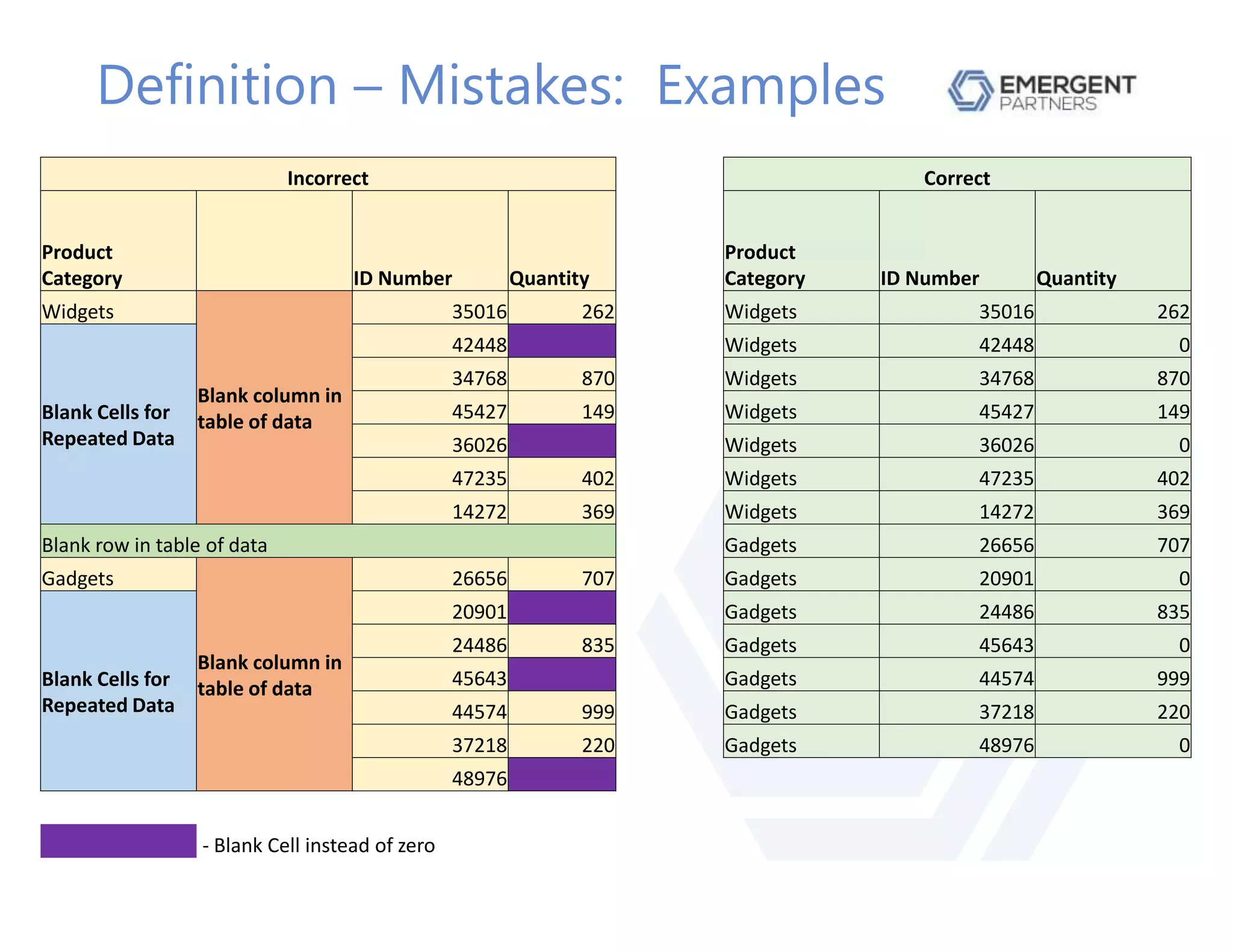
Definition – Mistakes: Examples
Incorrect Correct
Product
Category ID Number Quantity
Product
Category ID Number Quantity
Widgets
Blank column in
table of data
35016 262 Widgets 35016 262
Blank Cells for
Repeated Data
42448 Widgets 42448 0
34768 870 Widgets 34768 870
45427 149 Widgets 45427 149
36026 Widgets 36026 0
47235 402 Widgets 47235 402
14272 369 Widgets 14272 369
Blank row in table of data Gadgets 26656 707
Gadgets
Blank column in
table of data
26656 707 Gadgets 20901 0
Blank Cells for
Repeated Data
20901 Gadgets 24486 835
24486 835 Gadgets 45643 0
45643 Gadgets 44574 999
44574 999 Gadgets 37218 220
37218 220 Gadgets 48976 0
48976
- Blank Cell instead of zero
Mistakes – Human Error
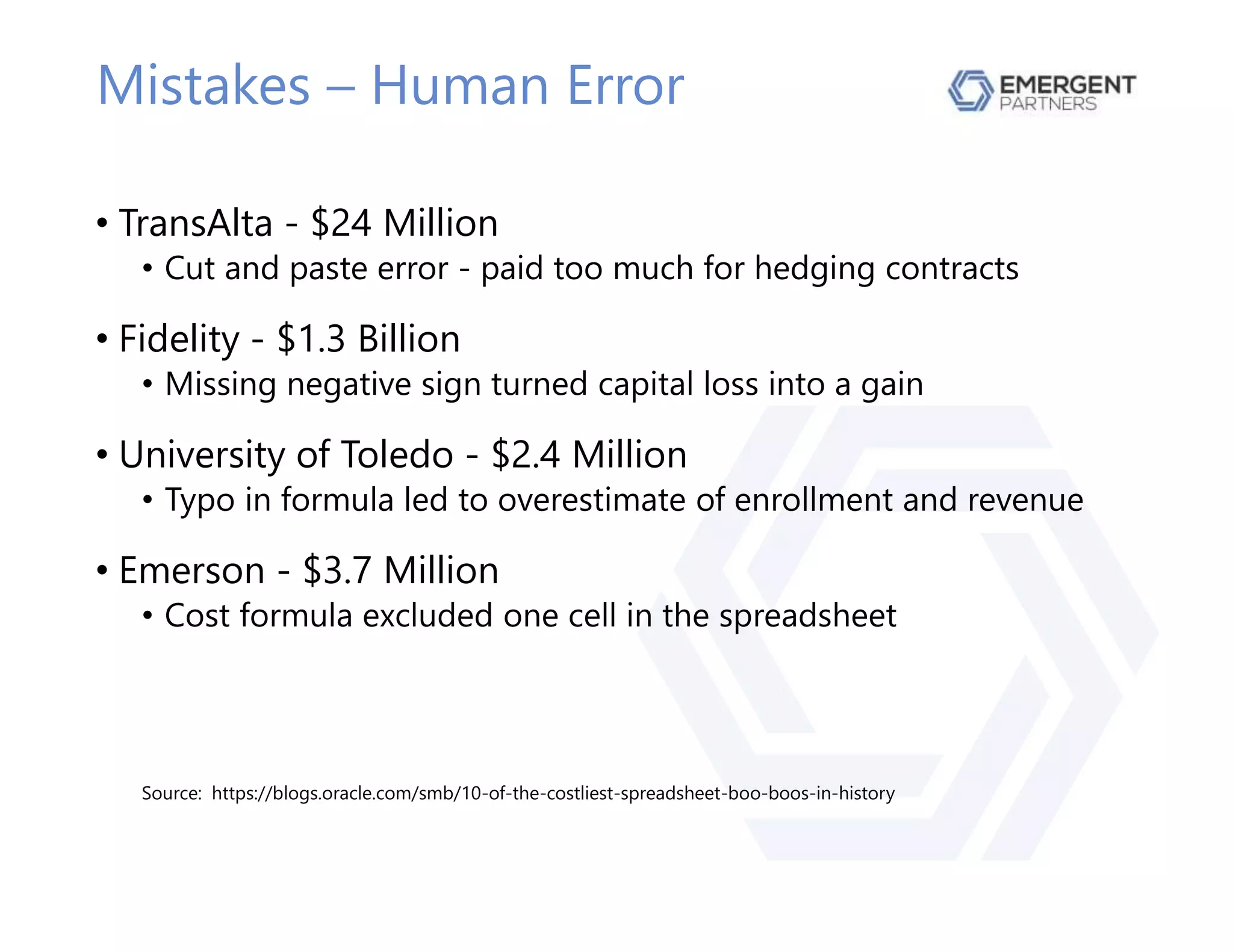
• TransAlta - $24 Million
• Cut and paste error - paid too much for hedging contracts
• Fidelity - $1.3 Billion
• Missing negative sign turned capital loss into a gain
• University of Toledo - $2.4 Million
• Typo in formula led to overestimate of enrollment and revenue
• Emerson - $3.7 Million
• Cost formula excluded one cell in the spreadsheet
Source: https://blogs.oracle.com/smb/10-of-the-costliest-spreadsheet-boo-boos-in-history
All Mistakes are Big Mistakes!
• There are no “small mistakes”
• Any mistake can have significant consequences
• The smallest mistake can ripple through a
spreadsheet causing multiple errors in all worksheets
• It can be very difficult to detect a mistake
• You assume the numbers are correct
• You have one or more error messages
Why Do Mistakes Happen?
• Developing a spreadsheet is a complex task
• “Small mistakes” are hard to detect
• We make more mistakes than we realize
• We catch fewer errors than we think we do
• Mistakes are caught in production, not development
• Especially true for “experienced” Excel users
• We know what we are doing, so we don’t make mistakes
• We assume we will catch mistakes – if we make any
Common Mistakes - Formatting
• Using blank columns or blank rows for spacing
• Prevents use of pivot tables
• Can lead to formula or calculation errors
• Instead, use column width or row height
• Merging cells
• Can lead to cell reference errors
• Use Format Cells | Alignment | Center Across Selection
• Excessive use of font types, sizes and colors
• Only use a few and use them consistently to improve
readability
Common Mistakes - Functions
• Having a typo in the function
• Result is an incorrect answer
• Examples
• AVERAGE() – Ignores all text and false entries
• AVERAGEA() – Converts all text and false entries to zero
• COUNT() – Counts the number of cells with numbers
• COUNTA() – Counts the number of cells that are not empty
• IFERROR() – If error, returns a supplied value
• ISERROR() – If error, returns TRUE
• ISERR() – If error (except #N/A), returns TRUE
Common Mistakes – Formulas
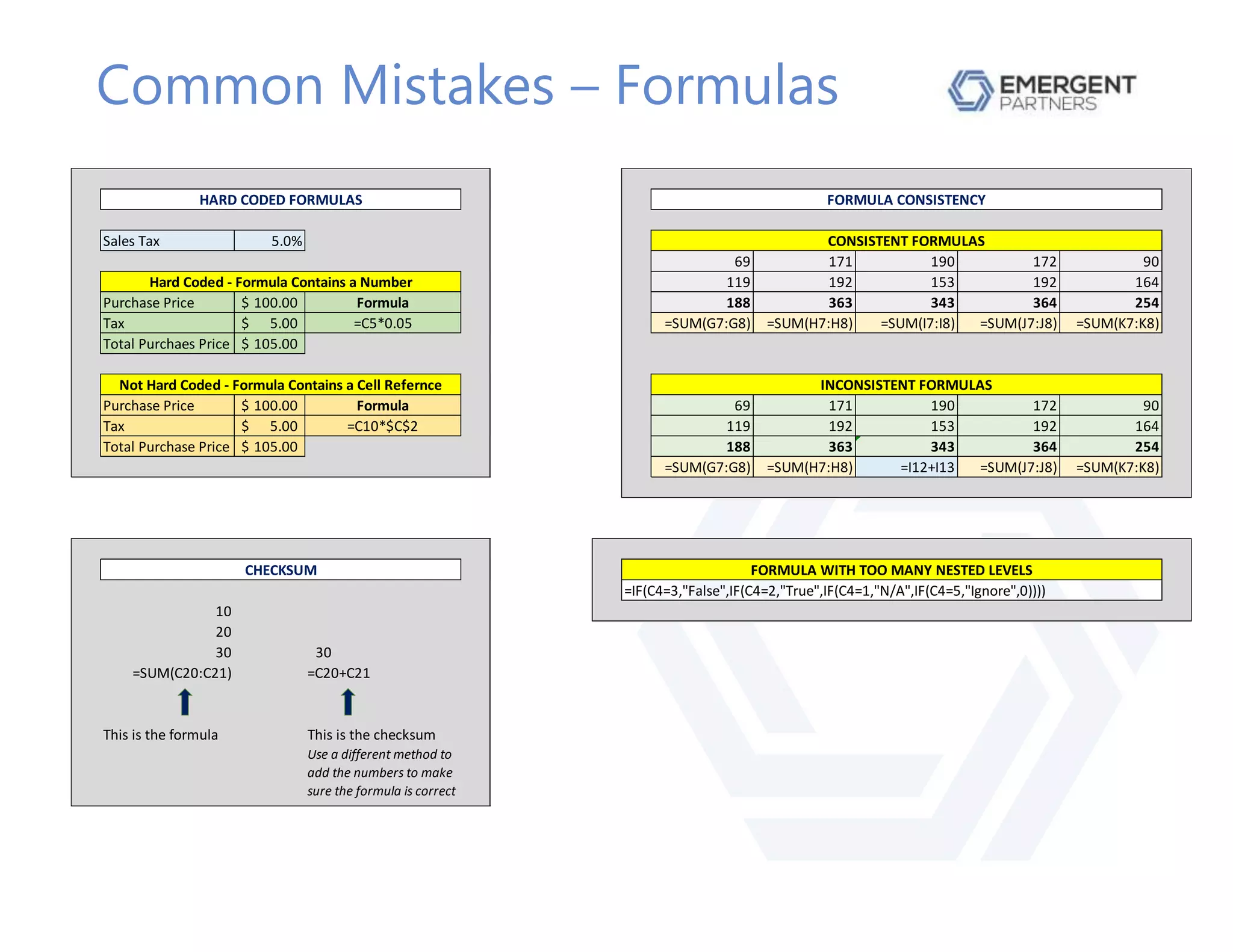
• Hard coded formulas
• Inconsistent formulas across a row
• Formulas with too many nested levels
• Lack of checksum cells
Common Mistakes – Formulas
Sales Tax 5.0%
69 171 190 172 90
119 192 153 192 164
Purchase Price 100.00$ 188 363 343 364 254
Tax 5.00$ =SUM(G7:G8) =SUM(H7:H8) =SUM(I7:I8) =SUM(J7:J8) =SUM(K7:K8)
Total Purchaes Price 105.00$
Purchase Price 100.00$ 69 171 190 172 90
Tax 5.00$ 119 192 153 192 164
Total Purchase Price 105.00$ 188 363 343 364 254
=SUM(G7:G8) =SUM(H7:H8) =I12+I13 =SUM(J7:J8) =SUM(K7:K8)
10
20
30 30
=SUM(C20:C21) =C20+C21
This is the formula This is the checksum
FORMULA CONSISTENCY
=IF(C4=3,"False",IF(C4=2,"True",IF(C4=1,"N/A",IF(C4=5,"Ignore",0))))
FORMULA WITH TOO MANY NESTED LEVELS
Formula
=C5*0.05
Formula
Hard Coded - Formula Contains a Number
Not Hard Coded - Formula Contains a Cell Refernce
HARD CODED FORMULAS
CHECKSUM
Use a different method to
add the numbers to make
sure the formula is correct
=C10*$C$2
CONSISTENT FORMULAS
INCONSISTENT FORMULAS
Common Mistakes – Formulas
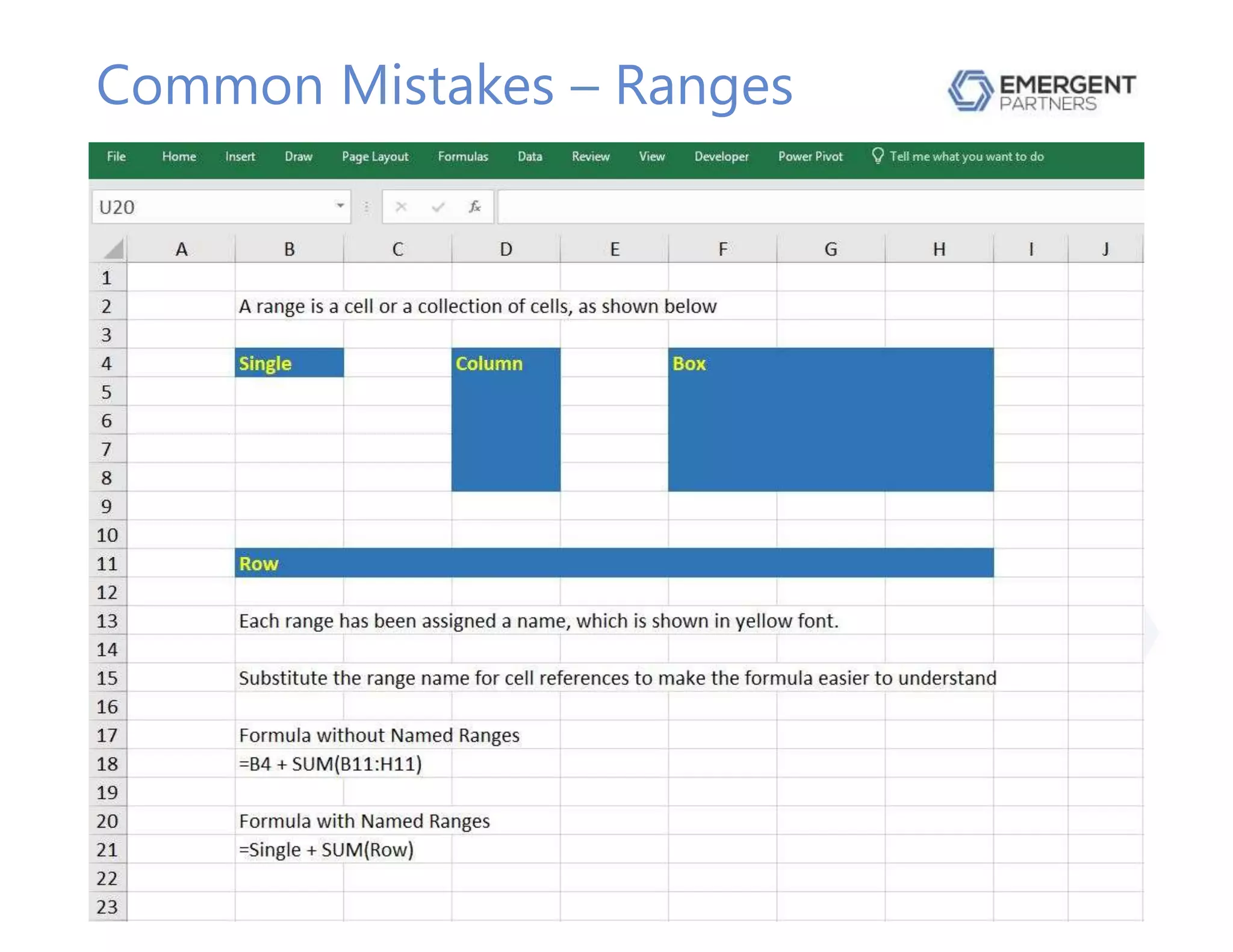
• Not using Named Ranges to refer to cells or values
• Spreadsheet is better organized
• Formulas are easier to understand
• Fewer formula errors
Common Mistakes – Ranges
Syntax Errors
• Occurs when a function is incorrect
• Functions are formulas built into Excel
• Refers to the order and layout of a function’s arguments
• If you use the wrong syntax, you get an error message
• Functions have this syntax
• =[Function Name](Argument 1, Argument 2,…)
• Arguments must be entered in the correct order
• Some arguments are optional
• Best practice is to specify optional arguments
• If you do not, Excel enters a default value
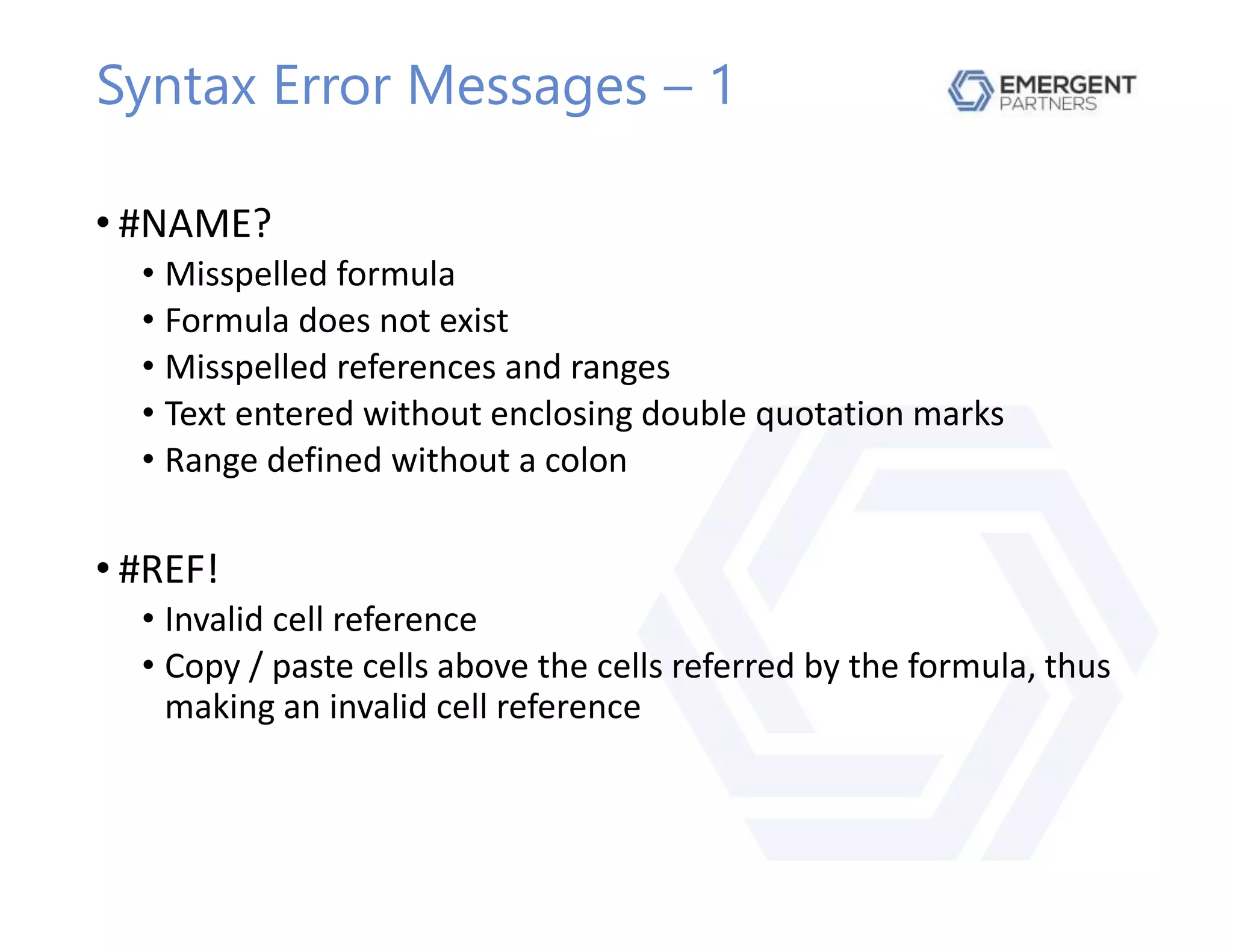
Syntax Error Messages – 1
• #NAME?
• Misspelled formula
• Formula does not exist
• Misspelled references and ranges
• Text entered without enclosing double quotation marks
• Range defined without a colon
• #REF!
• Invalid cell reference
• Copy / paste cells above the cells referred by the formula, thus
making an invalid cell reference
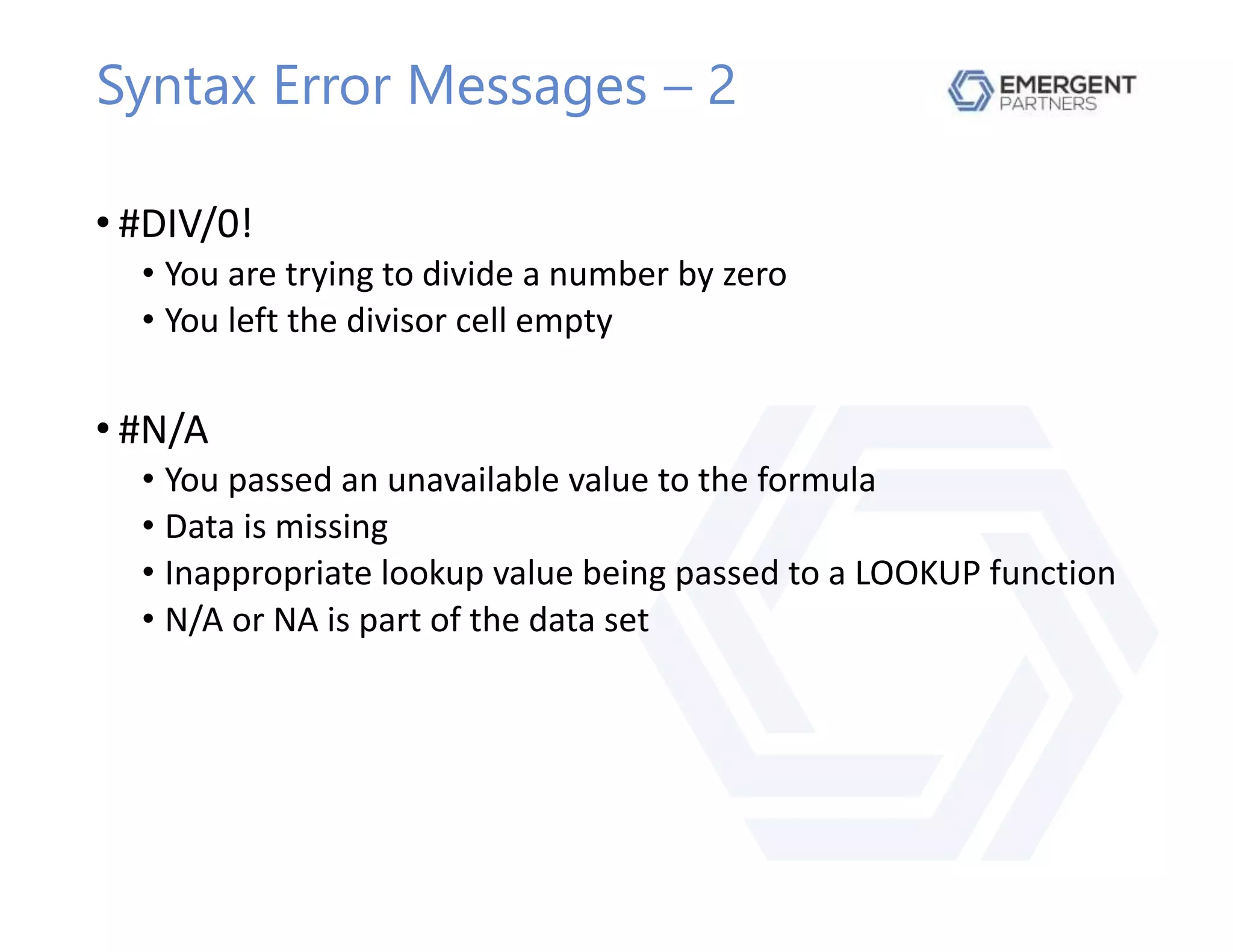
Syntax Error Messages – 2
• #DIV/0!
• You are trying to divide a number by zero
• You left the divisor cell empty
• #N/A
• You passed an unavailable value to the formula
• Data is missing
• Inappropriate lookup value being passed to a LOOKUP function
• N/A or NA is part of the data set
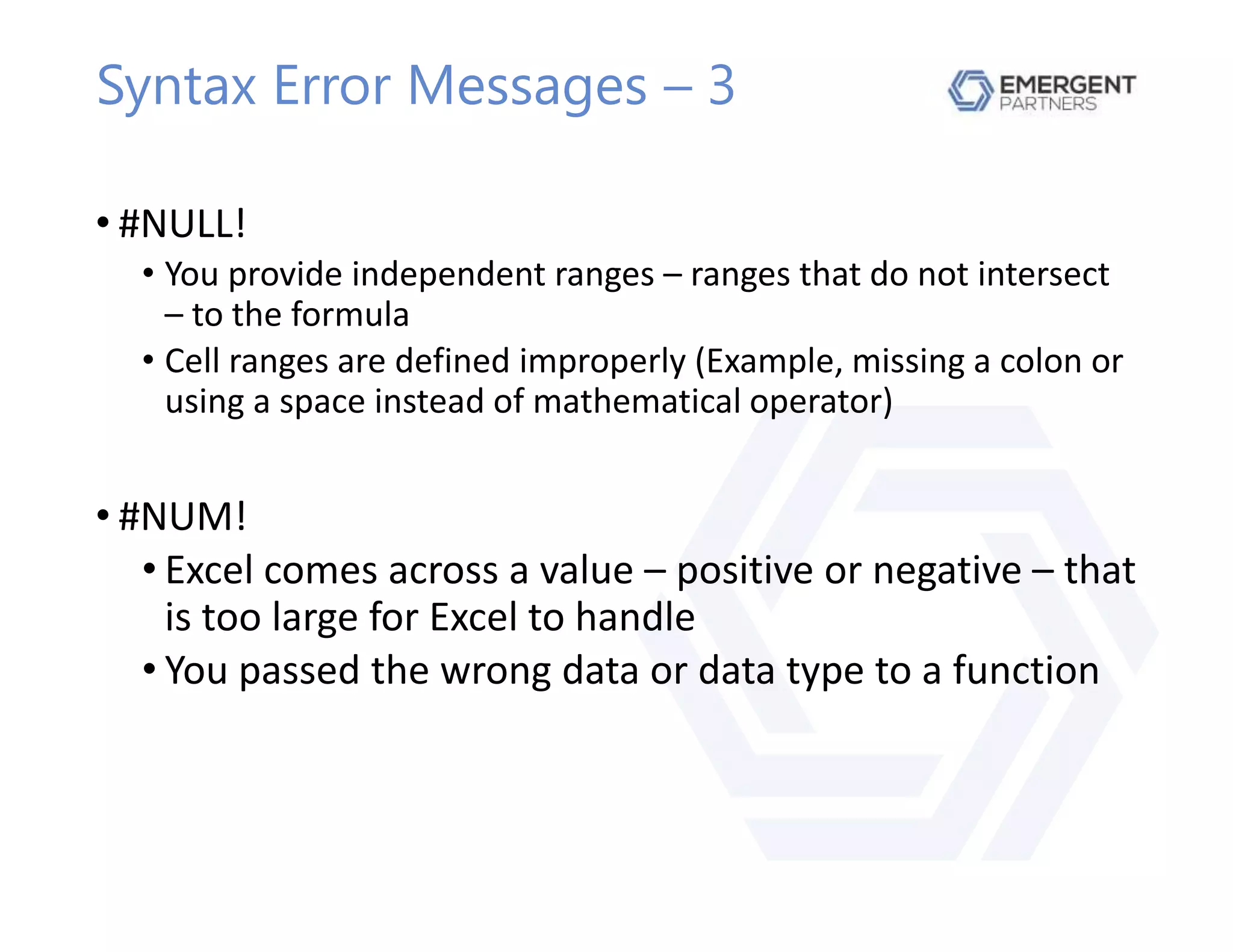
Syntax Error Messages – 3
• #NULL!
• You provide independent ranges – ranges that do not intersect
– to the formula
• Cell ranges are defined improperly (Example, missing a colon or
using a space instead of mathematical operator)
• #NUM!
• Excel comes across a value – positive or negative – that
is too large for Excel to handle
• You passed the wrong data or data type to a function
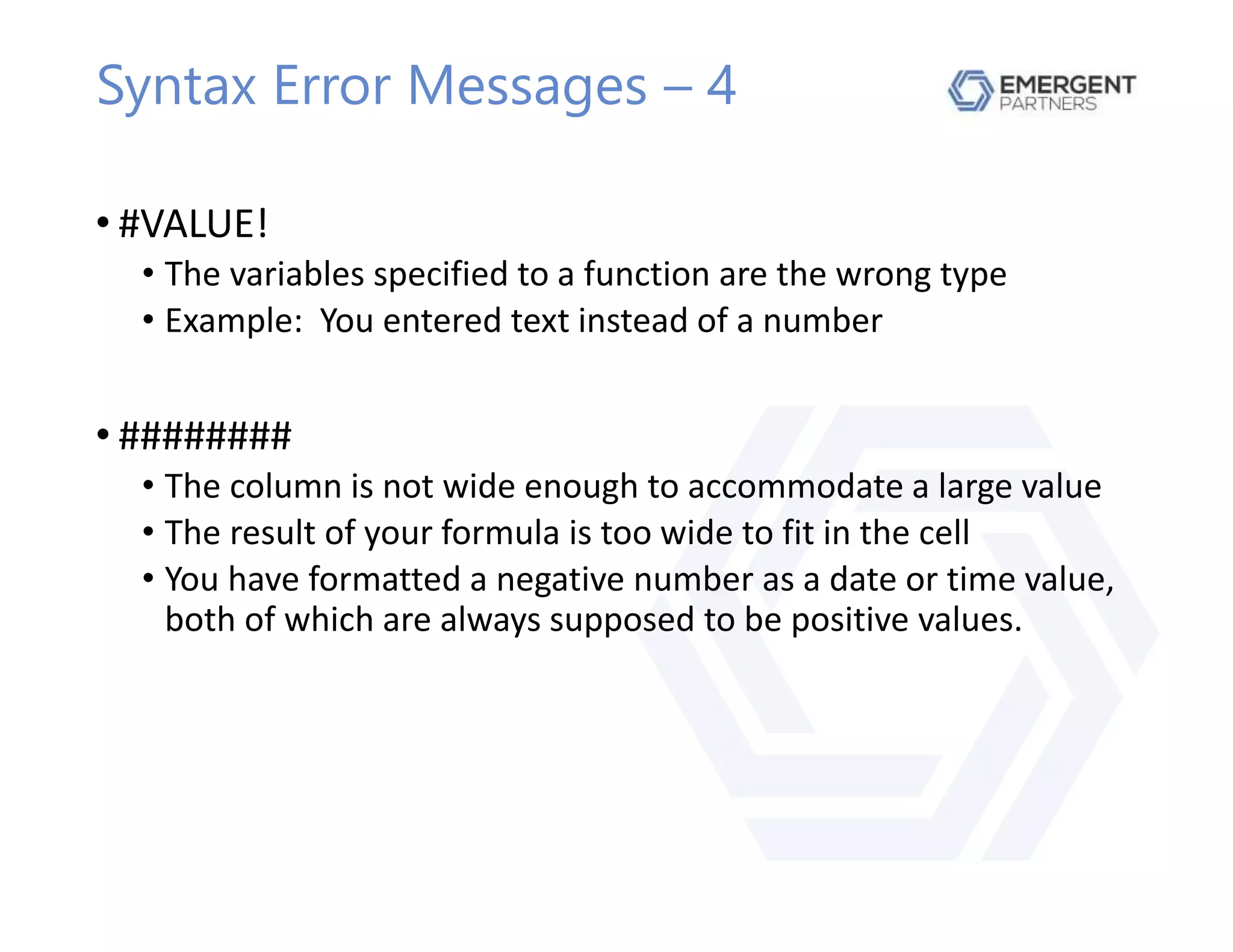
Syntax Error Messages – 4
• #VALUE!
• The variables specified to a function are the wrong type
• Example: You entered text instead of a number
• ########
• The column is not wide enough to accommodate a large value
• The result of your formula is too wide to fit in the cell
• You have formatted a negative number as a date or time value,
both of which are always supposed to be positive values.
Other Errors
• Omission
• Data required by a formula is missing
• Alteration
• Someone overwrites a formula when entering data
• Duplication
• Data is duplicated in the wrong part of the spreadsheet
• Calculation
• The function is correct but the calculation is wrong
• Logic
• Reference the wrong cell or range
• Use the wrong function
Spreadsheet Numbers
vs
Business Reality
Overview
• Integrity of the spreadsheet has been confirmed
• Now confirm the integrity of the pro forma
financial statement
• You want to know that the structure of the pro
forma matches the structure of the business
• Recommendation: First understand the business,
then review the pro forma
What Is The Industry?
• Type of company dictates financial structure
• Balance Sheet
• Receivables
• Inventory / Raw Materials
• Fixed Assets
• Debt vs Equity
• Income Statement
• Cost of Goods Sold
• Profit Margin
What Is The Business?
• Manufacturer
• Wholesaler
• Distributor
• Retailer
• Financial Services
• Service Company
• Engineering Company
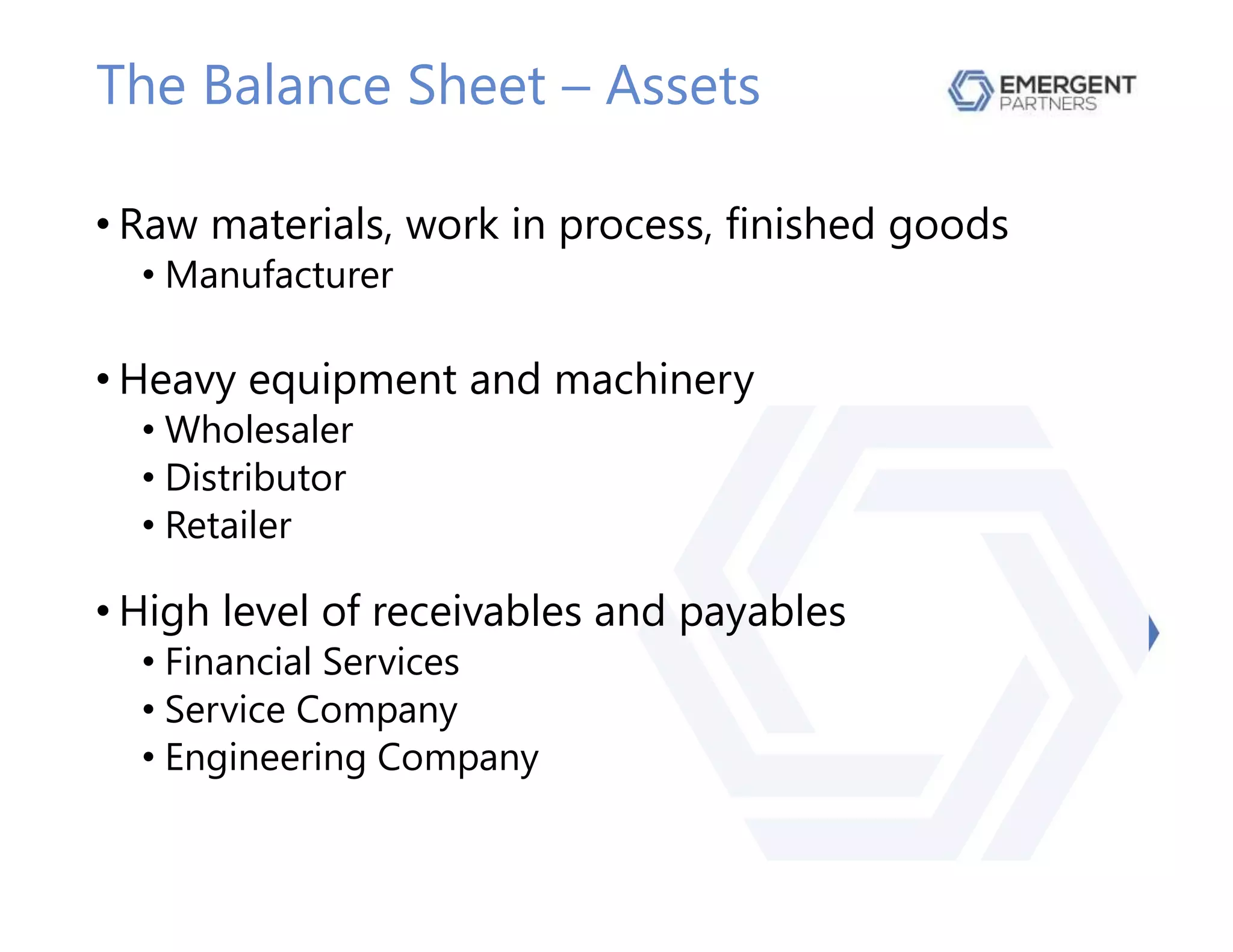
The Balance Sheet – Assets
• Raw materials, work in process, finished goods
• Manufacturer
• Heavy equipment and machinery
• Wholesaler
• Distributor
• Retailer
• High level of receivables and payables
• Financial Services
• Service Company
• Engineering Company
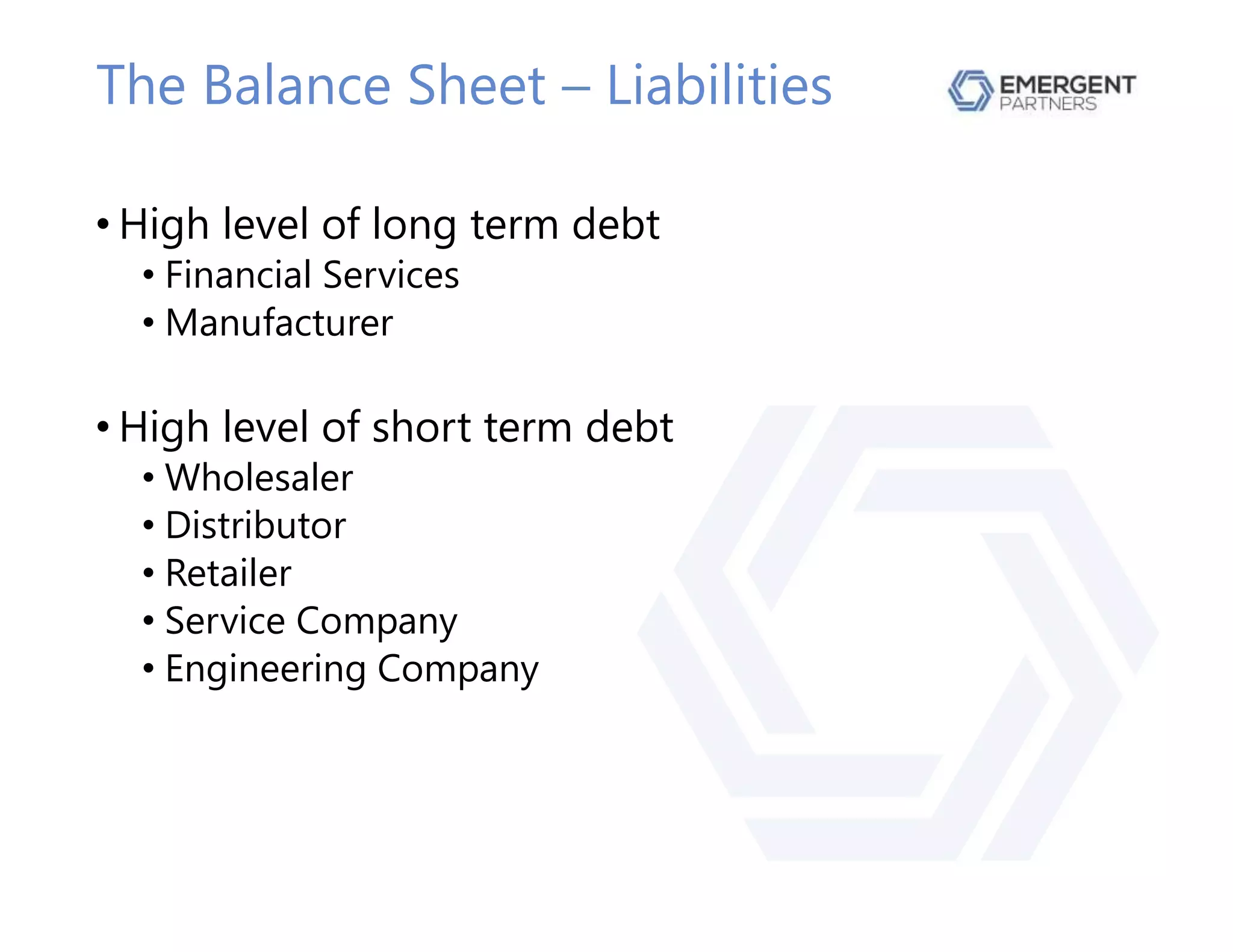
The Balance Sheet – Liabilities
• High level of long term debt
• Financial Services
• Manufacturer
• High level of short term debt
• Wholesaler
• Distributor
• Retailer
• Service Company
• Engineering Company
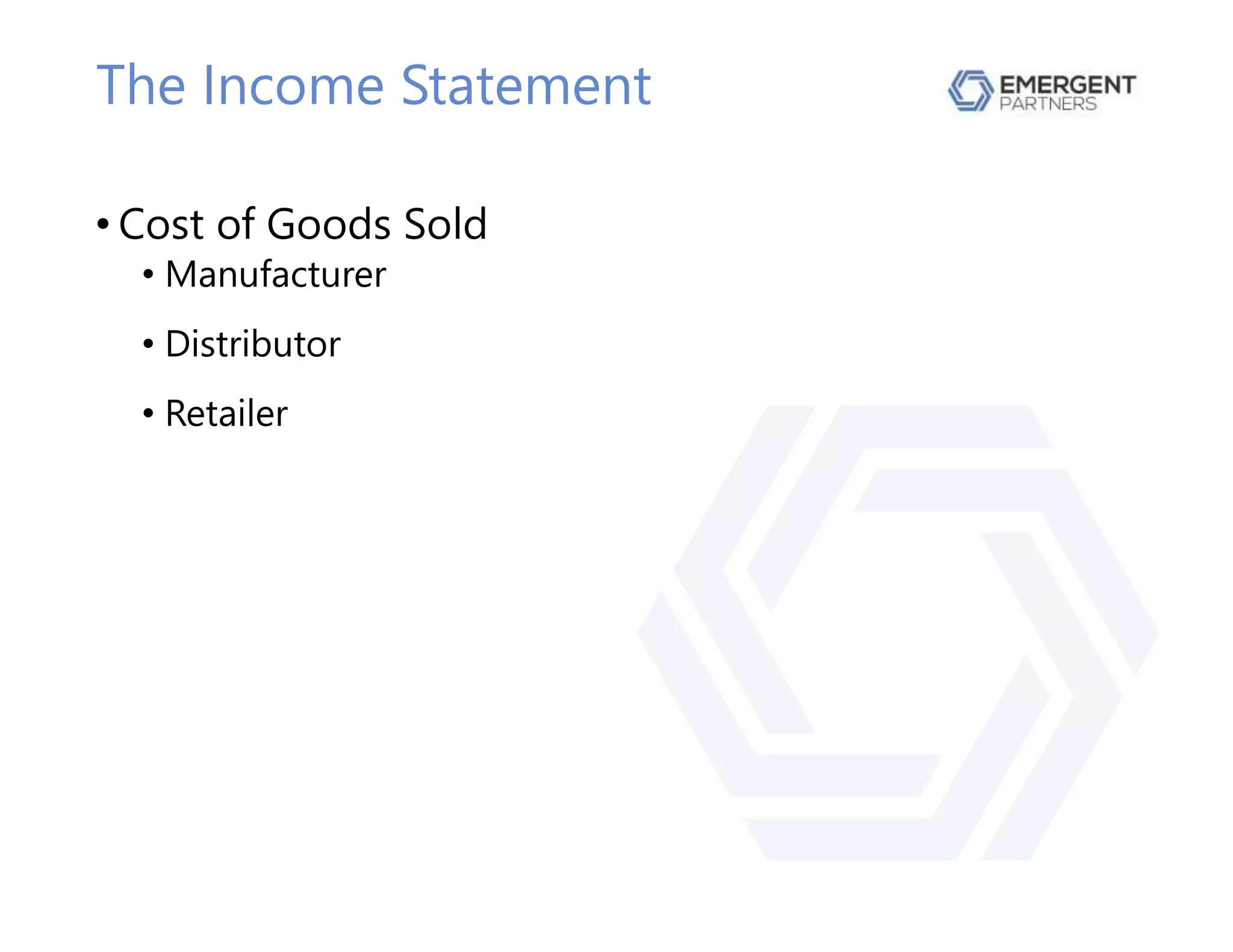
The Income Statement
• Cost of Goods Sold
• Manufacturer
• Distributor
• Retailer
Income
• How Does the Company Earn Its Money?
• What are the revenue earning activities?
• What factors affect income?
• Who are the company’s customers?
• What is the expected growth rate?
• Are these questions answered in the pro forma?
• Where is this data in the pro forma spreadsheet?
Expenses
• What Costs Are Incurred to Earn Revenue?
• Which costs are variable?
• Which costs are fixed?
• Does the pro forma correctly distinguish between fixed
and variable costs?
• What is the variable cost formula?
• Is this included in the pro forma?
• Is the formula correct?
Layout
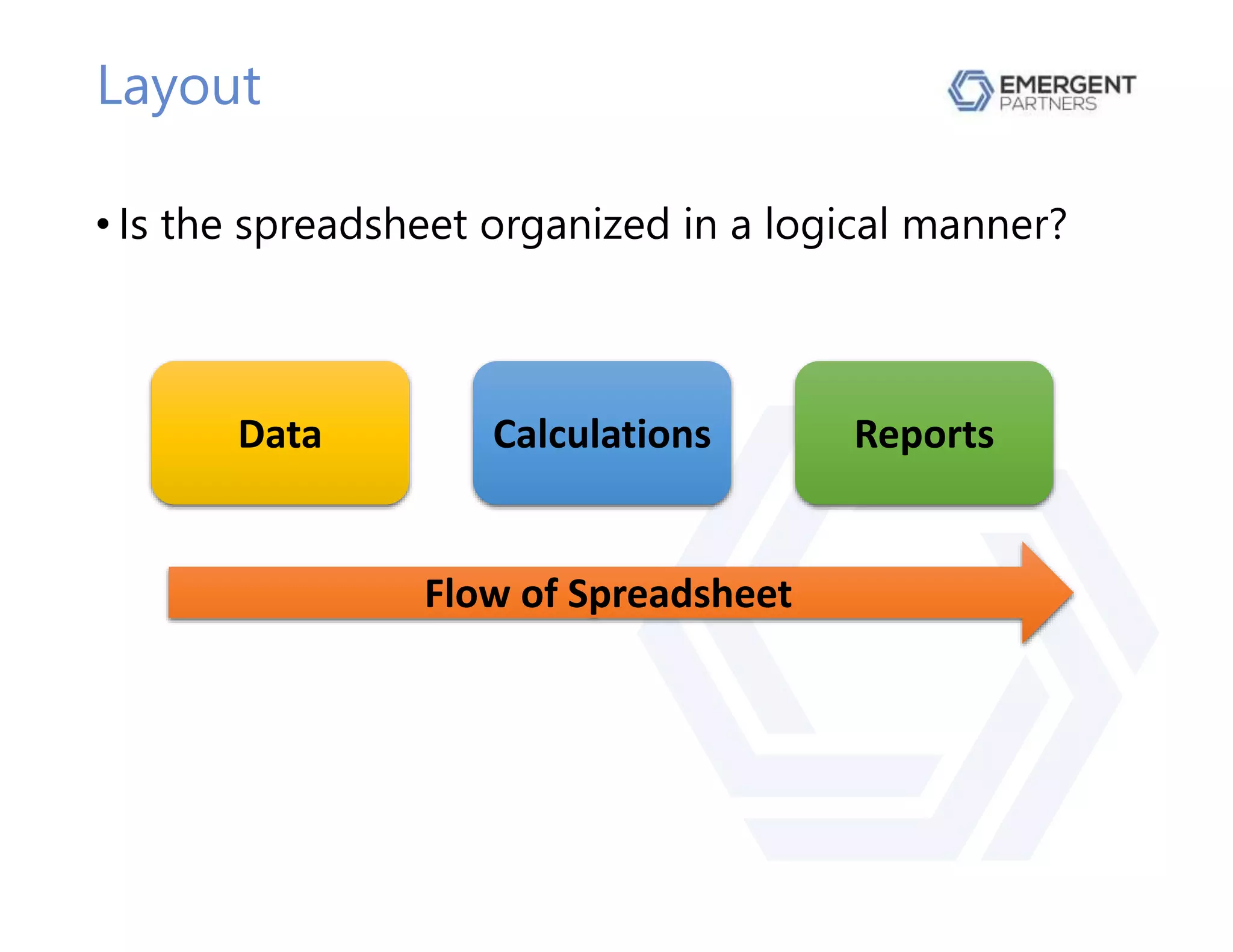
• Is the spreadsheet organized in a logical manner?
Data Calculations Reports
Flow of Spreadsheet
Analyzing the Pro Forma
Owner/Manager Perspective
• Liquidity
• Will we have sufficient cash to operate the business?
• Leverage
• How much debt is required?
• Will our profit be enough to repay principal and interest?
• Profitability
• Will we earn enough to sustain growth and provide a
proper return to investors?
Lender/Investor Perspective
• They must be able to reasonably expect
• The business will survive
• The business will generate the required return
• The pro forma answers these questions
• Three Questions
• Purpose?
• Repayment?
• Collateral?
• Different investors have different objectives
• Return on / term of investment
• Type of collateral
• Structure of debt – subordinated, revolver, term loan
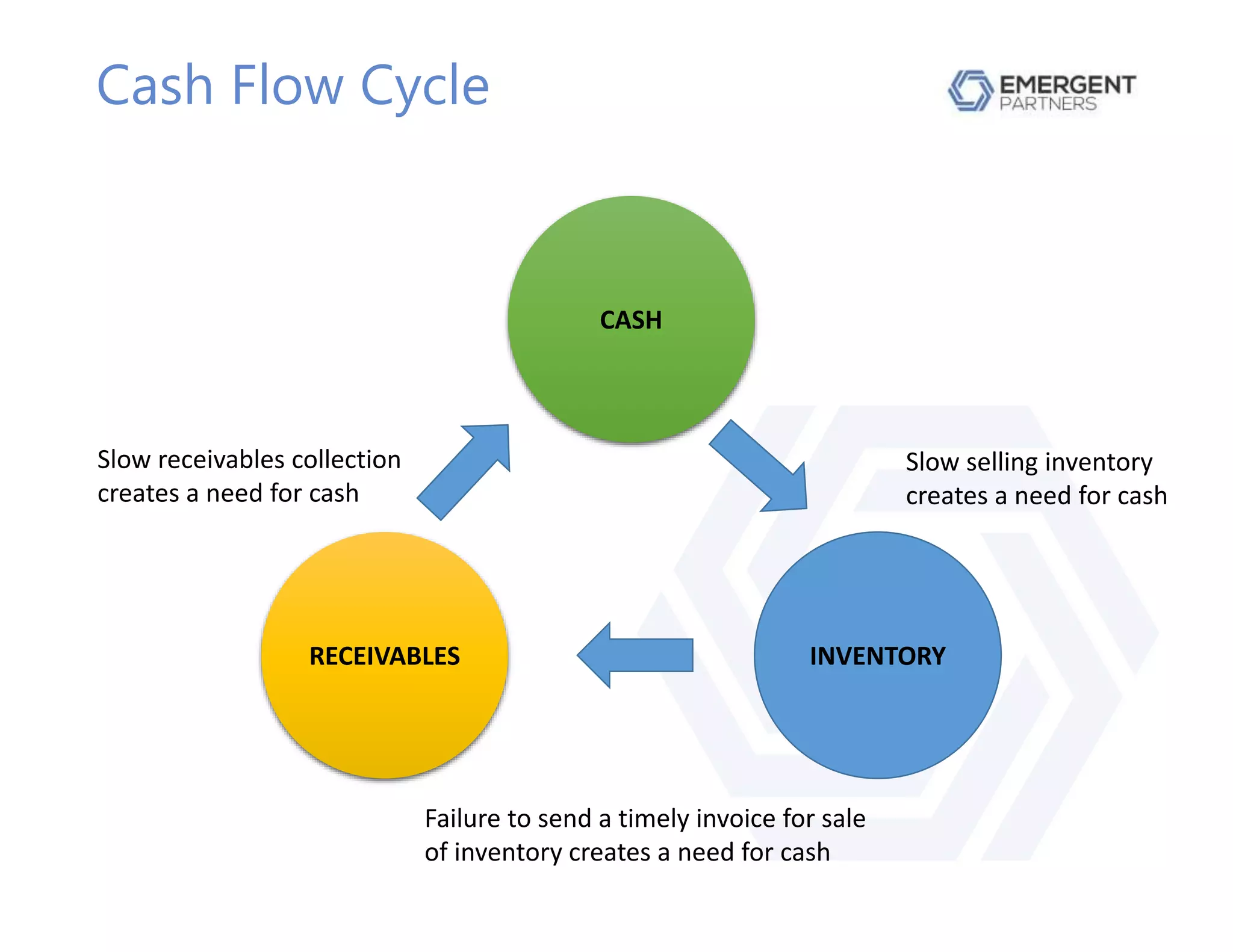
Cash Flow Cycle
CASH
RECEIVABLES INVENTORY
Slow receivables collection
creates a need for cash
Slow selling inventory
creates a need for cash
Failure to send a timely invoice for sale
of inventory creates a need for cash
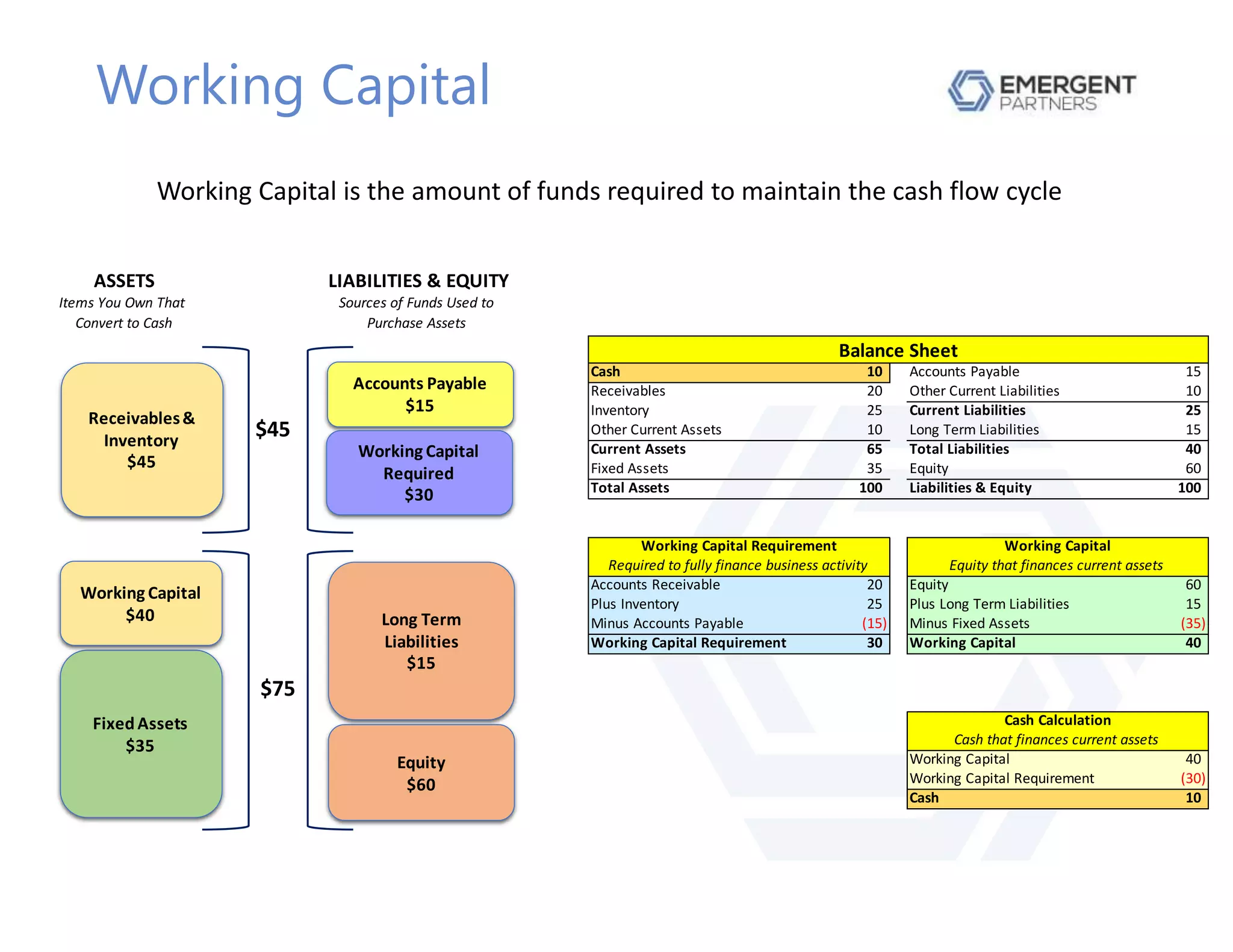
Working Capital
ASSETS LIABILITIES & EQUITY
Items You Own That
Convert to Cash
Sources of Funds Used to
Purchase Assets
Cash 10 Accounts Payable 15
Receivables 20 Other Current Liabilities 10
Inventory 25 Current Liabilities 25
Other Current Assets 10 Long Term Liabilities 15
Current Assets 65 Total Liabilities 40
Fixed Assets 35 Equity 60
Total Assets 100 Liabilities & Equity 100
Accounts Receivable 20 Equity 60
Plus Inventory 25 Plus Long Term Liabilities 15
Minus Accounts Payable (15) Minus Fixed Assets (35)
Working Capital Requirement 30 Working Capital 40
Working Capital 40
Working Capital Requirement (30)
Cash 10
Cash Calculation
Cash that finances current assets
Balance Sheet
Working Capital Requirement Working Capital
Required to fully finance business activity Equity that finances current assets
Receivables&
Inventory
$45
FixedAssets
$35
Long Term
Liabilities
$15
Accounts Payable
$15
Working Capital
Required
$30
Equity
$60
Working Capital
$40
$45
$75
Working Capital is the amount of funds required to maintain the cash flow cycle
The Balance Sheet
• Lists items owned (Assets) that are converted to cash
• Shows how assets were purchased
• Cash, Debt, Equity
• Gives insight on company’s liquidity and leverage
• Liquidity – how quickly an asset can be converted to cash
• Leverage – level of debt relative to total assets or equity
•Illiquid
• Assets cannot be easily converted to cash
•Insolvent
• Unable to pay debts owed
Proper Debt Structure – 1
• Does the term of the debt match the term of the
need for financing?
• Examples of short term debt needs
• Receivables financing
• Inventory financing
• Types of short term debt
• Supplier credit
• Bank line of credit
• Single payment loan
• Factoring
• Finance company
Proper Debt Structure – 2
• Examples of long term needs
• Purchase equipment or fixed assets
• Purchase land or building
• Types of long term debt
• Installment loan
• Asset based loan
• Leasing
Liquidity Ratios
• Current Ratio
• Are current liabilities are covered by current assets?
• Burn Rate
• How much cash is used every month?
• Receivables Turn
• Number of days to convert receivables into cash
• Inventory Turn
• Number of days to convert inventory into cash
• Payables Turn
• Number of days to pay trade credit
Leverage Ratios
• Debt Ratio
• Percentage of assets financed by debt
• Debt / Equity Ratio
• Shows level of debt relative to total equity
• Times Interest Earned
• Is operating profit sufficient to pay interest expense?
• Debt Service Coverage
• Is operating profit sufficient to pay all debt obligations?
Income Statement
• Shows how well the company
• Covers expenses
• Earns funds to reinvest in the business
• Gross profit
• Can the company pay for raw materials?
• Operating profit
• Can the company cover daily business costs?
• Can the company pay non-operating expenses (ex: debt)?
• Net profit
• Is it sufficient to sustain long term growth and provide a
proper return to investors?
Profitability Ratios
• Gross margin
• Profit after paying Cost of Goods Sold
• Operating margin
• How efficient are the company’s operations?
• Net margin
• How well are all expenses managed?
• Return on Assets
• How well are assets managed to produce sales and profits?
• Return on Equity
• How well is equity used to produce a profit?
• Is this company a good investment opportunity?
Accounting Cash Flow
• Shows net inflow / outflow of cash over time
• Fills in information gaps due to
• Accrual accounting
• Non-cash expenses
• Format
• Cash Flow from Operating Activities
• Cash Flow from Investing Activities
• Cash Flow from Financing Activities
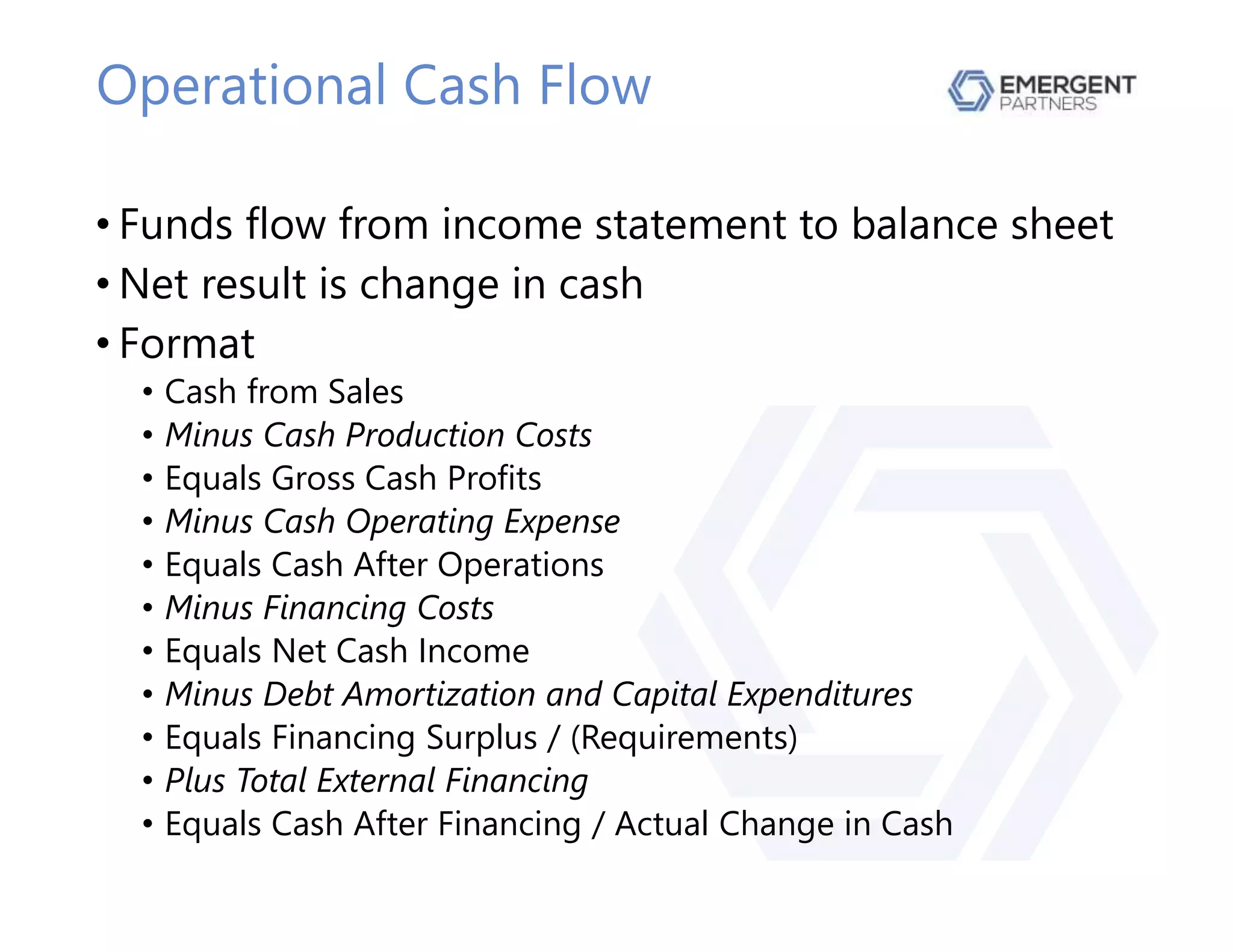
Operational Cash Flow
• Funds flow from income statement to balance sheet
• Net result is change in cash
• Format
• Cash from Sales
• Minus Cash Production Costs
• Equals Gross Cash Profits
• Minus Cash Operating Expense
• Equals Cash After Operations
• Minus Financing Costs
• Equals Net Cash Income
• Minus Debt Amortization and Capital Expenditures
• Equals Financing Surplus / (Requirements)
• Plus Total External Financing
• Equals Cash After Financing / Actual Change in Cash
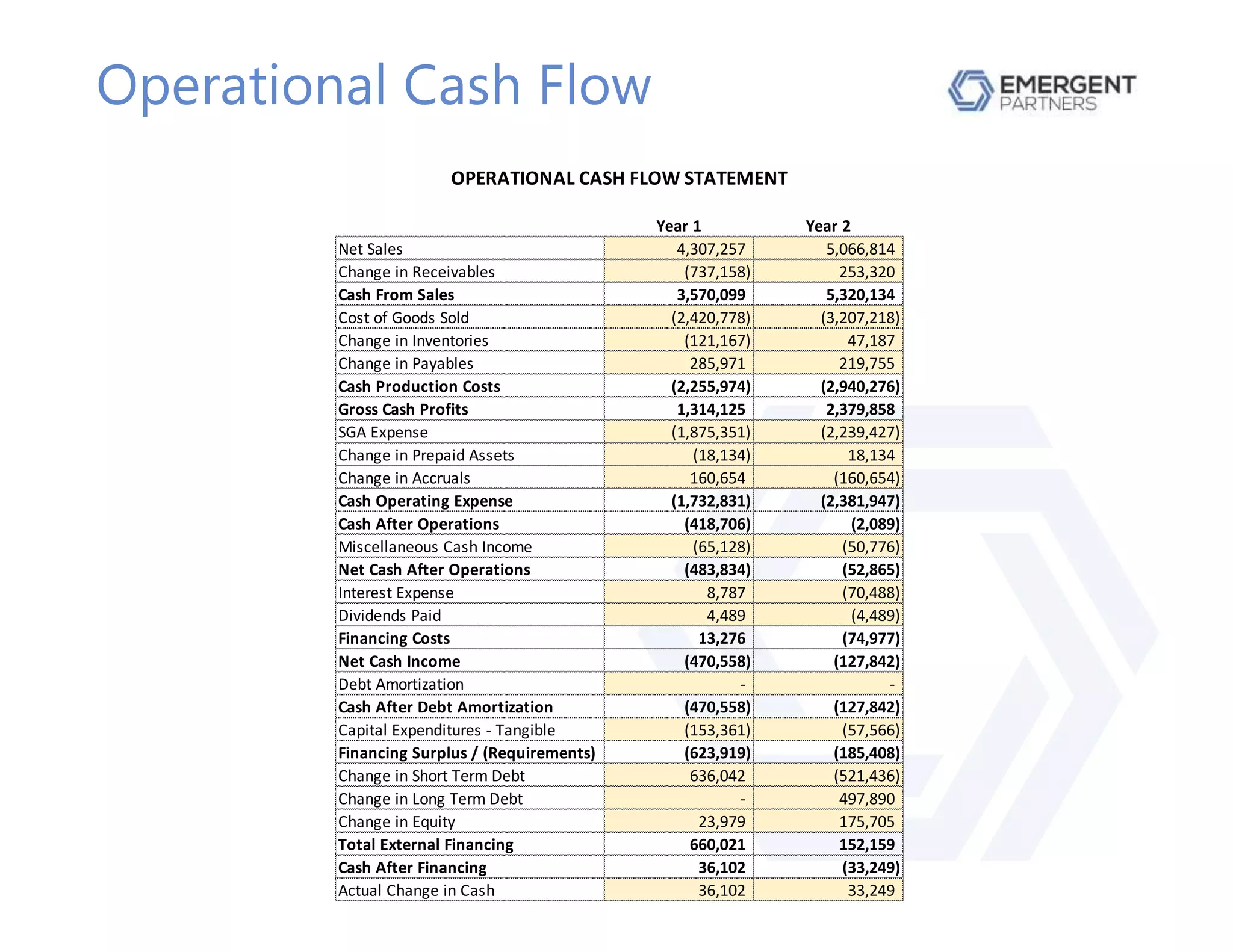
Operational Cash Flow
OPERATIONAL CASH FLOW STATEMENT
Year 1 Year 2
Net Sales 4,307,257 5,066,814
Change in Receivables (737,158) 253,320
Cash From Sales 3,570,099 5,320,134
Cost of Goods Sold (2,420,778) (3,207,218)
Change in Inventories (121,167) 47,187
Change in Payables 285,971 219,755
Cash Production Costs (2,255,974) (2,940,276)
Gross Cash Profits 1,314,125 2,379,858
SGA Expense (1,875,351) (2,239,427)
Change in Prepaid Assets (18,134) 18,134
Change in Accruals 160,654 (160,654)
Cash Operating Expense (1,732,831) (2,381,947)
Cash After Operations (418,706) (2,089)
Miscellaneous Cash Income (65,128) (50,776)
Net Cash After Operations (483,834) (52,865)
Interest Expense 8,787 (70,488)
Dividends Paid 4,489 (4,489)
Financing Costs 13,276 (74,977)
Net Cash Income (470,558) (127,842)
Debt Amortization - -
Cash After Debt Amortization (470,558) (127,842)
Capital Expenditures - Tangible (153,361) (57,566)
Financing Surplus / (Requirements) (623,919) (185,408)
Change in Short Term Debt 636,042 (521,436)
Change in Long Term Debt - 497,890
Change in Equity 23,979 175,705
Total External Financing 660,021 152,159
Cash After Financing 36,102 (33,249)
Actual Change in Cash 36,102 33,249
Tips for Working in Excel
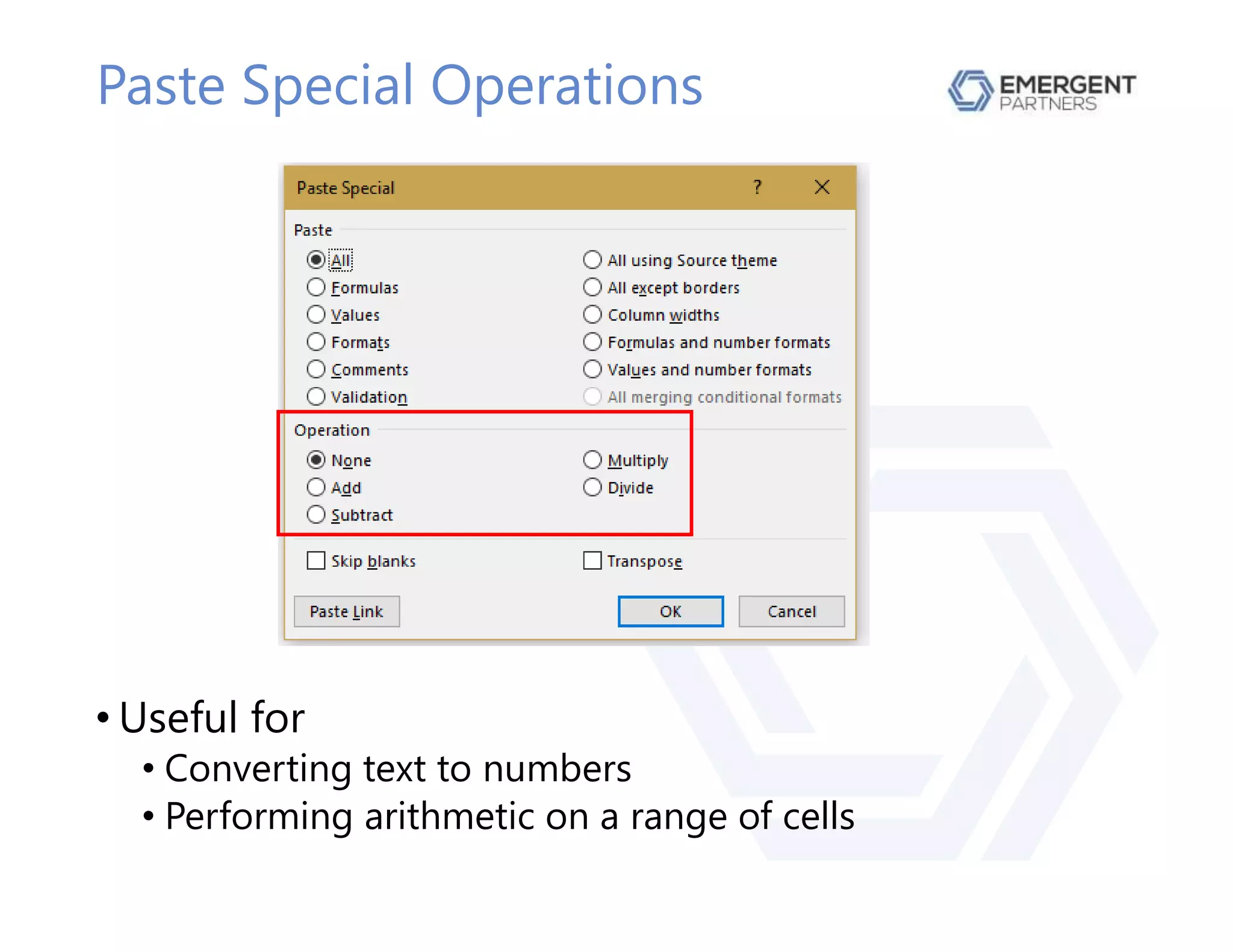
Paste Special Operations
• Useful for
• Converting text to numbers
• Performing arithmetic on a range of cells
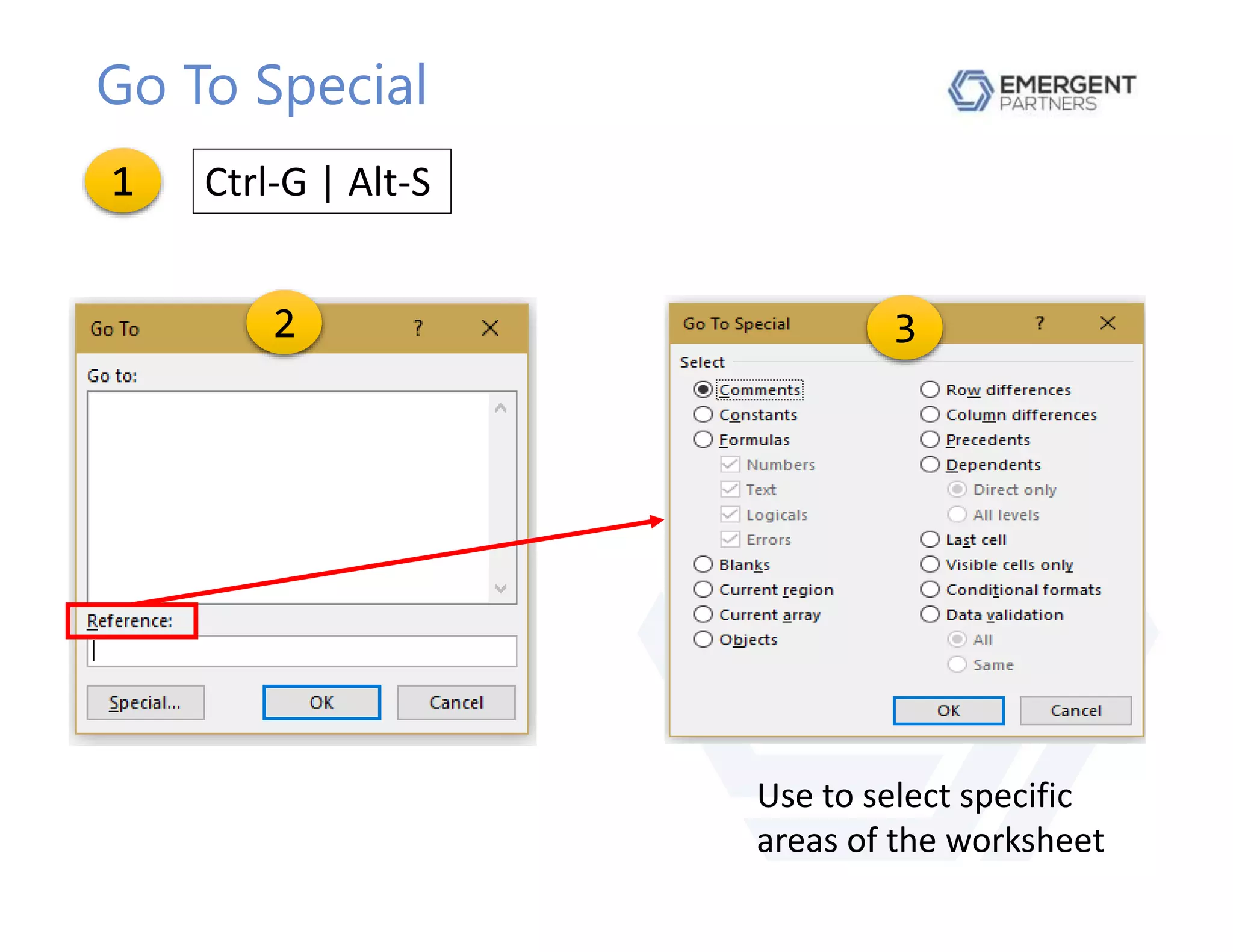
Go To Special
Ctrl-G | Alt-S
Use to select specific
areas of the worksheet
1
2 3
Formulas with Column Reference
• Don’t reference the entire column (A:A)
• You force Excel to do unnecessary work by examining
thousands of cells it could have ignored
• Use Named Ranges
• Consider a Dynamic Named Range
• Expands and contracts as data is added or deleted
Constants & Variables
• Avoid Hard Coding
• Do not embed values in formulas
• Use a cell reference instead
• Isolate constants in one place
• If the value changes, you only have to change the value of
one cell
Keep the User in Mind
• Don’t assume the user will understand your work
• Always ask yourself: “How can I make this as easy as
possible for the user?”
• Too much information is not always better
• Use a summary worksheet
• Have a separate worksheet with details for reference
• If you are uncertain what the user wants
ASK THE USER!
Formula Guidelines
• Simplify, simplify, simplify
• Formula should be easily understood at first glance
• Break up long formula into intermediate formulas
• Rule of Thumb
• If the formula is longer than your thumb, it is too long
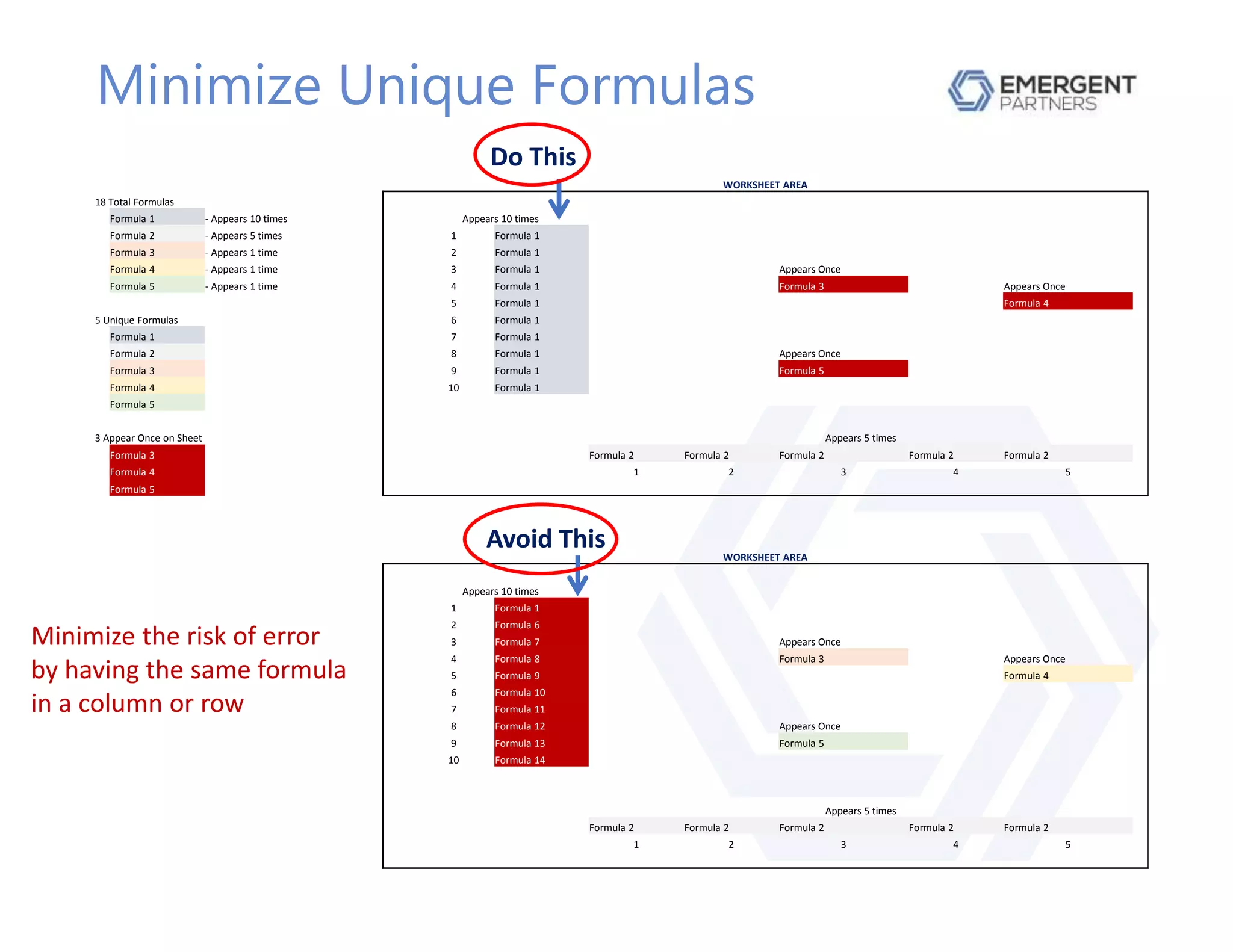
Minimize Unique Formulas
WORKSHEET AREA
18 Total Formulas
Formula 1 - Appears 10 times Appears 10 times
Formula 2 - Appears 5 times 1 Formula 1
Formula 3 - Appears 1 time 2 Formula 1
Formula 4 - Appears 1 time 3 Formula 1 Appears Once
Formula 5 - Appears 1 time 4 Formula 1 Formula 3 Appears Once
5 Formula 1 Formula 4
5 Unique Formulas 6 Formula 1
Formula 1 7 Formula 1
Formula 2 8 Formula 1 Appears Once
Formula 3 9 Formula 1 Formula 5
Formula 4 10 Formula 1
Formula 5
3 Appear Once on Sheet Appears 5 times
Formula 3 Formula 2 Formula 2 Formula 2 Formula 2 Formula 2
Formula 4 1 2 3 4 5
Formula 5
WORKSHEET AREA
Appears 10 times
1 Formula 1
2 Formula 6
3 Formula 7 Appears Once
4 Formula 8 Formula 3 Appears Once
5 Formula 9 Formula 4
6 Formula 10
7 Formula 11
8 Formula 12 Appears Once
9 Formula 13 Formula 5
10 Formula 14
Appears 5 times
Formula 2 Formula 2 Formula 2 Formula 2 Formula 2
1 2 3 4 5
Do This
Avoid This
Minimize the risk of error
by having the same formula
in a column or row
Get a Proofreader!
• Identify errors you missed
• Improved spreadsheet design
• Check the spelling!
Worksheet Layout
• Give worksheets meaningful names
• Don’t use spaces in worksheet names
• Structure worksheet to follow natural data flow
• Input
• Calculation
• Output
Eye Appeal
• A clean worksheet is easier to understand
• Clutter detracts from clarity
• Pictures make data easier to understand
• Use graphics for important information
• Use color sparingly
• Have as much white space as possible
Hiding Columns or Rows
• Avoid hiding columns or rows
• Don’t hide a column or row to conceal information
• It’s not secure
• Hiding columns and rows increases the risk of a
spreadsheet error
Assumptions
• Don’t scatter them throughout the spreadsheet
• Put assumptions in one area
• This makes them easier to review and update
• Indicate what ranges apply the assumptions are
referencing
Readability
• Simplify and summarize important data
• Don’t make the user decipher your worksheet
• Point people to outcomes they have to analyze
• Users tend to focus on info in the top left corner
• Put the most important data in that location
The Difficulty With Cells
• Data in a cell can be many different things
• You cannot always know what it is just by looking at it
• Number, formula, or text?
• Empty space or zero?
• Input, output, or intermediate calculation?
• Text value or documentation?
• Decision or Objective?
Formatting
• A spreadsheet should be easy to read and follow
• Format for description, not decoration
• Overuse of formatting adds size to the workbook
Color and Cell Formats
• Use color – and all font effects – in moderation
• Format or shade cells to make their use distinctive
• NOTE: Red and Green are not clearly distinguishable
in some forms of visual impairment
Cell Comments
• Best for info that does not always have to be visible
• If everything has a comment, nothing is important
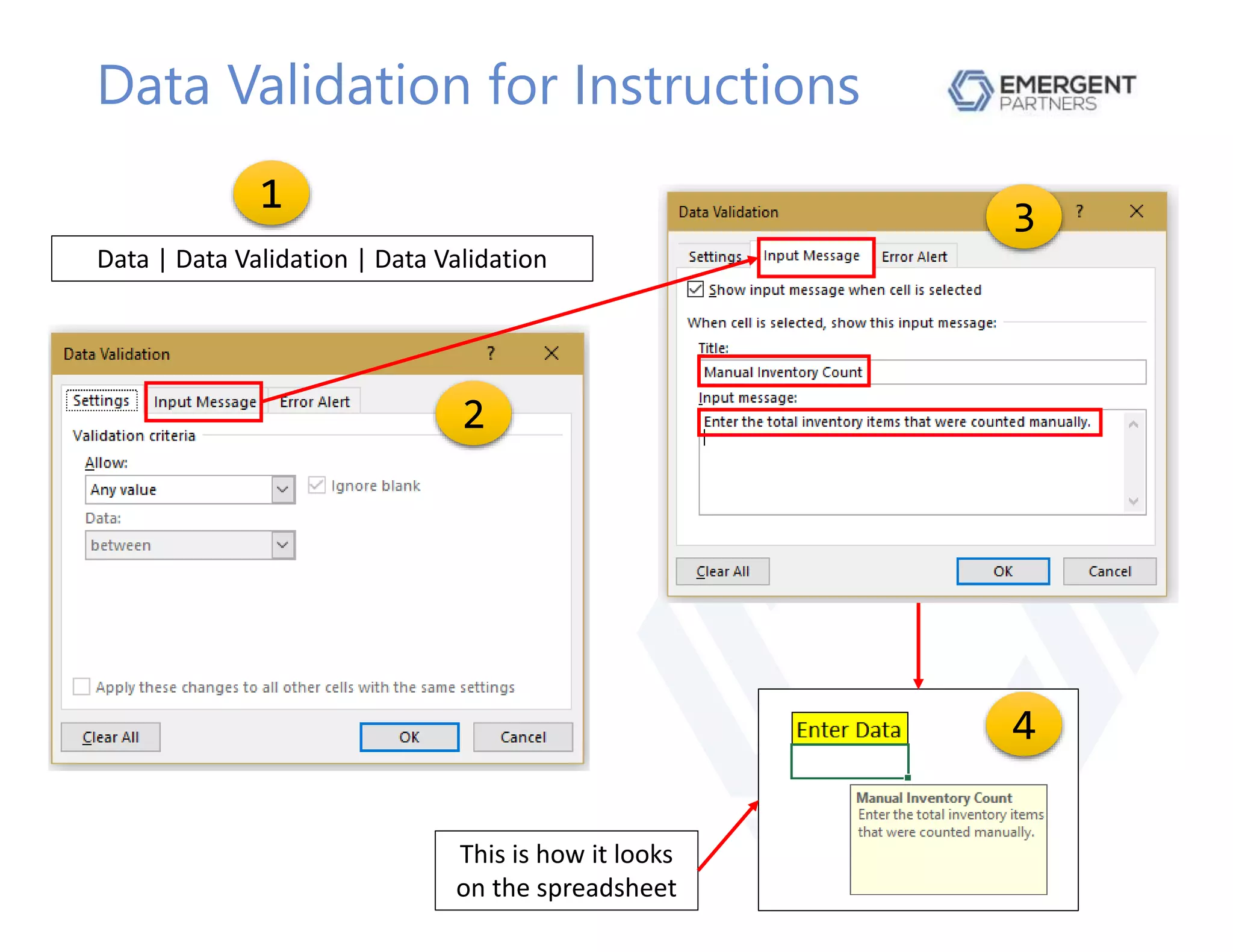
• Use Data Validation message box instead of
comments for instructions
Data Validation for Instructions
Data | Data Validation | Data Validation
1
2
3
4
This is how it looks
on the spreadsheet
EMERGENT PARTNERS, LLC
2800 Post Oak Boulevard, Suite 4100
Houston, TX 77056
(346) 444-6134
info@emergent-partners.com
www.emergent-partners.com
CONTACT INFORMATION
Bruce Kaufmann
Senior Consultant
+1 281.734.9823
bkaufmann@emergent-partners.com

Utilizing Pro Forma Modeling In Excel

  • 1.
    Utilizing Pro FormaModeling In Microsoft Excel November 20, 2018
  • 2.
    Introduction to BruceKaufmann • Currently Senior Consultant – Emergent Partners, LLC • Owner of Spreadsheet Diagnostics.com • Previous Experience • Independent Financial Consultant • Operations Manager for Specialty Furniture Retailer • Commercial Banker
  • 3.
    Housekeeping • This presentationis available after the webinar • Question and Answer session at end of presentation • Contact information provided at end of presentation • If you are still stuck after 10 minutes, ask for help!
  • 4.
    Using Pro FormaFinancials • Pro Forma – Fancy term for forecast • Management reports • Investment decisions
  • 5.
    Evaluating Pro FormaFinancials • Integrity of the Excel spreadsheet • Analysis of the forecast
  • 6.
    Evaluation Process • Auditthe spreadsheet for errors • Confirm the pro forma reflects business operations • Analyze the financial statement
  • 7.
    Assumptions • You havebasic Excel skills • You use pro forma financial statements to • Manage a business • Make investment decisions
  • 8.
    What We WillDo • Learn how to audit a spreadsheet • Any structural errors that affect the integrity of the data? • Discuss the accuracy of the spreadsheet • Does the spreadsheet accurately reflect the company’s financial structure and operations? • Analyze the pro forma financial statement • What do the numbers tell us about the business? • Tips for working in Excel • Make your spreadsheet easier to use and to understand
  • 9.
    What We WillNot Do • Learn basic Excel skills • Create a pro forma financial statement
  • 10.
  • 11.
    Mistakes - Structure •Spreadsheet does not conform to standards • Reports, data entry, calculations on same worksheet • Blank columns and rows in tables of data • Leaving blank cells for repeated data • Using blank cells instead of zero • Having a column that subtotals columns to the left • The FAST Standard – www.fast-standard.org • European Spreadsheet Risks Interest Group - www.eusprig.org
  • 12.
    Definition – Mistakes:Examples Incorrect Correct Product Category ID Number Quantity Product Category ID Number Quantity Widgets Blank column in table of data 35016 262 Widgets 35016 262 Blank Cells for Repeated Data 42448 Widgets 42448 0 34768 870 Widgets 34768 870 45427 149 Widgets 45427 149 36026 Widgets 36026 0 47235 402 Widgets 47235 402 14272 369 Widgets 14272 369 Blank row in table of data Gadgets 26656 707 Gadgets Blank column in table of data 26656 707 Gadgets 20901 0 Blank Cells for Repeated Data 20901 Gadgets 24486 835 24486 835 Gadgets 45643 0 45643 Gadgets 44574 999 44574 999 Gadgets 37218 220 37218 220 Gadgets 48976 0 48976 - Blank Cell instead of zero
  • 13.
    Mistakes – HumanError • TransAlta - $24 Million • Cut and paste error - paid too much for hedging contracts • Fidelity - $1.3 Billion • Missing negative sign turned capital loss into a gain • University of Toledo - $2.4 Million • Typo in formula led to overestimate of enrollment and revenue • Emerson - $3.7 Million • Cost formula excluded one cell in the spreadsheet Source: https://blogs.oracle.com/smb/10-of-the-costliest-spreadsheet-boo-boos-in-history
  • 14.
    All Mistakes areBig Mistakes! • There are no “small mistakes” • Any mistake can have significant consequences • The smallest mistake can ripple through a spreadsheet causing multiple errors in all worksheets • It can be very difficult to detect a mistake • You assume the numbers are correct • You have one or more error messages
  • 15.
    Why Do MistakesHappen? • Developing a spreadsheet is a complex task • “Small mistakes” are hard to detect • We make more mistakes than we realize • We catch fewer errors than we think we do • Mistakes are caught in production, not development • Especially true for “experienced” Excel users • We know what we are doing, so we don’t make mistakes • We assume we will catch mistakes – if we make any
  • 16.
    Common Mistakes -Formatting • Using blank columns or blank rows for spacing • Prevents use of pivot tables • Can lead to formula or calculation errors • Instead, use column width or row height • Merging cells • Can lead to cell reference errors • Use Format Cells | Alignment | Center Across Selection • Excessive use of font types, sizes and colors • Only use a few and use them consistently to improve readability
  • 17.
    Common Mistakes -Functions • Having a typo in the function • Result is an incorrect answer • Examples • AVERAGE() – Ignores all text and false entries • AVERAGEA() – Converts all text and false entries to zero • COUNT() – Counts the number of cells with numbers • COUNTA() – Counts the number of cells that are not empty • IFERROR() – If error, returns a supplied value • ISERROR() – If error, returns TRUE • ISERR() – If error (except #N/A), returns TRUE
  • 18.
    Common Mistakes –Formulas • Hard coded formulas • Inconsistent formulas across a row • Formulas with too many nested levels • Lack of checksum cells
  • 19.
    Common Mistakes –Formulas Sales Tax 5.0% 69 171 190 172 90 119 192 153 192 164 Purchase Price 100.00$ 188 363 343 364 254 Tax 5.00$ =SUM(G7:G8) =SUM(H7:H8) =SUM(I7:I8) =SUM(J7:J8) =SUM(K7:K8) Total Purchaes Price 105.00$ Purchase Price 100.00$ 69 171 190 172 90 Tax 5.00$ 119 192 153 192 164 Total Purchase Price 105.00$ 188 363 343 364 254 =SUM(G7:G8) =SUM(H7:H8) =I12+I13 =SUM(J7:J8) =SUM(K7:K8) 10 20 30 30 =SUM(C20:C21) =C20+C21 This is the formula This is the checksum FORMULA CONSISTENCY =IF(C4=3,"False",IF(C4=2,"True",IF(C4=1,"N/A",IF(C4=5,"Ignore",0)))) FORMULA WITH TOO MANY NESTED LEVELS Formula =C5*0.05 Formula Hard Coded - Formula Contains a Number Not Hard Coded - Formula Contains a Cell Refernce HARD CODED FORMULAS CHECKSUM Use a different method to add the numbers to make sure the formula is correct =C10*$C$2 CONSISTENT FORMULAS INCONSISTENT FORMULAS
  • 20.
    Common Mistakes –Formulas • Not using Named Ranges to refer to cells or values • Spreadsheet is better organized • Formulas are easier to understand • Fewer formula errors
  • 21.
  • 22.
    Syntax Errors • Occurswhen a function is incorrect • Functions are formulas built into Excel • Refers to the order and layout of a function’s arguments • If you use the wrong syntax, you get an error message • Functions have this syntax • =[Function Name](Argument 1, Argument 2,…) • Arguments must be entered in the correct order • Some arguments are optional • Best practice is to specify optional arguments • If you do not, Excel enters a default value
  • 23.
    Syntax Error Messages– 1 • #NAME? • Misspelled formula • Formula does not exist • Misspelled references and ranges • Text entered without enclosing double quotation marks • Range defined without a colon • #REF! • Invalid cell reference • Copy / paste cells above the cells referred by the formula, thus making an invalid cell reference
  • 24.
    Syntax Error Messages– 2 • #DIV/0! • You are trying to divide a number by zero • You left the divisor cell empty • #N/A • You passed an unavailable value to the formula • Data is missing • Inappropriate lookup value being passed to a LOOKUP function • N/A or NA is part of the data set
  • 25.
    Syntax Error Messages– 3 • #NULL! • You provide independent ranges – ranges that do not intersect – to the formula • Cell ranges are defined improperly (Example, missing a colon or using a space instead of mathematical operator) • #NUM! • Excel comes across a value – positive or negative – that is too large for Excel to handle • You passed the wrong data or data type to a function
  • 26.
    Syntax Error Messages– 4 • #VALUE! • The variables specified to a function are the wrong type • Example: You entered text instead of a number • ######## • The column is not wide enough to accommodate a large value • The result of your formula is too wide to fit in the cell • You have formatted a negative number as a date or time value, both of which are always supposed to be positive values.
  • 27.
    Other Errors • Omission •Data required by a formula is missing • Alteration • Someone overwrites a formula when entering data • Duplication • Data is duplicated in the wrong part of the spreadsheet • Calculation • The function is correct but the calculation is wrong • Logic • Reference the wrong cell or range • Use the wrong function
  • 28.
  • 29.
    Overview • Integrity ofthe spreadsheet has been confirmed • Now confirm the integrity of the pro forma financial statement • You want to know that the structure of the pro forma matches the structure of the business • Recommendation: First understand the business, then review the pro forma
  • 30.
    What Is TheIndustry? • Type of company dictates financial structure • Balance Sheet • Receivables • Inventory / Raw Materials • Fixed Assets • Debt vs Equity • Income Statement • Cost of Goods Sold • Profit Margin
  • 31.
    What Is TheBusiness? • Manufacturer • Wholesaler • Distributor • Retailer • Financial Services • Service Company • Engineering Company
  • 32.
    The Balance Sheet– Assets • Raw materials, work in process, finished goods • Manufacturer • Heavy equipment and machinery • Wholesaler • Distributor • Retailer • High level of receivables and payables • Financial Services • Service Company • Engineering Company
  • 33.
    The Balance Sheet– Liabilities • High level of long term debt • Financial Services • Manufacturer • High level of short term debt • Wholesaler • Distributor • Retailer • Service Company • Engineering Company
  • 34.
    The Income Statement •Cost of Goods Sold • Manufacturer • Distributor • Retailer
  • 35.
    Income • How Doesthe Company Earn Its Money? • What are the revenue earning activities? • What factors affect income? • Who are the company’s customers? • What is the expected growth rate? • Are these questions answered in the pro forma? • Where is this data in the pro forma spreadsheet?
  • 36.
    Expenses • What CostsAre Incurred to Earn Revenue? • Which costs are variable? • Which costs are fixed? • Does the pro forma correctly distinguish between fixed and variable costs? • What is the variable cost formula? • Is this included in the pro forma? • Is the formula correct?
  • 37.
    Layout • Is thespreadsheet organized in a logical manner? Data Calculations Reports Flow of Spreadsheet
  • 38.
  • 39.
    Owner/Manager Perspective • Liquidity •Will we have sufficient cash to operate the business? • Leverage • How much debt is required? • Will our profit be enough to repay principal and interest? • Profitability • Will we earn enough to sustain growth and provide a proper return to investors?
  • 40.
    Lender/Investor Perspective • Theymust be able to reasonably expect • The business will survive • The business will generate the required return • The pro forma answers these questions • Three Questions • Purpose? • Repayment? • Collateral? • Different investors have different objectives • Return on / term of investment • Type of collateral • Structure of debt – subordinated, revolver, term loan
  • 41.
    Cash Flow Cycle CASH RECEIVABLESINVENTORY Slow receivables collection creates a need for cash Slow selling inventory creates a need for cash Failure to send a timely invoice for sale of inventory creates a need for cash
  • 42.
    Working Capital ASSETS LIABILITIES& EQUITY Items You Own That Convert to Cash Sources of Funds Used to Purchase Assets Cash 10 Accounts Payable 15 Receivables 20 Other Current Liabilities 10 Inventory 25 Current Liabilities 25 Other Current Assets 10 Long Term Liabilities 15 Current Assets 65 Total Liabilities 40 Fixed Assets 35 Equity 60 Total Assets 100 Liabilities & Equity 100 Accounts Receivable 20 Equity 60 Plus Inventory 25 Plus Long Term Liabilities 15 Minus Accounts Payable (15) Minus Fixed Assets (35) Working Capital Requirement 30 Working Capital 40 Working Capital 40 Working Capital Requirement (30) Cash 10 Cash Calculation Cash that finances current assets Balance Sheet Working Capital Requirement Working Capital Required to fully finance business activity Equity that finances current assets Receivables& Inventory $45 FixedAssets $35 Long Term Liabilities $15 Accounts Payable $15 Working Capital Required $30 Equity $60 Working Capital $40 $45 $75 Working Capital is the amount of funds required to maintain the cash flow cycle
  • 43.
    The Balance Sheet •Lists items owned (Assets) that are converted to cash • Shows how assets were purchased • Cash, Debt, Equity • Gives insight on company’s liquidity and leverage • Liquidity – how quickly an asset can be converted to cash • Leverage – level of debt relative to total assets or equity •Illiquid • Assets cannot be easily converted to cash •Insolvent • Unable to pay debts owed
  • 44.
    Proper Debt Structure– 1 • Does the term of the debt match the term of the need for financing? • Examples of short term debt needs • Receivables financing • Inventory financing • Types of short term debt • Supplier credit • Bank line of credit • Single payment loan • Factoring • Finance company
  • 45.
    Proper Debt Structure– 2 • Examples of long term needs • Purchase equipment or fixed assets • Purchase land or building • Types of long term debt • Installment loan • Asset based loan • Leasing
  • 46.
    Liquidity Ratios • CurrentRatio • Are current liabilities are covered by current assets? • Burn Rate • How much cash is used every month? • Receivables Turn • Number of days to convert receivables into cash • Inventory Turn • Number of days to convert inventory into cash • Payables Turn • Number of days to pay trade credit
  • 47.
    Leverage Ratios • DebtRatio • Percentage of assets financed by debt • Debt / Equity Ratio • Shows level of debt relative to total equity • Times Interest Earned • Is operating profit sufficient to pay interest expense? • Debt Service Coverage • Is operating profit sufficient to pay all debt obligations?
  • 48.
    Income Statement • Showshow well the company • Covers expenses • Earns funds to reinvest in the business • Gross profit • Can the company pay for raw materials? • Operating profit • Can the company cover daily business costs? • Can the company pay non-operating expenses (ex: debt)? • Net profit • Is it sufficient to sustain long term growth and provide a proper return to investors?
  • 49.
    Profitability Ratios • Grossmargin • Profit after paying Cost of Goods Sold • Operating margin • How efficient are the company’s operations? • Net margin • How well are all expenses managed? • Return on Assets • How well are assets managed to produce sales and profits? • Return on Equity • How well is equity used to produce a profit? • Is this company a good investment opportunity?
  • 50.
    Accounting Cash Flow •Shows net inflow / outflow of cash over time • Fills in information gaps due to • Accrual accounting • Non-cash expenses • Format • Cash Flow from Operating Activities • Cash Flow from Investing Activities • Cash Flow from Financing Activities
  • 51.
    Operational Cash Flow •Funds flow from income statement to balance sheet • Net result is change in cash • Format • Cash from Sales • Minus Cash Production Costs • Equals Gross Cash Profits • Minus Cash Operating Expense • Equals Cash After Operations • Minus Financing Costs • Equals Net Cash Income • Minus Debt Amortization and Capital Expenditures • Equals Financing Surplus / (Requirements) • Plus Total External Financing • Equals Cash After Financing / Actual Change in Cash
  • 52.
    Operational Cash Flow OPERATIONALCASH FLOW STATEMENT Year 1 Year 2 Net Sales 4,307,257 5,066,814 Change in Receivables (737,158) 253,320 Cash From Sales 3,570,099 5,320,134 Cost of Goods Sold (2,420,778) (3,207,218) Change in Inventories (121,167) 47,187 Change in Payables 285,971 219,755 Cash Production Costs (2,255,974) (2,940,276) Gross Cash Profits 1,314,125 2,379,858 SGA Expense (1,875,351) (2,239,427) Change in Prepaid Assets (18,134) 18,134 Change in Accruals 160,654 (160,654) Cash Operating Expense (1,732,831) (2,381,947) Cash After Operations (418,706) (2,089) Miscellaneous Cash Income (65,128) (50,776) Net Cash After Operations (483,834) (52,865) Interest Expense 8,787 (70,488) Dividends Paid 4,489 (4,489) Financing Costs 13,276 (74,977) Net Cash Income (470,558) (127,842) Debt Amortization - - Cash After Debt Amortization (470,558) (127,842) Capital Expenditures - Tangible (153,361) (57,566) Financing Surplus / (Requirements) (623,919) (185,408) Change in Short Term Debt 636,042 (521,436) Change in Long Term Debt - 497,890 Change in Equity 23,979 175,705 Total External Financing 660,021 152,159 Cash After Financing 36,102 (33,249) Actual Change in Cash 36,102 33,249
  • 53.
  • 54.
    Paste Special Operations •Useful for • Converting text to numbers • Performing arithmetic on a range of cells
  • 55.
    Go To Special Ctrl-G| Alt-S Use to select specific areas of the worksheet 1 2 3
  • 56.
    Formulas with ColumnReference • Don’t reference the entire column (A:A) • You force Excel to do unnecessary work by examining thousands of cells it could have ignored • Use Named Ranges • Consider a Dynamic Named Range • Expands and contracts as data is added or deleted
  • 57.
    Constants & Variables •Avoid Hard Coding • Do not embed values in formulas • Use a cell reference instead • Isolate constants in one place • If the value changes, you only have to change the value of one cell
  • 58.
    Keep the Userin Mind • Don’t assume the user will understand your work • Always ask yourself: “How can I make this as easy as possible for the user?” • Too much information is not always better • Use a summary worksheet • Have a separate worksheet with details for reference • If you are uncertain what the user wants ASK THE USER!
  • 59.
    Formula Guidelines • Simplify,simplify, simplify • Formula should be easily understood at first glance • Break up long formula into intermediate formulas • Rule of Thumb • If the formula is longer than your thumb, it is too long
  • 60.
    Minimize Unique Formulas WORKSHEETAREA 18 Total Formulas Formula 1 - Appears 10 times Appears 10 times Formula 2 - Appears 5 times 1 Formula 1 Formula 3 - Appears 1 time 2 Formula 1 Formula 4 - Appears 1 time 3 Formula 1 Appears Once Formula 5 - Appears 1 time 4 Formula 1 Formula 3 Appears Once 5 Formula 1 Formula 4 5 Unique Formulas 6 Formula 1 Formula 1 7 Formula 1 Formula 2 8 Formula 1 Appears Once Formula 3 9 Formula 1 Formula 5 Formula 4 10 Formula 1 Formula 5 3 Appear Once on Sheet Appears 5 times Formula 3 Formula 2 Formula 2 Formula 2 Formula 2 Formula 2 Formula 4 1 2 3 4 5 Formula 5 WORKSHEET AREA Appears 10 times 1 Formula 1 2 Formula 6 3 Formula 7 Appears Once 4 Formula 8 Formula 3 Appears Once 5 Formula 9 Formula 4 6 Formula 10 7 Formula 11 8 Formula 12 Appears Once 9 Formula 13 Formula 5 10 Formula 14 Appears 5 times Formula 2 Formula 2 Formula 2 Formula 2 Formula 2 1 2 3 4 5 Do This Avoid This Minimize the risk of error by having the same formula in a column or row
  • 61.
    Get a Proofreader! •Identify errors you missed • Improved spreadsheet design • Check the spelling!
  • 62.
    Worksheet Layout • Giveworksheets meaningful names • Don’t use spaces in worksheet names • Structure worksheet to follow natural data flow • Input • Calculation • Output
  • 63.
    Eye Appeal • Aclean worksheet is easier to understand • Clutter detracts from clarity • Pictures make data easier to understand • Use graphics for important information • Use color sparingly • Have as much white space as possible
  • 64.
    Hiding Columns orRows • Avoid hiding columns or rows • Don’t hide a column or row to conceal information • It’s not secure • Hiding columns and rows increases the risk of a spreadsheet error
  • 65.
    Assumptions • Don’t scatterthem throughout the spreadsheet • Put assumptions in one area • This makes them easier to review and update • Indicate what ranges apply the assumptions are referencing
  • 66.
    Readability • Simplify andsummarize important data • Don’t make the user decipher your worksheet • Point people to outcomes they have to analyze • Users tend to focus on info in the top left corner • Put the most important data in that location
  • 67.
    The Difficulty WithCells • Data in a cell can be many different things • You cannot always know what it is just by looking at it • Number, formula, or text? • Empty space or zero? • Input, output, or intermediate calculation? • Text value or documentation? • Decision or Objective?
  • 68.
    Formatting • A spreadsheetshould be easy to read and follow • Format for description, not decoration • Overuse of formatting adds size to the workbook
  • 69.
    Color and CellFormats • Use color – and all font effects – in moderation • Format or shade cells to make their use distinctive • NOTE: Red and Green are not clearly distinguishable in some forms of visual impairment
  • 70.
    Cell Comments • Bestfor info that does not always have to be visible • If everything has a comment, nothing is important • Use Data Validation message box instead of comments for instructions
  • 71.
    Data Validation forInstructions Data | Data Validation | Data Validation 1 2 3 4 This is how it looks on the spreadsheet
  • 72.
    EMERGENT PARTNERS, LLC 2800Post Oak Boulevard, Suite 4100 Houston, TX 77056 (346) 444-6134 info@emergent-partners.com www.emergent-partners.com CONTACT INFORMATION Bruce Kaufmann Senior Consultant +1 281.734.9823 bkaufmann@emergent-partners.com