U SING J OURNAL C ITATION R EPORTS
           (JCR) O NLINE
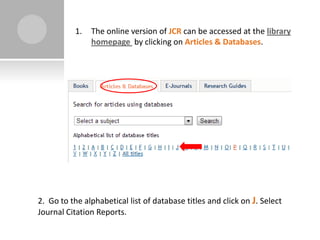
1.   The online version of JCR can be accessed at the library
                homepage by clicking on Articles & Databases.


2. Go to the alphabetical list of database titles and click on J. Select
Journal Citation Reports.
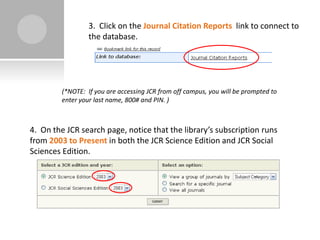
3. Click on the Journal Citation Reports link to connect to
                  the database.


         (*NOTE: If you are accessing JCR from off campus, you will be prompted to
         enter your last name, 800# and PIN. )


4. On the JCR search page, notice that the library’s subscription runs
from 2003 to Present in both the JCR Science Edition and JCR Social
Sciences Edition.
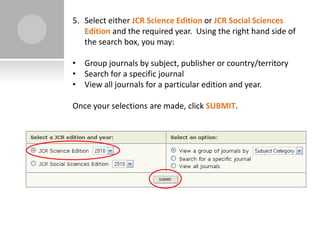
5. Select either JCR Science Edition or JCR Social Sciences
   Edition and the required year. Using the right hand side of
   the search box, you may:

• Group journals by subject, publisher or country/territory
• Search for a specific journal
• View all journals for a particular edition and year.

Once your selections are made, click SUBMIT.
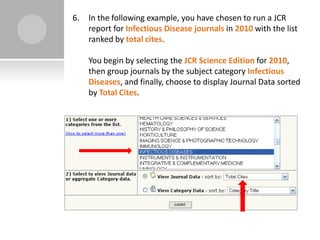
6.   In the following example, you have chosen to run a JCR
     report for Infectious Disease journals in 2010 with the list
     ranked by total cites.

     You begin by selecting the JCR Science Edition for 2010,
     then group journals by the subject category Infectious
     Diseases, and finally, choose to display Journal Data sorted
     by Total Cites.
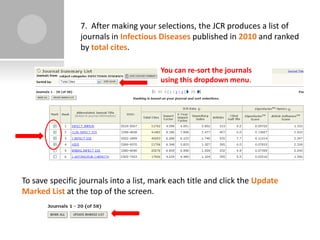
7. After making your selections, the JCR produces a list of
                 journals in Infectious Diseases published in 2010 and ranked
                 by total cites.

                                        You can re-sort the journals
                                        using this dropdown menu.


To save specific journals into a list, mark each title and click the Update
Marked List at the top of the screen.
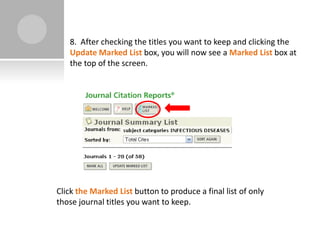
8. After checking the titles you want to keep and clicking the
   Update Marked List box, you will now see a Marked List box at
   the top of the screen.


Click the Marked List button to produce a final list of only
those journal titles you want to keep.
A DDITIONAL H ELP

   If you have questions or need additional help,
    please contact the Reference Desk at 915-747-
    5643 or Robert Klapthor, Science Librarian at
    915-747-5040.
C ONTINUE   TO :


                                    University Library home page


                                    Journal Citation Reports


                                    Beginning of tutorial


University of Texas at El Paso
University Library

Using journal citation reports (jcr) online

  • 1.
    U SING JOURNAL C ITATION R EPORTS (JCR) O NLINE
  • 2.
    1. The online version of JCR can be accessed at the library homepage by clicking on Articles & Databases. 2. Go to the alphabetical list of database titles and click on J. Select Journal Citation Reports.
  • 3.
    3. Click onthe Journal Citation Reports link to connect to the database. (*NOTE: If you are accessing JCR from off campus, you will be prompted to enter your last name, 800# and PIN. ) 4. On the JCR search page, notice that the library’s subscription runs from 2003 to Present in both the JCR Science Edition and JCR Social Sciences Edition.
  • 4.
    5. Select eitherJCR Science Edition or JCR Social Sciences Edition and the required year. Using the right hand side of the search box, you may: • Group journals by subject, publisher or country/territory • Search for a specific journal • View all journals for a particular edition and year. Once your selections are made, click SUBMIT.
  • 5.
    6. In the following example, you have chosen to run a JCR report for Infectious Disease journals in 2010 with the list ranked by total cites. You begin by selecting the JCR Science Edition for 2010, then group journals by the subject category Infectious Diseases, and finally, choose to display Journal Data sorted by Total Cites.
  • 6.
    7. After makingyour selections, the JCR produces a list of journals in Infectious Diseases published in 2010 and ranked by total cites. You can re-sort the journals using this dropdown menu. To save specific journals into a list, mark each title and click the Update Marked List at the top of the screen.
  • 7.
    8. After checkingthe titles you want to keep and clicking the Update Marked List box, you will now see a Marked List box at the top of the screen. Click the Marked List button to produce a final list of only those journal titles you want to keep.
  • 8.
    A DDITIONAL HELP  If you have questions or need additional help, please contact the Reference Desk at 915-747- 5643 or Robert Klapthor, Science Librarian at 915-747-5040.
  • 9.
    C ONTINUE TO :  University Library home page  Journal Citation Reports  Beginning of tutorial University of Texas at El Paso University Library