Navigating Diigo
             My Library Screen


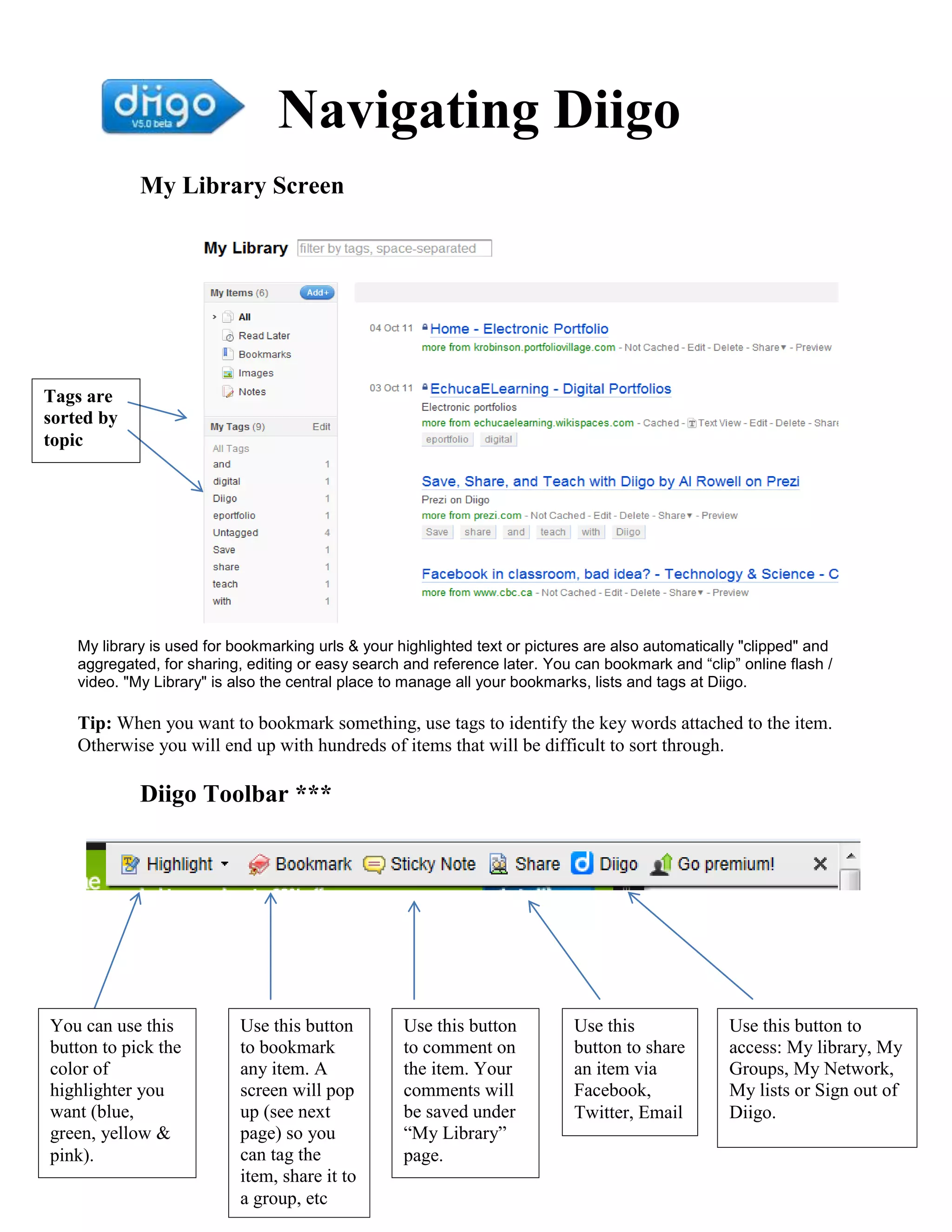
Tags are
sorted by
topic


    My library is used for bookmarking urls & your highlighted text or pictures are also automatically "clipped" and
    aggregated, for sharing, editing or easy search and reference later. You can bookmark and “clip” online flash /
    video. "My Library" is also the central place to manage all your bookmarks, lists and tags at Diigo.

    Tip: When you want to bookmark something, use tags to identify the key words attached to the item.
    Otherwise you will end up with hundreds of items that will be difficult to sort through.

             Diigo Toolbar ***


You can use this            Use this button         Use this button          Use this               Use this button to
button to pick the          to bookmark             to comment on            button to share        access: My library, My
color of                    any item. A             the item. Your           an item via            Groups, My Network,
highlighter you             screen will pop         comments will            Facebook,              My lists or Sign out of
want (blue,                 up (see next            be saved under           Twitter, Email         Diigo.
green, yellow &             page) so you            “My Library”
pink).                      can tag the             page.
                            item, share it to
                            a group, etc
Bookmark Window


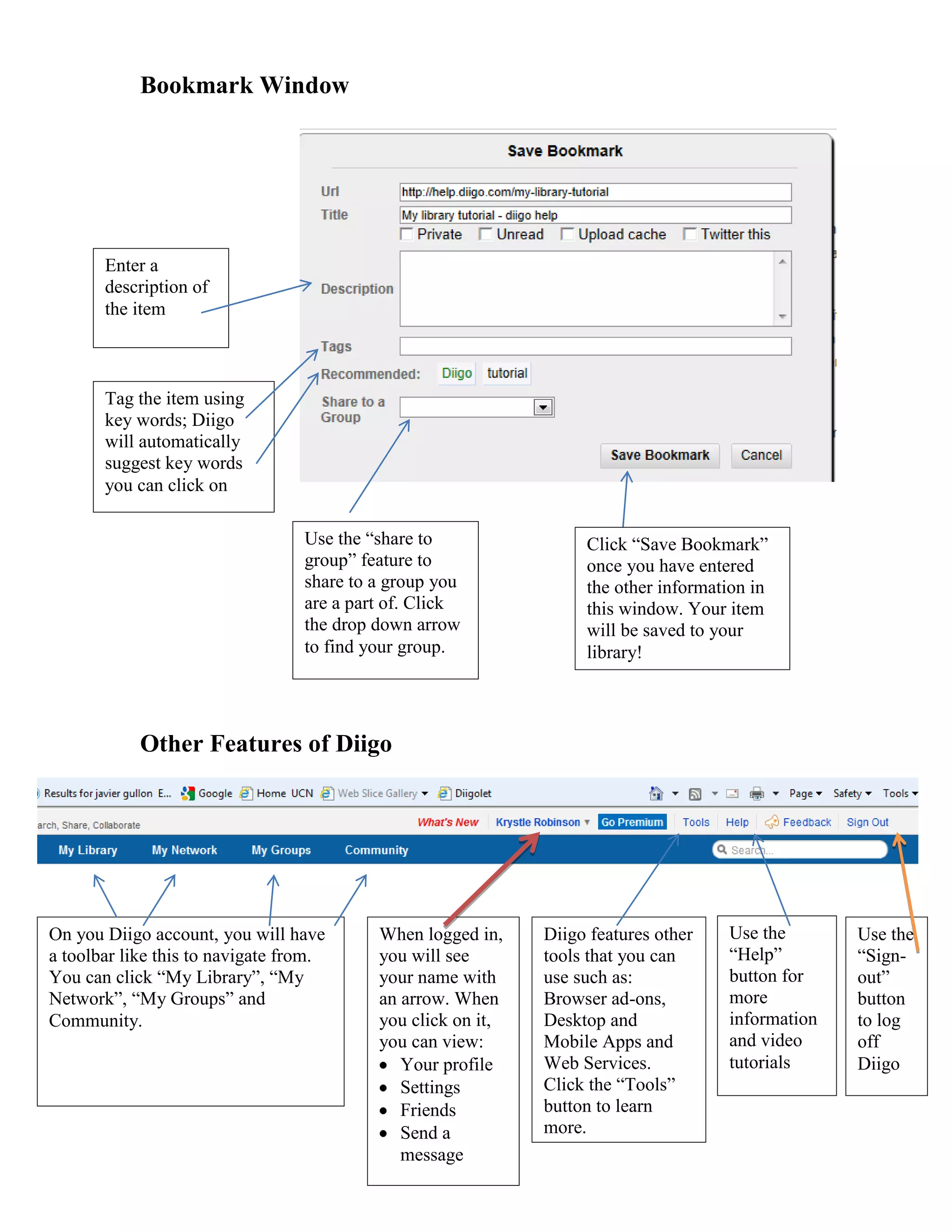
       Enter a
       description of
       the item


       Tag the item using
       key words; Diigo
       will automatically
       suggest key words
       you can click on

                                  Use the “share to                Click “Save Bookmark”
                                  group” feature to                once you have entered
                                  share to a group you             the other information in
                                  are a part of. Click             this window. Your item
                                  the drop down arrow              will be saved to your
                                  to find your group.              library!


            Other Features of Diigo


On you Diigo account, you will have        When logged in,    Diigo features other   Use the       Use the
a toolbar like this to navigate from.      you will see       tools that you can     “Help”        “Sign-
You can click “My Library”, “My            your name with     use such as:           button for    out”
Network”, “My Groups” and                  an arrow. When     Browser ad-ons,        more          button
Community.                                 you click on it,   Desktop and            information   to log
                                           you can view:      Mobile Apps and        and video     off
                                              Your profile    Web Services.          tutorials     Diigo
                                              Settings        Click the “Tools”
                                              Friends         button to learn
                                              Send a          more.
                                              message

Using diigo handout

  • 1.
    Navigating Diigo My Library Screen Tags are sorted by topic My library is used for bookmarking urls & your highlighted text or pictures are also automatically "clipped" and aggregated, for sharing, editing or easy search and reference later. You can bookmark and “clip” online flash / video. "My Library" is also the central place to manage all your bookmarks, lists and tags at Diigo. Tip: When you want to bookmark something, use tags to identify the key words attached to the item. Otherwise you will end up with hundreds of items that will be difficult to sort through. Diigo Toolbar *** You can use this Use this button Use this button Use this Use this button to button to pick the to bookmark to comment on button to share access: My library, My color of any item. A the item. Your an item via Groups, My Network, highlighter you screen will pop comments will Facebook, My lists or Sign out of want (blue, up (see next be saved under Twitter, Email Diigo. green, yellow & page) so you “My Library” pink). can tag the page. item, share it to a group, etc
  • 2.
    Bookmark Window Enter a description of the item Tag the item using key words; Diigo will automatically suggest key words you can click on Use the “share to Click “Save Bookmark” group” feature to once you have entered share to a group you the other information in are a part of. Click this window. Your item the drop down arrow will be saved to your to find your group. library! Other Features of Diigo On you Diigo account, you will have When logged in, Diigo features other Use the Use the a toolbar like this to navigate from. you will see tools that you can “Help” “Sign- You can click “My Library”, “My your name with use such as: button for out” Network”, “My Groups” and an arrow. When Browser ad-ons, more button Community. you click on it, Desktop and information to log you can view: Mobile Apps and and video off Your profile Web Services. tutorials Diigo Settings Click the “Tools” Friends button to learn Send a more. message