Using a Blackboard Wiki
Why and How
Bill Vilberg
bill.vilberg@miami.edu
Slides available at
http://goo.gl/xm239G
Questions
1. What is a wiki?
2. Why might you use a
wiki in your course?
3. How do you use the wiki
in Blackboard Learn?
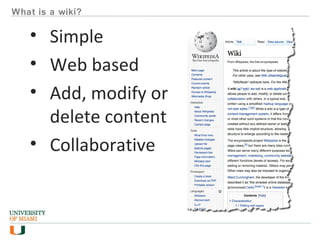
What is a wiki?
What is a wiki?
• Simple
• Web based
• Add, modify or
delete content
• Collaborative
Why might you use a wiki
in a course?
Why might you use a wiki in a course?
• Group work
• Authentic audience
• Collaborative writing
• Writing to learn
Why might you use a wiki in a course?
• Group work
• Authentic audience
• Collaborative writing
• Writing to learn
How do you use the
wiki in Blackboard
learn?
Steps
1. Organize
2. Create
3. (Edit)
4. Assess
organize
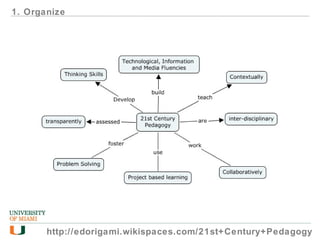
1. Organize
http://edorigami.wikispaces.com/21st+Century+Pedagogy
2. Create
• Wiki document
• Wiki pages
• Wiki links to pages
• Blackboard link to the
Wiki
Create wiki
documemt
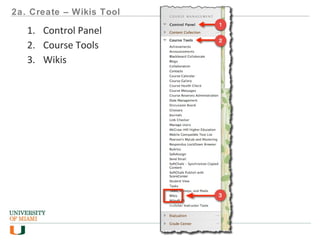
2a. Create – Wikis Tool
1. Control Panel
2. Course Tools
3. Wikis
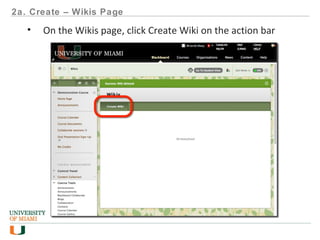
2a. Create – Wikis Page
• On the Wikis page, click Create Wiki on the action bar
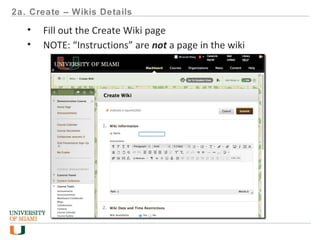
2a. Create – Wikis Details
• Fill out the Create Wiki page
• NOTE: “Instructions” are not a page in the wiki
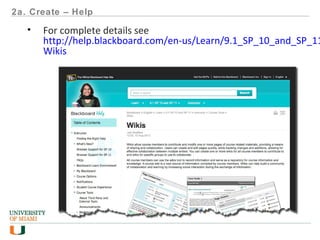
2a. Create – Help
• For complete details see
http://help.blackboard.com/en-us/Learn/9.1_SP_10_and_SP_11
Wikis
Create wiki Pages
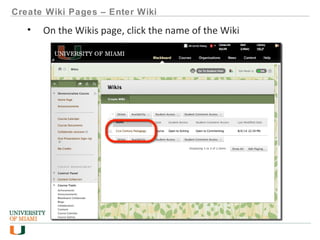
Create Wiki Pages – Enter Wiki
• On the Wikis page, click the name of the Wiki
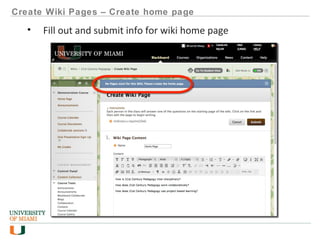
Create Wiki Pages – Create home page
• Fill out and submit info for wiki home page
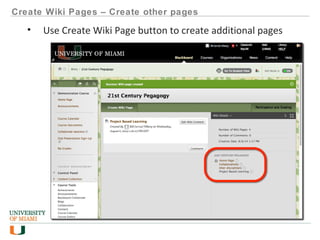
Create Wiki Pages – Create other pages
• Use Create Wiki Page button to create additional pages
Create wiki links to
pages
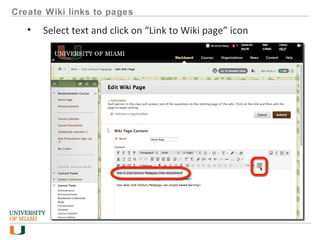
Create Wiki links to pages
• Select text and click on “Link to Wiki page” icon
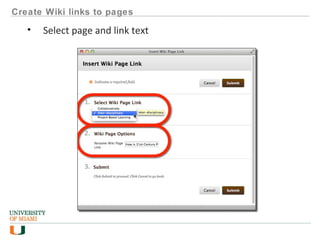
Create Wiki links to pages
• Select page and link text
Create Wiki links to pages
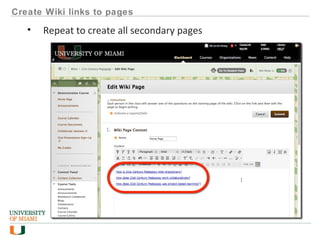
• Repeat to create all secondary pages
Create blackboard
link to the wiki
Create Blackboard link to the Wiki
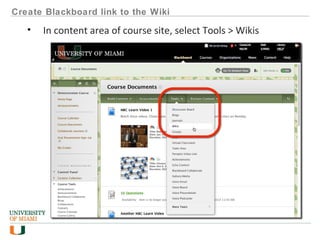
• In content area of course site, select Tools > Wikis
Create Blackboard link to the Wiki
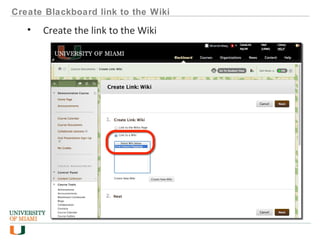
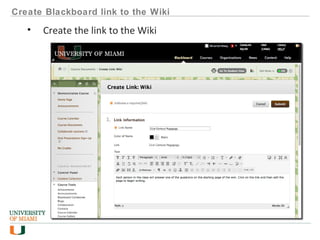
• Create the link to the Wiki
Create Blackboard link to the Wiki
• Create the link to the Wiki
Create Blackboard link to the Wiki
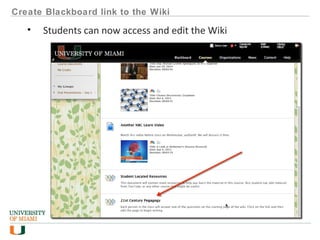
• Students can now access and edit the Wiki
4. ASSESS
Assess
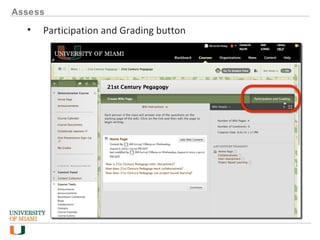
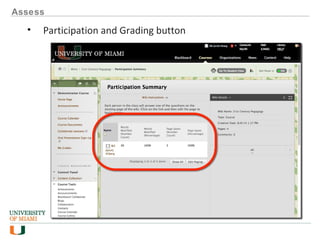
• Participation and Grading button
Assess
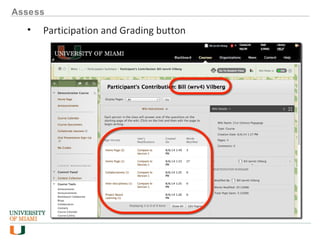
• Participation and Grading button
Assess
• Participation and Grading button
Demonstration
Create
•Wiki document
•Wiki pages
•Wiki links to pages
•Blackboard link to the Wiki
Assess
RECAP
1. What is a wiki?
2. Why might you use a
wiki in your course?
3. How do you use the wiki
in Blackboard Learn?
Using a Blackboard Wiki
Why and How
Bill Vilberg
bill.vilberg@miami.edu
Slides available at
http://goo.gl/xm239G

Using a blackboard wiki