Update Smart:
Use a Staging Site!
Meagan Hanes
Has this ever happened to you?
The Solution: Use a Staging Site!
What is a Staging Site?
★ ideally on the same server
★ robots.txt/Dashboard set to hide the site from search engines
★ in contrast to your "Production" or "Live" site
a private copy of your site
Why do we use Staging Sites?
★ websites get hacked via non-updated WordPress files
○ plugins, themes, and WP core files
★ but "doing it live" is NOT the best way!
to keep our websites healthy
Why do we use Staging Sites?
★ updates are done without affecting the live site
★ go slowly through updates, actually read update notes
★ test thoroughly without polluting live site’s database
perform updates carefully
Why do we use Staging Sites?
★ if a plugin problem is found, live users are not impacted
○ super important for e-commerce sites & forums
★ eliminates SEO-crippling / BI problems
eliminate mistakes&downtime
How to Create a Staging Site
use a backup plugin
★ use a tool that many sites already have installed
★ bonus: become more familiar with restoring websites
★ BackupBuddy, VaultPress, UpdraftPlus, Duplicator, etc
How to Create a Staging Site
use your web host
★ many web hosts include one-click staging
★ WP Engine, LiquidWeb, Flywheel, Siteground
★ GoDaddy & A2Hosting (Managed WordPress)
How to Create a Staging Site
use a staging site service
★ third-party services like WPStagecoach.com
★ automatically deletes the site after inactivity
★ is not free; does not work with Multisite
How to Create a Staging Site
manually clone the site
★ great opportunity to better understand WordPress
★ copy over all files (WP, plugins, themes, media uploads)
★ export & import your database; replace all URLs
How to Create a Staging Site
create a local site clone
★ use an all-in-one solution like Local by Flywheel
★ 100% private, on your local machine only
★ will likely not be identical to your server
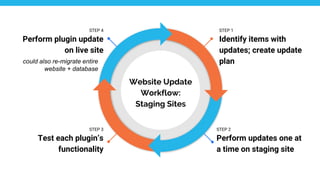
Update Workflow with a Staging Site
STEP 4
Perform plugin update
on live site
STEP 3
Test each plugin’s
functionality
STEP 2
Perform updates one at
a time on staging site
STEP 1
Identify items with
updates; create update
plan
Website Update
Workflow:
Staging Sites
could also re-migrate entire
website + database
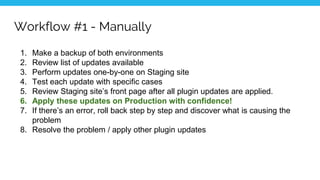
Workflow #1 - Manually
1. Make a backup of both environments
2. Review list of updates available
3. Perform updates one-by-one on Staging site
4. Test each update with specific cases
5. Review Staging site’s front page after all plugin updates are applied.
6. Apply these updates on Production with confidence!
7. If there’s an error, roll back step by step and discover what is causing the
problem
8. Resolve the problem / apply other plugin updates
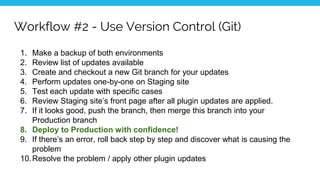
Workflow #2 - Use Version Control (Git)
1. Make a backup of both environments
2. Review list of updates available
3. Create and checkout a new Git branch for your updates
4. Perform updates one-by-one on Staging site
5. Test each update with specific cases
6. Review Staging site’s front page after all plugin updates are applied.
7. If it looks good, push the branch, then merge this branch into your
Production branch
8. Deploy to Production with confidence!
9. If there’s an error, roll back step by step and discover what is causing the
problem
10.Resolve the problem / apply other plugin updates
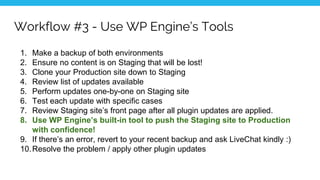
Workflow #3 - Use WP Engine’s Tools
1. Make a backup of both environments
2. Ensure no content is on Staging that will be lost!
3. Clone your Production site down to Staging
4. Review list of updates available
5. Perform updates one-by-one on Staging site
6. Test each update with specific cases
7. Review Staging site’s front page after all plugin updates are applied.
8. Use WP Engine’s built-in tool to push the Staging site to Production
with confidence!
9. If there’s an error, revert to your recent backup and ask LiveChat kindly :)
10.Resolve the problem / apply other plugin updates
Wise Questions regarding Staging Sites
Wise Questions You Should Consider
who’s job is this?
★ who exactly is responsible for making these updates
★ how often will updates be performed
★ schedule this task; be firm with its importance
Wise Questions You Should Consider
should i pay someone else?
★ time = $$$ especially when updates go wrong
★ many maintenance services include daily/weekly backups
★ frees up internal resource for more important work
Bonus Staging Site Tips
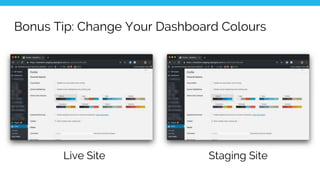
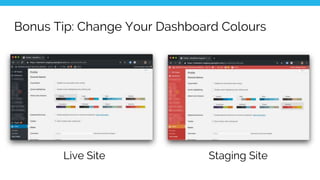
Bonus Tip: Change Your Dashboard Colours
Live Site Staging Site
Bonus Tip: Change Your Dashboard Colours
Live Site Staging Site
Bonus Tip: Nuke It With Fire
★ Common situation with staging sites:
○ “Testing some things out”
○ “Working on new content”
○ “Don’t update it PLEASE!!!111!1”
★ Solution: Company policy regarding staging site deletion
○ Staging may be overwritten at any time sans notice
★ But perform a quick backup regardless
Upcoming Canadian WordCamps
August 10 - 11: Montreal
2019.Montreal.WordCamp.org
September 7: Halifax
2019.Halifax.WordCamp.org
October 19th: Niagara
2019.Niagara.WordCamp.org
Update Smart:
Use a Staging Site!
Meagan Hanes

Update Smart: Use a Staging Site!

  • 1.
    Update Smart: Use aStaging Site! Meagan Hanes
  • 2.
    Has this everhappened to you?
  • 4.
    The Solution: Usea Staging Site!
  • 5.
    What is aStaging Site? ★ ideally on the same server ★ robots.txt/Dashboard set to hide the site from search engines ★ in contrast to your "Production" or "Live" site a private copy of your site
  • 6.
    Why do weuse Staging Sites? ★ websites get hacked via non-updated WordPress files ○ plugins, themes, and WP core files ★ but "doing it live" is NOT the best way! to keep our websites healthy
  • 7.
    Why do weuse Staging Sites? ★ updates are done without affecting the live site ★ go slowly through updates, actually read update notes ★ test thoroughly without polluting live site’s database perform updates carefully
  • 8.
    Why do weuse Staging Sites? ★ if a plugin problem is found, live users are not impacted ○ super important for e-commerce sites & forums ★ eliminates SEO-crippling / BI problems eliminate mistakes&downtime
  • 9.
    How to Createa Staging Site
  • 10.
    How to Createa Staging Site use a backup plugin ★ use a tool that many sites already have installed ★ bonus: become more familiar with restoring websites ★ BackupBuddy, VaultPress, UpdraftPlus, Duplicator, etc
  • 11.
    How to Createa Staging Site use your web host ★ many web hosts include one-click staging ★ WP Engine, LiquidWeb, Flywheel, Siteground ★ GoDaddy & A2Hosting (Managed WordPress)
  • 12.
    How to Createa Staging Site use a staging site service ★ third-party services like WPStagecoach.com ★ automatically deletes the site after inactivity ★ is not free; does not work with Multisite
  • 13.
    How to Createa Staging Site manually clone the site ★ great opportunity to better understand WordPress ★ copy over all files (WP, plugins, themes, media uploads) ★ export & import your database; replace all URLs
  • 14.
    How to Createa Staging Site create a local site clone ★ use an all-in-one solution like Local by Flywheel ★ 100% private, on your local machine only ★ will likely not be identical to your server
  • 15.
    Update Workflow witha Staging Site
  • 16.
    STEP 4 Perform pluginupdate on live site STEP 3 Test each plugin’s functionality STEP 2 Perform updates one at a time on staging site STEP 1 Identify items with updates; create update plan Website Update Workflow: Staging Sites could also re-migrate entire website + database
  • 17.
    Workflow #1 -Manually 1. Make a backup of both environments 2. Review list of updates available 3. Perform updates one-by-one on Staging site 4. Test each update with specific cases 5. Review Staging site’s front page after all plugin updates are applied. 6. Apply these updates on Production with confidence! 7. If there’s an error, roll back step by step and discover what is causing the problem 8. Resolve the problem / apply other plugin updates
  • 18.
    Workflow #2 -Use Version Control (Git) 1. Make a backup of both environments 2. Review list of updates available 3. Create and checkout a new Git branch for your updates 4. Perform updates one-by-one on Staging site 5. Test each update with specific cases 6. Review Staging site’s front page after all plugin updates are applied. 7. If it looks good, push the branch, then merge this branch into your Production branch 8. Deploy to Production with confidence! 9. If there’s an error, roll back step by step and discover what is causing the problem 10.Resolve the problem / apply other plugin updates
  • 19.
    Workflow #3 -Use WP Engine’s Tools 1. Make a backup of both environments 2. Ensure no content is on Staging that will be lost! 3. Clone your Production site down to Staging 4. Review list of updates available 5. Perform updates one-by-one on Staging site 6. Test each update with specific cases 7. Review Staging site’s front page after all plugin updates are applied. 8. Use WP Engine’s built-in tool to push the Staging site to Production with confidence! 9. If there’s an error, revert to your recent backup and ask LiveChat kindly :) 10.Resolve the problem / apply other plugin updates
  • 20.
  • 21.
    Wise Questions YouShould Consider who’s job is this? ★ who exactly is responsible for making these updates ★ how often will updates be performed ★ schedule this task; be firm with its importance
  • 22.
    Wise Questions YouShould Consider should i pay someone else? ★ time = $$$ especially when updates go wrong ★ many maintenance services include daily/weekly backups ★ frees up internal resource for more important work
  • 23.
  • 24.
    Bonus Tip: ChangeYour Dashboard Colours Live Site Staging Site
  • 25.
    Bonus Tip: ChangeYour Dashboard Colours Live Site Staging Site
  • 26.
    Bonus Tip: NukeIt With Fire ★ Common situation with staging sites: ○ “Testing some things out” ○ “Working on new content” ○ “Don’t update it PLEASE!!!111!1” ★ Solution: Company policy regarding staging site deletion ○ Staging may be overwritten at any time sans notice ★ But perform a quick backup regardless
  • 27.
    Upcoming Canadian WordCamps August10 - 11: Montreal 2019.Montreal.WordCamp.org September 7: Halifax 2019.Halifax.WordCamp.org October 19th: Niagara 2019.Niagara.WordCamp.org
  • 28.
    Update Smart: Use aStaging Site! Meagan Hanes