Apps on Windows 10 - intro
Andreas Hammar
@andyhammar - andreas.hammar@jayway.com
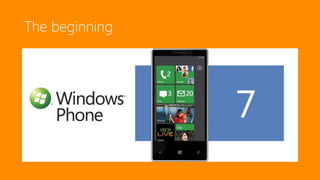
The beginning
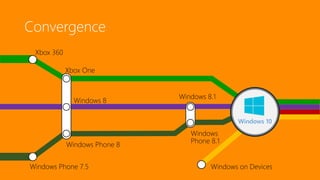
Windows Phone 7.5
Windows Phone 8
Windows
Phone 8.1
Windows 8
Xbox One
Windows on Devices
Xbox 360
Windows 8.1
Windows 10
Convergence
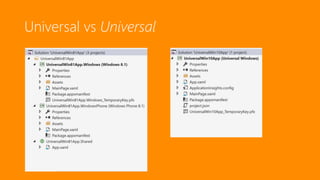
Universal vs Universal
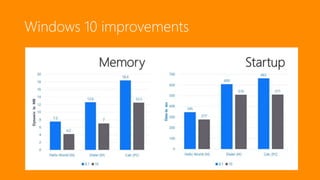
Windows 10 improvements
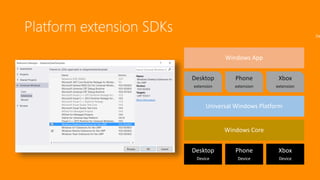
Platform extension SDKs De
Phone
Device
Xbox
Device
Desktop
Device
Windows Core
Universal Windows Platform
Windows App
Phone
extension
Xbox
extension
Desktop
extension
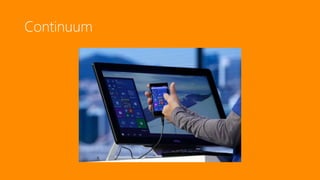
Continuum
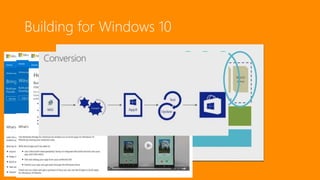
Building for Windows 10
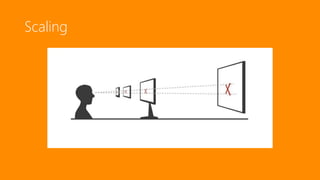
Scaling
demo
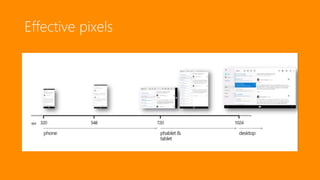
Effective pixels
Beyond hello world…
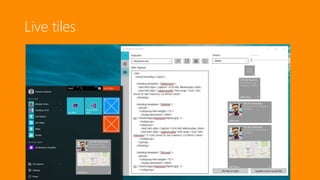
Live tiles
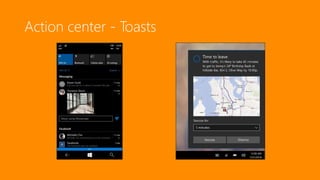
Action center - Toasts
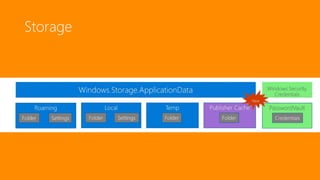
Storage
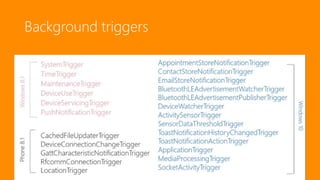
Background triggers
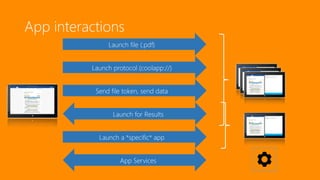
App interactions
Send file token, send data
Launch a *specific* app
App Services
Launch for Results
Launch protocol (coolapp://)
Launch file (.pdf)
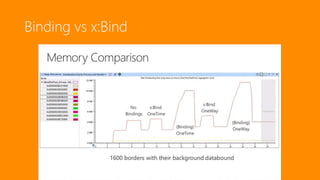
Binding vs x:Bind
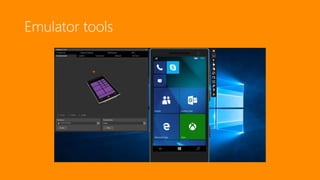
Emulator tools
Porting from <10
#if
API / Extension SDKs
XAML styles
Charms bar
Scale factors
Adapt UI
Links
Windows 10 development for absolut beginners
https://channel9.msdn.com/Series/Windows-10-development-for-absolute-beginners
A Developer's Guide to Windows 10
https://www.microsoftvirtualacademy.com/en-US/training-courses/a-developer-s-guide-to-
windows-10-12618
Fody.PropertyChanged
https://github.com/Fody/PropertyChanged
Windows-XAML/Template10
https://github.com/Windows-XAML/Template10
NotificationsExtensions
https://github.com/WindowsNotifications/NotificationsExtensions
Windows Dev Center
https://dev.windows.com
Glöm inte att utvärdera sessionen direkt i
Microsoft TechDays-appen!
Questions?
Andreas Hammar
@andyhammar - andreas.hammar@jayway.com

Universal apps on Windows 10 - Intro (TechDays Sweden 2015)

Editor's Notes

  • #3 Me – Jayway Talk about building apps Many ways to write apps, go through the options – then create a simple app Both intro to app development in general – but also highlight some new stuff in Windows 10
  • #4 Apps on windows started with phone No background execution, one tile size etc Built on silverlight and Windows CE – many came from WPF
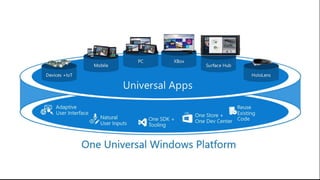
  • #5 Since then a lot has happened Shared core with 8 Shared app platform with 8.1 Now shared binary and API across ALL devices
  • #6 In 8.1, universal meant code sharing via ’shared’ project (=tooling support) In Windows 10, it is one project and one binary
  • #7 But its not just easier to develop, performance is so much better. Remember when VS started using WPF? Text handling had to be totally rewritten! Was so laggy. I was working on a set of OEM apps just when 8.1 came out, and there were talk about 1st party apps being rewritten using the XAML stack (not Silverlight). We had heaps of problems (was early stage), and eventually MSFT never did rewrite those apps – until now! Start menu (core shell) uses XAML, etc etc.
  • #8 Devices are arranged in families, code can be adaptive and be enhanced for specific families Feature detection instead of device type checking Can also do family detection
  • #9 Extensions SDKs allow for features only relevant on a device family – ApiInformation allows for feature detection (eg see of a class is defined)
  • #10 So, all is much easier now? Both yes and no, one core means easier API and universal apps gives a lot for free – but apps must be more adaptive. Phone – continuum – scaling Luckily there is support in the platform and new tooling for this
  • #11 Old apps and languages work Now that modern apps and desktop is one and the same, UWP is the should be the default way to write apps BRIDGES Ios – recompiles code to win10 Android – SDK for existing IDEs, runs app in container Web – hosted web apps, can access uwp too Win32 – next year, converts win32 apps to modern apps
  • #12 Large variety of screen sizes and DPIs require intelligent scaling – eg full HD on TV is not the same as full HD on a phone! Has to take DPI in account, as well as viewing distance.
  • #13 -------------------------------------------------------------------------------------------------------------- Code at: https://github.com/andyhammar/win10apps-intro (and https://github.com/andyhammar/ToddlerVideo) -------------------------------------------------------------------------------------------------------------- Demo walkthrough: VS project setup App manifest Files MainPage designer – preview devices, scaling levels and effective pixels CTRLS Pivot with 5 items Add textblock Add rectangle in PI 2 Add datepicker in PI1, change grid to relativepanel RUN on local machine VM Create VM with prop TimeSpan Time Inpc BLEND – sampledata – connect both to VM RUN in phone ADAPTIVE Create visual states, 600 width – move timepicker to right of textblock Run on PC – resize LIST Add snippets to VM Blend, rebuild, create listview and drag list to listview itemTemplate – fix Add runtime data (snippet) RUN – nice BACK Add itemclick Create ItemPage (XAML snippet), navigate Set DC on ItemPage (snippet) RUN – no back button! (has in tablet mode, like phone, steps away from app) Handle backRequested Set BackVisibility RUN – works but has back button on start page too – todo: put in base page Last: show ToddlerVideo – easy to accomplish a lot with little code: https://github.com/andyhammar/ToddlerVideo -------------------------------------------------------------------------------------------------------------- Snippets used:  ** SAMPLE DATA **   public class NewsItemVmi { public string Title { get; set; } public string Published { get; set; } public string Image { get; set; } }   public MainPageVm() { NewsItems = new ObservableCollection<NewsItemVmi>();   Time = DateTime.Now.TimeOfDay; NewsItems.Add(new NewsItemVmi { Title = "item 1", Published = "2015-01-01", Image = "/Assets/StoreLogo.png" }); NewsItems.Add(new NewsItemVmi { Title = "item 2", Published = "2015-01-01", Image = "https://pbs.twimg.com/profile_images/508960761826131968/LnvhR8ED.png" }); NewsItems.Add(new NewsItemVmi { Title = "item 3 with longer name", Published = "2015-01-01", Image = "/Assets/StoreLogo.png" }); if (DesignMode.DesignModeEnabled) { NewsItems.Add(new NewsItemVmi { Title = "item 4 (design time only)", Published = "2015-01-01", Image = "/Assets/StoreLogo.png" });   } } public ObservableCollection<NewsItemVmi> NewsItems { get; set; }       ** LIVE DATA ** public async Task Init() { var client = new SyndicationClient(); var feed = await client.RetrieveFeedAsync(new Uri("http://rss.cnn.com/rss/edition_technology.rss", UriKind.Absolute));   foreach (var item in feed.Items) { var element = item. ElementExtensions.FirstOrDefault(e => e.NodeName == "thumbnail"); var attribute = element.AttributeExtensions.FirstOrDefault(ae => ae.Name == "url"); var uri = attribute?.Value; var imageUri = uri ?? "https://pbs.twimg.com/profile_images/508960761826131968/LnvhR8ED.png"; NewsItems.Add(new NewsItemVmi { Title = item.Title.Text, Image = imageUri, Published = item.PublishedDate.ToString("g") }); } }     ** ITEM CLICK ** private void listView_ItemClick(object sender, ItemClickEventArgs e) { Frame.Navigate(typeof (ItemPage), e.ClickedItem); }     <RelativePanel Background="{ThemeResource ApplicationPageBackgroundThemeBrush}"> <TextBlock x:Name="textBlock" Text="{Binding Title}" Style="{StaticResource TitleTextBlockStyle}"/> <Image x:Name="image" RelativePanel.Below="{Binding ElementName=textBlock}" RelativePanel.AlignLeftWithPanel="True" RelativePanel.AlignRightWithPanel="True" RelativePanel.AlignBottomWithPanel="True" Source="{Binding Image}"/> </RelativePanel>   protected override void OnNavigatedTo(NavigationEventArgs e) { base.OnNavigatedTo(e);   var item = e.Parameter as NewsItemVmi; if (item == null) return;   DataContext = item; }     ** BACK ** SystemNavigationManager.GetForCurrentView().BackRequested += App_BackRequested;     private void App_BackRequested(object sender, BackRequestedEventArgs e) { var frame = Window.Current.Content as Frame;   if (frame == null || !frame.CanGoBack) return;   e.Handled = true; frame.GoBack(); }     SystemNavigationManager.GetForCurrentView(). AppViewBackButtonVisibility = Frame.CanGoBack ? AppViewBackButtonVisibility.Visible : AppViewBackButtonVisibility.Collapsed;                 ** NAVI STATE **   var frame = Window.Current.Content as Frame; if (frame == null) return; var navigationState = frame.GetNavigationState(); ApplicationData.Current.LocalSettings.Values["naviState"] = navigationState;  
  • #14 As you saw, after scaling has been accounted for – we are left with effective pixels – the physical space to lay out your UI on Of course depends on app, but some rough numbers exist as to where to start rearranging your UI
  • #16 Apps can show and update information when not running – either from server or from background job – on the live tiles Several templates exist, but also a new Adaptive template that allows for custom tile assembly – and a Store app for testing your layouts!
  • #17 Toasts are popup-messages, and they end up in the action center. Toasts can now be interactive, and launch the app in background or foreground.
  • #18 Several data storage options – both as key/value store and raw folder access Local Roaming Temp Publisher shared – cool! Encrypted passwordVault
  • #19 A sea of trigger for triggering background work by your app – all from location based for geofencing, via sensor triggers all the way to toast triggers (someone interacted with your toast in the action center – eg you should update your live tile if the user has dismissed emails)