Getting Started
Developing Universal Windows Platform (UWP) Apps
Jaliya Udagedara
MVP (.NET)
Introduction
Extension SDKs
New XAML Controls
Agenda
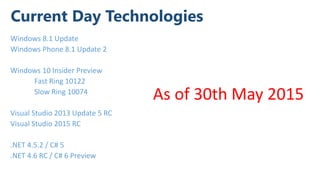
Current Day Technologies
Windows 8.1 Update
Windows Phone 8.1 Update 2
Windows 10 Insider Preview
Fast Ring 10122
Slow Ring 10074
Visual Studio 2013 Update 5 RC
Visual Studio 2015 RC
.NET 4.5.2 / C# 5
.NET 4.6 RC / C# 6 Preview
As of 30th May 2015
Introduction
Universal Windows Platform (UWP)
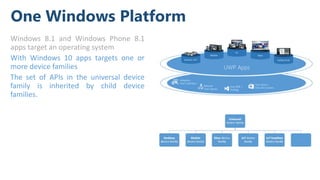
One Windows Platform
Windows 8.1 and Windows Phone 8.1
apps target an operating system
With Windows 10 apps targets one or
more device families
The set of APIs in the universal device
family is inherited by child device
families.
Easy for users to get
& stay current
Unified core
and app platform
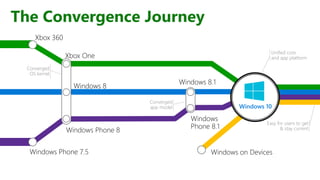
The Convergence Journey
Windows 10
Converged
OS kernel
Converged
app model
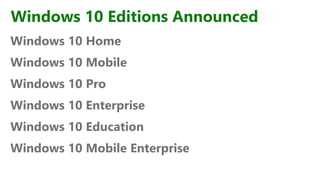
Windows 10 Editions Announced
Windows 10 Home
Windows 10 Mobile
Windows 10 Pro
Windows 10 Enterprise
Windows 10 Education
Windows 10 Mobile Enterprise
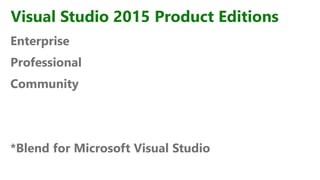
Visual Studio 2015 Product Editions
Enterprise
Professional
Community
*Blend for Microsoft Visual Studio
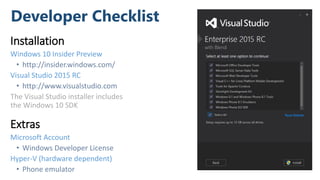
Developer Checklist
Installation
Windows 10 Insider Preview
• http://insider.windows.com/
Visual Studio 2015 RC
• http://www.visualstudio.com
The Visual Studio installer includes
the Windows 10 SDK
Extras
Microsoft Account
• Windows Developer License
Hyper-V (hardware dependent)
• Phone emulator
Supported Programming Languages
Visual C# and XAML
Visual Basic and XAML
Visual C++ and DirectX, DirectX/XAML
JavaScript and HTML5
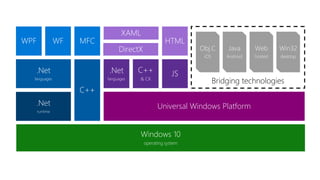
Windows 10
operating system
Bridging technologies
Win32
desktop
Web
hosted
Java
Android
Obj.C
iOS
Universal Windows Platform
JSC++
& CX
.Net
languages
HTML
DirectX
XAML
C++
.Net
languages
MFCWFWPF
.Net
runtime
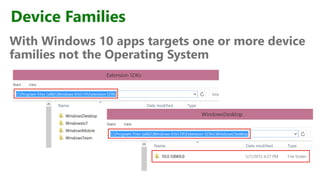
Device Families
With Windows 10 apps targets one or more device
families not the Operating System
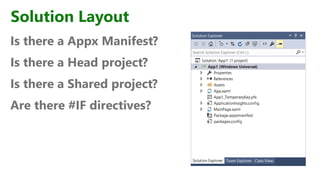
Solution Layout
Is there a Appx Manifest?
Is there a Head project?
Is there a Shared project?
Are there #IF directives?
Demo
UWP Apps
Extension SDKs
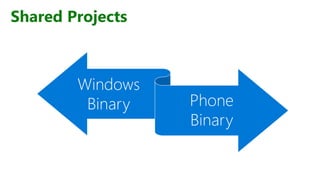
Shared Projects
Windows
Binary Phone
Binary
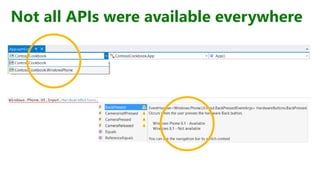
Not all APIs were available everywhere
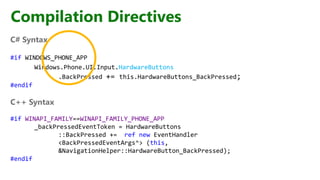
Compilation Directives
C# Syntax
#if WINDOWS_PHONE_APP
Windows.Phone.UI.Input.HardwareButtons
.BackPressed += this.HardwareButtons_BackPressed;
#endif
C++ Syntax
#if WINAPI_FAMILY==WINAPI_FAMILY_PHONE_APP
_backPressedEventToken = HardwareButtons
::BackPressed += ref new EventHandler
<BackPressedEventArgs^> (this,
&NavigationHelper::HardwareButton_BackPressed);
#endif
Introducing Platform Extension SDKs
• Extends the UWP
• Targets specific platforms
• Updates at a separate cadence
• Enabled on every device
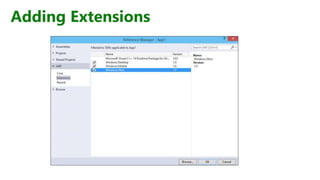
Adding Extensions
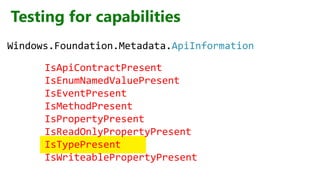
Testing for capabilities
IsApiContractPresent
IsEnumNamedValuePresent
IsEventPresent
IsMethodPresent
IsPropertyPresent
IsReadOnlyPropertyPresent
IsTypePresent
IsWriteablePropertyPresent
Windows.Foundation.Metadata.ApiInformation
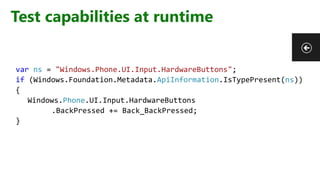
Test capabilities at runtime
var ns = "Windows.Phone.UI.Input.HardwareButtons";
if (Windows.Foundation.Metadata.ApiInformation.IsTypePresent(ns))
{
Windows.Phone.UI.Input.HardwareButtons
.BackPressed += Back_BackPressed;
}
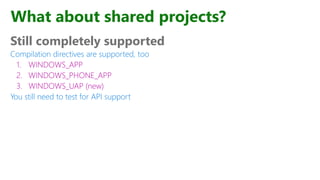
What about shared projects?
Still completely supported
Compilation directives are supported, too
1. WINDOWS_APP
2. WINDOWS_PHONE_APP
3. WINDOWS_UAP (new)
You still need to test for API support
New XAML Controls
SplitView, RelativePanel,
MonthCalendar
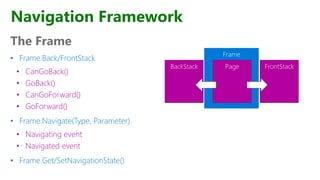
Navigation Framework
The Frame
• Frame.Back/FrontStack
• CanGoBack()
• GoBack()
• CanGoForward()
• GoForward()
• Frame.Navigate(Type, Parameter)
• Navigating event
• Navigated event
• Frame.Get/SetNavigationState()
Frame
PageBackStack FrontStack
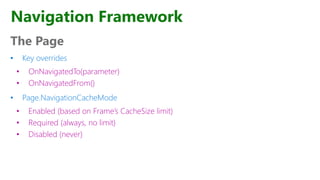
The Page
• Key overrides
• OnNavigatedTo(parameter)
• OnNavigatedFrom()
• Page.NavigationCacheMode
• Enabled (based on Frame’s CacheSize limit)
• Required (always, no limit)
• Disabled (never)
Navigation Framework
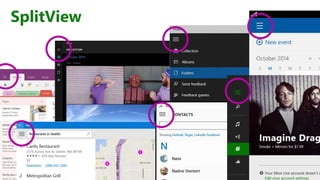
SplitView
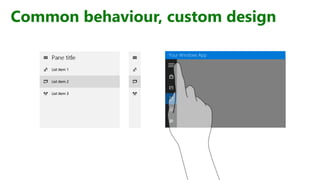
Common behaviour, custom design
Your Windows App
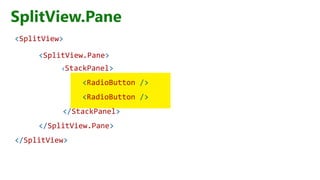
SplitView.Pane
<SplitView>
<SplitView.Pane>
<StackPanel>
<RadioButton />
<RadioButton />
</StackPanel>
</SplitView.Pane>
</SplitView>
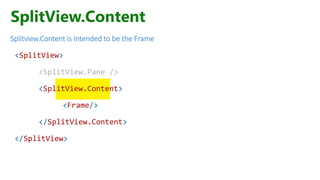
SplitView.Content
Splitview.Content is intended to be the Frame
<SplitView>
<SplitView.Pane />
<SplitView.Content>
<Frame/>
</SplitView.Content>
</SplitView>
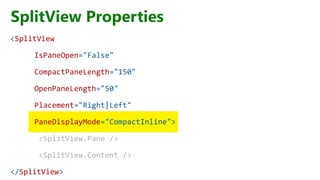
SplitView Properties
<SplitView
IsPaneOpen="False"
CompactPaneLength="150"
OpenPaneLength="50"
Placement="Right|Left"
PaneDisplayMode="CompactInline">
<SplitView.Pane />
<SplitView.Content />
</SplitView>
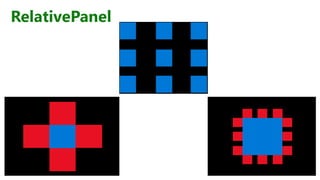
RelativePanel
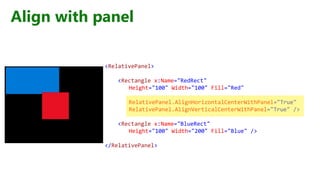
Align with panel
<RelativePanel>
<Rectangle x:Name="RedRect"
Height="100" Width="100" Fill="Red"
RelativePanel.AlignHorizontalCenterWithPanel="True"
RelativePanel.AlignVerticalCenterWithPanel="True" />
<Rectangle x:Name="BlueRect"
Height="100" Width="200" Fill="Blue" />
</RelativePanel>
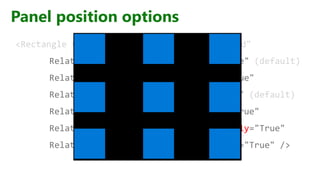
Panel position options
<Rectangle Height="100" Width="100" Fill="Red"
RelativePanel.AlignLeftWithPanel="True" (default)
RelativePanel.AlignRightWithPanel="True"
RelativePanel.AlignTopWithPanel="True" (default)
RelativePanel.AlignBottomWithPanel="True"
RelativePanel.CenterInPanelHorizontally="True"
RelativePanel.CenterInPanelVertically="True" />
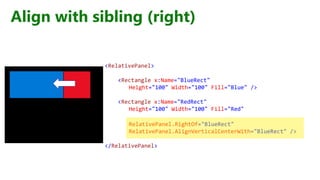
Align with sibling (right)
<RelativePanel>
<Rectangle x:Name="BlueRect"
Height="100" Width="100" Fill="Blue" />
<Rectangle x:Name="RedRect"
Height="100" Width="100" Fill="Red"
RelativePanel.RightOf="BlueRect"
RelativePanel.AlignVerticalCenterWith="BlueRect" />
</RelativePanel>
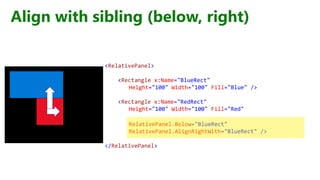
Align with sibling (below, right)
<RelativePanel>
<Rectangle x:Name="BlueRect"
Height="100" Width="100" Fill="Blue" />
<Rectangle x:Name="RedRect"
Height="100" Width="100" Fill="Red"
RelativePanel.Below="BlueRect"
RelativePanel.AlignRightWith="BlueRect" />
</RelativePanel>
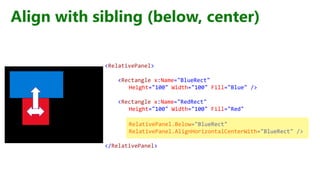
Align with sibling (below, center)
<RelativePanel>
<Rectangle x:Name="BlueRect"
Height="100" Width="100" Fill="Blue" />
<Rectangle x:Name="RedRect"
Height="100" Width="100" Fill="Red"
RelativePanel.Below="BlueRect"
RelativePanel.AlignHorizontalCenterWith="BlueRect" />
</RelativePanel>
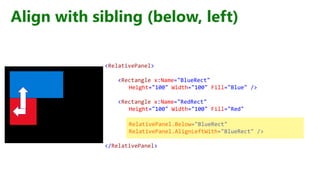
Align with sibling (below, left)
<RelativePanel>
<Rectangle x:Name="BlueRect"
Height="100" Width="100" Fill="Blue" />
<Rectangle x:Name="RedRect"
Height="100" Width="100" Fill="Red"
RelativePanel.Below="BlueRect"
RelativePanel.AlignLeftWith="BlueRect" />
</RelativePanel>
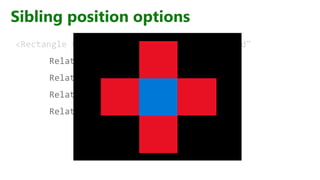
Sibling position options
<Rectangle Height="100" Width="100" Fill="Red"
RelativePanel.Above="BlueRect"
RelativePanel.RightOf="BlueRect"
RelativePanel.Below="BlueRect"
RelativePanel.RightOf="BlueRect" />
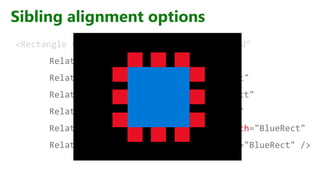
Sibling alignment options
<Rectangle Height="100" Width="100" Fill="Red"
RelativePanel.AlignTopWith="BlueRect"
RelativePanel.AlignRightWith="BlueRect"
RelativePanel.AlignBottomWith="BlueRect"
RelativePanel.AlignLeftWith="BlueRect"
RelativePanel.AlignHorizontalCenterWith="BlueRect"
RelativePanel.AlignVerticalCenterWith="BlueRect" />
Demo
SplitView and RelativePanel
More…
“A Developer's Guide to Windows 10 Preview” on Microsoft Virtual Academy
• Instructors
• Jerry Nixon - Microsoft Developer Evangelist
• ​Andy Wigley - Microsoft Developer Evangelist
“A Developer's Guide to Windows 10” on Microsoft Virtual Academy
• Instructors
• Jerry Nixon - Microsoft Developer Evangelist
• ​Andy Wigley - Microsoft Developer Evangelist

Getting Started Developing Universal Windows Platform (UWP) Apps

Editor's Notes

  • #8 we are offering the full versions of Windows 10 Home, Windows 10 Mobile and Windows 10 Pro as a free and easy upgrade for qualifying Windows 7, Windows 8.1 and Windows Phone 8.1 devices that upgrade in the first year after launch
  • #13 Windows 8.1 and Windows Phone 8.1 apps target an operating system (OS): either Windows, or Windows Phone. PCs run the desktop OS, which is based on the desktop device family. Phones and tablets, etc., run the mobile OS, which is based on the mobile device family. And so on.
  • #15 Universal Apps PCL Shared Projects Create Windows 8.1 App Add Windows Phone 8.1 Explain Shared Project Add Windows 10