Lecture Notes MPT1193 Authoring System 2012
                                                                                        By Halizah Ahmad


Tutorial PHP and Dreamweaver CS3


1. Install localhost (web server)
2. Install Dreamweaver CS3
4. Define Site in Dreamweaver CS3
5. Create Database (phpMyAdmin)
6. Create fail *.php to connect to Database.
7. Create web pages
> File index.php                                   > Delete record
>Add record                                        > Update record
> View record                                      > Login Page with security


REQUIREMENTS
Windows XP SP3
1. Install pakej XAMPP 1.6.4
http://www.apachefriends.org/en/xampp-windows.html
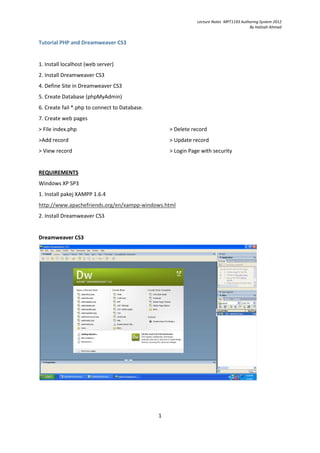
2. Install Dreamweaver CS3


Dreamweaver CS3


                                               1
Lecture Notes MPT1193 Authoring System 2012
                                                                                     By Halizah Ahmad


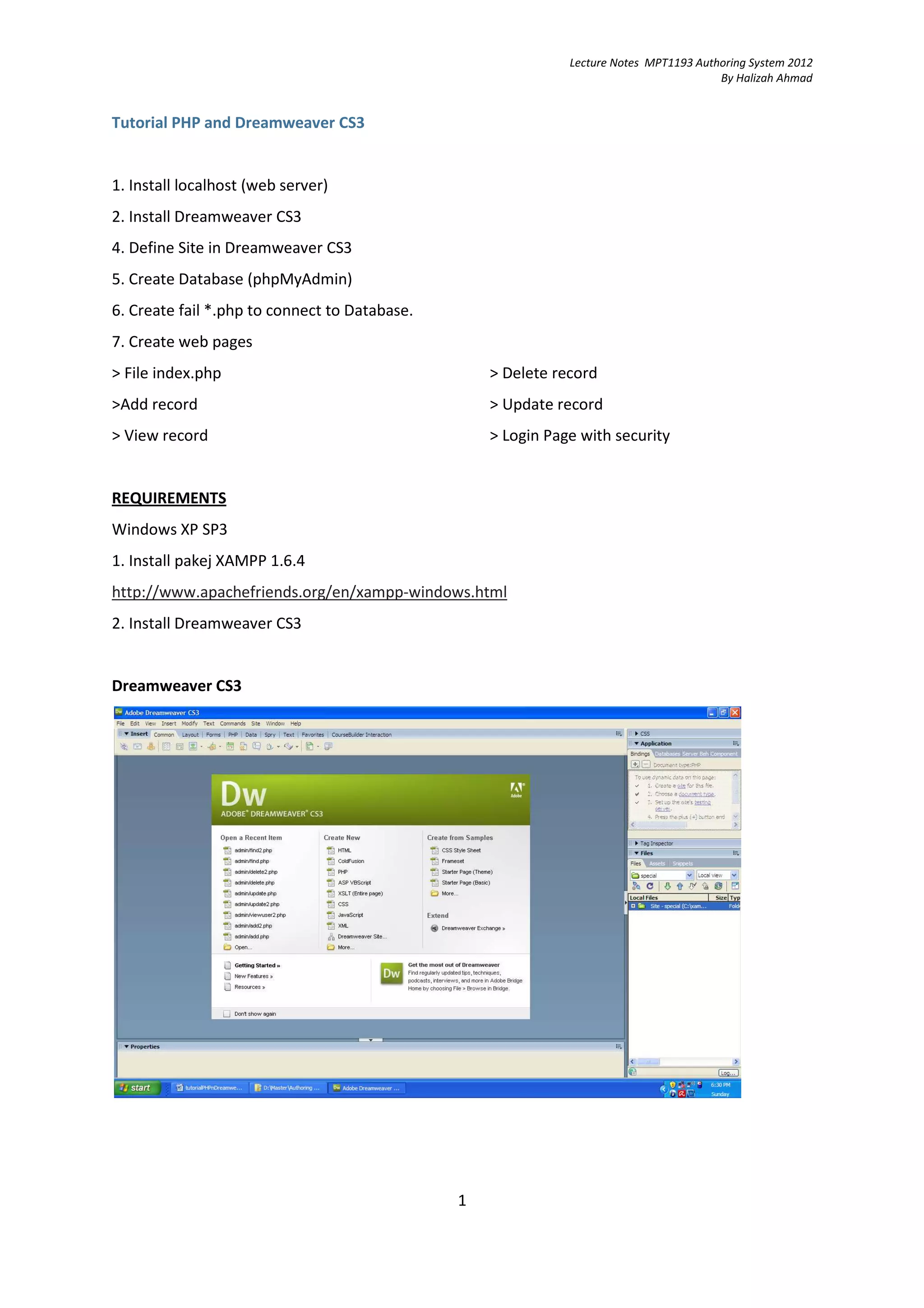
DEACTIVE Internet Information Services
   1. Start > Control Panel > Administrative Tools > IIS
   2. + Websites > default website
   3. Click stop button.


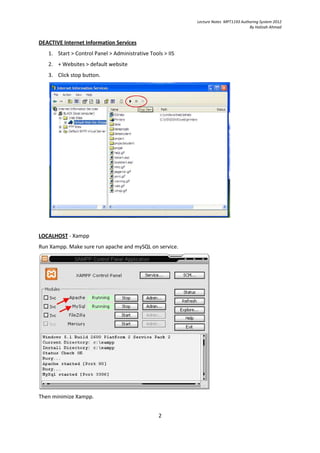
LOCALHOST - Xampp
Run Xampp. Make sure run apache and mySQL on service.


Then minimize Xampp.


                                                 2
Lecture Notes MPT1193 Authoring System 2012
                                                                                     By Halizah Ahmad


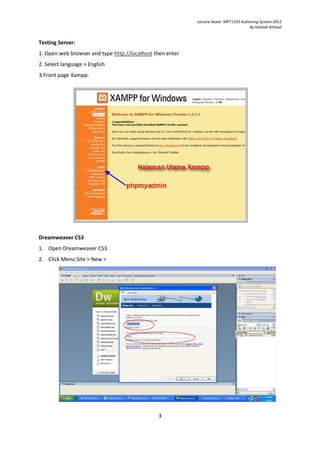
Testing Server:
1. Open web browser and type http://localhost then enter
2. Select language > English
3.Front page Xampp.


Dreamweaver CS3
1. Open Dreamweaver CS3.
2. Click Menu Site > New >


                                               3
Lecture Notes MPT1193 Authoring System 2012
                                                                                            By Halizah Ahmad


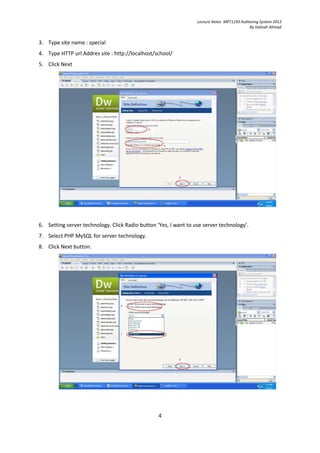
3. Type site name : special
4. Type HTTP url Addres site : http://localhost/school/
5. Click Next


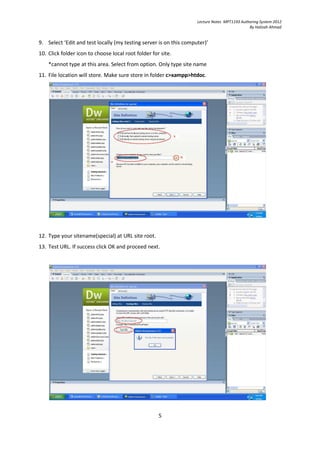
6. Setting server technology. Click Radio button ‘Yes, I want to use server technology’.
7. Select PHP MySQL for server technology.
8. Click Next button.


                                                  4
Lecture Notes MPT1193 Authoring System 2012
                                                                                              By Halizah Ahmad


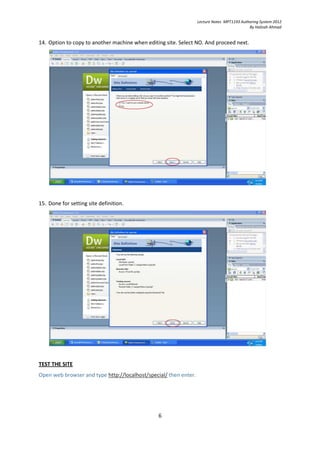
9. Select ‘Edit and test locally (my testing server is on this computer)’
10. Click folder icon to choose local root folder for site.
    *cannot type at this area. Select from option. Only type site name
11. File location will store. Make sure store in folder c>xampp>htdoc.


12. Type your sitename(special) at URL site root.
13. Test URL. If success click OK and proceed next.


                                                     5
Lecture Notes MPT1193 Authoring System 2012
                                                                                            By Halizah Ahmad


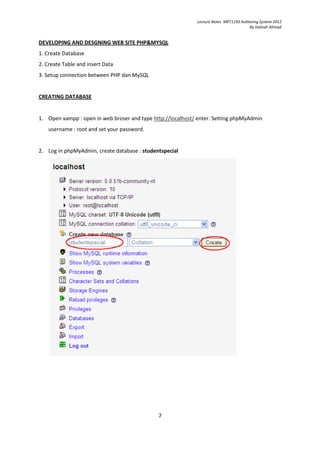
14. Option to copy to another machine when editing site. Select NO. And proceed next.


15. Done for setting site definition.


TEST THE SITE
Open web browser and type http://localhost/special/ then enter.


                                                6
Lecture Notes MPT1193 Authoring System 2012
                                                                                       By Halizah Ahmad


DEVELOPING AND DESGNING WEB SITE PHP&MYSQL
1. Create Database
2. Create Table and insert Data
3. Setup connection between PHP dan MySQL


CREATING DATABASE


1. Open xampp : open in web broser and type http://localhost/ enter. Setting phpMyAdmin
    username : root and set your password.


2. Log in phpMyAdmin, create database : studentspecial


                                              7
Lecture Notes MPT1193 Authoring System 2012
                                                                                           By Halizah Ahmad


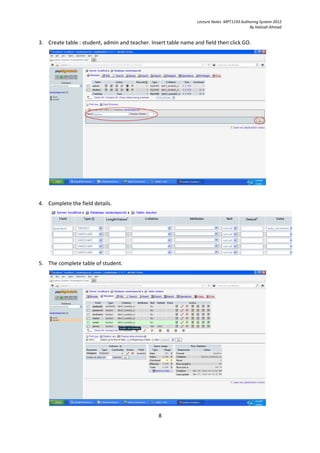
3. Create table : student, admin and teacher. Insert table name and field then click GO.


4. Complete the field details.


5. The complete table of student.


                                                 8
Lecture Notes MPT1193 Authoring System 2012
                                                                                             By Halizah Ahmad


SETTING DATABASE CONNECTION TO PHP


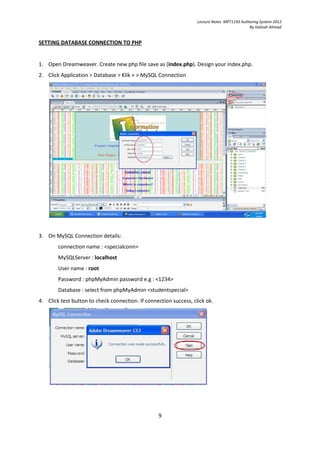
1. Open Dreamweaver. Create new php file save as (index.php). Design your index.php.
2. Click Application > Database > Klik + > MySQL Connection


3. On MySQL Connection details:
        connection name : <specialconn>
        MySQLServer : localhost
        User name : root
        Password : phpMyAdmin password e.g : <1234>
        Database : select from phpMyAdmin <studentspecial>
4. Click test button to check connection. If connection success, click ok.


                                                  9
Lecture Notes MPT1193 Authoring System 2012
                                                                                         By Halizah Ahmad


WORKING WITH DYNAMIC SITE


Make sure all of these are done :
1. open Xampp and run apache-mySQL
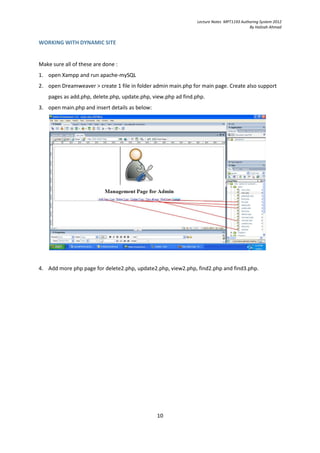
2. open Dreamweaver > create 1 file in folder admin main.php for main page. Create also support
    pages as add.php, delete.php, update.php, view.php ad find.php.
3. open main.php and insert details as below:


4. Add more php page for delete2.php, update2.php, view2.php, find2.php and find3.php.


                                                10
Lecture Notes MPT1193 Authoring System 2012
                                                                                             By Halizah Ahmad


INSERT RECORD
1. Insert form.
2. Insert table and place it in the form for lay out.
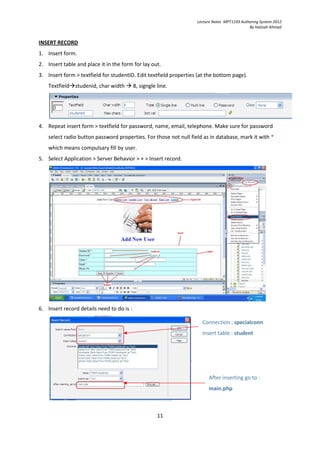
3. Insert form > textfield for studentID. Edit textfield properties (at the bottom page).
    Textfield studenid, char width         8, signgle line.


4. Repeat insert form > textfield for password, name, email, telephone. Make sure for password
    select radio button password properties. For those not null field as in database, mark it with *
    which means compulsary fill by user.
5. Select Application > Server Behavior > + > Insert record.


6. Insert record details need to do is :

                                                                     Connection : specialconn
                                                                     Insert table : student


                                                                        After inserting go to :
                                                                        main.php


                                                      11
Lecture Notes MPT1193 Authoring System 2012
                                                                                          By Halizah Ahmad


VIEW RECORD
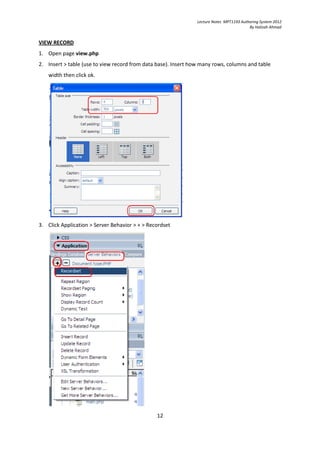
1. Open page view.php
2. Insert > table (use to view record from data base). Insert how many rows, columns and table
   width then click ok.


3. Click Application > Server Behavior > + > Recordset


                                                12
Lecture Notes MPT1193 Authoring System 2012
                                                                                             By Halizah Ahmad


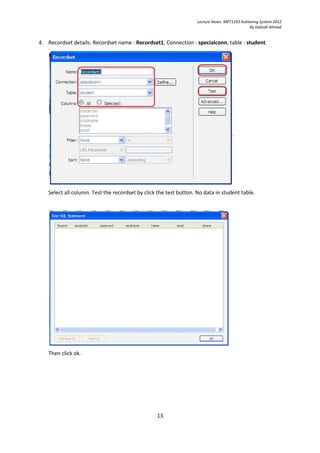
4. Recordset details. Recordset name : Recordset1, Connection : specialconn, table : student.


   Select all column. Test the recordset by click the test button. No data in student table.


   Then click ok.


                                                 13
Lecture Notes MPT1193 Authoring System 2012
                                                                                             By Halizah Ahmad


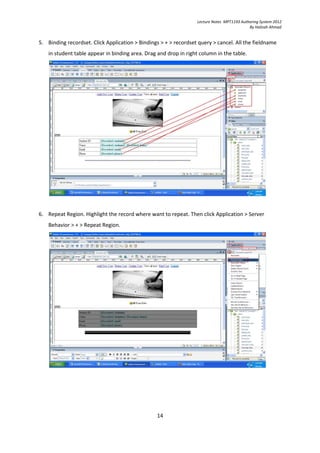
5. Binding recordset. Click Application > Bindings > + > recordset query > cancel. All the fieldname
    in student table appear in binding area. Drag and drop in right column in the table.


6. Repeat Region. Highlight the record where want to repeat. Then click Application > Server
    Behavior > + > Repeat Region.


                                                  14
Lecture Notes MPT1193 Authoring System 2012
                                                                                             By Halizah Ahmad


DELETE RECORD


1. Open page delete.php
2. Use Recordset


3. Insert > Form > Form.
4. Insert table into the form. 2 rows, 3 columns. Insert Delete link in column 1 to link to page
    delete2.php.
5. Binding recordset into table.


Rajah 3:


6. Edit PHP Code. Highlight on delete link then click code or split. Add code and save.
      <a href="delete2.php?recordID=<?php echo
      $row_Recordset1['studentid'];?>" target="_parent">Delete</a>

                                                  15
Lecture Notes MPT1193 Authoring System 2012
                                                                                               By Halizah Ahmad


delete2.php
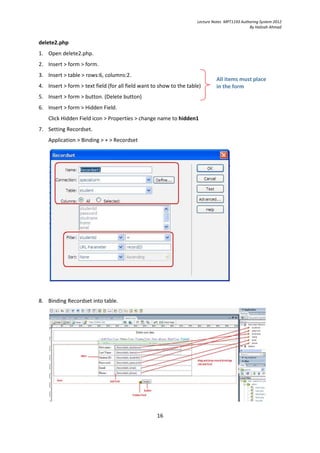
1. Open delete2.php.
2. Insert > form > form.
3. Insert > table > rows:6, columns:2.
                                                                              All items must place
4. Insert > form > text field (for all field want to show to the table)       in the form
5. Insert > form > button. (Delete button)
6. Insert > form > Hidden Field.
    Click Hidden Field icon > Properties > change name to hidden1
7. Setting Recordset.
    Application > Binding > + > Recordset


8. Binding Recordset into table.


                                                   16
Lecture Notes MPT1193 Authoring System 2012
                                                                                         By Halizah Ahmad


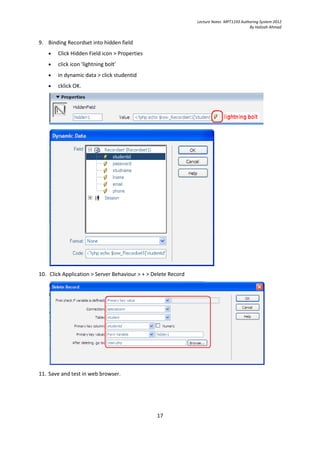
9. Binding Recordset into hidden field
   •   Click Hidden Field icon > Properties
   •   click icon 'lightning bolt'
   •   in dynamic data > click studentid
   •   cklick OK.


10. Click Application > Server Behaviour > + > Delete Record


11. Save and test in web browser.


                                                17
Lecture Notes MPT1193 Authoring System 2012
                                                                                            By Halizah Ahmad


UPDATE RECORD
Open update.php and update1.php
update.php
1. Open file update.php
2. Insert > form > form
3. Insert table 2 rows, 2 columns
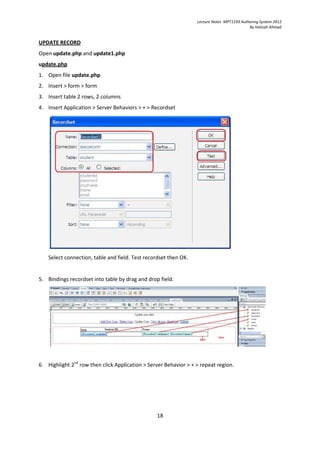
4. Insert Application > Server Behaviors > + > Recordset


    Select connection, table and field. Test recordset then OK.


5. Bindings recordset into table by drag and drop field.


6. Highlight 2nd row then click Application > Server Behavior > + > repeat region.


                                                 18
Lecture Notes MPT1193 Authoring System 2012
                                                                                              By Halizah Ahmad


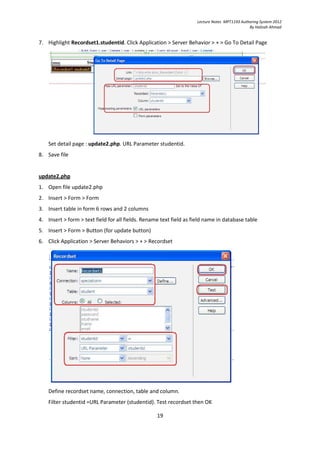
7. Highlight Recordset1.studentid. Click Application > Server Behavior > + > Go To Detail Page


    Set detail page : update2.php. URL Parameter studentid.
8. Save file


update2.php
1. Open file update2.php
2. Insert > Form > Form
3. Insert table in form 6 rows and 2 columns
4. Insert > form > text field for all fields. Rename text field as field name in database table
5. Insert > Form > Button (for update button)
6. Click Application > Server Behaviors > + > Recordset


    Define recordset name, connection, table and column.
    Filter studentid =URL Parameter (studentid). Test recordset then OK

                                                   19
Lecture Notes MPT1193 Authoring System 2012
                                                                                            By Halizah Ahmad


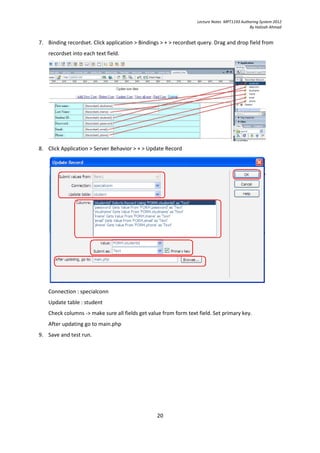
7. Binding recordset. Click application > Bindings > + > recordset query. Drag and drop field from
    recordset into each text field.


8. Click Application > Server Behavior > + > Update Record


    Connection : specialconn
    Update table : student
    Check columns -> make sure all fields get value from form text field. Set primary key.
    After updating go to main.php
9. Save and test run.


                                                 20
Lecture Notes MPT1193 Authoring System 2012
                                                                                         By Halizah Ahmad


SEARCH RECORD
Open find.php, find2.php and find3.php.


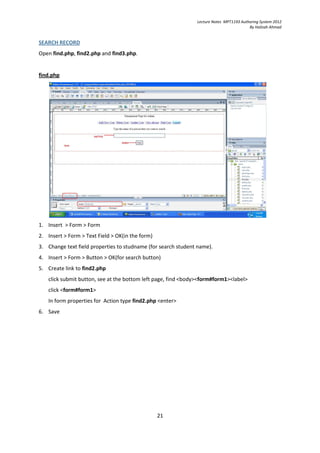
find.php


1. Insert > Form > Form
2. Insert > Form > Text Field > OK(in the form)
3. Change text field properties to studname (for search student name).
4. Insert > Form > Button > OK(for search button)
5. Create link to find2.php
   click submit button, see at the bottom left page, find <body><form#form1><label>
   click <form#form1>
   In form properties for Action type find2.php <enter>
6. Save


                                                  21
Lecture Notes MPT1193 Authoring System 2012
                                                                                           By Halizah Ahmad


find2.php (SEARCH RESULT)
1. Open find2.php
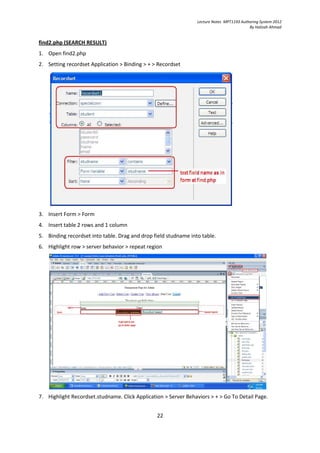
2. Setting recordset Application > Binding > + > Recordset


3. Insert Form > Form
4. Insert table 2 rows and 1 column
5. Binding recordset into table. Drag and drop field studname into table.
6. Highlight row > server behavior > repeat region


7. Highlight Recordset.studname. Click Application > Server Behaviors > + > Go To Detail Page.


                                                22
Lecture Notes MPT1193 Authoring System 2012
                                                                                            By Halizah Ahmad


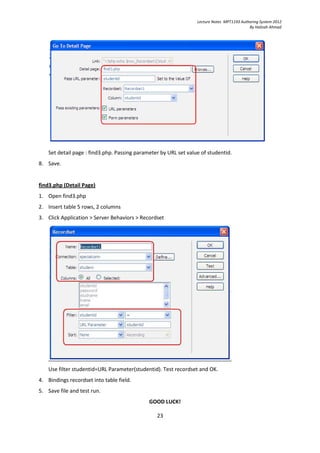
    Set detail page : find3.php. Passing parameter by URL set value of studentid.
8. Save.


find3.php (Detail Page)
1. Open find3.php
2. Insert table 5 rows, 2 columns
3. Click Application > Server Behaviors > Recordset


    Use filter studentid=URL Parameter(studentid). Test recordset and OK.
4. Bindings recordset into table field.
5. Save file and test run.
                                              GOOD LUCK!

                                                 23

Tutorial PHP and Dreamweaver CS3

  • 1.
    Lecture Notes MPT1193Authoring System 2012 By Halizah Ahmad Tutorial PHP and Dreamweaver CS3 1. Install localhost (web server) 2. Install Dreamweaver CS3 4. Define Site in Dreamweaver CS3 5. Create Database (phpMyAdmin) 6. Create fail *.php to connect to Database. 7. Create web pages > File index.php > Delete record >Add record > Update record > View record > Login Page with security REQUIREMENTS Windows XP SP3 1. Install pakej XAMPP 1.6.4 http://www.apachefriends.org/en/xampp-windows.html 2. Install Dreamweaver CS3 Dreamweaver CS3 1
  • 2.
    Lecture Notes MPT1193Authoring System 2012 By Halizah Ahmad DEACTIVE Internet Information Services 1. Start > Control Panel > Administrative Tools > IIS 2. + Websites > default website 3. Click stop button. LOCALHOST - Xampp Run Xampp. Make sure run apache and mySQL on service. Then minimize Xampp. 2
  • 3.
    Lecture Notes MPT1193Authoring System 2012 By Halizah Ahmad Testing Server: 1. Open web browser and type http://localhost then enter 2. Select language > English 3.Front page Xampp. Dreamweaver CS3 1. Open Dreamweaver CS3. 2. Click Menu Site > New > 3
  • 4.
    Lecture Notes MPT1193Authoring System 2012 By Halizah Ahmad 3. Type site name : special 4. Type HTTP url Addres site : http://localhost/school/ 5. Click Next 6. Setting server technology. Click Radio button ‘Yes, I want to use server technology’. 7. Select PHP MySQL for server technology. 8. Click Next button. 4
  • 5.
    Lecture Notes MPT1193Authoring System 2012 By Halizah Ahmad 9. Select ‘Edit and test locally (my testing server is on this computer)’ 10. Click folder icon to choose local root folder for site. *cannot type at this area. Select from option. Only type site name 11. File location will store. Make sure store in folder c>xampp>htdoc. 12. Type your sitename(special) at URL site root. 13. Test URL. If success click OK and proceed next. 5
  • 6.
    Lecture Notes MPT1193Authoring System 2012 By Halizah Ahmad 14. Option to copy to another machine when editing site. Select NO. And proceed next. 15. Done for setting site definition. TEST THE SITE Open web browser and type http://localhost/special/ then enter. 6
  • 7.
    Lecture Notes MPT1193Authoring System 2012 By Halizah Ahmad DEVELOPING AND DESGNING WEB SITE PHP&MYSQL 1. Create Database 2. Create Table and insert Data 3. Setup connection between PHP dan MySQL CREATING DATABASE 1. Open xampp : open in web broser and type http://localhost/ enter. Setting phpMyAdmin username : root and set your password. 2. Log in phpMyAdmin, create database : studentspecial 7
  • 8.
    Lecture Notes MPT1193Authoring System 2012 By Halizah Ahmad 3. Create table : student, admin and teacher. Insert table name and field then click GO. 4. Complete the field details. 5. The complete table of student. 8
  • 9.
    Lecture Notes MPT1193Authoring System 2012 By Halizah Ahmad SETTING DATABASE CONNECTION TO PHP 1. Open Dreamweaver. Create new php file save as (index.php). Design your index.php. 2. Click Application > Database > Klik + > MySQL Connection 3. On MySQL Connection details: connection name : <specialconn> MySQLServer : localhost User name : root Password : phpMyAdmin password e.g : <1234> Database : select from phpMyAdmin <studentspecial> 4. Click test button to check connection. If connection success, click ok. 9
  • 10.
    Lecture Notes MPT1193Authoring System 2012 By Halizah Ahmad WORKING WITH DYNAMIC SITE Make sure all of these are done : 1. open Xampp and run apache-mySQL 2. open Dreamweaver > create 1 file in folder admin main.php for main page. Create also support pages as add.php, delete.php, update.php, view.php ad find.php. 3. open main.php and insert details as below: 4. Add more php page for delete2.php, update2.php, view2.php, find2.php and find3.php. 10
  • 11.
    Lecture Notes MPT1193Authoring System 2012 By Halizah Ahmad INSERT RECORD 1. Insert form. 2. Insert table and place it in the form for lay out. 3. Insert form > textfield for studentID. Edit textfield properties (at the bottom page). Textfield studenid, char width 8, signgle line. 4. Repeat insert form > textfield for password, name, email, telephone. Make sure for password select radio button password properties. For those not null field as in database, mark it with * which means compulsary fill by user. 5. Select Application > Server Behavior > + > Insert record. 6. Insert record details need to do is : Connection : specialconn Insert table : student After inserting go to : main.php 11
  • 12.
    Lecture Notes MPT1193Authoring System 2012 By Halizah Ahmad VIEW RECORD 1. Open page view.php 2. Insert > table (use to view record from data base). Insert how many rows, columns and table width then click ok. 3. Click Application > Server Behavior > + > Recordset 12
  • 13.
    Lecture Notes MPT1193Authoring System 2012 By Halizah Ahmad 4. Recordset details. Recordset name : Recordset1, Connection : specialconn, table : student. Select all column. Test the recordset by click the test button. No data in student table. Then click ok. 13
  • 14.
    Lecture Notes MPT1193Authoring System 2012 By Halizah Ahmad 5. Binding recordset. Click Application > Bindings > + > recordset query > cancel. All the fieldname in student table appear in binding area. Drag and drop in right column in the table. 6. Repeat Region. Highlight the record where want to repeat. Then click Application > Server Behavior > + > Repeat Region. 14
  • 15.
    Lecture Notes MPT1193Authoring System 2012 By Halizah Ahmad DELETE RECORD 1. Open page delete.php 2. Use Recordset 3. Insert > Form > Form. 4. Insert table into the form. 2 rows, 3 columns. Insert Delete link in column 1 to link to page delete2.php. 5. Binding recordset into table. Rajah 3: 6. Edit PHP Code. Highlight on delete link then click code or split. Add code and save. <a href="delete2.php?recordID=<?php echo $row_Recordset1['studentid'];?>" target="_parent">Delete</a> 15
  • 16.
    Lecture Notes MPT1193Authoring System 2012 By Halizah Ahmad delete2.php 1. Open delete2.php. 2. Insert > form > form. 3. Insert > table > rows:6, columns:2. All items must place 4. Insert > form > text field (for all field want to show to the table) in the form 5. Insert > form > button. (Delete button) 6. Insert > form > Hidden Field. Click Hidden Field icon > Properties > change name to hidden1 7. Setting Recordset. Application > Binding > + > Recordset 8. Binding Recordset into table. 16
  • 17.
    Lecture Notes MPT1193Authoring System 2012 By Halizah Ahmad 9. Binding Recordset into hidden field • Click Hidden Field icon > Properties • click icon 'lightning bolt' • in dynamic data > click studentid • cklick OK. 10. Click Application > Server Behaviour > + > Delete Record 11. Save and test in web browser. 17
  • 18.
    Lecture Notes MPT1193Authoring System 2012 By Halizah Ahmad UPDATE RECORD Open update.php and update1.php update.php 1. Open file update.php 2. Insert > form > form 3. Insert table 2 rows, 2 columns 4. Insert Application > Server Behaviors > + > Recordset Select connection, table and field. Test recordset then OK. 5. Bindings recordset into table by drag and drop field. 6. Highlight 2nd row then click Application > Server Behavior > + > repeat region. 18
  • 19.
    Lecture Notes MPT1193Authoring System 2012 By Halizah Ahmad 7. Highlight Recordset1.studentid. Click Application > Server Behavior > + > Go To Detail Page Set detail page : update2.php. URL Parameter studentid. 8. Save file update2.php 1. Open file update2.php 2. Insert > Form > Form 3. Insert table in form 6 rows and 2 columns 4. Insert > form > text field for all fields. Rename text field as field name in database table 5. Insert > Form > Button (for update button) 6. Click Application > Server Behaviors > + > Recordset Define recordset name, connection, table and column. Filter studentid =URL Parameter (studentid). Test recordset then OK 19
  • 20.
    Lecture Notes MPT1193Authoring System 2012 By Halizah Ahmad 7. Binding recordset. Click application > Bindings > + > recordset query. Drag and drop field from recordset into each text field. 8. Click Application > Server Behavior > + > Update Record Connection : specialconn Update table : student Check columns -> make sure all fields get value from form text field. Set primary key. After updating go to main.php 9. Save and test run. 20
  • 21.
    Lecture Notes MPT1193Authoring System 2012 By Halizah Ahmad SEARCH RECORD Open find.php, find2.php and find3.php. find.php 1. Insert > Form > Form 2. Insert > Form > Text Field > OK(in the form) 3. Change text field properties to studname (for search student name). 4. Insert > Form > Button > OK(for search button) 5. Create link to find2.php click submit button, see at the bottom left page, find <body><form#form1><label> click <form#form1> In form properties for Action type find2.php <enter> 6. Save 21
  • 22.
    Lecture Notes MPT1193Authoring System 2012 By Halizah Ahmad find2.php (SEARCH RESULT) 1. Open find2.php 2. Setting recordset Application > Binding > + > Recordset 3. Insert Form > Form 4. Insert table 2 rows and 1 column 5. Binding recordset into table. Drag and drop field studname into table. 6. Highlight row > server behavior > repeat region 7. Highlight Recordset.studname. Click Application > Server Behaviors > + > Go To Detail Page. 22
  • 23.
    Lecture Notes MPT1193Authoring System 2012 By Halizah Ahmad Set detail page : find3.php. Passing parameter by URL set value of studentid. 8. Save. find3.php (Detail Page) 1. Open find3.php 2. Insert table 5 rows, 2 columns 3. Click Application > Server Behaviors > Recordset Use filter studentid=URL Parameter(studentid). Test recordset and OK. 4. Bindings recordset into table field. 5. Save file and test run. GOOD LUCK! 23