tutorial promodel  tutorial
Welcome to the ProModel Tutorial It will take you approximately 20 minutes to complete this first, simple model.  Follow the instructions for each step.  You can press “ALT” and “TAB” simultaneously to switch between ProModel and this presentation.  Before trying each step, you may wish to view the animation for guidance.  A few things first… 1.  Your  actions are shown  in yellow 2.  Save after each step  (during the first save, you’ll have to enter a name -- we’ve chosen “tutorial.mod”) 3. You can advance to the next step just by pressing the “Page Down” key on your computer keyboard or clicking on the subject on the menu at left 4.  Call ProModel toll free at (888)776-6633 if you have any questions! Don’t forget...
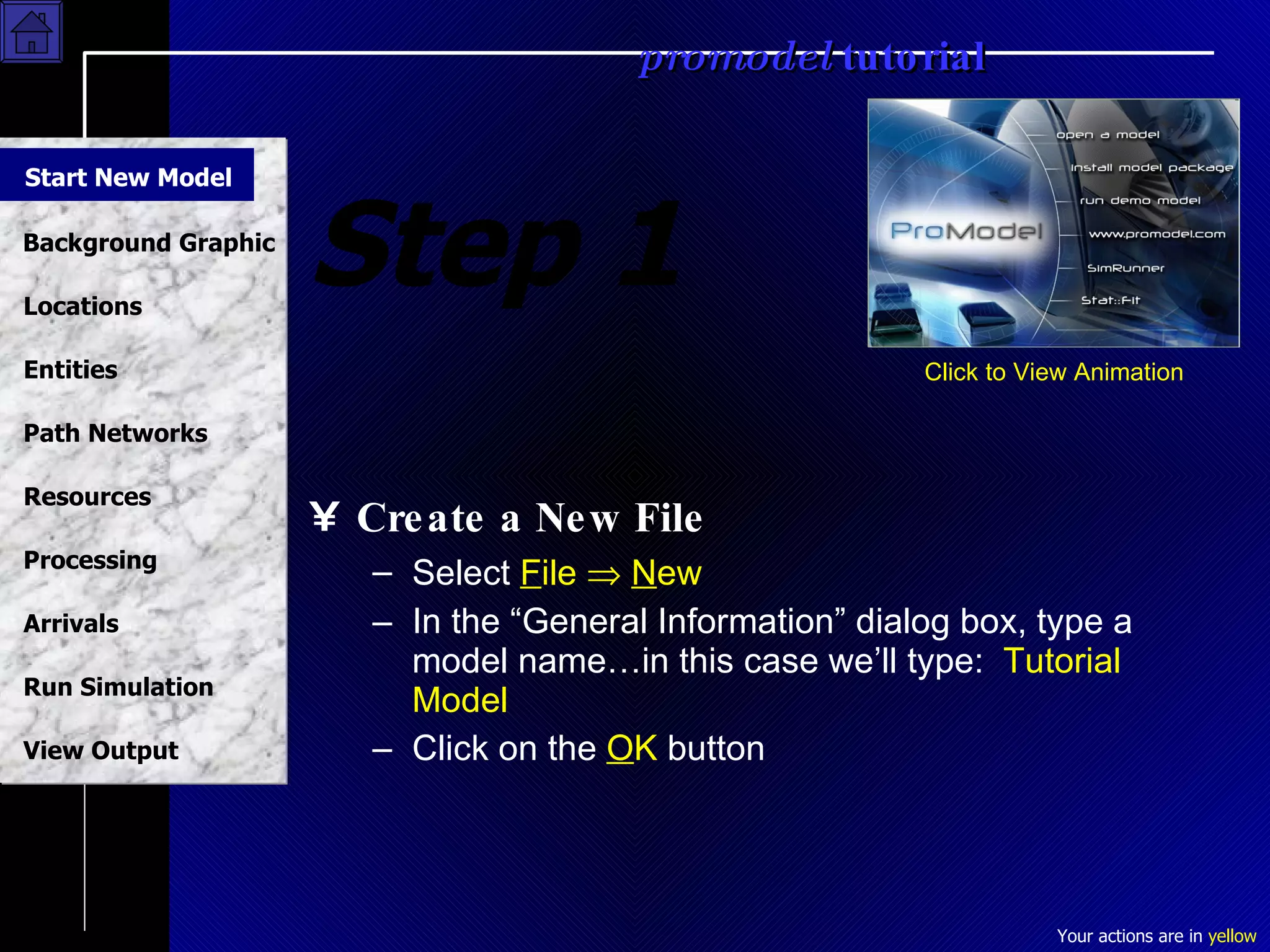
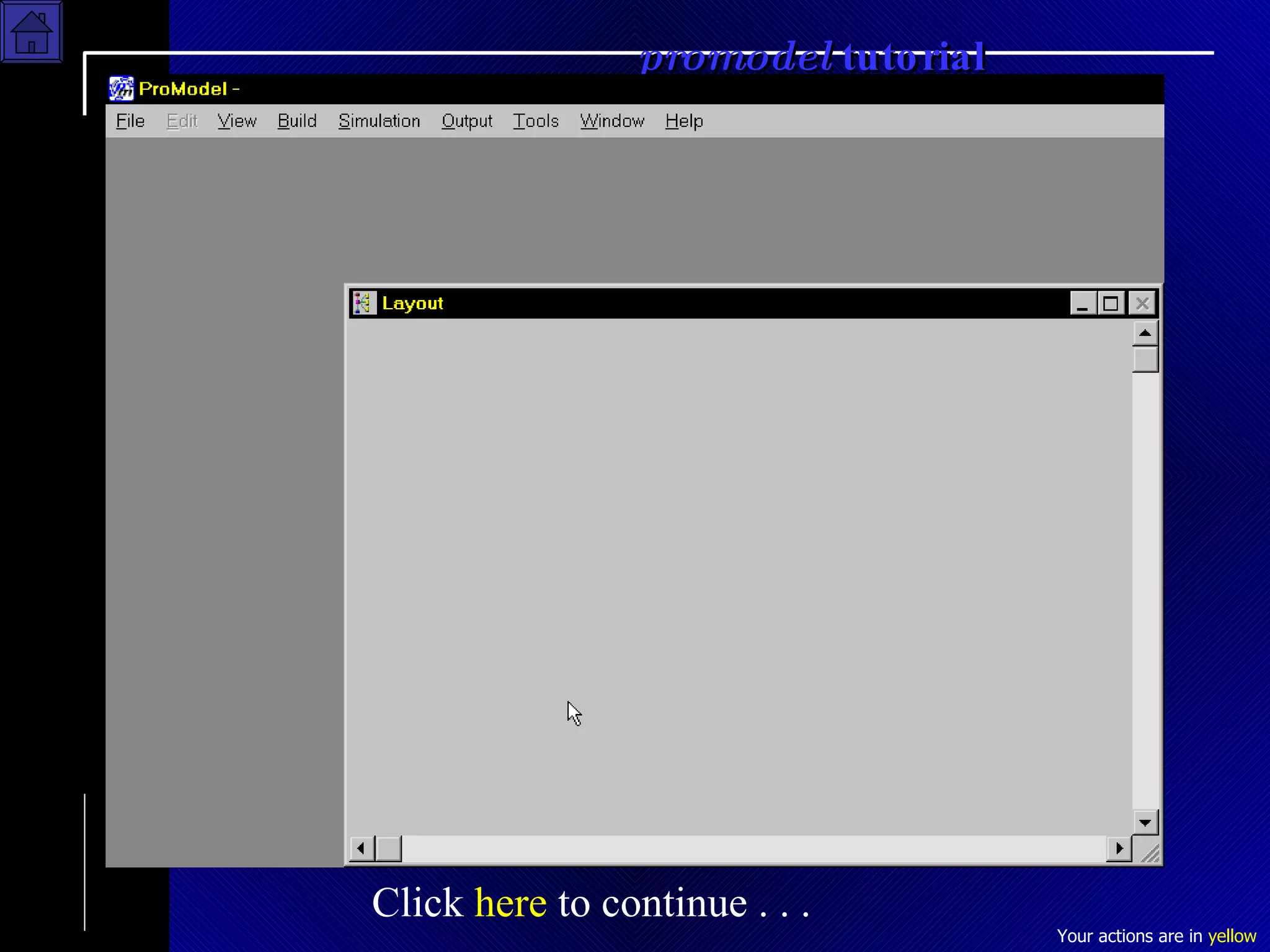
Step 1 Create a New File Select  F ile     N ew In the “General Information” dialog box, type a model name…in this case we’ll type:  Tutorial Model Click on the  O K  button Click to View Animation Start New Model
Start New Model Click  here  to continue . . .
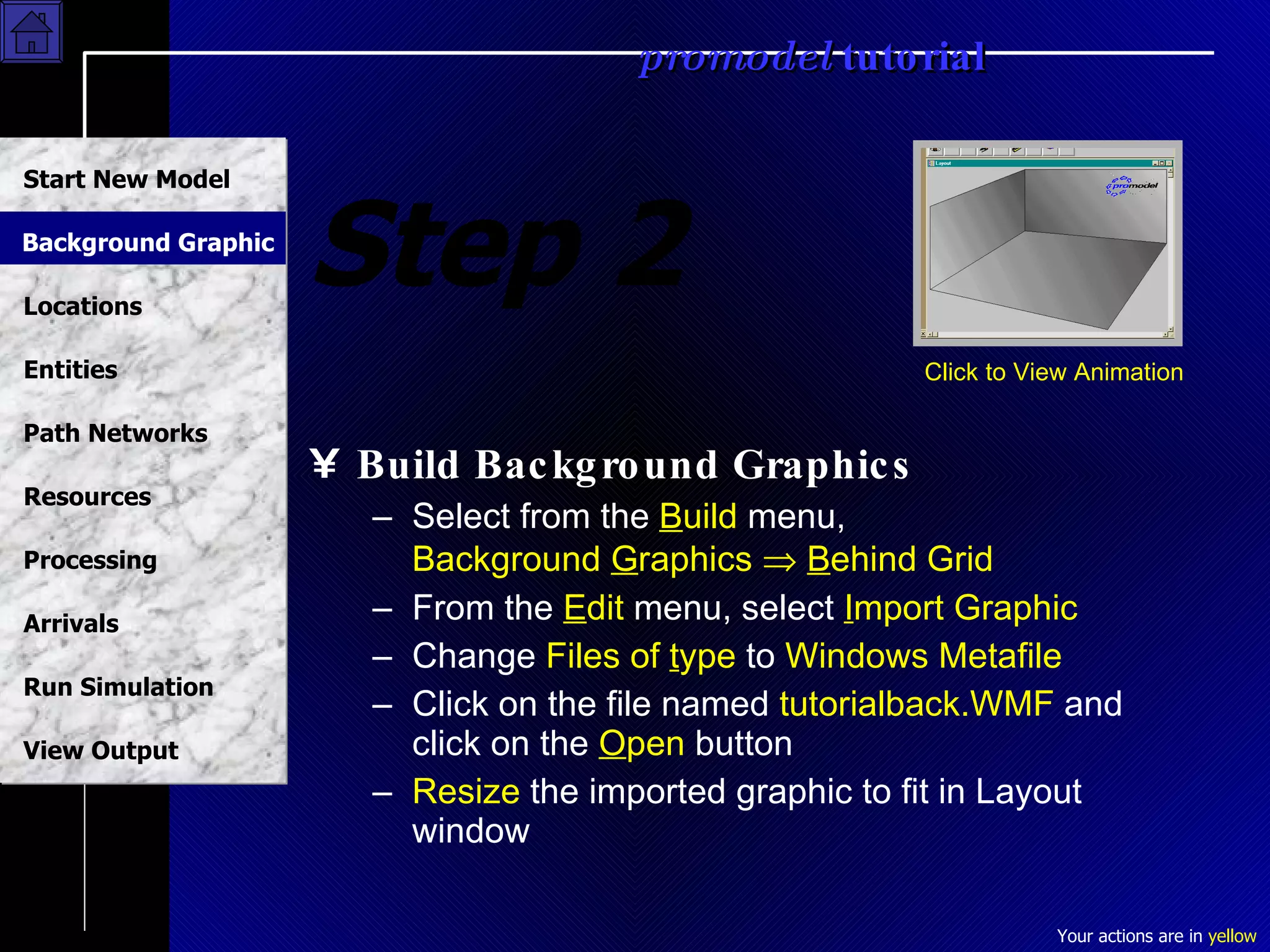
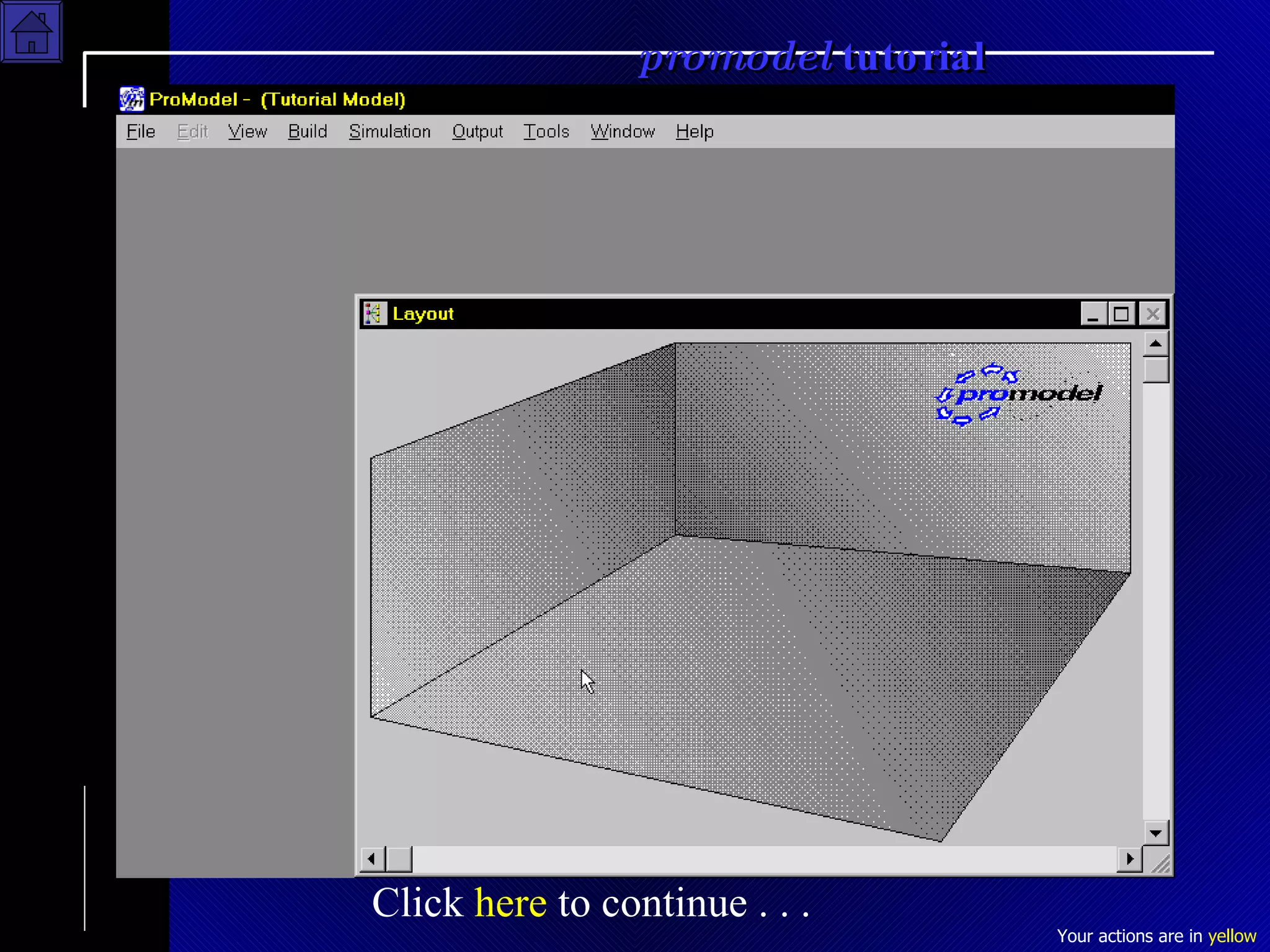
Step 2 Build Background Graphics Select from the  B uild  menu,  Background  G raphics     B ehind Grid From the  E dit  menu, select  I mport Graphic Change  Files of  t ype  to  Windows Metafile Click on the file named  tutorialback.WMF  and click on the  O pen  button Resize  the imported graphic to fit in Layout window Click to View Animation Background Graphic
Background Graphic Click  here  to continue . . .
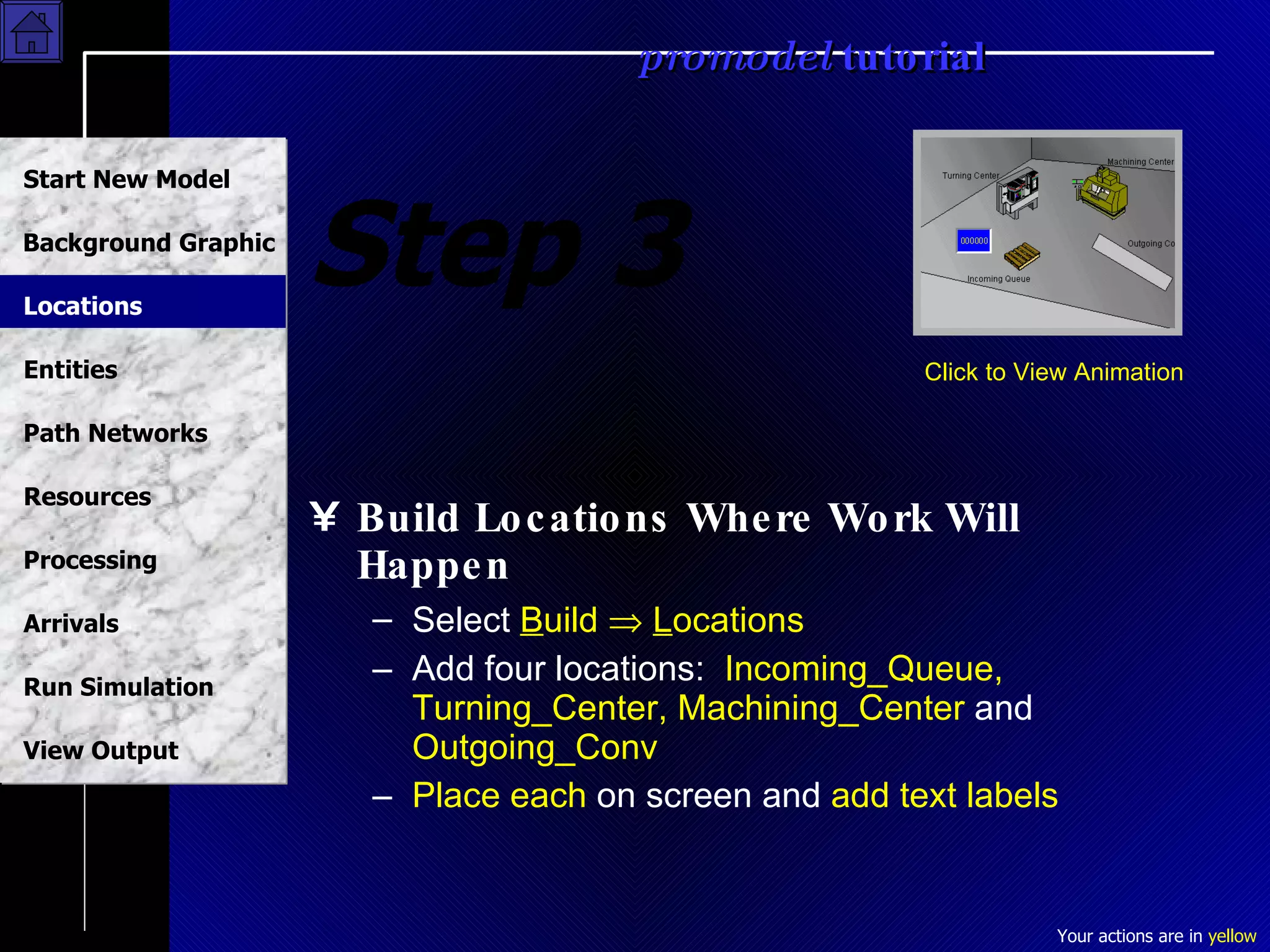
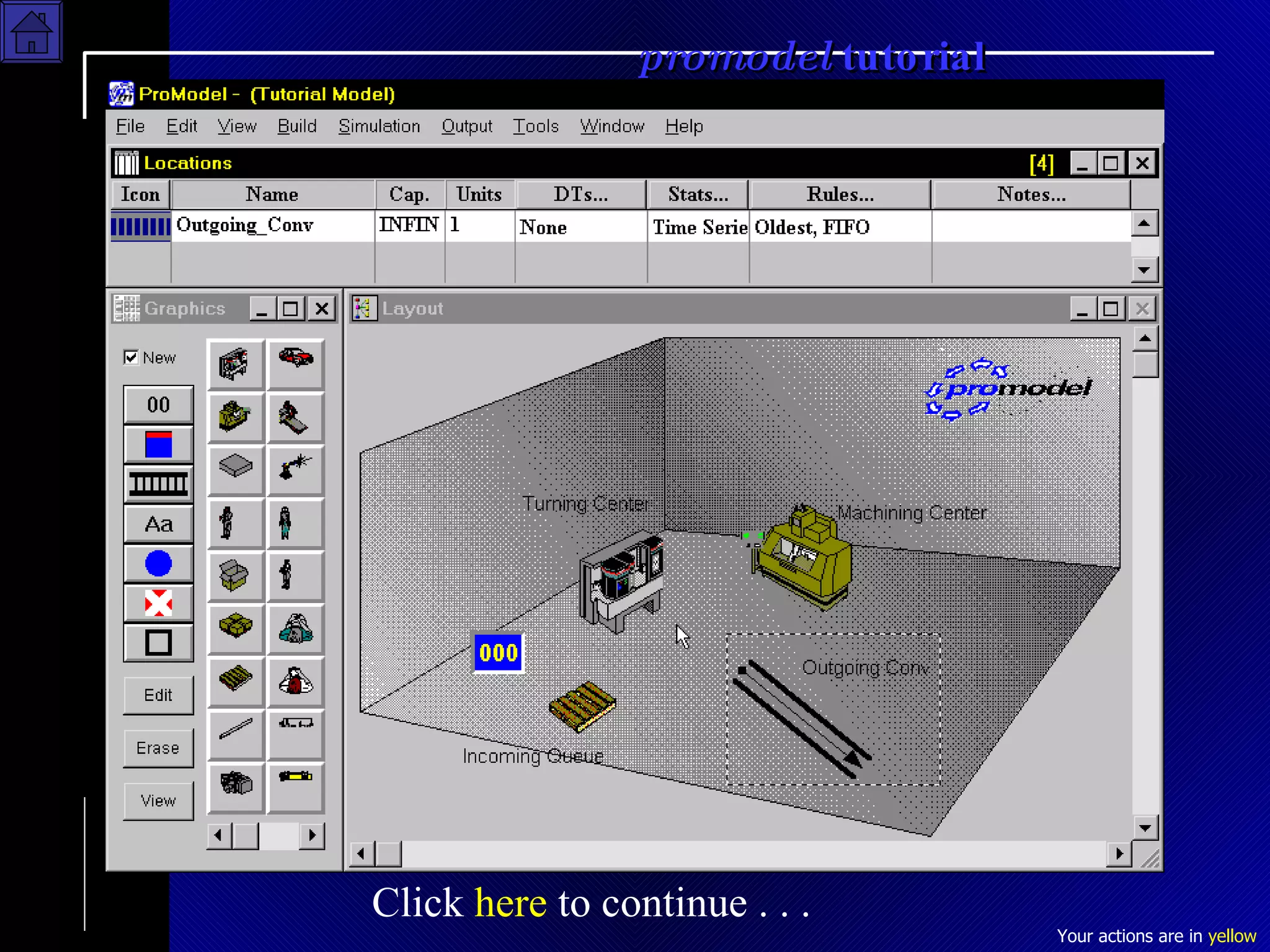
Step 3 Build Locations Where Work Will Happen Select  B uild     L ocations Add four locations:  Incoming_Queue, Turning_Center, Machining_Center  and  Outgoing_Conv Place each  on screen and  add text labels Click to View Animation Locations
Locations Click  here  to continue . . .
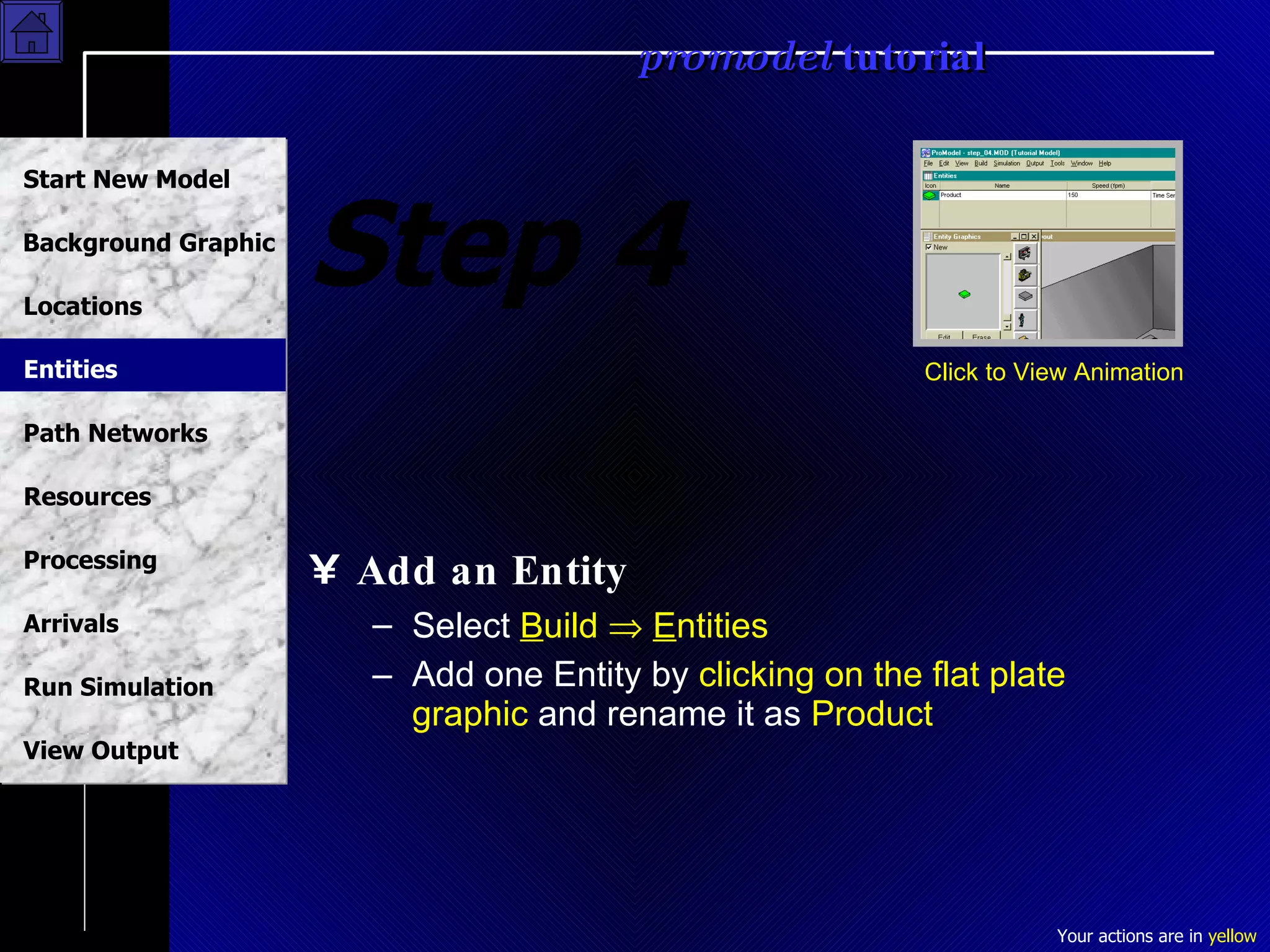
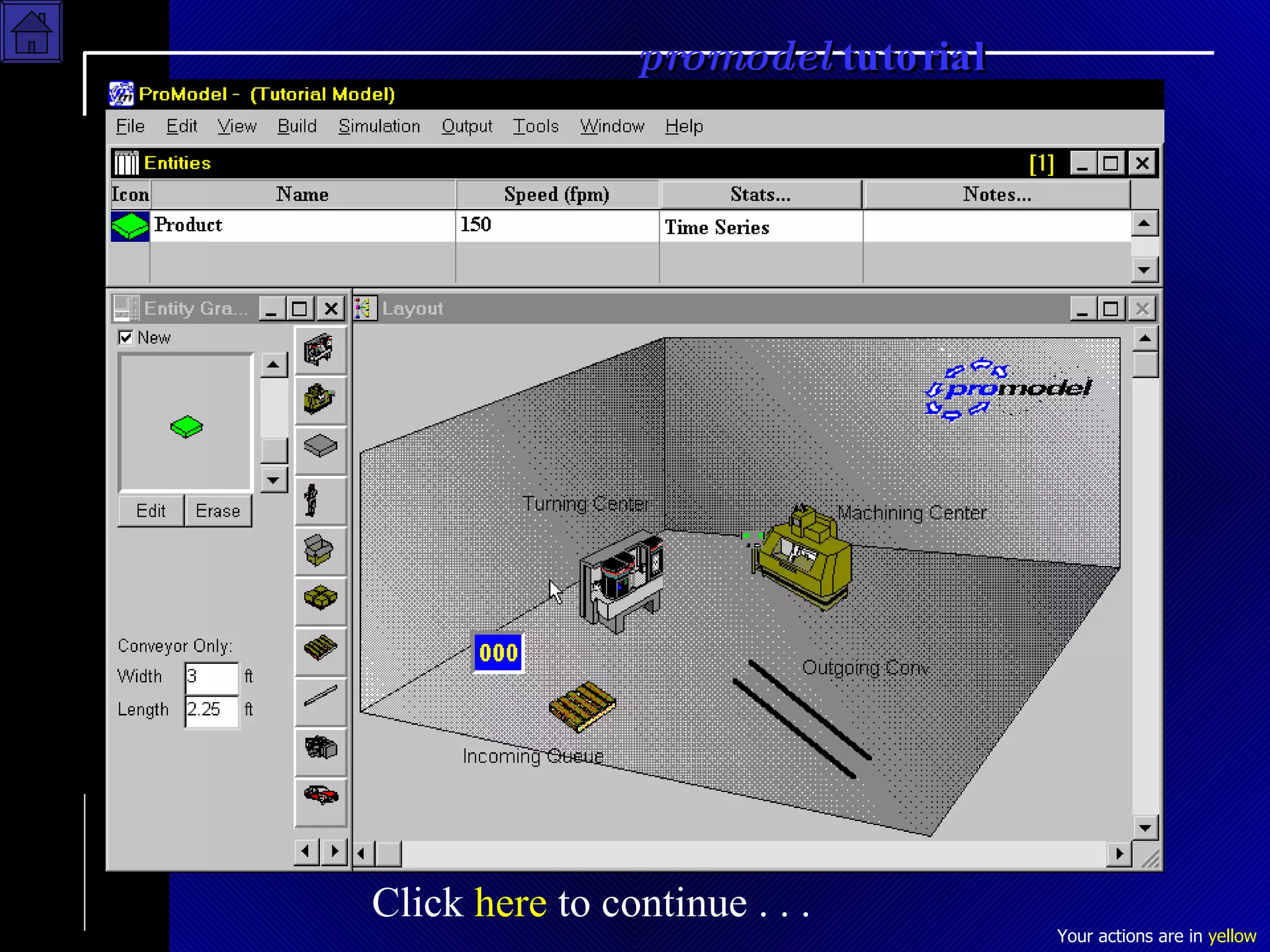
Step 4 Add an Entity Select  B uild     E ntities Add one Entity by  clicking on the flat plate graphic  and rename it as  Product Click to View Animation Entities
Entities Click  here  to continue . . .
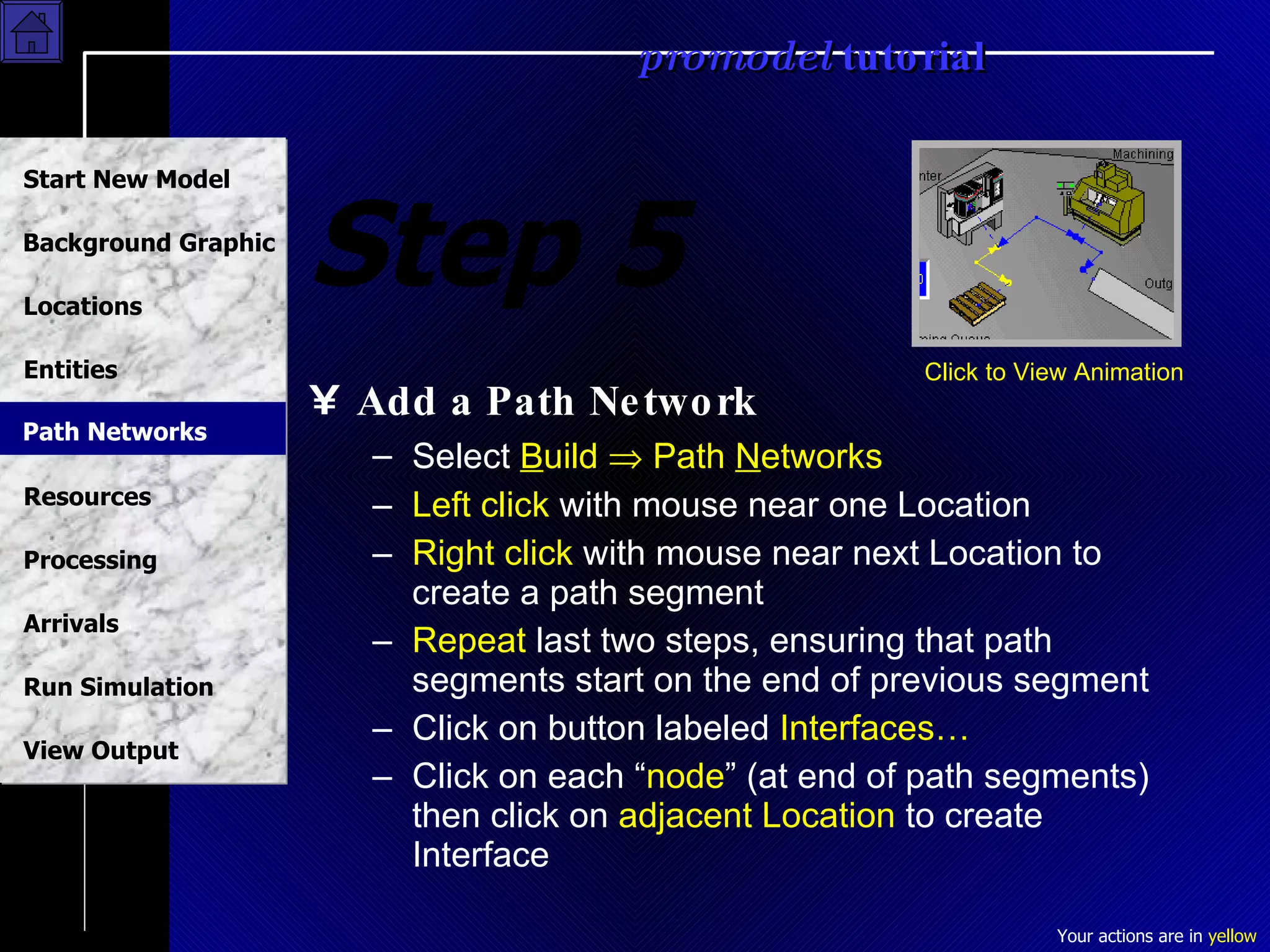
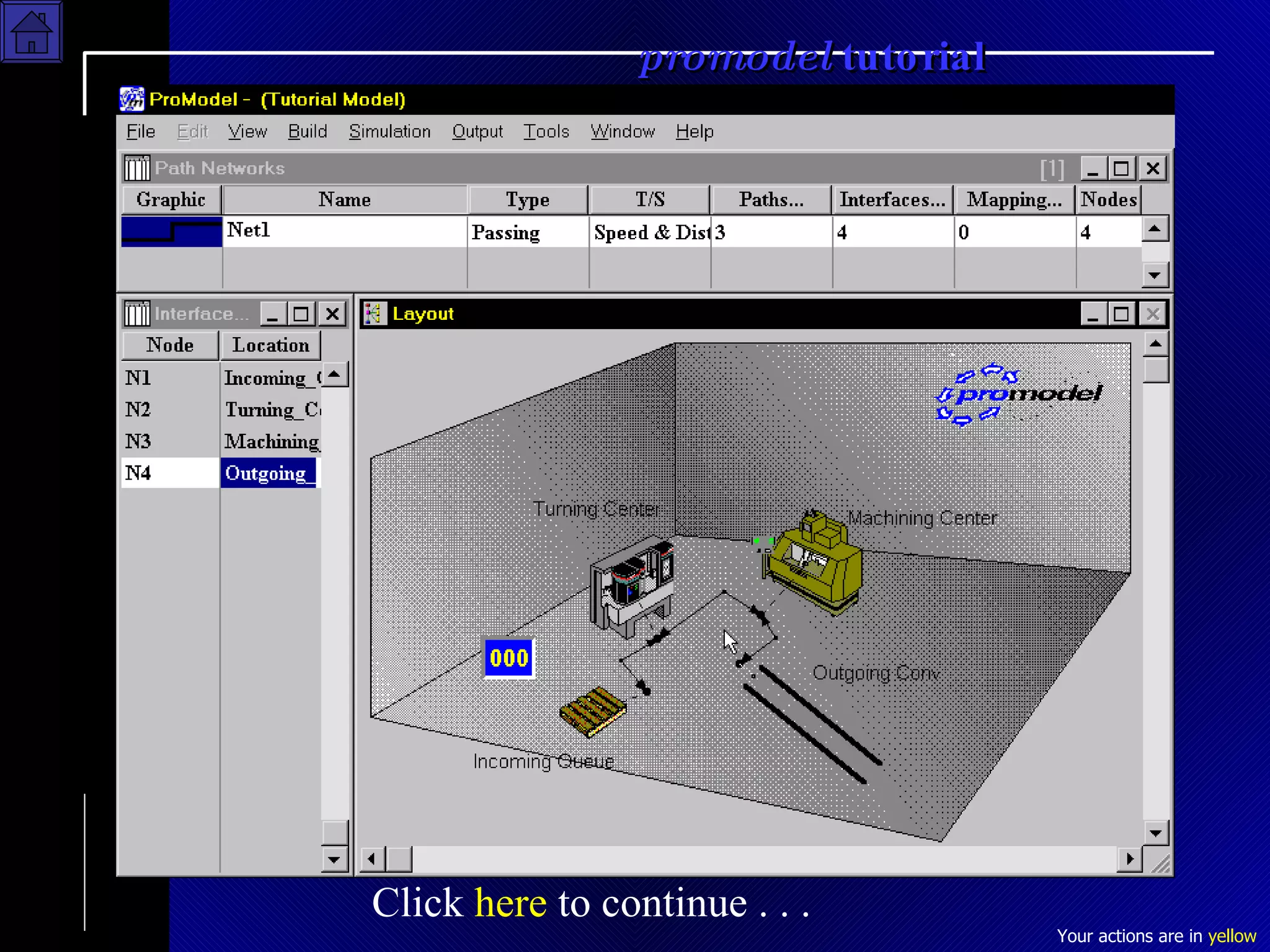
Step 5 Add a Path Network Select  B uild    Path  N etworks Left click  with mouse near one Location Right click  with mouse near next Location to create a path segment Repeat  last two steps, ensuring that path segments start on the end of previous segment Click on button labeled  Interfaces… Click on each “ node ” (at end of path segments) then click on  adjacent Location  to create Interface Click to View Animation Path Networks
Path Networks Click  here  to continue . . .
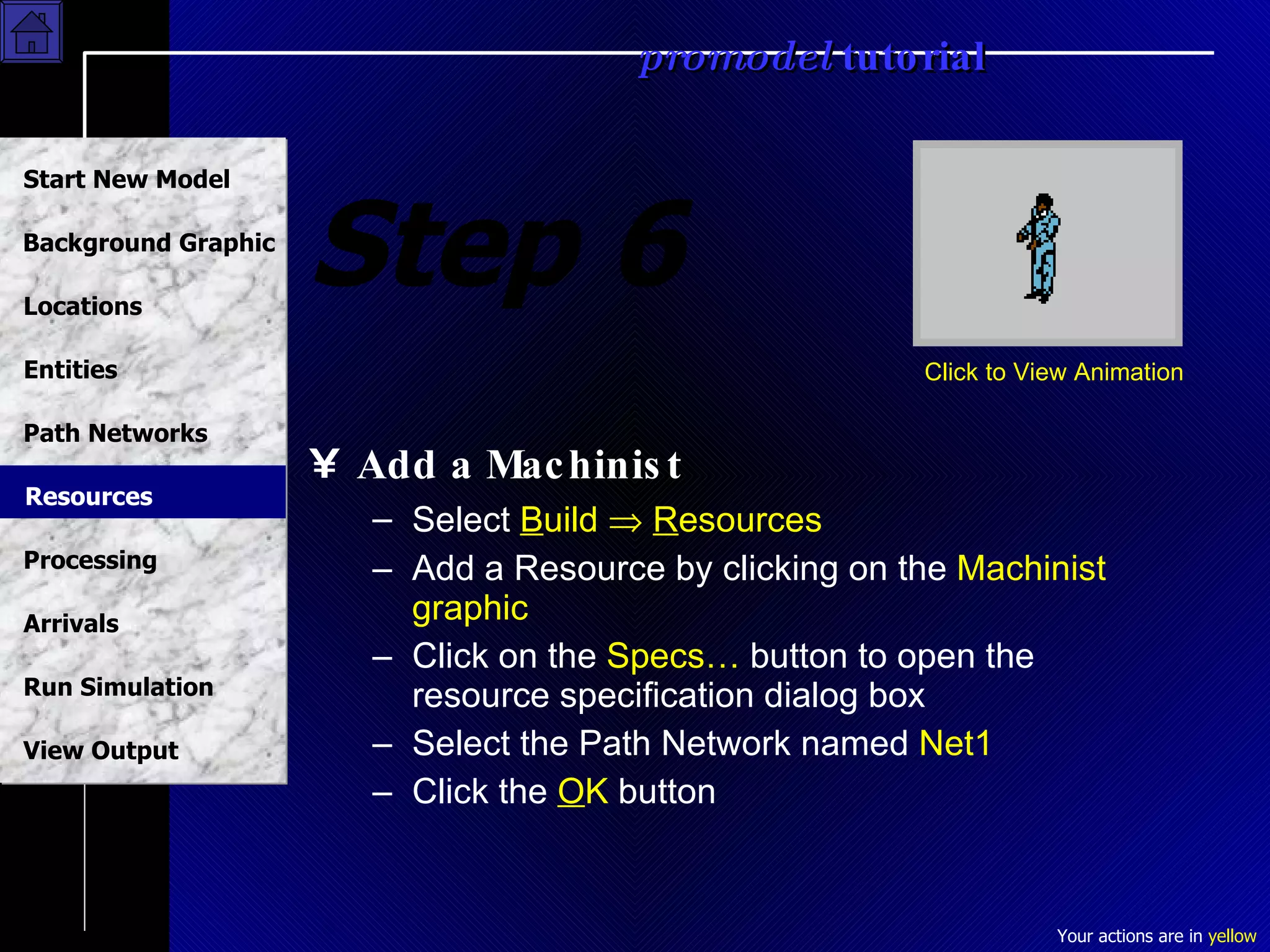
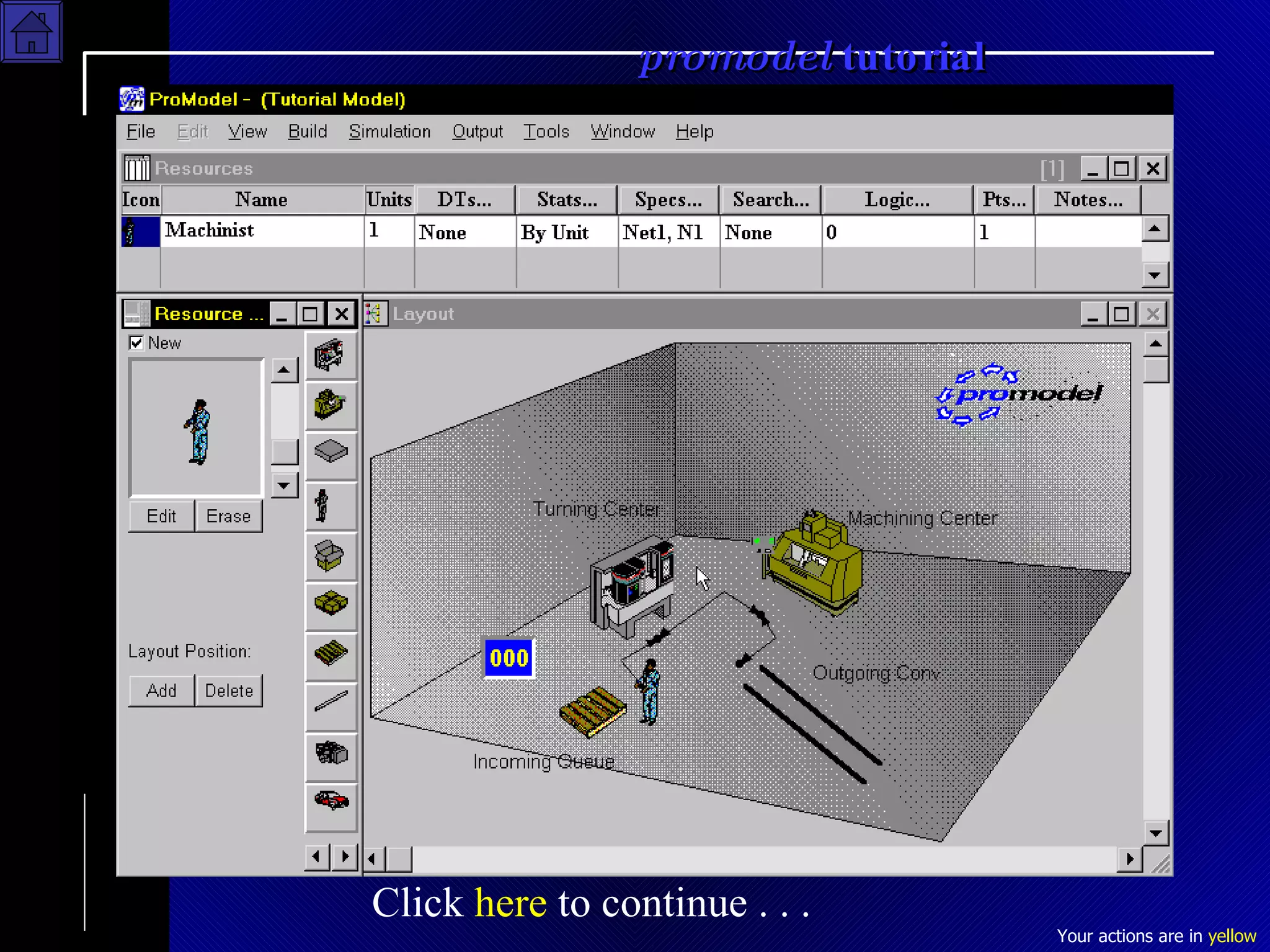
Step 6 Add a Machinist Select  B uild     R esources Add a Resource by clicking on the  Machinist graphic Click on the  Specs…  button to open the resource specification dialog box Select the Path Network named  Net1 Click the  O K  button Click to View Animation Resources
Resources Click  here  to continue . . .
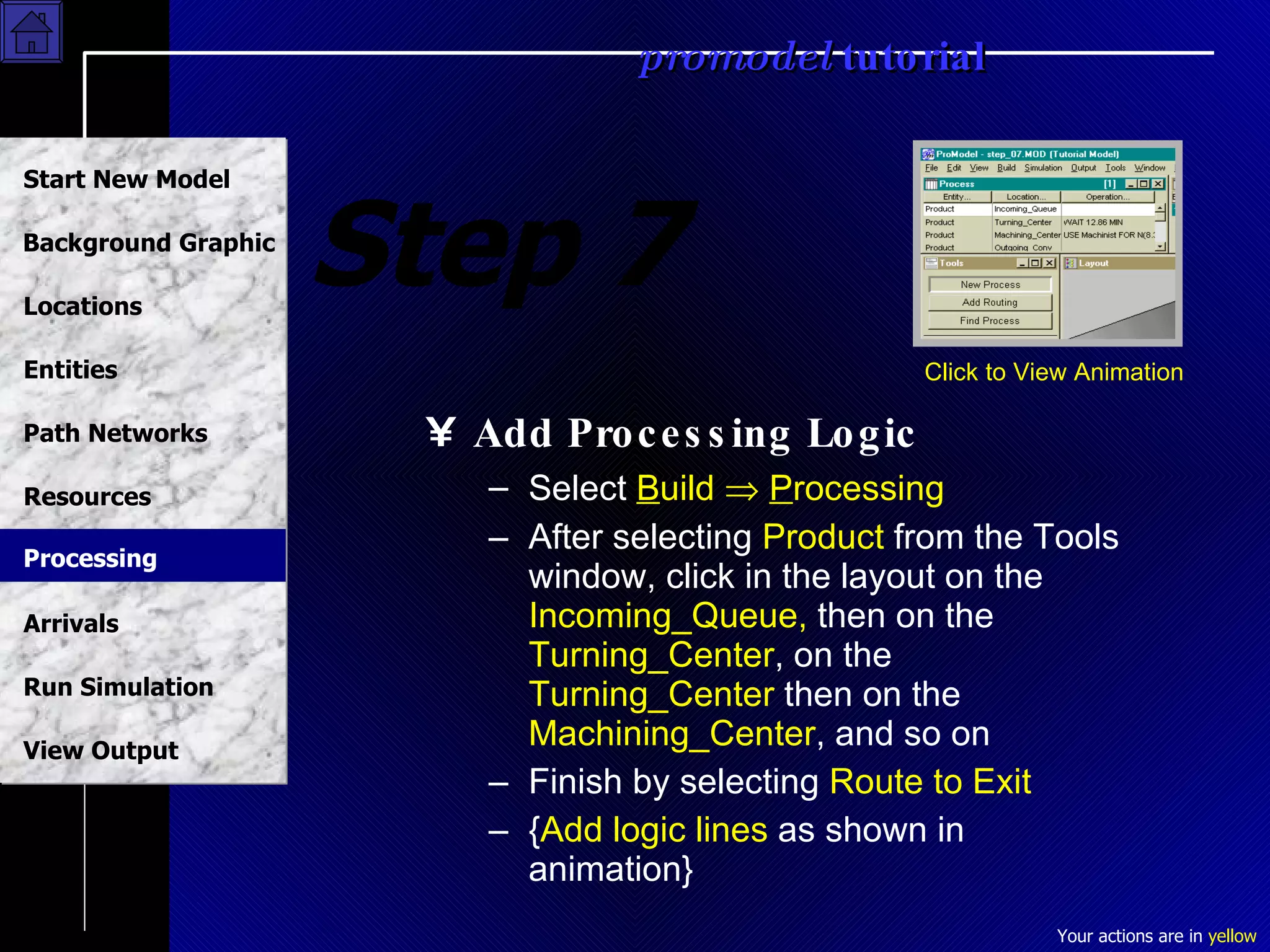
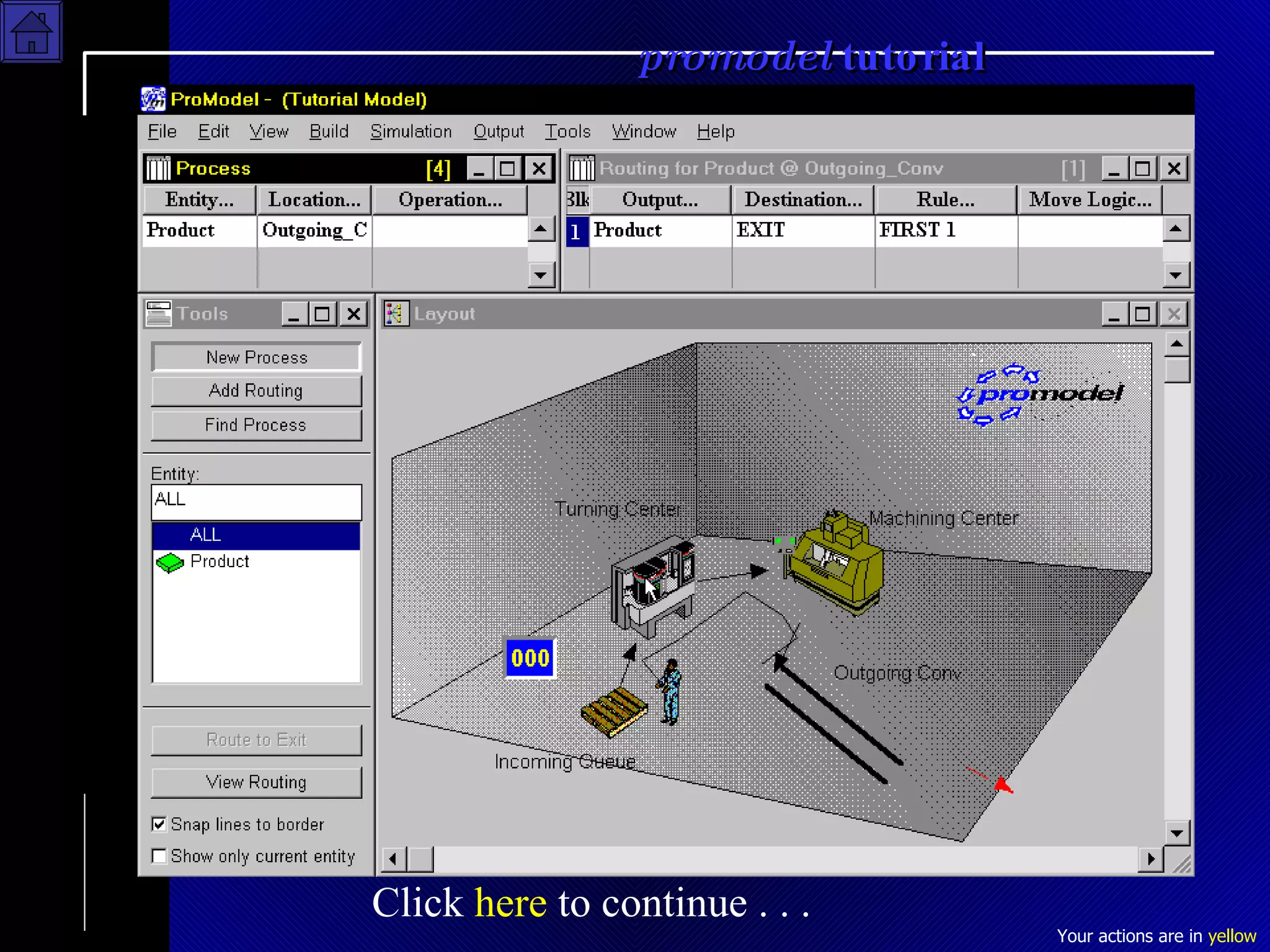
Step 7 Add Processing Logic Select  B uild     P rocessing After selecting  Product  from the Tools window, click in the layout on the  Incoming_Queue,  then on the  Turning_Center , on the  Turning_Center  then on the  Machining_Center , and so on Finish by selecting  Route to Exit { Add logic lines  as shown in animation} Click to View Animation Processing
Processing Click  here  to continue . . .
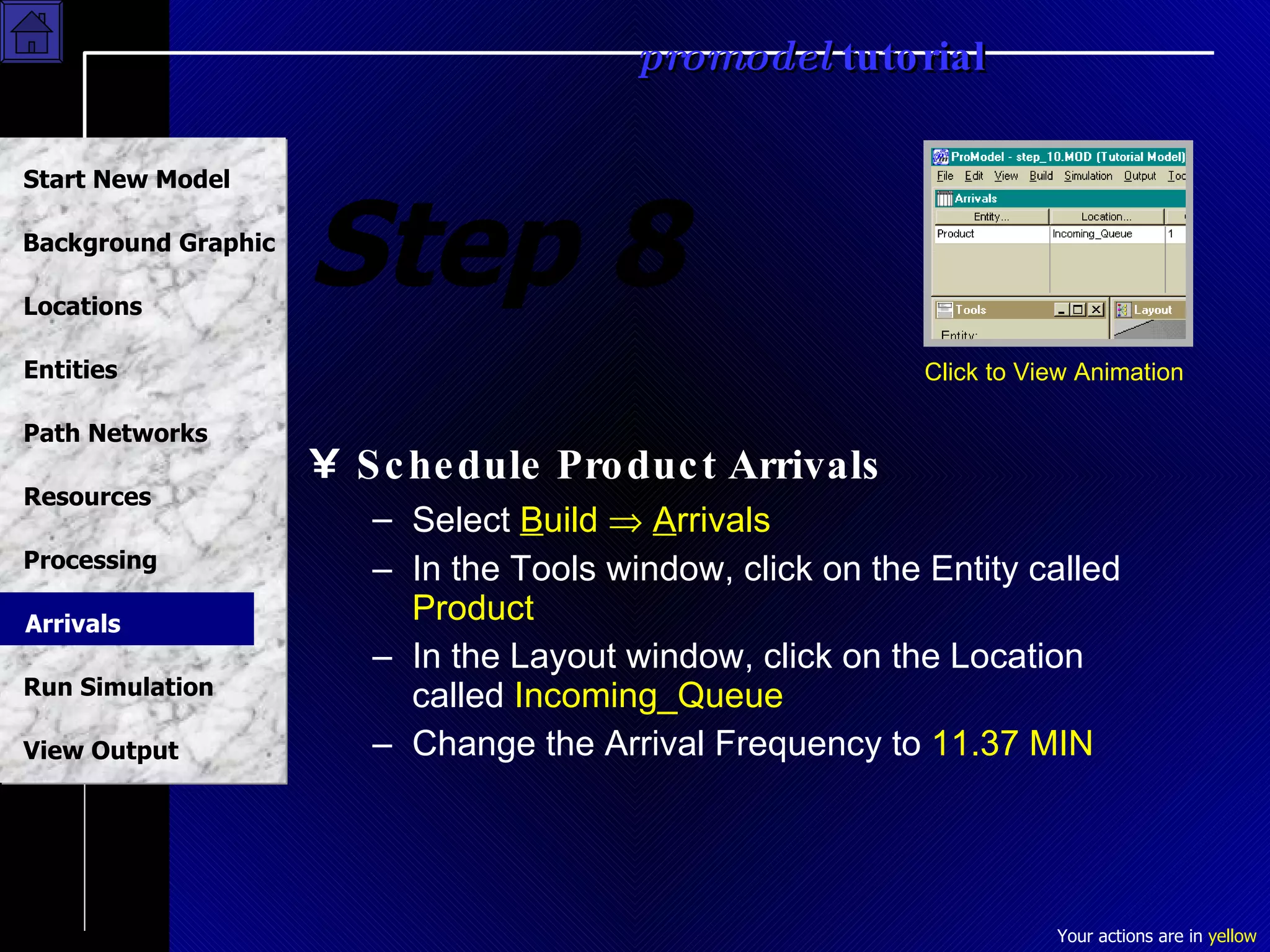
Step 8 Schedule Product Arrivals Select  B uild     A rrivals In the Tools window, click on the Entity called  Product In the Layout window, click on the Location called  Incoming_Queue Change the Arrival Frequency to  11.37 MIN Click to View Animation Arrivals
Click  here  to continue . . .
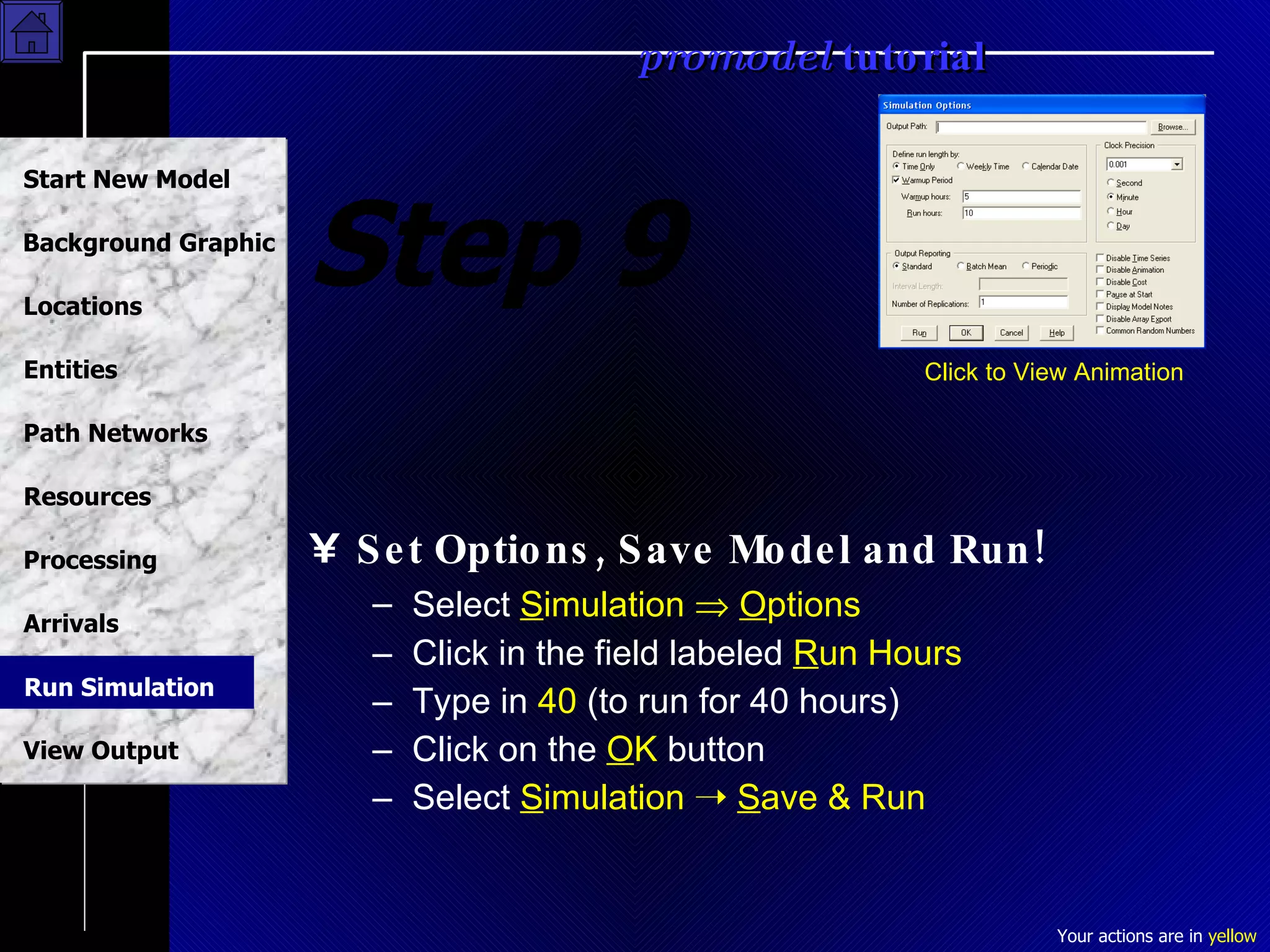
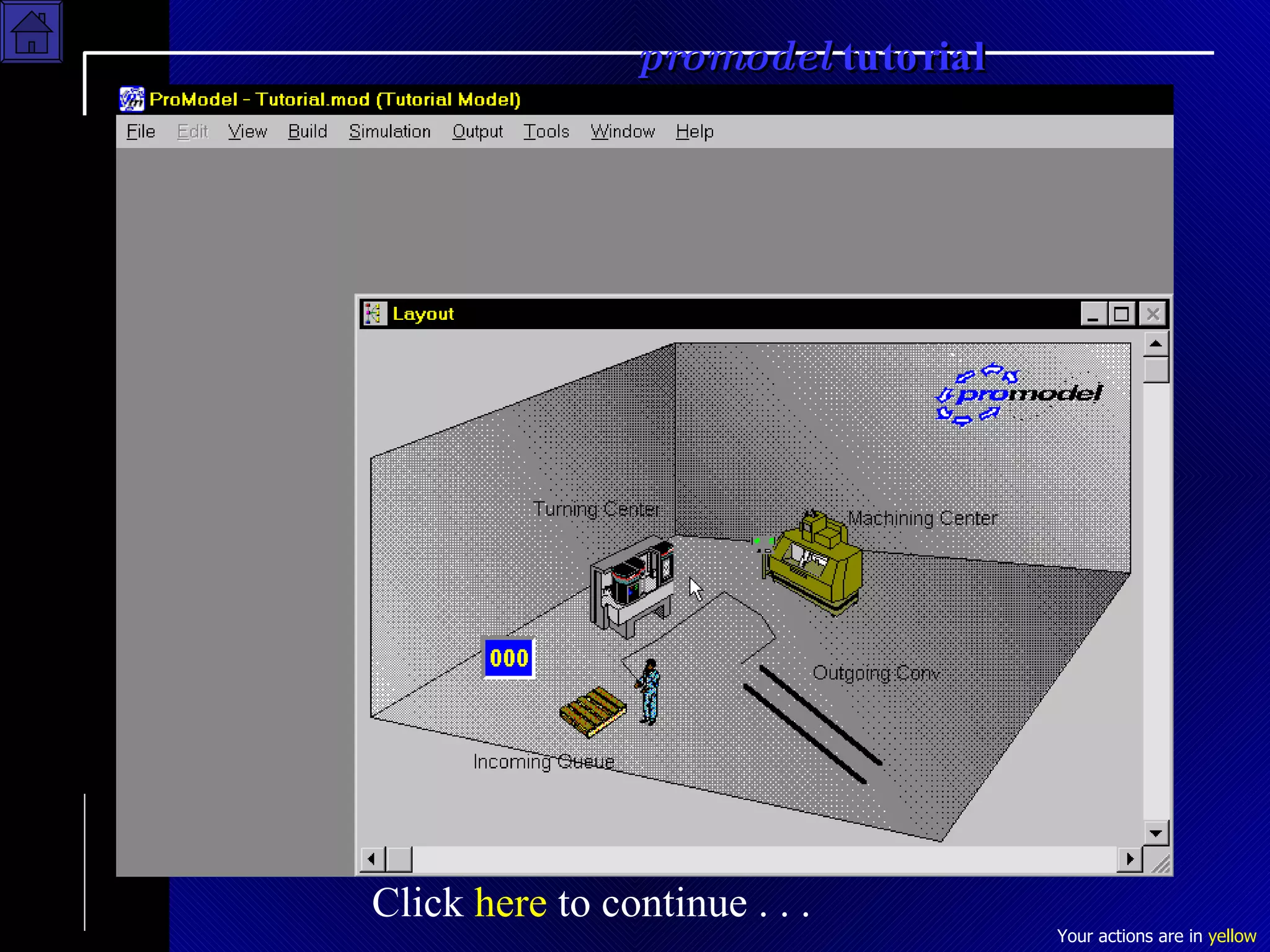
Step 9 Set Options, Save Model and Run! Select  S imulation     O ptions Click in the field labeled  R un Hours Type in  40  (to run for 40 hours) Click on the  O K  button Select  S imulation      S ave & Run Click to View Animation Run Simulation
Click  here  to continue . . .
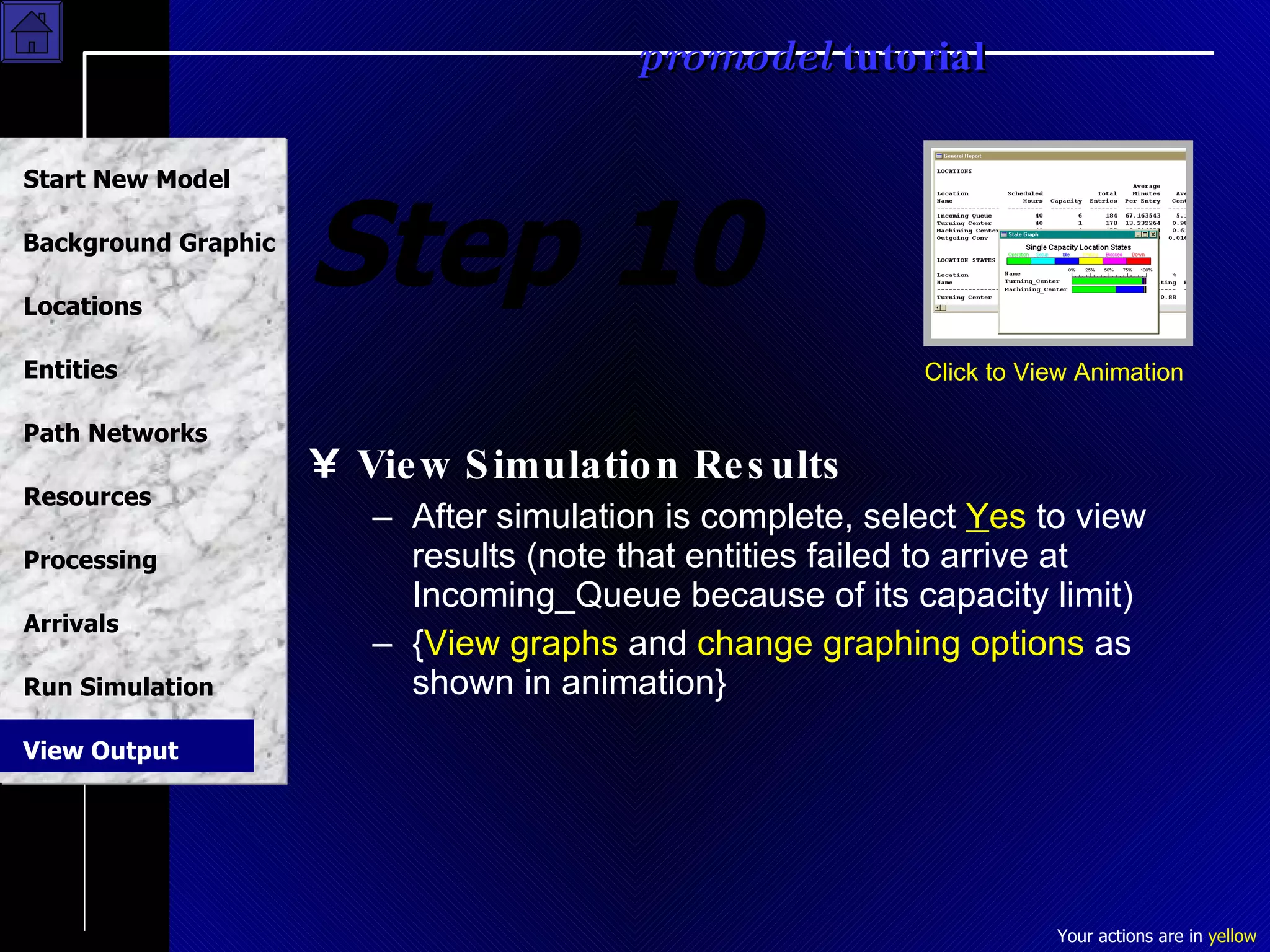
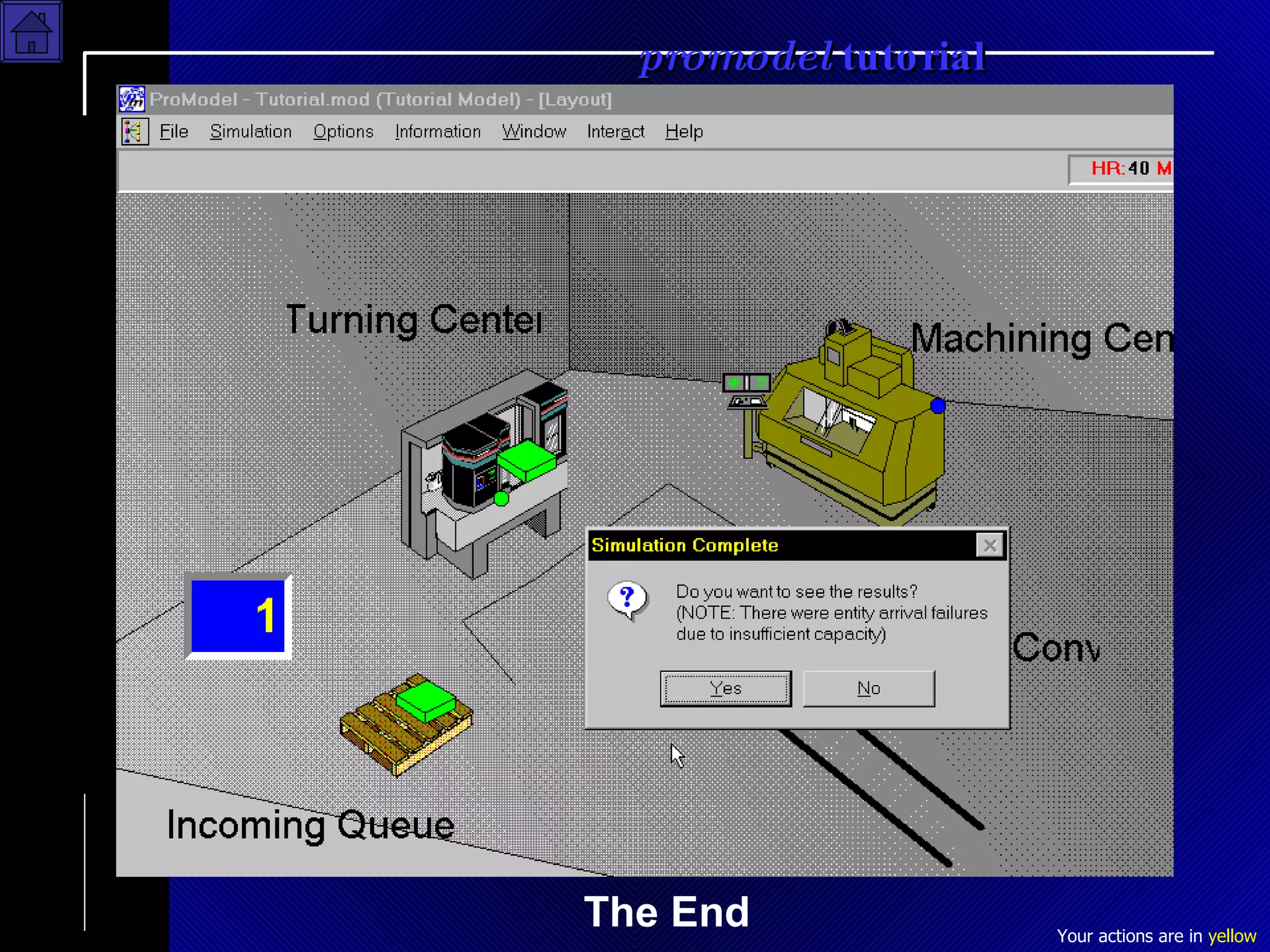
Step 10 View Simulation Results After simulation is complete, select  Y es  to view results (note that entities failed to arrive at Incoming_Queue because of its capacity limit)  { View graphs  and  change graphing options  as shown in animation} Click to View Animation View Output
The End

Tutorial De Promodel

  • 1.
  • 2.
    Welcome to theProModel Tutorial It will take you approximately 20 minutes to complete this first, simple model. Follow the instructions for each step. You can press “ALT” and “TAB” simultaneously to switch between ProModel and this presentation. Before trying each step, you may wish to view the animation for guidance. A few things first… 1. Your actions are shown in yellow 2. Save after each step (during the first save, you’ll have to enter a name -- we’ve chosen “tutorial.mod”) 3. You can advance to the next step just by pressing the “Page Down” key on your computer keyboard or clicking on the subject on the menu at left 4. Call ProModel toll free at (888)776-6633 if you have any questions! Don’t forget...
  • 3.
    Step 1 Createa New File Select F ile  N ew In the “General Information” dialog box, type a model name…in this case we’ll type: Tutorial Model Click on the O K button Click to View Animation Start New Model
  • 4.
    Start New ModelClick here to continue . . .
  • 5.
    Step 2 BuildBackground Graphics Select from the B uild menu, Background G raphics  B ehind Grid From the E dit menu, select I mport Graphic Change Files of t ype to Windows Metafile Click on the file named tutorialback.WMF and click on the O pen button Resize the imported graphic to fit in Layout window Click to View Animation Background Graphic
  • 6.
    Background Graphic Click here to continue . . .
  • 7.
    Step 3 BuildLocations Where Work Will Happen Select B uild  L ocations Add four locations: Incoming_Queue, Turning_Center, Machining_Center and Outgoing_Conv Place each on screen and add text labels Click to View Animation Locations
  • 8.
    Locations Click here to continue . . .
  • 9.
    Step 4 Addan Entity Select B uild  E ntities Add one Entity by clicking on the flat plate graphic and rename it as Product Click to View Animation Entities
  • 10.
    Entities Click here to continue . . .
  • 11.
    Step 5 Adda Path Network Select B uild  Path N etworks Left click with mouse near one Location Right click with mouse near next Location to create a path segment Repeat last two steps, ensuring that path segments start on the end of previous segment Click on button labeled Interfaces… Click on each “ node ” (at end of path segments) then click on adjacent Location to create Interface Click to View Animation Path Networks
  • 12.
    Path Networks Click here to continue . . .
  • 13.
    Step 6 Adda Machinist Select B uild  R esources Add a Resource by clicking on the Machinist graphic Click on the Specs… button to open the resource specification dialog box Select the Path Network named Net1 Click the O K button Click to View Animation Resources
  • 14.
    Resources Click here to continue . . .
  • 15.
    Step 7 AddProcessing Logic Select B uild  P rocessing After selecting Product from the Tools window, click in the layout on the Incoming_Queue, then on the Turning_Center , on the Turning_Center then on the Machining_Center , and so on Finish by selecting Route to Exit { Add logic lines as shown in animation} Click to View Animation Processing
  • 16.
    Processing Click here to continue . . .
  • 17.
    Step 8 ScheduleProduct Arrivals Select B uild  A rrivals In the Tools window, click on the Entity called Product In the Layout window, click on the Location called Incoming_Queue Change the Arrival Frequency to 11.37 MIN Click to View Animation Arrivals
  • 18.
    Click here to continue . . .
  • 19.
    Step 9 SetOptions, Save Model and Run! Select S imulation  O ptions Click in the field labeled R un Hours Type in 40 (to run for 40 hours) Click on the O K button Select S imulation  S ave & Run Click to View Animation Run Simulation
  • 20.
    Click here to continue . . .
  • 21.
    Step 10 ViewSimulation Results After simulation is complete, select Y es to view results (note that entities failed to arrive at Incoming_Queue because of its capacity limit) { View graphs and change graphing options as shown in animation} Click to View Animation View Output
  • 22.