Tutorial - 3
• Assignment review
• Previous session revision
• Today's agenda
• Aim : To build a simple responsive website
Today's Agenda
• Visibility and z index
• Flexbox
• em, rem, vh and vw
• media queries
• selectors
• nth child
• before and after pseudo
selectors
• box shadow & Text shadow
• variables & custom properties
• creating animation & transition
• Create Transitions
• Transform properties
• Responsive website
z-
Index
• Used for showing one element one over the
other depending upon the scenario and
requirement
• NOTE: z-Index property will only work for
⚬ position as absolute, sticky or relative
• It'll not work for the positioned element as
default one which is "static"
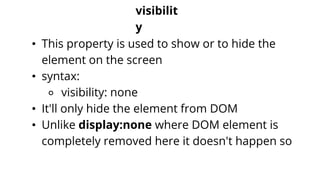
visibilit
y
• This property is used to show or to hide the
element on the screen
• syntax:
⚬ visibility: none
• It'll only hide the element from DOM
• Unlike display:none where DOM element is
completely removed here it doesn't happen so
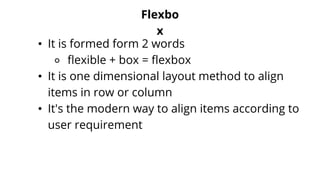
Flexbo
x
• It is formed form 2 words
⚬ flexible + box = flexbox
• It is one dimensional layout method to align
items in row or column
• It's the modern way to align items according to
user requirement
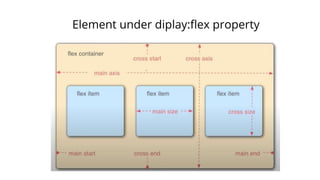
Element under diplay:flex property
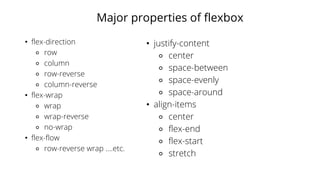
Major properties of flexbox
• flex-direction
⚬ row
⚬ column
⚬ row-reverse
⚬ column-reverse
• flex-wrap
⚬ wrap
⚬ wrap-reverse
⚬ no-wrap
• flex-flow
⚬ row-reverse wrap ....etc.
• justify-content
⚬ center
⚬ space-between
⚬ space-evenly
⚬ space-around
• align-items
⚬ center
⚬ flex-end
⚬ flex-start
⚬ stretch
Properties associated to flexbox
• order: <numeric>
⚬ it puts element in that particular order as given in value
⚬ higher the order later the placement of that elemnt
• flex-shrink: <numeric>
• flex-grow: <numeric>
• flex-basis:
⚬ when flex-direction is row it controls width
⚬ when flex-direction is col it controls height
• align-self:
⚬ values of it can be as:
■ flex-start OR flex-end OR center
For flexbox in details must refer
following
• https://css-tricks.com/snippets/css/a-guide-to-
flexbox/
• https://mastery.games/post/flexboxzombies2/
• https://www.youtube.com/watch?v=fYq5PXgSs
bE&ab_channel=WebDevSimplified
What is responsive
website
• Having many new devices with various
resolutions makes it difficult for web-developer
to represent there website
• Hence responsive web development comes into
picture
• It's must that your all websites or web-
application should be responsive nonwdays
Varous ways to achieve responsiveness
• Setup view port
• use max-width and min-width
• use media query
• use units like
⚬ em
⚬ rem
⚬ vh
⚬ vw
⚬ px (sometimes)
Units in CSS
• em
⚬ It is w.r.t parent element
⚬ font-size: 3em
■ It means fontsize will 3 * (parents size)
⚬ NOTE: padding: 3em
■ When padding is given with font-size then
it will be 3*font-size* (parent-size)
• rem
• Its is with respect to browser not to the
parent elemnt
NOTE: If it confuses a bit please go through the
following article:
https://webdesign.tutsplus.com/tutorials/comprehe
nsive-guide-when-to-use-em-vs-rem--cms-23984
• vh and
vw
• viewport : means the the screen in front of you
in the browser
• vh:100
⚬ means complete height of view port
• vw: 100
⚬ means complete width of view port
Media queries
• It is used for making things reactive
according screen resolutions & breakpoints
• major breakpoints in general are:
⚬ Extra small devices
■ (phones, 600px and down)
⚬ Small devices
■ (portrait tablets and large phones,
600px and up)
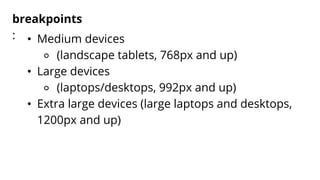
breakpoints
: • Medium devices
⚬ (landscape tablets, 768px and up)
• Large devices
⚬ (laptops/desktops, 992px and up)
• Extra large devices (large laptops and desktops,
1200px and up)
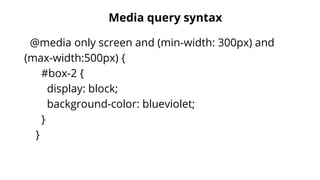
Media query syntax
@media only screen and (min-width: 300px) and
(max-width:500px) {
#box-2 {
display: block;
background-color: blueviolet;
}
}
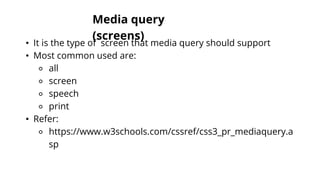
Media query
(screens)
• It is the type of screen that media query should support
• Most common used are:
⚬ all
⚬ screen
⚬ speech
⚬ print
• Refer:
⚬ https://www.w3schools.com/cssref/css3_pr_mediaquery.a
sp
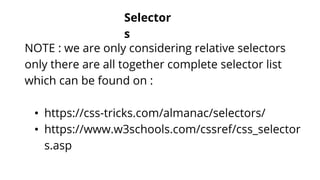
Selector
s
NOTE : we are only considering relative selectors
only there are all together complete selector list
which can be found on :
• https://css-tricks.com/almanac/selectors/
• https://www.w3schools.com/cssref/css_selector
s.asp
Selectors
continue...
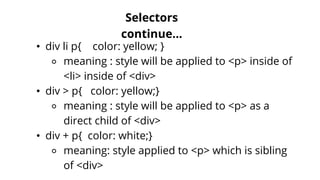
• div li p{ color: yellow; }
⚬ meaning : style will be applied to <p> inside of
<li> inside of <div>
• div > p{ color: yellow;}
⚬ meaning : style will be applied to <p> as a
direct child of <div>
• div + p{ color: white;}
⚬ meaning: style applied to <p> which is sibling
of <div>
nth child & pseudo
selectors
• We already know element selectors as
⚬ input {
⚬ display: block;
⚬ }
• Now to target any specific element we may use that
element's any attribute:
⚬ input[type='text'] {
⚬ display: block;
⚬ }
⚬
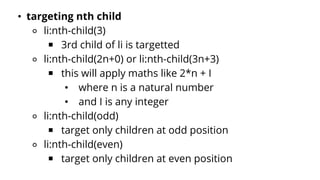
• targeting nth child
⚬ li:nth-child(3)
■ 3rd child of li is targetted
⚬ li:nth-child(2n+0) or li:nth-child(3n+3)
■ this will apply maths like 2*n + I
• where n is a natural number
• and I is any integer
⚬ li:nth-child(odd)
■ target only children at odd position
⚬ li:nth-child(even)
■ target only children at even position
before & after pseudo
selectors
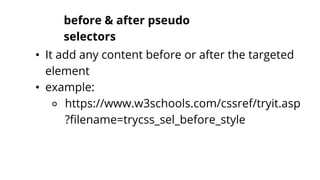
• It add any content before or after the targeted
element
• example:
⚬ https://www.w3schools.com/cssref/tryit.asp
?filename=trycss_sel_before_style
Box shadow & text
shadow
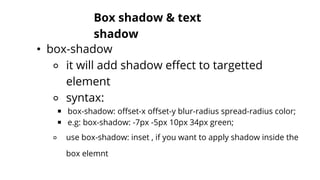
• box-shadow
⚬ it will add shadow effect to targetted
element
⚬ syntax:
■ box-shadow: offset-x offset-y blur-radius spread-radius color;
■ e.g: box-shadow: -7px -5px 10px 34px green;
⚬ use box-shadow: inset , if you want to apply shadow inside the
box elemnt
• text shadow
⚬ It will apply shadow to text elements only
⚬ Its behavior syntax is almost similar to
box-shadow
Variables & custom
properties
• Variables are used to increase reusability of any
particular property
• Mostly its used when we create any design
system for any decently big project
• It can be either be declared as
⚬ global
⚬ or
⚬ local
variables
(cont...)
• syntax:
⚬ it is declared as :
■ --primary-color: blue;
⚬ it is used as:
■ background-color: var(--primary-color);
Animations and keyframes
• To increase user interaction and mostly at
time of gamification on any website or on
browser game either animation is directly
used or many libraries use the core
animation properties
• NOTE:
⚬ Here we will cover basics of animations
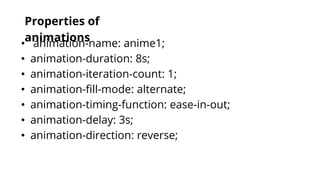
Properties of
animations
• animation-name: anime1;
• animation-duration: 8s;
• animation-iteration-count: 1;
• animation-fill-mode: alternate;
• animation-timing-function: ease-in-out;
• animation-delay: 3s;
• animation-direction: reverse;
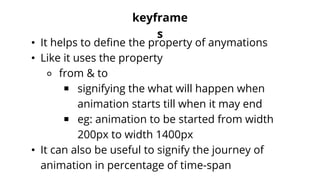
keyframe
s
• It helps to define the property of anymations
• Like it uses the property
⚬ from & to
■ signifying the what will happen when
animation starts till when it may end
■ eg: animation to be started from width
200px to width 1400px
• It can also be useful to signify the journey of
animation in percentage of time-span
Web development basics (Part-2)

Web development basics (Part-2)

  • 1.
    Tutorial - 3 •Assignment review • Previous session revision • Today's agenda • Aim : To build a simple responsive website
  • 2.
    Today's Agenda • Visibilityand z index • Flexbox • em, rem, vh and vw • media queries • selectors • nth child • before and after pseudo selectors • box shadow & Text shadow • variables & custom properties • creating animation & transition • Create Transitions • Transform properties • Responsive website
  • 3.
    z- Index • Used forshowing one element one over the other depending upon the scenario and requirement • NOTE: z-Index property will only work for ⚬ position as absolute, sticky or relative • It'll not work for the positioned element as default one which is "static"
  • 4.
    visibilit y • This propertyis used to show or to hide the element on the screen • syntax: ⚬ visibility: none • It'll only hide the element from DOM • Unlike display:none where DOM element is completely removed here it doesn't happen so
  • 5.
    Flexbo x • It isformed form 2 words ⚬ flexible + box = flexbox • It is one dimensional layout method to align items in row or column • It's the modern way to align items according to user requirement
  • 6.
  • 7.
    Major properties offlexbox • flex-direction ⚬ row ⚬ column ⚬ row-reverse ⚬ column-reverse • flex-wrap ⚬ wrap ⚬ wrap-reverse ⚬ no-wrap • flex-flow ⚬ row-reverse wrap ....etc. • justify-content ⚬ center ⚬ space-between ⚬ space-evenly ⚬ space-around • align-items ⚬ center ⚬ flex-end ⚬ flex-start ⚬ stretch
  • 8.
    Properties associated toflexbox • order: <numeric> ⚬ it puts element in that particular order as given in value ⚬ higher the order later the placement of that elemnt • flex-shrink: <numeric> • flex-grow: <numeric> • flex-basis: ⚬ when flex-direction is row it controls width ⚬ when flex-direction is col it controls height • align-self: ⚬ values of it can be as: ■ flex-start OR flex-end OR center
  • 9.
    For flexbox indetails must refer following • https://css-tricks.com/snippets/css/a-guide-to- flexbox/ • https://mastery.games/post/flexboxzombies2/ • https://www.youtube.com/watch?v=fYq5PXgSs bE&ab_channel=WebDevSimplified
  • 10.
    What is responsive website •Having many new devices with various resolutions makes it difficult for web-developer to represent there website • Hence responsive web development comes into picture • It's must that your all websites or web- application should be responsive nonwdays
  • 11.
    Varous ways toachieve responsiveness • Setup view port • use max-width and min-width • use media query • use units like ⚬ em ⚬ rem ⚬ vh ⚬ vw ⚬ px (sometimes)
  • 12.
    Units in CSS •em ⚬ It is w.r.t parent element ⚬ font-size: 3em ■ It means fontsize will 3 * (parents size) ⚬ NOTE: padding: 3em ■ When padding is given with font-size then it will be 3*font-size* (parent-size)
  • 13.
    • rem • Itsis with respect to browser not to the parent elemnt NOTE: If it confuses a bit please go through the following article: https://webdesign.tutsplus.com/tutorials/comprehe nsive-guide-when-to-use-em-vs-rem--cms-23984
  • 14.
    • vh and vw •viewport : means the the screen in front of you in the browser • vh:100 ⚬ means complete height of view port • vw: 100 ⚬ means complete width of view port
  • 15.
    Media queries • Itis used for making things reactive according screen resolutions & breakpoints • major breakpoints in general are: ⚬ Extra small devices ■ (phones, 600px and down) ⚬ Small devices ■ (portrait tablets and large phones, 600px and up)
  • 16.
    breakpoints : • Mediumdevices ⚬ (landscape tablets, 768px and up) • Large devices ⚬ (laptops/desktops, 992px and up) • Extra large devices (large laptops and desktops, 1200px and up)
  • 17.
    Media query syntax @mediaonly screen and (min-width: 300px) and (max-width:500px) { #box-2 { display: block; background-color: blueviolet; } }
  • 18.
    Media query (screens) • Itis the type of screen that media query should support • Most common used are: ⚬ all ⚬ screen ⚬ speech ⚬ print • Refer: ⚬ https://www.w3schools.com/cssref/css3_pr_mediaquery.a sp
  • 19.
    Selector s NOTE : weare only considering relative selectors only there are all together complete selector list which can be found on : • https://css-tricks.com/almanac/selectors/ • https://www.w3schools.com/cssref/css_selector s.asp
  • 20.
    Selectors continue... • div lip{ color: yellow; } ⚬ meaning : style will be applied to <p> inside of <li> inside of <div> • div > p{ color: yellow;} ⚬ meaning : style will be applied to <p> as a direct child of <div> • div + p{ color: white;} ⚬ meaning: style applied to <p> which is sibling of <div>
  • 21.
    nth child &pseudo selectors • We already know element selectors as ⚬ input { ⚬ display: block; ⚬ } • Now to target any specific element we may use that element's any attribute: ⚬ input[type='text'] { ⚬ display: block; ⚬ } ⚬
  • 22.
    • targeting nthchild ⚬ li:nth-child(3) ■ 3rd child of li is targetted ⚬ li:nth-child(2n+0) or li:nth-child(3n+3) ■ this will apply maths like 2*n + I • where n is a natural number • and I is any integer ⚬ li:nth-child(odd) ■ target only children at odd position ⚬ li:nth-child(even) ■ target only children at even position
  • 23.
    before & afterpseudo selectors • It add any content before or after the targeted element • example: ⚬ https://www.w3schools.com/cssref/tryit.asp ?filename=trycss_sel_before_style
  • 24.
    Box shadow &text shadow • box-shadow ⚬ it will add shadow effect to targetted element ⚬ syntax: ■ box-shadow: offset-x offset-y blur-radius spread-radius color; ■ e.g: box-shadow: -7px -5px 10px 34px green; ⚬ use box-shadow: inset , if you want to apply shadow inside the box elemnt
  • 25.
    • text shadow ⚬It will apply shadow to text elements only ⚬ Its behavior syntax is almost similar to box-shadow
  • 26.
    Variables & custom properties •Variables are used to increase reusability of any particular property • Mostly its used when we create any design system for any decently big project • It can be either be declared as ⚬ global ⚬ or ⚬ local
  • 27.
    variables (cont...) • syntax: ⚬ itis declared as : ■ --primary-color: blue; ⚬ it is used as: ■ background-color: var(--primary-color);
  • 28.
    Animations and keyframes •To increase user interaction and mostly at time of gamification on any website or on browser game either animation is directly used or many libraries use the core animation properties • NOTE: ⚬ Here we will cover basics of animations
  • 29.
    Properties of animations • animation-name:anime1; • animation-duration: 8s; • animation-iteration-count: 1; • animation-fill-mode: alternate; • animation-timing-function: ease-in-out; • animation-delay: 3s; • animation-direction: reverse;
  • 30.
    keyframe s • It helpsto define the property of anymations • Like it uses the property ⚬ from & to ■ signifying the what will happen when animation starts till when it may end ■ eg: animation to be started from width 200px to width 1400px • It can also be useful to signify the journey of animation in percentage of time-span