TRUSTONE Global
1
© 2011 TRUSTONE GLOBAL Inc. All rights reserved.
http://www.trustone.co.kr/
Document 002-120401 Rev.A
TRUSTONE Global
TSG-550/750
Fingerprint Reader
Installation and Configuration Guide
TRUSTONE Globl
2
© 2011 TRUSTONE GLOBAL Inc. All rights reserved.
http://www.trustone.co.kr/
Document 002-120401 Rev.A
 Contents 
TSG-550/750 Installation Guide
1 Power ------------------------------------------------------ 5
2 485 communication------------------------------------------------5
3 LAN communication----------------------------------------------- 6
4 Sensor connection----------------------------------------------- 6
5 Wiegand output connection-------------------------------------- 7
6 External reader connectiion------------------------------------7
7 Lock connection-------------------------------------------------- 8
8 Anti-passback connection--------------------------------------- 8
TRUSTONE Globl
3
© 2011 TRUSTONE GLOBAL Inc. All rights reserved.
http://www.trustone.co.kr/
Document 002-120401 Rev.A
 Contents 
TSG 550 User Guide
9 Terminal ID & Network Setup -------------------------------- 9
10 User Registration --------------------------------------------10
11 User Delete ------------------------------------------------- 11
12 Temporary User ID Registration-------------------------------- 11
13 Basic Setup ----------------------------------------------- 11
14 Advanced Setup- -----------------------------------------------12
15 Schedule ------------------------------------------------------ 12
16 WiFi (Wireless)----------------------------------------------- 13
17 Event Setup ------------------------------------------------- 13
18 Access Setup-------------------------------------------------- 14
19 Memory Card ------------------------------------------------ 14
20 Memory Information-------------------------------------------15
21 Test -------------------------------------------------------- 15
22 Voice Communication --------------------------------------- 16
23 How to use sub sensor --------------------------------------16
24 Features of optical and sub sensor------------------------17
25 Product Specification----------------------------------------18
TRUSTONE Globl
4
© 2011 TRUSTONE GLOBAL Inc. All rights reserved.
http://www.trustone.co.kr/
Document 002-120401 Rev.A
 Contents 
TSG 750 User Guide
26 Terminal ID & Network Setup-------------------------------- 19
27 User Registration---------------------------------------------20
28 Temporary User ID Registration----------------------------- 21
29 User Delete ------------------------------------------------- 21
30 Data Search -------------------------------------------------- 22
31 Screen Setup- -------------------------------------------------23
32 Advanced Setup------------------------------------------------ 23
33 Camera Setup-------------------------------------------------- 24
34 Memroy Save -------------------------------------------------- 25
35 Access Setup-------------------------------------------------- 25
36 Operation Mode------------------------------------------------ 26
37 Schedule------------------------------------------------------- 27
38 Test -------------------------------------------------------- 27
39 Memory Information ------------------------------------------ 27
40 How to use Visual Communication--------------------------- 28
41 How to use sub sensor ---------------------------------------28
42 Features of optical sensor and sub sensor----------------29
43 Product Specification ---------------------------------------30
TRUSTONE Globl
5
© 2011 TRUSTONE GLOBAL Inc. All rights reserved.
http://www.trustone.co.kr/
Document 002-120401 Rev.A
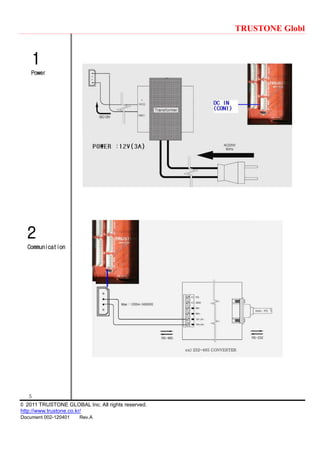
1
Power
2
Communication
TRUSTONE Globl
6
© 2011 TRUSTONE GLOBAL Inc. All rights reserved.
http://www.trustone.co.kr/
Document 002-120401 Rev.A
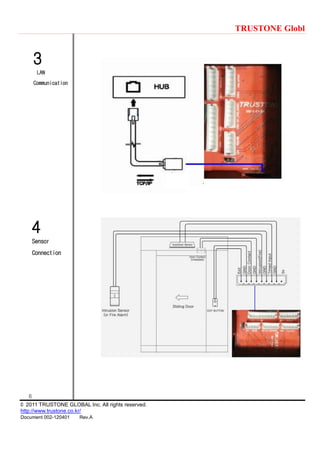
3
LAN
Communication
4
Sensor
Connection
TRUSTONE Globl
7
© 2011 TRUSTONE GLOBAL Inc. All rights reserved.
http://www.trustone.co.kr/
Document 002-120401 Rev.A
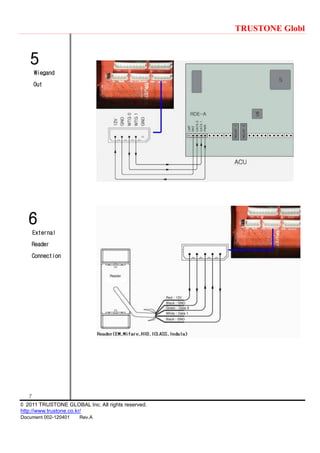
5
Wiegand
Out
6
External
Reader
Connection
TRUSTONE Globl
8
© 2011 TRUSTONE GLOBAL Inc. All rights reserved.
http://www.trustone.co.kr/
Document 002-120401 Rev.A
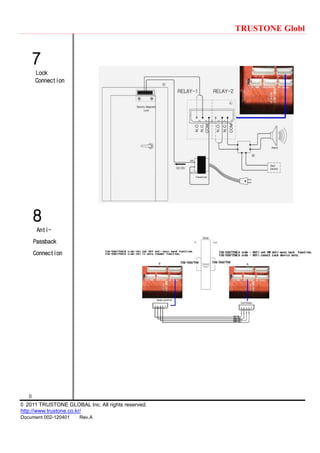
7
Lock
Connection
8
Anti-
Passback
Connection
TRUSTONE Globl
9
© 2011 TRUSTONE GLOBAL Inc. All rights reserved.
http://www.trustone.co.kr/
Document 002-120401 Rev.A
9
Terminal ID
and Network
Setting
○ The Terminal should have a unique ID in order to communicate
with PC
[Note] If the ID is duplicated, there should be
a communication error.
From the main menu, click * button.
Input admin ID, ‚1 2 3 4‛and then
press # button.
Press no 2 or F2 button and choose
icon and press # button to get into basic
setup menu.
Press No 4 button or F2 button to go to
network setting icon and then press #
button.
In the communication setting, choose the
terminal ID and change the ID number.
And using F2 button, go to network setting where IP address should be
changed.
Subnet mask/Gateway address/Port number should be done in the same way.
TRUSTONE Globl
10
© 2011 TRUSTONE GLOBAL Inc. All rights reserved.
http://www.trustone.co.kr/
Document 002-120401 Rev.A
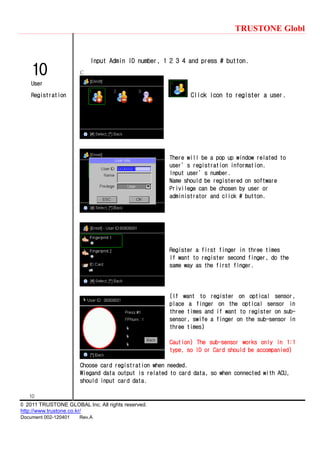
10
User
Registration
Input Admin ID number, 1 2 3 4 and press # button.
C
Click icon to register a user.
There will be a pop up window related to
user’s registration information.
Input user’s number.
Name should be registered on software
Privilege can be chosen by user or
administrator and click # button.
Register a first finger in three times
If want to register second finger, do the
same way as the first finger.
(If want to register on optical sensor,
place a finger on the optical sensor in
three times and if want to register on sub-
sensor, swife a finger on the sub-sensor in
three times)
Caution) The sub-sensor works only in 1:1
type, so ID or Card should be accompanied)
Choose card registration when needed.
Wiegand data output is related to card data, so when connected with ACU,
should input card data.
TRUSTONE Globl
11
© 2011 TRUSTONE GLOBAL Inc. All rights reserved.
http://www.trustone.co.kr/
Document 002-120401 Rev.A
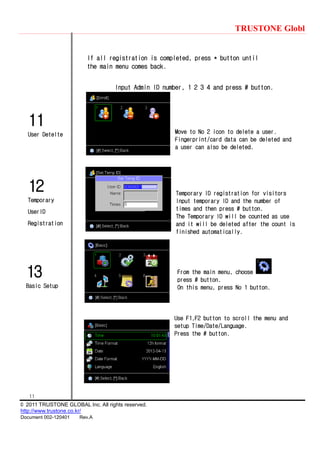
12
Temporary
UserID
Registration
13
Basic Setup
11
User Detelte
If all registration is completed, press * button until
the main menu comes back.
Input Admin ID number, 1 2 3 4 and press # button.
Move to No 2 icon to delete a user.
Fingerprint/card data can be deleted and
a user can also be deleted.
Temporary ID registration for visitors
Input temporary ID and the number of
times and then press # button.
The Temporary ID will be counted as use
and it will be deleted after the count is
finished automatically.
From the main menu, choose
press # button.
On this menu, press No 1 button.
Use F1,F2 button to scroll the menu and
setup Time/Date/Language.
Press the # button.
TRUSTONE Globl
12
© 2011 TRUSTONE GLOBAL Inc. All rights reserved.
http://www.trustone.co.kr/
Document 002-120401 Rev.A
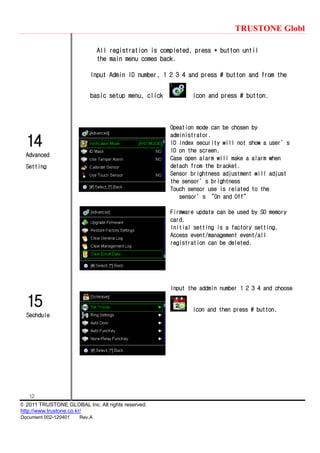
15
Sechdule
14
Advanced
Setting
All registration is completed, press * button until
the main menu comes back.
Input Admin ID number, 1 2 3 4 and press # button and from the
basic setup menu, click icon and press # button.
Opeation mode can be chosen by
administrator.
ID index security will not show a user’s
ID on the screen.
Case open alarm will make a alarm when
detach from the bracket.
Sensor brightness adjustment will adjust
the sensor’s brightness
Touch sensor use is related to the
sensor’s ‚On and Off‛
Firmware update can be used by SD memory
card.
Initial setting is a factory setting.
Access event/management event/all
registration can be deleted.
Input the addmin number 1 2 3 4 and choose
icon and then press # button.
TRUSTONE Globl
13
© 2011 TRUSTONE GLOBAL Inc. All rights reserved.
http://www.trustone.co.kr/
Document 002-120401 Rev.A
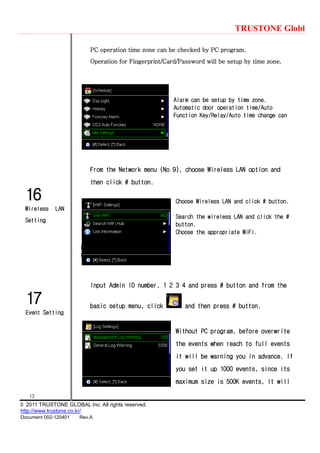
17
Event Setting
16
Wireless LAN
Setting
PC operation time zone can be checked by PC program.
Operation for Fingerprint/Card/Password will be setup by time zone.
Alarm can be setup by time zone.
Automatic door operation time/Auto
Function Key/Relay/Auto time change can
From the Network menu (No 9), choose Wireless LAN option and
then click # button.
Choose Wireless LAN and click # button.
Search the wireless LAN and click the #
button.
Choose the appropriate WiFi.
I
I
Input Admin ID number, 1 2 3 4 and press # button and from the
basic setup menu, click and then press # button.
Without PC program, before overwrite
the events when reach to full events
it will be warning you in advance. If
you set it up 1000 events, since its
maximum size is 500K events, It will
TRUSTONE Globl
14
© 2011 TRUSTONE GLOBAL Inc. All rights reserved.
http://www.trustone.co.kr/
Document 002-120401 Rev.A
18
Access
Setting
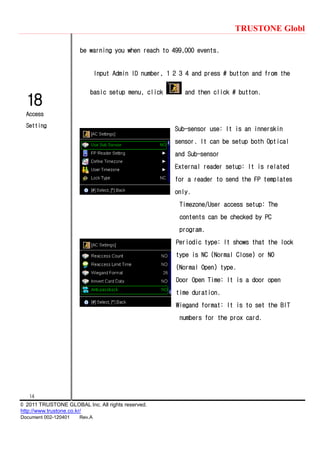
be warning you when reach to 499,000 events.
Input Admin ID number, 1 2 3 4 and press # button and from the
basic setup menu, click and then click # button.
Sub-sensor use: It is an innerskin
sensor. It can be setup both Optical
and Sub-sensor
External reader setup: It is related
for a reader to send the FP templates
only.
Timezone/User access setup: The
contents can be checked by PC
program.
Periodic type: It shows that the lock
type is NC (Normal Close) or NO
(Normal Open) type.
Door Open Time: It is a door open
time duration.
Wiegand format: It is to set the BIT
numbers for the prox card.
TRUSTONE Globl
15
© 2011 TRUSTONE GLOBAL Inc. All rights reserved.
http://www.trustone.co.kr/
Document 002-120401 Rev.A
19
Memory Card
20
Memory
Information
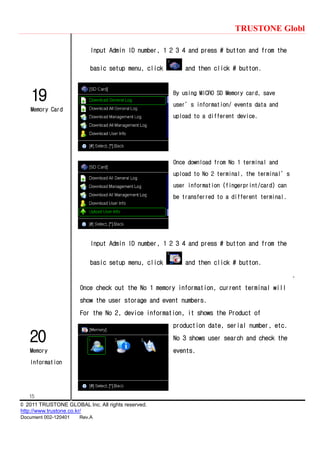
Input Admin ID number, 1 2 3 4 and press # button and from the
basic setup menu, click and then click # button.
By using MICRO SD Memory card, save
user’s information/ events data and
upload to a different device.
Once download from No 1 terminal and
upload to No 2 terminal, the terminal’s
user information (fingerprint/card) can
be transferred to a different terminal.
Input Admin ID number, 1 2 3 4 and press # button and from the
basic setup menu, click and then click # button.
.
Once check out the No 1 memory information, current terminal will
show the user storage and event numbers.
For the No 2, device information, it shows the Product of
production date, serial number, etc.
No 3 shows user search and check the
events.
TRUSTONE Globl
16
© 2011 TRUSTONE GLOBAL Inc. All rights reserved.
http://www.trustone.co.kr/
Document 002-120401 Rev.A
22
Voice
Communication
23
Sub-Sensor
21
Test
Input Admin ID number, 1 2 3 4 and press # button and from the
basic setup menu, click and then click # button.
It is a self test for the device.
It can test either full details or
subsection.
From the main menu, Press # button. There is a voice communication
function.
It is a purpose of communicating with visitors, so the
administrator can control the door for them to be access.
[Note] Please check whether the network is fine with the administrator’s
computer.
The Sub-sensor is an inner-skin sensor that is
mainly used for fake FP
detection/damaged/dry/distorted FP.
This is a swipe type sensor so the finger should
be swiped vertically.
[Note 1] In PC, you can register a particular user
as ‘Sub-sensor user.’ In this case, the user can
use the sub-sensor only without putting his finger
on the optical sensor.
TRUSTONE Globl
17
© 2011 TRUSTONE GLOBAL Inc. All rights reserved.
http://www.trustone.co.kr/
Document 002-120401 Rev.A
24
Specification
Of optical
And sub-sensor
[Note 2] Since it is 1:1 verification type, so the user who needs to use the
sub-sensor has to input the ID number first and then swipe it on the sub-
sensor.
1. Registration
A. Both optical and sub-sensor can register the fingerprint.
Suggestion) When a user registers two fingerprints, it is better the
user enroll one fingerprint on optical sensor and the other finger is on
sub-sensor for the dual registration.
Caution) It will not be working if a user who registered on sub-sensor
cannot be verified on optical sensor. The sub-sensor is only worked as 1:1.
 It will be fine if a user who registered on optical-sensor can use the
sub-sensor for the verification.
2. Verification Mode
A. [FINGER], [CD] or [FP]
- Use and Register on optical sensor
- Input ID and use sub-senor
- Input ID and use optical sensor
[ANY MODE],
Except for [CD], [ID or CD], [ID or FP], [ID & CD] modes,
1:1 verification will be working by using the sub-sensor.
TRUSTONE Globl
18
© 2011 TRUSTONE GLOBAL Inc. All rights reserved.
http://www.trustone.co.kr/
Document 002-120401 Rev.A
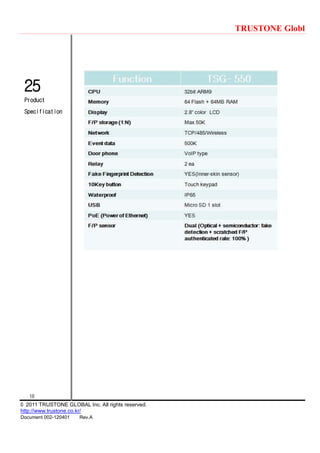
25
Product
Specification
TRUSTONE Globl
19
© 2011 TRUSTONE GLOBAL Inc. All rights reserved.
http://www.trustone.co.kr/
Document 002-120401 Rev.A
26
TerminalID &
Network
Setup
○ The Terminal should be input unique ID in order to communicate
with PC program
[Note] If the ID is duplicated, there will be a communication error.
Click this icon from the menu.
Input admin ID 1,2,3,4 and then click ‘OK’
.
After input the admin password, the main
screen will be shown.
Click the icon in the bottom and then the
terminal ID and Network setup menu will be shown
.
Input the desired Device ID. The terminal ID should
not be duplicated.
On TCP/IP setting menu, input allocated IP, Subnet
Mask, Gateway, Port number.
For the management PC IP address, it should be
input appropriate PC IP in order to make Video &
Voice communication.
TRUSTONE Globl
20
© 2011 TRUSTONE GLOBAL Inc. All rights reserved.
http://www.trustone.co.kr/
Document 002-120401 Rev.A
27
User
Registration
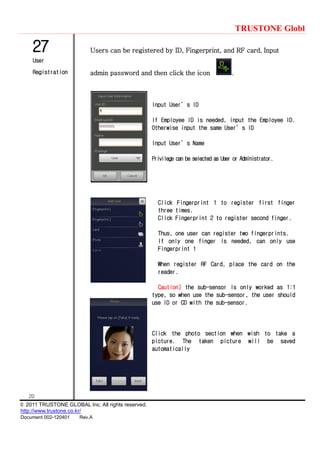
Users can be registered by ID, Fingerprint, and RF card. Input
admin password and then click the icon .
Input User’s ID
If Employee ID is needed, input the Employee ID.
Otherwise input the same User’s ID
Input User’s Name
Privilege can be selected as User or Administrator.
Click Fingerprint 1 to register first finger
three times.
Click Fingerprint 2 to register second finger.
Thus, one user can register two fingerprints.
If only one finger is needed, can only use
Fingerprint 1
When register RF Card, place the card on the
reader.
Caution) the sub-sensor is only worked as 1:1
type, so when use the sub-sensor, the user should
use ID or CD with the sub-sensor.
Click the photo section when wish to take a
picture. The taken picture will be saved
automatically
TRUSTONE Globl
21
© 2011 TRUSTONE GLOBAL Inc. All rights reserved.
http://www.trustone.co.kr/
Document 002-120401 Rev.A
28
Temporary User
ID
Registration
29
User Delete
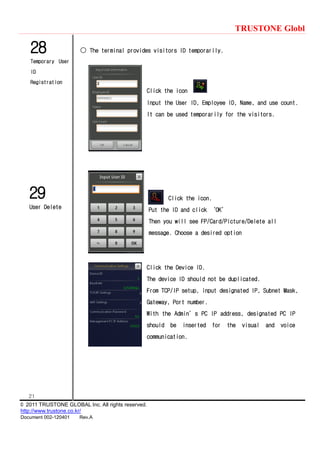
○ The terminal provides visitors ID temporarily.
Click the icon
Input the User ID, Employee ID, Name, and use count.
It can be used temporarily for the visitors.
Click the icon.
Put the ID and click ‘OK’
Then you will see FP/Card/Picture/Delete all
message. Choose a desired option
Click the Device ID.
The device ID should not be duplicated.
From TCP/IP setup, input designated IP, Subnet Mask,
Gateway, Port number.
With the Admin’s PC IP address, designated PC IP
should be inserted for the visual and voice
communication.
TRUSTONE Globl
22
© 2011 TRUSTONE GLOBAL Inc. All rights reserved.
http://www.trustone.co.kr/
Document 002-120401 Rev.A
30
Search D/B
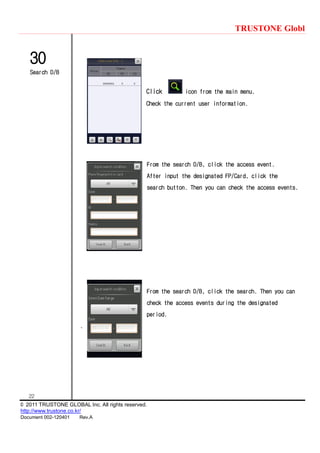
Click icon from the main menu.
Check the current user information.
From the search D/B, click the access event.
After input the designated FP/Card, click the
search button. Then you can check the access events.
From the search D/B, click the search. Then you can
check the access events during the designated
period.
.
TRUSTONE Globl
23
© 2011 TRUSTONE GLOBAL Inc. All rights reserved.
http://www.trustone.co.kr/
Document 002-120401 Rev.A
32
Advnaced
Setting
33
Camera
Setting
31
Display
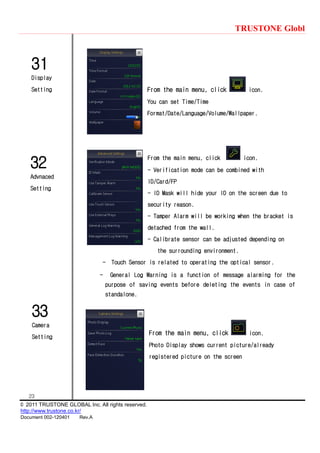
Setting From the main menu, click icon.
You can set Time/Time
Format/Date/Language/Volume/Wallpaper.
From the main menu, click icon.
- Verification mode can be combined with
ID/Card/FP
- ID Mask will hide your ID on the screen due to
security reason.
- Tamper Alarm will be working when the bracket is
detached from the wall.
- Calibrate sensor can be adjusted depending on
the surrounding environment.
- Touch Sensor is related to operating the optical sensor.
- General Log Warning is a function of message alarming for the
purpose of saving events before deleting the events in case of
standalone.
From the main menu, click icon.
Photo Display shows current picture/already
registered picture on the screen
TRUSTONE Globl
24
© 2011 TRUSTONE GLOBAL Inc. All rights reserved.
http://www.trustone.co.kr/
Document 002-120401 Rev.A
34
Memory Save
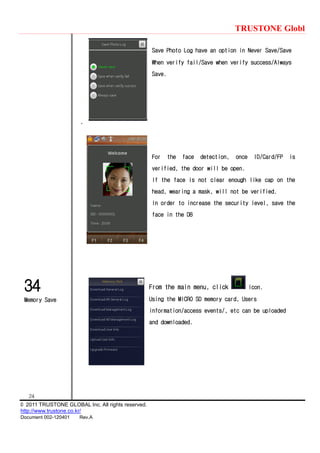
Save Photo Log have an option in Never Save/Save
When verify fail/Save when verify success/Always
Save.
.
For the face detection, once ID/Card/FP is
verified, the door will be open.
If the face is not clear enough like cap on the
head, wearing a mask, will not be verified.
In order to increase the security level, save the
face in the DB
From the main menu, click icon.
Using the MICRO SD memory card, Users
information/access events/, etc can be uploaded
and downloaded.
TRUSTONE Globl
25
© 2011 TRUSTONE GLOBAL Inc. All rights reserved.
http://www.trustone.co.kr/
Document 002-120401 Rev.A
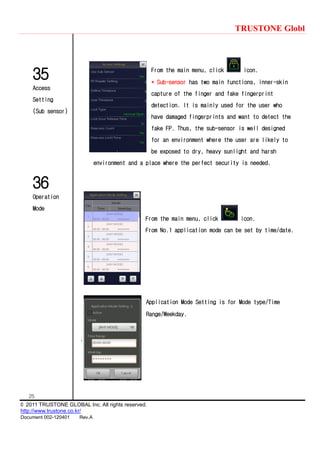
35
Access
Setting
(Sub sensor)
36
Operation
Mode
From the main menu, click icon.
* Sub-sensor has two main functions, inner-skin
capture of the finger and fake fingerprint
detection. It is mainly used for the user who
have damaged fingerprints and want to detect the
fake FP. Thus, the sub-sensor is well designed
for an environment where the user are likely to
be exposed to dry, heavy sunlight and harsh
environment and a place where the perfect security is needed.
From the main menu, click icon.
From No.1 application mode can be set by time/date.
Application Mode Setting is for Mode type/Time
Range/Weekday.
.
TRUSTONE Globl
26
© 2011 TRUSTONE GLOBAL Inc. All rights reserved.
http://www.trustone.co.kr/
Document 002-120401 Rev.A
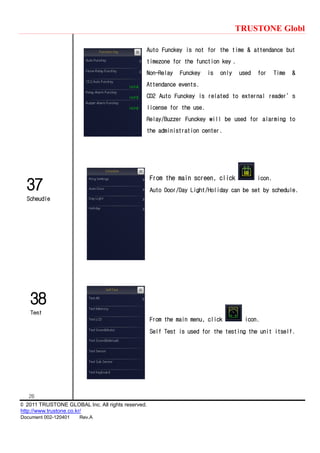
37
Scheudle
38
Test
Auto Funckey is not for the time & attendance but
timezone for the function key .
Non-Relay Funckey is only used for Time &
Attendance events.
CD2 Auto Funckey is related to external reader’s
license for the use.
Relay/Buzzer Funckey will be used for alarming to
the administration center.
From the main screen, click icon.
Auto Door/Day Light/Holiday can be set by schedule.
From the main menu, click icon.
Self Test is used for the testing the unit itself.
TRUSTONE Globl
27
© 2011 TRUSTONE GLOBAL Inc. All rights reserved.
http://www.trustone.co.kr/
Document 002-120401 Rev.A
39
Memory
Information
40
Video
Communication
41
Sub Sensor
From the menu, click icon.
Memory Info shows all the information related to
the terminal.
.
From the main menu, click icon.
When IP is connected to call line, the user can
communicate with the administrator in visual and
voice. From the administration office, he can open
the door.
[Note] Please make sure that the network on
administrator is OK
The Sub-sensor is an inner-skin sensor that is
mainly used for fake FP
detection/damaged/dry/distorted FP.
This is a swipe type sensor so the finger should
be swiped vertically.
[Note 1] In PC, you can register a particular user
as ‘Sub-sensor user.’ In this case, the user can
use the sub-sensor only without putting his finger
TRUSTONE Globl
28
© 2011 TRUSTONE GLOBAL Inc. All rights reserved.
http://www.trustone.co.kr/
Document 002-120401 Rev.A
42
Features of
optical sensor
& sub sensor
on the optical sensor.
[Note 2] Since it is 1:1 verification type, so the user who needs to use the
sub-sensor has to input the ID number first and then swipe it on the sub-
sensor.
3. Registration
A. Both optical and sub-sensor can register the fingerprint.
Suggestion) When a user registers two fingerprints, it is better the
user enroll one fingerprint on optical sensor and the other finger is on
sub-sensor for the dual registration.
Caution) It will not be working if a user who registered on sub-sensor
cannot be verified on optical sensor. The sub-sensor is only worked as 1:1.
 It will be fine if a user who registered on optical-sensor can use the
sub-sensor for the verification.
4. Verification Mode
A. [FINGER], [CD] or [FP]
- Use and Register on optical sensor
- Input ID and use sub-senor
- Input ID and use optical sensor
[ANY MODE],
Except for [CD], [ID or CD], [ID or FP], [ID & CD] modes,
1:1 verification will be working by using the sub-sensor.
TRUSTONE Globl
29
© 2011 TRUSTONE GLOBAL Inc. All rights reserved.
http://www.trustone.co.kr/
Document 002-120401 Rev.A
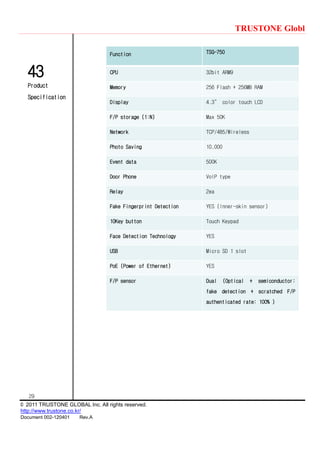
43
Product
Specification
Function TSG-750
CPU 32bit ARM9
Memory 256 Flash + 256MB RAM
Display 4.3‛ color touch LCD
F/P storage (1:N) Max 50K
Network TCP/485/Wireless
Photo Saving 10,000
Event data 500K
Door Phone VoIP type
Relay 2ea
Fake Fingerprint Detection YES (Inner-skin sensor)
10Key button Touch Keypad
Face Detection Technology YES
USB Micro SD 1 slot
PoE (Power of Ethernet) YES
F/P sensor Dual (Optical + semiconductor:
fake detection + scratched F/P
authenticated rate: 100% )

Trustone tsg-550 750-install_user manual

  • 1.
    TRUSTONE Global 1 © 2011TRUSTONE GLOBAL Inc. All rights reserved. http://www.trustone.co.kr/ Document 002-120401 Rev.A TRUSTONE Global TSG-550/750 Fingerprint Reader Installation and Configuration Guide
  • 2.
    TRUSTONE Globl 2 © 2011TRUSTONE GLOBAL Inc. All rights reserved. http://www.trustone.co.kr/ Document 002-120401 Rev.A  Contents  TSG-550/750 Installation Guide 1 Power ------------------------------------------------------ 5 2 485 communication------------------------------------------------5 3 LAN communication----------------------------------------------- 6 4 Sensor connection----------------------------------------------- 6 5 Wiegand output connection-------------------------------------- 7 6 External reader connectiion------------------------------------7 7 Lock connection-------------------------------------------------- 8 8 Anti-passback connection--------------------------------------- 8
  • 3.
    TRUSTONE Globl 3 © 2011TRUSTONE GLOBAL Inc. All rights reserved. http://www.trustone.co.kr/ Document 002-120401 Rev.A  Contents  TSG 550 User Guide 9 Terminal ID & Network Setup -------------------------------- 9 10 User Registration --------------------------------------------10 11 User Delete ------------------------------------------------- 11 12 Temporary User ID Registration-------------------------------- 11 13 Basic Setup ----------------------------------------------- 11 14 Advanced Setup- -----------------------------------------------12 15 Schedule ------------------------------------------------------ 12 16 WiFi (Wireless)----------------------------------------------- 13 17 Event Setup ------------------------------------------------- 13 18 Access Setup-------------------------------------------------- 14 19 Memory Card ------------------------------------------------ 14 20 Memory Information-------------------------------------------15 21 Test -------------------------------------------------------- 15 22 Voice Communication --------------------------------------- 16 23 How to use sub sensor --------------------------------------16 24 Features of optical and sub sensor------------------------17 25 Product Specification----------------------------------------18
  • 4.
    TRUSTONE Globl 4 © 2011TRUSTONE GLOBAL Inc. All rights reserved. http://www.trustone.co.kr/ Document 002-120401 Rev.A  Contents  TSG 750 User Guide 26 Terminal ID & Network Setup-------------------------------- 19 27 User Registration---------------------------------------------20 28 Temporary User ID Registration----------------------------- 21 29 User Delete ------------------------------------------------- 21 30 Data Search -------------------------------------------------- 22 31 Screen Setup- -------------------------------------------------23 32 Advanced Setup------------------------------------------------ 23 33 Camera Setup-------------------------------------------------- 24 34 Memroy Save -------------------------------------------------- 25 35 Access Setup-------------------------------------------------- 25 36 Operation Mode------------------------------------------------ 26 37 Schedule------------------------------------------------------- 27 38 Test -------------------------------------------------------- 27 39 Memory Information ------------------------------------------ 27 40 How to use Visual Communication--------------------------- 28 41 How to use sub sensor ---------------------------------------28 42 Features of optical sensor and sub sensor----------------29 43 Product Specification ---------------------------------------30
  • 5.
    TRUSTONE Globl 5 © 2011TRUSTONE GLOBAL Inc. All rights reserved. http://www.trustone.co.kr/ Document 002-120401 Rev.A 1 Power 2 Communication
  • 6.
    TRUSTONE Globl 6 © 2011TRUSTONE GLOBAL Inc. All rights reserved. http://www.trustone.co.kr/ Document 002-120401 Rev.A 3 LAN Communication 4 Sensor Connection
  • 7.
    TRUSTONE Globl 7 © 2011TRUSTONE GLOBAL Inc. All rights reserved. http://www.trustone.co.kr/ Document 002-120401 Rev.A 5 Wiegand Out 6 External Reader Connection
  • 8.
    TRUSTONE Globl 8 © 2011TRUSTONE GLOBAL Inc. All rights reserved. http://www.trustone.co.kr/ Document 002-120401 Rev.A 7 Lock Connection 8 Anti- Passback Connection
  • 9.
    TRUSTONE Globl 9 © 2011TRUSTONE GLOBAL Inc. All rights reserved. http://www.trustone.co.kr/ Document 002-120401 Rev.A 9 Terminal ID and Network Setting ○ The Terminal should have a unique ID in order to communicate with PC [Note] If the ID is duplicated, there should be a communication error. From the main menu, click * button. Input admin ID, ‚1 2 3 4‛and then press # button. Press no 2 or F2 button and choose icon and press # button to get into basic setup menu. Press No 4 button or F2 button to go to network setting icon and then press # button. In the communication setting, choose the terminal ID and change the ID number. And using F2 button, go to network setting where IP address should be changed. Subnet mask/Gateway address/Port number should be done in the same way.
  • 10.
    TRUSTONE Globl 10 © 2011TRUSTONE GLOBAL Inc. All rights reserved. http://www.trustone.co.kr/ Document 002-120401 Rev.A 10 User Registration Input Admin ID number, 1 2 3 4 and press # button. C Click icon to register a user. There will be a pop up window related to user’s registration information. Input user’s number. Name should be registered on software Privilege can be chosen by user or administrator and click # button. Register a first finger in three times If want to register second finger, do the same way as the first finger. (If want to register on optical sensor, place a finger on the optical sensor in three times and if want to register on sub- sensor, swife a finger on the sub-sensor in three times) Caution) The sub-sensor works only in 1:1 type, so ID or Card should be accompanied) Choose card registration when needed. Wiegand data output is related to card data, so when connected with ACU, should input card data.
  • 11.
    TRUSTONE Globl 11 © 2011TRUSTONE GLOBAL Inc. All rights reserved. http://www.trustone.co.kr/ Document 002-120401 Rev.A 12 Temporary UserID Registration 13 Basic Setup 11 User Detelte If all registration is completed, press * button until the main menu comes back. Input Admin ID number, 1 2 3 4 and press # button. Move to No 2 icon to delete a user. Fingerprint/card data can be deleted and a user can also be deleted. Temporary ID registration for visitors Input temporary ID and the number of times and then press # button. The Temporary ID will be counted as use and it will be deleted after the count is finished automatically. From the main menu, choose press # button. On this menu, press No 1 button. Use F1,F2 button to scroll the menu and setup Time/Date/Language. Press the # button.
  • 12.
    TRUSTONE Globl 12 © 2011TRUSTONE GLOBAL Inc. All rights reserved. http://www.trustone.co.kr/ Document 002-120401 Rev.A 15 Sechdule 14 Advanced Setting All registration is completed, press * button until the main menu comes back. Input Admin ID number, 1 2 3 4 and press # button and from the basic setup menu, click icon and press # button. Opeation mode can be chosen by administrator. ID index security will not show a user’s ID on the screen. Case open alarm will make a alarm when detach from the bracket. Sensor brightness adjustment will adjust the sensor’s brightness Touch sensor use is related to the sensor’s ‚On and Off‛ Firmware update can be used by SD memory card. Initial setting is a factory setting. Access event/management event/all registration can be deleted. Input the addmin number 1 2 3 4 and choose icon and then press # button.
  • 13.
    TRUSTONE Globl 13 © 2011TRUSTONE GLOBAL Inc. All rights reserved. http://www.trustone.co.kr/ Document 002-120401 Rev.A 17 Event Setting 16 Wireless LAN Setting PC operation time zone can be checked by PC program. Operation for Fingerprint/Card/Password will be setup by time zone. Alarm can be setup by time zone. Automatic door operation time/Auto Function Key/Relay/Auto time change can From the Network menu (No 9), choose Wireless LAN option and then click # button. Choose Wireless LAN and click # button. Search the wireless LAN and click the # button. Choose the appropriate WiFi. I I Input Admin ID number, 1 2 3 4 and press # button and from the basic setup menu, click and then press # button. Without PC program, before overwrite the events when reach to full events it will be warning you in advance. If you set it up 1000 events, since its maximum size is 500K events, It will
  • 14.
    TRUSTONE Globl 14 © 2011TRUSTONE GLOBAL Inc. All rights reserved. http://www.trustone.co.kr/ Document 002-120401 Rev.A 18 Access Setting be warning you when reach to 499,000 events. Input Admin ID number, 1 2 3 4 and press # button and from the basic setup menu, click and then click # button. Sub-sensor use: It is an innerskin sensor. It can be setup both Optical and Sub-sensor External reader setup: It is related for a reader to send the FP templates only. Timezone/User access setup: The contents can be checked by PC program. Periodic type: It shows that the lock type is NC (Normal Close) or NO (Normal Open) type. Door Open Time: It is a door open time duration. Wiegand format: It is to set the BIT numbers for the prox card.
  • 15.
    TRUSTONE Globl 15 © 2011TRUSTONE GLOBAL Inc. All rights reserved. http://www.trustone.co.kr/ Document 002-120401 Rev.A 19 Memory Card 20 Memory Information Input Admin ID number, 1 2 3 4 and press # button and from the basic setup menu, click and then click # button. By using MICRO SD Memory card, save user’s information/ events data and upload to a different device. Once download from No 1 terminal and upload to No 2 terminal, the terminal’s user information (fingerprint/card) can be transferred to a different terminal. Input Admin ID number, 1 2 3 4 and press # button and from the basic setup menu, click and then click # button. . Once check out the No 1 memory information, current terminal will show the user storage and event numbers. For the No 2, device information, it shows the Product of production date, serial number, etc. No 3 shows user search and check the events.
  • 16.
    TRUSTONE Globl 16 © 2011TRUSTONE GLOBAL Inc. All rights reserved. http://www.trustone.co.kr/ Document 002-120401 Rev.A 22 Voice Communication 23 Sub-Sensor 21 Test Input Admin ID number, 1 2 3 4 and press # button and from the basic setup menu, click and then click # button. It is a self test for the device. It can test either full details or subsection. From the main menu, Press # button. There is a voice communication function. It is a purpose of communicating with visitors, so the administrator can control the door for them to be access. [Note] Please check whether the network is fine with the administrator’s computer. The Sub-sensor is an inner-skin sensor that is mainly used for fake FP detection/damaged/dry/distorted FP. This is a swipe type sensor so the finger should be swiped vertically. [Note 1] In PC, you can register a particular user as ‘Sub-sensor user.’ In this case, the user can use the sub-sensor only without putting his finger on the optical sensor.
  • 17.
    TRUSTONE Globl 17 © 2011TRUSTONE GLOBAL Inc. All rights reserved. http://www.trustone.co.kr/ Document 002-120401 Rev.A 24 Specification Of optical And sub-sensor [Note 2] Since it is 1:1 verification type, so the user who needs to use the sub-sensor has to input the ID number first and then swipe it on the sub- sensor. 1. Registration A. Both optical and sub-sensor can register the fingerprint. Suggestion) When a user registers two fingerprints, it is better the user enroll one fingerprint on optical sensor and the other finger is on sub-sensor for the dual registration. Caution) It will not be working if a user who registered on sub-sensor cannot be verified on optical sensor. The sub-sensor is only worked as 1:1.  It will be fine if a user who registered on optical-sensor can use the sub-sensor for the verification. 2. Verification Mode A. [FINGER], [CD] or [FP] - Use and Register on optical sensor - Input ID and use sub-senor - Input ID and use optical sensor [ANY MODE], Except for [CD], [ID or CD], [ID or FP], [ID & CD] modes, 1:1 verification will be working by using the sub-sensor.
  • 18.
    TRUSTONE Globl 18 © 2011TRUSTONE GLOBAL Inc. All rights reserved. http://www.trustone.co.kr/ Document 002-120401 Rev.A 25 Product Specification
  • 19.
    TRUSTONE Globl 19 © 2011TRUSTONE GLOBAL Inc. All rights reserved. http://www.trustone.co.kr/ Document 002-120401 Rev.A 26 TerminalID & Network Setup ○ The Terminal should be input unique ID in order to communicate with PC program [Note] If the ID is duplicated, there will be a communication error. Click this icon from the menu. Input admin ID 1,2,3,4 and then click ‘OK’ . After input the admin password, the main screen will be shown. Click the icon in the bottom and then the terminal ID and Network setup menu will be shown . Input the desired Device ID. The terminal ID should not be duplicated. On TCP/IP setting menu, input allocated IP, Subnet Mask, Gateway, Port number. For the management PC IP address, it should be input appropriate PC IP in order to make Video & Voice communication.
  • 20.
    TRUSTONE Globl 20 © 2011TRUSTONE GLOBAL Inc. All rights reserved. http://www.trustone.co.kr/ Document 002-120401 Rev.A 27 User Registration Users can be registered by ID, Fingerprint, and RF card. Input admin password and then click the icon . Input User’s ID If Employee ID is needed, input the Employee ID. Otherwise input the same User’s ID Input User’s Name Privilege can be selected as User or Administrator. Click Fingerprint 1 to register first finger three times. Click Fingerprint 2 to register second finger. Thus, one user can register two fingerprints. If only one finger is needed, can only use Fingerprint 1 When register RF Card, place the card on the reader. Caution) the sub-sensor is only worked as 1:1 type, so when use the sub-sensor, the user should use ID or CD with the sub-sensor. Click the photo section when wish to take a picture. The taken picture will be saved automatically
  • 21.
    TRUSTONE Globl 21 © 2011TRUSTONE GLOBAL Inc. All rights reserved. http://www.trustone.co.kr/ Document 002-120401 Rev.A 28 Temporary User ID Registration 29 User Delete ○ The terminal provides visitors ID temporarily. Click the icon Input the User ID, Employee ID, Name, and use count. It can be used temporarily for the visitors. Click the icon. Put the ID and click ‘OK’ Then you will see FP/Card/Picture/Delete all message. Choose a desired option Click the Device ID. The device ID should not be duplicated. From TCP/IP setup, input designated IP, Subnet Mask, Gateway, Port number. With the Admin’s PC IP address, designated PC IP should be inserted for the visual and voice communication.
  • 22.
    TRUSTONE Globl 22 © 2011TRUSTONE GLOBAL Inc. All rights reserved. http://www.trustone.co.kr/ Document 002-120401 Rev.A 30 Search D/B Click icon from the main menu. Check the current user information. From the search D/B, click the access event. After input the designated FP/Card, click the search button. Then you can check the access events. From the search D/B, click the search. Then you can check the access events during the designated period. .
  • 23.
    TRUSTONE Globl 23 © 2011TRUSTONE GLOBAL Inc. All rights reserved. http://www.trustone.co.kr/ Document 002-120401 Rev.A 32 Advnaced Setting 33 Camera Setting 31 Display Setting From the main menu, click icon. You can set Time/Time Format/Date/Language/Volume/Wallpaper. From the main menu, click icon. - Verification mode can be combined with ID/Card/FP - ID Mask will hide your ID on the screen due to security reason. - Tamper Alarm will be working when the bracket is detached from the wall. - Calibrate sensor can be adjusted depending on the surrounding environment. - Touch Sensor is related to operating the optical sensor. - General Log Warning is a function of message alarming for the purpose of saving events before deleting the events in case of standalone. From the main menu, click icon. Photo Display shows current picture/already registered picture on the screen
  • 24.
    TRUSTONE Globl 24 © 2011TRUSTONE GLOBAL Inc. All rights reserved. http://www.trustone.co.kr/ Document 002-120401 Rev.A 34 Memory Save Save Photo Log have an option in Never Save/Save When verify fail/Save when verify success/Always Save. . For the face detection, once ID/Card/FP is verified, the door will be open. If the face is not clear enough like cap on the head, wearing a mask, will not be verified. In order to increase the security level, save the face in the DB From the main menu, click icon. Using the MICRO SD memory card, Users information/access events/, etc can be uploaded and downloaded.
  • 25.
    TRUSTONE Globl 25 © 2011TRUSTONE GLOBAL Inc. All rights reserved. http://www.trustone.co.kr/ Document 002-120401 Rev.A 35 Access Setting (Sub sensor) 36 Operation Mode From the main menu, click icon. * Sub-sensor has two main functions, inner-skin capture of the finger and fake fingerprint detection. It is mainly used for the user who have damaged fingerprints and want to detect the fake FP. Thus, the sub-sensor is well designed for an environment where the user are likely to be exposed to dry, heavy sunlight and harsh environment and a place where the perfect security is needed. From the main menu, click icon. From No.1 application mode can be set by time/date. Application Mode Setting is for Mode type/Time Range/Weekday. .
  • 26.
    TRUSTONE Globl 26 © 2011TRUSTONE GLOBAL Inc. All rights reserved. http://www.trustone.co.kr/ Document 002-120401 Rev.A 37 Scheudle 38 Test Auto Funckey is not for the time & attendance but timezone for the function key . Non-Relay Funckey is only used for Time & Attendance events. CD2 Auto Funckey is related to external reader’s license for the use. Relay/Buzzer Funckey will be used for alarming to the administration center. From the main screen, click icon. Auto Door/Day Light/Holiday can be set by schedule. From the main menu, click icon. Self Test is used for the testing the unit itself.
  • 27.
    TRUSTONE Globl 27 © 2011TRUSTONE GLOBAL Inc. All rights reserved. http://www.trustone.co.kr/ Document 002-120401 Rev.A 39 Memory Information 40 Video Communication 41 Sub Sensor From the menu, click icon. Memory Info shows all the information related to the terminal. . From the main menu, click icon. When IP is connected to call line, the user can communicate with the administrator in visual and voice. From the administration office, he can open the door. [Note] Please make sure that the network on administrator is OK The Sub-sensor is an inner-skin sensor that is mainly used for fake FP detection/damaged/dry/distorted FP. This is a swipe type sensor so the finger should be swiped vertically. [Note 1] In PC, you can register a particular user as ‘Sub-sensor user.’ In this case, the user can use the sub-sensor only without putting his finger
  • 28.
    TRUSTONE Globl 28 © 2011TRUSTONE GLOBAL Inc. All rights reserved. http://www.trustone.co.kr/ Document 002-120401 Rev.A 42 Features of optical sensor & sub sensor on the optical sensor. [Note 2] Since it is 1:1 verification type, so the user who needs to use the sub-sensor has to input the ID number first and then swipe it on the sub- sensor. 3. Registration A. Both optical and sub-sensor can register the fingerprint. Suggestion) When a user registers two fingerprints, it is better the user enroll one fingerprint on optical sensor and the other finger is on sub-sensor for the dual registration. Caution) It will not be working if a user who registered on sub-sensor cannot be verified on optical sensor. The sub-sensor is only worked as 1:1.  It will be fine if a user who registered on optical-sensor can use the sub-sensor for the verification. 4. Verification Mode A. [FINGER], [CD] or [FP] - Use and Register on optical sensor - Input ID and use sub-senor - Input ID and use optical sensor [ANY MODE], Except for [CD], [ID or CD], [ID or FP], [ID & CD] modes, 1:1 verification will be working by using the sub-sensor.
  • 29.
    TRUSTONE Globl 29 © 2011TRUSTONE GLOBAL Inc. All rights reserved. http://www.trustone.co.kr/ Document 002-120401 Rev.A 43 Product Specification Function TSG-750 CPU 32bit ARM9 Memory 256 Flash + 256MB RAM Display 4.3‛ color touch LCD F/P storage (1:N) Max 50K Network TCP/485/Wireless Photo Saving 10,000 Event data 500K Door Phone VoIP type Relay 2ea Fake Fingerprint Detection YES (Inner-skin sensor) 10Key button Touch Keypad Face Detection Technology YES USB Micro SD 1 slot PoE (Power of Ethernet) YES F/P sensor Dual (Optical + semiconductor: fake detection + scratched F/P authenticated rate: 100% )