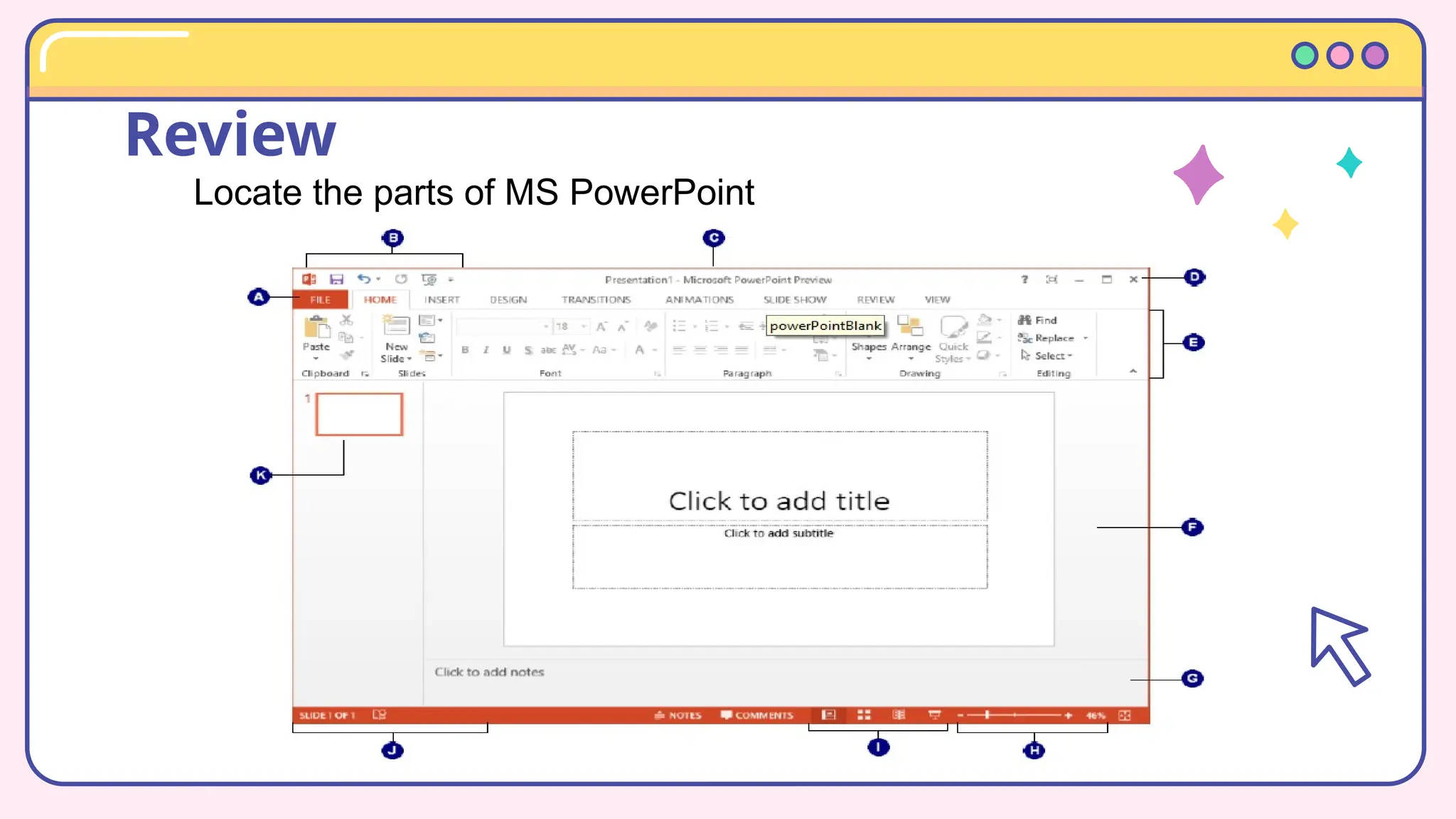
Review
Locate the parts of MS PowerPoint
Spot the difference
Which one is animation and
which one is transition?
Transition Animation
Calendars
You can describe the
topic of the section here
Reminders
You can describe the
topic of the section here
Memories
You can describe the
topic of the section here
Goals
You can describe the
topic of the section here
01
Table of contents
02
03
04
What can you say about this?
Calendars
You can describe the
topic of the section here
Reminders
You can describe the
topic of the section here
Memories
You can describe the
topic of the section here
Goals
You can describe the
topic of the section here
01
Table of contents
02
03
04
What can you say about this?
Topic for today
Animation and Transition in
Powerpoint
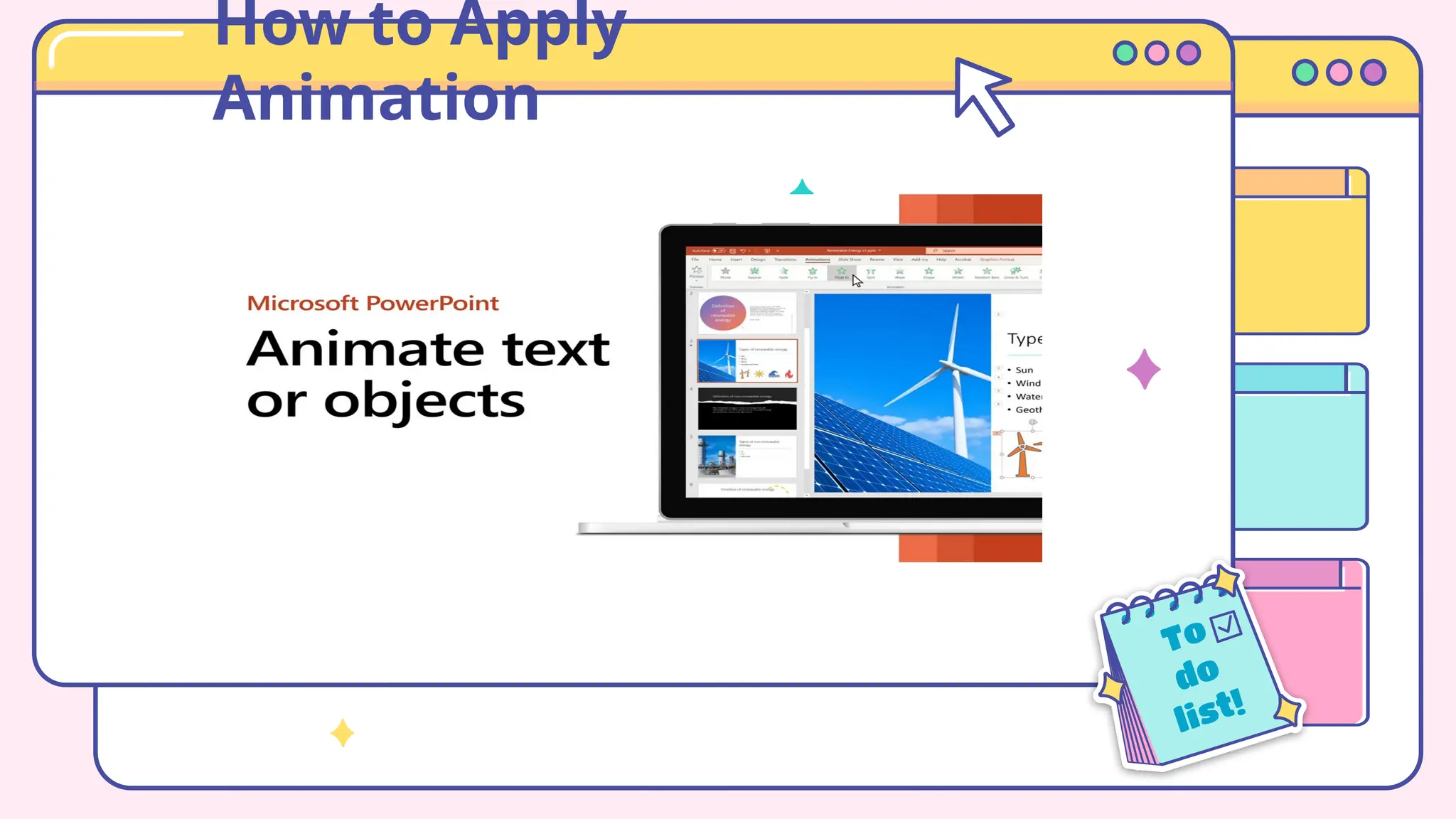
How to Apply
Animation
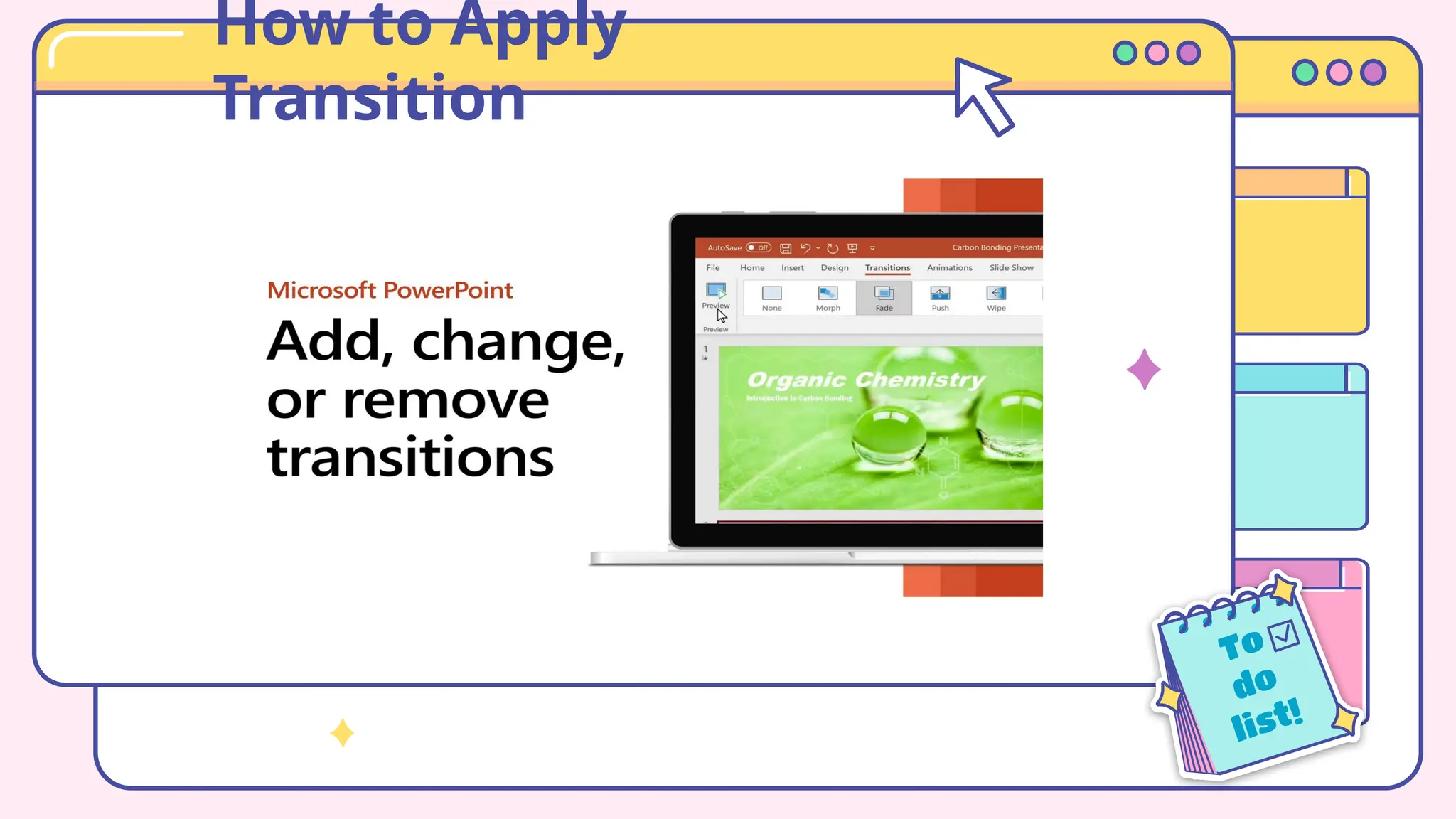
How to Apply
Transition
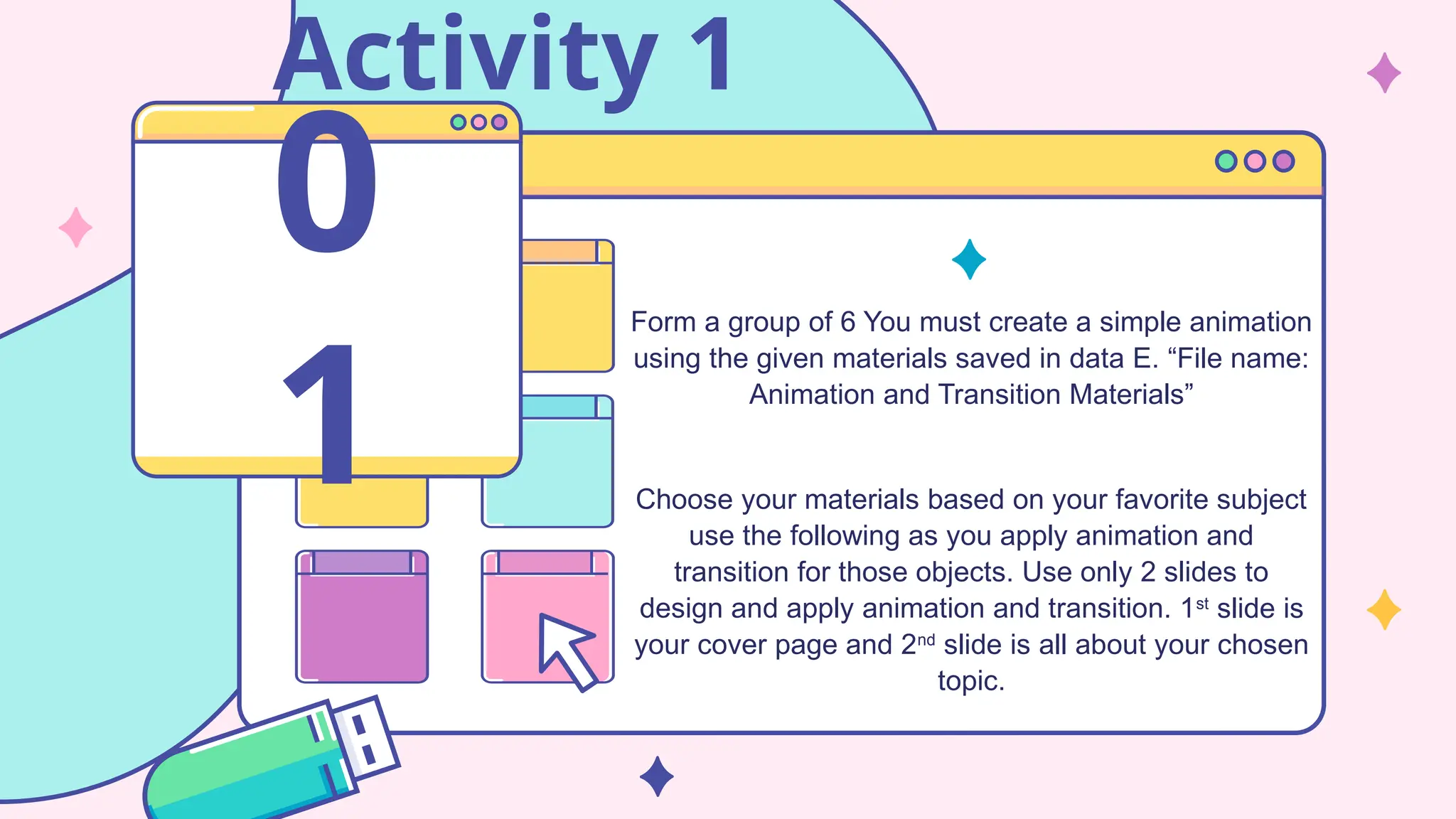
Activity 1
Form a group of 6 You must create a simple animation
using the given materials saved in data E. “File name:
Animation and Transition Materials”
Choose your materials based on your favorite subject
use the following as you apply animation and
transition for those objects. Use only 2 slides to
design and apply animation and transition. 1st
slide is
your cover page and 2nd
slide is all about your chosen
topic.
0
1
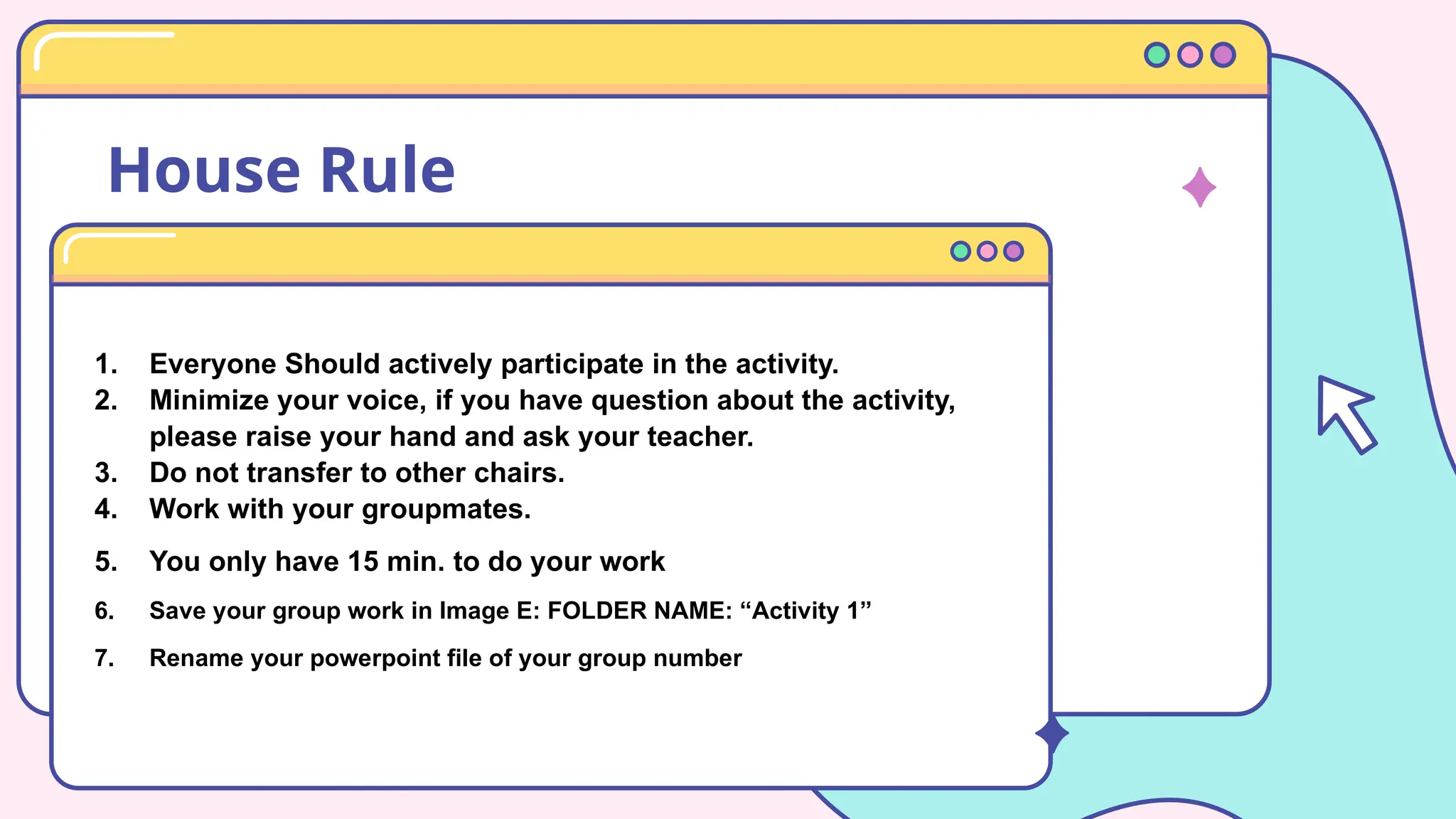
House Rule
1. Everyone Should actively participate in the activity.
2. Minimize your voice, if you have question about the activity,
please raise your hand and ask your teacher.
3. Do not transfer to other chairs.
4. Work with your groupmates.
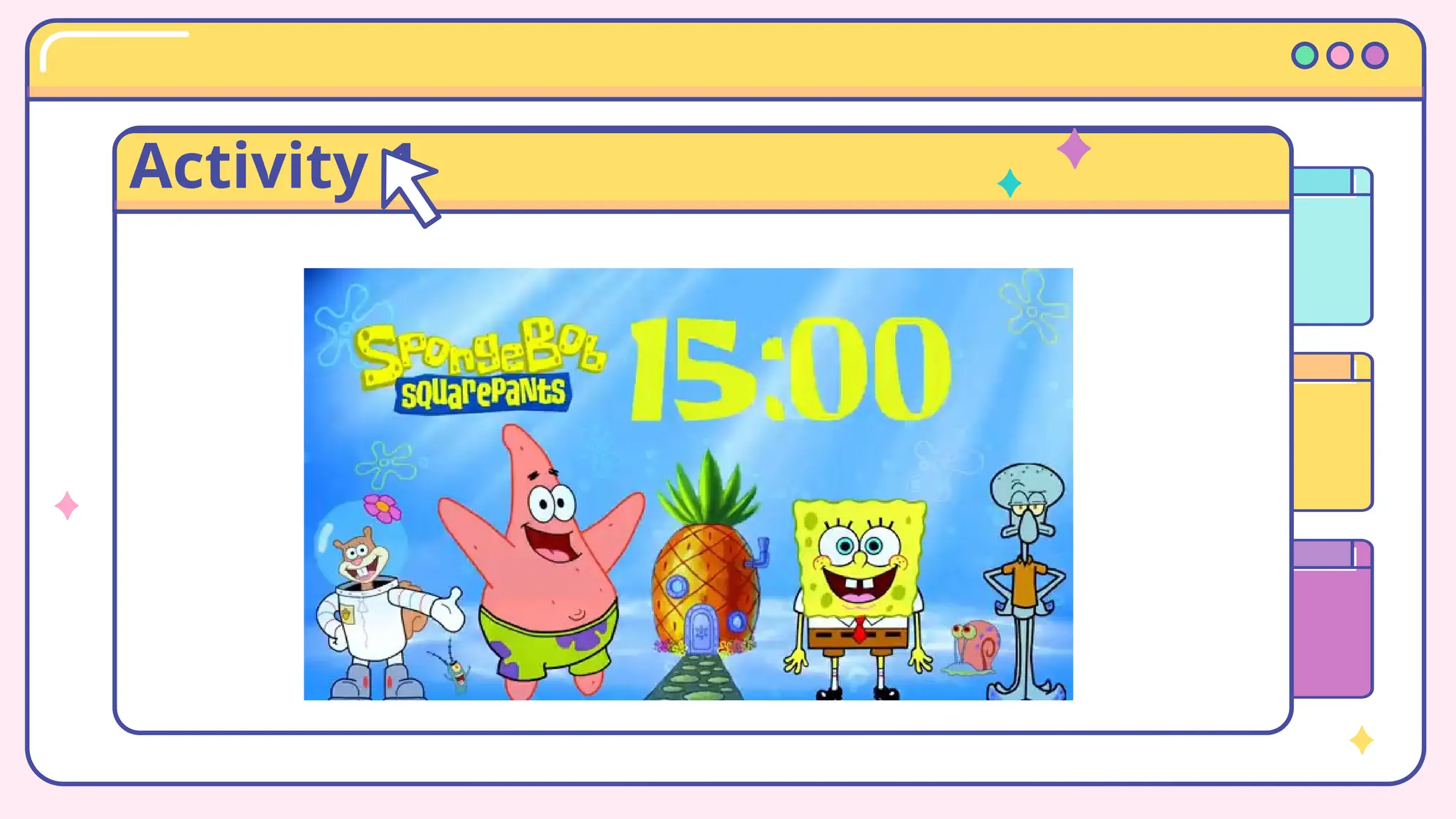
5. You only have 15 min. to do your work
6. Save your group work in Image E: FOLDER NAME: “Activity 1”
7. Rename your powerpoint file of your group number
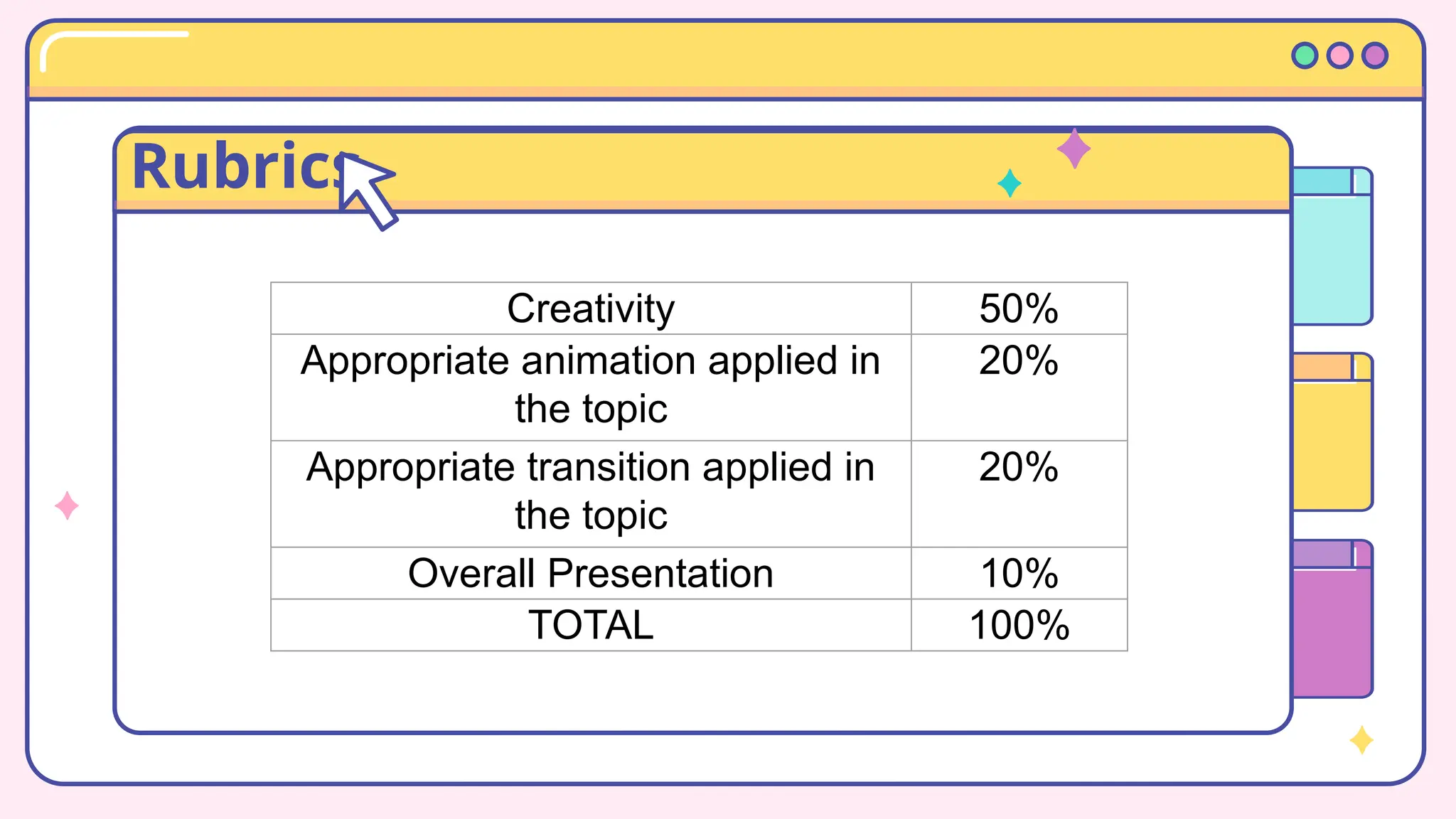
Rubrics
Creativity 50%
Appropriate animation applied in
the topic
20%
Appropriate transition applied in
the topic
20%
Overall Presentation 10%
TOTAL 100%
Activity 1
Let’s Understand
What is animation
Animation refers to a graphic element that displays movement. When
you apply some visual effects to the content in your slide or to the
entire slide then the outcome is known as an animated slide. Popular
presentation software like PowerPoint is packaged with
animation features so that you can use various animation methods to
animate graphics, texts, bullets, titles, images, and other visual
content. Animation in PowerPoint helps your audience feel interested
in the presentation. The animation artwork is created with the help of
the AutoShape features of the PowerPoint. The effects are then
applied to the objects using Custom Animation.
Let’s Understand
What is animation
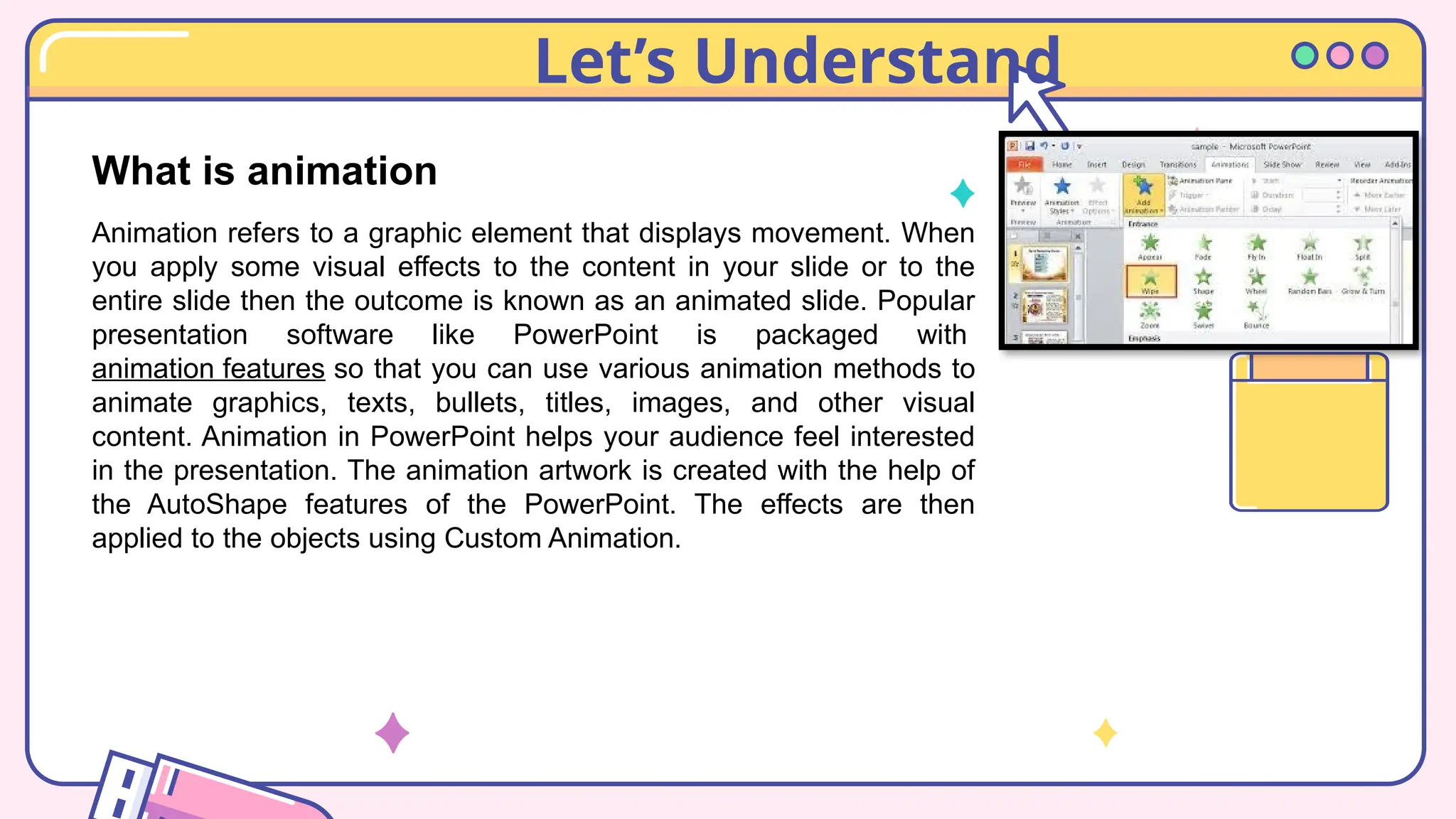
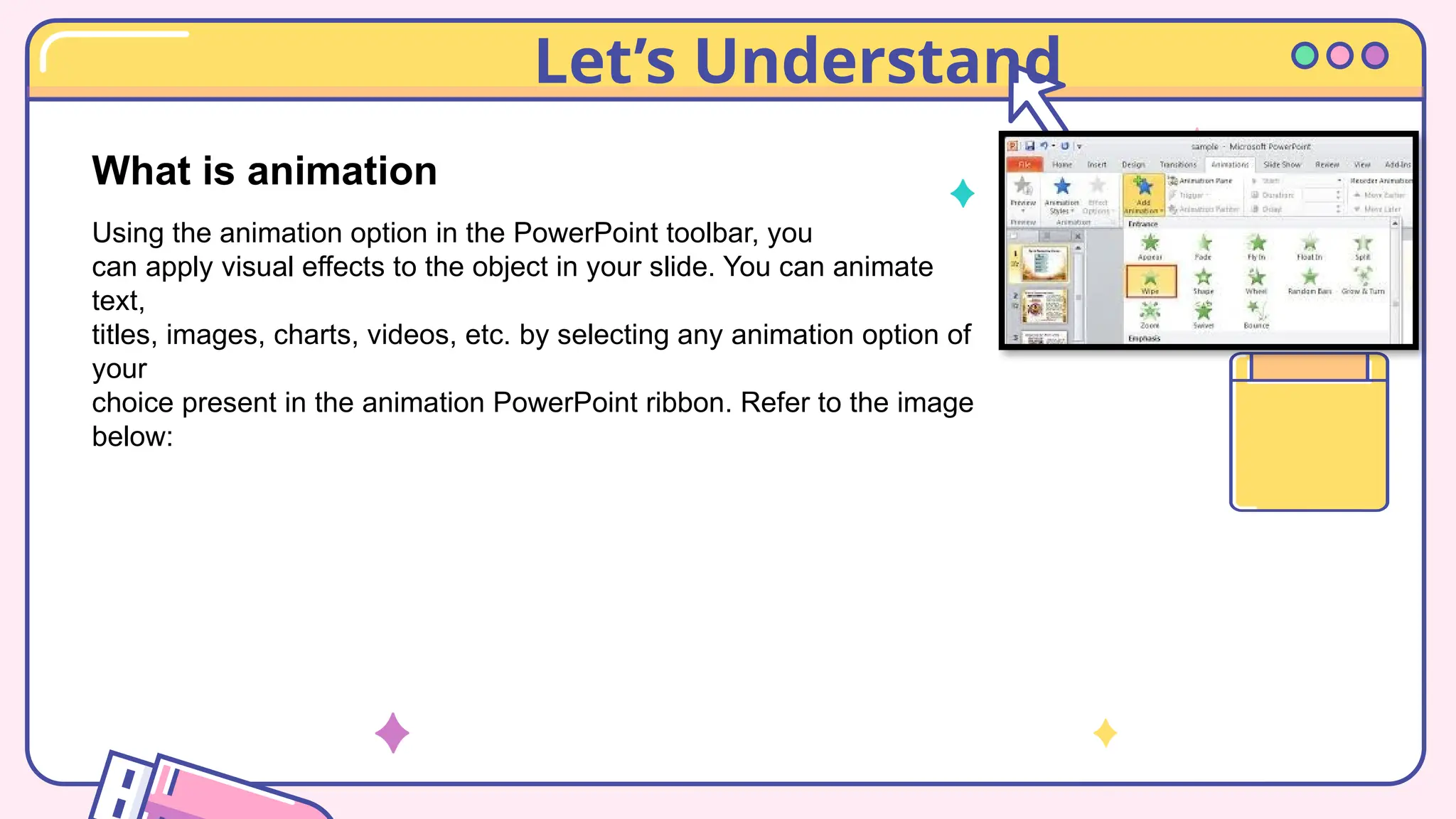
Using the animation option in the PowerPoint toolbar, you
can apply visual effects to the object in your slide. You can animate
text,
titles, images, charts, videos, etc. by selecting any animation option of
your
choice present in the animation PowerPoint ribbon. Refer to the image
below:
Let’s Understand
What is animation
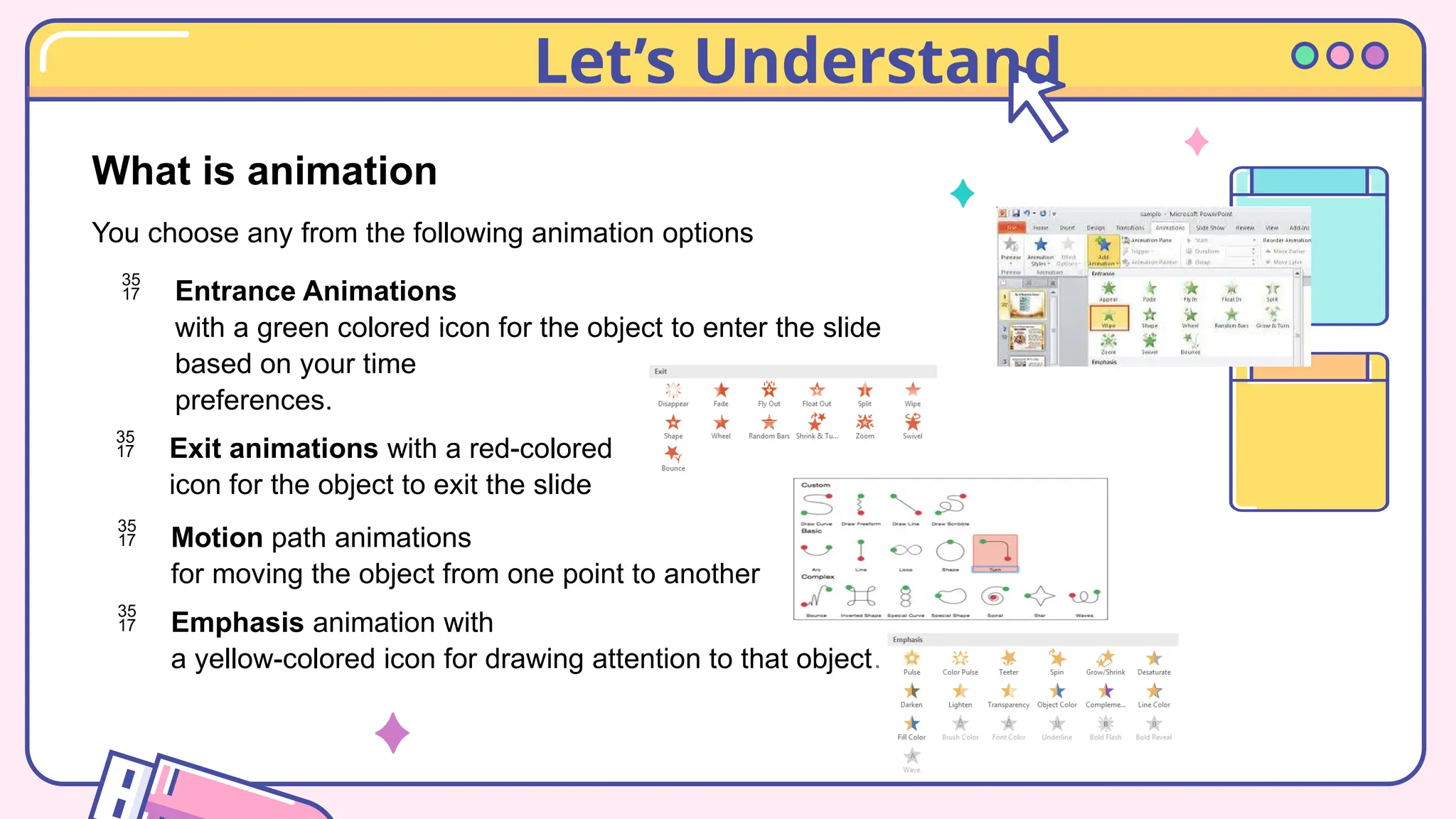
You choose any from the following animation options
 Entrance Animations
with a green colored icon for the object to enter the slide
based on your time
preferences.
 Exit animations with a red-colored
icon for the object to exit the slide
 Motion path animations
for moving the object from one point to another
 Emphasis animation with
a yellow-colored icon for drawing attention to that object.
Let’s Understand
Managing Animation
 ON CLICK – Start an animation when you click a slide
 WITH PREVIOUS – Play an animation at the same
time
 AFTER PREVIOUS – Start an animation immediately
after the previous one happens.
 Duration – Lengthen or shorten an effect.
 Delay – Add time before an effect runs.
Let’s Understand
What is animation PANE?
The Animation Pane is a tool that displays the
list of animated objects on your slide. If you
have several animated objects, such as text
and images, a well-thought-out and organized
sequence of those objects is imperative to
creating a visually appealing slide
Let’s Understand
What is Transition?
A slide transition is the visual effect that occurs
when you move from one slide to the next during a
presentation. You can control the speed, add sound,
and customize the look of transition effects.
Note: Only one transition effect can be applied to a
slide at a time. So if a slide already has a transition
effect applied to it, you can change to a different
effect by going to the Transitions tab and simply
selecting the effect you prefer.
Let’s Understand
What is Transition?
If you want to change an existing effect by modifying the timing or
direction of it, you can do that by using the options on
the Transitions tab of the ribbon, at the far end:
Select the slide that has the transition you want to modify.
On the Transitions tab, select Effect Options, then choose an
option from the menu that appears.
In the Timing group on the Transitions tab, you can change the
duration of the effect. You can also specify whether the effect
takes place after a mouse click or after a certain amount of
time passes. There are also options for adding a sound to the
transition effect or applying the transition to all slides in the
slide show.
Activity
Open the file save in data E. FILE NAME
“Enhance my sills in animation and
transition”
2
Your task is to promote a new brand of
Cellphone I PHONE PRO MAX. using
animation and transition create an interactive
presentation
Slide 1 includes the phone and its
specification
Slide 2 includes the shop and the store
information.
Exit Ticket
Name 3 things
you have
learned today
Ask 1 question
about today’s
lesson
List 2 things you want
to learn more about
in a ½ sheet of paper Copy and answer the
following
Exit Ticket
Name 3
things you
have
learned
today
in a ½ sheet of paper Copy and
answer the following
List 2
things you
want to
learn more
about
List 2
things you
want to
learn more
about
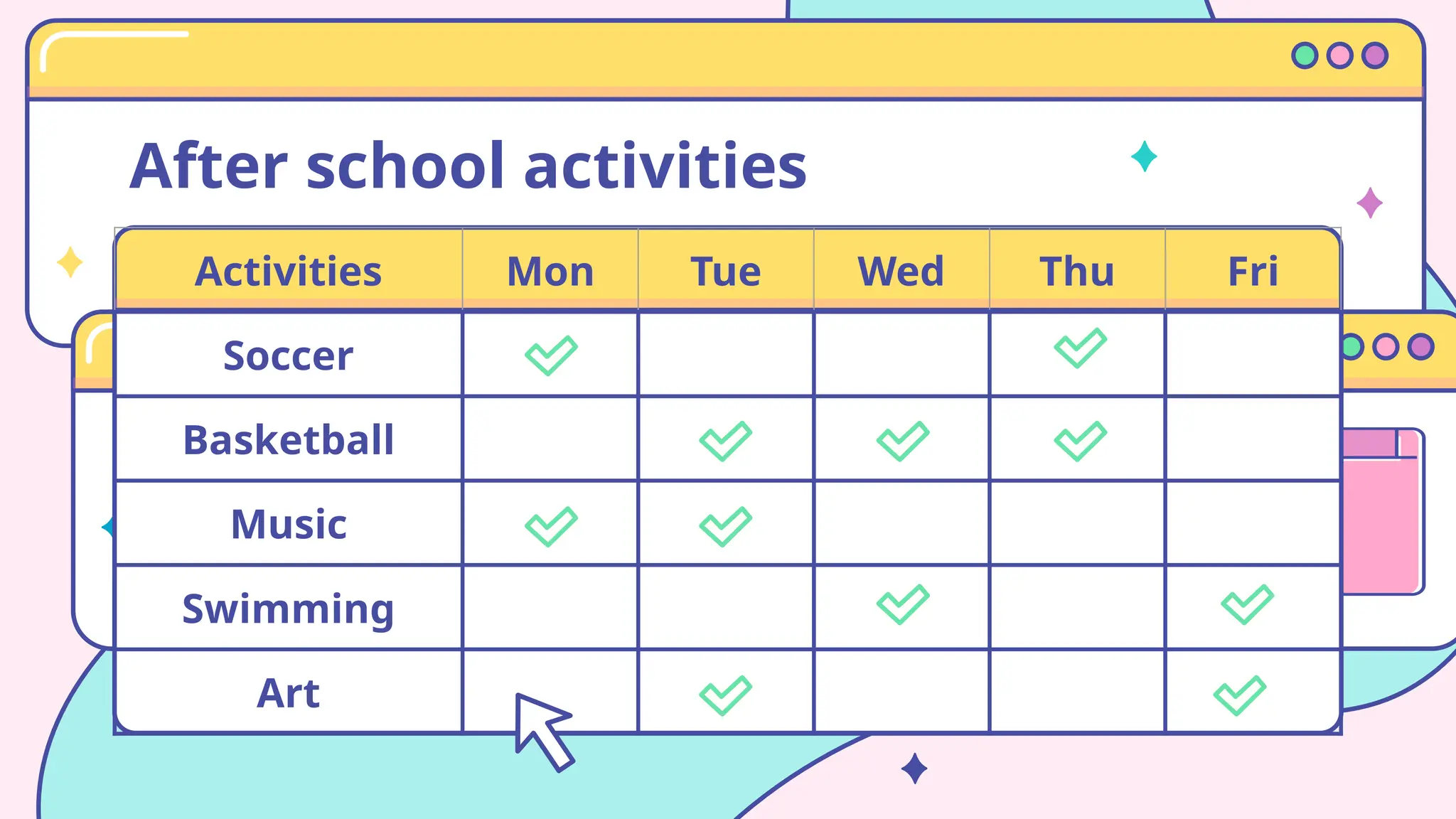
After school activities
Activities Mon Tue Wed Thu Fri
Soccer
Basketball
Music
Swimming
Art
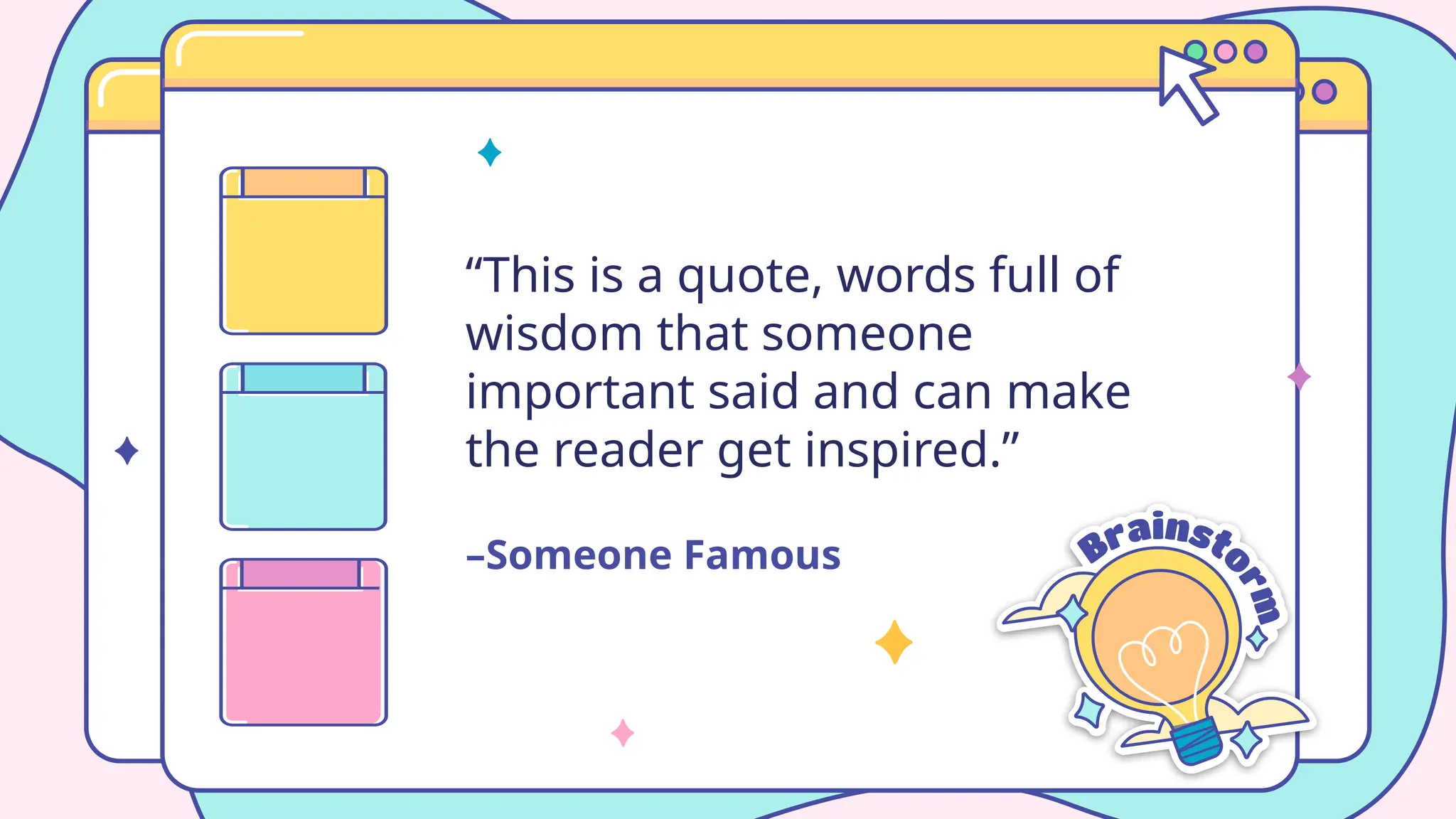
–Someone Famous
“This is a quote, words full of
wisdom that someone
important said and can make
the reader get inspired.”
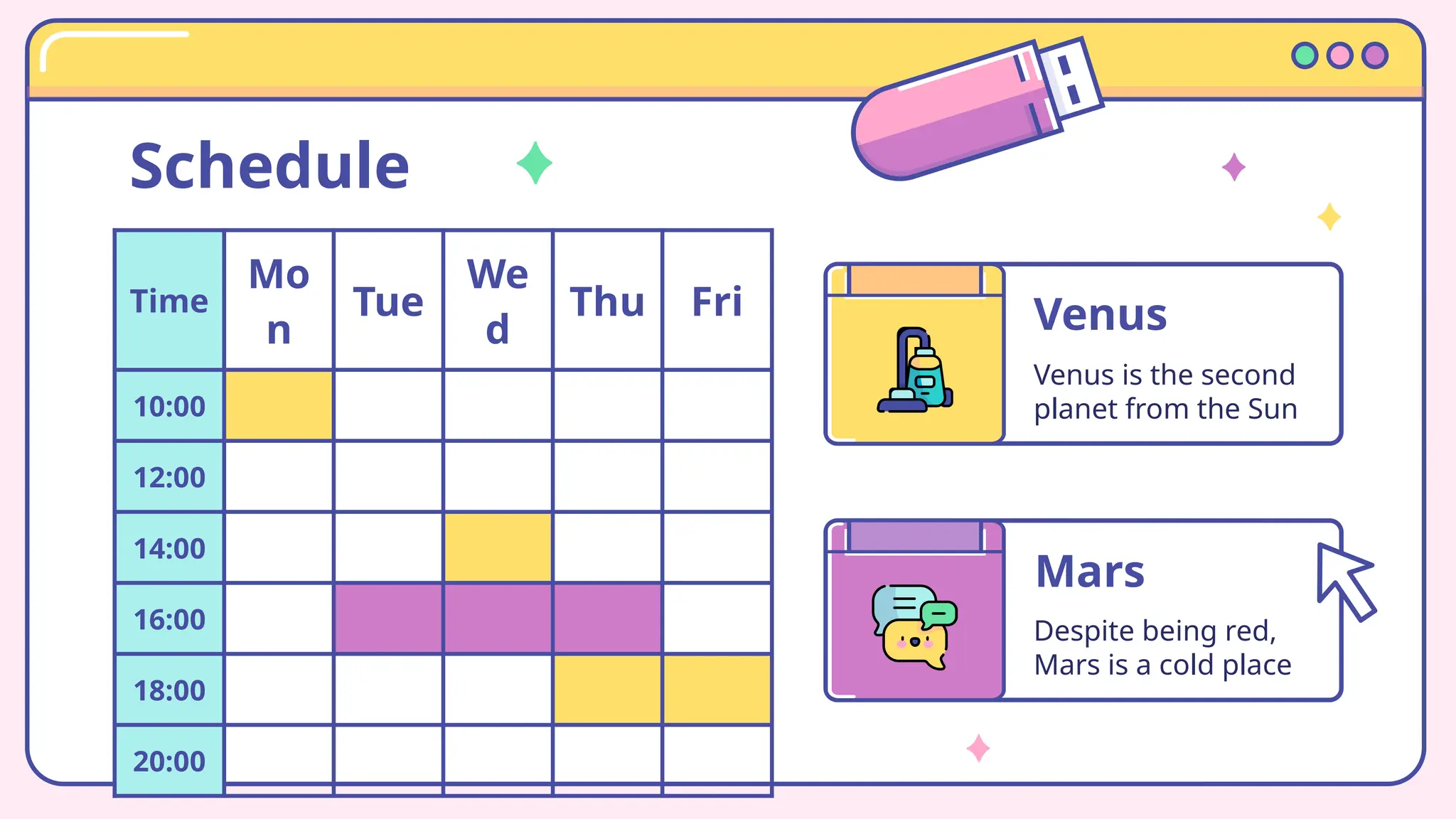
Schedule
Time
Mo
n
Tue
We
d
Thu Fri
10:00
12:00
14:00
16:00
18:00
20:00
Venus
Venus is the second
planet from the Sun
Mars
Despite being red,
Mars is a cold place
⇨ Note your activities
Priorities
High priority Low priority
Awesom
e words
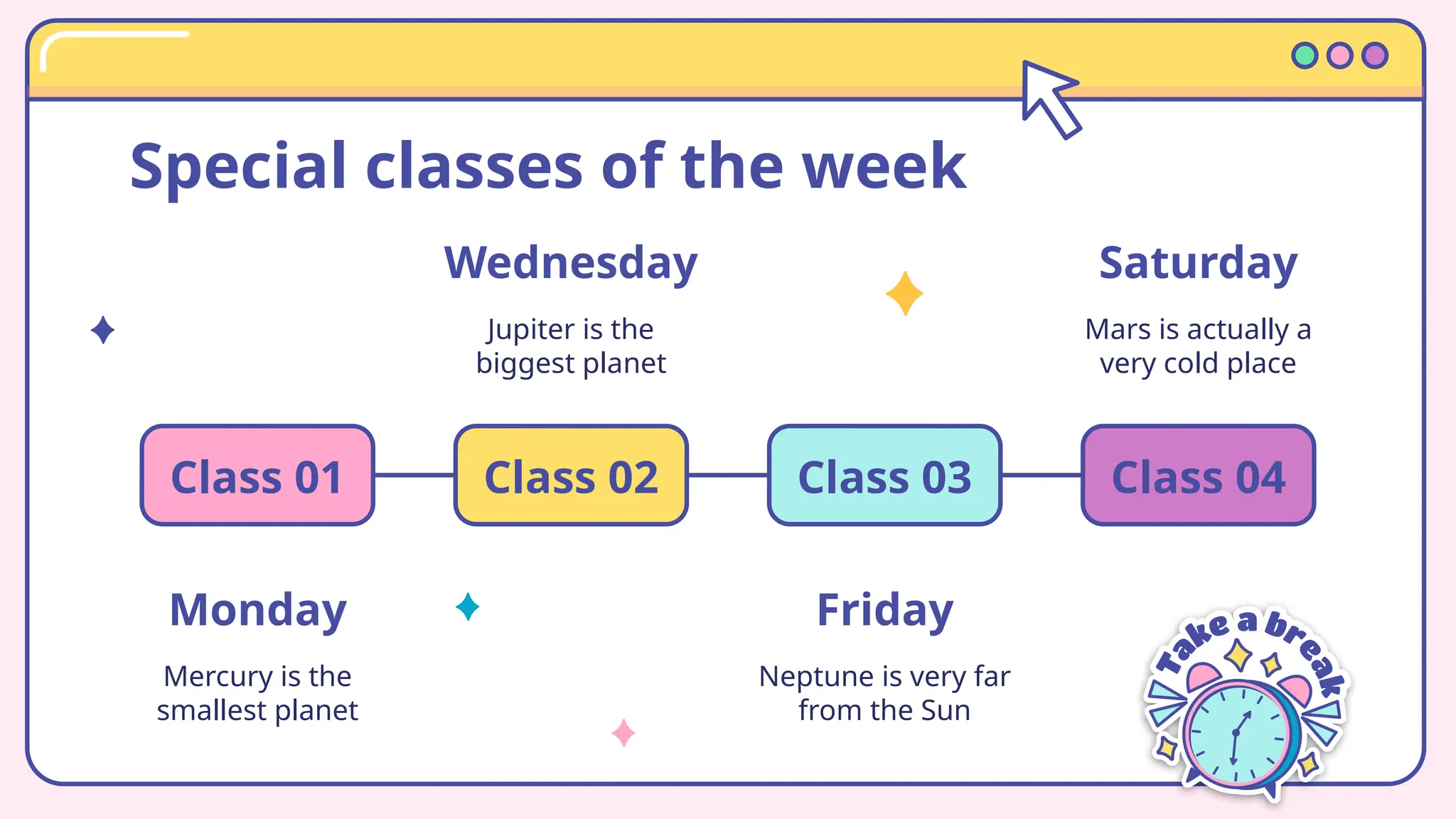
Special classes of the week
Monday
Mercury is the
smallest planet
Class 01
Wednesday
Jupiter is the
biggest planet
Class 02
Friday
Neptune is very far
from the Sun
Class 03
Saturday
Mars is actually a
very cold place
Class 04
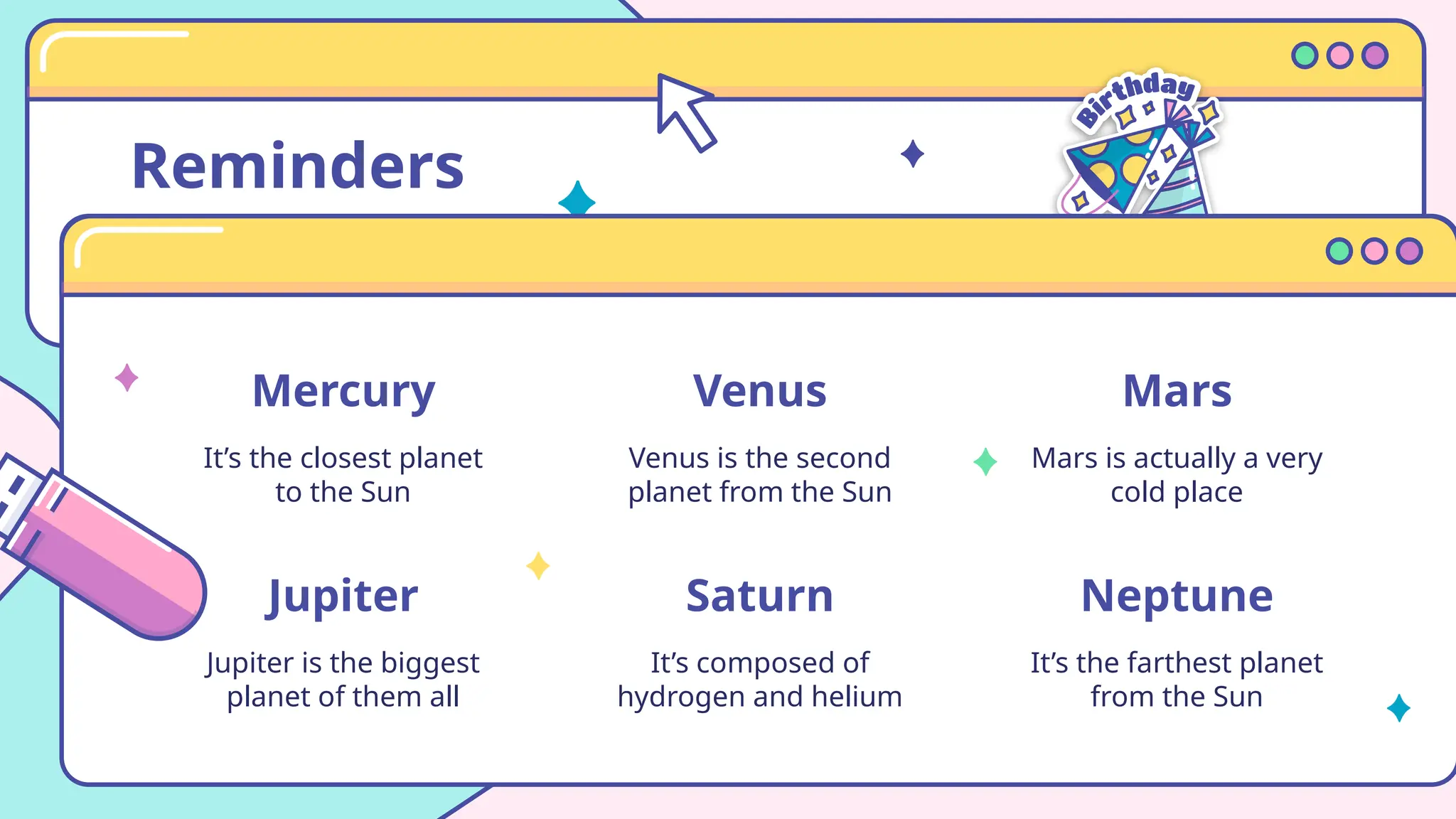
Reminders
Mercury
It’s the closest planet
to the Sun
Venus
Venus is the second
planet from the Sun
Jupiter
Jupiter is the biggest
planet of them all
Saturn
It’s composed of
hydrogen and helium
Mars
Mars is actually a very
cold place
Neptune
It’s the farthest planet
from the Sun
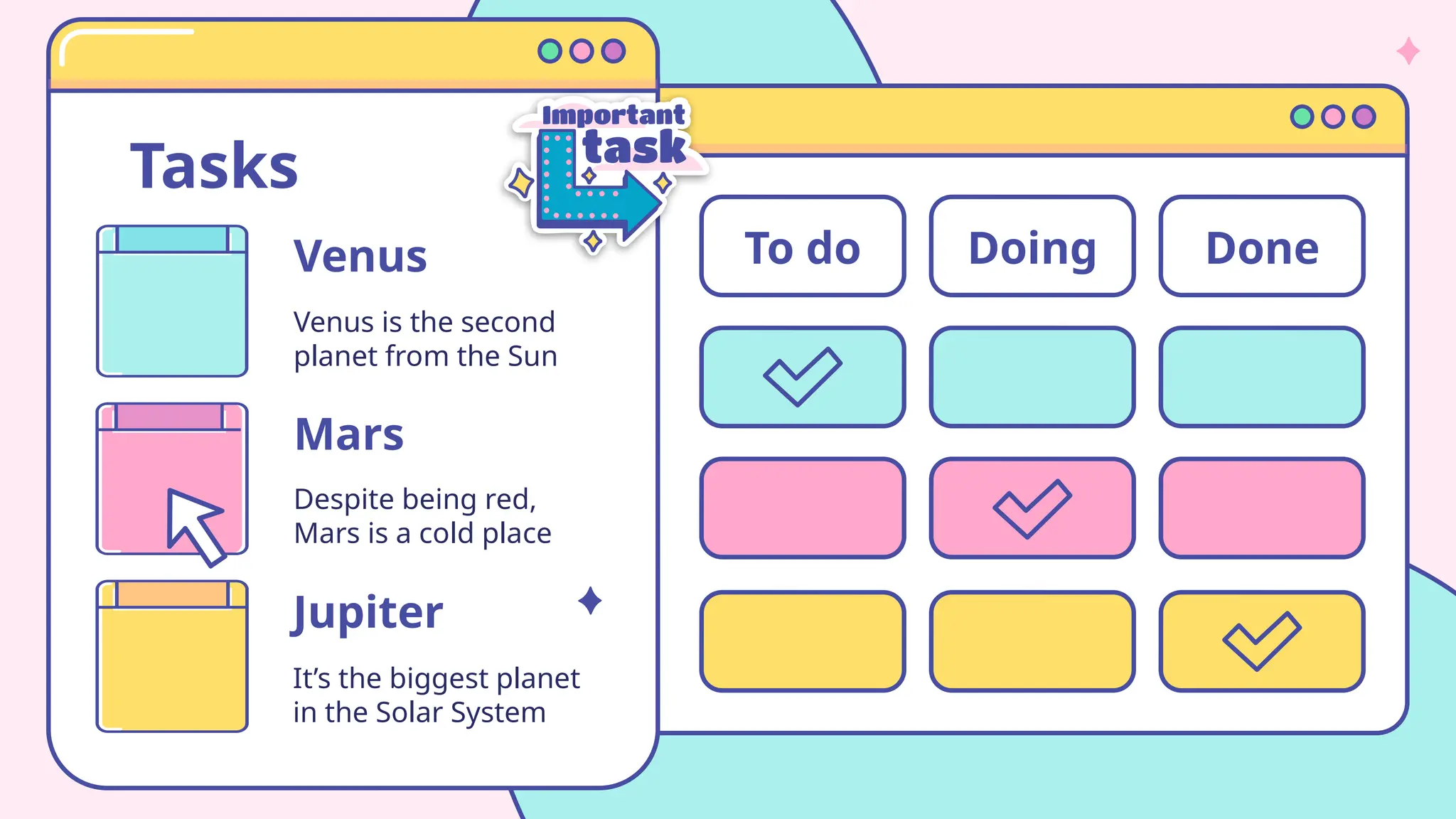
Tasks
Venus
Venus is the second
planet from the Sun
Jupiter
It’s the biggest planet
in the Solar System
Despite being red,
Mars is a cold place
Mars
To do Doing Done
>
Goals
0
3
You can enter a subtitle
here if you need it
A picture is worth
a thousand words
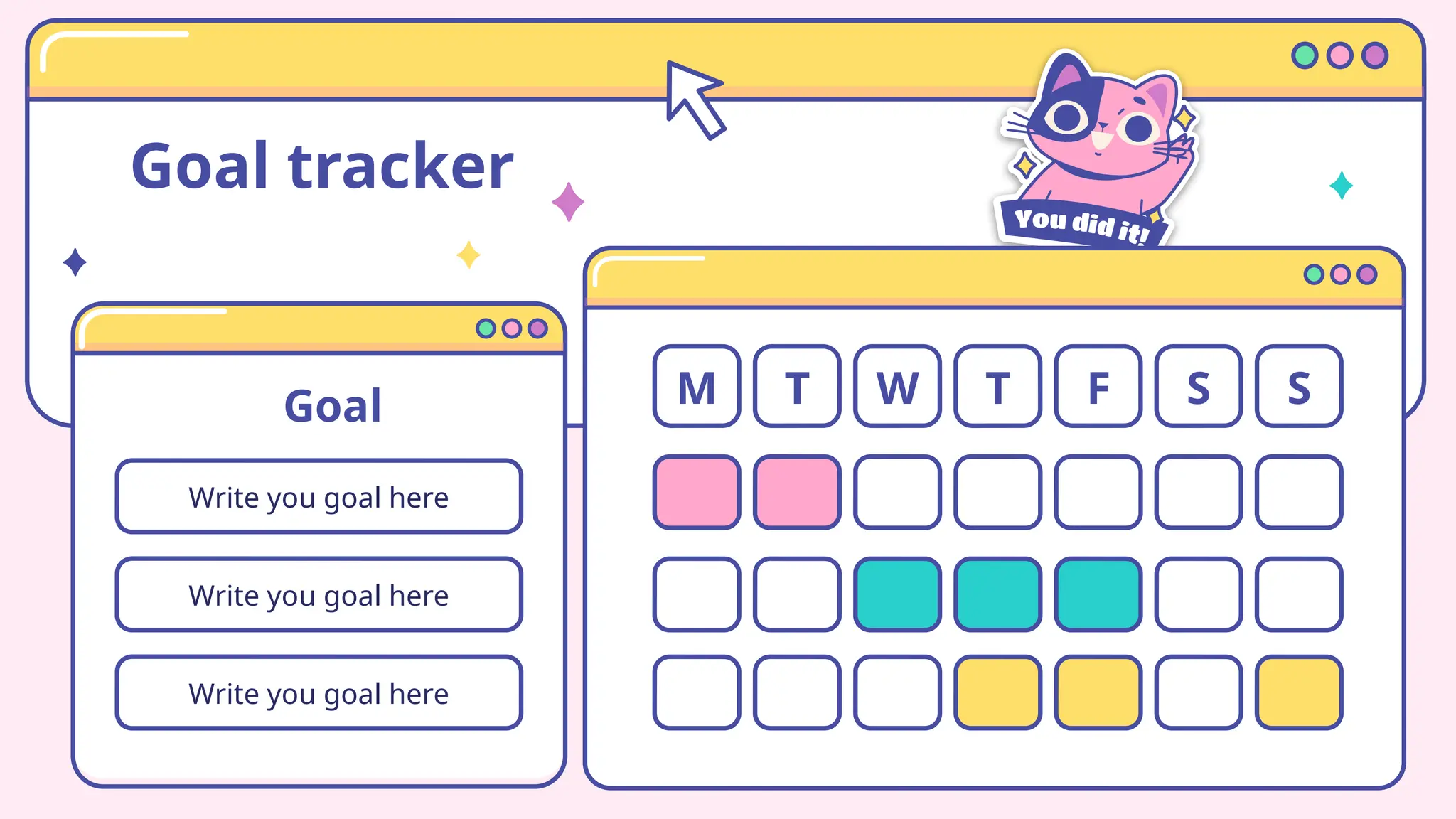
Goal tracker
Goal
Write you goal here
Write you goal here
Write you goal here
M T W T F S S
Computer
You can replace the image on
the screen with your own work.
Just right-click on it and select
“Replace image”
Tablet
You can replace the image on
the screen with your own work.
Just right-click on it and select
“Replace image”
Smartphone
You can replace the image on
the screen with your own work.
Just right-click on it and select
“Replace image”
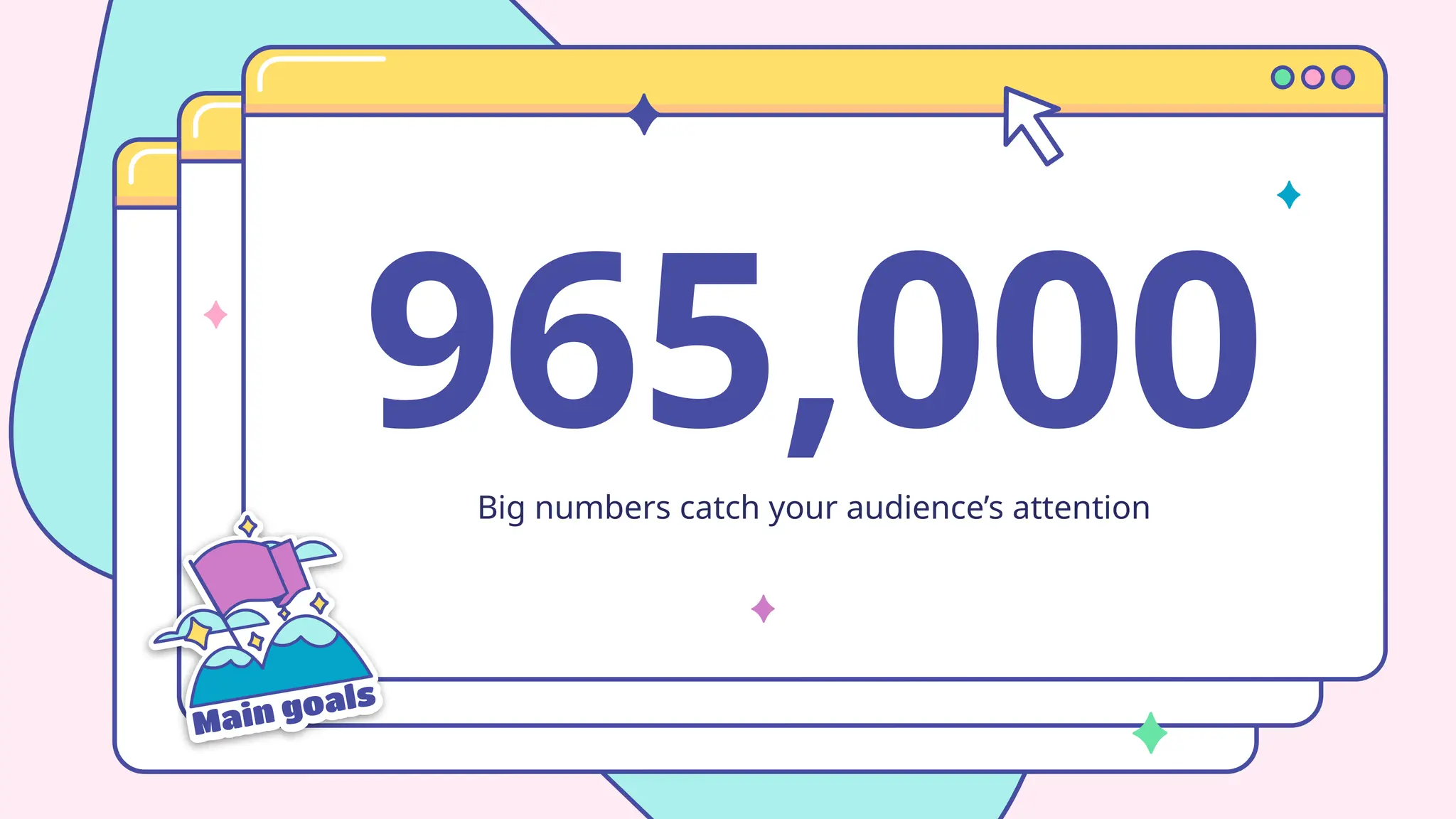
965,000
Big numbers catch your audience’s attention
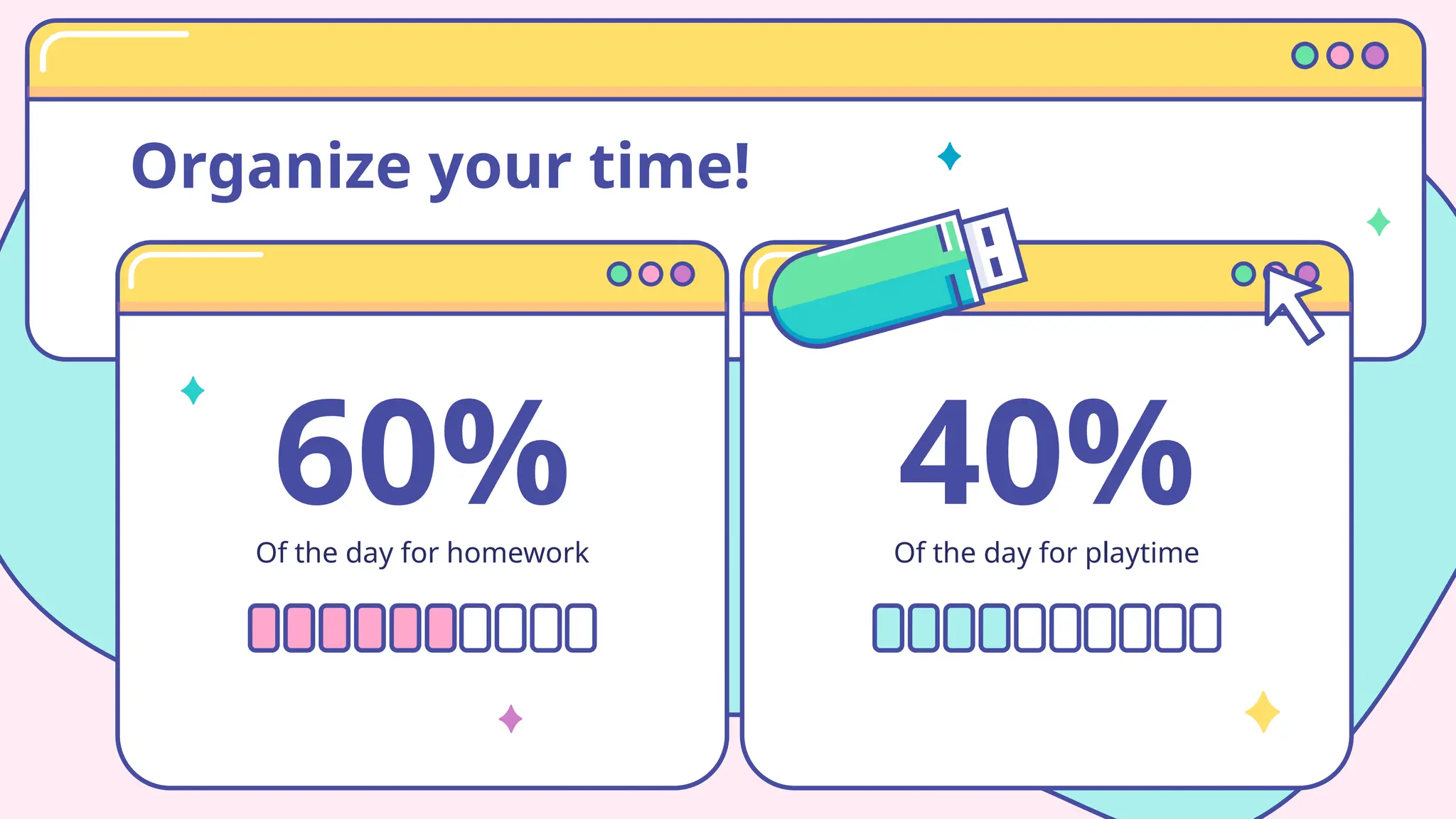
60%
Of the day for homework
40%
Of the day for playtime
Organize your time!
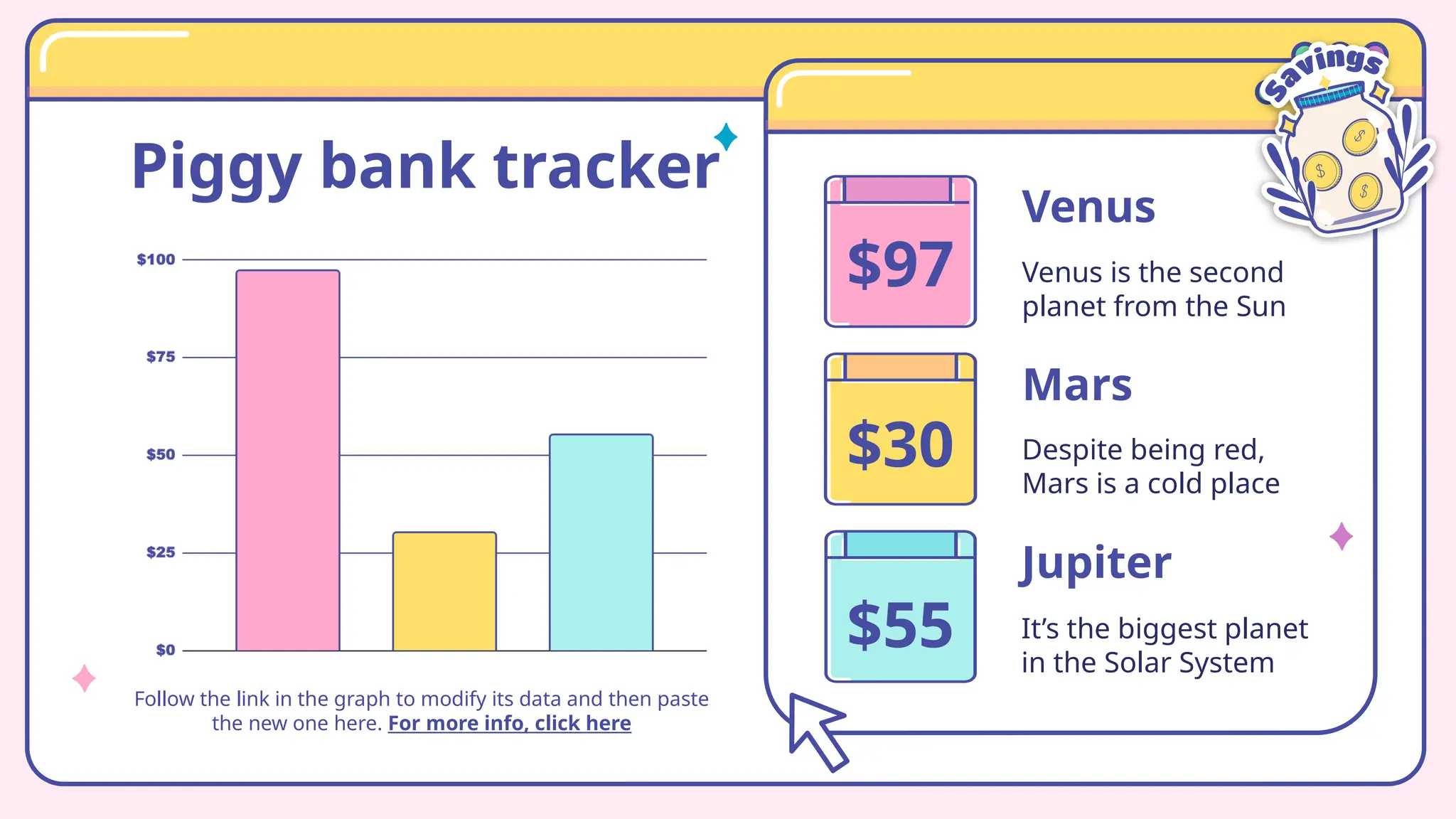
Piggy bank tracker
Follow the link in the graph to modify its data and then paste
the new one here. For more info, click here
Venus
Venus is the second
planet from the Sun
Jupiter
It’s the biggest planet
in the Solar System
Despite being red,
Mars is a cold place
Mars
$97
$30
$55
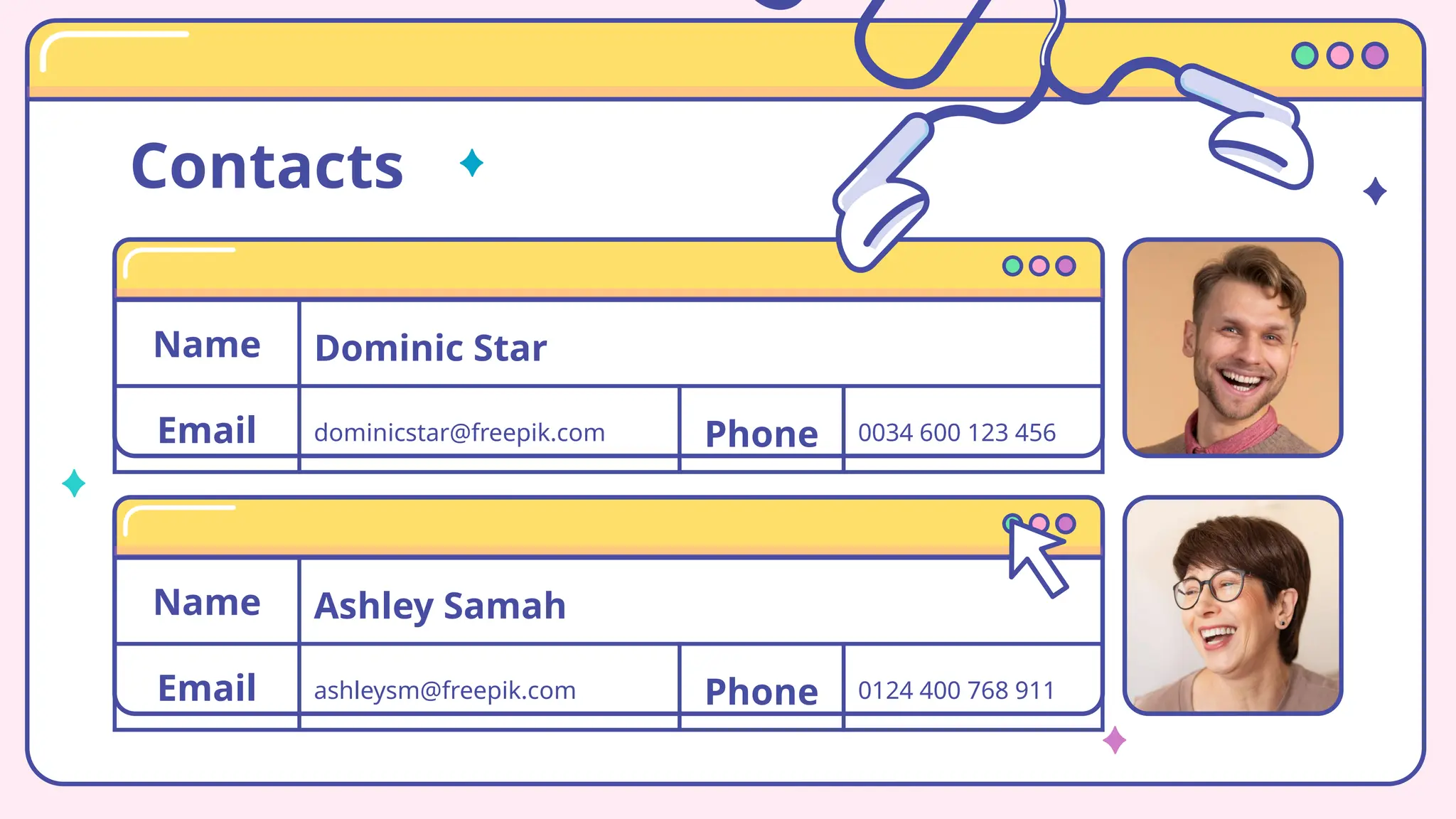
Name Ashley Samah
Email ashleysm@freepik.com Phone 0124 400 768 911
Contacts
Name Dominic Star
Email dominicstar@freepik.com Phone 0034 600 123 456
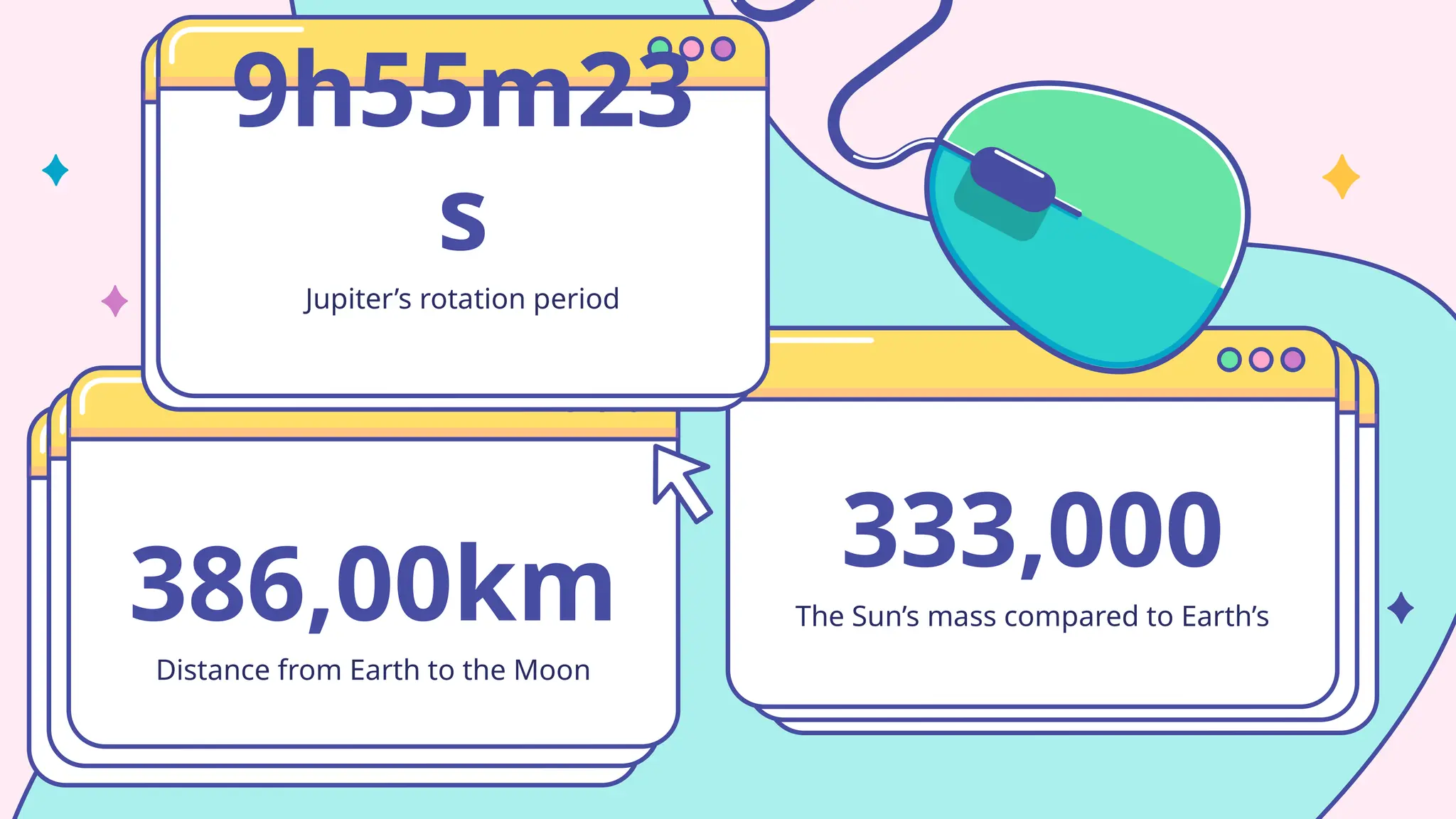
Distance from Earth to the Moon
386,00km
Jupiter’s rotation period
9h55m23
s
The Sun’s mass compared to Earth’s
333,000
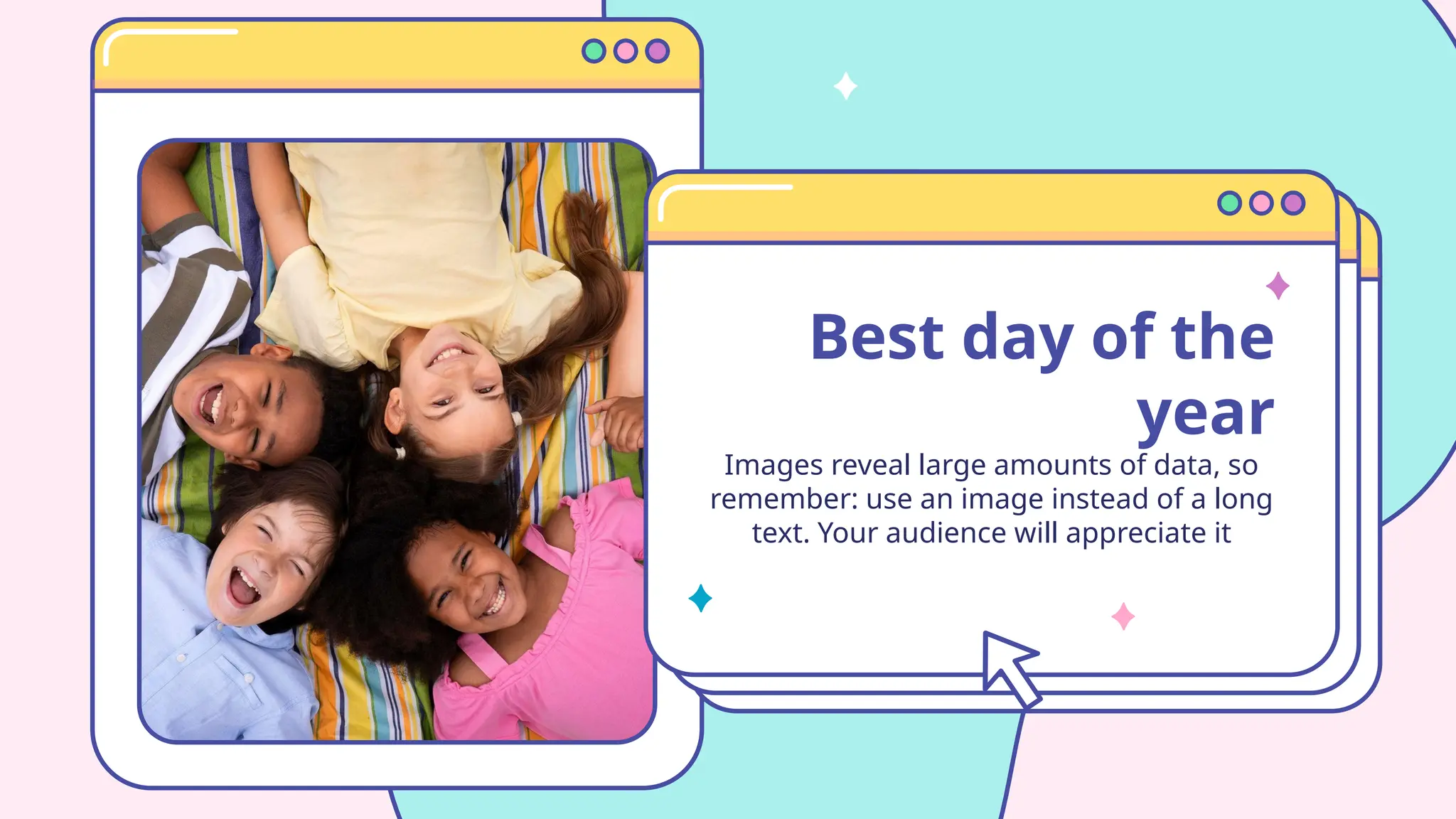
Images reveal large amounts of data, so
remember: use an image instead of a long
text. Your audience will appreciate it
Best day of the
year
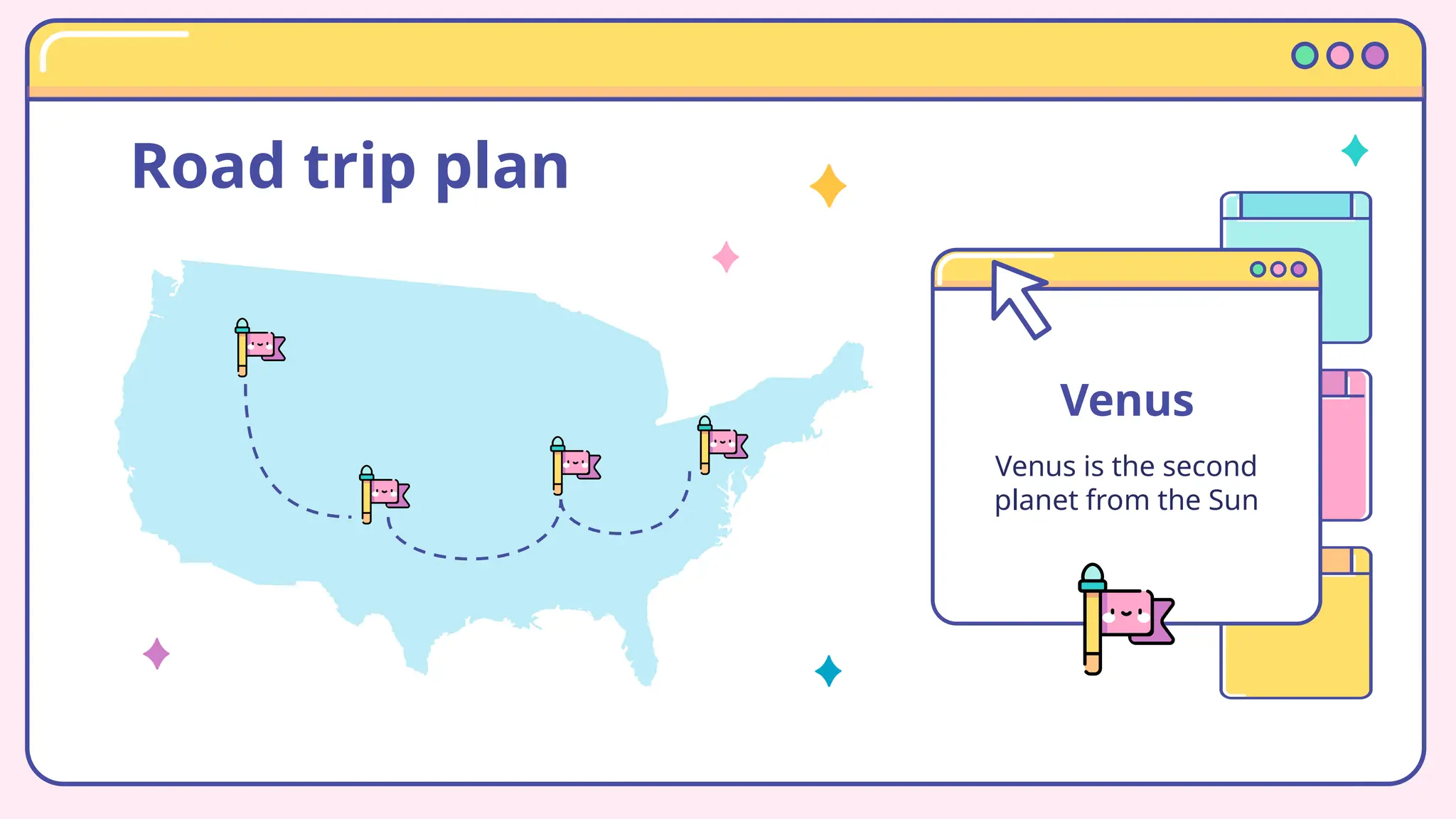
Road trip plan
Venus
Venus is the second
planet from the Sun
CREDITS: This presentation template was created
by Slidesgo, including icons by Flaticon, and
infographics & images by Freepik
Thanks
!
Do you have any questions?
youremail@freepik.com
+91 620 421 838
yourwebsite.com
Please keep this slide for attribution
Icon pack
Alternative resources
Here’s an assortment of alternative resources whose style fits the one of this template:
Vectors:
⇨ Good job and great job stickers set I
⇨ Great job and good job sticker collection
⇨ Good job and great job stickers set II
⇨ Flat colorful creativity collection
⇨ Kawaii sticker set
⇨ Collection of flat design traveling stickers
⇨ Cute planner scrapbook set
Resources
Did you like the resources of this template? Get them for free at our other websites:
Photos:
⇨ Medium shot kids laying together
⇨ Young father and daughter playing together before traveling
⇨ Senior woman doing exercises at home
⇨ Lovely little girl using her laptop
Vectors:
⇨ School timetable and technology
⇨ Naive planner stickers I
⇨ Naive planner stickers II
⇨ Naive planner stickers III
⇨ Naive planner stickers IV
Icons:
⇨ Icon Pack: Daily Planner | Lineal color
For more information about editing slides, please read our FAQs or visit Slidesgo School:
https://slidesgo.com/faqs and https://slidesgo.com/slidesgo-school
Instructions for use
If you have a free account, in order to use this template, you must credit Slidesgo by keeping the Thanks slide. Please
refer to the next slide to read the instructions for premium users.
As a Free user, you are allowed to:
- Modify this template.
- Use it for both personal and commercial projects.
You are not allowed to:
- Sublicense, sell or rent any of Slidesgo Content (or a modified version of Slidesgo Content).
- Distribute Slidesgo Content unless it has been expressly authorized by Slidesgo.
- Include Slidesgo Content in an online or offline database or file.
- Offer Slidesgo templates (or modified versions of Slidesgo templates) for download.
- Acquire the copyright of Slidesgo Content.
As a Premium user, you can use this template without attributing Slidesgo or keeping the "Thanks" slide.
You are allowed to:
● Modify this template.
● Use it for both personal and commercial purposes.
● Hide or delete the “Thanks” slide and the mention to Slidesgo in the credits.
● Share this template in an editable format with people who are not part of your team.
You are not allowed to:
● Sublicense, sell or rent this Slidesgo Template (or a modified version of this Slidesgo Template).
● Distribute this Slidesgo Template (or a modified version of this Slidesgo Template) or include it in a database or in
any other product or service that offers downloadable images, icons or presentations that may be subject to
distribution or resale.
● Use any of the elements that are part of this Slidesgo Template in an isolated and separated way from this
Template.
● Register any of the elements that are part of this template as a trademark or logo, or register it as a work in an
intellectual property registry or similar.
For more information about editing slides, please read our FAQs or visit Slidesgo School:
https://slidesgo.com/faqs and https://slidesgo.com/slidesgo-school
Instructions for use (premium users)
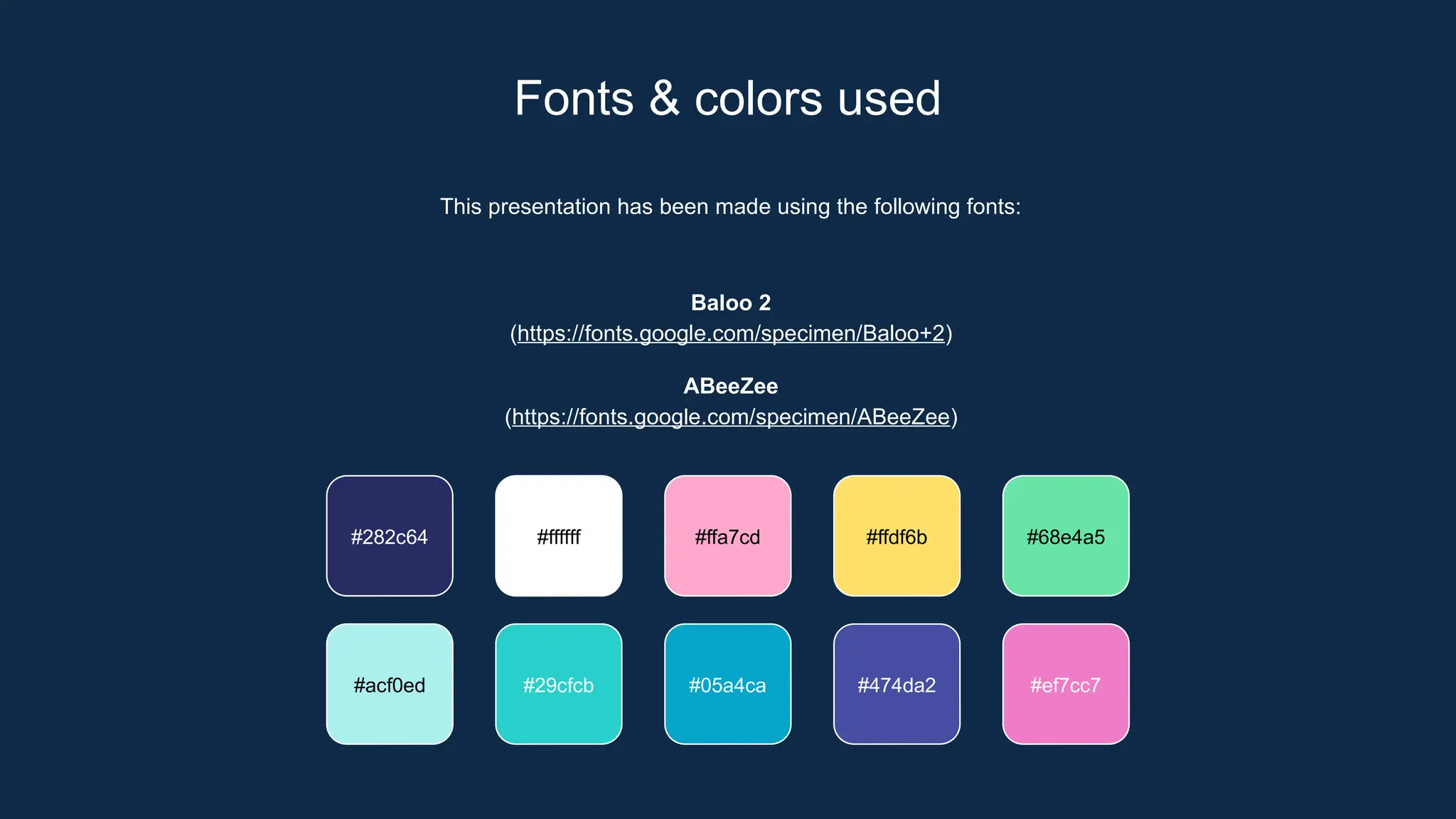
This presentation has been made using the following fonts:
Baloo 2
(https://fonts.google.com/specimen/Baloo+2)
ABeeZee
(https://fonts.google.com/specimen/ABeeZee)
#282c64 #ffffff #ffa7cd #ffdf6b
#acf0ed #29cfcb #05a4ca #474da2
#68e4a5
#ef7cc7
Fonts & colors used
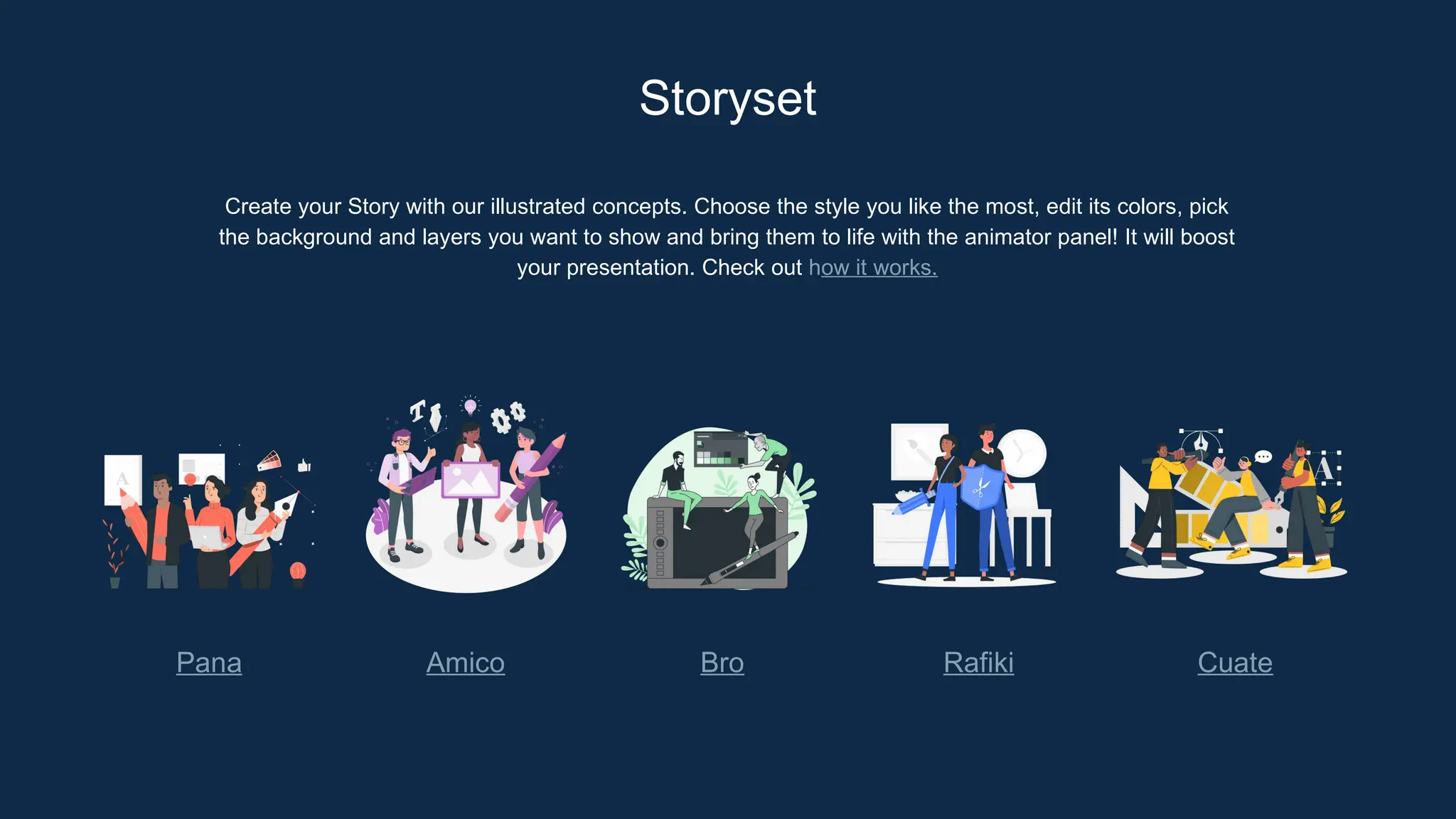
Create your Story with our illustrated concepts. Choose the style you like the most, edit its colors, pick
the background and layers you want to show and bring them to life with the animator panel! It will boost
your presentation. Check out how it works.
Storyset
Pana Amico Bro Rafiki Cuate
You can easily resize these resources without losing quality. To change the color, just ungroup the resource
and click on the object you want to change. Then, click on the paint bucket and select the color you want.
Group the resource again when you’re done. You can also look for more infographics on Slidesgo.
Use our editable graphic resources...
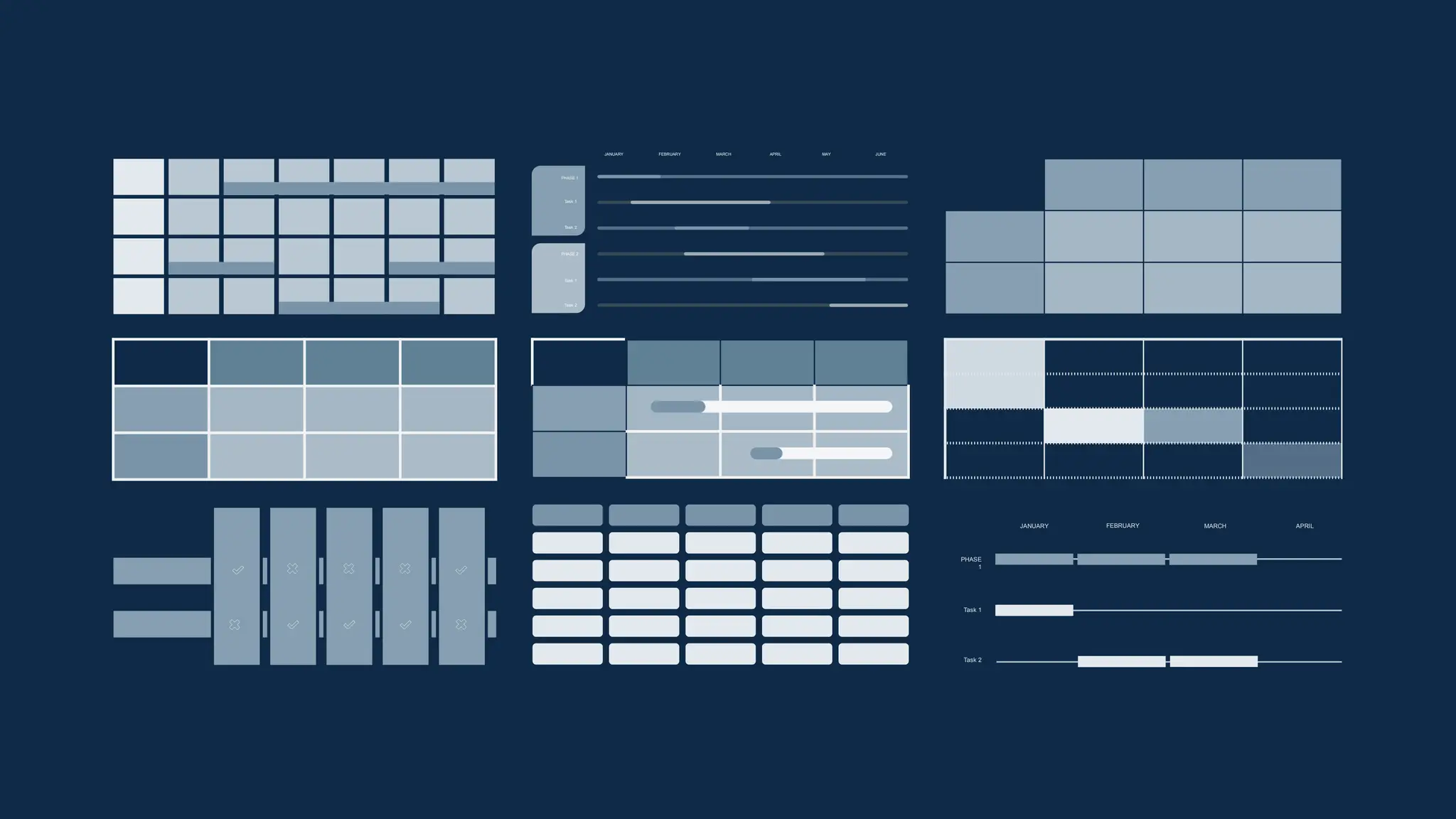
JANUARY FEBRUARY MARCH APRIL MAY JUNE
PHASE 1
PHASE 2
Task 1
Task 2
Task 1
Task 2
JANUARY FEBRUARY MARCH APRIL
PHASE
1
Task 1
Task 2
You can resize these icons without losing quality.
You can change the stroke and fill color; just select the icon and click on the paint bucket/pen.
In Google Slides, you can also use Flaticon’s extension, allowing you to customize and add even more icons.
...and our sets of editable icons
Educational Icons Medical Icons
Business Icons Teamwork Icons
Help & Support Icons Avatar Icons
Creative Process Icons Performing Arts Icons
Nature Icons
SEO & Marketing Icons
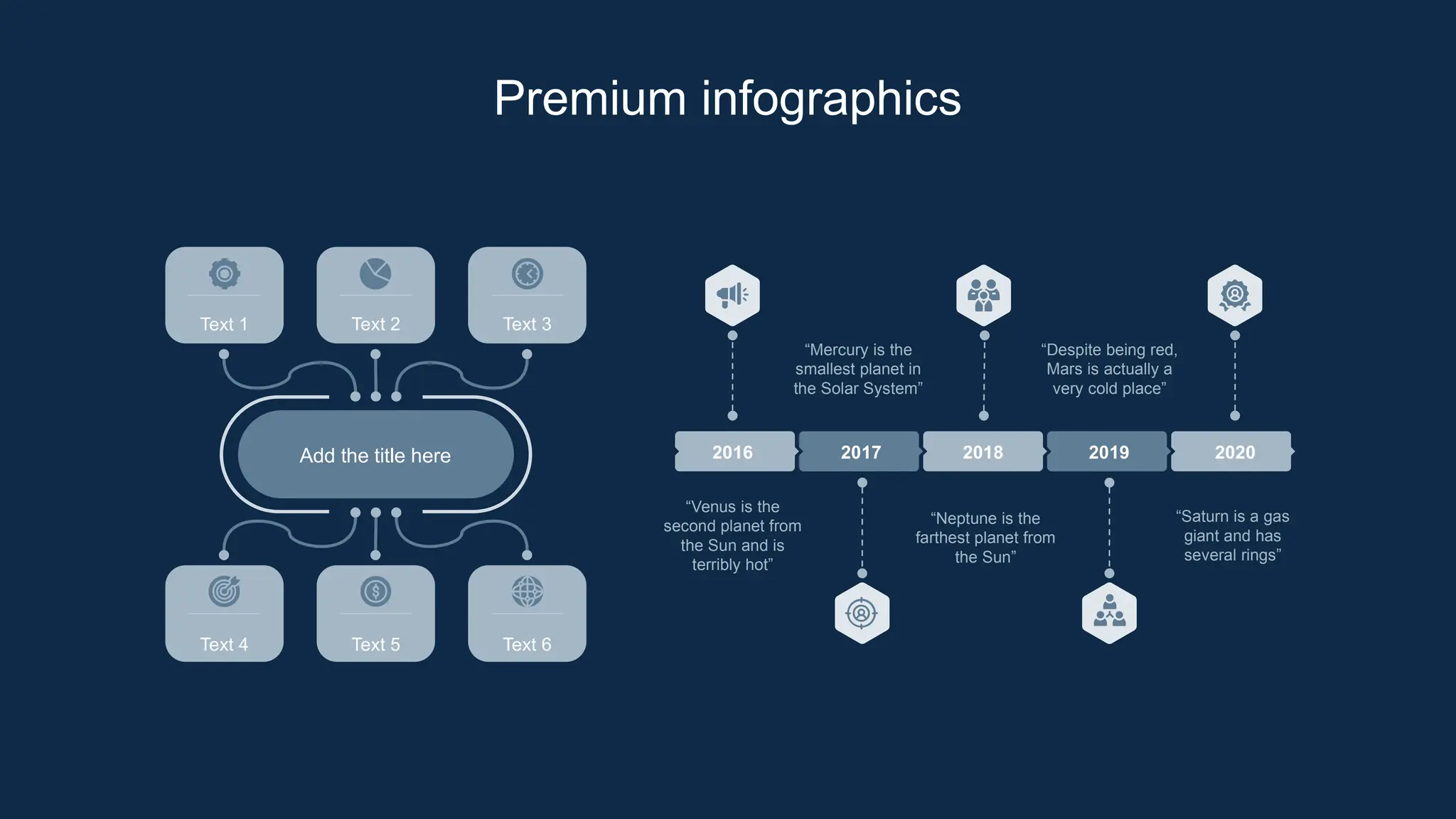
Add the title here
Text 1 Text 2 Text 3
Text 4 Text 5 Text 6
2016 2017 2018 2019 2020
“Despite being red,
Mars is actually a
very cold place”
“Mercury is the
smallest planet in
the Solar System”
“Neptune is the
farthest planet from
the Sun”
“Saturn is a gas
giant and has
several rings”
“Venus is the
second planet from
the Sun and is
terribly hot”
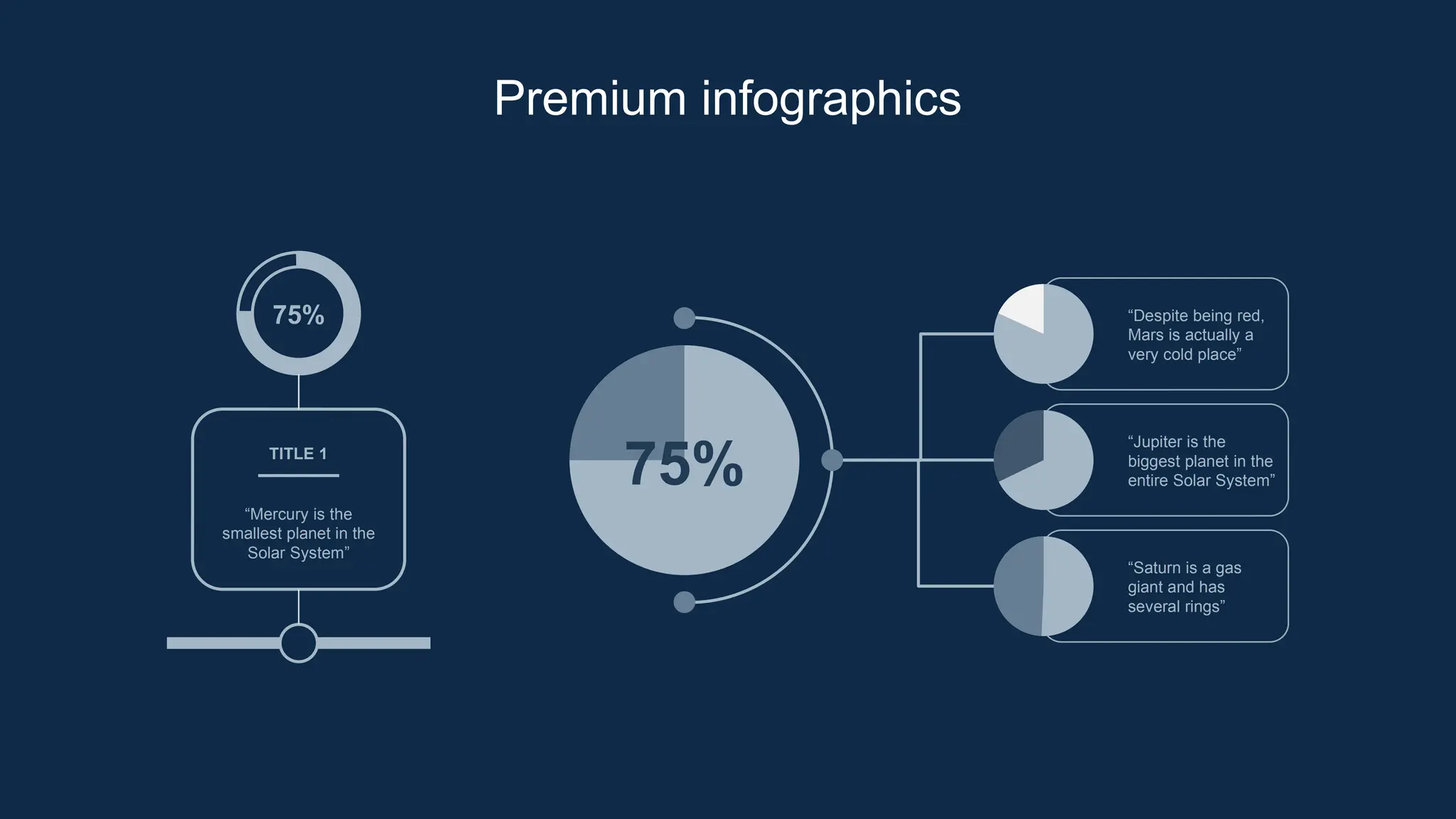
Premium infographics
“Mercury is the
smallest planet in the
Solar System”
TITLE 1
“Despite being red,
Mars is actually a
very cold place”
“Jupiter is the
biggest planet in the
entire Solar System”
“Saturn is a gas
giant and has
several rings”
75%
Premium infographics
75%
Digital Marketing
Premium Icons
Online Learning
Premium Icons
Laboratory
Premium Icons
Goals & Results
Premium Icons
Infographic Elements
Premium Icons
Transition and Animation in Powerpoint presentation

Transition and Animation in Powerpoint presentation

  • 1.
    Review Locate the partsof MS PowerPoint
  • 2.
    Spot the difference Whichone is animation and which one is transition? Transition Animation
  • 3.
    Calendars You can describethe topic of the section here Reminders You can describe the topic of the section here Memories You can describe the topic of the section here Goals You can describe the topic of the section here 01 Table of contents 02 03 04 What can you say about this?
  • 4.
    Calendars You can describethe topic of the section here Reminders You can describe the topic of the section here Memories You can describe the topic of the section here Goals You can describe the topic of the section here 01 Table of contents 02 03 04 What can you say about this?
  • 5.
    Topic for today Animationand Transition in Powerpoint
  • 6.
  • 7.
  • 8.
    Activity 1 Form agroup of 6 You must create a simple animation using the given materials saved in data E. “File name: Animation and Transition Materials” Choose your materials based on your favorite subject use the following as you apply animation and transition for those objects. Use only 2 slides to design and apply animation and transition. 1st slide is your cover page and 2nd slide is all about your chosen topic. 0 1
  • 9.
    House Rule 1. EveryoneShould actively participate in the activity. 2. Minimize your voice, if you have question about the activity, please raise your hand and ask your teacher. 3. Do not transfer to other chairs. 4. Work with your groupmates. 5. You only have 15 min. to do your work 6. Save your group work in Image E: FOLDER NAME: “Activity 1” 7. Rename your powerpoint file of your group number
  • 10.
    Rubrics Creativity 50% Appropriate animationapplied in the topic 20% Appropriate transition applied in the topic 20% Overall Presentation 10% TOTAL 100%
  • 11.
  • 12.
    Let’s Understand What isanimation Animation refers to a graphic element that displays movement. When you apply some visual effects to the content in your slide or to the entire slide then the outcome is known as an animated slide. Popular presentation software like PowerPoint is packaged with animation features so that you can use various animation methods to animate graphics, texts, bullets, titles, images, and other visual content. Animation in PowerPoint helps your audience feel interested in the presentation. The animation artwork is created with the help of the AutoShape features of the PowerPoint. The effects are then applied to the objects using Custom Animation.
  • 13.
    Let’s Understand What isanimation Using the animation option in the PowerPoint toolbar, you can apply visual effects to the object in your slide. You can animate text, titles, images, charts, videos, etc. by selecting any animation option of your choice present in the animation PowerPoint ribbon. Refer to the image below:
  • 14.
    Let’s Understand What isanimation You choose any from the following animation options  Entrance Animations with a green colored icon for the object to enter the slide based on your time preferences.  Exit animations with a red-colored icon for the object to exit the slide  Motion path animations for moving the object from one point to another  Emphasis animation with a yellow-colored icon for drawing attention to that object.
  • 15.
    Let’s Understand Managing Animation ON CLICK – Start an animation when you click a slide  WITH PREVIOUS – Play an animation at the same time  AFTER PREVIOUS – Start an animation immediately after the previous one happens.  Duration – Lengthen or shorten an effect.  Delay – Add time before an effect runs.
  • 16.
    Let’s Understand What isanimation PANE? The Animation Pane is a tool that displays the list of animated objects on your slide. If you have several animated objects, such as text and images, a well-thought-out and organized sequence of those objects is imperative to creating a visually appealing slide
  • 17.
    Let’s Understand What isTransition? A slide transition is the visual effect that occurs when you move from one slide to the next during a presentation. You can control the speed, add sound, and customize the look of transition effects. Note: Only one transition effect can be applied to a slide at a time. So if a slide already has a transition effect applied to it, you can change to a different effect by going to the Transitions tab and simply selecting the effect you prefer.
  • 18.
    Let’s Understand What isTransition? If you want to change an existing effect by modifying the timing or direction of it, you can do that by using the options on the Transitions tab of the ribbon, at the far end: Select the slide that has the transition you want to modify. On the Transitions tab, select Effect Options, then choose an option from the menu that appears. In the Timing group on the Transitions tab, you can change the duration of the effect. You can also specify whether the effect takes place after a mouse click or after a certain amount of time passes. There are also options for adding a sound to the transition effect or applying the transition to all slides in the slide show.
  • 19.
    Activity Open the filesave in data E. FILE NAME “Enhance my sills in animation and transition” 2 Your task is to promote a new brand of Cellphone I PHONE PRO MAX. using animation and transition create an interactive presentation Slide 1 includes the phone and its specification Slide 2 includes the shop and the store information.
  • 20.
    Exit Ticket Name 3things you have learned today Ask 1 question about today’s lesson List 2 things you want to learn more about in a ½ sheet of paper Copy and answer the following
  • 21.
    Exit Ticket Name 3 thingsyou have learned today in a ½ sheet of paper Copy and answer the following List 2 things you want to learn more about List 2 things you want to learn more about
  • 22.
    After school activities ActivitiesMon Tue Wed Thu Fri Soccer Basketball Music Swimming Art
  • 23.
    –Someone Famous “This isa quote, words full of wisdom that someone important said and can make the reader get inspired.”
  • 24.
    Schedule Time Mo n Tue We d Thu Fri 10:00 12:00 14:00 16:00 18:00 20:00 Venus Venus isthe second planet from the Sun Mars Despite being red, Mars is a cold place
  • 25.
    ⇨ Note youractivities ⇨ Note your activities ⇨ Note your activities ⇨ Note your activities ⇨ Note your activities ⇨ Note your activities ⇨ Note your activities ⇨ Note your activities ⇨ Note your activities ⇨ Note your activities Priorities High priority Low priority
  • 26.
  • 27.
    Special classes ofthe week Monday Mercury is the smallest planet Class 01 Wednesday Jupiter is the biggest planet Class 02 Friday Neptune is very far from the Sun Class 03 Saturday Mars is actually a very cold place Class 04
  • 28.
    Reminders Mercury It’s the closestplanet to the Sun Venus Venus is the second planet from the Sun Jupiter Jupiter is the biggest planet of them all Saturn It’s composed of hydrogen and helium Mars Mars is actually a very cold place Neptune It’s the farthest planet from the Sun
  • 29.
    Tasks Venus Venus is thesecond planet from the Sun Jupiter It’s the biggest planet in the Solar System Despite being red, Mars is a cold place Mars To do Doing Done
  • 30.
    > Goals 0 3 You can entera subtitle here if you need it
  • 31.
    A picture isworth a thousand words
  • 32.
    Goal tracker Goal Write yougoal here Write you goal here Write you goal here M T W T F S S
  • 33.
    Computer You can replacethe image on the screen with your own work. Just right-click on it and select “Replace image”
  • 34.
    Tablet You can replacethe image on the screen with your own work. Just right-click on it and select “Replace image”
  • 35.
    Smartphone You can replacethe image on the screen with your own work. Just right-click on it and select “Replace image”
  • 36.
    965,000 Big numbers catchyour audience’s attention
  • 37.
    60% Of the dayfor homework 40% Of the day for playtime Organize your time!
  • 38.
    Piggy bank tracker Followthe link in the graph to modify its data and then paste the new one here. For more info, click here Venus Venus is the second planet from the Sun Jupiter It’s the biggest planet in the Solar System Despite being red, Mars is a cold place Mars $97 $30 $55
  • 39.
    Name Ashley Samah Emailashleysm@freepik.com Phone 0124 400 768 911 Contacts Name Dominic Star Email dominicstar@freepik.com Phone 0034 600 123 456
  • 40.
    Distance from Earthto the Moon 386,00km Jupiter’s rotation period 9h55m23 s The Sun’s mass compared to Earth’s 333,000
  • 41.
    Images reveal largeamounts of data, so remember: use an image instead of a long text. Your audience will appreciate it Best day of the year
  • 42.
    Road trip plan Venus Venusis the second planet from the Sun
  • 43.
    CREDITS: This presentationtemplate was created by Slidesgo, including icons by Flaticon, and infographics & images by Freepik Thanks ! Do you have any questions? youremail@freepik.com +91 620 421 838 yourwebsite.com Please keep this slide for attribution
  • 44.
  • 45.
    Alternative resources Here’s anassortment of alternative resources whose style fits the one of this template: Vectors: ⇨ Good job and great job stickers set I ⇨ Great job and good job sticker collection ⇨ Good job and great job stickers set II ⇨ Flat colorful creativity collection ⇨ Kawaii sticker set ⇨ Collection of flat design traveling stickers ⇨ Cute planner scrapbook set
  • 46.
    Resources Did you likethe resources of this template? Get them for free at our other websites: Photos: ⇨ Medium shot kids laying together ⇨ Young father and daughter playing together before traveling ⇨ Senior woman doing exercises at home ⇨ Lovely little girl using her laptop Vectors: ⇨ School timetable and technology ⇨ Naive planner stickers I ⇨ Naive planner stickers II ⇨ Naive planner stickers III ⇨ Naive planner stickers IV Icons: ⇨ Icon Pack: Daily Planner | Lineal color
  • 47.
    For more informationabout editing slides, please read our FAQs or visit Slidesgo School: https://slidesgo.com/faqs and https://slidesgo.com/slidesgo-school Instructions for use If you have a free account, in order to use this template, you must credit Slidesgo by keeping the Thanks slide. Please refer to the next slide to read the instructions for premium users. As a Free user, you are allowed to: - Modify this template. - Use it for both personal and commercial projects. You are not allowed to: - Sublicense, sell or rent any of Slidesgo Content (or a modified version of Slidesgo Content). - Distribute Slidesgo Content unless it has been expressly authorized by Slidesgo. - Include Slidesgo Content in an online or offline database or file. - Offer Slidesgo templates (or modified versions of Slidesgo templates) for download. - Acquire the copyright of Slidesgo Content.
  • 48.
    As a Premiumuser, you can use this template without attributing Slidesgo or keeping the "Thanks" slide. You are allowed to: ● Modify this template. ● Use it for both personal and commercial purposes. ● Hide or delete the “Thanks” slide and the mention to Slidesgo in the credits. ● Share this template in an editable format with people who are not part of your team. You are not allowed to: ● Sublicense, sell or rent this Slidesgo Template (or a modified version of this Slidesgo Template). ● Distribute this Slidesgo Template (or a modified version of this Slidesgo Template) or include it in a database or in any other product or service that offers downloadable images, icons or presentations that may be subject to distribution or resale. ● Use any of the elements that are part of this Slidesgo Template in an isolated and separated way from this Template. ● Register any of the elements that are part of this template as a trademark or logo, or register it as a work in an intellectual property registry or similar. For more information about editing slides, please read our FAQs or visit Slidesgo School: https://slidesgo.com/faqs and https://slidesgo.com/slidesgo-school Instructions for use (premium users)
  • 49.
    This presentation hasbeen made using the following fonts: Baloo 2 (https://fonts.google.com/specimen/Baloo+2) ABeeZee (https://fonts.google.com/specimen/ABeeZee) #282c64 #ffffff #ffa7cd #ffdf6b #acf0ed #29cfcb #05a4ca #474da2 #68e4a5 #ef7cc7 Fonts & colors used
  • 50.
    Create your Storywith our illustrated concepts. Choose the style you like the most, edit its colors, pick the background and layers you want to show and bring them to life with the animator panel! It will boost your presentation. Check out how it works. Storyset Pana Amico Bro Rafiki Cuate
  • 51.
    You can easilyresize these resources without losing quality. To change the color, just ungroup the resource and click on the object you want to change. Then, click on the paint bucket and select the color you want. Group the resource again when you’re done. You can also look for more infographics on Slidesgo. Use our editable graphic resources...
  • 54.
    JANUARY FEBRUARY MARCHAPRIL MAY JUNE PHASE 1 PHASE 2 Task 1 Task 2 Task 1 Task 2 JANUARY FEBRUARY MARCH APRIL PHASE 1 Task 1 Task 2
  • 57.
    You can resizethese icons without losing quality. You can change the stroke and fill color; just select the icon and click on the paint bucket/pen. In Google Slides, you can also use Flaticon’s extension, allowing you to customize and add even more icons. ...and our sets of editable icons
  • 58.
  • 59.
  • 60.
    Help & SupportIcons Avatar Icons
  • 61.
    Creative Process IconsPerforming Arts Icons
  • 62.
  • 63.
  • 64.
    Add the titlehere Text 1 Text 2 Text 3 Text 4 Text 5 Text 6 2016 2017 2018 2019 2020 “Despite being red, Mars is actually a very cold place” “Mercury is the smallest planet in the Solar System” “Neptune is the farthest planet from the Sun” “Saturn is a gas giant and has several rings” “Venus is the second planet from the Sun and is terribly hot” Premium infographics
  • 65.
    “Mercury is the smallestplanet in the Solar System” TITLE 1 “Despite being red, Mars is actually a very cold place” “Jupiter is the biggest planet in the entire Solar System” “Saturn is a gas giant and has several rings” 75% Premium infographics 75%
  • 66.
  • 67.
  • 68.
  • 69.
  • 70.