i


              Transcoding Transport Stream MPEG2
    __________________________________________________________


                                  A thesis

                Presented to the Faculty of Graduate School

                    University of Missouri – Columbia

    __________________________________________________________


          In Partial Fulfillment of the Requirements for the Degree

                             Master of Science

    __________________________________________________________


                           by Shashi R. Shilarnav

                 Dr. Gordon K. Springer, Thesis Supervisor

                                 May 2007
ii

     The undersigned appointed by the Dean of the Graduate School, have examined the thesis

     entitled


     TRANSCODING TRANSPORT STREAM MPEG2


     Presented by


                                           Shashi R. Shilarnav


     A candidate for the degree of


                                             Master of Science


     And hereby certify in their opinion it is worthy of acceptance.


     ____________________

     Dr. Gordon K. Springer


     ____________________

     Dr. K. Palaniappan


     ____________________

     Dr. William H. Miller
ii

                                   Acknowledgements

            I would like express my sincere gratitude to all the people who have helped

     m e thro ugho ut m y M aster‟s degree. I am very m uch thank ful to D r. Gordon

     Springer for his guidance and support which helped me complete my research and

     graduate studies. His patience and persistence not only led me into an exciting field

     of computer programming, but also educates me with his philosophy of science

     and life.

            I would like to thank Dr. William Miller and the Nuclear Science and

     Engineering Institute for the support throughout my graduate studies. I also express

     my gratitude to Dr. K Palaniappan for serving on my Master of Science program

     committee.


                                              ii
iii

                           TRANSCODING TRANSPORT STREAM MPEG2


                                              Shashi R. Shilarnav


                                 Dr. Gordon K. Springer, Thesis Supervisor


                                                 ABSTRACT


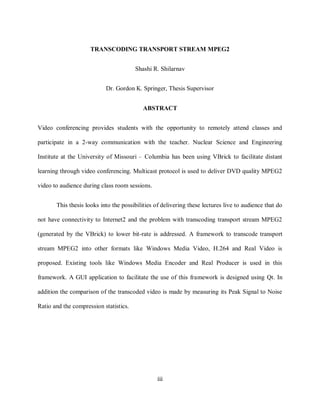
      Video conferencing provides students with the opportunity to remotely attend classes and

      participate in a 2-way communication with the teacher. Nuclear Science and Engineering

      Institute at the University of Missouri – Columbia has been using VBrick to facilitate distant

      learning through video conferencing. Multicast protocol is used to deliver DVD quality MPEG2

      video to audience during class room sessions.


             This thesis looks into the possibilities of delivering these lectures live to audience that do

      not have connectivity to Internet2 and the problem with transcoding transport stream MPEG2

      (generated by the VBrick) to lower bit-rate is addressed. A framework to transcode transport

      stream MPEG2 into other formats like Windows Media Video, H.264 and Real Video is

      proposed. Existing tools like Windows Media Encoder and Real Producer is used in this

      framework. A GUI application to facilitate the use of this framework is designed using Qt. In

      addition the comparison of the transcoded video is made by measuring its Peak Signal to Noise

      Ratio and the compression statistics.


                                                       iii
iv

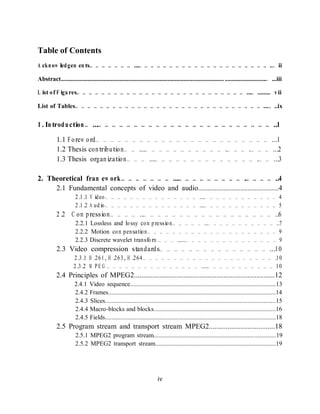
     Table of Contents
     A ck n ow led gem en ts… … … … … … … ...… … … … … … … … … … … … … … … … … … … … … .… ii

     Abstract..................................................................................................................................… ...iii

     L ist of F igu res… … … … … … … … … … … … … … … … … … … … … … … … … … … ...… .......… vii

     List of Tables… … … … … … … … … … … … … … … … … … … … … … … … … … … … … … ...… ..ix


     1. In trod u ction … ...… … … … … … … … … … … … … … … … … … … … … … … … ..1

                1.1 F orew o rd… … … … … … … … … … … … … … … … … … … … … … … … ...1
                1.2 Thesis contrib utio n… … ...… … … … … … … … … … … .… … … .… … … ...2
                1.3 Thesis organizatio n… … … ...… … … … … … … … … … … … … … .… … ...3

     2. Theoretical fram ew ork … … … … … … … ...… … … … … … … … … .… … … … ..4
          2.1 Fundamental concepts of video and audio............................................4
                           2.1.1 V ideo … … … … … … … … … … … … … … … ...… … … … … … … … … … … … 4
                           2.1.2 A ud io … … … … … … … … … … … … … … … ...… … … … … … … … … … … … 5
                2.2 C o m pressio n… … … … ..… … … … … … … … … … … … … … … … … … ..6
                           2.2.1 Lossless and lo ssy co m pressio n… … … … … ..… … … … … … … … … … … ..7
                           2.2.2 Motion co m pensatio n… … … … … … … … … … … … … … … … … … … … … 9
                           2.2.3 Discrete wavelet transfo rm … … … .....… … … … … … … … … … … … … … … 9
                2.3 Video compression standards… … … … … … … … … … … … … … … ...10
                          2.3.1 H .261, H .263, H .264… … … … … … … … … … … … … … … … … … … … … .10
                          2.3.2 M P E G … … … … … … … … … … … … … … … ....… … … … … … … … … … … 10
                2.4 Principles of MPEG2.............................................................................12
                          2.4.1 Video sequence.............................................................................................13
                          2.4.2 Frames...........................................................................................................14
                          2.4.3 Slices.............................................................................................................15
                          2.4.4 Macro-blocks and blocks..............................................................................16
                          2.4.5 Fields.............................................................................................................18
                2.5 Program stream and transport stream MPEG2....................................18
                           2.5.1 MPEG2 program stream..............................................................................19
                           2.5.2 MPEG2 transport stream.............................................................................19


                                                                            iv
v

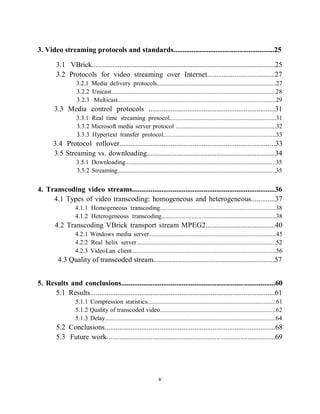
    3. Video streaming protocols and standards.......................................................25

             3.1 VBrick....................................................................................................25
             3.2 Protocols for video streaming over Internet.....................................27
                      3.2.1 Media delivery protocols............................................................................27
                      3.2.2 Unicast.........................................................................................................28
                      3.2.3 Multicast.....................................................................................................29
            3.3 Media control protocols .....................................................................31
                      3.3.1 Real time streaming protocol....................................................................31
                      3.3.2 Microsoft media server protocol ................................................................32
                      3.3.3 Hypertext transfer protocol........................................................................33
           3.4 Protocol rollover.....................................................................................33
           3.5 Streaming vs. downloading......................................................................34
                      3.5.1 Downloading................................................................................................35
                      3.5.2 Streaming.....................................................................................................35


    4. Transcoding video streams..............................................................................36
         4.1 Types of video transcoding: homogeneous and heterogeneous.............37
                      4.1.1 Homogeneous transcoding..........................................................................38
                      4.1.2 Heterogeneous transcoding.........................................................................38
            4.2 Transcoding VBrick transport stream MPEG2......................................40
                      4.2.1 Windows media server.................................................................................45
                      4.2.2 Real helix server.........................................................................................52
                      4.2.3 VideoLan client............................................................................................56
             4.3 Quality of transcoded stream..................................................................57


    5. Results and conclusions....................................................................................60
          5.1 Results.....................................................................................................61
                      5.1.1 Compression statistics..................................................................................61
                      5.1.2 Quality of transcoded video..........................................................................62
                      5.1.3 Delay.............................................................................................................64
             5.2 Conclusions.............................................................................................68
             5.3 Future work............................................................................................69


                                                                      v
vi

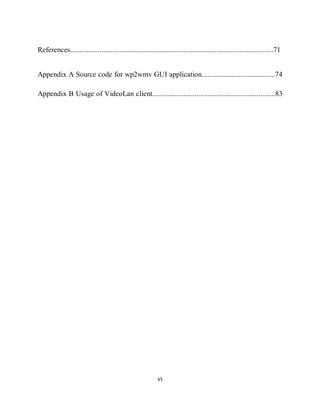
     References...............................................................................................................71


     Appendix A Source code for wp2wmv GUI application........................................74

     Appendix B Usage of VideoLan client...................................................................83


                                                                 vi
vii

      List of Figures
      Figure 2.1 Discrete wavelet transform.............................................................................................9

      Figure 2.2 Comparison of the resolution in various standards......................................................11

      Figure 2.3 MPEG2 video structure...............................................................................................13

      Figure 2.4 MPEG stream as a Group of Pictures...........................................................................14

      Figure 2.5 Skipped macro-blocks in a P-frame............................................................................17

      Figure 2.6 Skipped macro-blocks in a B-frame.............................................................................17

      Figure 2.7 Overview of MPEG2 transport stream........................................................................20

      Figure 2.8 Transport stream MPEG2 packets...............................................................................21

      Figure 2.9 Transport stream MPEG2 header format.....................................................................21

      Figure 3.1 VBrick 6200 rear view................................................................................................26

      Figure 3.2 VBrick 6200 front view...............................................................................................26

      Figure 3.3 VBrick used as encoder/decoder..................................................................................27

      Figure 3.4 Illustration of unicast streaming..................................................................................28

      Figure 3.5 Illustration of multicast streaming...............................................................................29

      Figure 3.6 Microsoft media services protocol..............................................................................32

      Figure 3.7 Protocol rollover in windows media services.............................................................34

      Figure 3.8 Protocol rollover in real networks..............................................................................34

      Figure 4.1 Simple video stream transcoder....................................................................................36

      Figure 4.2 Open Loop video stream transcoder.............................................................................37

      Figure 4.3 Four motion vectors being down sampled to one.........................................................38

      Figure 4.4 Microsoft DirectShow model.......................................................................................42

      Figure 4.5 VBrick video and audio capture devices added to DirectShow...................................43
                                                                     vii
viii

       Figure 4.6 VBrick video capture device listed in windows media encoder...............................44

       Figure 4.7 Implementation of windows media services for transcoding......................................46

       Figure 4.8 Windows media encoder session with VBrick devices selected as input...................47

       Figure 4.9 wmvEncode application...............................................................................................51

       Figure 4.10 wmvEncode application with Preview button enabled..............................................51

       Figure 4.11 Real Producer 11 session with VBrick devices selected as input..............................52

       Figure 4.12 Implementation of the Real Producer and Real Helix server for transcoding...........53

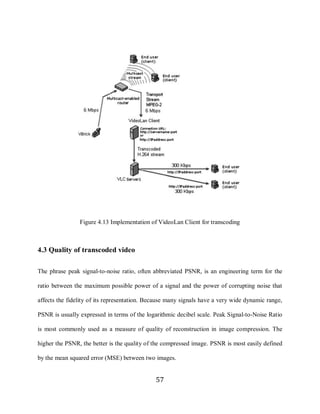
       Figure 4.13 Implementation of VideoLan client for transcoding...........................................57

       Figure 5.1 An illustration of the VBrick StreamPump..................................................................61

       Figure 5.1 PSNR of wmv file........................................................................................................63

       Figure 5.2 PSNR of H.264 file......................................................................................................63

       Figure 5.4 Steps in transcoding process.........................................................................................64

       Figure 5.5 Settings in Windows Media Player..............................................................................67


                                                                       viii
ix


     List of Tables
     Table 2.1 Data rate of uncompressed video.....................................................................................6

     Table 2.2 Example of Lossy compression.......................................................................................8

     Table 2.3 Storage requirements of HD video files........................................................................12

     Table 4.1 Key features of video compression standards...............................................................39

     Table 5.1 Compression statistics....................................................................................................60


                                                                      ix
1

    1 Introduction


    1.1 Foreword


    The use of video in teaching and learning is a common practice in education today. As learning

    online becomes more of a common practice in education, streaming video and audio play a

    bigger role in delivering course materials to online learners. There are several benefits of video

    streaming of class room lectures. Classroom lectures can be delivered in real-time around the

    network so that remote users can tune in from wherever they are. Lectures can also be recorded

    and stored on a video-on-demand server for future viewing/playback.


           The Nuclear Science and Engineering Institute [1] (NSEI) at University of Missouri –

    Columbia has been using a VBrick 6200 [2] to facilitate distant learning through video

    conferencing during a classroom session. VBrick 6200 is a device which can encode/decode

    DVD quality MPEG2 [3] video in real time. It is also used as a MPEG2 streaming server and

    client to send and receive MPEG2 video streams.


           In this thesis the problems associated with streaming live video to a large audience is

    considered. The multicast [4] protocol is being used to enable video conferencing between three

    institutions, University of Missouri – Columbia, University of Missouri – Rolla and the

    University of Missouri – Kansas City, participating in the distant learning program and the three

    universities listed have connectivity to Internet2 [5] network.


           The transmission of MPEG2 video between VBricks at 6 Mbps is made possible by the

    use of state-of-the-art networking facilities provided by Internet2. Internet2 is the foremost

                                                     1
2

    advanced networking consortium in the United States and it provides leading-edge network

    capabilities by the use of revolutionary Internet technologies. During a two-way video

    conferencing bandwidth requirements are even more (around 12 Mbps) and hence multicast

    protocol is used which can efficiently utilize the network bandwidth. Other institutions without

    multicast capabilities, who want to participate in this distant learning program, need to watch the

    archived video after the presentation/class.


           Though watching archived video is a solution, it does not give the student the ability to

    interact with the speaker during the presentation, which is an important factor for learning. This

    thesis looks at various solutions available to enable the delivery of live video streams to an

    audience that does not have connectivity to Internet2 network.


    1.2 Thesis contribution


    All the universities participating in the distant learning program are not connected to Internet2.

    The stream generated by the VBrick needs to be transcoded to a lower bit rate to broadcast the

    video stream to a large number of users. VBrick 6200 uses a MPEG2 (transport stream) codec to

    encode the video for transmitting through the network. The software encoders available today

    (Microsoft Windows Media Encoder, Real Media Encoder and QuickTime video encoder)

    cannot readily transcode the MPEG2 stream generated by VBrick to other formats (like .wmv,

    .rm). This thesis discusses various solutions to transcode the MPEG2 video stream from a

    VBrick system and broadcast it at lower bit rates to a live audience.


                                                     2
3

           This thesis implements a framework to transcode the transport stream MPEG2 from

    VBrick to the Windows Media Video (.wmv) and Real (.rm) format and also proposes the use of

    a H.264 codec to improve the quality of streaming video. Also a Graphical User Interface is

    developed to facilitate the use of the framework described.


    1.3 Thesis organization


    This thesis is organized into five chapters. In the next chapter, a detailed description of the

    concepts of video conferencing, the structure of MPEG2 and other codecs is provided. In

    Chapter 3, the networking issues related with streaming live and on-demand video to the users

    over Internet is discussed. Chapter 4 describes the concept of video transcoding and an

    implementation of the Windows Media encoder to stream live video from a VBrick MPEG2

    encoder is discussed. The chapter also has a description of transcoding MEPG2 video to other

    formats like real media and H.264. An application developed in Qt which can be used to

    facilitate the use of this framework is also described. Chapter 5 provides a comparison of the

    codecs that can be used to transcode MPEG2 stream is provided. Statistics such as encoding time

    and compression achieved while using the .wmv, H.264 and .rm codec for converting MPEG2

    video to lower bit rates. A comparison of the quality of the compressed video has been made by

    calculating the Peak Signal to Noise Ratio of the compressed video with respect to the original

    file. The chapter ends with conclusions and a discussion of future work.


                                                    3
4

    2 Theoretical frameworks
    An IP based video conferencing setup involves two or more parties located in different physical

    locations communicating with each other using video and audio streaming over a network. If the

    video conferencing is used for streaming live lectures, the quality of video cannot be

    compromised. There are several factors that must be considered to get a high quality video. In

    this chapter, the factors that determine the quality of video is described and the concept of

    MPEG2 video is discussed in detail.


    2.1 Fundamental concepts of video and audio

    2.1.1 Video:


    Video is a series of still images known as frames displayed fast enough that the human eye

    cannot detect the flicker as the display transitions from one frame to the next. The three main

    characteristics of Video are resolution, frame rate and color.


           A pixel is the smallest picture element that a screen can display. Resolution is the

    measure of horizontal and vertical pixels in each frame of the video. Typical video resolutions of

    computer screens are 1280h x 1024v, 1024h x 768v.            The higher the resolution the more

    bandwidth is required for transmission, due to the number of pixels needing to be transmitted.


           Frame rate is simply the count of the number of frames displayed per second. North

    American Television (NTSC) is displayed at 29.97 (approximately 30) frames per second and the

    European (PAL) video is displayed at 25 frames per second. Video with higher frame rates

    requires more bandwidth in order to generate the flicker-free video.


                                                     4
5

    Video is made up of Luminance and Chrominance. Luminance is the black-and-white portion of

    the video whereas Chrominance is the color component. There are two widely used schemes to

    represent color.


       1. If each color can be represented by 256 levels, then up to 16.8 Million different colors

           can be generated(256 red X 256 blue X 256 green). To support this scheme we need 8bits

           per color (8 red + 8 blue + 8 green) for a total of 24 bits per pixel. This is called RGB or

           24-bit video.


       2. Color can also be represented as YCrCb. Y is Luminance, Cr for Chrominance red and

           Cb for Chrominance blue. To convert a RGB video into YCbCr the following equation is

           used

           Y = 0.299 R + 0.587 G + 0.114 B

           Cr = ((B-Y)/2) + 0.5

           Cb = ((R-Y)/1.6) + 0.5


    2.1.2 Audio


    Audio is an integral part of video conferencing. The audio is sampled at 44 or 48 KHz and is

    delivered at 64 to 256 Kbps in mono, stereo and join stereo modes. The higher the sample rate,

    the smoother is the audio. However it is harder to playback the audio with a higher sampling

    rate. The audio and video elementary streams are multiplexed into a program stream or transport

    stream depending on the application being used. Each stream consists of a series of time stamps

    multiplexed within the packets. These time-stamps provide a mechanism for the decoders to

    determine which video frame to display and which audio packet to be played.


                                                     5
6

    2.2 Compression

    From the description of video in Section 2.1, the data rate of uncompressed video for a given

    resolution (image size), bit depth and frame rate can be calculated and Table 2.1 shows the

    amount of bandwidth required to stream uncompressed video over Internet.


                                        Table 2.1 Data rate of uncompressed video


           It is not always feasible to stream video at these bit rates as the amount of available

    bandwidth is limited.


           Several attempts have been made [6] to stream uncompressed video over the network. A

    variation of the Access Grid Node [7] called the Ultra Grid Node [8] has been implemented to

    demonstrate the capability of the IP network to stream uncompressed HD quality video. But the

    amount of network bandwidth available to a typical user on the Internet is not enough to receive

    uncompressed video. Hence raw video is compressed to various other formats using codec to be

    able to stream over the Internet.


                                                       6
7

            Various compression algorithms have been implemented to compress text, audio and

    video data. These algorithms are of two types; Lossy and Lossless compression.


    2.2.1 Lossless and lossy compression

    In lossless compression, there is no loss of data while compressing or decompressing. The

    compression algorithms can be divided into different types depending on the type of data they

    compress. In principle any compression algorithm works with any type of data as they are all

    binary inputs, but to attain a significant compression ratio the characteristics of input data must

    be exploited. Most lossless compression programs use two different kinds of algorithms: one

    which generates a statistical model for the input data, and another which maps the input data to

    bit strings.


    In the lossy compression method, compressing data and then decompressing it reproduces data

    that may be different from the original, but is close enough to be useful in some way. Lossy

    compression techniques are frequently used on the Internet for streaming media and for

    telephony applications. These methods are often referred to as codecs.

    Most of these codecs suffer from generation loss which is the progressive loss of quality due to

    repeated compressing.

    There are two basic lossy compression schemes:

    Lossy transform codecs

    Lossy transform codecs are compression methods in which samples of the picture and sound are

    chopped into small segments, transformed into a new basis space and then quantized. The

    resulting quantized values are then entropy coded.


                                                    7
8

    Lossy predictive codecs

    Lossy predictive codecs use previous and/or subsequent decoded data to predict the current

    sound sample or image frame. In some systems the two techniques are combined, with transform

    codecs being used to compress the error signals generated by the predictive stage.


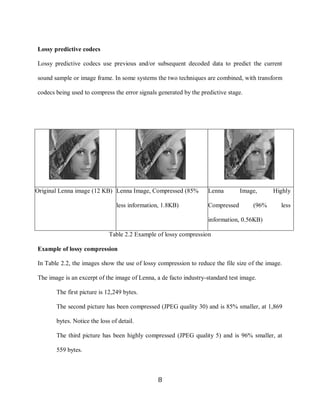
    Original Lenna image (12 KB) Lenna Image, Compressed (85%           Lenna        Image,     Highly

                                     less information, 1.8KB)           Compressed       (96%      less

                                                                        information, 0.56KB)

                                  Table 2.2 Example of lossy compression

    Example of lossy compression

    In Table 2.2, the images show the use of lossy compression to reduce the file size of the image.

    The image is an excerpt of the image of Lenna, a de facto industry-standard test image.

           The first picture is 12,249 bytes.

           The second picture has been compressed (JPEG quality 30) and is 85% smaller, at 1,869

            bytes. Notice the loss of detail.

           The third picture has been highly compressed (JPEG quality 5) and is 96% smaller, at

            559 bytes.


                                                     8
9

    2.2.2 Motion compensation

    In video compression, motion compensation is used in several standards like H.261, H.263 and

    the MPEG series. Each frame is divided into blocks usually 16 x 16 (macro block). Then a

    motion vector can be coded for each block that points to a 16 x 16 block in the next frame or the

    previous frame. If there is no motion in any two consecutive frames, the reference block is same.


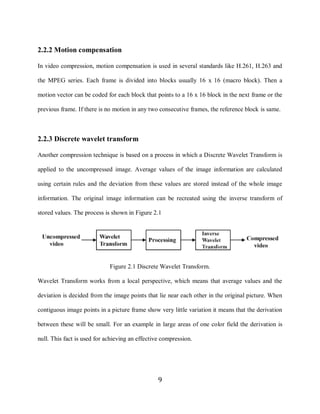
    2.2.3 Discrete wavelet transform

    Another compression technique is based on a process in which a Discrete Wavelet Transform is

    applied to the uncompressed image. Average values of the image information are calculated

    using certain rules and the deviation from these values are stored instead of the whole image

    information. The original image information can be recreated using the inverse transform of

    stored values. The process is shown in Figure 2.1


                                 Figure 2.1 Discrete Wavelet Transform.

    Wavelet Transform works from a local perspective, which means that average values and the

    deviation is decided from the image points that lie near each other in the original picture. When

    contiguous image points in a picture frame show very little variation it means that the derivation

    between these will be small. For an example in large areas of one color field the derivation is

    null. This fact is used for achieving an effective compression.


                                                     9
10


     2.3 Video compression standards

     A video codec is a device or software module that enables video compression or decompression

     for digital video. Video codecs can be divided into two families; video compression standards

     from International Telecommunications Union-Telecommunications (ITU-T) and the video

     compression standards by International Organization for Standardization (ISO).


     2.3.1 H.261, H.263 and H.264

     ITU H.261 [9], was the first video compression standard that gained widespread acceptance for

     videoconferencing over the Integrated Services Digital Network (ISDN). The ITU H.261

     standard was designed to operate at p multiples of baseline ISDN data rate or p x 64 kb/s.

     Another standardization effort with Public Switched Telephone Network (PSTN) as primary goal

     was initiated by ITU-T in 1993 where the data rate was multiples of 33.6 kb/s. This was called

     the H.263 [10] codec. An enhanced version of H.263 has now been finalized and is called the

     H.264/AVC [11].


     2.3.2 MPEG

     ISO established Motion Pictures Expert Group [12], as a standard for compressing moving

     pictures (video) and associated audio on a CD-ROM. MPEG1 was the resulting standard which

     achieves approximately VHS quality video and audio at about 1.5 Mb/s. An extension of work

     on MPEG1 for applications toward digital television and higher bit rates is called MPEG2.

     MPEG4 provides improved compression efficiency and error resilience features and increased

     functionality including object-based encoding.


                                                      10
11

            MPEG2 is the most popular format for DVD authoring and digital video broadcasting as

     it supports video of very high resolution. The most significant enhancement in MPEG2 relative

     to MPEG1 was the addition of support for interlaced video. Interlaced scanning is the method in

     which odd and even lines in a frame are refreshed alternately. Progressive or non-interlaced

     scanning is the opposite of interlaced method for displaying, in which the lines of each frame are

     drawn in sequence.

            High Definition video [13] is a compression standard in which a significantly high

     resolution is used for encoding video. Typical resolution of a high definition video is 720p or

     1080p. Here the number 720 or 1080 specify number of horizontal lines in each frame of the

     video. The Figure 2.6 shows a comparison between different resolutions.


                        Figure 2.2 Comparison of the resolution in various standards

     High Definition (HD) provides the highest quality of video among all the broadcasting standards

     available today. But the amount of bandwidth required to transmit HD video makes it difficult to

     stream over IP. Table 2.6 gives the amount of storage required to store video HD quality. The

     duration of all the video files is one hour [14].

                                                         11
12


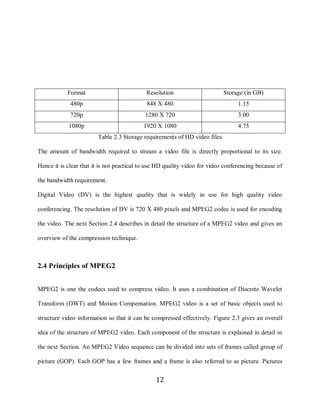
                 Format                          Resolution                     Storage (in GB)
                  480p                           848 X 480                            1.15
                  720p                          1280 X 720                            3.00
                 1080p                          1920 X 1080                           4.75
                             Table 2.3 Storage requirements of HD video files

     The amount of bandwidth required to stream a video file is directly proportional to its size.

     Hence it is clear that it is not practical to use HD quality video for video conferencing because of

     the bandwidth requirement.

     Digital Video (DV) is the highest quality that is widely in use for high quality video

     conferencing. The resolution of DV is 720 X 480 pixels and MPEG2 codec is used for encoding

     the video. The next Section 2.4 describes in detail the structure of a MPEG2 video and gives an

     overview of the compression technique.


     2.4 Principles of MPEG2


     MPEG2 is one the codecs used to compress video. It uses a combination of Discrete Wavelet

     Transform (DWT) and Motion Compensation. MPEG2 video is a set of basic objects used to

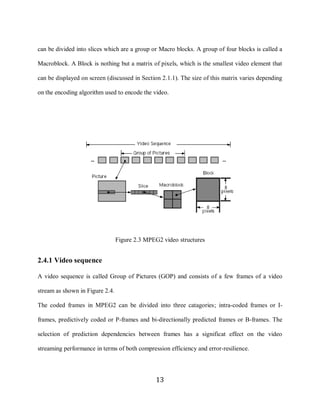
     structure video information so that it can be compressed effectively. Figure 2.3 gives an overall

     idea of the structure of MPEG2 video. Each component of the structure is explained in detail in

     the next Section. An MPEG2 Video sequence can be divided into sets of frames called group of

     picture (GOP). Each GOP has a few frames and a frame is also referred to as picture. Pictures


                                                     12
13

     can be divided into slices which are a group or Macro blocks. A group of four blocks is called a

     Macroblock. A Block is nothing but a matrix of pixels, which is the smallest video element that

     can be displayed on screen (discussed in Section 2.1.1). The size of this matrix varies depending

     on the encoding algorithm used to encode the video.


                                      Figure 2.3 MPEG2 video structures


     2.4.1 Video sequence

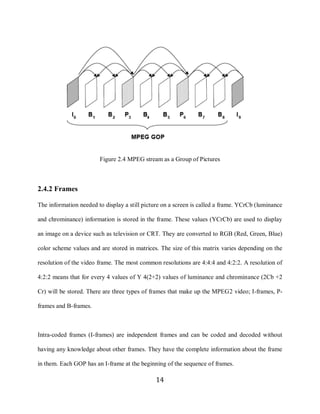
     A video sequence is called Group of Pictures (GOP) and consists of a few frames of a video

     stream as shown in Figure 2.4.

     The coded frames in MPEG2 can be divided into three catagories; intra-coded frames or I-

     frames, predictively coded or P-frames and bi-directionally predicted frames or B-frames. The

     selection of prediction dependencies between frames has a significat effect on the video

     streaming performance in terms of both compression efficiency and error-resilience.


                                                    13
14


                             Figure 2.4 MPEG stream as a Group of Pictures


     2.4.2 Frames

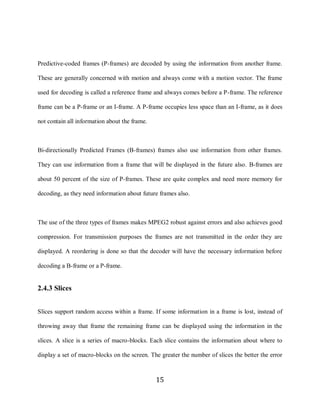
     The information needed to display a still picture on a screen is called a frame. YCrCb (luminance

     and chrominance) information is stored in the frame. These values (YCrCb) are used to display

     an image on a device such as television or CRT. They are converted to RGB (Red, Green, Blue)

     color scheme values and are stored in matrices. The size of this matrix varies depending on the

     resolution of the video frame. The most common resolutions are 4:4:4 and 4:2:2. A resolution of

     4:2:2 means that for every 4 values of Y 4(2+2) values of luminance and chrominance (2Cb +2

     Cr) will be stored. There are three types of frames that make up the MPEG2 video; I-frames, P-

     frames and B-frames.


     Intra-coded frames (I-frames) are independent frames and can be coded and decoded without

     having any knowledge about other frames. They have the complete information about the frame

     in them. Each GOP has an I-frame at the beginning of the sequence of frames.

                                                   14
15


     Predictive-coded frames (P-frames) are decoded by using the information from another frame.

     These are generally concerned with motion and always come with a motion vector. The frame

     used for decoding is called a reference frame and always comes before a P-frame. The reference

     frame can be a P-frame or an I-frame. A P-frame occupies less space than an I-frame, as it does

     not contain all information about the frame.


     Bi-directionally Predicted Frames (B-frames) frames also use information from other frames.

     They can use information from a frame that will be displayed in the future also. B-frames are

     about 50 percent of the size of P-frames. These are quite complex and need more memory for

     decoding, as they need information about future frames also.


     The use of the three types of frames makes MPEG2 robust against errors and also achieves good

     compression. For transmission purposes the frames are not transmitted in the order they are

     displayed. A reordering is done so that the decoder will have the necessary information before

     decoding a B-frame or a P-frame.


     2.4.3 Slices


     Slices support random access within a frame. If some information in a frame is lost, instead of

     throwing away that frame the remaining frame can be displayed using the information in the

     slices. A slice is a series of macro-blocks. Each slice contains the information about where to

     display a set of macro-blocks on the screen. The greater the number of slices the better the error


                                                    15
16

     robustness. But this increases communication overhead as the slices do not aid in displaying the

     frame if there is no loss of information.

     2.4.4 Macro-blocks and blocks

     Each frame is divided into a number of blocks. The blocks are grouped into macro blocks. Each

     block has 8 lines and each line has 8 values of luminance or chrominance based on the sampling

     format used. Each macro-block has a number that indicates the sequence in which the blocks of

     the macro-block are coded. Moreover the luminance values are always present at the beginning

     of the macro-block. The Cr and Cb values are interleaved after the Y values. There are three

     types of frames which have macro-blocks.


     Intra-coded macro-blocks use information from that macro-block only. That is, these macro-

     blocks contain all the information that is needed to decode the macro-block. When a macro-

     block is not coded, the decoder just copies the macro-block from the previous reference frame at

     exactly the same position. Skipped frames are those frames which are not used for encoding.


     There are two different types of skipped frames; P Frames and B Frames.


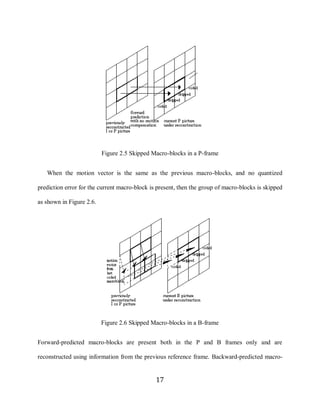
        When the motion vector is zero for both the horizontal and vertical vector components, and

     no quantized prediction error is present for the current macro-block, then the macro-block is

     skipped as shown in the Figure 2.5.


                                                   16
17


                               Figure 2.5 Skipped Macro-blocks in a P-frame


        When the motion vector is the same as the previous macro-blocks, and no quantized

     prediction error for the current macro-block is present, then the group of macro-blocks is skipped

     as shown in Figure 2.6.


                               Figure 2.6 Skipped Macro-blocks in a B-frame


     Forward-predicted macro-blocks are present both in the P and B frames only and are

     reconstructed using information from the previous reference frame. Backward-predicted macro-


                                                    17
18

     blocks are present in a B-frame only. These macro-blocks are reconstructed using information

     from the next reference frame. Interpolated macro-blocks are present in a B-frame only and

     these macro-blocks are reconstructed using the information of the previous and the next

     reference frames.

     „F o rw ard pred icted w itho ut m o tio n co m pensatio n‟ macro-blocks are present in P-frames only.

     When there is no coded prediction error information, then these macro-blocks will just be

     forward predicted without any motion compensation. The sequence of frames is grouped

     together and is called a group of pictures (GOP). A group of pictures (GOP) is a sequence of

     frames in the format IBBPBBP. Each GOP will have one I frame only.


     2.4.5 Fields

     One of the design goals of MPEG2 is to handle interlaced video display. To handle both types of

     video displays (interlaced and progressive scan), the coding of each frame is done as an entire

     frame or a pair of two fields. The pair of fields should always appear together. The method of

     encoding depends on the detail needed in the frame. If there is a lot of detail and limited motion

     then encoding is done as a frame. When there is motion and not much detail, then encoding is

     done as field encoding where the second field can be predicted from the first.


     2.5 Program stream and transport stream MPEG2

     The MPEG2 standard has two different multiplexing schemes; the Program Stream and the

     Transport stream. It is a standard based on how the video/audio is delivered and not how it is

     encoded. The video quality does not depend on whether it is a transport stream or a program

     stream.

                                                      18
19

     2.5.1 MPEG2 program stream:


     A program stream is a group of tightly coupled PES (Packetized Elementary Stream) packets

     referenced to the same time base. It is more suited to an error-free environment and to enable

     easy processing of the received data.


     It is mostly used in storage applications. A program stream contains one and only one content

     channel.


     Most widely used authoring tools such as Adobe, Ulead, Sorenson and Avid can produce and

     read MPEG2 Program streams. The reason behind it is that these applications are used for the

     creation of files for distribution on disks, including DVDs.


     2.5.2 MPEG2 transport stream:


     In MPEG2 Transport stream each packetized elementary stream packet is broken into fixed-size

     packets with the possibility of combining one or more programs with independent time stamps.

     This type of multiplexing is well-suited in scenarios where the potential for packet loss or packet

     corruption due to noise is high. It is also well suited when we want to stream more than one

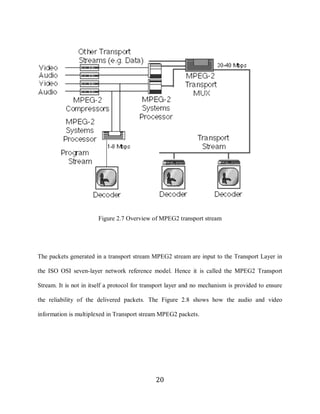
     program at the same time. The Figure 2.7 shows an overview of MPEG2 transport stream

     encoder and illustrates the process of multiplexing multiple audio/video sources into one

     Transport stream MPEG2.


                                                     19
20


                             Figure 2.7 Overview of MPEG2 transport stream


     The packets generated in a transport stream MPEG2 stream are input to the Transport Layer in

     the ISO OSI seven-layer network reference model. Hence it is called the MPEG2 Transport

     Stream. It is not in itself a protocol for transport layer and no mechanism is provided to ensure

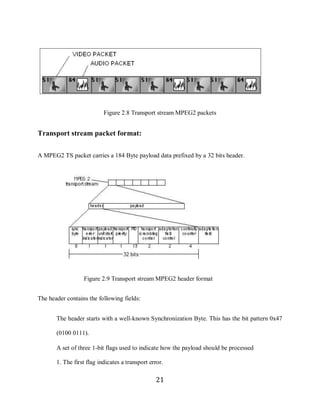
     the reliability of the delivered packets. The Figure 2.8 shows how the audio and video

     information is multiplexed in Transport stream MPEG2 packets.


                                                   20
21


                                Figure 2.8 Transport stream MPEG2 packets


     Transport stream packet format:


     A MPEG2 TS packet carries a 184 Byte payload data prefixed by a 32 bits header.


                       Figure 2.9 Transport stream MPEG2 header format


     The header contains the following fields:


         The header starts with a well-known Synchronization Byte. This has the bit pattern 0x47

            (0100 0111).

         A set of three 1-bit flags used to indicate how the payload should be processed

            1. The first flag indicates a transport error.

                                                      21
22

            2. The second flag indicates the start of a payload (payload unit start indicator).

            3. The third flag is the transport priority bit.

         The PID (13-bit packet identifier) follows next. It is used to determine the stream to

            which the packet belongs to.

         The two scrambling control bits are used by conditional access procedures to process the

            encrypted payload of some TS packets.

         The adaptation field control bits indicate what kind of data the payload contains. The two
            adaptation field control bits can take four values:

            1. 01 – no adaptation field, payload only.

            2. 10 – adaptation field only, no payload.

            3. 11 – adaptation field followed by payload.

            4. 00 – reserved for future use.

         The presence of an adaptation field is indicated by the adaption field control bits in a
            transport stream packet. If present, the adaption field directly follows the 4 Byte packet

            header, before any user payload data. It may contain a variety of data used for timing and

            control.

         Finally there is a 4 bit Continuity Counter.


     MPEG video, audio and data streams are usually combined together into a Transport Stream. A

     Transport Stream consists of short, fixed-length (188 byte) packets concatenated together. Each

     packet contains a header followed by a payload which is a chunk of a particular elementary

     stream. The header consists of a (non-unique) one-byte start code which can be used for

                                                       22
23

     synchronization, followed by a packet identifier (PID) which is a 13-bit code indicating which

     elementary stream the payload belongs to. The task of a transport stream multiplexer is then to

     convert the elementary streams into packets, to buffer them and to select them for transmission

     according to the rates at which the elementary streams are generated. One additional

     complication is that, for reasons partly connected with timing information described below,

     video elementary streams undergo an intermediate stage of packetization into packetized

     elementary streams (PESs) at which stage some timing data is added.


     A Transport Stream may contain several video, audio and data channels. The decoder obviously

     needs to know which video and audio signals go together to make each particular program. The

     MPEG Systems Layer provides a two-layer system of navigation through the Transport Stream.

     First, packets with a PID of zero contain what is known as the Program Association Table

     (PAT). This is a list of programs together with the PIDs of further tables, one for each program.

     Each of these further tables, known as Program Map Tables (PMTs) contains a list of all the

     elementary streams making up the program and the PIDs identifying them.


     The MPEG specification for program-specific information (PSI) also includes a Network

     Information Table (NIT) which contains information about the physical networks different

     program are transmitted on (frequencies, for example) and a Conditional Access Table (CAT)

     which provides a framework for scrambling, encryption and access control, though the actual

     implementation of conditional access is not part of the MPEG specification. Particular

     implementations of MPEG have made numerous additions to the basic program-specific

     information to provide more sophisticated navigation tools, enable interactivity and give

     additional data and software to the user. For example, the European DVB standard contains

                                                   23
24

     Service Information (SI) containing such things as a Bouquet Association Table (BAT), a Time

     and Date Table (TDT) and a Running Status Table (RST) as well as more detailed specifications

     of how conditional access data is transmitted. The American ATSC standard has equivalent but

     different extensions to the MPEG tables.


     One of the most important features of the MPEG Systems Layer is that it provides a mechanism

     to enable the decoder to remain in step with the encoder when both are working in real time. The

     decoder has to be able to recreate the master clock that was used at the encoder, so that for every

     picture that enters the decoder, one leaves the decoder. It then has to know exactly when,

     according to this clock, it should remove data from the buffer for decoding and presentation to

     the display device.


     In this chapter, the structure of MPEG2 as well as the factors that make transport stream MPEG2

     different from program stream MPEG2 has been discussed. Having discussed about how the

     video and audio content is compressed and stored, it is important to understand how MPEG2,

     wmv and other format of video files are served to the clients using streaming and downloading.

     The concepts and protocols that are used to stream MPEG2 and other formats of video are

     discussed in the next chapter along with a description of the device called VBrick.


                                                    24
25

     3 Video streaming protocols and standards

     In the previous chapter, various standards for video coding as well as the structure of MPEG2

     video was discussed. Since the emphasis of this thesis is to deal with the problem of transcoding

     MPEG2 video stream generated by a device called VBrick to low bit-rate video streams, this

     chapter starts with a description of VBrick.


            In order to understand the design and implementation of a transcoding mechanism for the

     MPEG2 video, the understanding of various protocols used for streaming video over the network

     is necessary. In this chapter the protocols like unicast, multicast, TCP, UDP, IP which is used to

     stream the video content over network is discussed. It is followed by Section 3.3, in which media

     delivery and control protocols such as Real Time Streaming Protocol, Microsoft Media

     Streaming Protocol and Hypertext Transfer Protocol is explained.


     3.1 VBrick

     VBrick 6200 is a full-duplex, high quality audio and video encoder/decoder. VBrick 6200

     encoder converts analog video to MPEG2 standard video and delivers it over IP. The VBrick

     encoder/decoder can be connected to a network using an Ethernet 10/100 Mbps or an ATM

     interface. The VBrick has built-in hardware encoder which encodes the input video/audio to

     generate DVD quality MPEG2 at bit-rates 1 to 15 Mbps. Similarly, it also has a decoder that can

     decode the packets received over the network to generate the video output. The VBrick can

     send/receive video streams using unicast as well as multicast protocol.


                                                    25
26

            The Figures 3.1 and 3.2 illustrate the VBrick 6200 in front and rear view. The various

     input/output ports of a VBrick 6200 are shown in Figure 3.1. When a VBrick is connected to the

     network and is streaming the video, the display in the front of the VBrick can be used to monitor

     the IP address assigned to the VBrick and other control information as shown in Figure 3.2.


     Figure 3.1 VBrick 6200 rear view                 Figure 3.2 VBrick 6200 front view


            The VBrick encoder can receive video input from a live camera via an S-Video input,

     from a DVD player or an MPEG2 video file stored in a built-in hard-drive of the VBrick. The

     video stream generated by a VBrick can be received and viewed using VBrick decoder or a

     software decoder. VBrick provides a software called the Stream Player Plus [15] which can be

     used to decode video streams (generated by a VBrick encoder) being received over IP network.

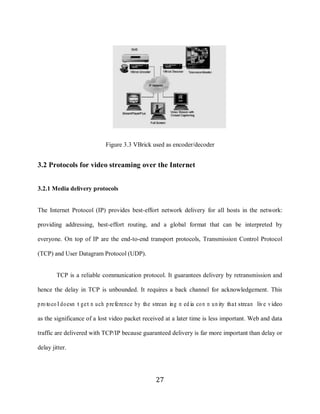
     The Figure 3.3 illustrates VBrick being used as an encoder/decoder.


                                                   26
27


                                 Figure 3.3 VBrick used as encoder/decoder


     3.2 Protocols for video streaming over the Internet


     3.2.1 Media delivery protocols


     The Internet Protocol (IP) provides best-effort network delivery for all hosts in the network:

     providing addressing, best-effort routing, and a global format that can be interpreted by

     everyone. On top of IP are the end-to-end transport protocols, Transmission Control Protocol

     (TCP) and User Datagram Protocol (UDP).


             TCP is a reliable communication protocol. It guarantees delivery by retransmission and

     hence the delay in TCP is unbounded. It requires a back channel for acknowledgement. This

     proto co l do esn‟t get m uch preference by the stream ing m ed ia co m m u nity that stream live v ideo

     as the significance of a lost video packet received at a later time is less important. Web and data

     traffic are delivered with TCP/IP because guaranteed delivery is far more important than delay or

     delay jitter.


                                                       27
28

            UDP stands for "User Datagram Protocol". In this protocol, there is no dialog between

     the sender and receiver. If the receiver does not get a packet, the sender will never know.

     VBrick video data is usually sent via UDP. If the video packets are sent in frames and the frames

     are being displayed in real time at the client (receiver) the resent packet is discarded. But,

     firewalls block all UDP packets, making it impossible for streaming video to reach desktops.


     3.2.2 Unicast


     Unicast is simply sending packets from one source to one destination. A unicast stream is a one-

     to-one connection between the server and a client, which means that each client receives a

     distinct stream and only those clients that request the stream receive it. Unicast streaming is the

     default method by which a Streaming server delivers content to a client.


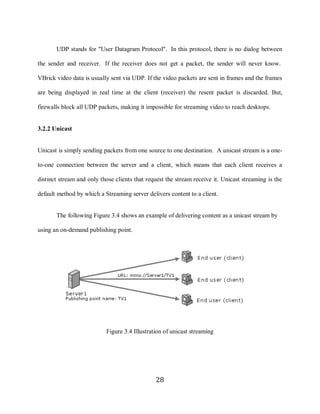
            The following Figure 3.4 shows an example of delivering content as a unicast stream by

     using an on-demand publishing point.


                                Figure 3.4 Illustration of unicast streaming


                                                    28
29


     3.2.3 Multicast

     Multicast sends data from a sender to multiple receivers where each receiver signals that they

     want to receive the data. Multicast utilizes the UDP protocol. In Multicast networking, a

     computer does not send its traffic to another computer. Rather, it sends it to a special address

     whose physical location is actually inside a router and/or switch. A multicast client can then

     inform the router that it wants to receive a multicast stream. When so informed, the router

     replicates the traffic to that client (and to all other clients who inform the router of their desire to

     “jo in the sessio n”). In order to use Multicast, the network must be Multicast enabled. This

     means that all the routers between the sender and the receivers must be configured to route

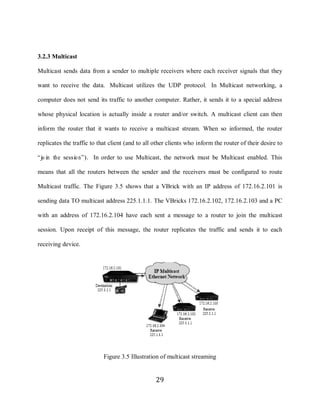
     Multicast traffic. The Figure 3.5 shows that a VBrick with an IP address of 172.16.2.101 is

     sending data TO multicast address 225.1.1.1. The VBricks 172.16.2.102, 172.16.2.103 and a PC

     with an address of 172.16.2.104 have each sent a message to a router to join the multicast

     session. Upon receipt of this message, the router replicates the traffic and sends it to each

     receiving device.


                                 Figure 3.5 Illustration of multicast streaming


                                                       29
30

            While the basics of multicasting are easily understood, a new set of routing protocols are

     needed for a multicast network to scale to global size. In IPv4, the range of addresses from

     224.0.0.1 to 239.255.255.255 is classified as Class D IP addresses.

            Internet Group-Membership Protocol [16] (IGMP) is the multicast protocol. IGMP relies

     on Class D IP addresses for the creation of multicast groups. IGMP is used to dynamically

     register individual hosts in a multicast group with a Class D address. Hosts identify group

     memberships by sending IGMP messages, and traffic is sent to all members of that multicast

     group. Under IGMP, routers listen to IGMP messages and periodically send out queries to

     discover which groups are active or inactive on particular LANs. Routers communicate with

     each other by using one or more protocols to build multicast routes for each group.


            Protocol Independent Multicast [17] (PIM) sparse mode is optimized for internetworks

     with many data streams but a relatively few number of LANs. It defines a rendezvous point that

     is then used as a registration point to facilitate the proper routing of packets. When multicast

     traffic is sent, the router nearest the source sends data to the rendezvous point. When a receiver

     wants to receive data, the last-hop router (with respect to the receiver) registers with the

     rendezvous point. A data stream flows from the sender to the rendezvous point and to the

     receiver. Routers in the path from source to destination optimize the path and automatically

     remove any unnecessary hops, even at the rendezvous point.


            Multicast Open Shortest Path First (MOSPF) is an extension of OSPF. MOSPF employs

     a unicast routing protocol so that every router is aware of all available links, and each calculates

     routes from the source to all possible group members. MOSPF calculates the routes for each

                                                     30
31

     source/multicast group pair when the router receives traffic for that pair, and routes are cached

     until a topology change occurs. MOSPF then recalculates the topology. MOSPF works only in

     networks that use OSPF, and where there are a small number of multicast groups. MOSPF takes

     up a lot of router CPU bandwidth when there are many multicast groups, or where those groups

     change often.


     3.3 Media control protocols


     There are three different protocols used for media control in video streaming applications. They

     are:


            1. Real Time Streaming Protocol (RTSP)

            2. Microsoft Media Server protocol (MMS)

            3. Hypertext Transfer Protocol (HTTP)


     The variables such as error checking method, data compression method and end-of-file

     acknowledgements are determined by the type of protocol. The control-protocol plug-in on the

     server receives the request from clients, determines the action indicated by the request (for

     example, start or stop streaming) and passes the command to the streaming server. MMS and

     RTSP can be used in combination with both UDP and TCP protocols.


     3.3.1 Real time streaming protocol


     RTSP [18] can be used to deliver video content as a unicast or a multicast stream. RTSP is an

     application-level protocol created to control the delivery of real-time data, such as audio and

     video content. RTSP is used by most of the media delivery services like M icro so ft‟s W indo w s
                                                     31
32

     media services, Real Networks and QuickTime. It has a built in mechanism for time-based seeks.

     This means that it can handle client requests of searching in a media clip.

     Whenever a client sends a request to a streaming server using an RTSP URL (for example,

     rtsp://server_name/publishing_point_name/file_name), the RTSP negotiates the best delivery

     mechanism for content delivery and delivers the streaming content using the User Datagram

     Protocol (UDP) or using a Transmission Control Protocol (TCP)-based protocol on a network

     that does not support UDP.

     3.3.2 Microsoft media server protocol

     The Microsoft Media Server (MMS) protocol is a streaming media protocol developed by

     Microsoft. It supports player control actions such as fast-forwarding, rewinding, pausing,

     starting, and stopping an indexed digital media file.


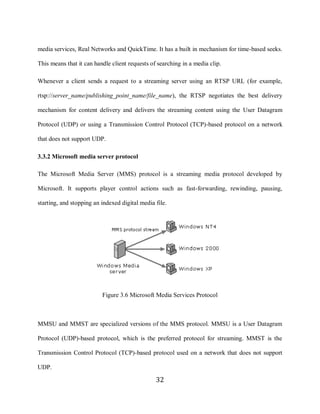
                               Figure 3.6 Microsoft Media Services Protocol


     MMSU and MMST are specialized versions of the MMS protocol. MMSU is a User Datagram

     Protocol (UDP)-based protocol, which is the preferred protocol for streaming. MMST is the

     Transmission Control Protocol (TCP)-based protocol used on a network that does not support

     UDP.

                                                     32
33

     3.3.3 Hypertext transfer protocol

     HTTP [19] can be used to stream content from a streaming server to a client program. Mostly,

     this protocol is used for media control during video streaming if the content is being streamed

     through a firewall. HTTP uses port 80 which is not blocked by the firewalls.


     3.4 Protocol rollover

     The ability of the server to choose the right protocol for a client depending on its environment is

     called protocol rollover. It is useful when the server is receiving requests from a variety of

     clients. The clients may be connected through a firewall. The server establishes the optimal

     connection to the client when protocol rollover is used. The client sends information about its

     type (version) and what protocols it can support when requesting a video stream from the server.

     The server uses the best protocol for the situation by using the information sent by the client and

     the comparing it with the protocols enabled on the server.


            In typical scenarios the first attempt to connect to the server succeeds and no further

     attempts are made to connect to the server. If an attempt is unsuccessful protocol rollover is

     performed and the next optimal protocol is used for streaming. During the process of protocol

     rollover the client may experience brief but unnoticeable latency. The Figure 3.7 illustrates

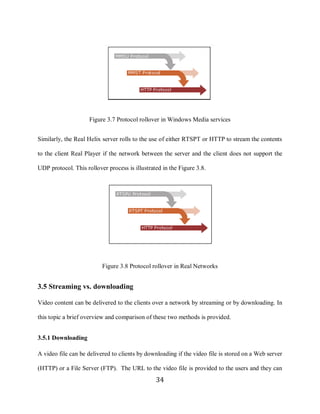
     protocol rollover in Windows Media services. The most preferred protocol to transmit windows

     media is MMSU (using UDP). If the network between the server and the client does not support

     UDP protocol then MMST (TCP) is used. If there is a firewall between the server and the client

     the server chooses HTTP protocol to stream the media contents to the client.


                                                    33
34


                          Figure 3.7 Protocol rollover in Windows Media services


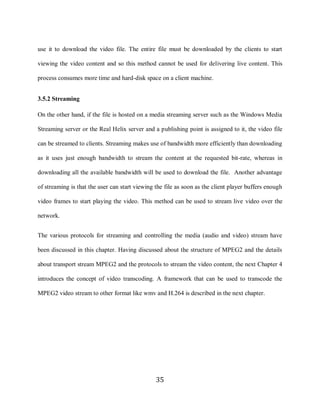
     Similarly, the Real Helix server rolls to the use of either RTSPT or HTTP to stream the contents

     to the client Real Player if the network between the server and the client does not support the

     UDP protocol. This rollover process is illustrated in the Figure 3.8.


                               Figure 3.8 Protocol rollover in Real Networks


     3.5 Streaming vs. downloading

     Video content can be delivered to the clients over a network by streaming or by downloading. In

     this topic a brief overview and comparison of these two methods is provided.


     3.5.1 Downloading

     A video file can be delivered to clients by downloading if the video file is stored on a Web server

     (HTTP) or a File Server (FTP). The URL to the video file is provided to the users and they can
                                                     34
35

     use it to download the video file. The entire file must be downloaded by the clients to start

     viewing the video content and so this method cannot be used for delivering live content. This

     process consumes more time and hard-disk space on a client machine.


     3.5.2 Streaming

     On the other hand, if the file is hosted on a media streaming server such as the Windows Media

     Streaming server or the Real Helix server and a publishing point is assigned to it, the video file

     can be streamed to clients. Streaming makes use of bandwidth more efficiently than downloading

     as it uses just enough bandwidth to stream the content at the requested bit-rate, whereas in

     downloading all the available bandwidth will be used to download the file. Another advantage

     of streaming is that the user can start viewing the file as soon as the client player buffers enough

     video frames to start playing the video. This method can be used to stream live video over the

     network.


     The various protocols for streaming and controlling the media (audio and video) stream have

     been discussed in this chapter. Having discussed about the structure of MPEG2 and the details

     about transport stream MPEG2 and the protocols to stream the video content, the next Chapter 4

     introduces the concept of video transcoding. A framework that can be used to transcode the

     MPEG2 video stream to other format like wmv and H.264 is described in the next chapter.


                                                     35
36

     4 Transcoding video streams


     In this chapter the concept of video transcoding is explained and a framework to transcode

     MPEG2 transport stream to Windows Media, Real Video and H.264 format is discussed.


            The bandwidth required to stream MPEG2 video typically ranges from 4 to 10 Mbps

     depending on the bit-rate used to encode the MPEG2 video or the quality of MPEG2 video

     desired. All the users on the Internet do not have download speeds of 4 to 10 Mbps and so the

     video stream generated at 4 Mbps must be transcoded to lower bit-rates so that the users can

     receive the video stream at lower bit-rates also.


            Video transcoding is a process that among other things, converts the format, changes the

     bit-rate, and enhances the error-resilience of an encoded video stream. The most straight forward

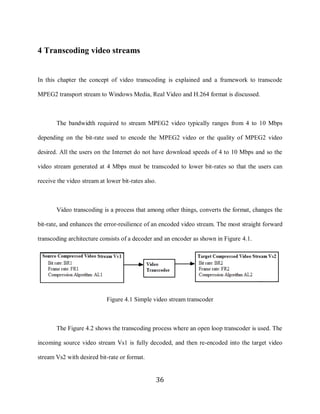
     transcoding architecture consists of a decoder and an encoder as shown in Figure 4.1.


                                 Figure 4.1 Simple video stream transcoder


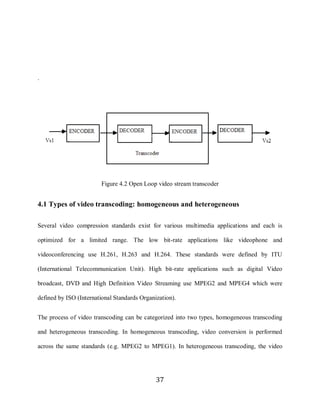
            The Figure 4.2 shows the transcoding process where an open loop transcoder is used. The

     incoming source video stream Vs1 is fully decoded, and then re-encoded into the target video

     stream Vs2 with desired bit-rate or format.


                                                     36
37


     .


                             Figure 4.2 Open Loop video stream transcoder


     4.1 Types of video transcoding: homogeneous and heterogeneous

     Several video compression standards exist for various multimedia applications and each is

     optimized for a limited range. The low bit-rate applications like videophone and

     videoconferencing use H.261, H.263 and H.264. These standards were defined by ITU

     (International Telecommunication Unit). High bit-rate applications such as digital Video

     broadcast, DVD and High Definition Video Streaming use MPEG2 and MPEG4 which were

     defined by ISO (International Standards Organization).


     The process of video transcoding can be categorized into two types, homogeneous transcoding

     and heterogeneous transcoding. In homogeneous transcoding, video conversion is performed

     across the same standards (e.g. MPEG2 to MPEG1). In heterogeneous transcoding, the video


                                                   37
38

     stream in one standard is transcoded to a video stream in another standard. (e.g. MPEG2 to

     H.264).

     4.1.1 Homogeneous transcoding

     Homogeneous transcoding performs conversion between video bit-streams of the same standard.

     A high quality source video may be transcoded to a target video bit stream of lower quality, with

     different resolutions, and different bit rates. The bit-rate of a video stream can be reduced

     without changing its resolution by using requantization or select transmission.


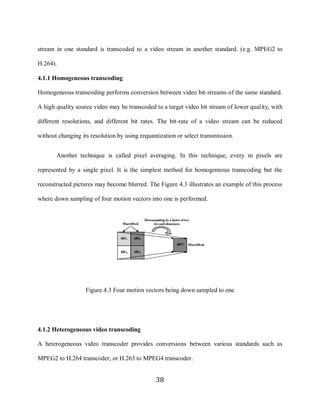
            Another technique is called pixel averaging. In this technique, every m pixels are

     represented by a single pixel. It is the simplest method for homogeneous transcoding but the

     reconstructed pictures may become blurred. The Figure 4.3 illustrates an example of this process

     where down sampling of four motion vectors into one is performed.


                        Figure 4.3 Four motion vectors being down sampled to one


     4.1.2 Heterogeneous video transcoding

     A heterogeneous video transcoder provides conversions between various standards such as

     MPEG2 to H.264 transcoder, or H.263 to MPEG4 transcoder.


                                                    38
39

            A heterogeneous transcoder needs a syntax conversion module, and may change the

     picture type, picture resolution, directionality of MVs, and picture rate. A heterogeneous

     transcoder must adjust the features of the incoming video to enable the features of the outgoing

     video [20]. A number of differences exist among various video coding standards which makes

     heterogeneous transcoding more complex. Table 4.1 below shows some of the major differences

     between popular coding standards.


                         Table 4.1 Key features of video compression standards


                                                   39
40

            Live broadcast of transcoded stream is more complex than transcoding video for on-

     demand broadcast. It involves more resources and has a time constraint for generating the

     transcoded stream. Designing a whole new transcoder for the purpose of transcoding VBrick

     stream into wmv or real video format is a tedious process. Hence existing software like Windows

     Media Encoder [21] and Real Producer [22] is used in the framework (discussed in the next

     Section) to convert VBrick video stream into low bit rate formats.


     4.2 Transcoding VBrick transport stream MPEG2
     In this Section, the various ways in which the transport stream MPEG2 generated by a (VBrick)

     device at higher bit rates can be transmitted to large number of people is discussed.


     The multicast transport stream MPEG2 generated by the VBrick can be transmitted to the

     audience without Internet2 connectivity in two ways.


        1. On demand streaming of transcoded video

        2. Live broadcast of transcoded video at lower bit rates


     The recorded video from a VBrick session needs to be transcoded to lower bitrates and

     appropriate format (.wmv or .rm) to enable it for on-demand streaming. The video authoring

     programs such as Windows Media Encoder, Real Producer or Ulead Express expect the input to

     be in program stream MPEG2 format and do not have the capability of processing transport

     stream MPEG2. Hence initial attempts to compress the transport stream MPEG2 to .wmv or .rm

     format using Windows media encoder or Real Producer resulted in output stream with no audio.

     To solve this problem two-pass encoding of the recorded files is done. In the first pass the

                                                     40
41

     transport stream MPEG2 is converted to MPEG1 or program stream MPEG2. This stream is then

     converted to .wmv or .rm format using Windows Media Encoder or Real Producer respectively.

     Once the compressed video is produced, it is placed on the Windows Media Server or Helix

     streaming server and can be accessed on-demand by clients using appropriate request to web

     server URL.


            The solution discussed above cannot be used for live broadcast of transcoded stream

     because of the time constraint. Windows Media Encoder and Real Producer transcode a video

     stream and generate an output stream at desired bit-rate and format. But the input to these

     encoders must be uncompressed video from a video/audio capture card or video compressed

     using a codec that the above software can decode. The software listed above only decode

     Program stream MPEG2. When Transport stream MPEG2 is used as an input to generate the

     transcoded stream, the output stream does not contain the audio data (discussed in Section 2.5).

     To solve this problem Microsoft DirectShow [23] is used. On Microsoft Windows platform

     Microsoft DirectShow provides architecture for processing media (video and sound).

     DirectShow provides high-quality capture and playback of multimedia streams. It supports

     capture from digital and analog devices based on the Windows Driver Model or Video for

     Windows (VfW).


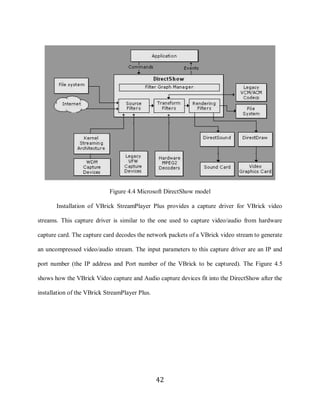
            The following Figure 4.4 shows the relationship between an application, the DirectShow

     components, and some of the hardware and software components. As illustrated, DirectShow

     filters communicate with, and control, a wide variety of devices, including the local file system,

     TV tuner and video capture cards, VfW codecs, the video display, and the sound card.


                                                     41
42


                                 Figure 4.4 Microsoft DirectShow model

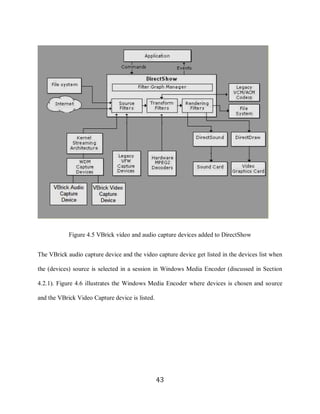
            Installation of VBrick StreamPlayer Plus provides a capture driver for VBrick video

     streams. This capture driver is similar to the one used to capture video/audio from hardware

     capture card. The capture card decodes the network packets of a VBrick video stream to generate

     an uncompressed video/audio stream. The input parameters to this capture driver are an IP and

     port number (the IP address and Port number of the VBrick to be captured). The Figure 4.5

     shows how the VBrick Video capture and Audio capture devices fit into the DirectShow after the

     installation of the VBrick StreamPlayer Plus.


                                                     42
43


                 Figure 4.5 VBrick video and audio capture devices added to DirectShow


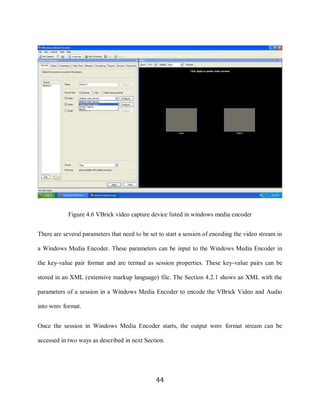
     The VBrick audio capture device and the video capture device get listed in the devices list when

     the (devices) source is selected in a session in Windows Media Encoder (discussed in Section

     4.2.1). Figure 4.6 illustrates the Windows Media Encoder where devices is chosen and source

     and the VBrick Video Capture device is listed.


                                                      43
44


                 Figure 4.6 VBrick video capture device listed in windows media encoder


     There are several parameters that need to be set to start a session of encoding the video stream in

     a Windows Media Encoder. These parameters can be input to the Windows Media Encoder in

     the key-value pair format and are termed as session properties. These key-value pairs can be

     stored in an XML (extensive markup language) file. The Section 4.2.1 shows an XML with the

     parameters of a session in a Windows Media Encoder to encode the VBrick Video and Audio

     into wmv format.


     Once the session in Windows Media Encoder starts, the output wmv format stream can be

     accessed in two ways as described in next Section.


                                                    44
45

     4.2.1 Windows media server

     Windows Media Streaming server [24] is a server program that can be installed (configured) on a

     Windows 2000/2003 server. The URL

      http://www.microsoft.com/windows/windowsmedia/forpros/serve/wmservices.aspx can be

     referred to get instructions in configuring Windows Media Services on Windows 2003 server.

     Ideally two computers are used in this framework. The first one (referred to as Window Media

     Encoder) is used to transcode the transport stream MPEG2 from the VBrick to a lower bit-rate

     .wmv format. The second one is used to host the Windows Media Server. There are two ways of

     serving this transcoded .wmv stream to the clients.


        1. The .wmv stream can be PULLed directly from the Windows Media Encoder (WME) by

            connecting to the URL specified by http://ipaddress:port, where ipaddress is the IP

            address of WME and port is the configured port on WME for serving the transcoded

            stream. There is limitation on number of users that can connect to the windows media

            encoder program as the computational load on it increases with increased number of

            clients connecting to it. This method is useful when the transcoded stream is to be served

            to less number of clients.


        2. In the second method, the transcoded .wmv stream is PUSHed to a broadcast point on a

            Windows media streaming server. Clients can then connect to the broadcast point using

            the URL mms://server1/broadcastpoint and receive the transcoded stream live. The

            Windows Media Streaming server provides more capabilities such as security and

            administration for serving the .wmv stream. When compared to the earlier method, a

                                                    45
46

            large number of users can connect to the windows media server and receive the stream. In

            this method an extra delay is added which is the network delay to transmit the transcoded

            stream from the windows media encoder to the windows media streaming server.


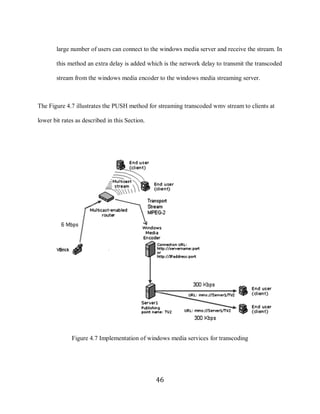
     The Figure 4.7 illustrates the PUSH method for streaming transcoded wmv stream to clients at

     lower bit rates as described in this Section.


                   Figure 4.7 Implementation of windows media services for transcoding


                                                     46
47

     VBrick stream can be transcoded to a wmv stream by starting a new broadcast session in

     W indo w s M ed ia E nco der and selecting the so urce as “devices” (as sho w n in F igure 4.8). T he

     VBrick Video Capture and the VBrick Audio Capture is selected as the video and audio device

     respectively.


            Figure 4.8 Windows Media Encoder session with VBrick devices selected as input


     Then a number of settings like the video resolution, frame rate and bit-rate are set to start an

     encoding session that transcodes the input VBrick stream into wmv [27]. An XML file

     containing parameters for Windows Media Encoder to transcode a VBrick stream into a wmv

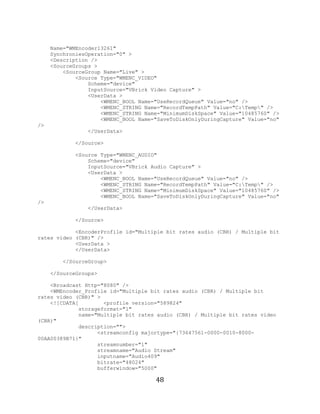
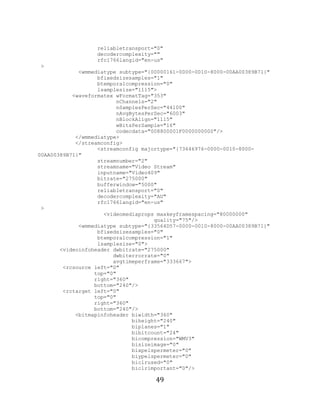
     format is as follows:

     <?xml version="1.0"?>

     <WMEncoder major_version="9"
         minor_version="0"
                                                     47
48

          Name="WMEncoder13261"
          SynchroniesOperation="0" >
          <Description />
          <SourceGroups >
              <SourceGroup Name="Live" >
                  <Source Type="WMENC_VIDEO"
                      Scheme="device"
                      InputSource="VBrick Video Capture" >
                      <UserData >
                          <WMENC_BOOL Name="UseRecordQueue" Value="no" />
                          <WMENC_STRING Name="RecordTempPath" Value="C:Temp" />
                          <WMENC_STRING Name="MinimumDiskSpace" Value="10485760" />
                          <WMENC_BOOL Name="SaveToDiskOnlyDuringCapture" Value="no"
     />
                      </UserData>

                  </Source>

                  <Source Type="WMENC_AUDIO"
                      Scheme="device"
                      InputSource="VBrick Audio Capture" >
                      <UserData >
                          <WMENC_BOOL Name="UseRecordQueue" Value="no" />
                          <WMENC_STRING Name="RecordTempPath" Value="C:Temp" />
                          <WMENC_STRING Name="MinimumDiskSpace" Value="10485760" />
                          <WMENC_BOOL Name="SaveToDiskOnlyDuringCapture" Value="no"
     />
                      </UserData>

                  </Source>

                 <EncoderProfile id="Multiple bit rates audio (CBR) / Multiple bit
     rates video (CBR)" />
                 <UserData >
                 </UserData>

              </SourceGroup>

          </SourceGroups>

         <Broadcast Http="8080" />
         <WMEncoder_Profile id="Multiple bit rates audio (CBR) / Multiple bit
     rates video (CBR)" >
         <![CDATA[        <profile version="589824"
                  storageformat="1"
                  name="Multiple bit rates audio (CBR) / Multiple bit rates video
     (CBR)"
                  description="">
                        <streamconfig majortype="{73647561-0000-0010-8000-
     00AA00389B71}"
                        streamnumber="1"
                        streamname="Audio Stream"
                        inputname="Audio409"
                        bitrate="48024"
                        bufferwindow="5000"

                                           48
49

                       reliabletransport="0"
                       decodercomplexity=""
                       rfc1766langid="en-us"
     >
                  <wmmediatype subtype="{00000161-0000-0010-8000-00AA00389B71}"
                        bfixedsizesamples="1"
                        btemporalcompression="0"
                        lsamplesize="1115">
                <waveformatex wFormatTag="353"
                              nChannels="2"
                              nSamplesPerSec="44100"
                              nAvgBytesPerSec="6003"
                              nBlockAlign="1115"
                              wBitsPerSample="16"
                              codecdata="008800001F0000000000"/>
                 </wmmediatype>
                 </streamconfig>
                        <streamconfig majortype="{73646976-0000-0010-8000-
     00AA00389B71}"
                        streamnumber="2"
                        streamname="Video Stream"
                        inputname="Video409"
                        bitrate="275000"
                        bufferwindow="5000"
                        reliabletransport="0"
                        decodercomplexity="AU"
                        rfc1766langid="en-us"
      >
                          <videomediaprops maxkeyframespacing="80000000"
                                          quality="75"/>
                  <wmmediatype subtype="{33564D57-0000-0010-8000-00AA00389B71}"
                        bfixedsizesamples="0"
                        btemporalcompression="1"
                        lsamplesize="0">
            <videoinfoheader dwbitrate="275000"
                             dwbiterrorrate="0"
                             avgtimeperframe="333667">
             <rcsource left="0"
                       top="0"
                       right="360"
                       bottom="240"/>
             <rctarget left="0"
                       top="0"
                       right="360"
                       bottom="240"/>
                 <bitmapinfoheader biwidth="360"
                                   biheight="240"
                                   biplanes="1"
                                   bibitcount="24"
                                   bicompression="WMV3"
                                   bisizeimage="0"
                                   bixpelspermeter="0"
                                   biypelspermeter="0"
                                   biclrused="0"
                                   biclrimportant="0"/>

                                          49
50

             </videoinfoheader>
                  </wmmediatype>
                  </streamconfig>
          </profile>
          ]]>
          </WMEncoder_Profile>

          <UserData >
              <WMENC_LONG Name="EncodingDest" Value="2" />
              <WMENC_STRING Name="EncodingAudio0" />
              <WMENC_STRING Name="EncodingVideo0" />
              <WMENC_STRING Name="EncodingScript0" />
              <WMENC_LONG Name="EncodingBitrate0Video0CustomW" Value="360" />
              <WMENC_LONG Name="EncodingBitrate0Video0CustomH" Value="240" />
          </UserData>

     </WMEncoder>


     Using the above configuration, the transcoded wmv stream of resolution 360 x 240 and the frame

     rate is 30 frames per second can be generated. The stream is served to the clients using the PULL

     method and URL to access the output stream will be http://serverIP:8080.


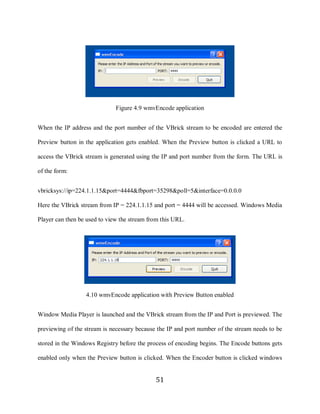
     A Graphical User Interface is designed in Qt [29] to simplify the use of this framework. The

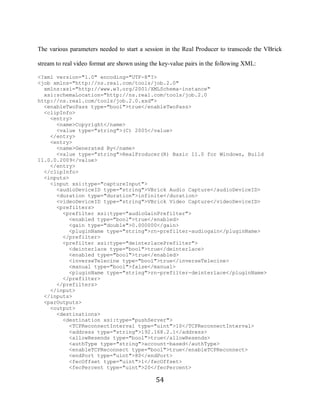
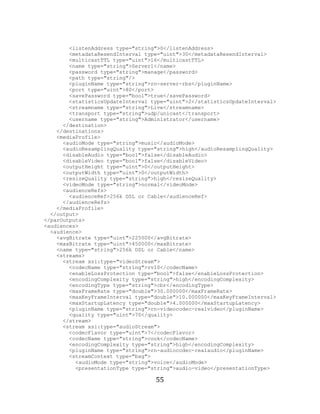
     application looks as shown in Figure 4.9. The source code for the application is given in

     Appendix B. One of the interesting things to note is that the XML configuration file (shown

     abo ve) o f a W indo w s M ed ia E nco der sho w n abo ve do esn‟t co n tain the IP Address and Port

     number of the VBrick stream to be transcoded.


     Whenever VBrick StreamPlayer Plus is used to access a VBrick stream, the IP address and the

     Port number of the stream gets stored in the Windows registry. When the capture driver is used

     to capture stream using encoding software, it accesses the same stream that is directed by the

     stored values in the registry. This protocol has been incorporated in the GUI application. This

     application is name wmvEncode.


                                                     50
51


                                   Figure 4.9 wmvEncode application


     When the IP address and the port number of the VBrick stream to be encoded are entered the

     Preview button in the application gets enabled. When the Preview button is clicked a URL to

     access the VBrick stream is generated using the IP and port number from the form. The URL is

     of the form:


     vbricksys://ip=224.1.1.15&port=4444&fbport=35298&poll=5&interface=0.0.0.0

     Here the VBrick stream from IP = 224.1.1.15 and port = 4444 will be accessed. Windows Media

     Player can then be used to view the stream from this URL.


                       4.10 wmvEncode application with Preview Button enabled


     Window Media Player is launched and the VBrick stream from the IP and Port is previewed. The

     previewing of the stream is necessary because the IP and port number of the stream needs to be

     stored in the Windows Registry before the process of encoding begins. The Encode buttons gets

     enabled only when the Preview button is clicked. When the Encoder button is clicked windows


                                                  51
52

     media encoder is launched and the VBrick stream that was previewed is given as input to the

     encoder. The Encoder reads the input parameters from an XML file which has all the parameters

     required to start the encoding process. Once the session starts and enough frames are buffered to

     generate the w m v stream the “S tart E nco ding ” butto n can be pressed to start the enco d ing

     process.


     4.2.2 Real helix server

     Similar to the approach discussed in Section 4.2.1 Real Producer [22] and Real Helix server can

     be used to broadcast the transcoded transport stream MPEG2 a low bit-rates. Real Producer is

     software that can encode uncompressed video input into real video format. The Figure 4.11

     shows a Real Producer session in which the VBrick devices are selected as inputs.


                Figure 4.11 Real Producer 11 session with VBrick devices selected as input

                                                    52
53


     The Figure 4.12 shows the use of Real Producer and Helix server [25] to broadcast the

     transcoded rm format. The MPEG2 transport stream is transcoded to the desirable bit rate and is

     streamed to a mount point (TV2) on a preconfigured Real Helix server. The web URL


     “http://service.real.com/help/library/guides/helixuniversalserver/realsrvr.htm” can be referred to

     configure a Real Helix Server. The end-user clients can then connect to the server to view the

     stream using the RTSP URL (as shown in the Figure 4.12) from a Real Player.


                     Figure 4.12 Implementation of the real networks for transcoding


                                                    53
54

     The various parameters needed to start a session in the Real Producer to transcode the VBrick

     stream to real video format are shown using the key-value pairs in the following XML:

     <?xml version="1.0" encoding="UTF-8"?>
     <job xmlns="http://ns.real.com/tools/job.2.0"
       xmlns:xsi="http://www.w3.org/2001/XMLSchema-instance"
       xsi:schemaLocation="http://ns.real.com/tools/job.2.0
     http://ns.real.com/tools/job.2.0.xsd">
       <enableTwoPass type="bool">true</enableTwoPass>
       <clipInfo>
         <entry>
           <name>Copyright</name>
           <value type="string">(C) 2005</value>
         </entry>
         <entry>
           <name>Generated By</name>
           <value type="string">RealProducer(R) Basic 11.0 for Windows, Build
     11.0.0.2009</value>
         </entry>
       </clipInfo>
       <inputs>
         <input xsi:type="captureInput">
           <audioDeviceID type="string">VBrick Audio Capture</audioDeviceID>
           <duration type="duration">infinite</duration>
           <videoDeviceID type="string">VBrick Video Capture</videoDeviceID>
           <prefilters>
             <prefilter xsi:type="audioGainPrefilter">
               <enabled type="bool">true</enabled>
               <gain type="double">0.000000</gain>
               <pluginName type="string">rn-prefilter-audiogain</pluginName>
             </prefilter>
             <prefilter xsi:type="deinterlacePrefilter">
               <deinterlace type="bool">true</deinterlace>
               <enabled type="bool">true</enabled>
               <inverseTelecine type="bool">true</inverseTelecine>
               <manual type="bool">false</manual>
               <pluginName type="string">rn-prefilter-deinterlace</pluginName>
             </prefilter>
           </prefilters>
         </input>
       </inputs>
       <parOutputs>
         <output>
           <destinations>
             <destination xsi:type="pushServer">
               <TCPReconnectInterval type="uint">10</TCPReconnectInterval>
               <address type="string">192.168.2.1</address>
               <allowResends type="bool">true</allowResends>
               <authType type="string">account-based</authType>
               <enableTCPReconnect type="bool">true</enableTCPReconnect>
               <endPort type="uint">80</endPort>
               <fecOffset type="uint">1</fecOffset>
               <fecPercent type="uint">20</fecPercent>

                                                   54
55

             <listenAddress type="string">0</listenAddress>
             <metadataResendInterval type="uint">30</metadataResendInterval>
             <multicastTTL type="uint">16</multicastTTL>
             <name type="string">Server1</name>
             <password type="string">manage</password>
             <path type="string"/>
             <pluginName type="string">rn-server-rbs</pluginName>
             <port type="uint">80</port>
             <savePassword type="bool">true</savePassword>
             <statisticsUpdateInterval type="uint">2</statisticsUpdateInterval>
             <streamname type="string">Live</streamname>
             <transport type="string">udp/unicast</transport>
             <username type="string">Administrator</username>
           </destination>
         </destinations>
         <mediaProfile>
           <audioMode type="string">music</audioMode>
           <audioResamplingQuality type="string">high</audioResamplingQuality>
           <disableAudio type="bool">false</disableAudio>
           <disableVideo type="bool">false</disableVideo>
           <outputHeight type="uint">0</outputHeight>
           <outputWidth type="uint">0</outputWidth>
           <resizeQuality type="string">high</resizeQuality>
           <videoMode type="string">normal</videoMode>
           <audienceRefs>
             <audienceRef>256k DSL or Cable</audienceRef>
           </audienceRefs>
         </mediaProfile>
       </output>
     </parOutputs>
     <audiences>
       <audience>
         <avgBitrate type="uint">225000</avgBitrate>
         <maxBitrate type="uint">450000</maxBitrate>
         <name type="string">256k DSL or Cable</name>
         <streams>
           <stream xsi:type="videoStream">
             <codecName type="string">rv10</codecName>
             <enableLossProtection type="bool">false</enableLossProtection>
             <encodingComplexity type="string">high</encodingComplexity>
             <encodingType type="string">cbr</encodingType>
             <maxFrameRate type="double">30.000000</maxFrameRate>
             <maxKeyFrameInterval type="double">10.000000</maxKeyFrameInterval>
             <maxStartupLatency type="double">4.000000</maxStartupLatency>
             <pluginName type="string">rn-videocodec-realvideo</pluginName>
             <quality type="uint">70</quality>
           </stream>
           <stream xsi:type="audioStream">
             <codecFlavor type="uint">7</codecFlavor>
             <codecName type="string">cook</codecName>
             <encodingComplexity type="string">high</encodingComplexity>
             <pluginName type="string">rn-audiocodec-realaudio</pluginName>
             <streamContext type="bag">
               <audioMode type="string">voice</audioMode>
               <presentationType type="string">audio-video</presentationType>

                                        55
56

               </streamContext>
             </stream>
             <stream xsi:type="audioStream">
               <codecFlavor type="uint">23</codecFlavor>
               <codecName type="string">cook</codecName>
               <encodingComplexity type="string">high</encodingComplexity>
               <pluginName type="string">rn-audiocodec-realaudio</pluginName>
               <streamContext type="bag">
                 <audioMode type="string">music</audioMode>
                 <presentationType type="string">audio-video</presentationType>
               </streamContext>
             </stream>
             <stream xsi:type="audioStream">
               <codecFlavor type="uint">14</codecFlavor>
               <codecName type="string">cook</codecName>
               <encodingComplexity type="string">high</encodingComplexity>
               <pluginName type="string">rn-audiocodec-realaudio</pluginName>
               <streamContext type="bag">
                 <audioMode type="string">voice</audioMode>
                 <presentationType type="string">audio-only</presentationType>
               </streamContext>
             </stream>
             <stream xsi:type="audioStream">
               <codecFlavor type="uint">4</codecFlavor>
               <codecName type="string">raac</codecName>
               <encodingComplexity type="string">high</encodingComplexity>
               <pluginName type="string">rn-audiocodec-realaudio</pluginName>
               <streamContext type="bag">
                 <audioMode type="string">music</audioMode>
                 <presentationType type="string">audio-only</presentationType>
               </streamContext>
             </stream>
           </streams>
         </audience>
       </audiences>
     </job>

     4.2.3 VideoLan client
     H.264 is a substantially different codec from the previous MPEG and ITU standards (see Table

     4.1). It is a joint effort of MPEG and ITU and aims to deliver high-quality video at all bit rates.

     VideoLan Client [26] is a tool that provides capability to transcode MPEG2 stream to H.264 in

     real time. The following Figure 4.13 illustrates the use of VideoLan Client to transcode transport

     stream MPEG2 in real time and broadcast it in low bit-rates. A more detailed description of this

     process is given in Appendix B


                                                      56
57


                     Figure 4.13 Implementation of VideoLan Client for transcoding


     4.3 Quality of transcoded video

     The phrase peak signal-to-noise ratio, often abbreviated PSNR, is an engineering term for the

     ratio between the maximum possible power of a signal and the power of corrupting noise that

     affects the fidelity of its representation. Because many signals have a very wide dynamic range,

     PSNR is usually expressed in terms of the logarithmic decibel scale. Peak Signal-to-Noise Ratio

     is most commonly used as a measure of quality of reconstruction in image compression. The

     higher the PSNR, the better is the quality of the compressed image. PSNR is most easily defined

     by the mean squared error (MSE) between two images.


                                                   57
58


     MSE for two m×n images I and K where one of the images is considered a noisy approximation

     of the other is computed by the following equation:


                                                             … … … … … … … … … … … … … … … [1]


     In equation 1, m and n are the number of rows and columns respectively in the input images I

     and K. I (i, j) represents the pixel of image I from ith row and jth column.


     PSNR can be computed using the following equation:


                              … … … … … … … … … … … … … … … … … … [2]


     In equation 2, R is the maximum fluctuation in the input image data type. For example, if the

     input image has a double-precision floating-point data type, then R is 1. If it has an 8-bit

     unsigned integer data type, R is 255, etc. Average PSNR of a compressed video file is the

     average of all the PSNR of all the video frames in the video. The typical value of average PSNR

     of a compressed video is between 30 and 45. PSNR is a measurement that gives an estimate of

     the quality of the compressed video with respect to the original video file.


                                                       58
59

     The concept of video transcoding and a framework to transcode MPEG2 video stream from

     VBrick devices to low bit-rate formats like wmv and H.264 has been discussed in this chapter.

     In the next chapter a comparison of the codecs used is discussed along with the results and

     conclusions.


                                                 59
60

     5 Results and conclusions

     In the previous chapter, the implementation of framework to transcode VBrick MPEG2 transport

     stream to wmv, real video and H.264 has been discussed. This chapter contains a comparison of

     the three types of mechanisms described earlier. Factors like the compression ratio, quality of the

     transcoded stream and the time taken by the encoder to transcode the stream is measured and the

     results are discussed.


            VBrick StreamPump [30] as shown in Figure 5.1 is a tool provided by VBrick Systems.,

     is used to stream a MPEG2 transport stream video file to a unicast or a multicast address. A

     multicast MPEG2 transport stream generated by the VBrick StreamPump is identical to the one

     generated by the VBrick 6200 and so it has been used to simulate a VBrick stream. To simulate

     the broadcast of VBrick transport stream MPEG2, a video file saved during one of the

     videoconference lecture sessions in NSEI is used. The MPEG2 file has 44960 frames and is of

     duration 25 minutes. The size of the MPEG2 file is 1.04 GB.


            The configuration of the machine used to transcode the VBrick transport stream MPEG2

     is as follows:


            Processor – AMD Turion dual core 1.6 GHz (512 KB L2 cache)

            Random Access Memory – 1 GB

            Hard Disk – 80 GB 5400 rpm SATA

            Network card – 1 Gbps Ethernet

             Operating system – Windows XP professional (service pack 2)


                                                    60
61


                          Figure 5.1 An illustration of the VBrick StreamPump


     5.1 Results

     5.1.1 Compression statistics


     The MPEG2 file is compressed to other formats and the time taken to perform the file-to-file

     compression is measured. This gives a measure of complexity of the encoding algorithm used to

     compress a file as well as the compression ratio achieved. A video file saved during one of the

     videoconference lecture sessions in NSEI is used for measuring this experiment. The MPEG2

     file has 44960 frames and its duration is 25 minutes. The size of the MPEG2 file is 1.04 GB.


            The following Table 5.1 shows the details including the bitrates at which the video file is

     encoded, size of the compressed video file and time taken to compress the file. The time taken by


                                                    61
62

     an encoder to compress the input file to the desired format gives a measure of the complexity of

     encoding algorithm.


                                                           Time taken to

      Format        Bitrate       Size of compressed       compress (seconds)   % Compression


      MPEG2         6000Kbps      1.04 GB                  N/A                  N/A


      MPEG1         3200Kbps      599 MB                   608                  45.5


      .wmv          342Kbps       62.6 MB                  1525                 94.3


      .rm           350Kbps       65.2 MB                  3828                 94.16


      H.264         350Kbps       66.2 MB                  864                  93.97


                                        Table 5.1 Compression statistics


     All three formats (wmv, rm and H.264) attain similar compression ratios at nearly 94%. The time

     taken to compress the file is highest for the Real format.


     5.1.2 Quality of transcoded video


     To measure the quality of the codec (wmv and H.264) the VBrick transport stream MPEG2 from

     the VBrick StreamPump is used as input and the transcoded stream is saved to a file for its

     comparison with the MPEG2 file. The MSU video quality measurement tool [28] is a tool that

     can measure the PSNR of two input video files frame by frame. The original MPEG2 file and the

     transcoded file were compared using the MSU tool and the average PSNR of the transcoded files

     is measured.


                                                      62
63

           Figure 5.2 shows the PSNR values of the compressed wmv file when it was compared

     with the MPEG1 file frame by frame using the MSU video quality measurement tool. The

     average PSNR of the .wmv file when compared to the MPEG1 file was 30.767.


                                     Figure 5.2 PSNR of wmv file


           Figure 5.3 is the graph obtained when the frames of compressed the H.264 file were

     compared with the MPEG1 file using the MSU video quality measurement tool. The average

     PSNR of the H.264 file when compared to the MPEG1 file was 34.35.


                                     Figure 5.3 PSNR of H.264 file


                                                 63
64

     5.1.3 Delay


     In live broadcasting of a transcoded stream for long distant learning, delay is the most important

     factor. Using the framework described in this thesis, a delay of around 11 seconds is observed

     between generating the VBrick MPEG2 stream (by the VBrick) and viewing the transcoded

     video on the client Windows Media Player. The various steps that add to the delay are discussed

     in this section. The following Figure 5.4 shows the path of the video stream from the point it is

     generated by the VBrick to the end user client that receives the compressed video on the Internet.

     The various steps involved in the process are numbered 1 through 5.


                                  Figure 5.4 Steps in transcoding process


                                                    64
65


     At Step 1 the VBrick stream is generated by the VBrick and is sourced at the nearest multicast

     enabled router at Step 2. In Step 3 the Windows Media Encoder which is on the Internet2

     network receives the multicast VBrick stream. The time delay for transmitting the MPEG2

     stream from Step 1 to Step 3 is extremely small and hence it can be neglected. Most of the delay

     is caused at Step 3 when the VBrick video stream is fully decoded and then encoded to a

     different compressed video format such as wmv.


            Every time the StreamPlayer Plus (or the capture driver) tries to access a VBrick stream,

     it first verifies the installed license from VBrick for the MPEG2 plug-in. This process involves

     communicating with the VBrick License server and initiating a StreamPlayer Plus session. This

     process takes around 1 second. However, this initial delay occurs exactly once during the startup

     of a given stream. Thus, this delay can also be ignored.


            The number of frames needing to be buffered before starting the encoding process is an

     input parameter to the Encoder. This can be varied to reduce the delay involved in the encoding

     process. In the XML file shown in Section 4.2.1, the two parameters audio bufferwindow and

     video bufferwindow are set to 5000 milliseconds (5 seconds). If this is set to 0, the total delay

     can be reduced by 5 seconds. The only disadvantage of setting these parameters to 0 is that if a

     few frames are dropped during the transmission from Step 1 to 2 or from Step 2 to 3, the Encoder

     stops receiving the video stream and it immediately stops the encoding process. If this happens,

     the Encoder must be manually started to commence transmitting a valid stream again. If the

     stream is buffered prior to encoding, the Encoder will stop the encoding process only when it

     runs out of frames in the buffer. Hence to make the transcoding process robust, buffering the
                                                    65
66

     audio and video packets is important. While a 5 second delay for buffering of data is used here,

     this value can be experimented with to try to use a lower level of buffering to shorten the

     apparent delay in the delivered stream of data.


             After the stream is buffered, the Encoder starts the encoding process. Before the output

     stream can be rendered out to a recipient, the data needs to go through the computation process

     of compressing the input stream to a compressed video format. From the data in Table 5.1, we

     can say that the computation time for transcoding the stream is very low. But this delay cannot

     be avoided while using a software encoder. In the case of transcoding to wmv, the computation

     time is approximately 1 second and, thus, introduces an additional second of delay.


             Although the clients can directly connect to the Encoder and receive the video stream, the

     Encoder can only support a limited a number of clients. At Step 4 the Windows Media Server

     reads the input stream and prepares it for streaming so that the clients can access it using a URL.

     This process requires minimal computation and the delay is not more than 0.5 second. The next

     factor that adds up to the total delay is the amount of buffering done at the client in Step 5. The

     following Figure 5.4 shows the setting in Windows Media Player where the amount of video

     stream buffered before starting to play it is set.


                                                          66
67


            Figure 5.5 Settings in windows media player


     The recommended and default setting forces the Windows Media Player to buffer the contents

     for 5 seconds before it starts playing it. The network buffering parameter can be changed and set

     to 0 seconds so that the Windows Media Player starts playing the stream as soon as it receives it.


            To summarize the above description, in the total delay of approximately 11.5 seconds, the

     significant amount of delay is added to the process at Steps 3 and 5. The delay at Step 3 is due to

     buffering (5 seconds) of MPEG2 and then transcoding it (1 second). At Step 5 there is a 5 second

     delay due to buffering of the transcoded stream. These two parameters can be varied to reduce


                                                    67
68

     the total delay of the process. But, by doing so, it might jeopardize the robustness of the

     application, by minimizing the buffering to a level below optimal performance.


     5.2 Conclusions

     The compression ratio achieved by transcoding the MPEG2 stream is similar among the three

     video codecs used (wmv, real video and H264). The complexity of encoding process is

     significantly high in Real Producer compared to Windows Media Encoder. Hence real video can

     be used for transcoding MPEG2 to video and host it for on-demand video viewing. It is not

     recommended for use with real time transcoding.


            The delay between the VBrick stream generated and the transcoded file viewed by the

     end user client on Internet can be reduced significantly by changing the amount of buffering at

     the Encoder and at the end user client. But changing these parameters can result in a less robust

     transcoding process and the quality of video stream may be significantly reduced.


            The quality is measured by calculating the PSNR of the transcoded video with respect to

     the MPEG2 video. It is observed that for a given target bit-rate the average PSNR of H.264

     stream is higher than the average PSNR of wmv stream.


            The implementation described in Section 4.2.1 to transcode multicast MPEG2 transport

     stream to lower bit rates using the windows media services has successfully been used during

     various seminars in NSEI. It has also been used to broadcast live presentations during the Life

     Sciences week at       University of Missouri - Columbia in both 2005 and 2006

     (http://lifesciencesweek.missouri.edu/webcast.html). Several users that do not have access to the


                                                   68
69

     Internet2 (to receive the multicast stream) connect to the low bit-rate live video stream generated

     by the Windows Media encoder.


     5.3 Future work

     Among other things the following can be done to improve the overall usability and the security

     of the content when using the approach described in this thesis.


            There may be several occasions when the content that is being streamed needs to be

     secure and should not be accessed by unauthorized users. If the users connect to the streaming

     server only from a particular domain (e.g. users connecting from within a University campus),

     then the users receiving the low bit-rate streams can be restricted by IP addresses. But most of

     the times the video stream is broadcasted to users that are in different locations. The webpage

     that front ends the URL to access live video stream and the web pages that host archived videos

     can be protected by using authentication like .htaccess [31]. The use of authentication can limit

     the number of users that receive live video stream and the users that access archived video files.


            From the observation in the Section 5.1.3 it is clear that the total delay can be reduced by

     changing the buffering at the Encoder and the end user client. The optimal value for these

     buffering parameters can be determined by further experimentation.


            This thesis has designed and implemented a framework to transcode high quality

     transport stream MPEG2 generated by VBrick to low bit-rate formats in real-time. The

     transcoded video can be streamed to the users on the Internet who intend to watch the video


                                                     69
70

     stream but do not have connectivity to Internet2 network. In distant learning programs where

     high quality video conferencing using VBrick is involved, this framework can be used to

     increase the number of users that can receive the live broadcast video.


                                                    70
71

     References
     1. NSEI website:
        http://nsei.missouri.edu/aboutus.html

     2. VBrick Systems, Inc. website:
        http://www.vbrick.com
        The webpage describing VBrick 6200:
        http://catalogs.infocommiq.com/AVCAT/CTL1440/index.cfm?mlc_id=1440&SI
        D=17349286&pin_id=2345&ProdID=322802 &T3=130057

     3. Barry G. Haskell, Atul Puri, Arun N. Netravali. “D igital V ideo, A n introd uctio n
        to MPEG-2”.

     4. R F C 1584 “M ulticast E xtensio ns to O SPF”, J. M oy. M arch 1994.

     5. Internet2 website:
        http://www.internet2.edu/about/

     6. Ladan Gharai, Tom Lehman, Alvaro Saurin, Colin Perkins, “E xperiences w ith
        H igh D efinitio n interactive video co nferencing”, IEEE International Conference
        on Multimedia and Expo, 2006.

     7. Access Grid Node website:
        http://www.accessgrid.org/

     8. Ultra Grid Node website:
        http://ultragrid.east.isi.edu/

     9. ITU-T R eco m m endatio n H .261, “V ideo codec fo r aud io visual services at px64
        K b its/s”, Inter. T eleco m m un icatio n U nio n, 1993

     10. ITU-T Recommendation H .26 3, “V ideo coding for low b it rate
        co m m unicatio n”, Inter. T eleco m m unicatio n U nio n, versio n 1, 1996; versio n 2,
        1997

     11. Thomas Wiegand, Gary J. Sullivan, Gisle Bjontegaard, and Ajay Luthra:
        “O verview o f the H .264/A V C V ideo C od ing S tandard”,
        IEEE Transactions on Circuits and Systems for Video Technology, Vol. 13, No.

                                                 71
72

        7, pp. 560-576, July 2003.

     12. The webpage for ISO-MPEG standards:
         http://www.iso.org/iso/en/prods-services/popstds/mpeg.html

     13. High Definition (HD) Image Formats:
        http://www.ebu.ch/en/technical/trev/trev_299-ive.pdf

     14. Webpage for HD videos:
        http://www.apple.com/quicktime/guide/hd/onesixright.html

     15. Webpage for VBrick StreamPlayer Plus release notes:
        http://www.vbrick.com/documentation/PCApps/StreamPlayer/v43/ReleaseNotes
        /StreamPlayerReleaseNotes.pdf

     16. RFC 2236 "Internet Group Management Protocol, version 2". W. Fenner.
        November 1997.

     17. RFC 2117, "Protocol Independent Multicast-Sparse Mode (PIM-SM): Protocol
        Specification". D. Estrin, D. Farinacci, A. Helmy, D. Thaler; S. Deering, M.
        Handley, V. Jacobson, C. Liu, P. Sharma, and L. Wei. July 1997.
     18. RTSP faq website:
        http://www.rtsp.org/2001/faq.html#rtp_rtcp_rtsp

     19. RFC for HTTP:
         http://www.w3.org/Protocols/rfc2616/rfc2616.html

     20. Ishfaq Ahmad, Xiaohui Wei, Yu Sun, and Ya-Qin Zhang , “V ideo
        Transcoding: A n O verview o f V ario us T echniq ues and R esearch Issues”. IE E E
        transactions on multimedia, vol. 7, no. 5, October 2005.

     21. Webpage for Window Media Services:
        http://www.microsoft.com/windows/windowsmedia/forpros/encoder/default.msp
        x

     22. Webpage for Real Producer:
        http://www.realnetworks.com/products/producer/index.html

                                               72
73

     23. MSDN webpage for DirectShow:
        http://msdn2.microsoft.com/en-us/library/ms783323.aspx

     24. Windows Media Streaming Server:
        http://www.microsoft.com/windows/windowsmedia/forpros/server/version.aspx

     25. Real Helix Server FAQ:
        http://service.real.com/help/library/guides/helixuniversalserver/realsrvr.htm

     26. VideoLan Client FAQ on streaming:
        http://www.videolan.org/vlc/streaming.html

     27. Windows Media 9 Series by Example, Nels Johnson, September 2003.

     28. MSU video quality measurement tool:
        http://www.compression.ru/video/quality_measure/video_measurement_tool_en
        .html

     29. Webpage for Qt:
        http://www.trolltech.com/products/qt

     30. VBrick StreamPump release notes:
        http://www.vbrick.com/documentation/PCApps/StreamPump/StreamPump_v21
        _ReleaseNotes.pdf

     31. Apache tutorial to .htaccess:
        http://httpd.apache.org/docs/2.0/howto/htaccess.html


                                               73
74

     Appendix A

     This Section consists of the source code, requirements and usage details of the wmvEncode

     application. The application consists of three files; main.cpp, wmvEncode.h and

     wmvEncode.cpp.

     The following requirements have to be met to use this application:

        1. Install VBrick StreamPlayerPlus software which can be downloaded from website

            http://www.vbrick.com/.

        2. Install the Windows Media Encoder which can be downloaded from the website

            http://www.microsoft.com/windows/windowsmedia/forpros/encoder/default.mspx.

        3. Add the path containing wmplayer.exe (C:Program FilesWindows Media Player) to the

            environment PATH variable.

        4. Create an XML file nam ed „live.wme‟ with the contents shown in Section 4.2.1

        5. Create a file encoder.bat with the following content:

            “C:Program FilesWindows Media ComponentsE nco der” live.wme


     The gcc compiler provided by http://www.mingw.org/download.shtml is used to compile the

     source code. The file wmvEncode.cpp contains all the methods used in the application. The

     function previewStream ( ) gets executed whenever the preview button is clicked on the main

     window. This function gets the IP address and Port number from the form and creates the URL

     to access the VBrick stream. When the Encode button is clicked, the windows media encoder is

     launched with live.wme file as a parameter. It reads all the setting parameters from the XML file

     and starts an encoding session.


                                                    74
75

     /************************************************************
     *   Filename: main.cpp
     *   Author: Shashi Shilarnav
     *
     *   This program contains the main() function that gets executed
     *   whenever this application is run. An object of type wmvEncode
     *   is created and displayed.
     *
     *
     *************************************************************/
     #include <QApplication>
     #include "wmvEncode.h"

     int main(int argc, char *argv[])
     {
         QApplication app(argc, argv);
         wmvEncode wmvEncodeWindow;
         wmvEncodeWindow.show();
         return wmvEncodeWindow.exec();
     }
     __________________________________________________________________

     /******************************************************************
     *    Filename: wmvEncode.h
     *    Author: Shashi Shilarnav
     *
     *    wmvEncode.h is a header file and contains the definition of the class wmvEncode.
     *
     *******************************************************************/

     #ifndef WMVENCODE_H
     #define WMVENCODE_H

     #include <QDialog>

     class   QDialogButtonBox;
     class   QLabel;
     class   QLineEdit;
     class   QPushButton;

     class wmvEncode : public QDialog
     {
         Q_OBJECT

     public:
         wmvEncode(QWidget *parent = 0);

     private slots:
         void previewStream();
         void enablePreviewButton();
         void enableEncodeButton();
         void launchEncoder();

                                                      75
76


     private:
         QLabel *statusLabel;
         QLabel *ipLabel;
         QLabel *portLabel;
         QLineEdit *ipLineEdit;
         QLineEdit *portLineEdit;
         QPushButton *previewButton;
         QPushButton *quitButton;
         QPushButton *encodeButton;
         QDialogButtonBox *buttonBox;


     };

     #endif

     _____________________________________________________________________________
     /***********************************************************|
     * Filename : wmvEncode.cpp
     * Author: Shashi Shilarnav
     *
     * This file contains all the methods used by this application
     ************************************************************/

     #include   <QtGui>
     #include   <QProcess>
     #include   <QMessageBox>
     #include   "wmvEncode.h"

     wmvEncode::wmvEncode(QWidget *parent)
           : QDialog(parent)
     {
           statusLabel = new QLabel(tr("Please enter the IP Address and Port of"
                                           " the stream you want to preview or
     encode."));

           portLineEdit = new QLineEdit("4444");

           portLabel = new QLabel(tr("&PORT:"));
           portLabel->setBuddy(portLineEdit);

           ipLineEdit = new QLineEdit("");

           ipLabel = new QLabel(tr("&IP:"));
           ipLabel->setBuddy(ipLineEdit);

           previewButton = new QPushButton(tr("Preview"));
           encodeButton = new QPushButton(tr("Encode"));
           quitButton = new QPushButton(tr("Quit"));

           previewButton->setEnabled(false);
           encodeButton->setEnabled(false);

           buttonBox = new QDialogButtonBox;

                                             76
77


           buttonBox->addButton(previewButton, QDialogButtonBox::ActionRole);
           buttonBox->addButton(encodeButton, QDialogButtonBox::ActionRole);
           buttonBox->addButton(quitButton, QDialogButtonBox::ActionRole);

           connect(ipLineEdit, SIGNAL(textChanged(const QString &)),
                 this, SLOT(enablePreviewButton()));
           connect(portLineEdit, SIGNAL(textChanged(const QString &)),
                 this, SLOT(enablePreviewButton()));
           connect(previewButton, SIGNAL(clicked()),
                 this, SLOT(enableEncodeButton()));
           connect(previewButton, SIGNAL(clicked()),
                 this, SLOT(previewStream()));
           connect(quitButton, SIGNAL(clicked()),
                 this, SLOT(close()));
           connect(encodeButton, SIGNAL(clicked()),
                 this, SLOT(launchEncoder()));

           QHBoxLayout *topLayout = new QHBoxLayout;
           topLayout->addWidget(ipLabel);
           topLayout->addWidget(ipLineEdit);
           topLayout->addWidget(portLabel);
           topLayout->addWidget(portLineEdit);

           QVBoxLayout *mainLayout = new QVBoxLayout;
           mainLayout->addWidget(statusLabel);
           mainLayout->addLayout(topLayout);
           mainLayout->addWidget(buttonBox);
           setLayout(mainLayout);

           setWindowTitle(tr("wmvEncode"));
           ipLineEdit->setFocus();
     }

     void wmvEncode::launchEncoder()
     {
           bool rc;

           QMessageBox::information(this,tr("wmvEncode"),
                                 tr("Lauching Windows Media Encoder."));
           QProcess process;

           rc = process.startDetached("test1.bat");

           if(rc)
             {
               QMessageBox::information(this,tr("wmvEncode"),
                                 tr("WindowsMediaEncoder started successfully"));
             }
             else
             {
               QMessageBox::warning(this,tr("wmvEncode"),
                                 tr("WindowsMediaEncoder initialization failed.
     rc=n%1.").arg(rc));
             }

                                          77
78


     }

     void wmvEncode::previewStream()
     {
             QProcess process;

              QString streamURL;

              QStringList arguments;
              QStringList constURL;
              bool rc;

             constURL << "wmplayer " << ""vbricksys://ip=" << ipLineEdit->text()
     << "&port=" << portLineEdit->text() <<
     "&fbport=35298&poll=5&interface=0.0.0.0"";

              streamURL = constURL.join("");

             arguments << streamURL;
             QMessageBox::information(this,tr("wmvEncode"),
                                 tr("Lauching WindowsMediaPlayer nURL =
     %1").arg(streamURL));

             rc = process.startDetached(streamURL);
             if(rc)
             {
                QMessageBox::information(this,tr("wmvEncode"),
                          tr("WindowsMediaPlayer started successfully"));
             }
             else
             {
               QMessageBox::warning(this,tr("wmvEncode"),
                                  tr("WindowsMediaPlayer initialization failed.
     nRetrunCode=%1.").arg(rc));
             }
     }

     void wmvEncode::enablePreviewButton()
     {
         previewButton->setEnabled(!ipLineEdit->text().isEmpty() && !portLineEdit-
     >text().isEmpty());
     }

     void wmvEncode::enableEncodeButton()
     {
         encodeButton->setEnabled(true);
     }


     _____________________________________________________________________________________________


                                                  78
79

     ######################################################################
     # wmvEncode.pro
     # Automatically generated by qmake (2.01a)
     ######################################################################

     TEMPLATE = app
     TARGET =
     DEPENDPATH += .
     INCLUDEPATH += .

     # Input
     HEADERS += wmvEncode.h
     SOURCES += main.cpp wmvEncode.cpp


     #############################################################################
     # Makefile for building: wmvEncode
     # Generated by qmake (2.01a) (Qt 4.2.2)
     # Project: wmvEncode.pro
     # Template: app
     #############################################################################

     ####### Compiler, tools and options

     CC            = gcc
     CXX           = g++
     LEX           = flex
     YACC          = byacc
     DEFINES       = -DUNICODE -DQT_LARGEFILE_SUPPORT -DQT_DLL -DQT_NO_DEBUG -
     DQT_GUI_LIB -DQT_CORE_LIB -DQT_THREAD_SUPPORT -DQT_NEEDS_QMAIN
     CFLAGS        = -O2 -O2 -Wall $(DEFINES)
     CXXFLAGS      = -O2 -O2 -frtti -fexceptions -Wall $(DEFINES)
     LEXFLAGS      =
     YACCFLAGS     = -d
     INCPATH       = -I"C:/Qt/4.2.2/include/QtCore" -I"C:/Qt/4.2.2/include/QtCore"
     -I"C:/Qt/4.2.2/include/QtGui" -I"C:/Qt/4.2.2/include/QtGui" -
     I"C:/Qt/4.2.2/include" -I"." -I"C:/Qt/4.2.2/include/ActiveQt" -I"release" -
     I"." -I"..Qt4.2.2mkspecswin32-g++"
     LINK        =        g++
     LFLAGS        =        -mthreads -Wl,-enable-stdcall-fixup -Wl,-enable-auto-
     import -Wl,-enable-runtime-pseudo-reloc -Wl,-s -Wl,-s -Wl,-subsystem,windows
     LIBS        =        -L"c:Qt4.2.2lib" -lmingw32 -lqtmain -lQtGui4 -
     lQtCore4
     QMAKE         = qmake
     IDC           = c:Qt4.2.2binidc.exe
     IDL           = midl
     ZIP           = zip -r -9
     DEF_FILE      =
     RES_FILE      =
     COPY          = copy /y
     COPY_FILE     = $(COPY)
     COPY_DIR      = xcopy /s /q /y /i
     DEL_FILE      = del

                                           79
80

     DEL_DIR       =   rmdir
     MOVE          =   move
     CHK_DIR_EXISTS=   if not exist
     MKDIR         =   mkdir
     INSTALL_FILE =    $(COPY_FILE)
     INSTALL_DIR   =   $(COPY_DIR)

     ####### Output directory

     OBJECTS_DIR     = release

     ####### Files

     SOURCES       = main.cpp 
                 wmvEncode.cpp releasemoc_wmvEncode.cpp
     OBJECTS       = releasemain.o 
                 releasewmvEncode.o 
                 releasemoc_wmvEncode.o
     DIST          =
     QMAKE_TARGET = wmvEncode
     DESTDIR        = release #avoid trailing-slash linebreak
     TARGET         = wmvEncode.exe
     DESTDIR_TARGET = releasewmvEncode.exe

     ####### Implicit rules

     .SUFFIXES: .cpp .cc .cxx .c

     .cpp.o:
           $(CXX) -c $(CXXFLAGS) $(INCPATH) -o $@ $<

     .cc.o:
           $(CXX) -c $(CXXFLAGS) $(INCPATH) -o $@ $<

     .cxx.o:
           $(CXX) -c $(CXXFLAGS) $(INCPATH) -o $@ $<

     .c.o:
             $(CC) -c $(CFLAGS) $(INCPATH) -o $@ $<

     ####### Build rules

     first: all
     all: Makefile.Release    $(DESTDIR_TARGET)

     $(DESTDIR_TARGET): $(OBJECTS)
           $(LINK) $(LFLAGS) -o "$(DESTDIR_TARGET)" $(OBJECTS)   $(LIBS)


     qmake: FORCE
           @$(QMAKE) -win32 -o Makefile.Release wmvEncode.pro

     dist:
           $(ZIP) wmvEncode.zip $(SOURCES) $(DIST) wmvEncode.pro
     C:/Qt/4.2.2/mkspecs/qconfig.pri

                                            80
81

     ..Qt4.2.2mkspecsfeaturesqt_functions.prf
     ..Qt4.2.2mkspecsfeaturesqt_config.prf
     ..Qt4.2.2mkspecsfeaturesexclusive_builds.prf
     ..Qt4.2.2mkspecsfeaturesdefault_pre.prf
     ..Qt4.2.2mkspecsfeatureswin32default_pre.prf
     ..Qt4.2.2mkspecsfeaturesrelease.prf
     ..Qt4.2.2mkspecsfeaturesdebug_and_release.prf
     ..Qt4.2.2mkspecsfeaturesdefault_post.prf
     ..Qt4.2.2mkspecsfeaturesbuild_pass.prf
     ..Qt4.2.2mkspecsfeaturesRelease.prf
     ..Qt4.2.2mkspecsfeatureswin32rtti.prf
     ..Qt4.2.2mkspecsfeatureswin32exceptions.prf
     ..Qt4.2.2mkspecsfeatureswin32stl.prf
     ..Qt4.2.2mkspecsfeaturesshared.prf
     ..Qt4.2.2mkspecsfeatureswarn_on.prf
     ..Qt4.2.2mkspecsfeaturesqt.prf
     ..Qt4.2.2mkspecsfeatureswin32thread.prf
     ..Qt4.2.2mkspecsfeaturesmoc.prf
     ..Qt4.2.2mkspecsfeatureswin32windows.prf
     ..Qt4.2.2mkspecsfeaturesresources.prf
     ..Qt4.2.2mkspecsfeaturesuic.prf c:Qt4.2.2libqtmain.prl   HEADERS
     RESOURCES IMAGES SOURCES FORMS

     clean: compiler_clean
           -$(DEL_FILE) releasemain.o releasewmvEncode.o releasemoc_wmvEncode.o

     distclean: clean
           -$(DEL_FILE) "$(DESTDIR_TARGET)"
           -$(DEL_FILE) Makefile.Release

     mocclean: compiler_moc_header_clean compiler_moc_source_clean

     mocables: compiler_moc_header_make_all compiler_moc_source_make_all

     compiler_moc_header_make_all: releasemoc_wmvEncode.cpp
     compiler_moc_header_clean:
           -$(DEL_FILE) releasemoc_wmvEncode.cpp
     releasemoc_wmvEncode.cpp: wmvEncode.h
           c:Qt4.2.2binmoc.exe $(DEFINES) $(INCPATH) -D__GNUC__ -DWIN32
     wmvEncode.h -o releasemoc_wmvEncode.cpp

     compiler_rcc_make_all:
     compiler_rcc_clean:
     compiler_image_collection_make_all: qmake_image_collection.cpp
     compiler_image_collection_clean:
           -$(DEL_FILE) qmake_image_collection.cpp
     compiler_moc_source_make_all:
     compiler_moc_source_clean:
     compiler_uic_make_all:
     compiler_uic_clean:
     compiler_clean: compiler_moc_header_clean compiler_rcc_clean
     compiler_image_collection_clean compiler_moc_source_clean compiler_uic_clean
     ####### Compile

     releasemain.o: main.cpp wmvEncode.h

                                            81
82

           $(CXX) -c $(CXXFLAGS) $(INCPATH) -o releasemain.o main.cpp

     releasewmvEncode.o: wmvEncode.cpp wmvEncode.h
           $(CXX) -c $(CXXFLAGS) $(INCPATH) -o releasewmvEncode.o wmvEncode.cpp

     releasemoc_wmvEncode.o: releasemoc_wmvEncode.cpp
           $(CXX) -c $(CXXFLAGS) $(INCPATH) -o releasemoc_wmvEncode.o
     releasemoc_wmvEncode.cpp
     ####### Install
     install:   FORCE
     uninstall:   FORCE
     FORCE:


                                          82
83

     Appendix B

     This section describes the usage of VideoLan client to transcode the VBrick stream to H.264

     format. The VideoLan client can be downloaded from the website http://www.videolan.org/


     The following command line can be used to launch VideoLan Client to access the VBrick stream

     from IP address 224.1.1.15 and port 4444:


     C:Program FilesVideoLANVLC>vlc udp://224.1.1.15:4444


     To transcode the stream to H.264 format and stream it through http the following command can

     be used:

     C:Program FilesVideoLANVLC>vlc udp://224.1.1.15:4444 --sout=#transcode{

     vcodec=h264,vb=256,scale=1,acodec=a52,ab=64,channels=2}:duplicate{dst=std{access=http,m

     ux=mp4,dst=192.168.2.1:1234}}


     To access the transcoded stream the clients can use the URL http://192.168.2.1:1234.


                                                   83

Transcoding Transport Stream MPEG2

  • 1.
    i Transcoding Transport Stream MPEG2 __________________________________________________________ A thesis Presented to the Faculty of Graduate School University of Missouri – Columbia __________________________________________________________ In Partial Fulfillment of the Requirements for the Degree Master of Science __________________________________________________________ by Shashi R. Shilarnav Dr. Gordon K. Springer, Thesis Supervisor May 2007
  • 2.
    ii The undersigned appointed by the Dean of the Graduate School, have examined the thesis entitled TRANSCODING TRANSPORT STREAM MPEG2 Presented by Shashi R. Shilarnav A candidate for the degree of Master of Science And hereby certify in their opinion it is worthy of acceptance. ____________________ Dr. Gordon K. Springer ____________________ Dr. K. Palaniappan ____________________ Dr. William H. Miller
  • 3.
    ii Acknowledgements I would like express my sincere gratitude to all the people who have helped m e thro ugho ut m y M aster‟s degree. I am very m uch thank ful to D r. Gordon Springer for his guidance and support which helped me complete my research and graduate studies. His patience and persistence not only led me into an exciting field of computer programming, but also educates me with his philosophy of science and life. I would like to thank Dr. William Miller and the Nuclear Science and Engineering Institute for the support throughout my graduate studies. I also express my gratitude to Dr. K Palaniappan for serving on my Master of Science program committee. ii
  • 4.
    iii TRANSCODING TRANSPORT STREAM MPEG2 Shashi R. Shilarnav Dr. Gordon K. Springer, Thesis Supervisor ABSTRACT Video conferencing provides students with the opportunity to remotely attend classes and participate in a 2-way communication with the teacher. Nuclear Science and Engineering Institute at the University of Missouri – Columbia has been using VBrick to facilitate distant learning through video conferencing. Multicast protocol is used to deliver DVD quality MPEG2 video to audience during class room sessions. This thesis looks into the possibilities of delivering these lectures live to audience that do not have connectivity to Internet2 and the problem with transcoding transport stream MPEG2 (generated by the VBrick) to lower bit-rate is addressed. A framework to transcode transport stream MPEG2 into other formats like Windows Media Video, H.264 and Real Video is proposed. Existing tools like Windows Media Encoder and Real Producer is used in this framework. A GUI application to facilitate the use of this framework is designed using Qt. In addition the comparison of the transcoded video is made by measuring its Peak Signal to Noise Ratio and the compression statistics. iii
  • 5.
    iv Table of Contents A ck n ow led gem en ts… … … … … … … ...… … … … … … … … … … … … … … … … … … … … … .… ii Abstract..................................................................................................................................… ...iii L ist of F igu res… … … … … … … … … … … … … … … … … … … … … … … … … … … ...… .......… vii List of Tables… … … … … … … … … … … … … … … … … … … … … … … … … … … … … … ...… ..ix 1. In trod u ction … ...… … … … … … … … … … … … … … … … … … … … … … … … ..1 1.1 F orew o rd… … … … … … … … … … … … … … … … … … … … … … … … ...1 1.2 Thesis contrib utio n… … ...… … … … … … … … … … … .… … … .… … … ...2 1.3 Thesis organizatio n… … … ...… … … … … … … … … … … … … … .… … ...3 2. Theoretical fram ew ork … … … … … … … ...… … … … … … … … … .… … … … ..4 2.1 Fundamental concepts of video and audio............................................4 2.1.1 V ideo … … … … … … … … … … … … … … … ...… … … … … … … … … … … … 4 2.1.2 A ud io … … … … … … … … … … … … … … … ...… … … … … … … … … … … … 5 2.2 C o m pressio n… … … … ..… … … … … … … … … … … … … … … … … … ..6 2.2.1 Lossless and lo ssy co m pressio n… … … … … ..… … … … … … … … … … … ..7 2.2.2 Motion co m pensatio n… … … … … … … … … … … … … … … … … … … … … 9 2.2.3 Discrete wavelet transfo rm … … … .....… … … … … … … … … … … … … … … 9 2.3 Video compression standards… … … … … … … … … … … … … … … ...10 2.3.1 H .261, H .263, H .264… … … … … … … … … … … … … … … … … … … … … .10 2.3.2 M P E G … … … … … … … … … … … … … … … ....… … … … … … … … … … … 10 2.4 Principles of MPEG2.............................................................................12 2.4.1 Video sequence.............................................................................................13 2.4.2 Frames...........................................................................................................14 2.4.3 Slices.............................................................................................................15 2.4.4 Macro-blocks and blocks..............................................................................16 2.4.5 Fields.............................................................................................................18 2.5 Program stream and transport stream MPEG2....................................18 2.5.1 MPEG2 program stream..............................................................................19 2.5.2 MPEG2 transport stream.............................................................................19 iv
  • 6.
    v 3. Video streaming protocols and standards.......................................................25 3.1 VBrick....................................................................................................25 3.2 Protocols for video streaming over Internet.....................................27 3.2.1 Media delivery protocols............................................................................27 3.2.2 Unicast.........................................................................................................28 3.2.3 Multicast.....................................................................................................29 3.3 Media control protocols .....................................................................31 3.3.1 Real time streaming protocol....................................................................31 3.3.2 Microsoft media server protocol ................................................................32 3.3.3 Hypertext transfer protocol........................................................................33 3.4 Protocol rollover.....................................................................................33 3.5 Streaming vs. downloading......................................................................34 3.5.1 Downloading................................................................................................35 3.5.2 Streaming.....................................................................................................35 4. Transcoding video streams..............................................................................36 4.1 Types of video transcoding: homogeneous and heterogeneous.............37 4.1.1 Homogeneous transcoding..........................................................................38 4.1.2 Heterogeneous transcoding.........................................................................38 4.2 Transcoding VBrick transport stream MPEG2......................................40 4.2.1 Windows media server.................................................................................45 4.2.2 Real helix server.........................................................................................52 4.2.3 VideoLan client............................................................................................56 4.3 Quality of transcoded stream..................................................................57 5. Results and conclusions....................................................................................60 5.1 Results.....................................................................................................61 5.1.1 Compression statistics..................................................................................61 5.1.2 Quality of transcoded video..........................................................................62 5.1.3 Delay.............................................................................................................64 5.2 Conclusions.............................................................................................68 5.3 Future work............................................................................................69 v
  • 7.
    vi References...............................................................................................................71 Appendix A Source code for wp2wmv GUI application........................................74 Appendix B Usage of VideoLan client...................................................................83 vi
  • 8.
    vii List of Figures Figure 2.1 Discrete wavelet transform.............................................................................................9 Figure 2.2 Comparison of the resolution in various standards......................................................11 Figure 2.3 MPEG2 video structure...............................................................................................13 Figure 2.4 MPEG stream as a Group of Pictures...........................................................................14 Figure 2.5 Skipped macro-blocks in a P-frame............................................................................17 Figure 2.6 Skipped macro-blocks in a B-frame.............................................................................17 Figure 2.7 Overview of MPEG2 transport stream........................................................................20 Figure 2.8 Transport stream MPEG2 packets...............................................................................21 Figure 2.9 Transport stream MPEG2 header format.....................................................................21 Figure 3.1 VBrick 6200 rear view................................................................................................26 Figure 3.2 VBrick 6200 front view...............................................................................................26 Figure 3.3 VBrick used as encoder/decoder..................................................................................27 Figure 3.4 Illustration of unicast streaming..................................................................................28 Figure 3.5 Illustration of multicast streaming...............................................................................29 Figure 3.6 Microsoft media services protocol..............................................................................32 Figure 3.7 Protocol rollover in windows media services.............................................................34 Figure 3.8 Protocol rollover in real networks..............................................................................34 Figure 4.1 Simple video stream transcoder....................................................................................36 Figure 4.2 Open Loop video stream transcoder.............................................................................37 Figure 4.3 Four motion vectors being down sampled to one.........................................................38 Figure 4.4 Microsoft DirectShow model.......................................................................................42 Figure 4.5 VBrick video and audio capture devices added to DirectShow...................................43 vii
  • 9.
    viii Figure 4.6 VBrick video capture device listed in windows media encoder...............................44 Figure 4.7 Implementation of windows media services for transcoding......................................46 Figure 4.8 Windows media encoder session with VBrick devices selected as input...................47 Figure 4.9 wmvEncode application...............................................................................................51 Figure 4.10 wmvEncode application with Preview button enabled..............................................51 Figure 4.11 Real Producer 11 session with VBrick devices selected as input..............................52 Figure 4.12 Implementation of the Real Producer and Real Helix server for transcoding...........53 Figure 4.13 Implementation of VideoLan client for transcoding...........................................57 Figure 5.1 An illustration of the VBrick StreamPump..................................................................61 Figure 5.1 PSNR of wmv file........................................................................................................63 Figure 5.2 PSNR of H.264 file......................................................................................................63 Figure 5.4 Steps in transcoding process.........................................................................................64 Figure 5.5 Settings in Windows Media Player..............................................................................67 viii
  • 10.
    ix List of Tables Table 2.1 Data rate of uncompressed video.....................................................................................6 Table 2.2 Example of Lossy compression.......................................................................................8 Table 2.3 Storage requirements of HD video files........................................................................12 Table 4.1 Key features of video compression standards...............................................................39 Table 5.1 Compression statistics....................................................................................................60 ix
  • 11.
    1 1 Introduction 1.1 Foreword The use of video in teaching and learning is a common practice in education today. As learning online becomes more of a common practice in education, streaming video and audio play a bigger role in delivering course materials to online learners. There are several benefits of video streaming of class room lectures. Classroom lectures can be delivered in real-time around the network so that remote users can tune in from wherever they are. Lectures can also be recorded and stored on a video-on-demand server for future viewing/playback. The Nuclear Science and Engineering Institute [1] (NSEI) at University of Missouri – Columbia has been using a VBrick 6200 [2] to facilitate distant learning through video conferencing during a classroom session. VBrick 6200 is a device which can encode/decode DVD quality MPEG2 [3] video in real time. It is also used as a MPEG2 streaming server and client to send and receive MPEG2 video streams. In this thesis the problems associated with streaming live video to a large audience is considered. The multicast [4] protocol is being used to enable video conferencing between three institutions, University of Missouri – Columbia, University of Missouri – Rolla and the University of Missouri – Kansas City, participating in the distant learning program and the three universities listed have connectivity to Internet2 [5] network. The transmission of MPEG2 video between VBricks at 6 Mbps is made possible by the use of state-of-the-art networking facilities provided by Internet2. Internet2 is the foremost 1
  • 12.
    2 advanced networking consortium in the United States and it provides leading-edge network capabilities by the use of revolutionary Internet technologies. During a two-way video conferencing bandwidth requirements are even more (around 12 Mbps) and hence multicast protocol is used which can efficiently utilize the network bandwidth. Other institutions without multicast capabilities, who want to participate in this distant learning program, need to watch the archived video after the presentation/class. Though watching archived video is a solution, it does not give the student the ability to interact with the speaker during the presentation, which is an important factor for learning. This thesis looks at various solutions available to enable the delivery of live video streams to an audience that does not have connectivity to Internet2 network. 1.2 Thesis contribution All the universities participating in the distant learning program are not connected to Internet2. The stream generated by the VBrick needs to be transcoded to a lower bit rate to broadcast the video stream to a large number of users. VBrick 6200 uses a MPEG2 (transport stream) codec to encode the video for transmitting through the network. The software encoders available today (Microsoft Windows Media Encoder, Real Media Encoder and QuickTime video encoder) cannot readily transcode the MPEG2 stream generated by VBrick to other formats (like .wmv, .rm). This thesis discusses various solutions to transcode the MPEG2 video stream from a VBrick system and broadcast it at lower bit rates to a live audience. 2
  • 13.
    3 This thesis implements a framework to transcode the transport stream MPEG2 from VBrick to the Windows Media Video (.wmv) and Real (.rm) format and also proposes the use of a H.264 codec to improve the quality of streaming video. Also a Graphical User Interface is developed to facilitate the use of the framework described. 1.3 Thesis organization This thesis is organized into five chapters. In the next chapter, a detailed description of the concepts of video conferencing, the structure of MPEG2 and other codecs is provided. In Chapter 3, the networking issues related with streaming live and on-demand video to the users over Internet is discussed. Chapter 4 describes the concept of video transcoding and an implementation of the Windows Media encoder to stream live video from a VBrick MPEG2 encoder is discussed. The chapter also has a description of transcoding MEPG2 video to other formats like real media and H.264. An application developed in Qt which can be used to facilitate the use of this framework is also described. Chapter 5 provides a comparison of the codecs that can be used to transcode MPEG2 stream is provided. Statistics such as encoding time and compression achieved while using the .wmv, H.264 and .rm codec for converting MPEG2 video to lower bit rates. A comparison of the quality of the compressed video has been made by calculating the Peak Signal to Noise Ratio of the compressed video with respect to the original file. The chapter ends with conclusions and a discussion of future work. 3
  • 14.
    4 2 Theoretical frameworks An IP based video conferencing setup involves two or more parties located in different physical locations communicating with each other using video and audio streaming over a network. If the video conferencing is used for streaming live lectures, the quality of video cannot be compromised. There are several factors that must be considered to get a high quality video. In this chapter, the factors that determine the quality of video is described and the concept of MPEG2 video is discussed in detail. 2.1 Fundamental concepts of video and audio 2.1.1 Video: Video is a series of still images known as frames displayed fast enough that the human eye cannot detect the flicker as the display transitions from one frame to the next. The three main characteristics of Video are resolution, frame rate and color. A pixel is the smallest picture element that a screen can display. Resolution is the measure of horizontal and vertical pixels in each frame of the video. Typical video resolutions of computer screens are 1280h x 1024v, 1024h x 768v. The higher the resolution the more bandwidth is required for transmission, due to the number of pixels needing to be transmitted. Frame rate is simply the count of the number of frames displayed per second. North American Television (NTSC) is displayed at 29.97 (approximately 30) frames per second and the European (PAL) video is displayed at 25 frames per second. Video with higher frame rates requires more bandwidth in order to generate the flicker-free video. 4
  • 15.
    5 Video is made up of Luminance and Chrominance. Luminance is the black-and-white portion of the video whereas Chrominance is the color component. There are two widely used schemes to represent color. 1. If each color can be represented by 256 levels, then up to 16.8 Million different colors can be generated(256 red X 256 blue X 256 green). To support this scheme we need 8bits per color (8 red + 8 blue + 8 green) for a total of 24 bits per pixel. This is called RGB or 24-bit video. 2. Color can also be represented as YCrCb. Y is Luminance, Cr for Chrominance red and Cb for Chrominance blue. To convert a RGB video into YCbCr the following equation is used Y = 0.299 R + 0.587 G + 0.114 B Cr = ((B-Y)/2) + 0.5 Cb = ((R-Y)/1.6) + 0.5 2.1.2 Audio Audio is an integral part of video conferencing. The audio is sampled at 44 or 48 KHz and is delivered at 64 to 256 Kbps in mono, stereo and join stereo modes. The higher the sample rate, the smoother is the audio. However it is harder to playback the audio with a higher sampling rate. The audio and video elementary streams are multiplexed into a program stream or transport stream depending on the application being used. Each stream consists of a series of time stamps multiplexed within the packets. These time-stamps provide a mechanism for the decoders to determine which video frame to display and which audio packet to be played. 5
  • 16.
    6 2.2 Compression From the description of video in Section 2.1, the data rate of uncompressed video for a given resolution (image size), bit depth and frame rate can be calculated and Table 2.1 shows the amount of bandwidth required to stream uncompressed video over Internet. Table 2.1 Data rate of uncompressed video It is not always feasible to stream video at these bit rates as the amount of available bandwidth is limited. Several attempts have been made [6] to stream uncompressed video over the network. A variation of the Access Grid Node [7] called the Ultra Grid Node [8] has been implemented to demonstrate the capability of the IP network to stream uncompressed HD quality video. But the amount of network bandwidth available to a typical user on the Internet is not enough to receive uncompressed video. Hence raw video is compressed to various other formats using codec to be able to stream over the Internet. 6
  • 17.
    7 Various compression algorithms have been implemented to compress text, audio and video data. These algorithms are of two types; Lossy and Lossless compression. 2.2.1 Lossless and lossy compression In lossless compression, there is no loss of data while compressing or decompressing. The compression algorithms can be divided into different types depending on the type of data they compress. In principle any compression algorithm works with any type of data as they are all binary inputs, but to attain a significant compression ratio the characteristics of input data must be exploited. Most lossless compression programs use two different kinds of algorithms: one which generates a statistical model for the input data, and another which maps the input data to bit strings. In the lossy compression method, compressing data and then decompressing it reproduces data that may be different from the original, but is close enough to be useful in some way. Lossy compression techniques are frequently used on the Internet for streaming media and for telephony applications. These methods are often referred to as codecs. Most of these codecs suffer from generation loss which is the progressive loss of quality due to repeated compressing. There are two basic lossy compression schemes: Lossy transform codecs Lossy transform codecs are compression methods in which samples of the picture and sound are chopped into small segments, transformed into a new basis space and then quantized. The resulting quantized values are then entropy coded. 7
  • 18.
    8 Lossy predictive codecs Lossy predictive codecs use previous and/or subsequent decoded data to predict the current sound sample or image frame. In some systems the two techniques are combined, with transform codecs being used to compress the error signals generated by the predictive stage. Original Lenna image (12 KB) Lenna Image, Compressed (85% Lenna Image, Highly less information, 1.8KB) Compressed (96% less information, 0.56KB) Table 2.2 Example of lossy compression Example of lossy compression In Table 2.2, the images show the use of lossy compression to reduce the file size of the image. The image is an excerpt of the image of Lenna, a de facto industry-standard test image.  The first picture is 12,249 bytes.  The second picture has been compressed (JPEG quality 30) and is 85% smaller, at 1,869 bytes. Notice the loss of detail.  The third picture has been highly compressed (JPEG quality 5) and is 96% smaller, at 559 bytes. 8
  • 19.
    9 2.2.2 Motion compensation In video compression, motion compensation is used in several standards like H.261, H.263 and the MPEG series. Each frame is divided into blocks usually 16 x 16 (macro block). Then a motion vector can be coded for each block that points to a 16 x 16 block in the next frame or the previous frame. If there is no motion in any two consecutive frames, the reference block is same. 2.2.3 Discrete wavelet transform Another compression technique is based on a process in which a Discrete Wavelet Transform is applied to the uncompressed image. Average values of the image information are calculated using certain rules and the deviation from these values are stored instead of the whole image information. The original image information can be recreated using the inverse transform of stored values. The process is shown in Figure 2.1 Figure 2.1 Discrete Wavelet Transform. Wavelet Transform works from a local perspective, which means that average values and the deviation is decided from the image points that lie near each other in the original picture. When contiguous image points in a picture frame show very little variation it means that the derivation between these will be small. For an example in large areas of one color field the derivation is null. This fact is used for achieving an effective compression. 9
  • 20.
    10 2.3 Video compression standards A video codec is a device or software module that enables video compression or decompression for digital video. Video codecs can be divided into two families; video compression standards from International Telecommunications Union-Telecommunications (ITU-T) and the video compression standards by International Organization for Standardization (ISO). 2.3.1 H.261, H.263 and H.264 ITU H.261 [9], was the first video compression standard that gained widespread acceptance for videoconferencing over the Integrated Services Digital Network (ISDN). The ITU H.261 standard was designed to operate at p multiples of baseline ISDN data rate or p x 64 kb/s. Another standardization effort with Public Switched Telephone Network (PSTN) as primary goal was initiated by ITU-T in 1993 where the data rate was multiples of 33.6 kb/s. This was called the H.263 [10] codec. An enhanced version of H.263 has now been finalized and is called the H.264/AVC [11]. 2.3.2 MPEG ISO established Motion Pictures Expert Group [12], as a standard for compressing moving pictures (video) and associated audio on a CD-ROM. MPEG1 was the resulting standard which achieves approximately VHS quality video and audio at about 1.5 Mb/s. An extension of work on MPEG1 for applications toward digital television and higher bit rates is called MPEG2. MPEG4 provides improved compression efficiency and error resilience features and increased functionality including object-based encoding. 10
  • 21.
    11 MPEG2 is the most popular format for DVD authoring and digital video broadcasting as it supports video of very high resolution. The most significant enhancement in MPEG2 relative to MPEG1 was the addition of support for interlaced video. Interlaced scanning is the method in which odd and even lines in a frame are refreshed alternately. Progressive or non-interlaced scanning is the opposite of interlaced method for displaying, in which the lines of each frame are drawn in sequence. High Definition video [13] is a compression standard in which a significantly high resolution is used for encoding video. Typical resolution of a high definition video is 720p or 1080p. Here the number 720 or 1080 specify number of horizontal lines in each frame of the video. The Figure 2.6 shows a comparison between different resolutions. Figure 2.2 Comparison of the resolution in various standards High Definition (HD) provides the highest quality of video among all the broadcasting standards available today. But the amount of bandwidth required to transmit HD video makes it difficult to stream over IP. Table 2.6 gives the amount of storage required to store video HD quality. The duration of all the video files is one hour [14]. 11
  • 22.
    12 Format Resolution Storage (in GB) 480p 848 X 480 1.15 720p 1280 X 720 3.00 1080p 1920 X 1080 4.75 Table 2.3 Storage requirements of HD video files The amount of bandwidth required to stream a video file is directly proportional to its size. Hence it is clear that it is not practical to use HD quality video for video conferencing because of the bandwidth requirement. Digital Video (DV) is the highest quality that is widely in use for high quality video conferencing. The resolution of DV is 720 X 480 pixels and MPEG2 codec is used for encoding the video. The next Section 2.4 describes in detail the structure of a MPEG2 video and gives an overview of the compression technique. 2.4 Principles of MPEG2 MPEG2 is one the codecs used to compress video. It uses a combination of Discrete Wavelet Transform (DWT) and Motion Compensation. MPEG2 video is a set of basic objects used to structure video information so that it can be compressed effectively. Figure 2.3 gives an overall idea of the structure of MPEG2 video. Each component of the structure is explained in detail in the next Section. An MPEG2 Video sequence can be divided into sets of frames called group of picture (GOP). Each GOP has a few frames and a frame is also referred to as picture. Pictures 12
  • 23.
    13 can be divided into slices which are a group or Macro blocks. A group of four blocks is called a Macroblock. A Block is nothing but a matrix of pixels, which is the smallest video element that can be displayed on screen (discussed in Section 2.1.1). The size of this matrix varies depending on the encoding algorithm used to encode the video. Figure 2.3 MPEG2 video structures 2.4.1 Video sequence A video sequence is called Group of Pictures (GOP) and consists of a few frames of a video stream as shown in Figure 2.4. The coded frames in MPEG2 can be divided into three catagories; intra-coded frames or I- frames, predictively coded or P-frames and bi-directionally predicted frames or B-frames. The selection of prediction dependencies between frames has a significat effect on the video streaming performance in terms of both compression efficiency and error-resilience. 13
  • 24.
    14 Figure 2.4 MPEG stream as a Group of Pictures 2.4.2 Frames The information needed to display a still picture on a screen is called a frame. YCrCb (luminance and chrominance) information is stored in the frame. These values (YCrCb) are used to display an image on a device such as television or CRT. They are converted to RGB (Red, Green, Blue) color scheme values and are stored in matrices. The size of this matrix varies depending on the resolution of the video frame. The most common resolutions are 4:4:4 and 4:2:2. A resolution of 4:2:2 means that for every 4 values of Y 4(2+2) values of luminance and chrominance (2Cb +2 Cr) will be stored. There are three types of frames that make up the MPEG2 video; I-frames, P- frames and B-frames. Intra-coded frames (I-frames) are independent frames and can be coded and decoded without having any knowledge about other frames. They have the complete information about the frame in them. Each GOP has an I-frame at the beginning of the sequence of frames. 14
  • 25.
    15 Predictive-coded frames (P-frames) are decoded by using the information from another frame. These are generally concerned with motion and always come with a motion vector. The frame used for decoding is called a reference frame and always comes before a P-frame. The reference frame can be a P-frame or an I-frame. A P-frame occupies less space than an I-frame, as it does not contain all information about the frame. Bi-directionally Predicted Frames (B-frames) frames also use information from other frames. They can use information from a frame that will be displayed in the future also. B-frames are about 50 percent of the size of P-frames. These are quite complex and need more memory for decoding, as they need information about future frames also. The use of the three types of frames makes MPEG2 robust against errors and also achieves good compression. For transmission purposes the frames are not transmitted in the order they are displayed. A reordering is done so that the decoder will have the necessary information before decoding a B-frame or a P-frame. 2.4.3 Slices Slices support random access within a frame. If some information in a frame is lost, instead of throwing away that frame the remaining frame can be displayed using the information in the slices. A slice is a series of macro-blocks. Each slice contains the information about where to display a set of macro-blocks on the screen. The greater the number of slices the better the error 15
  • 26.
    16 robustness. But this increases communication overhead as the slices do not aid in displaying the frame if there is no loss of information. 2.4.4 Macro-blocks and blocks Each frame is divided into a number of blocks. The blocks are grouped into macro blocks. Each block has 8 lines and each line has 8 values of luminance or chrominance based on the sampling format used. Each macro-block has a number that indicates the sequence in which the blocks of the macro-block are coded. Moreover the luminance values are always present at the beginning of the macro-block. The Cr and Cb values are interleaved after the Y values. There are three types of frames which have macro-blocks. Intra-coded macro-blocks use information from that macro-block only. That is, these macro- blocks contain all the information that is needed to decode the macro-block. When a macro- block is not coded, the decoder just copies the macro-block from the previous reference frame at exactly the same position. Skipped frames are those frames which are not used for encoding. There are two different types of skipped frames; P Frames and B Frames. When the motion vector is zero for both the horizontal and vertical vector components, and no quantized prediction error is present for the current macro-block, then the macro-block is skipped as shown in the Figure 2.5. 16
  • 27.
    17 Figure 2.5 Skipped Macro-blocks in a P-frame When the motion vector is the same as the previous macro-blocks, and no quantized prediction error for the current macro-block is present, then the group of macro-blocks is skipped as shown in Figure 2.6. Figure 2.6 Skipped Macro-blocks in a B-frame Forward-predicted macro-blocks are present both in the P and B frames only and are reconstructed using information from the previous reference frame. Backward-predicted macro- 17
  • 28.
    18 blocks are present in a B-frame only. These macro-blocks are reconstructed using information from the next reference frame. Interpolated macro-blocks are present in a B-frame only and these macro-blocks are reconstructed using the information of the previous and the next reference frames. „F o rw ard pred icted w itho ut m o tio n co m pensatio n‟ macro-blocks are present in P-frames only. When there is no coded prediction error information, then these macro-blocks will just be forward predicted without any motion compensation. The sequence of frames is grouped together and is called a group of pictures (GOP). A group of pictures (GOP) is a sequence of frames in the format IBBPBBP. Each GOP will have one I frame only. 2.4.5 Fields One of the design goals of MPEG2 is to handle interlaced video display. To handle both types of video displays (interlaced and progressive scan), the coding of each frame is done as an entire frame or a pair of two fields. The pair of fields should always appear together. The method of encoding depends on the detail needed in the frame. If there is a lot of detail and limited motion then encoding is done as a frame. When there is motion and not much detail, then encoding is done as field encoding where the second field can be predicted from the first. 2.5 Program stream and transport stream MPEG2 The MPEG2 standard has two different multiplexing schemes; the Program Stream and the Transport stream. It is a standard based on how the video/audio is delivered and not how it is encoded. The video quality does not depend on whether it is a transport stream or a program stream. 18
  • 29.
    19 2.5.1 MPEG2 program stream: A program stream is a group of tightly coupled PES (Packetized Elementary Stream) packets referenced to the same time base. It is more suited to an error-free environment and to enable easy processing of the received data. It is mostly used in storage applications. A program stream contains one and only one content channel. Most widely used authoring tools such as Adobe, Ulead, Sorenson and Avid can produce and read MPEG2 Program streams. The reason behind it is that these applications are used for the creation of files for distribution on disks, including DVDs. 2.5.2 MPEG2 transport stream: In MPEG2 Transport stream each packetized elementary stream packet is broken into fixed-size packets with the possibility of combining one or more programs with independent time stamps. This type of multiplexing is well-suited in scenarios where the potential for packet loss or packet corruption due to noise is high. It is also well suited when we want to stream more than one program at the same time. The Figure 2.7 shows an overview of MPEG2 transport stream encoder and illustrates the process of multiplexing multiple audio/video sources into one Transport stream MPEG2. 19
  • 30.
    20 Figure 2.7 Overview of MPEG2 transport stream The packets generated in a transport stream MPEG2 stream are input to the Transport Layer in the ISO OSI seven-layer network reference model. Hence it is called the MPEG2 Transport Stream. It is not in itself a protocol for transport layer and no mechanism is provided to ensure the reliability of the delivered packets. The Figure 2.8 shows how the audio and video information is multiplexed in Transport stream MPEG2 packets. 20
  • 31.
    21 Figure 2.8 Transport stream MPEG2 packets Transport stream packet format: A MPEG2 TS packet carries a 184 Byte payload data prefixed by a 32 bits header. Figure 2.9 Transport stream MPEG2 header format The header contains the following fields:  The header starts with a well-known Synchronization Byte. This has the bit pattern 0x47 (0100 0111).  A set of three 1-bit flags used to indicate how the payload should be processed 1. The first flag indicates a transport error. 21
  • 32.
    22 2. The second flag indicates the start of a payload (payload unit start indicator). 3. The third flag is the transport priority bit.  The PID (13-bit packet identifier) follows next. It is used to determine the stream to which the packet belongs to.  The two scrambling control bits are used by conditional access procedures to process the encrypted payload of some TS packets.  The adaptation field control bits indicate what kind of data the payload contains. The two adaptation field control bits can take four values: 1. 01 – no adaptation field, payload only. 2. 10 – adaptation field only, no payload. 3. 11 – adaptation field followed by payload. 4. 00 – reserved for future use.  The presence of an adaptation field is indicated by the adaption field control bits in a transport stream packet. If present, the adaption field directly follows the 4 Byte packet header, before any user payload data. It may contain a variety of data used for timing and control.  Finally there is a 4 bit Continuity Counter. MPEG video, audio and data streams are usually combined together into a Transport Stream. A Transport Stream consists of short, fixed-length (188 byte) packets concatenated together. Each packet contains a header followed by a payload which is a chunk of a particular elementary stream. The header consists of a (non-unique) one-byte start code which can be used for 22
  • 33.
    23 synchronization, followed by a packet identifier (PID) which is a 13-bit code indicating which elementary stream the payload belongs to. The task of a transport stream multiplexer is then to convert the elementary streams into packets, to buffer them and to select them for transmission according to the rates at which the elementary streams are generated. One additional complication is that, for reasons partly connected with timing information described below, video elementary streams undergo an intermediate stage of packetization into packetized elementary streams (PESs) at which stage some timing data is added. A Transport Stream may contain several video, audio and data channels. The decoder obviously needs to know which video and audio signals go together to make each particular program. The MPEG Systems Layer provides a two-layer system of navigation through the Transport Stream. First, packets with a PID of zero contain what is known as the Program Association Table (PAT). This is a list of programs together with the PIDs of further tables, one for each program. Each of these further tables, known as Program Map Tables (PMTs) contains a list of all the elementary streams making up the program and the PIDs identifying them. The MPEG specification for program-specific information (PSI) also includes a Network Information Table (NIT) which contains information about the physical networks different program are transmitted on (frequencies, for example) and a Conditional Access Table (CAT) which provides a framework for scrambling, encryption and access control, though the actual implementation of conditional access is not part of the MPEG specification. Particular implementations of MPEG have made numerous additions to the basic program-specific information to provide more sophisticated navigation tools, enable interactivity and give additional data and software to the user. For example, the European DVB standard contains 23
  • 34.
    24 Service Information (SI) containing such things as a Bouquet Association Table (BAT), a Time and Date Table (TDT) and a Running Status Table (RST) as well as more detailed specifications of how conditional access data is transmitted. The American ATSC standard has equivalent but different extensions to the MPEG tables. One of the most important features of the MPEG Systems Layer is that it provides a mechanism to enable the decoder to remain in step with the encoder when both are working in real time. The decoder has to be able to recreate the master clock that was used at the encoder, so that for every picture that enters the decoder, one leaves the decoder. It then has to know exactly when, according to this clock, it should remove data from the buffer for decoding and presentation to the display device. In this chapter, the structure of MPEG2 as well as the factors that make transport stream MPEG2 different from program stream MPEG2 has been discussed. Having discussed about how the video and audio content is compressed and stored, it is important to understand how MPEG2, wmv and other format of video files are served to the clients using streaming and downloading. The concepts and protocols that are used to stream MPEG2 and other formats of video are discussed in the next chapter along with a description of the device called VBrick. 24
  • 35.
    25 3 Video streaming protocols and standards In the previous chapter, various standards for video coding as well as the structure of MPEG2 video was discussed. Since the emphasis of this thesis is to deal with the problem of transcoding MPEG2 video stream generated by a device called VBrick to low bit-rate video streams, this chapter starts with a description of VBrick. In order to understand the design and implementation of a transcoding mechanism for the MPEG2 video, the understanding of various protocols used for streaming video over the network is necessary. In this chapter the protocols like unicast, multicast, TCP, UDP, IP which is used to stream the video content over network is discussed. It is followed by Section 3.3, in which media delivery and control protocols such as Real Time Streaming Protocol, Microsoft Media Streaming Protocol and Hypertext Transfer Protocol is explained. 3.1 VBrick VBrick 6200 is a full-duplex, high quality audio and video encoder/decoder. VBrick 6200 encoder converts analog video to MPEG2 standard video and delivers it over IP. The VBrick encoder/decoder can be connected to a network using an Ethernet 10/100 Mbps or an ATM interface. The VBrick has built-in hardware encoder which encodes the input video/audio to generate DVD quality MPEG2 at bit-rates 1 to 15 Mbps. Similarly, it also has a decoder that can decode the packets received over the network to generate the video output. The VBrick can send/receive video streams using unicast as well as multicast protocol. 25
  • 36.
    26 The Figures 3.1 and 3.2 illustrate the VBrick 6200 in front and rear view. The various input/output ports of a VBrick 6200 are shown in Figure 3.1. When a VBrick is connected to the network and is streaming the video, the display in the front of the VBrick can be used to monitor the IP address assigned to the VBrick and other control information as shown in Figure 3.2. Figure 3.1 VBrick 6200 rear view Figure 3.2 VBrick 6200 front view The VBrick encoder can receive video input from a live camera via an S-Video input, from a DVD player or an MPEG2 video file stored in a built-in hard-drive of the VBrick. The video stream generated by a VBrick can be received and viewed using VBrick decoder or a software decoder. VBrick provides a software called the Stream Player Plus [15] which can be used to decode video streams (generated by a VBrick encoder) being received over IP network. The Figure 3.3 illustrates VBrick being used as an encoder/decoder. 26
  • 37.
    27 Figure 3.3 VBrick used as encoder/decoder 3.2 Protocols for video streaming over the Internet 3.2.1 Media delivery protocols The Internet Protocol (IP) provides best-effort network delivery for all hosts in the network: providing addressing, best-effort routing, and a global format that can be interpreted by everyone. On top of IP are the end-to-end transport protocols, Transmission Control Protocol (TCP) and User Datagram Protocol (UDP). TCP is a reliable communication protocol. It guarantees delivery by retransmission and hence the delay in TCP is unbounded. It requires a back channel for acknowledgement. This proto co l do esn‟t get m uch preference by the stream ing m ed ia co m m u nity that stream live v ideo as the significance of a lost video packet received at a later time is less important. Web and data traffic are delivered with TCP/IP because guaranteed delivery is far more important than delay or delay jitter. 27
  • 38.
    28 UDP stands for "User Datagram Protocol". In this protocol, there is no dialog between the sender and receiver. If the receiver does not get a packet, the sender will never know. VBrick video data is usually sent via UDP. If the video packets are sent in frames and the frames are being displayed in real time at the client (receiver) the resent packet is discarded. But, firewalls block all UDP packets, making it impossible for streaming video to reach desktops. 3.2.2 Unicast Unicast is simply sending packets from one source to one destination. A unicast stream is a one- to-one connection between the server and a client, which means that each client receives a distinct stream and only those clients that request the stream receive it. Unicast streaming is the default method by which a Streaming server delivers content to a client. The following Figure 3.4 shows an example of delivering content as a unicast stream by using an on-demand publishing point. Figure 3.4 Illustration of unicast streaming 28
  • 39.
    29 3.2.3 Multicast Multicast sends data from a sender to multiple receivers where each receiver signals that they want to receive the data. Multicast utilizes the UDP protocol. In Multicast networking, a computer does not send its traffic to another computer. Rather, it sends it to a special address whose physical location is actually inside a router and/or switch. A multicast client can then inform the router that it wants to receive a multicast stream. When so informed, the router replicates the traffic to that client (and to all other clients who inform the router of their desire to “jo in the sessio n”). In order to use Multicast, the network must be Multicast enabled. This means that all the routers between the sender and the receivers must be configured to route Multicast traffic. The Figure 3.5 shows that a VBrick with an IP address of 172.16.2.101 is sending data TO multicast address 225.1.1.1. The VBricks 172.16.2.102, 172.16.2.103 and a PC with an address of 172.16.2.104 have each sent a message to a router to join the multicast session. Upon receipt of this message, the router replicates the traffic and sends it to each receiving device. Figure 3.5 Illustration of multicast streaming 29
  • 40.
    30 While the basics of multicasting are easily understood, a new set of routing protocols are needed for a multicast network to scale to global size. In IPv4, the range of addresses from 224.0.0.1 to 239.255.255.255 is classified as Class D IP addresses. Internet Group-Membership Protocol [16] (IGMP) is the multicast protocol. IGMP relies on Class D IP addresses for the creation of multicast groups. IGMP is used to dynamically register individual hosts in a multicast group with a Class D address. Hosts identify group memberships by sending IGMP messages, and traffic is sent to all members of that multicast group. Under IGMP, routers listen to IGMP messages and periodically send out queries to discover which groups are active or inactive on particular LANs. Routers communicate with each other by using one or more protocols to build multicast routes for each group. Protocol Independent Multicast [17] (PIM) sparse mode is optimized for internetworks with many data streams but a relatively few number of LANs. It defines a rendezvous point that is then used as a registration point to facilitate the proper routing of packets. When multicast traffic is sent, the router nearest the source sends data to the rendezvous point. When a receiver wants to receive data, the last-hop router (with respect to the receiver) registers with the rendezvous point. A data stream flows from the sender to the rendezvous point and to the receiver. Routers in the path from source to destination optimize the path and automatically remove any unnecessary hops, even at the rendezvous point. Multicast Open Shortest Path First (MOSPF) is an extension of OSPF. MOSPF employs a unicast routing protocol so that every router is aware of all available links, and each calculates routes from the source to all possible group members. MOSPF calculates the routes for each 30
  • 41.
    31 source/multicast group pair when the router receives traffic for that pair, and routes are cached until a topology change occurs. MOSPF then recalculates the topology. MOSPF works only in networks that use OSPF, and where there are a small number of multicast groups. MOSPF takes up a lot of router CPU bandwidth when there are many multicast groups, or where those groups change often. 3.3 Media control protocols There are three different protocols used for media control in video streaming applications. They are: 1. Real Time Streaming Protocol (RTSP) 2. Microsoft Media Server protocol (MMS) 3. Hypertext Transfer Protocol (HTTP) The variables such as error checking method, data compression method and end-of-file acknowledgements are determined by the type of protocol. The control-protocol plug-in on the server receives the request from clients, determines the action indicated by the request (for example, start or stop streaming) and passes the command to the streaming server. MMS and RTSP can be used in combination with both UDP and TCP protocols. 3.3.1 Real time streaming protocol RTSP [18] can be used to deliver video content as a unicast or a multicast stream. RTSP is an application-level protocol created to control the delivery of real-time data, such as audio and video content. RTSP is used by most of the media delivery services like M icro so ft‟s W indo w s 31
  • 42.
    32 media services, Real Networks and QuickTime. It has a built in mechanism for time-based seeks. This means that it can handle client requests of searching in a media clip. Whenever a client sends a request to a streaming server using an RTSP URL (for example, rtsp://server_name/publishing_point_name/file_name), the RTSP negotiates the best delivery mechanism for content delivery and delivers the streaming content using the User Datagram Protocol (UDP) or using a Transmission Control Protocol (TCP)-based protocol on a network that does not support UDP. 3.3.2 Microsoft media server protocol The Microsoft Media Server (MMS) protocol is a streaming media protocol developed by Microsoft. It supports player control actions such as fast-forwarding, rewinding, pausing, starting, and stopping an indexed digital media file. Figure 3.6 Microsoft Media Services Protocol MMSU and MMST are specialized versions of the MMS protocol. MMSU is a User Datagram Protocol (UDP)-based protocol, which is the preferred protocol for streaming. MMST is the Transmission Control Protocol (TCP)-based protocol used on a network that does not support UDP. 32
  • 43.
    33 3.3.3 Hypertext transfer protocol HTTP [19] can be used to stream content from a streaming server to a client program. Mostly, this protocol is used for media control during video streaming if the content is being streamed through a firewall. HTTP uses port 80 which is not blocked by the firewalls. 3.4 Protocol rollover The ability of the server to choose the right protocol for a client depending on its environment is called protocol rollover. It is useful when the server is receiving requests from a variety of clients. The clients may be connected through a firewall. The server establishes the optimal connection to the client when protocol rollover is used. The client sends information about its type (version) and what protocols it can support when requesting a video stream from the server. The server uses the best protocol for the situation by using the information sent by the client and the comparing it with the protocols enabled on the server. In typical scenarios the first attempt to connect to the server succeeds and no further attempts are made to connect to the server. If an attempt is unsuccessful protocol rollover is performed and the next optimal protocol is used for streaming. During the process of protocol rollover the client may experience brief but unnoticeable latency. The Figure 3.7 illustrates protocol rollover in Windows Media services. The most preferred protocol to transmit windows media is MMSU (using UDP). If the network between the server and the client does not support UDP protocol then MMST (TCP) is used. If there is a firewall between the server and the client the server chooses HTTP protocol to stream the media contents to the client. 33
  • 44.
    34 Figure 3.7 Protocol rollover in Windows Media services Similarly, the Real Helix server rolls to the use of either RTSPT or HTTP to stream the contents to the client Real Player if the network between the server and the client does not support the UDP protocol. This rollover process is illustrated in the Figure 3.8. Figure 3.8 Protocol rollover in Real Networks 3.5 Streaming vs. downloading Video content can be delivered to the clients over a network by streaming or by downloading. In this topic a brief overview and comparison of these two methods is provided. 3.5.1 Downloading A video file can be delivered to clients by downloading if the video file is stored on a Web server (HTTP) or a File Server (FTP). The URL to the video file is provided to the users and they can 34
  • 45.
    35 use it to download the video file. The entire file must be downloaded by the clients to start viewing the video content and so this method cannot be used for delivering live content. This process consumes more time and hard-disk space on a client machine. 3.5.2 Streaming On the other hand, if the file is hosted on a media streaming server such as the Windows Media Streaming server or the Real Helix server and a publishing point is assigned to it, the video file can be streamed to clients. Streaming makes use of bandwidth more efficiently than downloading as it uses just enough bandwidth to stream the content at the requested bit-rate, whereas in downloading all the available bandwidth will be used to download the file. Another advantage of streaming is that the user can start viewing the file as soon as the client player buffers enough video frames to start playing the video. This method can be used to stream live video over the network. The various protocols for streaming and controlling the media (audio and video) stream have been discussed in this chapter. Having discussed about the structure of MPEG2 and the details about transport stream MPEG2 and the protocols to stream the video content, the next Chapter 4 introduces the concept of video transcoding. A framework that can be used to transcode the MPEG2 video stream to other format like wmv and H.264 is described in the next chapter. 35
  • 46.
    36 4 Transcoding video streams In this chapter the concept of video transcoding is explained and a framework to transcode MPEG2 transport stream to Windows Media, Real Video and H.264 format is discussed. The bandwidth required to stream MPEG2 video typically ranges from 4 to 10 Mbps depending on the bit-rate used to encode the MPEG2 video or the quality of MPEG2 video desired. All the users on the Internet do not have download speeds of 4 to 10 Mbps and so the video stream generated at 4 Mbps must be transcoded to lower bit-rates so that the users can receive the video stream at lower bit-rates also. Video transcoding is a process that among other things, converts the format, changes the bit-rate, and enhances the error-resilience of an encoded video stream. The most straight forward transcoding architecture consists of a decoder and an encoder as shown in Figure 4.1. Figure 4.1 Simple video stream transcoder The Figure 4.2 shows the transcoding process where an open loop transcoder is used. The incoming source video stream Vs1 is fully decoded, and then re-encoded into the target video stream Vs2 with desired bit-rate or format. 36
  • 47.
    37 . Figure 4.2 Open Loop video stream transcoder 4.1 Types of video transcoding: homogeneous and heterogeneous Several video compression standards exist for various multimedia applications and each is optimized for a limited range. The low bit-rate applications like videophone and videoconferencing use H.261, H.263 and H.264. These standards were defined by ITU (International Telecommunication Unit). High bit-rate applications such as digital Video broadcast, DVD and High Definition Video Streaming use MPEG2 and MPEG4 which were defined by ISO (International Standards Organization). The process of video transcoding can be categorized into two types, homogeneous transcoding and heterogeneous transcoding. In homogeneous transcoding, video conversion is performed across the same standards (e.g. MPEG2 to MPEG1). In heterogeneous transcoding, the video 37
  • 48.
    38 stream in one standard is transcoded to a video stream in another standard. (e.g. MPEG2 to H.264). 4.1.1 Homogeneous transcoding Homogeneous transcoding performs conversion between video bit-streams of the same standard. A high quality source video may be transcoded to a target video bit stream of lower quality, with different resolutions, and different bit rates. The bit-rate of a video stream can be reduced without changing its resolution by using requantization or select transmission. Another technique is called pixel averaging. In this technique, every m pixels are represented by a single pixel. It is the simplest method for homogeneous transcoding but the reconstructed pictures may become blurred. The Figure 4.3 illustrates an example of this process where down sampling of four motion vectors into one is performed. Figure 4.3 Four motion vectors being down sampled to one 4.1.2 Heterogeneous video transcoding A heterogeneous video transcoder provides conversions between various standards such as MPEG2 to H.264 transcoder, or H.263 to MPEG4 transcoder. 38
  • 49.
    39 A heterogeneous transcoder needs a syntax conversion module, and may change the picture type, picture resolution, directionality of MVs, and picture rate. A heterogeneous transcoder must adjust the features of the incoming video to enable the features of the outgoing video [20]. A number of differences exist among various video coding standards which makes heterogeneous transcoding more complex. Table 4.1 below shows some of the major differences between popular coding standards. Table 4.1 Key features of video compression standards 39
  • 50.
    40 Live broadcast of transcoded stream is more complex than transcoding video for on- demand broadcast. It involves more resources and has a time constraint for generating the transcoded stream. Designing a whole new transcoder for the purpose of transcoding VBrick stream into wmv or real video format is a tedious process. Hence existing software like Windows Media Encoder [21] and Real Producer [22] is used in the framework (discussed in the next Section) to convert VBrick video stream into low bit rate formats. 4.2 Transcoding VBrick transport stream MPEG2 In this Section, the various ways in which the transport stream MPEG2 generated by a (VBrick) device at higher bit rates can be transmitted to large number of people is discussed. The multicast transport stream MPEG2 generated by the VBrick can be transmitted to the audience without Internet2 connectivity in two ways. 1. On demand streaming of transcoded video 2. Live broadcast of transcoded video at lower bit rates The recorded video from a VBrick session needs to be transcoded to lower bitrates and appropriate format (.wmv or .rm) to enable it for on-demand streaming. The video authoring programs such as Windows Media Encoder, Real Producer or Ulead Express expect the input to be in program stream MPEG2 format and do not have the capability of processing transport stream MPEG2. Hence initial attempts to compress the transport stream MPEG2 to .wmv or .rm format using Windows media encoder or Real Producer resulted in output stream with no audio. To solve this problem two-pass encoding of the recorded files is done. In the first pass the 40
  • 51.
    41 transport stream MPEG2 is converted to MPEG1 or program stream MPEG2. This stream is then converted to .wmv or .rm format using Windows Media Encoder or Real Producer respectively. Once the compressed video is produced, it is placed on the Windows Media Server or Helix streaming server and can be accessed on-demand by clients using appropriate request to web server URL. The solution discussed above cannot be used for live broadcast of transcoded stream because of the time constraint. Windows Media Encoder and Real Producer transcode a video stream and generate an output stream at desired bit-rate and format. But the input to these encoders must be uncompressed video from a video/audio capture card or video compressed using a codec that the above software can decode. The software listed above only decode Program stream MPEG2. When Transport stream MPEG2 is used as an input to generate the transcoded stream, the output stream does not contain the audio data (discussed in Section 2.5). To solve this problem Microsoft DirectShow [23] is used. On Microsoft Windows platform Microsoft DirectShow provides architecture for processing media (video and sound). DirectShow provides high-quality capture and playback of multimedia streams. It supports capture from digital and analog devices based on the Windows Driver Model or Video for Windows (VfW). The following Figure 4.4 shows the relationship between an application, the DirectShow components, and some of the hardware and software components. As illustrated, DirectShow filters communicate with, and control, a wide variety of devices, including the local file system, TV tuner and video capture cards, VfW codecs, the video display, and the sound card. 41
  • 52.
    42 Figure 4.4 Microsoft DirectShow model Installation of VBrick StreamPlayer Plus provides a capture driver for VBrick video streams. This capture driver is similar to the one used to capture video/audio from hardware capture card. The capture card decodes the network packets of a VBrick video stream to generate an uncompressed video/audio stream. The input parameters to this capture driver are an IP and port number (the IP address and Port number of the VBrick to be captured). The Figure 4.5 shows how the VBrick Video capture and Audio capture devices fit into the DirectShow after the installation of the VBrick StreamPlayer Plus. 42
  • 53.
    43 Figure 4.5 VBrick video and audio capture devices added to DirectShow The VBrick audio capture device and the video capture device get listed in the devices list when the (devices) source is selected in a session in Windows Media Encoder (discussed in Section 4.2.1). Figure 4.6 illustrates the Windows Media Encoder where devices is chosen and source and the VBrick Video Capture device is listed. 43
  • 54.
    44 Figure 4.6 VBrick video capture device listed in windows media encoder There are several parameters that need to be set to start a session of encoding the video stream in a Windows Media Encoder. These parameters can be input to the Windows Media Encoder in the key-value pair format and are termed as session properties. These key-value pairs can be stored in an XML (extensive markup language) file. The Section 4.2.1 shows an XML with the parameters of a session in a Windows Media Encoder to encode the VBrick Video and Audio into wmv format. Once the session in Windows Media Encoder starts, the output wmv format stream can be accessed in two ways as described in next Section. 44
  • 55.
    45 4.2.1 Windows media server Windows Media Streaming server [24] is a server program that can be installed (configured) on a Windows 2000/2003 server. The URL http://www.microsoft.com/windows/windowsmedia/forpros/serve/wmservices.aspx can be referred to get instructions in configuring Windows Media Services on Windows 2003 server. Ideally two computers are used in this framework. The first one (referred to as Window Media Encoder) is used to transcode the transport stream MPEG2 from the VBrick to a lower bit-rate .wmv format. The second one is used to host the Windows Media Server. There are two ways of serving this transcoded .wmv stream to the clients. 1. The .wmv stream can be PULLed directly from the Windows Media Encoder (WME) by connecting to the URL specified by http://ipaddress:port, where ipaddress is the IP address of WME and port is the configured port on WME for serving the transcoded stream. There is limitation on number of users that can connect to the windows media encoder program as the computational load on it increases with increased number of clients connecting to it. This method is useful when the transcoded stream is to be served to less number of clients. 2. In the second method, the transcoded .wmv stream is PUSHed to a broadcast point on a Windows media streaming server. Clients can then connect to the broadcast point using the URL mms://server1/broadcastpoint and receive the transcoded stream live. The Windows Media Streaming server provides more capabilities such as security and administration for serving the .wmv stream. When compared to the earlier method, a 45
  • 56.
    46 large number of users can connect to the windows media server and receive the stream. In this method an extra delay is added which is the network delay to transmit the transcoded stream from the windows media encoder to the windows media streaming server. The Figure 4.7 illustrates the PUSH method for streaming transcoded wmv stream to clients at lower bit rates as described in this Section. Figure 4.7 Implementation of windows media services for transcoding 46
  • 57.
    47 VBrick stream can be transcoded to a wmv stream by starting a new broadcast session in W indo w s M ed ia E nco der and selecting the so urce as “devices” (as sho w n in F igure 4.8). T he VBrick Video Capture and the VBrick Audio Capture is selected as the video and audio device respectively. Figure 4.8 Windows Media Encoder session with VBrick devices selected as input Then a number of settings like the video resolution, frame rate and bit-rate are set to start an encoding session that transcodes the input VBrick stream into wmv [27]. An XML file containing parameters for Windows Media Encoder to transcode a VBrick stream into a wmv format is as follows: <?xml version="1.0"?> <WMEncoder major_version="9" minor_version="0" 47
  • 58.
    48 Name="WMEncoder13261" SynchroniesOperation="0" > <Description /> <SourceGroups > <SourceGroup Name="Live" > <Source Type="WMENC_VIDEO" Scheme="device" InputSource="VBrick Video Capture" > <UserData > <WMENC_BOOL Name="UseRecordQueue" Value="no" /> <WMENC_STRING Name="RecordTempPath" Value="C:Temp" /> <WMENC_STRING Name="MinimumDiskSpace" Value="10485760" /> <WMENC_BOOL Name="SaveToDiskOnlyDuringCapture" Value="no" /> </UserData> </Source> <Source Type="WMENC_AUDIO" Scheme="device" InputSource="VBrick Audio Capture" > <UserData > <WMENC_BOOL Name="UseRecordQueue" Value="no" /> <WMENC_STRING Name="RecordTempPath" Value="C:Temp" /> <WMENC_STRING Name="MinimumDiskSpace" Value="10485760" /> <WMENC_BOOL Name="SaveToDiskOnlyDuringCapture" Value="no" /> </UserData> </Source> <EncoderProfile id="Multiple bit rates audio (CBR) / Multiple bit rates video (CBR)" /> <UserData > </UserData> </SourceGroup> </SourceGroups> <Broadcast Http="8080" /> <WMEncoder_Profile id="Multiple bit rates audio (CBR) / Multiple bit rates video (CBR)" > <![CDATA[ <profile version="589824" storageformat="1" name="Multiple bit rates audio (CBR) / Multiple bit rates video (CBR)" description=""> <streamconfig majortype="{73647561-0000-0010-8000- 00AA00389B71}" streamnumber="1" streamname="Audio Stream" inputname="Audio409" bitrate="48024" bufferwindow="5000" 48
  • 59.
    49 reliabletransport="0" decodercomplexity="" rfc1766langid="en-us" > <wmmediatype subtype="{00000161-0000-0010-8000-00AA00389B71}" bfixedsizesamples="1" btemporalcompression="0" lsamplesize="1115"> <waveformatex wFormatTag="353" nChannels="2" nSamplesPerSec="44100" nAvgBytesPerSec="6003" nBlockAlign="1115" wBitsPerSample="16" codecdata="008800001F0000000000"/> </wmmediatype> </streamconfig> <streamconfig majortype="{73646976-0000-0010-8000- 00AA00389B71}" streamnumber="2" streamname="Video Stream" inputname="Video409" bitrate="275000" bufferwindow="5000" reliabletransport="0" decodercomplexity="AU" rfc1766langid="en-us" > <videomediaprops maxkeyframespacing="80000000" quality="75"/> <wmmediatype subtype="{33564D57-0000-0010-8000-00AA00389B71}" bfixedsizesamples="0" btemporalcompression="1" lsamplesize="0"> <videoinfoheader dwbitrate="275000" dwbiterrorrate="0" avgtimeperframe="333667"> <rcsource left="0" top="0" right="360" bottom="240"/> <rctarget left="0" top="0" right="360" bottom="240"/> <bitmapinfoheader biwidth="360" biheight="240" biplanes="1" bibitcount="24" bicompression="WMV3" bisizeimage="0" bixpelspermeter="0" biypelspermeter="0" biclrused="0" biclrimportant="0"/> 49
  • 60.
    50 </videoinfoheader> </wmmediatype> </streamconfig> </profile> ]]> </WMEncoder_Profile> <UserData > <WMENC_LONG Name="EncodingDest" Value="2" /> <WMENC_STRING Name="EncodingAudio0" /> <WMENC_STRING Name="EncodingVideo0" /> <WMENC_STRING Name="EncodingScript0" /> <WMENC_LONG Name="EncodingBitrate0Video0CustomW" Value="360" /> <WMENC_LONG Name="EncodingBitrate0Video0CustomH" Value="240" /> </UserData> </WMEncoder> Using the above configuration, the transcoded wmv stream of resolution 360 x 240 and the frame rate is 30 frames per second can be generated. The stream is served to the clients using the PULL method and URL to access the output stream will be http://serverIP:8080. A Graphical User Interface is designed in Qt [29] to simplify the use of this framework. The application looks as shown in Figure 4.9. The source code for the application is given in Appendix B. One of the interesting things to note is that the XML configuration file (shown abo ve) o f a W indo w s M ed ia E nco der sho w n abo ve do esn‟t co n tain the IP Address and Port number of the VBrick stream to be transcoded. Whenever VBrick StreamPlayer Plus is used to access a VBrick stream, the IP address and the Port number of the stream gets stored in the Windows registry. When the capture driver is used to capture stream using encoding software, it accesses the same stream that is directed by the stored values in the registry. This protocol has been incorporated in the GUI application. This application is name wmvEncode. 50
  • 61.
    51 Figure 4.9 wmvEncode application When the IP address and the port number of the VBrick stream to be encoded are entered the Preview button in the application gets enabled. When the Preview button is clicked a URL to access the VBrick stream is generated using the IP and port number from the form. The URL is of the form: vbricksys://ip=224.1.1.15&port=4444&fbport=35298&poll=5&interface=0.0.0.0 Here the VBrick stream from IP = 224.1.1.15 and port = 4444 will be accessed. Windows Media Player can then be used to view the stream from this URL. 4.10 wmvEncode application with Preview Button enabled Window Media Player is launched and the VBrick stream from the IP and Port is previewed. The previewing of the stream is necessary because the IP and port number of the stream needs to be stored in the Windows Registry before the process of encoding begins. The Encode buttons gets enabled only when the Preview button is clicked. When the Encoder button is clicked windows 51
  • 62.
    52 media encoder is launched and the VBrick stream that was previewed is given as input to the encoder. The Encoder reads the input parameters from an XML file which has all the parameters required to start the encoding process. Once the session starts and enough frames are buffered to generate the w m v stream the “S tart E nco ding ” butto n can be pressed to start the enco d ing process. 4.2.2 Real helix server Similar to the approach discussed in Section 4.2.1 Real Producer [22] and Real Helix server can be used to broadcast the transcoded transport stream MPEG2 a low bit-rates. Real Producer is software that can encode uncompressed video input into real video format. The Figure 4.11 shows a Real Producer session in which the VBrick devices are selected as inputs. Figure 4.11 Real Producer 11 session with VBrick devices selected as input 52
  • 63.
    53 The Figure 4.12 shows the use of Real Producer and Helix server [25] to broadcast the transcoded rm format. The MPEG2 transport stream is transcoded to the desirable bit rate and is streamed to a mount point (TV2) on a preconfigured Real Helix server. The web URL “http://service.real.com/help/library/guides/helixuniversalserver/realsrvr.htm” can be referred to configure a Real Helix Server. The end-user clients can then connect to the server to view the stream using the RTSP URL (as shown in the Figure 4.12) from a Real Player. Figure 4.12 Implementation of the real networks for transcoding 53
  • 64.
    54 The various parameters needed to start a session in the Real Producer to transcode the VBrick stream to real video format are shown using the key-value pairs in the following XML: <?xml version="1.0" encoding="UTF-8"?> <job xmlns="http://ns.real.com/tools/job.2.0" xmlns:xsi="http://www.w3.org/2001/XMLSchema-instance" xsi:schemaLocation="http://ns.real.com/tools/job.2.0 http://ns.real.com/tools/job.2.0.xsd"> <enableTwoPass type="bool">true</enableTwoPass> <clipInfo> <entry> <name>Copyright</name> <value type="string">(C) 2005</value> </entry> <entry> <name>Generated By</name> <value type="string">RealProducer(R) Basic 11.0 for Windows, Build 11.0.0.2009</value> </entry> </clipInfo> <inputs> <input xsi:type="captureInput"> <audioDeviceID type="string">VBrick Audio Capture</audioDeviceID> <duration type="duration">infinite</duration> <videoDeviceID type="string">VBrick Video Capture</videoDeviceID> <prefilters> <prefilter xsi:type="audioGainPrefilter"> <enabled type="bool">true</enabled> <gain type="double">0.000000</gain> <pluginName type="string">rn-prefilter-audiogain</pluginName> </prefilter> <prefilter xsi:type="deinterlacePrefilter"> <deinterlace type="bool">true</deinterlace> <enabled type="bool">true</enabled> <inverseTelecine type="bool">true</inverseTelecine> <manual type="bool">false</manual> <pluginName type="string">rn-prefilter-deinterlace</pluginName> </prefilter> </prefilters> </input> </inputs> <parOutputs> <output> <destinations> <destination xsi:type="pushServer"> <TCPReconnectInterval type="uint">10</TCPReconnectInterval> <address type="string">192.168.2.1</address> <allowResends type="bool">true</allowResends> <authType type="string">account-based</authType> <enableTCPReconnect type="bool">true</enableTCPReconnect> <endPort type="uint">80</endPort> <fecOffset type="uint">1</fecOffset> <fecPercent type="uint">20</fecPercent> 54
  • 65.
    55 <listenAddress type="string">0</listenAddress> <metadataResendInterval type="uint">30</metadataResendInterval> <multicastTTL type="uint">16</multicastTTL> <name type="string">Server1</name> <password type="string">manage</password> <path type="string"/> <pluginName type="string">rn-server-rbs</pluginName> <port type="uint">80</port> <savePassword type="bool">true</savePassword> <statisticsUpdateInterval type="uint">2</statisticsUpdateInterval> <streamname type="string">Live</streamname> <transport type="string">udp/unicast</transport> <username type="string">Administrator</username> </destination> </destinations> <mediaProfile> <audioMode type="string">music</audioMode> <audioResamplingQuality type="string">high</audioResamplingQuality> <disableAudio type="bool">false</disableAudio> <disableVideo type="bool">false</disableVideo> <outputHeight type="uint">0</outputHeight> <outputWidth type="uint">0</outputWidth> <resizeQuality type="string">high</resizeQuality> <videoMode type="string">normal</videoMode> <audienceRefs> <audienceRef>256k DSL or Cable</audienceRef> </audienceRefs> </mediaProfile> </output> </parOutputs> <audiences> <audience> <avgBitrate type="uint">225000</avgBitrate> <maxBitrate type="uint">450000</maxBitrate> <name type="string">256k DSL or Cable</name> <streams> <stream xsi:type="videoStream"> <codecName type="string">rv10</codecName> <enableLossProtection type="bool">false</enableLossProtection> <encodingComplexity type="string">high</encodingComplexity> <encodingType type="string">cbr</encodingType> <maxFrameRate type="double">30.000000</maxFrameRate> <maxKeyFrameInterval type="double">10.000000</maxKeyFrameInterval> <maxStartupLatency type="double">4.000000</maxStartupLatency> <pluginName type="string">rn-videocodec-realvideo</pluginName> <quality type="uint">70</quality> </stream> <stream xsi:type="audioStream"> <codecFlavor type="uint">7</codecFlavor> <codecName type="string">cook</codecName> <encodingComplexity type="string">high</encodingComplexity> <pluginName type="string">rn-audiocodec-realaudio</pluginName> <streamContext type="bag"> <audioMode type="string">voice</audioMode> <presentationType type="string">audio-video</presentationType> 55
  • 66.
    56 </streamContext> </stream> <stream xsi:type="audioStream"> <codecFlavor type="uint">23</codecFlavor> <codecName type="string">cook</codecName> <encodingComplexity type="string">high</encodingComplexity> <pluginName type="string">rn-audiocodec-realaudio</pluginName> <streamContext type="bag"> <audioMode type="string">music</audioMode> <presentationType type="string">audio-video</presentationType> </streamContext> </stream> <stream xsi:type="audioStream"> <codecFlavor type="uint">14</codecFlavor> <codecName type="string">cook</codecName> <encodingComplexity type="string">high</encodingComplexity> <pluginName type="string">rn-audiocodec-realaudio</pluginName> <streamContext type="bag"> <audioMode type="string">voice</audioMode> <presentationType type="string">audio-only</presentationType> </streamContext> </stream> <stream xsi:type="audioStream"> <codecFlavor type="uint">4</codecFlavor> <codecName type="string">raac</codecName> <encodingComplexity type="string">high</encodingComplexity> <pluginName type="string">rn-audiocodec-realaudio</pluginName> <streamContext type="bag"> <audioMode type="string">music</audioMode> <presentationType type="string">audio-only</presentationType> </streamContext> </stream> </streams> </audience> </audiences> </job> 4.2.3 VideoLan client H.264 is a substantially different codec from the previous MPEG and ITU standards (see Table 4.1). It is a joint effort of MPEG and ITU and aims to deliver high-quality video at all bit rates. VideoLan Client [26] is a tool that provides capability to transcode MPEG2 stream to H.264 in real time. The following Figure 4.13 illustrates the use of VideoLan Client to transcode transport stream MPEG2 in real time and broadcast it in low bit-rates. A more detailed description of this process is given in Appendix B 56
  • 67.
    57 Figure 4.13 Implementation of VideoLan Client for transcoding 4.3 Quality of transcoded video The phrase peak signal-to-noise ratio, often abbreviated PSNR, is an engineering term for the ratio between the maximum possible power of a signal and the power of corrupting noise that affects the fidelity of its representation. Because many signals have a very wide dynamic range, PSNR is usually expressed in terms of the logarithmic decibel scale. Peak Signal-to-Noise Ratio is most commonly used as a measure of quality of reconstruction in image compression. The higher the PSNR, the better is the quality of the compressed image. PSNR is most easily defined by the mean squared error (MSE) between two images. 57
  • 68.
    58 MSE for two m×n images I and K where one of the images is considered a noisy approximation of the other is computed by the following equation: … … … … … … … … … … … … … … … [1] In equation 1, m and n are the number of rows and columns respectively in the input images I and K. I (i, j) represents the pixel of image I from ith row and jth column. PSNR can be computed using the following equation: … … … … … … … … … … … … … … … … … … [2] In equation 2, R is the maximum fluctuation in the input image data type. For example, if the input image has a double-precision floating-point data type, then R is 1. If it has an 8-bit unsigned integer data type, R is 255, etc. Average PSNR of a compressed video file is the average of all the PSNR of all the video frames in the video. The typical value of average PSNR of a compressed video is between 30 and 45. PSNR is a measurement that gives an estimate of the quality of the compressed video with respect to the original video file. 58
  • 69.
    59 The concept of video transcoding and a framework to transcode MPEG2 video stream from VBrick devices to low bit-rate formats like wmv and H.264 has been discussed in this chapter. In the next chapter a comparison of the codecs used is discussed along with the results and conclusions. 59
  • 70.
    60 5 Results and conclusions In the previous chapter, the implementation of framework to transcode VBrick MPEG2 transport stream to wmv, real video and H.264 has been discussed. This chapter contains a comparison of the three types of mechanisms described earlier. Factors like the compression ratio, quality of the transcoded stream and the time taken by the encoder to transcode the stream is measured and the results are discussed. VBrick StreamPump [30] as shown in Figure 5.1 is a tool provided by VBrick Systems., is used to stream a MPEG2 transport stream video file to a unicast or a multicast address. A multicast MPEG2 transport stream generated by the VBrick StreamPump is identical to the one generated by the VBrick 6200 and so it has been used to simulate a VBrick stream. To simulate the broadcast of VBrick transport stream MPEG2, a video file saved during one of the videoconference lecture sessions in NSEI is used. The MPEG2 file has 44960 frames and is of duration 25 minutes. The size of the MPEG2 file is 1.04 GB. The configuration of the machine used to transcode the VBrick transport stream MPEG2 is as follows: Processor – AMD Turion dual core 1.6 GHz (512 KB L2 cache) Random Access Memory – 1 GB Hard Disk – 80 GB 5400 rpm SATA Network card – 1 Gbps Ethernet Operating system – Windows XP professional (service pack 2) 60
  • 71.
    61 Figure 5.1 An illustration of the VBrick StreamPump 5.1 Results 5.1.1 Compression statistics The MPEG2 file is compressed to other formats and the time taken to perform the file-to-file compression is measured. This gives a measure of complexity of the encoding algorithm used to compress a file as well as the compression ratio achieved. A video file saved during one of the videoconference lecture sessions in NSEI is used for measuring this experiment. The MPEG2 file has 44960 frames and its duration is 25 minutes. The size of the MPEG2 file is 1.04 GB. The following Table 5.1 shows the details including the bitrates at which the video file is encoded, size of the compressed video file and time taken to compress the file. The time taken by 61
  • 72.
    62 an encoder to compress the input file to the desired format gives a measure of the complexity of encoding algorithm. Time taken to Format Bitrate Size of compressed compress (seconds) % Compression MPEG2 6000Kbps 1.04 GB N/A N/A MPEG1 3200Kbps 599 MB 608 45.5 .wmv 342Kbps 62.6 MB 1525 94.3 .rm 350Kbps 65.2 MB 3828 94.16 H.264 350Kbps 66.2 MB 864 93.97 Table 5.1 Compression statistics All three formats (wmv, rm and H.264) attain similar compression ratios at nearly 94%. The time taken to compress the file is highest for the Real format. 5.1.2 Quality of transcoded video To measure the quality of the codec (wmv and H.264) the VBrick transport stream MPEG2 from the VBrick StreamPump is used as input and the transcoded stream is saved to a file for its comparison with the MPEG2 file. The MSU video quality measurement tool [28] is a tool that can measure the PSNR of two input video files frame by frame. The original MPEG2 file and the transcoded file were compared using the MSU tool and the average PSNR of the transcoded files is measured. 62
  • 73.
    63 Figure 5.2 shows the PSNR values of the compressed wmv file when it was compared with the MPEG1 file frame by frame using the MSU video quality measurement tool. The average PSNR of the .wmv file when compared to the MPEG1 file was 30.767. Figure 5.2 PSNR of wmv file Figure 5.3 is the graph obtained when the frames of compressed the H.264 file were compared with the MPEG1 file using the MSU video quality measurement tool. The average PSNR of the H.264 file when compared to the MPEG1 file was 34.35. Figure 5.3 PSNR of H.264 file 63
  • 74.
    64 5.1.3 Delay In live broadcasting of a transcoded stream for long distant learning, delay is the most important factor. Using the framework described in this thesis, a delay of around 11 seconds is observed between generating the VBrick MPEG2 stream (by the VBrick) and viewing the transcoded video on the client Windows Media Player. The various steps that add to the delay are discussed in this section. The following Figure 5.4 shows the path of the video stream from the point it is generated by the VBrick to the end user client that receives the compressed video on the Internet. The various steps involved in the process are numbered 1 through 5. Figure 5.4 Steps in transcoding process 64
  • 75.
    65 At Step 1 the VBrick stream is generated by the VBrick and is sourced at the nearest multicast enabled router at Step 2. In Step 3 the Windows Media Encoder which is on the Internet2 network receives the multicast VBrick stream. The time delay for transmitting the MPEG2 stream from Step 1 to Step 3 is extremely small and hence it can be neglected. Most of the delay is caused at Step 3 when the VBrick video stream is fully decoded and then encoded to a different compressed video format such as wmv. Every time the StreamPlayer Plus (or the capture driver) tries to access a VBrick stream, it first verifies the installed license from VBrick for the MPEG2 plug-in. This process involves communicating with the VBrick License server and initiating a StreamPlayer Plus session. This process takes around 1 second. However, this initial delay occurs exactly once during the startup of a given stream. Thus, this delay can also be ignored. The number of frames needing to be buffered before starting the encoding process is an input parameter to the Encoder. This can be varied to reduce the delay involved in the encoding process. In the XML file shown in Section 4.2.1, the two parameters audio bufferwindow and video bufferwindow are set to 5000 milliseconds (5 seconds). If this is set to 0, the total delay can be reduced by 5 seconds. The only disadvantage of setting these parameters to 0 is that if a few frames are dropped during the transmission from Step 1 to 2 or from Step 2 to 3, the Encoder stops receiving the video stream and it immediately stops the encoding process. If this happens, the Encoder must be manually started to commence transmitting a valid stream again. If the stream is buffered prior to encoding, the Encoder will stop the encoding process only when it runs out of frames in the buffer. Hence to make the transcoding process robust, buffering the 65
  • 76.
    66 audio and video packets is important. While a 5 second delay for buffering of data is used here, this value can be experimented with to try to use a lower level of buffering to shorten the apparent delay in the delivered stream of data. After the stream is buffered, the Encoder starts the encoding process. Before the output stream can be rendered out to a recipient, the data needs to go through the computation process of compressing the input stream to a compressed video format. From the data in Table 5.1, we can say that the computation time for transcoding the stream is very low. But this delay cannot be avoided while using a software encoder. In the case of transcoding to wmv, the computation time is approximately 1 second and, thus, introduces an additional second of delay. Although the clients can directly connect to the Encoder and receive the video stream, the Encoder can only support a limited a number of clients. At Step 4 the Windows Media Server reads the input stream and prepares it for streaming so that the clients can access it using a URL. This process requires minimal computation and the delay is not more than 0.5 second. The next factor that adds up to the total delay is the amount of buffering done at the client in Step 5. The following Figure 5.4 shows the setting in Windows Media Player where the amount of video stream buffered before starting to play it is set. 66
  • 77.
    67 Figure 5.5 Settings in windows media player The recommended and default setting forces the Windows Media Player to buffer the contents for 5 seconds before it starts playing it. The network buffering parameter can be changed and set to 0 seconds so that the Windows Media Player starts playing the stream as soon as it receives it. To summarize the above description, in the total delay of approximately 11.5 seconds, the significant amount of delay is added to the process at Steps 3 and 5. The delay at Step 3 is due to buffering (5 seconds) of MPEG2 and then transcoding it (1 second). At Step 5 there is a 5 second delay due to buffering of the transcoded stream. These two parameters can be varied to reduce 67
  • 78.
    68 the total delay of the process. But, by doing so, it might jeopardize the robustness of the application, by minimizing the buffering to a level below optimal performance. 5.2 Conclusions The compression ratio achieved by transcoding the MPEG2 stream is similar among the three video codecs used (wmv, real video and H264). The complexity of encoding process is significantly high in Real Producer compared to Windows Media Encoder. Hence real video can be used for transcoding MPEG2 to video and host it for on-demand video viewing. It is not recommended for use with real time transcoding. The delay between the VBrick stream generated and the transcoded file viewed by the end user client on Internet can be reduced significantly by changing the amount of buffering at the Encoder and at the end user client. But changing these parameters can result in a less robust transcoding process and the quality of video stream may be significantly reduced. The quality is measured by calculating the PSNR of the transcoded video with respect to the MPEG2 video. It is observed that for a given target bit-rate the average PSNR of H.264 stream is higher than the average PSNR of wmv stream. The implementation described in Section 4.2.1 to transcode multicast MPEG2 transport stream to lower bit rates using the windows media services has successfully been used during various seminars in NSEI. It has also been used to broadcast live presentations during the Life Sciences week at University of Missouri - Columbia in both 2005 and 2006 (http://lifesciencesweek.missouri.edu/webcast.html). Several users that do not have access to the 68
  • 79.
    69 Internet2 (to receive the multicast stream) connect to the low bit-rate live video stream generated by the Windows Media encoder. 5.3 Future work Among other things the following can be done to improve the overall usability and the security of the content when using the approach described in this thesis. There may be several occasions when the content that is being streamed needs to be secure and should not be accessed by unauthorized users. If the users connect to the streaming server only from a particular domain (e.g. users connecting from within a University campus), then the users receiving the low bit-rate streams can be restricted by IP addresses. But most of the times the video stream is broadcasted to users that are in different locations. The webpage that front ends the URL to access live video stream and the web pages that host archived videos can be protected by using authentication like .htaccess [31]. The use of authentication can limit the number of users that receive live video stream and the users that access archived video files. From the observation in the Section 5.1.3 it is clear that the total delay can be reduced by changing the buffering at the Encoder and the end user client. The optimal value for these buffering parameters can be determined by further experimentation. This thesis has designed and implemented a framework to transcode high quality transport stream MPEG2 generated by VBrick to low bit-rate formats in real-time. The transcoded video can be streamed to the users on the Internet who intend to watch the video 69
  • 80.
    70 stream but do not have connectivity to Internet2 network. In distant learning programs where high quality video conferencing using VBrick is involved, this framework can be used to increase the number of users that can receive the live broadcast video. 70
  • 81.
    71 References 1. NSEI website: http://nsei.missouri.edu/aboutus.html 2. VBrick Systems, Inc. website: http://www.vbrick.com The webpage describing VBrick 6200: http://catalogs.infocommiq.com/AVCAT/CTL1440/index.cfm?mlc_id=1440&SI D=17349286&pin_id=2345&ProdID=322802 &T3=130057 3. Barry G. Haskell, Atul Puri, Arun N. Netravali. “D igital V ideo, A n introd uctio n to MPEG-2”. 4. R F C 1584 “M ulticast E xtensio ns to O SPF”, J. M oy. M arch 1994. 5. Internet2 website: http://www.internet2.edu/about/ 6. Ladan Gharai, Tom Lehman, Alvaro Saurin, Colin Perkins, “E xperiences w ith H igh D efinitio n interactive video co nferencing”, IEEE International Conference on Multimedia and Expo, 2006. 7. Access Grid Node website: http://www.accessgrid.org/ 8. Ultra Grid Node website: http://ultragrid.east.isi.edu/ 9. ITU-T R eco m m endatio n H .261, “V ideo codec fo r aud io visual services at px64 K b its/s”, Inter. T eleco m m un icatio n U nio n, 1993 10. ITU-T Recommendation H .26 3, “V ideo coding for low b it rate co m m unicatio n”, Inter. T eleco m m unicatio n U nio n, versio n 1, 1996; versio n 2, 1997 11. Thomas Wiegand, Gary J. Sullivan, Gisle Bjontegaard, and Ajay Luthra: “O verview o f the H .264/A V C V ideo C od ing S tandard”, IEEE Transactions on Circuits and Systems for Video Technology, Vol. 13, No. 71
  • 82.
    72 7, pp. 560-576, July 2003. 12. The webpage for ISO-MPEG standards: http://www.iso.org/iso/en/prods-services/popstds/mpeg.html 13. High Definition (HD) Image Formats: http://www.ebu.ch/en/technical/trev/trev_299-ive.pdf 14. Webpage for HD videos: http://www.apple.com/quicktime/guide/hd/onesixright.html 15. Webpage for VBrick StreamPlayer Plus release notes: http://www.vbrick.com/documentation/PCApps/StreamPlayer/v43/ReleaseNotes /StreamPlayerReleaseNotes.pdf 16. RFC 2236 "Internet Group Management Protocol, version 2". W. Fenner. November 1997. 17. RFC 2117, "Protocol Independent Multicast-Sparse Mode (PIM-SM): Protocol Specification". D. Estrin, D. Farinacci, A. Helmy, D. Thaler; S. Deering, M. Handley, V. Jacobson, C. Liu, P. Sharma, and L. Wei. July 1997. 18. RTSP faq website: http://www.rtsp.org/2001/faq.html#rtp_rtcp_rtsp 19. RFC for HTTP: http://www.w3.org/Protocols/rfc2616/rfc2616.html 20. Ishfaq Ahmad, Xiaohui Wei, Yu Sun, and Ya-Qin Zhang , “V ideo Transcoding: A n O verview o f V ario us T echniq ues and R esearch Issues”. IE E E transactions on multimedia, vol. 7, no. 5, October 2005. 21. Webpage for Window Media Services: http://www.microsoft.com/windows/windowsmedia/forpros/encoder/default.msp x 22. Webpage for Real Producer: http://www.realnetworks.com/products/producer/index.html 72
  • 83.
    73 23. MSDN webpage for DirectShow: http://msdn2.microsoft.com/en-us/library/ms783323.aspx 24. Windows Media Streaming Server: http://www.microsoft.com/windows/windowsmedia/forpros/server/version.aspx 25. Real Helix Server FAQ: http://service.real.com/help/library/guides/helixuniversalserver/realsrvr.htm 26. VideoLan Client FAQ on streaming: http://www.videolan.org/vlc/streaming.html 27. Windows Media 9 Series by Example, Nels Johnson, September 2003. 28. MSU video quality measurement tool: http://www.compression.ru/video/quality_measure/video_measurement_tool_en .html 29. Webpage for Qt: http://www.trolltech.com/products/qt 30. VBrick StreamPump release notes: http://www.vbrick.com/documentation/PCApps/StreamPump/StreamPump_v21 _ReleaseNotes.pdf 31. Apache tutorial to .htaccess: http://httpd.apache.org/docs/2.0/howto/htaccess.html 73
  • 84.
    74 Appendix A This Section consists of the source code, requirements and usage details of the wmvEncode application. The application consists of three files; main.cpp, wmvEncode.h and wmvEncode.cpp. The following requirements have to be met to use this application: 1. Install VBrick StreamPlayerPlus software which can be downloaded from website http://www.vbrick.com/. 2. Install the Windows Media Encoder which can be downloaded from the website http://www.microsoft.com/windows/windowsmedia/forpros/encoder/default.mspx. 3. Add the path containing wmplayer.exe (C:Program FilesWindows Media Player) to the environment PATH variable. 4. Create an XML file nam ed „live.wme‟ with the contents shown in Section 4.2.1 5. Create a file encoder.bat with the following content: “C:Program FilesWindows Media ComponentsE nco der” live.wme The gcc compiler provided by http://www.mingw.org/download.shtml is used to compile the source code. The file wmvEncode.cpp contains all the methods used in the application. The function previewStream ( ) gets executed whenever the preview button is clicked on the main window. This function gets the IP address and Port number from the form and creates the URL to access the VBrick stream. When the Encode button is clicked, the windows media encoder is launched with live.wme file as a parameter. It reads all the setting parameters from the XML file and starts an encoding session. 74
  • 85.
    75 /************************************************************ * Filename: main.cpp * Author: Shashi Shilarnav * * This program contains the main() function that gets executed * whenever this application is run. An object of type wmvEncode * is created and displayed. * * *************************************************************/ #include <QApplication> #include "wmvEncode.h" int main(int argc, char *argv[]) { QApplication app(argc, argv); wmvEncode wmvEncodeWindow; wmvEncodeWindow.show(); return wmvEncodeWindow.exec(); } __________________________________________________________________ /****************************************************************** * Filename: wmvEncode.h * Author: Shashi Shilarnav * * wmvEncode.h is a header file and contains the definition of the class wmvEncode. * *******************************************************************/ #ifndef WMVENCODE_H #define WMVENCODE_H #include <QDialog> class QDialogButtonBox; class QLabel; class QLineEdit; class QPushButton; class wmvEncode : public QDialog { Q_OBJECT public: wmvEncode(QWidget *parent = 0); private slots: void previewStream(); void enablePreviewButton(); void enableEncodeButton(); void launchEncoder(); 75
  • 86.
    76 private: QLabel *statusLabel; QLabel *ipLabel; QLabel *portLabel; QLineEdit *ipLineEdit; QLineEdit *portLineEdit; QPushButton *previewButton; QPushButton *quitButton; QPushButton *encodeButton; QDialogButtonBox *buttonBox; }; #endif _____________________________________________________________________________ /***********************************************************| * Filename : wmvEncode.cpp * Author: Shashi Shilarnav * * This file contains all the methods used by this application ************************************************************/ #include <QtGui> #include <QProcess> #include <QMessageBox> #include "wmvEncode.h" wmvEncode::wmvEncode(QWidget *parent) : QDialog(parent) { statusLabel = new QLabel(tr("Please enter the IP Address and Port of" " the stream you want to preview or encode.")); portLineEdit = new QLineEdit("4444"); portLabel = new QLabel(tr("&PORT:")); portLabel->setBuddy(portLineEdit); ipLineEdit = new QLineEdit(""); ipLabel = new QLabel(tr("&IP:")); ipLabel->setBuddy(ipLineEdit); previewButton = new QPushButton(tr("Preview")); encodeButton = new QPushButton(tr("Encode")); quitButton = new QPushButton(tr("Quit")); previewButton->setEnabled(false); encodeButton->setEnabled(false); buttonBox = new QDialogButtonBox; 76
  • 87.
    77 buttonBox->addButton(previewButton, QDialogButtonBox::ActionRole); buttonBox->addButton(encodeButton, QDialogButtonBox::ActionRole); buttonBox->addButton(quitButton, QDialogButtonBox::ActionRole); connect(ipLineEdit, SIGNAL(textChanged(const QString &)), this, SLOT(enablePreviewButton())); connect(portLineEdit, SIGNAL(textChanged(const QString &)), this, SLOT(enablePreviewButton())); connect(previewButton, SIGNAL(clicked()), this, SLOT(enableEncodeButton())); connect(previewButton, SIGNAL(clicked()), this, SLOT(previewStream())); connect(quitButton, SIGNAL(clicked()), this, SLOT(close())); connect(encodeButton, SIGNAL(clicked()), this, SLOT(launchEncoder())); QHBoxLayout *topLayout = new QHBoxLayout; topLayout->addWidget(ipLabel); topLayout->addWidget(ipLineEdit); topLayout->addWidget(portLabel); topLayout->addWidget(portLineEdit); QVBoxLayout *mainLayout = new QVBoxLayout; mainLayout->addWidget(statusLabel); mainLayout->addLayout(topLayout); mainLayout->addWidget(buttonBox); setLayout(mainLayout); setWindowTitle(tr("wmvEncode")); ipLineEdit->setFocus(); } void wmvEncode::launchEncoder() { bool rc; QMessageBox::information(this,tr("wmvEncode"), tr("Lauching Windows Media Encoder.")); QProcess process; rc = process.startDetached("test1.bat"); if(rc) { QMessageBox::information(this,tr("wmvEncode"), tr("WindowsMediaEncoder started successfully")); } else { QMessageBox::warning(this,tr("wmvEncode"), tr("WindowsMediaEncoder initialization failed. rc=n%1.").arg(rc)); } 77
  • 88.
    78 } void wmvEncode::previewStream() { QProcess process; QString streamURL; QStringList arguments; QStringList constURL; bool rc; constURL << "wmplayer " << ""vbricksys://ip=" << ipLineEdit->text() << "&port=" << portLineEdit->text() << "&fbport=35298&poll=5&interface=0.0.0.0""; streamURL = constURL.join(""); arguments << streamURL; QMessageBox::information(this,tr("wmvEncode"), tr("Lauching WindowsMediaPlayer nURL = %1").arg(streamURL)); rc = process.startDetached(streamURL); if(rc) { QMessageBox::information(this,tr("wmvEncode"), tr("WindowsMediaPlayer started successfully")); } else { QMessageBox::warning(this,tr("wmvEncode"), tr("WindowsMediaPlayer initialization failed. nRetrunCode=%1.").arg(rc)); } } void wmvEncode::enablePreviewButton() { previewButton->setEnabled(!ipLineEdit->text().isEmpty() && !portLineEdit- >text().isEmpty()); } void wmvEncode::enableEncodeButton() { encodeButton->setEnabled(true); } _____________________________________________________________________________________________ 78
  • 89.
    79 ###################################################################### # wmvEncode.pro # Automatically generated by qmake (2.01a) ###################################################################### TEMPLATE = app TARGET = DEPENDPATH += . INCLUDEPATH += . # Input HEADERS += wmvEncode.h SOURCES += main.cpp wmvEncode.cpp ############################################################################# # Makefile for building: wmvEncode # Generated by qmake (2.01a) (Qt 4.2.2) # Project: wmvEncode.pro # Template: app ############################################################################# ####### Compiler, tools and options CC = gcc CXX = g++ LEX = flex YACC = byacc DEFINES = -DUNICODE -DQT_LARGEFILE_SUPPORT -DQT_DLL -DQT_NO_DEBUG - DQT_GUI_LIB -DQT_CORE_LIB -DQT_THREAD_SUPPORT -DQT_NEEDS_QMAIN CFLAGS = -O2 -O2 -Wall $(DEFINES) CXXFLAGS = -O2 -O2 -frtti -fexceptions -Wall $(DEFINES) LEXFLAGS = YACCFLAGS = -d INCPATH = -I"C:/Qt/4.2.2/include/QtCore" -I"C:/Qt/4.2.2/include/QtCore" -I"C:/Qt/4.2.2/include/QtGui" -I"C:/Qt/4.2.2/include/QtGui" - I"C:/Qt/4.2.2/include" -I"." -I"C:/Qt/4.2.2/include/ActiveQt" -I"release" - I"." -I"..Qt4.2.2mkspecswin32-g++" LINK = g++ LFLAGS = -mthreads -Wl,-enable-stdcall-fixup -Wl,-enable-auto- import -Wl,-enable-runtime-pseudo-reloc -Wl,-s -Wl,-s -Wl,-subsystem,windows LIBS = -L"c:Qt4.2.2lib" -lmingw32 -lqtmain -lQtGui4 - lQtCore4 QMAKE = qmake IDC = c:Qt4.2.2binidc.exe IDL = midl ZIP = zip -r -9 DEF_FILE = RES_FILE = COPY = copy /y COPY_FILE = $(COPY) COPY_DIR = xcopy /s /q /y /i DEL_FILE = del 79
  • 90.
    80 DEL_DIR = rmdir MOVE = move CHK_DIR_EXISTS= if not exist MKDIR = mkdir INSTALL_FILE = $(COPY_FILE) INSTALL_DIR = $(COPY_DIR) ####### Output directory OBJECTS_DIR = release ####### Files SOURCES = main.cpp wmvEncode.cpp releasemoc_wmvEncode.cpp OBJECTS = releasemain.o releasewmvEncode.o releasemoc_wmvEncode.o DIST = QMAKE_TARGET = wmvEncode DESTDIR = release #avoid trailing-slash linebreak TARGET = wmvEncode.exe DESTDIR_TARGET = releasewmvEncode.exe ####### Implicit rules .SUFFIXES: .cpp .cc .cxx .c .cpp.o: $(CXX) -c $(CXXFLAGS) $(INCPATH) -o $@ $< .cc.o: $(CXX) -c $(CXXFLAGS) $(INCPATH) -o $@ $< .cxx.o: $(CXX) -c $(CXXFLAGS) $(INCPATH) -o $@ $< .c.o: $(CC) -c $(CFLAGS) $(INCPATH) -o $@ $< ####### Build rules first: all all: Makefile.Release $(DESTDIR_TARGET) $(DESTDIR_TARGET): $(OBJECTS) $(LINK) $(LFLAGS) -o "$(DESTDIR_TARGET)" $(OBJECTS) $(LIBS) qmake: FORCE @$(QMAKE) -win32 -o Makefile.Release wmvEncode.pro dist: $(ZIP) wmvEncode.zip $(SOURCES) $(DIST) wmvEncode.pro C:/Qt/4.2.2/mkspecs/qconfig.pri 80
  • 91.
    81 ..Qt4.2.2mkspecsfeaturesqt_functions.prf ..Qt4.2.2mkspecsfeaturesqt_config.prf ..Qt4.2.2mkspecsfeaturesexclusive_builds.prf ..Qt4.2.2mkspecsfeaturesdefault_pre.prf ..Qt4.2.2mkspecsfeatureswin32default_pre.prf ..Qt4.2.2mkspecsfeaturesrelease.prf ..Qt4.2.2mkspecsfeaturesdebug_and_release.prf ..Qt4.2.2mkspecsfeaturesdefault_post.prf ..Qt4.2.2mkspecsfeaturesbuild_pass.prf ..Qt4.2.2mkspecsfeaturesRelease.prf ..Qt4.2.2mkspecsfeatureswin32rtti.prf ..Qt4.2.2mkspecsfeatureswin32exceptions.prf ..Qt4.2.2mkspecsfeatureswin32stl.prf ..Qt4.2.2mkspecsfeaturesshared.prf ..Qt4.2.2mkspecsfeatureswarn_on.prf ..Qt4.2.2mkspecsfeaturesqt.prf ..Qt4.2.2mkspecsfeatureswin32thread.prf ..Qt4.2.2mkspecsfeaturesmoc.prf ..Qt4.2.2mkspecsfeatureswin32windows.prf ..Qt4.2.2mkspecsfeaturesresources.prf ..Qt4.2.2mkspecsfeaturesuic.prf c:Qt4.2.2libqtmain.prl HEADERS RESOURCES IMAGES SOURCES FORMS clean: compiler_clean -$(DEL_FILE) releasemain.o releasewmvEncode.o releasemoc_wmvEncode.o distclean: clean -$(DEL_FILE) "$(DESTDIR_TARGET)" -$(DEL_FILE) Makefile.Release mocclean: compiler_moc_header_clean compiler_moc_source_clean mocables: compiler_moc_header_make_all compiler_moc_source_make_all compiler_moc_header_make_all: releasemoc_wmvEncode.cpp compiler_moc_header_clean: -$(DEL_FILE) releasemoc_wmvEncode.cpp releasemoc_wmvEncode.cpp: wmvEncode.h c:Qt4.2.2binmoc.exe $(DEFINES) $(INCPATH) -D__GNUC__ -DWIN32 wmvEncode.h -o releasemoc_wmvEncode.cpp compiler_rcc_make_all: compiler_rcc_clean: compiler_image_collection_make_all: qmake_image_collection.cpp compiler_image_collection_clean: -$(DEL_FILE) qmake_image_collection.cpp compiler_moc_source_make_all: compiler_moc_source_clean: compiler_uic_make_all: compiler_uic_clean: compiler_clean: compiler_moc_header_clean compiler_rcc_clean compiler_image_collection_clean compiler_moc_source_clean compiler_uic_clean ####### Compile releasemain.o: main.cpp wmvEncode.h 81
  • 92.
    82 $(CXX) -c $(CXXFLAGS) $(INCPATH) -o releasemain.o main.cpp releasewmvEncode.o: wmvEncode.cpp wmvEncode.h $(CXX) -c $(CXXFLAGS) $(INCPATH) -o releasewmvEncode.o wmvEncode.cpp releasemoc_wmvEncode.o: releasemoc_wmvEncode.cpp $(CXX) -c $(CXXFLAGS) $(INCPATH) -o releasemoc_wmvEncode.o releasemoc_wmvEncode.cpp ####### Install install: FORCE uninstall: FORCE FORCE: 82
  • 93.
    83 Appendix B This section describes the usage of VideoLan client to transcode the VBrick stream to H.264 format. The VideoLan client can be downloaded from the website http://www.videolan.org/ The following command line can be used to launch VideoLan Client to access the VBrick stream from IP address 224.1.1.15 and port 4444: C:Program FilesVideoLANVLC>vlc udp://224.1.1.15:4444 To transcode the stream to H.264 format and stream it through http the following command can be used: C:Program FilesVideoLANVLC>vlc udp://224.1.1.15:4444 --sout=#transcode{ vcodec=h264,vb=256,scale=1,acodec=a52,ab=64,channels=2}:duplicate{dst=std{access=http,m ux=mp4,dst=192.168.2.1:1234}} To access the transcoded stream the clients can use the URL http://192.168.2.1:1234. 83