TRANSACTION DATA UPLOAD
Trans Data Upload: To upload Trans data we should need to follow the below procedure
Trans Data upload Flat File approach: If your source system is non SAP and the client decided
to upload Transactional data into BPC System then we should follow FFU (Flat File Upload) to
upload all MDs.
Note : If you are uploading data through flat file, excel file should be converted into CSV
format first.
Building Blocks
1) Ensue Dimensions are created
2) Ensure Model is created
3) Ensure Connection is established through connection manager
4) Ensure all properties have maintained in all dimensions.
Trans Data Upload Procedure:
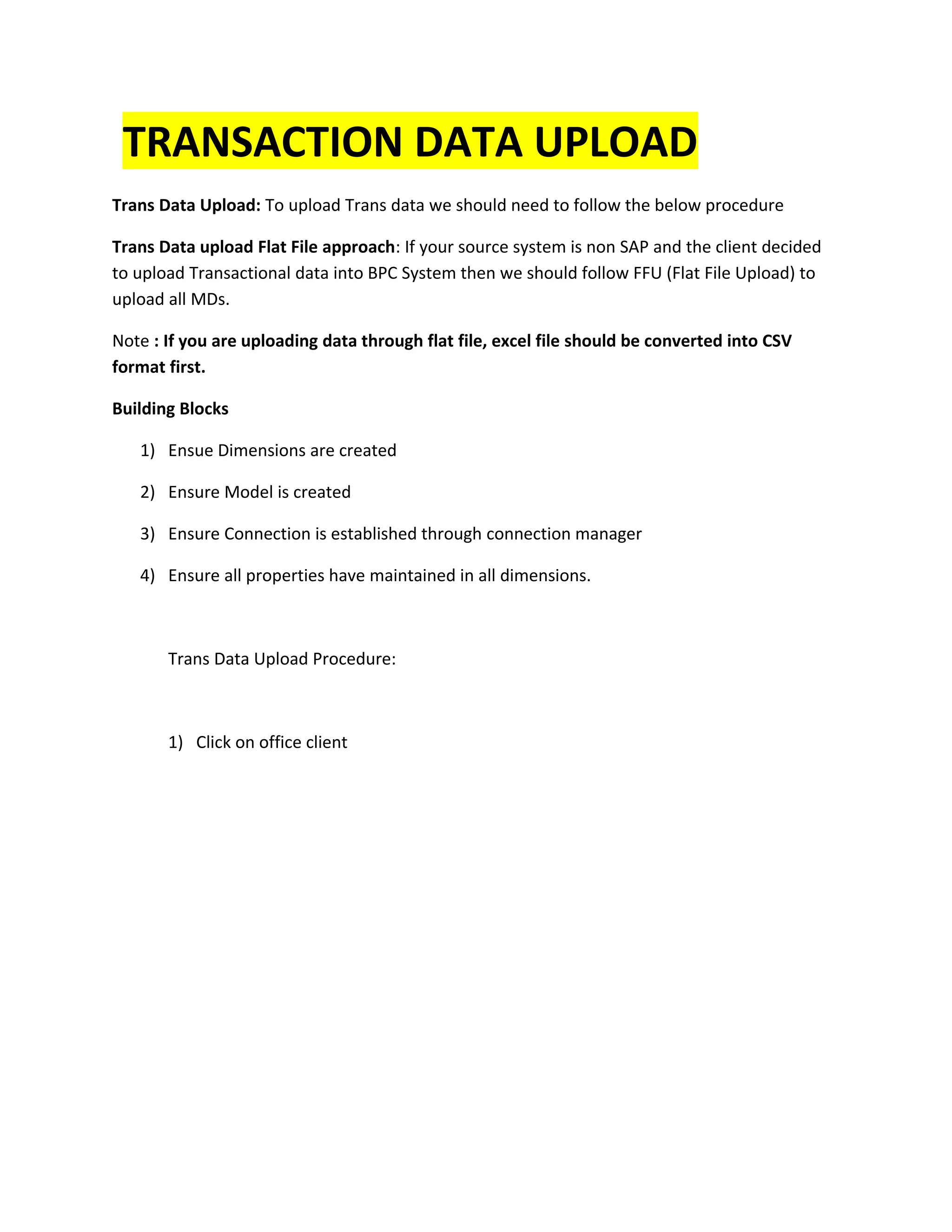
1) Click on office client
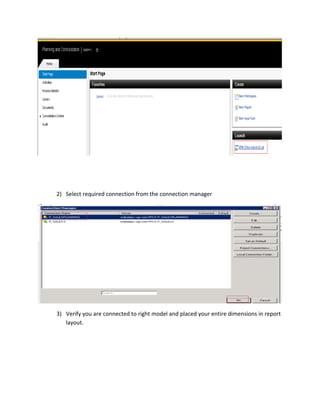
2) Select required connection from the connection manager
3) Verify you are connected to right model and placed your entire dimensions in report
layout.
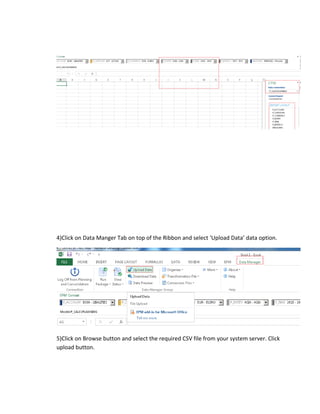
4)Click on Data Manger Tab on top of the Ribbon and select ‘Upload Data’ data option.
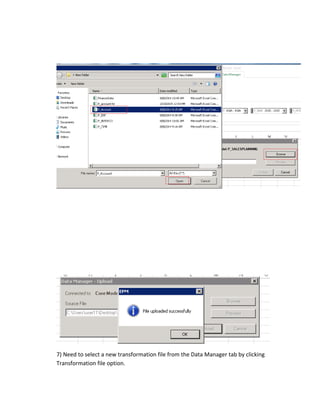
5)Click on Browse button and select the required CSV file from your system server. Click
upload button.
7) Need to select a new transformation file from the Data Manager tab by clicking
Transformation file option.
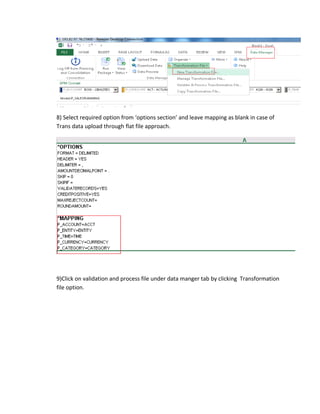
8) Select required option from ‘options section’ and leave mapping as blank in case of
Trans data upload through flat file approach.
9)Click on validation and process file under data manger tab by clicking Transformation
file option.
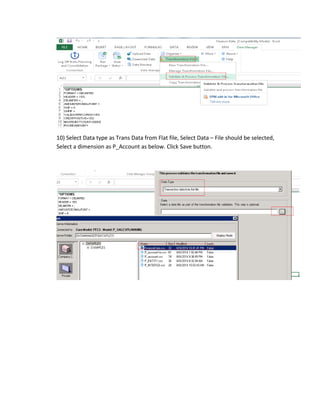
10) Select Data type as Trans Data from Flat file, Select Data – File should be selected,
Select a dimension as P_Account as below. Click Save button.
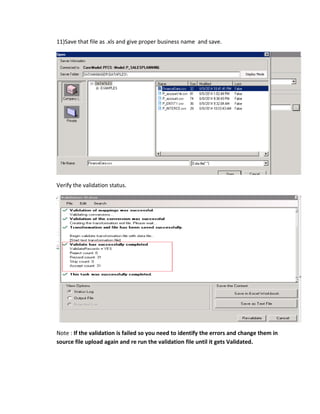
11)Save that file as .xls and give proper business name and save.
Verify the validation status.
Note : If the validation is failed so you need to identify the errors and change them in
source file upload again and re run the validation file until it gets Validated.
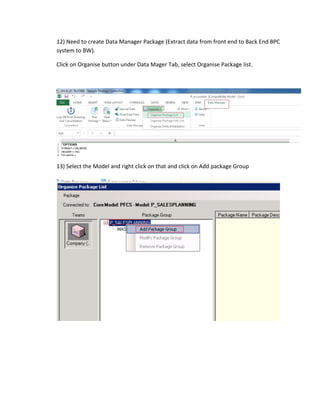
12) Need to create Data Manager Package (Extract data from front end to Back End BPC
system to BW).
Click on Organise button under Data Mager Tab, select Organise Package Iist.
13) Select the Model and right click on that and click on Add package Group
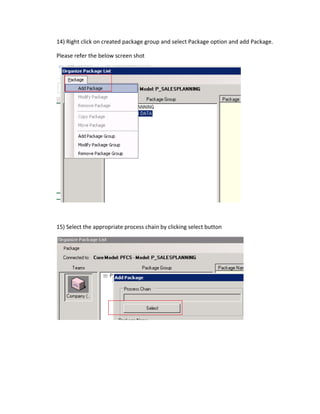
14) Right click on created package group and select Package option and add Package.
Please refer the below screen shot
15) Select the appropriate process chain by clicking select button
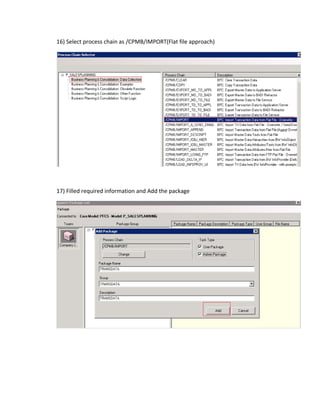
16) Select process chain as /CPMB/IMPORT(Flat file approach)
17) Filled required information and Add the package
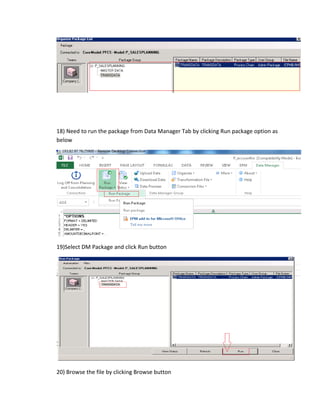
18) Need to run the package from Data Manager Tab by clicking Run package option as
below
19)Select DM Package and click Run button
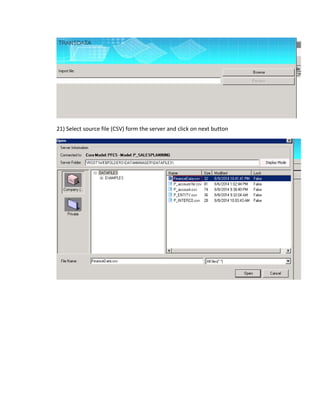
20) Browse the file by clicking Browse button
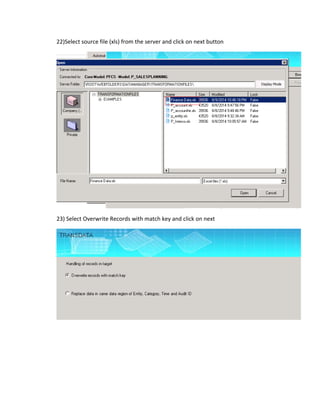
21) Select source file (CSV) form the server and click on next button
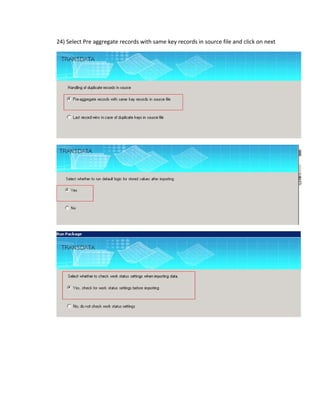
22)Select source file (xls) from the server and click on next button
23) Select Overwrite Records with match key and click on next
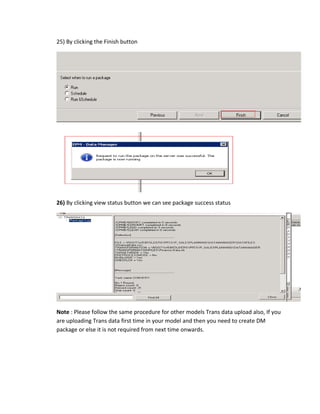
24) Select Pre aggregate records with same key records in source file and click on next
25) By clicking the Finish button
26) By clicking view status button we can see package success status
Note : Please follow the same procedure for other models Trans data upload also, If you
are uploading Trans data first time in your model and then you need to create DM
package or else it is not required from next time onwards.

Trans data upload SAP BCP 10.0 NW

  • 1.
    TRANSACTION DATA UPLOAD TransData Upload: To upload Trans data we should need to follow the below procedure Trans Data upload Flat File approach: If your source system is non SAP and the client decided to upload Transactional data into BPC System then we should follow FFU (Flat File Upload) to upload all MDs. Note : If you are uploading data through flat file, excel file should be converted into CSV format first. Building Blocks 1) Ensue Dimensions are created 2) Ensure Model is created 3) Ensure Connection is established through connection manager 4) Ensure all properties have maintained in all dimensions. Trans Data Upload Procedure: 1) Click on office client
  • 2.
    2) Select requiredconnection from the connection manager 3) Verify you are connected to right model and placed your entire dimensions in report layout.
  • 3.
    4)Click on DataManger Tab on top of the Ribbon and select ‘Upload Data’ data option. 5)Click on Browse button and select the required CSV file from your system server. Click upload button.
  • 4.
    7) Need toselect a new transformation file from the Data Manager tab by clicking Transformation file option.
  • 5.
    8) Select requiredoption from ‘options section’ and leave mapping as blank in case of Trans data upload through flat file approach. 9)Click on validation and process file under data manger tab by clicking Transformation file option.
  • 6.
    10) Select Datatype as Trans Data from Flat file, Select Data – File should be selected, Select a dimension as P_Account as below. Click Save button.
  • 7.
    11)Save that fileas .xls and give proper business name and save. Verify the validation status. Note : If the validation is failed so you need to identify the errors and change them in source file upload again and re run the validation file until it gets Validated.
  • 8.
    12) Need tocreate Data Manager Package (Extract data from front end to Back End BPC system to BW). Click on Organise button under Data Mager Tab, select Organise Package Iist. 13) Select the Model and right click on that and click on Add package Group
  • 9.
    14) Right clickon created package group and select Package option and add Package. Please refer the below screen shot 15) Select the appropriate process chain by clicking select button
  • 10.
    16) Select processchain as /CPMB/IMPORT(Flat file approach) 17) Filled required information and Add the package
  • 11.
    18) Need torun the package from Data Manager Tab by clicking Run package option as below 19)Select DM Package and click Run button 20) Browse the file by clicking Browse button
  • 12.
    21) Select sourcefile (CSV) form the server and click on next button
  • 13.
    22)Select source file(xls) from the server and click on next button 23) Select Overwrite Records with match key and click on next
  • 14.
    24) Select Preaggregate records with same key records in source file and click on next
  • 15.
    25) By clickingthe Finish button 26) By clicking view status button we can see package success status Note : Please follow the same procedure for other models Trans data upload also, If you are uploading Trans data first time in your model and then you need to create DM package or else it is not required from next time onwards.