TRAINING MORE STAFF WITH LESS MONEY NCEA/NAPSA State Trainers’ Conference on Distance Learning  National Adult Protective Services Association
This training is a product of National Center on Elder Abuse (NCEA), which is funded, in part, by the U.S. Administration on Aging under Grant # 90-AM-2792.  The project was developed by the National Adult Protective Services Association (NAPSA), and its contractor, the REFT Institute, Inc. Grantees undertaking projects under government sponsorship are encouraged to express freely their findings and conclusions. Therefore, points of view or opinions do not necessarily represent official Administration on Aging Policy.       NAPSA 2004
THE NATIONAL CENTER ON ELDER ABUSE The Source for Information and Assistance on Elder Abuse   National Center on Elder Abuse  –  National Association  of State Units on Aging National Adult Protective Services Association (NAPSA) Clearinghouse on Abuse and Neglect of the Elderly (CANE) American Bar Association Commission on Law and Aging National Committee for the Prevention of Elder Abuse   (NCPEA) PARTNERS
CAUTION:  New ideas   …assembly required   
DEFINING DISTANCE TRAINING
Distance training delivers instruction  to trainees physically separated from instructor in space and/or time  Teleconferencing = e-conferencing = electronic communication Includes audio, video and computer conferencing “ Real time” vs. delayed communication VOCABULARY
Accessibility of training Audience size -- knowledge base Timeliness of communication Consistency of information Interactivity Shared sense of identity/unity Effective use of time and resources Quality of training DISTANCE TRAINING Value INCREASES
Costs  Technical development Instructional design Buying/renting equipment Potential for technical problems and equipment failure DISTANCE TRAINING Administrative Challenges
Lack of familiarity with technology   hesitancy to try something new Lack of face-to-face (personal) contact The need for creative adaptation of traditional activities to a new platform DISTANCE TRAINING Personal challenges
“ But…what is it good for?”   Engineer at the Advanced Computing Systems Division of IBM, 1968 — commenting on the microchip   
Regular telephone or speakerphone Group conferencing equipment  = increases clarity of sound Mixer = balances sound, cancels echo and noise  Microphones and speakers AUDIOCONFERENCE Equipment
On-site technician  (optional)  implements set up and ongoing monitoring of equipment  Conferencing service provides:  Long distance service and link between trainer and trainees  Additional services/features, as needed AUDIOCONFERENCE Services
Connection options and level of operator assistance vary by provider Features can include Lecture/Listen Only, Question/Answer, Interactive Modes, Sub conferencing and other services Cost depends on # of lines, length of time, services provided AUDIOCONFERENCE Service Options
AUDIOCONFERENCE Advantages Readily accessible Familiar equipment and technology Can interconnect unlimited # of sites Simple, relatively inexpensive Relatively trouble-free Fully interactive ** On-site participants may or may not be present = trainer may be alone
Primarily lecture format Interaction important Many sites involved Cost is a factor AUDIOCONFERENCE Applications
Identify service provider and specific services needed Make conference call reservation  Verify logistical details with service provider (e.g., how to dial in, handle technical issues, ask questions) Send information to participants AUDIOCONFERENCE Planning
ACTIVE LEARNING #1 Small group discussion and large group sharing  ~  Using sub conferencing as a teaching tool
“ This telephone has too many shortcomings to be seriously considered as a means of communication. The devise is inherently of no value to us.”  Western Union, internal  memo, 1876 
Email Computer-based training Web-based training Web conference Document sharing/collaboration COMPUTER CONFERENCE Options
EMAIL   Application  Don’t discount it – provides effective supplement to other training Discuss content/training issues Collaborate on training exercises  (problem-solving, case studies, Q/A) Submit written documents for review/ feedback Add personal tone – distribute bios/photos, informal chat
CBT ( Computer-Based Training) Definition   CBT accessed via computer disk  (e.g., CD-ROM), hard drive or network Interactive learning experience between trainee and computer program Stimulus    response    feedback
CBT Advantages 24/7 accessibility Interactive Trainees can control their learning Video/sound clips, animation, online help Unlimited time for learning    mastery of content Progress/testing results tracking possible
CBT Challenges Lacks face-to-face contact or interaction Development costs high Potentially brief shelf-life High degree of computer literacy required to develop CBT (or WBT) training materials   Trainees must be computer literate
CBT Applications Reaches many people Trainees in remote locations Interaction important Skills practice, multimedia simulation, role play, testing/ assessment Interaction between people not needed Trainees vary in levels of knowledge On-the-job training/reference
WBT is essentially same as CBT,  but accessed via a web site Additional advantages:  Information more easily updated Unlimited # trainees can access training Web links    deeper levels of info  Online help available WBT ( Web-Based Training) Definition & Advantages
WBT Challenges Added challenges: Internet access required Transmission quality for complex sound/images dependent on quality and speed of computer, telephone line, modem connection
WBT Applications Rapidly changing content  Promotes learning & information exploration through related web links
Little agreement on terminology  – one-way or two-way communication  may include: Sound/video broadcast –   either real time or delayed  PowerPoint slides Interaction – discuss/ask questions via phone, chat or email WEBCONFERENCE (Net conference)
WEBCONFERENCE Document sharing/collaboration Online connection of 2+ computers Files  shared, copied, cut, pasted, saved or printed by any participant Need Internet connection and collaboration software Applications:  Use in conjunction with audio conference Trainees collaborate on project or document Trainer can see trainees’ work
Assure equipment and software available at each site   Reserve conference time with service provider  (if necessary) Assure computer literate person available each site Clarify logistics and send info to participants along with guidelines for participation WEB CONFERENCE Planning
ACTIVE LEARNING #2 ~  Audio conference with online document sharing and/or collaboration Large group discussion
“ I think there is a world market for maybe five computers.”   Thomas Watson, Chairman  of IBM, 1943   
ONE-WAY video conferencing TWO-WAY interactive video conferencing  Group video conferencing equipment Desktop or laptop computer  VIDEO CONFERENCE Options
Viewed on TV monitor or large screen Clear, full-motion image Unlimited number of people Unrestricted geographical area Ask questions or make comments via telephone, fax or email Can be taped ahead or transmitted in “real time”  ONE-WAY VIDEO Description
Uplink: Program origination    beams to orbiting satellite Satellite: Receives signal from uplink    beams back to downlink Downlink: Receives program Satellite dish/antenna Video receiver & converter Television monitor or screen ONE-WAY VIDEO Equipment
ONE-WAY VIDEO Advantages Limitless number of sites Cost-effective for very large audience Accessible equipment Excellent visual quality Visual “presence” of instructor
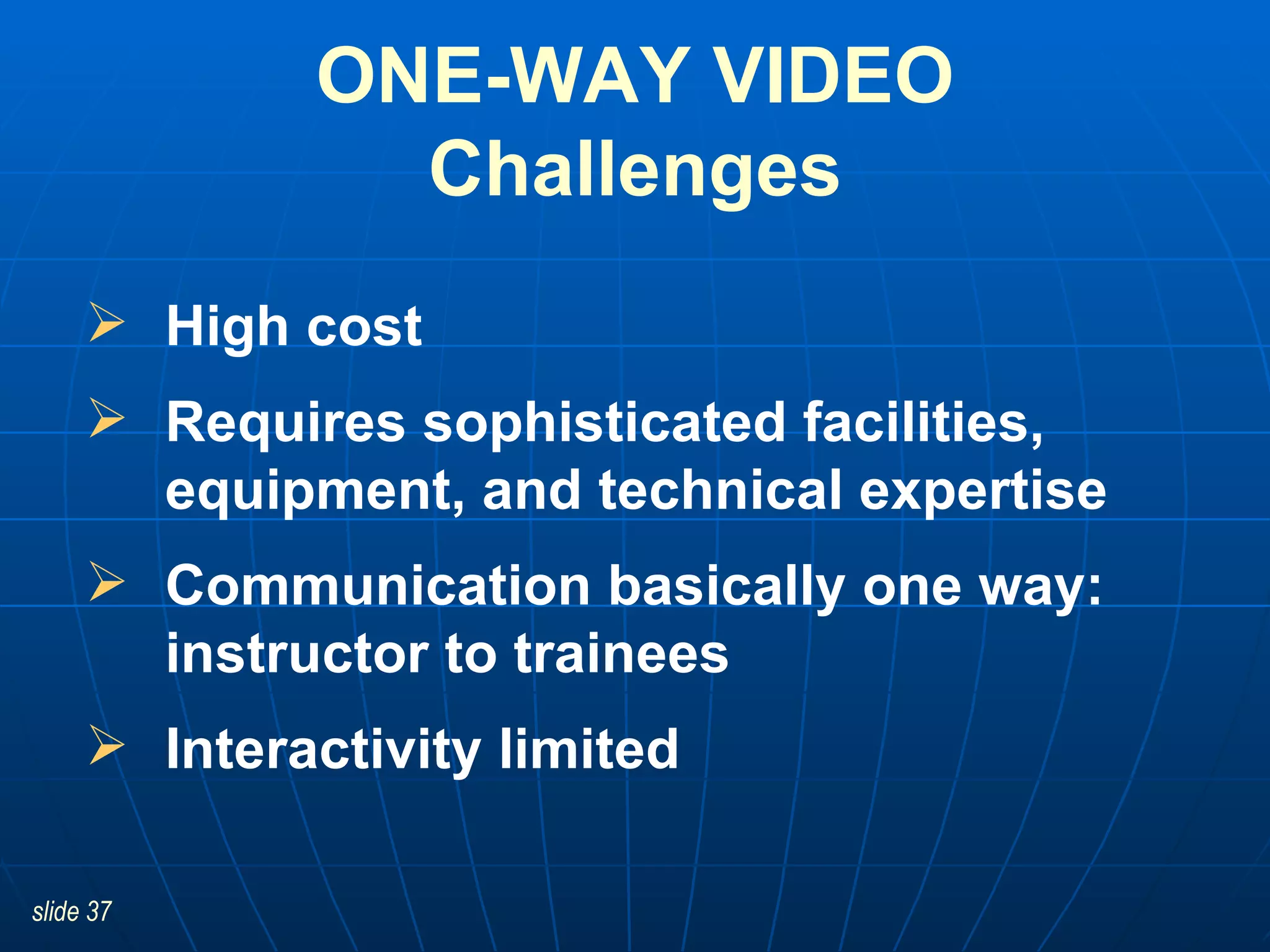
ONE-WAY VIDEO Challenges High cost Requires sophisticated facilities, equipment, and technical expertise   Communication basically one way: instructor to trainees Interactivity limited
Very large, widely dispersed audience Full motion video needed Primarily lecture or dissemination of information ONE-WAY VIDEO Applications THINK BIG!
Reserve production facilities, uplink, satellite time, and space at downlink facilities   Arrange for technical support at all sites Clarify logistics and send info to participants along with guidelines for participation & training materials ONE-WAY VIDEO Planning
ACTIVE LEARNING #3 ~  Preparing for a one-way video conference Large group discussion
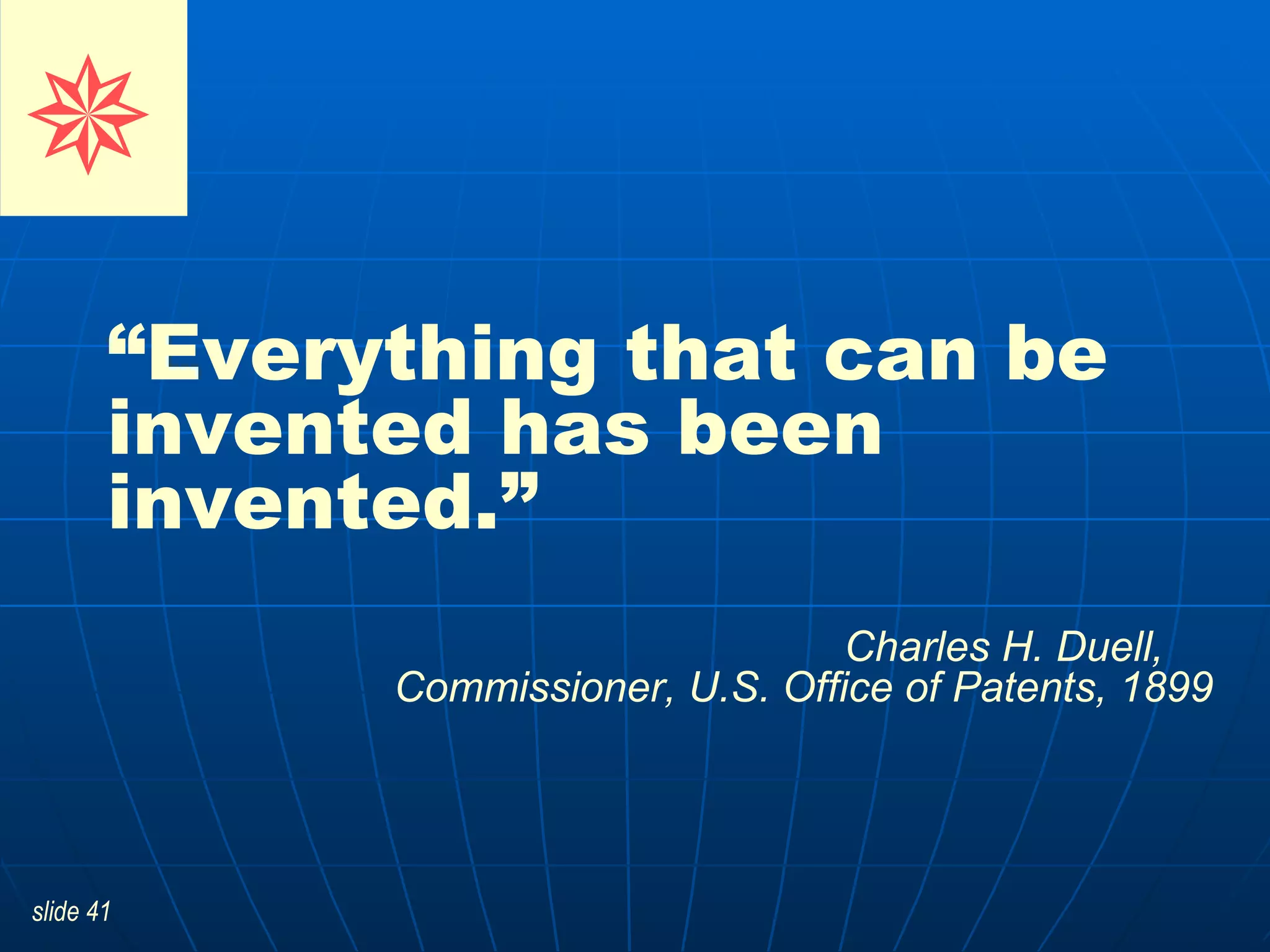
“ Everything that can be invented has been invented.”   Charles H. Duell,  Commissioner, U.S. Office of Patents, 1899   
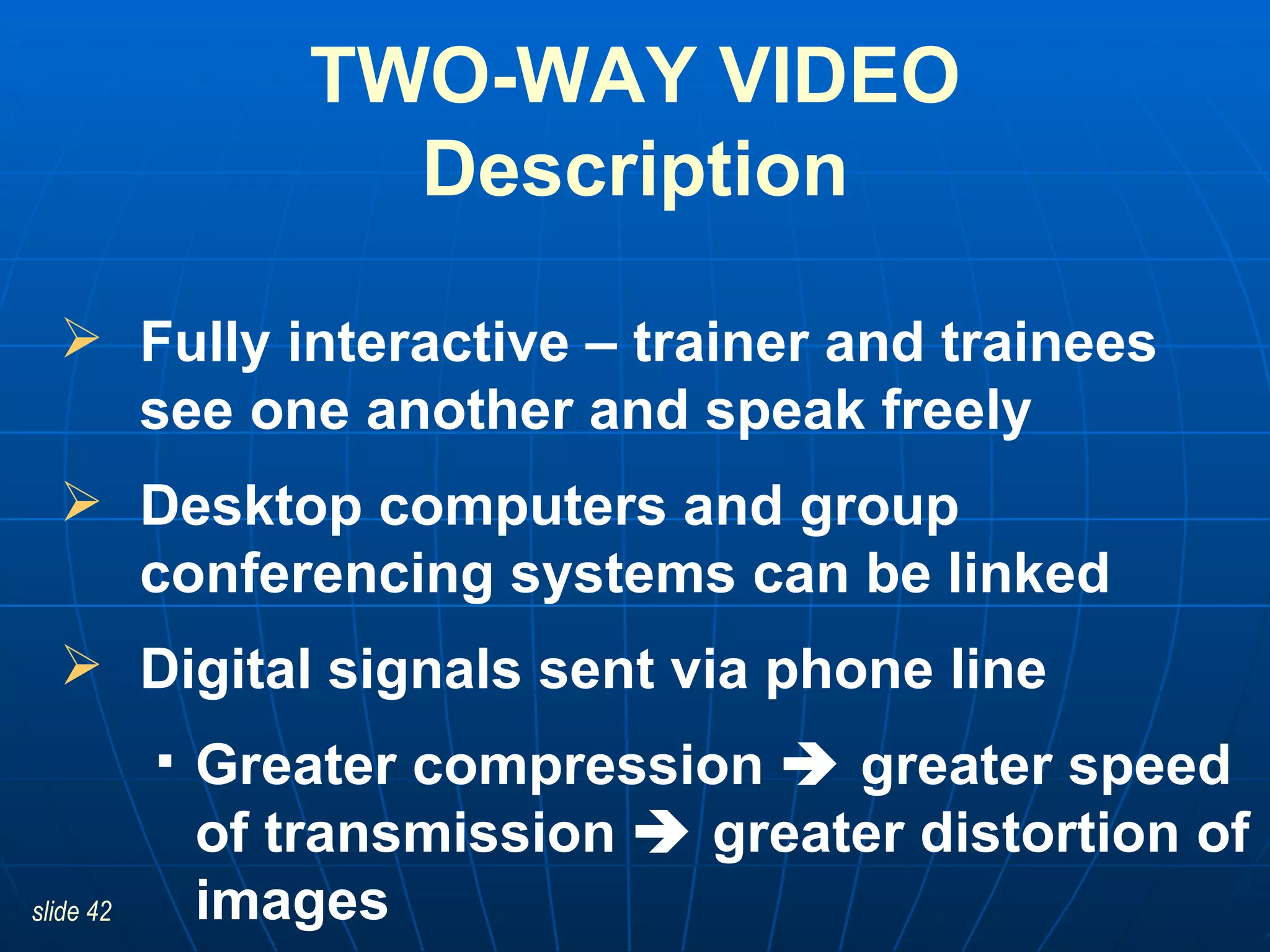
Fully interactive – trainer and trainees see one another and speak freely Desktop computers and group conferencing systems can be linked  Digital signals sent via phone line Greater compression    greater speed of transmission    greater distortion of images TWO-WAY VIDEO Description
Can use desktop or group conferencing equipment: Computer Conferencing software Camera, microphone, speakers TWO-WAY VIDEO Equipment
TWO-WAY VIDEO Services Need Internet connection Conferencing service provides:  Bridging between sites and long distance service  Additional services as needed Cost depends on # of sites, speed of transmission, location of sites, type of equipment, room charges
TWO-WAY VIDEO Advantages Fully interactive – most resembles face-to-face training Visual “presence” & real-time interaction Full motion Cost-effective for small/mid-size audience (3-5 sites)
TWO-WAY VIDEO Challenges Reaches limited number of sites  Digital transmission not available everywhere Cost considerably higher than for audio conferencing Picture quality inconsistent Computer literate person must be present
Highly interactive verbal and visual participation indicated by content such as… Demonstration, practice, testing or assessment, feedback regarding physical skill or technique TWO-WAY VIDEO Applications
Assure equipment available at each site   Reserve conference time with service provider Provide technical support for all sites Clarify logistics and send info to participants along with guidelines for participation & training materials TWO-WAY VIDEO Planning
ACTIVE LEARNING #4 ~  Establishing a comfortable learning environment Individual reflection and large group sharing
NEXT STEPS
NEXT STEPS Key Considerations Define audience Identify core competencies/learning objectives  Define training content Select technology    (e.g., fits objectives & budget) Select teaching strategies    (e.g., fit objectives & technology) Identify site coordinators
ACTIVE LEARNING #5 ~  Selecting distance technologies Case study/small group discussion and large group sharing
“ Heavier-than-air flying machines are impossible.”   Lord Kelvin, President, Royal Society, 1895   

Training More Staff With Less Money: PowerPoint Slides

  • 1.
    TRAINING MORE STAFFWITH LESS MONEY NCEA/NAPSA State Trainers’ Conference on Distance Learning National Adult Protective Services Association
  • 2.
    This training isa product of National Center on Elder Abuse (NCEA), which is funded, in part, by the U.S. Administration on Aging under Grant # 90-AM-2792. The project was developed by the National Adult Protective Services Association (NAPSA), and its contractor, the REFT Institute, Inc. Grantees undertaking projects under government sponsorship are encouraged to express freely their findings and conclusions. Therefore, points of view or opinions do not necessarily represent official Administration on Aging Policy.  NAPSA 2004
  • 3.
    THE NATIONAL CENTERON ELDER ABUSE The Source for Information and Assistance on Elder Abuse National Center on Elder Abuse – National Association of State Units on Aging National Adult Protective Services Association (NAPSA) Clearinghouse on Abuse and Neglect of the Elderly (CANE) American Bar Association Commission on Law and Aging National Committee for the Prevention of Elder Abuse (NCPEA) PARTNERS
  • 4.
    CAUTION: Newideas …assembly required 
  • 5.
  • 6.
    Distance training deliversinstruction to trainees physically separated from instructor in space and/or time Teleconferencing = e-conferencing = electronic communication Includes audio, video and computer conferencing “ Real time” vs. delayed communication VOCABULARY
  • 7.
    Accessibility of trainingAudience size -- knowledge base Timeliness of communication Consistency of information Interactivity Shared sense of identity/unity Effective use of time and resources Quality of training DISTANCE TRAINING Value INCREASES
  • 8.
    Costs Technicaldevelopment Instructional design Buying/renting equipment Potential for technical problems and equipment failure DISTANCE TRAINING Administrative Challenges
  • 9.
    Lack of familiaritywith technology  hesitancy to try something new Lack of face-to-face (personal) contact The need for creative adaptation of traditional activities to a new platform DISTANCE TRAINING Personal challenges
  • 10.
    “ But…what isit good for?” Engineer at the Advanced Computing Systems Division of IBM, 1968 — commenting on the microchip 
  • 11.
    Regular telephone orspeakerphone Group conferencing equipment = increases clarity of sound Mixer = balances sound, cancels echo and noise Microphones and speakers AUDIOCONFERENCE Equipment
  • 12.
    On-site technician (optional) implements set up and ongoing monitoring of equipment Conferencing service provides: Long distance service and link between trainer and trainees Additional services/features, as needed AUDIOCONFERENCE Services
  • 13.
    Connection options andlevel of operator assistance vary by provider Features can include Lecture/Listen Only, Question/Answer, Interactive Modes, Sub conferencing and other services Cost depends on # of lines, length of time, services provided AUDIOCONFERENCE Service Options
  • 14.
    AUDIOCONFERENCE Advantages Readilyaccessible Familiar equipment and technology Can interconnect unlimited # of sites Simple, relatively inexpensive Relatively trouble-free Fully interactive ** On-site participants may or may not be present = trainer may be alone
  • 15.
    Primarily lecture formatInteraction important Many sites involved Cost is a factor AUDIOCONFERENCE Applications
  • 16.
    Identify service providerand specific services needed Make conference call reservation Verify logistical details with service provider (e.g., how to dial in, handle technical issues, ask questions) Send information to participants AUDIOCONFERENCE Planning
  • 17.
    ACTIVE LEARNING #1Small group discussion and large group sharing ~ Using sub conferencing as a teaching tool
  • 18.
    “ This telephonehas too many shortcomings to be seriously considered as a means of communication. The devise is inherently of no value to us.” Western Union, internal memo, 1876 
  • 19.
    Email Computer-based trainingWeb-based training Web conference Document sharing/collaboration COMPUTER CONFERENCE Options
  • 20.
    EMAIL Application Don’t discount it – provides effective supplement to other training Discuss content/training issues Collaborate on training exercises (problem-solving, case studies, Q/A) Submit written documents for review/ feedback Add personal tone – distribute bios/photos, informal chat
  • 21.
    CBT ( Computer-BasedTraining) Definition CBT accessed via computer disk (e.g., CD-ROM), hard drive or network Interactive learning experience between trainee and computer program Stimulus  response  feedback
  • 22.
    CBT Advantages 24/7accessibility Interactive Trainees can control their learning Video/sound clips, animation, online help Unlimited time for learning  mastery of content Progress/testing results tracking possible
  • 23.
    CBT Challenges Lacksface-to-face contact or interaction Development costs high Potentially brief shelf-life High degree of computer literacy required to develop CBT (or WBT) training materials Trainees must be computer literate
  • 24.
    CBT Applications Reachesmany people Trainees in remote locations Interaction important Skills practice, multimedia simulation, role play, testing/ assessment Interaction between people not needed Trainees vary in levels of knowledge On-the-job training/reference
  • 25.
    WBT is essentiallysame as CBT, but accessed via a web site Additional advantages: Information more easily updated Unlimited # trainees can access training Web links  deeper levels of info Online help available WBT ( Web-Based Training) Definition & Advantages
  • 26.
    WBT Challenges Addedchallenges: Internet access required Transmission quality for complex sound/images dependent on quality and speed of computer, telephone line, modem connection
  • 27.
    WBT Applications Rapidlychanging content Promotes learning & information exploration through related web links
  • 28.
    Little agreement onterminology – one-way or two-way communication may include: Sound/video broadcast – either real time or delayed PowerPoint slides Interaction – discuss/ask questions via phone, chat or email WEBCONFERENCE (Net conference)
  • 29.
    WEBCONFERENCE Document sharing/collaborationOnline connection of 2+ computers Files shared, copied, cut, pasted, saved or printed by any participant Need Internet connection and collaboration software Applications: Use in conjunction with audio conference Trainees collaborate on project or document Trainer can see trainees’ work
  • 30.
    Assure equipment andsoftware available at each site Reserve conference time with service provider (if necessary) Assure computer literate person available each site Clarify logistics and send info to participants along with guidelines for participation WEB CONFERENCE Planning
  • 31.
    ACTIVE LEARNING #2~ Audio conference with online document sharing and/or collaboration Large group discussion
  • 32.
    “ I thinkthere is a world market for maybe five computers.” Thomas Watson, Chairman of IBM, 1943 
  • 33.
    ONE-WAY video conferencingTWO-WAY interactive video conferencing Group video conferencing equipment Desktop or laptop computer VIDEO CONFERENCE Options
  • 34.
    Viewed on TVmonitor or large screen Clear, full-motion image Unlimited number of people Unrestricted geographical area Ask questions or make comments via telephone, fax or email Can be taped ahead or transmitted in “real time” ONE-WAY VIDEO Description
  • 35.
    Uplink: Program origination  beams to orbiting satellite Satellite: Receives signal from uplink  beams back to downlink Downlink: Receives program Satellite dish/antenna Video receiver & converter Television monitor or screen ONE-WAY VIDEO Equipment
  • 36.
    ONE-WAY VIDEO AdvantagesLimitless number of sites Cost-effective for very large audience Accessible equipment Excellent visual quality Visual “presence” of instructor
  • 37.
    ONE-WAY VIDEO ChallengesHigh cost Requires sophisticated facilities, equipment, and technical expertise Communication basically one way: instructor to trainees Interactivity limited
  • 38.
    Very large, widelydispersed audience Full motion video needed Primarily lecture or dissemination of information ONE-WAY VIDEO Applications THINK BIG!
  • 39.
    Reserve production facilities,uplink, satellite time, and space at downlink facilities Arrange for technical support at all sites Clarify logistics and send info to participants along with guidelines for participation & training materials ONE-WAY VIDEO Planning
  • 40.
    ACTIVE LEARNING #3~ Preparing for a one-way video conference Large group discussion
  • 41.
    “ Everything thatcan be invented has been invented.” Charles H. Duell, Commissioner, U.S. Office of Patents, 1899 
  • 42.
    Fully interactive –trainer and trainees see one another and speak freely Desktop computers and group conferencing systems can be linked Digital signals sent via phone line Greater compression  greater speed of transmission  greater distortion of images TWO-WAY VIDEO Description
  • 43.
    Can use desktopor group conferencing equipment: Computer Conferencing software Camera, microphone, speakers TWO-WAY VIDEO Equipment
  • 44.
    TWO-WAY VIDEO ServicesNeed Internet connection Conferencing service provides: Bridging between sites and long distance service Additional services as needed Cost depends on # of sites, speed of transmission, location of sites, type of equipment, room charges
  • 45.
    TWO-WAY VIDEO AdvantagesFully interactive – most resembles face-to-face training Visual “presence” & real-time interaction Full motion Cost-effective for small/mid-size audience (3-5 sites)
  • 46.
    TWO-WAY VIDEO ChallengesReaches limited number of sites Digital transmission not available everywhere Cost considerably higher than for audio conferencing Picture quality inconsistent Computer literate person must be present
  • 47.
    Highly interactive verbaland visual participation indicated by content such as… Demonstration, practice, testing or assessment, feedback regarding physical skill or technique TWO-WAY VIDEO Applications
  • 48.
    Assure equipment availableat each site Reserve conference time with service provider Provide technical support for all sites Clarify logistics and send info to participants along with guidelines for participation & training materials TWO-WAY VIDEO Planning
  • 49.
    ACTIVE LEARNING #4~ Establishing a comfortable learning environment Individual reflection and large group sharing
  • 50.
  • 51.
    NEXT STEPS KeyConsiderations Define audience Identify core competencies/learning objectives Define training content Select technology (e.g., fits objectives & budget) Select teaching strategies (e.g., fit objectives & technology) Identify site coordinators
  • 52.
    ACTIVE LEARNING #5~ Selecting distance technologies Case study/small group discussion and large group sharing
  • 53.
    “ Heavier-than-air flyingmachines are impossible.” Lord Kelvin, President, Royal Society, 1895 