Top Ten Slide 
Tips 
Author: Garr Reynolds 
http://www.garrreynolds.com/preso-tips/ 
design/
Source: Ida https://www.flickr.com/photos/mustetahra/3084835692
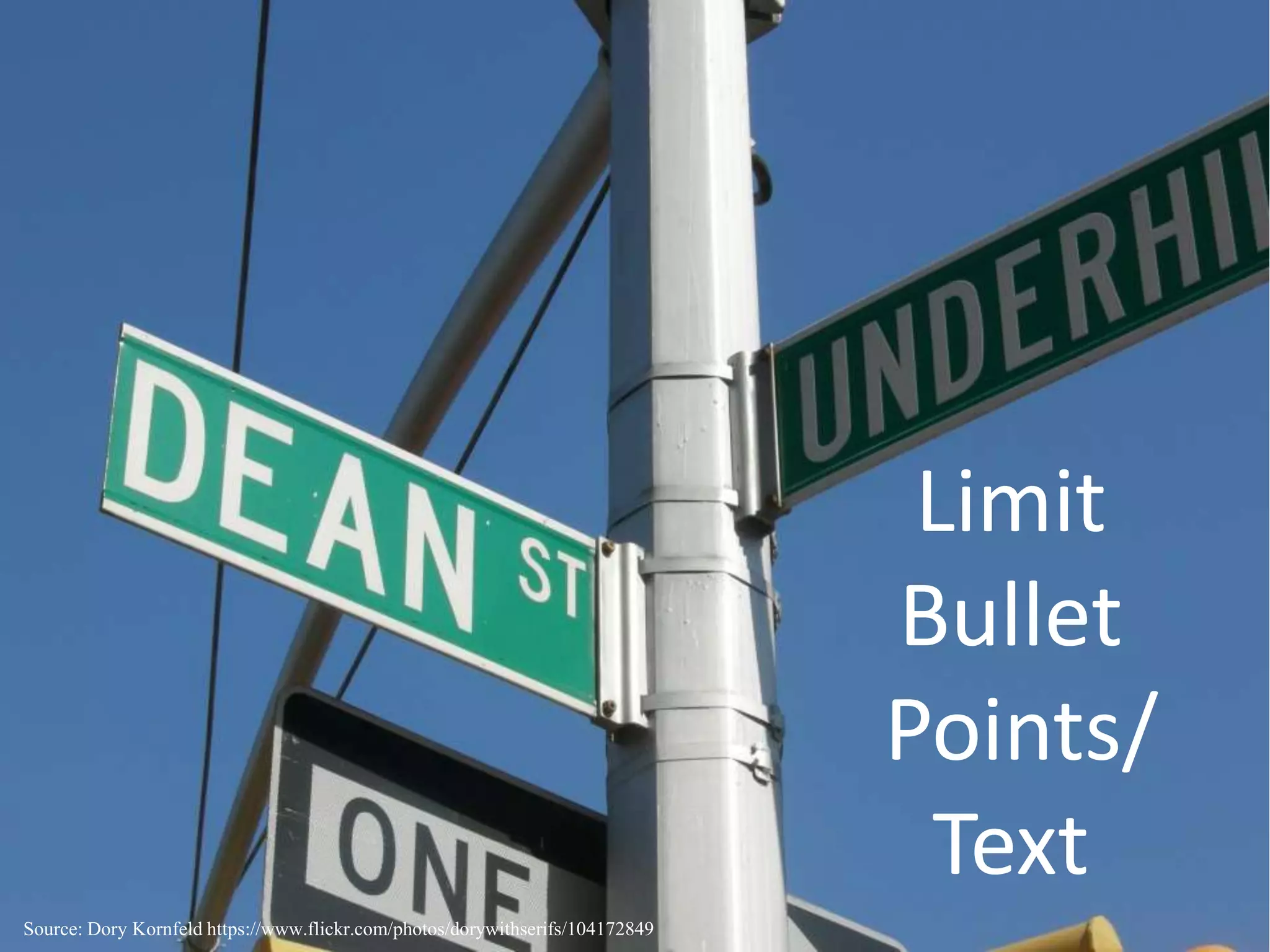
Limit 
Bullet 
Points/ 
Text 
Source: Dory Kornfeld https://www.flickr.com/photos/dorywithserifs/104172849
Transitions 
Source: Autumn Leaves https://www.flickr.com/photos/blmiers2/6315470981
High Quality Graphics 
Source: MendezEnrique https://www.flickr.com/photos/enrique_mendez/5356845814
Template 
Thinking 
Source: …storrao… https://www.flickr.com/photos/storrao/4880896512
CHART SIMPLICITY 
Source: Chris Potter https://www.flickr.com/photos/86530412@N02/7932571974
Color Matters 
Source: David Grimes https://www.flickr.com/photos/grimeshome/9267662070
Font Choice 
Source: OC Always https://www.flickr.com/photos/ocalways/14638992771
Use Video/Audio 
Use Video or Audio 
Source: Mark Kortum https://www.flickr.com/photos/mutrock/8504880125
Organization 
Source: Johanna Beyenbach https://www.flickr.com/photos/johannaonvideo/7976521744/

Top Ten Slide Tips Presentation

Editor's Notes

  • #3 Simplicity- the key to slideshow presentations is too keep it simple. It is actually good to have white space or negative space because it does not distract and overwhelm the viewers. The presenters want the information they are presenting to be their main point, not what is written on the slides.
  • #4 Limit Bullet Points and Text: You do not want the audience to be focusing on reading the words on the PowerPoint. Limit the text that you put on the slide to very minimal. This will allow the audience to focus on you and what you are saying.
  • #5 Transitions and Animations- When creating a PowerPoint presentations there should not be animations on every slide. It is important to limit the transitions that are being used to very basic ones in-between slides and with text. These transitions between text might consist of wipe-left or wipe-right. When transitioning in-between slides you want to make sure to stick with one to three different transitions, and do not use them after every slide.
  • #6 High Quality Images- It is important to use high quality images to capture and grab the viewers attention. Many of the people who are viewing the presentation have seen the same images over and over again. Presenting the viewers with a new and high-quality images will capture their attention and draw them into the presentation.
  • #7 Template Thinking- In a majority of the presentations that are given the presenter uses the same templates that are built in with the program. Making your own template or using a different source that has not been used over and over will keep the audience more engaged in what is being said. These new supporting visuals will show the audience that your presentation is unique and will help it stand out to others.
  • #9 Color Matters- Color is very important, especially when looking at backgrounds versus text. For backgrounds the colors that should be used are cool colors such as, blue and green. This is because these colors recede behind us. When writing text, warmer colors like red and orange should be used. These colors should be used because the text will appear as if it is coming towards the readers.
  • #10 Font Choice: When creating a presentation it is important to avoid A Serif Font (Times New Roman), and instead use Sans Serif font (Arial). Using a Sans Serif font is better for presentation because it is meant for presentations. Regardless of the type of font that is used it is important that it can be seen from the back of the room.
  • #11 Use Video or Audio- Incorporating video into the power point can help people learn better, and get you point across. Instead of talking throughout the whole presentation using video or audio may help better engage or break up the presentation.
  • #12 Organization- After you are done creating your presentation if you put it into the slider viewer mode it will allow you to look at the presentation in full. This will help you see if you need separate any slide into multiple slides as well as rearrange the order of the presentation.