
THEMINGWITH ZEN
Japo Domingo
Drupal Developer
Drupal.org id: japo32
WHAT’S HAPPENING NOW
Who am I?
Why theme?
Why Zen?
How to Zen?
WHO AM I?
WHO AM I?
Japo Domingo
 Web Developer/Graphic Artist/Web Designer/Animator since
2005
 Computer Science graduate
 Using Drupal since Drupal 5
 Sort of active in Drupal Pilipinas since 2013
 Currently working for Myrtec Pty. Ltd.an Australian IT firm.
 Micro startup: Bad Panda Creatives
 japo@japodomingo.com
 fb.com/japodomingo
WHYTHEME?
WHYTHEME?
Let’s play a game!
Identify the website!
ROUND 1
WHYTHEME?
What site
is this?
ROUND 2
WHYTHEME?
What site
is this?
How did you do?
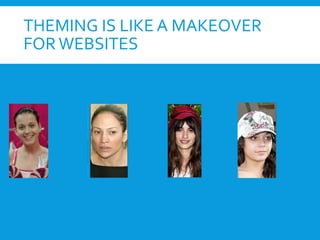
THEMING IS LIKE A MAKEOVER
FORWEBSITES
BUT BE CAREFUL!
WHY ZEN?
WHAT IS ZEN?
 https://drupal.org/project/zen
 Zen is a powerful, yet simple, HTML5 starting theme with a
responsive, mobile-first grid design.
WHAT IS ZEN?
 WELL DOCUMENTED
 http://drupal.org/documentation/theme/zen
 It’s OLD but NEW which means tested.
 It’s heavily used - by HUNDREDS OFTHOUSANDS of websites.
TONS OF FEATURES!
 You may not need them in your current project, but you don’t need to
learn everything to use ZEN.
7.x-5.x features at a glance:
HTML5, HTML5 shiv (or Modernizr),
Responsive Design, Sass/Compass,
CSS, Zen Grids, Normalize CSS ,
Respond.js, IE conditional classes,
Optional IE6/7 Support,
Documentation, Swappable layouts,
Drush support, RTL language
support, Accessibility
HOWTO ZEN
STEP 1: INSTALL ZEN
Automatic
 Go to the Zen project Home page, and
'copy' the URL link location for the
Drupal-7Zen-7.x version that you want
to install.
 Visit your site page:
[your-drupal-7-
root]/admin/appearance/install
 'Paste' the download locationURL into
the field-box "Install from a URL".
 Click the button "Install".
STEP 1: INSTALL ZEN
Manual
 Download Zen from
http://drupal.org/project/zen
 Unpack the downloaded file, take the entire
zen folder (which includes the README.txt
file, a STARTERKIT folder, etc.) and place it in
your Drupal installation under
sites/all/themes. (Additional installation
folders can be used; see “Installing themes”
for more information on installing
contributed themes like Zen.)
 Log in as an administrator on your Drupal site.
For Drupal 7, go to theAppearance page at
admin/appearance. For Drupal 6, go to the
Themes page at admin/build/themes. If you
installed the theme properly, you will see the
Zen theme listed at the page-bottom under
the heading "Disabled theme".
STEP 1: INSTALL ZEN
Drush
 On terminal, go to your site’s home directory
 Enter the command ‘drush dl zen’
 Wait for it to download.
STEP 1: INSTALL ZEN
 You do not need to 'enable' the Zen theme for it to function as
a base-theme for the Zen subtheme you will create next.
STEP 2: CREATE A SUBTHEME
Copy the STARTERKIT folder at:
[drupal7-root]/sites/all/themes/zen/STARTERKIT
and put the copy one-level up at:
[drupal7-root]/sites/all/themes/STARTERKIT
Rename your new STARTERKIT folder to be your new sub-theme.
For example, rename the STARTERKIT folder to "foo", so that it resides at:
[drupal7-root]/sites/all/themes/foo
 IMPORTANT:The name of your sub-theme folder must start with an
alphabetic character and can only contain lowercase letters, numbers
and underscores.
 Why? Each theme should reside in its own folder.To make it easier to
upgrade Zen, sub-themes should reside in a folder separate from the
base theme.
STEP 2: CREATE A SUBTHEME
Rename the "STARTERKIT.info.txt" file, in your new
sub-theme folder, to include the name of your new
sub-theme; and remove the ".txt" extension.
For example, rename the file:
[drupal7-root]/sites/all/themes/foo/STARTERKIT.info.txt
to:
[drupal7-root]/sites/all/themes/foo/foo.info
STEP 2: CREATE A SUBTHEME
Edit your new .info file: Change the "name"
and "description" fields.
That is the name and description that
accompanies your new sub-theme on your
site's "Appearance" page.
Note: Instead of your having used "A Zen
sub-theme", you can type anything you like
for the 'description'.You can even use some
HTML in that description, including <a
href...>...</a> hyper-links.
STEP 2: CREATE A SUBTHEME
Choose your preferred page layout
method or grid system.
Edit your sub-theme's styles.css file (or
styles.scss if you're using SASS), and
replace the reference to responsive.css with
fixed.css.
For example, edit foo/styles.css and change
this line:
@import "layouts/responsive.css";
to:
@import "layouts/fixed.css";
In case of SASS, edit foo/styles.scss and
change this line:
@import "layouts/responsive";
to:
@import "layouts/fixed";
STEP 2: CREATE A SUBTHEME
Edit your sub-theme to use the
proper function names.
Edit the template.php and theme-
settings.php files in your sub-
theme's folder; replaceALL
occurrences of "STARTERKIT" with
the name of your sub-theme.
It’s recommended to use an editor
with the “ReplaceAll” functionality.
STEP 2: CREATE A SUBTHEME
Set your new sub-theme as your website's
default theme.
Log in as an administrator on your Drupal site.
Go to the "Appearance" page at
admin/appearance, and click the link "Enable
and set default" for your new sub-theme.
NOTE:When you change any files in your subtheme (template.php or
template files), Drupal 7 might be caching them. To apply any new changes
to any of those files, simply visit your site's "Appearance" page at [dupal7-
root]/admin/appearance.
SASS & SCSS
Sass is a scripting language that is interpreted into Cascading Style
Sheets (CSS). SassScript is the scripting language itself.
Sass consists of two syntaxes.The original syntax, called "the indented
syntax", uses a syntax similar to Haml.[3] It uses indentation to
separate code blocks and newline characters to separate rules.
The newer syntax, "SCSS", uses block formatting like that of CSS. It
uses braces to denote code blocks and semicolons to separate lines
within a block.The indented syntax and SCSS files are traditionally
given the extensions .sass and .scss respectively.
http://en.wikipedia.org/wiki/.scss
SCSS CSS
HOWTO USE SCSS IN ZEN
 Install Ruby
Linux: apt (sudo apt-get install ruby) or
yum (sudo yum install ruby)
Windows: http://www.rubyinstaller.org/
MAC: Ruby is installed by default!
 Install SASS
gem install sass
 Double check
sass -v
 Install Compass
sudo gem install compass
 To start developing, in terminal go to your theme directory and
compass watch
Compass will automatically detect changes in your scss files.
 More info here: https://drupal.org/node/1548946
WHENTO USE SCSS IN ZEN
 It depends on your situation.
 Easier
 Though not everyone knows SCSS
 ME: Use SCSS for BASIC Layout then use a
regular css file for theme styling.
 YOU: I don’t know. :DTry it out and find what
works for you.
 SCSS is a topic big enough for another
session.
STEP 3: CHANGETHE LAYOUT
We will change the layout to
fixed width, 960px wide, with 6 columns.
To check your current layout go to:
http://www.example.com/admin/structure/block/demo/foo
 Make sure compass is running.
 Edit sass/styles.scss
 Edit sass/layouts/_fixed.scss
STEP 3: CHANGINGTHE LAYOUT
 Edit sass/layouts/_fixed.scss
STEP 3: CHANGETHE LAYOUT
 Edit sass/layouts/_fixed.scss
STEP 3: CHANGINGTHE LAYOUT
 Edit sass/_init.scss
STEP 3: CHANGINGTHE LAYOUT
Before
After
STEP 4: ADJUST SETTINGS
Current Homepage
STEP 4: ADJUST SETTINGS
Overwrite the logo.png on your theme directory
Edit your theme settings in
/admin/appearance/settings/foo
 Upload a custom favicon
 Disable site name
 Disable site slogan
STEP 5: ADD REGIONS
You can add new regions to your theme!
We’ll add 3 new regions arranged as 3 columns just above
the footer.
First add the regions in your .info file
STEP 5: ADD REGIONS
Then copy page.tpl.php from zen into your theme.This is
where you will add the regions.
STEP 5: ADD REGIONS
Then edit the
copied
page.tpl.php.
Also add a bit of
php logic so the
regions will not
appear when all
regions are empty.
STEP 5: ADD REGIONS
Make sure to flush your site’s caches for the new regions to be detected.
Next we apply some zen grids theming to the new region containers.
STEP 5: ADD REGIONS
Then add this magical bit of scss at the end.
STEP 5: ADD REGIONS
BEFORE SCSS
AFTER SCSS
STEP 6: ADD CUSTOM CSS AND JS
 Create a new stylesheet
[drupal7-root]/sites/all/themes/foo/css/newlook.css
 Add it to your .info file
 Optionally also add javascript:
 Make sure to clear your caches after editing the .info
file
STEP 7: ADD CUSTOM SCSS
There are 2 ways to add scss.
1) Add it so it compiles to it’s own css file.
 Create your file.
 Add it into styles.scss
RESULT
STEP 7: ADD CUSTOM SCSS
There are 2 ways to add scss.
2) Add it so it’s included in styles.css
 Create your file.
 Add it into styles.scss
RESULT in styles.css
STEP 7: STYLING
Some tips on styling:
 UseWeb Development tools on your browser to quickly
identify the classes and id of specific DOM elements.
 Firefox – Firebug (an addon)
 Chrome – Inspect Element
Both of these allow you to right click anywhere on the page
and get info on DOM elements.
STEP 7: STYLING
Add your styles to
either the scss files
OR your custom css
files.
Use some photoshop
magic and epic skills.
RESULT
BEFORE AFTER
NEXT STEP:TEMPLATING
Templating is a more advanced form of theming where you edit the
.tpl.php files (i.e. template files) of your theme.
.tpl.php files area available in the zen/templates folder.
Copy any you want to use into your_theme_folder/templates
More about templates
https://drupal.org/node/190815
Topic for a future talk 
SUMMARY
Install Zen
Create a Subtheme
Change the Layout
Adjust Settings
Add Regions
Add Custom CSS and JS
Add Custom SCSS
Styling
Templating
IMPORTANT REMINDERS:
 When working with scss
make sure compass is
running.
 If your changes are not
reflecting clear your site’s
cache.
THANKYOU!
Useful Resources
CSS3 Gradient Editor
http://www.colorzilla.com/gra
dient-editor/
CSS3 Generator
http://css3generator.com/
Zen Grids
http://zengrids.com/
Get in touch!
Japo Domingo
 Myrtec Pty Ltd (we’re hiring!)
 Bad Panda Creatives (we’re not!Yet.)
 japo@japodomingo.com
 fb.com/japodomingo
 www.japodomingo.com
 Contact #: ask me!

Drupal Camp Manila 2014 - Theming with Zen

  • 1.
    THEMINGWITH ZEN Japo Domingo DrupalDeveloper Drupal.org id: japo32
  • 2.
    WHAT’S HAPPENING NOW Whoam I? Why theme? Why Zen? How to Zen?
  • 3.
  • 4.
    WHO AM I? JapoDomingo  Web Developer/Graphic Artist/Web Designer/Animator since 2005  Computer Science graduate  Using Drupal since Drupal 5  Sort of active in Drupal Pilipinas since 2013  Currently working for Myrtec Pty. Ltd.an Australian IT firm.  Micro startup: Bad Panda Creatives  japo@japodomingo.com  fb.com/japodomingo
  • 5.
  • 6.
    WHYTHEME? Let’s play agame! Identify the website!
  • 7.
  • 8.
  • 10.
  • 11.
  • 13.
  • 14.
    THEMING IS LIKEA MAKEOVER FORWEBSITES
  • 15.
  • 16.
  • 17.
    WHAT IS ZEN? https://drupal.org/project/zen  Zen is a powerful, yet simple, HTML5 starting theme with a responsive, mobile-first grid design.
  • 18.
    WHAT IS ZEN? WELL DOCUMENTED  http://drupal.org/documentation/theme/zen  It’s OLD but NEW which means tested.  It’s heavily used - by HUNDREDS OFTHOUSANDS of websites.
  • 19.
    TONS OF FEATURES! You may not need them in your current project, but you don’t need to learn everything to use ZEN. 7.x-5.x features at a glance: HTML5, HTML5 shiv (or Modernizr), Responsive Design, Sass/Compass, CSS, Zen Grids, Normalize CSS , Respond.js, IE conditional classes, Optional IE6/7 Support, Documentation, Swappable layouts, Drush support, RTL language support, Accessibility
  • 20.
  • 21.
    STEP 1: INSTALLZEN Automatic  Go to the Zen project Home page, and 'copy' the URL link location for the Drupal-7Zen-7.x version that you want to install.  Visit your site page: [your-drupal-7- root]/admin/appearance/install  'Paste' the download locationURL into the field-box "Install from a URL".  Click the button "Install".
  • 22.
    STEP 1: INSTALLZEN Manual  Download Zen from http://drupal.org/project/zen  Unpack the downloaded file, take the entire zen folder (which includes the README.txt file, a STARTERKIT folder, etc.) and place it in your Drupal installation under sites/all/themes. (Additional installation folders can be used; see “Installing themes” for more information on installing contributed themes like Zen.)  Log in as an administrator on your Drupal site. For Drupal 7, go to theAppearance page at admin/appearance. For Drupal 6, go to the Themes page at admin/build/themes. If you installed the theme properly, you will see the Zen theme listed at the page-bottom under the heading "Disabled theme".
  • 23.
    STEP 1: INSTALLZEN Drush  On terminal, go to your site’s home directory  Enter the command ‘drush dl zen’  Wait for it to download.
  • 24.
    STEP 1: INSTALLZEN  You do not need to 'enable' the Zen theme for it to function as a base-theme for the Zen subtheme you will create next.
  • 25.
    STEP 2: CREATEA SUBTHEME Copy the STARTERKIT folder at: [drupal7-root]/sites/all/themes/zen/STARTERKIT and put the copy one-level up at: [drupal7-root]/sites/all/themes/STARTERKIT Rename your new STARTERKIT folder to be your new sub-theme. For example, rename the STARTERKIT folder to "foo", so that it resides at: [drupal7-root]/sites/all/themes/foo  IMPORTANT:The name of your sub-theme folder must start with an alphabetic character and can only contain lowercase letters, numbers and underscores.  Why? Each theme should reside in its own folder.To make it easier to upgrade Zen, sub-themes should reside in a folder separate from the base theme.
  • 26.
    STEP 2: CREATEA SUBTHEME Rename the "STARTERKIT.info.txt" file, in your new sub-theme folder, to include the name of your new sub-theme; and remove the ".txt" extension. For example, rename the file: [drupal7-root]/sites/all/themes/foo/STARTERKIT.info.txt to: [drupal7-root]/sites/all/themes/foo/foo.info
  • 27.
    STEP 2: CREATEA SUBTHEME Edit your new .info file: Change the "name" and "description" fields. That is the name and description that accompanies your new sub-theme on your site's "Appearance" page. Note: Instead of your having used "A Zen sub-theme", you can type anything you like for the 'description'.You can even use some HTML in that description, including <a href...>...</a> hyper-links.
  • 28.
    STEP 2: CREATEA SUBTHEME Choose your preferred page layout method or grid system. Edit your sub-theme's styles.css file (or styles.scss if you're using SASS), and replace the reference to responsive.css with fixed.css. For example, edit foo/styles.css and change this line: @import "layouts/responsive.css"; to: @import "layouts/fixed.css"; In case of SASS, edit foo/styles.scss and change this line: @import "layouts/responsive"; to: @import "layouts/fixed";
  • 29.
    STEP 2: CREATEA SUBTHEME Edit your sub-theme to use the proper function names. Edit the template.php and theme- settings.php files in your sub- theme's folder; replaceALL occurrences of "STARTERKIT" with the name of your sub-theme. It’s recommended to use an editor with the “ReplaceAll” functionality.
  • 30.
    STEP 2: CREATEA SUBTHEME Set your new sub-theme as your website's default theme. Log in as an administrator on your Drupal site. Go to the "Appearance" page at admin/appearance, and click the link "Enable and set default" for your new sub-theme. NOTE:When you change any files in your subtheme (template.php or template files), Drupal 7 might be caching them. To apply any new changes to any of those files, simply visit your site's "Appearance" page at [dupal7- root]/admin/appearance.
  • 31.
    SASS & SCSS Sassis a scripting language that is interpreted into Cascading Style Sheets (CSS). SassScript is the scripting language itself. Sass consists of two syntaxes.The original syntax, called "the indented syntax", uses a syntax similar to Haml.[3] It uses indentation to separate code blocks and newline characters to separate rules. The newer syntax, "SCSS", uses block formatting like that of CSS. It uses braces to denote code blocks and semicolons to separate lines within a block.The indented syntax and SCSS files are traditionally given the extensions .sass and .scss respectively. http://en.wikipedia.org/wiki/.scss
  • 32.
  • 33.
    HOWTO USE SCSSIN ZEN  Install Ruby Linux: apt (sudo apt-get install ruby) or yum (sudo yum install ruby) Windows: http://www.rubyinstaller.org/ MAC: Ruby is installed by default!  Install SASS gem install sass  Double check sass -v  Install Compass sudo gem install compass  To start developing, in terminal go to your theme directory and compass watch Compass will automatically detect changes in your scss files.  More info here: https://drupal.org/node/1548946
  • 34.
    WHENTO USE SCSSIN ZEN  It depends on your situation.  Easier  Though not everyone knows SCSS  ME: Use SCSS for BASIC Layout then use a regular css file for theme styling.  YOU: I don’t know. :DTry it out and find what works for you.  SCSS is a topic big enough for another session.
  • 35.
    STEP 3: CHANGETHELAYOUT We will change the layout to fixed width, 960px wide, with 6 columns. To check your current layout go to: http://www.example.com/admin/structure/block/demo/foo  Make sure compass is running.  Edit sass/styles.scss  Edit sass/layouts/_fixed.scss
  • 36.
    STEP 3: CHANGINGTHELAYOUT  Edit sass/layouts/_fixed.scss
  • 37.
    STEP 3: CHANGETHELAYOUT  Edit sass/layouts/_fixed.scss
  • 38.
  • 39.
    STEP 3: CHANGINGTHELAYOUT  Edit sass/_init.scss
  • 40.
    STEP 3: CHANGINGTHELAYOUT Before After
  • 41.
    STEP 4: ADJUSTSETTINGS Current Homepage
  • 42.
    STEP 4: ADJUSTSETTINGS Overwrite the logo.png on your theme directory Edit your theme settings in /admin/appearance/settings/foo  Upload a custom favicon  Disable site name  Disable site slogan
  • 43.
    STEP 5: ADDREGIONS You can add new regions to your theme! We’ll add 3 new regions arranged as 3 columns just above the footer. First add the regions in your .info file
  • 44.
    STEP 5: ADDREGIONS Then copy page.tpl.php from zen into your theme.This is where you will add the regions.
  • 45.
    STEP 5: ADDREGIONS Then edit the copied page.tpl.php. Also add a bit of php logic so the regions will not appear when all regions are empty.
  • 46.
    STEP 5: ADDREGIONS Make sure to flush your site’s caches for the new regions to be detected. Next we apply some zen grids theming to the new region containers.
  • 47.
    STEP 5: ADDREGIONS Then add this magical bit of scss at the end.
  • 48.
    STEP 5: ADDREGIONS BEFORE SCSS AFTER SCSS
  • 49.
    STEP 6: ADDCUSTOM CSS AND JS  Create a new stylesheet [drupal7-root]/sites/all/themes/foo/css/newlook.css  Add it to your .info file  Optionally also add javascript:  Make sure to clear your caches after editing the .info file
  • 50.
    STEP 7: ADDCUSTOM SCSS There are 2 ways to add scss. 1) Add it so it compiles to it’s own css file.  Create your file.  Add it into styles.scss RESULT
  • 51.
    STEP 7: ADDCUSTOM SCSS There are 2 ways to add scss. 2) Add it so it’s included in styles.css  Create your file.  Add it into styles.scss RESULT in styles.css
  • 52.
    STEP 7: STYLING Sometips on styling:  UseWeb Development tools on your browser to quickly identify the classes and id of specific DOM elements.  Firefox – Firebug (an addon)  Chrome – Inspect Element Both of these allow you to right click anywhere on the page and get info on DOM elements.
  • 53.
    STEP 7: STYLING Addyour styles to either the scss files OR your custom css files. Use some photoshop magic and epic skills.
  • 54.
  • 55.
    NEXT STEP:TEMPLATING Templating isa more advanced form of theming where you edit the .tpl.php files (i.e. template files) of your theme. .tpl.php files area available in the zen/templates folder. Copy any you want to use into your_theme_folder/templates More about templates https://drupal.org/node/190815 Topic for a future talk 
  • 56.
    SUMMARY Install Zen Create aSubtheme Change the Layout Adjust Settings Add Regions Add Custom CSS and JS Add Custom SCSS Styling Templating IMPORTANT REMINDERS:  When working with scss make sure compass is running.  If your changes are not reflecting clear your site’s cache.
  • 57.
    THANKYOU! Useful Resources CSS3 GradientEditor http://www.colorzilla.com/gra dient-editor/ CSS3 Generator http://css3generator.com/ Zen Grids http://zengrids.com/ Get in touch! Japo Domingo  Myrtec Pty Ltd (we’re hiring!)  Bad Panda Creatives (we’re not!Yet.)  japo@japodomingo.com  fb.com/japodomingo  www.japodomingo.com  Contact #: ask me!