The Creation of the Split Screen Effect
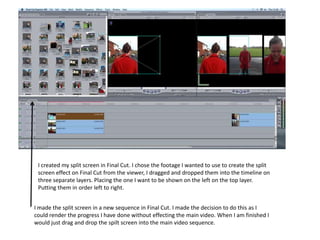
I created my split screen in Final Cut. I chose the footage I wanted to use to create the split
 screen effect on Final Cut from the viewer, I dragged and dropped them into the timeline on
 three separate layers. Placing the one I want to be shown on the left on the top layer.
 Putting them in order left to right.


I made the split screen in a new sequence in Final Cut. I made the decision to do this as I
could render the progress I have done without effecting the main video. When I am finished I
would just drag and drop the spilt screen into the main video sequence.
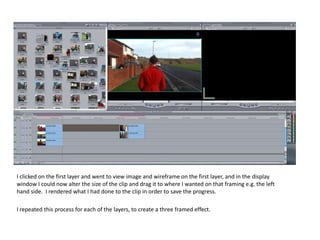
I clicked on the first layer and went to view image and wireframe on the first layer, and in the display
window I could now alter the size of the clip and drag it to where I wanted on that framing e.g. the left
hand side. I rendered what I had done to the clip in order to save the progress.

I repeated this process for each of the layers, to create a three framed effect.
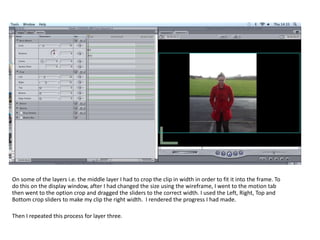
On some of the layers i.e. the middle layer I had to crop the clip in width in order to fit it into the frame. To
do this on the display window, after I had changed the size using the wireframe, I went to the motion tab
then went to the option crop and dragged the sliders to the correct width. I used the Left, Right, Top and
Bottom crop sliders to make my clip the right width. I rendered the progress I had made.

Then I repeated this process for layer three.
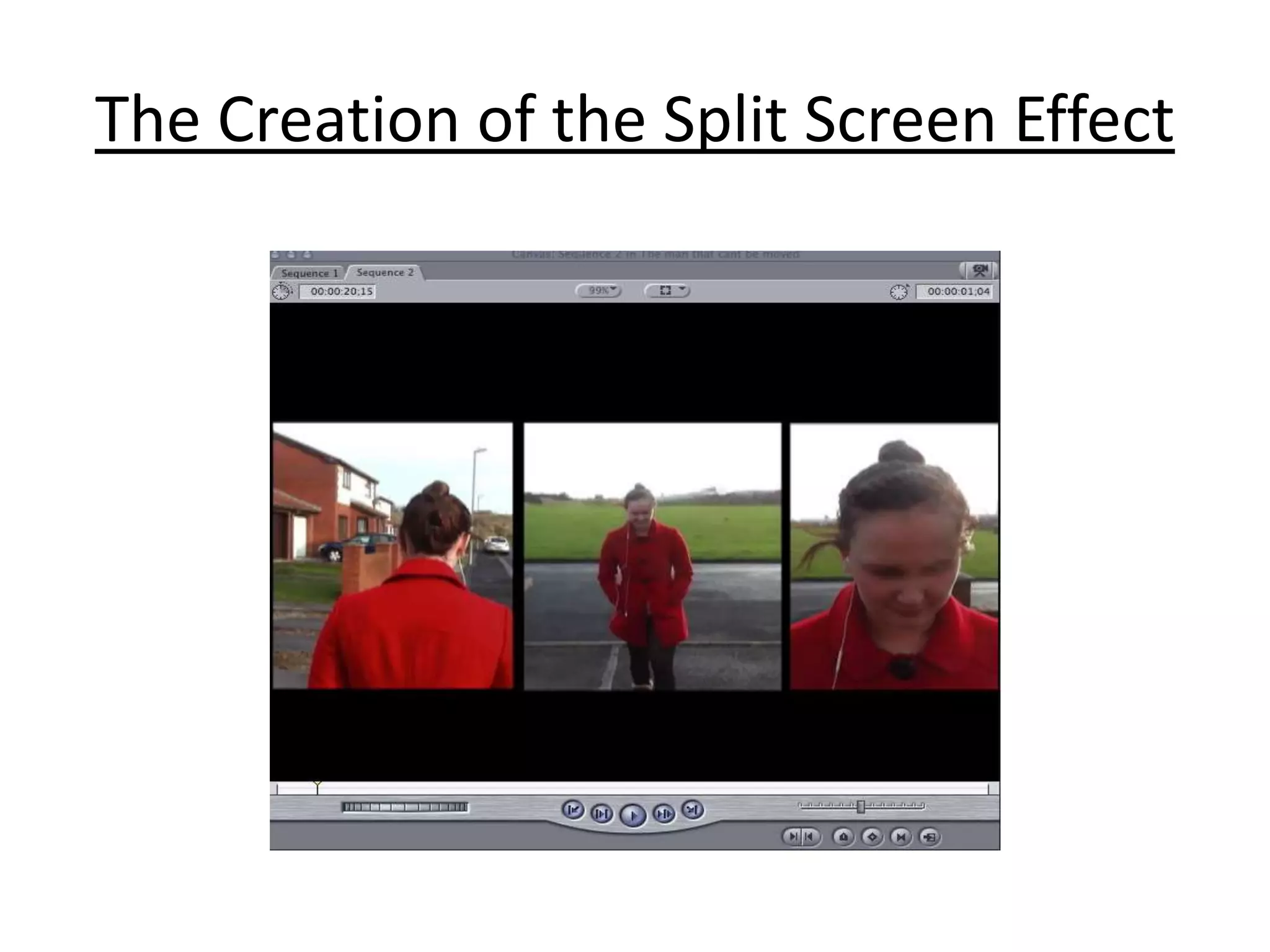
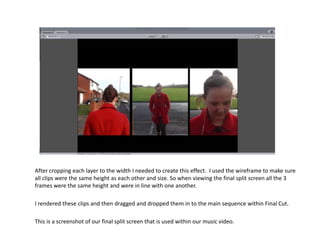
After cropping each layer to the width I needed to create this effect. I used the wireframe to make sure
all clips were the same height as each other and size. So when viewing the final split screen all the 3
frames were the same height and were in line with one another.

I rendered these clips and then dragged and dropped them in to the main sequence within Final Cut.

This is a screenshot of our final split screen that is used within our music video.

The Creation of the Split Screen Effect

  • 1.
    The Creation ofthe Split Screen Effect
  • 2.
    I created mysplit screen in Final Cut. I chose the footage I wanted to use to create the split screen effect on Final Cut from the viewer, I dragged and dropped them into the timeline on three separate layers. Placing the one I want to be shown on the left on the top layer. Putting them in order left to right. I made the split screen in a new sequence in Final Cut. I made the decision to do this as I could render the progress I have done without effecting the main video. When I am finished I would just drag and drop the spilt screen into the main video sequence.
  • 3.
    I clicked onthe first layer and went to view image and wireframe on the first layer, and in the display window I could now alter the size of the clip and drag it to where I wanted on that framing e.g. the left hand side. I rendered what I had done to the clip in order to save the progress. I repeated this process for each of the layers, to create a three framed effect.
  • 4.
    On some ofthe layers i.e. the middle layer I had to crop the clip in width in order to fit it into the frame. To do this on the display window, after I had changed the size using the wireframe, I went to the motion tab then went to the option crop and dragged the sliders to the correct width. I used the Left, Right, Top and Bottom crop sliders to make my clip the right width. I rendered the progress I had made. Then I repeated this process for layer three.
  • 5.
    After cropping eachlayer to the width I needed to create this effect. I used the wireframe to make sure all clips were the same height as each other and size. So when viewing the final split screen all the 3 frames were the same height and were in line with one another. I rendered these clips and then dragged and dropped them in to the main sequence within Final Cut. This is a screenshot of our final split screen that is used within our music video.