TDD with python, pytest and
vim
Setting up
Getting Started
• pip install pytest
• pip install pytest-xdist
• If you are using Anaconda, pytest should already be installed
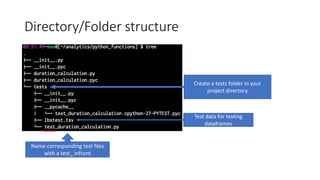
Directory/Folder structure
Create a tests folder in your
project directory
Test data for testing
dataframes
Name corresponding test files
with a test_ infront
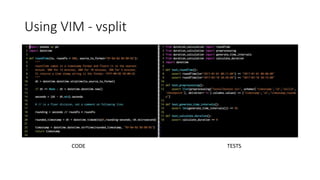
Using VIM
• Open vim <filename> in the root directory
• Enter :vsplit <tests/filename> in vim’s console
• You will get a split window.
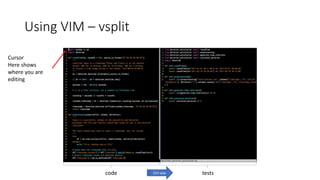
• Ctrl-wx to swap columns in the order of preference. I.e. code on left,
test on right or vice versa
• Ctrl-ww to switch editing columns
Using VIM - vsplit
CODE TESTS
Using VIM – vsplit
Cursor
Here shows
where you are
editing
code testsCtrl-ww
Pytest
• Run pytest -f -v in
the root of your
project directory
• Pytest will be
watching for any
changes in the code
or tests.
• Once you save
either file, it will re-
run all tests
automatically

Testing with Python, Pytest and Vim

  • 1.
    TDD with python,pytest and vim Setting up
  • 2.
    Getting Started • pipinstall pytest • pip install pytest-xdist • If you are using Anaconda, pytest should already be installed
  • 3.
    Directory/Folder structure Create atests folder in your project directory Test data for testing dataframes Name corresponding test files with a test_ infront
  • 4.
    Using VIM • Openvim <filename> in the root directory • Enter :vsplit <tests/filename> in vim’s console • You will get a split window. • Ctrl-wx to swap columns in the order of preference. I.e. code on left, test on right or vice versa • Ctrl-ww to switch editing columns
  • 5.
    Using VIM -vsplit CODE TESTS
  • 6.
    Using VIM –vsplit Cursor Here shows where you are editing code testsCtrl-ww
  • 7.
    Pytest • Run pytest-f -v in the root of your project directory • Pytest will be watching for any changes in the code or tests. • Once you save either file, it will re- run all tests automatically