WHAT HAVE I USED THROUGHOUT
THE WHOLE PROCESS?Used to retrieve our
background music. On
this website, we could
use the search bar to
search for the specific
mood we wanted to
create and choose a
suitable track.
I used Tagul to
create my word
cloud in the
audience
feedback task
during the
evaluation period.
Imgflip is the website in
which I created my gifs for
the final evaluation task in
order for a moving image
to be viewed on my
journal.
Moovly is website I used for task 4. I
managed to create a short animated
film to explain the target audience of
my opening.
I used prezi to
create a short
animated
powerpoint for task
3 of my evaluations.
This allowed me to
make a simple
powerpoint more
interesting and
include eye-
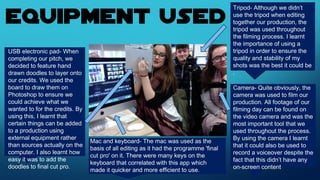
Tripod- Although we didn’t
use the tripod when editing
together our production, the
tripod was used throughout
the filming process. I learnt
the importance of using a
tripod in order to ensure the
quality and stability of my
shots was the best it could be
.
USB electronic pad- When
completing our pitch, we
decided to feature hand
drawn doodles to layer onto
our credits. We used the
board to draw them on
Photoshop to ensure we
could achieve what we
wanted to for the credits. By
using this, I learnt that
certain things can be added
to a production using
external equipment rather
than sources actually on the
computer. I also learnt how
easy it was to add the
doodles to final cut pro.
Camera- Quite obviously, the
camera was used to film our
production. All footage of our
filming day can be found on
the video camera and was the
most important tool that we
used throughout the process.
By using the camera I learnt
that it could also be used to
record a voiceover despite the
fact that this didn’t have any
on-screen content
Mac and keyboard- The mac was used as the
basis of all editing as it had the programme 'final
cut pro' on it. There were many keys on the
keyboard that correlated with this app which
made it quicker and more efficient to use.
We used Final Cut Pro to actually edit and put
together our shots. Here, we could add affects to
shots, change the timing of shots and use
different transitions between shots. Using this
feature of the Apple Mac, I learnt how easy it was
to change all aspects of a clip including the
speed its played in and the order of shots.
Video clip window-
Used to not only view
all footage that has
been filmed but it
was also used to
initially select the
parts of each clip that
we wanted to feature
within our final cut.
Using this I learnt
that despite how
much footage you
film on filming day,
you will only use a
short amount of it in
order to ensure the
opening isnt too long
Overview window- this allows me to see all the decisions I have made about each
shot concerning transitions and effects etc. It is also here where I can move certain
shots around on the screen and the most important part of the application when I
was trying to complete the split screen sequence. The overview window allowed me
to add guidelines onto the screen in order to ensure all of the shots were placed
centrally and horizontally straight.
Effect selector- This part of
final cut pro allows me to
change the saturation of
shots, transitions and
possibly add a hue or color
filter to a section of my
opening. Using this I learnt
the difference that changing
the color of specific shots
can do and how it can alter
the mood that can be
associated with a certain
section of a film. For
example, we added a pink
hue to the dream scene to
connote romance. The
transitions we chose also
helped to make the contiuity
editing seamless
Project Timeline- Shots, credits and filters can be viewed in chronological order here.
Also where hand drawn doodles were dragged on and placed on each shot. The
duration, speed and angle of each shot can be adapted here to ensure all shots look
how you want them too. It also made it easy to add my voiceover by layering it onto
the shots I wanted it to feature on and changing the opacity of the shot to ensure
there was no unwanted footage alongside this.
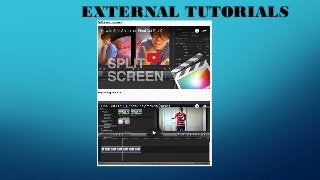
EXTERNAL TUTORIALS
EXTERNAL TUTORIALS

Task 6

  • 2.
    WHAT HAVE IUSED THROUGHOUT THE WHOLE PROCESS?Used to retrieve our background music. On this website, we could use the search bar to search for the specific mood we wanted to create and choose a suitable track. I used Tagul to create my word cloud in the audience feedback task during the evaluation period. Imgflip is the website in which I created my gifs for the final evaluation task in order for a moving image to be viewed on my journal. Moovly is website I used for task 4. I managed to create a short animated film to explain the target audience of my opening. I used prezi to create a short animated powerpoint for task 3 of my evaluations. This allowed me to make a simple powerpoint more interesting and include eye-
  • 3.
    Tripod- Although wedidn’t use the tripod when editing together our production, the tripod was used throughout the filming process. I learnt the importance of using a tripod in order to ensure the quality and stability of my shots was the best it could be . USB electronic pad- When completing our pitch, we decided to feature hand drawn doodles to layer onto our credits. We used the board to draw them on Photoshop to ensure we could achieve what we wanted to for the credits. By using this, I learnt that certain things can be added to a production using external equipment rather than sources actually on the computer. I also learnt how easy it was to add the doodles to final cut pro. Camera- Quite obviously, the camera was used to film our production. All footage of our filming day can be found on the video camera and was the most important tool that we used throughout the process. By using the camera I learnt that it could also be used to record a voiceover despite the fact that this didn’t have any on-screen content Mac and keyboard- The mac was used as the basis of all editing as it had the programme 'final cut pro' on it. There were many keys on the keyboard that correlated with this app which made it quicker and more efficient to use.
  • 4.
    We used FinalCut Pro to actually edit and put together our shots. Here, we could add affects to shots, change the timing of shots and use different transitions between shots. Using this feature of the Apple Mac, I learnt how easy it was to change all aspects of a clip including the speed its played in and the order of shots.
  • 5.
    Video clip window- Usedto not only view all footage that has been filmed but it was also used to initially select the parts of each clip that we wanted to feature within our final cut. Using this I learnt that despite how much footage you film on filming day, you will only use a short amount of it in order to ensure the opening isnt too long Overview window- this allows me to see all the decisions I have made about each shot concerning transitions and effects etc. It is also here where I can move certain shots around on the screen and the most important part of the application when I was trying to complete the split screen sequence. The overview window allowed me to add guidelines onto the screen in order to ensure all of the shots were placed centrally and horizontally straight. Effect selector- This part of final cut pro allows me to change the saturation of shots, transitions and possibly add a hue or color filter to a section of my opening. Using this I learnt the difference that changing the color of specific shots can do and how it can alter the mood that can be associated with a certain section of a film. For example, we added a pink hue to the dream scene to connote romance. The transitions we chose also helped to make the contiuity editing seamless Project Timeline- Shots, credits and filters can be viewed in chronological order here. Also where hand drawn doodles were dragged on and placed on each shot. The duration, speed and angle of each shot can be adapted here to ensure all shots look how you want them too. It also made it easy to add my voiceover by layering it onto the shots I wanted it to feature on and changing the opacity of the shot to ensure there was no unwanted footage alongside this.
  • 6.
  • 7.

Editor's Notes