TABLEAU
SUJITHRA Y
M.Sc.,M.Ed.,DMLT.,
What is Tableau?
• Tableau is an easy-to-use business intelligence software used for data analysis.
• Tableau natively connects to dozens of data sources, including Oracle and MS-SQL,
as well as local sources like MS-Access and Excel.
• Once connected you use drag and drop tools to visualize and create interactive
dashboards.
• Visualizations can be presented to your audience via PDF, Tableau Reader, Tableau
Server/Online or Tableau Public.
• Data visualization software that provides the ability to create interactive
workbooks and dashboards to see and understand data in minutes.
Tableau Desktop
Two Parts in Tableau
• Dimensions
• Text
• Dates
• Geographic's
• Measures
• Numbers
• Figures
• Float values
• Calculated fields
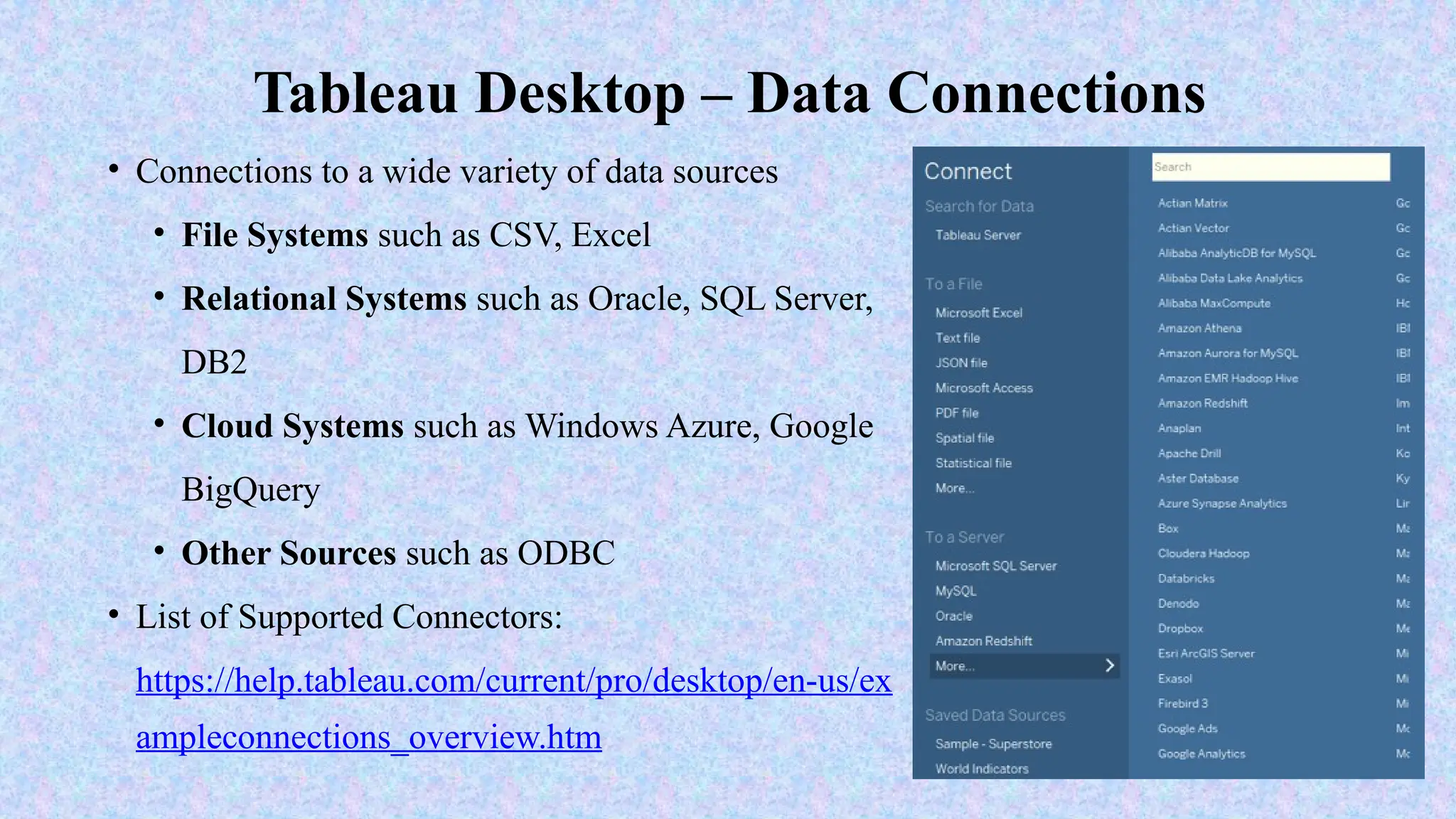
• Connections to a wide variety of data sources
• File Systems such as CSV, Excel
• Relational Systems such as Oracle, SQL Server,
DB2
• Cloud Systems such as Windows Azure, Google
BigQuery
• Other Sources such as ODBC
• List of Supported Connectors:
https://help.tableau.com/current/pro/desktop/en-us/ex
ampleconnections_overview.htm
Tableau Desktop – Data Connections
• Area Chart
• Bar Chart
• Box Plot
• Bubble Chart
• Bullet Graph
• Density Marks (Heatmap)
• Gantt Chart
• Dot Plot
• Highlight Table
• Histogram
Tableau Desktop – Graphic Types
• Line Chart
• Maps (Geographical and Heat)
• Pie Chart
• Scatter Plot
• Text Table
• Treemap
• Word Cloud
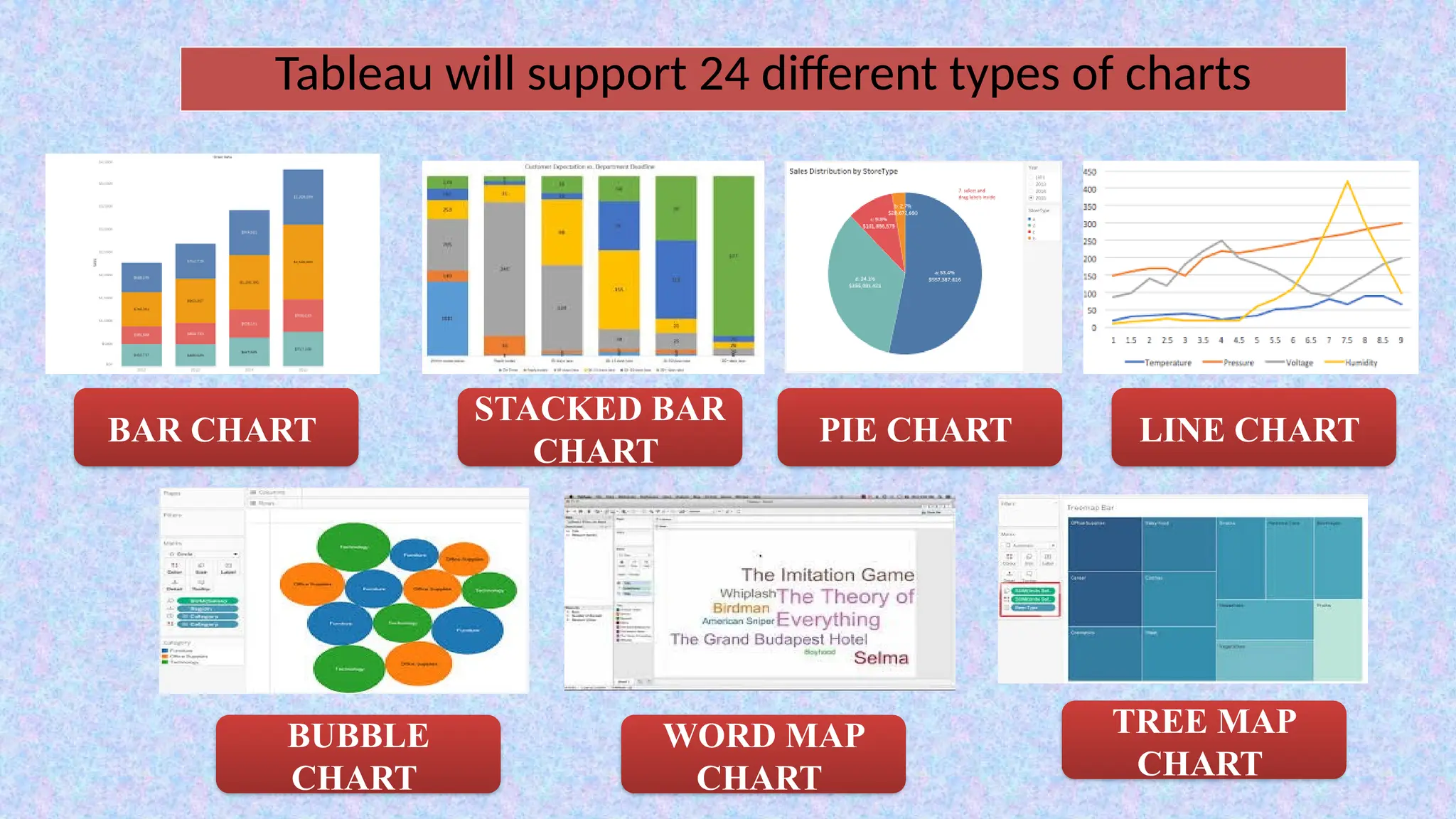
Tableau will support 24 different types of charts
BAR CHART
STACKED BAR
CHART
PIE CHART LINE CHART
BUBBLE
CHART
TREE MAP
CHART
WORD MAP
CHART
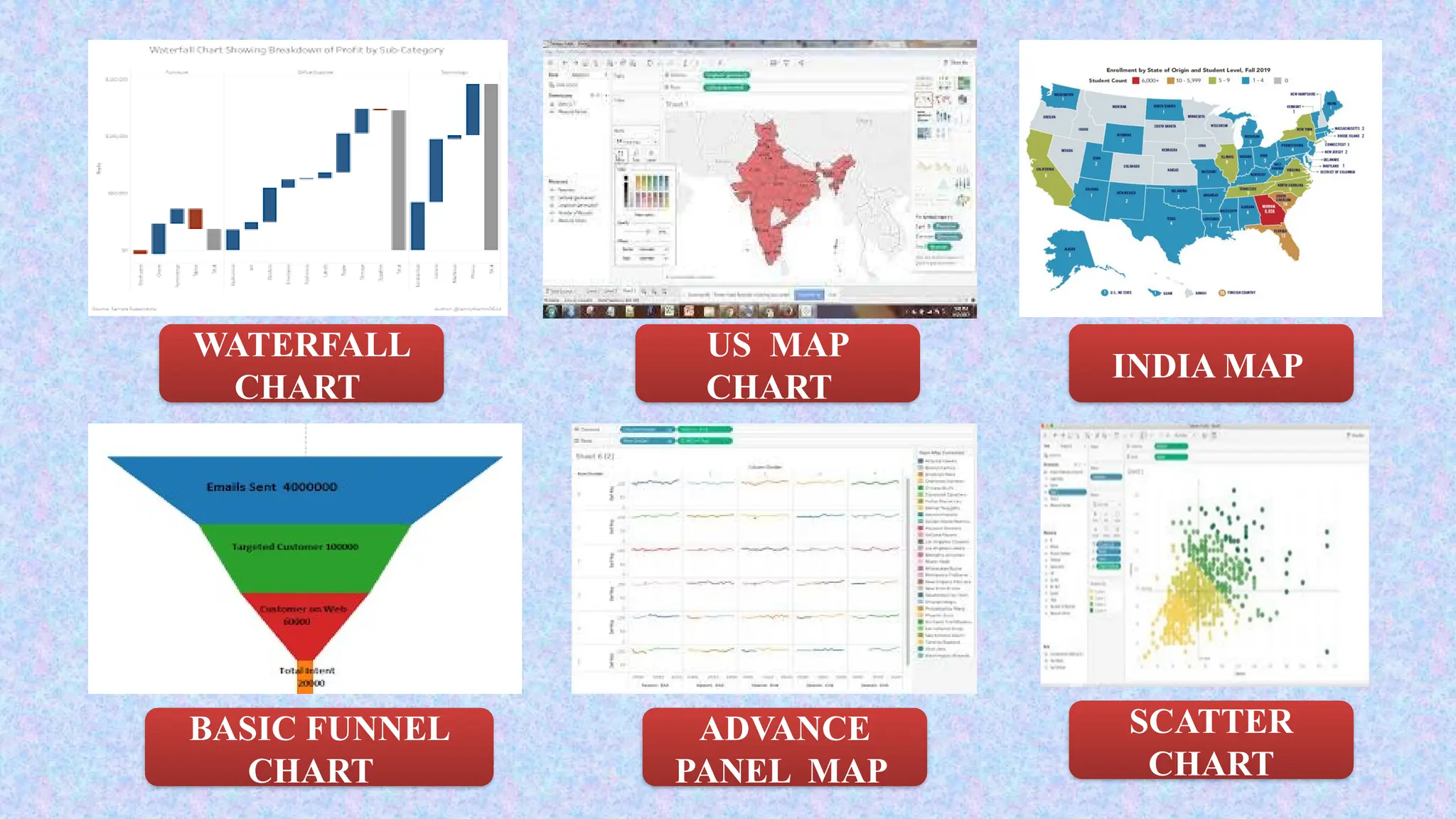
WATERFALL
CHART
INDIA MAP
US MAP
CHART
SCATTER
CHART
BASIC FUNNEL
CHART
ADVANCE
PANEL MAP
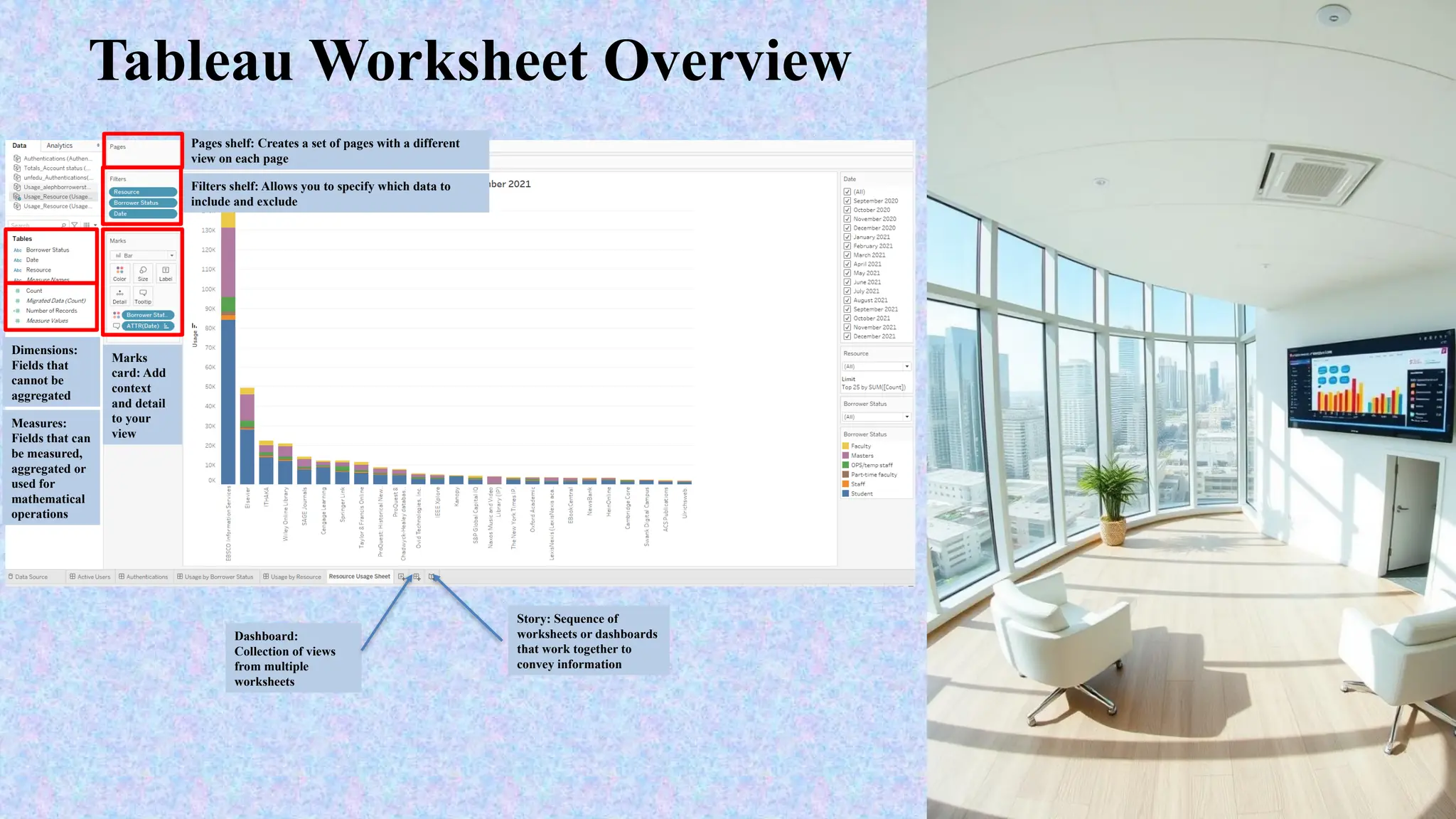
Tableau Worksheet Overview
Dashboard:
Collection of views
from multiple
worksheets
Story: Sequence of
worksheets or dashboards
that work together to
convey information
Pages shelf: Creates a set of pages with a different
view on each page
Filters shelf: Allows you to specify which data to
include and exclude
Marks
card: Add
context
and detail
to your
view
Dimensions:
Fields that
cannot be
aggregated
Measures:
Fields that can
be measured,
aggregated or
used for
mathematical
operations
Why Tableau? The Value Proposition
Intuitive Interface
Tableau's drag-and-drop
interface is easy to use.
Powerful Analytics
Advanced calculations are
built-in for insights.
Visually Appealing
Create interactive
visualizations and
dashboards.
Connecting to Your Data: Sources and Methods
Databases
Connect to SQL Server,
Oracle, and more.
Files
Upload Excel, CSV, and text
files directly.
Cloud Services
Integrate with AWS, Google
Cloud, and Azure.
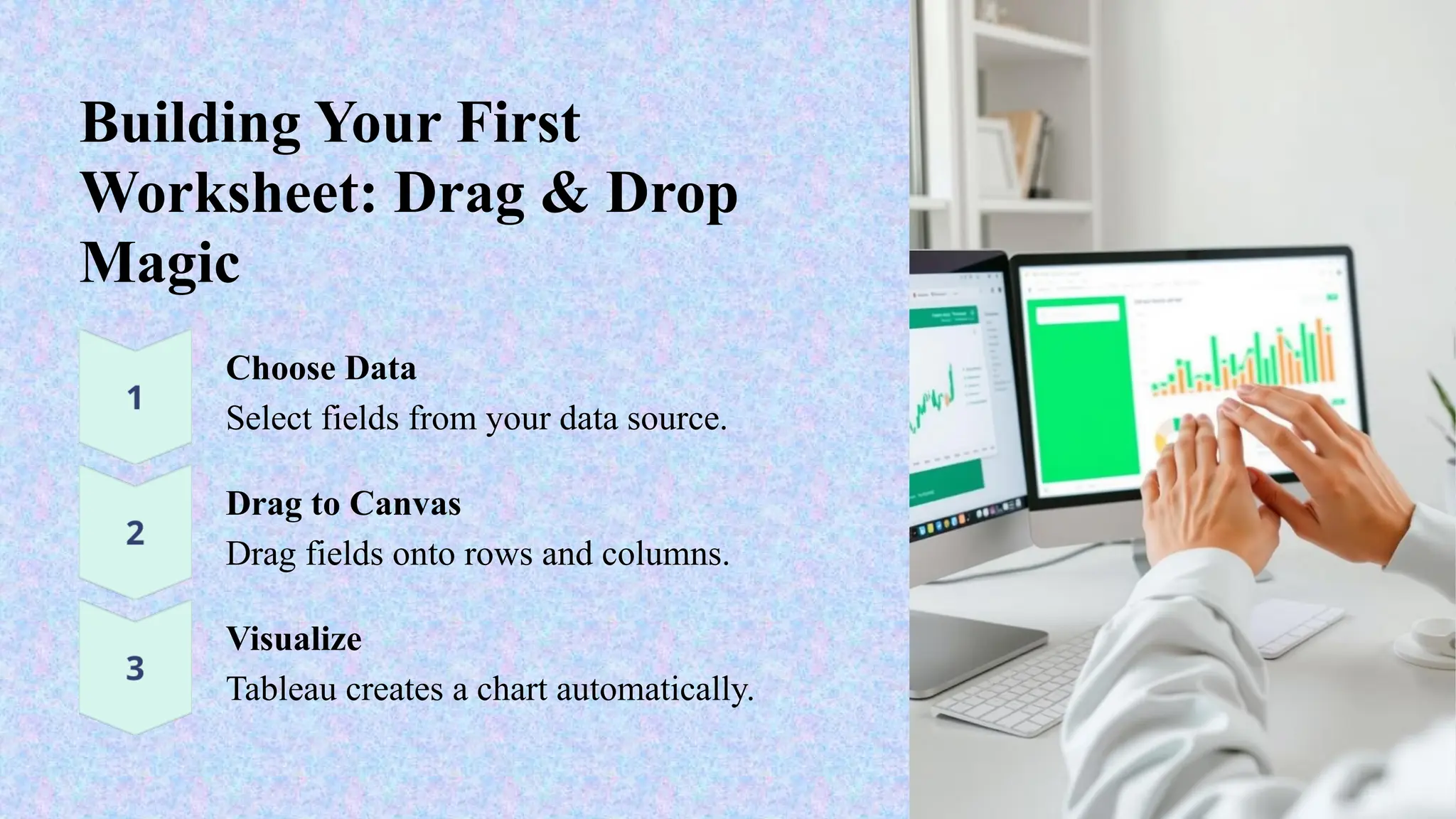
Building Your First
Worksheet: Drag & Drop
Magic
Choose Data
Select fields from your data source.
Drag to Canvas
Drag fields onto rows and columns.
Visualize
Tableau creates a chart automatically.
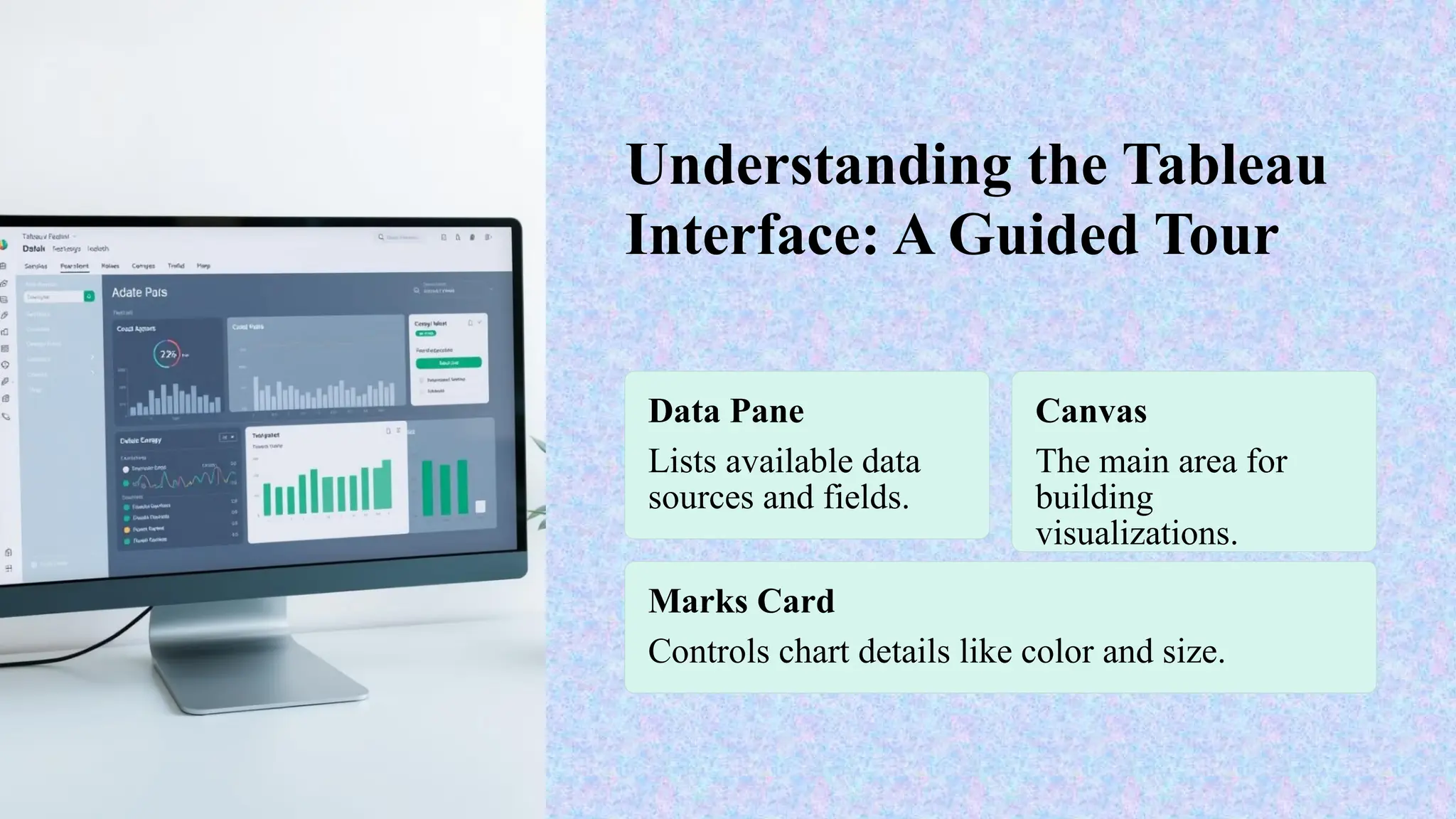
Understanding the Tableau
Interface: A Guided Tour
Data Pane
Lists available data
sources and fields.
Canvas
The main area for
building
visualizations.
Marks Card
Controls chart details like color and size.
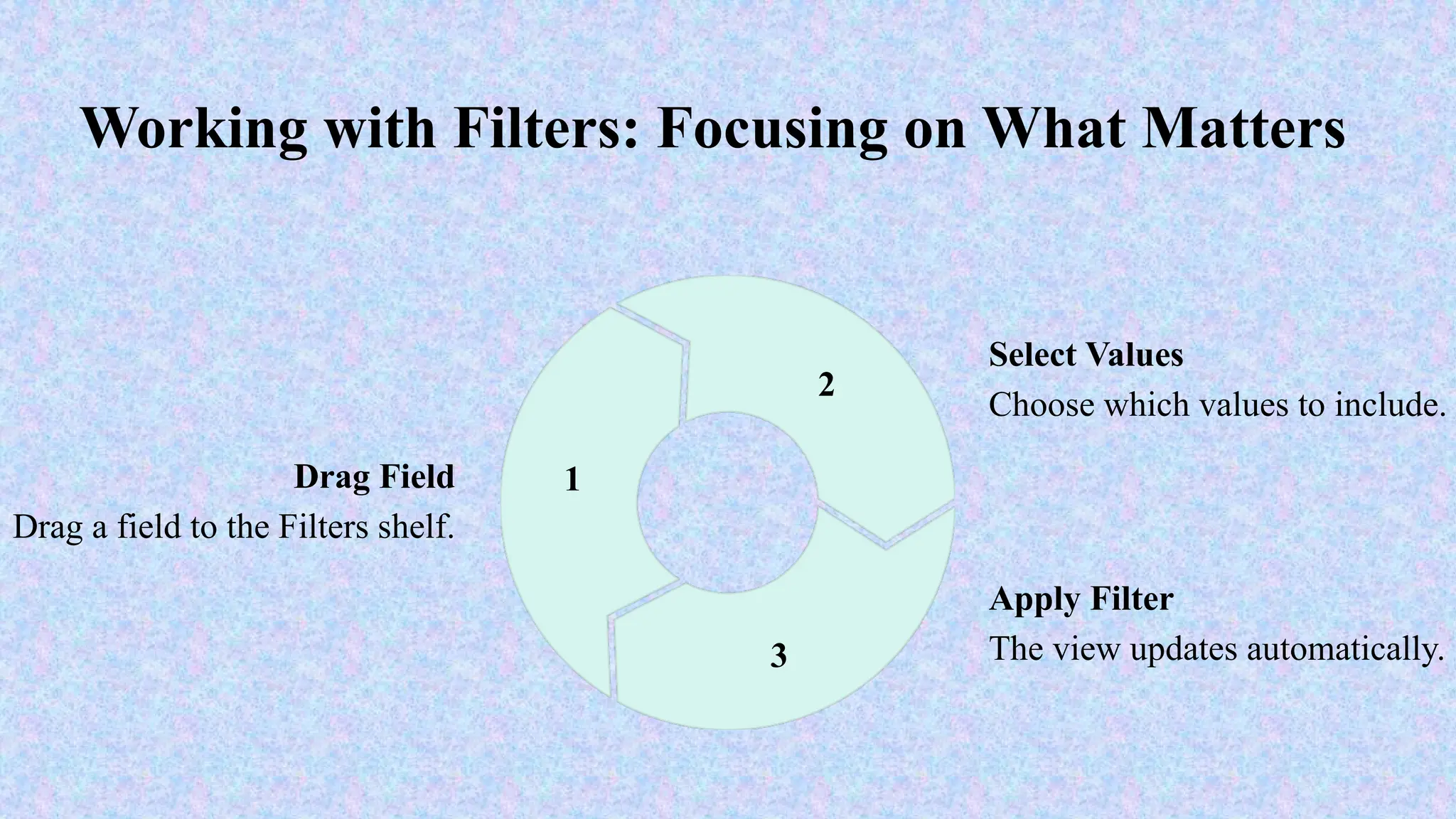
Working with Filters: Focusing on What Matters
Drag Field
Drag a field to the Filters shelf.
1
Select Values
Choose which values to include.
2
Apply Filter
The view updates automatically.
3
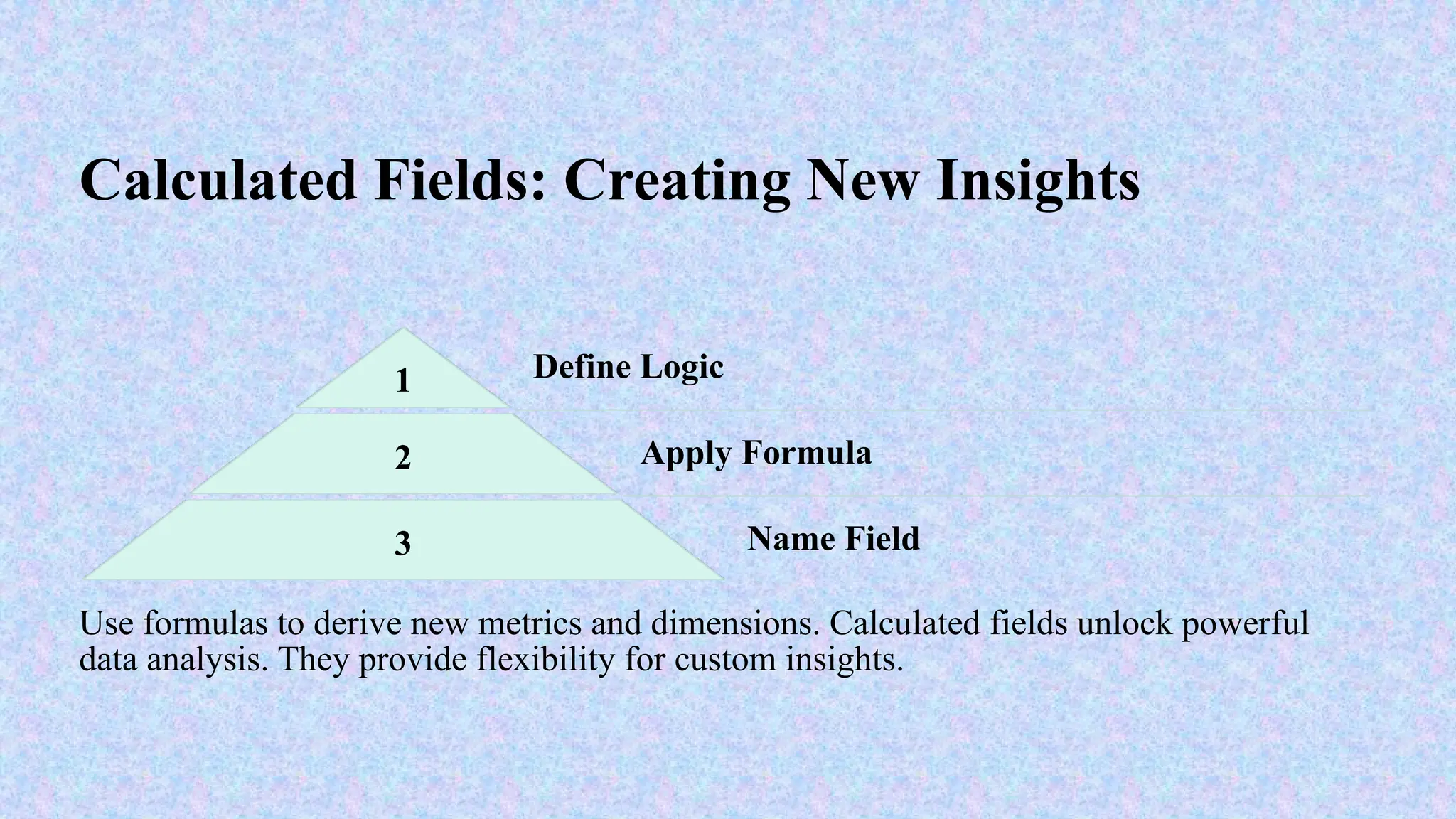
Calculated Fields: Creating New Insights
1 Define Logic
2 Apply Formula
3 Name Field
Use formulas to derive new metrics and dimensions. Calculated fields unlock powerful
data analysis. They provide flexibility for custom insights.
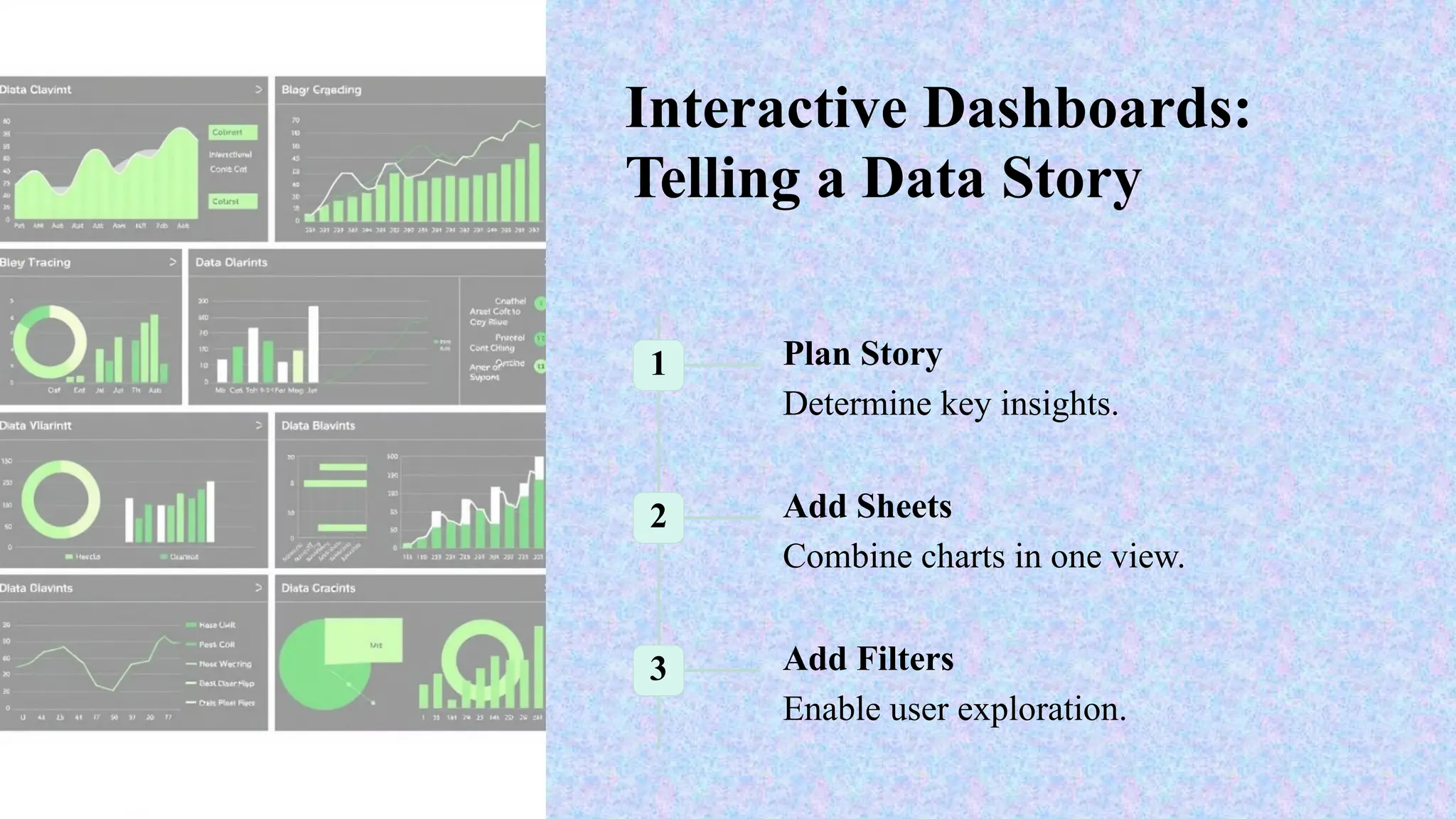
Interactive Dashboards:
Telling a Data Story
1 Plan Story
Determine key insights.
2 Add Sheets
Combine charts in one view.
3 Add Filters
Enable user exploration.
TABLEAU INTRODUCTION-DATA ANALYTICS.pptx

TABLEAU INTRODUCTION-DATA ANALYTICS.pptx

  • 1.
  • 2.
    What is Tableau? •Tableau is an easy-to-use business intelligence software used for data analysis. • Tableau natively connects to dozens of data sources, including Oracle and MS-SQL, as well as local sources like MS-Access and Excel. • Once connected you use drag and drop tools to visualize and create interactive dashboards. • Visualizations can be presented to your audience via PDF, Tableau Reader, Tableau Server/Online or Tableau Public.
  • 3.
    • Data visualizationsoftware that provides the ability to create interactive workbooks and dashboards to see and understand data in minutes. Tableau Desktop Two Parts in Tableau • Dimensions • Text • Dates • Geographic's • Measures • Numbers • Figures • Float values • Calculated fields
  • 4.
    • Connections toa wide variety of data sources • File Systems such as CSV, Excel • Relational Systems such as Oracle, SQL Server, DB2 • Cloud Systems such as Windows Azure, Google BigQuery • Other Sources such as ODBC • List of Supported Connectors: https://help.tableau.com/current/pro/desktop/en-us/ex ampleconnections_overview.htm Tableau Desktop – Data Connections
  • 5.
    • Area Chart •Bar Chart • Box Plot • Bubble Chart • Bullet Graph • Density Marks (Heatmap) • Gantt Chart • Dot Plot • Highlight Table • Histogram Tableau Desktop – Graphic Types • Line Chart • Maps (Geographical and Heat) • Pie Chart • Scatter Plot • Text Table • Treemap • Word Cloud
  • 6.
    Tableau will support24 different types of charts BAR CHART STACKED BAR CHART PIE CHART LINE CHART BUBBLE CHART TREE MAP CHART WORD MAP CHART
  • 7.
  • 8.
    Tableau Worksheet Overview Dashboard: Collectionof views from multiple worksheets Story: Sequence of worksheets or dashboards that work together to convey information Pages shelf: Creates a set of pages with a different view on each page Filters shelf: Allows you to specify which data to include and exclude Marks card: Add context and detail to your view Dimensions: Fields that cannot be aggregated Measures: Fields that can be measured, aggregated or used for mathematical operations
  • 9.
    Why Tableau? TheValue Proposition Intuitive Interface Tableau's drag-and-drop interface is easy to use. Powerful Analytics Advanced calculations are built-in for insights. Visually Appealing Create interactive visualizations and dashboards.
  • 10.
    Connecting to YourData: Sources and Methods Databases Connect to SQL Server, Oracle, and more. Files Upload Excel, CSV, and text files directly. Cloud Services Integrate with AWS, Google Cloud, and Azure.
  • 11.
    Building Your First Worksheet:Drag & Drop Magic Choose Data Select fields from your data source. Drag to Canvas Drag fields onto rows and columns. Visualize Tableau creates a chart automatically.
  • 12.
    Understanding the Tableau Interface:A Guided Tour Data Pane Lists available data sources and fields. Canvas The main area for building visualizations. Marks Card Controls chart details like color and size.
  • 13.
    Working with Filters:Focusing on What Matters Drag Field Drag a field to the Filters shelf. 1 Select Values Choose which values to include. 2 Apply Filter The view updates automatically. 3
  • 14.
    Calculated Fields: CreatingNew Insights 1 Define Logic 2 Apply Formula 3 Name Field Use formulas to derive new metrics and dimensions. Calculated fields unlock powerful data analysis. They provide flexibility for custom insights.
  • 15.
    Interactive Dashboards: Telling aData Story 1 Plan Story Determine key insights. 2 Add Sheets Combine charts in one view. 3 Add Filters Enable user exploration.