How to Register for Classes
Added to Your Plan
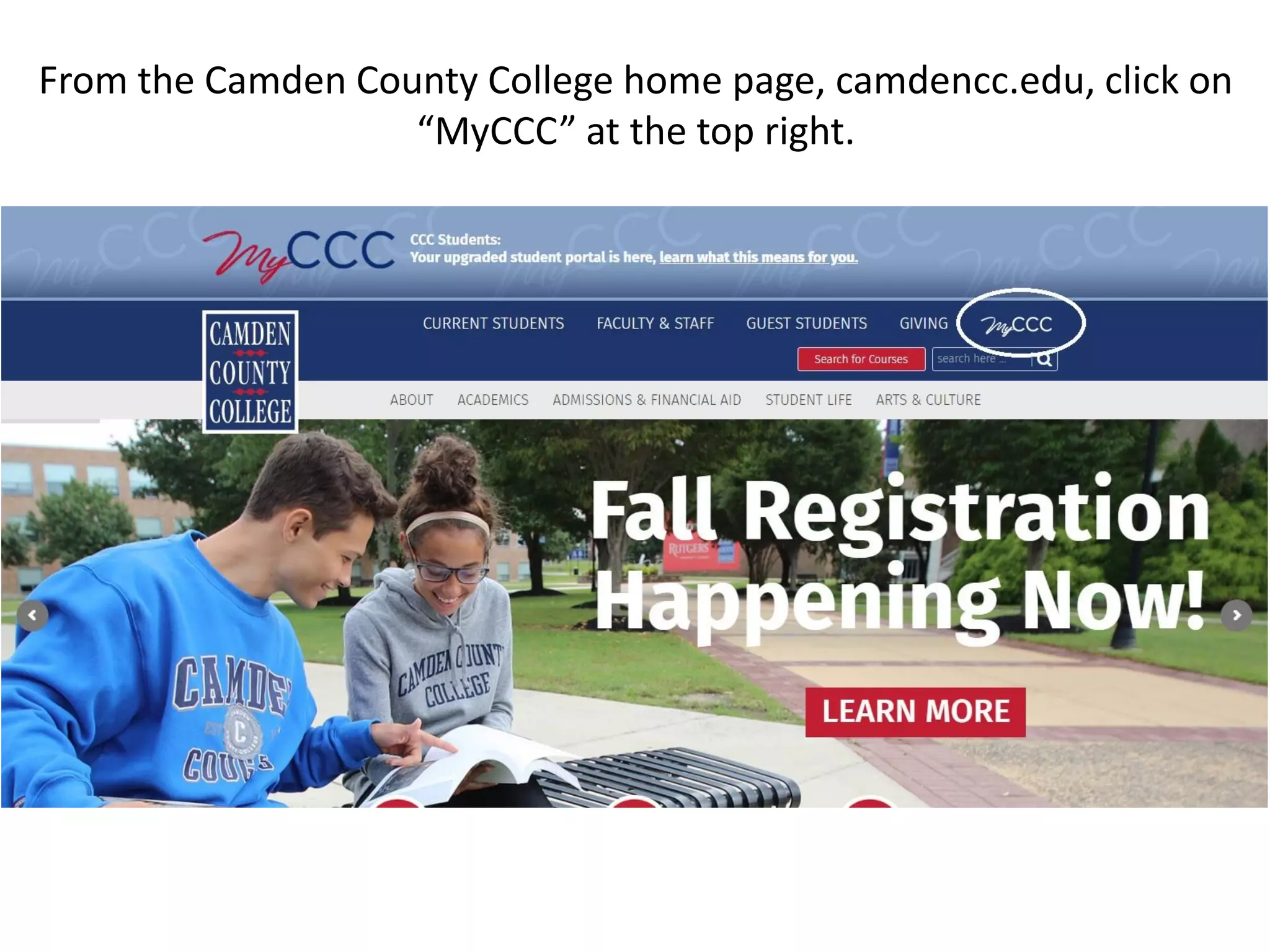
From the Camden County College home page, camdencc.edu, click on
“MyCCC” at the top right.
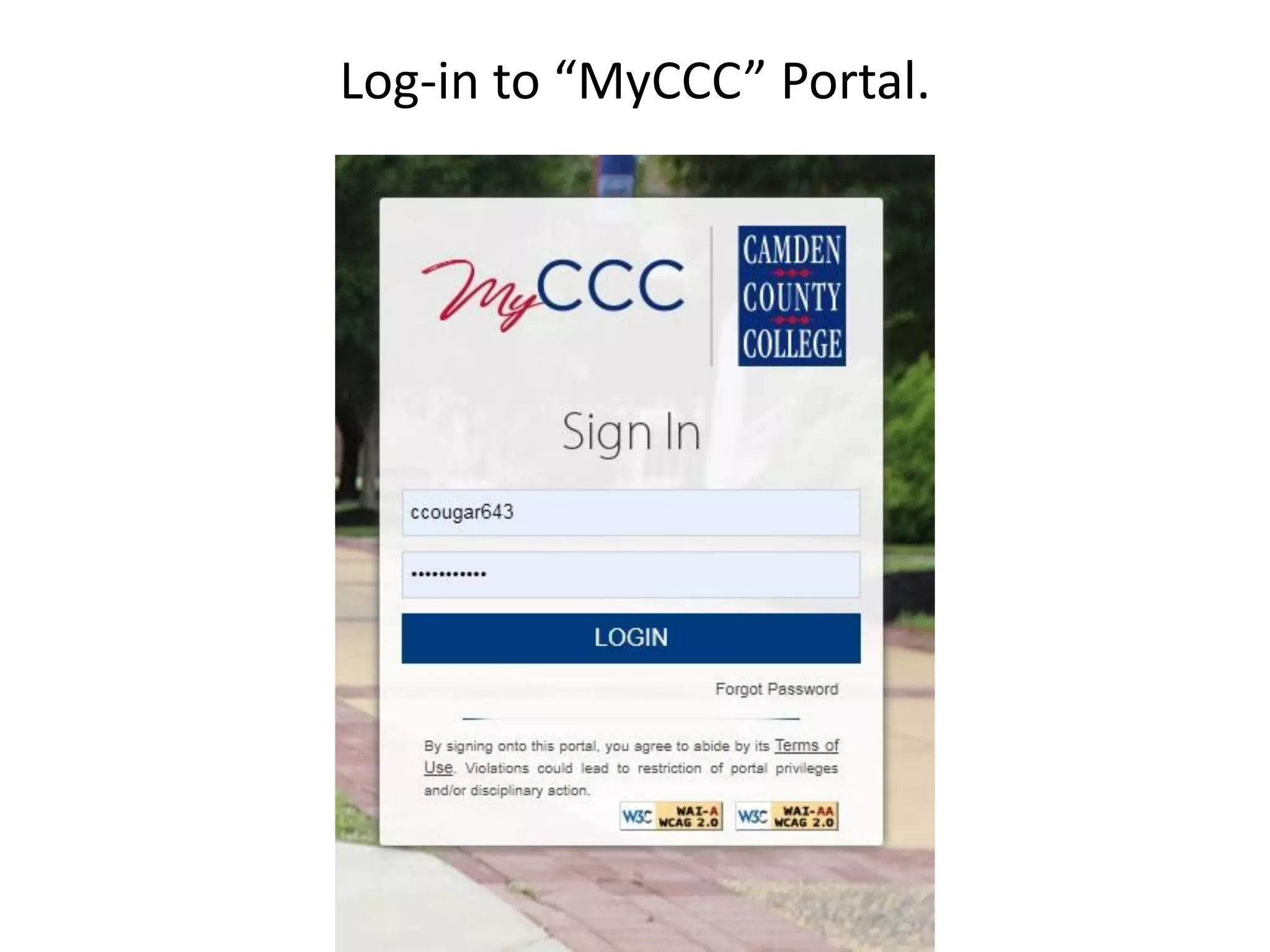
Log-in to “MyCCC” Portal.
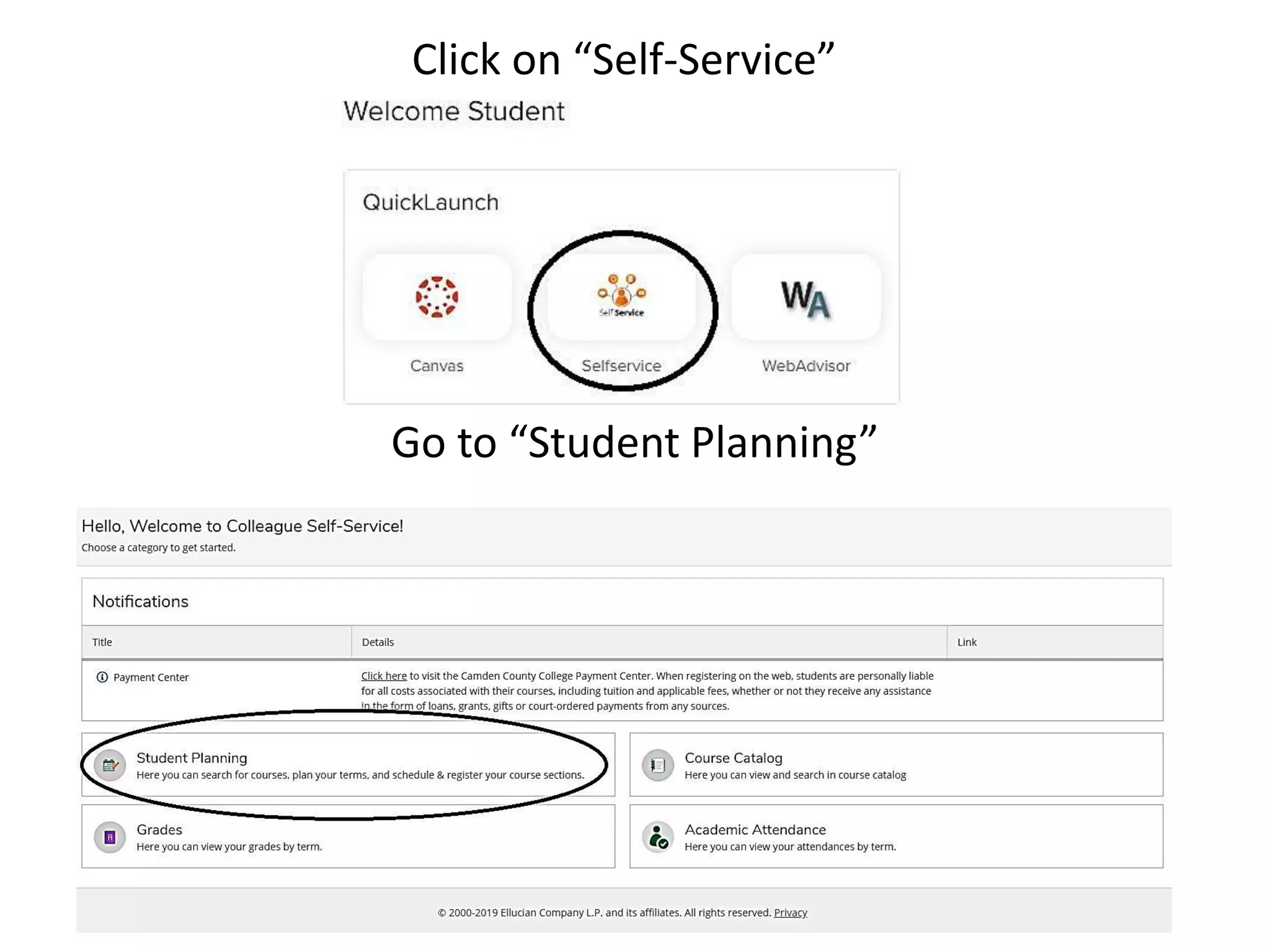
Click on “Self-Service”
Go to “Student Planning”
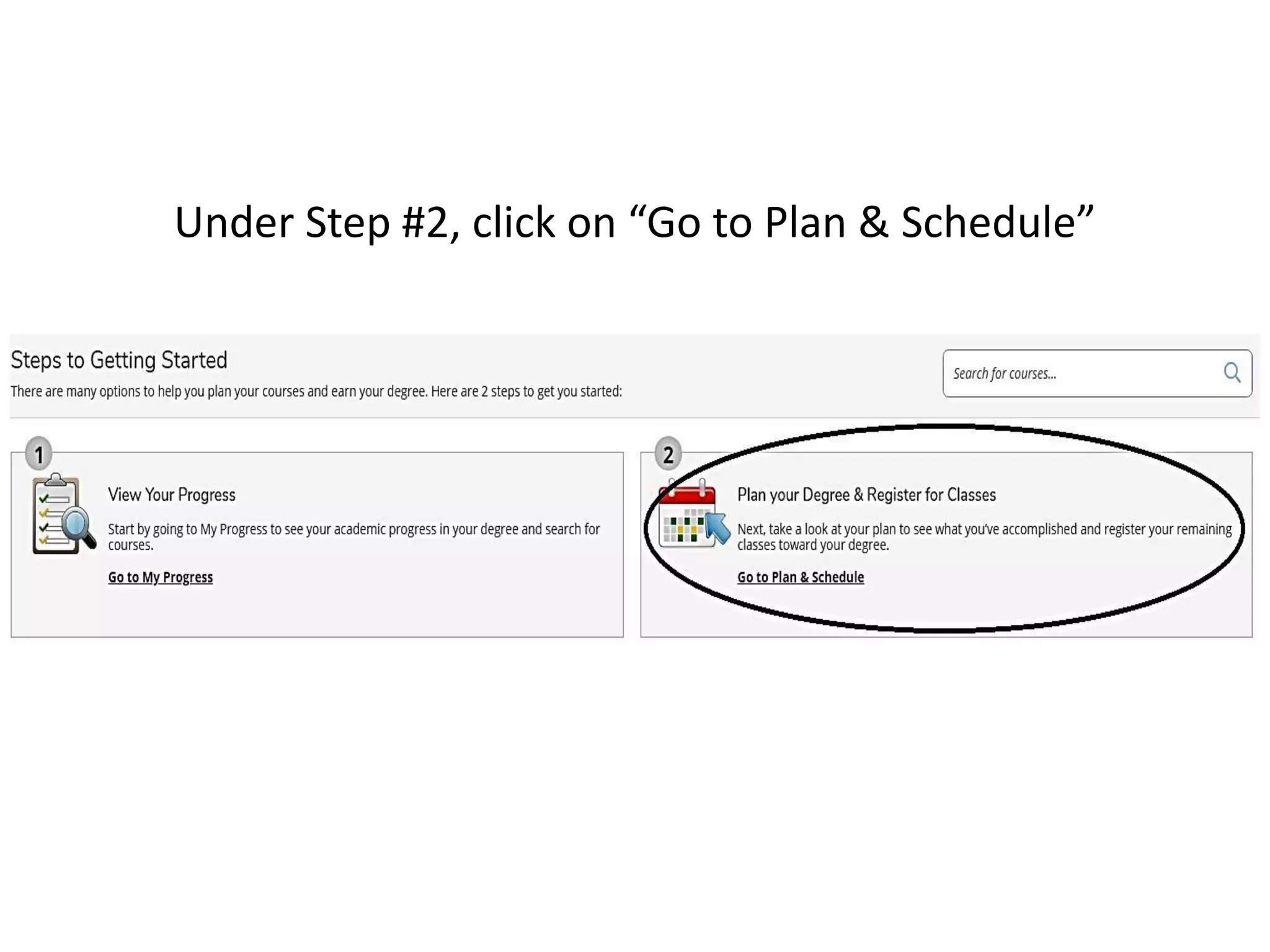
Under Step #2, click on “Go to Plan & Schedule”
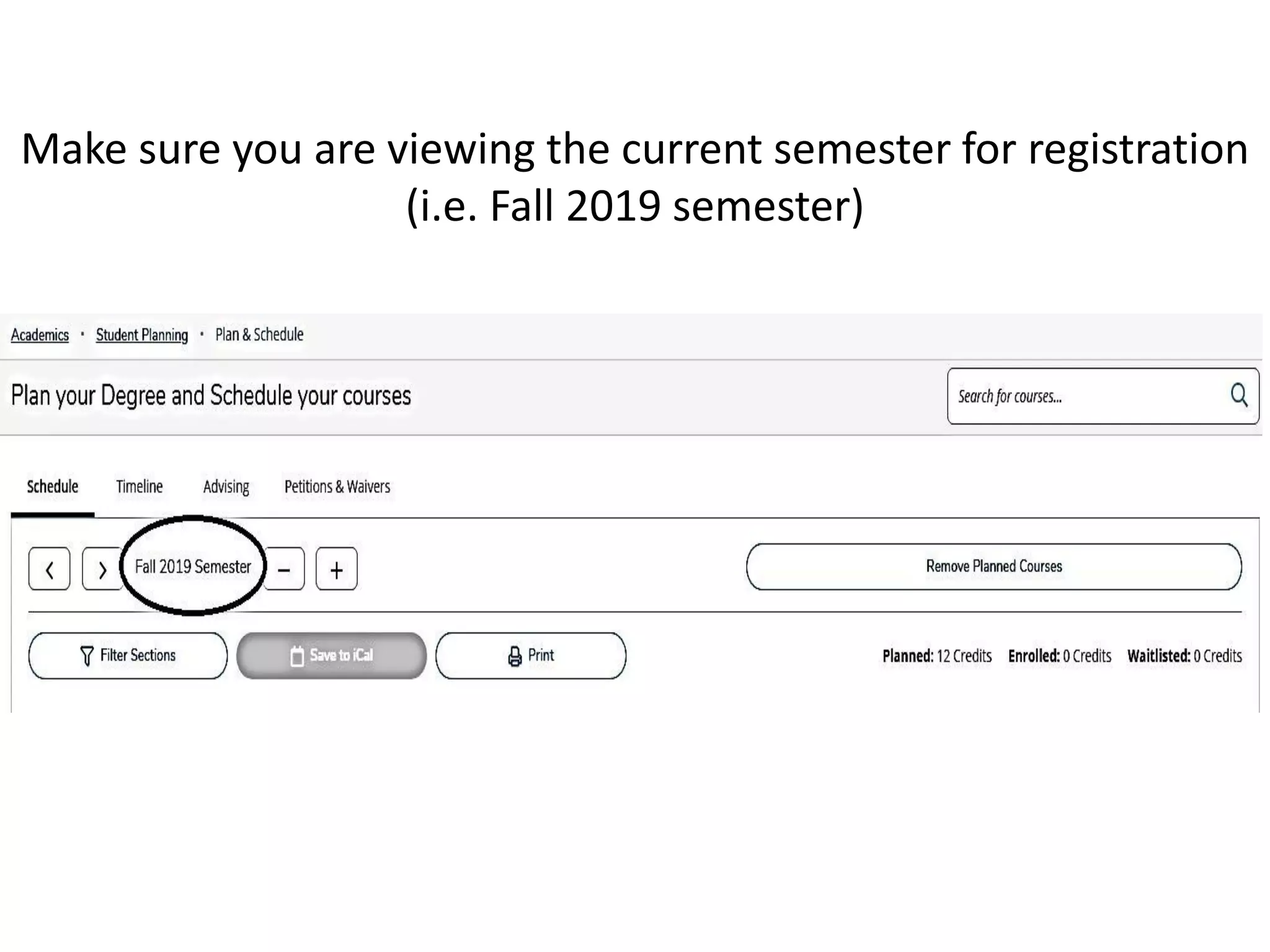
Make sure you are viewing the current semester for registration
(i.e. Fall 2019 semester)
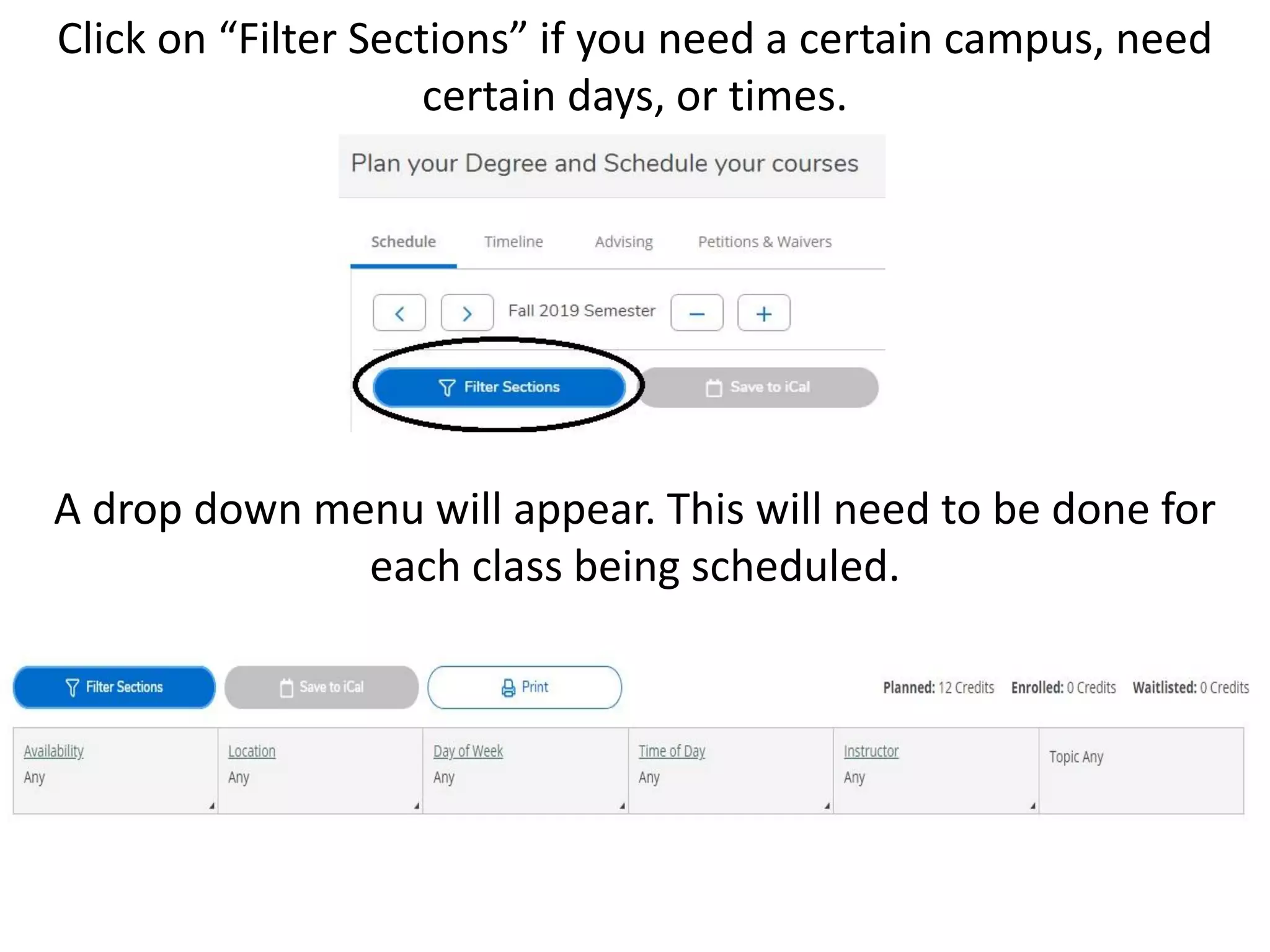
Click on “Filter Sections” if you need a certain campus, need
certain days, or times.
A drop down menu will appear. This will need to be done for
each class being scheduled.
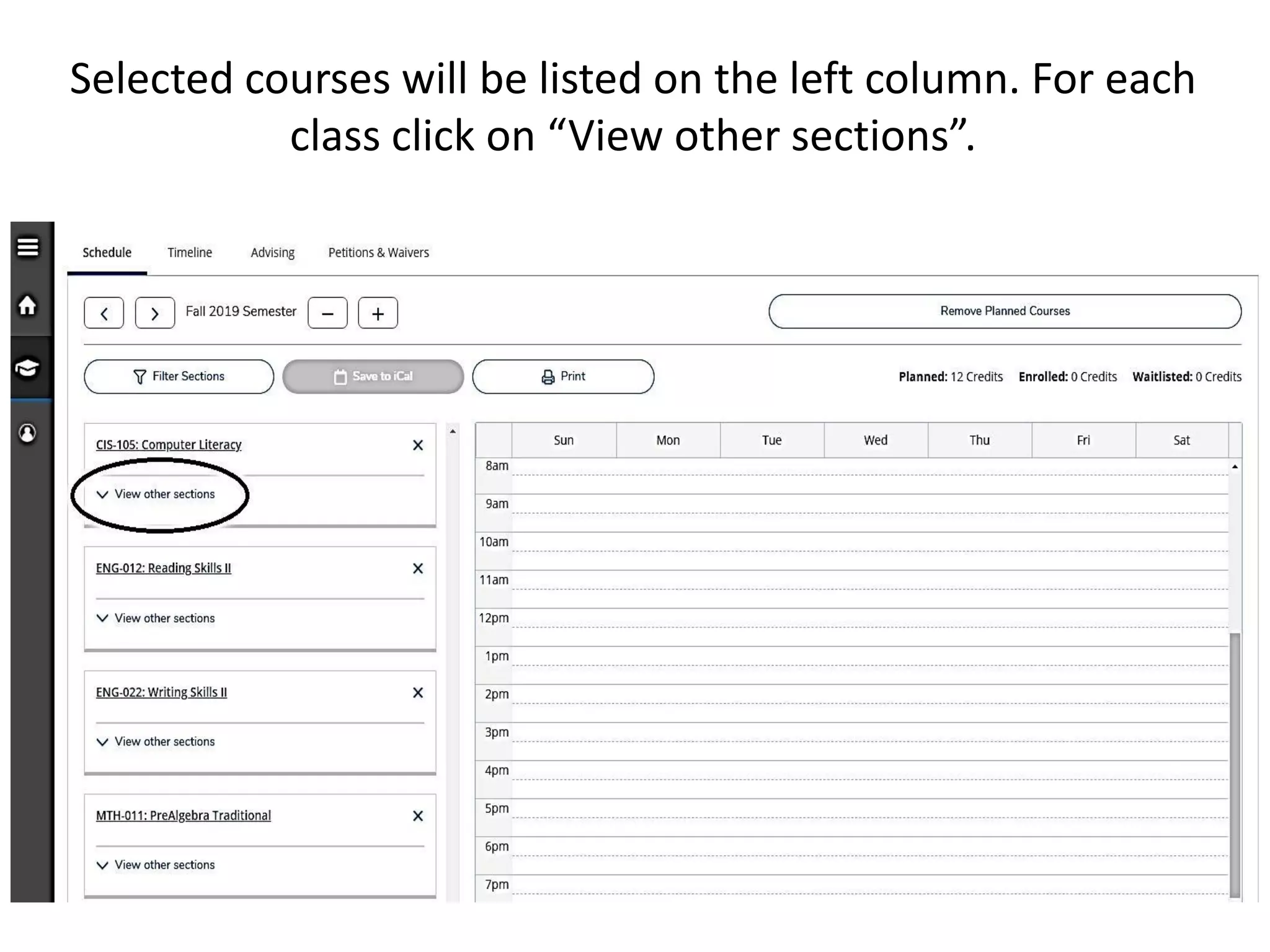
Selected courses will be listed on the left column. For each
class click on “View other sections”.
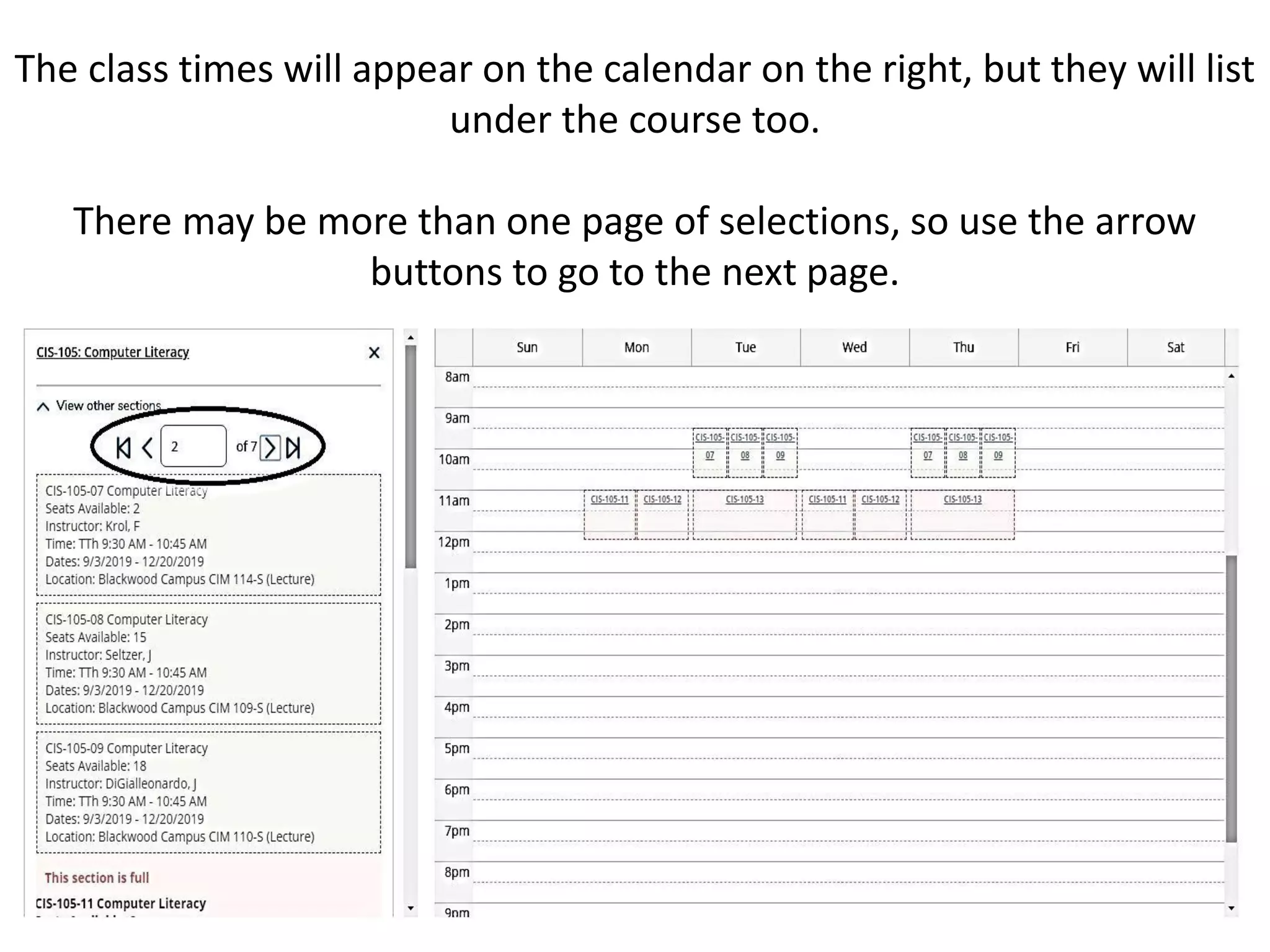
The class times will appear on the calendar on the right, but they will list
under the course too.
There may be more than one page of selections, so use the arrow
buttons to go to the next page.
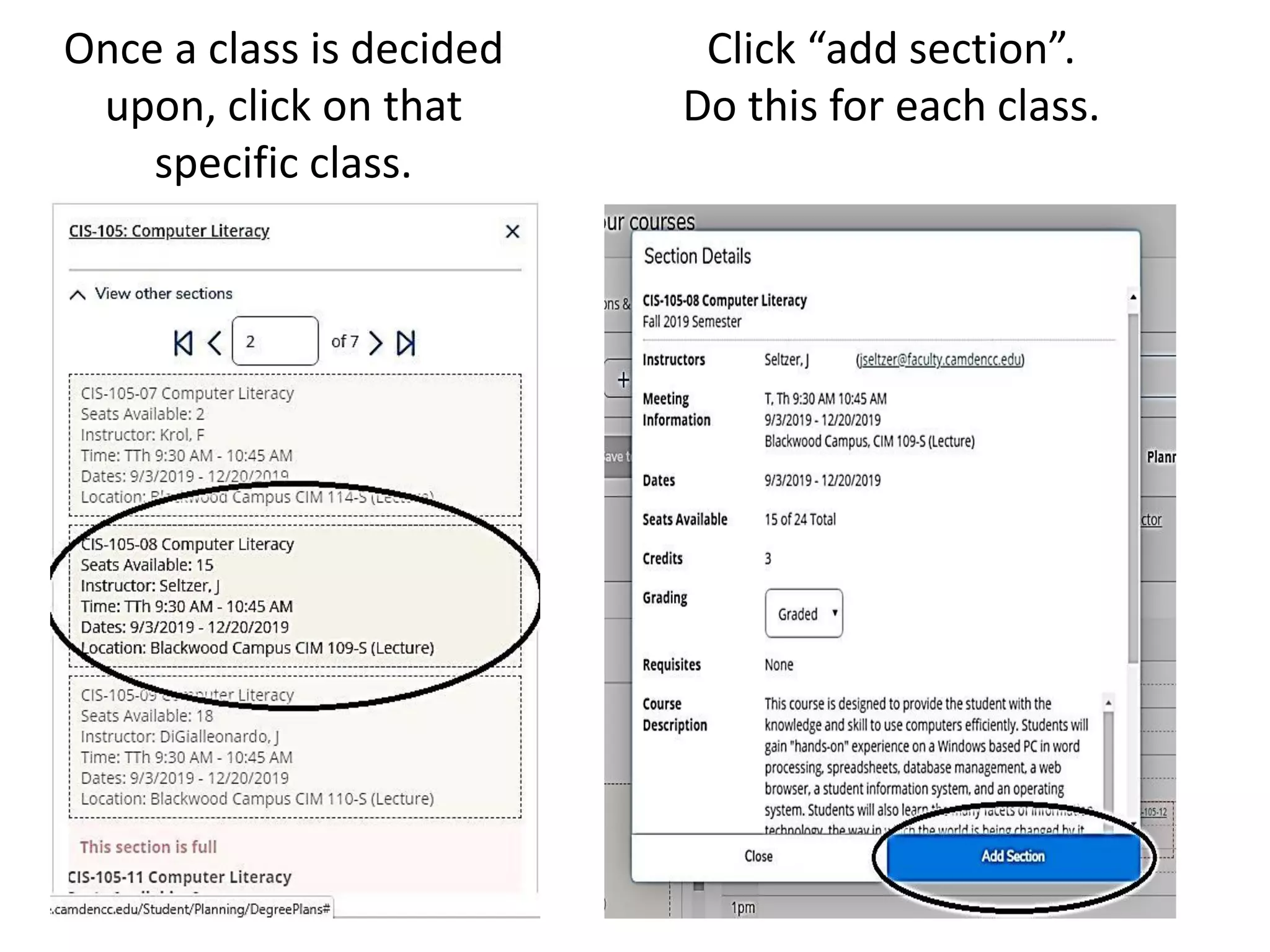
Once a class is decided
upon, click on that
specific class.
Click “add section”.
Do this for each class.
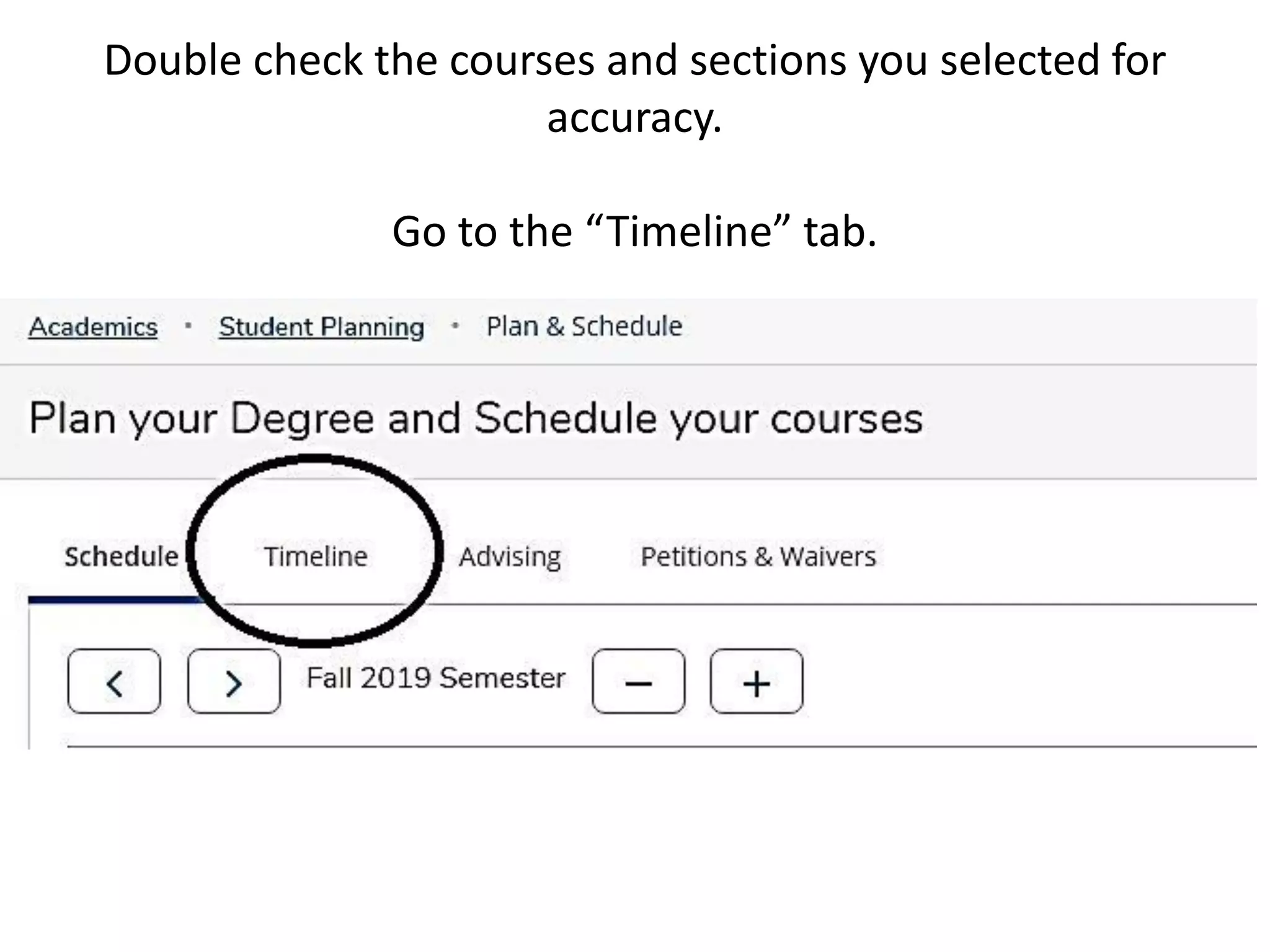
Double check the courses and sections you selected for
accuracy.
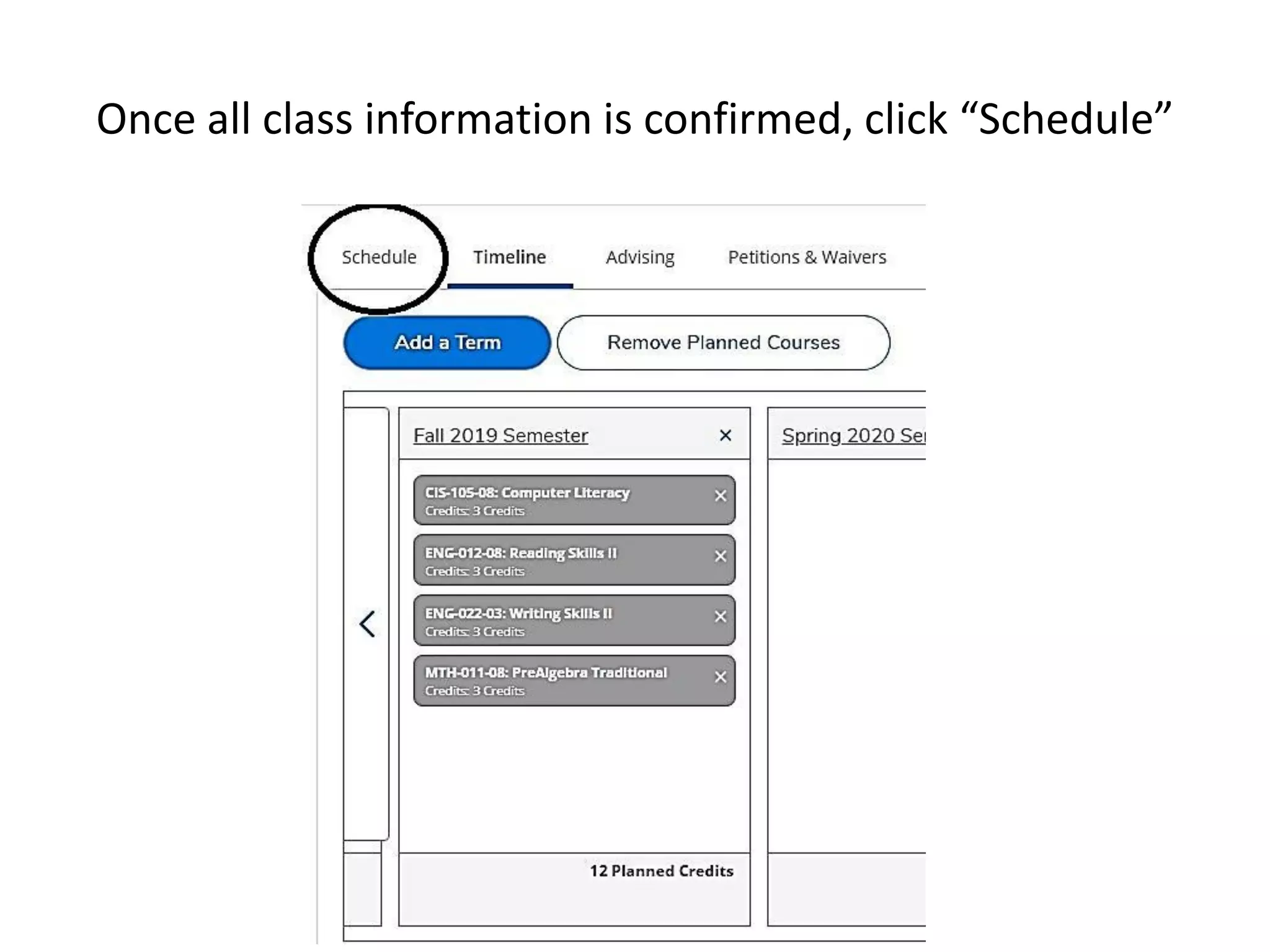
Go to the “Timeline” tab.
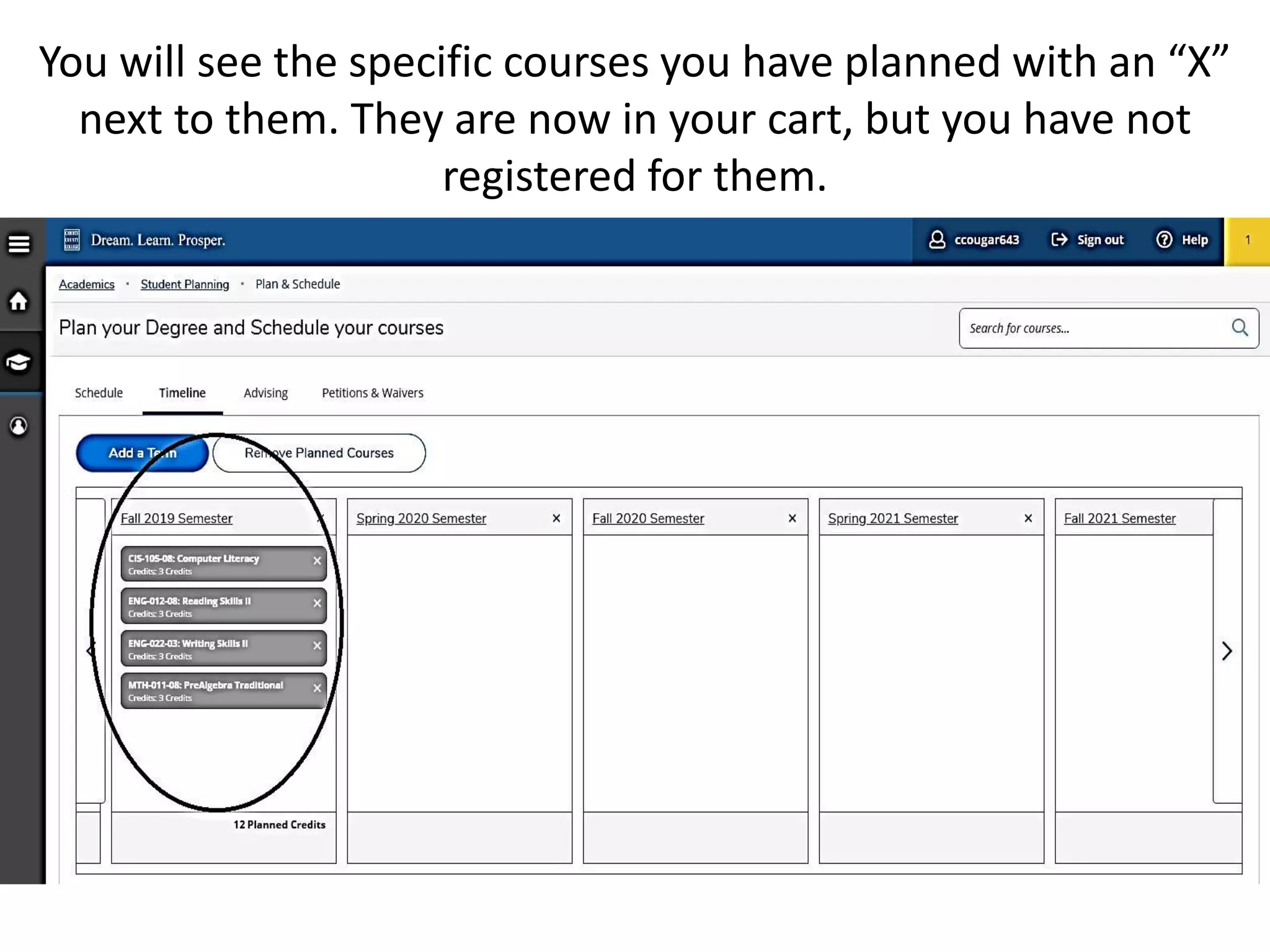
You will see the specific courses you have planned with an “X”
next to them. They are now in your cart, but you have not
registered for them.
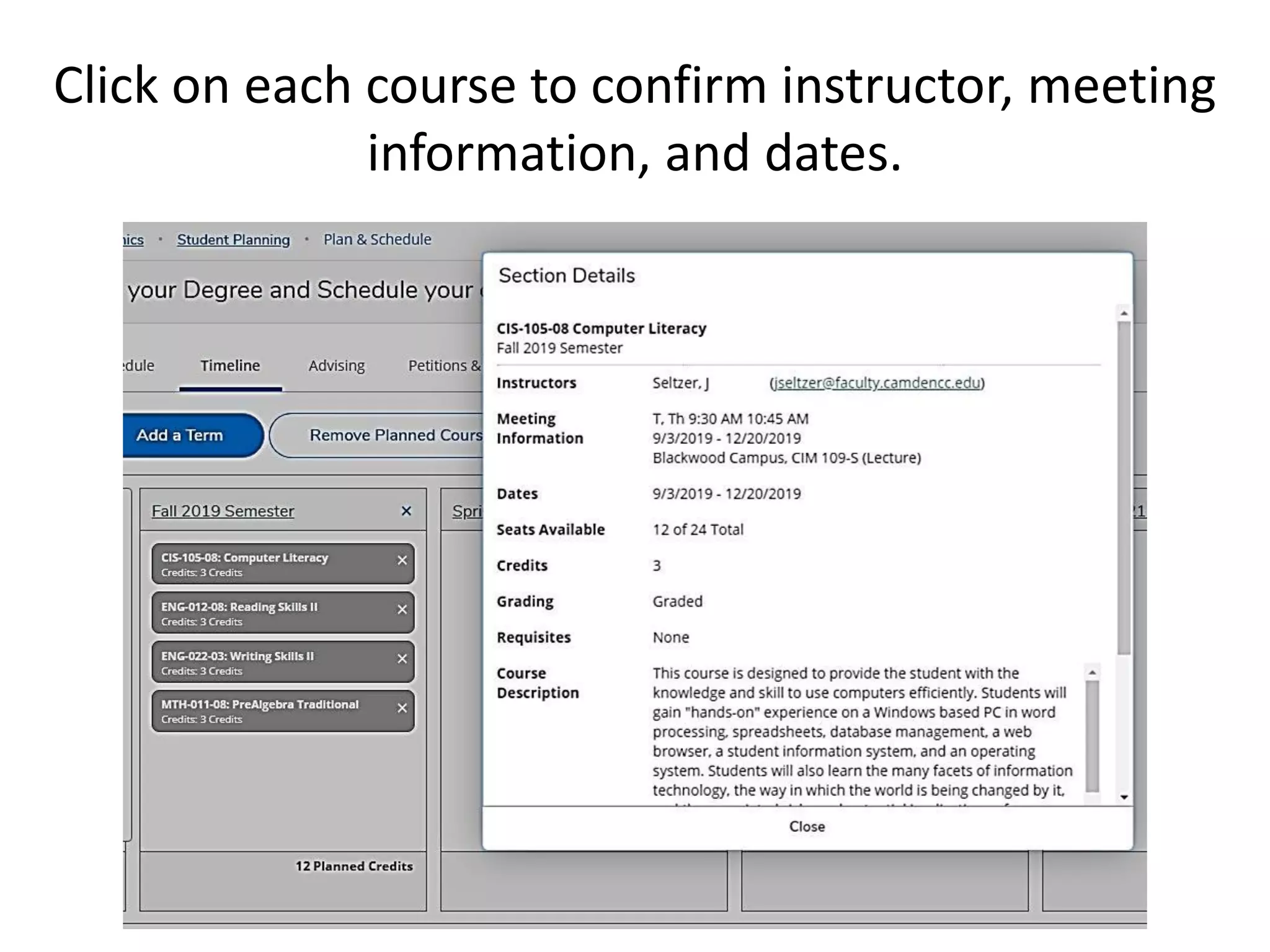
Click on each course to confirm instructor, meeting
information, and dates.
Once all class information is confirmed, click “Schedule”
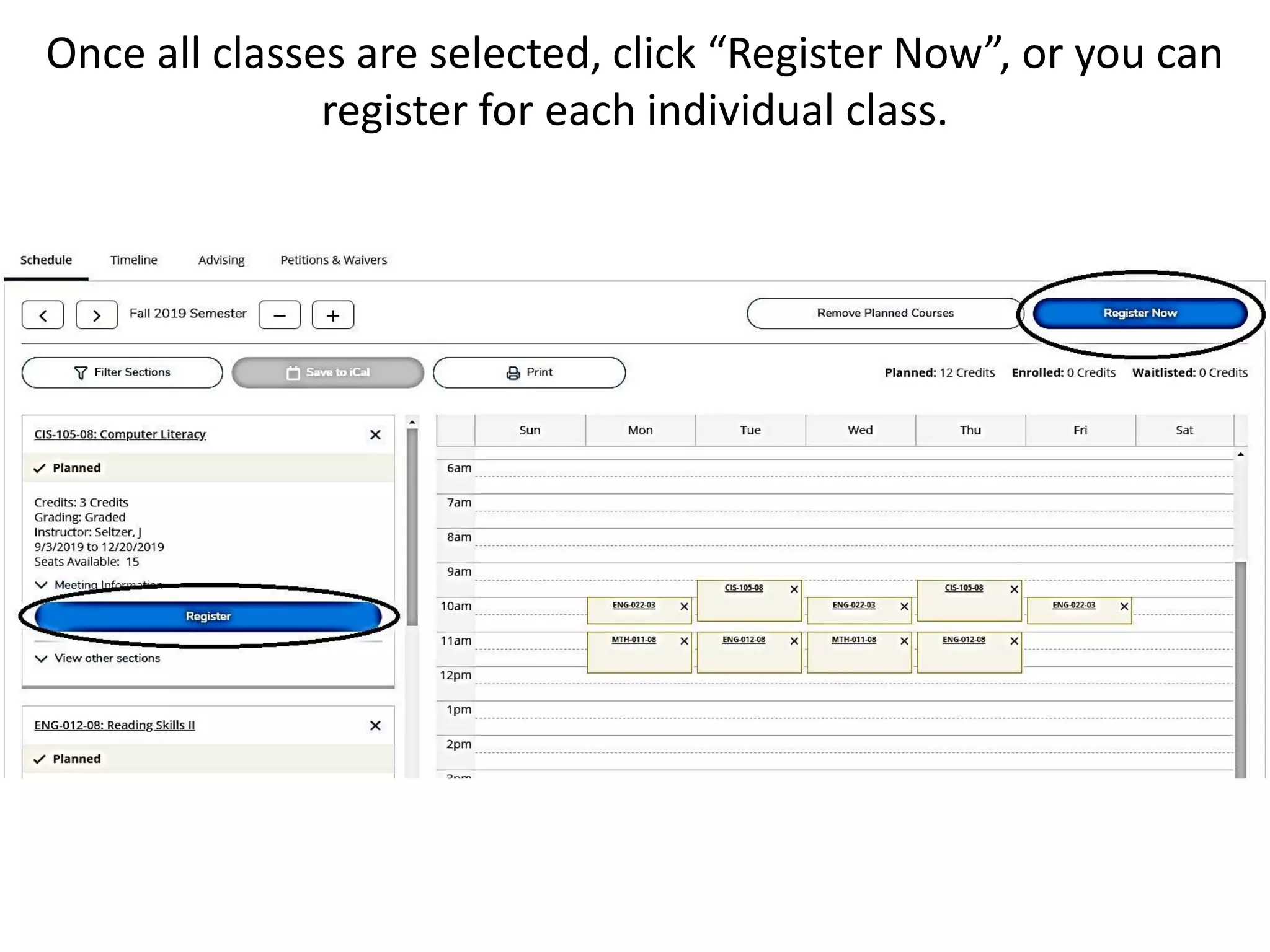
Once all classes are selected, click “Register Now”, or you can
register for each individual class.
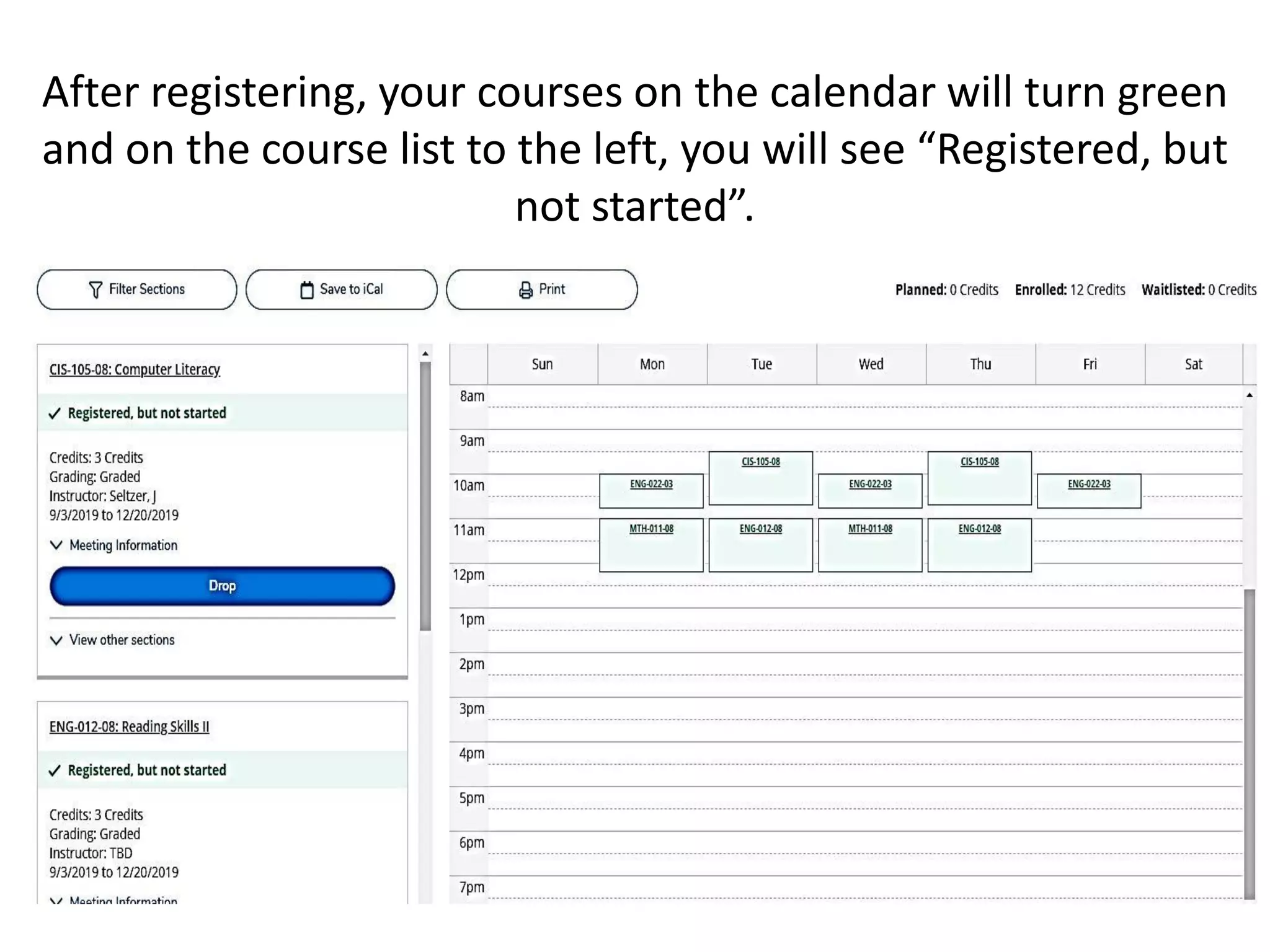
After registering, your courses on the calendar will turn green
and on the course list to the left, you will see “Registered, but
not started”.
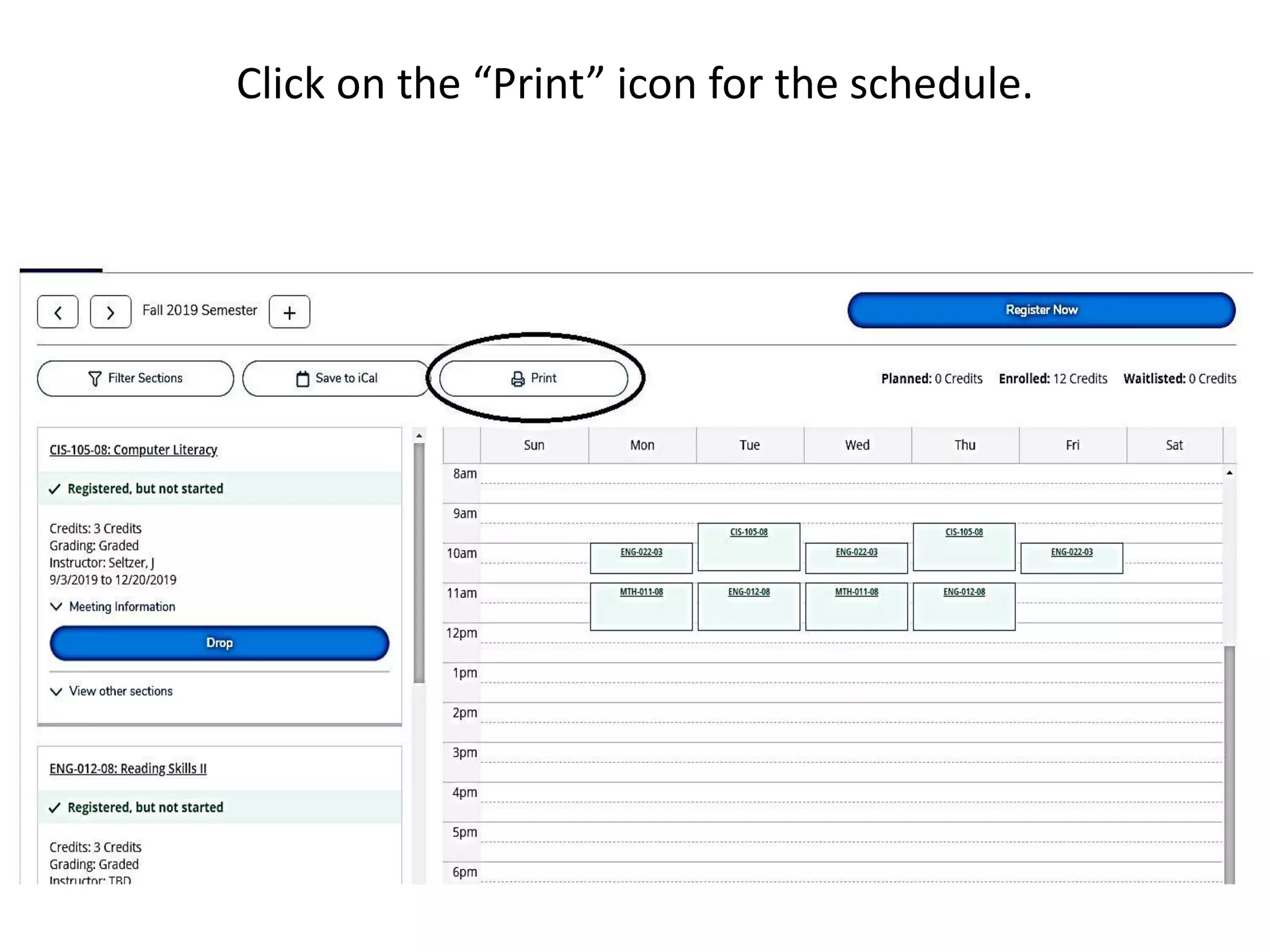
Click on the “Print” icon for the schedule.
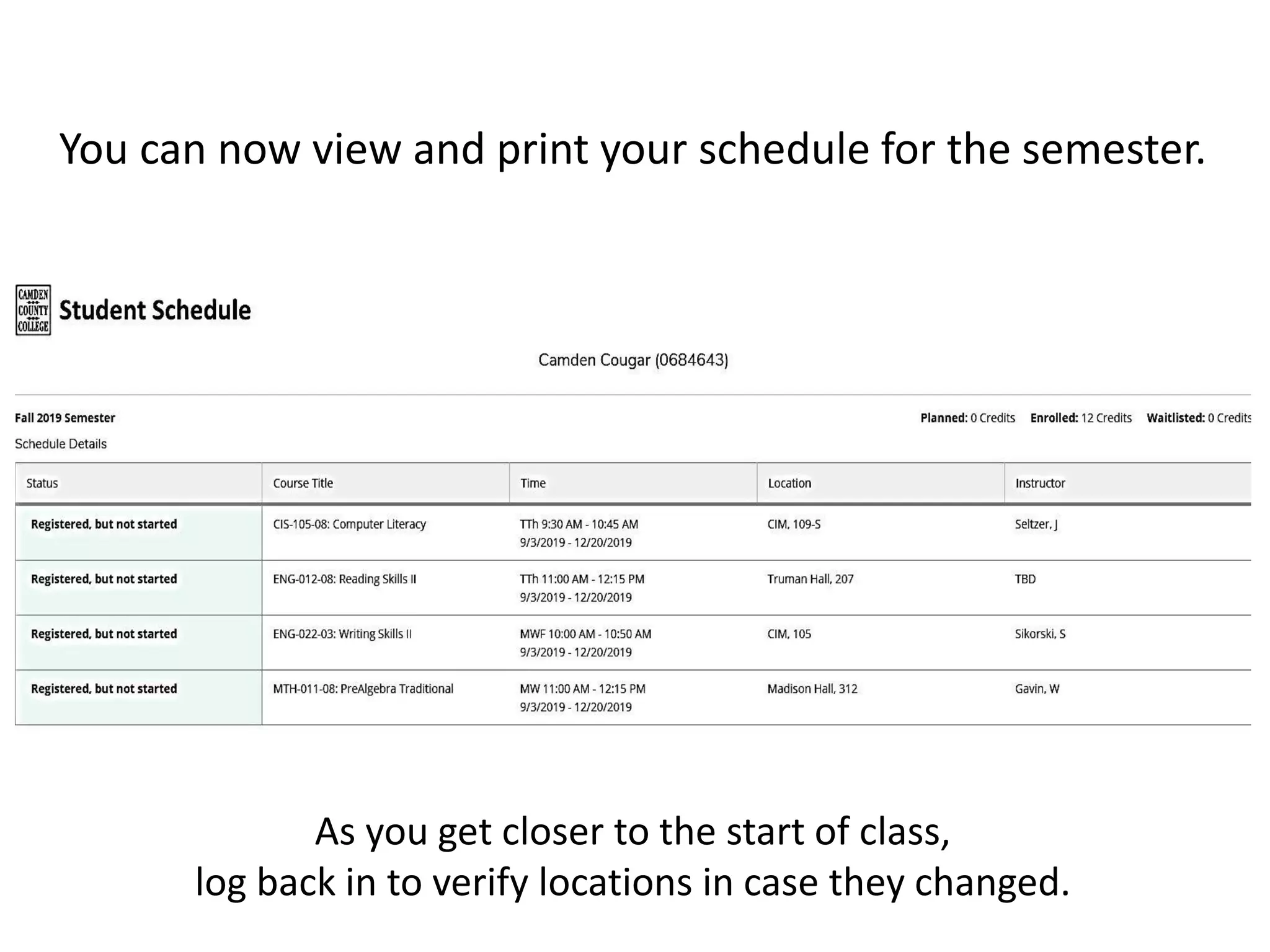
You can now view and print your schedule for the semester.
As you get closer to the start of class,
log back in to verify locations in case they changed.
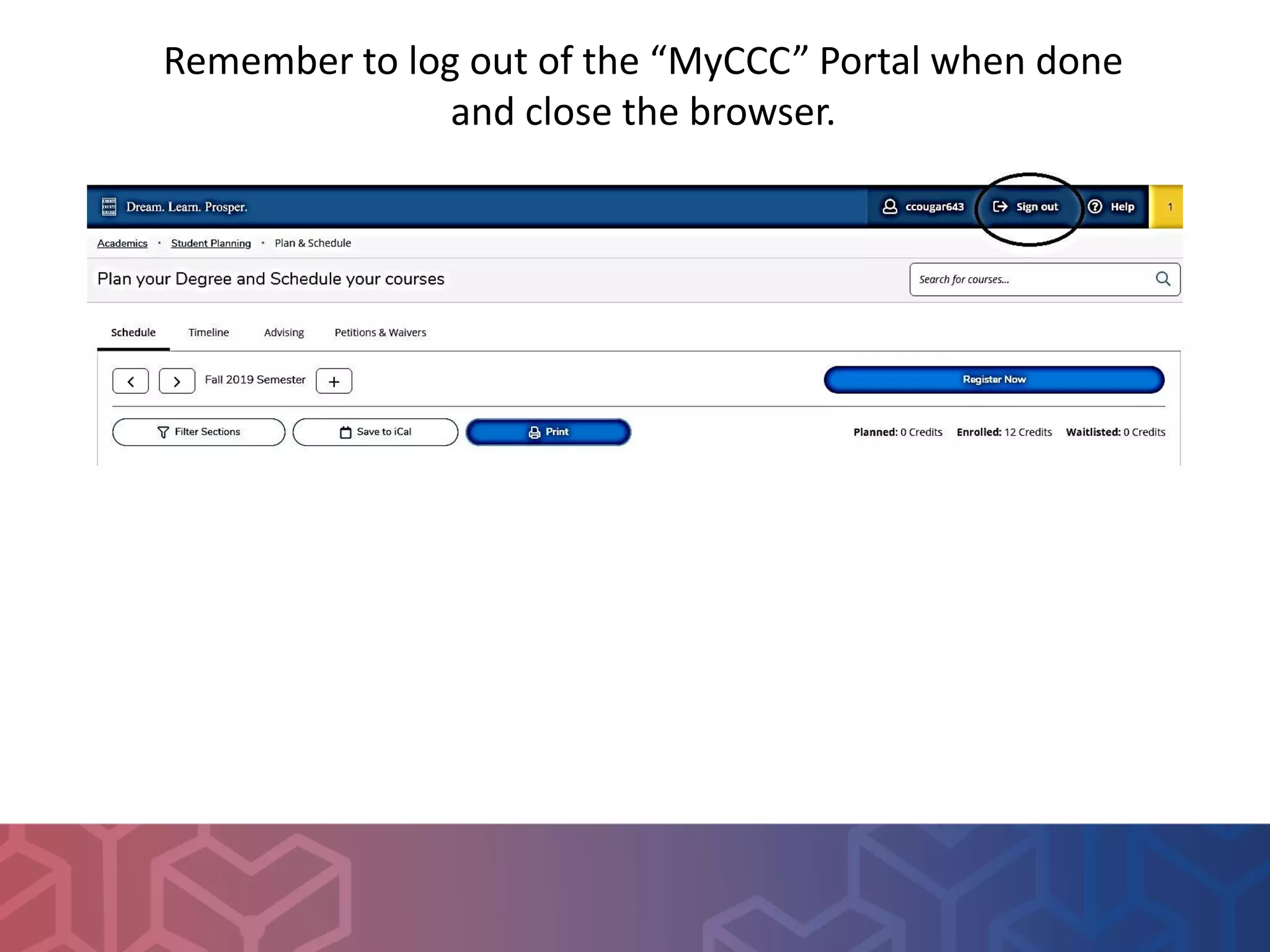
Remember to log out of the “MyCCC” Portal when done
and close the browser.

How to Register Classes Added to Your Plan

  • 1.
    How to Registerfor Classes Added to Your Plan
  • 2.
    From the CamdenCounty College home page, camdencc.edu, click on “MyCCC” at the top right.
  • 3.
  • 4.
    Click on “Self-Service” Goto “Student Planning”
  • 5.
    Under Step #2,click on “Go to Plan & Schedule”
  • 6.
    Make sure youare viewing the current semester for registration (i.e. Fall 2019 semester)
  • 7.
    Click on “FilterSections” if you need a certain campus, need certain days, or times. A drop down menu will appear. This will need to be done for each class being scheduled.
  • 8.
    Selected courses willbe listed on the left column. For each class click on “View other sections”.
  • 9.
    The class timeswill appear on the calendar on the right, but they will list under the course too. There may be more than one page of selections, so use the arrow buttons to go to the next page.
  • 10.
    Once a classis decided upon, click on that specific class. Click “add section”. Do this for each class.
  • 11.
    Double check thecourses and sections you selected for accuracy. Go to the “Timeline” tab.
  • 12.
    You will seethe specific courses you have planned with an “X” next to them. They are now in your cart, but you have not registered for them.
  • 13.
    Click on eachcourse to confirm instructor, meeting information, and dates.
  • 14.
    Once all classinformation is confirmed, click “Schedule”
  • 15.
    Once all classesare selected, click “Register Now”, or you can register for each individual class.
  • 16.
    After registering, yourcourses on the calendar will turn green and on the course list to the left, you will see “Registered, but not started”.
  • 17.
    Click on the“Print” icon for the schedule.
  • 18.
    You can nowview and print your schedule for the semester. As you get closer to the start of class, log back in to verify locations in case they changed.
  • 19.
    Remember to logout of the “MyCCC” Portal when done and close the browser.