KATLEYAOASISLACSI.COM
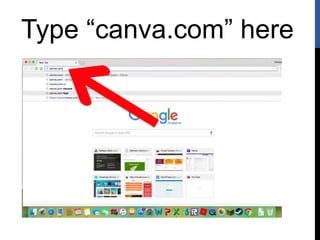
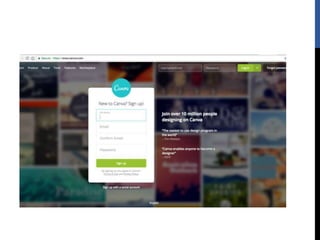
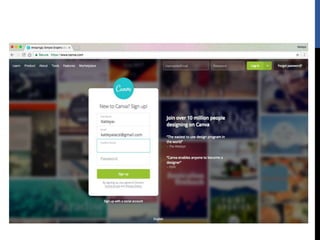
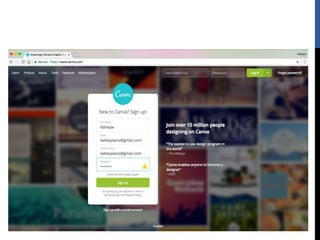
Type “canva.com” here
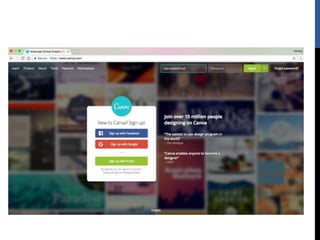
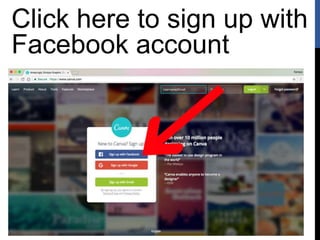
Click here to sign up with
Facebook account
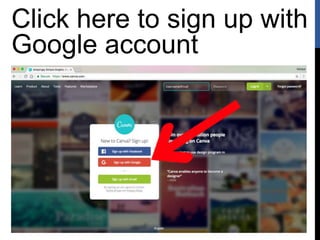
Click here to sign up with
Google account
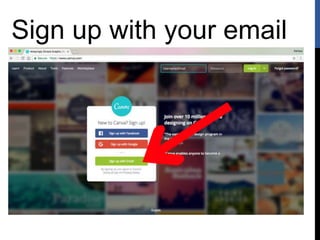
Sign up with your email
I will choose…
“Sign up with your email”
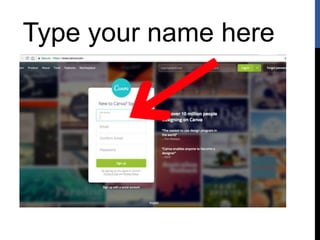
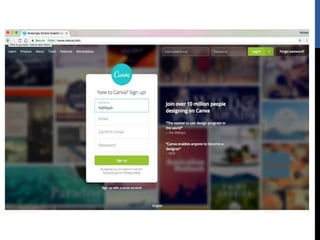
Type your name here
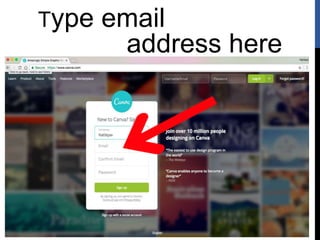
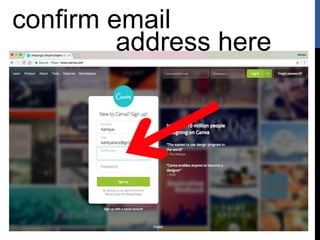
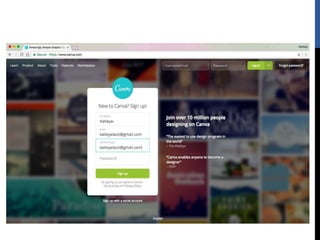
Type email
address here
confirm email
address here
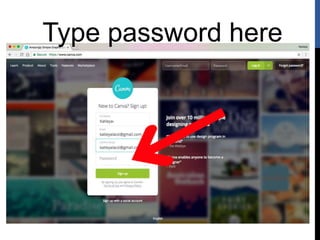
Type password here
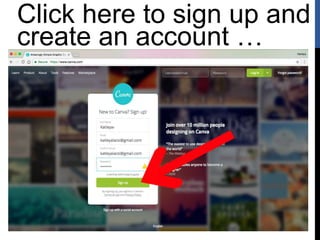
Click here to sign up and
create an account …
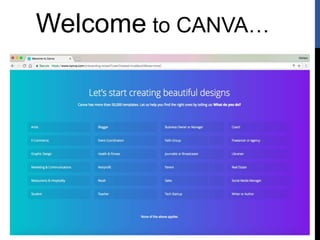
Welcome to CANVA…
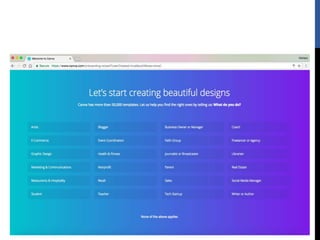
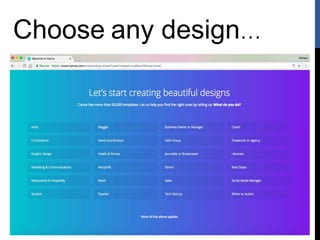
Choose any design…
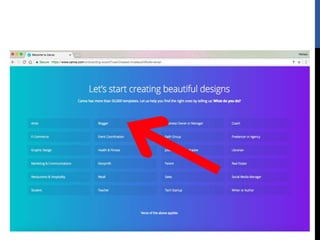
In this case I will choose
“blogger”
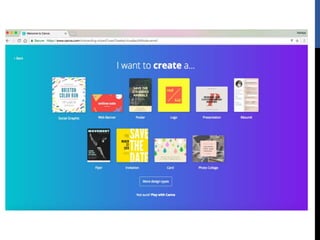
Choose any of the
Design types…
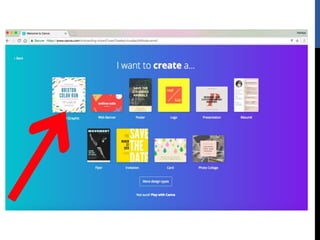
In this case I will click
“Social Graphic”
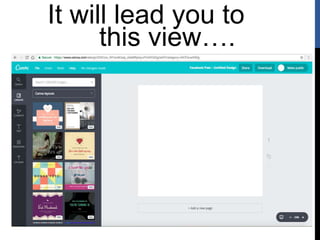
It will lead you to
this view….
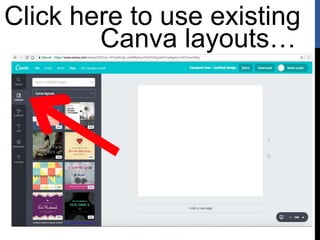
Click here to use existing
Canva layouts…
Or you can create
your own design
Let’s create
our own design first.
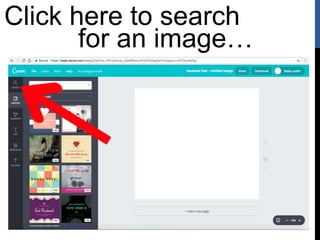
Click here to search
for an image…
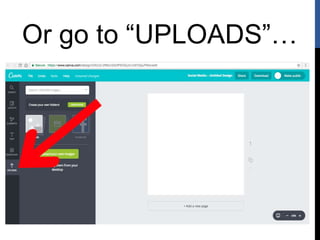
Or go to “UPLOADS”…
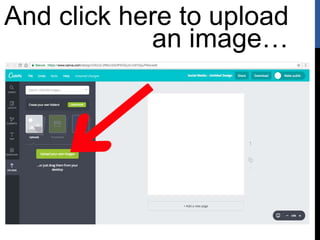
And click here to upload
an image…
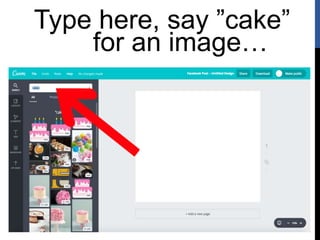
Let’s search
for an image…
Type here, say ”cake”
for an image…
Click on the
chosen image…
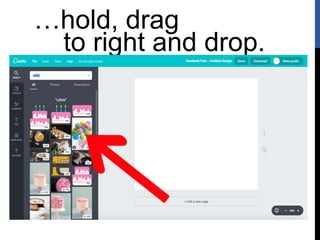
…hold, drag
to right and drop.
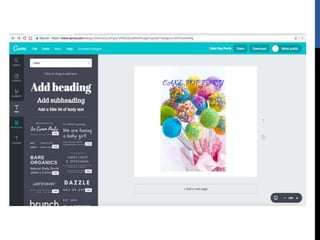
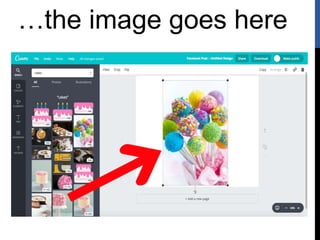
…the image goes here
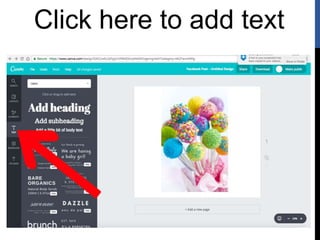
Click here to add text
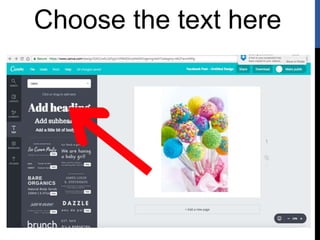
Choose the text here
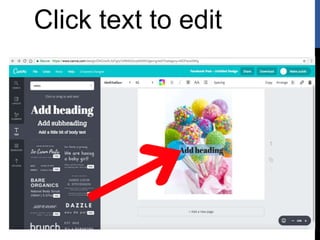
Click text to edit
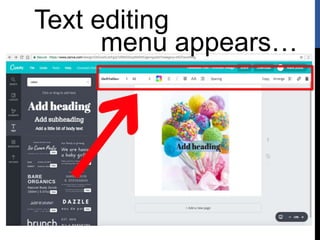
Text editing
menu appears…
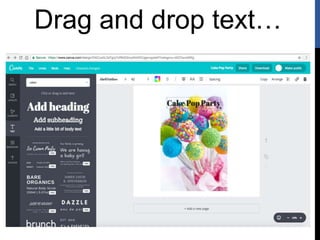
Drag and drop text…
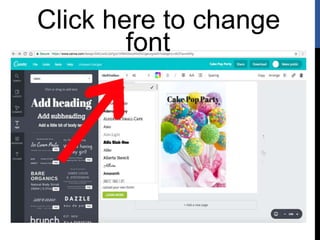
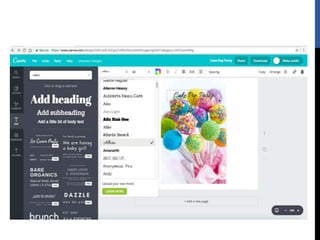
Click here to change
font
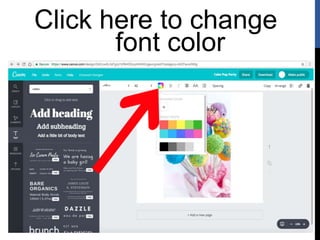
Click here to change
font color
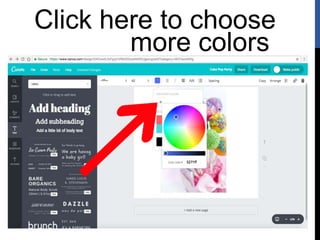
Click here to choose
more colors
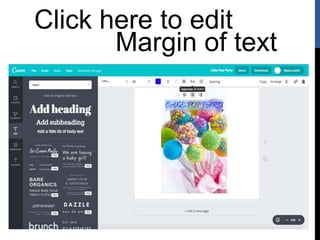
Click here to edit
Margin of text
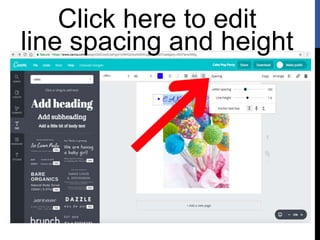
Click here to edit
line spacing and height
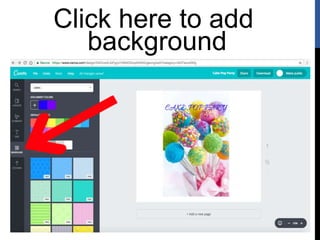
Click here to add
background
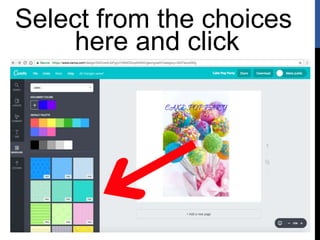
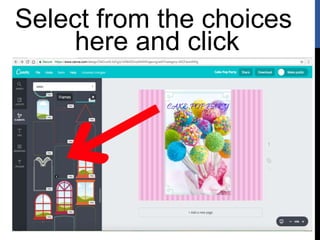
Select from the choices
here and click
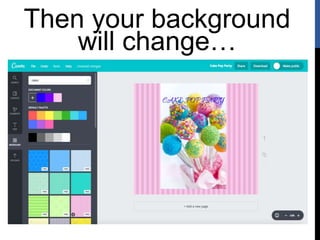
Then your background
will change…
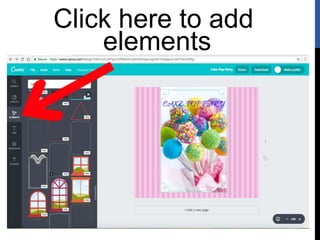
Click here to add
elements
Select from the choices
here and click
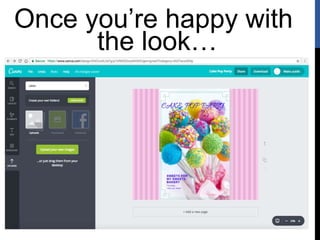
Once you’re happy with
the look…
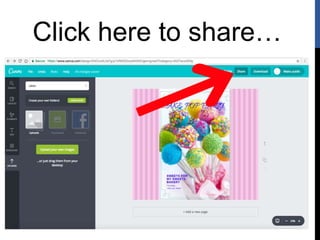
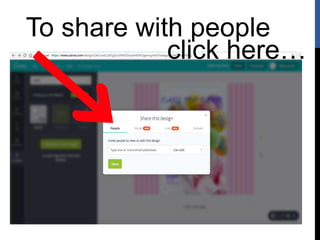
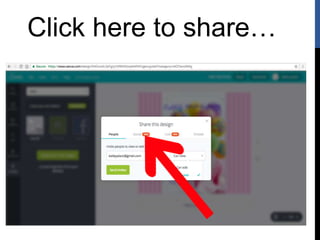
Click here to share…
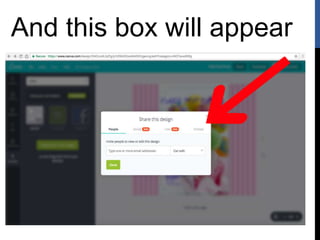
And this box will appear
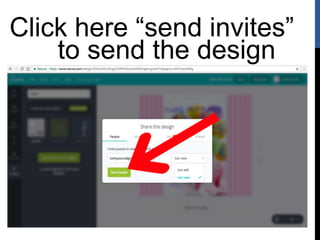
To share with people
click here…
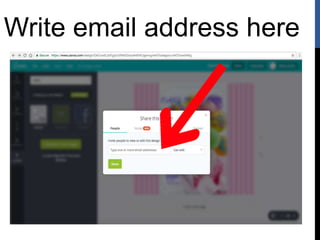
Write email address here
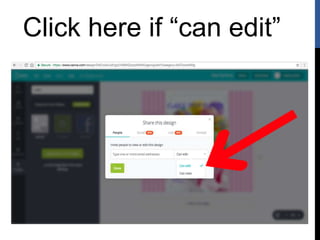
Click here if “can edit”
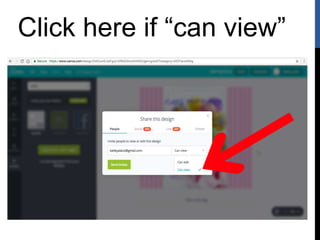
Click here if “can view”
Click here “send invites”
to send the design
Click here to share…
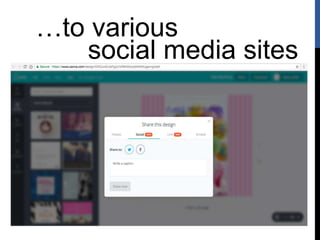
…to various
social media sites
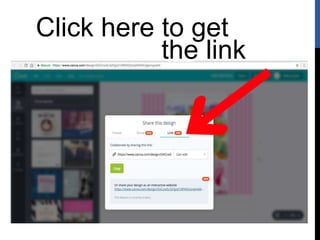
Click here to get
the link
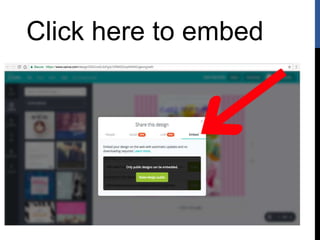
Click here to embed
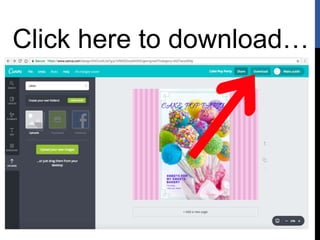
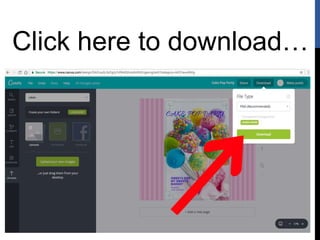
Click here to download…
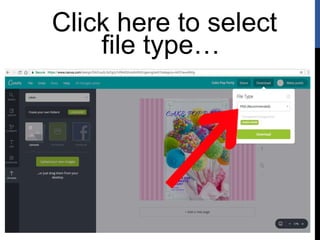
Click here to select
file type…
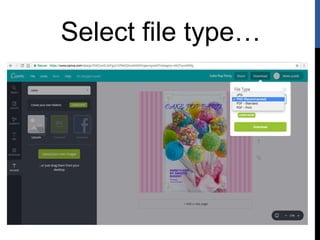
Select file type…
Click here to download…
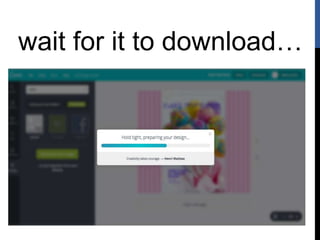
wait for it to download…
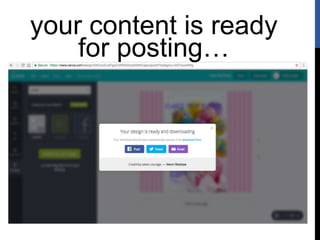
your content is ready
for posting…
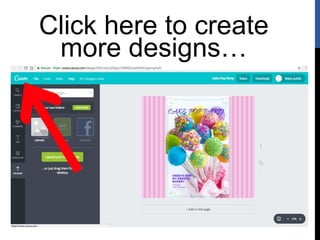
Click here to create
more designs…
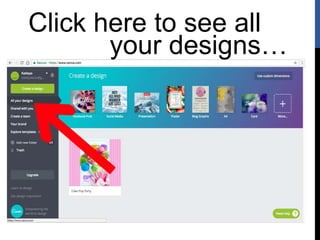
Click here to see all
your designs…
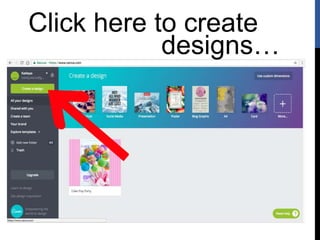
Click here to create
designs…
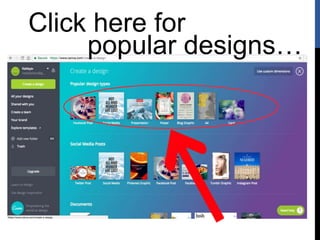
Click here for
popular designs…
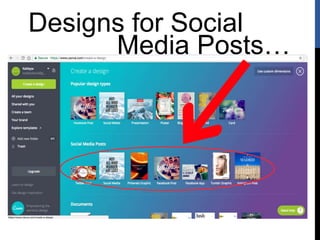
Designs for Social
Media Posts…
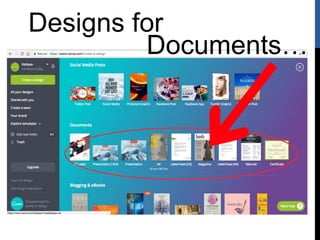
Designs for
Documents…
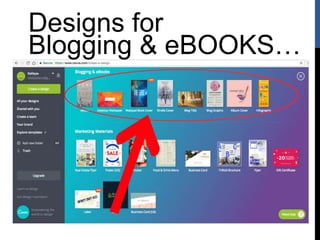
Designs for
Blogging & eBOOKS…
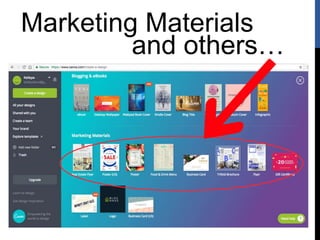
Marketing Materials
and others…
Now let’s make a
design using layout…
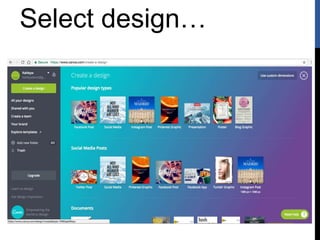
Select design…
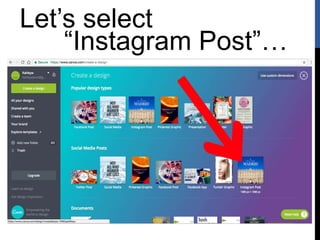
Let’s select
“Instagram Post”…
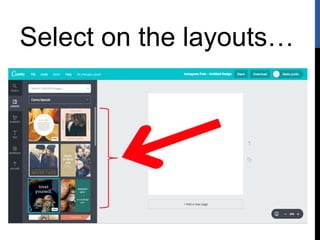
Select on the layouts…
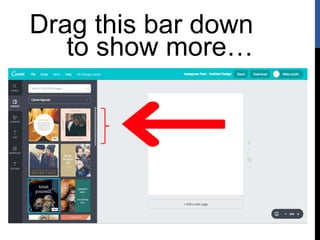
Drag this bar down
to show more…
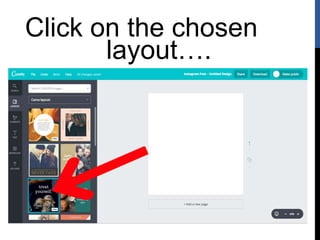
Click on the chosen
layout….
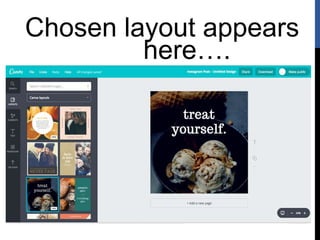
Chosen layout appears
here….
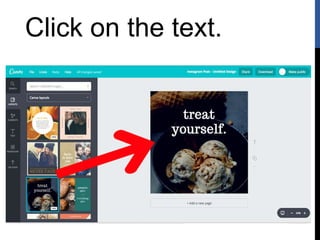
Click on the text.
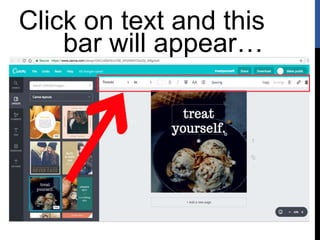
Click on text and this
bar will appear…
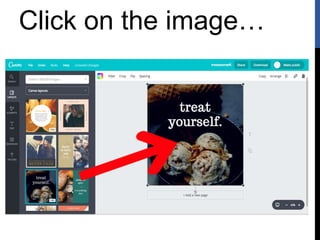
Click on the image…
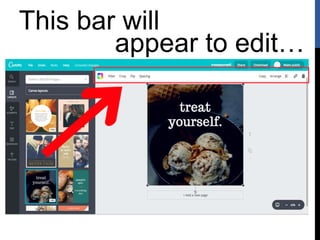
This bar will
appear to edit…
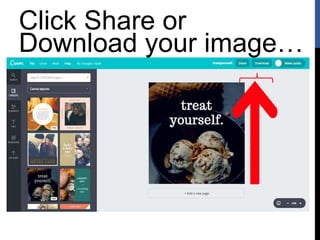
Click Share or
Download your image…
You can upload your own
image…
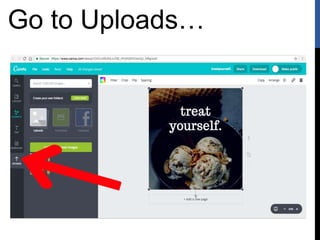
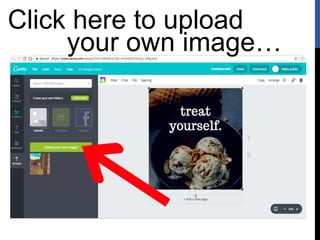
Go to Uploads…
Click here to upload
your own image…
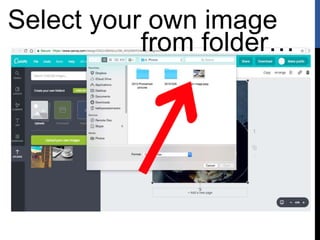
Select your own image
from folder…
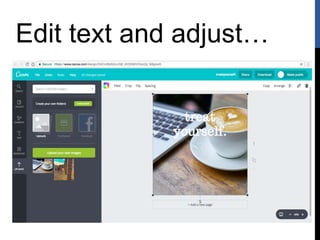
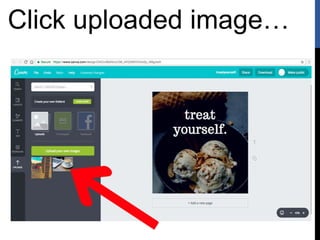
Click uploaded image…
Edit text and adjust…
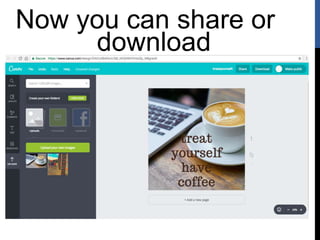
Now you can share or
download
Step by Step Tutorial on Canva

Step by Step Tutorial on Canva