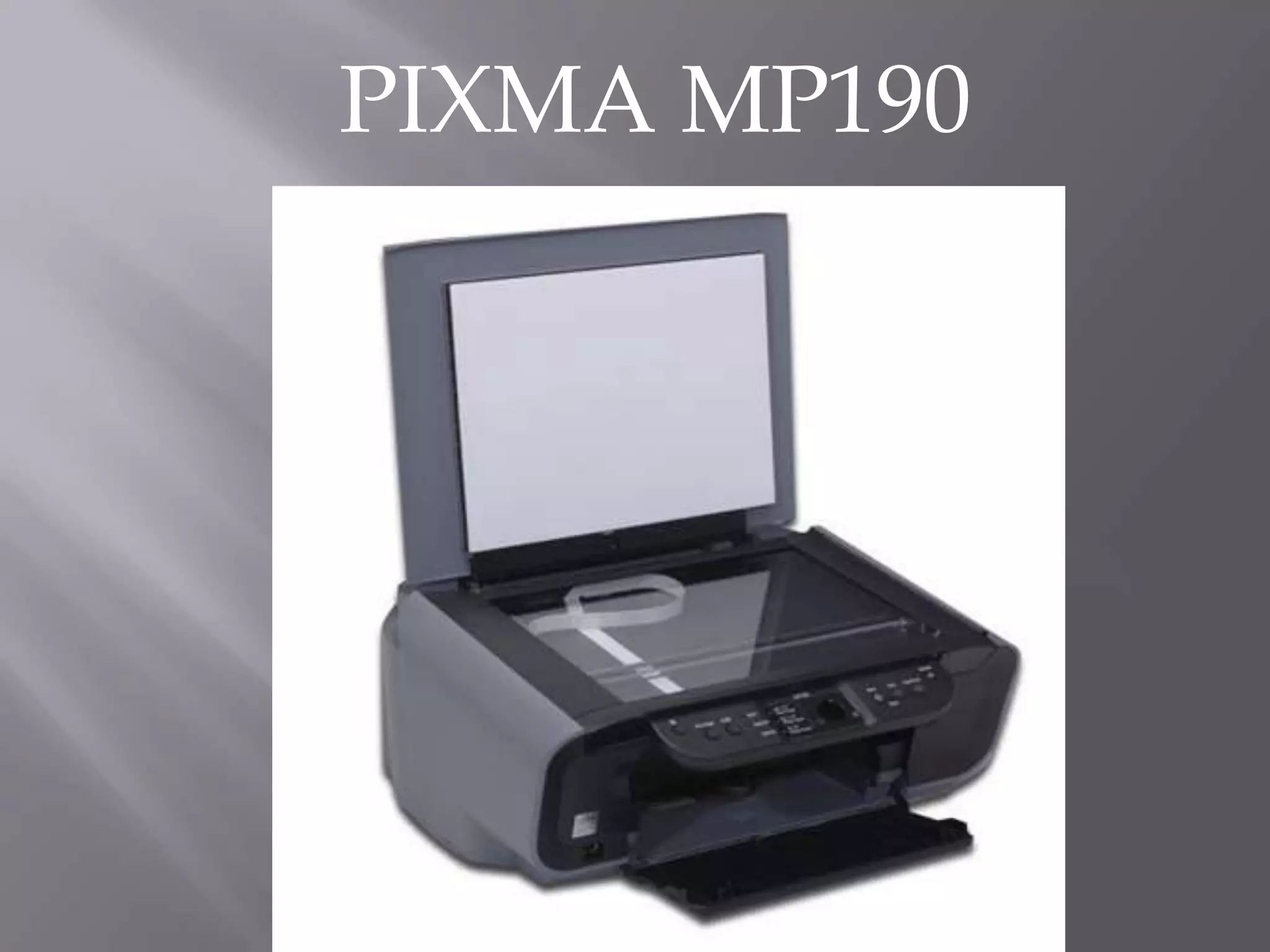
PIXMA MP190
Machine Parts And
 Their Function
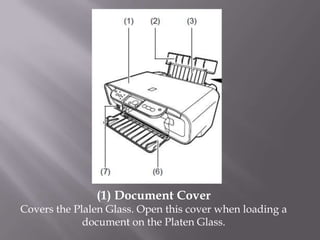
(1) Document Cover
Covers the Plalen Glass. Open this cover when loading a
             document on the Platen Glass.
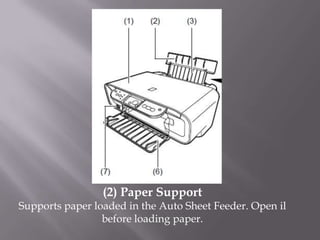
(2) Paper Support
Supports paper loaded in the Auto Sheet Feeder. Open il
                 before loading paper.
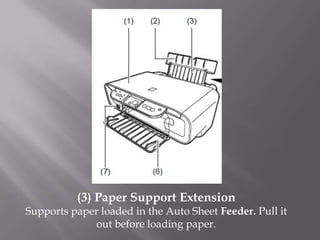
(3) Paper Support Extension
Supports paper loaded in the Auto Sheet Feeder. Pull it
              out before loading paper.
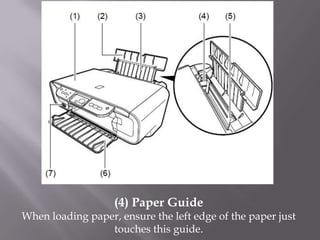
(4) Paper Guide
When loading paper, ensure the left edge of the paper just
                 touches this guide.
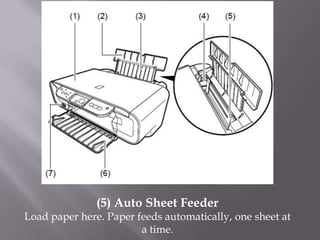
(5) Auto Sheet Feeder
Load paper here. Paper feeds automatically, one sheet at
                        a time.
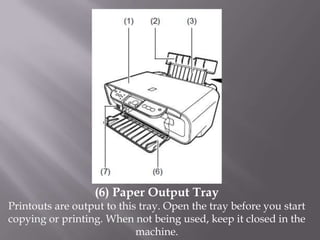
(6) Paper Output Tray
Printouts are output to this tray. Open the tray before you start
copying or printing. When not being used, keep it closed in the
                            machine.
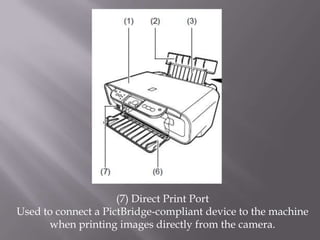
(7) Direct Print Port
Used to connect a PictBridge-compliant device to the machine
      when printing images directly from the camera.
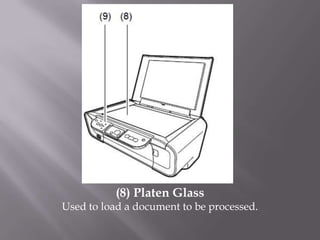
(8) Platen Glass
Used to load a document to be processed.
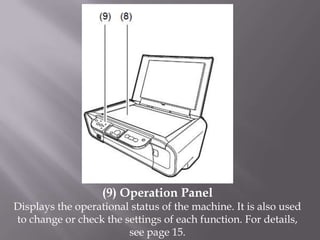
(9) Operation Panel
Displays the operational status of the machine. It is also used
to change or check the settings of each function. For details,
                        see page 15.
Copying
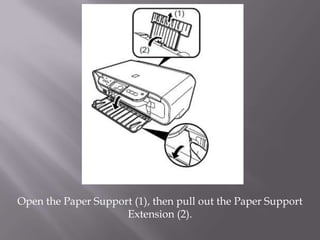
Open the Paper Support (1), then pull out the Paper Support
                     Extension (2).
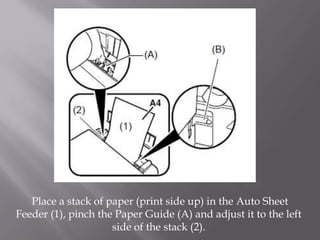
Place a stack of paper (print side up) in the Auto Sheet
Feeder (1), pinch the Paper Guide (A) and adjust it to the left
                     side of the stack (2).
1. Lift the Document Cover.
2. Load your document.
3. Gently close the Document Cover.
4. Press [+] repeatedly to select the number of copies (max. 20
   copies).
5. Press [Color] for color copying, or [Black] for black & white
   copying.
The end!!!

ксерокс

  • 1.
  • 2.
    Machine Parts And Their Function
  • 3.
    (1) Document Cover Coversthe Plalen Glass. Open this cover when loading a document on the Platen Glass.
  • 4.
    (2) Paper Support Supportspaper loaded in the Auto Sheet Feeder. Open il before loading paper.
  • 5.
    (3) Paper SupportExtension Supports paper loaded in the Auto Sheet Feeder. Pull it out before loading paper.
  • 6.
    (4) Paper Guide Whenloading paper, ensure the left edge of the paper just touches this guide.
  • 7.
    (5) Auto SheetFeeder Load paper here. Paper feeds automatically, one sheet at a time.
  • 8.
    (6) Paper OutputTray Printouts are output to this tray. Open the tray before you start copying or printing. When not being used, keep it closed in the machine.
  • 9.
    (7) Direct PrintPort Used to connect a PictBridge-compliant device to the machine when printing images directly from the camera.
  • 10.
    (8) Platen Glass Usedto load a document to be processed.
  • 11.
    (9) Operation Panel Displaysthe operational status of the machine. It is also used to change or check the settings of each function. For details, see page 15.
  • 12.
  • 13.
    Open the PaperSupport (1), then pull out the Paper Support Extension (2).
  • 14.
    Place a stackof paper (print side up) in the Auto Sheet Feeder (1), pinch the Paper Guide (A) and adjust it to the left side of the stack (2).
  • 15.
    1. Lift theDocument Cover. 2. Load your document. 3. Gently close the Document Cover. 4. Press [+] repeatedly to select the number of copies (max. 20 copies). 5. Press [Color] for color copying, or [Black] for black & white copying.
  • 16.