SSScccaaavvveeennngggeeerrr HHHuuunnnttt
Welcome to the Student Research Center “Scavenger Hunt.” This exercise is designed to take
you on a short tour and fact-finding mission within EBSCO’s Student Research Center (SRC) – an
easy-to-use online tool for finding articles, images, and more – available through your library.
Follow the instructions and answer all related questions.
First ask your librarian or teacher how to log in. You should be able to access SRC via the library or
school web site or by going to http://search.ebscohost.com and entering a user ID and password. The
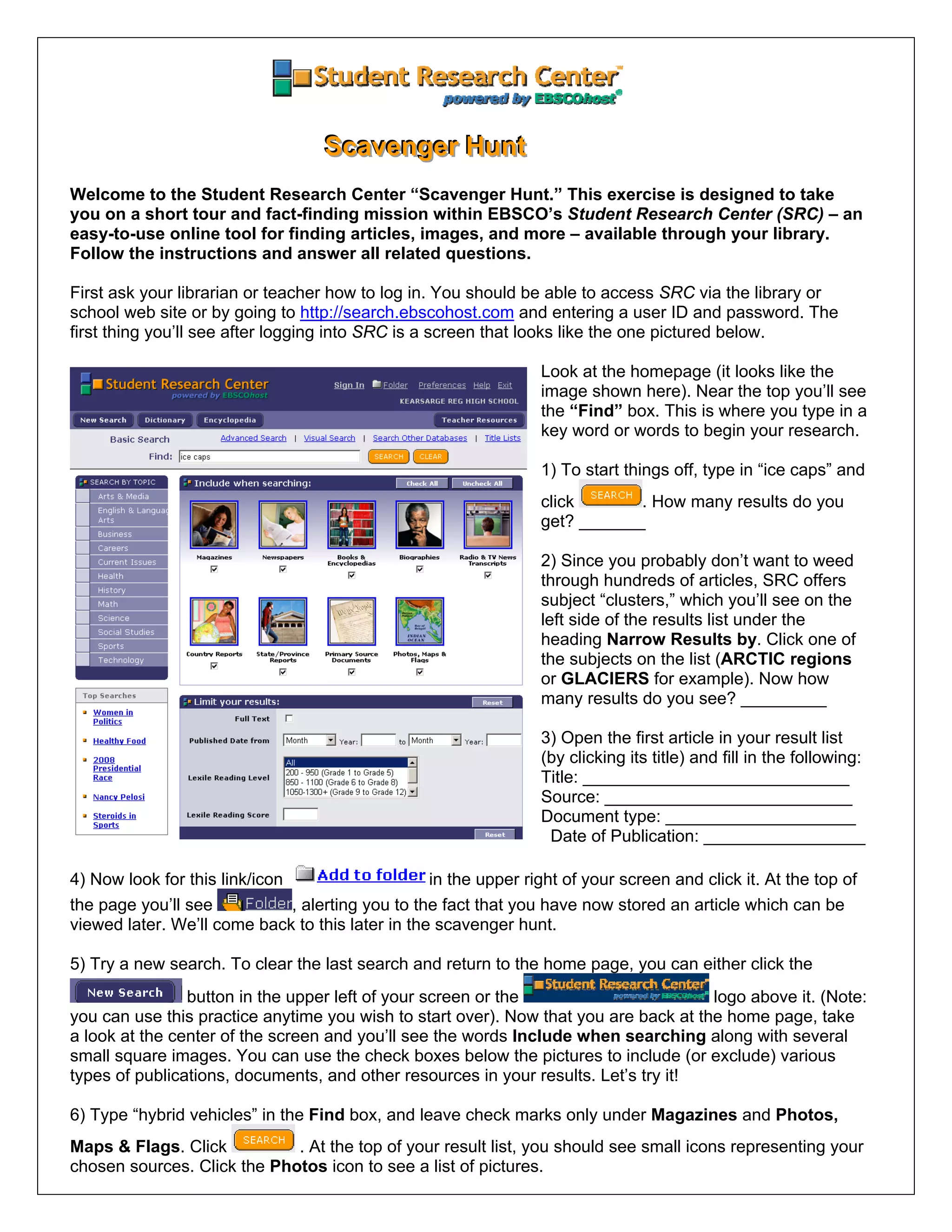
first thing you’ll see after logging into SRC is a screen that looks like the one pictured below.
Look at the homepage (it looks like the
image shown here). Near the top you’ll see
the “Find” box. This is where you type in a
key word or words to begin your research.
1) To start things off, type in “ice caps” and
click . How many results do you
get? _______
e of
____
ng:
2) Since you probably don’t want to weed
through hundreds of articles, SRC offers
subject “clusters,” which you’ll see on the
left side of the results list under the
heading Narrow Results by. Click on
the subjects on the list (ARCTIC regions
or GLACIERS for example). Now how
many results do you see? _____
3) Open the first article in your result list
(by clicking its title) and fill in the followi
Title: ____________________________
Source: __________________________
Document type: ____________________
Date of Publication: _________________
4) Now look for this link/icon in the upper right of your screen and click it. At the top of
the page you’ll see , alerting you to the fact that you have now stored an article which can be
viewed later. We’ll come back to this later in the scavenger hunt.
5) Try a new search. To clear the last search and return to the home page, you can either click the
button in the upper left of your screen or the logo above it. (Note:
you can use this practice anytime you wish to start over). Now that you are back at the home page, take
a look at the center of the screen and you’ll see the words Include when searching along with several
small square images. You can use the check boxes below the pictures to include (or exclude) various
types of publications, documents, and other resources in your results. Let’s try it!
6) Type “hybrid vehicles” in the Find box, and leave check marks only under Magazines and Photos,
Maps & Flags. Click . At the top of your result list, you should see small icons representing your
chosen sources. Click the Photos icon to see a list of pictures.
Open a photo and describe what is happening in the picture, and then add the photo to your folder.
_________________________________________________________________________________
7) Now click the Magazines icon. Open one of the articles and write a brief summary.
_________________________________________________________________________________
_________________________________________________________________________________
8) At the top of the page look for this symbol and click it. A new page will open, allowing you to
email the article. If you have an email address, send a copy to yourself. Now add the article to your
folder.
9) Go back to the home page. Find the SEARCH BY TOPIC box (pictured) on the left side of the screen.
This is a great way to start researching, especially if you want or need a bit of guidance with your topic.
Click the Technology category and then check off the box next to Computer Games.
In the Find box, type the word “health.” Click . Choose an article with the
icon and open it. Read the article and answer the question below.
.
_
According to the article, how can video games affect a person’s health?
_____________________________________________________________________
Now add this article to your folder.
10) Click New Search again. Let’s try using some Limiters. These are located under
the heading and are designed to help focus your research
Start by typing “Asia” in the Find box. Next, remove the check marks from under all
source types except Country Reports. Now scroll down to the Limiters and do the
following: A) Make sure the Full Text limiter is checked. B) Next to Published Date
from, insert a date range of January 2006 to the current month and year. Click .
How many results do you get? ___. Find the country report for China and answer the following:
What is China’s population?______________ What is its currency? _____________ What is China’s
greatest natural resource (scroll down to Natural Resources)? ____________________.
7) Do you remember how many items you added to your folder? Let’s check. Find this symbol
on your screen and click on it. How many articles are there? ___ How many images? __
Now that you are familiar with some search techniques, take a look at some other SRC features.
8) Look for this symbol and click. When the new page opens, in the Find box type
“Margaret Atwood.” Click and open the first result (there may be just one) and read the entry.
What year was Atwood born? _____ What is her best-known novel? ____________________________
9) Go back to the home page again and look for a box on the left side of the screen titled Top Searches.
Name three of the top searches. __________________ __________________ __________________
10) Find the Spotlight Topic. What is the current topic? ___________________________________
Congratulations, you are done! Now use the skills you have learned to research topics for your next
project, paper, or homework assignment.
Note to instructors: No answer key is provided due to the fact that answers may vary depending on addition of new content,
database settings and/or subscriptions. Conducting your own searches prior to student use is advised. This document can be
customized should instructors wish to include alternate keywords, search topics, and/or questions.
11/08 edition

Src scav hunt

  • 1.
    SSScccaaavvveeennngggeeerrr HHHuuunnnttt Welcome tothe Student Research Center “Scavenger Hunt.” This exercise is designed to take you on a short tour and fact-finding mission within EBSCO’s Student Research Center (SRC) – an easy-to-use online tool for finding articles, images, and more – available through your library. Follow the instructions and answer all related questions. First ask your librarian or teacher how to log in. You should be able to access SRC via the library or school web site or by going to http://search.ebscohost.com and entering a user ID and password. The first thing you’ll see after logging into SRC is a screen that looks like the one pictured below. Look at the homepage (it looks like the image shown here). Near the top you’ll see the “Find” box. This is where you type in a key word or words to begin your research. 1) To start things off, type in “ice caps” and click . How many results do you get? _______ e of ____ ng: 2) Since you probably don’t want to weed through hundreds of articles, SRC offers subject “clusters,” which you’ll see on the left side of the results list under the heading Narrow Results by. Click on the subjects on the list (ARCTIC regions or GLACIERS for example). Now how many results do you see? _____ 3) Open the first article in your result list (by clicking its title) and fill in the followi Title: ____________________________ Source: __________________________ Document type: ____________________ Date of Publication: _________________ 4) Now look for this link/icon in the upper right of your screen and click it. At the top of the page you’ll see , alerting you to the fact that you have now stored an article which can be viewed later. We’ll come back to this later in the scavenger hunt. 5) Try a new search. To clear the last search and return to the home page, you can either click the button in the upper left of your screen or the logo above it. (Note: you can use this practice anytime you wish to start over). Now that you are back at the home page, take a look at the center of the screen and you’ll see the words Include when searching along with several small square images. You can use the check boxes below the pictures to include (or exclude) various types of publications, documents, and other resources in your results. Let’s try it! 6) Type “hybrid vehicles” in the Find box, and leave check marks only under Magazines and Photos, Maps & Flags. Click . At the top of your result list, you should see small icons representing your chosen sources. Click the Photos icon to see a list of pictures.
  • 2.
    Open a photoand describe what is happening in the picture, and then add the photo to your folder. _________________________________________________________________________________ 7) Now click the Magazines icon. Open one of the articles and write a brief summary. _________________________________________________________________________________ _________________________________________________________________________________ 8) At the top of the page look for this symbol and click it. A new page will open, allowing you to email the article. If you have an email address, send a copy to yourself. Now add the article to your folder. 9) Go back to the home page. Find the SEARCH BY TOPIC box (pictured) on the left side of the screen. This is a great way to start researching, especially if you want or need a bit of guidance with your topic. Click the Technology category and then check off the box next to Computer Games. In the Find box, type the word “health.” Click . Choose an article with the icon and open it. Read the article and answer the question below. . _ According to the article, how can video games affect a person’s health? _____________________________________________________________________ Now add this article to your folder. 10) Click New Search again. Let’s try using some Limiters. These are located under the heading and are designed to help focus your research Start by typing “Asia” in the Find box. Next, remove the check marks from under all source types except Country Reports. Now scroll down to the Limiters and do the following: A) Make sure the Full Text limiter is checked. B) Next to Published Date from, insert a date range of January 2006 to the current month and year. Click . How many results do you get? ___. Find the country report for China and answer the following: What is China’s population?______________ What is its currency? _____________ What is China’s greatest natural resource (scroll down to Natural Resources)? ____________________. 7) Do you remember how many items you added to your folder? Let’s check. Find this symbol on your screen and click on it. How many articles are there? ___ How many images? __ Now that you are familiar with some search techniques, take a look at some other SRC features. 8) Look for this symbol and click. When the new page opens, in the Find box type “Margaret Atwood.” Click and open the first result (there may be just one) and read the entry. What year was Atwood born? _____ What is her best-known novel? ____________________________ 9) Go back to the home page again and look for a box on the left side of the screen titled Top Searches. Name three of the top searches. __________________ __________________ __________________ 10) Find the Spotlight Topic. What is the current topic? ___________________________________ Congratulations, you are done! Now use the skills you have learned to research topics for your next project, paper, or homework assignment. Note to instructors: No answer key is provided due to the fact that answers may vary depending on addition of new content, database settings and/or subscriptions. Conducting your own searches prior to student use is advised. This document can be customized should instructors wish to include alternate keywords, search topics, and/or questions. 11/08 edition