Copyright © 2015 Splunk Inc.
ES Hands-On
Guided Tour
Agenda
● What is the Splunk App for Enterprise Security?
● Guided Tour
– General Overview
– Data Ingest and Common Information Model
– Risk and Threat Intel
– Incident Response Exercise
– Creating a Correlation Search
● Wrap Up
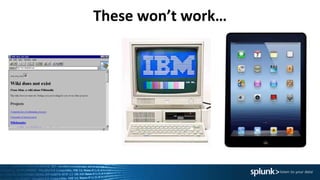
These won’t work…
Machine Data contains a definitive record of all
Human <-> Machine
&
Machine <-> Machine
Interaction
Splunk is a very effective platform to collect,
store, and analyze all of that data.
Mainframe
Data
VMware
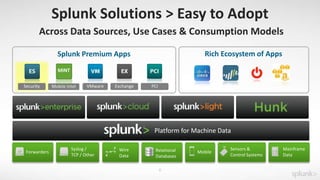
Platform for Machine Data
Splunk Solutions > Easy to Adopt
Exchange PCISecurity
Relational
Databases
MobileForwarders
Syslog /
TCP / Other
Sensors &
Control Systems
Across Data Sources, Use Cases & Consumption Models
Wire
Data
6
Mobile Intel
Splunk Premium Apps Rich Ecosystem of Apps
MINT
7
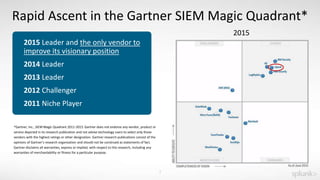
Rapid Ascent in the Gartner SIEM Magic Quadrant*
*Gartner, Inc., SIEM Magic Quadrant 2011-2015. Gartner does not endorse any vendor, product or
service depicted in its research publication and not advise technology users to select only those
vendors with the highest ratings or other designation. Gartner research publications consist of the
opinions of Gartner’s research organization and should not be construed as statements of fact.
Gartner disclaims all warranties, express or implied, with respect to this research, including any
warranties of merchantability or fitness for a particular purpose.
2015 Leader and the only vendor to
improve its visionary position
2014 Leader
2013 Leader
2012 Challenger
2011 Niche Player
2015
8
App
Servers
Network
Threat
Intelligence
Firewall
Web Proxy
Internal Network
Security
Endpoints
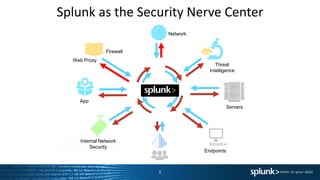
Splunk as the Security Nerve Center
ES Fast Facts
• Current Version 3.3
• Two Releases Per Year
• Content comes from industry experts, market analysis, but most importantly YOU
• The best of Splunk carries through to ES – flexible, scalable, fast, and customizable.
• ES has its own development team, dedicated support, services practice, and training
courses
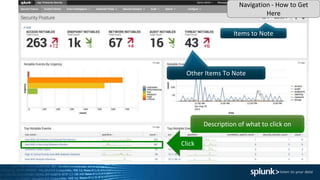
ES Guided Tour
Other Items To Note
Items to Note
Navigation - How to Get
Here
Description of what to click on
Click
Logging In and
Security Posture
Security Posture
13
● Start the day like any analyst
● Coffee time, or jump into incidents?
● End the day like any board member
● Are my security KPIs (KSIs) being
met?
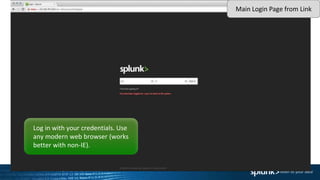
Log in with your credentials. Use
any modern web browser (works
better with non-IE).
Main Login Page from Link
15
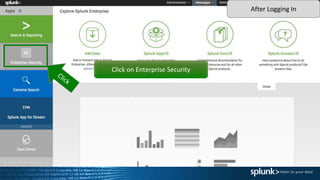
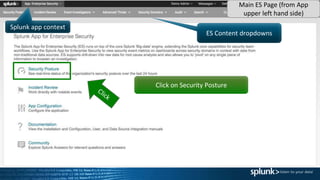
Click on Enterprise Security
After Logging In
ES Content dropdowns
Splunk app context
Click on Security Posture
Main ES Page (from App
upper left hand side)
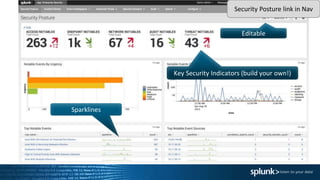
Key Security Indicators (build your own!)
Sparklines
Editable
Security Posture link in Nav
Data Ingest and the
Common Information
Model (CIM)
Data Ingest + Common Information Model
19
● You’ve got a ton of systems
● How to bring in:
● Network AV
● Windows + OS X AV
● PCI-zone Linux AV
● Network Sandboxing
● APT Protection
● Splunk + CIM is Easy
20
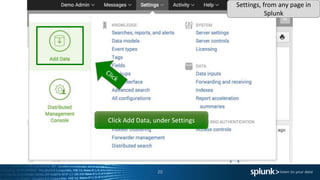
Click Add Data, under Settings
Settings, from any page in
Splunk
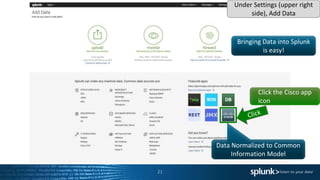
21
Bringing Data into Splunk
is easy!
Data Normalized to Common
Information Model
Under Settings (upper right
side), Add Data
Click the Cisco app
icon
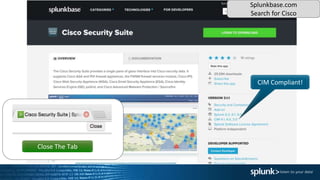
CIM Compliant!
Close The Tab
Splunkbase.com
Search for Cisco
23
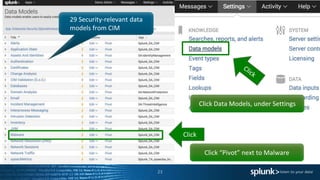
Click Data Models, under Settings
29 Security-relevant data
models from CIM
Click “Pivot” next to Malware
Click
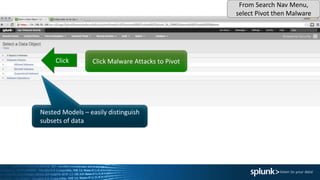
Click Malware Attacks to PivotClick
From Search Nav Menu,
select Pivot then Malware
Nested Models – easily distinguish
subsets of data
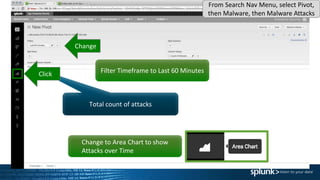
Filter Timeframe to Last 60 Minutes
Change
Total count of attacks
Change to Area Chart to show
Attacks over Time
Click
From Search Nav Menu, select Pivot,
then Malware, then Malware Attacks
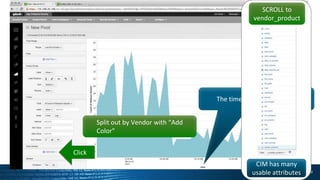
The time range we selected
Split out by Vendor with “Add
Color”
Click
SCROLL to
vendor_product
CIM has many
usable attributes
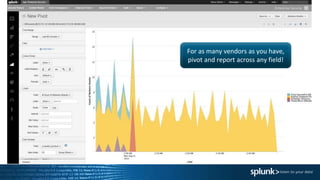
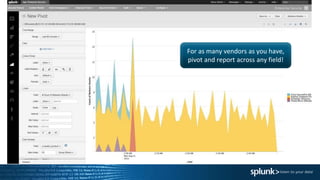
For as many vendors as you have,
pivot and report across any field!
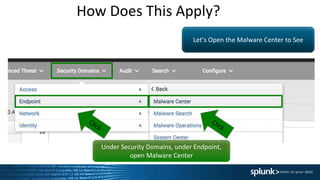
How Does This Apply?
Let’s Open the Malware Center to See
Under Security Domains, under Endpoint,
open Malware Center
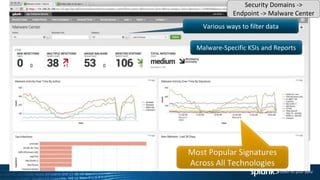
Various ways to filter data
Malware-Specific KSIs and Reports
Security Domains ->
Endpoint -> Malware Center
Searches that rely on
this data model
How Complete is my ES?
What else could I onboard?
Instructor Only
CIM and Data Ingest
Questions?
Risk Analysis
What To Do First?
33
● Risk provides context
● Risk helps direct analysts
“Risk Analysis is my favorite dashboard
for my SOC Analysts!”
Click “Risk Analysis”
Under “Advanced Threat”
Click
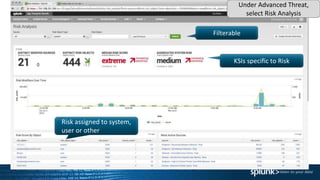
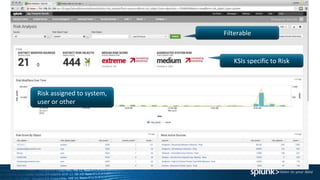
Filterable
KSIs specific to Risk
Risk assigned to system,
user or other
Under Advanced Threat,
select Risk Analysis
(Scroll Down)
Recent Risk Activity
Under Advanced Threat,
select Risk Analysis
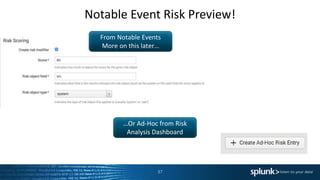
Notable Event Risk Preview!
37
From Notable Events
More on this later…
…Or Ad-Hoc from Risk
Analysis Dashboard
Risk Questions?
Threat Activity
40Attack Map
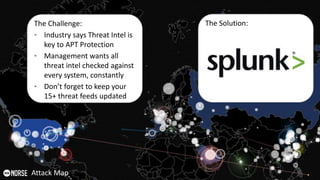
The Challenge:
• Industry says Threat Intel is
key to APT Protection
• Management wants all
threat intel checked against
every system, constantly
• Don’t forget to keep your
15+ threat feeds updated
The Solution:
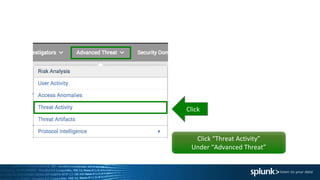
Click “Threat Activity”
Under “Advanced Threat”
Click
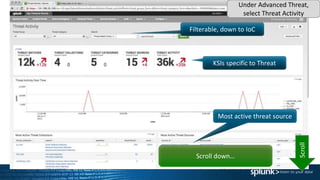
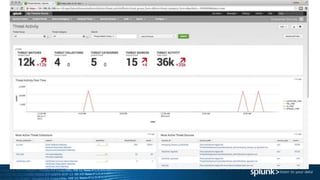
Filterable, down to IoC
KSIs specific to Threat
Most active threat source
Scroll down…
Scroll
Under Advanced Threat,
select Threat Activity
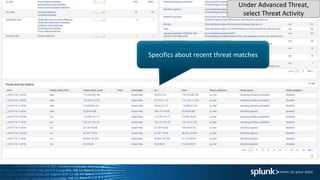
Specifics about recent threat matches
Under Advanced Threat,
select Threat Activity
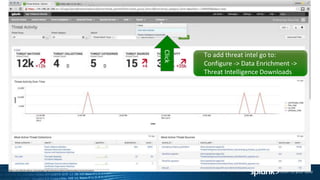
To add threat intel go to:
Configure -> Data Enrichment ->
Threat Intelligence Downloads
Click
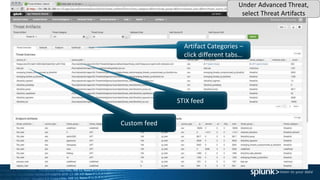
Click “Threat Artifacts”
Under “Advanced Threat”
Click
Artifact Categories –
click different tabs…
STIX feed
Custom feed
Under Advanced Threat,
select Threat Artifacts
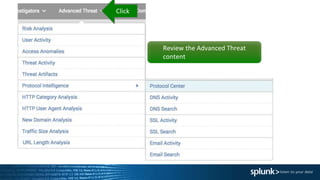
Review the Advanced Threat
content
Click
Threat Intel
Questions?
Additional Reports
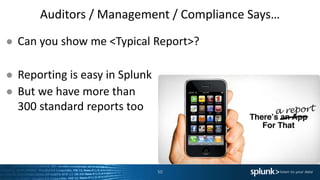
Auditors / Management / Compliance Says…
50
● Can you show me <Typical Report>?
● Reporting is easy in Splunk
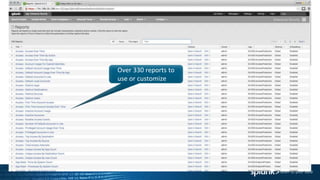
● But we have more than
300 standard reports too
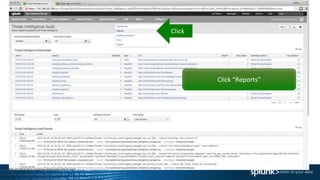
Click “Reports”
Click
Over 330 reports to
use or customize
Under Search, select Reports
Incident Response
Workflow
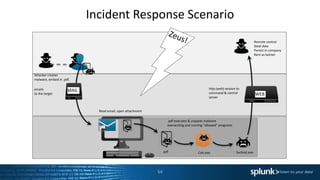
Incident Response Scenario
54
http (web) session to
command & control
server
Remote control
Steal data
Persist in company
Rent as botnet
WEB
.pdf
.pdf executes & unpacks malware
overwriting and running “allowed” programs
Svchost.exeCalc.exe
Attacker creates
malware, embed in .pdf,
emails
to the target
MAIL
Read email, open attachment
55
Go to Incident ReviewClick
Sort by UrgencyClick
Find Event with Your Persona
Finally, click the adjacent “>”
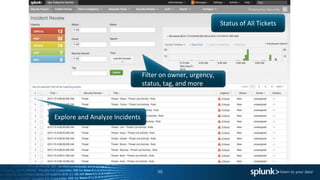
Status of All Tickets
Filter on owner, urgency,
status, tag, and more
Explore and Analyze Incidents
Incident Review
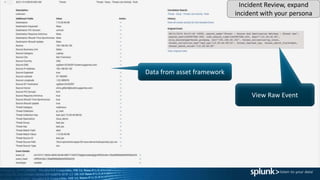
View Raw Event
Data from asset framework
Incident Review, expand
incident with your persona
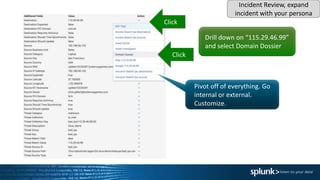
Drill down on “115.29.46.99”
and select Domain Dossier
Click
Click
Pivot off of everything. Go
internal or external.
Customize.
Incident Review, expand
incident with your persona
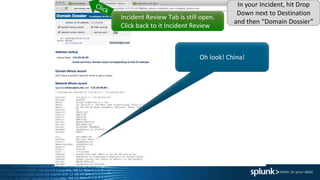
Oh look! China!
Incident Review Tab is still open.
Click back to it Incident Review
In your Incident, hit Drop
Down next to Destination
and then “Domain Dossier”
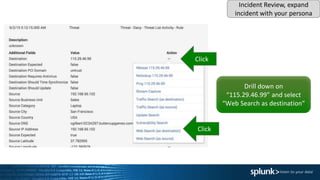
Drill down on
“115.29.46.99” and select
“Web Search as destination”
Click
Click
Incident Review, expand
incident with your persona
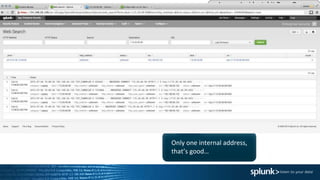
Only one internal address,
that’s good…
Change to 24 hours
if needed
Click back to
Incident Review
In your Incident, hit Drop Down
next to Destination and then “Web
Search (as Destination)”
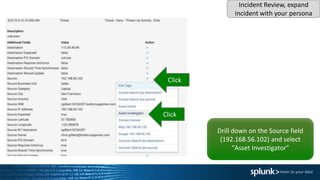
Drill down on the Source field
(192.168.56.102) and select
“Asset Investigator”
Click
Click
Incident Review, expand
incident with your persona
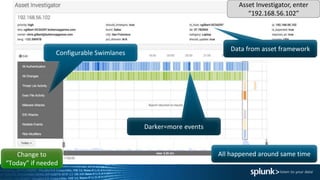
Data from asset framework
Configurable Swimlanes
Darker=more events
All happened around same timeChange to
“Today” if needed
Asset Investigator, enter
“192.168.56.102”
Change to
“Today” if needed
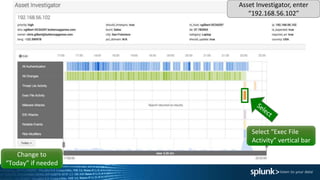
Select “Exec File
Activity” vertical bar
Asset Investigator, enter
“192.168.56.102”
“calc.exe” running out of the
user profile? Hmmm….
Drill into the
raw events
Asset Investigator, enter
“192.168.56.102”
Analysts may wish to share
with each other. Collaboration!
Raw events from Carbon
Black
Splunk automatic field
extraction
Click the “>” next to oldest suspicious
event, calc.exe, to see field mapping
From Asset Investigator, Click
“Exec File” and then click
“Open in Search” icon
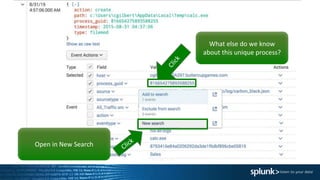
What else do we know
about this unique process?
Open in New Search
Open Event Actions
Open Custom Email
Threat Investigator
Dashboard
• A weaponized PDF was sent
• “calc.exe” was dropped
• Communication to a “known bad” IP address.
ç
68
Many possible next steps:
- For this situation including
- Inspecting wire data from
Chris’s laptop
- Pulling forensic details
- Reverse engineering
- Custom scoping dashboard
(who else hit)
69
Click Incident Review
Click
Click down arrow
Click
Incident Review, expand
incident with your persona
Click Reimage Workstation Click
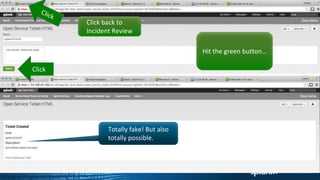
Hit the green button…
Click
Totally fake! But also
totally possible.
Click back to
Incident Review
Select your Notable
EventClick
Then click
“Edit all selected”
Fill out Status: Pending. Urgency: Low.
Owner: <your persona>. Comment:
<whatever you want>.
Populate
Click
Incident Review, expand
incident with your persona
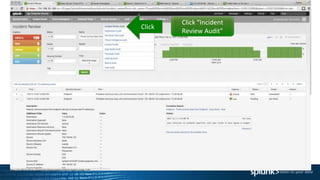
Click “Incident
Review Audit”
Click
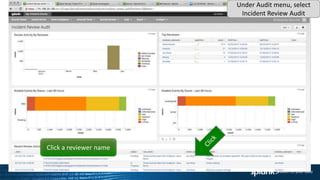
Click a reviewer name
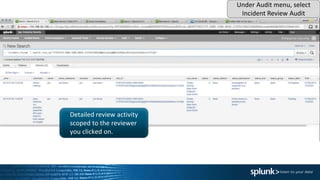
Under Audit menu, select
Incident Review Audit
Detailed review activity
scoped to the reviewer
you clicked on.
Under Audit menu, select
Incident Review Audit
Incident Response
Questions?
Creating a Correlation
Search
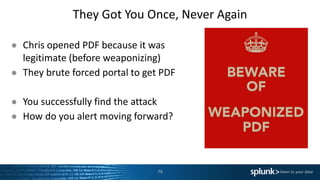
They Got You Once, Never Again
79
● Chris opened PDF because it was
legitimate (before weaponizing)
● They brute forced portal to get PDF
● You successfully find the attack
● How do you alert moving forward?
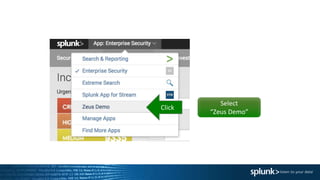
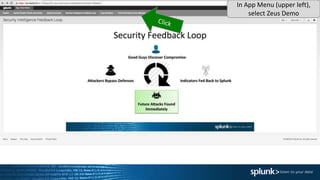
Select
“Zeus Demo”
Click
In App Menu (upper left),
select Zeus Demo
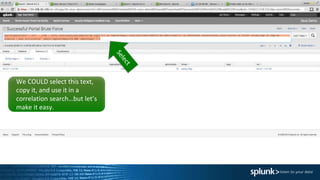
Returns data if we see a lot of
logon attempts and then access
to portal admin pages from a
single IP on a known threat list
In Find menu (upper right)
type “Portal Brute Force”
We COULD select this text,
copy it, and use it in a
correlation search…but let’s
make it easy.
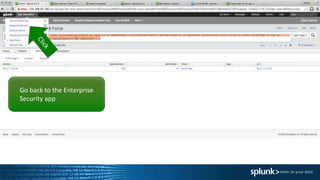
Go back to the Enterprise
Security app
Select “Custom Searches”
under Configure -> General
In App Menu (upper left),
select Enterprise Security
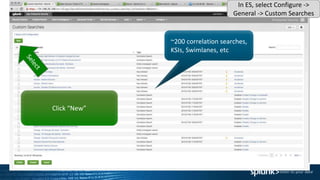
~200 correlation searches,
KSIs, Swimlanes, etc
Click “New”
In ES, select Configure ->
General -> Custom Searches
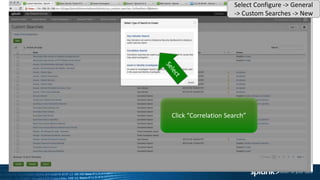
Click “Correlation Search”
Select Configure -> General
-> Custom Searches -> New
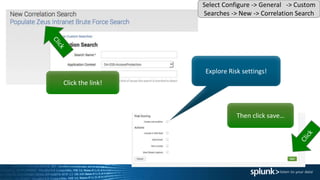
Click the link!
Then click save…
Select Configure -> General -> Custom
Searches -> New -> Correlation Search
Explore Risk settings!
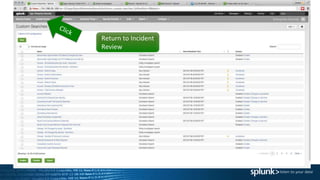
Return to Incident
Review
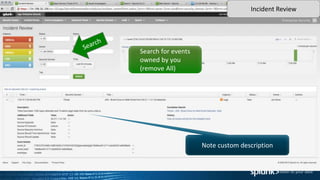
Search for events
owned by you
(remove All)
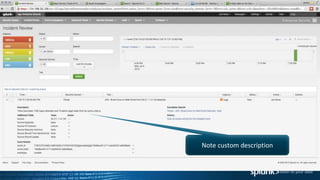
Note custom description
Incident Review
Correlation Rule
Questions?
Wrap Up
93
Bringing Data into Splunk
is easy!
Data Normalized till
Common Information Model
For as many vendors as you have,
pivot and report across any field!
Filterable
KSIs specific to Risk
Risk assigned to system,
user or other
Over 330 reports to
use or customize
98
Status of All Tickets
Filter on owner, urgency,
status, tag, and more
Explore and Analyze Incidents
Note custom description
Final Questions?
Thank You

Splunk for Security-Hands On

  • 1.
    Copyright © 2015Splunk Inc. ES Hands-On Guided Tour
  • 2.
    Agenda ● What isthe Splunk App for Enterprise Security? ● Guided Tour – General Overview – Data Ingest and Common Information Model – Risk and Threat Intel – Incident Response Exercise – Creating a Correlation Search ● Wrap Up
  • 3.
  • 5.
    Machine Data containsa definitive record of all Human <-> Machine & Machine <-> Machine Interaction Splunk is a very effective platform to collect, store, and analyze all of that data.
  • 6.
    Mainframe Data VMware Platform for MachineData Splunk Solutions > Easy to Adopt Exchange PCISecurity Relational Databases MobileForwarders Syslog / TCP / Other Sensors & Control Systems Across Data Sources, Use Cases & Consumption Models Wire Data 6 Mobile Intel Splunk Premium Apps Rich Ecosystem of Apps MINT
  • 7.
    7 Rapid Ascent inthe Gartner SIEM Magic Quadrant* *Gartner, Inc., SIEM Magic Quadrant 2011-2015. Gartner does not endorse any vendor, product or service depicted in its research publication and not advise technology users to select only those vendors with the highest ratings or other designation. Gartner research publications consist of the opinions of Gartner’s research organization and should not be construed as statements of fact. Gartner disclaims all warranties, express or implied, with respect to this research, including any warranties of merchantability or fitness for a particular purpose. 2015 Leader and the only vendor to improve its visionary position 2014 Leader 2013 Leader 2012 Challenger 2011 Niche Player 2015
  • 8.
  • 9.
    ES Fast Facts •Current Version 3.3 • Two Releases Per Year • Content comes from industry experts, market analysis, but most importantly YOU • The best of Splunk carries through to ES – flexible, scalable, fast, and customizable. • ES has its own development team, dedicated support, services practice, and training courses
  • 10.
  • 11.
    Other Items ToNote Items to Note Navigation - How to Get Here Description of what to click on Click
  • 12.
  • 13.
    Security Posture 13 ● Startthe day like any analyst ● Coffee time, or jump into incidents? ● End the day like any board member ● Are my security KPIs (KSIs) being met?
  • 14.
    Log in withyour credentials. Use any modern web browser (works better with non-IE). Main Login Page from Link
  • 15.
    15 Click on EnterpriseSecurity After Logging In
  • 16.
    ES Content dropdowns Splunkapp context Click on Security Posture Main ES Page (from App upper left hand side)
  • 17.
    Key Security Indicators(build your own!) Sparklines Editable Security Posture link in Nav
  • 18.
    Data Ingest andthe Common Information Model (CIM)
  • 19.
    Data Ingest +Common Information Model 19 ● You’ve got a ton of systems ● How to bring in: ● Network AV ● Windows + OS X AV ● PCI-zone Linux AV ● Network Sandboxing ● APT Protection ● Splunk + CIM is Easy
  • 20.
    20 Click Add Data,under Settings Settings, from any page in Splunk
  • 21.
    21 Bringing Data intoSplunk is easy! Data Normalized to Common Information Model Under Settings (upper right side), Add Data Click the Cisco app icon
  • 22.
    CIM Compliant! Close TheTab Splunkbase.com Search for Cisco
  • 23.
    23 Click Data Models,under Settings 29 Security-relevant data models from CIM Click “Pivot” next to Malware Click
  • 24.
    Click Malware Attacksto PivotClick From Search Nav Menu, select Pivot then Malware Nested Models – easily distinguish subsets of data
  • 25.
    Filter Timeframe toLast 60 Minutes Change Total count of attacks Change to Area Chart to show Attacks over Time Click From Search Nav Menu, select Pivot, then Malware, then Malware Attacks
  • 26.
    The time rangewe selected Split out by Vendor with “Add Color” Click SCROLL to vendor_product CIM has many usable attributes
  • 27.
    For as manyvendors as you have, pivot and report across any field!
  • 28.
    How Does ThisApply? Let’s Open the Malware Center to See Under Security Domains, under Endpoint, open Malware Center
  • 29.
    Various ways tofilter data Malware-Specific KSIs and Reports Security Domains -> Endpoint -> Malware Center
  • 30.
    Searches that relyon this data model How Complete is my ES? What else could I onboard? Instructor Only
  • 31.
    CIM and DataIngest Questions?
  • 32.
  • 33.
    What To DoFirst? 33 ● Risk provides context ● Risk helps direct analysts “Risk Analysis is my favorite dashboard for my SOC Analysts!”
  • 34.
    Click “Risk Analysis” Under“Advanced Threat” Click
  • 35.
    Filterable KSIs specific toRisk Risk assigned to system, user or other Under Advanced Threat, select Risk Analysis
  • 36.
    (Scroll Down) Recent RiskActivity Under Advanced Threat, select Risk Analysis
  • 37.
    Notable Event RiskPreview! 37 From Notable Events More on this later… …Or Ad-Hoc from Risk Analysis Dashboard
  • 38.
  • 39.
  • 40.
    40Attack Map The Challenge: •Industry says Threat Intel is key to APT Protection • Management wants all threat intel checked against every system, constantly • Don’t forget to keep your 15+ threat feeds updated The Solution:
  • 41.
    Click “Threat Activity” Under“Advanced Threat” Click
  • 42.
    Filterable, down toIoC KSIs specific to Threat Most active threat source Scroll down… Scroll Under Advanced Threat, select Threat Activity
  • 43.
    Specifics about recentthreat matches Under Advanced Threat, select Threat Activity
  • 44.
    To add threatintel go to: Configure -> Data Enrichment -> Threat Intelligence Downloads Click
  • 45.
    Click “Threat Artifacts” Under“Advanced Threat” Click
  • 46.
    Artifact Categories – clickdifferent tabs… STIX feed Custom feed Under Advanced Threat, select Threat Artifacts
  • 47.
    Review the AdvancedThreat content Click
  • 48.
  • 49.
  • 50.
    Auditors / Management/ Compliance Says… 50 ● Can you show me <Typical Report>? ● Reporting is easy in Splunk ● But we have more than 300 standard reports too
  • 51.
  • 52.
    Over 330 reportsto use or customize Under Search, select Reports
  • 53.
  • 54.
    Incident Response Scenario 54 http(web) session to command & control server Remote control Steal data Persist in company Rent as botnet WEB .pdf .pdf executes & unpacks malware overwriting and running “allowed” programs Svchost.exeCalc.exe Attacker creates malware, embed in .pdf, emails to the target MAIL Read email, open attachment
  • 55.
    55 Go to IncidentReviewClick Sort by UrgencyClick Find Event with Your Persona Finally, click the adjacent “>” Status of All Tickets Filter on owner, urgency, status, tag, and more Explore and Analyze Incidents Incident Review
  • 56.
    View Raw Event Datafrom asset framework Incident Review, expand incident with your persona
  • 57.
    Drill down on“115.29.46.99” and select Domain Dossier Click Click Pivot off of everything. Go internal or external. Customize. Incident Review, expand incident with your persona
  • 58.
    Oh look! China! IncidentReview Tab is still open. Click back to it Incident Review In your Incident, hit Drop Down next to Destination and then “Domain Dossier”
  • 59.
    Drill down on “115.29.46.99”and select “Web Search as destination” Click Click Incident Review, expand incident with your persona
  • 60.
    Only one internaladdress, that’s good… Change to 24 hours if needed Click back to Incident Review In your Incident, hit Drop Down next to Destination and then “Web Search (as Destination)”
  • 61.
    Drill down onthe Source field (192.168.56.102) and select “Asset Investigator” Click Click Incident Review, expand incident with your persona
  • 62.
    Data from assetframework Configurable Swimlanes Darker=more events All happened around same timeChange to “Today” if needed Asset Investigator, enter “192.168.56.102”
  • 63.
    Change to “Today” ifneeded Select “Exec File Activity” vertical bar Asset Investigator, enter “192.168.56.102”
  • 64.
    “calc.exe” running outof the user profile? Hmmm…. Drill into the raw events Asset Investigator, enter “192.168.56.102” Analysts may wish to share with each other. Collaboration!
  • 65.
    Raw events fromCarbon Black Splunk automatic field extraction Click the “>” next to oldest suspicious event, calc.exe, to see field mapping From Asset Investigator, Click “Exec File” and then click “Open in Search” icon
  • 66.
    What else dowe know about this unique process? Open in New Search
  • 67.
    Open Event Actions OpenCustom Email Threat Investigator Dashboard • A weaponized PDF was sent • “calc.exe” was dropped • Communication to a “known bad” IP address.
  • 68.
    ç 68 Many possible nextsteps: - For this situation including - Inspecting wire data from Chris’s laptop - Pulling forensic details - Reverse engineering - Custom scoping dashboard (who else hit)
  • 69.
  • 70.
    Click down arrow Click IncidentReview, expand incident with your persona Click Reimage Workstation Click
  • 71.
    Hit the greenbutton… Click Totally fake! But also totally possible. Click back to Incident Review
  • 72.
    Select your Notable EventClick Thenclick “Edit all selected”
  • 73.
    Fill out Status:Pending. Urgency: Low. Owner: <your persona>. Comment: <whatever you want>. Populate Click Incident Review, expand incident with your persona
  • 74.
  • 75.
    Click a reviewername Under Audit menu, select Incident Review Audit
  • 76.
    Detailed review activity scopedto the reviewer you clicked on. Under Audit menu, select Incident Review Audit
  • 77.
  • 78.
  • 79.
    They Got YouOnce, Never Again 79 ● Chris opened PDF because it was legitimate (before weaponizing) ● They brute forced portal to get PDF ● You successfully find the attack ● How do you alert moving forward?
  • 80.
  • 81.
    In App Menu(upper left), select Zeus Demo
  • 82.
    Returns data ifwe see a lot of logon attempts and then access to portal admin pages from a single IP on a known threat list In Find menu (upper right) type “Portal Brute Force”
  • 83.
    We COULD selectthis text, copy it, and use it in a correlation search…but let’s make it easy.
  • 84.
    Go back tothe Enterprise Security app
  • 85.
    Select “Custom Searches” underConfigure -> General In App Menu (upper left), select Enterprise Security
  • 86.
    ~200 correlation searches, KSIs,Swimlanes, etc Click “New” In ES, select Configure -> General -> Custom Searches
  • 87.
    Click “Correlation Search” SelectConfigure -> General -> Custom Searches -> New
  • 88.
    Click the link! Thenclick save… Select Configure -> General -> Custom Searches -> New -> Correlation Search Explore Risk settings!
  • 89.
  • 90.
    Search for events ownedby you (remove All) Note custom description Incident Review
  • 91.
  • 92.
  • 93.
    93 Bringing Data intoSplunk is easy! Data Normalized till Common Information Model
  • 94.
    For as manyvendors as you have, pivot and report across any field!
  • 95.
    Filterable KSIs specific toRisk Risk assigned to system, user or other
  • 97.
    Over 330 reportsto use or customize
  • 98.
    98 Status of AllTickets Filter on owner, urgency, status, tag, and more Explore and Analyze Incidents
  • 101.
  • 102.
  • 103.

Editor's Notes

  • #3 We don’t have a ton of time and ES is quite a feature-rich product. It would take many hours to go through everything the app can do. So we’ll spend only a few minutes on some intro slides, and then the great bulk of this session will be hands-on.
  • #4 Now unfortunately, you do need a modern laptop with a modern browser to participate. You can probably get away with a Surface or something like that, but iPads, old browsers, and especially IBM PCjr’s will not work. (don’t laugh – I actually had one of those.)
  • #5 Everything I’m going through up here has been pretty well documented in a word doc. You can use the link here to get that doc, or if you’re really interested in it later come see me. You won’t need it right now though. Each of you has creds – there are 10 fairly large Amazon EC2 instances that have been provisioned for this exercise and if we’re at capacity there will be 12 of you on each. Now’s a good time to try hitting that URL and logging into Splunk.
  • #6 Splunk excels at creating a data fabric Machine data: Anything with a timestamp, regardless of incoming format. Throw it all in there! Collect it. Store it in one place. Make it accessible for search/analytics/reporting/alerting. DETECTION NOT PREVENTION! ASSUME BREACH! So we need a place we can go to DETECT attacks. DETECT breaches. DETECT the “weird.” So if you had a place to see “everything” that happened… ….what would that mean for your SOC and IR teams?
  • #7 The Splunk platform consists of multiple products and deployment models to fit your needs. Splunk Enterprise – for on-premise deployment Splunk Cloud – Fully managed service with 100% SLA and all the capabilities of Splunk Enterprise…in the Cloud Splunk Light – log search and analytics for small IT environments Hunk – for analytics on data in Hadoop The products can pull in data from virtually any source to support multiple use cases. Splunk Apps extend and simplify deployments by providing pre-packaged content designed for specific use cases and data types.
  • #8 Our rapid ascent reflects the customer traction we have and value we deliver to customers – with thousands of security customers and 40% year-over-year growth, we are the fastest growing SIEM vendor in the market. 2011 was our first time in the MQ; In 2 short years we raced up to the top quadrant in the MQ.
  • #10 3.3. 3.0 was the first release done against Splunk 6 and that was a huge step forward – mainly because of the use of CIM and accelerated data models. Unlike other competitive solutions ES is constantly evolving – on average twice a year. Upgrades are pretty seamless. Where does content come from? All of the typical places but most importantly it comes from YOU. We take the best ideas that you give us, and we productize them and make them scalable and supportable. Splunk is more than a product – it is a wide open platform that inspires. None of this is lost in ES – splunk with ES is just as flexible and customizable. And it leverages technology in the core product like mapreduce and data models. You need ES to scale to the security intelligence needs of a huge enterprise? No problem. ES has its own dev team and roadmap, dedicated support individuals, a services practice schooled in it and other complementary infosec. Also lots of training is available.
  • #12 This should look familiar to you. What we’re doing here is giving a starting point for any Security Analyst to understand at a high level what’s going on in the environment. A single pane of glass, if you will, for all security data.   Everything we are seeing here is customizable – the panels, the indicators, via standard Splunk functionality.   Most of the data on this dashboard is centered on Notable Events. Notable Events are a concept unique to Splunk with ES – there’s an entire Notable Event framework that allows us to perform simple or complex correlations, and then create events by analyzing disparate events from disparate sources.   Notable Events in ES are categorized into various high-level security domains: access, audit, identity, network, and threat. We’ll see those categories throughout the app.   You can see Splunk Sparklines here – these little green lines. These are great for detecting quick trends in the security events – a continuous line means something constant, which could be a heartbeat or a scripted attack. A spike could be a single attack or maybe just someone fat-fingering their password a few times.   We’ll drill into some of these incidents in a few minutes, but let’s continue on with our tour. How does all this data get into Splunk?
  • #18 This should look familiar to you. What we’re doing here is giving a starting point for any Security Analyst to understand at a high level what’s going on in the environment. A single pane of glass, if you will, for all security data.   Everything we are seeing here is customizable – the panels, the indicators, via standard Splunk functionality.   Most of the data on this dashboard is centered on Notable Events. Notable Events are a concept unique to Splunk with ES – there’s an entire Notable Event framework that allows us to perform simple or complex correlations, and then create events by analyzing disparate events from disparate sources.   Notable Events in ES are categorized into various high-level security domains: access, audit, identity, network, and threat. We’ll see those categories throughout the app.   You can see Splunk Sparklines here – these little green lines. These are great for detecting quick trends in the security events – a continuous line means something constant, which could be a heartbeat or a scripted attack. A spike could be a single attack or maybe just someone fat-fingering their password a few times.   We’ll drill into some of these incidents in a few minutes, but let’s continue on with our tour. How does all this data get into Splunk?
  • #23 So what does the data look like once it’s onboarded into Splunk in a CIM-compatible format?   Let’s look at one example in ES: Malware Center.
  • #26 Let’s do a quick pivot to show what we can do with these fields. First we’ll load up the Malware Attacks data model and change the time to last 60 minutes. Then we’ll go to an area chart which by default shows us this time period stretched out on an X axis…
  • #27 So these are overall malware attacks over the last 60 minutes in our environment. Let’s split out by the signatures….
  • #28 So these are overall malware attacks over the last 60 minutes in our environment. Let’s split out by the signatures….
  • #29 So these are overall malware attacks over the last 60 minutes in our environment. Let’s split out by the signatures….
  • #30 Here we have a simple dashboard showing us all sorts of detail about recent malware activity in the environment. Like Security Posture, this is high level information, but more granular about a certain security domain (Malware, which is under Endpoint). We have these “centers” throughout ES for things like Access, Traffic, Intrusions, Updates, Vulnerabilities, and many other security-relevant areas, and you can investigate them later.   For now, let’s drill into two of the “top infections” to see CIM at work. Looking at this dashboard we can’t tell that we actually have at least two different endpoint protection systems feeding data into Splunk: Sophos, Trend Micro, and Symantec Endpoint Protection. Splunk normalizes the data on search time, according to CIM, to create this (and the other) dashboards.   Click on Mal/Packer, and you’ll see that this infection was detected by Sophos. The raw logs are literally a click away:  
  • #31 The more data you have flowing into Splunk and into ES, the more useful it becomes. And ES is self auditing to tell you which data sources you are missing:
  • #35 In version 3.1 of Enterprise Security we introduced a full Risk Analysis framework. This is unique because we allow you to assign an arbitrary risk number, that means something to you, based on a notable event. You can assign risk to a user, or to a system, or to some other object that you see in the environment – perhaps a particular piece of malware is considered risky to you so you elevate the risk on the malware “object” itself.   Let’s bring up the Risk Analysis page associated with Advanced Threat:
  • #36 The main reason why this risk framework is important is that it gets you away from writing specific rules for specific threats or assets. You don’t need 1,000 correlation rules anymore – you simply can elevate risk scores on whatever object you want, based on the behavior you’re seeing in the environment. So the idea here is, a correlation rule fires, and then a risk modifier takes effect and changes the risk score based on cumulative scoring of whatever else has happened to that user, or system, or other object.   On the dashboard, we can define filters to find a particular system or user or timeframe.   Note the natural language descriptions (in the screenshot they are medium and low). We track how your overall risk scoring is doing over time, and constantly re-calculate the baseline. Got a lot of activity going on that isn’t “normal” for that timeframe and you might see things going from “increasing minimally” to “extremely increasing” – all based on what the historical norm is.   We can of course see which objects have the highest risk and which correlation rules are contributing the most to the highest risk.
  • #42 In version 3.1 of Enterprise Security we introduced a full Risk Analysis framework. This is unique because we allow you to assign an arbitrary risk number, that means something to you, based on a notable event. You can assign risk to a user, or to a system, or to some other object that you see in the environment – perhaps a particular piece of malware is considered risky to you so you elevate the risk on the malware “object” itself.   Let’s bring up the Risk Analysis page associated with Advanced Threat:
  • #43 On the dashboard we can see that we’re using the power of Splunk search to match artifacts in our incoming data against IoC’s we find in our threat feeds. Splunk de-duplicates the threat feeds so that if an artifact shows up in multiple feeds you don’t get duplicate notifications.   We can filter the display by threat_group, which is essentially the source of the IoCs. This could be something commercial like ThreatStream or ThreatConnect or Norse, something open-source like Sans or iblocklist, or something from your ISAC that is delivered over a TAXII feed in STIX format.   The threat collection shows that we can use various IoCs to match up against artifacts in our data – IP addresses, domain names, URLs, filenames, certificate common names and organizations, email addresses, registry keys – as long as it can be defined in your incoming feed or locally, you can use it as an IoC.   You can see the most active threat sources, and if you scroll down, you can see the most recent matches against your threat feeds.   How are these configured? Let’s go to the configuration, and see.
  • #46 In version 3.1 of Enterprise Security we introduced a full Risk Analysis framework. This is unique because we allow you to assign an arbitrary risk number, that means something to you, based on a notable event. You can assign risk to a user, or to a system, or to some other object that you see in the environment – perhaps a particular piece of malware is considered risky to you so you elevate the risk on the malware “object” itself.   Let’s bring up the Risk Analysis page associated with Advanced Threat:
  • #47 Rounding out the Threat Intelligence capabilities are the Threat Artifacts browser, which allows us to search through all of the artifacts stored in ES:
  • #48 We don’t have time to go through each and every one of the advanced threat capabilities in the ES app. However, let’s just see that up here under Advanced Threat we have some very interesting capabilities: Some of the most useful ones are the Protocol Intelligence that leverages wire data from things like Splunk Stream, Netflow, and Bro. Also the Access Anomalies and User Activity, which are very useful to detect possible insider threat. And the New Domain Analysis, which analyzes traffic patterns and DNS queries to domains, and then tells you if you have devices communicating with recently registered garbage domains (that are often associated with DGA). Again – this is something you can go through on your own time.
  • #57 We will see all of the details of the event, including our most recent comments and ownership activity.
  • #58 So we know from the title of the event that we have a device on our network communicating out to a known bad IP address that’s a Zeus C2 address. But Splunk has enriched this event with some very useful info. We can see here that this particular machine is a laptop, and that it is owned by someone in Sales named Chris Gilbert. We see the IP addresses associated with the communication. We see the locations that this person Chris Gilbert works from. This correlation happens automatically against our ES Asset and Identity frameworks – we get the information an incident responder needs right up front.   Everything we see here is pivotable. We can go to places within ES, within Core Splunk and outside of Splunk too, and use that field as an argument. As an example, let’s drill into the arrow next to “Destination” and see what Domain Dossier has to say about this external IP address:  
  • #59 We can see that this netblock is assigned to an organization in China.   While there are a lot of these “workflow actions” associated with Notable Events configured already in the product, you can feel free to create custom ones.   Next, let’s understand what else has been going on with this laptop.
  • #60 One thing that we assume is that traffic from laptops outbound to C2 servers occurs via web proxy, at least when the laptops are on our corporate network. So we can look in our proxy logs to verify.
  • #61  Note that we have only one source machine (Chris Gilbert’s laptop at 192.168.56.102) communicating with this known bad IP. That’s good at least – this doesn’t appear to be a widespread infection.   Some other interesting things about this data – notice a fairly large transaction in terms of bytes. Notice also that the connection is “tcp” over port 443 not “https” which would be considered normal.
  • #62 Go back to the notable event and let’s look at Asset Investigator to get a more detailed view of this possibly-infected asset:
  • #63 Asset Investigator shows us, at the top, all of the things we know about this asset from sources such as CMDBs or Active Directory. It also has multiple “swimlanes” that visually show you what’s been going on with the asset: We can see Threat List, Exec File, IDS, and Notable Events associated with this asset, most of those happening right around the same time (this was likely the time of infection).  
  • #64 Asset Investigator shows us, at the top, all of the things we know about this asset from sources such as CMDBs or Active Directory. It also has multiple “swimlanes” that visually show you what’s been going on with the asset: We can see Threat List, Exec File, IDS, and Notable Events associated with this asset, most of those happening right around the same time (this was likely the time of infection).  
  • #66 These are all Microsoft Sysmon events. Sysmon is a great, free utility from Microsoft that is lightweight and runs on all modern Windows variants. We’re simply collecting this data from Sysmon into Splunk, in real time, from our workstations. It gives us granular process data that includes parent/child relationships, hash data, and network connections, among other things.  
  • #67 Note that the second event is that strange calc.exe event. Let’s click the small arrow to the far left of the event:
  • #68 Note that the second event is that strange calc.exe event. Let’s click the small arrow to the far left of the event:
  • #75 Finally, let’s see some of the auditing that ES does of the activity carried out against Notable Events.  
  • #76 The recent activity that you have carried out should appear in the panels. Clicking on a reviewer’s name will bring you detail about that reviewer’s activity.
  • #83 This is a search that’s been created that returns any IP address where we see, over the timeframe selected, a lot of login attempts (greater than 10) and then loading of the admin pages of the portal from that same IP. If any IP address returns from the search, we can consider this an alertable event.
  • #84 Note that you could turn this into a simple Splunk alert by just doing a “save as” alert and running it regularly. But we want to see how to turn this into a Notable Event in ES.   Using your mouse, select the entire text of the search and copy it to the clipboard.
  • #95 So these are overall malware attacks over the last 60 minutes in our environment. Let’s split out by the signatures….
  • #96 The main reason why this risk framework is important is that it gets you away from writing specific rules for specific threats or assets. You don’t need 1,000 correlation rules anymore – you simply can elevate risk scores on whatever object you want, based on the behavior you’re seeing in the environment. So the idea here is, a correlation rule fires, and then a risk modifier takes effect and changes the risk score based on cumulative scoring of whatever else has happened to that user, or system, or other object.   On the dashboard, we can define filters to find a particular system or user or timeframe.   Note the natural language descriptions (in the screenshot they are medium and low). We track how your overall risk scoring is doing over time, and constantly re-calculate the baseline. Got a lot of activity going on that isn’t “normal” for that timeframe and you might see things going from “increasing minimally” to “extremely increasing” – all based on what the historical norm is.   We can of course see which objects have the highest risk and which correlation rules are contributing the most to the highest risk.
  • #97 On the dashboard we can see that we’re using the power of Splunk search to match artifacts in our incoming data against IoC’s we find in our threat feeds. Splunk de-duplicates the threat feeds so that if an artifact shows up in multiple feeds you don’t get duplicate notifications.   We can filter the display by threat_group, which is essentially the source of the IoCs. This could be something commercial like ThreatStream or ThreatConnect or Norse, something open-source like Sans or iblocklist, or something from your ISAC that is delivered over a TAXII feed in STIX format.   The threat collection shows that we can use various IoCs to match up against artifacts in our data – IP addresses, domain names, URLs, filenames, certificate common names and organizations, email addresses, registry keys – as long as it can be defined in your incoming feed or locally, you can use it as an IoC.   You can see the most active threat sources, and if you scroll down, you can see the most recent matches against your threat feeds.   How are these configured? Let’s go to the configuration, and see.
  • #100 Asset Investigator shows us, at the top, all of the things we know about this asset from sources such as CMDBs or Active Directory. It also has multiple “swimlanes” that visually show you what’s been going on with the asset: We can see Threat List, Exec File, IDS, and Notable Events associated with this asset, most of those happening right around the same time (this was likely the time of infection).  
  • #101 The recent activity that you have carried out should appear in the panels. Clicking on a reviewer’s name will bring you detail about that reviewer’s activity.