29/11/2013

Specialist Colleges Forum
November 15th 2013
Exeter Academy for Deaf Education
Title of presentation 00/00/2013

Jisc RSC SW update
»Jisc Innovation Funding
»Jisc Services, website and Discovering Jisc’s existing
resources

2
Title of presentation 00/00/2013

Jisc FE & Skills funding
» Phase 1 extension
» Phase 2 - £1 million
» Integrate new technologies in learning and teaching, assessment and
business activities

» Overcome barriers to the adoption and use of technology in the sector
» Develop new uses for technology or innovative adaption and rollout of
technologies

3
Title of presentation 00/00/2013

4
Title of presentation 00/00/2013

T & L Resources

5
Title of presentation 00/00/2013

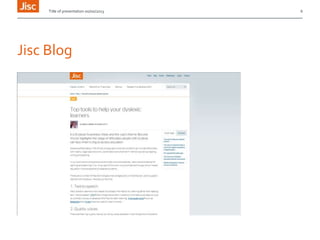
Jisc Blog

6
Title of presentation 00/00/2013

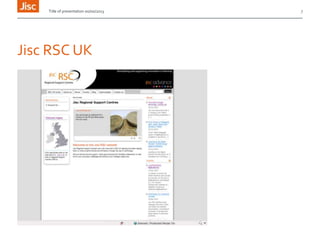
Jisc RSC UK

7
Title of presentation 00/00/2013

http://www.jiscrsc.ac.uk/
Support for:

» Assessment (Adjustments media rich)
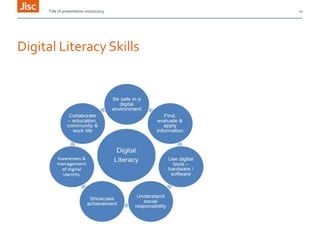
» Digital Literacy Review
» eSafety Infokit and SID
» Green ICT tools
» Inclusivity AT kits and TechDis CPD
» Technology in learning

8
Title of presentation 00/00/2013

Media Rich assessment

9
29/11/2013
Title of presentation 00/00/2013

Digital Literacy Skills

11
Title of presentation 00/00/2013

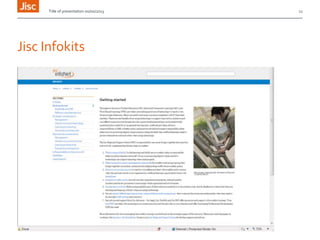
Jisc Infokits

12
Title of presentation 00/00/2013

eSafety Offer
TechDis and other LLDD resources

13
Title of presentation 00/00/2013

Jorum
» DART 2 http://dart.beaumontcollege.ac.uk/
» Cardonald Mobile learning resources
» Lancashire ACL – BSL resources
» South west College – Video Conferencing
» Copyright, STEM, Inclusion
» www.ark-hive.co.uk

14
Title of presentation 00/00/2013

Sharing resources
FE & Skills and Discover Jisc
Search Jorum
Project overviews
Apps to organise students, and for community learning,

VC skills and learning,
AT, BSL, VI, LLDD, mobile and moodle resources,
Funding Phase 2 email

15
Title of presentation 00/00/2013

16

Partnerships
» Creating resources, tools or products
» Developing organisational and collaborative processes using digital technologies
» Developing apps
» Creating augmented reality resources
» Improving or adapting current technologies and resources (some already
available through Jorum5)

» Developing new uses for technologies
Title of presentation 00/00/2013

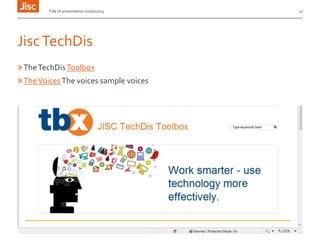
Jisc TechDis
» The TechDis Toolbox
» The Voices The voices sample voices

17
Title of presentation 00/00/2013

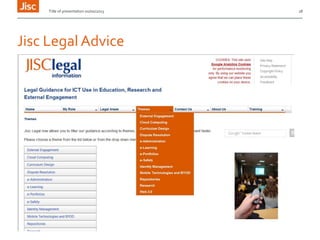
Jisc Legal Advice

18
Title of presentation 00/00/2013

19

» Creating resources, tools or products
» SOTON Assessment calculator http://studywell.library.qut.edu.au/multimedia_files/assignment_calculator/acces
s_version/date_access.php

» Social media guide - http://libassets.manchester.ac.uk/social-media-guide/
Title of presentation 00/00/2013

Jisc RSC Events
Autism and Technology Conference. 2/4/20134
Plymouth University

20
Title of presentation 00/00/2013

21

Julia Taylor
Julia Taylor
Juliataylor@rsc-south-west.ac.uk
07525770552

Special college forum presentation

  • 1.
    29/11/2013 Specialist Colleges Forum November15th 2013 Exeter Academy for Deaf Education
  • 2.
    Title of presentation00/00/2013 Jisc RSC SW update »Jisc Innovation Funding »Jisc Services, website and Discovering Jisc’s existing resources 2
  • 3.
    Title of presentation00/00/2013 Jisc FE & Skills funding » Phase 1 extension » Phase 2 - £1 million » Integrate new technologies in learning and teaching, assessment and business activities » Overcome barriers to the adoption and use of technology in the sector » Develop new uses for technology or innovative adaption and rollout of technologies 3
  • 4.
  • 5.
    Title of presentation00/00/2013 T & L Resources 5
  • 6.
    Title of presentation00/00/2013 Jisc Blog 6
  • 7.
    Title of presentation00/00/2013 Jisc RSC UK 7
  • 8.
    Title of presentation00/00/2013 http://www.jiscrsc.ac.uk/ Support for: » Assessment (Adjustments media rich) » Digital Literacy Review » eSafety Infokit and SID » Green ICT tools » Inclusivity AT kits and TechDis CPD » Technology in learning 8
  • 9.
    Title of presentation00/00/2013 Media Rich assessment 9
  • 10.
  • 11.
    Title of presentation00/00/2013 Digital Literacy Skills 11
  • 12.
    Title of presentation00/00/2013 Jisc Infokits 12
  • 13.
    Title of presentation00/00/2013 eSafety Offer TechDis and other LLDD resources 13
  • 14.
    Title of presentation00/00/2013 Jorum » DART 2 http://dart.beaumontcollege.ac.uk/ » Cardonald Mobile learning resources » Lancashire ACL – BSL resources » South west College – Video Conferencing » Copyright, STEM, Inclusion » www.ark-hive.co.uk 14
  • 15.
    Title of presentation00/00/2013 Sharing resources FE & Skills and Discover Jisc Search Jorum Project overviews Apps to organise students, and for community learning, VC skills and learning, AT, BSL, VI, LLDD, mobile and moodle resources, Funding Phase 2 email 15
  • 16.
    Title of presentation00/00/2013 16 Partnerships » Creating resources, tools or products » Developing organisational and collaborative processes using digital technologies » Developing apps » Creating augmented reality resources » Improving or adapting current technologies and resources (some already available through Jorum5) » Developing new uses for technologies
  • 17.
    Title of presentation00/00/2013 Jisc TechDis » The TechDis Toolbox » The Voices The voices sample voices 17
  • 18.
    Title of presentation00/00/2013 Jisc Legal Advice 18
  • 19.
    Title of presentation00/00/2013 19 » Creating resources, tools or products » SOTON Assessment calculator http://studywell.library.qut.edu.au/multimedia_files/assignment_calculator/acces s_version/date_access.php » Social media guide - http://libassets.manchester.ac.uk/social-media-guide/
  • 20.
    Title of presentation00/00/2013 Jisc RSC Events Autism and Technology Conference. 2/4/20134 Plymouth University 20
  • 21.
    Title of presentation00/00/2013 21 Julia Taylor Julia Taylor Juliataylor@rsc-south-west.ac.uk 07525770552

Editor's Notes

  • #3 Go to ‘View’ menu > ‘Header and Footer…’ to edit the footers on this slide (click ‘Apply’ to change only the currently selected slide, or ‘Apply to All’ to change the footers on all slides).
  • #4 Go to ‘View’ menu > ‘Header and Footer…’ to edit the footers on this slide (click ‘Apply’ to change only the currently selected slide, or ‘Apply to All’ to change the footers on all slides).To change the image on this slide:Click once on the image to select it, and then delete itDrag a replacement picture to the placeholder or click the icon in the centre of the placeholder to browse for & add another imageOnce you have added your replacement image, you may need to put it into the background so that it doesn’t cover other items on the slide. Do this by right-clicking on the new image and choosing ‘Arrange’ > ‘Send to Back’ from the contextual menu
  • #5 Go to ‘View’ menu > ‘Header and Footer…’ to edit the footers on this slide (click ‘Apply’ to change only the currently selected slide, or ‘Apply to All’ to change the footers on all slides).
  • #6 Go to ‘View’ menu > ‘Header and Footer…’ to edit the footers on this slide (click ‘Apply’ to change only the currently selected slide, or ‘Apply to All’ to change the footers on all slides).To change the images on this slide:Click once on an image to select it, and then delete itDrag a replacement picture to the placeholder or click the icon in the centre of the placeholder to browse for & add another imageOnce you have added your replacement image, you may need to put it into the background so that it doesn’t cover other items on the slide. Do this by right-clicking on the new image and choosing ‘Arrange’ > ‘Send to Back’ from the contextual menu
  • #7 Go to ‘View’ menu > ‘Header and Footer…’ to edit the footers on this slide (click ‘Apply’ to change only the currently selected slide, or ‘Apply to All’ to change the footers on all slides).To change the images on this slide:Click once on an image to select it, and then delete itDrag a replacement picture to the placeholder or click the icon in the centre of the placeholder to browse for & add another imageOnce you have added your replacement image, you may need to put it into the background so that it doesn’t cover other items on the slide. Do this by right-clicking on the new image and choosing ‘Arrange’ > ‘Send to Back’ from the contextual menu
  • #8 Go to ‘View’ menu > ‘Header and Footer…’ to edit the footers on this slide (click ‘Apply’ to change only the currently selected slide, or ‘Apply to All’ to change the footers on all slides).To change the images on this slide:Click once on an image to select it, and then delete itDrag a replacement picture to the placeholder or click the icon in the centre of the placeholder to browse for & add another imageOnce you have added your replacement image, you may need to put it into the background so that it doesn’t cover other items on the slide. Do this by right-clicking on the new image and choosing ‘Arrange’ > ‘Send to Back’ from the contextual menu
  • #9 Go to ‘View’ menu > ‘Header and Footer…’ to edit the footers on this slide (click ‘Apply’ to change only the currently selected slide, or ‘Apply to All’ to change the footers on all slides).To change the images on this slide:Click once on an image to select it, and then delete itDrag a replacement picture to the placeholder or click the icon in the centre of the placeholder to browse for & add another imageOnce you have added your replacement image, you may need to put it into the background so that it doesn’t cover other items on the slide. Do this by right-clicking on the new image and choosing ‘Arrange’ > ‘Send to Back’ from the contextual menu
  • #10 Go to ‘View’ menu > ‘Header and Footer…’ to edit the footers on this slide (click ‘Apply’ to change only the currently selected slide, or ‘Apply to All’ to change the footers on all slides).To change the images on this slide:Click once on an image to select it, and then delete itDrag a replacement picture to the placeholder or click the icon in the centre of the placeholder to browse for & add another imageOnce you have added your replacement image, you may need to put it into the background so that it doesn’t cover other items on the slide. Do this by right-clicking on the new image and choosing ‘Arrange’ > ‘Send to Back’ from the contextual menu
  • #11 Go to ‘View’ menu > ‘Header and Footer…’ to edit the footers on this slide (click ‘Apply’ to change only the currently selected slide, or ‘Apply to All’ to change the footers on all slides).To change the images on this slide:Click once on an image to select it, and then delete itDrag a replacement picture to the placeholder or click the icon in the centre of the placeholder to browse for & add another imageOnce you have added your replacement image, you may need to put it into the background so that it doesn’t cover other items on the slide. Do this by right-clicking on the new image and choosing ‘Arrange’ > ‘Send to Back’ from the contextual menu
  • #12 Go to ‘View’ menu > ‘Header and Footer…’ to edit the footers on this slide (click ‘Apply’ to change only the currently selected slide, or ‘Apply to All’ to change the footers on all slides).To change the images on this slide:Click once on an image to select it, and then delete itDrag a replacement picture to the placeholder or click the icon in the centre of the placeholder to browse for & add another imageOnce you have added your replacement image, you may need to put it into the background so that it doesn’t cover other items on the slide. Do this by right-clicking on the new image and choosing ‘Arrange’ > ‘Send to Back’ from the contextual menu
  • #13 Go to ‘View’ menu > ‘Header and Footer…’ to edit the footers on this slide (click ‘Apply’ to change only the currently selected slide, or ‘Apply to All’ to change the footers on all slides).To change the images on this slide:Click once on an image to select it, and then delete itDrag a replacement picture to the placeholder or click the icon in the centre of the placeholder to browse for & add another imageOnce you have added your replacement image, you may need to put it into the background so that it doesn’t cover other items on the slide. Do this by right-clicking on the new image and choosing ‘Arrange’ > ‘Send to Back’ from the contextual menu
  • #14 http://www.jiscinfonet.ac.uk/infokits/e-safety/getting-started/ - Key Steps in eSafetyhttp://www.jisctechdis.ac.uk/techdis/userneeds/managers – Advice for Learners with disabilitieshttp://www.em-esafetyproject.co.uk/ - Age appropriate resources for LLDD
  • #15 Go to ‘View’ menu > ‘Header and Footer…’ to edit the footers on this slide (click ‘Apply’ to change only the currently selected slide, or ‘Apply to All’ to change the footers on all slides).To change the image on this slide:Click once on the image to select it, and then delete itDrag a replacement picture to the placeholder or click the icon in the centre of the placeholder to browse for & add another imageOnce you have added your replacement image, you may need to put it into the background so that it doesn’t cover other items on the slide. Do this by right-clicking on the new image and choosing ‘Arrange’ > ‘Send to Back’ from the contextual menu
  • #16 http://www.jisc.ac.uk/whatwedo/programmes/fe-skills-development-resources/phase1learnerexp.aspxhttp://www.jisc.ac.uk/fundingopportunities/funding_calls/2013/10/innovation-through-technology
  • #17 Go to ‘View’ menu > ‘Header and Footer…’ to edit the footers on this slide (click ‘Apply’ to change only the currently selected slide, or ‘Apply to All’ to change the footers on all slides).To change the image on this slide:Click once on the image to select it, and then delete itDrag a replacement picture to the placeholder or click the icon in the centre of the placeholder to browse for & add another imageOnce you have added your replacement image, you may need to put it into the background so that it doesn’t cover other items on the slide. Do this by right-clicking on the new image and choosing ‘Arrange’ > ‘Send to Back’ from the contextual menu
  • #18 http://www.jisctechdis.ac.uk/techdis/technologymatters/voices http://www.jisctechdis.ac.uk/tbx
  • #19 Go to ‘View’ menu > ‘Header and Footer…’ to edit the footers on this slide (click ‘Apply’ to change only the currently selected slide, or ‘Apply to All’ to change the footers on all slides).To change the image on this slide:Click once on the image to select it, and then delete itDrag a replacement picture to the placeholder or click the icon in the centre of the placeholder to browse for & add another imageOnce you have added your replacement image, you may need to put it into the background so that it doesn’t cover other items on the slide. Do this by right-clicking on the new image and choosing ‘Arrange’ > ‘Send to Back’ from the contextual menu
  • #20 Go to ‘View’ menu > ‘Header and Footer…’ to edit the footers on this slide (click ‘Apply’ to change only the currently selected slide, or ‘Apply to All’ to change the footers on all slides).To change the image on this slide:Click once on the image to select it, and then delete itDrag a replacement picture to the placeholder or click the icon in the centre of the placeholder to browse for & add another imageOnce you have added your replacement image, you may need to put it into the background so that it doesn’t cover other items on the slide. Do this by right-clicking on the new image and choosing ‘Arrange’ > ‘Send to Back’ from the contextual menu
  • #21 Go to ‘View’ menu > ‘Header and Footer…’ to edit the footers on this slide (click ‘Apply’ to change only the currently selected slide, or ‘Apply to All’ to change the footers on all slides).To change the image on this slide:Click once on the image to select it, and then delete itDrag a replacement picture to the placeholder or click the icon in the centre of the placeholder to browse for & add another imageOnce you have added your replacement image, you may need to put it into the background so that it doesn’t cover other items on the slide. Do this by right-clicking on the new image and choosing ‘Arrange’ > ‘Send to Back’ from the contextual menu
  • #22 Go to ‘View’ menu > ‘Header and Footer…’ to edit the footers on this slide (click ‘Apply’ to change only the currently selected slide, or ‘Apply to All’ to change the footers on all slides).To change the image on this slide:Click once on the image to select it, and then delete itDrag a replacement picture to the placeholder or click the icon in the centre of the placeholder to browse for & add another imageOnce you have added your replacement image, you may need to put it into the background so that it doesn’t cover other items on the slide. Do this by right-clicking on the new image and choosing ‘Arrange’ > ‘Send to Back’ from the contextual menu