
info@multisoftsystems.com 98103 06956
SP3D
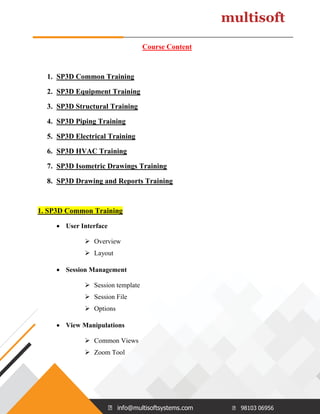
Course Content
www.multisoftsystems.com B-125, Sector 2 Noida
info@multisoftsystems.com 98103 06956
Course Content
1. SP3D Common Training
2. SP3D Equipment Training
3. SP3D Structural Training
4. SP3D Piping Training
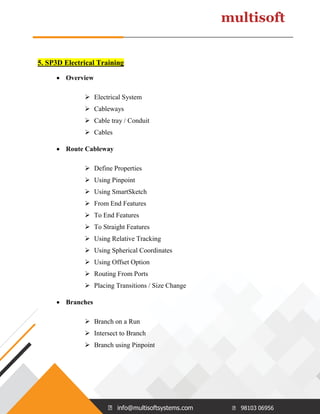
5. SP3D Electrical Training
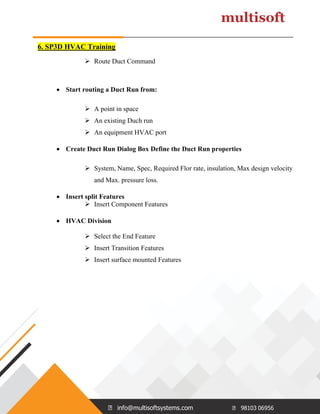
6. SP3D HVAC Training
7. SP3D Isometric Drawings Training
8. SP3D Drawing and Reports Training
1. SP3D Common Training
 User Interface
 Overview
 Layout
 Session Management
 Session template
 Session File
 Options
 View Manipulations
 Common Views
 Zoom Tool
info@multisoftsystems.com 98103 06956
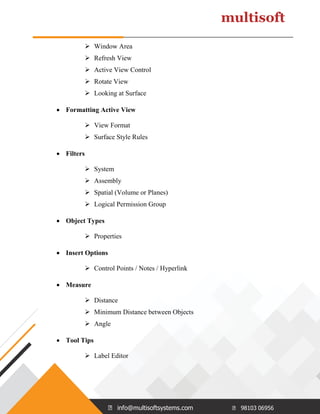
 Window Area
 Refresh View
 Active View Control
 Rotate View
 Looking at Surface
 Formatting Active View
 View Format
 Surface Style Rules
 Filters
 System
 Assembly
 Spatial (Volume or Planes)
 Logical Permission Group
 Object Types
 Properties
 Insert Options
 Control Points / Notes / Hyperlink
 Measure
 Distance
 Minimum Distance between Objects
 Angle
 Tool Tips
 Label Editor
info@multisoftsystems.com 98103 06956
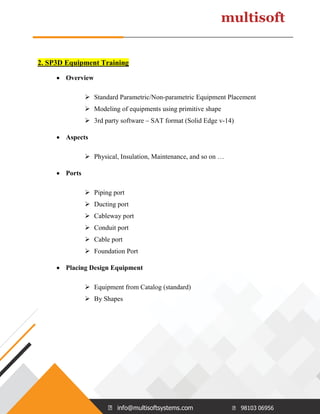
2. SP3D Equipment Training
 Overview
 Standard Parametric/Non-parametric Equipment Placement
 Modeling of equipments using primitive shape
 3rd party software – SAT format (Solid Edge v-14)
 Aspects
 Physical, Insulation, Maintenance, and so on …
 Ports
 Piping port
 Ducting port
 Cableway port
 Conduit port
 Cable port
 Foundation Port
 Placing Design Equipment
 Equipment from Catalog (standard)
 By Shapes
info@multisoftsystems.com 98103 06956
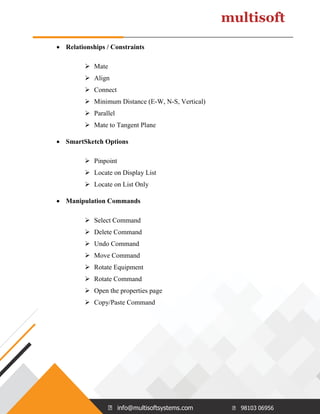
 Relationships / Constraints
 Mate
 Align
 Connect
 Minimum Distance (E-W, N-S, Vertical)
 Parallel
 Mate to Tangent Plane
 SmartSketch Options
 Pinpoint
 Locate on Display List
 Locate on List Only
 Manipulation Commands
 Select Command
 Delete Command
 Undo Command
 Move Command
 Rotate Equipment
 Rotate Command
 Open the properties page
 Copy/Paste Command
info@multisoftsystems.com 98103 06956
 Place Imported Shape from File
 Equipment From SAT file
 Place Equipment From PID
 Retrieving PID
 Placing Equipment from PID
 Comparing Data
 Updating Data
 Nozzle Placement
 Placing Nozzles with Graphics
 Nozzles with no Graphics
 Nozzles from PID
 Modification
 Property Page
info@multisoftsystems.com 98103 06956
3. SP3D Structural Training
 Overview
 Grids
 Coordinate Systems
 Smart Plant Structure
 Grids & Coordinates
 Grid Wizard
 Placing Coordinate System
 Modifying Grids
 Adding Grid Planes
 Rotated Coordinate Systems
 Rotated Planes
 Member Types
 Beams
 Columns
 Braces
 Member Properties
 Name Rule - Naming rule
 Parent System
 Type Category
 Type
info@multisoftsystems.com 98103 06956
 Priority
 Continuity
 Cross section
 Section Standard
 Section Type
 Section Name
 Material
 Grade
 Angle
 Cardinal Point
 Place Linear Member System
 Place Member Ribbon Bar
 Frame Connections
 Flush
 Seated
 Centerline
 Axis
 Corner Brace
 Surface
 Unsupported
 Manual or Automatic rule-based selection
info@multisoftsystems.com 98103 06956
 Vertical Brace Connections
 Rule-based Offset
 Assembly Connections
 Assembly Connection Ribbon Bar
 Base Plate
 Splice
 Fitted Assembly Connection
 Corner Gusset Plates
 Modifications
 Attributes
 Generic Move Command
 PinPoint
 Point Along Tool
 Frame connection
 Slabs
 Coincident plane
 Offset from plane
 Angle from plane
 Point/Normal Vector
 3 Point plane
 Sketch 2D
 Basic Sketch 2D overview
info@multisoftsystems.com 98103 06956
 Holes / Openings
 Sketch method
 Select an opening from Catalog
 Draw (Sketch 2D)
 Footings
 Footing Ribbon Bar
 Property Page
 Placement
 Modifications
 Equipment Foundations
 Equipment Foundation Ribbon Bar
 Property Page
 Placement
 Modifications
 Stairs/Ladders
 Settings
 Top Support
 Bottom Support
 Reference
 Position
 System
 Type
 Name
 Width
 Angle
info@multisoftsystems.com 98103 06956
 Handrails
 Settings
 Properties
 Sketch Path
 Type
 Modifying Path
 Reports
 Running Reports
4. SP3D Piping Training
 Overview
 Pipeline
 Pipe Run
 Features
 Parts
 Port
 Path leg
 Connections
 New Pipe Run
 Define the Pipe Run properties
info@multisoftsystems.com 98103 06956
 Route Pipe Command
 Length Control Tool
 Route Pipe Run with PinPoint
 Angle Control Tool
 Pipe Run Smart Step Ribbon Bar
 Working Plane Control Tool
 Plane Lock Options
 Turn Type option
 Default Turn Options
 Selecting a Turn Type
 Pipe Select Command
 Select Fiter Options
 Delete Command
 Delete Pipeline
 Delete Pipe Run
 Delete feature
 Routing From End Features or Nozzle
 Connecting to End Feature
 Connecting to Nozzles
info@multisoftsystems.com 98103 06956
 Routing To or From a Straight Feature
 Branch on Pipe Run
 Intersect to Branch
 Insert Component command
 Selecting a Component
 Reference Position
 Point Along option
 Selecting Different Ports / Flip
 Edit Commands
 Edit Straight Features
 Edit End Features
 Edit Run Change Features
 Editing features
 Insert Split command
 Insert Split ribbon bar
 Edit Properties Command
 Flow Direction
 Insulation
 Relation Tab
 Route Pipe Run using the offset value
info@multisoftsystems.com 98103 06956
5. SP3D Electrical Training
 Overview
 Electrical System
 Cableways
 Cable tray / Conduit
 Cables
 Route Cableway
 Define Properties
 Using Pinpoint
 Using SmartSketch
 From End Features
 To End Features
 To Straight Features
 Using Relative Tracking
 Using Spherical Coordinates
 Using Offset Option
 Routing From Ports
 Placing Transitions / Size Change
 Branches
 Branch on a Run
 Intersect to Branch
 Branch using Pinpoint
info@multisoftsystems.com 98103 06956
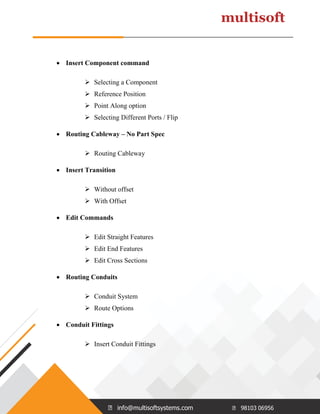
 Insert Component command
 Selecting a Component
 Reference Position
 Point Along option
 Selecting Different Ports / Flip
 Routing Cableway – No Part Spec
 Routing Cableway
 Insert Transition
 Without offset
 With Offset
 Edit Commands
 Edit Straight Features
 Edit End Features
 Edit Cross Sections
 Routing Conduits
 Conduit System
 Route Options
 Conduit Fittings
 Insert Conduit Fittings
info@multisoftsystems.com 98103 06956
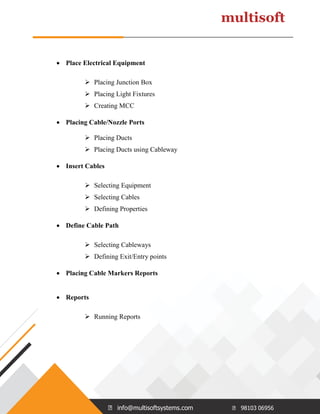
 Place Electrical Equipment
 Placing Junction Box
 Placing Light Fixtures
 Creating MCC
 Placing Cable/Nozzle Ports
 Placing Ducts
 Placing Ducts using Cableway
 Insert Cables
 Selecting Equipment
 Selecting Cables
 Defining Properties
 Define Cable Path
 Selecting Cableways
 Defining Exit/Entry points
 Placing Cable Markers Reports
 Reports
 Running Reports
info@multisoftsystems.com 98103 06956
6. SP3D HVAC Training
 Route Duct Command
 Start routing a Duct Run from:
 A point in space
 An existing Duch run
 An equipment HVAC port
 Create Duct Run Dialog Box Define the Duct Run properties
 System, Name, Spec, Required Flor rate, insulation, Max design velocity
and Max. pressure loss.
 Insert split Features
 Insert Component Features
 HVAC Division
 Select the End Feature
 Insert Transition Features
 Insert surface mounted Features
info@multisoftsystems.com 98103 06956
7. SP3D Isometric Drawings Training
 Extracting Pipeline Isometric Drawings
 Creating Spools
 Extracting Spool Drawings
 Isometric Options Browser
 Alias Options
 Labels
 ComponentNote (Type 1 Labels)
 EndConnection (Connection note and nozzle note labels)
 Misc Spec labels (Pipeline header)
 Weld list labels
 DrawingFrame (title block labels)
 Title block
 AttributeMAP
 Mapping attributes to the border
 Material list
 Fixed - Style 1
 Variable - Style 2
 User-defined - Style 3
 Various material list options
 Material list labels
info@multisoftsystems.com 98103 06956
 Weld list - wdf file
 Definitions - ddf file
 Creating new isometric style
 Using your own border template
 Modifying delivered style xml file to match
 Bulkloading the style
 MTO neutral file
8. SP3D Drawing and Reports Training
 Creating Drawings
 Volume Drawings
 Snapshot Drawings
 Manual Drafting
 Graphic
 Annotation
 Labels Dimensions
 Title blocks
 Running Reports

SP3D_Course Content.pdf

  • 1.
    info@multisoftsystems.com 98103 06956 SP3D CourseContent www.multisoftsystems.com B-125, Sector 2 Noida
  • 2.
    info@multisoftsystems.com 98103 06956 CourseContent 1. SP3D Common Training 2. SP3D Equipment Training 3. SP3D Structural Training 4. SP3D Piping Training 5. SP3D Electrical Training 6. SP3D HVAC Training 7. SP3D Isometric Drawings Training 8. SP3D Drawing and Reports Training 1. SP3D Common Training  User Interface  Overview  Layout  Session Management  Session template  Session File  Options  View Manipulations  Common Views  Zoom Tool
  • 3.
    info@multisoftsystems.com 98103 06956 Window Area  Refresh View  Active View Control  Rotate View  Looking at Surface  Formatting Active View  View Format  Surface Style Rules  Filters  System  Assembly  Spatial (Volume or Planes)  Logical Permission Group  Object Types  Properties  Insert Options  Control Points / Notes / Hyperlink  Measure  Distance  Minimum Distance between Objects  Angle  Tool Tips  Label Editor
  • 4.
    info@multisoftsystems.com 98103 06956 2.SP3D Equipment Training  Overview  Standard Parametric/Non-parametric Equipment Placement  Modeling of equipments using primitive shape  3rd party software – SAT format (Solid Edge v-14)  Aspects  Physical, Insulation, Maintenance, and so on …  Ports  Piping port  Ducting port  Cableway port  Conduit port  Cable port  Foundation Port  Placing Design Equipment  Equipment from Catalog (standard)  By Shapes
  • 5.
    info@multisoftsystems.com 98103 06956 Relationships / Constraints  Mate  Align  Connect  Minimum Distance (E-W, N-S, Vertical)  Parallel  Mate to Tangent Plane  SmartSketch Options  Pinpoint  Locate on Display List  Locate on List Only  Manipulation Commands  Select Command  Delete Command  Undo Command  Move Command  Rotate Equipment  Rotate Command  Open the properties page  Copy/Paste Command
  • 6.
    info@multisoftsystems.com 98103 06956 Place Imported Shape from File  Equipment From SAT file  Place Equipment From PID  Retrieving PID  Placing Equipment from PID  Comparing Data  Updating Data  Nozzle Placement  Placing Nozzles with Graphics  Nozzles with no Graphics  Nozzles from PID  Modification  Property Page
  • 7.
    info@multisoftsystems.com 98103 06956 3.SP3D Structural Training  Overview  Grids  Coordinate Systems  Smart Plant Structure  Grids & Coordinates  Grid Wizard  Placing Coordinate System  Modifying Grids  Adding Grid Planes  Rotated Coordinate Systems  Rotated Planes  Member Types  Beams  Columns  Braces  Member Properties  Name Rule - Naming rule  Parent System  Type Category  Type
  • 8.
    info@multisoftsystems.com 98103 06956 Priority  Continuity  Cross section  Section Standard  Section Type  Section Name  Material  Grade  Angle  Cardinal Point  Place Linear Member System  Place Member Ribbon Bar  Frame Connections  Flush  Seated  Centerline  Axis  Corner Brace  Surface  Unsupported  Manual or Automatic rule-based selection
  • 9.
    info@multisoftsystems.com 98103 06956 Vertical Brace Connections  Rule-based Offset  Assembly Connections  Assembly Connection Ribbon Bar  Base Plate  Splice  Fitted Assembly Connection  Corner Gusset Plates  Modifications  Attributes  Generic Move Command  PinPoint  Point Along Tool  Frame connection  Slabs  Coincident plane  Offset from plane  Angle from plane  Point/Normal Vector  3 Point plane  Sketch 2D  Basic Sketch 2D overview
  • 10.
    info@multisoftsystems.com 98103 06956 Holes / Openings  Sketch method  Select an opening from Catalog  Draw (Sketch 2D)  Footings  Footing Ribbon Bar  Property Page  Placement  Modifications  Equipment Foundations  Equipment Foundation Ribbon Bar  Property Page  Placement  Modifications  Stairs/Ladders  Settings  Top Support  Bottom Support  Reference  Position  System  Type  Name  Width  Angle
  • 11.
    info@multisoftsystems.com 98103 06956 Handrails  Settings  Properties  Sketch Path  Type  Modifying Path  Reports  Running Reports 4. SP3D Piping Training  Overview  Pipeline  Pipe Run  Features  Parts  Port  Path leg  Connections  New Pipe Run  Define the Pipe Run properties
  • 12.
    info@multisoftsystems.com 98103 06956 Route Pipe Command  Length Control Tool  Route Pipe Run with PinPoint  Angle Control Tool  Pipe Run Smart Step Ribbon Bar  Working Plane Control Tool  Plane Lock Options  Turn Type option  Default Turn Options  Selecting a Turn Type  Pipe Select Command  Select Fiter Options  Delete Command  Delete Pipeline  Delete Pipe Run  Delete feature  Routing From End Features or Nozzle  Connecting to End Feature  Connecting to Nozzles
  • 13.
    info@multisoftsystems.com 98103 06956 Routing To or From a Straight Feature  Branch on Pipe Run  Intersect to Branch  Insert Component command  Selecting a Component  Reference Position  Point Along option  Selecting Different Ports / Flip  Edit Commands  Edit Straight Features  Edit End Features  Edit Run Change Features  Editing features  Insert Split command  Insert Split ribbon bar  Edit Properties Command  Flow Direction  Insulation  Relation Tab  Route Pipe Run using the offset value
  • 14.
    info@multisoftsystems.com 98103 06956 5.SP3D Electrical Training  Overview  Electrical System  Cableways  Cable tray / Conduit  Cables  Route Cableway  Define Properties  Using Pinpoint  Using SmartSketch  From End Features  To End Features  To Straight Features  Using Relative Tracking  Using Spherical Coordinates  Using Offset Option  Routing From Ports  Placing Transitions / Size Change  Branches  Branch on a Run  Intersect to Branch  Branch using Pinpoint
  • 15.
    info@multisoftsystems.com 98103 06956 Insert Component command  Selecting a Component  Reference Position  Point Along option  Selecting Different Ports / Flip  Routing Cableway – No Part Spec  Routing Cableway  Insert Transition  Without offset  With Offset  Edit Commands  Edit Straight Features  Edit End Features  Edit Cross Sections  Routing Conduits  Conduit System  Route Options  Conduit Fittings  Insert Conduit Fittings
  • 16.
    info@multisoftsystems.com 98103 06956 Place Electrical Equipment  Placing Junction Box  Placing Light Fixtures  Creating MCC  Placing Cable/Nozzle Ports  Placing Ducts  Placing Ducts using Cableway  Insert Cables  Selecting Equipment  Selecting Cables  Defining Properties  Define Cable Path  Selecting Cableways  Defining Exit/Entry points  Placing Cable Markers Reports  Reports  Running Reports
  • 17.
    info@multisoftsystems.com 98103 06956 6.SP3D HVAC Training  Route Duct Command  Start routing a Duct Run from:  A point in space  An existing Duch run  An equipment HVAC port  Create Duct Run Dialog Box Define the Duct Run properties  System, Name, Spec, Required Flor rate, insulation, Max design velocity and Max. pressure loss.  Insert split Features  Insert Component Features  HVAC Division  Select the End Feature  Insert Transition Features  Insert surface mounted Features
  • 18.
    info@multisoftsystems.com 98103 06956 7.SP3D Isometric Drawings Training  Extracting Pipeline Isometric Drawings  Creating Spools  Extracting Spool Drawings  Isometric Options Browser  Alias Options  Labels  ComponentNote (Type 1 Labels)  EndConnection (Connection note and nozzle note labels)  Misc Spec labels (Pipeline header)  Weld list labels  DrawingFrame (title block labels)  Title block  AttributeMAP  Mapping attributes to the border  Material list  Fixed - Style 1  Variable - Style 2  User-defined - Style 3  Various material list options  Material list labels
  • 19.
    info@multisoftsystems.com 98103 06956 Weld list - wdf file  Definitions - ddf file  Creating new isometric style  Using your own border template  Modifying delivered style xml file to match  Bulkloading the style  MTO neutral file 8. SP3D Drawing and Reports Training  Creating Drawings  Volume Drawings  Snapshot Drawings  Manual Drafting  Graphic  Annotation  Labels Dimensions  Title blocks  Running Reports