SoBig.F Worm By:Brian Bretz
Infection The worm comes through e-mail Disguised in a Trojan horse Deactivates on September 10, 2003 Plants a backdoor for later use Used to steal info
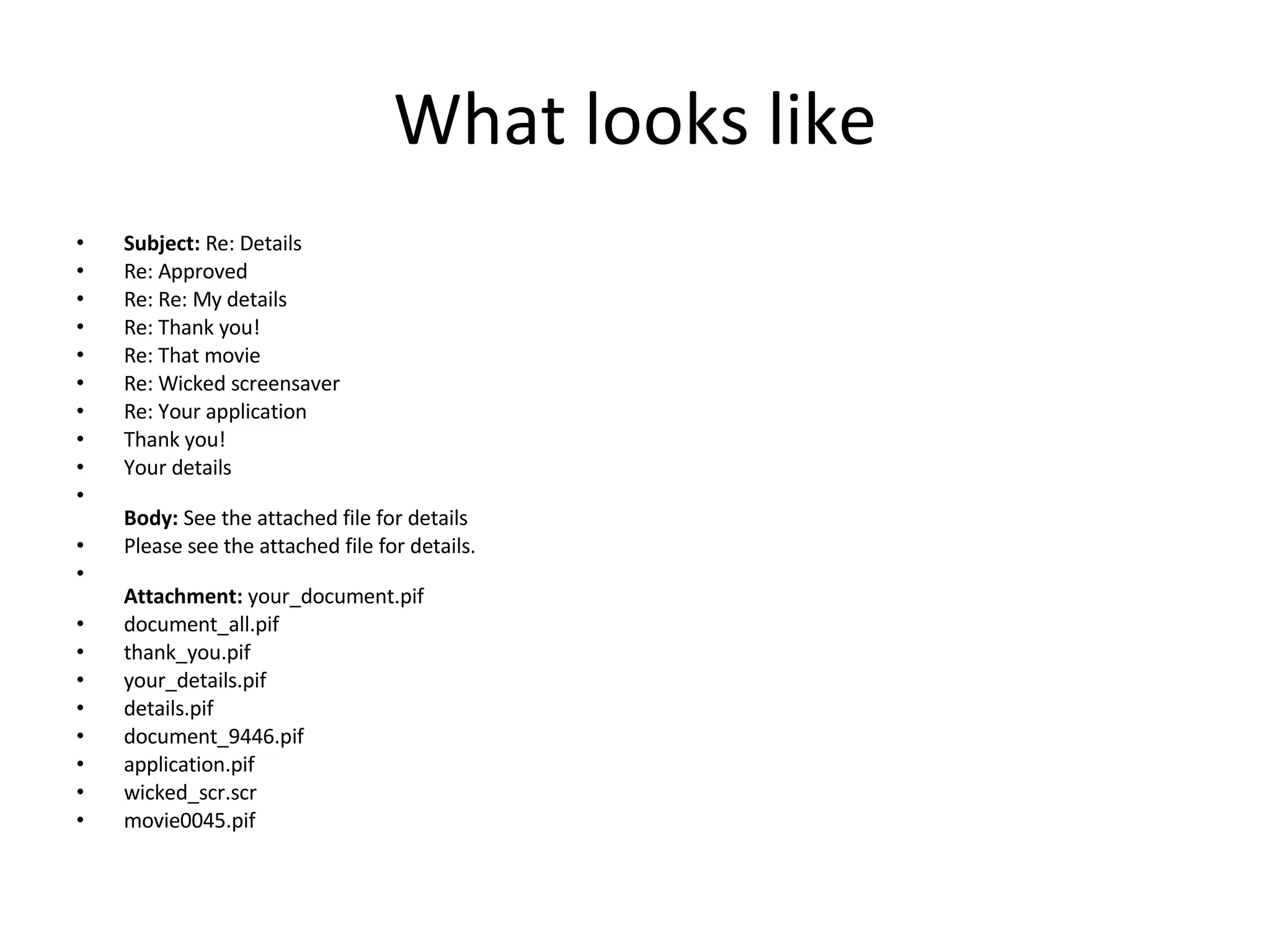
What looks like Subject:  Re: Details  Re: Approved  Re: Re: My details  Re: Thank you!  Re: That movie  Re: Wicked screensaver  Re: Your application  Thank you!  Your details Body:  See the attached file for details  Please see the attached file for details. Attachment:  your_document.pif  document_all.pif  thank_you.pif  your_details.pif  details.pif  document_9446.pif  application.pif  wicked_scr.scr  movie0045.pif
Reasons This worm created a security breach With this worm he/she was able to steal valuable information I think they were trying to make a backdoor for later use To remove look at dispose slides
How to dispose of Systems Affected:  Windows 2000, Windows 95, Windows 98, Windows Me, Windows NT, Windows XP Removal using the W32.Sobig.F@mm Removal Tool Symantec Security Response has developed a removal tool to clean the infections of W32.Sobig.F@mm. This is the easiest way to remove this threat and should be tried first. Manual Removal As an alternative to using the removal tool, you can manually remove this threat.  The following instructions pertain to all current and recent Symantec antivirus products, including the Symantec AntiVirus and Norton AntiVirus product lines. NOTE:  If you are on a network or have a full-time connection to the Internet, disconnect the computer from the network and the Internet. Remove this threat from all the computers on the network before reconnecting to it. Disable or password-protect file sharing before reconnecting the computers to the network or to the Internet. For instructions, see your Windows documentation, or the document, " How to configure shared Windows folders for maximum network protection ." IMPORTANT:  Do not skip this step. Disconnect the computer from the network before attempting to remove this worm. Disable System Restore (Windows Me/XP).  Update the virus definitions.  Do one of the following:  Windows 95/98/Me:  Restart the computer in Safe mode.  Windows NT/2000/XP:  End the Trojan process. Run a full system scan and delete all the files detected as W32.Sobig.F@mm.  Delete the value that was added to the registry. For specific details on each of these steps, read the following instructions. 1. Disabling System Restore (Windows Me/XP) If you are running Windows Me or Windows XP, we recommend that you temporarily turn off System Restore. Windows Me/XP uses this feature, which is enabled by default, to restore the files on your computer in case they become damaged. If a virus, worm, or Trojan infects a computer, System Restore may back up the virus, worm, or Trojan on the computer. Windows prevents outside programs, including antivirus programs, from modifying System Restore. Therefore, antivirus programs or tools cannot remove threats in the System Restore folder. As a result, System Restore has the potential of restoring an infected file on your computer, even after you have cleaned the infected files from all the other locations. Also, a virus scan may detect a threat in the System Restore folder even though you have removed the threat. For instructions on how to turn off System Restore, read your Windows documentation, or one of the following articles: "How to disable or enable Windows Me System Restore"  "How to turn off or turn on Windows XP System Restore“ Writeup By:  Benjamin Nahorney
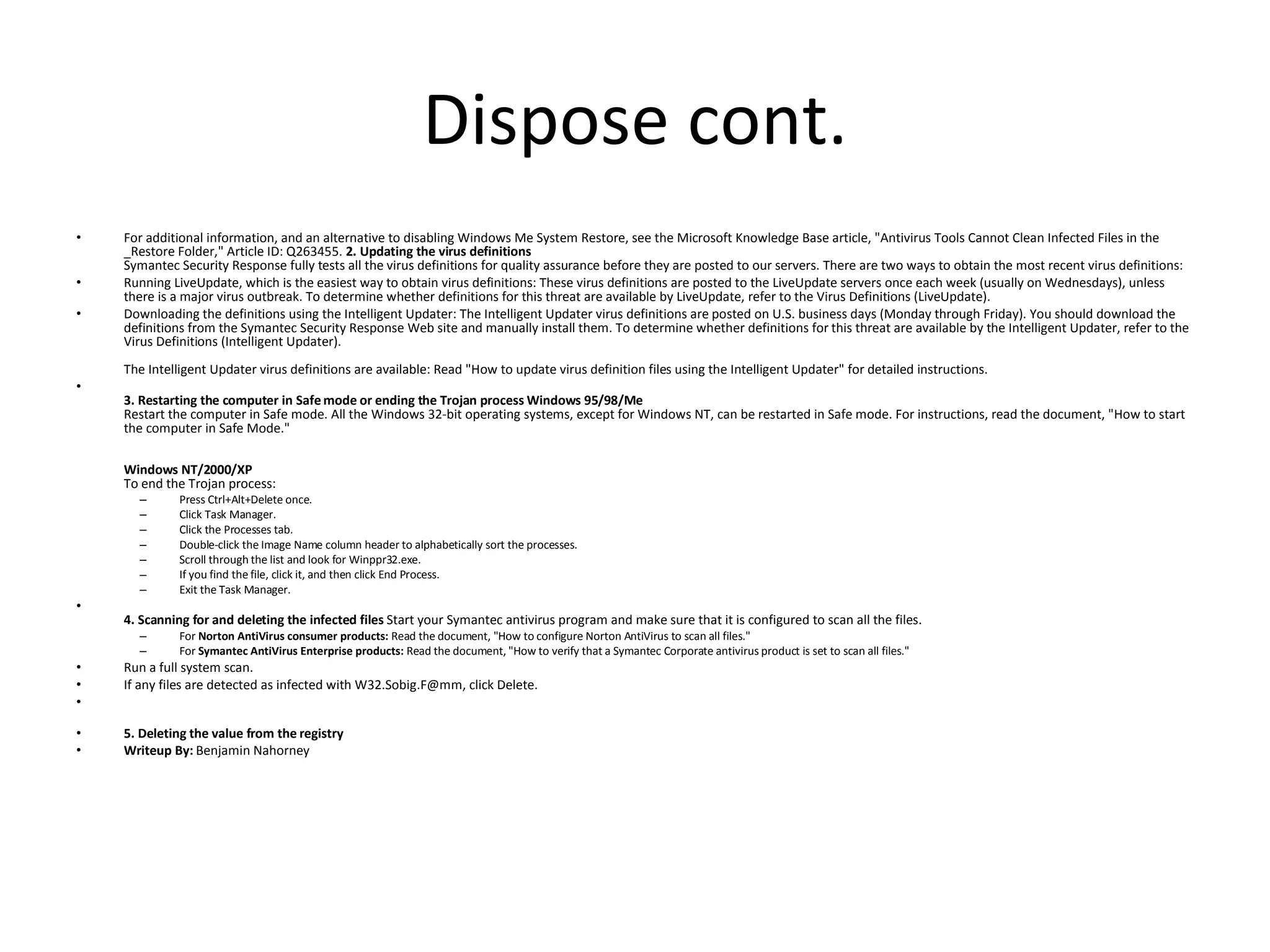
Dispose cont. For additional information, and an alternative to disabling Windows Me System Restore, see the Microsoft Knowledge Base article, "Antivirus Tools Cannot Clean Infected Files in the _Restore Folder," Article ID: Q263455.  2. Updating the virus definitions Symantec Security Response fully tests all the virus definitions for quality assurance before they are posted to our servers. There are two ways to obtain the most recent virus definitions:  Running LiveUpdate, which is the easiest way to obtain virus definitions: These virus definitions are posted to the LiveUpdate servers once each week (usually on Wednesdays), unless there is a major virus outbreak. To determine whether definitions for this threat are available by LiveUpdate, refer to the Virus Definitions (LiveUpdate).  Downloading the definitions using the Intelligent Updater: The Intelligent Updater virus definitions are posted on U.S. business days (Monday through Friday). You should download the definitions from the Symantec Security Response Web site and manually install them. To determine whether definitions for this threat are available by the Intelligent Updater, refer to the Virus Definitions (Intelligent Updater). The Intelligent Updater virus definitions are available: Read "How to update virus definition files using the Intelligent Updater" for detailed instructions. 3. Restarting the computer in Safe mode or ending the Trojan process   Windows 95/98/Me Restart the computer in Safe mode. All the Windows 32-bit operating systems, except for Windows NT, can be restarted in Safe mode. For instructions, read the document, "How to start the computer in Safe Mode." Windows NT/2000/XP To end the Trojan process:  Press Ctrl+Alt+Delete once.  Click Task Manager.  Click the Processes tab.  Double-click the Image Name column header to alphabetically sort the processes.  Scroll through the list and look for Winppr32.exe.  If you find the file, click it, and then click End Process.  Exit the Task Manager. 4. Scanning for and deleting the infected files  Start your Symantec antivirus program and make sure that it is configured to scan all the files.  For  Norton AntiVirus consumer products:  Read the document, "How to configure Norton AntiVirus to scan all files."  For  Symantec AntiVirus Enterprise products:  Read the document, "How to verify that a Symantec Corporate antivirus product is set to scan all files." Run a full system scan.  If any files are detected as infected with W32.Sobig.F@mm, click Delete. 5. Deleting the value from the registry Writeup By:  Benjamin Nahorney
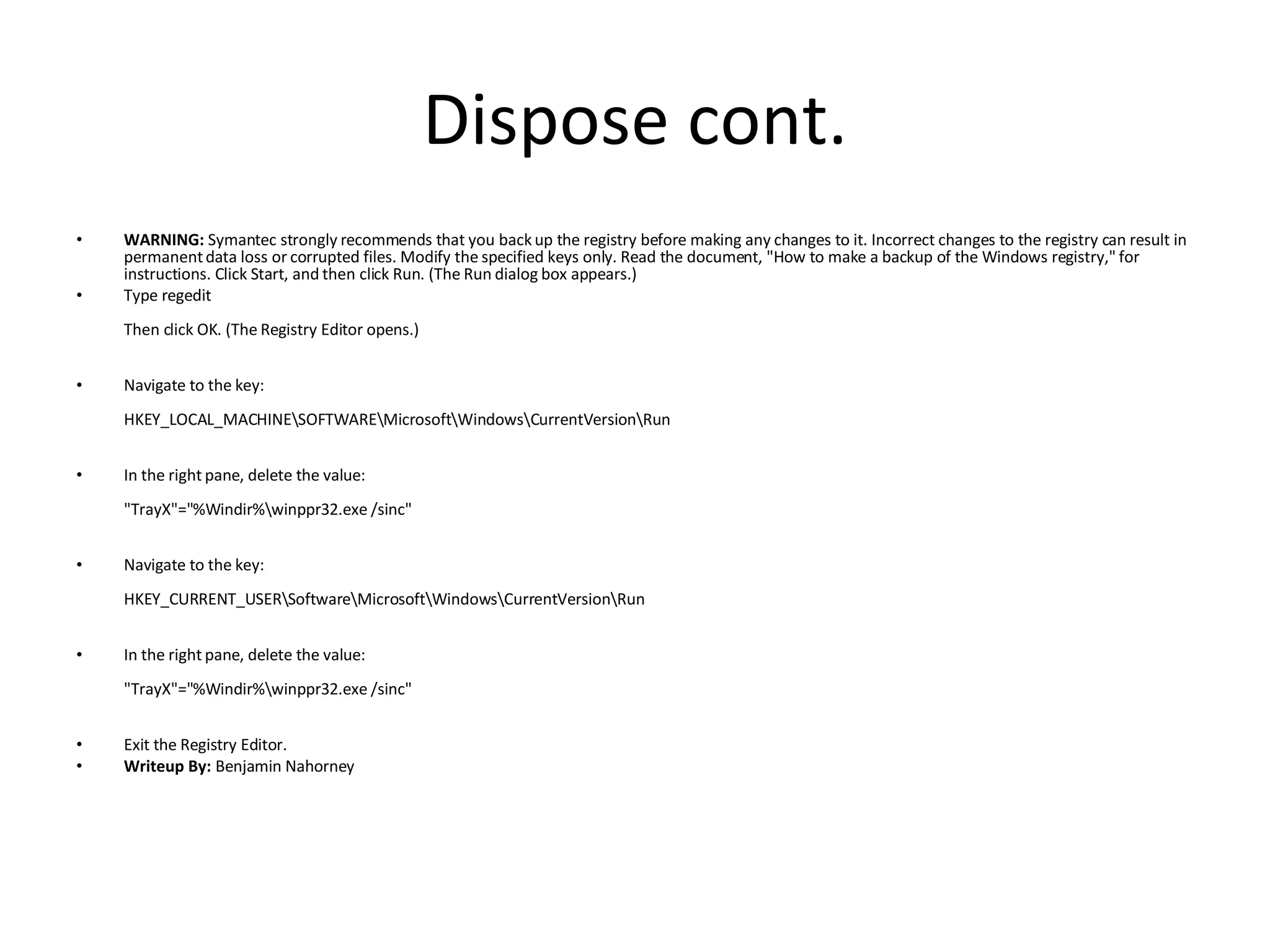
Dispose cont. WARNING:  Symantec strongly recommends that you back up the registry before making any changes to it. Incorrect changes to the registry can result in permanent data loss or corrupted files. Modify the specified keys only. Read the document, "How to make a backup of the Windows registry," for instructions. Click Start, and then click Run. (The Run dialog box appears.)  Type regedit  Then click OK. (The Registry Editor opens.) Navigate to the key: HKEY_LOCAL_MACHINE\SOFTWARE\Microsoft\Windows\CurrentVersion\Run In the right pane, delete the value: "TrayX"="%Windir%\winppr32.exe /sinc" Navigate to the key: HKEY_CURRENT_USER\Software\Microsoft\Windows\CurrentVersion\Run In the right pane, delete the value: "TrayX"="%Windir%\winppr32.exe /sinc" Exit the Registry Editor. Writeup By:  Benjamin Nahorney
Bibliography http://www.symantec.com/security_response/writeup.jsp?docid=2003-081909-2118-99&tabid=2 http://www.secureworks.com/research/threats/sobig-f/ http://en.wikipedia.org/wiki/Sobig.F_worm

so big ppt

  • 1.
  • 2.
    Infection The wormcomes through e-mail Disguised in a Trojan horse Deactivates on September 10, 2003 Plants a backdoor for later use Used to steal info
  • 3.
    What looks likeSubject: Re: Details Re: Approved Re: Re: My details Re: Thank you! Re: That movie Re: Wicked screensaver Re: Your application Thank you! Your details Body: See the attached file for details Please see the attached file for details. Attachment: your_document.pif document_all.pif thank_you.pif your_details.pif details.pif document_9446.pif application.pif wicked_scr.scr movie0045.pif
  • 4.
    Reasons This wormcreated a security breach With this worm he/she was able to steal valuable information I think they were trying to make a backdoor for later use To remove look at dispose slides
  • 5.
    How to disposeof Systems Affected: Windows 2000, Windows 95, Windows 98, Windows Me, Windows NT, Windows XP Removal using the W32.Sobig.F@mm Removal Tool Symantec Security Response has developed a removal tool to clean the infections of W32.Sobig.F@mm. This is the easiest way to remove this threat and should be tried first. Manual Removal As an alternative to using the removal tool, you can manually remove this threat. The following instructions pertain to all current and recent Symantec antivirus products, including the Symantec AntiVirus and Norton AntiVirus product lines. NOTE: If you are on a network or have a full-time connection to the Internet, disconnect the computer from the network and the Internet. Remove this threat from all the computers on the network before reconnecting to it. Disable or password-protect file sharing before reconnecting the computers to the network or to the Internet. For instructions, see your Windows documentation, or the document, " How to configure shared Windows folders for maximum network protection ." IMPORTANT: Do not skip this step. Disconnect the computer from the network before attempting to remove this worm. Disable System Restore (Windows Me/XP). Update the virus definitions. Do one of the following: Windows 95/98/Me: Restart the computer in Safe mode. Windows NT/2000/XP: End the Trojan process. Run a full system scan and delete all the files detected as W32.Sobig.F@mm. Delete the value that was added to the registry. For specific details on each of these steps, read the following instructions. 1. Disabling System Restore (Windows Me/XP) If you are running Windows Me or Windows XP, we recommend that you temporarily turn off System Restore. Windows Me/XP uses this feature, which is enabled by default, to restore the files on your computer in case they become damaged. If a virus, worm, or Trojan infects a computer, System Restore may back up the virus, worm, or Trojan on the computer. Windows prevents outside programs, including antivirus programs, from modifying System Restore. Therefore, antivirus programs or tools cannot remove threats in the System Restore folder. As a result, System Restore has the potential of restoring an infected file on your computer, even after you have cleaned the infected files from all the other locations. Also, a virus scan may detect a threat in the System Restore folder even though you have removed the threat. For instructions on how to turn off System Restore, read your Windows documentation, or one of the following articles: "How to disable or enable Windows Me System Restore" "How to turn off or turn on Windows XP System Restore“ Writeup By: Benjamin Nahorney
  • 6.
    Dispose cont. Foradditional information, and an alternative to disabling Windows Me System Restore, see the Microsoft Knowledge Base article, "Antivirus Tools Cannot Clean Infected Files in the _Restore Folder," Article ID: Q263455. 2. Updating the virus definitions Symantec Security Response fully tests all the virus definitions for quality assurance before they are posted to our servers. There are two ways to obtain the most recent virus definitions: Running LiveUpdate, which is the easiest way to obtain virus definitions: These virus definitions are posted to the LiveUpdate servers once each week (usually on Wednesdays), unless there is a major virus outbreak. To determine whether definitions for this threat are available by LiveUpdate, refer to the Virus Definitions (LiveUpdate). Downloading the definitions using the Intelligent Updater: The Intelligent Updater virus definitions are posted on U.S. business days (Monday through Friday). You should download the definitions from the Symantec Security Response Web site and manually install them. To determine whether definitions for this threat are available by the Intelligent Updater, refer to the Virus Definitions (Intelligent Updater). The Intelligent Updater virus definitions are available: Read "How to update virus definition files using the Intelligent Updater" for detailed instructions. 3. Restarting the computer in Safe mode or ending the Trojan process Windows 95/98/Me Restart the computer in Safe mode. All the Windows 32-bit operating systems, except for Windows NT, can be restarted in Safe mode. For instructions, read the document, "How to start the computer in Safe Mode." Windows NT/2000/XP To end the Trojan process: Press Ctrl+Alt+Delete once. Click Task Manager. Click the Processes tab. Double-click the Image Name column header to alphabetically sort the processes. Scroll through the list and look for Winppr32.exe. If you find the file, click it, and then click End Process. Exit the Task Manager. 4. Scanning for and deleting the infected files Start your Symantec antivirus program and make sure that it is configured to scan all the files. For Norton AntiVirus consumer products: Read the document, "How to configure Norton AntiVirus to scan all files." For Symantec AntiVirus Enterprise products: Read the document, "How to verify that a Symantec Corporate antivirus product is set to scan all files." Run a full system scan. If any files are detected as infected with W32.Sobig.F@mm, click Delete. 5. Deleting the value from the registry Writeup By: Benjamin Nahorney
  • 7.
    Dispose cont. WARNING: Symantec strongly recommends that you back up the registry before making any changes to it. Incorrect changes to the registry can result in permanent data loss or corrupted files. Modify the specified keys only. Read the document, "How to make a backup of the Windows registry," for instructions. Click Start, and then click Run. (The Run dialog box appears.) Type regedit Then click OK. (The Registry Editor opens.) Navigate to the key: HKEY_LOCAL_MACHINE\SOFTWARE\Microsoft\Windows\CurrentVersion\Run In the right pane, delete the value: "TrayX"="%Windir%\winppr32.exe /sinc" Navigate to the key: HKEY_CURRENT_USER\Software\Microsoft\Windows\CurrentVersion\Run In the right pane, delete the value: "TrayX"="%Windir%\winppr32.exe /sinc" Exit the Registry Editor. Writeup By: Benjamin Nahorney
  • 8.