A Non-Developer's Guide to
Smarter Sales Processes in
Microsoft Dynamics CRM 2015
-
Part 1: Lead Qualification
Jukka Niiranen
2015-05-06
About This Presentation
• These are the slides from a live webcast on
MSDynamicsWorld.com, presented on May
6th 2015
• The webcast recording is available on
YouTube: http://bit.ly/crm15salesprocess
• The topics are covered in more detail in blog
posts at http://survivingcrm.com/
About Me
• Dynamics CRM consultant from Helsinki
• Working at Digital Illustrated Finland
• Dynamics CRM addict since 2005
• Frequent blogger & #MSDYNCRM
evangelist on social media
– Blog: survivingcrm.com
– @jukkan on Twitter
• Microsoft MVP since 2013
• Focused on improving CRM solution
usability & information work efficiency
Jukka Niiranen
@jukkan
Consultant @ Digital Illustrated
Microsoft Dynamics CRM MVP
Customizing Dynamics
CRM as a Non-Developer
• Point & click configuration/customization tools of
Dynamics CRM have come a long way
• The ratio of custom code vs. configuration in
typical CRM solutions is decreasing
• Solution delivery often requires the creative
combination of several CRM configuration
options
• The goal of this article series is to demonstrate a
few scenarios where such combinations are used
for delivering new functionality for the CRM sales
process
Part 1
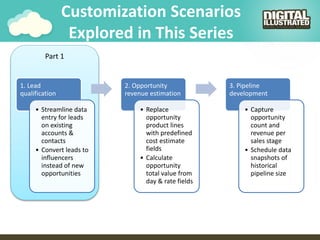
Customization Scenarios
Explored in This Series
1. Lead
qualification
• Streamline data
entry for leads
on existing
accounts &
contacts
• Convert leads to
influencers
instead of new
opportunities
2. Opportunity
revenue estimation
• Replace
opportunity
product lines
with predefined
cost estimate
fields
• Calculate
opportunity
total value from
day & rate fields
3. Pipeline
development
• Capture
opportunity
count and
revenue per
sales stage
• Schedule data
snapshots of
historical
pipeline size
Lead Qualification
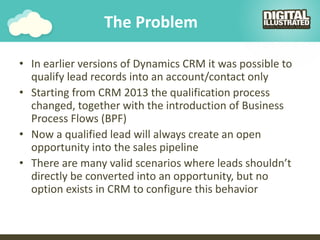
The Problem
• In earlier versions of Dynamics CRM it was possible to
qualify lead records into an account/contact only
• Starting from CRM 2013 the qualification process
changed, together with the introduction of Business
Process Flows (BPF)
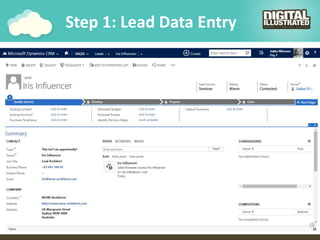
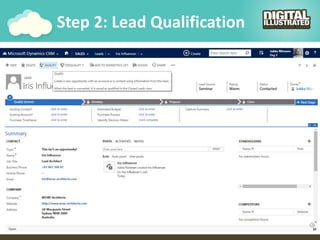
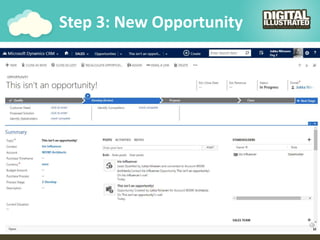
• Now a qualified lead will always create an open
opportunity into the sales pipeline
• There are many valid scenarios where leads shouldn’t
directly be converted into an opportunity, but no
option exists in CRM to configure this behavior
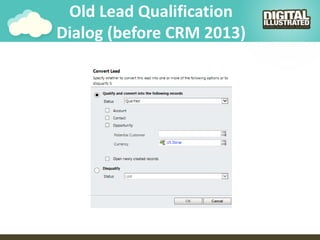
Old Lead Qualification
Dialog (before CRM 2013)
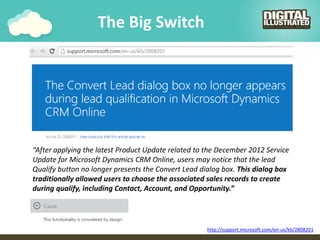
The Big Switch
“After applying the latest Product Update related to the December 2012 Service
Update for Microsoft Dynamics CRM Online, users may notice that the lead
Qualify button no longer presents the Convert Lead dialog box. This dialog box
traditionally allowed users to choose the associated sales records to create
during qualify, including Contact, Account, and Opportunity.”
http://support.microsoft.com/en-us/kb/2808201
Step 1: Lead Data Entry
Step 2: Lead Qualification
Step 3: New Opportunity
The Solution
• Functionality delivered:
– Ability to qualify a lead as an influencer, without
creating a new opportunity record
– Ability to associate the qualified lead with an existing
opportunity record
• Components used:
– Branching Business Process Flow
– Real-time Workflows
– Business Rules
– Quick View Forms
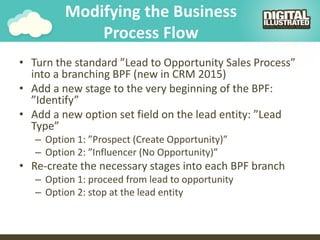
Modifying the Business
Process Flow
• Turn the standard ”Lead to Opportunity Sales Process”
into a branching BPF (new in CRM 2015)
• Add a new stage to the very beginning of the BPF:
”Identify”
• Add a new option set field on the lead entity: ”Lead
Type”
– Option 1: ”Prospect (Create Opportunity)”
– Option 2: ”Influencer (No Opportunity)”
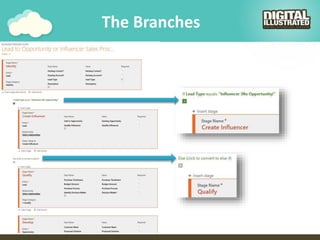
• Re-create the necessary stages into each BPF branch
– Option 1: proceed from lead to opportunity
– Option 2: stop at the lead entity
The Branches
Real-time Workflow
• Clicking the Qualify button on the lead form will
always create a new opportunity record
• Merely changing the lead record status to
”Qualified” via a server-side process however
does not trigger this action
• The workaround we’ll use:
– Create a new two-option field ”Qualify Influencer”,
add it to BPF stage, use as a workflow trigger
– Add a new real-time workflow process that runs when
this trigger field is set to ”Yes”
Real-time Workflow (2)
• Workflow conditions
– Check if the lead is associated with an existing account
and/or contact
• Workflow actions
– Create the necessary new records in the workflow
steps & link them to the originating lead
– If you want to associate the lead to an existing
opportunity as a stakeholder, first add a new custom
relationship between lead & opportunity entities
(N:1). Then create a new Connection record between
the selected opportunity and the new contact in WF
– Finally, change the lead status to ”Qualified”
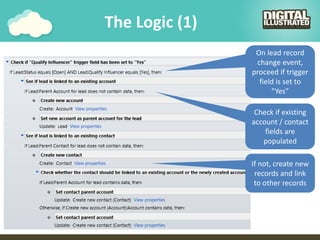
The Logic (1)
On lead record
change event,
proceed if trigger
field is set to
”Yes”
Check if existing
account / contact
fields are
populated
If not, create new
records and link
to other records
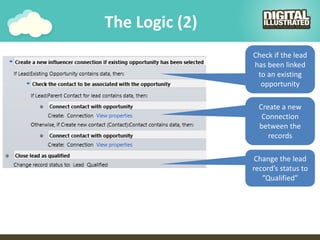
The Logic (2)
Check if the lead
has been linked
to an existing
opportunity
Create a new
Connection
between the
records
Change the lead
record’s status to
”Qualified”
Quick View Forms &
Business Rules
• When linking the lead to existing acccount/contact
there shouldn’t be any data entered into lead fields
related to them
– These will be discarded during qualification and present
unnecessary data entry options for the user
• How to improve the lead form’s usability:
– Add the lookup fields for existing account/contact directly
onto the lead form (by default only in BPF)
– Use Business Rules to hide the detail fields if existing
account/contact has been selected
– Display Quick View Forms of the existing account/contact
records on the lead form to provide overview of existing
record data
Quick View Forms &
Business Rules (2)
• Use case:
1. User creates a new lead record
2. User links the lead to existing account record
3. Business Rule hides other account fields
4. Quick View Form displays the account summary
• Note: this also works as a verification of lead
qualification process success indicator after a
new account/contact is generated for the lead
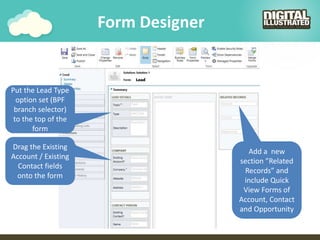
Form Designer
Drag the Existing
Account / Existing
Contact fields
onto the form
Add a new
section ”Related
Records” and
include Quick
View Forms of
Account, Contact
and Opportunity
Put the Lead Type
option set (BPF
branch selector)
to the top of the
form
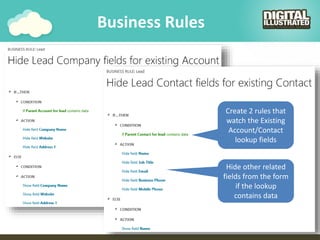
Business Rules
Create 2 rules that
watch the Existing
Account/Contact
lookup fields
Hide other related
fields from the form
if the lookup
contains data
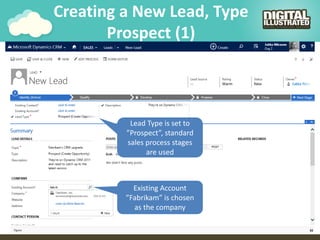
Creating a New Lead, Type
Prospect (1)
Lead Type is set to
”Prospect”, standard
sales process stages
are used
Existing Account
”Fabrikam” is chosen
as the company
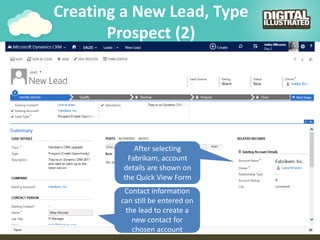
Creating a New Lead, Type
Prospect (2)
After selecting
Fabrikam, account
details are shown on
the Quick View Form
Contact information
can still be entered on
the lead to create a
new contact for
chosen account
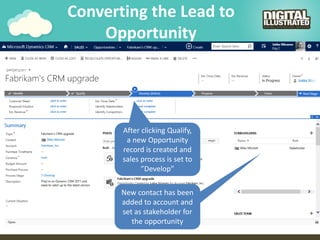
Converting the Lead to
Opportunity
After clicking Qualify,
a new Opportunity
record is created and
sales process is set to
”Develop”
New contact has been
added to account and
set as stakeholder for
the opportunity
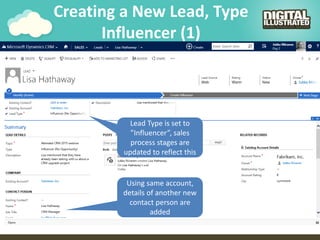
Creating a New Lead, Type
Influencer (1)
Lead Type is set to
”Influencer”, sales
process stages are
updated to reflect this
Using same account,
details of another new
contact person are
added
Creating a New Lead, Type
Influencer (2)
Process is moved to
the ”Create Influencer”
stage
Lead is linked to the
existing Fabrikam
opportunity
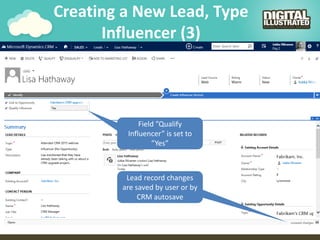
Creating a New Lead, Type
Influencer (3)
Field ”Qualify
Influencer” is set to
”Yes”
Lead record changes
are saved by user or by
CRM autosave
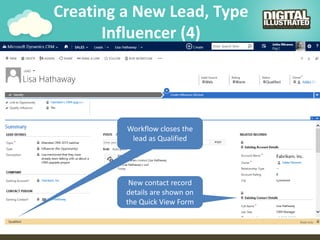
Creating a New Lead, Type
Influencer (4)
Workflow closes the
lead as Qualified
New contact record
details are shown on
the Quick View Form
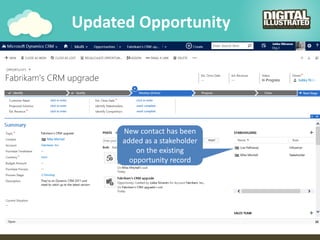
Updated Opportunity
New contact has been
added as a stakeholder
on the existing
opportunity record
Final Notes
Next Steps
• Read more articles on Microsoft Dynamics CRM
customization best practices at
http://survivingcrm.com/
• Follow @jukkan on Twitter for the latest
#MSDynCRM related news and tips
• Check out the Dynamics CRM webcasts series at
http://msdynamicsworld.com/webcasts
• Thanks for viewing these slides & enjoy
customizing your Dynamics CRM environment!

Smarter Sales Process in Dynamics CRM 2015 - Part 1: Lead Qualification

  • 1.
    A Non-Developer's Guideto Smarter Sales Processes in Microsoft Dynamics CRM 2015 - Part 1: Lead Qualification Jukka Niiranen 2015-05-06
  • 2.
    About This Presentation •These are the slides from a live webcast on MSDynamicsWorld.com, presented on May 6th 2015 • The webcast recording is available on YouTube: http://bit.ly/crm15salesprocess • The topics are covered in more detail in blog posts at http://survivingcrm.com/
  • 3.
    About Me • DynamicsCRM consultant from Helsinki • Working at Digital Illustrated Finland • Dynamics CRM addict since 2005 • Frequent blogger & #MSDYNCRM evangelist on social media – Blog: survivingcrm.com – @jukkan on Twitter • Microsoft MVP since 2013 • Focused on improving CRM solution usability & information work efficiency Jukka Niiranen @jukkan Consultant @ Digital Illustrated Microsoft Dynamics CRM MVP
  • 4.
    Customizing Dynamics CRM asa Non-Developer • Point & click configuration/customization tools of Dynamics CRM have come a long way • The ratio of custom code vs. configuration in typical CRM solutions is decreasing • Solution delivery often requires the creative combination of several CRM configuration options • The goal of this article series is to demonstrate a few scenarios where such combinations are used for delivering new functionality for the CRM sales process
  • 5.
    Part 1 Customization Scenarios Exploredin This Series 1. Lead qualification • Streamline data entry for leads on existing accounts & contacts • Convert leads to influencers instead of new opportunities 2. Opportunity revenue estimation • Replace opportunity product lines with predefined cost estimate fields • Calculate opportunity total value from day & rate fields 3. Pipeline development • Capture opportunity count and revenue per sales stage • Schedule data snapshots of historical pipeline size
  • 6.
  • 7.
    The Problem • Inearlier versions of Dynamics CRM it was possible to qualify lead records into an account/contact only • Starting from CRM 2013 the qualification process changed, together with the introduction of Business Process Flows (BPF) • Now a qualified lead will always create an open opportunity into the sales pipeline • There are many valid scenarios where leads shouldn’t directly be converted into an opportunity, but no option exists in CRM to configure this behavior
  • 8.
  • 9.
    The Big Switch “Afterapplying the latest Product Update related to the December 2012 Service Update for Microsoft Dynamics CRM Online, users may notice that the lead Qualify button no longer presents the Convert Lead dialog box. This dialog box traditionally allowed users to choose the associated sales records to create during qualify, including Contact, Account, and Opportunity.” http://support.microsoft.com/en-us/kb/2808201
  • 10.
    Step 1: LeadData Entry
  • 11.
    Step 2: LeadQualification
  • 12.
    Step 3: NewOpportunity
  • 13.
    The Solution • Functionalitydelivered: – Ability to qualify a lead as an influencer, without creating a new opportunity record – Ability to associate the qualified lead with an existing opportunity record • Components used: – Branching Business Process Flow – Real-time Workflows – Business Rules – Quick View Forms
  • 14.
    Modifying the Business ProcessFlow • Turn the standard ”Lead to Opportunity Sales Process” into a branching BPF (new in CRM 2015) • Add a new stage to the very beginning of the BPF: ”Identify” • Add a new option set field on the lead entity: ”Lead Type” – Option 1: ”Prospect (Create Opportunity)” – Option 2: ”Influencer (No Opportunity)” • Re-create the necessary stages into each BPF branch – Option 1: proceed from lead to opportunity – Option 2: stop at the lead entity
  • 15.
  • 16.
    Real-time Workflow • Clickingthe Qualify button on the lead form will always create a new opportunity record • Merely changing the lead record status to ”Qualified” via a server-side process however does not trigger this action • The workaround we’ll use: – Create a new two-option field ”Qualify Influencer”, add it to BPF stage, use as a workflow trigger – Add a new real-time workflow process that runs when this trigger field is set to ”Yes”
  • 17.
    Real-time Workflow (2) •Workflow conditions – Check if the lead is associated with an existing account and/or contact • Workflow actions – Create the necessary new records in the workflow steps & link them to the originating lead – If you want to associate the lead to an existing opportunity as a stakeholder, first add a new custom relationship between lead & opportunity entities (N:1). Then create a new Connection record between the selected opportunity and the new contact in WF – Finally, change the lead status to ”Qualified”
  • 18.
    The Logic (1) Onlead record change event, proceed if trigger field is set to ”Yes” Check if existing account / contact fields are populated If not, create new records and link to other records
  • 19.
    The Logic (2) Checkif the lead has been linked to an existing opportunity Create a new Connection between the records Change the lead record’s status to ”Qualified”
  • 20.
    Quick View Forms& Business Rules • When linking the lead to existing acccount/contact there shouldn’t be any data entered into lead fields related to them – These will be discarded during qualification and present unnecessary data entry options for the user • How to improve the lead form’s usability: – Add the lookup fields for existing account/contact directly onto the lead form (by default only in BPF) – Use Business Rules to hide the detail fields if existing account/contact has been selected – Display Quick View Forms of the existing account/contact records on the lead form to provide overview of existing record data
  • 21.
    Quick View Forms& Business Rules (2) • Use case: 1. User creates a new lead record 2. User links the lead to existing account record 3. Business Rule hides other account fields 4. Quick View Form displays the account summary • Note: this also works as a verification of lead qualification process success indicator after a new account/contact is generated for the lead
  • 22.
    Form Designer Drag theExisting Account / Existing Contact fields onto the form Add a new section ”Related Records” and include Quick View Forms of Account, Contact and Opportunity Put the Lead Type option set (BPF branch selector) to the top of the form
  • 23.
    Business Rules Create 2rules that watch the Existing Account/Contact lookup fields Hide other related fields from the form if the lookup contains data
  • 24.
    Creating a NewLead, Type Prospect (1) Lead Type is set to ”Prospect”, standard sales process stages are used Existing Account ”Fabrikam” is chosen as the company
  • 25.
    Creating a NewLead, Type Prospect (2) After selecting Fabrikam, account details are shown on the Quick View Form Contact information can still be entered on the lead to create a new contact for chosen account
  • 26.
    Converting the Leadto Opportunity After clicking Qualify, a new Opportunity record is created and sales process is set to ”Develop” New contact has been added to account and set as stakeholder for the opportunity
  • 27.
    Creating a NewLead, Type Influencer (1) Lead Type is set to ”Influencer”, sales process stages are updated to reflect this Using same account, details of another new contact person are added
  • 28.
    Creating a NewLead, Type Influencer (2) Process is moved to the ”Create Influencer” stage Lead is linked to the existing Fabrikam opportunity
  • 29.
    Creating a NewLead, Type Influencer (3) Field ”Qualify Influencer” is set to ”Yes” Lead record changes are saved by user or by CRM autosave
  • 30.
    Creating a NewLead, Type Influencer (4) Workflow closes the lead as Qualified New contact record details are shown on the Quick View Form
  • 31.
    Updated Opportunity New contacthas been added as a stakeholder on the existing opportunity record
  • 32.
  • 33.
    Next Steps • Readmore articles on Microsoft Dynamics CRM customization best practices at http://survivingcrm.com/ • Follow @jukkan on Twitter for the latest #MSDynCRM related news and tips • Check out the Dynamics CRM webcasts series at http://msdynamicsworld.com/webcasts • Thanks for viewing these slides & enjoy customizing your Dynamics CRM environment!