All technical information contained in this document is the exclusive property of DELTA Electronics, Inc. and may neither
be used nor disclosed without its prior written consent.
Delta SNMP ShutdownAgent
ShutdownAgent Installation and Configuration Guide
For VMware vSphere ESX 4.1 Server
1. Preparation
ESX 4.1 Server installed
Delta UPS with SNMP card
Download ShutdownAgent Linux version from http://59.125.232.140 the file name is
“snmp-sa-linux.tar”
2. Install ShutdownAgent in ESX server
2.1. Transmit the “snmp-sa-linux.tar” to the ESX server through SFTP by FileZilla FTP
Client or other SFTP client.
2.2. Login to the ESX server by your favorite SSH client(Putty).
2.3. Change to root account.
su root
2.4. Copy the “snmp-sa-linux.tar” to /tmp.
cp snmp-sa-linux.tar /tmp
2.5. Goto the /tmp directory.
cd /tmp
2.6. Extract the snmp-sa-linux.tar file.
tar -xvf snmp-sa-linux.tar
2.7. Start to install ShutdownAgent.
./install
2.8. Follow the instruction to complete the installation.
2.9. After installation, the ShutdownAgent should install in the /usr/local/upsagent
directory.
3. Configure the ESX server Firewall
3.1. Open the UDP 162 port for SNMP trap.
/usr/sbin/esxcfg-firewall -o 162,udp,in,”SNMP_TRAP”
4. Install VMware Tools for Guest OS
To shutdown the guest OS from ESX server, it’s better for you to install the VMware
tools for all of them so as to inform the guest OSes shutdown smoothly.
4.1. For Windows operating system.
Select the following menu Guest Install/Upgrade VMware Tools
5. Configure ShutdownAgent for ESX
Because there is no graphical user interface for the ESX, the end customers have to
edit the Agent.ini to configure the ShutdownAgent.
5.1. Goto the installed directory of ShutdownAgent.
All technical information contained in this document is the exclusive property of DELTA Electronics, Inc. and may neither
be used nor disclosed without its prior written consent.
Delta SNMP ShutdownAgent
ShutdownAgent Installation and Configuration Guide
For VMware vSphere ESX 4.1 Server
cd /usr/local/upsagent
5.2. Open and edit the Agent.ini.
vi Agent.ini
5.3. The file format is:
[Network]
Type=SNMP
IP Address=172.16.182.78
IP Address2=
SNMP Port=162
Port Number=3224
UPS ID=1
[Shutdown]
Enable Power Fail=Yes
Delay of Power Fail=300
Enable Battery Low=Yes
Delay of Battery Low=30
Auto Save=No
Command=Yes
Command Time=60
Command File=/usr/local/upsagent/Command.ESX
[Notification]
Enable=Yes
Period=60
(SNMP Card Web Page)
5.4. Please estimate the shutdown delay time for all of the guest OSes which run in
the ESX server then fill in the Command Time field and set the Command field
The IP address of the SNMP card
Enable Power Fail Shutdown
OS Shutdown Delay in seconds
Enable Battery Low Shutdown
OS Shutdown Delay in seconds
Enable Run an External Script
Run the Script before Shutdown
in seconds
The Script File Name
All technical information contained in this document is the exclusive property of DELTA Electronics, Inc. and may neither
be used nor disclosed without its prior written consent.
Delta SNMP ShutdownAgent
ShutdownAgent Installation and Configuration Guide
For VMware vSphere ESX 4.1 Server
to Yes.
5.5. We have built the Command.ESX script file to shutdown the guest OSes which
run in the ESX server. This script shutdown the running guest operating system
sequentially. To shutdown the guest OSes, this file name must be fill in the
Command File field.
5.6. After the Agent.ini has been edited, please save and quite the vi editor.
5.7. Now we have to restart the ShutdownAgent daemon to reload the Agent.ini
configuration file. Firstly, we stop it.
./upsagentd stop
5.8. The start it again.
./upsagentd start
6. Configure ShutdownAgent and SNMP Card
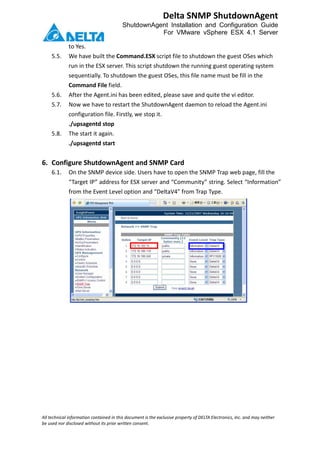
6.1. On the SNMP device side. Users have to open the SNMP Trap web page, fill the
“Target IP” address for ESX server and “Community” string. Select “Information”
from the Event Level option and “DeltaV4” from Trap Type.

Shutdown agent for_v_mware_esx

  • 1.
    All technical informationcontained in this document is the exclusive property of DELTA Electronics, Inc. and may neither be used nor disclosed without its prior written consent. Delta SNMP ShutdownAgent ShutdownAgent Installation and Configuration Guide For VMware vSphere ESX 4.1 Server 1. Preparation ESX 4.1 Server installed Delta UPS with SNMP card Download ShutdownAgent Linux version from http://59.125.232.140 the file name is “snmp-sa-linux.tar” 2. Install ShutdownAgent in ESX server 2.1. Transmit the “snmp-sa-linux.tar” to the ESX server through SFTP by FileZilla FTP Client or other SFTP client. 2.2. Login to the ESX server by your favorite SSH client(Putty). 2.3. Change to root account. su root 2.4. Copy the “snmp-sa-linux.tar” to /tmp. cp snmp-sa-linux.tar /tmp 2.5. Goto the /tmp directory. cd /tmp 2.6. Extract the snmp-sa-linux.tar file. tar -xvf snmp-sa-linux.tar 2.7. Start to install ShutdownAgent. ./install 2.8. Follow the instruction to complete the installation. 2.9. After installation, the ShutdownAgent should install in the /usr/local/upsagent directory. 3. Configure the ESX server Firewall 3.1. Open the UDP 162 port for SNMP trap. /usr/sbin/esxcfg-firewall -o 162,udp,in,”SNMP_TRAP” 4. Install VMware Tools for Guest OS To shutdown the guest OS from ESX server, it’s better for you to install the VMware tools for all of them so as to inform the guest OSes shutdown smoothly. 4.1. For Windows operating system. Select the following menu Guest Install/Upgrade VMware Tools 5. Configure ShutdownAgent for ESX Because there is no graphical user interface for the ESX, the end customers have to edit the Agent.ini to configure the ShutdownAgent. 5.1. Goto the installed directory of ShutdownAgent.
  • 2.
    All technical informationcontained in this document is the exclusive property of DELTA Electronics, Inc. and may neither be used nor disclosed without its prior written consent. Delta SNMP ShutdownAgent ShutdownAgent Installation and Configuration Guide For VMware vSphere ESX 4.1 Server cd /usr/local/upsagent 5.2. Open and edit the Agent.ini. vi Agent.ini 5.3. The file format is: [Network] Type=SNMP IP Address=172.16.182.78 IP Address2= SNMP Port=162 Port Number=3224 UPS ID=1 [Shutdown] Enable Power Fail=Yes Delay of Power Fail=300 Enable Battery Low=Yes Delay of Battery Low=30 Auto Save=No Command=Yes Command Time=60 Command File=/usr/local/upsagent/Command.ESX [Notification] Enable=Yes Period=60 (SNMP Card Web Page) 5.4. Please estimate the shutdown delay time for all of the guest OSes which run in the ESX server then fill in the Command Time field and set the Command field The IP address of the SNMP card Enable Power Fail Shutdown OS Shutdown Delay in seconds Enable Battery Low Shutdown OS Shutdown Delay in seconds Enable Run an External Script Run the Script before Shutdown in seconds The Script File Name
  • 3.
    All technical informationcontained in this document is the exclusive property of DELTA Electronics, Inc. and may neither be used nor disclosed without its prior written consent. Delta SNMP ShutdownAgent ShutdownAgent Installation and Configuration Guide For VMware vSphere ESX 4.1 Server to Yes. 5.5. We have built the Command.ESX script file to shutdown the guest OSes which run in the ESX server. This script shutdown the running guest operating system sequentially. To shutdown the guest OSes, this file name must be fill in the Command File field. 5.6. After the Agent.ini has been edited, please save and quite the vi editor. 5.7. Now we have to restart the ShutdownAgent daemon to reload the Agent.ini configuration file. Firstly, we stop it. ./upsagentd stop 5.8. The start it again. ./upsagentd start 6. Configure ShutdownAgent and SNMP Card 6.1. On the SNMP device side. Users have to open the SNMP Trap web page, fill the “Target IP” address for ESX server and “Community” string. Select “Information” from the Event Level option and “DeltaV4” from Trap Type.