SELLING ON SOUQ.COM
Training Manual V.1.3.2015
Requirements:
 Registered account as a seller in Souq.com with valid
email address and contact number
 Trade License copy/Sanitized Receipt of the items
 Emirates ID copy
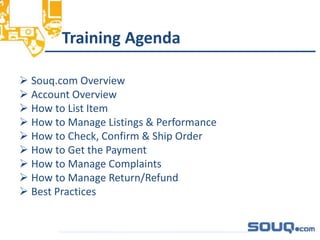
Training Agenda
 Souq.com Overview
 Account Overview
 How to List Item
 How to Manage Listings & Performance
 How to Check, Confirm & Ship Order
 How to Get the Payment
 How to Manage Complaints
 How to Manage Return/Refund
 Best Practices
__________________________________
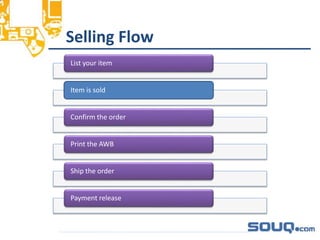
List your item
Item is sold
Confirm the order
Print the AWB
Ship the order
Payment release
_________________________________Selling Flow
Welcome to Souq.com
• Established in 2005
• Pioneered online shopping in the region as an auction
site
• Leading e-commerce destination in the Arab world
• Headquartered in Dubai, UAE, Souq.com caters to the
needs of local markets with commercial offices in
Egypt, Kingdom of Saudi Arabia and Kuwait
• More than 400,000+ products and 13M+ listings across
multiple categories
• More than five million members
__________________________________
Competitive Advantages
• Highest brand awareness among e-commerce
players
• Extensive online and offline marketing campaigns
• Largest marketplace in region (number of sellers
and items)
• Localize own fulfillment infrastructure in all
markets
• Attracts over 23 million visits per month and is fast
growing as more consumers shop online
__________________________________
Benefits from Selling on Souq.com
• Listing is free! You only pay a fee if you sell
• Marketing support
– Weekly newsletters sent to hundreds of thousands of
registered users
– Special promotion
– Radio campaigns and sponsorships
• Logistic support
• Secure payment platform
***Our target is to make you sell (we make money when
you make money)
__________________________________
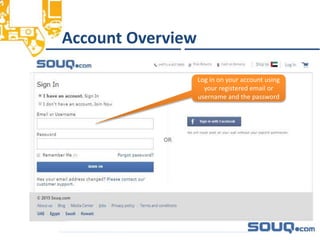
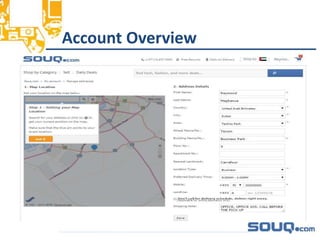
Account Overview_________________ _________________
Log in on your account using
your registered email or
username and the password
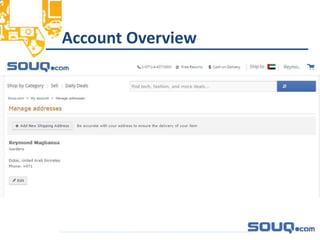
Account Overview_________________________________
Account Overview__________________________________
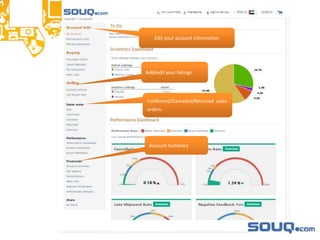
Edit your account information
Add/edit your listings
Confirmed/Canceled/Returned sales
orders.
Account Summary
How to Sell an Item
Selling in Souq.com
__________________________________
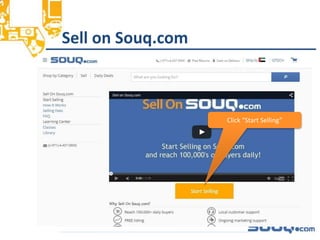
Sell on Souq.com_________________ _________________
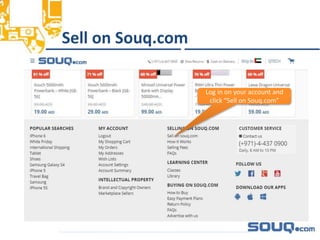
Log in on your account and
click “Sell on Souq.com”
Sell on Souq.com__________________________________
Click “Start Selling”
How to List Item
2 Ways of Listing Item
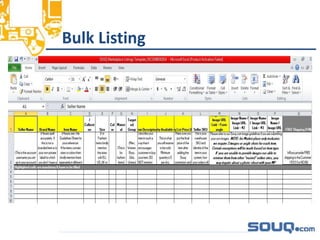
 Bulk Listing
 Manual Listing
__________________________________
Bulk Listing__________________________________
Manual Listing________________________________
2 Types of Manual Listing
• Category Tree
• Catalog Search
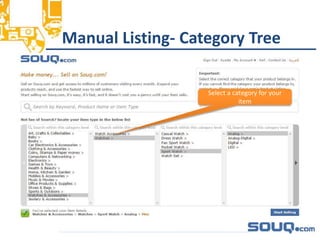
Manual Listing- Category Tree__________________________________
Select a category for your
item
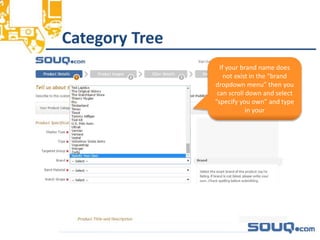
Category Tree__________________________________
If your brand name does
not exist in the “brand
dropdown menu” then you
can scroll down and select
”specify you own” and type
in your
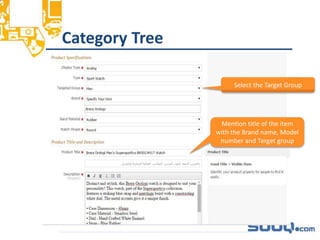
Category Tree_______________________________
Select the Target Group
Mention title of the item
with the Brand name, Model
number and Target group
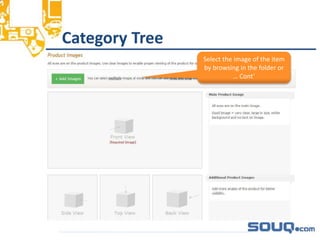
Category Tree__________________________________
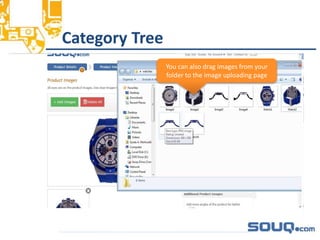
Select the image of the item
by browsing in the folder or
… Cont’
Category Tree__________________________________
You can also drag images from your
folder to the image uploading page
Category Tree__________________________________
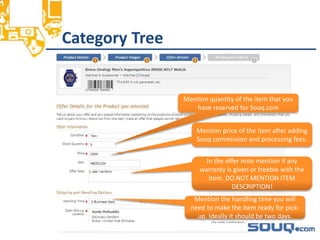
Mention quantity of the item that you
have reserved for Souq.com
Mention price of the item after adding
Souq commission and processing fees.
In the offer note mention if any
warranty is given or freebie with the
item. DO NOT MENTION ITEM
DESCRIPTION!
Mention the handling time you will
need to make the item ready for pick-
up. Ideally it should be two days.
Manual Listing- Category Tree__________________________________
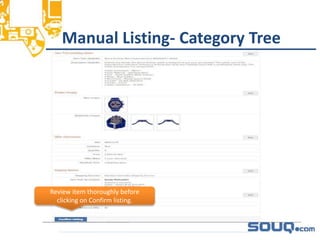
Review item thoroughly before
clicking on Confirm listing.
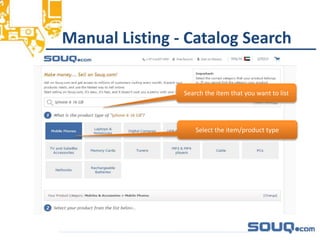
Manual Listing - Catalog Search__________________________________
Search the item that you want to list
Select the item/product type
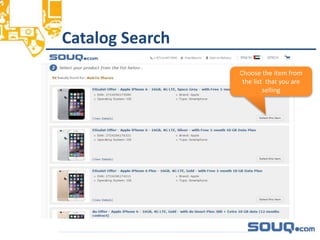
Catalog Search__________________________________
Choose the item from
the list that you are
selling
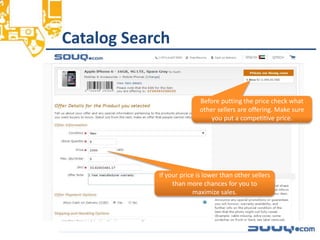
Catalog Search__________________________________
Before putting the price check what
other sellers are offering. Make sure
you put a competitive price.
If your price is lower than other sellers
than more chances for you to
maximize sales.
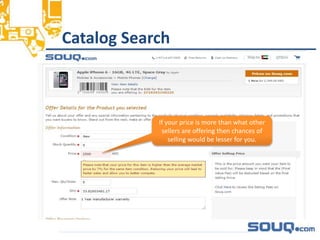
Catalog Search__________________________________
If your price is more than what other
sellers are offering then chances of
selling would be lesser for you.
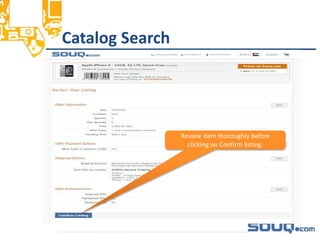
Catalog Search__________________________________
Review item thoroughly before
clicking on Confirm listing.
Listings Management
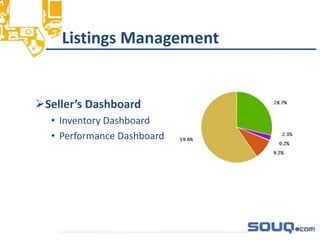
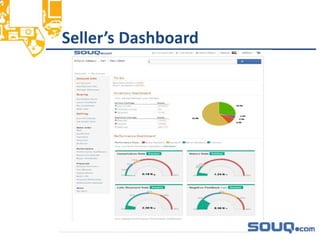
Seller’s Dashboard
• Inventory Dashboard
• Performance Dashboard
__________________________________
Seller’s Dashboard__________________________________
Inventory Dashboard__________________________________
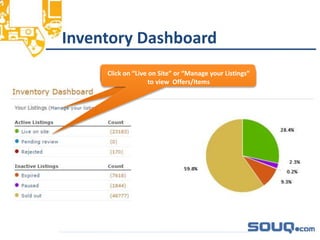
Click on “Live on Site” or “Manage Inventory”Click on “Live on Site” or “Manage your Listings”
to view Offers/Items
Live on Site__________________________________
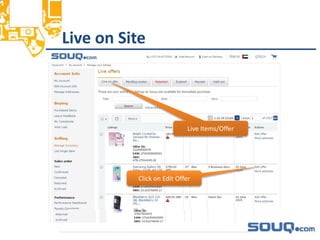
Live Items/Offer
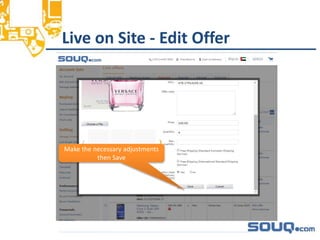
Click on Edit Offer
Live on Site - Edit Offer__________________________________
Make the necessary adjustments
then Save
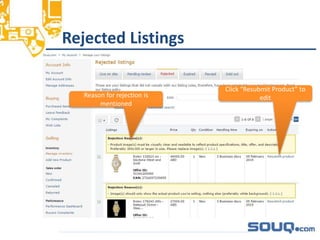
Rejected Listings__________________________________
Click “Resubmit Product” to
editReason for rejection is
mentioned
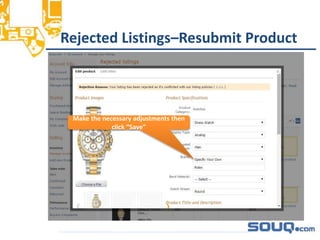
Rejected Listings–Resubmit Product__________________________________
Make the necessary adjustments then
click “Save”
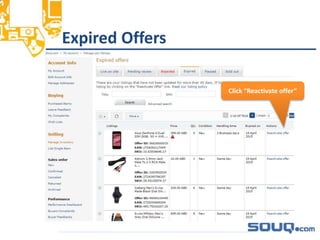
Expired Offers__________________________________
Click “Reactivate offer”
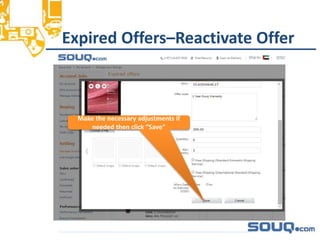
Expired Offers–Reactivate Offer__________________________________
Make the necessary adjustments if
needed then click “Save”
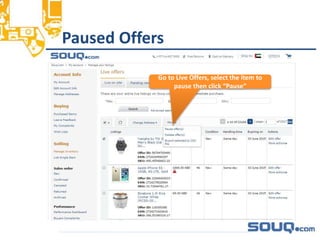
Paused Offers__________________________________
Go to Live Offers, select the item to
pause then click “Pause”
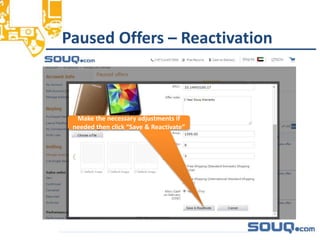
Paused Offers – Reactivation__________________________________
Make the necessary adjustments if
needed then click “Save & Reactivate”
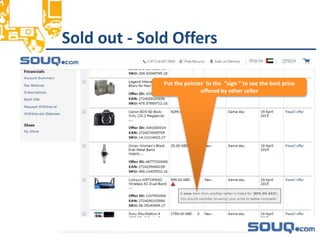
Sold out - Sold Offers__________________________________
Put the pointer to the “sign “ to see the best price
offered by other seller
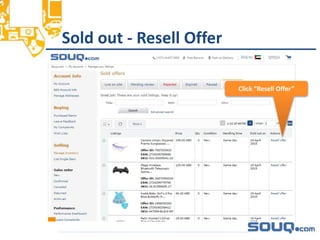
Sold out - Resell Offer__________________________________
Click “Resell Offer”
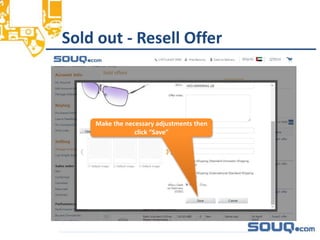
Sold out - Resell Offer__________________________________
Make the necessary adjustments then
click “Save”
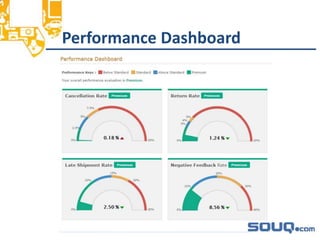
Performance Dashboard__________________________________
Checking & Confirming Order
2 Ways to Check Order
- Email Notification
- New Sales Order (Souq Account)
__________________________________
Email Notification
Will be notified on the email address registered
__________________________________
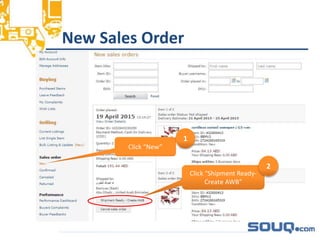
New Sales Order_________________________________
Click “New”
1
Click “Shipment Ready-
Create AWB”
2
Shipping Items__________________________________
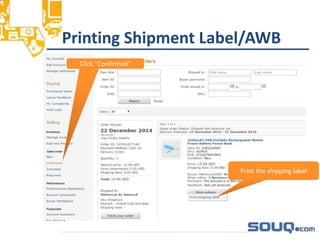
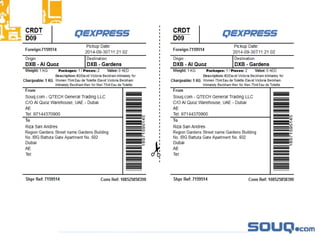
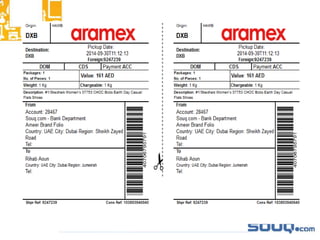
Printing Shipment Label/AWB_________________________________
Click “Confirmed”
Print the shipping label
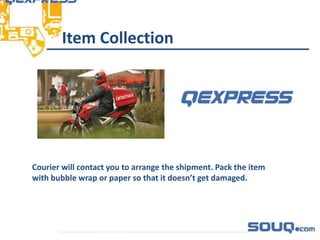
Item Collection_________________________________
Courier will contact you to arrange the shipment. Pack the item
with bubble wrap or paper so that it doesn’t get damaged.
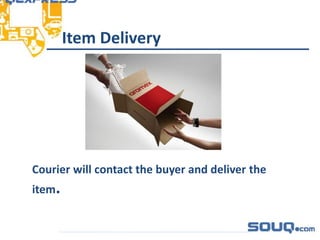
Item Delivery_________________________________
Courier will contact the buyer and deliver the
item.
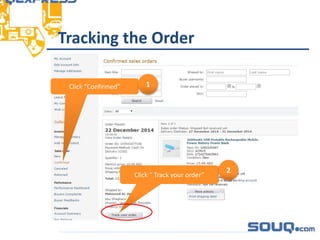
Tracking the Order_________________________________
Click “Confirmed” 1
Click “ Track your order”
2
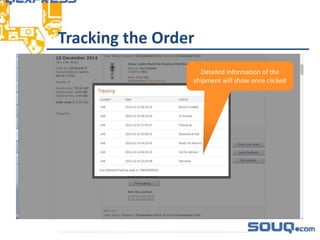
Tracking the Order_________________________________
Detailed information of the
shipment will show once clicked
How to Get the Payment__________________________________
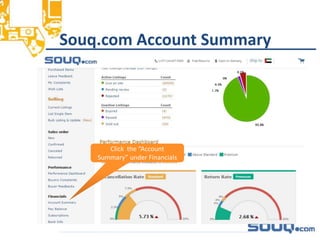
Souq.com Account Summary__________________________________
Click the “Account
Summary” under Financials
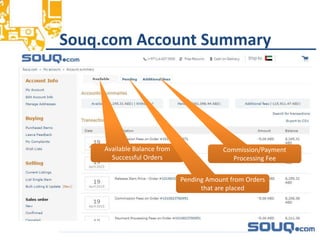
Souq.com Account Summary__________________________________
Available Balance from
Successful Orders
Pending Amount from Orders
that are placed
Commission/Payment
Processing Fee
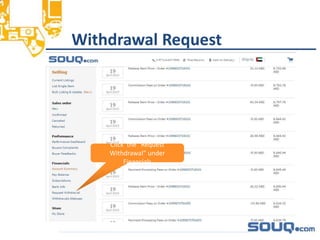
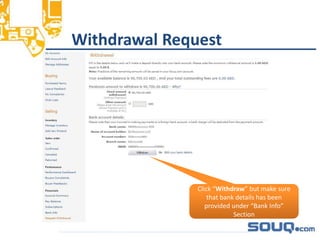
Withdrawal Request__________________________________
Click the “Request
Withdrawal” under
Financials
Withdrawal Request__________________________________
Click “Withdraw” but make sure
that bank details has been
provided under “Bank Info”
Section
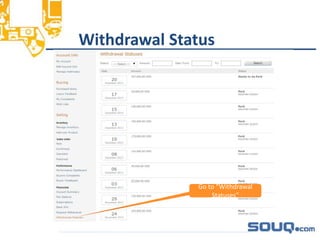
Withdrawal Status__________________________________
Go to “Withdrawal
Statuses”
Souq.com Fees__________________________________
 Listing an item on Souq.com is absolutely
FREE!
 Commission: 5% or 10% of Item Selling Price
or minimum AED 5 depending on the item
category.
 Processing Fee for each order: AED 5
Managing Complaints__________________________________
 Buyers are eligible to open a dispute when
an item is not received or when an item
arrives but the item is damaged or does not
match the description in the item listing.
 Communication between a buyer and seller
to resolve an issue is always encouraged by
Souq.com, and is often the fastest and
simplest way to resolve a problematic
transaction.
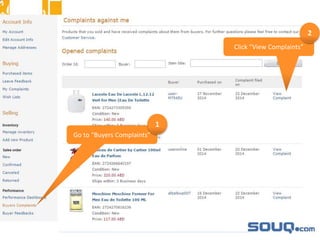
Go to “Buyers Complaints”
Click “View Complaints”
1
2
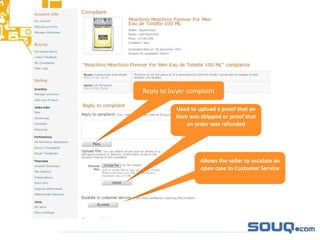
Used to upload a proof that an
item was shipped or proof that
an order was refunded
Allows the seller to escalate an
open case to Customer Service
Reply to buyer complaint
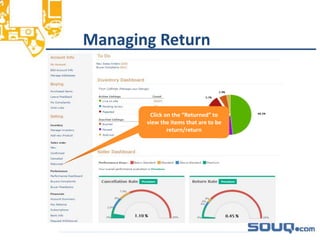
Managing Return__________________________________
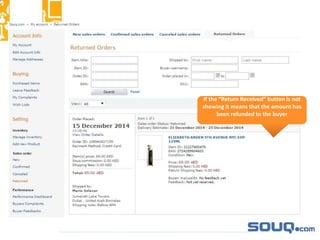
Click on the “Returned” to
view the items that are to be
return/return
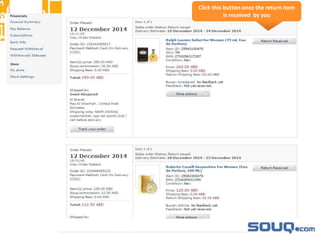
Click this button once the return item
is received by you
If the “Return Received” button is not
showing it means that the amount has
been refunded to the buyer
Best Practices__________________________________
 Only sell NEW items
 First and foremost, you must have the product in
stock in order to list the product for sale on Souq.com
 Check your New Sales Orders section regularly for
important updates on your sales, rather than relying
exclusively on e-mail notifications
 Always sell authentic products only
 Have the best content specifically using good
keywords
Best Practices__________________________________
 Avoid duplicate listings
 Ship faster - Always ship your items within two
business days of order notification
 Ensure best post sales service - Answer all buyer
claims within 24 hours of receipt
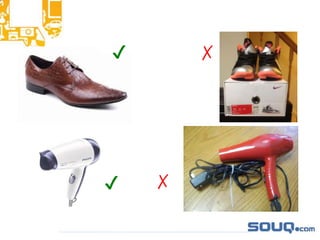
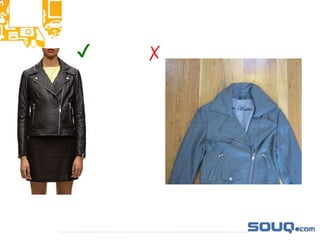
Image Guidelines__________________________________
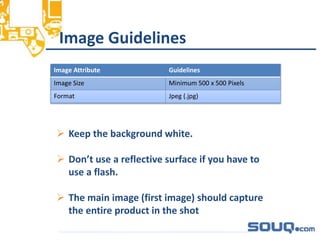
Image Attribute Guidelines
Image Size Minimum 500 x 500 Pixels
Format Jpeg (.jpg)
 Keep the background white.
 Don’t use a reflective surface if you have to
use a flash.
 The main image (first image) should capture
the entire product in the shot
✔ ✗
✔ ✗
✔ ✗
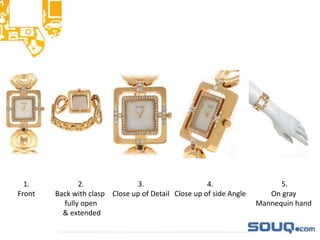
1.
Front
2.
Back with clasp
fully open
& extended
3.
Close up of Detail
5.
On gray
Mannequin hand
4.
Close up of side Angle
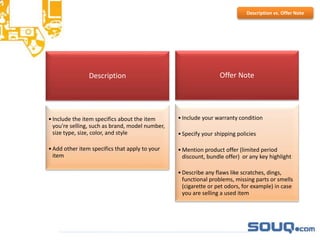
Description
•Include the item specifics about the item
you're selling, such as brand, model number,
size type, size, color, and style
•Add other item specifics that apply to your
item
Offer Note
•Include your warranty condition
•Specify your shipping policies
•Mention product offer (limited period
discount, bundle offer) or any key highlight
•Describe any flaws like scratches, dings,
functional problems, missing parts or smells
(cigarette or pet odors, for example) in case
you are selling a used item
Description vs. Offer Note
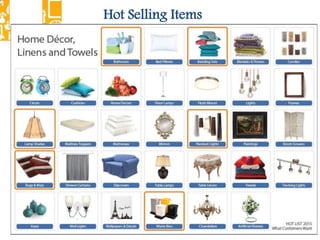
Hot Selling Items
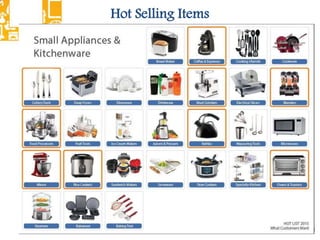
Hot Selling Items
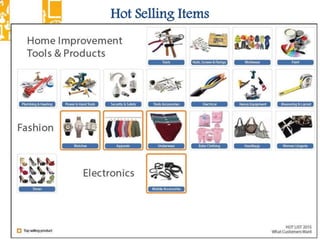
Hot Selling Items
Contact Details__________________________________
 Aramex Customer Service: +97142865000
 QExpress Customer Service: +971 47065555
Timings: 7am to 10pm Daily
 Souq.com Customer Service: +97144370900
Timings: 8am to 10pm Daily
Happy Selling 

Sellers training guide april2015