SELENIUM
IDE
MADE EASY
N A R AYA N A N PA L A N I
1 SELENIUM IDE INTRO
The Selenium-IDE (Integrated Development Environment) is the tool you use to develop your Selenium
test cases.
It’s an easy-to-use Firefox plug-in and is generally the most efficient way to develop test cases.
This is not only a time-saver, but also an excellent way of learning Selenium script syntax.
It has been developed using JavaScript so that it can interact with DOM (Document Object Model) using
native JavaScript calls.
Selenium IDE was developed to allow testers and developers to record their actions as they follow the
workflow that they need to test.
HTML is the default recording language of Selenium.
Selenium IDE uses the native java script calls.
Selenium IDE is of the most Rapid Prototyping tool.
2 INSTALLING SELENIUM IDE
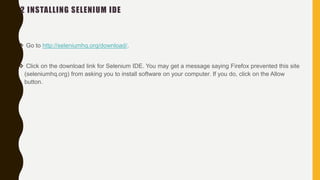
 Go to http://seleniumhq.org/download/.
 Click on the download link for Selenium IDE. You may get a message saying Firefox prevented this site
(seleniumhq.org) from asking you to install software on your computer. If you do, click on the Allow
button.
CONTD..
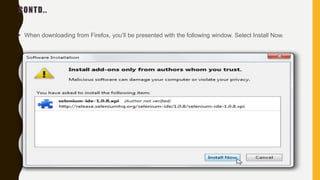
• When downloading from Firefox, you’ll be presented with the following window. Select Install Now.
CONTD..
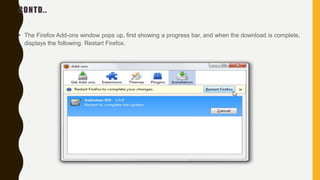
• The Firefox Add-ons window pops up, first showing a progress bar, and when the download is complete,
displays the following. Restart Firefox.
CONTD..
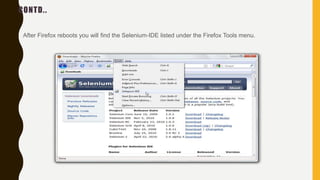
• After Firefox reboots you will find the Selenium-IDE listed under the Firefox Tools menu.
3 OPENING THE IDE
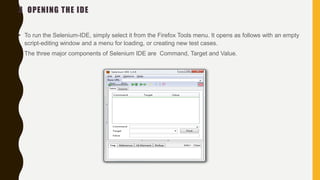
• To run the Selenium-IDE, simply select it from the Firefox Tools menu. It opens as follows with an empty
script-editing window and a menu for loading, or creating new test cases.
• The three major components of Selenium IDE are Command, Target and Value.
SELENIUM TOOL BAR
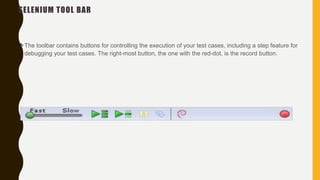
The toolbar contains buttons for controlling the execution of your test cases, including a step feature for
debugging your test cases. The right-most button, the one with the red-dot, is the record button.
SELENIUM IDE ICONS
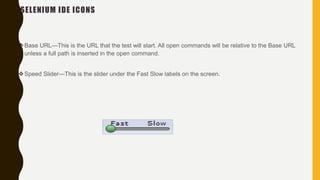
Base URL—This is the URL that the test will start. All open commands will be relative to the Base URL
unless a full path is inserted in the open command.
Speed Slider—This is the slider under the Fast Slow labels on the screen.
CONTD..
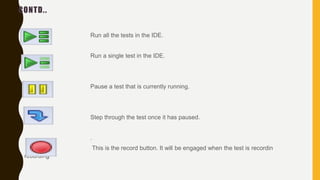
Run all the tests in the IDE.
Run a single test in the IDE.
Pause a test that is currently running.
Step through the test once it has paused.
.
This is the record button. It will be engaged when the test is recordin
recording
SELENIUM MENU BAR
The File menu has options for Test Case and Test Suite (suite of Test Cases).
Using these you can add a new Test Case, open a Test Case, save a Test Case, export Test Case in a
language of your choice.
You can also open the recent Test Case. All these options are also available for Test Suite.
TO run the Selenium Test Suite in Selenium Ide we use Test Runner.
CONTD..
The Edit menu allows copy, paste, delete, undo, and select all operations for editing the commands in
your test case.
The Options menu allows the changing of settings. You can set the timeout value for certain
commands, add user-defined user extensions to the base set of Selenium commands, and specify the
format (language) used when saving your test cases.
The Help menu is the standard Firefox Help menu; only one item on this menu–UI-Element
Documentation–pertains to Selenium-IDE.
TEST CASE PANE IN SELENIUM IDE
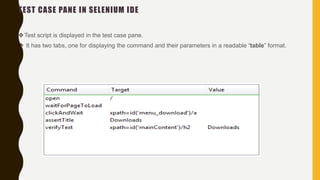
Test script is displayed in the test case pane.
 It has two tabs, one for displaying the command and their parameters in a readable “table” format.
CONTD..
The other tab - Source displays the test case in the native format in which the file will be stored.
By default, this is HTML although it can be changed to a programming language such as Java or C#, or
a scripting language like Python.
The Source view also allows one to edit the test case in its raw form, including copy, cut and paste
operations.
LOG/REFERENCE/UI-ELEMENT/ROLLUP PANE
The bottom pane is used for four different functions–Log, Reference, UI-Element, and Rollup–
depending on which tab is selected.
Log : When you run your test case, error messages and information messages showing the progress
are displayed in this pane automatically.
Reference: The Reference tab is the default selection whenever you are entering or modifying Selenese
commands and parameters in Table mode. In Table mode, the Reference pane will display
documentation on the current command.
SELENIUM COMMANDS – “SELENESE”
Selenium commands, often called selenese, are the set of commands that run your tests. A sequence of
these commands is a test script.
A command tells Selenium what to do. Selenium commands come in three “flavors”: Actions,
Accessors, and Assertions.
ACTIONS, ACCESSORS, AND ASSERTIONS.
Actions are commands that generally manipulate the state of the application. They do things like “click
this link” and “select that option”. If an Action fails, or has an error, the execution of the current test is
stopped.
Accessors examine the state of the application and store the results in variables, e.g. “storeTitle”.
Assertions are like Accessors, but they verify that the state of the application conforms to what is
expected.
SCRIPT SYNTAX
Selenium commands are simple, they consist of the command and two parameters. For example:
The parameters are not always required; it depends on the command. In some cases both are required,
in others one parameter is required, and in still others the command may take no parameters at all.
verifyText //div//a[2] Login
CONTD..
• Parameters vary, however they are typically:
a locator for identifying a UI element within a page.
a text pattern for verifying or asserting expected page content
a text pattern or a selenium variable for entering text in an input field or for selecting an option from
an option list.
4 COMMONLY USED SELENIUM COMMANDS
• Open- opens a page using a URL.
• click/ clickAndWait- performs a click operation, and optionally waits for a new page to load.
• verifyTitle/ assertTitle- verifies an expected page title.
• verifyTextPresent-verifies expected text is somewhere on the page.
• verifyElementPresent- verifies an expected UI element, as defined by its HTML tag, is present on the
page.
• verifyText- verifies expected text and its corresponding HTML tag are present on the page.
• verifyTable- verifies a table’s expected contents.
CONTD..
• waitForPageToLoad- pauses execution until an expected new page loads. Called automatically when
clickAndWait is used.
• waitForElementPresent- pauses execution until an expected UI element, as defined by its HTML tag,
is present on the page.
DIFFERENCE BETWEEN ASSERTION AND VERIFICATION
• Asset and Verify are used to validate the elements that are available on the webpage.
• Verification checks many attributes of a page without aborting the test case on the first failure and will
allow you to review all failures on the page and take the appropriate action.
• Whereas Assertion will abort the test case on the first failure.
• Effectively, an “assert” will fail the test and abort the current test case, whereas a “verify” will fail the test
and continue to run the test case.
CONTEXT MENU IN SELENIUM
• Selenium iDE contains a context menu that allows you to first select a UI element from the browser’s
currently displayed page and then select from a list of Selenium commands with parameters pre-defined
according to the context of the selected UI element.
• This is not only a time-saver, but also an excellent way of learning Selenium script syntax.
ECHO- THE SELENESE PRINT COMMAND
• Selenese has a simple command that allows you to print text to your test’s output.
• This is useful for providing informational progress notes in your test which display on the console as
your test is running.
• These notes also can be used to provide context within your test result reports, which can be useful for
finding where a defect exists on a page in the event your test finds a problem. Finally, echo statements
can be used to print the contents of Selenium variables.
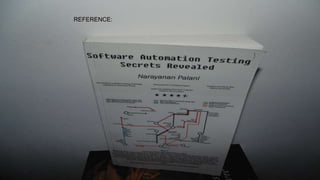
REFERENCE:

Selenium ide made easy

  • 1.
    SELENIUM IDE MADE EASY N AR AYA N A N PA L A N I
  • 2.
    1 SELENIUM IDEINTRO The Selenium-IDE (Integrated Development Environment) is the tool you use to develop your Selenium test cases. It’s an easy-to-use Firefox plug-in and is generally the most efficient way to develop test cases. This is not only a time-saver, but also an excellent way of learning Selenium script syntax. It has been developed using JavaScript so that it can interact with DOM (Document Object Model) using native JavaScript calls. Selenium IDE was developed to allow testers and developers to record their actions as they follow the workflow that they need to test. HTML is the default recording language of Selenium. Selenium IDE uses the native java script calls. Selenium IDE is of the most Rapid Prototyping tool.
  • 3.
    2 INSTALLING SELENIUMIDE  Go to http://seleniumhq.org/download/.  Click on the download link for Selenium IDE. You may get a message saying Firefox prevented this site (seleniumhq.org) from asking you to install software on your computer. If you do, click on the Allow button.
  • 4.
    CONTD.. • When downloadingfrom Firefox, you’ll be presented with the following window. Select Install Now.
  • 5.
    CONTD.. • The FirefoxAdd-ons window pops up, first showing a progress bar, and when the download is complete, displays the following. Restart Firefox.
  • 6.
    CONTD.. • After Firefoxreboots you will find the Selenium-IDE listed under the Firefox Tools menu.
  • 7.
    3 OPENING THEIDE • To run the Selenium-IDE, simply select it from the Firefox Tools menu. It opens as follows with an empty script-editing window and a menu for loading, or creating new test cases. • The three major components of Selenium IDE are Command, Target and Value.
  • 8.
    SELENIUM TOOL BAR Thetoolbar contains buttons for controlling the execution of your test cases, including a step feature for debugging your test cases. The right-most button, the one with the red-dot, is the record button.
  • 9.
    SELENIUM IDE ICONS BaseURL—This is the URL that the test will start. All open commands will be relative to the Base URL unless a full path is inserted in the open command. Speed Slider—This is the slider under the Fast Slow labels on the screen.
  • 11.
    CONTD.. Run all thetests in the IDE. Run a single test in the IDE. Pause a test that is currently running. Step through the test once it has paused. . This is the record button. It will be engaged when the test is recordin recording
  • 12.
    SELENIUM MENU BAR TheFile menu has options for Test Case and Test Suite (suite of Test Cases). Using these you can add a new Test Case, open a Test Case, save a Test Case, export Test Case in a language of your choice. You can also open the recent Test Case. All these options are also available for Test Suite. TO run the Selenium Test Suite in Selenium Ide we use Test Runner.
  • 13.
    CONTD.. The Edit menuallows copy, paste, delete, undo, and select all operations for editing the commands in your test case. The Options menu allows the changing of settings. You can set the timeout value for certain commands, add user-defined user extensions to the base set of Selenium commands, and specify the format (language) used when saving your test cases. The Help menu is the standard Firefox Help menu; only one item on this menu–UI-Element Documentation–pertains to Selenium-IDE.
  • 14.
    TEST CASE PANEIN SELENIUM IDE Test script is displayed in the test case pane.  It has two tabs, one for displaying the command and their parameters in a readable “table” format.
  • 15.
    CONTD.. The other tab- Source displays the test case in the native format in which the file will be stored. By default, this is HTML although it can be changed to a programming language such as Java or C#, or a scripting language like Python. The Source view also allows one to edit the test case in its raw form, including copy, cut and paste operations.
  • 16.
    LOG/REFERENCE/UI-ELEMENT/ROLLUP PANE The bottompane is used for four different functions–Log, Reference, UI-Element, and Rollup– depending on which tab is selected. Log : When you run your test case, error messages and information messages showing the progress are displayed in this pane automatically. Reference: The Reference tab is the default selection whenever you are entering or modifying Selenese commands and parameters in Table mode. In Table mode, the Reference pane will display documentation on the current command.
  • 17.
    SELENIUM COMMANDS –“SELENESE” Selenium commands, often called selenese, are the set of commands that run your tests. A sequence of these commands is a test script. A command tells Selenium what to do. Selenium commands come in three “flavors”: Actions, Accessors, and Assertions.
  • 18.
    ACTIONS, ACCESSORS, ANDASSERTIONS. Actions are commands that generally manipulate the state of the application. They do things like “click this link” and “select that option”. If an Action fails, or has an error, the execution of the current test is stopped. Accessors examine the state of the application and store the results in variables, e.g. “storeTitle”. Assertions are like Accessors, but they verify that the state of the application conforms to what is expected.
  • 19.
    SCRIPT SYNTAX Selenium commandsare simple, they consist of the command and two parameters. For example: The parameters are not always required; it depends on the command. In some cases both are required, in others one parameter is required, and in still others the command may take no parameters at all. verifyText //div//a[2] Login
  • 20.
    CONTD.. • Parameters vary,however they are typically: a locator for identifying a UI element within a page. a text pattern for verifying or asserting expected page content a text pattern or a selenium variable for entering text in an input field or for selecting an option from an option list.
  • 21.
    4 COMMONLY USEDSELENIUM COMMANDS • Open- opens a page using a URL. • click/ clickAndWait- performs a click operation, and optionally waits for a new page to load. • verifyTitle/ assertTitle- verifies an expected page title. • verifyTextPresent-verifies expected text is somewhere on the page. • verifyElementPresent- verifies an expected UI element, as defined by its HTML tag, is present on the page. • verifyText- verifies expected text and its corresponding HTML tag are present on the page. • verifyTable- verifies a table’s expected contents.
  • 23.
    CONTD.. • waitForPageToLoad- pausesexecution until an expected new page loads. Called automatically when clickAndWait is used. • waitForElementPresent- pauses execution until an expected UI element, as defined by its HTML tag, is present on the page.
  • 24.
    DIFFERENCE BETWEEN ASSERTIONAND VERIFICATION • Asset and Verify are used to validate the elements that are available on the webpage. • Verification checks many attributes of a page without aborting the test case on the first failure and will allow you to review all failures on the page and take the appropriate action. • Whereas Assertion will abort the test case on the first failure. • Effectively, an “assert” will fail the test and abort the current test case, whereas a “verify” will fail the test and continue to run the test case.
  • 25.
    CONTEXT MENU INSELENIUM • Selenium iDE contains a context menu that allows you to first select a UI element from the browser’s currently displayed page and then select from a list of Selenium commands with parameters pre-defined according to the context of the selected UI element. • This is not only a time-saver, but also an excellent way of learning Selenium script syntax.
  • 26.
    ECHO- THE SELENESEPRINT COMMAND • Selenese has a simple command that allows you to print text to your test’s output. • This is useful for providing informational progress notes in your test which display on the console as your test is running. • These notes also can be used to provide context within your test result reports, which can be useful for finding where a defect exists on a page in the event your test finds a problem. Finally, echo statements can be used to print the contents of Selenium variables.
  • 27.

Editor's Notes

  • #3 Blank slide you may use this to insert or show screenshots etc If content is added in this slide you will need to use bulleted text
  • #4 Blank slide you may use this to insert or show screenshots etc If content is added in this slide you will need to use bulleted text
  • #5 Horizontal Image slide – Horizontal image with bulleted text Title – font size 20, Arial Click on the icon to add image, the size of the image will be automatically determined once inserted, do not alter the size of the image In the text box below the bulleted text should not be beyond one line Font size should be 20, Arial normal and should not exceed beyond 4 bullet points
  • #6 Horizontal Image slide – Horizontal image with bulleted text Title – font size 20, Arial Click on the icon to add image, the size of the image will be automatically determined once inserted, do not alter the size of the image In the text box below the bulleted text should not be beyond one line Font size should be 20, Arial normal and should not exceed beyond 4 bullet points
  • #7 Horizontal Image slide – Horizontal image with bulleted text Title – font size 20, Arial Click on the icon to add image, the size of the image will be automatically determined once inserted, do not alter the size of the image In the text box below the bulleted text should not be beyond one line Font size should be 20, Arial normal and should not exceed beyond 4 bullet points
  • #8 Horizontal Image slide – Horizontal image with bulleted text Title – font size 20, Arial Click on the icon to add image, the size of the image will be automatically determined once inserted, do not alter the size of the image In the text box below the bulleted text should not be beyond one line Font size should be 20, Arial normal and should not exceed beyond 4 bullet points
  • #9 Horizontal Image slide – Horizontal image with bulleted text Title – font size 20, Arial Click on the icon to add image, the size of the image will be automatically determined once inserted, do not alter the size of the image In the text box below the bulleted text should not be beyond one line Font size should be 20, Arial normal and should not exceed beyond 4 bullet points
  • #10 Horizontal Image slide – Horizontal image with bulleted text Title – font size 20, Arial Click on the icon to add image, the size of the image will be automatically determined once inserted, do not alter the size of the image In the text box below the bulleted text should not be beyond one line Font size should be 20, Arial normal and should not exceed beyond 4 bullet points
  • #12 Horizontal Image slide – Horizontal image with bulleted text Title – font size 20, Arial Click on the icon to add image, the size of the image will be automatically determined once inserted, do not alter the size of the image In the text box below the bulleted text should not be beyond one line Font size should be 20, Arial normal and should not exceed beyond 4 bullet points
  • #13 Horizontal Image slide – Horizontal image with bulleted text Title – font size 20, Arial Click on the icon to add image, the size of the image will be automatically determined once inserted, do not alter the size of the image In the text box below the bulleted text should not be beyond one line Font size should be 20, Arial normal and should not exceed beyond 4 bullet points
  • #14 Horizontal Image slide – Horizontal image with bulleted text Title – font size 20, Arial Click on the icon to add image, the size of the image will be automatically determined once inserted, do not alter the size of the image In the text box below the bulleted text should not be beyond one line Font size should be 20, Arial normal and should not exceed beyond 4 bullet points
  • #15 Horizontal Image slide – Horizontal image with bulleted text Title – font size 20, Arial Click on the icon to add image, the size of the image will be automatically determined once inserted, do not alter the size of the image In the text box below the bulleted text should not be beyond one line Font size should be 20, Arial normal and should not exceed beyond 4 bullet points
  • #16 Horizontal Image slide – Horizontal image with bulleted text Title – font size 20, Arial Click on the icon to add image, the size of the image will be automatically determined once inserted, do not alter the size of the image In the text box below the bulleted text should not be beyond one line Font size should be 20, Arial normal and should not exceed beyond 4 bullet points
  • #17 Horizontal Image slide – Horizontal image with bulleted text Title – font size 20, Arial Click on the icon to add image, the size of the image will be automatically determined once inserted, do not alter the size of the image In the text box below the bulleted text should not be beyond one line Font size should be 20, Arial normal and should not exceed beyond 4 bullet points
  • #18 Horizontal Image slide – Horizontal image with bulleted text Title – font size 20, Arial Click on the icon to add image, the size of the image will be automatically determined once inserted, do not alter the size of the image In the text box below the bulleted text should not be beyond one line Font size should be 20, Arial normal and should not exceed beyond 4 bullet points
  • #19 Horizontal Image slide – Horizontal image with bulleted text Title – font size 20, Arial Click on the icon to add image, the size of the image will be automatically determined once inserted, do not alter the size of the image In the text box below the bulleted text should not be beyond one line Font size should be 20, Arial normal and should not exceed beyond 4 bullet points
  • #20 Horizontal Image slide – Horizontal image with bulleted text Title – font size 20, Arial Click on the icon to add image, the size of the image will be automatically determined once inserted, do not alter the size of the image In the text box below the bulleted text should not be beyond one line Font size should be 20, Arial normal and should not exceed beyond 4 bullet points
  • #21 Horizontal Image slide – Horizontal image with bulleted text Title – font size 20, Arial Click on the icon to add image, the size of the image will be automatically determined once inserted, do not alter the size of the image In the text box below the bulleted text should not be beyond one line Font size should be 20, Arial normal and should not exceed beyond 4 bullet points
  • #22 Horizontal Image slide – Horizontal image with bulleted text Title – font size 20, Arial Click on the icon to add image, the size of the image will be automatically determined once inserted, do not alter the size of the image In the text box below the bulleted text should not be beyond one line Font size should be 20, Arial normal and should not exceed beyond 4 bullet points
  • #24 Horizontal Image slide – Horizontal image with bulleted text Title – font size 20, Arial Click on the icon to add image, the size of the image will be automatically determined once inserted, do not alter the size of the image In the text box below the bulleted text should not be beyond one line Font size should be 20, Arial normal and should not exceed beyond 4 bullet points
  • #25 Horizontal Image slide – Horizontal image with bulleted text Title – font size 20, Arial Click on the icon to add image, the size of the image will be automatically determined once inserted, do not alter the size of the image In the text box below the bulleted text should not be beyond one line Font size should be 20, Arial normal and should not exceed beyond 4 bullet points
  • #26 Horizontal Image slide – Horizontal image with bulleted text Title – font size 20, Arial Click on the icon to add image, the size of the image will be automatically determined once inserted, do not alter the size of the image In the text box below the bulleted text should not be beyond one line Font size should be 20, Arial normal and should not exceed beyond 4 bullet points
  • #27 Horizontal Image slide – Horizontal image with bulleted text Title – font size 20, Arial Click on the icon to add image, the size of the image will be automatically determined once inserted, do not alter the size of the image In the text box below the bulleted text should not be beyond one line Font size should be 20, Arial normal and should not exceed beyond 4 bullet points