

SELENIUM
Automation Testing
Introduction to Selenium
Who named Automation testing tool as Selenium?
● Jason Huggins and team from ThoughtWorks Inc. developed the testing tool
in 2004.
● Huggins joked about competitor HP mercury tools saying it cures mercury
poisoning by taking Selenium supplements.
● Hence, the name!
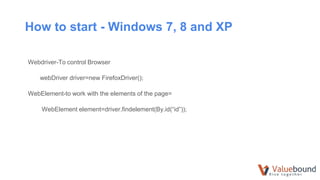
How to start - Windows 7, 8 and XP
Webdriver-To control Browser
webDriver driver=new FirefoxDriver();
WebElement-to work with the elements of the page=
WebElement element=driver.findelement(By.id(“id”));
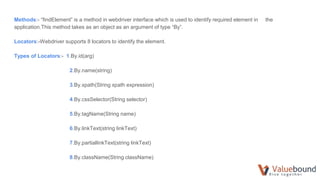
Methods:- “findElement” is a method in webdriver interface which is used to identify required element in the
application.This method takes as an object as an argument of type “By”.
Locators:-Webdriver supports 8 locators to identify the element.
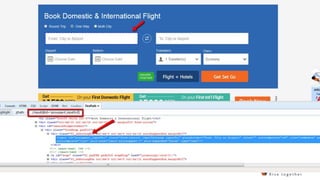
Types of Locators:- 1.By.id(arg)
2.By.name(string)
3.By.xpath(String xpath expression)
4.By.cssSelector(String selector)
5.By.tagName(String name)
6.By.linkText(string linkText)
7.By.partiallinkText(string linkText)
8.By.className(String className)
What is Xpath ?
Xpath=//tagname[@attribute=’value’]
Select Class
Types :- 1.SelectByVisibletext()
2.SelectByIndex()
3.SelectbyValue()
4.deselectAll()
5.isMultiple()
6.getOption()
7.getFirstSelectedOption()
8.getAllSelectedOption()
Waits
Types:- 1.Normal Wait
thread.sleep(20,000)
2.implicitly wait
driver.manage().timeouts().implicitlywait(10,TimeUnit.SECONDS)
3.Explicitly wait
WebdriverWait=new WebDriverWait(driver.20)
wait.until(ExpectedConditions.presenceOfElementLocated(By.xpath( "String Xpath
Expression")));
Action Class
Action class used to perform user interaction operation like mousehover, right-click , double click & keyboard
operation.
Step-1 : Find a element where we need to perform mouseover operation.
WebElement wb = driver.findelement(By.xpath(“….”));
Step-2: Create an object to Action class.
Actions act = new Actions(driver);
Step-3: Use Mouse over operation :
act.moveToelement(wb).perform();
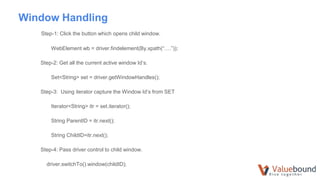
Window Handling
Step-1: Click the button which opens child window.
WebElement wb = driver.findelement(By.xpath(“….”));
Step-2: Get all the current active window Id’s.
Set<String> set = driver.getWindowHandles();
Step-3: Using iterator capture the Window Id’s from SET
Iterator<String> itr = set.iterator();
String ParentID = itr.next();
String ChildID=itr.next();
Step-4: Pass driver control to child window.
driver.switchTo().window(childID);
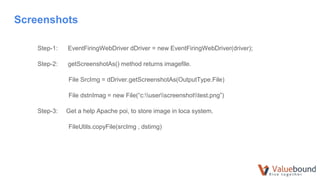
Screenshots
Step-1: EventFiringWebDriver dDriver = new EventFiringWebDriver(driver);
Step-2: getScreenshotAs() method returns imagefile.
File SrcImg = dDriver.getScreenshotAs(OutputType.File)
File dstnImag = new File(“c:userscreenshottest.png”)
Step-3: Get a help Apache poi, to store image in loca system.
FileUtils.copyFile(srcImg , dstimg)
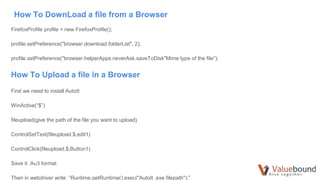
How To DownLoad a file from a Browser
FirefoxProfile profile = new FirefoxProfile();
profile.setPreference("browser.download.folderList", 2);
profile.setPreference("browser.helperApps.neverAsk.saveToDisk"Mime type of the file”);
How To Upload a file in a Browser
First we need to install AutoIt
WinActive(“$”)
fileupload(give the path of the file you want to upload)
ControlSetText(fileupload.$,edit1)
ControlClick(fileupload,$,Button1)
Save it .Au3 format
Then in webdriver write “Runtime.getRuntime().exec("AutoIt .exe filepath");”
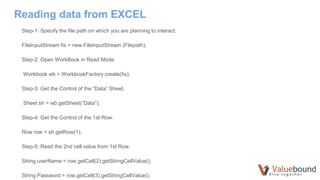
Reading data from EXCEL
Step-1: Specify the file path on which you are planning to interact.
FileInputStream fis = new FileInputStream (Filepath);
Step-2: Open WorkBook in Read Mode.
Workbook wb = WorkbookFactory.create(fis);
Step-3: Get the Control of the “Data” Sheet.
Sheet sh = wb.getSheet(“Data”);
Step-4: Get the Control of the 1st Row.
Row row = sh.getRow(1);
Step-5: Read the 2nd cell value from 1st Row.
String userName = row.getCell(2).getStringCellValue();
String Password = row.getCell(3).getStringCellValue();
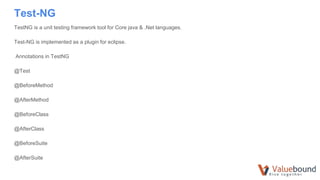
Test-NG
TestNG is a unit testing framework tool for Core java & .Net languages.
Test-NG is implemented as a plugin for eclipse.
Annotations in TestNG
@Test
@BeforeMethod
@AfterMethod
@BeforeClass
@AfterClass
@BeforeSuite
@AfterSuite
THANK YOU

How to execute Automation Testing using Selenium

  • 1.
  • 2.
    Introduction to Selenium Whonamed Automation testing tool as Selenium? ● Jason Huggins and team from ThoughtWorks Inc. developed the testing tool in 2004. ● Huggins joked about competitor HP mercury tools saying it cures mercury poisoning by taking Selenium supplements. ● Hence, the name!
  • 3.
    How to start- Windows 7, 8 and XP Webdriver-To control Browser webDriver driver=new FirefoxDriver(); WebElement-to work with the elements of the page= WebElement element=driver.findelement(By.id(“id”));
  • 4.
    Methods:- “findElement” isa method in webdriver interface which is used to identify required element in the application.This method takes as an object as an argument of type “By”. Locators:-Webdriver supports 8 locators to identify the element. Types of Locators:- 1.By.id(arg) 2.By.name(string) 3.By.xpath(String xpath expression) 4.By.cssSelector(String selector) 5.By.tagName(String name) 6.By.linkText(string linkText) 7.By.partiallinkText(string linkText) 8.By.className(String className)
  • 5.
    What is Xpath? Xpath=//tagname[@attribute=’value’]
  • 7.
    Select Class Types :-1.SelectByVisibletext() 2.SelectByIndex() 3.SelectbyValue() 4.deselectAll() 5.isMultiple() 6.getOption() 7.getFirstSelectedOption() 8.getAllSelectedOption()
  • 8.
    Waits Types:- 1.Normal Wait thread.sleep(20,000) 2.implicitlywait driver.manage().timeouts().implicitlywait(10,TimeUnit.SECONDS) 3.Explicitly wait WebdriverWait=new WebDriverWait(driver.20) wait.until(ExpectedConditions.presenceOfElementLocated(By.xpath( "String Xpath Expression")));
  • 9.
    Action Class Action classused to perform user interaction operation like mousehover, right-click , double click & keyboard operation. Step-1 : Find a element where we need to perform mouseover operation. WebElement wb = driver.findelement(By.xpath(“….”)); Step-2: Create an object to Action class. Actions act = new Actions(driver); Step-3: Use Mouse over operation : act.moveToelement(wb).perform();
  • 10.
    Window Handling Step-1: Clickthe button which opens child window. WebElement wb = driver.findelement(By.xpath(“….”)); Step-2: Get all the current active window Id’s. Set<String> set = driver.getWindowHandles(); Step-3: Using iterator capture the Window Id’s from SET Iterator<String> itr = set.iterator(); String ParentID = itr.next(); String ChildID=itr.next(); Step-4: Pass driver control to child window. driver.switchTo().window(childID);
  • 11.
    Screenshots Step-1: EventFiringWebDriver dDriver= new EventFiringWebDriver(driver); Step-2: getScreenshotAs() method returns imagefile. File SrcImg = dDriver.getScreenshotAs(OutputType.File) File dstnImag = new File(“c:userscreenshottest.png”) Step-3: Get a help Apache poi, to store image in loca system. FileUtils.copyFile(srcImg , dstimg)
  • 12.
    How To DownLoada file from a Browser FirefoxProfile profile = new FirefoxProfile(); profile.setPreference("browser.download.folderList", 2); profile.setPreference("browser.helperApps.neverAsk.saveToDisk"Mime type of the file”); How To Upload a file in a Browser First we need to install AutoIt WinActive(“$”) fileupload(give the path of the file you want to upload) ControlSetText(fileupload.$,edit1) ControlClick(fileupload,$,Button1) Save it .Au3 format Then in webdriver write “Runtime.getRuntime().exec("AutoIt .exe filepath");”
  • 13.
    Reading data fromEXCEL Step-1: Specify the file path on which you are planning to interact. FileInputStream fis = new FileInputStream (Filepath); Step-2: Open WorkBook in Read Mode. Workbook wb = WorkbookFactory.create(fis); Step-3: Get the Control of the “Data” Sheet. Sheet sh = wb.getSheet(“Data”); Step-4: Get the Control of the 1st Row. Row row = sh.getRow(1); Step-5: Read the 2nd cell value from 1st Row. String userName = row.getCell(2).getStringCellValue(); String Password = row.getCell(3).getStringCellValue();
  • 14.
    Test-NG TestNG is aunit testing framework tool for Core java & .Net languages. Test-NG is implemented as a plugin for eclipse. Annotations in TestNG @Test @BeforeMethod @AfterMethod @BeforeClass @AfterClass @BeforeSuite @AfterSuite
  • 15.