-
CONTENTS
1. INTRODUCTION OF AUTOMATION TESTING
2. BROWSER LAUNCHING
3. WEB DRIVER METHODS
4. NAVIGATION COMMANDS
5. LOCATORS
6. WEBELEMENT METHODS
7. RADIO BUTTON
8. HANDLING MULTIPLE WEBELEMENTS AND AUTO SUGGESTION
9. CHECK BOX
10. DROP DOWN
11. WEB TABLE
12. JAVASCRIPT EXECUTOR
13. SCROLL UP AND SCROLL DOWN
14. SCREENSHOT
15. MOUSE HOVER ACTION
16. DRAG & DROP AND RIGHT CLICK
17. WINDOW HANDLING
18. FRAME HANDLING
19. ALERTS
20. WAIT
21. FILE UPLOADING USING ROBOT CLASS AND SENDKEYS
22. BROKEN LINKS
INTRODUCTION OF AUTOMATION TESTING
Important Java concepts required for selenium:
 Conditions(if, if-else, switch)
 Loops(for, while, do-while, for-each)
 Oops(Inheritance, Polymorphism, Encapsulation, Abstraction)
 Method overloading, overriding
 Constructors
 String
 Type casting, Upcasting
 Code optimization
 Collection(List and Set)
Automation:
 Performing any task by using a tool or machine is called as automation.
Advantages:
1. Save the time.
2. Faster
3. Requires less manual effort
4. Restless.
5. Accuracy will be more
6. Multi-task
7. Requires less human resources
Dis Advantages:
1. Initial investment will be more.
2. It requires constant maintenance
3. It requires additional skill sets.
Automation testing:
 Testing an application by using any automation tools is called as automation testing.
Automation Tool:
 It’s a software or an application which is used to automate any applications.
o Ex: Selenium, QTP, Appium, AutoIT etc,
Selenium:
 It’s a free and open source automation tool which is used to automation any web based
applications.
Advantages of selenium:
 It is freely available automation tool. To make use of selenium for commercial purpose we
don’t have to buy any license. It is available in below website.
o https://www.seleniumhq.org/download/
 Anyone can view source code of selenium which is available in below website.
o https://github.com/SeleniumHQ/selenium
 Using selenium we can automate any web based applications such as gmail, facebook,
flipkart etc…
 It supports for 14 programming languages.
 It supports for multiple platforms such as Windows, Mac, Linux.
 It supports all most all the browsers such as chrome, firefox, ie, safari, opera.
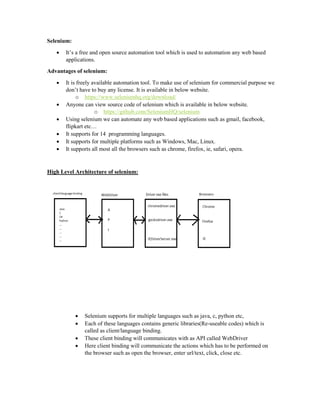
High Level Architecture of selenium:
 Selenium supports for multiple languages such as java, c, python etc,
 Each of these languages contains generic libraries(Re-useable codes) which is
called as client/language binding.
 These client binding will communicates with as API called WebDriver
 Here client binding will communicate the actions which has to be performed on
the browser such as open the browser, enter url/text, click, close etc.
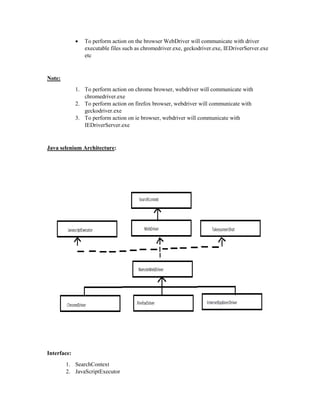
 To perform action on the browser WebDriver will communicate with driver
executable files such as chromedriver.exe, geckodriver.exe, IEDriverServer.exe
etc
Note:
1. To perform action on chrome browser, webdriver will communicate with
chromedriver.exe
2. To perform action on firefox browser, webdriver will communicate with
geckodriver.exe
3. To perform action on ie browser, webdriver will communicate with
IEDriverServer.exe
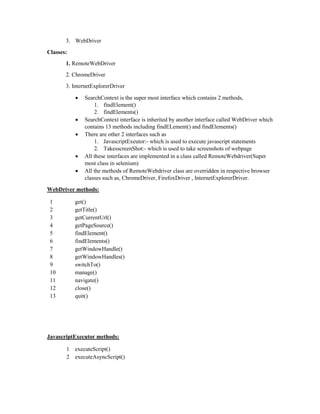
Java selenium Architecture:
Interface:
1. SearchContext
2. JavaScriptExecutor
3. WebDriver
Classes:
1. RemoteWebDriver
2. ChromeDriver
3. InternetExplorerDriver
 SearchContext is the super most interface which contains 2 methods,
1. findElement()
2. findElements()
 SearchContext interface is inherited by another interface called WebDriver which
contains 13 methods including findELement() and findElements()
 There are other 2 interfaces such as
1. JavascriptExeutor:- which is used to execute javascript statements
2. TakesscreenShot:- which is used to take screenshots of webpage
 All these interfaces are implemented in a class called RemoteWebdriver(Super
most class in selenium)
 All the methods of RemoteWebdriver class are overridden in respective browser
classes such as, ChromeDriver, FirefoxDriver , InternetExplorerDriver.
WebDriver methods:
1 get()
2 getTitle()
3 getCurrentUrl()
4 getPageSource()
5 findElement()
6 findElements()
7 getWindowHandle()
8 getWindowHandles()
9 switchTo()
10 manage()
11 navigate()
12 close()
13 quit()
JavascriptExecutor methods:
1 executeScript()
2 executeAsyncScript()
TakesscreenShot methods:
1. getScreenShotAs()
Note:
1. ChromeDriver class is used to work with chrome browser.
2. FirefoxDriver class is used to work with firefox browser.
3. InternetExplorerDriver class is used to work with ie browser.
Tools Required:
 jdk[1.8 & above]
 Eclipse[Mars, Neon, Oxygen]
 Selenium jar file
 Driver executable files
 Latest version of browsers
 Application Under Testing
Steps to install selenium:
 Download selenium jar file and driver exe files from following website.
URL http://www.seleniumhq.org/download
 Extract all the driver exe files
 In eclipse, create a java project with the name Automation.
 Under the Java project create 2 folders with the name drivers and jars
To create folder, Right click on projectnewcreate folder
 Store all extracted driver exe files under drivers folder
 Store selenium jar file under jars folder
 Associate selenium jar file with java project
To associate the jar file, right click on jar fileBuild pathAdd to build path
Note:
 Before launching the browser we have to set path of the driver exe file.
 We can set path of the driver exe file by using setProperty() of System class.
 setProperty() is a static method which takes 2 args of type String. They are,
o key
o value
 key for geckcodriver is, webdriver.gecko.driver
 value is the path of the driver exe file. We can specify the value in any of the following
ways,
o C:UsersVenkatDesktopcapgeminiAutomationdriversgeckodriver.exe
o C:/Users/Venkat/Desktop/capgeminis/Automation/drivers/geckodriver.exe
o ./drivers/geckodriver.exe(.---> path of the current java project)
 If we do not set path of the driver exe file, then it will throw IllegalStateException.
BROWSER LAUNCHING
1. Open the browser
Firefox browser:
public class FacebookAccount {
public static void main(String[] args) {
// to configure driver
System.setProperty("webdriver.gecko.driver",
"C:/Users/siva/workspace/Selenium/driver/geckodriver.exe");
// create the firefox driver
WebDriver driver = new FirefoxDriver();
// url mention
driver.get("https://www.facebook.com/");
driver.close();
}
}
Q1: How does selenium performs the action?
Ans: By calling native methods of the browsers.
Q2: How do you call native methods of the browsers?
Ans: By using driver executable files.
Close();
 It is used to close the application.
 It will close the current browser.
Quit():
 Destroy the object.
 It will close all browser windows opened by selenium webdriver
Chrome Launching:
chrome driver-v60=chrome driver-v2.30
public class GmailAccount {
public static void main(String[] args) {
System.setProperty("webdriver.chrome.driver",
"C:/Users/siva/workspace/Selenium/driver/chromedriver.exe");
WebDriver driver = new ChromeDriver();
driver.get("https://www.gmail.com/");
driver.manage().window().maximize();
}}
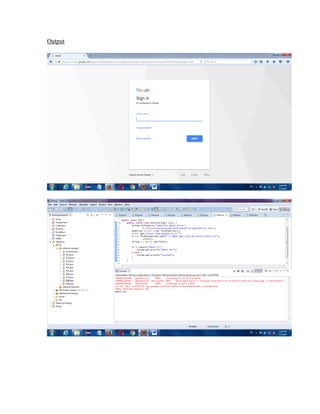
Output of the above program:
IE Launching:
IE-v11.0= internet driver server-v3.4
Internet Explorer browser:
Before launching IE browser we have to do the following settings.
 open the ie browser
 goto tools and click on internet options
 goto security tab
 Select enable protected mode checkbox in all the zone
 Internet
 Local intranet
 trusted sites
 Restricted sites
 Set the zoom level to 100%
IE Launching:
public class IntenetExplore {
public static void main(String[] args) {
System.setProperty("webdriver.ie.driver",
"C:/Users/siva/workspace/Selenium/driver/IEDriverServer.exe");
WebDriver driver = new InternetExplorerDriver();
driver.get("https://www.facebook.com/");
driver.manage().window().maximize();
}
}
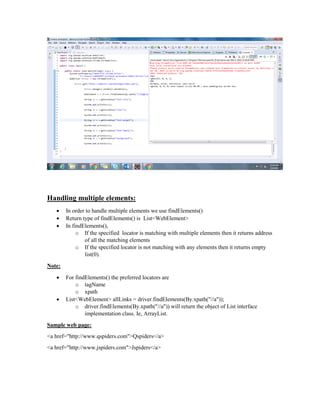
Output of the program
Opera Launching:
Opera-v46=opera driver-v2.27
public class Opera {
public static void main(String[] args) {
System.setProperty("webdriver.opera.driver","C:/Users/siva/workspace/Selenium/
driver/operadriver.exe" );
WebDriver driver = new OperaDriver();
driver.get("https://www.facebook.com/");
driver.manage().window().maximize();
}
}
Output:
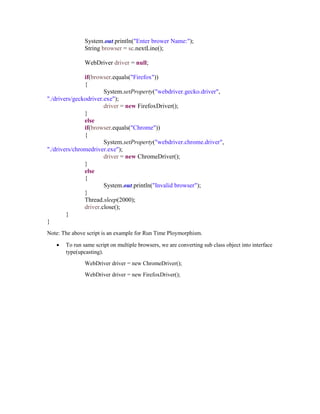
Write a Script to open and close the browser based on user input
public class Demo
{
public static void main(String[] args) throws InterruptedException
{
Scanner sc = new Scanner(System.in);
System.out.println("Enter brower Name:");
String browser = sc.nextLine();
WebDriver driver = null;
if(browser.equals("Firefox"))
{
System.setProperty("webdriver.gecko.driver",
"./drivers/geckodriver.exe");
driver = new FirefoxDriver();
}
else
if(browser.equals("Chrome"))
{
System.setProperty("webdriver.chrome.driver",
"./drivers/chromedriver.exe");
driver = new ChromeDriver();
}
else
{
System.out.println("Invalid browser");
}
Thread.sleep(2000);
driver.close();
}
}
Note: The above script is an example for Run Time Ploymorphism.
 To run same script on multiple browsers, we are converting sub class object into interface
type(upcasting).
WebDriver driver = new ChromeDriver();
WebDriver driver = new FirefoxDriver();
WEB DRIVER METHODS:
Methods of WebDriver Interface:
1 get() To enter the url
2 getTitle() To get the title of current web page
3 getCurrentUrl() To get the url of current web page
4 getPageSource() To get the page source of current web page
5 findElement() To get single webElements
6 findElements() To get multiple webElements
7 getWindowHandle() To get the id of parent window
8 getWindowHandles() To get the id of All windows
9 switchTo() Used to switch one window to other window
10 manage()
1. Window
2. Cookies
11 navigate()
1. Enter the URL
2. Navigate to previous page
3. Navigate to next page
4. Refresh current web page
12 close() To close the current/parent browser
13 quit() To close all the browsers opened by selenium
public class Demo
{
public static void main(String[] args) throws InterruptedException
{
//open the browser
System.setProperty("webdriver.chrome.driver",
"./drivers/chromedriver.exe");
WebDriver driver = new ChromeDriver();
//enter the url
driver.get("https://www.google.com/");
//To get the title of current web page
String title = driver.getTitle();
System.out.println("Title: "+title);
//To get the url of current web page
String url = driver.getCurrentUrl();
System.out.println("URL: "+url);
//To close the browser
Thread.sleep(2000);
driver.close();
}
}
Write a script for the following:
 Open the browser
 Delete all cookies
 Set size of the window
 Set position of the window
 Maximize the window
public class Demo
{
public static void main(String[] args) throws InterruptedException
{
//To open the browser
System.setProperty("webdriver.chrome.driver",
"./drivers/chromedriver.exe");
WebDriver driver = new ChromeDriver();
Thread.sleep(2000);
//To delete cookies
driver.manage().deleteAllCookies();
//To set the size of the window
Dimension d = new Dimension(500, 500);
driver.manage().window().setSize(d);
Thread.sleep(2000);
//To set the position of the window
Point p = new Point(250, 250);
driver.manage().window().setPosition(p);
Thread.sleep(2000);
//To maximize the window
driver.manage().window().maximize();
}
}
NAVIGATION COMMANDS
1. Navigate().to()
2. Refresh()
3. Back()
4. Forword()
public class Demo
{
public static void main(String[] args) throws InterruptedException
{
//open the browser
System.setProperty("webdriver.chrome.driver",
"./drivers/chromedriver.exe");
WebDriver driver = new ChromeDriver();
//To maximize the window
driver.manage().window().maximize();
//To delete the cookies
driver.manage().deleteAllCookies();
driver.get("https://www.google.com/");
//To enter the url
driver.navigate().to("https://www.facebook.com/");
Thread.sleep(1000);
//To navigate to previous page
driver.navigate().back();
Thread.sleep(1000);
//To navigate to next page
driver.navigate().forward();
Thread.sleep(1000);
//Refresh current web page
driver.navigate().refresh();
}
}
public class Demo
{
public static void main(String[] args) throws InterruptedException
{
//open the browser
System.setProperty("webdriver.chrome.driver",
"./drivers/chromedriver.exe");
WebDriver driver = new ChromeDriver();
driver.manage().window().maximize();
driver.get("https://www.naukri.com/");
Thread.sleep(2000);
//To close all the browsers
driver.quit();
}
}
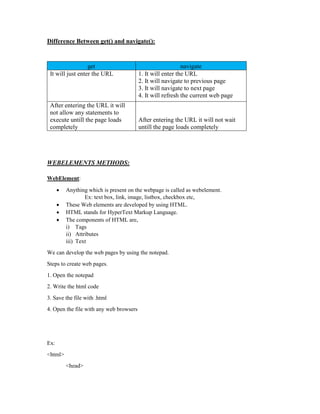
Difference Between get() and navigate():
get navigate
It will just enter the URL 1. It will enter the URL
2. It will navigate to previous page
3. It will navigate to next page
4. It will refresh the current web page
After entering the URL it will
not allow any statements to
execute untill the page loads
completely
After entering the URL it will not wait
untill the page loads completely
WEBELEMENTS METHODS:
WebElement:
 Anything which is present on the webpage is called as webelement.
Ex: text box, link, image, listbox, checkbox etc,
 These Web elements are developed by using HTML.
 HTML stands for HyperText Markup Language.
 The components of HTML are,
i) Tags
ii) Attributes
iii) Text
We can develop the web pages by using the notepad.
Steps to create web pages.
1. Open the notepad
2. Write the html code
3. Save the file with .html
4. Open the file with any web browsers
Ex:
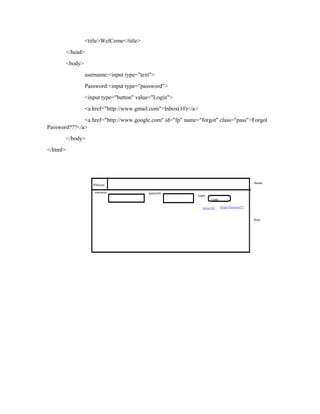
<html>
<head>
<title>WelCome</title>
</head>
<body>
username:<input type="text">
Password:<input type="password">
<input type="button" value="Login">
<a href="http://www.gmail.com">Inbox(10)</a>
<a href="http://www.google.com" id="fp" name="forgot" class="pass">Forgot
Password???</a>
</body>
</html>
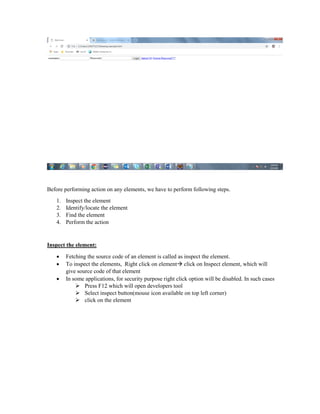
Before performing action on any elements, we have to perform following steps.
1. Inspect the element
2. Identify/locate the element
3. Find the element
4. Perform the action
Inspect the element:
 Fetching the source code of an element is called as inspect the element.
 To inspect the elements, Right click on element click on Inspect element, which will
give source code of that element
 In some applications, for security purpose right click option will be disabled. In such cases
 Press F12 which will open developers tool
 Select inspect button(mouse icon available on top left corner)
 click on the element
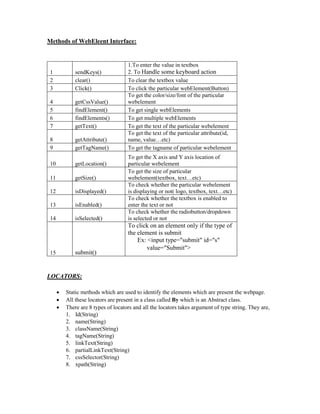
Methods of WebEleent Interface:
1 sendKeys()
1.To enter the value in textbox
2. To Handle some keyboard action
2 clear() To clear the textbox value
3 Click() To click the particular webElement(Button)
4 getCssValue()
To get the color/size/font of the particular
webelement
5 findElement() To get single webElements
6 findElements() To get multiple webElements
7 getText() To get the text of the particular webelement
8 getAttribute()
To get the text of the particular attribute(id,
name, value…etc)
9 getTagName() To get the tagname of particular webelement
10 getLocation()
To get the X axis and Y axis location of
particular webelement
11 getSize()
To get the size of particular
webelement(textbox, text…etc)
12 isDisplayed()
To check whether the particular webelement
is displaying or not( logo, textbox, text…etc)
13 isEnabled()
To check whether the textbox is enabled to
enter the text or not
14 isSelected()
To check whether the radiobutton/dropdown
is selected or not
15 submit()
To click on an element only if the type of
the element is submit
Ex: <input type="submit" id="s"
value="Submit">
LOCATORS:
 Static methods which are used to identify the elements which are present the webpage.
 All these locators are present in a class called By which is an Abstract class.
 There are 8 types of locators and all the locators takes argument of type string. They are,
1. Id(String)
2. name(String)
3. className(String)
4. tagName(String)
5. linkText(String)
6. partialLinkText(String)
7. cssSelector(String)
8. xpath(String)
Note:
 Id, name, className are available as attributes of an element.
 In order to Handle the single element we use findElement().
 Return type of findElement() is WebElement.
 In findElement(), if the specified locator is not matching with any element it will throw
NoSuchElementException
 In findElement(), if the specified locator is matching with multiple element it will return
the address of 1st
matching element
 If the specified element is link, then we can identify that element by using linkText
 If the specified element is link and if it partially dynamic, then we can identify that
element by using partialLinkText
cssSelector
 If we can not identify the elements by using any of the above locators, then we can identify
that element by using cssSelector.
 Syntax:
 tagnName[attributeName=’attributeValue’]
ex: input[type='password']
 In order to verify cssSelector expression in firefox browser, click on TXselect
queryselectorAll option specify the expression in expression field and click on enter
Note:
 In cssSelector,
o Id can be represented by using #,
Ex:- input#email
o Class can be represented by using .
Ex:- tagName.classValue
Ex,
Adactin hotel login using id/name:
public class Login {
public static void main(String[] args) throws Throwable {
System.setProperty("webdriver.chrome.driver",
"C:Users10657527Downloadschromedriver_win32
(1)chromedriver.exe");
WebDriver driver = new ChromeDriver();
driver.get("https://adactin.com/HotelApp/index.php");
driver.manage().window().maximize();
WebElement x = driver.findElement(By.id("username"));
x.sendKeys("vengatram");
WebElement x1 = driver.findElement(By.name("password"));
x1.sendKeys("vengat@123445");
WebElement x2 = driver.findElement(By.id("login"));
x2.click();
}
}
LinkText:
<a href="ForgotPassword.php">Forgot Password?</a>
Text: >Forgot Password?<
linkText: Text which is available in a tag called linktext.
public class Login {
public static void main(String[] args) throws Throwable {
System.setProperty("webdriver.chrome.driver",
"C:Users10657527Downloadschromedriver_win32
(1)chromedriver.exe");
WebDriver driver = new ChromeDriver();
driver.get("https://adactin.com/HotelApp/index.php");
driver.manage().window().maximize();
WebElement x2 = driver.findElement(By.linkText("Forgot Password?"));
x2.click();
}
}
PartialLinkText:
package com.lnt.test;
import org.openqa.selenium.By;
import org.openqa.selenium.WebDriver;
import org.openqa.selenium.WebElement;
import org.openqa.selenium.chrome.ChromeDriver;
public class Login {
public static void main(String[] args) throws Throwable {
System.setProperty("webdriver.chrome.driver",
"C:Users10657527Downloadschromedriver_win32
(1)chromedriver.exe");
WebDriver driver = new ChromeDriver();
driver.get("https://adactin.com/HotelApp/index.php");
driver.manage().window().maximize();
WebElement x2 = driver.findElement(By.partialLinkText("Forgot"));
x2.click();
}
}
Xpath:
 Path of an element present in the webpage.
o Absolute
o Relative
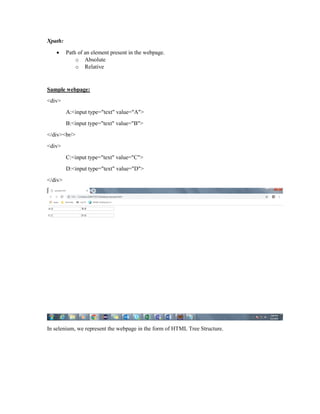
Sample webpage:
<div>
A:<input type="text" value="A">
B:<input type="text" value="B">
</div><br/>
<div>
C:<input type="text" value="C">
D:<input type="text" value="D">
</div>
In selenium, we represent the webpage in the form of HTML Tree Structure.
Ex:
Absolute:
 Complete path of an element from root of the webpage(html)
 Represented by using /--> immediate child
Ex:
/html/body/div[1]/input[2]
Relative xpath:
 Path of any element which is present on web page.
 It is represented by using // which means any child/element
Syntax:
1. //tagName all the matching elements
2. //tagName[1] all the 1st
matching elements
3. //tagName[last()] all the last matching elements
4. //* all the elements
5. //*[@attribute=’value’]
6. //tagName[@attribute=’value’]
Ex:
//div[1]/input[2]
//div[1]/input
//div[2]/input
//input[1]
//div[1]/input[2]| //div[2]/input
//input
Xpath by attribute:
 To identify the specified elements, if we use index it may not work properly when we use
the index values because whenever the position of an element changes its index value will
also changes.
 To overcome the above problem in place of index we can include attributes which is called
as xpath by attributes.
 It is applicable for both Absolute and Relative xpath.
 Syntax:
o tagName[@attributeName=’attributeValue’]
 Example:
o Absolute /html/body/div/input[@value='B']
o Relative //input[@value='B']
 In an xpath we can pass multiple attributes by using or operator.
 Example:
o //input[@value='B' or @value='C']
Assignment:
 Derive the xpath expression for the elements which are present in FaceBook login or
sign up page.
o Email or Phone: //input[@type='email']
o Day list box: //select[@aria-label='Day']
o Male: //input[@value='2']
getAttribute() and getText():
It is a method, used to print the value whatever you gave in the text box
Example program:
public class Ex5 {
public static void main(String[] args) {
System.setProperty("webdriver.gecko.driver","C:/Users/siva/workspace/Selenium/
driver/geckodriver.exe");
WebDriver driver=new FirefoxDriver();
driver.get("http://www.adactin.com/HotelApp/index.php");
driver.findElement(By.id("username")).sendKeys("vengat16");
driver.findElement(By.id("password")).sendKeys("Karthick");
String s = driver.findElement(By.id("username")).getAttribute("value");
String s1 = driver.findElement(By.id("password")).getAttribute("value");
System.out.println(s);
System.out.println(s1);
}
}
Output:
NoSuchElementException:
 It is throws when particular id/xpath/class or whatever is not available in DOM
structure
isDisplayed():
It is a method, used to check the particular id/value is available or not
Example program:
public class Ex6 {
public static void main(String[] args) {
System.setProperty("webdriver.gecko.driver","C:/Users/siva/workspace/Selenium/
driver/geckodriver.exe");
WebDriver driver=new FirefoxDriver();
driver.get("https://www.facebook.com/");
boolean
logo=driver.findElement(By.xpath("//*[@id='blueBarDOMInspector']/div/div/div/div[1]/h
1/a/i")).isDisplayed();
if(logo==true)
{
System.out.println("logo is available");
}
else{
System.out.println("logo is not available");
}
}}
Output:
isEnabled:
 It is a method, is used to check particular text box is enable to print or not
Example program:
public class Dummy {
public static void main(String[] args) {
System.setProperty("webdriver.gecko.driver",
"C:/Users/siva/workspace/Selenium/driver/geckodriver.exe");
WebDriver driver = new FirefoxDriver();
driver.get("https://www.facebook.com/");
boolean logo = driver.findElement(By.xpath("//*[@id='email']"))
.isEnabled();
if (logo == true) {
System.out.println("Text box is enable to print");
} else {
System.out.println("not enable");
}
}
}
Output:
isSelected:
 It is a method, used to check the particular radio button is selected or not
Example program:
public class Dummy {
public static void main(String[] args) {
System.setProperty("webdriver.gecko.driver",
"C:/Users/siva/workspace/Selenium/driver/geckodriver.exe");
WebDriver driver = new FirefoxDriver();
driver.get("https://www.facebook.com/");
driver.findElement(By.xpath("//*[@id='u_0_g']"))
.click();
boolean logo = driver.findElement(By.xpath("//*[@id='u_0_g']"))
.isSelected();
if (logo == true) {
System.out.println("button is selected");
} else {
System.out.println("not selected");
}
}}
Xpath by text():
 If the specified element does not contain any attributes and if it contains text then we can
identify that element by using xpath by text()
 It is applicable for both absolute and relative xpath
 Syntax:
o tagName[text()=’textValue’]
 Example:
o //td[text()='Java']
 text() can be represented by using dot(.)
 Example:
o //td[.='Java']
 Attribute values and the text values are case and space sensitive.
 Example:
o //div[text()='Login ']
Xpath by contains():
 It is used to handle the partial dynamic elements
 It is applicable for both absolute and relative xpath.
 Syntax 1: if text value is partially dynamic,
o tagName[contains(text(),'textValue')]
 Example:
o //nobr[contains(text(),'actiTIME')]
 Syntax 2: if attribute value is partially dynamic,
o tagName[contains(@attributeName,'attributeValue')]
 Example:
o //img[contains(@src,'/img/default/login/timer.png?hash')]
Handling special characters:
 While developing the application developers will be using some special characters like
&amp, &nbsp etc.
 If the element contains any special characters then we can identify that element by using
xpath by contains().
 If any value contains & symbol then it is the special character.
 Example: Derive the xpath to identify Forgotten Password? Link present on facebook
login or sign up page.
o //a[contains(@href,'https://www.facebook.com/recover/initiate?lwv')]
Traversing:
 Navigating from one element to another element using xpath is called traversing.
 To navigate from one element to another element xpath uses axis.
 The different types of axis are,
1. child
2. parent
3. descendant
4. ancestor
5. following-sibling
6. preceding-sibling
 Syntax:
/axis::tagName
Sample web page:
<select>
<option value="j">Jan</option>
<option value="f">Feb</option>
<option value="m">Mar</option>
<option value="a">Apr</option>
<option value="m">May</option>
</select>
Child:
 Navigate from one element to it’s immediate child.
Ex: //select//child::option[1]
Parent:
 Navigate from one element to it’s immediate parent.
Ex: //select[@option=’j’]//parent::select
Descendant:
 Navigate from one element to any of it’s child present on the webpage.
Ex: /html/descendant::option[1]
Ancestor:
 Navigate from one element to any of it’s parent present on the webpage.
Ex: //select[@option=’j’]/ancestor::html
Following-sibilng:
 The elements which are present below the specified element, under same parent
are called as following-sibling.
Ex:
//select[@option=’m’]/following-sibling::option A,M
//select[@option=’m’]/following-sibling::option[1] A
//select[@option=’m’]/following-sibling::option[2] M
Preceding-sibling:
 The elements which are present above the specified element, under same parent
are called as following-sibling.
Ex:
//select[@option=’m’]/preceding-sibling::option J,F
//select[@option=’m’]/preceding-sibling::option[1] F
//select[@option=’m’]/preceding-sibling::option[2] J
Radio button:
 We can able to select only one at a time
Example program:
public class Dummy {
public static void main(String[] args) {
System.setProperty("webdriver.gecko.driver",
"C:/Users/siva/workspace/Selenium/driver/geckodriver.exe");
WebDriver driver = new FirefoxDriver();
driver.get("https://www.facebook.com/");
driver.findElement(By.xpath("//*[@id='u_0_g']"))
.click();
}}
Xpath:
 Structure or combination of absolute path and relative path
To print both radio button:
Example program:
public class Dummy {
public static void main(String[] args) throws InterruptedException {
System.setProperty("webdriver.gecko.driver",
"C:/Users/siva/workspace/Selenium/driver/geckodriver.exe");
WebDriver driver = new FirefoxDriver();
driver.get("https://www.facebook.com/");
for (int i = 1; i <= 2; i++) {
Thread.sleep(3000);
String s = driver.findElement(
By.xpath("//*[@id='u_0_k']/span[" + i + "]/label"))
.getText();
System.out.println(s);
}
}}
Output:
EXERCISE 1:
Program 1: Go to adactin.com website and give username &password and login
Program:
public class Ex3 {
public static void main(String[] args) {
System.setProperty("webdriver.gecko.driver",
"C:/Users/siva/workspace/Selenium/driver/geckodriver.exe");
WebDriver driver = new FirefoxDriver();
driver.get("http://www.adactin.com/HotelApp/index.php");
driver.findElement(By.id("username")).sendKeys("vengat16");
driver.findElement(By.id("password")).sendKeys("Karthick");
driver.findElement(By.id("login")).click();
}
}
Output
Program 2: Go to adactin.com website and check that same webpage is opened
Program:
public class Ex4 {
public static void main(String[] args) {
System.setProperty("webdriver.gecko.driver",
"C:/Users/siva/workspace/Selenium/driver/geckodriver.exe");
WebDriver driver = new FirefoxDriver();
driver.get("http://www.adactin.com/HotelApp/index.php");
driver.findElement(By.id("username")).sendKeys("vengat16");
driver.findElement(By.id("password")).sendKeys("Karthick");
String s = driver.getCurrentUrl();
if (s.equals("http://www.adactin.com/HotelApp/index.php")) {
System.out.println("u r in adactin website");
} else {
System.out.println("u r not in adactin website");
}}}
Output
Program 3: Go to adactin.com website, give user name & password and print that user
name and password
Program:
public class Ex5 {
public static void main(String[] args) {
System.setProperty("webdriver.gecko.driver",
"C:/Users/siva/workspace/Selenium/driver/geckodriver.exe");
WebDriver driver = new FirefoxDriver();
driver.get("http://www.adactin.com/HotelApp/index.php");
driver.findElement(By.id("username")).sendKeys("vengat16");
driver.findElement(By.id("password")).sendKeys("Karthick");
String s = driver.findElement(By.id("username")).getAttribute("value");
String s1 = driver.findElement(By.id("password")).getAttribute("value");
System.out.println(s);
System.out.println(s1);
}}
Output
Program 4: Facebook registration
Program:
public class Ex10 {
public static void main(String[] args) {
System.setProperty("webdriver.gecko.driver","C:/Users/siva/workspace/Selenium/
driver/geckodriver.exe");
WebDriver driver=new FirefoxDriver();
driver.get("https://www.facebook.com/");
driver.findElement(By.xpath("//input[@name='firstname']")).sendKeys("Vengat");
driver.findElement(By.xpath("//input[@name='lastname']")).sendKeys("Ram");
driver.findElement(By.xpath("//input[@name='reg_email__']")).sendKeys("98765
43210");
driver.findElement(By.xpath("//input[@name='reg_passwd__']")).sendKeys("1234
56");
driver.findElement(By.xpath("//label[contains(text(),'Male')]")).click();
driver.findElement(By.xpath("//button[@type='submit']")).click();
}
}
Output
Program 5: Go to facebook.com, check the facebook logo is available or not
Program:
ublic class Ex6 {
public static void main(String[] args) {
System.setProperty("webdriver.gecko.driver",
"C:/Users/siva/workspace/Selenium/driver/geckodriver.exe");
WebDriver driver = new FirefoxDriver();
driver.get("https://www.facebook.com/");
boolean logo = driver
.findElement(
By.xpath("//*[@id='blueBarDOMInspector']/div/div/div/div[1]/h1/a/i"))
.isDisplayed();
if (logo == true) {
System.out.println("logo is available");
} else {
System.out.println("logo is not available");
}
}
}
Output
Program 6: Go to adactin.com website, give wrong user name & password and click
login. Check the error msg(invalid login details) shown or not)
Program:
public class Ex9 {
public static void main(String[] args) {
System.setProperty("webdriver.gecko.driver",
"C:/Users/siva/workspace/Selenium/driver/geckodriver.exe");
WebDriver driver = new FirefoxDriver();
driver.get("http://www.adactin.com/HotelApp/");
driver.findElement(By.id("username")).sendKeys("test");
driver.findElement(By.id("password")).sendKeys("123456");
driver.findElement(By.id("login")).click();
boolean b = driver
.findElement(
By.xpath("//*[@id='login_form']/table/tbody/tr[5]/td[2]/div/b"))
.isDisplayed();
if (b = true) {
System.out.println("invalid msg shown");
} else {
System.out.println("not");
}
}}
Output
Program 7: Go to google.com, check the google logo is available or not
Program:
public class Ex7 {
public static void main(String[] args) {
System.setProperty("webdriver.gecko.driver",
"C:/Users/siva/workspace/Selenium/driver/geckodriver.exe");
WebDriver driver = new FirefoxDriver();
driver.get("https://www.google.co.in/");
boolean logo = driver.findElement(By.xpath("//*[@id='hplogo']"))
.isDisplayed();
if (logo == true) {
System.out.println("logo is available");
} else {
System.out.println("logo is not available");
}
}
}
Output
Program 8: Go to google.com, click gmail and check the title is Gmail or not
Program:
public class Ex8 {
public static void main(String[] args) {
System.setProperty("webdriver.gecko.driver",
"C:/Users/siva/workspace/Selenium/driver/geckodriver.exe");
WebDriver driver = new FirefoxDriver();
driver.get("https://www.google.co.in/");
driver.findElement(By.xpath("//*[@id='gbw']/div/div/div[1]/div[1]/a"))
.click();
String s = driver.getTitle();
if (s.equals("Gmail")) {
System.out.println("Gmail ACC");
} else {
System.out.println("Invalid");
}
}}
Output
Program 9: Gmail Account Login
Program:
public class Ex2 {
public static void main(String[] args) throws InterruptedException {
System.setProperty("webdriver.gecko.driver",
"C:/Users/siva/workspace/Selenium/driver/geckodriver.exe");
WebDriver driver = new FirefoxDriver();
driver.get("https://accounts.google.com/ServiceLogin/identifier?service=mail&pas
sive=true&rm=false&continue=https%3A%2F%2Fmail.google.com%2Fmail%2F&ss=1&
scc=1&ltmpl=default&ltmplcache=2&emr=1&osid=1&flowName=GlifWebSignIn&flow
Entry=ServiceLogin");
driver.findElement(By.xpath("//*[@id='identifierId']")).sendKeys(
"vengat161193");
driver.findElement(By.xpath("//*[@id='identifierNext']/content/span"))
.click();
Thread.sleep(3000);
driver.findElement(
By.xpath("//*[@id='password']/div[1]/div/div[1]/input"))
.sendKeys("123456");
driver.findElement(By.xpath("//*[@id='passwordNext']/content")).click();
}}
Output
Program 10: Go to facebook.com, click forgot password and give email
Program:
public class Ex1 {
public static void main(String[] args) {
System.setProperty("webdriver.gecko.driver",
"C:/Users/siva/workspace/Selenium/driver/geckodriver.exe");
WebDriver driver = new FirefoxDriver();
driver.get("https://www.facebook.com/");
driver.findElement(
By.xpath("//*[@id='login_form']/table/tbody/tr[3]/td[2]"))
.click();
driver.findElement(By.xpath("//*[@id='identify_email']")).sendKeys("vengat16");
driver.findElement(By.xpath("//*[@id='u_0_3']")).click();
}
}
Output
KeyBoard Actions using Sendkeys:
public class sampl {
public static void main(String[] args) throws InterruptedException
{
//open the browser
System.setProperty("webdriver.chrome.driver", "C:Users10655967eclipse-
workspacedemodriverchromedriver.exe");
WebDriver driver = new ChromeDriver();
driver.get("https://adactin.com/HotelApp/index.php");
driver.manage().window().maximize();
WebElement x = driver.findElement(By.id("username"));
x.sendKeys("vengatram");
WebElement x1 = driver.findElement(By.name("password"));
x.sendKeys(Keys.CONTROL,"ac");
x1.sendKeys(Keys.CONTROL,"v");
}}
getLocation() and getSize():
Example:
public class Demo
{
public static void main(String[] args) throws InterruptedException
{
System.setProperty("webdriver.chrome.driver", "./drivers/chromedriver.exe");
WebDriver driver = new ChromeDriver();
driver.manage().window().maximize();
driver.get("https://demo.actitime.com/login.do");
WebElement un = driver.findElement(By.id("username"));
//To get the size of an element; height & width
Dimension s = un.getSize();
int h = s.getHeight();
int w = s.getWidth();
System.out.println("Height: "+h);
System.out.println("Width: "+w);
//To get location of an element; x-axis & y-axis
Point l = un.getLocation();
int x = l.getX();
int y = l.getY();
System.out.println("x-axis: "+x);
System.out.println("y-axis: "+y);
Thread.sleep(1000);
driver.close();
}
}
getCssValue():
It is used to get the css property (font, color, size) of a web element.
public class Login {
public static void main(String[] args) throws Throwable {
System.setProperty("webdriver.chrome.driver",
"C:Users10657527Downloadschromedriver_win32
(1)chromedriver.exe");
WebDriver driver = new ChromeDriver();
driver.get("https://adactin.com/HotelApp/index.php");
driver.manage().window().maximize();
WebElement x =
driver.findElement(By.xpath("//td[@class='build_title']"));
String x1 = x.getCssValue("font-size");
System.out.println(x1);
String x2 = x.getCssValue("color");
System.out.println(x2);
String x3 = x.getCssValue("font-weight");
System.out.println(x3);
String x4 = x.getCssValue("font-family");
System.out.println(x4);
String x5 = x.getCssValue("background");
System.out.println(x5);
}
}
Handling multiple elements:
 In order to handle multiple elements we use findElements()
 Return type of findElements() is List<WebElement>
 In findElements(),
o If the specified locator is matching with multiple elements then it returns address
of all the matching elements
o If the specified locator is not matching with any elements then it returns empty
list(0).
Note:
 For findElements() the preferred locators are
o tagName
o xpath
 List<WebElement> allLinks = driver.findElements(By.xpath("//a"));
o driver.findElements(By.xpath("//a")) will return the object of List interface
implementation class. Ie, ArrayList.
Sample web page:
<a href="http://www.qspiders.com">Qspiders</a>
<a href="http://www.jspiders.com">Jspiders</a>
Ex: To count number of links available in google page
public class Login {
public static void main(String[] args) throws Throwable {
System.setProperty("webdriver.chrome.driver",
"C:Users10657527Downloadschromedriver_win32
(1)chromedriver.exe");
WebDriver driver = new ChromeDriver();
driver.get("https://www.google.com/");
driver.manage().window().maximize();
List<WebElement> x = driver.findElements(By.tagName("a"));
// To find the count of the link
System.out.println(x.size());
// To print all links
for (WebElement x1 : x) {
System.out.println(x1.getAttribute("href"));
}
}
}
CHECK BOX:
 In check box, we can able to select more than one value at a time.
Select one value:
Eample program:
public class Dummy {
public static void main(String[] args) {
System.setProperty("webdriver.gecko.driver","C:/Users/siva/workspace/Selenium/
driver/geckodriver.exe");
WebDriver driver=new FirefoxDriver();
driver.get("http://demoqa.com/registration/");
driver.findElement(By.xpath(".//input[@value='dance']")).click();
}
}
output:
Select more than one value:
Eample program:
public class Dummy {
public static void main(String[] args) {
System.setProperty("webdriver.gecko.driver","C:/Users/siva/workspace/Selenium/
driver/geckodriver.exe");
WebDriver driver=new FirefoxDriver();
driver.get("http://demoqa.com/registration/");
List<WebElement> w =
driver.findElements(By.xpath("//input[@type='checkbox']"));
for(WebElement x:w){
x.click();
}
}
}
Here,
 //input[@type='checkbox']  if xpath we give like, we get 3 matching nodes, so
using for loop we can able to select 3 checkbox at a time
 findElements is a method, used to select more than one value
 WebElement is a interface
 By is a class name
Output:
To select two values:
Eample program:
public class Dummy {
public static void main(String[] args) {
System.setProperty("webdriver.gecko.driver","C:/Users/siva/workspace/Selenium/
driver/geckodriver.exe");
WebDriver driver=new FirefoxDriver();
driver.get("http://demoqa.com/registration/");
List<WebElement> w =
driver.findElements(By.xpath("//input[@type='checkbox']"));
for(WebElement x:w){
if(x.getAttribute("value").equals("dance")||x.getAttribute("value").equals("cricket
")){
x.click();
}}
}
}
Output:
Using normal for loop to select all checkbox:
public class Dummy {
public static void main(String[] args) {
System.setProperty("webdriver.gecko.driver","C:/Users/siva/workspace/Selenium/
driver/geckodriver.exe");
WebDriver driver=new FirefoxDriver();
driver.get("http://demoqa.com/registration/");
List<WebElement> w =
driver.findElements(By.xpath("//input[@type='checkbox']"));
for(int i=0;i<w.size();i++){
w.get(i).click();
}}
}
Using normal for loop to select two checkbox:
public class Dummy {
public static void main(String[] args) {
System.setProperty("webdriver.gecko.driver","C:/Users/siva/workspace/Selenium/
driver/geckodriver.exe");
WebDriver driver=new FirefoxDriver();
driver.get("http://demoqa.com/registration/");
List<WebElement> w =
driver.findElements(By.xpath("//input[@type='checkbox']"));
for(int i=0;i<w.size();i++){
if(w.get(i).getAttribute("value").equals("dance")||w.get(i).getAttribute("value").equ
als("cricket ")){
w.get(i).click();
}}
}
}
To print the selected value
Eample program:
public static void main(String[] args) {
System.setProperty("webdriver.gecko.driver",
"C:/Users/siva/workspace/Selenium/driver/geckodriver.exe");
WebDriver driver = new FirefoxDriver();
driver.get("http://demoqa.com/registration/");
List<WebElement> w = driver.findElements(By
.xpath("//input[@type='checkbox']"));
for (int i = 0; i < w.size(); i++) {
if (w.get(i).getAttribute("value").equals("dance")
|| w.get(i).getAttribute("value").equals("cricket")) {
w.get(i).click();
}
if (w.get(i).isSelected()) {
System.out.println(w.get(i).getAttribute("value"));
}
}
}
}
Output:
To select the unselected value:
Eample program:
public class Dummy {
public static void main(String[] args) {
System.setProperty("webdriver.gecko.driver",
"C:/Users/siva/workspace/Selenium/driver/geckodriver.exe");
WebDriver driver = new FirefoxDriver();
driver.get("http://demoqa.com/registration/");
List<WebElement> w = driver.findElements(By
.xpath("//input[@type='checkbox']"));
for (int i = 0; i < w.size(); i++) {
if (w.get(i).getAttribute("value").equals("dance")
|| w.get(i).getAttribute("value").equals("cricket")) {
w.get(i).click();
}
if (!w.get(i).isSelected()) {
w.get(i).click();
}
}
}
}
Output:
Handling auto-suggestions
 We can handle auto suggestions by using findElements().
Example:WAS for the following scenario.
 Navigate to google
 Search for qspiders
 Count and print all the auto-suggestions
 Click on last suggestion
public class Login {
public static void main(String[] args) throws Throwable {
System.setProperty("webdriver.chrome.driver",
"C:Users10657527Downloadschromedriver_win32
(1)chromedriver.exe");
WebDriver driver = new ChromeDriver();
driver.get("https://www.google.com/");
driver.manage().window().maximize();
driver.findElement(By.name("q")).sendKeys("selenium");
Thread.sleep(2000);
// To get address of all the suggestions
String xp = "//span[contains(text(),'selenium')]";
List<WebElement> allSuggestions = driver.findElements(By.xpath(xp));
// To count number of suggetions
int count = allSuggestions.size();
System.out.println(count);
// To print all the suggestions
for (int i = 0; i < count; i++) {
WebElement suggestion = allSuggestions.get(i);
String text = suggestion.getText();
System.out.println(text);
}
// To click on last suggestion
allSuggestions.get(count - 1).click();
}
}
Difference between findElement() & findElements():
findElement() findElements()
To handle single element To handle multiple elements
Return type is WebElement Return type is List<WebElement>
if the specified locator is
matching
multiple elements then it returns
address of 1st matching element
if the specified locator is
matching
multiple elements then it returns
address of all the matching
element
if the specified locator is not
matching then it returns
NoSuchElementException
if the specified locator is not
matching then it returns empty
list(0)
DROP DOWN:
1.Single value
2.Multiple value
 If the list box is developed by using select tag then we can handle it by using Select class.
 Select class should be imported from the package org.openqa.selenium.support.ui
 Select class contains one constructor which takes an argument of type WebElement where
in we have to pass address of the list box.
 Select class contains some methods. They are,
1 selectByIndex(int)
Select the options
2 selectByValue(String)
3 selectByVisibleText(String)
4 deselectByIndex(int)
Deselect the options
5 deselectByValue(String)
6 deselectByVisibleText(String)
7 deselectAll()
8 getAllSelectedOptions() To get all the selected options
9 getFirstSelectedOption() To get first selected options
10 getOptions() To get all the options
11 isMultiple() To check whether list box is single or multi select
1.SINGLE VALUE
To print all the options:
Eample program:
public class Dummy {
public static void main(String[] args) {
System.setProperty("webdriver.gecko.driver",
"C:/Users/siva/workspace/Selenium/driver/geckodriver.exe");
WebDriver driver = new FirefoxDriver();
driver.get("http://ironspider.ca/forms/dropdowns.htm");
WebElement w = driver.findElement(By.name("coffee"));
Select s=new Select(w);
List<WebElement> o = s.getOptions();
for (WebElement x:o) {
System.out.println(x.getAttribute("value"));
}
}
}
Output:
To print all text
public class Dummy {
public static void main(String[] args) {
System.setProperty("webdriver.gecko.driver",
"C:/Users/siva/workspace/Selenium/driver/geckodriver.exe");
WebDriver driver = new FirefoxDriver();
driver.get("http://ironspider.ca/forms/dropdowns.htm");
WebElement w = driver.findElement(By.name("coffee"));
Select s=new Select(w);
List<WebElement> o = s.getOptions();
for (WebElement x:o) {
System.out.println(x.getText());
}
}
}
Output :
Using normal for loop:
public class Dummy {
public static void main(String[] args) {
System.setProperty("webdriver.gecko.driver",
"C:/Users/siva/workspace/Selenium/driver/geckodriver.exe");
WebDriver driver = new FirefoxDriver();
driver.get("http://ironspider.ca/forms/dropdowns.htm");
WebElement w = driver.findElement(By.name("coffee"));
Select s=new Select(w);
List<WebElement> o = s.getOptions();
for (int i=0;i<=o.size();i++) {
System.out.println(o.get(i).getAttribute("value"));
}
}
}
Here,
 getAttribute() to print particular tag(value) value
 getText() to print all text
SELECT:
We can perform select by 3 ways
1. SelectByIndex
2. SelectByValue
3. SelectByVisibletext
1.selectByIndex:
Eample program:
public class Dummy {
public static void main(String[] args) {
System.setProperty("webdriver.gecko.driver",
"C:/Users/siva/workspace/Selenium/driver/geckodriver.exe");
WebDriver driver = new FirefoxDriver();
driver.get("http://ironspider.ca/forms/dropdowns.htm");
WebElement w = driver.findElement(By.name("coffee"));
Select s=new Select(w);
s.selectByIndex(3);
}
}
Output:
2.selectByValue:
Eample program:
public class Dummy {
public static void main(String[] args) {
System.setProperty("webdriver.gecko.driver",
"C:/Users/siva/workspace/Selenium/driver/geckodriver.exe");
WebDriver driver = new FirefoxDriver();
driver.get("http://ironspider.ca/forms/dropdowns.htm");
WebElement w = driver.findElement(By.name("coffee"));
Select s=new Select(w);
s.selectByValue("regular");
}
}
3.selectByVisibletext:
Eample program:
public class Dummy {
public static void main(String[] args) {
System.setProperty("webdriver.gecko.driver",
"C:/Users/siva/workspace/Selenium/driver/geckodriver.exe");
WebDriver driver = new FirefoxDriver();
driver.get("http://ironspider.ca/forms/dropdowns.htm");
WebElement w = driver.findElement(By.name("coffee"));
Select s=new Select(w);
s.selectByVisibleText("With cream & sugar");
}
}
getAllSelectedOptions()
 It is a method, used to print all selected options
Eample program:
public class Dummy {
public static void main(String[] args) {
System.setProperty("webdriver.gecko.driver",
"C:/Users/siva/workspace/Selenium/driver/geckodriver.exe");
WebDriver driver = new FirefoxDriver();
driver.get("http://ironspider.ca/forms/dropdowns.htm");
WebElement w = driver.findElement(By.name("coffee"));
Select s=new Select(w);
List<WebElement> web = s.getAllSelectedOptions();
for(WebElement x:web){
System.out.println(x.getText());
} }}
Output:
Note:
 Value and visible text are case sensitive.
 If we pass any invalid arguments then it will throw NoSuchElementException
 If the specified option is duplicate, then it will select 1st
matching option.
 We can handle duplicates using index.
 In single select list box, we can not deselect the option. If we try to deselect the option, it
will throw UnsupportedOperationException.
2.MULTIPLE VALUE
isMultiple():
 It is a method, used to check we can able to select multiple values or not
Eample program:
public class Dummy {
public static void main(String[] args) {
System.setProperty("webdriver.gecko.driver",
"C:/Users/siva/workspace/Selenium/driver/geckodriver.exe");
WebDriver driver = new FirefoxDriver();
driver.get("http://ironspider.ca/forms/dropdowns.htm");
WebElement w = driver.findElement(By.name("coffee2"));
Select s=new Select(w);
boolean b = s.isMultiple();
System.out.println(b);
}
}
Output:
SelectByIndex:
Eample program:
public class Dummy {
public static void main(String[] args) {
System.setProperty("webdriver.gecko.driver",
"C:/Users/siva/workspace/Selenium/driver/geckodriver.exe");
WebDriver driver = new FirefoxDriver();
driver.get("http://ironspider.ca/forms/dropdowns.htm");
WebElement w = driver.findElement(By.name("coffee2"));
Select s=new Select(w);
List<WebElement> web = s.getOptions();
for(int i=0;i<web.size();i++){
s.selectByIndex(i);
}
}
}
Output:
2.selectByValue
Example Program:
public class Dummy {
public static void main(String[] args) {
System.setProperty("webdriver.gecko.driver",
"C:/Users/siva/workspace/Selenium/driver/geckodriver.exe");
WebDriver driver = new FirefoxDriver();
driver.get("http://ironspider.ca/forms/dropdowns.htm");
WebElement w = driver.findElement(By.name("coffee2"));
Select s=new Select(w);
List<WebElement> web = s.getOptions();
s.selectByValue("skim");
s.selectByValue("whipped");
}
}
Output:
Note:
 In multi-select list box, if the specified option is duplicate then it will select all the
matching options.
 We can handle duplicates by using index.
EXERCISE 2:
Program 1: Gmail registration
Program:
public class Ex2 {
public static void main(String[] args) {
System.setProperty("webdriver.gecko.driver",
"C:/Users/siva/workspace/Selenium/driver/geckodriver.exe");
WebDriver driver = new FirefoxDriver();
driver.get("https://accounts.google.com/SignUp?service=mail&continue=https%3
A%2F%2Fmail.google.com%2Fmail%2F&ltmpl=default");
driver.findElement(By.xpath("//input[@id='FirstName']")).sendKeys(
"Vengat");
driver.findElement(By.xpath("//input[@id='LastName']")).sendKeys("Ram");
driver.findElement(By.xpath("//input[@id='GmailAddress']")).sendKeys(
"Vengat161193");
driver.findElement(By.xpath("//input[@id='Passwd']"))
.sendKeys("123456");
driver.findElement(By.xpath("//input[@id='PasswdAgain']")).sendKeys(
"123456");
driver.findElement(By.xpath(".//*[@id='BirthMonth']/div[1]")).click();
driver.findElement(By.xpath("//div[contains(text(),'November')]"))
.click();
driver.findElement(By.xpath(".//input[@id='BirthDay']")).sendKeys("16");
driver.findElement(By.xpath(".//input[@id='BirthYear']")).sendKeys(
"1993");
driver.findElement(By.xpath(".//*[@id='Gender']/div[1]")).sendKeys(
"Male");
driver.findElement(By.xpath("//input[@id='RecoveryPhoneNumber']"))
.sendKeys("9876543210");
driver.findElement(By.xpath("//input[@id='RecoveryEmailAddress']"))
.sendKeys("venkat12345@gmail.com");
driver.findElement(By.xpath("//*[@id=':i']")).click();
driver.findElement(By.xpath("//div[contains(text(),'India')]")).click();
driver.findElement(By.xpath(".//*[@id='submitbutton']")).click();
}
}
Output:
Program 2: Facebook registration
public class Ex1 {
public static void main(String[] args) {
System.setProperty("webdriver.gecko.driver",
"C:/Users/siva/workspace/Selenium/driver/geckodriver.exe");
WebDriver driver = new FirefoxDriver();
driver.get("https://www.facebook.com/");
driver.findElement(By.xpath("//input[@name='firstname']")).sendKeys(
"Vengat");
driver.findElement(By.xpath("//input[@name='lastname']")).sendKeys(
"Ram");
driver.findElement(By.xpath("//input[@name='reg_email__']")).sendKeys(
"9876543210");
driver.findElement(By.xpath("//input[@name='reg_passwd__']")).sendKeys(
"123456");
WebElement w1 = driver.findElement(By.xpath("//*[@id='day']"));
Select s1 = new Select(w1);
s1.selectByValue("16");
WebElement w2 = driver.findElement(By.xpath("//*[@id='month']"));
Select s2 = new Select(w2);
s2.selectByValue("11");
WebElement w3 = driver.findElement(By.xpath("//*[@id='year']"));
Select s3 = new Select(w3);
s3.selectByValue("1993");
driver.findElement(By.xpath("//label[contains(text(),'Male')]"))
.click();
driver.findElement(By.xpath("//button[@type='submit']")).click();
}
}
Output:
Program 3:Yahoo registration
public class Ex5 {
public static void main(String[] args) throws InterruptedException {
System.setProperty("webdriver.gecko.driver","C:/Users/siva/workspace/Selenium/
driver/geckodriver.exe");
WebDriver driver=new FirefoxDriver();
driver.get("https://login.yahoo.com/account/create?specId=yidReg&altreg=0&intl
=in&.done=http://in.mail.yahoo.com");
driver.findElement(By.xpath("//input[@id='usernamereg-
firstName']")).sendKeys("Vengat");
driver.findElement(By.xpath("//input[@id='usernamereg-
lastName']")).sendKeys("Ram");
driver.findElement(By.xpath("//input[@id='usernamereg-
yid']")).sendKeys("vengat12344444");
driver.findElement(By.xpath("//input[@id='usernamereg-
password']")).sendKeys("venkat12345");
driver.findElement(By.xpath("//input[@id='usernamereg-
phone']")).sendKeys("98765430001");
WebElement w =
driver.findElement(By.xpath("//select[@id='usernamereg-month']"));
Select s=new Select(w);
s.selectByValue("11");
driver.findElement(By.xpath("//input[@id='usernamereg-
day']")).sendKeys("16");
driver.findElement(By.xpath("//input[@id='usernamereg-
year']")).sendKeys("1993");
driver.findElement(By.xpath("//input[@id='usernamereg-
freeformGender']")).sendKeys("Male");
Thread.sleep(3000);
driver.findElement(By.xpath("//button[@id='reg-submit-button']")).click();
}
}
Output:
Program 4: Linkedin login
public class Ex6 {
public static void main(String[] args) {
System.setProperty("webdriver.gecko.driver",
"C:/Users/siva/workspace/Selenium/driver/geckodriver.exe");
WebDriver driver = new FirefoxDriver();
driver.get("https://in.linkedin.com/");
driver.findElement(By.xpath("//input[@id='reg-firstname']")).sendKeys(
"Vengat");
driver.findElement(By.xpath("//input[@id='reg-lastname']")).sendKeys(
"Ram");
driver.findElement(By.xpath("//input[@id='reg-email']")).sendKeys(
"vengat12345@gmail.com");
driver.findElement(By.xpath("//input[@id='reg-password']")).sendKeys(
"9876543210");
driver.findElement(By.xpath("//input[@id='registration-submit']")).click();
}}
Output:
Program 5: Twitter registration
public class Ex4 {
public static void main(String[] args) throws InterruptedException {
System.setProperty("webdriver.gecko.driver","C:/Users/siva/workspace/Selenium/
driver/geckodriver.exe");
WebDriver driver=new FirefoxDriver();
driver.get("https://twitter.com/signup?lang=en");
driver.findElement(By.xpath("//*[@id='full-
name']")).sendKeys("vengat");
driver.findElement(By.xpath("//*[@id='email']")).sendKeys("venkat1234500@gm
ail.com");
Thread.sleep(3000);
driver.findElement(By.xpath("//*[@id='password']")).sendKeys("11111111");
driver.findElement(By.xpath("//*[@id='submit_button']")).click();
}
}
Output:
Program 6: Instagram registration
public class Ex7 {
public static void main(String[] args) {
System.setProperty("webdriver.gecko.driver",
"C:/Users/siva/workspace/Selenium/driver/geckodriver.exe");
WebDriver driver = new FirefoxDriver();
driver.get("https://www.instagram.com/?hl=en");
driver.findElement(By.xpath("//input[@name='emailOrPhone']")).sendKeys(
"Vengat");
driver.findElement(By.xpath("//input[@name='fullName']")).sendKeys(
"Ram");
driver.findElement(By.xpath("//input[@name='username']")).sendKeys(
"vengat12345@gmail.com");
driver.findElement(By.xpath("//input[@name='password']")).sendKeys(
"9876543210");
driver.findElement(By.xpath("//*[@id='react-
root']/section/main/article/div[2]/div[1]/div/form/div[6]/span/button")).click();
}
}
Output:
Program 7: Skype registration
public class Ex8 {
public static void main(String[] args) throws InterruptedException {
System.setProperty("webdriver.gecko.driver",
"C:/Users/siva/workspace/Selenium/driver/geckodriver.exe");
WebDriver driver = new FirefoxDriver();
driver.get("https://signup.live.com/signup?lcid=1033&wa=wsignin1.0&rpsnv=13
&ct=1499100057&rver=6.7.6626.0&wp=MBI_SSL&wreply=https%3a%2f%2flw.skype.c
om%2flogin%2foauth%2fproxy%3fform%3dmicrosoft_registration%26site_name%3dlw.
skype.com%26fl%3dphone2&lc=1033&id=293290&mkt=en-
IN&uaid=41725f7d178ae3acfc20174e1190cd1b&psi=skype&lw=1&cobrandid=90010&cl
ient_flight=hsu%2cReservedFlight33%2cReservedFlight67&fl=phone2&lic=1");
driver.findElement(By.xpath("//input[@id='MemberName']")).sendKeys(
"9876543221");
driver.findElement(By.xpath("//input[@id='Password']")).sendKeys(
"Venkat122333");
driver.findElement(By.xpath("//input[@id='iSignupAction']")).click();
Thread.sleep(3000);
driver.findElement(By.xpath("//input[@id='FirstName']")).sendKeys(
"Venkat");
driver.findElement(By.xpath("//input[@id='LastName']")).sendKeys(
"Ram");
driver.findElement(By.xpath("//input[@id='iSignupAction']")).click();
}}
Output:
Program 8: Make my trip registration
public class Ex9 {
public static void main(String[] args) throws InterruptedException {
System.setProperty("webdriver.gecko.driver",
"C:/Users/siva/workspace/Selenium/driver/geckodriver.exe");
WebDriver driver = new FirefoxDriver();
driver.get("https://www.makemytrip.com/");
driver.findElement(By.xpath("//a[@id='ch_signup_icon']")).click();
driver.findElement(By.xpath("//input[@id='ch_signup_email']")).sendKeys(
"Venkat122333@gmail.com");
driver.findElement(By.xpath("//input[@id='ch_signup_phone']")).sendKeys("9876
543221");
driver.findElement(By.xpath("//input[@id='ch_signup_password']")).sendKeys(
"Venkat123");
driver.findElement(By.xpath("//button[@id='ch_signup_btn']")).click();
//driver.findElement(By.xpath("//input[@id='iSignupAction']")).click();
}
}
Output:
Program 9: Spicinemas registration
public class Ex10 {
public static void main(String[] args) throws InterruptedException {
System.setProperty("webdriver.gecko.driver",
"C:/Users/siva/workspace/Selenium/driver/geckodriver.exe");
WebDriver driver = new FirefoxDriver();
driver.get("https://www.spicinemas.in/user/register");
driver.findElement(By.xpath("//input[@id='email']")).sendKeys("venkat122333@
gmail.com");
driver.findElement(By.xpath("//input[@id='password']")).sendKeys(
"Venkat54321");
driver.findElement(By.xpath("//input[@id='passwordVerify']")).sendKeys("Venka
t54321");
driver.findElement(By.xpath("//input[@id='name']")).sendKeys(
"Venkat");
driver.findElement(By.xpath("//input[@id='lastName']")).sendKeys(
"Ram");
driver.findElement(By.xpath("//input[@id='dob']")).sendKeys("16-11-
1993");
driver.findElement(By.xpath("//input[@id='genderMale']")).click();
driver.findElement(By.xpath("//input[@id='address']")).sendKeys(
"No.38, west saidapet");
driver.findElement(By.xpath("//input[@id='pincode']")).sendKeys(
"600015");
driver.findElement(By.xpath("//input[@id='city']")).sendKeys("chennai");
driver.findElement(By.xpath("//input[@id='terms-and-
condition']")).click();
driver.findElement(By.xpath("//button[@id='subscriptionStatus']")).click();
driver.findElement(By.xpath("//input[@id='register']")).click();
}
Deselect:
1. deselect by value
2. deselect by index
3. deselect by visible text
4. deselect all
1. deselect by value:
Example program:
public class Dummy {
public static void main(String[] args) throws InterruptedException {
System.setProperty("webdriver.gecko.driver",
"C:/Users/siva/workspace/Selenium/driver/geckodriver.exe");
WebDriver driver = new FirefoxDriver();
driver.get("http://ironspider.ca/forms/dropdowns.htm");
WebElement w = driver.findElement(By.name("coffee2"));
Select s=new Select(w);
List<WebElement> web = s.getOptions();
for(int i=0;i<web.size();i++){
s.selectByIndex(i);
Thread.sleep(3000);
s.deselectByIndex(i);
}
}
}
Output :
2. Deselect By Value :
Example Program:
public class Dummy {
public static void main(String[] args) {
System.setProperty("webdriver.gecko.driver",
"C:/Users/siva/workspace/Selenium/driver/geckodriver.exe");
WebDriver driver = new FirefoxDriver();
driver.get("http://ironspider.ca/forms/dropdowns.htm");
WebElement w = driver.findElement(By.name("coffee2"));
Select s=new Select(w);
List<WebElement> web = s.getOptions();
s.selectByValue("skim");
s.selectByValue("whipped");
try {
Thread.sleep(3000);
} catch (InterruptedException e) {
// TODO Auto-generated catch block
e.printStackTrace();
}
s.deselectByValue("skim");
s.deselectByValue("whipped");
}}
Output:
3. Deselect By VisibleText:
Example program:
public class Dummy {
public static void main(String[] args) {
System.setProperty("webdriver.gecko.driver",
"C:/Users/siva/workspace/Selenium/driver/geckodriver.exe");
WebDriver driver = new FirefoxDriver();
driver.get("http://ironspider.ca/forms/dropdowns.htm");
WebElement w = driver.findElement(By.name("coffee2"));
Select s=new Select(w);
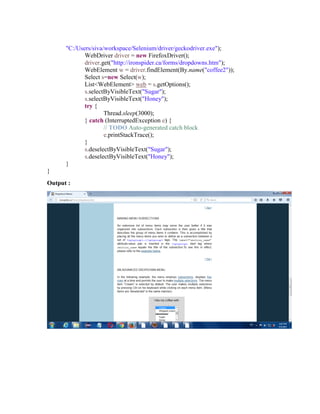
List<WebElement> web = s.getOptions();
s.selectByVisibleText("Sugar");
s.selectByVisibleText("Honey");
try {
Thread.sleep(3000);
} catch (InterruptedException e) {
// TODO Auto-generated catch block
e.printStackTrace();
}
s.deselectByVisibleText("Sugar");
s.deselectByVisibleText("Honey");
}
}
Output :
WEB TABLE:
tr  Table row
th  Table heading
td  Table data
To print particular values(data) in the table:
Example program:
public class Dummy {
public static void main(String[] args) {
System.setProperty("webdriver.gecko.driver",
"C:/Users/siva/workspace/Selenium/driver/geckodriver.exe");
WebDriver driver = new FirefoxDriver();
driver.get("http://toolsqa.com/automation-practice-table/");
String s =
driver.findElement(By.xpath(".//*[@id='content']/table/tbody/tr[2]/td[2]")).getText();
System.out.println(s);
}}
Output:
To print all data’s in the table:
public class Dummy {
public static void main(String[] args) {
System.setProperty("webdriver.gecko.driver",
"C:/Users/siva/workspace/Selenium/driver/geckodriver.exe");
WebDriver driver = new FirefoxDriver();
driver.get("http://toolsqa.com/automation-practice-table/");
List<WebElement> tRows = driver.findElements(By.tagName("tr"));
for(WebElement rows:tRows){
List<WebElement> tData = driver.findElements(By.tagName("td"));
for(WebElement data:tData){
System.out.println(data.getText());
}
}
}
}
Output:
Using normal for loop:
public class Dummy {
public static void main(String[] args) {
System.setProperty("webdriver.gecko.driver",
"C:/Users/siva/workspace/Selenium/driver/geckodriver.exe");
WebDriver driver = new FirefoxDriver();
driver.get("http://toolsqa.com/automation-practice-table/");
List<WebElement> tRows = driver.findElements(By.tagName("tr"));
for(int i=0;i<tRows.size();i++){
List<WebElement> tData = driver.findElements(By.tagName("td"));
for(int j=0;j<tData.size();j++){
System.out.println(tData.get(j).getText());
}
}
}
}
1. To print particular data only:
public class Dummy {
public static void main(String[] args) {
System.setProperty("webdriver.gecko.driver",
"C:/Users/siva/workspace/Selenium/driver/geckodriver.exe");
WebDriver driver = new FirefoxDriver();
driver.get("http://toolsqa.com/automation-practice-table/");
List<WebElement> tRows = driver.findElements(By.tagName("tr"));
for(int i=0;i<tRows.size();i++){
List<WebElement> tData = driver.findElements(By.tagName("td"));
for(int j=0;j<tData.size();j++){
if(tData.get(j).getText().equals("Mecca")){
System.out.println(tData.get(j).getText());
}
}
}}}
Output:
2. To print relevant data(Dynamic table)
public class Dummy {
public static void main(String[] args) {
System.setProperty("webdriver.gecko.driver",
"C:/Users/siva/workspace/Selenium/driver/geckodriver.exe");
WebDriver driver = new FirefoxDriver();
driver.get("http://toolsqa.com/automation-practice-table/");
List<WebElement> tRows = driver.findElements(By.tagName("tr"));
for(int i=0;i<tRows.size();i++){
List<WebElement> tData = driver.findElements(By.tagName("td"));
for(int j=0;j<tData.size();j++){
if(tData.get(j).getText().equals("Dubai")){
driver.findElement(By.xpath(".//*[@id='content']/table/tbody/tr["+i+"]/td[6]/a"));
System.out.println(tData.get(j).getText());
}
}
}
}
}
JavascriptExecutor:
 JavascriptExecutor is an interface which is used to execute the javascript statements.
 Using javascript we can scroll the web page.
Example:
Write a Script to scroll down and scroll up the window using pixel
public class Login {
public static void main(String[] args) throws InterruptedException {
System.setProperty("webdriver.chrome.driver",
"C:Users10655967eclipse-
workspacedemodriverchromedriver.exe");
WebDriver driver = new ChromeDriver();
driver.get("https://www.seleniumhq.org/download/");
JavascriptExecutor j = (JavascriptExecutor) driver;
//To scroll down
j.executeScript("window.scrollBy(0,500)");
Thread.sleep(3000);
//To scroll up
j.executeScript("window.scrollBy(0,-500)");
}
}
Note:
Here widow represents current window and scrollBy is a method to scroll the window
Example2 :
Write a Script to scroll down and scroll up the window upto 50px for 10 times
public class Login {
public static void main(String[] args) throws InterruptedException {
System.setProperty("webdriver.chrome.driver",
"C:Users10655967eclipse-
workspacedemodriverchromedriver.exe");
WebDriver driver = new ChromeDriver();
driver.get("https://www.seleniumhq.org/download/");
JavascriptExecutor j = (JavascriptExecutor) driver;
//To scroll down
for (int i = 0; i < 10; i++) {
j.executeScript("window.scrollBy(0,50)");
Thread.sleep(500);
}
Thread.sleep(3000);
//To scroll up
for (int i = 0; i < 10; i++) {
j.executeScript("window.scrollBy(0,-50)");
Thread.sleep(500);
}
}
Example3 :
Write a Script to scroll web page upto specified element
 In this method, we first assign up to which path locator/web element we want to
down/up and perform
Example Program:
public class dummy {
public static void main(String[] args) throws InterruptedException{
// TODO Auto-generated method stub
System.setProperty("webdriver.gecko.driver",
"C:/Users/siva/workspace/Selenium/driver/geckodriver.exe"); WebDriver
driver=new FirefoxDriver();
driver.get("https://dhtmlx.com/docs/products/dhtmlxTree/
"); JavascriptExecutor j=(JavascriptExecutor) driver;
// assign up to which path we want to down
WebElement w = driver.findElement(By.xpath("//*[text()='Live
Demo']"));
//scroll down up to particular path
j.executeScript("arguments[0].scrollIntoView(true)",
w); Thread.sleep(2000);
driver.findElement(By.xpath("//*[text()='View more demos']")).click();
}}
Output:
Example4 :
Write a Script to enter textbox value and click using javascript
Syntax:
JavascriptExecutor js=(JavascriptExecutor) driver;
js.executeScript("document.getElementById('email').setAttribute('value','Hello')");
Another method
JavascriptExecutor js=(JavascriptExecutor) driver;
js.executeScript("arguments[0].setAttribute('value','Hello')",webelement);
Example program:
public class Dummy {
public static void main(String[] args) {
System.setProperty("webdriver.gecko.driver",
"C:/Users/siva/workspace/Selenium/driver/geckodriver.exe");
WebDriver driver = new FirefoxDriver();
driver.get("https://www.facebook.com/");
//java script declaration
JavascriptExecutor js=(JavascriptExecutor) driver;
js.executeScript("document.getElementById('email').setAttribute('value','Hello')");
// to print the value
Object s = js.executeScript("return document.getElementById('email').
getAttribute('value')");
System.out.println(s);
// to click login
js.executeScript("return document.getElementById('u_0_r').click()");
}}
Another method:
public class Dummy {
public static void main(String[] args) {
System.setProperty("webdriver.gecko.driver",
"C:/Users/siva/workspace/Selenium/driver/geckodriver.exe");
WebDriver driver = new FirefoxDriver();
driver.get("https://www.facebook.com/");
//java script declaration
JavascriptExecutor js=(JavascriptExecutor) driver;
WebElement w=driver.findelement(By.Id(‘email’);
js.executeScript("arguments[0].setAttribute('value','Hello')",w);
WebElement w1=driver.findelement(By.Id('u_0_r');
js.executeScript("arguments[0].click()",w1);
}}
Using Page down:
 In this method, we can scroll down one single page from the first page
public class dummy1 {
public static void main(String[] args) {
System.setProperty("webdriver.gecko.dri
ver",
"C:/Users/siva/workspace/Selenium/driver/geckodriver.exe"); WebDriver
driver=new FirefoxDriver();
driver.get("https://dhtmlx.com/docs/products/dhtmlxTree/
"); JavascriptExecutor j=(JavascriptExecutor) driver;
WebElement w = driver.findElement(By.xpath("//*[text()='Live
Demo']"));
w.sendKeys(Keys.PAGE_DOWN);
}
}
Output:
Highlighting the webelement using javascript
public class Login {
public static void main(String[] args) throws InterruptedException {
System.setProperty("webdriver.chrome.driver",
"C:Users10657527Downloadschromedriver_win32
(1)chromedriver.exe");
WebDriver driver = new ChromeDriver();
driver.manage().window().maximize();
driver.get("https://adactin.com/HotelApp/index.php");
JavascriptExecutor j = (JavascriptExecutor) driver;
// username and password highlighted by green color and red box
WebElement username = driver.findElement(By.id("username"));
j.executeScript("arguments[0].setAttribute('style','background: green;
border: solid 2px red');", username);
username.sendKeys("venkat");
WebElement password = driver.findElement(By.id("password"));
j.executeScript("arguments[0].setAttribute('style','background: green;
border: solid 2px red');", password);
username.sendKeys("venkat@1234");
Thread.sleep(2000);
// Login button highlighted by yellow color and green box
WebElement login = driver.findElement(By.id("login"));
j.executeScript("arguments[0].setAttribute('style','background: yellow;
border: solid 2px green');", login);
login.click();
}
}
SCREENSHOT:
 In order to take screen shot of a webpage we use an interface called
TakesScreenShot.
 Steps to take screen shot of a web page.
o create reference of TakesScreenShot interface.
o Get the screen shot using getScreenShotAs(). By default it will store screen
shots in temp folder.
o Create destination to store the file using File class.
o Copy the file from src to destination using copyFile() of FileUtils class.
Note: In order to copy the file from src to dest we use an API called Commons-io which is
available in the following web site.
URL:- https://commons.apache.org/proper/commons-io/download_io.cgi
File Name: commons-io-2.6-bin.zip
 Download the file and extract it
 Copy all the jar files and store it jars folder.
 Add all jars to build path
Takescrenshot  interface
Example program:
public class Dummy {
public static void main(String[] args) throws IOException {
System.setProperty("webdriver.gecko.driver",
"C:/Users/siva/workspace/Selenium/driver/geckodriver.exe");
WebDriver driver = new FirefoxDriver();
driver.get("https://www.facebook.com/");
driver.findElement(By.id("email")).sendKeys("Hello");
//screenshot declaration
TakesScreenshot tk=(TakesScreenshot) driver;
File source= tk.getScreenshotAs(OutputType.FILE);
File des=new File("F:/facebook.png");
FileUtils.copyFile(source,des );
}}
Output:
MOUSE HOVER ACTION:
Actions:
 Actions class is used to handle the mouse and keyboard actions.
 Actions class should be imported from the package org.openqa.selenium.interactions
 Actions class contains a constructor which takes an argument of type WebDriver
Note:
 When we are using any methods of Actions class, then it is mandatory to call perform()
 Until unless we call perform(), Actions class will never perform the actions.
Handling Drop down menu/Mouse over action:
 When we move the cursor on an element, a list of menus will be displayed. These type of
elements are called as Drop down menus.
 We can handle this drop down menu or mouse over action using moveToElement() of
Actions class
Example:
public class Login {
public static void main(String[] args) throws InterruptedException {
System.setProperty("webdriver.chrome.driver",
"C:Users10657527Downloadschromedriver_win32
(1)chromedriver.exe");
WebDriver driver = new ChromeDriver();
driver.manage().window().maximize();
driver.get("http://www.greenstechnologys.com/");
WebElement courses = driver.findElement(By.linkText("COURSES"));
Actions a=new Actions(driver);
a.moveToElement(courses).perform();
Thread.sleep(2000);
WebElement devOpTraining =
driver.findElement(By.xpath("//span[text()='DevOps Training']"));
a.click(devOpTraining).perform();
}
}
DRAG & DROP AND RIGHT CLICK:
 We can handle this drag and drop action using dragAndDrop() of Actions class.
 dragAndDrop() takes 2 argument of type WebElement. They are,
o source
o target
Example:
public class Login {
public static void main(String[] args) throws InterruptedException {
System.setProperty("webdriver.chrome.driver",
"C:Users10657527Downloadschromedriver_win32
(1)chromedriver.exe");
WebDriver driver = new ChromeDriver();
driver.manage().window().maximize();
driver.get("http://demo.guru99.com/test/drag_drop.html");
Actions a = new Actions(driver);
WebElement source = driver.findElement(By.xpath("//a[text()=' BANK
']"));
WebElement des =
driver.findElement(By.xpath("(//li[@class='placeholder'])[1]"));
Thread.sleep(2000);
a.dragAndDrop(source, des).perform();}}
How to perform drag and drop action without using dragAndDrop()?
Ans: act.clickAndHold(src).moveToElement(target).release().perform();
public class Login {
public static void main(String[] args) throws InterruptedException {
System.setProperty("webdriver.chrome.driver",
"C:Users10657527Downloadschromedriver_win32
(1)chromedriver.exe");
WebDriver driver = new ChromeDriver();
driver.manage().window().maximize();
driver.get("http://demo.guru99.com/test/drag_drop.html");
Actions a = new Actions(driver);
WebElement source = driver.findElement(By.xpath("//a[text()=' BANK
']"));
WebElement des =
driver.findElement(By.xpath("(//li[@class='placeholder'])[1]"));
Thread.sleep(2000);
a.clickAndHold(source).moveToElement(des).release(des).perform();
}
}
RIGHT CLICK:
Handling context click action:
 Right clicking on an element is called as context click.
 After right clicking on an element, the options which are displayed are called as context
menus.
 We can handle this context click action using contextClick () of Actions class.
 contextClick() takes 1 argument of type WebElement where in we have to pass address of
the element.
 We can handle the context menus by using a class called Robot.
 Robot class is used to perform keyboard action
 In Robot class, to press the key we use keypress() and to release the key we use
keyRelease().
Example:
public class Login {
public static void main(String[] args) throws InterruptedException, Throwable {
System.setProperty("webdriver.chrome.driver",
"C:Users10657527Downloadschromedriver_win32
(1)chromedriver.exe");
WebDriver driver = new ChromeDriver();
driver.manage().window().maximize();
driver.get("https://www.google.com/");
Actions a = new Actions(driver);
WebElement gmail = driver.findElement(By.linkText("Gmail"));
Thread.sleep(2000);
a.contextClick(gmail).perform();
// Using robot class we can open gmail in new tab
Robot r=new Robot();
r.keyPress(KeyEvent.VK_DOWN);
r.keyRelease(KeyEvent.VK_DOWN);
r.keyPress(KeyEvent.VK_ENTER);
r.keyRelease(KeyEvent.VK_ENTER);
}
}
Handling composite action:
 Performing multiple actions at a time on a an element is called as composite actions.
 We can handle composite action by using build().perform().
 In latest version of selenium, build() is already integrated with perform(). So we don’t
have to call build() explicitly.
What are the actions we can perform by using Actions class?
Actions Methods
Drop down menu/Mouse over moveToElement()
Drag and Drop dragAndDrop()
Double click doubleClick()
Context click(Right click) contextClick()
Composite Action build().perform()/perform()
EXERCISE:
1.Go to flipkart,com, click mobile case using mouse over action,&check the particular
title is correct and take screenshot :
public class Ex2 {
public static void main(String[] args) throws IOException, InterruptedException
{
System.setProperty("webdriver.gecko.driver",
"C:/Users/siva/workspace/Selenium/driver/geckodriver.exe");
WebDriver driver = new FirefoxDriver();
driver.get("https://www.flipkart.com/");
WebElement web =
driver.findElement(By.xpath(".//*[text()='Electronics']"));
Actions a=new Actions(driver);
a.moveToElement(web).perform();
Thread.sleep(2000);
driver.findElement(By.xpath(".//*[text()='Mobile Cases']")).click();
String s = driver.getCurrentUrl();
if(s.equals("https://www.flipkart.com/mobile-accessories/cases-and-
covers/pr?sid=tyy,4mr,q2u&otracker=nmenu_sub_Electronics_0_Mobile%20Cases")){
System.out.println("u r in mobile case page");
}else
{
System.out.println("u r not in mobile case");
}
Thread.sleep(3000);
TakesScreenshot tk=(TakesScreenshot) driver;
File f = tk.getScreenshotAs(OutputType.FILE);
File f1=new File("F:/flipkart mobile case.png");
FileUtils.copyFile(f,f1 );
}
}
Output:
2.Adactin.com registration:
public class Ex3 {
public static void main(String[] args) throws IOException, InterruptedException
{
System.setProperty("webdriver.gecko.driver",
"C:/Users/siva/workspace/Selenium/driver/geckodriver.exe");
WebDriver driver = new FirefoxDriver();
driver.get("http://www.adactin.com/HotelApp/index.php");
driver.findElement(By.id("username")).sendKeys("vengat16");
driver.findElement(By.id("password")).sendKeys("Karthick");
driver.findElement(By.id("login")).click();
driver.findElement(By.id("location")).sendKeys("London");
driver.findElement(By.id("hotels")).sendKeys("Hotel Sunshine");
driver.findElement(By.id("room_type")).sendKeys("Super Deluxe");
driver.findElement(By.id("room_nos")).sendKeys("3 - Three");
driver.findElement(By.id("datepick_in")).sendKeys("11/07/2017");
driver.findElement(By.id("datepick_out")).sendKeys("12/07/2017");
driver.findElement(By.id("adult_room")).sendKeys("2 - Two");
driver.findElement(By.id("child_room")).sendKeys("2 - Two");
driver.findElement(By.id("Submit")).click();
driver.findElement(By.id("radiobutton_0")).click();
driver.findElement(By.id("continue")).click();
driver.findElement(By.id("first_name")).sendKeys("Vengat");
driver.findElement(By.id("last_name")).sendKeys("Ram");
driver.findElement(By.id("address")).sendKeys("no.20, dubai kurukku
santhu,dubai");
driver.findElement(By.id("cc_num")).sendKeys("1234567890123456");
driver.findElement(By.id("cc_type")).sendKeys("VISA");
driver.findElement(By.id("cc_exp_month")).sendKeys("March");
driver.findElement(By.id("cc_exp_year")).sendKeys("2020");
driver.findElement(By.id("cc_cvv")).sendKeys("123");
driver.findElement(By.id("book_now")).click();
}}
Output:
3.Gmail login using javascript:
public class Ex1 {
public static void main(String[] args) throws IOException,
InterruptedException {
System.setProperty("webdriver.gecko.driver",
"C:/Users/siva/workspace/Selenium/driver/geckodriver.exe");
WebDriver driver = new FirefoxDriver();
driver.get("https://accounts.google.com/signin/v2/identifier?service=mail&passive
=true&rm=false&continue=https%3A%2F%2Fmail.google.com%2Fmail%2F&ss=1&scc
=1&ltmpl=default&ltmplcache=2&emr=1&osid=1&flowName=GlifWebSignIn&flowEnt
ry=ServiceLogin");
Thread.sleep(5000);
WebElement w =
driver.findElement(By.xpath(".//*[@id='identifierId']"));
JavascriptExecutor js=(JavascriptExecutor) driver;
js.executeScript("arguments[0].setAttribute('value','venkat12345')",w);
WebElement w1 =
driver.findElement(By.xpath(".//*[text()='Next']"));
js.executeScript("arguments[0].click()",w1);
Thread.sleep(6000);
WebElement w2 =
driver.findElement(By.xpath("//*[@name='password']"));
js.executeScript("arguments[0].setAttribute('value','venkat12345')",w2);
Thread.sleep(6000);
WebElement w3 =
driver.findElement(By.xpath(".//*[@id='passwordNext']/div[2]"));
js.executeScript("arguments[0].click()",w3);
}}
ALERTS:
 There are 3 type in javascript pop-up. They are,
o Alert
o Confirmation
o Prompt
Characteristics of javascript pop-up
 We can not move the pop up.
 We can not inspect the pop up.
 It is black and white in color
 If it contains only ok button then it is alert pop-up.
 If it contains only ok and cancel button then it is confirmation pop-up.
 If it contains only Text box, ok and cancel button then it is prompt pop-up.
 we can handle any javascript pop up by using the statement
Alert a = driver.switchTo().alert();
 In Alert interface we have different methods. They are
o accept() click on Ok
o dismiss() click on cancel
o getText() get the text
o sendKeys() enter the text
 If the javascript pop-up is not present and still if we try to switch into it, then it will throw
NoAlertPresentException
1. Simple:
 In this method, we just click single ok button in the alert.
Example program:
public class Dummy2 {
public static void main(String[] args) throws InterruptedException {
System.setProperty("webdriver.gecko.driver",
"C:/Users/siva/workspace/Selenium/driver/geckodriver.exe");
WebDriver driver = new FirefoxDriver();
driver.get("https://mail.rediff.com/cgi-bin/login.cgi");
driver.findElement(By.xpath("//input[@type='submit']")).click();
Alert a = driver.switchTo().alert();
System.out.println(a.getText());
a.accept();
driver.switchTo().defaultContent();
driver.findElement(By.id("login1")).sendKeys("venkat123");
driver.quit();
}
}
Here,
alert  class
Output:
2. Confirm:
 In this method, we have to click OK or Cancel, if we click OK/Cancel, then it
will confirm
Example program:
public class Dummy3 {
public static void main(String[] args) throws InterruptedException {
System.setProperty("webdriver.gecko.driver",
"C:/Users/siva/workspace/Selenium/driver/geckodriver.exe");
WebDriver driver = new FirefoxDriver();
driver.get("http://toolsqa.com/handling-alerts-using-selenium-webdriver/");
driver.findElement(By.xpath(".//button[text()='Confirm Pop up']")).click();
Alert a = driver.switchTo().alert();
System.out.println(a.getText());
a.dismiss();
driver.quit();}
Output:
3. Prompt:
 In this method, first we have insert Yes/No and then we will click OK/Cancel
Example program:
public class Dummy4 {
public static void main(String[] args) throws InterruptedException {
System.setProperty("webdriver.gecko.driver",
"C:/Users/siva/workspace/Selenium/driver/geckodriver.exe");
WebDriver driver = new FirefoxDriver();
driver.get("http://toolsqa.com/handling-alerts-using-selenium-webdriver/");
driver.findElement(By.xpath(".//button[text()='Prompt Pop up']")).click();
Alert a = driver.switchTo().alert();
System.out.println(a.getText());
a.sendKeys("yes");
Thread.sleep(3000);
a.dismiss();
driver.quit();
}
}
Output:
WINDOW HANDLING:
 It is used to move one window to another window
Example :
To Handle 2 windows:
public class Dummy9 {
public static void main(String[] args) throws InterruptedException {
System.setProperty("webdriver.gecko.driver",
"C:/Users/siva/workspace/Selenium/driver/geckodriver.exe");
WebDriver driver = new FirefoxDriver();
driver.get("https://www.hdfcbank.com/");
driver.findElement(By.xpath(".//*[@id='cee_closeBtn']/img")).click();
String parentWindowId = driver.getWindowHandle();
System.out.println("Parent Window ID:" + parentWindowId);
driver.findElement(By.id("loginsubmit")).click();
Set<String> allWindowId = driver.getWindowHandles();
for (String x : allWindowId) {
if (!parentWindowId.equals(x)) {
System.out.println("Child Window ID:" + x);
driver.switchTo().window(x);
Thread.sleep(3000);
driver.findElement(By.xpath("html/body/div[4]/div[2]/div[1]/a"))
.click();
driver.manage().window().maximize();
Thread.sleep(2000);
driver.switchTo().defaultContent();
}
}
Thread.sleep(3000);
driver.quit(); }
}
Here,
 Home page(window)  parent window
 Next window  Child window
 getWindowHandle()  It is a method used to get parent window id
 getWindowHandles()  It is a method used to get all windows id
 So, we have A(parent window id) and C(A,B) but we don’t have B.
 C  all windows id
 We have to find B using Iterator or enhancement for
 defaultContent()  it is a method used to move previous window
Output:
To Handling Multiple windows:
public class Login {
public static void main(String[] args) throws InterruptedException, Throwable {
System.setProperty("webdriver.chrome.driver",
"C:Users10657527Downloadschromedriver_win32
(1)chromedriver.exe");
WebDriver driver = new ChromeDriver();
driver.manage().window().maximize();
driver.get("https://www.hdfcbank.com/");
driver.findElement(By.xpath(".//*[@id='cee_closeBtn']/img")).click();
String parentWindowId = driver.getWindowHandle();
System.out.println("Parent Window ID:" + parentWindowId);
driver.findElement(By.id("loginsubmit")).click();
Set<String> allWindowId = driver.getWindowHandles();
List<String> l=new ArrayList<String>(allWindowId);
//By passing index we can switch the desired window
driver.switchTo().window(l.get(1));
}
}
IFRAME:

IFrame is a web page which is embedded in another web page or an HTML document
embedded inside another HTML document.

iFrame is defined by an <iframe></iframe> tag in HTML. With this tag you can identify
an iFrame while inspecting the HTML tree.

Same HTML for IFrame,
<body>
<div class="box">
<iframe name="iframe1" id="IF1" height="600"
width="400"
src="http://toolsqa.wpengine.com"></iframe>
</div>
<div class="box">
<iframe name="iframe2" id="IF2" height="600" width="400"
align="left" src="http://demoqa.com"></iframe>
</div>
</body>
</html>
Identifying IFrame:

We cannot detect the frames by just seeing the page or by inspecting Firebug.

Observe the below image, Advertisement being displayed is an Iframe, we cannot locate
or recognize that by just inspecting using Firebug. So the question is how can you
identify the iframe?

Right click on the element, If you find the option like 'This Frame' then it is an
iframe.(Please refer the above diagram)

Right click on the page and click 'View Page Source' and Search with the 'iframe', if you
can find any tag name with the 'iframe' then it is meaning to say the page consisting an
iframe.
Ways to Switch IFrame:
1. Switch to frame by index
2. Switch to frame by id or name
3. Switch to frame by webelement
 We can find total number of IFrame by using below
commands
int size = driver.findElements(By.tagName("iframe")).size();
1. Switch to frame by index:
Example:
public class Dummy9 {
@Test
public void upload() throws InterruptedException, IOException
{ System.setProperty("webdriver.gecko.driver",
"C:/Users/siva/workspace/Selenium/driver/geckodriver.exe");
WebDriver driver = new FirefoxDriver();
driver.get("http://toolsqa.wpengine.com/iframe-practice-page/");
int size =
driver.findElements(By.tagName("iframe")).size();
System.out.println(size);
driver.switchTo().frame(0);
driver.findElement(By.name("firstname")).sendKeys("vengat");
}
}
2. Switch to frame by id or name:
Using ID:
public class Dummy9 {
@Test
public void upload() throws InterruptedException, IOException {
System.setProperty("webdriver.gecko.driver",
"C:/Users/siva/workspace/Selenium/driver/geckodriver.exe"); WebDriver driver =
new FirefoxDriver(); driver.get("http://toolsqa.wpengine.com/iframe-practice-
page/"); int size = driver.findElements(By.tagName("iframe")).size();
System.out.println(size);
driver.switchTo().frame("IF1");
driver.findElement(By.name("firstname")).sendKeys("vengat");
}
}
Using Name:
public class Dummy9 {
@Test
public void upload() throws InterruptedException, IOException {
System.setProperty("webdriver.gecko.driver",
"C:/Users/siva/workspace/Selenium/driver/geckodriver.exe");
WebDriver driver = new FirefoxDriver();
driver.get("http://toolsqa.wpengine.com/iframe-practice-page/");
int size = driver.findElements(By.tagName("iframe")).size();
System.out.println(size);
driver.switchTo().frame("iframe1");
driver.findElement(By.name("firstname")).sendKeys("vengat");
}
}
3. Switch to frame by webelement:
public class Dummy9 {
@Test
public void upload() throws InterruptedException, IOException {
System.setProperty("webdriver.gecko.driver",
"C:/Users/siva/workspace/Selenium/driver/geckodriver.exe");
WebDriver driver = new FirefoxDriver();
driver.get("http://toolsqa.wpengine.com/iframe-practice-
page/"); int size =
driver.findElements(By.tagName("iframe")).size();
System.out.println(size);
WebElement web =
driver.findElement(By.id("IF2"));
driver.switchTo().frame(web);
driver.findElement(By.name("firstname")).sendKeys("venga
t");
}
}
117
WAITS:
Synchronization:
 Matching speed of selenium with the speed of application is called as synchronization.
 If we trying to find the elements due to application late response, it throws exception.
 Using waits we can resolve this exception
 we can handle synchronization by using,
o implicit wait
o explicit wait
o Thread.sleep()
o Fluent wait
Implicit wait:
 It will handle the synchronization of findElement() and findElements().
 implicitlyWait() takes 2 arguments of type long and TimeUnit.
 In the 1st
argument we have to specify waiting time and the 2nd
argument we have to
specify time unit
 The different time units are
 DAYS
 HOURS
 MINUTES
 SECONDS
 MILISECONDS
 MICROSECONDS
 NANOSECONDS
118
Work flow of Implicit wait:
 When the control comes to findElement() or findElements(), it will check whether the
element is present or not
 If the element is present, it will return address of the specified element.
 If the element is not present, it will check whether implicitlyWait() is specified or not.
 If implicitlyWait() is not specified then it will throw NoSuchElementException or Empty
list.
 If implicitlyWait() is specified then it will check whether the specified time is over or not.
 If the specified time is over then it will throw NoSuchElementException or Empty list.
 If the specified time is not over then for every 500ms it will check whether the element is
present or not.
Note:
 500ms is called as polling period which is present in a class called FluentWait.
 Using implicit wait we can handle synchronization of findElement() and findElements()
only.
Syntax:
driver.manage().timeouts().implicitlyWait(time, TimeUnit.SECONDS);
119
Ex:
driver.manage().timeouts().implicitlyWait(10, TimeUnit.SECONDS);
Example:
public class Login {
public static void main(String[] args) throws InterruptedException {
System.setProperty("webdriver.chrome.driver",
"C:Users10657527Downloadschromedriver_win32
(1)chromedriver.exe");
WebDriver driver = new ChromeDriver();
driver.manage().timeouts().implicitlyWait(10, TimeUnit.SECONDS);
driver.manage().window().maximize();
driver.get("https://adactin.com/HotelApp/index.php");
driver.findElement(By.id("username")).sendKeys("Venkat");
driver.findElement(By.id("password")).sendKeys("Venkat@123");
driver.findElement(By.id("login")).click();
}
}
Explicit wait:
 It is used to handle synchronization of any methods including findElement() and
findElements().
 WebDriverWait class is called as explicit wait which takes 2 arguments of type WebDriver
and long
 Here the default time unit is seconds.
120
Work flow of explicit wait:
 During the Run Time, when the control comes to wait statement, it will check whether the
specified condition is true of not.
 If the condition is true it will execute next statements otherwise it will check whether the
time is over or not.
 If the specified time is over then it will throw TimeoutException.
 If time is not over then for every 500ms it will check whether the condition is true or not.
Note:
 500ms is called as polling period which is present in a class called FluentWait.
 All the methods present in ExpectedConditions class are called as Predicates.
Syntax:
WebDriverWait wait = new WebDriverWait(driver,time);
Ex:
wait = new WebDriverWait(driver, time);
wait.until(ExpectedConditions.visibilityOf(element));
121
 The following are the Expected Conditions that can be used in Explicit Wait
1. alertIsPresent()
2. elementSelectionStateToBe()
3. elementToBeClickable()
4. elementToBeSelected()
5. frameToBeAvaliableAndSwitchToIt()
6. invisibilityOfTheElementLocated()
7. invisibilityOfElementWithText()
8. presenceOfAllElementsLocatedBy()
9. presenceOfElementLocated()
10. textToBePresentInElement()
11. textToBePresentInElementLocated()
12. textToBePresentInElementValue()
13. titleIs()
14. titleContains()
15. visibilityOf()
16. visibilityOfAllElements()
17. visibilityOfAllElementsLocatedBy()
18. visibilityOfElementLocated()
Example:
public class Login {
public static void main(String[] args) throws InterruptedException {
System.setProperty("webdriver.chrome.driver",
"C:Users10657527Downloadschromedriver_win32
(1)chromedriver.exe");
WebDriver driver = new ChromeDriver();
driver.manage().window().maximize();
driver.get("https://adactin.com/HotelApp/index.php");
driver.findElement(By.id("username")).sendKeys("Venkat");
driver.findElement(By.id("password")).sendKeys("Venkat@123");
WebDriverWait wait =new WebDriverWait(driver, 60);
122
wait.until(ExpectedConditions.elementToBeClickable(driver.findElement(By.id("login"))));
driver.findElement(By.id("login")).click();
}
}
Fluent wait:
 The fluent wait is used to tell the web driver to wait for a condition, as well as
the frequency with which we want to check the condition before throwing an
"ElementNotVisibleException" exception.
 Frequency: Setting up a repeat cycle with the time frame to verify/check the condition at
the regular interval of time
 Let's consider a scenario where an element is loaded at different intervals of time. The
element might load within 10 seconds, 20 seconds or even more then that if we declare an
explicit wait of 20 seconds. It will wait till the specified time before throwing an exception.
In such scenarios, the fluent wait is the ideal wait to use as this will try to find the element
at different frequency until it finds it or the final timer runs out.
Syntax:
Wait wait = new FluentWait(WebDriver reference)
.withTimeout(timeout, SECONDS)
.pollingEvery(timeout, SECONDS)
.ignoring(Exception.class);
Ex:
Wait wait = new FluentWait(driver).withTimeout(5,
TimeUnit.MILLISECONDS).pollingEvery(60, TimeUnit.SECONDS)
.ignoring(Exception.class);
123
FILE UPLOADING USING ROBOT CLASS AND SENDKEYS:
Using Robot class:
Ex:
public class Login {
public static void main(String[] args) throws InterruptedException, Throwable {
System.setProperty("webdriver.chrome.driver",
"C:Users10657527Downloadschromedriver_win32
(1)chromedriver.exe");
WebDriver driver = new ChromeDriver();
driver.manage().window().maximize();
driver.get("http://demo.guru99.com/test/upload/");
String path="C:Users10657527DesktopVenkatraman.docx";
driver.findElement(By.name("uploadfile_0")).click();
Thread.sleep(2000);
Robot robot = new Robot();
robot.setAutoDelay(3000);
StringSelection selection = new StringSelection(
path);
Toolkit.getDefaultToolkit().getSystemClipboard()
.setContents(selection, null);
// press ctrl+vsss
robot.keyPress(KeyEvent.VK_CONTROL);
robot.keyPress(KeyEvent.VK_V);
robot.setAutoDelay(3000);
// release ctrl+v
robot.keyRelease(KeyEvent.VK_CONTROL);
robot.keyRelease(KeyEvent.VK_V);
// press enter
robot.setAutoDelay(3000);
robot.keyPress(KeyEvent.VK_ENTER);
robot.keyRelease(KeyEvent.VK_ENTER);
}
}
124
Using sendKeys:
Ex:
public class Login {
public static void main(String[] args) throws InterruptedException, Throwable {
System.setProperty("webdriver.chrome.driver",
"C:Users10657527Downloadschromedriver_win32
(1)chromedriver.exe");
WebDriver driver = new ChromeDriver();
driver.manage().window().maximize();
driver.get("http://demo.guru99.com/test/upload/");
String path="C:Users10657527DesktopVenkatraman.docx";
driver.findElement(By.name("uploadfile_0")).sendKeys(path);;
}
}
BROKEN LINKS:
Broken links:
 If any link is failed load it’s destination page then that link is called as broken links.
 It is not possible to verify broken links by using selenium.
 We can verify the broken links by using Java
 In order to verify the broken links we use a class called URL which is available in java.net package
Sample web page:
<a href="http://www.qspiders.com">Qspiders</a>
<a href="www.qspider.com">Qspider</a>
<a href="http://www.qsp.com">Qsp</a>
125
Example1: Typical java program to verify broken links
public class JavaDemo
{
public static void main(String[] args) throws IOException
{
URL url = new URL("http://www.qspiders.com");
HttpURLConnection con = (HttpURLConnection) url.openConnection();
int code = con.getResponseCode(); //if code is 200, then link is not broken
System.out.println(code);
String msg = con.getResponseMessage(); //if msg is Ok, then link is not broken
System.out.println(msg);
}
}
Example 2:
public class Login {
public static void main(String[] args) throws InterruptedException, Throwable {
System.setProperty("webdriver.chrome.driver",
"C:Users10657527Downloadschromedriver_win32
(1)chromedriver.exe");
WebDriver driver = new ChromeDriver();
driver.manage().window().maximize();
driver.get("https://www.google.com/");
List<WebElement> allLinks = driver.findElements(By.xpath("//a"));
int broken=0, notBroken=0;
for(WebElement link:allLinks)
{
String href = link.getAttribute("href");
String text = link.getText();
System.out.println("Link: "+text);
System.out.println("URL: "+href);
try
{
URL url = new URL(href);
HttpURLConnection con = (HttpURLConnection)
url.openConnection();
126
int code = con.getResponseCode();
if(code==200)
{
System.out.println("Links is not broken....");
notBroken++;
}
else
{
System.out.println("Link is broken1:");
System.out.println(con.getResponseMessage());
broken++;
}
}
catch (Exception e)
{
System.out.println("Link is broken2:");
broken++;
}
System.out.println("===============================================");
}
System.out.println("Total number of links: "+allLinks.size());
System.out.println("Number of broken links: "+broken);
System.out.println("Number of non broken links: "+notBroken);
Thread.sleep(2000);
driver.close();
}
}
127
Thank you
1
Selenium Full Material( apprendre Selenium).pdf

Selenium Full Material( apprendre Selenium).pdf

  • 1.
    - CONTENTS 1. INTRODUCTION OFAUTOMATION TESTING 2. BROWSER LAUNCHING 3. WEB DRIVER METHODS 4. NAVIGATION COMMANDS 5. LOCATORS 6. WEBELEMENT METHODS 7. RADIO BUTTON 8. HANDLING MULTIPLE WEBELEMENTS AND AUTO SUGGESTION 9. CHECK BOX 10. DROP DOWN 11. WEB TABLE 12. JAVASCRIPT EXECUTOR 13. SCROLL UP AND SCROLL DOWN 14. SCREENSHOT 15. MOUSE HOVER ACTION 16. DRAG & DROP AND RIGHT CLICK 17. WINDOW HANDLING 18. FRAME HANDLING 19. ALERTS 20. WAIT 21. FILE UPLOADING USING ROBOT CLASS AND SENDKEYS 22. BROKEN LINKS
  • 2.
    INTRODUCTION OF AUTOMATIONTESTING Important Java concepts required for selenium:  Conditions(if, if-else, switch)  Loops(for, while, do-while, for-each)  Oops(Inheritance, Polymorphism, Encapsulation, Abstraction)  Method overloading, overriding  Constructors  String  Type casting, Upcasting  Code optimization  Collection(List and Set) Automation:  Performing any task by using a tool or machine is called as automation. Advantages: 1. Save the time. 2. Faster 3. Requires less manual effort 4. Restless. 5. Accuracy will be more 6. Multi-task 7. Requires less human resources Dis Advantages: 1. Initial investment will be more. 2. It requires constant maintenance 3. It requires additional skill sets. Automation testing:  Testing an application by using any automation tools is called as automation testing. Automation Tool:  It’s a software or an application which is used to automate any applications. o Ex: Selenium, QTP, Appium, AutoIT etc,
  • 3.
    Selenium:  It’s afree and open source automation tool which is used to automation any web based applications. Advantages of selenium:  It is freely available automation tool. To make use of selenium for commercial purpose we don’t have to buy any license. It is available in below website. o https://www.seleniumhq.org/download/  Anyone can view source code of selenium which is available in below website. o https://github.com/SeleniumHQ/selenium  Using selenium we can automate any web based applications such as gmail, facebook, flipkart etc…  It supports for 14 programming languages.  It supports for multiple platforms such as Windows, Mac, Linux.  It supports all most all the browsers such as chrome, firefox, ie, safari, opera. High Level Architecture of selenium:  Selenium supports for multiple languages such as java, c, python etc,  Each of these languages contains generic libraries(Re-useable codes) which is called as client/language binding.  These client binding will communicates with as API called WebDriver  Here client binding will communicate the actions which has to be performed on the browser such as open the browser, enter url/text, click, close etc.
  • 4.
     To performaction on the browser WebDriver will communicate with driver executable files such as chromedriver.exe, geckodriver.exe, IEDriverServer.exe etc Note: 1. To perform action on chrome browser, webdriver will communicate with chromedriver.exe 2. To perform action on firefox browser, webdriver will communicate with geckodriver.exe 3. To perform action on ie browser, webdriver will communicate with IEDriverServer.exe Java selenium Architecture: Interface: 1. SearchContext 2. JavaScriptExecutor
  • 5.
    3. WebDriver Classes: 1. RemoteWebDriver 2.ChromeDriver 3. InternetExplorerDriver  SearchContext is the super most interface which contains 2 methods, 1. findElement() 2. findElements()  SearchContext interface is inherited by another interface called WebDriver which contains 13 methods including findELement() and findElements()  There are other 2 interfaces such as 1. JavascriptExeutor:- which is used to execute javascript statements 2. TakesscreenShot:- which is used to take screenshots of webpage  All these interfaces are implemented in a class called RemoteWebdriver(Super most class in selenium)  All the methods of RemoteWebdriver class are overridden in respective browser classes such as, ChromeDriver, FirefoxDriver , InternetExplorerDriver. WebDriver methods: 1 get() 2 getTitle() 3 getCurrentUrl() 4 getPageSource() 5 findElement() 6 findElements() 7 getWindowHandle() 8 getWindowHandles() 9 switchTo() 10 manage() 11 navigate() 12 close() 13 quit() JavascriptExecutor methods: 1 executeScript() 2 executeAsyncScript()
  • 6.
    TakesscreenShot methods: 1. getScreenShotAs() Note: 1.ChromeDriver class is used to work with chrome browser. 2. FirefoxDriver class is used to work with firefox browser. 3. InternetExplorerDriver class is used to work with ie browser. Tools Required:  jdk[1.8 & above]  Eclipse[Mars, Neon, Oxygen]  Selenium jar file  Driver executable files  Latest version of browsers  Application Under Testing Steps to install selenium:  Download selenium jar file and driver exe files from following website. URL http://www.seleniumhq.org/download  Extract all the driver exe files  In eclipse, create a java project with the name Automation.  Under the Java project create 2 folders with the name drivers and jars To create folder, Right click on projectnewcreate folder  Store all extracted driver exe files under drivers folder  Store selenium jar file under jars folder  Associate selenium jar file with java project To associate the jar file, right click on jar fileBuild pathAdd to build path Note:  Before launching the browser we have to set path of the driver exe file.  We can set path of the driver exe file by using setProperty() of System class.  setProperty() is a static method which takes 2 args of type String. They are, o key o value  key for geckcodriver is, webdriver.gecko.driver  value is the path of the driver exe file. We can specify the value in any of the following ways, o C:UsersVenkatDesktopcapgeminiAutomationdriversgeckodriver.exe o C:/Users/Venkat/Desktop/capgeminis/Automation/drivers/geckodriver.exe
  • 7.
    o ./drivers/geckodriver.exe(.---> pathof the current java project)  If we do not set path of the driver exe file, then it will throw IllegalStateException. BROWSER LAUNCHING 1. Open the browser Firefox browser: public class FacebookAccount { public static void main(String[] args) { // to configure driver System.setProperty("webdriver.gecko.driver", "C:/Users/siva/workspace/Selenium/driver/geckodriver.exe"); // create the firefox driver WebDriver driver = new FirefoxDriver(); // url mention driver.get("https://www.facebook.com/"); driver.close(); } } Q1: How does selenium performs the action? Ans: By calling native methods of the browsers. Q2: How do you call native methods of the browsers? Ans: By using driver executable files.
  • 8.
    Close();  It isused to close the application.  It will close the current browser. Quit():  Destroy the object.  It will close all browser windows opened by selenium webdriver Chrome Launching: chrome driver-v60=chrome driver-v2.30 public class GmailAccount { public static void main(String[] args) { System.setProperty("webdriver.chrome.driver", "C:/Users/siva/workspace/Selenium/driver/chromedriver.exe"); WebDriver driver = new ChromeDriver(); driver.get("https://www.gmail.com/"); driver.manage().window().maximize(); }} Output of the above program:
  • 9.
    IE Launching: IE-v11.0= internetdriver server-v3.4 Internet Explorer browser: Before launching IE browser we have to do the following settings.  open the ie browser  goto tools and click on internet options  goto security tab  Select enable protected mode checkbox in all the zone  Internet  Local intranet  trusted sites  Restricted sites  Set the zoom level to 100% IE Launching: public class IntenetExplore { public static void main(String[] args) {
  • 10.
    System.setProperty("webdriver.ie.driver", "C:/Users/siva/workspace/Selenium/driver/IEDriverServer.exe"); WebDriver driver =new InternetExplorerDriver(); driver.get("https://www.facebook.com/"); driver.manage().window().maximize(); } } Output of the program Opera Launching: Opera-v46=opera driver-v2.27 public class Opera { public static void main(String[] args) {
  • 11.
    System.setProperty("webdriver.opera.driver","C:/Users/siva/workspace/Selenium/ driver/operadriver.exe" ); WebDriver driver= new OperaDriver(); driver.get("https://www.facebook.com/"); driver.manage().window().maximize(); } } Output: Write a Script to open and close the browser based on user input public class Demo { public static void main(String[] args) throws InterruptedException { Scanner sc = new Scanner(System.in);
  • 12.
    System.out.println("Enter brower Name:"); Stringbrowser = sc.nextLine(); WebDriver driver = null; if(browser.equals("Firefox")) { System.setProperty("webdriver.gecko.driver", "./drivers/geckodriver.exe"); driver = new FirefoxDriver(); } else if(browser.equals("Chrome")) { System.setProperty("webdriver.chrome.driver", "./drivers/chromedriver.exe"); driver = new ChromeDriver(); } else { System.out.println("Invalid browser"); } Thread.sleep(2000); driver.close(); } } Note: The above script is an example for Run Time Ploymorphism.  To run same script on multiple browsers, we are converting sub class object into interface type(upcasting). WebDriver driver = new ChromeDriver(); WebDriver driver = new FirefoxDriver();
  • 13.
    WEB DRIVER METHODS: Methodsof WebDriver Interface: 1 get() To enter the url 2 getTitle() To get the title of current web page 3 getCurrentUrl() To get the url of current web page 4 getPageSource() To get the page source of current web page 5 findElement() To get single webElements 6 findElements() To get multiple webElements 7 getWindowHandle() To get the id of parent window 8 getWindowHandles() To get the id of All windows 9 switchTo() Used to switch one window to other window 10 manage() 1. Window 2. Cookies 11 navigate() 1. Enter the URL 2. Navigate to previous page 3. Navigate to next page 4. Refresh current web page 12 close() To close the current/parent browser 13 quit() To close all the browsers opened by selenium public class Demo { public static void main(String[] args) throws InterruptedException { //open the browser System.setProperty("webdriver.chrome.driver", "./drivers/chromedriver.exe"); WebDriver driver = new ChromeDriver(); //enter the url driver.get("https://www.google.com/"); //To get the title of current web page String title = driver.getTitle(); System.out.println("Title: "+title); //To get the url of current web page String url = driver.getCurrentUrl(); System.out.println("URL: "+url);
  • 14.
    //To close thebrowser Thread.sleep(2000); driver.close(); } } Write a script for the following:  Open the browser  Delete all cookies  Set size of the window  Set position of the window  Maximize the window public class Demo { public static void main(String[] args) throws InterruptedException {
  • 15.
    //To open thebrowser System.setProperty("webdriver.chrome.driver", "./drivers/chromedriver.exe"); WebDriver driver = new ChromeDriver(); Thread.sleep(2000); //To delete cookies driver.manage().deleteAllCookies(); //To set the size of the window Dimension d = new Dimension(500, 500); driver.manage().window().setSize(d); Thread.sleep(2000); //To set the position of the window Point p = new Point(250, 250); driver.manage().window().setPosition(p); Thread.sleep(2000); //To maximize the window driver.manage().window().maximize(); } } NAVIGATION COMMANDS 1. Navigate().to() 2. Refresh() 3. Back() 4. Forword() public class Demo { public static void main(String[] args) throws InterruptedException { //open the browser System.setProperty("webdriver.chrome.driver", "./drivers/chromedriver.exe"); WebDriver driver = new ChromeDriver(); //To maximize the window driver.manage().window().maximize(); //To delete the cookies
  • 16.
    driver.manage().deleteAllCookies(); driver.get("https://www.google.com/"); //To enter theurl driver.navigate().to("https://www.facebook.com/"); Thread.sleep(1000); //To navigate to previous page driver.navigate().back(); Thread.sleep(1000); //To navigate to next page driver.navigate().forward(); Thread.sleep(1000); //Refresh current web page driver.navigate().refresh(); } } public class Demo { public static void main(String[] args) throws InterruptedException { //open the browser System.setProperty("webdriver.chrome.driver", "./drivers/chromedriver.exe"); WebDriver driver = new ChromeDriver(); driver.manage().window().maximize(); driver.get("https://www.naukri.com/"); Thread.sleep(2000); //To close all the browsers driver.quit(); } }
  • 17.
    Difference Between get()and navigate(): get navigate It will just enter the URL 1. It will enter the URL 2. It will navigate to previous page 3. It will navigate to next page 4. It will refresh the current web page After entering the URL it will not allow any statements to execute untill the page loads completely After entering the URL it will not wait untill the page loads completely WEBELEMENTS METHODS: WebElement:  Anything which is present on the webpage is called as webelement. Ex: text box, link, image, listbox, checkbox etc,  These Web elements are developed by using HTML.  HTML stands for HyperText Markup Language.  The components of HTML are, i) Tags ii) Attributes iii) Text We can develop the web pages by using the notepad. Steps to create web pages. 1. Open the notepad 2. Write the html code 3. Save the file with .html 4. Open the file with any web browsers Ex: <html> <head>
  • 18.
    <title>WelCome</title> </head> <body> username:<input type="text"> Password:<input type="password"> <inputtype="button" value="Login"> <a href="http://www.gmail.com">Inbox(10)</a> <a href="http://www.google.com" id="fp" name="forgot" class="pass">Forgot Password???</a> </body> </html>
  • 19.
    Before performing actionon any elements, we have to perform following steps. 1. Inspect the element 2. Identify/locate the element 3. Find the element 4. Perform the action Inspect the element:  Fetching the source code of an element is called as inspect the element.  To inspect the elements, Right click on element click on Inspect element, which will give source code of that element  In some applications, for security purpose right click option will be disabled. In such cases  Press F12 which will open developers tool  Select inspect button(mouse icon available on top left corner)  click on the element
  • 20.
    Methods of WebEleentInterface: 1 sendKeys() 1.To enter the value in textbox 2. To Handle some keyboard action 2 clear() To clear the textbox value 3 Click() To click the particular webElement(Button) 4 getCssValue() To get the color/size/font of the particular webelement 5 findElement() To get single webElements 6 findElements() To get multiple webElements 7 getText() To get the text of the particular webelement 8 getAttribute() To get the text of the particular attribute(id, name, value…etc) 9 getTagName() To get the tagname of particular webelement 10 getLocation() To get the X axis and Y axis location of particular webelement 11 getSize() To get the size of particular webelement(textbox, text…etc) 12 isDisplayed() To check whether the particular webelement is displaying or not( logo, textbox, text…etc) 13 isEnabled() To check whether the textbox is enabled to enter the text or not 14 isSelected() To check whether the radiobutton/dropdown is selected or not 15 submit() To click on an element only if the type of the element is submit Ex: <input type="submit" id="s" value="Submit"> LOCATORS:  Static methods which are used to identify the elements which are present the webpage.  All these locators are present in a class called By which is an Abstract class.  There are 8 types of locators and all the locators takes argument of type string. They are, 1. Id(String) 2. name(String) 3. className(String) 4. tagName(String) 5. linkText(String) 6. partialLinkText(String) 7. cssSelector(String) 8. xpath(String)
  • 21.
    Note:  Id, name,className are available as attributes of an element.  In order to Handle the single element we use findElement().  Return type of findElement() is WebElement.  In findElement(), if the specified locator is not matching with any element it will throw NoSuchElementException  In findElement(), if the specified locator is matching with multiple element it will return the address of 1st matching element  If the specified element is link, then we can identify that element by using linkText  If the specified element is link and if it partially dynamic, then we can identify that element by using partialLinkText cssSelector  If we can not identify the elements by using any of the above locators, then we can identify that element by using cssSelector.  Syntax:  tagnName[attributeName=’attributeValue’] ex: input[type='password']  In order to verify cssSelector expression in firefox browser, click on TXselect queryselectorAll option specify the expression in expression field and click on enter Note:  In cssSelector, o Id can be represented by using #, Ex:- input#email o Class can be represented by using . Ex:- tagName.classValue Ex, Adactin hotel login using id/name: public class Login { public static void main(String[] args) throws Throwable { System.setProperty("webdriver.chrome.driver", "C:Users10657527Downloadschromedriver_win32 (1)chromedriver.exe");
  • 22.
    WebDriver driver =new ChromeDriver(); driver.get("https://adactin.com/HotelApp/index.php"); driver.manage().window().maximize(); WebElement x = driver.findElement(By.id("username")); x.sendKeys("vengatram"); WebElement x1 = driver.findElement(By.name("password")); x1.sendKeys("vengat@123445"); WebElement x2 = driver.findElement(By.id("login")); x2.click(); } } LinkText: <a href="ForgotPassword.php">Forgot Password?</a> Text: >Forgot Password?< linkText: Text which is available in a tag called linktext. public class Login { public static void main(String[] args) throws Throwable { System.setProperty("webdriver.chrome.driver", "C:Users10657527Downloadschromedriver_win32 (1)chromedriver.exe"); WebDriver driver = new ChromeDriver(); driver.get("https://adactin.com/HotelApp/index.php"); driver.manage().window().maximize();
  • 23.
    WebElement x2 =driver.findElement(By.linkText("Forgot Password?")); x2.click(); } } PartialLinkText: package com.lnt.test; import org.openqa.selenium.By; import org.openqa.selenium.WebDriver; import org.openqa.selenium.WebElement; import org.openqa.selenium.chrome.ChromeDriver; public class Login { public static void main(String[] args) throws Throwable { System.setProperty("webdriver.chrome.driver", "C:Users10657527Downloadschromedriver_win32 (1)chromedriver.exe"); WebDriver driver = new ChromeDriver(); driver.get("https://adactin.com/HotelApp/index.php"); driver.manage().window().maximize(); WebElement x2 = driver.findElement(By.partialLinkText("Forgot")); x2.click(); } }
  • 24.
    Xpath:  Path ofan element present in the webpage. o Absolute o Relative Sample webpage: <div> A:<input type="text" value="A"> B:<input type="text" value="B"> </div><br/> <div> C:<input type="text" value="C"> D:<input type="text" value="D"> </div> In selenium, we represent the webpage in the form of HTML Tree Structure.
  • 25.
    Ex: Absolute:  Complete pathof an element from root of the webpage(html)  Represented by using /--> immediate child Ex: /html/body/div[1]/input[2] Relative xpath:  Path of any element which is present on web page.  It is represented by using // which means any child/element Syntax: 1. //tagName all the matching elements 2. //tagName[1] all the 1st matching elements 3. //tagName[last()] all the last matching elements 4. //* all the elements 5. //*[@attribute=’value’] 6. //tagName[@attribute=’value’] Ex: //div[1]/input[2] //div[1]/input //div[2]/input //input[1] //div[1]/input[2]| //div[2]/input //input
  • 26.
    Xpath by attribute: To identify the specified elements, if we use index it may not work properly when we use the index values because whenever the position of an element changes its index value will also changes.  To overcome the above problem in place of index we can include attributes which is called as xpath by attributes.  It is applicable for both Absolute and Relative xpath.  Syntax: o tagName[@attributeName=’attributeValue’]  Example: o Absolute /html/body/div/input[@value='B'] o Relative //input[@value='B']  In an xpath we can pass multiple attributes by using or operator.  Example: o //input[@value='B' or @value='C'] Assignment:  Derive the xpath expression for the elements which are present in FaceBook login or sign up page. o Email or Phone: //input[@type='email'] o Day list box: //select[@aria-label='Day'] o Male: //input[@value='2'] getAttribute() and getText(): It is a method, used to print the value whatever you gave in the text box Example program: public class Ex5 { public static void main(String[] args) { System.setProperty("webdriver.gecko.driver","C:/Users/siva/workspace/Selenium/ driver/geckodriver.exe"); WebDriver driver=new FirefoxDriver(); driver.get("http://www.adactin.com/HotelApp/index.php"); driver.findElement(By.id("username")).sendKeys("vengat16"); driver.findElement(By.id("password")).sendKeys("Karthick"); String s = driver.findElement(By.id("username")).getAttribute("value"); String s1 = driver.findElement(By.id("password")).getAttribute("value"); System.out.println(s); System.out.println(s1); } }
  • 27.
    Output: NoSuchElementException:  It isthrows when particular id/xpath/class or whatever is not available in DOM structure isDisplayed(): It is a method, used to check the particular id/value is available or not Example program: public class Ex6 { public static void main(String[] args) { System.setProperty("webdriver.gecko.driver","C:/Users/siva/workspace/Selenium/ driver/geckodriver.exe"); WebDriver driver=new FirefoxDriver(); driver.get("https://www.facebook.com/");
  • 28.
    boolean logo=driver.findElement(By.xpath("//*[@id='blueBarDOMInspector']/div/div/div/div[1]/h 1/a/i")).isDisplayed(); if(logo==true) { System.out.println("logo is available"); } else{ System.out.println("logois not available"); } }} Output: isEnabled:  It is a method, is used to check particular text box is enable to print or not Example program: public class Dummy {
  • 29.
    public static voidmain(String[] args) { System.setProperty("webdriver.gecko.driver", "C:/Users/siva/workspace/Selenium/driver/geckodriver.exe"); WebDriver driver = new FirefoxDriver(); driver.get("https://www.facebook.com/"); boolean logo = driver.findElement(By.xpath("//*[@id='email']")) .isEnabled(); if (logo == true) { System.out.println("Text box is enable to print"); } else { System.out.println("not enable"); } } } Output:
  • 30.
    isSelected:  It isa method, used to check the particular radio button is selected or not Example program: public class Dummy { public static void main(String[] args) { System.setProperty("webdriver.gecko.driver", "C:/Users/siva/workspace/Selenium/driver/geckodriver.exe"); WebDriver driver = new FirefoxDriver(); driver.get("https://www.facebook.com/"); driver.findElement(By.xpath("//*[@id='u_0_g']")) .click(); boolean logo = driver.findElement(By.xpath("//*[@id='u_0_g']")) .isSelected(); if (logo == true) { System.out.println("button is selected"); } else { System.out.println("not selected"); } }} Xpath by text():  If the specified element does not contain any attributes and if it contains text then we can identify that element by using xpath by text()  It is applicable for both absolute and relative xpath  Syntax: o tagName[text()=’textValue’]  Example: o //td[text()='Java']  text() can be represented by using dot(.)  Example: o //td[.='Java']  Attribute values and the text values are case and space sensitive.  Example: o //div[text()='Login ']
  • 31.
    Xpath by contains(): It is used to handle the partial dynamic elements  It is applicable for both absolute and relative xpath.  Syntax 1: if text value is partially dynamic, o tagName[contains(text(),'textValue')]  Example: o //nobr[contains(text(),'actiTIME')]  Syntax 2: if attribute value is partially dynamic, o tagName[contains(@attributeName,'attributeValue')]  Example: o //img[contains(@src,'/img/default/login/timer.png?hash')] Handling special characters:  While developing the application developers will be using some special characters like &amp, &nbsp etc.  If the element contains any special characters then we can identify that element by using xpath by contains().  If any value contains & symbol then it is the special character.  Example: Derive the xpath to identify Forgotten Password? Link present on facebook login or sign up page. o //a[contains(@href,'https://www.facebook.com/recover/initiate?lwv')] Traversing:  Navigating from one element to another element using xpath is called traversing.  To navigate from one element to another element xpath uses axis.  The different types of axis are, 1. child 2. parent 3. descendant 4. ancestor 5. following-sibling 6. preceding-sibling  Syntax: /axis::tagName
  • 32.
    Sample web page: <select> <optionvalue="j">Jan</option> <option value="f">Feb</option> <option value="m">Mar</option> <option value="a">Apr</option> <option value="m">May</option> </select> Child:  Navigate from one element to it’s immediate child. Ex: //select//child::option[1] Parent:  Navigate from one element to it’s immediate parent. Ex: //select[@option=’j’]//parent::select Descendant:  Navigate from one element to any of it’s child present on the webpage. Ex: /html/descendant::option[1] Ancestor:  Navigate from one element to any of it’s parent present on the webpage. Ex: //select[@option=’j’]/ancestor::html Following-sibilng:  The elements which are present below the specified element, under same parent are called as following-sibling. Ex: //select[@option=’m’]/following-sibling::option A,M //select[@option=’m’]/following-sibling::option[1] A //select[@option=’m’]/following-sibling::option[2] M Preceding-sibling:  The elements which are present above the specified element, under same parent are called as following-sibling. Ex:
  • 33.
    //select[@option=’m’]/preceding-sibling::option J,F //select[@option=’m’]/preceding-sibling::option[1] F //select[@option=’m’]/preceding-sibling::option[2]J Radio button:  We can able to select only one at a time Example program: public class Dummy { public static void main(String[] args) { System.setProperty("webdriver.gecko.driver", "C:/Users/siva/workspace/Selenium/driver/geckodriver.exe"); WebDriver driver = new FirefoxDriver(); driver.get("https://www.facebook.com/"); driver.findElement(By.xpath("//*[@id='u_0_g']")) .click(); }} Xpath:  Structure or combination of absolute path and relative path To print both radio button: Example program: public class Dummy { public static void main(String[] args) throws InterruptedException { System.setProperty("webdriver.gecko.driver", "C:/Users/siva/workspace/Selenium/driver/geckodriver.exe"); WebDriver driver = new FirefoxDriver(); driver.get("https://www.facebook.com/"); for (int i = 1; i <= 2; i++) { Thread.sleep(3000); String s = driver.findElement( By.xpath("//*[@id='u_0_k']/span[" + i + "]/label")) .getText(); System.out.println(s); } }}
  • 34.
    Output: EXERCISE 1: Program 1:Go to adactin.com website and give username &password and login Program: public class Ex3 { public static void main(String[] args) { System.setProperty("webdriver.gecko.driver", "C:/Users/siva/workspace/Selenium/driver/geckodriver.exe"); WebDriver driver = new FirefoxDriver(); driver.get("http://www.adactin.com/HotelApp/index.php"); driver.findElement(By.id("username")).sendKeys("vengat16"); driver.findElement(By.id("password")).sendKeys("Karthick"); driver.findElement(By.id("login")).click(); } }
  • 35.
    Output Program 2: Goto adactin.com website and check that same webpage is opened Program: public class Ex4 { public static void main(String[] args) { System.setProperty("webdriver.gecko.driver", "C:/Users/siva/workspace/Selenium/driver/geckodriver.exe"); WebDriver driver = new FirefoxDriver(); driver.get("http://www.adactin.com/HotelApp/index.php"); driver.findElement(By.id("username")).sendKeys("vengat16"); driver.findElement(By.id("password")).sendKeys("Karthick"); String s = driver.getCurrentUrl(); if (s.equals("http://www.adactin.com/HotelApp/index.php")) { System.out.println("u r in adactin website"); } else { System.out.println("u r not in adactin website"); }}}
  • 36.
    Output Program 3: Goto adactin.com website, give user name & password and print that user name and password Program: public class Ex5 { public static void main(String[] args) { System.setProperty("webdriver.gecko.driver", "C:/Users/siva/workspace/Selenium/driver/geckodriver.exe"); WebDriver driver = new FirefoxDriver(); driver.get("http://www.adactin.com/HotelApp/index.php"); driver.findElement(By.id("username")).sendKeys("vengat16"); driver.findElement(By.id("password")).sendKeys("Karthick"); String s = driver.findElement(By.id("username")).getAttribute("value"); String s1 = driver.findElement(By.id("password")).getAttribute("value"); System.out.println(s); System.out.println(s1); }}
  • 37.
    Output Program 4: Facebookregistration Program: public class Ex10 { public static void main(String[] args) { System.setProperty("webdriver.gecko.driver","C:/Users/siva/workspace/Selenium/ driver/geckodriver.exe"); WebDriver driver=new FirefoxDriver(); driver.get("https://www.facebook.com/"); driver.findElement(By.xpath("//input[@name='firstname']")).sendKeys("Vengat"); driver.findElement(By.xpath("//input[@name='lastname']")).sendKeys("Ram"); driver.findElement(By.xpath("//input[@name='reg_email__']")).sendKeys("98765 43210"); driver.findElement(By.xpath("//input[@name='reg_passwd__']")).sendKeys("1234 56"); driver.findElement(By.xpath("//label[contains(text(),'Male')]")).click();
  • 38.
    driver.findElement(By.xpath("//button[@type='submit']")).click(); } } Output Program 5: Goto facebook.com, check the facebook logo is available or not Program: ublic class Ex6 { public static void main(String[] args) { System.setProperty("webdriver.gecko.driver", "C:/Users/siva/workspace/Selenium/driver/geckodriver.exe"); WebDriver driver = new FirefoxDriver(); driver.get("https://www.facebook.com/"); boolean logo = driver .findElement( By.xpath("//*[@id='blueBarDOMInspector']/div/div/div/div[1]/h1/a/i")) .isDisplayed();
  • 39.
    if (logo ==true) { System.out.println("logo is available"); } else { System.out.println("logo is not available"); } } } Output Program 6: Go to adactin.com website, give wrong user name & password and click login. Check the error msg(invalid login details) shown or not) Program: public class Ex9 { public static void main(String[] args) { System.setProperty("webdriver.gecko.driver", "C:/Users/siva/workspace/Selenium/driver/geckodriver.exe"); WebDriver driver = new FirefoxDriver(); driver.get("http://www.adactin.com/HotelApp/"); driver.findElement(By.id("username")).sendKeys("test"); driver.findElement(By.id("password")).sendKeys("123456"); driver.findElement(By.id("login")).click();
  • 40.
    boolean b =driver .findElement( By.xpath("//*[@id='login_form']/table/tbody/tr[5]/td[2]/div/b")) .isDisplayed(); if (b = true) { System.out.println("invalid msg shown"); } else { System.out.println("not"); } }} Output
  • 41.
    Program 7: Goto google.com, check the google logo is available or not Program: public class Ex7 { public static void main(String[] args) { System.setProperty("webdriver.gecko.driver", "C:/Users/siva/workspace/Selenium/driver/geckodriver.exe"); WebDriver driver = new FirefoxDriver(); driver.get("https://www.google.co.in/"); boolean logo = driver.findElement(By.xpath("//*[@id='hplogo']")) .isDisplayed(); if (logo == true) { System.out.println("logo is available"); } else { System.out.println("logo is not available"); } } }
  • 42.
    Output Program 8: Goto google.com, click gmail and check the title is Gmail or not Program: public class Ex8 { public static void main(String[] args) { System.setProperty("webdriver.gecko.driver", "C:/Users/siva/workspace/Selenium/driver/geckodriver.exe"); WebDriver driver = new FirefoxDriver(); driver.get("https://www.google.co.in/"); driver.findElement(By.xpath("//*[@id='gbw']/div/div/div[1]/div[1]/a")) .click(); String s = driver.getTitle(); if (s.equals("Gmail")) { System.out.println("Gmail ACC"); } else { System.out.println("Invalid"); } }}
  • 43.
  • 44.
    Program 9: GmailAccount Login Program: public class Ex2 { public static void main(String[] args) throws InterruptedException { System.setProperty("webdriver.gecko.driver", "C:/Users/siva/workspace/Selenium/driver/geckodriver.exe"); WebDriver driver = new FirefoxDriver(); driver.get("https://accounts.google.com/ServiceLogin/identifier?service=mail&pas sive=true&rm=false&continue=https%3A%2F%2Fmail.google.com%2Fmail%2F&ss=1& scc=1&ltmpl=default&ltmplcache=2&emr=1&osid=1&flowName=GlifWebSignIn&flow Entry=ServiceLogin"); driver.findElement(By.xpath("//*[@id='identifierId']")).sendKeys( "vengat161193"); driver.findElement(By.xpath("//*[@id='identifierNext']/content/span")) .click(); Thread.sleep(3000); driver.findElement( By.xpath("//*[@id='password']/div[1]/div/div[1]/input")) .sendKeys("123456"); driver.findElement(By.xpath("//*[@id='passwordNext']/content")).click(); }} Output
  • 45.
    Program 10: Goto facebook.com, click forgot password and give email Program: public class Ex1 { public static void main(String[] args) { System.setProperty("webdriver.gecko.driver", "C:/Users/siva/workspace/Selenium/driver/geckodriver.exe"); WebDriver driver = new FirefoxDriver(); driver.get("https://www.facebook.com/"); driver.findElement( By.xpath("//*[@id='login_form']/table/tbody/tr[3]/td[2]")) .click(); driver.findElement(By.xpath("//*[@id='identify_email']")).sendKeys("vengat16"); driver.findElement(By.xpath("//*[@id='u_0_3']")).click(); } } Output
  • 46.
    KeyBoard Actions usingSendkeys: public class sampl { public static void main(String[] args) throws InterruptedException { //open the browser System.setProperty("webdriver.chrome.driver", "C:Users10655967eclipse- workspacedemodriverchromedriver.exe"); WebDriver driver = new ChromeDriver(); driver.get("https://adactin.com/HotelApp/index.php"); driver.manage().window().maximize(); WebElement x = driver.findElement(By.id("username")); x.sendKeys("vengatram"); WebElement x1 = driver.findElement(By.name("password")); x.sendKeys(Keys.CONTROL,"ac"); x1.sendKeys(Keys.CONTROL,"v"); }}
  • 47.
    getLocation() and getSize(): Example: publicclass Demo { public static void main(String[] args) throws InterruptedException { System.setProperty("webdriver.chrome.driver", "./drivers/chromedriver.exe"); WebDriver driver = new ChromeDriver(); driver.manage().window().maximize(); driver.get("https://demo.actitime.com/login.do"); WebElement un = driver.findElement(By.id("username")); //To get the size of an element; height & width Dimension s = un.getSize(); int h = s.getHeight(); int w = s.getWidth(); System.out.println("Height: "+h); System.out.println("Width: "+w); //To get location of an element; x-axis & y-axis Point l = un.getLocation(); int x = l.getX(); int y = l.getY(); System.out.println("x-axis: "+x); System.out.println("y-axis: "+y); Thread.sleep(1000); driver.close(); } }
  • 48.
    getCssValue(): It is usedto get the css property (font, color, size) of a web element. public class Login { public static void main(String[] args) throws Throwable { System.setProperty("webdriver.chrome.driver", "C:Users10657527Downloadschromedriver_win32 (1)chromedriver.exe"); WebDriver driver = new ChromeDriver(); driver.get("https://adactin.com/HotelApp/index.php"); driver.manage().window().maximize(); WebElement x = driver.findElement(By.xpath("//td[@class='build_title']")); String x1 = x.getCssValue("font-size"); System.out.println(x1); String x2 = x.getCssValue("color"); System.out.println(x2); String x3 = x.getCssValue("font-weight"); System.out.println(x3); String x4 = x.getCssValue("font-family"); System.out.println(x4); String x5 = x.getCssValue("background"); System.out.println(x5); } }
  • 49.
    Handling multiple elements: In order to handle multiple elements we use findElements()  Return type of findElements() is List<WebElement>  In findElements(), o If the specified locator is matching with multiple elements then it returns address of all the matching elements o If the specified locator is not matching with any elements then it returns empty list(0). Note:  For findElements() the preferred locators are o tagName o xpath  List<WebElement> allLinks = driver.findElements(By.xpath("//a")); o driver.findElements(By.xpath("//a")) will return the object of List interface implementation class. Ie, ArrayList. Sample web page: <a href="http://www.qspiders.com">Qspiders</a> <a href="http://www.jspiders.com">Jspiders</a>
  • 50.
    Ex: To countnumber of links available in google page public class Login { public static void main(String[] args) throws Throwable { System.setProperty("webdriver.chrome.driver", "C:Users10657527Downloadschromedriver_win32 (1)chromedriver.exe"); WebDriver driver = new ChromeDriver(); driver.get("https://www.google.com/"); driver.manage().window().maximize(); List<WebElement> x = driver.findElements(By.tagName("a")); // To find the count of the link System.out.println(x.size()); // To print all links for (WebElement x1 : x) { System.out.println(x1.getAttribute("href")); } } }
  • 51.
    CHECK BOX:  Incheck box, we can able to select more than one value at a time. Select one value: Eample program: public class Dummy { public static void main(String[] args) { System.setProperty("webdriver.gecko.driver","C:/Users/siva/workspace/Selenium/ driver/geckodriver.exe"); WebDriver driver=new FirefoxDriver(); driver.get("http://demoqa.com/registration/"); driver.findElement(By.xpath(".//input[@value='dance']")).click(); } }
  • 52.
    output: Select more thanone value: Eample program: public class Dummy { public static void main(String[] args) { System.setProperty("webdriver.gecko.driver","C:/Users/siva/workspace/Selenium/ driver/geckodriver.exe"); WebDriver driver=new FirefoxDriver(); driver.get("http://demoqa.com/registration/"); List<WebElement> w = driver.findElements(By.xpath("//input[@type='checkbox']")); for(WebElement x:w){ x.click(); } } } Here,  //input[@type='checkbox']  if xpath we give like, we get 3 matching nodes, so using for loop we can able to select 3 checkbox at a time  findElements is a method, used to select more than one value  WebElement is a interface
  • 53.
     By isa class name Output: To select two values: Eample program: public class Dummy { public static void main(String[] args) { System.setProperty("webdriver.gecko.driver","C:/Users/siva/workspace/Selenium/ driver/geckodriver.exe"); WebDriver driver=new FirefoxDriver(); driver.get("http://demoqa.com/registration/"); List<WebElement> w = driver.findElements(By.xpath("//input[@type='checkbox']")); for(WebElement x:w){ if(x.getAttribute("value").equals("dance")||x.getAttribute("value").equals("cricket ")){ x.click(); }} } }
  • 54.
    Output: Using normal forloop to select all checkbox: public class Dummy { public static void main(String[] args) { System.setProperty("webdriver.gecko.driver","C:/Users/siva/workspace/Selenium/ driver/geckodriver.exe"); WebDriver driver=new FirefoxDriver(); driver.get("http://demoqa.com/registration/"); List<WebElement> w = driver.findElements(By.xpath("//input[@type='checkbox']")); for(int i=0;i<w.size();i++){ w.get(i).click(); }} } Using normal for loop to select two checkbox: public class Dummy { public static void main(String[] args) { System.setProperty("webdriver.gecko.driver","C:/Users/siva/workspace/Selenium/ driver/geckodriver.exe"); WebDriver driver=new FirefoxDriver(); driver.get("http://demoqa.com/registration/");
  • 55.
    List<WebElement> w = driver.findElements(By.xpath("//input[@type='checkbox']")); for(inti=0;i<w.size();i++){ if(w.get(i).getAttribute("value").equals("dance")||w.get(i).getAttribute("value").equ als("cricket ")){ w.get(i).click(); }} } } To print the selected value Eample program: public static void main(String[] args) { System.setProperty("webdriver.gecko.driver", "C:/Users/siva/workspace/Selenium/driver/geckodriver.exe"); WebDriver driver = new FirefoxDriver(); driver.get("http://demoqa.com/registration/"); List<WebElement> w = driver.findElements(By .xpath("//input[@type='checkbox']")); for (int i = 0; i < w.size(); i++) { if (w.get(i).getAttribute("value").equals("dance") || w.get(i).getAttribute("value").equals("cricket")) { w.get(i).click(); } if (w.get(i).isSelected()) { System.out.println(w.get(i).getAttribute("value")); } } } }
  • 56.
    Output: To select theunselected value: Eample program: public class Dummy { public static void main(String[] args) { System.setProperty("webdriver.gecko.driver", "C:/Users/siva/workspace/Selenium/driver/geckodriver.exe"); WebDriver driver = new FirefoxDriver(); driver.get("http://demoqa.com/registration/"); List<WebElement> w = driver.findElements(By .xpath("//input[@type='checkbox']")); for (int i = 0; i < w.size(); i++) { if (w.get(i).getAttribute("value").equals("dance") || w.get(i).getAttribute("value").equals("cricket")) { w.get(i).click(); } if (!w.get(i).isSelected()) { w.get(i).click(); } } } }
  • 57.
    Output: Handling auto-suggestions  Wecan handle auto suggestions by using findElements(). Example:WAS for the following scenario.  Navigate to google  Search for qspiders  Count and print all the auto-suggestions  Click on last suggestion public class Login { public static void main(String[] args) throws Throwable { System.setProperty("webdriver.chrome.driver", "C:Users10657527Downloadschromedriver_win32 (1)chromedriver.exe"); WebDriver driver = new ChromeDriver(); driver.get("https://www.google.com/");
  • 58.
    driver.manage().window().maximize(); driver.findElement(By.name("q")).sendKeys("selenium"); Thread.sleep(2000); // To getaddress of all the suggestions String xp = "//span[contains(text(),'selenium')]"; List<WebElement> allSuggestions = driver.findElements(By.xpath(xp)); // To count number of suggetions int count = allSuggestions.size(); System.out.println(count); // To print all the suggestions for (int i = 0; i < count; i++) { WebElement suggestion = allSuggestions.get(i); String text = suggestion.getText(); System.out.println(text); } // To click on last suggestion allSuggestions.get(count - 1).click(); } }
  • 59.
    Difference between findElement()& findElements(): findElement() findElements() To handle single element To handle multiple elements Return type is WebElement Return type is List<WebElement> if the specified locator is matching multiple elements then it returns address of 1st matching element if the specified locator is matching multiple elements then it returns address of all the matching element if the specified locator is not matching then it returns NoSuchElementException if the specified locator is not matching then it returns empty list(0) DROP DOWN: 1.Single value 2.Multiple value  If the list box is developed by using select tag then we can handle it by using Select class.  Select class should be imported from the package org.openqa.selenium.support.ui  Select class contains one constructor which takes an argument of type WebElement where in we have to pass address of the list box.  Select class contains some methods. They are, 1 selectByIndex(int) Select the options 2 selectByValue(String) 3 selectByVisibleText(String) 4 deselectByIndex(int) Deselect the options 5 deselectByValue(String) 6 deselectByVisibleText(String) 7 deselectAll() 8 getAllSelectedOptions() To get all the selected options 9 getFirstSelectedOption() To get first selected options 10 getOptions() To get all the options 11 isMultiple() To check whether list box is single or multi select
  • 60.
    1.SINGLE VALUE To printall the options: Eample program: public class Dummy { public static void main(String[] args) { System.setProperty("webdriver.gecko.driver", "C:/Users/siva/workspace/Selenium/driver/geckodriver.exe"); WebDriver driver = new FirefoxDriver(); driver.get("http://ironspider.ca/forms/dropdowns.htm"); WebElement w = driver.findElement(By.name("coffee")); Select s=new Select(w); List<WebElement> o = s.getOptions(); for (WebElement x:o) { System.out.println(x.getAttribute("value")); } } } Output:
  • 61.
    To print alltext public class Dummy { public static void main(String[] args) { System.setProperty("webdriver.gecko.driver", "C:/Users/siva/workspace/Selenium/driver/geckodriver.exe"); WebDriver driver = new FirefoxDriver(); driver.get("http://ironspider.ca/forms/dropdowns.htm"); WebElement w = driver.findElement(By.name("coffee")); Select s=new Select(w); List<WebElement> o = s.getOptions(); for (WebElement x:o) { System.out.println(x.getText()); } } } Output :
  • 62.
    Using normal forloop: public class Dummy { public static void main(String[] args) { System.setProperty("webdriver.gecko.driver", "C:/Users/siva/workspace/Selenium/driver/geckodriver.exe"); WebDriver driver = new FirefoxDriver(); driver.get("http://ironspider.ca/forms/dropdowns.htm"); WebElement w = driver.findElement(By.name("coffee")); Select s=new Select(w); List<WebElement> o = s.getOptions(); for (int i=0;i<=o.size();i++) { System.out.println(o.get(i).getAttribute("value")); } } } Here,  getAttribute() to print particular tag(value) value  getText() to print all text SELECT: We can perform select by 3 ways 1. SelectByIndex 2. SelectByValue 3. SelectByVisibletext 1.selectByIndex: Eample program: public class Dummy { public static void main(String[] args) { System.setProperty("webdriver.gecko.driver", "C:/Users/siva/workspace/Selenium/driver/geckodriver.exe"); WebDriver driver = new FirefoxDriver(); driver.get("http://ironspider.ca/forms/dropdowns.htm"); WebElement w = driver.findElement(By.name("coffee")); Select s=new Select(w); s.selectByIndex(3); } }
  • 63.
    Output: 2.selectByValue: Eample program: public classDummy { public static void main(String[] args) { System.setProperty("webdriver.gecko.driver", "C:/Users/siva/workspace/Selenium/driver/geckodriver.exe"); WebDriver driver = new FirefoxDriver(); driver.get("http://ironspider.ca/forms/dropdowns.htm"); WebElement w = driver.findElement(By.name("coffee")); Select s=new Select(w); s.selectByValue("regular"); } }
  • 64.
    3.selectByVisibletext: Eample program: public classDummy { public static void main(String[] args) { System.setProperty("webdriver.gecko.driver", "C:/Users/siva/workspace/Selenium/driver/geckodriver.exe"); WebDriver driver = new FirefoxDriver(); driver.get("http://ironspider.ca/forms/dropdowns.htm"); WebElement w = driver.findElement(By.name("coffee")); Select s=new Select(w); s.selectByVisibleText("With cream & sugar"); } } getAllSelectedOptions()  It is a method, used to print all selected options Eample program: public class Dummy { public static void main(String[] args) { System.setProperty("webdriver.gecko.driver", "C:/Users/siva/workspace/Selenium/driver/geckodriver.exe"); WebDriver driver = new FirefoxDriver(); driver.get("http://ironspider.ca/forms/dropdowns.htm"); WebElement w = driver.findElement(By.name("coffee")); Select s=new Select(w); List<WebElement> web = s.getAllSelectedOptions(); for(WebElement x:web){ System.out.println(x.getText()); } }}
  • 65.
    Output: Note:  Value andvisible text are case sensitive.  If we pass any invalid arguments then it will throw NoSuchElementException  If the specified option is duplicate, then it will select 1st matching option.  We can handle duplicates using index.  In single select list box, we can not deselect the option. If we try to deselect the option, it will throw UnsupportedOperationException. 2.MULTIPLE VALUE isMultiple():  It is a method, used to check we can able to select multiple values or not Eample program: public class Dummy { public static void main(String[] args) { System.setProperty("webdriver.gecko.driver", "C:/Users/siva/workspace/Selenium/driver/geckodriver.exe");
  • 66.
    WebDriver driver =new FirefoxDriver(); driver.get("http://ironspider.ca/forms/dropdowns.htm"); WebElement w = driver.findElement(By.name("coffee2")); Select s=new Select(w); boolean b = s.isMultiple(); System.out.println(b); } } Output: SelectByIndex: Eample program: public class Dummy { public static void main(String[] args) { System.setProperty("webdriver.gecko.driver", "C:/Users/siva/workspace/Selenium/driver/geckodriver.exe");
  • 67.
    WebDriver driver =new FirefoxDriver(); driver.get("http://ironspider.ca/forms/dropdowns.htm"); WebElement w = driver.findElement(By.name("coffee2")); Select s=new Select(w); List<WebElement> web = s.getOptions(); for(int i=0;i<web.size();i++){ s.selectByIndex(i); } } } Output: 2.selectByValue Example Program: public class Dummy { public static void main(String[] args) { System.setProperty("webdriver.gecko.driver",
  • 68.
    "C:/Users/siva/workspace/Selenium/driver/geckodriver.exe"); WebDriver driver =new FirefoxDriver(); driver.get("http://ironspider.ca/forms/dropdowns.htm"); WebElement w = driver.findElement(By.name("coffee2")); Select s=new Select(w); List<WebElement> web = s.getOptions(); s.selectByValue("skim"); s.selectByValue("whipped"); } } Output: Note:  In multi-select list box, if the specified option is duplicate then it will select all the matching options.  We can handle duplicates by using index.
  • 69.
    EXERCISE 2: Program 1:Gmail registration Program: public class Ex2 { public static void main(String[] args) { System.setProperty("webdriver.gecko.driver", "C:/Users/siva/workspace/Selenium/driver/geckodriver.exe"); WebDriver driver = new FirefoxDriver(); driver.get("https://accounts.google.com/SignUp?service=mail&continue=https%3 A%2F%2Fmail.google.com%2Fmail%2F&ltmpl=default"); driver.findElement(By.xpath("//input[@id='FirstName']")).sendKeys( "Vengat"); driver.findElement(By.xpath("//input[@id='LastName']")).sendKeys("Ram"); driver.findElement(By.xpath("//input[@id='GmailAddress']")).sendKeys( "Vengat161193"); driver.findElement(By.xpath("//input[@id='Passwd']")) .sendKeys("123456"); driver.findElement(By.xpath("//input[@id='PasswdAgain']")).sendKeys( "123456"); driver.findElement(By.xpath(".//*[@id='BirthMonth']/div[1]")).click(); driver.findElement(By.xpath("//div[contains(text(),'November')]")) .click(); driver.findElement(By.xpath(".//input[@id='BirthDay']")).sendKeys("16"); driver.findElement(By.xpath(".//input[@id='BirthYear']")).sendKeys( "1993"); driver.findElement(By.xpath(".//*[@id='Gender']/div[1]")).sendKeys( "Male"); driver.findElement(By.xpath("//input[@id='RecoveryPhoneNumber']")) .sendKeys("9876543210"); driver.findElement(By.xpath("//input[@id='RecoveryEmailAddress']")) .sendKeys("venkat12345@gmail.com"); driver.findElement(By.xpath("//*[@id=':i']")).click(); driver.findElement(By.xpath("//div[contains(text(),'India')]")).click(); driver.findElement(By.xpath(".//*[@id='submitbutton']")).click(); } }
  • 70.
    Output: Program 2: Facebookregistration public class Ex1 { public static void main(String[] args) { System.setProperty("webdriver.gecko.driver", "C:/Users/siva/workspace/Selenium/driver/geckodriver.exe"); WebDriver driver = new FirefoxDriver(); driver.get("https://www.facebook.com/"); driver.findElement(By.xpath("//input[@name='firstname']")).sendKeys( "Vengat"); driver.findElement(By.xpath("//input[@name='lastname']")).sendKeys( "Ram"); driver.findElement(By.xpath("//input[@name='reg_email__']")).sendKeys( "9876543210"); driver.findElement(By.xpath("//input[@name='reg_passwd__']")).sendKeys( "123456"); WebElement w1 = driver.findElement(By.xpath("//*[@id='day']")); Select s1 = new Select(w1); s1.selectByValue("16"); WebElement w2 = driver.findElement(By.xpath("//*[@id='month']")); Select s2 = new Select(w2); s2.selectByValue("11");
  • 71.
    WebElement w3 =driver.findElement(By.xpath("//*[@id='year']")); Select s3 = new Select(w3); s3.selectByValue("1993"); driver.findElement(By.xpath("//label[contains(text(),'Male')]")) .click(); driver.findElement(By.xpath("//button[@type='submit']")).click(); } } Output: Program 3:Yahoo registration public class Ex5 { public static void main(String[] args) throws InterruptedException { System.setProperty("webdriver.gecko.driver","C:/Users/siva/workspace/Selenium/ driver/geckodriver.exe"); WebDriver driver=new FirefoxDriver(); driver.get("https://login.yahoo.com/account/create?specId=yidReg&altreg=0&intl =in&.done=http://in.mail.yahoo.com");
  • 72.
    driver.findElement(By.xpath("//input[@id='usernamereg- firstName']")).sendKeys("Vengat"); driver.findElement(By.xpath("//input[@id='usernamereg- lastName']")).sendKeys("Ram"); driver.findElement(By.xpath("//input[@id='usernamereg- yid']")).sendKeys("vengat12344444"); driver.findElement(By.xpath("//input[@id='usernamereg- password']")).sendKeys("venkat12345"); driver.findElement(By.xpath("//input[@id='usernamereg- phone']")).sendKeys("98765430001"); WebElement w = driver.findElement(By.xpath("//select[@id='usernamereg-month']")); Selects=new Select(w); s.selectByValue("11"); driver.findElement(By.xpath("//input[@id='usernamereg- day']")).sendKeys("16"); driver.findElement(By.xpath("//input[@id='usernamereg- year']")).sendKeys("1993"); driver.findElement(By.xpath("//input[@id='usernamereg- freeformGender']")).sendKeys("Male"); Thread.sleep(3000); driver.findElement(By.xpath("//button[@id='reg-submit-button']")).click(); } } Output:
  • 73.
    Program 4: Linkedinlogin public class Ex6 { public static void main(String[] args) { System.setProperty("webdriver.gecko.driver", "C:/Users/siva/workspace/Selenium/driver/geckodriver.exe"); WebDriver driver = new FirefoxDriver(); driver.get("https://in.linkedin.com/"); driver.findElement(By.xpath("//input[@id='reg-firstname']")).sendKeys( "Vengat"); driver.findElement(By.xpath("//input[@id='reg-lastname']")).sendKeys( "Ram"); driver.findElement(By.xpath("//input[@id='reg-email']")).sendKeys( "vengat12345@gmail.com"); driver.findElement(By.xpath("//input[@id='reg-password']")).sendKeys( "9876543210"); driver.findElement(By.xpath("//input[@id='registration-submit']")).click(); }} Output:
  • 74.
    Program 5: Twitterregistration public class Ex4 { public static void main(String[] args) throws InterruptedException { System.setProperty("webdriver.gecko.driver","C:/Users/siva/workspace/Selenium/ driver/geckodriver.exe"); WebDriver driver=new FirefoxDriver(); driver.get("https://twitter.com/signup?lang=en"); driver.findElement(By.xpath("//*[@id='full- name']")).sendKeys("vengat"); driver.findElement(By.xpath("//*[@id='email']")).sendKeys("venkat1234500@gm ail.com"); Thread.sleep(3000); driver.findElement(By.xpath("//*[@id='password']")).sendKeys("11111111"); driver.findElement(By.xpath("//*[@id='submit_button']")).click(); } } Output:
  • 75.
    Program 6: Instagramregistration public class Ex7 { public static void main(String[] args) { System.setProperty("webdriver.gecko.driver", "C:/Users/siva/workspace/Selenium/driver/geckodriver.exe"); WebDriver driver = new FirefoxDriver(); driver.get("https://www.instagram.com/?hl=en"); driver.findElement(By.xpath("//input[@name='emailOrPhone']")).sendKeys( "Vengat"); driver.findElement(By.xpath("//input[@name='fullName']")).sendKeys( "Ram"); driver.findElement(By.xpath("//input[@name='username']")).sendKeys( "vengat12345@gmail.com"); driver.findElement(By.xpath("//input[@name='password']")).sendKeys( "9876543210"); driver.findElement(By.xpath("//*[@id='react- root']/section/main/article/div[2]/div[1]/div/form/div[6]/span/button")).click(); } } Output:
  • 76.
    Program 7: Skyperegistration public class Ex8 { public static void main(String[] args) throws InterruptedException { System.setProperty("webdriver.gecko.driver", "C:/Users/siva/workspace/Selenium/driver/geckodriver.exe"); WebDriver driver = new FirefoxDriver(); driver.get("https://signup.live.com/signup?lcid=1033&wa=wsignin1.0&rpsnv=13 &ct=1499100057&rver=6.7.6626.0&wp=MBI_SSL&wreply=https%3a%2f%2flw.skype.c om%2flogin%2foauth%2fproxy%3fform%3dmicrosoft_registration%26site_name%3dlw. skype.com%26fl%3dphone2&lc=1033&id=293290&mkt=en- IN&uaid=41725f7d178ae3acfc20174e1190cd1b&psi=skype&lw=1&cobrandid=90010&cl ient_flight=hsu%2cReservedFlight33%2cReservedFlight67&fl=phone2&lic=1"); driver.findElement(By.xpath("//input[@id='MemberName']")).sendKeys( "9876543221"); driver.findElement(By.xpath("//input[@id='Password']")).sendKeys( "Venkat122333"); driver.findElement(By.xpath("//input[@id='iSignupAction']")).click(); Thread.sleep(3000); driver.findElement(By.xpath("//input[@id='FirstName']")).sendKeys( "Venkat"); driver.findElement(By.xpath("//input[@id='LastName']")).sendKeys( "Ram"); driver.findElement(By.xpath("//input[@id='iSignupAction']")).click(); }} Output:
  • 77.
    Program 8: Makemy trip registration public class Ex9 { public static void main(String[] args) throws InterruptedException { System.setProperty("webdriver.gecko.driver", "C:/Users/siva/workspace/Selenium/driver/geckodriver.exe"); WebDriver driver = new FirefoxDriver(); driver.get("https://www.makemytrip.com/"); driver.findElement(By.xpath("//a[@id='ch_signup_icon']")).click(); driver.findElement(By.xpath("//input[@id='ch_signup_email']")).sendKeys( "Venkat122333@gmail.com"); driver.findElement(By.xpath("//input[@id='ch_signup_phone']")).sendKeys("9876 543221"); driver.findElement(By.xpath("//input[@id='ch_signup_password']")).sendKeys( "Venkat123");
  • 78.
    driver.findElement(By.xpath("//button[@id='ch_signup_btn']")).click(); //driver.findElement(By.xpath("//input[@id='iSignupAction']")).click(); } } Output: Program 9: Spicinemasregistration public class Ex10 { public static void main(String[] args) throws InterruptedException { System.setProperty("webdriver.gecko.driver", "C:/Users/siva/workspace/Selenium/driver/geckodriver.exe"); WebDriver driver = new FirefoxDriver(); driver.get("https://www.spicinemas.in/user/register"); driver.findElement(By.xpath("//input[@id='email']")).sendKeys("venkat122333@ gmail.com"); driver.findElement(By.xpath("//input[@id='password']")).sendKeys( "Venkat54321");
  • 79.
    driver.findElement(By.xpath("//input[@id='passwordVerify']")).sendKeys("Venka t54321"); driver.findElement(By.xpath("//input[@id='name']")).sendKeys( "Venkat"); driver.findElement(By.xpath("//input[@id='lastName']")).sendKeys( "Ram"); driver.findElement(By.xpath("//input[@id='dob']")).sendKeys("16-11- 1993"); driver.findElement(By.xpath("//input[@id='genderMale']")).click(); driver.findElement(By.xpath("//input[@id='address']")).sendKeys( "No.38, west saidapet"); driver.findElement(By.xpath("//input[@id='pincode']")).sendKeys( "600015"); driver.findElement(By.xpath("//input[@id='city']")).sendKeys("chennai"); driver.findElement(By.xpath("//input[@id='terms-and- condition']")).click(); driver.findElement(By.xpath("//button[@id='subscriptionStatus']")).click(); driver.findElement(By.xpath("//input[@id='register']")).click(); } Deselect: 1.deselect by value 2. deselect by index 3. deselect by visible text 4. deselect all 1. deselect by value: Example program: public class Dummy { public static void main(String[] args) throws InterruptedException { System.setProperty("webdriver.gecko.driver", "C:/Users/siva/workspace/Selenium/driver/geckodriver.exe"); WebDriver driver = new FirefoxDriver();
  • 80.
    driver.get("http://ironspider.ca/forms/dropdowns.htm"); WebElement w =driver.findElement(By.name("coffee2")); Select s=new Select(w); List<WebElement> web = s.getOptions(); for(int i=0;i<web.size();i++){ s.selectByIndex(i); Thread.sleep(3000); s.deselectByIndex(i); } } } Output : 2. Deselect By Value : Example Program: public class Dummy { public static void main(String[] args) { System.setProperty("webdriver.gecko.driver",
  • 81.
    "C:/Users/siva/workspace/Selenium/driver/geckodriver.exe"); WebDriver driver =new FirefoxDriver(); driver.get("http://ironspider.ca/forms/dropdowns.htm"); WebElement w = driver.findElement(By.name("coffee2")); Select s=new Select(w); List<WebElement> web = s.getOptions(); s.selectByValue("skim"); s.selectByValue("whipped"); try { Thread.sleep(3000); } catch (InterruptedException e) { // TODO Auto-generated catch block e.printStackTrace(); } s.deselectByValue("skim"); s.deselectByValue("whipped"); }} Output: 3. Deselect By VisibleText: Example program: public class Dummy { public static void main(String[] args) { System.setProperty("webdriver.gecko.driver",
  • 82.
    "C:/Users/siva/workspace/Selenium/driver/geckodriver.exe"); WebDriver driver =new FirefoxDriver(); driver.get("http://ironspider.ca/forms/dropdowns.htm"); WebElement w = driver.findElement(By.name("coffee2")); Select s=new Select(w); List<WebElement> web = s.getOptions(); s.selectByVisibleText("Sugar"); s.selectByVisibleText("Honey"); try { Thread.sleep(3000); } catch (InterruptedException e) { // TODO Auto-generated catch block e.printStackTrace(); } s.deselectByVisibleText("Sugar"); s.deselectByVisibleText("Honey"); } } Output :
  • 83.
    WEB TABLE: tr Table row th  Table heading td  Table data To print particular values(data) in the table: Example program: public class Dummy { public static void main(String[] args) { System.setProperty("webdriver.gecko.driver", "C:/Users/siva/workspace/Selenium/driver/geckodriver.exe"); WebDriver driver = new FirefoxDriver(); driver.get("http://toolsqa.com/automation-practice-table/"); String s = driver.findElement(By.xpath(".//*[@id='content']/table/tbody/tr[2]/td[2]")).getText(); System.out.println(s); }} Output:
  • 84.
    To print alldata’s in the table: public class Dummy { public static void main(String[] args) { System.setProperty("webdriver.gecko.driver", "C:/Users/siva/workspace/Selenium/driver/geckodriver.exe"); WebDriver driver = new FirefoxDriver(); driver.get("http://toolsqa.com/automation-practice-table/"); List<WebElement> tRows = driver.findElements(By.tagName("tr")); for(WebElement rows:tRows){ List<WebElement> tData = driver.findElements(By.tagName("td")); for(WebElement data:tData){ System.out.println(data.getText()); } } } } Output:
  • 85.
    Using normal forloop: public class Dummy { public static void main(String[] args) { System.setProperty("webdriver.gecko.driver", "C:/Users/siva/workspace/Selenium/driver/geckodriver.exe"); WebDriver driver = new FirefoxDriver(); driver.get("http://toolsqa.com/automation-practice-table/"); List<WebElement> tRows = driver.findElements(By.tagName("tr")); for(int i=0;i<tRows.size();i++){ List<WebElement> tData = driver.findElements(By.tagName("td")); for(int j=0;j<tData.size();j++){ System.out.println(tData.get(j).getText()); } } } } 1. To print particular data only: public class Dummy { public static void main(String[] args) { System.setProperty("webdriver.gecko.driver", "C:/Users/siva/workspace/Selenium/driver/geckodriver.exe"); WebDriver driver = new FirefoxDriver(); driver.get("http://toolsqa.com/automation-practice-table/"); List<WebElement> tRows = driver.findElements(By.tagName("tr")); for(int i=0;i<tRows.size();i++){ List<WebElement> tData = driver.findElements(By.tagName("td")); for(int j=0;j<tData.size();j++){ if(tData.get(j).getText().equals("Mecca")){ System.out.println(tData.get(j).getText()); } } }}}
  • 86.
    Output: 2. To printrelevant data(Dynamic table) public class Dummy { public static void main(String[] args) { System.setProperty("webdriver.gecko.driver", "C:/Users/siva/workspace/Selenium/driver/geckodriver.exe"); WebDriver driver = new FirefoxDriver(); driver.get("http://toolsqa.com/automation-practice-table/"); List<WebElement> tRows = driver.findElements(By.tagName("tr")); for(int i=0;i<tRows.size();i++){ List<WebElement> tData = driver.findElements(By.tagName("td")); for(int j=0;j<tData.size();j++){ if(tData.get(j).getText().equals("Dubai")){ driver.findElement(By.xpath(".//*[@id='content']/table/tbody/tr["+i+"]/td[6]/a")); System.out.println(tData.get(j).getText()); } } } } }
  • 87.
    JavascriptExecutor:  JavascriptExecutor isan interface which is used to execute the javascript statements.  Using javascript we can scroll the web page. Example: Write a Script to scroll down and scroll up the window using pixel public class Login { public static void main(String[] args) throws InterruptedException { System.setProperty("webdriver.chrome.driver", "C:Users10655967eclipse- workspacedemodriverchromedriver.exe"); WebDriver driver = new ChromeDriver(); driver.get("https://www.seleniumhq.org/download/"); JavascriptExecutor j = (JavascriptExecutor) driver; //To scroll down j.executeScript("window.scrollBy(0,500)"); Thread.sleep(3000); //To scroll up j.executeScript("window.scrollBy(0,-500)"); } } Note: Here widow represents current window and scrollBy is a method to scroll the window Example2 : Write a Script to scroll down and scroll up the window upto 50px for 10 times public class Login { public static void main(String[] args) throws InterruptedException { System.setProperty("webdriver.chrome.driver", "C:Users10655967eclipse- workspacedemodriverchromedriver.exe"); WebDriver driver = new ChromeDriver(); driver.get("https://www.seleniumhq.org/download/"); JavascriptExecutor j = (JavascriptExecutor) driver;
  • 88.
    //To scroll down for(int i = 0; i < 10; i++) { j.executeScript("window.scrollBy(0,50)"); Thread.sleep(500); } Thread.sleep(3000); //To scroll up for (int i = 0; i < 10; i++) { j.executeScript("window.scrollBy(0,-50)"); Thread.sleep(500); } } Example3 : Write a Script to scroll web page upto specified element  In this method, we first assign up to which path locator/web element we want to down/up and perform Example Program: public class dummy { public static void main(String[] args) throws InterruptedException{ // TODO Auto-generated method stub System.setProperty("webdriver.gecko.driver", "C:/Users/siva/workspace/Selenium/driver/geckodriver.exe"); WebDriver driver=new FirefoxDriver(); driver.get("https://dhtmlx.com/docs/products/dhtmlxTree/ "); JavascriptExecutor j=(JavascriptExecutor) driver; // assign up to which path we want to down WebElement w = driver.findElement(By.xpath("//*[text()='Live Demo']")); //scroll down up to particular path
  • 89.
    j.executeScript("arguments[0].scrollIntoView(true)", w); Thread.sleep(2000); driver.findElement(By.xpath("//*[text()='View moredemos']")).click(); }} Output: Example4 : Write a Script to enter textbox value and click using javascript Syntax: JavascriptExecutor js=(JavascriptExecutor) driver; js.executeScript("document.getElementById('email').setAttribute('value','Hello')"); Another method JavascriptExecutor js=(JavascriptExecutor) driver; js.executeScript("arguments[0].setAttribute('value','Hello')",webelement);
  • 90.
    Example program: public classDummy { public static void main(String[] args) { System.setProperty("webdriver.gecko.driver", "C:/Users/siva/workspace/Selenium/driver/geckodriver.exe"); WebDriver driver = new FirefoxDriver(); driver.get("https://www.facebook.com/"); //java script declaration JavascriptExecutor js=(JavascriptExecutor) driver; js.executeScript("document.getElementById('email').setAttribute('value','Hello')"); // to print the value Object s = js.executeScript("return document.getElementById('email'). getAttribute('value')"); System.out.println(s); // to click login js.executeScript("return document.getElementById('u_0_r').click()"); }} Another method: public class Dummy { public static void main(String[] args) { System.setProperty("webdriver.gecko.driver", "C:/Users/siva/workspace/Selenium/driver/geckodriver.exe"); WebDriver driver = new FirefoxDriver(); driver.get("https://www.facebook.com/"); //java script declaration JavascriptExecutor js=(JavascriptExecutor) driver; WebElement w=driver.findelement(By.Id(‘email’); js.executeScript("arguments[0].setAttribute('value','Hello')",w); WebElement w1=driver.findelement(By.Id('u_0_r'); js.executeScript("arguments[0].click()",w1); }} Using Page down:  In this method, we can scroll down one single page from the first page
  • 91.
    public class dummy1{ public static void main(String[] args) { System.setProperty("webdriver.gecko.dri ver", "C:/Users/siva/workspace/Selenium/driver/geckodriver.exe"); WebDriver driver=new FirefoxDriver(); driver.get("https://dhtmlx.com/docs/products/dhtmlxTree/ "); JavascriptExecutor j=(JavascriptExecutor) driver; WebElement w = driver.findElement(By.xpath("//*[text()='Live Demo']")); w.sendKeys(Keys.PAGE_DOWN); } } Output:
  • 92.
    Highlighting the webelementusing javascript public class Login { public static void main(String[] args) throws InterruptedException { System.setProperty("webdriver.chrome.driver", "C:Users10657527Downloadschromedriver_win32 (1)chromedriver.exe"); WebDriver driver = new ChromeDriver(); driver.manage().window().maximize(); driver.get("https://adactin.com/HotelApp/index.php"); JavascriptExecutor j = (JavascriptExecutor) driver; // username and password highlighted by green color and red box WebElement username = driver.findElement(By.id("username")); j.executeScript("arguments[0].setAttribute('style','background: green; border: solid 2px red');", username); username.sendKeys("venkat"); WebElement password = driver.findElement(By.id("password")); j.executeScript("arguments[0].setAttribute('style','background: green; border: solid 2px red');", password); username.sendKeys("venkat@1234"); Thread.sleep(2000); // Login button highlighted by yellow color and green box WebElement login = driver.findElement(By.id("login")); j.executeScript("arguments[0].setAttribute('style','background: yellow; border: solid 2px green');", login); login.click(); } }
  • 93.
    SCREENSHOT:  In orderto take screen shot of a webpage we use an interface called TakesScreenShot.  Steps to take screen shot of a web page. o create reference of TakesScreenShot interface. o Get the screen shot using getScreenShotAs(). By default it will store screen shots in temp folder. o Create destination to store the file using File class. o Copy the file from src to destination using copyFile() of FileUtils class. Note: In order to copy the file from src to dest we use an API called Commons-io which is available in the following web site. URL:- https://commons.apache.org/proper/commons-io/download_io.cgi File Name: commons-io-2.6-bin.zip  Download the file and extract it  Copy all the jar files and store it jars folder.
  • 94.
     Add alljars to build path Takescrenshot  interface Example program: public class Dummy { public static void main(String[] args) throws IOException { System.setProperty("webdriver.gecko.driver", "C:/Users/siva/workspace/Selenium/driver/geckodriver.exe"); WebDriver driver = new FirefoxDriver(); driver.get("https://www.facebook.com/"); driver.findElement(By.id("email")).sendKeys("Hello"); //screenshot declaration TakesScreenshot tk=(TakesScreenshot) driver; File source= tk.getScreenshotAs(OutputType.FILE); File des=new File("F:/facebook.png"); FileUtils.copyFile(source,des ); }} Output:
  • 95.
    MOUSE HOVER ACTION: Actions: Actions class is used to handle the mouse and keyboard actions.  Actions class should be imported from the package org.openqa.selenium.interactions  Actions class contains a constructor which takes an argument of type WebDriver Note:  When we are using any methods of Actions class, then it is mandatory to call perform()  Until unless we call perform(), Actions class will never perform the actions. Handling Drop down menu/Mouse over action:  When we move the cursor on an element, a list of menus will be displayed. These type of elements are called as Drop down menus.  We can handle this drop down menu or mouse over action using moveToElement() of Actions class
  • 96.
    Example: public class Login{ public static void main(String[] args) throws InterruptedException { System.setProperty("webdriver.chrome.driver", "C:Users10657527Downloadschromedriver_win32 (1)chromedriver.exe"); WebDriver driver = new ChromeDriver(); driver.manage().window().maximize(); driver.get("http://www.greenstechnologys.com/"); WebElement courses = driver.findElement(By.linkText("COURSES")); Actions a=new Actions(driver); a.moveToElement(courses).perform(); Thread.sleep(2000); WebElement devOpTraining = driver.findElement(By.xpath("//span[text()='DevOps Training']")); a.click(devOpTraining).perform(); } } DRAG & DROP AND RIGHT CLICK:  We can handle this drag and drop action using dragAndDrop() of Actions class.  dragAndDrop() takes 2 argument of type WebElement. They are, o source o target
  • 97.
    Example: public class Login{ public static void main(String[] args) throws InterruptedException { System.setProperty("webdriver.chrome.driver", "C:Users10657527Downloadschromedriver_win32 (1)chromedriver.exe"); WebDriver driver = new ChromeDriver(); driver.manage().window().maximize(); driver.get("http://demo.guru99.com/test/drag_drop.html"); Actions a = new Actions(driver); WebElement source = driver.findElement(By.xpath("//a[text()=' BANK ']")); WebElement des = driver.findElement(By.xpath("(//li[@class='placeholder'])[1]")); Thread.sleep(2000); a.dragAndDrop(source, des).perform();}}
  • 98.
    How to performdrag and drop action without using dragAndDrop()? Ans: act.clickAndHold(src).moveToElement(target).release().perform(); public class Login { public static void main(String[] args) throws InterruptedException { System.setProperty("webdriver.chrome.driver", "C:Users10657527Downloadschromedriver_win32 (1)chromedriver.exe"); WebDriver driver = new ChromeDriver(); driver.manage().window().maximize(); driver.get("http://demo.guru99.com/test/drag_drop.html"); Actions a = new Actions(driver); WebElement source = driver.findElement(By.xpath("//a[text()=' BANK ']")); WebElement des = driver.findElement(By.xpath("(//li[@class='placeholder'])[1]"));
  • 99.
    Thread.sleep(2000); a.clickAndHold(source).moveToElement(des).release(des).perform(); } } RIGHT CLICK: Handling contextclick action:  Right clicking on an element is called as context click.  After right clicking on an element, the options which are displayed are called as context menus.  We can handle this context click action using contextClick () of Actions class.  contextClick() takes 1 argument of type WebElement where in we have to pass address of the element.  We can handle the context menus by using a class called Robot.  Robot class is used to perform keyboard action  In Robot class, to press the key we use keypress() and to release the key we use keyRelease(). Example: public class Login { public static void main(String[] args) throws InterruptedException, Throwable { System.setProperty("webdriver.chrome.driver", "C:Users10657527Downloadschromedriver_win32 (1)chromedriver.exe"); WebDriver driver = new ChromeDriver(); driver.manage().window().maximize(); driver.get("https://www.google.com/"); Actions a = new Actions(driver); WebElement gmail = driver.findElement(By.linkText("Gmail")); Thread.sleep(2000); a.contextClick(gmail).perform();
  • 100.
    // Using robotclass we can open gmail in new tab Robot r=new Robot(); r.keyPress(KeyEvent.VK_DOWN); r.keyRelease(KeyEvent.VK_DOWN); r.keyPress(KeyEvent.VK_ENTER); r.keyRelease(KeyEvent.VK_ENTER); } } Handling composite action:  Performing multiple actions at a time on a an element is called as composite actions.  We can handle composite action by using build().perform().  In latest version of selenium, build() is already integrated with perform(). So we don’t have to call build() explicitly. What are the actions we can perform by using Actions class? Actions Methods Drop down menu/Mouse over moveToElement() Drag and Drop dragAndDrop() Double click doubleClick() Context click(Right click) contextClick() Composite Action build().perform()/perform() EXERCISE: 1.Go to flipkart,com, click mobile case using mouse over action,&check the particular title is correct and take screenshot : public class Ex2 { public static void main(String[] args) throws IOException, InterruptedException { System.setProperty("webdriver.gecko.driver", "C:/Users/siva/workspace/Selenium/driver/geckodriver.exe"); WebDriver driver = new FirefoxDriver();
  • 101.
    driver.get("https://www.flipkart.com/"); WebElement web = driver.findElement(By.xpath(".//*[text()='Electronics']")); Actionsa=new Actions(driver); a.moveToElement(web).perform(); Thread.sleep(2000); driver.findElement(By.xpath(".//*[text()='Mobile Cases']")).click(); String s = driver.getCurrentUrl(); if(s.equals("https://www.flipkart.com/mobile-accessories/cases-and- covers/pr?sid=tyy,4mr,q2u&otracker=nmenu_sub_Electronics_0_Mobile%20Cases")){ System.out.println("u r in mobile case page"); }else { System.out.println("u r not in mobile case"); } Thread.sleep(3000); TakesScreenshot tk=(TakesScreenshot) driver; File f = tk.getScreenshotAs(OutputType.FILE); File f1=new File("F:/flipkart mobile case.png"); FileUtils.copyFile(f,f1 ); } } Output:
  • 103.
    2.Adactin.com registration: public classEx3 { public static void main(String[] args) throws IOException, InterruptedException { System.setProperty("webdriver.gecko.driver", "C:/Users/siva/workspace/Selenium/driver/geckodriver.exe"); WebDriver driver = new FirefoxDriver(); driver.get("http://www.adactin.com/HotelApp/index.php"); driver.findElement(By.id("username")).sendKeys("vengat16"); driver.findElement(By.id("password")).sendKeys("Karthick"); driver.findElement(By.id("login")).click(); driver.findElement(By.id("location")).sendKeys("London"); driver.findElement(By.id("hotels")).sendKeys("Hotel Sunshine"); driver.findElement(By.id("room_type")).sendKeys("Super Deluxe"); driver.findElement(By.id("room_nos")).sendKeys("3 - Three"); driver.findElement(By.id("datepick_in")).sendKeys("11/07/2017"); driver.findElement(By.id("datepick_out")).sendKeys("12/07/2017"); driver.findElement(By.id("adult_room")).sendKeys("2 - Two"); driver.findElement(By.id("child_room")).sendKeys("2 - Two"); driver.findElement(By.id("Submit")).click(); driver.findElement(By.id("radiobutton_0")).click(); driver.findElement(By.id("continue")).click(); driver.findElement(By.id("first_name")).sendKeys("Vengat");
  • 104.
    driver.findElement(By.id("last_name")).sendKeys("Ram"); driver.findElement(By.id("address")).sendKeys("no.20, dubai kurukku santhu,dubai"); driver.findElement(By.id("cc_num")).sendKeys("1234567890123456"); driver.findElement(By.id("cc_type")).sendKeys("VISA"); driver.findElement(By.id("cc_exp_month")).sendKeys("March"); driver.findElement(By.id("cc_exp_year")).sendKeys("2020"); driver.findElement(By.id("cc_cvv")).sendKeys("123"); driver.findElement(By.id("book_now")).click(); }} Output: 3.Gmaillogin using javascript: public class Ex1 { public static void main(String[] args) throws IOException, InterruptedException { System.setProperty("webdriver.gecko.driver", "C:/Users/siva/workspace/Selenium/driver/geckodriver.exe"); WebDriver driver = new FirefoxDriver(); driver.get("https://accounts.google.com/signin/v2/identifier?service=mail&passive
  • 105.
    =true&rm=false&continue=https%3A%2F%2Fmail.google.com%2Fmail%2F&ss=1&scc =1&ltmpl=default&ltmplcache=2&emr=1&osid=1&flowName=GlifWebSignIn&flowEnt ry=ServiceLogin"); Thread.sleep(5000); WebElement w = driver.findElement(By.xpath(".//*[@id='identifierId']")); JavascriptExecutorjs=(JavascriptExecutor) driver; js.executeScript("arguments[0].setAttribute('value','venkat12345')",w); WebElement w1 = driver.findElement(By.xpath(".//*[text()='Next']")); js.executeScript("arguments[0].click()",w1); Thread.sleep(6000); WebElement w2 = driver.findElement(By.xpath("//*[@name='password']")); js.executeScript("arguments[0].setAttribute('value','venkat12345')",w2); Thread.sleep(6000); WebElement w3 = driver.findElement(By.xpath(".//*[@id='passwordNext']/div[2]")); js.executeScript("arguments[0].click()",w3); }} ALERTS:  There are 3 type in javascript pop-up. They are, o Alert o Confirmation o Prompt Characteristics of javascript pop-up  We can not move the pop up.  We can not inspect the pop up.  It is black and white in color  If it contains only ok button then it is alert pop-up.  If it contains only ok and cancel button then it is confirmation pop-up.  If it contains only Text box, ok and cancel button then it is prompt pop-up.  we can handle any javascript pop up by using the statement Alert a = driver.switchTo().alert();
  • 106.
     In Alertinterface we have different methods. They are o accept() click on Ok o dismiss() click on cancel o getText() get the text o sendKeys() enter the text  If the javascript pop-up is not present and still if we try to switch into it, then it will throw NoAlertPresentException 1. Simple:  In this method, we just click single ok button in the alert. Example program: public class Dummy2 { public static void main(String[] args) throws InterruptedException { System.setProperty("webdriver.gecko.driver", "C:/Users/siva/workspace/Selenium/driver/geckodriver.exe"); WebDriver driver = new FirefoxDriver(); driver.get("https://mail.rediff.com/cgi-bin/login.cgi"); driver.findElement(By.xpath("//input[@type='submit']")).click(); Alert a = driver.switchTo().alert(); System.out.println(a.getText()); a.accept(); driver.switchTo().defaultContent(); driver.findElement(By.id("login1")).sendKeys("venkat123"); driver.quit(); } } Here, alert  class
  • 107.
    Output: 2. Confirm:  Inthis method, we have to click OK or Cancel, if we click OK/Cancel, then it will confirm
  • 108.
    Example program: public classDummy3 { public static void main(String[] args) throws InterruptedException { System.setProperty("webdriver.gecko.driver", "C:/Users/siva/workspace/Selenium/driver/geckodriver.exe"); WebDriver driver = new FirefoxDriver(); driver.get("http://toolsqa.com/handling-alerts-using-selenium-webdriver/"); driver.findElement(By.xpath(".//button[text()='Confirm Pop up']")).click(); Alert a = driver.switchTo().alert(); System.out.println(a.getText()); a.dismiss(); driver.quit();} Output:
  • 109.
    3. Prompt:  Inthis method, first we have insert Yes/No and then we will click OK/Cancel Example program: public class Dummy4 { public static void main(String[] args) throws InterruptedException { System.setProperty("webdriver.gecko.driver", "C:/Users/siva/workspace/Selenium/driver/geckodriver.exe"); WebDriver driver = new FirefoxDriver(); driver.get("http://toolsqa.com/handling-alerts-using-selenium-webdriver/"); driver.findElement(By.xpath(".//button[text()='Prompt Pop up']")).click(); Alert a = driver.switchTo().alert(); System.out.println(a.getText()); a.sendKeys("yes"); Thread.sleep(3000); a.dismiss(); driver.quit(); } }
  • 110.
    Output: WINDOW HANDLING:  Itis used to move one window to another window Example : To Handle 2 windows: public class Dummy9 { public static void main(String[] args) throws InterruptedException { System.setProperty("webdriver.gecko.driver", "C:/Users/siva/workspace/Selenium/driver/geckodriver.exe"); WebDriver driver = new FirefoxDriver(); driver.get("https://www.hdfcbank.com/"); driver.findElement(By.xpath(".//*[@id='cee_closeBtn']/img")).click();
  • 111.
    String parentWindowId =driver.getWindowHandle(); System.out.println("Parent Window ID:" + parentWindowId); driver.findElement(By.id("loginsubmit")).click(); Set<String> allWindowId = driver.getWindowHandles(); for (String x : allWindowId) { if (!parentWindowId.equals(x)) { System.out.println("Child Window ID:" + x); driver.switchTo().window(x); Thread.sleep(3000); driver.findElement(By.xpath("html/body/div[4]/div[2]/div[1]/a")) .click(); driver.manage().window().maximize(); Thread.sleep(2000); driver.switchTo().defaultContent(); } } Thread.sleep(3000); driver.quit(); } } Here,  Home page(window)  parent window  Next window  Child window  getWindowHandle()  It is a method used to get parent window id  getWindowHandles()  It is a method used to get all windows id  So, we have A(parent window id) and C(A,B) but we don’t have B.  C  all windows id  We have to find B using Iterator or enhancement for  defaultContent()  it is a method used to move previous window Output:
  • 113.
    To Handling Multiplewindows: public class Login { public static void main(String[] args) throws InterruptedException, Throwable { System.setProperty("webdriver.chrome.driver", "C:Users10657527Downloadschromedriver_win32 (1)chromedriver.exe"); WebDriver driver = new ChromeDriver(); driver.manage().window().maximize(); driver.get("https://www.hdfcbank.com/"); driver.findElement(By.xpath(".//*[@id='cee_closeBtn']/img")).click(); String parentWindowId = driver.getWindowHandle(); System.out.println("Parent Window ID:" + parentWindowId); driver.findElement(By.id("loginsubmit")).click(); Set<String> allWindowId = driver.getWindowHandles(); List<String> l=new ArrayList<String>(allWindowId); //By passing index we can switch the desired window driver.switchTo().window(l.get(1)); } } IFRAME:  IFrame is a web page which is embedded in another web page or an HTML document embedded inside another HTML document.  iFrame is defined by an <iframe></iframe> tag in HTML. With this tag you can identify an iFrame while inspecting the HTML tree.  Same HTML for IFrame, <body> <div class="box"> <iframe name="iframe1" id="IF1" height="600" width="400" src="http://toolsqa.wpengine.com"></iframe> </div> <div class="box"> <iframe name="iframe2" id="IF2" height="600" width="400" align="left" src="http://demoqa.com"></iframe> </div>
  • 114.
    </body> </html> Identifying IFrame:  We cannotdetect the frames by just seeing the page or by inspecting Firebug.  Observe the below image, Advertisement being displayed is an Iframe, we cannot locate or recognize that by just inspecting using Firebug. So the question is how can you identify the iframe?  Right click on the element, If you find the option like 'This Frame' then it is an iframe.(Please refer the above diagram)  Right click on the page and click 'View Page Source' and Search with the 'iframe', if you can find any tag name with the 'iframe' then it is meaning to say the page consisting an iframe. Ways to Switch IFrame: 1. Switch to frame by index 2. Switch to frame by id or name 3. Switch to frame by webelement  We can find total number of IFrame by using below commands int size = driver.findElements(By.tagName("iframe")).size(); 1. Switch to frame by index: Example: public class Dummy9 { @Test public void upload() throws InterruptedException, IOException { System.setProperty("webdriver.gecko.driver", "C:/Users/siva/workspace/Selenium/driver/geckodriver.exe"); WebDriver driver = new FirefoxDriver(); driver.get("http://toolsqa.wpengine.com/iframe-practice-page/"); int size = driver.findElements(By.tagName("iframe")).size();
  • 115.
    System.out.println(size); driver.switchTo().frame(0); driver.findElement(By.name("firstname")).sendKeys("vengat"); } } 2. Switch toframe by id or name: Using ID: public class Dummy9 { @Test public void upload() throws InterruptedException, IOException { System.setProperty("webdriver.gecko.driver", "C:/Users/siva/workspace/Selenium/driver/geckodriver.exe"); WebDriver driver = new FirefoxDriver(); driver.get("http://toolsqa.wpengine.com/iframe-practice- page/"); int size = driver.findElements(By.tagName("iframe")).size(); System.out.println(size); driver.switchTo().frame("IF1"); driver.findElement(By.name("firstname")).sendKeys("vengat"); } } Using Name: public class Dummy9 { @Test public void upload() throws InterruptedException, IOException { System.setProperty("webdriver.gecko.driver", "C:/Users/siva/workspace/Selenium/driver/geckodriver.exe"); WebDriver driver = new FirefoxDriver(); driver.get("http://toolsqa.wpengine.com/iframe-practice-page/"); int size = driver.findElements(By.tagName("iframe")).size(); System.out.println(size); driver.switchTo().frame("iframe1");
  • 116.
    driver.findElement(By.name("firstname")).sendKeys("vengat"); } } 3. Switch toframe by webelement: public class Dummy9 { @Test public void upload() throws InterruptedException, IOException { System.setProperty("webdriver.gecko.driver", "C:/Users/siva/workspace/Selenium/driver/geckodriver.exe"); WebDriver driver = new FirefoxDriver(); driver.get("http://toolsqa.wpengine.com/iframe-practice- page/"); int size = driver.findElements(By.tagName("iframe")).size(); System.out.println(size); WebElement web = driver.findElement(By.id("IF2")); driver.switchTo().frame(web); driver.findElement(By.name("firstname")).sendKeys("venga t"); } }
  • 117.
    117 WAITS: Synchronization:  Matching speedof selenium with the speed of application is called as synchronization.  If we trying to find the elements due to application late response, it throws exception.  Using waits we can resolve this exception  we can handle synchronization by using, o implicit wait o explicit wait o Thread.sleep() o Fluent wait Implicit wait:  It will handle the synchronization of findElement() and findElements().  implicitlyWait() takes 2 arguments of type long and TimeUnit.  In the 1st argument we have to specify waiting time and the 2nd argument we have to specify time unit  The different time units are  DAYS  HOURS  MINUTES  SECONDS  MILISECONDS  MICROSECONDS  NANOSECONDS
  • 118.
    118 Work flow ofImplicit wait:  When the control comes to findElement() or findElements(), it will check whether the element is present or not  If the element is present, it will return address of the specified element.  If the element is not present, it will check whether implicitlyWait() is specified or not.  If implicitlyWait() is not specified then it will throw NoSuchElementException or Empty list.  If implicitlyWait() is specified then it will check whether the specified time is over or not.  If the specified time is over then it will throw NoSuchElementException or Empty list.  If the specified time is not over then for every 500ms it will check whether the element is present or not. Note:  500ms is called as polling period which is present in a class called FluentWait.  Using implicit wait we can handle synchronization of findElement() and findElements() only. Syntax: driver.manage().timeouts().implicitlyWait(time, TimeUnit.SECONDS);
  • 119.
    119 Ex: driver.manage().timeouts().implicitlyWait(10, TimeUnit.SECONDS); Example: public classLogin { public static void main(String[] args) throws InterruptedException { System.setProperty("webdriver.chrome.driver", "C:Users10657527Downloadschromedriver_win32 (1)chromedriver.exe"); WebDriver driver = new ChromeDriver(); driver.manage().timeouts().implicitlyWait(10, TimeUnit.SECONDS); driver.manage().window().maximize(); driver.get("https://adactin.com/HotelApp/index.php"); driver.findElement(By.id("username")).sendKeys("Venkat"); driver.findElement(By.id("password")).sendKeys("Venkat@123"); driver.findElement(By.id("login")).click(); } } Explicit wait:  It is used to handle synchronization of any methods including findElement() and findElements().  WebDriverWait class is called as explicit wait which takes 2 arguments of type WebDriver and long  Here the default time unit is seconds.
  • 120.
    120 Work flow ofexplicit wait:  During the Run Time, when the control comes to wait statement, it will check whether the specified condition is true of not.  If the condition is true it will execute next statements otherwise it will check whether the time is over or not.  If the specified time is over then it will throw TimeoutException.  If time is not over then for every 500ms it will check whether the condition is true or not. Note:  500ms is called as polling period which is present in a class called FluentWait.  All the methods present in ExpectedConditions class are called as Predicates. Syntax: WebDriverWait wait = new WebDriverWait(driver,time); Ex: wait = new WebDriverWait(driver, time); wait.until(ExpectedConditions.visibilityOf(element));
  • 121.
    121  The followingare the Expected Conditions that can be used in Explicit Wait 1. alertIsPresent() 2. elementSelectionStateToBe() 3. elementToBeClickable() 4. elementToBeSelected() 5. frameToBeAvaliableAndSwitchToIt() 6. invisibilityOfTheElementLocated() 7. invisibilityOfElementWithText() 8. presenceOfAllElementsLocatedBy() 9. presenceOfElementLocated() 10. textToBePresentInElement() 11. textToBePresentInElementLocated() 12. textToBePresentInElementValue() 13. titleIs() 14. titleContains() 15. visibilityOf() 16. visibilityOfAllElements() 17. visibilityOfAllElementsLocatedBy() 18. visibilityOfElementLocated() Example: public class Login { public static void main(String[] args) throws InterruptedException { System.setProperty("webdriver.chrome.driver", "C:Users10657527Downloadschromedriver_win32 (1)chromedriver.exe"); WebDriver driver = new ChromeDriver(); driver.manage().window().maximize(); driver.get("https://adactin.com/HotelApp/index.php"); driver.findElement(By.id("username")).sendKeys("Venkat"); driver.findElement(By.id("password")).sendKeys("Venkat@123"); WebDriverWait wait =new WebDriverWait(driver, 60);
  • 122.
    122 wait.until(ExpectedConditions.elementToBeClickable(driver.findElement(By.id("login")))); driver.findElement(By.id("login")).click(); } } Fluent wait:  Thefluent wait is used to tell the web driver to wait for a condition, as well as the frequency with which we want to check the condition before throwing an "ElementNotVisibleException" exception.  Frequency: Setting up a repeat cycle with the time frame to verify/check the condition at the regular interval of time  Let's consider a scenario where an element is loaded at different intervals of time. The element might load within 10 seconds, 20 seconds or even more then that if we declare an explicit wait of 20 seconds. It will wait till the specified time before throwing an exception. In such scenarios, the fluent wait is the ideal wait to use as this will try to find the element at different frequency until it finds it or the final timer runs out. Syntax: Wait wait = new FluentWait(WebDriver reference) .withTimeout(timeout, SECONDS) .pollingEvery(timeout, SECONDS) .ignoring(Exception.class); Ex: Wait wait = new FluentWait(driver).withTimeout(5, TimeUnit.MILLISECONDS).pollingEvery(60, TimeUnit.SECONDS) .ignoring(Exception.class);
  • 123.
    123 FILE UPLOADING USINGROBOT CLASS AND SENDKEYS: Using Robot class: Ex: public class Login { public static void main(String[] args) throws InterruptedException, Throwable { System.setProperty("webdriver.chrome.driver", "C:Users10657527Downloadschromedriver_win32 (1)chromedriver.exe"); WebDriver driver = new ChromeDriver(); driver.manage().window().maximize(); driver.get("http://demo.guru99.com/test/upload/"); String path="C:Users10657527DesktopVenkatraman.docx"; driver.findElement(By.name("uploadfile_0")).click(); Thread.sleep(2000); Robot robot = new Robot(); robot.setAutoDelay(3000); StringSelection selection = new StringSelection( path); Toolkit.getDefaultToolkit().getSystemClipboard() .setContents(selection, null); // press ctrl+vsss robot.keyPress(KeyEvent.VK_CONTROL); robot.keyPress(KeyEvent.VK_V); robot.setAutoDelay(3000); // release ctrl+v robot.keyRelease(KeyEvent.VK_CONTROL); robot.keyRelease(KeyEvent.VK_V); // press enter robot.setAutoDelay(3000); robot.keyPress(KeyEvent.VK_ENTER); robot.keyRelease(KeyEvent.VK_ENTER); } }
  • 124.
    124 Using sendKeys: Ex: public classLogin { public static void main(String[] args) throws InterruptedException, Throwable { System.setProperty("webdriver.chrome.driver", "C:Users10657527Downloadschromedriver_win32 (1)chromedriver.exe"); WebDriver driver = new ChromeDriver(); driver.manage().window().maximize(); driver.get("http://demo.guru99.com/test/upload/"); String path="C:Users10657527DesktopVenkatraman.docx"; driver.findElement(By.name("uploadfile_0")).sendKeys(path);; } } BROKEN LINKS: Broken links:  If any link is failed load it’s destination page then that link is called as broken links.  It is not possible to verify broken links by using selenium.  We can verify the broken links by using Java  In order to verify the broken links we use a class called URL which is available in java.net package Sample web page: <a href="http://www.qspiders.com">Qspiders</a> <a href="www.qspider.com">Qspider</a> <a href="http://www.qsp.com">Qsp</a>
  • 125.
    125 Example1: Typical javaprogram to verify broken links public class JavaDemo { public static void main(String[] args) throws IOException { URL url = new URL("http://www.qspiders.com"); HttpURLConnection con = (HttpURLConnection) url.openConnection(); int code = con.getResponseCode(); //if code is 200, then link is not broken System.out.println(code); String msg = con.getResponseMessage(); //if msg is Ok, then link is not broken System.out.println(msg); } } Example 2: public class Login { public static void main(String[] args) throws InterruptedException, Throwable { System.setProperty("webdriver.chrome.driver", "C:Users10657527Downloadschromedriver_win32 (1)chromedriver.exe"); WebDriver driver = new ChromeDriver(); driver.manage().window().maximize(); driver.get("https://www.google.com/"); List<WebElement> allLinks = driver.findElements(By.xpath("//a")); int broken=0, notBroken=0; for(WebElement link:allLinks) { String href = link.getAttribute("href"); String text = link.getText(); System.out.println("Link: "+text); System.out.println("URL: "+href); try { URL url = new URL(href); HttpURLConnection con = (HttpURLConnection) url.openConnection();
  • 126.
    126 int code =con.getResponseCode(); if(code==200) { System.out.println("Links is not broken...."); notBroken++; } else { System.out.println("Link is broken1:"); System.out.println(con.getResponseMessage()); broken++; } } catch (Exception e) { System.out.println("Link is broken2:"); broken++; } System.out.println("==============================================="); } System.out.println("Total number of links: "+allLinks.size()); System.out.println("Number of broken links: "+broken); System.out.println("Number of non broken links: "+notBroken); Thread.sleep(2000); driver.close(); } }
  • 127.
  • 128.