ScribeUI 
MapServer Mapfile Managment 
Made Easy 
Simon Mercier 
Mapgears 
@simonmercier
Mapfile development 
Everyone that has develop big mapfile has gone 
through a variety of issues: 
➔ A lot of copy paste 
➔ Multiple data source for the same layer 
➔ A lot of copy paste 
➔ Scales are a little bit confusing 
➔ A lot of copy paste 
➔ No variables 
➔ And so on...
Mapfile development 
Multiple windows at once: 
➔ Text editor 
➔ Browser with mode=browse&template=openlayers 
➔ Console for the debug output 
➔ File browser 
➔ SQL window 
➔ QGIS for attributes 
➔ ogrinfo / gdalinfo
The goal is to make our life simple 
➔The Scribe syntax 
➔ScribeUI 
➔Tips and tricks 
ScribeUI is there to make things easier for 
mapfile developper 
By mapfile developper!
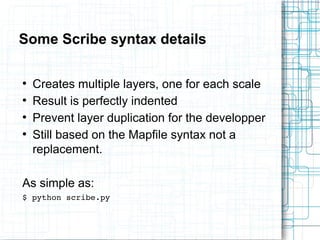
Some Scribe syntax details 
● Creates multiple layers, one for each scale 
● Result is perfectly indented 
● Prevent layer duplication for the developper 
● Still based on the Mapfile syntax not a 
replacement. 
As simple as: 
$ python scribe.py
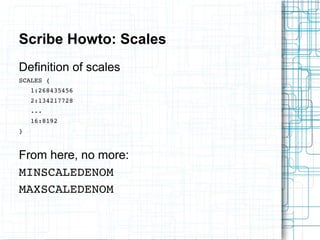
Scribe Howto: Scales 
Definition of scales 
SCALES { 
1:268435456 
2:134217728 
... 
16:8192 
} 
From here, no more: 
MINSCALEDENOM 
MAXSCALEDENOM
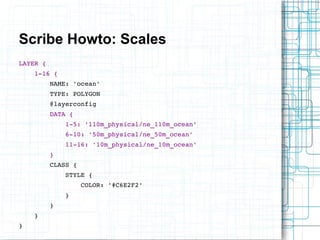
Scribe Howto: Scales 
LAYER { 
1­16 
{ 
NAME: 'ocean' 
TYPE: POLYGON 
@layerconfig 
DATA { 
1­5: 
'110m_physical/ne_110m_ocean' 
6­10: 
'50m_physical/ne_50m_ocean' 
11­16: 
'10m_physical/ne_10m_ocean' 
} 
CLASS { 
STYLE { 
COLOR: '#C6E2F2' 
} 
} 
} 
}
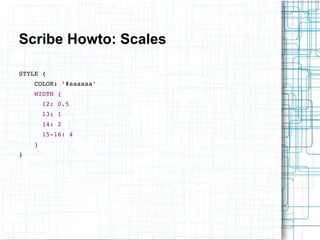
Scribe Howto: Scales 
STYLE { 
COLOR: '#aaaaaa' 
WIDTH { 
12: 0.5 
13: 1 
14: 2 
15­16: 
4 
} 
}
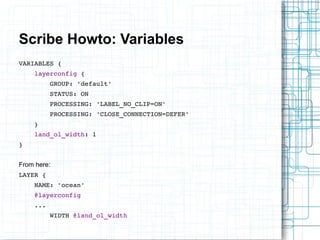
Scribe Howto: Variables 
VARIABLES { 
layerconfig { 
GROUP: 'default' 
STATUS: ON 
PROCESSING: 'LABEL_NO_CLIP=ON' 
PROCESSING: 'CLOSE_CONNECTION=DEFER' 
} 
land_ol_width: 1 
} 
From here: 
LAYER { 
NAME: 'ocean' 
@layerconfig 
... 
WIDTH @land_ol_width
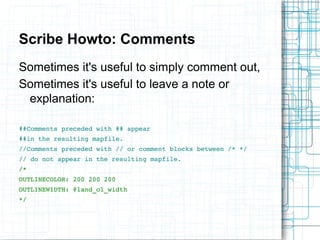
Scribe Howto: Comments 
Sometimes it's useful to simply comment out, 
Sometimes it's useful to leave a note or 
explanation: 
##Comments preceded with ## appear 
##in the resulting mapfile. 
//Comments preceded with // or comment blocks between /* */ 
// do not appear in the resulting mapfile. 
/* 
OUTLINECOLOR: 200 200 200 
OUTLINEWIDTH: @land_ol_width 
*/
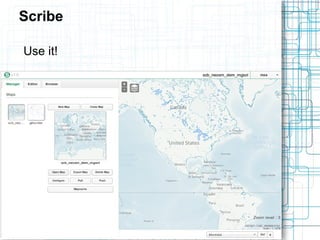
Scribe 
Use it!
ScribeUI: Take a tour (Basics) 
➔ Workspace 
Project, may be password protected 
➔ New Map Template 
You can use any existing map as a template 
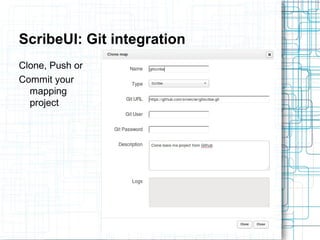
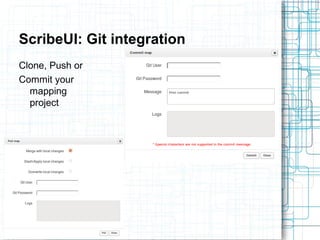
➔ Git integration 
You can Clone or push a mapping projet in your Git 
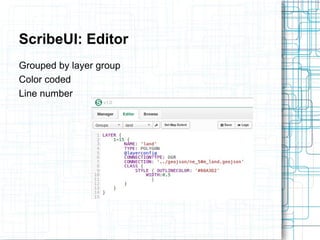
➔ Editor 
Edit layers per group
ScribeUI: Take a tour (Basics) 
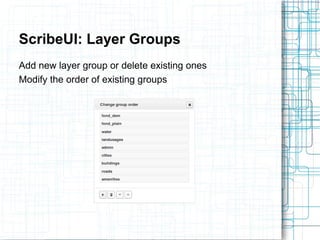
➔ Layer groups 
Add groups and modify their order 
➔ MAP definition 
Keep it at hand 
➔ Seed your map with Mapcache 
You can throw on your server seeding mapcache job 
➔ See your changes live
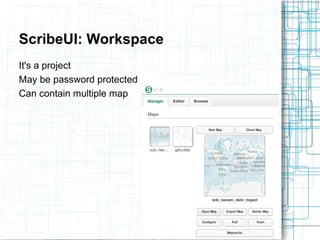
ScribeUI: Workspace 
It's a project 
May be password protected 
Can contain multiple map
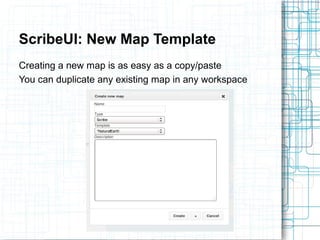
ScribeUI: New Map Template 
Creating a new map is as easy as a copy/paste 
You can duplicate any existing map in any workspace
ScribeUI: Git integration 
Clone, Push or 
Commit your 
mapping 
project
ScribeUI: Git integration 
Clone, Push or 
Commit your 
mapping 
project
ScribeUI: Editor 
Grouped by layer group 
Color coded 
Line number
ScribeUI: Layer Groups 
Add new layer group or delete existing ones 
Modify the order of existing groups
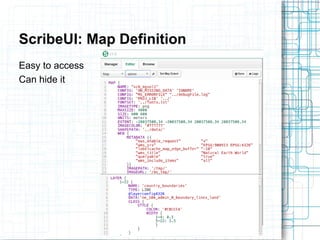
ScribeUI: Map Definition 
Easy to access 
Can hide it
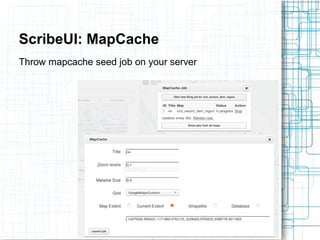
ScribeUI: MapCache 
Throw mapcache seed job on your server
ScribeUI: Take a tour (Developpers) 
➔ Debug 
See the logs as you navigate the map 
➔ Result 
Save the mapfile or link directly to the tiles 
➔ Point of Interest 
Quickly zoom to your area of interest 
➔ Browse tab 
Upload or download data file 
➔ In the cloud 
Stop copying the data files on all developper's computers 
Also allow multiple people to work on the same project together
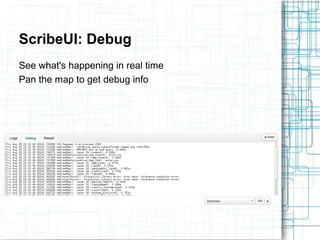
ScribeUI: Debug 
See what's happening in real time 
Pan the map to get debug info
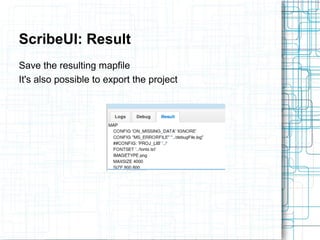
ScribeUI: Result 
Save the resulting mapfile 
It's also possible to export the project
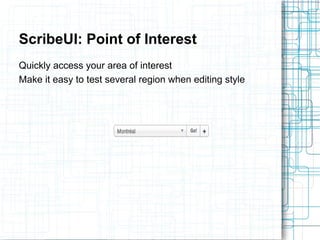
ScribeUI: Point of Interest 
Quickly access your area of interest 
Make it easy to test several region when editing style
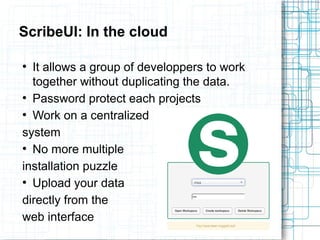
ScribeUI: In the cloud 
● It allows a group of developpers to work 
together without duplicating the data. 
● Password protect each projects 
● Work on a centralized 
system 
● No more multiple 
installation puzzle 
● Upload your data 
directly from the 
web interface
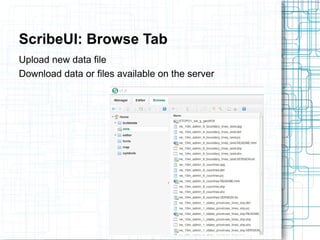
ScribeUI: Browse Tab 
Upload new data file 
Download data or files available on the server
Plugins! 
ScribeUI supports plugins. You can add your 
own tool by simply creating a directory in: 
application/plugins/ 
In the UI, work with the Dom: 
➔ addButton() 
➔ addTab() 
On the server: 
Plugins get their custom route
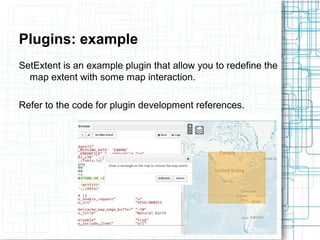
Plugins: example 
SetExtent is an example plugin that allow you to redefine the 
map extent with some map interaction. 
Refer to the code for plugin development references.
Plugins to come...? 
➔ Color swatch 
➔ Data visualisation 
➔ Human readable debug output 
➔ Sky is the limit
Tips and tricks 
➔ You can now think of your maps as levels 
instead of monolithic services. 
➔ Scribe allow you to consider the map with 
cartographer's, or designer, eyes instead of 
from application developper constraint. 
➔ Variables are the best thing. 
➔ ScribeUI Logs tell you where are your scribe 
syntax errors 
➔ POIs are your friend
Demo! 
If time permits...
Questions? 
Thank you! 
Simon Mercier 
Mapgears 
@simonmercier

ScribeUI: La productivité avec MapServer

  • 1.
    ScribeUI MapServer MapfileManagment Made Easy Simon Mercier Mapgears @simonmercier
  • 2.
    Mapfile development Everyonethat has develop big mapfile has gone through a variety of issues: ➔ A lot of copy paste ➔ Multiple data source for the same layer ➔ A lot of copy paste ➔ Scales are a little bit confusing ➔ A lot of copy paste ➔ No variables ➔ And so on...
  • 3.
    Mapfile development Multiplewindows at once: ➔ Text editor ➔ Browser with mode=browse&template=openlayers ➔ Console for the debug output ➔ File browser ➔ SQL window ➔ QGIS for attributes ➔ ogrinfo / gdalinfo
  • 4.
    The goal isto make our life simple ➔The Scribe syntax ➔ScribeUI ➔Tips and tricks ScribeUI is there to make things easier for mapfile developper By mapfile developper!
  • 5.
    Some Scribe syntaxdetails ● Creates multiple layers, one for each scale ● Result is perfectly indented ● Prevent layer duplication for the developper ● Still based on the Mapfile syntax not a replacement. As simple as: $ python scribe.py
  • 6.
    Scribe Howto: Scales Definition of scales SCALES { 1:268435456 2:134217728 ... 16:8192 } From here, no more: MINSCALEDENOM MAXSCALEDENOM
  • 7.
    Scribe Howto: Scales LAYER { 1­16 { NAME: 'ocean' TYPE: POLYGON @layerconfig DATA { 1­5: '110m_physical/ne_110m_ocean' 6­10: '50m_physical/ne_50m_ocean' 11­16: '10m_physical/ne_10m_ocean' } CLASS { STYLE { COLOR: '#C6E2F2' } } } }
  • 8.
    Scribe Howto: Scales STYLE { COLOR: '#aaaaaa' WIDTH { 12: 0.5 13: 1 14: 2 15­16: 4 } }
  • 9.
    Scribe Howto: Variables VARIABLES { layerconfig { GROUP: 'default' STATUS: ON PROCESSING: 'LABEL_NO_CLIP=ON' PROCESSING: 'CLOSE_CONNECTION=DEFER' } land_ol_width: 1 } From here: LAYER { NAME: 'ocean' @layerconfig ... WIDTH @land_ol_width
  • 10.
    Scribe Howto: Comments Sometimes it's useful to simply comment out, Sometimes it's useful to leave a note or explanation: ##Comments preceded with ## appear ##in the resulting mapfile. //Comments preceded with // or comment blocks between /* */ // do not appear in the resulting mapfile. /* OUTLINECOLOR: 200 200 200 OUTLINEWIDTH: @land_ol_width */
  • 11.
  • 12.
    ScribeUI: Take atour (Basics) ➔ Workspace Project, may be password protected ➔ New Map Template You can use any existing map as a template ➔ Git integration You can Clone or push a mapping projet in your Git ➔ Editor Edit layers per group
  • 13.
    ScribeUI: Take atour (Basics) ➔ Layer groups Add groups and modify their order ➔ MAP definition Keep it at hand ➔ Seed your map with Mapcache You can throw on your server seeding mapcache job ➔ See your changes live
  • 14.
    ScribeUI: Workspace It'sa project May be password protected Can contain multiple map
  • 15.
    ScribeUI: New MapTemplate Creating a new map is as easy as a copy/paste You can duplicate any existing map in any workspace
  • 16.
    ScribeUI: Git integration Clone, Push or Commit your mapping project
  • 17.
    ScribeUI: Git integration Clone, Push or Commit your mapping project
  • 18.
    ScribeUI: Editor Groupedby layer group Color coded Line number
  • 19.
    ScribeUI: Layer Groups Add new layer group or delete existing ones Modify the order of existing groups
  • 20.
    ScribeUI: Map Definition Easy to access Can hide it
  • 21.
    ScribeUI: MapCache Throwmapcache seed job on your server
  • 22.
    ScribeUI: Take atour (Developpers) ➔ Debug See the logs as you navigate the map ➔ Result Save the mapfile or link directly to the tiles ➔ Point of Interest Quickly zoom to your area of interest ➔ Browse tab Upload or download data file ➔ In the cloud Stop copying the data files on all developper's computers Also allow multiple people to work on the same project together
  • 23.
    ScribeUI: Debug Seewhat's happening in real time Pan the map to get debug info
  • 24.
    ScribeUI: Result Savethe resulting mapfile It's also possible to export the project
  • 25.
    ScribeUI: Point ofInterest Quickly access your area of interest Make it easy to test several region when editing style
  • 26.
    ScribeUI: In thecloud ● It allows a group of developpers to work together without duplicating the data. ● Password protect each projects ● Work on a centralized system ● No more multiple installation puzzle ● Upload your data directly from the web interface
  • 27.
    ScribeUI: Browse Tab Upload new data file Download data or files available on the server
  • 28.
    Plugins! ScribeUI supportsplugins. You can add your own tool by simply creating a directory in: application/plugins/ In the UI, work with the Dom: ➔ addButton() ➔ addTab() On the server: Plugins get their custom route
  • 29.
    Plugins: example SetExtentis an example plugin that allow you to redefine the map extent with some map interaction. Refer to the code for plugin development references.
  • 30.
    Plugins to come...? ➔ Color swatch ➔ Data visualisation ➔ Human readable debug output ➔ Sky is the limit
  • 31.
    Tips and tricks ➔ You can now think of your maps as levels instead of monolithic services. ➔ Scribe allow you to consider the map with cartographer's, or designer, eyes instead of from application developper constraint. ➔ Variables are the best thing. ➔ ScribeUI Logs tell you where are your scribe syntax errors ➔ POIs are your friend
  • 32.
    Demo! If timepermits...
  • 33.
    Questions? Thank you! Simon Mercier Mapgears @simonmercier