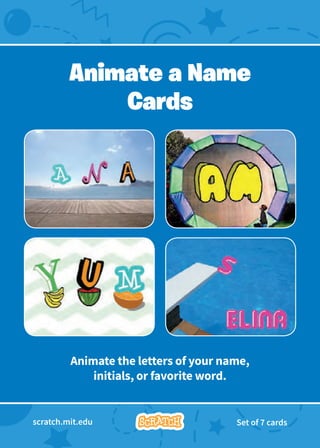
1
Animate Your Name
Animate the letters of your name,
initials, or favorite word.
Animate a Name
Cards
scratch.mit.edu Set of 7 cards
2
Animate Your Name
Animate a Name Cards
scratch.mit.edu Set of 7 cards
Try these cards in any order:
• Color Clicker
• Spin
• Play a Sound
• Dancing Letter
• Change Size
• Press a Key
• Glide Around
3
Animate Your Name 1
Make a letter change color
when you click it.
Color Clicker
Animate a Name
scratch.mit.edu
add This Code
Try It
Click your letter.
Color Clicker
Get Ready
Choose a letter from
the Sprite Library.
Try different numbers.
Choose a backdrop. Boardwalk
To see just the letter sprites, click the Letters
category at the top of the Sprite Library.
Animate Your Name 2
Make a letter turn when you click it.
Spin
Animate a Name
scratch.mit.edu
Get Ready
Spin
add This Code
Try different
numbers.
Try It
Click your letter.
Tip
Click this block to reset the sprite’s direction.
Go to the
Sprite Library. Click the Letters category. Choose a letter sprite.
Animate Your Name 3
Click a letter to play a sound.
Play a Sound
Animate a Name
scratch.mit.edu
Get Ready
Play a Sound
add This Code
Try It
Click the Code tab.
Choose a sound.
Click the Sounds tab.
Choose a backdrop. Boardwalk
Choose a sound
from the menu.
Click your letter.
Go to the
Sprite Library. Click the Letters category. Choose a letter sprite.
Animate Your Name 4
Make a letter move to the beat.
Dancing Letter
Animate a Name
scratch.mit.edu
Get Ready
Dancing Letter
add This Code
Choose a different
drum from the menu.
Type a minus sign to
move backward.
Click the Extensions button
(at the bottom left).
Choose a backdrop. Choose a letter from
the Sprite Library.
Then click Music to
add the music blocks.
Stage
Try It
Click your letter.
Animate Your Name 5
Make a letter get bigger and then smaller.
Change Size
Animate a Name
scratch.mit.edu
Get Ready
Change Size
add This Code
Try It
Click your letter.
Type a minus sign
to get smaller.
Tip
Click this block to reset the size.
scratch.mit.edu
Go to the
Sprite Library. Click the Letters category. Choose a letter sprite.
Animate Your Name 6
Press a key to make your letter change.
Press a Key
Animate a Name
scratch.mit.edu
Get Ready
Press a Key
add This Code
Try It
Tip
You can choose a different key from the menu.
Then press that key!
Try different numbers.
Choose a backdrop. Choose a letter from
the Sprite Library.
scratch.mit.edu
Wall 1
Press the space key.
Animate Your Name 7
Make a letter glide smoothly
from place to place.
Glide Around
Animate a Name
scratch.mit.edu
add This Code
Try It
Tip
Click your letter to start.
When you move a sprite, you can see the numbers for
x and y update.
x is the position from left to right.
y is the position up and down.
Get Ready
Glide Around
Try different numbers.
Choose a backdrop. Choose a letter from
the Sprite Library.
scratch.mit.edu
Jurassic
scratch.mit.edu Set of 9 cards
Imagine a world where anything is possible!
Imagine a World
Try these cards in any order:
• Say Something
• Fly Around
• Go Right and Left
• Go Up and Down
• Change Costumes
• Glide from Here to There
• Grow and Shrink
• Change Backdrops
• Add a Sound
Imagine a World
Cards
scratch.mit.edu Set of 9 cards
Dance Party!
Say Something
Type what you want your sprite to say.
1
Imagine a World
scratch.mit.edu
Say Something
GET READY
ADD THIS CODE
Sprite1
Select the sprite you want to talk.
TRY IT
Click the green flag to start.
Sprite1
Type what you want to say.
2
Imagine a World
Fly Around
Press the space key to glide.
scratch.mit.edu
Fly Around
GET READY
ADD THIS CODE
TRY IT
Choose a backdrop.
Butterfly 2
Choose a sprite. Savanna
Press the space key to glide.
Butterfly 2
3
Imagine a World
Go Right and Left
Press arrow keys to move right and left.
scratch.mit.edu
Go Right and Left
GET READY
ADD THIS CODE
TRY IT
Choose a backdrop.
Choose a sprite. Ben Playing Field
Ben
Type a minus sign to move left.
Press the right and left arrow keys on your keyboard.
Change x to move your character side to side.
4
Imagine a World
Go Up and Down
Press arrow keys to move up and down.
scratch.mit.edu
Go Up and Down
GET READY
ADD THIS CODE
TRY IT
Choose a backdrop.
Choose a sprite. Hedgehog Woods and Bench
Hedgehog
Type a minus sign to move down.
Press the up and down arrow keys on your keyboard.
Change y to move your character up and down.
Dance Party!
5
Imagine a World
Change Costumes
Animate a sprite when you click it.
scratch.mit.edu
Change Costumes
GET READY
ADD THIS CODE
Choose a backdrop.
Rooster
Choose a sprite. Blue Sky
TRY IT
Wizard
Rooster
Click your sprite.
Choose one costume.
Choose another.
Dance Party!
6
Imagine a World
Glide From Here to There
Make a sprite glide from
one point to another.
scratch.mit.edu
Glide From Here to There
GET READY
ADD THIS CODE
Earth
TRY IT
TIP
When you move a sprite, you can see the numbers for
x and y update.
x is the position from left to right.
y is the position up and down.
Choose a backdrop.
Earth
Choose a sprite. Stars
Set the starting point.
Set the end point.
Click the green flag to start.
Dance Party!
Imagine a World
Grow and Shrink
Make a sprite change size when you click it.
7
scratch.mit.edu
Grow and Shrink
GET READY
Choose a backdrop. Choose a sprite.
Theater 2 Drums Tabla
TRY IT
ADD THIS CODE
Drums Tabla
Click your sprite.
Type a larger number to
make it bigger.
Type 100 to return to
original size.
Dance Party!
Imagine a World
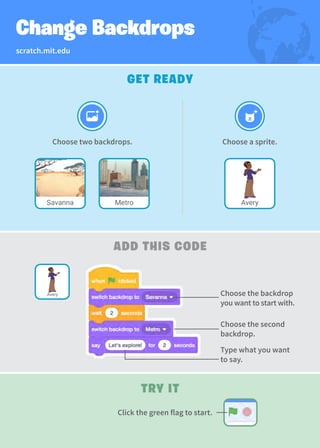
Change Backdrops
Change scenes by switching backdrops.
8
Create a Story
TRY IT
ADD THIS CODE
GET READY
Click the green flag to start.
Choose the backdrop
you want to start with.
Choose the second
backdrop.
Type what you want
to say.
Choose a sprite.
Choose two backdrops.
Metro
Savanna
scratch.mit.edu
Change Backdrops
Avery
Avery
Dance Party!
Dance Party!
Imagine a World
Add a Sound
Add your voice or other sounds
to your project.
9
GET READY
Choose a sprite. Champ99
To record your voice or other
sound, click the red button.
If your device is unable to record,
you can choose a sound instead.
Click the Sounds tab.
Then click Record
from the pop-up menu.
Or, click here to
choose a sound
from the library.
scratch.mit.edu
Add a Sound
Select your sound.
TRY IT
ADD THIS CODE
Click the Code tab.
Type what you want to say.
Click the green flag to start.
Make a game where you chase a
character to score points.
Chase Game
Cards
scratch.mit.edu Set of 7 cards
Chase Game Cards
Use these cards in this order:
1. Move Left and Right
2. Move Up and Down
3. Chase a Star
4. Play a Sound
5. Add a Score
6. Level Up!
7. Victory Message
scratch.mit.edu Set of 7 cards
1
Move Left and Right
Press arrow keys to move left and right.
Chase Game
Try It
Press the arrow keys.
x is the position on the Stage from left to right.
Tip
Type a negative number
to move to the left.
Type a positive number
to move to the right.
scratch.mit.edu
Add This Code
Move Left and Right
Get Ready
Choose right arrow.
Choose left arrow.
Choose a character.
Galaxy
Choose a backdrop. Robot
Robot
Type a minus sign to move left.
2
Move Up and Down
Press arrow keys to move up and down.
Chase Game
Add This Code
y is the position on the Stage from top to bottom.
Tip
Type a positive number to move up.
Try It
Type a negative number to move down.
scratch.mit.edu
Move Up and Down
Get Ready
Click your character
to select it.
Choose up arrow.
Choose down arrow.
Robot
Use the change y by block to move up.
Type a minus sign to move down.
Press the arrow keys.
Chase Game 3
Chase a Star
Add a sprite to chase.
Try It
Click the stop sign to stop.
Click the green flag to start.
scratch.mit.edu
Add This Code
Chase a Star
Get Ready
Star
Choose a sprite to
chase, like Star.
Star
Type a smaller number (like 0.5)
to make it glide faster.
Chase Game 4
Play a Sound
Play a sound when your character
touches the star.
Choose a sound from the
Sounds Library, like Collect.
Click the Sounds tab.
Click the green flag to start.
scratch.mit.edu
Add This Code
Play a Sound
Get Ready
Click the Code tab and add this code.
Try It
Robot
Click to select
the Robot sprite.
Robot
Insert the touching
block into the
if then block.
Choose your sound
from the menu.
Chase Game 5
Add a Score
Score points when you touch the star.
Add this block to
reset the score.
Select Score from
the menu.
scratch.mit.edu
Add This Code
Tip
Add a Score
Add this block to
increase the score.
Get Ready
Name this variable
Score and then click OK.
Choose Variables.
Click the Make a
Variable button.
Robot
Use the set variable block to reset the score to zero.
Use the change variable block to increase the score.
Score
Chase Game 6
Level Up!
Go to the next level.
Try It
Select the Robot sprite.
Insert the Score block
into the equals block
from the Operators
category.
scratch.mit.edu
Level Up!
Get Ready
Add this Code
Choose a second
backdrop, like Nebula.
Choose your first
backdrop.
Choose the backdrop
to switch to.
Choose a sound.
Robot
Robot
Nebula
Click the green flag to start the game!
Chase Game 7
Victory Message
Show a message when you go to
the next level.
Use the Text tool to write
a message, like “Level Up!”
You can change the font
color, size, and style.
Choose the backdrop
for the next level.
Try It
Click the green flag to play your game.
scratch.mit.edu
Victory Message
Get Ready
Add this Code
Hide the message at the beginning.
Level Up!
Click the Paint icon
to make a new sprite.
Show the message.
Choose instruments, add sounds, and
press keys to play music.
scratch.mit.edu Set of 9 cards
Make Music
Cards
• Play a Drum
• Make a Rhythm
• Animate a Drum
• Make a Melody
• Play a Chord
• Surprise Song
• Beatbox Sounds
• Record Sounds
• Play a Song
scratch.mit.edu Set of 9 cards
Make Music Cards
Try these cards in any order:
Make Music 1
Press a key to make a drum sound.
Play a Drum
Play a Drum
Get Ready
Try It
Add this Code
Choose a drum.
Select the sound you
want from the menu.
Choose a backdrop.
scratch.mit.edu
Theater 2
Drum
Press the space key on your keyboard.
Make Music 2
Play a loop of repeating drum sounds.
Make a Rhythm
Make a Rhythm
Get Ready
Try It
Add this Code
Choose a drum from
the Music category.
Type how many times
you want to repeat.
Try different numbers
to change the rhythm.
Choose a backdrop.
scratch.mit.edu
Drum Tabla
Theater 2
Press the space key on your keyboard.
To see just the music sprites, click the Music
category at the top of the Sprite Library.
Make Music 3
Switch between costumes to animate.
Animate a Drum
Animate a Drum
Get Ready
Try It
Add this Code
Choose
a drum.
Click the Code tab.
Click the Costumes tab
to see the costumes.
You can use the paint
tools to change colors.
scratch.mit.edu
Drum Conga
Choose a sound
from the menu.
Press the left arrow key.
Make Music 4
Play a series of notes.
Make a Melody
Choose up arrow
(or another key).
Choose different sounds.
Make a Melody
Get Ready
Try It
Add this Code
scratch.mit.edu
Choose an instrument,
like Saxophone.
Saxophone
Press the up arrow key.
To see just the music sprites,
click the Music category at the
top of the Sprite Library.
Make Music 5
Play more than one sound
at a time to make a chord.
Play a Chord
Play a Chord
Get Ready
Add this Code
Choose down arrow
(or another key).
Choose different sounds.
scratch.mit.edu
Choose an instrument,
like Trumpet.
Trumpet
Try It
Press the down arrow key.
To see just the music sprites,
click the Music category at the
top of the Sprite Library.
Use to make sounds play at the same time.
Use to play sounds one after another.
Tip
Make Music 6
Play a random sound from a list of sounds.
Surprise Song
Choose right arrow.
Type the number of sounds
in your instrument.
Surprise Song
Get Ready
Try It
Add this Code
Choose an instrument,
like Guitar.
Click the Sounds tab to see how
many sounds are in your instrument.
Click the Code tab.
Insert a pick random block.
scratch.mit.edu
Guitar
Press the right arrow key.
Make Music 7
Play a series of vocal sounds.
Beatbox Sounds
Choose b (or another key).
Press the B key to start.
Choose the
Microphone sprite.
Beatbox Sounds
Get Ready
Try It
Add this Code
Insert a pick
random block.
Click the Code tab.
scratch.mit.edu
Microphone
Click the Sounds tab to see how
many sounds are in your instrument.
Type the number of sounds
in this sprite.
Make Music 8
Make your own sounds to play.
Record Sounds
Choose c
(or another key).
Press the C key to start.
Record Sounds
Get Ready
Try It
Add this Code
Click the Record button
to record a short sound.
Choose a backdrop. Choose any sprite.
Click the Sounds tab.
Then choose Record
from the pop-up menu.
Click the Code tab.
scratch.mit.edu
Beach Malibu Beachball
Make Music
Add a music loop as background music.
9
Play a Song
Play a Song
Get Ready
Add this Code
Choose a sound from
the Loops category,
like Drum Jam.
Choose a sprite,
like Speaker.
Click the Sounds tab.
Click the Code tab.
scratch.mit.edu
Speaker
Choose your sound
from the menu.
Try It
To see just the music loops, click the Loops
category at the top of the Sounds Library.
Click the green flag to start.
scratch.mit.edu Set of 8 cards
Bring characters to life
with animation.
Animate a
Character Cards
Try these cards in any order:
• Move with Arrow Keys
• Make a Character Jump
• Switch Poses
• Glide from Point to Point
• Walking Animation
• Flying Animation
• Talking Animation
• Draw an Animation
Animate a
Character Cards
scratch.mit.edu Set of 8 cards
Dance Party!
Move with Arrow Keys
Use the arrow keys to move your
character around.
1
Animate a Character
scratch.mit.edu
Move with Arrow Keys
Get Ready
Add This Code
Choose a character.
Soccer 2
Choose a backdrop. Pico Walking
Change x
Move your character side to side.
Change y
Move your character up and down.
Type a minus sign to move down.
Type a minus sign to move left.
Try It
Press the arrow keys on your keyboard to move
your character around.
2
Animate a Character
Make a Character Jump
Press a key to jump up and down.
scratch.mit.edu
Make a Character Jump
Get Ready
Add This Code
Try It
Choose a character.
Blue Sky
Choose a backdrop. Giga Walking
Type a minus sign
to go back down.
Giga Walking
Type how high
to jump.
Press the space key on your keyboard.
Dance Party!
3
Animate a Character
Switch Poses
Animate a character
when you press a key.
scratch.mit.edu
Switch Poses
Get Ready
Add This Code
Choose a costume.
Click the Code tab.
Choose a character with
multiple costumes, like Max.
Try It
Choose a different
costume.
Max
Click the Costumes tab
to view all of your
sprite’s costumes.
Press the space key on your keyboard.
Scroll over sprites in the Sprite
Library to see if they have
different costumes.
Max
Dance Party!
Dance Party!
4
Animate a Character
Glide from Point to Point
Make a sprite glide from
point to point.
scratch.mit.edu
Glide from Point to Point
Get Ready
Add This Code
Choose a character.
Nebula
Choose a backdrop. Rocketship
Set the starting point.
Set another point to
glide to.
Set the end point.
When you drag a sprite, its
x and y positions will update
in the blocks palette.
Wizard
Rocketship
Try It
Click the green flag to start.
Tip
Dance Party!
Dance Party!
5
Animate a Character
Walking Animation
Make a character walk or run.
scratch.mit.edu
Walking Animation
Get Ready
Add This Code
Choose a walking or
running sprite.
Jungle
Choose a
backdrop.
Unicorn Running
Unicorn Running
Try It
Click the green flag to start.
Tip
If you want to slow down the
animation, try adding a wait
block inside the repeat block.
Dance Party!
Dance Party!
Animate a Character
Flying Animation
Have a character flap its wings as it
moves across the stage.
6
Choose Parrot
(or another flying sprite).
Canyon
Choose a
backdrop.
Parrot
scratch.mit.edu
Flying Animation
Add This Code
Choose one costume.
Get Ready
Set the starting point.
Set the end point. Choose another.
Glide across the screen Flap the wings
Try It
Click the green flag to start.
Dance Party!
Dance Party!
Animate a Character
Talking Animation
Make a character talk.
7
Choose Penguin 2.
Penguin 2
Click the Costumes tab
to view the penguin’s
other costumes.
scratch.mit.edu
Talking Animation
Add This Code
Get Ready
Type what you want
your character to say.
Choose one costume.
Choose another.
Click the Code tab.
Try It
Click the green flag to start.
Dance Party!
Dance Party!
Animate a Character
Draw an Animation
Edit a sprite’s costumes to
create your own animation.
8
Frog
Choose a
character.
Now you should have two
identical costumes.
Click the
Select tool.
Select a part of the costume
to squeeze or stretch it.
Drag the handle to rotate
an object you’ve selected.
Use the next
costume block
to animate your
character.
Try It
Click the green flag to start.
Right-click (on a Mac,
control-click) a costume to
duplicate it.
Click the Costumes tab.
Click a costume to select
and edit it.
scratch.mit.edu
Draw an Animation
Add This Code
Get Ready
Click the Code tab.
Choose characters, add conversation,
and bring your story to life.
Create a Story
Cards
scratch.mit.edu Set of 9 cards
Start with the first card, and then
try the other cards in any order:
• Start a Story
• Start a Conversation
• Switch Backdrops
• Click a Character
• Add Your Voice
• Glide to a Spot
• Walk onto the Stage
• Respond to a Character
• Add a Scene
Create a Story Cards
scratch.mit.edu Set of 9 cards
Create a Story 1
Start a Story
Set the scene and have a
character say something.
Choose a character.
Create a Story
Try It
Click the green flag to start.
add This Code
Start a Story
Get Ready
Type what you want your character to say.
Witch House
Choose a backdrop. Wizard
Wizard
scratch.mit.edu
Create a Story 2
Start a Conversation
Make two characters talk to each other.
Tip
To change the direction a character is facing, click
the Costumes tab, then click Flip Horizontal.
add This Code
Start a Conversation
Get Ready
Choose two characters,
like Witch and Elf.
Elf
Witch
Elf
Witch
Type what you want
each character to say.
scratch.mit.edu
Click the thumbnail for each character, and then add its code.
Create a Story 3
Switch Backdrops
Change from one backdrop to another.
Create a Story
Try It
add This Code
Get Ready
Switch Backdrops
Choose two backdrops.
Mountain
Witch House
Choose the backdrop
you want to start with.
Choose the second
backdrop.
Elf
Choose a character.
Elf
scratch.mit.edu
Click the green flag to start.
Create a Story 4
Click a Character
Make your story interactive.
Get Ready
Add This Code
You can choose
different effects.
Select a sound from
the menu.
Click a Character
Mountain
Choose a backdrop. Choose a character. Unicorn
Unicorn
scratch.mit.edu
Try It
Click your character.
Create a Story 5
Add Your Voice
Record your voice to make a character talk.
Create a Story
Get Ready
add This Code
Add Your Voice
Try It
Choose a
sprite.
Princess
Click the Sounds tab. Click Record.
Select your recording
from the menu.
Princess
scratch.mit.edu
Choose Record from the
pop-up menu.
When you’re done,
click Save.
Click the green flag to start.
Click the Code tab.
Create a Story 6
Glide to a Spot
Make a character move across the Stage.
Create a Story
Get Ready
add This Code
Glide to a Spot
Choose a character.
Mountain
Choose a backdrop. Owl
Tip
When you drag a sprite, the
numbers for x and y will update
in the blocks palette.
Owl
scratch.mit.edu
Try It
Click the green flag to start.
Create a Story 7
Walk onto the Stage
Have a character enter the scene.
Create a Story
Mountain
Choose a backdrop.
add This Code
Walk onto the Stage
Get Ready
Choose a character. Dragon
Tip
Change the size of a sprite by typing
a smaller or larger number.
Dragon
scratch.mit.edu
Change this number to glide faster or slower.
Type -240 to place your sprite
at the left edge of the Stage.
Create a Story 8
Respond to a Character
Coordinate a conversation so that one
character talks after another.
Create a Story
Click the thumbnail for each character, and then add its code.
add This Code
Get Ready
Respond to a Character
Goblin
Choose two
characters.
Mountain
Choose a
backdrop.
Goblin
Tell this character what
to do when it receives
the broadcast.
Tip
Princess
You can click the drop-down
menu to add a new message.
scratch.mit.edu
Princess
Broadcast a message.
Create a Story 9
Add a Scene
Create multiple scenes with different
backdrops and characters.
scratch.mit.edu
add This Code
Get Ready
Add a Scene
Choose two backdrops.
Fox
Choose the backdrop name
from the menu.
Mountain
Witch House
Choose a character.
Fox
Try It
Click the green flag to start.
Pong Game
Cards
Make a bouncing ball game and
score points to win!
scratch.mit.edu Set of 6 cards
Pong Game Cards
Use these cards in this order:
1. Bounce Around
2. Move the Paddle
3. Bounce off the Paddle
4. Game Over
5. Score Points
6. Win the Game
scratch.mit.edu Set of 6 cards
Create Pong!
Step 1
Make a ball move around the Stage.
Bounce Around
1
Pong Game 1
scratch.mit.edu
Add This Code
Type a larger number
to move faster.
Get Ready
Bounce Around
Try It
Choose a backdrop. Choose a ball.
Neon Tunnel Ball
Ball
Click the green flag to start.
Move the Paddle
Control a paddle by moving
your mouse pointer.
Pong Game 2
scratch.mit.edu
Add This code
Try It
Get Ready
Move your mouse pointer
to move the paddle.
Move the Paddle
Click the green
flag to start.
Tip
You can see the x position of the paddle
change as you move the mouse pointer
across the Stage.
Choose a sprite for hitting
the ball, like Paddle.
Then, drag your paddle to the
bottom of the Stage.
Paddle
Paddle
Insert the mouse x block
into the set x to block.
Make the ball bounce off the paddle.
Bounce off the Paddle
Pong Game 3
scratch.mit.edu
Add This Code
Get Ready
Click to select
the Ball sprite.
Try It
Bounce off the Paddle
Choose Paddle
from the menu.
Ball
Add this new stack of blocks to your Ball sprite.
Click the green flag to start.
Insert the pick random block
and type in 170 to 190.
Stop the game if the ball hits the red line.
Game Over
Pong Game 4
scratch.mit.edu
Get Ready
Add This Code
Game Over
Try It
Drag the Line sprite to the
bottom of the Stage.
Choose the sprite called Line.
Line
Choose Ball
from the menu.
Line
Click the green flag to start.
Add a point each time you hit
the ball with the paddle.
Score Points
Pong Game 5
scratch.mit.edu
Add THIS CODE
Get Ready
Score Points
Name this variable Score
and then click OK.
Add this block
and choose Score
from the menu.
Click to select
the Ball sprite.
Choose Variables.
Click the Make a
Variable button.
Score
Use this block to reset the score.
Choose Score from the menu.
When you score enough points,
display a winning message!
Win the Game
Pong Game 6
Type the number of points
needed to win the game.
scratch.mit.edu
Add This Code
Try It
Get Ready
Win the Game
Use the Text tool to write
a message, like “You Won!”
Click the Paint icon
to make a new sprite.
You can change the font
color, size, and style.
Play until you score
enough points to win!
Click the Code tab.
You Won!
Click the green
flag to start.
Insert the Score block into
the equals block from the
Operators category.
Design an animated dance scene
with music and dance moves.
scratch.mit.edu Set of 9 cards
Let’s Dance
Cards
Try these cards in any order:
scratch.mit.edu Set of 9 cards
• Dance Sequence
• Dance Loop
• Play Music
• Take Turns
• Starting Position
• Shadow Effect
• Interactive Dance
• Color Effect
• Leave a Trail
Let’s Dance Cards
Dance Party!
Dance Sequence
Make an animated dance.
1
Let’s Dance
scratch.mit.edu
Dance Sequence
Get Ready
Try It
Add This Code
Type how long
to wait between
dance moves.
Click the Costumes
tab to see the different
dance moves.
Click the Code tab.
Pick different
dance moves.
Choose a dancer. Ten80 Dance
Ten80 Dance
To see just the dance sprites, click the Dance
category at the top of the Sprite Library.
Click the green flag to start.
Dance Party!
Dance Loop
Repeat a series of dance steps.
2
Let’s Dance
scratch.mit.edu
Dance Loop
Get Ready
Add This Code
Try It
Type how many
times you want
to repeat the dance.
Choose a dance pose.
Ten80 Dance
Ten80 Dance
Go to the
Sprite Library. Click the Dance category. Choose a dancer.
Add a repeat loop
around your dance
sequence.
Click the green flag to start.
Dance Party!
Play Music
Play and loop a song.
3
Let’s Dance
scratch.mit.edu
Play Music
Get Ready
Add This Code
Type how many times you
want the song to repeat.
Choose a song from the
Loops category.
Tip
Make sure to use (not )
or else the music won’t finish playing before it begins again.
Concert
Concert
Choose a backdrop.
Click the Sounds tab.
Click the Code tab.
Dance Party!
Take Turns
Coordinate dancers so that one begins
after the other finishes.
4
Let’s Dance
scratch.mit.edu
Take Turns
Get Ready
Try It
Add This Code
Broadcast a message.
Tell this dancer sprite
what to do when it
receives the message.
Choose two dancers
from the Dance category. Champ99
Anina Dance
Concert
Anina Dance
Champ99
Click the green flag to start.
Dance Party!
Starting Position
Tell your dancers where to start.
5
Let’s Dance
scratch.mit.edu
Starting Position
Get Ready
Tip
Add This Code
Tell your sprite where to start.
Make sure the sprite is showing.
Choose a starting costume.
Set the sprite’s size.
Use to set a sprite’s position on the Stage.
x is the position on the Stage from left to right.
y is the position on the Stage from top to bottom.
LB Dance
LB Dance
Go to the
Sprite Library. Click the Dance category. Choose a dancer.
Dance Party!
Shadow Effect
Make a dancing silhouette.
6
Let’s Dance
scratch.mit.edu
Shadow Effect
Add This Code
Set the brightness to -100 to
make the sprite completely dark.
Choose brightness
from the menu.
Get Ready
Try It
Jouvi Dance
Go to the
Sprite Library. Click the Dance category. Choose a dancer.
Click the stop sign to stop.
Click the green flag to start.
Dance Party!
Interactive Dance
Press keys to switch dance moves.
7
Let’s Dance
scratch.mit.edu
Interactive Dance
Add This Code
Get Ready
Try It
Press the arrow keys on your keyboard.
Jouvi Dance
Choose a different key to press
for each dance move.
Pick a dance move from the menu.
Go to the
Sprite Library. Click the Dance category. Choose a dancer.
Dance Party!
Color Effect
Make the backdrop change colors.
8
Let’s Dance
scratch.mit.edu
Color Effect
Get Ready
Add This Code
Try It
Choose a backdrop. Spotlight
Try different numbers.
Spotlight
Click the green flag to start.
Dance Party!
Leave a Trail
Stamp a trail as your dancer moves.
9
Let’s Dance
scratch.mit.edu
Leave a Trail
Add This Code
Stamp an image of the
sprite on the Stage.
Type how many times to repeat.
Clear all the stamps.
Get Ready
Try It
Choose a dancer from
the Dance category.
LB Dance
LB Dance
Click the Extensions button, and
then click Pen to add the blocks.
Click the green flag to start.
Make a character jump over
moving obstacles.
scratch.mit.edu Set of 7 cards
Jumping Game
Cards
Jumping Game Cards
Use these cards in this order:
1. Jump
2. Go to Start
3. Moving Obstacle
4. Add a Sound
5. Stop the Game
6. Add More Obstacles
7. Score
scratch.mit.edu Set of 7 cards
Jumping Game 1
Jump
Make a character jump.
Jump
Add This Code
Try It
Type a minus sign
to go back down.
Press the space key on your keyboard.
Get Ready
Choose a character,
like Chick.
Chick
Chick
scratch.mit.edu
Blue Sky
Choose a backdrop.
Jumping Game 2
Go to Start
Set the starting point for your sprite.
Get Ready
add This Code
Go to Start
Set the starting position.
(Your numbers may be
different.)
Tip
Chick
Drag your character to where
you want it.
Now when you drag out a go to block, it will
set to your character’s new position.
Change the size of a sprite by typing a smaller or larger number.
When you move your
character, its x and y
position will update in
the blocks palette.
scratch.mit.edu
Jumping Game 3
Moving Obstacle
Make an obstacle move
across the Stage.
Moving Obstacle
Get Ready
add This Code
Start at the right edge
of the Stage.
Glide to the left edge
of the Stage.
Type a smaller number
to go faster.
Choose a sprite to be an
obstacle, such as Egg.
Egg
Try It
Press the space key
on your keyboard.
Click the green
flag to start.
scratch.mit.edu
Egg
Jumping Game 4
Add a Sound
Play a sound when your sprite jumps.
add This Code
Add the start sound block,
then select a sound.
Click to select the Chick sprite.
Get Ready
Add a Sound
Try It
Press the space key
on your keyboard.
Chick
scratch.mit.edu
Click the green
flag to start.
Jumping Game 5
Stop the Game
Stop the game if your sprite touches the egg.
scratch.mit.edu
Get Ready
Add this code
Stop the Game
Click the Code tab and add this code.
Click to select
the Egg sprite.
Click the Costumes tab
to see the Egg sprite’s
costumes.
Try It
Press the space key
on your keyboard.
Egg
Choose a second costume for
the Egg sprite to change to.
Insert the touching block and
choose Chick from the menu.
Click the green
flag to start.
Jumping Game 6
Add More Obstacles
Make the game harder by
adding more obstacles.
scratch.mit.edu
Get Ready
add This Code
Add More Obstacles
To duplicate the Egg sprite, right-click
(Mac: control-click) on the thumbnail,
and then choose duplicate.
Try It
Add these blocks to wait before
showing the second egg.
Click to select Egg2.
Egg2
Click the green flag to start.
Jumping Game 7
Score
Add a point each time your sprite
jumps over an egg.
scratch.mit.edu
add This Code
Score
Get Ready
Name this variable Score
and then click OK.
Choose Variables.
Click the Make a
Variable button.
Score
Click the Chick sprite and add two blocks to your code:
Jump over the eggs to score points!
Try It
Add this block and
then choose Score
from the menu.
Add this block to
increase the score.
Choose Score from
the menu.
Chick
Create an interactive pet that
can eat, drink, and play.
Virtual Pet
Cards
scratch.mit.edu Set of 7 cards
Virtual Pet Cards
Use these cards in this order:
1. Introduce Your Pet
2. Animate Your Pet
3. Feed Your Pet
4. Give Your Pet a Drink
5. What Will Your Pet Say?
6. Time to Play
7. How Hungry?
Virtual Pet 1
Introduce Your Pet
Choose a pet and have it say hello.
scratch.mit.edu
Get Ready
add This Code
Type what you want your pet to say.
Set its position.
(Your numbers
may be different.)
Try It
Introduce Your Pet
Drag your pet to where you want it on the Stage.
Choose a sprite to be
your pet, like Monkey.
Choose a backdrop,
like Garden Rock.
Garden Rock Monkey
Monkey
Click the green flag to start.
Scroll over sprites in the
Sprite Library to see their
different costumes.
Pick a sprite with more
than one costume.
Virtual Pet 2
Animate Your Pet
Bring your pet to life.
scratch.mit.edu
Get Ready
add This Code
Animate Your Pet
Choose a costume.
Choose a different
costume.
Try It
Click your pet.
Click the Costumes tab to see your pet’s costumes.
Click the Code tab and add this code.
Monkey
Virtual Pet 3
Feed Your Pet
Click the food to feed your pet.
scratch.mit.edu
Get Ready
add This Code
Broadcast the food message.
Try It
Click the food.
Select New message
and name it food.
Feed Your Pet
Choose Bananas from
the menu.
Select your pet.
Glide to the starting position.
Choose a sound from the
Sounds Library, like Chomp.
Click the Sounds tab.
Choose a food sprite,
like Bananas.
Click the Code tab.
Bananas
Monkey
Bananas
Monkey
Choose food from the menu.
Virtual Pet 4
Give Your Pet a Drink
Give your pet some water to drink.
scratch.mit.edu
add This Code
Get Ready
Give Your Pet a Drink
Try It
Click the drink to start.
Broadcast a new message.
Switch to the empty glass.
Switch to the full glass.
Choose Glass Water from
the menu.
Glide to the starting position.
Tell your pet what to do when it receives the message.
Choose a drink sprite,
like Glass Water.
Monkey
Glass Water
Glass Water
Choose drink from the menu.
Virtual Pet 5
What Will Your Pet Say?
Let your pet choose what it will say.
scratch.mit.edu
add This Code
What Will Your Pet Say?
Try It
Type things for
your pet to say.
Insert the pick
random block.
Click your pet to see what it says.
Get Ready
Name this variable Choice
and then click OK.
Choose Variables.
Click the Make a
Variable button.
Choice
Monkey
Insert the Choice block
into the equals block
from the Operators
category.
Virtual Pet 6
Time to Play
Have your pet play with a ball.
scratch.mit.edu
Get Ready
add This Code
Type a minus sign to make
the ball move down.
A positive number makes
the ball move up.
Time to Play
Try It
Click the ball.
Choose Monkey
from the menu.
Choose a sprite,
like Ball.
Ball
Monkey
Pick Ball from the menu.
Ball
Insert the touching block
into the wait until block.
Broadcast a new message.
Choose play from the menu.
Virtual Pet 7
How Hungry?
Keep track of how hungry your pet is.
scratch.mit.edu
Get Ready
Add This Code
Try It
How Hungry?
Increase hunger level
every 5 seconds.
Reset hunger level.
Name this variable Hunger
and then click OK.
Choose Variables.
Click the Make a
Variable button.
Hunger
Then click
the food.
Click the green
flag to start.
Monkey
Type a minus sign to make
your pet less hungry when
it gets food.
Choose food from the menu.
Make a game where you catch
things falling from the sky.
Catch Game
Cards
scratch.mit.edu Set of 7 cards
1. Go to the Top
2. Fall Down
3. Move the Catcher
4. Catch It!
5. Keep Score
6. Bonus Points
7. You Win!
Catch Game Cards
Use these cards in this order:
scratch.mit.edu Set of 7 cards
Catch Game 1
Start from a random spot
at the top of the Stage.
Go to the Top
scratch.mit.edu
Go to the Top
Get Ready
Try It
Add this Code
Tip
Choose a backdrop,
like Boardwalk.
Type 180 to go to the
top of the Stage.
Choose a sprite,
like Apple.
y is the position on the Stage from top to bottom.
Apple
Apple
Boardwalk
Click the green flag to start.
y = 180
y = –180
x = 240
x = –240
Catch Game 2
Make your sprite fall down.
Fall Down
scratch.mit.edu
Type a minus
sign to fall down.
Fall Down
Get Ready
Try It
Add this Code
Tip
Check if near the
bottom of the Stage.
Click to select
the Apple sprite.
Go back to the top
of the Stage.
Use to move up or down.
Apple
Insert the y position block
into this block from the
Operators category.
Click the stop sign to stop.
Click the green flag to start.
Keep the previous code as is, and add this second stack of blocks:
Catch Game 3
Press the arrow keys so that
the catcher moves left and right.
Move the Catcher
scratch.mit.edu
Drag the bowl
to the bottom
of the Stage.
Move the Catcher
Get Ready
Try It
Add this Code
Press the arrow keys to
move the catcher.
Choose the right arrow
from the menu.
Choose the left arrow
from the menu.
Bowl
Choose a catcher,
like Bowl.
Bowl
Click the green
flag to start.
Catch Game 4
Catch the falling sprite.
Catch It!
scratch.mit.edu
Click to select
the Apple sprite.
Choose Bowl from the menu.
Catch It!
Get Ready
Add this Code
Tip
Then choose a sound
from the Sounds Library.
Click the Sounds tab
if you want to add a
different sound.
Choose a sound.
Apple
Click the Code tab
when you want to
add more blocks.
Catch Game 5
Add a point each time you
catch the falling sprite.
Keep Score
scratch.mit.edu
Add this block to
reset the score.
Add this block to
increase the score.
Keep Score
Get Ready
Try It
Add This Code
Add two new blocks to your code:
Name this variable
Score and then
click OK.
Choose Variables.
Click the Make a
Variable button.
Score
Apple
Choose Score from
the drop-down menu.
Then, catch apples to score points!
Click the green flag to start.
Catch Game 6
Get extra points when
you catch a golden sprite.
Bonus Points
Catch Game
scratch.mit.edu
Catch the bonus sprite to increase your score!
You can use the paint tools to make
your bonus sprite look different.
To duplicate your sprite,
right-click (Mac: control-click).
Type how many points you get
for catching a bonus sprite.
Bonus Points
Get Ready
Try It
Add this Code
Click the Costumes tab.
Click the Code tab.
Apple2
Choose duplicate.
Catch Game 7
When you score enough points,
display a winning message!
You Win!
scratch.mit.edu
You Win!
Get Ready
Try It
Use the Text tool to write a 
message, like “You Win!”
Click the Paint icon
to make a new sprite.
Add this Code
Click the Code tab.
Insert the Score block from
the Variables category.
You Win!
You can change the font color,
size, and style.
Play until you score
enough points to win!
Click the green flag to start.
Interact with projects using
Video Sensing.
scratch.mit.edu Set of 7 cards
Video Sensing
Cards
scratch.mit.edu Set of 7 cards
Try these cards in any order:
• Pet the Cat
• Animate
• Pop a Balloon
• Play the Drums
• Keep Away Game
• Play Ball
• Start an Adventure
Video Sensing Cards
Video Sensing 1
Make the cat meow when you touch it.
Pet the Cat
1
Make the cat meow when you touch it.
scratch.mit.edu
Pet the Cat
GET READY
TRY IT
ADD THIS CODE
Click the Extensions button
(at the bottom left of the screen).
Type a number between
1 and 100 to change the
sensitivity.
1 will start with very little
movement, 100 requires
a lot of movement.
This will start when it
senses video motion on
a sprite.
Move your hand to pet the cat.
Choose Video Sensing
to add the video blocks.
Cat
Video Sensing 2
Move around to bring a sprite to life.
Animate
scratch.mit.edu
Animate
GET READY
TRY IT
ADD THIS CODE
Move around to animate the dragon.
Choose a sprite
to animate.
Click the Extensions
button, then choose
Video Sensing.
Choose one
costume.
Choose a different
costume.
Pick a sprite with more
than one costume.
Scroll over sprites in the
Sprite Library to see their
different costumes.
Video Sensing 3
Use your finger to pop a balloon.
Pop a Balloon
scratch.mit.edu
Pop a Balloon
GET READY
ADD THIS CODE
TRY IT
Use your finger to pop the balloon.
Choose a sprite, like Balloon1.
Click the Extensions button,
then choose Video Sensing.
Type a larger number to
make it harder to pop.
Interact with sprites that
play sounds.
Play the Drums
Video Sensing 4
scratch.mit.edu
Play the Drums
GET READY
TRY IT
ADD THIS CODE
Choose two sprites,
like Drum and Drum-cymbal.
Click the Extensions button,
then choose Video Sensing.
Use your hands to play the drums!
Drum Drum-cymbal
Drum Drum-cymbal
Click on a drum to select it, then add its code.
Type a minus sign to get smaller. Choose a costume.
Video Sensing 5
Move around to avoid a sprite.
Keep Away Game
scratch.mit.edu
Keep Away Game
GET READY
TRY IT
ADD THIS CODE
Choose a sprite,
like Jellyfish.
Click the Extensions
button, then choose
Video Sensing.
Move around to avoid the jellyfish.
Choose a backdrop,
like Ocean.
Type a number between 0 and 100.
(0 to show the video, 100 to make
the video transparent.)
Video Sensing 6
Use your body to move a
sprite across the screen.
Play Ball
scratch.mit.edu
Play Ball
GET READY
TRY IT
ADD THIS CODE
Use your hands to push the beach ball around the screen.
Try it with a friend!
Choose a sprite, like Beachball.
Click the Extensions button,
then choose Video Sensing.
Choose direction
from the menu.
Beachball
Beachball
Interact with a story by
moving your hands.
Start an Adventure!
Video Sensing 7
scratch.mit.edu
Start an Adventure!
ADD THIS CODE
GET READY
Click the Costumes
tab to see your sprite's
other costumes.
Click the
Extensions button.
Choose Video Sensing.
Choose a
backdrop.
Click the Code tab.
Set a starting point.
Choose a costume.
Choose another costume.
Glide to a different point.
Choose a
sprite.
Fox
Winter
TRY IT
Click the green flag. Then wave to wake up the fox.
Insert the video motion
on sprite block into
the greater than block
from the Operators
category.

scratch-cards-all.pdf

  • 1.
    1 Animate Your Name Animatethe letters of your name, initials, or favorite word. Animate a Name Cards scratch.mit.edu Set of 7 cards
  • 2.
    2 Animate Your Name Animatea Name Cards scratch.mit.edu Set of 7 cards Try these cards in any order: • Color Clicker • Spin • Play a Sound • Dancing Letter • Change Size • Press a Key • Glide Around
  • 3.
    3 Animate Your Name1 Make a letter change color when you click it. Color Clicker Animate a Name
  • 4.
    scratch.mit.edu add This Code TryIt Click your letter. Color Clicker Get Ready Choose a letter from the Sprite Library. Try different numbers. Choose a backdrop. Boardwalk To see just the letter sprites, click the Letters category at the top of the Sprite Library.
  • 5.
    Animate Your Name2 Make a letter turn when you click it. Spin Animate a Name
  • 6.
    scratch.mit.edu Get Ready Spin add ThisCode Try different numbers. Try It Click your letter. Tip Click this block to reset the sprite’s direction. Go to the Sprite Library. Click the Letters category. Choose a letter sprite.
  • 7.
    Animate Your Name3 Click a letter to play a sound. Play a Sound Animate a Name
  • 8.
    scratch.mit.edu Get Ready Play aSound add This Code Try It Click the Code tab. Choose a sound. Click the Sounds tab. Choose a backdrop. Boardwalk Choose a sound from the menu. Click your letter. Go to the Sprite Library. Click the Letters category. Choose a letter sprite.
  • 9.
    Animate Your Name4 Make a letter move to the beat. Dancing Letter Animate a Name
  • 10.
    scratch.mit.edu Get Ready Dancing Letter addThis Code Choose a different drum from the menu. Type a minus sign to move backward. Click the Extensions button (at the bottom left). Choose a backdrop. Choose a letter from the Sprite Library. Then click Music to add the music blocks. Stage Try It Click your letter.
  • 11.
    Animate Your Name5 Make a letter get bigger and then smaller. Change Size Animate a Name
  • 12.
    scratch.mit.edu Get Ready Change Size addThis Code Try It Click your letter. Type a minus sign to get smaller. Tip Click this block to reset the size. scratch.mit.edu Go to the Sprite Library. Click the Letters category. Choose a letter sprite.
  • 13.
    Animate Your Name6 Press a key to make your letter change. Press a Key Animate a Name
  • 14.
    scratch.mit.edu Get Ready Press aKey add This Code Try It Tip You can choose a different key from the menu. Then press that key! Try different numbers. Choose a backdrop. Choose a letter from the Sprite Library. scratch.mit.edu Wall 1 Press the space key.
  • 15.
    Animate Your Name7 Make a letter glide smoothly from place to place. Glide Around Animate a Name
  • 16.
    scratch.mit.edu add This Code TryIt Tip Click your letter to start. When you move a sprite, you can see the numbers for x and y update. x is the position from left to right. y is the position up and down. Get Ready Glide Around Try different numbers. Choose a backdrop. Choose a letter from the Sprite Library. scratch.mit.edu Jurassic
  • 17.
    scratch.mit.edu Set of9 cards Imagine a world where anything is possible! Imagine a World
  • 18.
    Try these cardsin any order: • Say Something • Fly Around • Go Right and Left • Go Up and Down • Change Costumes • Glide from Here to There • Grow and Shrink • Change Backdrops • Add a Sound Imagine a World Cards scratch.mit.edu Set of 9 cards
  • 19.
    Dance Party! Say Something Typewhat you want your sprite to say. 1 Imagine a World
  • 20.
    scratch.mit.edu Say Something GET READY ADDTHIS CODE Sprite1 Select the sprite you want to talk. TRY IT Click the green flag to start. Sprite1 Type what you want to say.
  • 21.
    2 Imagine a World FlyAround Press the space key to glide.
  • 22.
    scratch.mit.edu Fly Around GET READY ADDTHIS CODE TRY IT Choose a backdrop. Butterfly 2 Choose a sprite. Savanna Press the space key to glide. Butterfly 2
  • 23.
    3 Imagine a World GoRight and Left Press arrow keys to move right and left.
  • 24.
    scratch.mit.edu Go Right andLeft GET READY ADD THIS CODE TRY IT Choose a backdrop. Choose a sprite. Ben Playing Field Ben Type a minus sign to move left. Press the right and left arrow keys on your keyboard. Change x to move your character side to side.
  • 25.
    4 Imagine a World GoUp and Down Press arrow keys to move up and down.
  • 26.
    scratch.mit.edu Go Up andDown GET READY ADD THIS CODE TRY IT Choose a backdrop. Choose a sprite. Hedgehog Woods and Bench Hedgehog Type a minus sign to move down. Press the up and down arrow keys on your keyboard. Change y to move your character up and down.
  • 27.
    Dance Party! 5 Imagine aWorld Change Costumes Animate a sprite when you click it.
  • 28.
    scratch.mit.edu Change Costumes GET READY ADDTHIS CODE Choose a backdrop. Rooster Choose a sprite. Blue Sky TRY IT Wizard Rooster Click your sprite. Choose one costume. Choose another.
  • 29.
    Dance Party! 6 Imagine aWorld Glide From Here to There Make a sprite glide from one point to another.
  • 30.
    scratch.mit.edu Glide From Hereto There GET READY ADD THIS CODE Earth TRY IT TIP When you move a sprite, you can see the numbers for x and y update. x is the position from left to right. y is the position up and down. Choose a backdrop. Earth Choose a sprite. Stars Set the starting point. Set the end point. Click the green flag to start.
  • 31.
    Dance Party! Imagine aWorld Grow and Shrink Make a sprite change size when you click it. 7
  • 32.
    scratch.mit.edu Grow and Shrink GETREADY Choose a backdrop. Choose a sprite. Theater 2 Drums Tabla TRY IT ADD THIS CODE Drums Tabla Click your sprite. Type a larger number to make it bigger. Type 100 to return to original size.
  • 33.
    Dance Party! Imagine aWorld Change Backdrops Change scenes by switching backdrops. 8
  • 34.
    Create a Story TRYIT ADD THIS CODE GET READY Click the green flag to start. Choose the backdrop you want to start with. Choose the second backdrop. Type what you want to say. Choose a sprite. Choose two backdrops. Metro Savanna scratch.mit.edu Change Backdrops Avery Avery
  • 35.
    Dance Party! Dance Party! Imaginea World Add a Sound Add your voice or other sounds to your project. 9
  • 36.
    GET READY Choose asprite. Champ99 To record your voice or other sound, click the red button. If your device is unable to record, you can choose a sound instead. Click the Sounds tab. Then click Record from the pop-up menu. Or, click here to choose a sound from the library. scratch.mit.edu Add a Sound Select your sound. TRY IT ADD THIS CODE Click the Code tab. Type what you want to say. Click the green flag to start.
  • 37.
    Make a gamewhere you chase a character to score points. Chase Game Cards scratch.mit.edu Set of 7 cards
  • 38.
    Chase Game Cards Usethese cards in this order: 1. Move Left and Right 2. Move Up and Down 3. Chase a Star 4. Play a Sound 5. Add a Score 6. Level Up! 7. Victory Message scratch.mit.edu Set of 7 cards
  • 39.
    1 Move Left andRight Press arrow keys to move left and right. Chase Game
  • 40.
    Try It Press thearrow keys. x is the position on the Stage from left to right. Tip Type a negative number to move to the left. Type a positive number to move to the right. scratch.mit.edu Add This Code Move Left and Right Get Ready Choose right arrow. Choose left arrow. Choose a character. Galaxy Choose a backdrop. Robot Robot Type a minus sign to move left.
  • 41.
    2 Move Up andDown Press arrow keys to move up and down. Chase Game
  • 42.
    Add This Code yis the position on the Stage from top to bottom. Tip Type a positive number to move up. Try It Type a negative number to move down. scratch.mit.edu Move Up and Down Get Ready Click your character to select it. Choose up arrow. Choose down arrow. Robot Use the change y by block to move up. Type a minus sign to move down. Press the arrow keys.
  • 43.
    Chase Game 3 Chasea Star Add a sprite to chase.
  • 44.
    Try It Click thestop sign to stop. Click the green flag to start. scratch.mit.edu Add This Code Chase a Star Get Ready Star Choose a sprite to chase, like Star. Star Type a smaller number (like 0.5) to make it glide faster.
  • 45.
    Chase Game 4 Playa Sound Play a sound when your character touches the star.
  • 46.
    Choose a soundfrom the Sounds Library, like Collect. Click the Sounds tab. Click the green flag to start. scratch.mit.edu Add This Code Play a Sound Get Ready Click the Code tab and add this code. Try It Robot Click to select the Robot sprite. Robot Insert the touching block into the if then block. Choose your sound from the menu.
  • 47.
    Chase Game 5 Adda Score Score points when you touch the star.
  • 48.
    Add this blockto reset the score. Select Score from the menu. scratch.mit.edu Add This Code Tip Add a Score Add this block to increase the score. Get Ready Name this variable Score and then click OK. Choose Variables. Click the Make a Variable button. Robot Use the set variable block to reset the score to zero. Use the change variable block to increase the score. Score
  • 49.
    Chase Game 6 LevelUp! Go to the next level.
  • 50.
    Try It Select theRobot sprite. Insert the Score block into the equals block from the Operators category. scratch.mit.edu Level Up! Get Ready Add this Code Choose a second backdrop, like Nebula. Choose your first backdrop. Choose the backdrop to switch to. Choose a sound. Robot Robot Nebula Click the green flag to start the game!
  • 51.
    Chase Game 7 VictoryMessage Show a message when you go to the next level.
  • 52.
    Use the Texttool to write a message, like “Level Up!” You can change the font color, size, and style. Choose the backdrop for the next level. Try It Click the green flag to play your game. scratch.mit.edu Victory Message Get Ready Add this Code Hide the message at the beginning. Level Up! Click the Paint icon to make a new sprite. Show the message.
  • 53.
    Choose instruments, addsounds, and press keys to play music. scratch.mit.edu Set of 9 cards Make Music Cards
  • 54.
    • Play aDrum • Make a Rhythm • Animate a Drum • Make a Melody • Play a Chord • Surprise Song • Beatbox Sounds • Record Sounds • Play a Song scratch.mit.edu Set of 9 cards Make Music Cards Try these cards in any order:
  • 55.
    Make Music 1 Pressa key to make a drum sound. Play a Drum
  • 56.
    Play a Drum GetReady Try It Add this Code Choose a drum. Select the sound you want from the menu. Choose a backdrop. scratch.mit.edu Theater 2 Drum Press the space key on your keyboard.
  • 57.
    Make Music 2 Playa loop of repeating drum sounds. Make a Rhythm
  • 58.
    Make a Rhythm GetReady Try It Add this Code Choose a drum from the Music category. Type how many times you want to repeat. Try different numbers to change the rhythm. Choose a backdrop. scratch.mit.edu Drum Tabla Theater 2 Press the space key on your keyboard. To see just the music sprites, click the Music category at the top of the Sprite Library.
  • 59.
    Make Music 3 Switchbetween costumes to animate. Animate a Drum
  • 60.
    Animate a Drum GetReady Try It Add this Code Choose a drum. Click the Code tab. Click the Costumes tab to see the costumes. You can use the paint tools to change colors. scratch.mit.edu Drum Conga Choose a sound from the menu. Press the left arrow key.
  • 61.
    Make Music 4 Playa series of notes. Make a Melody
  • 62.
    Choose up arrow (oranother key). Choose different sounds. Make a Melody Get Ready Try It Add this Code scratch.mit.edu Choose an instrument, like Saxophone. Saxophone Press the up arrow key. To see just the music sprites, click the Music category at the top of the Sprite Library.
  • 63.
    Make Music 5 Playmore than one sound at a time to make a chord. Play a Chord
  • 64.
    Play a Chord GetReady Add this Code Choose down arrow (or another key). Choose different sounds. scratch.mit.edu Choose an instrument, like Trumpet. Trumpet Try It Press the down arrow key. To see just the music sprites, click the Music category at the top of the Sprite Library. Use to make sounds play at the same time. Use to play sounds one after another. Tip
  • 65.
    Make Music 6 Playa random sound from a list of sounds. Surprise Song
  • 66.
    Choose right arrow. Typethe number of sounds in your instrument. Surprise Song Get Ready Try It Add this Code Choose an instrument, like Guitar. Click the Sounds tab to see how many sounds are in your instrument. Click the Code tab. Insert a pick random block. scratch.mit.edu Guitar Press the right arrow key.
  • 67.
    Make Music 7 Playa series of vocal sounds. Beatbox Sounds
  • 68.
    Choose b (oranother key). Press the B key to start. Choose the Microphone sprite. Beatbox Sounds Get Ready Try It Add this Code Insert a pick random block. Click the Code tab. scratch.mit.edu Microphone Click the Sounds tab to see how many sounds are in your instrument. Type the number of sounds in this sprite.
  • 69.
    Make Music 8 Makeyour own sounds to play. Record Sounds
  • 70.
    Choose c (or anotherkey). Press the C key to start. Record Sounds Get Ready Try It Add this Code Click the Record button to record a short sound. Choose a backdrop. Choose any sprite. Click the Sounds tab. Then choose Record from the pop-up menu. Click the Code tab. scratch.mit.edu Beach Malibu Beachball
  • 71.
    Make Music Add amusic loop as background music. 9 Play a Song
  • 72.
    Play a Song GetReady Add this Code Choose a sound from the Loops category, like Drum Jam. Choose a sprite, like Speaker. Click the Sounds tab. Click the Code tab. scratch.mit.edu Speaker Choose your sound from the menu. Try It To see just the music loops, click the Loops category at the top of the Sounds Library. Click the green flag to start.
  • 73.
    scratch.mit.edu Set of8 cards Bring characters to life with animation. Animate a Character Cards
  • 74.
    Try these cardsin any order: • Move with Arrow Keys • Make a Character Jump • Switch Poses • Glide from Point to Point • Walking Animation • Flying Animation • Talking Animation • Draw an Animation Animate a Character Cards scratch.mit.edu Set of 8 cards
  • 75.
    Dance Party! Move withArrow Keys Use the arrow keys to move your character around. 1 Animate a Character
  • 76.
    scratch.mit.edu Move with ArrowKeys Get Ready Add This Code Choose a character. Soccer 2 Choose a backdrop. Pico Walking Change x Move your character side to side. Change y Move your character up and down. Type a minus sign to move down. Type a minus sign to move left. Try It Press the arrow keys on your keyboard to move your character around.
  • 77.
    2 Animate a Character Makea Character Jump Press a key to jump up and down.
  • 78.
    scratch.mit.edu Make a CharacterJump Get Ready Add This Code Try It Choose a character. Blue Sky Choose a backdrop. Giga Walking Type a minus sign to go back down. Giga Walking Type how high to jump. Press the space key on your keyboard.
  • 79.
    Dance Party! 3 Animate aCharacter Switch Poses Animate a character when you press a key.
  • 80.
    scratch.mit.edu Switch Poses Get Ready AddThis Code Choose a costume. Click the Code tab. Choose a character with multiple costumes, like Max. Try It Choose a different costume. Max Click the Costumes tab to view all of your sprite’s costumes. Press the space key on your keyboard. Scroll over sprites in the Sprite Library to see if they have different costumes. Max
  • 81.
    Dance Party! Dance Party! 4 Animatea Character Glide from Point to Point Make a sprite glide from point to point.
  • 82.
    scratch.mit.edu Glide from Pointto Point Get Ready Add This Code Choose a character. Nebula Choose a backdrop. Rocketship Set the starting point. Set another point to glide to. Set the end point. When you drag a sprite, its x and y positions will update in the blocks palette. Wizard Rocketship Try It Click the green flag to start. Tip
  • 83.
    Dance Party! Dance Party! 5 Animatea Character Walking Animation Make a character walk or run.
  • 84.
    scratch.mit.edu Walking Animation Get Ready AddThis Code Choose a walking or running sprite. Jungle Choose a backdrop. Unicorn Running Unicorn Running Try It Click the green flag to start. Tip If you want to slow down the animation, try adding a wait block inside the repeat block.
  • 85.
    Dance Party! Dance Party! Animatea Character Flying Animation Have a character flap its wings as it moves across the stage. 6
  • 86.
    Choose Parrot (or anotherflying sprite). Canyon Choose a backdrop. Parrot scratch.mit.edu Flying Animation Add This Code Choose one costume. Get Ready Set the starting point. Set the end point. Choose another. Glide across the screen Flap the wings Try It Click the green flag to start.
  • 87.
    Dance Party! Dance Party! Animatea Character Talking Animation Make a character talk. 7
  • 88.
    Choose Penguin 2. Penguin2 Click the Costumes tab to view the penguin’s other costumes. scratch.mit.edu Talking Animation Add This Code Get Ready Type what you want your character to say. Choose one costume. Choose another. Click the Code tab. Try It Click the green flag to start.
  • 89.
    Dance Party! Dance Party! Animatea Character Draw an Animation Edit a sprite’s costumes to create your own animation. 8
  • 90.
    Frog Choose a character. Now youshould have two identical costumes. Click the Select tool. Select a part of the costume to squeeze or stretch it. Drag the handle to rotate an object you’ve selected. Use the next costume block to animate your character. Try It Click the green flag to start. Right-click (on a Mac, control-click) a costume to duplicate it. Click the Costumes tab. Click a costume to select and edit it. scratch.mit.edu Draw an Animation Add This Code Get Ready Click the Code tab.
  • 91.
    Choose characters, addconversation, and bring your story to life. Create a Story Cards scratch.mit.edu Set of 9 cards
  • 92.
    Start with thefirst card, and then try the other cards in any order: • Start a Story • Start a Conversation • Switch Backdrops • Click a Character • Add Your Voice • Glide to a Spot • Walk onto the Stage • Respond to a Character • Add a Scene Create a Story Cards scratch.mit.edu Set of 9 cards
  • 93.
    Create a Story1 Start a Story Set the scene and have a character say something.
  • 94.
    Choose a character. Createa Story Try It Click the green flag to start. add This Code Start a Story Get Ready Type what you want your character to say. Witch House Choose a backdrop. Wizard Wizard scratch.mit.edu
  • 95.
    Create a Story2 Start a Conversation Make two characters talk to each other.
  • 96.
    Tip To change thedirection a character is facing, click the Costumes tab, then click Flip Horizontal. add This Code Start a Conversation Get Ready Choose two characters, like Witch and Elf. Elf Witch Elf Witch Type what you want each character to say. scratch.mit.edu Click the thumbnail for each character, and then add its code.
  • 97.
    Create a Story3 Switch Backdrops Change from one backdrop to another.
  • 98.
    Create a Story TryIt add This Code Get Ready Switch Backdrops Choose two backdrops. Mountain Witch House Choose the backdrop you want to start with. Choose the second backdrop. Elf Choose a character. Elf scratch.mit.edu Click the green flag to start.
  • 99.
    Create a Story4 Click a Character Make your story interactive.
  • 100.
    Get Ready Add ThisCode You can choose different effects. Select a sound from the menu. Click a Character Mountain Choose a backdrop. Choose a character. Unicorn Unicorn scratch.mit.edu Try It Click your character.
  • 101.
    Create a Story5 Add Your Voice Record your voice to make a character talk.
  • 102.
    Create a Story GetReady add This Code Add Your Voice Try It Choose a sprite. Princess Click the Sounds tab. Click Record. Select your recording from the menu. Princess scratch.mit.edu Choose Record from the pop-up menu. When you’re done, click Save. Click the green flag to start. Click the Code tab.
  • 103.
    Create a Story6 Glide to a Spot Make a character move across the Stage.
  • 104.
    Create a Story GetReady add This Code Glide to a Spot Choose a character. Mountain Choose a backdrop. Owl Tip When you drag a sprite, the numbers for x and y will update in the blocks palette. Owl scratch.mit.edu Try It Click the green flag to start.
  • 105.
    Create a Story7 Walk onto the Stage Have a character enter the scene.
  • 106.
    Create a Story Mountain Choosea backdrop. add This Code Walk onto the Stage Get Ready Choose a character. Dragon Tip Change the size of a sprite by typing a smaller or larger number. Dragon scratch.mit.edu Change this number to glide faster or slower. Type -240 to place your sprite at the left edge of the Stage.
  • 107.
    Create a Story8 Respond to a Character Coordinate a conversation so that one character talks after another.
  • 108.
    Create a Story Clickthe thumbnail for each character, and then add its code. add This Code Get Ready Respond to a Character Goblin Choose two characters. Mountain Choose a backdrop. Goblin Tell this character what to do when it receives the broadcast. Tip Princess You can click the drop-down menu to add a new message. scratch.mit.edu Princess Broadcast a message.
  • 109.
    Create a Story9 Add a Scene Create multiple scenes with different backdrops and characters.
  • 110.
    scratch.mit.edu add This Code GetReady Add a Scene Choose two backdrops. Fox Choose the backdrop name from the menu. Mountain Witch House Choose a character. Fox Try It Click the green flag to start.
  • 111.
    Pong Game Cards Make abouncing ball game and score points to win! scratch.mit.edu Set of 6 cards
  • 112.
    Pong Game Cards Usethese cards in this order: 1. Bounce Around 2. Move the Paddle 3. Bounce off the Paddle 4. Game Over 5. Score Points 6. Win the Game scratch.mit.edu Set of 6 cards
  • 113.
    Create Pong! Step 1 Makea ball move around the Stage. Bounce Around 1 Pong Game 1
  • 114.
    scratch.mit.edu Add This Code Typea larger number to move faster. Get Ready Bounce Around Try It Choose a backdrop. Choose a ball. Neon Tunnel Ball Ball Click the green flag to start.
  • 115.
    Move the Paddle Controla paddle by moving your mouse pointer. Pong Game 2
  • 116.
    scratch.mit.edu Add This code TryIt Get Ready Move your mouse pointer to move the paddle. Move the Paddle Click the green flag to start. Tip You can see the x position of the paddle change as you move the mouse pointer across the Stage. Choose a sprite for hitting the ball, like Paddle. Then, drag your paddle to the bottom of the Stage. Paddle Paddle Insert the mouse x block into the set x to block.
  • 117.
    Make the ballbounce off the paddle. Bounce off the Paddle Pong Game 3
  • 118.
    scratch.mit.edu Add This Code GetReady Click to select the Ball sprite. Try It Bounce off the Paddle Choose Paddle from the menu. Ball Add this new stack of blocks to your Ball sprite. Click the green flag to start. Insert the pick random block and type in 170 to 190.
  • 119.
    Stop the gameif the ball hits the red line. Game Over Pong Game 4
  • 120.
    scratch.mit.edu Get Ready Add ThisCode Game Over Try It Drag the Line sprite to the bottom of the Stage. Choose the sprite called Line. Line Choose Ball from the menu. Line Click the green flag to start.
  • 121.
    Add a pointeach time you hit the ball with the paddle. Score Points Pong Game 5
  • 122.
    scratch.mit.edu Add THIS CODE GetReady Score Points Name this variable Score and then click OK. Add this block and choose Score from the menu. Click to select the Ball sprite. Choose Variables. Click the Make a Variable button. Score Use this block to reset the score. Choose Score from the menu.
  • 123.
    When you scoreenough points, display a winning message! Win the Game Pong Game 6
  • 124.
    Type the numberof points needed to win the game. scratch.mit.edu Add This Code Try It Get Ready Win the Game Use the Text tool to write a message, like “You Won!” Click the Paint icon to make a new sprite. You can change the font color, size, and style. Play until you score enough points to win! Click the Code tab. You Won! Click the green flag to start. Insert the Score block into the equals block from the Operators category.
  • 125.
    Design an animateddance scene with music and dance moves. scratch.mit.edu Set of 9 cards Let’s Dance Cards
  • 126.
    Try these cardsin any order: scratch.mit.edu Set of 9 cards • Dance Sequence • Dance Loop • Play Music • Take Turns • Starting Position • Shadow Effect • Interactive Dance • Color Effect • Leave a Trail Let’s Dance Cards
  • 127.
    Dance Party! Dance Sequence Makean animated dance. 1 Let’s Dance
  • 128.
    scratch.mit.edu Dance Sequence Get Ready TryIt Add This Code Type how long to wait between dance moves. Click the Costumes tab to see the different dance moves. Click the Code tab. Pick different dance moves. Choose a dancer. Ten80 Dance Ten80 Dance To see just the dance sprites, click the Dance category at the top of the Sprite Library. Click the green flag to start.
  • 129.
    Dance Party! Dance Loop Repeata series of dance steps. 2 Let’s Dance
  • 130.
    scratch.mit.edu Dance Loop Get Ready AddThis Code Try It Type how many times you want to repeat the dance. Choose a dance pose. Ten80 Dance Ten80 Dance Go to the Sprite Library. Click the Dance category. Choose a dancer. Add a repeat loop around your dance sequence. Click the green flag to start.
  • 131.
    Dance Party! Play Music Playand loop a song. 3 Let’s Dance
  • 132.
    scratch.mit.edu Play Music Get Ready AddThis Code Type how many times you want the song to repeat. Choose a song from the Loops category. Tip Make sure to use (not ) or else the music won’t finish playing before it begins again. Concert Concert Choose a backdrop. Click the Sounds tab. Click the Code tab.
  • 133.
    Dance Party! Take Turns Coordinatedancers so that one begins after the other finishes. 4 Let’s Dance
  • 134.
    scratch.mit.edu Take Turns Get Ready TryIt Add This Code Broadcast a message. Tell this dancer sprite what to do when it receives the message. Choose two dancers from the Dance category. Champ99 Anina Dance Concert Anina Dance Champ99 Click the green flag to start.
  • 135.
    Dance Party! Starting Position Tellyour dancers where to start. 5 Let’s Dance
  • 136.
    scratch.mit.edu Starting Position Get Ready Tip AddThis Code Tell your sprite where to start. Make sure the sprite is showing. Choose a starting costume. Set the sprite’s size. Use to set a sprite’s position on the Stage. x is the position on the Stage from left to right. y is the position on the Stage from top to bottom. LB Dance LB Dance Go to the Sprite Library. Click the Dance category. Choose a dancer.
  • 137.
    Dance Party! Shadow Effect Makea dancing silhouette. 6 Let’s Dance
  • 138.
    scratch.mit.edu Shadow Effect Add ThisCode Set the brightness to -100 to make the sprite completely dark. Choose brightness from the menu. Get Ready Try It Jouvi Dance Go to the Sprite Library. Click the Dance category. Choose a dancer. Click the stop sign to stop. Click the green flag to start.
  • 139.
    Dance Party! Interactive Dance Presskeys to switch dance moves. 7 Let’s Dance
  • 140.
    scratch.mit.edu Interactive Dance Add ThisCode Get Ready Try It Press the arrow keys on your keyboard. Jouvi Dance Choose a different key to press for each dance move. Pick a dance move from the menu. Go to the Sprite Library. Click the Dance category. Choose a dancer.
  • 141.
    Dance Party! Color Effect Makethe backdrop change colors. 8 Let’s Dance
  • 142.
    scratch.mit.edu Color Effect Get Ready AddThis Code Try It Choose a backdrop. Spotlight Try different numbers. Spotlight Click the green flag to start.
  • 143.
    Dance Party! Leave aTrail Stamp a trail as your dancer moves. 9 Let’s Dance
  • 144.
    scratch.mit.edu Leave a Trail AddThis Code Stamp an image of the sprite on the Stage. Type how many times to repeat. Clear all the stamps. Get Ready Try It Choose a dancer from the Dance category. LB Dance LB Dance Click the Extensions button, and then click Pen to add the blocks. Click the green flag to start.
  • 145.
    Make a characterjump over moving obstacles. scratch.mit.edu Set of 7 cards Jumping Game Cards
  • 146.
    Jumping Game Cards Usethese cards in this order: 1. Jump 2. Go to Start 3. Moving Obstacle 4. Add a Sound 5. Stop the Game 6. Add More Obstacles 7. Score scratch.mit.edu Set of 7 cards
  • 147.
    Jumping Game 1 Jump Makea character jump.
  • 148.
    Jump Add This Code TryIt Type a minus sign to go back down. Press the space key on your keyboard. Get Ready Choose a character, like Chick. Chick Chick scratch.mit.edu Blue Sky Choose a backdrop.
  • 149.
    Jumping Game 2 Goto Start Set the starting point for your sprite.
  • 150.
    Get Ready add ThisCode Go to Start Set the starting position. (Your numbers may be different.) Tip Chick Drag your character to where you want it. Now when you drag out a go to block, it will set to your character’s new position. Change the size of a sprite by typing a smaller or larger number. When you move your character, its x and y position will update in the blocks palette. scratch.mit.edu
  • 151.
    Jumping Game 3 MovingObstacle Make an obstacle move across the Stage.
  • 152.
    Moving Obstacle Get Ready addThis Code Start at the right edge of the Stage. Glide to the left edge of the Stage. Type a smaller number to go faster. Choose a sprite to be an obstacle, such as Egg. Egg Try It Press the space key on your keyboard. Click the green flag to start. scratch.mit.edu Egg
  • 153.
    Jumping Game 4 Adda Sound Play a sound when your sprite jumps.
  • 154.
    add This Code Addthe start sound block, then select a sound. Click to select the Chick sprite. Get Ready Add a Sound Try It Press the space key on your keyboard. Chick scratch.mit.edu Click the green flag to start.
  • 155.
    Jumping Game 5 Stopthe Game Stop the game if your sprite touches the egg.
  • 156.
    scratch.mit.edu Get Ready Add thiscode Stop the Game Click the Code tab and add this code. Click to select the Egg sprite. Click the Costumes tab to see the Egg sprite’s costumes. Try It Press the space key on your keyboard. Egg Choose a second costume for the Egg sprite to change to. Insert the touching block and choose Chick from the menu. Click the green flag to start.
  • 157.
    Jumping Game 6 AddMore Obstacles Make the game harder by adding more obstacles.
  • 158.
    scratch.mit.edu Get Ready add ThisCode Add More Obstacles To duplicate the Egg sprite, right-click (Mac: control-click) on the thumbnail, and then choose duplicate. Try It Add these blocks to wait before showing the second egg. Click to select Egg2. Egg2 Click the green flag to start.
  • 159.
    Jumping Game 7 Score Adda point each time your sprite jumps over an egg.
  • 160.
    scratch.mit.edu add This Code Score GetReady Name this variable Score and then click OK. Choose Variables. Click the Make a Variable button. Score Click the Chick sprite and add two blocks to your code: Jump over the eggs to score points! Try It Add this block and then choose Score from the menu. Add this block to increase the score. Choose Score from the menu. Chick
  • 161.
    Create an interactivepet that can eat, drink, and play. Virtual Pet Cards scratch.mit.edu Set of 7 cards
  • 162.
    scratch.mit.edu Set of7 cards Virtual Pet Cards Use these cards in this order: 1. Introduce Your Pet 2. Animate Your Pet 3. Feed Your Pet 4. Give Your Pet a Drink 5. What Will Your Pet Say? 6. Time to Play 7. How Hungry?
  • 163.
    Virtual Pet 1 IntroduceYour Pet Choose a pet and have it say hello.
  • 164.
    scratch.mit.edu Get Ready add ThisCode Type what you want your pet to say. Set its position. (Your numbers may be different.) Try It Introduce Your Pet Drag your pet to where you want it on the Stage. Choose a sprite to be your pet, like Monkey. Choose a backdrop, like Garden Rock. Garden Rock Monkey Monkey Click the green flag to start. Scroll over sprites in the Sprite Library to see their different costumes. Pick a sprite with more than one costume.
  • 165.
    Virtual Pet 2 AnimateYour Pet Bring your pet to life.
  • 166.
    scratch.mit.edu Get Ready add ThisCode Animate Your Pet Choose a costume. Choose a different costume. Try It Click your pet. Click the Costumes tab to see your pet’s costumes. Click the Code tab and add this code. Monkey
  • 167.
    Virtual Pet 3 FeedYour Pet Click the food to feed your pet.
  • 168.
    scratch.mit.edu Get Ready add ThisCode Broadcast the food message. Try It Click the food. Select New message and name it food. Feed Your Pet Choose Bananas from the menu. Select your pet. Glide to the starting position. Choose a sound from the Sounds Library, like Chomp. Click the Sounds tab. Choose a food sprite, like Bananas. Click the Code tab. Bananas Monkey Bananas Monkey Choose food from the menu.
  • 169.
    Virtual Pet 4 GiveYour Pet a Drink Give your pet some water to drink.
  • 170.
    scratch.mit.edu add This Code GetReady Give Your Pet a Drink Try It Click the drink to start. Broadcast a new message. Switch to the empty glass. Switch to the full glass. Choose Glass Water from the menu. Glide to the starting position. Tell your pet what to do when it receives the message. Choose a drink sprite, like Glass Water. Monkey Glass Water Glass Water Choose drink from the menu.
  • 171.
    Virtual Pet 5 WhatWill Your Pet Say? Let your pet choose what it will say.
  • 172.
    scratch.mit.edu add This Code WhatWill Your Pet Say? Try It Type things for your pet to say. Insert the pick random block. Click your pet to see what it says. Get Ready Name this variable Choice and then click OK. Choose Variables. Click the Make a Variable button. Choice Monkey Insert the Choice block into the equals block from the Operators category.
  • 173.
    Virtual Pet 6 Timeto Play Have your pet play with a ball.
  • 174.
    scratch.mit.edu Get Ready add ThisCode Type a minus sign to make the ball move down. A positive number makes the ball move up. Time to Play Try It Click the ball. Choose Monkey from the menu. Choose a sprite, like Ball. Ball Monkey Pick Ball from the menu. Ball Insert the touching block into the wait until block. Broadcast a new message. Choose play from the menu.
  • 175.
    Virtual Pet 7 HowHungry? Keep track of how hungry your pet is.
  • 176.
    scratch.mit.edu Get Ready Add ThisCode Try It How Hungry? Increase hunger level every 5 seconds. Reset hunger level. Name this variable Hunger and then click OK. Choose Variables. Click the Make a Variable button. Hunger Then click the food. Click the green flag to start. Monkey Type a minus sign to make your pet less hungry when it gets food. Choose food from the menu.
  • 177.
    Make a gamewhere you catch things falling from the sky. Catch Game Cards scratch.mit.edu Set of 7 cards
  • 178.
    1. Go tothe Top 2. Fall Down 3. Move the Catcher 4. Catch It! 5. Keep Score 6. Bonus Points 7. You Win! Catch Game Cards Use these cards in this order: scratch.mit.edu Set of 7 cards
  • 179.
    Catch Game 1 Startfrom a random spot at the top of the Stage. Go to the Top
  • 180.
    scratch.mit.edu Go to theTop Get Ready Try It Add this Code Tip Choose a backdrop, like Boardwalk. Type 180 to go to the top of the Stage. Choose a sprite, like Apple. y is the position on the Stage from top to bottom. Apple Apple Boardwalk Click the green flag to start. y = 180 y = –180 x = 240 x = –240
  • 181.
    Catch Game 2 Makeyour sprite fall down. Fall Down
  • 182.
    scratch.mit.edu Type a minus signto fall down. Fall Down Get Ready Try It Add this Code Tip Check if near the bottom of the Stage. Click to select the Apple sprite. Go back to the top of the Stage. Use to move up or down. Apple Insert the y position block into this block from the Operators category. Click the stop sign to stop. Click the green flag to start. Keep the previous code as is, and add this second stack of blocks:
  • 183.
    Catch Game 3 Pressthe arrow keys so that the catcher moves left and right. Move the Catcher
  • 184.
    scratch.mit.edu Drag the bowl tothe bottom of the Stage. Move the Catcher Get Ready Try It Add this Code Press the arrow keys to move the catcher. Choose the right arrow from the menu. Choose the left arrow from the menu. Bowl Choose a catcher, like Bowl. Bowl Click the green flag to start.
  • 185.
    Catch Game 4 Catchthe falling sprite. Catch It!
  • 186.
    scratch.mit.edu Click to select theApple sprite. Choose Bowl from the menu. Catch It! Get Ready Add this Code Tip Then choose a sound from the Sounds Library. Click the Sounds tab if you want to add a different sound. Choose a sound. Apple Click the Code tab when you want to add more blocks.
  • 187.
    Catch Game 5 Adda point each time you catch the falling sprite. Keep Score
  • 188.
    scratch.mit.edu Add this blockto reset the score. Add this block to increase the score. Keep Score Get Ready Try It Add This Code Add two new blocks to your code: Name this variable Score and then click OK. Choose Variables. Click the Make a Variable button. Score Apple Choose Score from the drop-down menu. Then, catch apples to score points! Click the green flag to start.
  • 189.
    Catch Game 6 Getextra points when you catch a golden sprite. Bonus Points
  • 190.
    Catch Game scratch.mit.edu Catch thebonus sprite to increase your score! You can use the paint tools to make your bonus sprite look different. To duplicate your sprite, right-click (Mac: control-click). Type how many points you get for catching a bonus sprite. Bonus Points Get Ready Try It Add this Code Click the Costumes tab. Click the Code tab. Apple2 Choose duplicate.
  • 191.
    Catch Game 7 Whenyou score enough points, display a winning message! You Win!
  • 192.
    scratch.mit.edu You Win! Get Ready TryIt Use the Text tool to write a  message, like “You Win!” Click the Paint icon to make a new sprite. Add this Code Click the Code tab. Insert the Score block from the Variables category. You Win! You can change the font color, size, and style. Play until you score enough points to win! Click the green flag to start.
  • 193.
    Interact with projectsusing Video Sensing. scratch.mit.edu Set of 7 cards Video Sensing Cards
  • 194.
    scratch.mit.edu Set of7 cards Try these cards in any order: • Pet the Cat • Animate • Pop a Balloon • Play the Drums • Keep Away Game • Play Ball • Start an Adventure Video Sensing Cards
  • 195.
    Video Sensing 1 Makethe cat meow when you touch it. Pet the Cat 1 Make the cat meow when you touch it.
  • 196.
    scratch.mit.edu Pet the Cat GETREADY TRY IT ADD THIS CODE Click the Extensions button (at the bottom left of the screen). Type a number between 1 and 100 to change the sensitivity. 1 will start with very little movement, 100 requires a lot of movement. This will start when it senses video motion on a sprite. Move your hand to pet the cat. Choose Video Sensing to add the video blocks. Cat
  • 197.
    Video Sensing 2 Movearound to bring a sprite to life. Animate
  • 198.
    scratch.mit.edu Animate GET READY TRY IT ADDTHIS CODE Move around to animate the dragon. Choose a sprite to animate. Click the Extensions button, then choose Video Sensing. Choose one costume. Choose a different costume. Pick a sprite with more than one costume. Scroll over sprites in the Sprite Library to see their different costumes.
  • 199.
    Video Sensing 3 Useyour finger to pop a balloon. Pop a Balloon
  • 200.
    scratch.mit.edu Pop a Balloon GETREADY ADD THIS CODE TRY IT Use your finger to pop the balloon. Choose a sprite, like Balloon1. Click the Extensions button, then choose Video Sensing. Type a larger number to make it harder to pop.
  • 201.
    Interact with spritesthat play sounds. Play the Drums Video Sensing 4
  • 202.
    scratch.mit.edu Play the Drums GETREADY TRY IT ADD THIS CODE Choose two sprites, like Drum and Drum-cymbal. Click the Extensions button, then choose Video Sensing. Use your hands to play the drums! Drum Drum-cymbal Drum Drum-cymbal Click on a drum to select it, then add its code. Type a minus sign to get smaller. Choose a costume.
  • 203.
    Video Sensing 5 Movearound to avoid a sprite. Keep Away Game
  • 204.
    scratch.mit.edu Keep Away Game GETREADY TRY IT ADD THIS CODE Choose a sprite, like Jellyfish. Click the Extensions button, then choose Video Sensing. Move around to avoid the jellyfish. Choose a backdrop, like Ocean. Type a number between 0 and 100. (0 to show the video, 100 to make the video transparent.)
  • 205.
    Video Sensing 6 Useyour body to move a sprite across the screen. Play Ball
  • 206.
    scratch.mit.edu Play Ball GET READY TRYIT ADD THIS CODE Use your hands to push the beach ball around the screen. Try it with a friend! Choose a sprite, like Beachball. Click the Extensions button, then choose Video Sensing. Choose direction from the menu. Beachball Beachball
  • 207.
    Interact with astory by moving your hands. Start an Adventure! Video Sensing 7
  • 208.
    scratch.mit.edu Start an Adventure! ADDTHIS CODE GET READY Click the Costumes tab to see your sprite's other costumes. Click the Extensions button. Choose Video Sensing. Choose a backdrop. Click the Code tab. Set a starting point. Choose a costume. Choose another costume. Glide to a different point. Choose a sprite. Fox Winter TRY IT Click the green flag. Then wave to wake up the fox. Insert the video motion on sprite block into the greater than block from the Operators category.