800 East 96th Street,Indianapolis,Indiana 46240
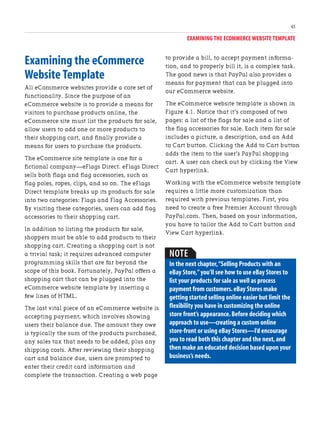
SCOTT MITCHELL
FOURTH EDITION
Create Your Own Website
Copyright © 2009 by Pearson Education,Inc.
All rights reserved. No part of this book shall be reproduced, stored in a retrieval
system, or transmitted by any means, electronic, mechanical, photocopying, recording,
or otherwise, without written permission from the publisher. No patent liability is
assumed with respect to the use of the information contained herein. Although every
precaution has been taken in the preparation of this book, the publisher and author
assume no responsibility for errors or omissions. Nor is any liability assumed for
damages resulting from the use of the information contained herein.
ISBN-13: 978-0-672-33002-5
ISBN-10: 0-672-33002-4
Printed in the United States of America
First Printing: August 2008
Trademarks
All terms mentioned in this book that are known to be trademarks or service marks
have been appropriately capitalized. Sams Publishing cannot attest to the accuracy of
this information. Use of a term in this book should not be regarded as affecting the
validity of any trademark or service mark.
Warning and Disclaimer
Every effort has been made to make this book as complete and as accurate as possible,
but no warranty or fitness is implied. The information provided is on an “as is” basis.
The author and the publisher shall have neither liability nor responsibility to any
person or entity with respect to any loss or damages arising from the information
contained in this book or from the use of the CD or programs accompanying it.
Bulk Sales
Sams Publishing offers excellent discounts on this book when ordered in quantity for
bulk purchases or special sales. For more information, please contact
U.S. Corporate and Government Sales
1-800-382-3419
corpsales@pearsontechgroup.com
For sales outside of the U.S., please contact
International Sales
international@pearsoned.com
Library of Congress Cataloging-in-Publication Data
Mitchell, Scott.
Create your own website / Scott Mitchell. -- 4th ed.
p. cm.
ISBN 978-0-672-33002-5 1. Web sites--Design. I. Title.
TK5105.888.M57 2008
006.7'8--dc22
2008030148
Editor-in-Chief
Karen Gettman
Executive Editor
Neil Rowe
Development Editor
Mark Renfrow
Managing Editor
Patrick Kanouse
Senior Project Editor
San Dee Phillips
Copy Editor
Amanda Gillum
Indexer
Tim Wright
Proofreader
Karen A.Gill
Compositor
Gina Rexrode
Technical Editor
Todd Meister
Publishing Coordinator
Cindy Teeters
Multimedia Developer
Dan Scherf
Book Designer
Gary Adair
Contents at a Glance
Introduction 1
1 Creating Your First Web Page 5
2 Creating a Website 29
3 Creating a Family/Personal Website 45
4 Creating an Online Storefront 63
5 Selling Products with an eBay Store 85
6 Creating a Blog with Blogger 103
7 Sharing Images Online with Snapfish 127
8 Hanging Out and Making Friends at MySpace 147
9 Posting Your Videos on YouTube 167
10 Staying Connected with Facebook 187
11 Bonus Material 207
Index 223
IV
3
4 Creating an Online Storefront 63
Examining the eCommerce Website
Template . 65
Customizing the Home Page . 66
Configuring the Add to Cart Buttons.. 67
Creating a PayPal Premier
Account. 67
Getting the Add to Cart Button
HTML . 72
Adding the Add to Cart Button
into the Template . 78
Viewing the Shopping Cart. 79
Tying It All Together—A True Online
Shopping Experience. 80
Summary . 83
Table of Contents
Welcome to Create Your Own Website! 1
1 Creating Your First Web Page 5
The Components of a Website . 7
Serving Web Pages with a Web
Server. 8
Understanding Website Domain
Names. 8
Web Pages, the Building Blocks
of a Website . 9
Knowing Your Options . 13
Building Web Pages Using Web Page
Authoring Software Tools . 14
Installing SeaMonkey . 15
Starting SeaMonkey’s Composer.. 17
Creating a Web Page with SeaMonkey
Composer . 19
Changing the Font . 20
Making Text Bold, Italic, and
Underlined . 22
Changing the Colors . 23
Positioning Text . 25
Saving the Web Page . 25
Summary . 27
2 Creating a Website 29
Finding a Web Host Provider . 30
Important Web Hosting Metrics... 31
Picking a Web Hosting
Company . 33
Registering a Domain Name . 34
Choosing and Buying a
Domain Name . 34
Configuring the Domain Name .. 36
Uploading Web Pages from
Composer to Your Website . 37
Building a Website from a Template .. 41
Summary . 42
V
5
6 Creating a Blog with Blogger 103
What Do You Blog About? . 105
Creating a Blog . 105
Adding Content to Your Blog. 109
Customizing Your Blog . 115
Examining the Basic Tab. 116
Altering the Blog’s
Appearance Through
the Formatting Tab . 117
Managing Comment
Settings . 118
Archiving Old Content . 120
Working with Postings via
Email . 121
Customizing the Blog’s Template. 122
Summary. 126
7 Sharing Images Online with
Snapfish 127
Choosing an Online Image Sharing
Service . 128
Creating an Account on
SnapFish . 129
Uploading and Managing Your
Digital Pictures . 131
Adding Pictures to Your
Account . 132
Editing and Deleting Your
Pictures and Albums. 135
Sharing Your Pictures and Albums
with Friends and Family . 138
Ordering Prints and Gifts. 142
Summary. 144
8 Hanging Out and Making Friends at
MySpace 147
Joining MySpace . 149
Expanding Your Profile. 153
Customizing Your Profile Page’s
Layout and Colors . 155
Configuring Your Name
Information. 156
Creating a Blog and Sharing Your
Pictures . 158
Uploading and Sharing Your
Photos. 158
Expressing Yourself with Your
Blog . 160
Growing Your Social Network . 163
Making New Friends . 164
Summary. 166
9 Posting Your Videos on YouTube 167
Getting Started with YouTube . 168
Creating an Account . 169
Uploading Your Videos . 171
Viewing and Managing Your Videos . 175
Customizing Your Channel . 176
Customizing Your
Channel Info . 177
Changing Your Channel’s
Colors and Layout . 178
vi
Organizing Your Videos . 179
Sharing Personal and Location
Information. 180
Embedding YouTube Videos into Your
Website . 181
Embedding a Video in a
Blog . 182
Summary. 185
10
11 Bonus Material 207
HTML—The Language of
Web Pages . 208
Understanding How the Internet
Works . 212
Examining How the Postal
Service Works . 212
The Internet as a Virtual
Postal Service . 213
Optimizing Your Digital Pictures . 218
Resizing Digital Images . 219
Summary. 222
Index 223
vii
About the Author
Create Your Own Website is author Scott Mitchell’s eighth book; his others are Sams Teach
Yourself Active Server Pages 3.0 in 21 Days (Sams); Designing Active Server Pages (O’Reilly);
ASP.NET: Tips, Tutorials, and Code (Sams); ASP.NET Data Web Controls Kick Start (Sams); Teach
Yourself ASP.NET in 24 Hours (Sams); Teach Yourself ASP.NET 2.0 in 24 Hours (Sams); and Teach
Yourself ASP.NET 3.5 in 24 Hours (Sams). Scott is a regular columnist for Microsoft’s MSDN
Magazine and has authored more than 1,000 online articles on his website, 4GuysFromRolla.com.
Scott’s nonwriting accomplishments include speaking at numerous technical user groups and
conferences across the country. Scott also teaches web technology classes at the University of
California—San Diego University Extension. In addition to teaching and writing, Scott is a
software developer. He works as an independent consultant and has authored and sold
several commercial software applications.
Scott lives in San Diego, California with his wife, Jisun, and dog, Sam. You can learn more
about Scott at http://www.4GuysFromRolla.com/ScottMitchell or at his blog, http://www.ScottOnWriting.net.
Dedication
Life is a journey best traveled with a constant companion.To my wife,Jisun.
Acknowledgments
Special thanks to the professional and knowledgeable folks at Sams Publishing. This is my
seventh book published with Sams, and it has been as rewarding and enjoyable an experi-
ence as the six previous titles. Huzzah!
viii
We Want to Hear from You!
As the reader of this book, you are our most important critic and commentator. We value
your opinion and want to know what we’re doing right, what we could do better, what areas
you’d like to see us publish in, and any other words of wisdom you’re willing to pass our
way.
As publisher for Sams Publishing, I welcome your comments. You can email or write me
directly to let me know what you did or didn’t like about this book—as well as what we can
do to make our books better.
Please note that I cannot help you with technical problems related to the topic of this book. We do
have a User Services group, however, where I will forward specific technical questions related to the
book.
When you write, please be sure to include this book’s title and author as well as your name,
email address, and phone number. I will carefully review your comments and share them
with the author and editors who worked on the book.
Email: feedback@samspublishing.com
Mail: Paul Boger
Publisher
Sams Publishing
800 East 96th Street
Indianapolis, IN 46240 USA
For more information about this book or another Sams Publishing title, visit our website at
www.samspublishing.com. Type the ISBN (excluding hyphens) or the title of a book in the
Search field to find the page you’re looking for.
I N T R O D U C T I O N
Welcome to CreateYour
OwnWebsite!
As the popularity of the Internet and the World
Wide Web have risen since the beginnings in
the early 1990s, virtually all businesses have
established an online presence. Many individu-
als, too, have left their imprints on the web,
creating a website for their family or posting
pictures of their vacations. If you want to join
the millions of people who have created websites
but fear you lack the background or expertise for
such an endeavor, this book is for you!
In this book you see just how easy creating a
website can be. The CD included with this book
contains professional website templates and a
free web page editor. With the web page editor,
you can quickly and easily customize the
provided templates into your very own
personal websites. Using the web page editor is
as simple as using a word processor program.
It’s just point and click!
Since there are a number of different types of
websites on the Internet, this book’s CD
includes templates for different types of sites.
Specifically, the provided templates let you
quickly create the following types of sites:
. Family websites—With a family website,
you can share pictures of you and your
family with friends and members of your
extended family.
. Hobby websites—A hobby website allows
you to share your hobbies with others who
have similar interests.
. Community websites—With a community
website, your church, club, bowling team,
or other group or association can post
information, schedules, pictures, and other
pertinent information.
. Online storefront website—Sell products
online by accepting credit card payments
with an online storefront site.
I N T R O D U C T I O N WELCOME TO CREATE YOUR OWN WEBSITE!
2
In addition to showing you how to build your
own websites from the ground up, this book
includes chapters on how to use existing web-
based services to quickly create common
websites. Specifically, you’ll see how to
. Sell products at eBay Stores—eBay Stores
are a quick and easy way to start selling
products online. With eBay Stores, your
products are listed on eBay.com, and
payment processing is handled for you by
eBay. You simply list your products for sale
and ship them when purchased!
. Publish content online with a blog—A
blog is a type of website designed to allow
users to quickly and easily publish content
online. Blogs are springing up all over the
World Wide Web, used by both individuals
and businesses alike.
. Share your digital pictures—You’ve just
gotten back from your vacation to Tahiti
with gobs of digital pictures. How do you
easily share these beautiful pictures with
your friends and family? Digital picture
sharing websites make it easy to upload
your pictures and share them with select
friends and family.
. Create a home page on MySpace—
MySpace is one of many “social network-
ing” websites, where visitors can stay in
touch with friends, meet their friends’
friends, and make new social contacts. In
addition to maintaining and growing your
network of friends, MySpace makes it easy
for you to create your own web pages, post
pictures, share music, and host a blog.
. Share your videos on YouTube—With
today’s video cameras, it’s easy to upload
your home videos to your computer, where
you can watch or edit them. Once a video
is stored on your computer, you can upload
it to YouTube and share it with a world-
wide audience.
. Build your social network with
Facebook—Facebook is another popular
“social networking” website, like MySpace.
Unlike MySpace, Facebook allows users to
join one or more networks which are
organized by facets like geographic region,
employer, and school. It’s a great site for
catching up with old friends from high
school or college, as well as an excellent
resource for making new friends at your
company or in your neighborhood.
Whether you want to build your own, unique
website or use a pre-existing web application,
you learn everything you need to know to start
building your own website today with this
book. Get ready to see just how fun and easy
it is to create your own website!
I N T R O D U C T I O N WELCOME TO CREATE YOUR OWN WEBSITE!
3
This page intentionally left blank
C H A P T E R 1
Creating Your First Web
Page
Have you ever wanted to create your own
website but thought that the task was too
daunting? Do you think that only folks with
years of computer training and experience
have the knowledge necessary for building web
pages? These are common misconceptions that
many people have. With the right tools and
information, creating websites is as easy as
pointing and clicking! If you are interested in
quickly creating a professional-looking website,
then you’ve picked up the right book.
C H A P T E R 1 CREATING YOUR FIRST WEB PAGE
6
in creating websites. Specifically, you learn
how to sell products through a website using
eBay Stores and publish content through a
blog at Blogger.com. You see how easy it is to
share photos and videos with friends and
family via Snapfish.com and YouTube. You
also learn how to get started with two popular
social networking sites: MySpace and
Facebook.
While there are literally millions of websites
available on the Internet, virtually all fall into
one of three categories:
. Family/Personal Website—Keep your
extended family and friends up to date
with the latest happenings of your family.
. Online Storefront Website—Sell products
and services online! A great revenue
stream for home-based businesses.
. Content Publishing Website—Publish
your content on the World Wide Web. Be it
your poetry, your political or philosophical
views, or your hilarious home videos, by
distributing your content online, you open
it up to a potential worldwide audience of
millions.
As you’ll see, creating websites that fall into
any of these three categories is a snap with the
provided templates and website tools. To get
started, all you need is this book, its CD, and
access to a computer with Internet connectivity.
“Creating websites is a snap with the
provided templates.To get started,all
you need is this book,its CD,and
access to a computer with Internet
connectivity.”
NOTE
Don’t have website building experience? Don’t
worry! This book’s CD contains professional
website templates that you can use to build your
own website within minutes.You also learn how
to use existing website applications to sell prod-
ucts,publish content and videos,and share
images online.
This book includes a CD with website
templates, along with software for editing the
web templates. This chapter looks at the funda-
mental building blocks of websites and then
steps through the installation process of
SeaMonkey, the web page creation software
included on the CD. The next chapter exam-
ines the necessary steps to create a website
and shows how to move the web page
templates from the CD to your website.
Chapters 3 and 4 illustrate how the templates
on the book’s CD can be customized to create
your own website.
In addition to the website templates, Chapters
5 through 10 examine online tools that assist
THE COMPONENTS OF A WEBSITE
7
The Components of a
Website
In your experiences with the Internet, you’ve
likely visited several different websites. Some of
the more popular websites in terms of the
number of people who visit the site on a daily
basis include Yahoo.com, CNN.com,
Google.com, Amazon.com, eBay.com,
MSN.com, and others.
To visit a website, you must have an Internet
connection. Virtually all computers in places
of business have an Internet connection, while
millions of home users connect to the Internet
through services provided by companies such
as AOL, MSN, EarthLink, or local cable or
telephone providers.
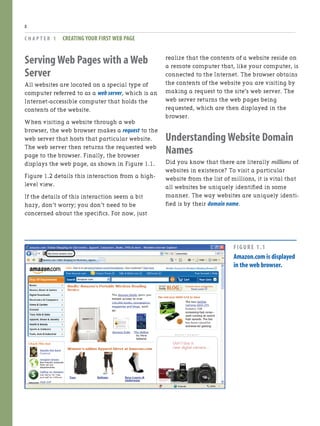
Figure 1.1 shows a screenshot of Amazon.com’s
website when viewed through Internet
Explorer.
Notice that Figure 1.1 has the browser’s
Address bar circled. To visit Amazon.com
simply enter the domain name of the site—
www.amazon.com—into the browser’s Address
bar. That’s all you have to do.
Before you begin creating your own web pages,
it is vital that you know of the basic compo-
nents inherent to all websites. Specifically, all
websites are made up of the following three
components:
. A Web Server—A web server is an
Internet-connected computer whose sole
purpose is to provide a location for the
web pages of a website and to handle
incoming requests for these web pages.
. A Domain Name—A website’s domain
name is a unique identifier for a website,
much like your mailing address is a
unique identifier for your home. A
website’s domain name identifies the web
server on which the site’s web pages are
located.
. Web Pages—A collection of files that
make up the content of a website.
NOTE
Companies that provide Internet connectivity—
such as AOL,MSN,and others—are commonly
referred to as ISPs,which stands for Internet
service provider.
Visiting a website from an Internet-connected
computer is a cinch. Simply open up a web
browser and type the domain name of the website
into the web browser’s Address bar.
NEW TERM
Each website has a unique domain name.To view
a particular website,a user simply types the
domain name of the website she wants to visit in
her browser’s Address bar.We’ll discuss the
purpose of domain names in more detail shortly.
Serving Web Pages with a Web
Server
All websites are located on a special type of
computer referred to as a web server, which is an
Internet-accessible computer that holds the
contents of the website.
When visiting a website through a web
browser, the web browser makes a request to the
web server that hosts that particular website.
The web server then returns the requested web
page to the browser. Finally, the browser
displays the web page, as shown in Figure 1.1.
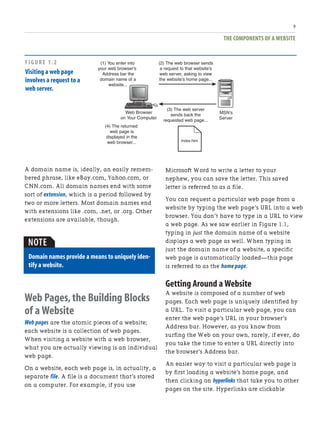
Figure 1.2 details this interaction from a high-
level view.
If the details of this interaction seem a bit
hazy, don’t worry; you don’t need to be
concerned about the specifics. For now, just
C H A P T E R 1 CREATING YOUR FIRST WEB PAGE
8
realize that the contents of a website reside on
a remote computer that, like your computer, is
connected to the Internet. The browser obtains
the contents of the website you are visiting by
making a request to the site’s web server. The
web server returns the web pages being
requested, which are then displayed in the
browser.
Understanding Website Domain
Names
Did you know that there are literally millions of
websites in existence? To visit a particular
website from the list of millions, it is vital that
all websites be uniquely identified in some
manner. The way websites are uniquely identi-
fied is by their domain name.
FIGURE 1.1
Amazon.com is displayed
in the web browser.
NOTE
THE COMPONENTS OF A WEBSITE
9
A domain name is, ideally, an easily remem-
bered phrase, like eBay.com, Yahoo.com, or
CNN.com. All domain names end with some
sort of extension, which is a period followed by
two or more letters. Most domain names end
with extensions like .com, .net, or .org. Other
extensions are available, though.
Domain names provide a means to uniquely iden-
tify a website.
Web Pages,the Building Blocks
of a Website
Web pages are the atomic pieces of a website;
each website is a collection of web pages.
When visiting a website with a web browser,
what you are actually viewing is an individual
web page.
On a website, each web page is, in actuality, a
separate file. A file is a document that’s stored
on a computer. For example, if you use
Microsoft Word to write a letter to your
nephew, you can save the letter. This saved
letter is referred to as a file.
You can request a particular web page from a
website by typing the web page’s URL into a web
browser. You don’t have to type in a URL to view
a web page. As we saw earlier in Figure 1.1,
typing in just the domain name of a website
displays a web page as well. When typing in
just the domain name of a website, a specific
web page is automatically loaded—this page
is referred to as the home page.
Getting Around a Website
A website is composed of a number of web
pages. Each web page is uniquely identified by
a URL. To visit a particular web page, you can
enter the web page’s URL in your browser’s
Address bar. However, as you know from
surfing the Web on your own, rarely, if ever, do
you take the time to enter a URL directly into
the browser’s Address bar.
An easier way to visit a particular web page is
by first loading a website’s home page, and
then clicking on hyperlinks that take you to other
pages on the site. Hyperlinks are clickable
(1) You enter into
your web browser’s
Address bar the
domain name of a
website...
(4) The returned
web page is
displayed in the
web browser...
(2) The web browser sends
a request to that website’s
web server, asking to view
the website’s home page...
(3) The web server
sends back the
requested web page...
Index.htm
Web Browser
on Your Computer
MSN’s
Server
FIGURE 1.2
Visiting a web page
involves a request to a
web server.
TIP
C H A P T E R 1 CREATING YOUR FIRST WEB PAGE
10
regions on a web page that, when clicked, whisk
you to some other, specified web page.
Think of a website as a book and a web page as a
page in a book.When visiting a website,you can
navigate through the various web pages,just like
when picking up a book you can flip around to
different pages.You navigate through the pages
of a book by thumbing through the pages; for a
website,you navigate through its web pages by
clicking on hyperlinks.
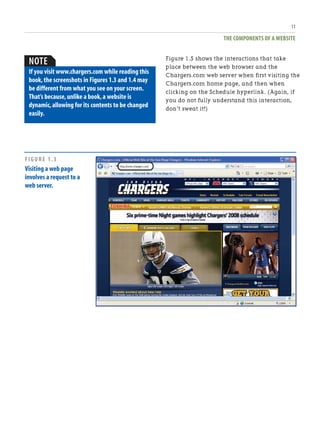
To demonstrate page navigation in a website,
take a moment to visit the website of the
San Diego Chargers football team at
www.chargers.com. As Figure 1.3 shows, this
website (like all websites) has a number of
hyperlinks. Along the top of the page, there
are several hyperlinks to various sections of the
site: Schedule, Team, News, Charger Girls,
Tickets, and so forth.
Clicking the Schedule hyperlink whisks you to
a new URL—http://www.chargers.com/schedule/
schedule.htm—which is shown in Figure 1.4.
Notice that the Address bar in Figure 1.3 differs
from that in Figure 1.4. In Figure 1.3, the
Address bar reads http://www.chargers.com, the
domain name of the San Diego Chargers
website. After clicking on the Schedule hyper-
link, we were taken to a different URL. The
Address bar has been updated accordingly,
illustrating that we are viewing a different
web page.
DOES YOUR WEBSITE LOOK RIGHT IN
EVERY BROWSER?
Webmonkey is a particularly good site for tuto-
rials on web building.We found a nice article
and chart on what standards different
browsers support.You may design and test
your website using the browser on your
computer.It may look fine to you,but what
about all of your visitors and the browsers
they're using? If you check out the browser
statistics on http://www.thecounter.com/
stats/,you'll find that 41% of people are using
Microsoft Internet Explorer 7.x,37% are using
Internet Explorer 6.x,and 16% use Firefox.
That at least narrows it down for you when
you're trying to make sure your site can be
viewed properly by most people.If you want to
accommodate more people than that,pay
attention to the standards on Mozilla,
Netscape,Safari,and Opera,too.
IDEA GALLERY
http://en.wikipedia.org/wiki/Comparison_of_Web_browsers
THE COMPONENTS OF A WEBSITE
11
Figure 1.5 shows the interactions that take
place between the web browser and the
Chargers.com web server when first visiting the
Chargers.com home page, and then when
clicking on the Schedule hyperlink. (Again, if
you do not fully understand this interaction,
don’t sweat it!)
NOTE
If you visit www.chargers.com while reading this
book,the screenshots in Figures 1.3 and 1.4 may
be different from what you see on your screen.
That’s because,unlike a book,a website is
dynamic,allowing for its contents to be changed
easily.
FIGURE 1.3
Visiting a web page
involves a request to a
web server.
C H A P T E R 1 CREATING YOUR FIRST WEB PAGE
12
FIGURE 1.4
The Schedule web page
is displayed.
Table 1.1 summarizes the core pieces of a
website.
Table 1.1 Key Website Building Blocks
Building Block Description
Web Server A web server is an Internet-accessible
computer that hosts one or more websites.
When viewing a web page,your browser
sends a request to the web server for the
specified URL.
Website A website is a collection of related web
pages.Websites have a bevy of purposes:
They can be used to share pictures,provide
information,or even sell products.Each
website is uniquely identified with a
domain name.
Building Block Description
Web Page A web page can have a mix of text and
graphics.A web page is like a single page in
a book.Web pages can be linked to one
another using hyperlinks,allowing the
visitor to quickly jump from one web page
to another.
KNOWING YOUR OPTIONS
13
Knowing Your Options
There are two ways to leave your imprint on
the World Wide Web: Build your own website
from the ground up or use existing websites to
facilitate the process. If you want a truly
personal website with its own domain name
that you have complete control over the
appearance and content on the site, you want
to build your own website from the ground up.
This involves installing software on your
computer to assist with creating web pages and
(1) You enter the
domain name
www.chargers.com into
your web browser…
(4) The returned
web page is
displayed in the
web browser...
(2) The web browser sends
a request to the Chargers.com
web server asking to view
the home page...
(3) The web server
sends back the
Chargers.com home page...
Index.htm
Web Browser
on Your Computer
Chargers’
Web Server
(5) You click on
the Schedule
hyperlink...
(8) The returned
web page is
displayed in the
web browser...
(6) The web browser sends
a request to the Chargers.com
web server asking to view
http://www.chargers.com/
schedule/schedule.htm
(7) The web server
sends back the
requested web page...
Schedule/Schedule.htm
Web Browser
on Your Computer Chargers’
Web Server
FIGURE 1.5
Each time a new web
page is navigated to,the
web browser requests
the web page from the
web server.
requires using a web hosting company to host
your website.
Alternatively, you can create a less personalized
website to share your content and keep in touch
with friends and family using any number of
web-based services. For example, you can sell
products online using eBay Stores or share your
vacation photos with friends and family using
Snapfish.com.
The benefit of using web-based services is that
they simplify the process of setting up and
configuring your website, whereas building a
website from the ground up requires more
effort. However, web-based services allow you
less control over the look and feel of your
website.
This book shows how to build websites from
the ground up as well as how to use various
web-based services. In this chapter and the
next, you see how to get started with building
a website from the ground up. Chapter 3 takes
the lessons learned in Chapters 1 and 2 and
looks at creating a family/personal website to
share your family’s latest news and photos
with friends and extended family. Chapter 4
shows how to build an online storefront from
the ground up.
Chapters 5 through 10 look at using web-based
services.
Building Web Pages Using
Web Page Authoring
Software Tools
Creating web pages is a simple task thanks to
specially designed web page authoring soft-
ware tools. These software tools allow you to
visually construct a web page with a few points
and clicks of the mouse. There are a number of
different software packages out there that are
designed to make creating web pages a snap.
Table 1.2 lists some of the more popular ones,
along with their price and a URL to learn more
about the product.
C H A P T E R 1 CREATING YOUR FIRST WEB PAGE
14
Table 1.2 Popular Web Page Authoring Tools
For More
Name Cost Information…
Adobe Dreamweaver $399.00 www.adobe.com/
products/dreamweaver
Microsoft Expression $299.00 www.microsoft.com/
expression/
SeaMonkey Composer Free! www.seamonkey-
project.org/
As you can tell by their prices, Microsoft
Expression and Adobe Dreamweaver are
targeted toward the professional web developer.
They are both world-class products that make
building professional-looking websites an
absolute breeze. Unfortunately, the price point
for both of those products is a bit high for first-
time web developers (like yourself).
Fortunately, there is a good, free web page
authoring tool released by the open-source
Mozilla group, called SeaMonkey Composer.
NOTE
Mozilla is a not-for-profit organization estab-
lished in 1998.In addition to SeaMonkey,the
organization created and maintains a free
popular web browser called Firefox.
The CD accompanying this book contains
the SeaMonkey software, which includes a
web browser and a web page authoring tool,
among other utilities. To use SeaMonkey to
create web pages, you first need to install it
on your computer.
BUILDING WEB PAGES USING WEB PAGE AUTHORING
SOFTWARE TOOLS
15
JUST GIVE ME A TEMPLATE!
What if you're not creative? What if you have
no design education and experience? You still
want a nice looking website that attracts visi-
tors,and you have the skills to create it,but
you need the look—the typefaces,the colors,
the art.We just had to review Adam Polselli's
site again for this reason[md]he offers you an
array of choices from simple chic to corporate
to vintage and tells you step by step how to
get the particular look that you want.After you
read through his reasons for choosing
elements to achieve his theme,he lets you click
a link called“Putting It All Together,”where
you see a bulleted list of typefaces he recom-
mends,color schemes,shapes,borders,and
photo finishes so that you can duplicate his
design.
If you still want more than instructions to
achieve a look,you can buy HTML templates
from websites.Try sites like Boxedart.com and
designload.net,where you can buy full-page
templates or just buttons,art,and logos.
IDEA GALLERY
http://adampolselli.com/2001/11/03/get-the-look-vintage/
NOTE
The CD includes the most recent version of
SeaMonkey at the time of this book’s writing,
version 1.1.9.You may optionally download and
install the most recent version of SeaMonkey
from the official website—www.seamonkey-
project.org.If you do,though,realize that there
may be some slight discrepancies between what
you see on your screen and the screenshots in
this book.
Installing SeaMonkey
To begin the SeaMonkey installation, insert the
CD into your computer. This will launch a
program with three options:
. Browse Templates
. Install SeaMonkey
. Companion Website
Click the Install SeaMonkey option to begin the
installation process, which starts by displaying
the SeaMonkey Setup—Welcome dialog box
(shown in Figure 1.6).
C H A P T E R 1 CREATING YOUR FIRST WEB PAGE
16
FIGURE 1.6
The SeaMonkey installation welcome message.
Click the Next button to begin the installation.
The second screen is the Software License
Agreement screen, which provides the license
for use of SeaMonkey. After you have read and
agreed to this license, click the Accept button.
Doing so takes you to the third screen, the
Setup Type dialog box (shown in Figure 1.7).
The Setup Type screen lets you determine what
type of setup should be performed. Leave the
default choice—Complete—selected, and click
Next to continue.
FIGURE 1.7
Choose to do a Complete installation.
The next screen asks you if you want to use
SeaMonkey’s Quick Launch option. Quick
Launch adds an icon to the Windows taskbar,
keeping SeaMonkey running even when you
close it. This provides quicker startup times
when you launch SeaMonkey. This option is
unchecked by default, and I would encourage
you to leave it unchecked unless you foresee
yourself using SeaMonkey regularly.
When you have decided on the Quick Launch
option, click Next to proceed to the final instal-
lation screen (shown in Figure 1.8). This final
screen provides a summary of the components
that will be installed.
BUILDING WEB PAGES USING WEB PAGE AUTHORING SOFTWARE TOOLS
17
When you are ready to begin the actual instal-
lation, click the Install button. Over the next
several minutes, SeaMonkey will be installed
on your computer. After it has completed
installation, SeaMonkey’s web browser auto-
matically launches and displays a welcome
web page. With SeaMonkey installed, we are
now ready to start using Composer, the web
page editing software we’ll be using through-
out this book.
FIGURE 1.8
The final screen reviews the installation options.
Starting SeaMonkey’s Composer
After you install SeaMonkey, you are ready to
start using Composer, which is a tool for creat-
ing web pages. To use Composer, you must first
launch the SeaMonkey browser if it is not
running already. To launch the browser, go to
the Start menu, choose Programs, go to
SeaMonkey, and select SeaMonkey.
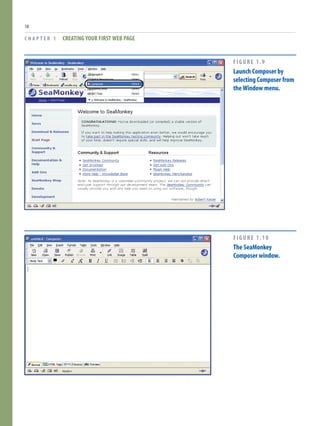
When the SeaMonkey browser starts, you can
launch Composer by going to the Window
menu in the browser and clicking on the
Composer menu item. Alternatively, you can
press Ctrl and the 4 key on your keyboard
simultaneously. Figure 1.9 shows a screenshot
of the SeaMonkey browser and the Window
menu.
After you select to launch Composer, the
Composer window should appear. Figure 1.10
shows a screenshot of the Composer window.
In the next section, we examine how to use
Composer to create a web page.
TIP
By installing SeaMonkey Composer,you are also
installing a full-fledged web browser.The
SeaMonkey web browser has many features not
found in Internet Explorer.I would encourage you
to try out the SeaMonkey browser—you might
just like it better than Internet Explorer! To learn
more about SeaMonkey’s features,check out
www.seamonkey-project.org/doc/features.
C H A P T E R 1 CREATING YOUR FIRST WEB PAGE
18
FIGURE 1.9
Launch Composer by
selecting Composer from
the Window menu.
FIGURE 1.10
The SeaMonkey
Composer window.
CREATING A WEB PAGE WITH SEAMONKEY COMPOSER
19
Creating a Web Page with
SeaMonkey Composer
Creating web pages with SeaMonkey Composer
is as easy and intuitive as writing a letter using
a program such as Microsoft Word. Let’s look
at using Composer to build a simple web page,
one that provides information about some ficti-
tious individual. We start by entering the
content that we want to present in the web
page; we will come back and make the content
appear more eye-pleasing.
“Creating web pages with SeaMonkey
Composer is as easy and intuitive as
writing a letter using a program such as
MicrosoftWord.”
To follow along, start Composer, if you haven’t
already. Recall that this can be accomplished
by launching the SeaMonkey browser, going
to the Window menu, and choosing the Com-
poser option. (Refer to Figure 1.9 for a screen-
shot of the Window menu in the SeaMonkey
browser.)
Entering content into the web page is as simple
as typing it in! The web page we’ll be creating
is about a fictitious fellow named Bob. In this
page, Bob wants to share information about
himself, including
. His age
. What he does for a living
. A bit about his wife and kids
. His hobbies
. Information about his pets
Start out by typing in the information Bob
wants to share with the world. Feel free to be
creative and make up a bevy of interesting
facts about Bob to share in this web page. I
decided to enter the following for Bob:
Hello,you have reached my very firstWeb page! My name is Bob,
I’m 34 years old and I live in Dallas,Texas.
I work as an instructor at a sky-diving school,teaching people
how to jump out of planes.I’ve made over 400 jumps myself,and
made my first jump back when I was a mere 12 years old!
I am married to my wife Irene,and we have seven lovely chil-
dren:Bertha,Bobby-Joe,Jermain,Ted,Todd,Rod,and Lil’Elaine.
Bertha’s the biggest and oldest,and Lil’Elaine is the youngest
(although not the smallest—Rod has that distinction).
For fun I like to bowl.I am in a league,and we play every
Wednesday at the Bowlorama.
The joy of my life is my pet parrot,Mr.Polly.Mr.Polly has a large
vocabulary,and is quite talkative,especially when the whole
family sits down for dinner.Mr.Polly,believe it or not,has been
on several jumps with me.
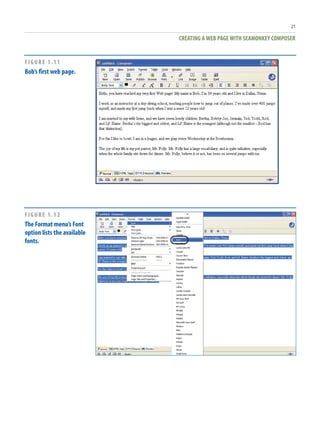
Figure 1.11 shows Composer after I have
entered information about Bob.
Without a doubt, Bob’s first web page is a bit of
a disappointment. It doesn’t look very exciting.
Over the next several sections, we’ll examine
how Composer allows you to spruce up the
appearance of a web page. With a few simple
steps, you can radically improve the look and
feel of a web page.
NOTE
If you make a mistake when working with
Composer—be it choosing an incorrect color,an
incorrect font,mistyping,or whatever—you can
undo your last action by going to the Edit menu
and selecting Undo.
C H A P T E R 1 CREATING YOUR FIRST WEB PAGE
20
WRITING FOR YOUR SITE
“The most valuable of all talents is that of
never using two words when one will do.”
—Thomas Jefferson
Writing for the Web by Jakob Nielson is an
older website but still offers relevant informa-
tion about writing styles and effective commu-
nications with people.Although not the most
attractive page,Jakob leads you to articles and
other places to reference style rules,usability
studies,and guidelines for writing different
kinds of text such as newsletters and press
releases,as well as tips on writing headlines,
subjects,and page titles that will get people's
attention.
IDEA GALLERY
http://www.useit.com/papers/webwriting/
Changing the Font
By default, the text you type into Composer is
displayed using the web browser’s default font.
You can choose a specific font quite easily in
Composer, though. To demonstrate this, let’s
have Bob’s home page displayed in the Arial
font.
Start by highlighting all of the text you’ve
typed in thus far. To highlight the text, you can
go to the Edit menu and choose Select All, or,
using the mouse, you can click and hold the
button within the text and drag the mouse
cursor to select a portion of the text. To change
the selected text’s font, go to the Format menu
and choose the Font option. This displays a
long list of available fonts, as shown in Figure
1.12. To follow along, choose the Arial font.
Figure 1.13 shows Composer after the font has
been changed to Arial.
NOTE
Most professional web pages are displayed in one
of three fonts:Arial,Times New Roman,or
Verdana.Figure 1.14 shows the same sentence in
these three different fonts.
CREATING A WEB PAGE WITH SEAMONKEY COMPOSER
21
FIGURE 1.11
Bob’s first web page.
FIGURE 1.12
The Format menu’s Font
option lists the available
fonts.
C H A P T E R 1 CREATING YOUR FIRST WEB PAGE
22
FIGURE 1.13
The text in Bob’s web
page is displayed in the
Times New Roman font.
FIGURE 1.14
Arial,Times New Roman,and Verdana are the three
most popular fonts.
TIP
To change the text for a portion of the document,
use the mouse to select just the text whose font
you want to change.Then go to the Format
menu’s Font option and select the font you want
to change the selected text to.
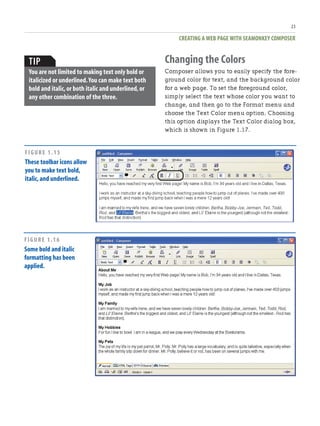
Making Text Bold,Italic,and
Underlined
You can make text bold, italic, and underlined
using the toolbar icons shown circled in Figure
1.15. To apply such formatting to a given piece
of text, highlight the text and then click the
appropriate icons.
For example, let’s have Bob’s children’s names
italicized. To accomplish this, use the mouse to
select Bob’s children’s names. When this text is
selected, simply click the Italic icon (the I in the
toolbar), and the text becomes italicized.
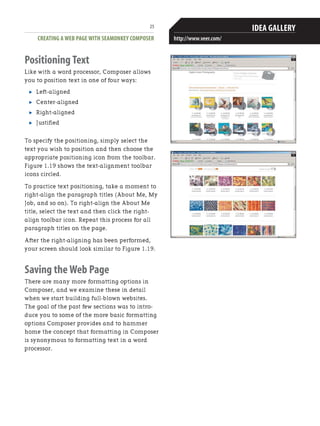
Also, let’s add a brief title before each para-
graph, where each title is made bold. Figure
1.16 shows Composer after the boldfaced para-
graph titles have been added and the children’s
names italicized.
CREATING A WEB PAGE WITH SEAMONKEY COMPOSER
23
TIP
You are not limited to making text only bold or
italicized or underlined.You can make text both
bold and italic,or both italic and underlined,or
any other combination of the three.
Changing the Colors
Composer allows you to easily specify the fore-
ground color for text, and the background color
for a web page. To set the foreground color,
simply select the text whose color you want to
change, and then go to the Format menu and
choose the Text Color menu option. Choosing
this option displays the Text Color dialog box,
which is shown in Figure 1.17.
FIGURE 1.15
These toolbar icons allow
you to make text bold,
italic,and underlined.
FIGURE 1.16
Some bold and italic
formatting has been
applied.
C H A P T E R 1 CREATING YOUR FIRST WEB PAGE
24
This dialog box allows you to choose a color
from a palette of colors. After you select a color
and click the OK button, the dialog box closes
and the selected text’s foreground color changes
to the specified color. Take a moment to alter
the foreground color of some text in Bob’s web
page.
FIGURE 1.17
The Text Color dialog box allows you to select the
text’s color.
The web page’s background color can be
changed by going to the Format menu and
choosing the Page Colors and Background
option. This displays the Page Colors and
Background dialog box (shown in Figure 1.18).
To change the page’s background color, select
the Use Custom Colors radio button and then
click on the Background button. This displays
the Text Color dialog box shown in Figure 1.17.
After choosing a color and clicking OK in both
dialog boxes, you are returned to Composer,
and the background color changes to the speci-
fied color.
FIGURE 1.18
This dialog box allows you to change the background
color of the web page.
TIP
When specifying colors,be sure that the back-
ground and foreground colors contrast so that
the text is readable.If you choose a dark text
color on a dark background or a light text color
on a light background,visitors to your web page
won’t be able to read the text!
Some examples of bad color choices include
yellow text on a white background and blue text
on a black background.
CREATING A WEB PAGE WITH SEAMONKEY COMPOSER
25
Positioning Text
Like with a word processor, Composer allows
you to position text in one of four ways:
. Left-aligned
. Center-aligned
. Right-aligned
. Justified
To specify the positioning, simply select the
text you wish to position and then choose the
appropriate positioning icon from the toolbar.
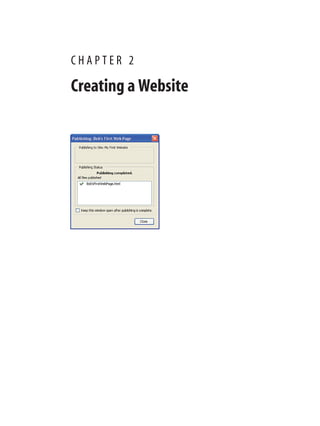
Figure 1.19 shows the text-alignment toolbar
icons circled.
To practice text positioning, take a moment to
right-align the paragraph titles (About Me, My
Job, and so on). To right-align the About Me
title, select the text and then click the right-
align toolbar icon. Repeat this process for all
paragraph titles on the page.
After the right-aligning has been performed,
your screen should look similar to Figure 1.19.
Saving the Web Page
There are many more formatting options in
Composer, and we examine these in detail
when we start building full-blown websites.
The goal of the past few sections was to intro-
duce you to some of the more basic formatting
options Composer provides and to hammer
home the concept that formatting in Composer
is synonymous to formatting text in a word
processor.
FONTS, IMAGES, PHOTOS, AND
ILLUSTRATIONS FOR YOUR SITE
What if you want beautiful photos or illustra-
tions for your site,but you're not an artist?
Veer.com and plenty of other stock image sites
offer great deals on images.
We liked Veer because it also prints catalogs
and offer them in PDF format from its website.
The catalogs are works of art and can give you
some great ideas for how to use images and
type.
Here are a couple of tips to remember when
looking for a stock image:
1. Royalty-free images are your best buy.
2. If you want the same look to your website,
buy a CD of images that were designed to go
together.
IDEA GALLERY
http://www.veer.com/
C H A P T E R 1 CREATING YOUR FIRST WEB PAGE
26
FIGURE 1.19
These toolbar icons allow
for positioning of text.
“There are many formatting options in
Composer,and we examine these in
detail when we start building
full-blown websites.”
Now that you have completed Bob’s first web
page, save it. To save the web page, go to the
File menu and choose the Save option. This
displays a dialog box prompting you for the
title for this web page.
All web pages have a title associated with them.
NEW TERM
The page’s title is displayed in the web browser’s
title bar when the page is visited.
Choose a title, such as “Bob’s First Web Page,”
and click OK. Next, you are prompted for
where to save the file. You can save it
anywhere on your computer you’d like, such as
in the My Documents folder, on the desktop, or
in a custom folder.
When saving the web page to your computer,
be sure to remove any spaces from the file-
name. While your computer can certainly store
files whose names contain spaces, URLs cannot.
Consequently, it’s good practice to omit spaces
from the filenames of your web pages.
At this point, the web page is saved only on
your computer. There is no way that your
grandmother in Toledo could visit this web
page through her web browser. To make this
web page accessible to anyone with an Internet
connection, we need to create a website and
SUMMARY
27
Summary
With the completion of this chapter, you’ve
taken your first step in your journey to create
websites. This chapter was a big first step,
covering many important facets of websites,
web pages, and web page authoring tools.
This chapter began by looking at the three
things all websites have:
. A web server to return the requested web
pages to the requesting web browsers
. A domain name to uniquely identify the
website
. Web pages, which make up the building
blocks of a website
A web server is a computer where a website’s
web pages reside. It is this web server that is
queried when a user visits the website through
a web browser. The domain name is a unique
identifier for a website. To visit the home page
for a particular website, simply enter the
domain name in your web browser’s Address
bar. Finally, a website is composed of one to
then copy this file to the web server that hosts
our website. This involves a number of steps,
which are examined in detail in the next
chapter.
TIP
After you save a web page,you can open it for
further editing by starting Composer,going to
the File menu,and choosing the Open option.
many web pages. Each web page is, in actual-
ity, a file residing on the web server. Web pages
contain HTML markup that specifies how their
content should be displayed in a web browser.
In this chapter you also saw how to use
SeaMonkey Composer to create a simple web
page. Composer enables you to create and edit
web pages just like you would work with docu-
ments in any word processor program. Before
you can start using Composer, though, you
need to install the SeaMonkey software located
on this book’s accompanying CD.
In the next chapter, “Creating a Website,” we’ll
take a deeper look at the communication inter-
actions involved between a web browser and a
web server. We’ll also look at how to get started
creating a website, which involves finding a
web host provider and registering a domain
name. Finally, we’ll see how to upload web
pages from your computer onto your public
website’s web server. You find all this and more
in the next chapter
This page intentionally left blank
C H A P T E R 2
Creating a Website
In the previous chapter, you examined how to
use Composer to create your first web page.
After creating the web page, you saved the web
page to a folder on your computer. While
storing the web page on your computer allows
you to easily update the web page at some
time in the future, it does not permit others to
view your web page via a web browser. That is,
when the web page is stored just on your
computer, you are the only person who can
view it.
To share a web page with the world, you need
to create a website.
A website is a computer with a permanent
connection to the Internet whose web pages
are accessible to anyone with an Internet
connection. Creating a website involves three
steps:
1. Contact a web host provider and obtain a
public website.
2. Register a domain name, such as
www.MyFirstWebSite.com, and have the
domain name registered with the website.
3. Upload your web pages to the public
website.
After you accomplish these three steps, your
web pages can be viewed by anyone connected
to the Internet! As discussed in the previous
chapter, people will be able to visit your
website by simply opening a web browser and
typing your website’s domain name into the
Address bar.
“To share a web page with the world,
you need to create a website.”
C H A P T E R 2 CREATING A WEBSITE
30
In this chapter, you learn how to accomplish
each of these three steps. If you follow along,
by the end of this chapter you will have a
publicly availa,ble website that you can share
with your friends, family, and customers!
Finding a Web Host Provider
The first step in creating a public website is
finding a web host provider. A web host provider
is a company that offers a computer that is
connected to the Internet 24 hours a day, seven
days a week. This computer functions as a web
server—that is, it does nothing but wait for
incoming requests from remote web browsers.
Upon receiving a request, it returns the
requested web page.
There are multitudes of web host providers,
from small one-man companies to Fortune 100
companies publicly traded on the stock market.
Costs, too, run the gamut, all the way from
free to several thousand dollars per month.
Given the sheer number of web host providers,
finding a web host provider is not challenging
in the least. Simply go to any search engine
and type “web hosting company” into the
search box. Such a search at Google.com
provides an estimated 6.2 million matching
results!
Another approach is to use one of the many
websites that serve as a “white pages” of web
hosting companies. Sites such as TopHosts
(www.tophosts.com), HostIndex (www.hostindex.com),
and HostSearch (www.hostsearch.com) provide a
searchable index of thousands of web hosting
companies around the world.
FINDING A WEB HOST PROVIDER
31
If you want to save the hassle of searching for
a web host provider through a search engine or
a host index-type site, consider asking your
Internet service provider (ISP) if it offers web
hosting.
web server. This number can range from web
host to web host, but typically a web host
allows you to store anywhere from 1 to 100
gigabytes (GB) on the web server.
The amount of web space you need depends on
what you plan on storing on your website. If
you plan on just having web pages and some
pictures, 1GB should be more than enough.
Realize that each picture taken from a digital
camera can consume anywhere from 50 kilo-
bytes (KB) to 2,500KB, depending on the
quality and settings of the camera. (1,000 kilo-
bytes are, approximately, one megabyte (MB).
A gigabyte (GB) is approximately 1,000MBs.
Therefore, a GB is roughly 1,000,000KB!)
So, assuming your digital camera takes
pictures that are 1,000KB, the upper bound,
you could store one thousand pictures per giga-
byte. If you wanted to share, say, 250 pictures,
then you’d need 250MB, or 0.25GB. As you can
see, a 1GB account is sufficient for most
peoples’ websites, but if you anticipate posting
large amounts of pictures or other files that are
exceptionally large in size, you want to choose
a web host that provides your anticipated disk
space needs.
NOTE
Your ISP is the company that provides your
computer with Internet access.If you have a
broadband connection to the Internet,either
through DSL or a cable modem,chances are your
ISP is your cable company or phone company.If
you use a dial-up connection,your ISP may be
your phone company or one of the popular ISPs,
such as AOL,EarthLink,or MSN.
Important Web Hosting Metrics
When researching web hosting companies, you
find that they all toss around various technical-
sounding facts, like, “We offer 10GB of disk
space and a monthly transfer limit of 300GB!”
To help make sense of this technical and
marketing mumbo-jumbo, let’s take a moment
to examine some of the common technical
benchmarks used.
Disk Space
Often web hosting companies limit you to
storing only a certain amount of data on their
TIP
Many ISPs include a web hosting account in the
monthly price paid for Internet service.Check
with your ISP to see if you’re already paying for a
web hosting account.
TIP
If you plan on sharing a large number of pictures,
consider using a free image sharing service like
Snapfish.With these image sharing sites,you can
upload your digital pictures and invite friends
and family to view the images and,optionally,
order prints.Chapter 7,“Sharing Images Online
with Snapfish,”provides a detailed look at
posting your pictures online with SnapFish.
C H A P T E R 2 CREATING A WEBSITE
32
If you plan to create your own website using
the templates in this book’s accompanying CD,
you need to use a web hosting provider to have
your website accessible on the Internet.If,
however,you plan on building your site using
one of the web applications discussed in
Chapters 5 through 10,your site and its
content will be hosted on the web servers of
the company whose services you utilize.
For example,in Chapter 5,“Selling Products
with an eBay Store,”you learn how to sell
inventory through eBay Stores.eBay Stores is a
web application provided by eBay that makes
it easy to list products for sale and collect
payment from interested buyers for a small
percentage of the sale.With an eBay Store,the
web pages that comprise your website are
automatically created by eBay and hosted on
eBay.com’s web servers.In this case you don’t
need to worry about finding a web hosting
provider because eBay acts as the hosting
provider.
DO YOU NEED A WEB HOSTING
PROVIDER?
Monthly Transfer Limit
Every time someone visits a web page from a
website, the website must transfer the contents
of the web pages, and any pictures on the web
page, to the requesting web browser. The more
data transferred from a web server, the more
cost is incurred by the web host provider.
Therefore, to keep costs down, many web host
providers specify some sort of monthly transfer
cap for a website.
“For small personal sites,a 1GB
monthly transfer limit is typically more
than enough.”
NOTE
The monthly transfer limit is sometimes referred
to as the monthly bandwidth.
Typical monthly transfer limits are in the range
of 1 gigabyte (GB) to 500GB. Some web hosts
use the monthly transfer limit as a hard limit.
That is, if the monthly bandwidth exceeds the
limit, the website is shut down for the remain-
der of the month. Other web hosts use the limit
as a soft limit, meaning that after the monthly
limit is exceeded, a specified cost per exceeded
GB is tacked on to the monthly web hosting
service fees. And other websites don’t impose a
monthly transfer limit at all.
For small personal sites, a 1GB monthly trans-
fer limit is typically more than enough. To put
things in perspective, assume that each visitor
to your website ends up viewing on average
2MB worth of pictures and other content. Now,
REGISTERING A DOMAIN NAME
33
assume that you have 250 visitors per month;
that knocks the monthly bandwidth up to
500 MB, or 0.5GB.
Of course if you expect a deluge of visitors, a
1GB monthly transfer limit might not be suffi-
cient. If you think your site will be heavily traf-
ficked, or you plan on hosting content that is
large in file size (such as home videos, MP3s of
songs you’ve written, or other large files), you
might want to choose a web hosting company
that does not impose a monthly bandwidth
limit.
FTP Support
At some point you need to move the web pages
you create with Composer from your local
machine to the web host company’s web
server. A common means for transferring files
from one computer to another over the
Internet is FTP. FTP stands for File Transfer
Protocol and is the de facto protocol for transfer-
ring files between remote computers. Composer
uses the FTP protocol to upload files from your
local computer to the host’s web server.
Therefore, it is vital that the web hosting
company you choose to go with supports FTP
access.
“…A number of free web hosting
companies,such as GeoCities
(http://geocities.yahoo.com),offer a
free website but require that you pay a
nominal monthly fee for FTP access.”
Virtually all web host companies provide FTP
access. The thing to watch out for, though, is
that a number of free web hosting companies,
such as GeoCities (http://geocities.yahoo.com), offer
a free website but require that you pay a
nominal monthly fee for FTP access. Therefore,
make sure that the plan you choose to go with
includes FTP support so that you can transfer
your web pages from Composer to the web
server.
Table 2.1 Important Web Host Terms
Metric Description
Disk Space Web hosts typically limit the
number of web pages,images,and
other files that you can have on
your website.If you plan on storing
many large images on your site,be
sure to choose a web hosting plan
with adequate disk space.
MonthlyTransfer Limit To help manage data transfer costs,
web hosting companies typicall
place a limit on your site’s band-
width.For small websites,1 GB of
monthly bandwidth is typically
more than sufficient.However,if
you’re planning on building a
highly trafficked site,make sure you
choose a web hosting plan with
sufficient transfer limits.
FTP Access To upload your web pages from
Composer to your web server,the
web hosting company needs to
provide FTP access.
Picking a Web Hosting Company
After you research a variety of web hosting
companies, it is time to pick one of them and
sign up! Web host companies typically charge
an initial setup fee along with a recurring
monthly fee.
Most large ISPs provide web hosting support
along with the paid Internet connectivity, so
you might first want to check with your ISP
and see what it can offer web hosting-wise.
Before you sign up with a web hosting
company, I would strongly encourage you to
first check—and then double-check—that the
company provides FTP support for the plan
you are signing up for. Remember, FTP support
is needed so that Composer can be used to
upload the web pages.
Registering a Domain Name
Recall from Chapter 1 that to visit a website,
you just need to type the website’s domain
name into the browser’s Address bar. If you
want a domain name for your website, such as
www.MyFirstWebSite.com, you need to register
the domain name you want and configure the
domain name to point to the web hosting
company’s web server.
C H A P T E R 2 CREATING A WEBSITE
34
NOTE
Realize that you do not need to associate a
domain name with your website.If you do not,
though,your website’s address will be something
like:www.WebHostCompanyName.com/
YourWebSiteName.Withadomainname,however,
yourwebsitewillbeaccessiblebysomethingmore
personalized,likewww.YourWebSiteName.com.
To register a domain name, perform the follow-
ing two steps:
1. Choose and then purchase an available
domain name.
2. Configure the domain name so that it
references the correct website.
In the next two sections, you see how to
accomplish these two steps. Don’t worry if
these sound like daunting tasks; as you’ll learn
shortly, they both are relatively simple to
perform, even for the computer layperson.
TIP
If you are concerned about performing these two
steps on your own,the good news is that most
web hosting companies perform these steps for
you for a nominal charge.If you’d rather leave
this to a professional,simply ask your web host if
it can register a domain name for you.
Choosing and Buying a Domain
Name
When registering a domain name, you can
only choose a domain name that has not been
registered by someone else. That is, you cannot
take an existing domain name—say
www.microsoft.com—and register that domain
name, having it point to your website. So, the
first step in registering a domain name is
finding and selecting an available domain
name.
Domain names can be purchased from a
variety of domain name registrars. A domain
name registrar is a company that is sanctioned by
the nternet Corporation for Assigned Names
and Numbers (ICANN) to allow registration of
domain names. There are dozens of such
companies available, varying in price and
quality of service.
REGISTERING A DOMAIN NAME
35
A commonly used registrar is Go Daddy
(www.godaddy.com). At the time of this writing, it
was charging $9.99 to register the domain
name for one year, or less per year if register-
ing for multiple years. Before a domain name
can be registered, though, it must be available.
NOTE
When purchasing a domain name,you are not
buying the domain name outright.Rather,you
are essentially leasing the domain name for a
specified period of time (between one and ten
years).After this period of time has ended,as the
registrant of the domain name you can reregister
the domain name,for another period of time,or
you can release the domain name,returning it to
the pool of available domain names.
To determine if a domain name is available,
start by going to any domain name registrar
company’s website, such as www.godaddy.com. These
companies typically have a search box on their
site to search for available domain names.
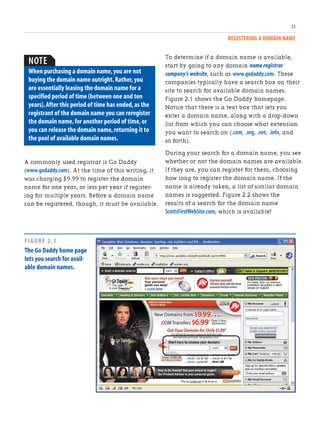
Figure 2.1 shows the Go Daddy homepage.
Notice that there is a text box that lets you
enter a domain name, along with a drop-down
list from which you can choose what extension
you want to search on (.com, .org, .net, .info, and
so forth).
During your search for a domain name, you see
whether or not the domain names are available.
If they are, you can register for them, choosing
how long to register the domain name. If the
name is already taken, a list of similar domain
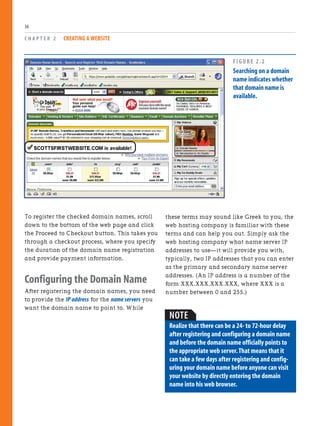
names is suggested. Figure 2.2 shows the
results of a search for the domain name
ScottsFirstWebSite.com, which is available!
FIGURE 2.1
The Go Daddy home page
lets you search for avail-
able domain names.
To register the checked domain names, scroll
down to the bottom of the web page and click
the Proceed to Checkout button. This takes you
through a checkout process, where you specify
the duration of the domain name registration
and provide payment information.
Configuring the Domain Name
After registering the domain names, you need
to provide the IP address for the name servers you
want the domain name to point to. While
C H A P T E R 2 CREATING A WEBSITE
36
these terms may sound like Greek to you, the
web hosting company is familiar with these
terms and can help you out. Simply ask the
web hosting company what name server IP
addresses to use—it will provide you with,
typically, two IP addresses that you can enter
as the primary and secondary name server
addresses. (An IP address is a number of the
form XXX.XXX.XXX.XXX, where XXX is a
number between 0 and 255.)
FIGURE 2.2
Searching on a domain
name indicates whether
that domain name is
available.
NOTE
Realize that there can be a 24- to 72-hour delay
after registering and configuring a domain name
and before the domain name officially points to
the appropriate web server.That means that it
can take a few days after registering and config-
uring your domain name before anyone can visit
your website by directly entering the domain
name into his web browser.
UPLOADING WEB PAGES FROM COMPOSER TO YOUR WEBSITE
37
At this point, you have chosen a web hosting
provider and, perhaps, registered a domain
name. The only piece of the puzzle that’s left is
adding web pages, images, and other files to
the web server. This is accomplished by upload-
ing the web pages we create in Composer to
the web server.
Uploading Web Pages from
Composer to Your Website
To upload web pages from Composer to your
public website, you first need to procure some
information from your web hosting company.
The pertinent information, which was likely
emailed to you when you signed up with the
web hosting company, is
. The FTP server to upload your files
. Your username and password to access the
FTP server
Armed with this information, you are ready to
upload a web page from Composer to your
website.
First, you must have a web page to upload.
Chapters 3 and 4 examine two different
website templates. Each template is composed
of a series of web pages. To create a website,
you take the template from the CD, customize
it for your site, and then upload the modified
template to your website. Since you’ve yet to
examine these templates, for now upload the
practice web page you created (and saved) in
Chapter 1. Start by opening the web page we
created in Chapter 1 by launching Composer
and then going to the File menu and choosing
the Open File menu option.
When you open this web page, your screen
should look similar to Figure 2.3.
Now, upload this web page to your public web
server. To do so, go to the File menu and choose
the Publish menu option (see Figure 2.4). This
displays the Publish Page dialog box.
The Publish Page dialog box has two tabs:
Publish and Settings. When first publishing a
page to a public website, you are taken to the
Settings tab (shown in Figure 2.5), where you
are prompted for the website’s name, its FTP
server, the web address, and the FTP server
login information (username and password).
The configuration information you specify in
the Settings tab is stored under the name you
provide in the Site Name text box. Enter the
site name “My First Website.” Next, enter the
name of the FTP server your web host provider
told you to use in the Publishing Address text
box. In the HTTP address of your home page
text box, enter the URL for your website. In the
User name and Password text boxes, enter the
username and password you were given to
access the FTP server. After you provide this
information once, you will not need to enter it
again.
TIP
Remember,if you get overwhelmed with regis-
tering the domain name and specifying the name
servers,you can always ask your web hosting
company to perform these tasks for you.
C H A P T E R 2 CREATING A WEBSITE
38
FIGURE 2.3
The first web page we
created in Chapter 1.
FIGURE 2.4
To upload a web page,
choose File,Publish.
UPLOADING WEB PAGES FROM COMPOSER TO YOUR WEBSITE
39
PAINT SHOP PRO PHOTO
If you haven't heard about Paint Shop Pro
Photo yet,you should.This program that costs
only $79.99 has almost as many features as
Adobe Photoshop at a fraction of the price.It
has effects packed into the program so that
you can create halftones,3D bubbles,different
kinds of image distortions,and more.Their Art
Gallery is especially cool.Users present some of
their favorite projects that they completed in
Paint Shop Pro Photo.It's a great place to get
ideas.And their Paint Shop Pro Photo Tutorials
offer online tutorials for beginners.Download
a trial version from its website.
Gina:I don't have an indexing code for this
one.Please proceed laying out this chapter
today.I'll get this from Tim later.San Dee
Idea Gallery
http://www.corel.com/
FIGURE 2.5
Specify FTP server settings in the Publish Page
dialog box’s Settings tab.
Upon entering this information into the
Settings tab, click on the Publish tab. This tab,
shown in Figure 2.6, allows you to optionally
specify the web page’s title and requires that
you specify a filename for the web page.
Remember from our discussions in Chapter 1
that web pages are actually stored as files on
the web server. Therefore, you need to provide
a filename for this web page. For the web
pages you create throughout this book, be sure
to name your files with the extension .htm
or .html.
NOTE
Recall from Chapter 1 that the title of a web page
appears in the title of the web browser when
visiting the page.
After you have uploaded the web page, you
can visit the web page through a web browser.
To do so, enter into the browser’s Address bar
the URL to your website—either the domain
name, if you have one, or the URL provided by
your web hosting company, such as
www.webhostingcompany.com/YourWebSite—followed
by the name of the web page you uploaded.
So, to visit Bob’s web page, which was named
Bob’sFirstWebPage.html, you could visit the page
by entering www.YourDomainName.com/
Bob’sFirstWebPage.html or www.webhostprovider.com/
YourWebSite/Bob’sFirstWebPage.html. Figure 2.8 shows
a screenshot of visiting Bob’s web page on my
public website, whose domain name is
www.ScottAndJisun.com.
C H A P T E R 2 CREATING A WEBSITE
40
FIGURE 2.6
Set the web page’s title and filename in the Publish
Page dialog box’s Publish tab.
After providing a title and filename, click the
Publish button. This uploads the file to the FTP
server. The Publishing dialog box is displayed
and reports the status of the web page upload.
Figure 2.7 shows the Publishing dialog box
after the file has been successfully uploaded.
FIGURE 2.7
Bob’s web page has been successfully uploaded.
NOTE
If you get an error when trying to publish a web
page,the error may be due to an incorrect FTP
server name or invalid login credentials.Go to
File,Publish As,and re-enter the FTP location and
FTP credentials in the Settings tab.If you still
experience problems,contact your web hosting
provider for further assistance.
BUILDING A WEBSITE FROM A TEMPLATE
41
FIGURE 2.8
Bob’s website is now
online,accessible by
anyone with an Internet
connection!
Building a Website from a
Template
The CD accompanying this book contains web
pages for two templates. When creating your
own websites, you want to start with one of
these templates, customizing the template’s
pages for your site’s particular content.
Chapters 3 and 4 discuss various tips for modi-
fying these templates. For now, it is important
to understand the process you need to take to
modify a template on the CD.
“The CD accompanying this book
contains web pages for two templates.
When creating your own websites,you
want to start with one of these
templates,customizing the template’s
pages for your site’s particular content.”
To start, copy the template’s files from the CD
to your computer’s hard drive. From there, you
can use Composer to tweak each template file,
saving the changes. Also, you can add addi-
tional pages to your site, using the provided
template’s look and feel. To summarize the
process when building a site from a template,
perform the following steps:
1. Create a new folder on your computer’s
hard drive.
2. Copy all of the template’s files from the CD
to the folder created in step 1.
3. Launch Composer. Recall that this is
accomplished by running SeaMonkey and
then going to the Window menu and
choosing the Composer menu option.
4. Open one of the template files copied to
the folder in step 2. You can also add a
new web page to your site by creating a
page in Composer based on the template.
We’ll discuss how to do this in the
“Customizing the Template” section in
Chapter 3.
5. Customize the template file’s contents for
your website.
6. Save the changes made to the template
file.
You want to repeat steps 4 through 6 for each
of the files in the template. After you customize
and save each of the pages in the template, the
final step is to publish the website to a web
server so that anyone with an Internet connec-
tion can view your site. The publishing process
is described at the end of Chapters 3 and 4.
C H A P T E R 2 CREATING A WEBSITE
42
Summary
In this chapter you learned the steps necessary
for creating a public website, which include
. Finding a web host provider
. Registering a domain name (optional)
. Uploading web pages from Composer to
the web server
As discussed, there are innumerous web host
providers that you can choose from, varying in
price, service, and features offered. Thankfully
there are entire websites—like TopHosts.com
and HostIndex.com—that act as search
engines for web host providers. Rather than
using a separate web hosting company, your
Internet service provider (ISP) might also
provide web hosting capabilities for free. When
selecting a web hosting company, be sure to
choose one whose disk space and monthly
transfer limits meet your site’s needs, and one
that provides FTP access.
NOTE
In Chapters 5 through 10 you learn how to use
existing web applications to sell items,publish
content,share pictures online,and get involved
in social networks.For these chapters you do not
need to FTP web pages to a web server because
the web pages will be automatically created and
hosted by the web application service provider.
SUMMARY
43
After choosing a company to host your
website, you can optionally register a domain
name, giving your website a personalized,
memorable name, like www.YourWebSite.com.
A domain name can be leased for one to ten
years using a domain name registrar, like Go
Daddy. When registering a domain name, you
need to know the IP address of your web host
company’s name servers. This information
associates your domain name with your
website. (For more information on this process,
refer to the “Understanding How the Internet
Works” section in Chapter 11.)
After you select a web host provider, you can
upload web pages from your personal
computer to your website so that anyone with
an Internet connection can view your pages. If
you followed along in acquiring a web hosting
provider, registering a domain name, and
uploading files, you should now have a
publicly accessible website that can be visited
by anyone in the world with an Internet
connection!
With the information covered in this chapter
and the previous one, you have enough knowl-
edge to start creating your own website!
Chapters 3 and 4 explore different templates
that you can quickly and easily modify to
build different types of websites!
This page intentionally left blank
C H A P T E R 3
Creating a
Family/Personal Website
C H A P T E R 3 CREATING A FAMILY/PERSONAL WEBSITE
46
with the book’s accompanying CD offers a
template that contains the following pages:
. A home page that gives a brief description
of the site and has links to the other web
pages
. A photo gallery index page, which
provides a list of links to various family
pictures
. A recent news page, which lists the latest
family events
. The family’s favorite recipes
In this chapter, you’ll examine how you can
tailor the family/personal template. As you’ll
see, it’s quite easy to take the provided
template and change the look and feel, as well
as add and remove content. For example, the
pages provided in the template are just a few
of many potential web pages that you may
want to add to your family/personal website.
Other potential pages include
. Pictures and scores from your child’s soccer
games.
. Information about children’s after-school
activities, such as cheerleading or debate.
. Any other bit of information your
extended family or friends might care to
hear about!
In the “Customizing the Template” section of
this chapter you’ll see just how easy it is to add
new pages to your family/personal website.
Before you can start customizing the template,
you’ll need to understand how to start working
with the template files. Essentially, you’ll need
to copy the template’s files from the CD to your
computer’s hard drive.
The book’s first two chapters looked at the
pieces that make up the Internet and websites
and showed how to create simple web pages
with Composer. At this point, you’re ready to
examine how to use Composer to build a
complete website. While you can create a
website from scratch, it’s much easier and
quicker to start working with a website template.
A website template, often referred to as just a
template, is a collection of generic, premade
web pages that can be easily customized to
create a specific site.
Web designers typically start with an appropri-
ate template and then tailor the template’s
pages accordingly. In this chapter and the next
one, you’ll examine two different templates: a
template for a family/personal website and a
template for an online storefront. This book’s
CD includes three additional templates that
you can use to build other types of websites.
Examining the
Family/Personal Template
Friends and families today are increasingly
distant, spread around the country and world.
Fortunately, keeping your families and friends
up to date with what’s going on in your life is
made remarkably easier with a family/personal
website, which provides those important people
a one-stop location to catch up on your life.
Most family/personal websites have similar
features: pictures of the family or person the
website is about, a list of recent happenings,
and important upcoming dates, such as
anniversaries, birthdays, and weddings.
As you can see in Figure 3.1, the
family/personal website template provided
CUSTOMIZING THE TEMPLATE
47
This chapter concludes with a discussion on
how to publish your website after you tailor the
template. Publishing a website involves
copying the web pages from your computer to
the web server where your public website is
hosted. As we’ll see, Composer makes this
process a simple one.
Customizing the Template
The family/personal website template shown in
Figure 3.1 provides bare-bone web pages that
you can add to and customize to create your
own unique family/personal website. If you
like the look and feel of the template, all that’s
left to do is to customize the template’s content,
FIGURE 3.1
The family/personal
website template.
C H A P T E R 3 CREATING A FAMILY/PERSONAL WEBSITE
48
. Composer is like any other word processor.
If you want to customize the page by
centering some text, for example, simply
select the text to center and click on the
Center icon in the toolbar, just like you
would to center text with Microsoft Word.
. Have fun customizing the templates, and
don’t be afraid to experiment! Keep in
mind that since you’re working with the
template files on your computer’s hard
drive, no matter what you do, you can’t
irreparably screw up the template. There is
always a pristine copy of the website’s
template files on the book’s CD that you
can recopy to your computer should the
need arise.
With that, it’s time to get started examining
how to use Composer to customize the
family/personal website template!
Changing the Upper-Left Image
Each page in the family/personal website
contains an image in the upper-left corner of
my dog, Sam. You are invited to add your own
image here, such as a picture of yourself, your
family, or your family’s pet. To replace the
picture of Sam with a picture of your own,
you’ll need to have the picture on your
computer’s hard drive. In the “Customizing the
Family Pictures Page” section, you’ll learn how
to get pictures of yourself or family onto your
computer so that you can add them to your
website’s pages.
To customize the upper-left image, first copy
the image you want to replace it with into the
same folder that you copied the website
template files to. Next, launch Composer if you
have not already done so. (Recall that this
replacing the current text with the text perti-
nent to you and your family and the image in
the upper-left corner with an image of your
own choosing.
“When working with the template,you
may find that you want to customize
certain aspects....Fortunately,
Composer makes customizing the
template quick,fun,and easy.”
NOTE
Recall that to customize a template,you need to
copy the template files from the book’s accompa-
nying CD to your computer’s hard drive.The
“Building a Website from a Template”section in
Chapter 2,“Creating a Website,”provides more
details on this process.
When working with the template, you may find
that you want to customize certain aspects. For
example, you might want to change the
template’s font or alter the text or background
colors. You might want to add additional web
pages to the template, such as a web page that
lists important dates (anniversaries, birthdays,
and so on). Alternatively, you might want to
remove pages from the template; perhaps you
don’t want a favorite recipes page.
Fortunately, Composer makes customizing the
template in any of these ways quick, fun, and
easy. In this section, we’ll be examining a
myriad of ways to customize your template.
When working with the template files, keep the
following two things in mind:
CUSTOMIZING THE TEMPLATE
49
involves starting the SeaMonkey browser and
then going to the Window menu and choosing
the Composer option.) Next, open the
template’s home page file, index.html, in
Composer. This is accomplished by either click-
ing the Open icon in the Toolbar or by going to
the File menu and selecting the Open File
menu option.
When you have opened the index.html page in
Composer, your screen should look similar to
Figure 3.2.
To change the image of Sam to an image of
your own, you’ll need to open the Image
Properties dialog box for the image. This can
be done in one of a number of ways: by right-
clicking on the image and selecting the Image
Properties menu option; by double-clicking the
image; or by single-clicking the image and
then clicking on the Image icon in the toolbar.
Using any of these approaches displays the
Image Properties dialog box (see Figure 3.3),
from which you can customize the information
about the displayed image.
The next section, “Specifying Image
Properties,” steps through the four tabs in the
Image Properties dialog box and discusses how
to replace the image of Sam with an image of
your own. Keep in mind that you’ll need to
replace the image of Sam with your own image
for each web page in the family/personal
website template.
Specifying Image Properties
The Image Properties dialog box contains four
tabs: Location, Dimensions, Appearance, and
Link. These tabs contain settings to customize
the selected image’s properties. Let’s look at
each of these tabs one at a time.
GETTING THE RIGHT COLOR
It can be difficult to get the right color for your
website.VisiBone provides a website that
shows different color values,but it also offer
products you can purchase to help match
colors.You can purchase mouse pads,color
cards,and posters.It also offers the Color Lab
that provides an easy way to pick color combi-
nations that complement each other.
IDEA GALLERY
http://html-color-codes.com/
C H A P T E R 3 CREATING A FAMILY/PERSONAL WEBSITE
50
The Location Tab
The Location tab, shown in Figure 3.3, allows
you to specify the file to display. To change the
upper-left image from one of my dog to one of
your own, click on the Choose File button and
select the image you want to display. Upon
doing so, a small preview of the image selected
appears in the lower-left corner of the Image
Properties dialog box.
FIGURE 3.2
The index.html file has
been opened with
Composer.
FIGURE 3.3
Customize the image from the Image Properties
dialog box.
CUSTOMIZING THE TEMPLATE
51
Next, from the Location tab, you can set the
alternate text for the image. This is the text that
is displayed in the image’s place for those visi-
tors who are using text-only browsers or who
have configured their browsers to not display
images. Realistically, few web surfers fall into
this category, so feel free to omit the alternate
text. If you decide not to provide alternate text,
be sure to select the Don’t Use Alternate Text
radio button.
two radio buttons: Actual Size and Custom
Size. If you leave Actual Size selected, the
image will be displayed in its actual size. If you
click Custom Size, you can specify the image
size in either pixels or as a percentage of the
browser’s window.
CAUTION
Make sure that the image file you choose exists
in the same folder as the template web page file.
That is,if the image file resides in a different
directory,first copy it to the same directory
where you’ve saved the web page template files.
Also,make sure that the URL is Relative to Page
Location check box remains checked.
We’ll discuss why the folder that the image file
exists in is important and why the URL is Relative
to Page location check box must be checked in
the“Publishing Your Family/Personal Website”
section.
NOTE
If you don’t provide alternate text and leave the
Alternate Text radio button selected,you are
shown a warning when you click the Image
Properties dialog box’s OK button.
The Dimensions Tab
The next tab, Dimensions, allows you to
customize the width and height of the image.
As Figure 3.4 shows, the Dimensions tab has
FIGURE 3.4
The image’s size can be configured in the
Dimensions tab.
The picture of Sam is scaled to a width of 170
pixels and a height of 166 pixels. As shown in
the Image Preview section at the bottom of the
dialog box in Figure 3.4, the actual image size
is 321 pixels by 313 pixels.
Oftentimes an image will be resized so that it
fits nicely on a page. The full-sized image of
Sam is too large to fit nicely in the web page,
hence it is scaled down to 170 by 166. When
scaling images yourself, make sure to check the
Constrain check box. This check box, if
checked, makes sure that the ratio between the
resized width and height remains the same as
the original image’s width and height ratio. By
C H A P T E R 3 CREATING A FAMILY/PERSONAL WEBSITE
52
leaving this check box checked you ensure that
resizing your image won’t result in an image
that is squished too fat or too thin.
When adding your own image, scale it so that
it is at least 166 high. The family/personal
website was designed to display an image
precisely 166 pixels high. If you make the
image shorter than 166 pixels, there will be
whitespace beneath the image. When adding
your own image, I would recommend that you
1. Select the Custom Size radio button.
2. Check the Constrain check box.
3. Enter 166 as the height.
NOTE
Realize that sizing the image smaller than its
original size in the Dimensions tab only specifies
to the browser to display the image as a certain
size.Specifying a smaller size than the original
does not reduce the image’s file size.If you want
to make the image a smaller file size,you need to
use the resizing techniques discussed in the
section“Resizing Digital Images,”which can be
found in Chapter 11,“Bonus Material.”
The Appearance Tab
The Appearance tab (shown in Figure 3.5)
allows you to configure how the image appears
within text. The Spacing section lets you specify
how much spacing should appear between the
left and right and top and bottom of the image
and the text around the image. The Solid
Border text box permits you to specify whether
the image should have a border and, if so, how
many pixels wide it should be.
Additionally, you can choose how to have the
text aligned with the image. You can have the
following text appear at the bottom of the
image, the center, or the top. Alternatively, you
can have the image flow within the text on the
left or right.
For the family/personal website, I’d recom-
mend not changing the values in the
Appearances tab as the template was designed
to have no spacing around the image.
FIGURE 3.5
The Appearance tab specifies how the text and
image coexist.
The Link Tab
The final tab, the Link tab, allows you to specify
a hyperlink for the image. That is, you can indi-
cate that when the image is clicked, the user be
whisked to a particular URL. A screenshot of the
Link tab is shown in Figure 3.6.
CUSTOMIZING THE TEMPLATE
53
Table 3.1:A Summary of the Image Properties Dialog
Box’s Tabs
Tab Description
Location Choose the image to display from the
Location tab.You can provide aToolTip,
which is displayed when a visitor hovers
her mouse over the image.Also,the
Location tab allows you to specify alter-
nate text,which is displayed in place of
the image for those visitors whose
browsers don’t support images.
Dimensions From the Dimensions tab,you can indicate
a custom height and width for the image.
Appearance The Appearance tab allows you to indicate
the top,bottom,left,and right spacing
around the image (if any),along with how
text flows around the image.
Link You can configure your image so that
when a visitor clicks it,he is whisked to a
different web page.If you want to enable
this behavior,specify the URL to send the
user in the Link tab.
Removing the Image Altogether
While some readers like having a picture shown
on each page, others might not want a picture
shown at all. Fortunately, Composer makes it a
cinch to remove the image from the upper-left
corner. To strike the image from the web page
altogether, simply right-click on the image and
choose the Delete menu option.
Changing the Font
The text in the web page templates is displayed
using a Verdana font. You can change the font
for any text in Composer with the following
steps:
1. Select the text whose font you want to
change. The easiest way to do this is to
place the mouse at the beginning of the
text you want to select, and, holding down
the mouse button, drag the mouse cursor
until the text you want to modify is
completely selected.
2. With the text selected, go to the Format
menu. Choose the Font menu option and
then pick a font from the list.
You can also change other text properties—
such as the text color and style—through the
Format menu. For example, imagine that you
wanted to change the foreground color of the
header text for a web page. (The header text in
the home page is “Welcome to the Mitchell
Family Website!” and is displayed in a
turquoise color.) To change this text’s fore-
ground color to, say, red, you’d first select the
text and then go to the Format menu and
choose the Text Color menu option. This
FIGURE 3.6
Use the Link tab to link the image to a URL.
C H A P T E R 3 CREATING A FAMILY/PERSONAL WEBSITE
54
WHO SAYS A GOOD SITE HAS TO BE
COLORFUL?
We picked this site for two reasons.First,it's a
clean,interesting,and simple design that looks
great without color.Second,it's a useful site
for those of you just learning how to build
websites in that it gives you tips and advice on
CSS—Cascading Style Sheets.
So many sites are filled with jumbles of color
and bright flashing animations that it's hard to
know where to click.This site contains only
shades of gray with header graphics contained
at the top of each page and a simple one-
column design.It's elegant!
This site's designer does a lot of nice things to
keep his navigation simple for his users.He
adds links within his paragraphs to illustrate
his points or sends you to other useful sites.
This site reads like an instructional book or
guide.Unlike some commercial sites that give
you a million places to jump from just one
page,this designer keeps the messages simple
and allows you to stay focused on one topic at
a time.
IDEA GALLERY
http://www.thenoodleincident.com/tutorials/box_lesson/index.html
displays the Text Color dialog box (see Figure 3.7),
from which you can select a new foreground
color.
FIGURE 3.7
Pick the text’s foreground color from the Text Color
dialog box.
To make the font bold, italic, or underlined,
first select the text and then go to the Format
menu’s Text Style menu. From there, you can
see the various formatting options.
TIP
To make the selected text bold,underlined,or
italic,you can also click on the appropriate B,I,
or U icons in the toolbar.
CUSTOMIZING THE TEMPLATE
55
Adding and Removing Pages
from the Template
The family/personal website template comes
with four web pages: a home page, a family
pictures page, a recent events page, and a
favorite recipes page. As we discussed earlier,
though, you might want to add additional
pages or remove some of the prepackaged
pages.
Removing a page from the site simply entails
removing the links from the other web pages to
the page you wish to snip from the site. For
example, imagine that you didn’t want to
have a favorite recipes page on your
family/personal website. To accomplish this,
you’d need to open the home page, family
pictures page, and recent events page in
Composer and remove the link at the top to
the Favorite Receipes page. Removing the link
is as simple as selecting the link text and press-
ing Delete.
To add a new page to the template, you need
to create a new web page whose look and feel
mimics that of the other pages in the template.
Creating a new web page using the template
can be done in one of two ways:
. By creating a new web page in Composer
and then copying and pasting the entire
contents of a template page to the new
page
. By going to the File menu and choosing
the Save As menu option, which has the
effect of saving an existing template web
page with a different filename
After you create the new web page and inherit
the template’s look and feel, you can customize
the page’s content as needed. For example, if
you added an additional page that listed
important dates for your family, the content for
this page would include the dates and their
meanings (anniversaries, birthdays, gradua-
tions, and so on). After you have created the
content for the new page, save the web page
by going to the File menu and choosing the
Save menu option.
After you have created and saved the new
page, the next step is to add a link from all
other web pages in the site to the new page. As
Figure 3.1 showed, each page has a list of links
along the top. You’ll need to add a link at the
top of the new page you created.
NOTE
Keep in mind that you need to remove all links to
the page you want to remove.Be sure to open all
other pages in Composer and remove any links
you find pointing to the page to be removed.
C H A P T E R 3 CREATING A FAMILY/PERSONAL WEBSITE
56
Customizing the Family
Pictures Page
While family/personal websites are great for
sharing recent events, recipes, and important
dates, the main attraction to these types of
websites is the family pictures. With digital
cameras and scanners, it’s incredibly easy to
share pictures of your family, pets, vacations,
and special events with friends and extended
family.
“The family/personal website template
contains a Family Pictures page
where you can share your family’s
photographs with others.”
The family/personal website template contains
a Family Pictures page where you can share
your family’s photographs with others. To get
started posting your pictures online, you need
to have the pictures you want to share in a
digital format. If you own a digital camera, the
photos stored on the camera are already in the
needed format. If you want to put film pictures
online, you have a couple options. If the
picture already exists, you need to get your
hands on a scanner.
To add a link, start by clicking your mouse
where you want the link to appear, perhaps
between the Family Pictures and Recent Events
links. Next, type in the text for the link, such
as “Important Dates,” followed by a period,
which is used as a separator between each link.
The final step is to link the text you just
entered to the new web page you created. To
accomplish this, select the text you just added,
go to the Insert menu, and choose the Link
menu option. This displays the Link Properties
dialog box, shown in Figure 3.8.
FIGURE 3.8
Select the page to link to using the Choose File
button.
From the Link Properties dialog box, choose the
file you want the user whisked to when they
click the link. Since this link needs to take the
user to the newly created page, click the
Choose File button and select the page you
added just a moment ago. Finally, click the OK
button to create a hyperlink to the newly
created page.
NOTE
Don’t forget to add a link to the newly created
page in all of the web pages in the site.If there
are no links to the newly created page,your visi-
tors won’t be able to get to the new page unless
they manually enter the URL of the page in their
browser’s Address bar.
CUSTOMIZING THE FAMILY PICTURES PAGE
57
If you have taken pictures that you’ve yet to
develop, you can get the photographs devel-
oped as digital images. For an extra few bucks,
photo developers include a CD of your pictures
along with the developed photos.
Properties dialog box, you can select the image
you want to display and scale it accordingly.
(All images shown on the Family Pictures page,
for instance, were scaled so that they were no
greater than 200 pixels wide or 200 pixels tall.)
In the next section you’ll see how you can add
your own images to the Family Pictures page.
Before you add your own pictures, though,
you’ll likely want to take a minute to remove
those pictures included with the template. To
accomplish this, open the Family Pictures page
in Composer and select the image(s) you want
to delete. Delete the selected image(s) by press-
ing the Delete button or by going to the Edit
menu and choosing the Delete menu option.
Adding New Images
Adding a new image to the Family Pictures
web page involves two steps:
1. Copy the images from your digital camera
or scanner to the same folder where you
copied the template web pages.
2. Insert the image into the page via the
Insert menu’s Image menu option.
Copying files from your digital camera or
scanner differs depending on what brand of
camera or scanner you have, so you’ll have to
refer to your camera or scanner’s instructions
to accomplish step 1. If you had your film
developed into a CD, copy the images from the
CD to the appropriate folder on your hard
drive.
Many digital cameras save their pictures with a
high resolution,resulting in a large file size.
NOTE
A scanner is a piece of equipment that takes
papers,pictures,or other paper-based documents
and makes a digital copy.Scanners are like copier
machines,but rather than printing a copy of the
document being scanned,a scanner saves the
image to a computer.Scanners are available at
numerous stores like Best Buy,Circuit City,
and so on,and can range in price from $50 to
$500.Many higher-end printers include scanning
capabilities.
NOTE
Check out Chapter 11 for a more in-depth discus-
sion on digital images,including important
digital imaging terminology and techniques for
optimizing digital images.
Figure 3.9 shows a screenshot of the Family
Pictures page when viewed through Composer.
Notice that the Family Pictures page contains a
collage of pictures. Each image was added by
going to the Insert menu and choosing the
Image menu option. This displays the Image
Properties dialog box, which we saw back in
Figures 3.3 through 3.6. From the Image
C H A P T E R 3 CREATING A FAMILY/PERSONAL WEBSITE
58
TIP
Large files take longer for the visitor to download
and can quickly eat up the disk space and
monthly bandwidth limits imposed by your web
hosting company.You should consider shrinking
the image files before adding them to your web
page.Refer to Chapter 11 for information and
tools on shrinking digital images.
When the images have been copied, open the
Family Pictures page in Composer, if you
haven’t already. To insert an image, go to the
Insert menu and select the Image menu option
(or, optionally, click the Image icon in the
toolbar). This displays the Image Properties
dialog box.
From the Locations tab (refer to Figure 3.3), click
the Choose File button and pick the image file
you want to display. From the Dimensions tab
(refer to Figure 3.4), you can scale the image’s
height and width.
FIGURE 3.9
The Family Pictures
page when viewed in
Composer.
PUBLISHING YOUR FAMILY/PERSONAL WEBSITE
59
I'M READY FOR MY OWN DOMAIN NAME
If you're starting a business online or you want
to own a domain name,you need to know
which ones are already taken.InterNIC runs a
page called WhoIs,where you can type in a
domain that you want to own and find out if
it's in use or for sale.As an example,let's say
that we might want to create a domain for this
book.If you type in“createwebsite.com”into
the WhoIs search window,you find that
Domain Name Sales Corp.owns that particular
domain name.The domain name was created
in August 2001,and the name expires in
August 2010.Happy searching.
IDEA GALLERY
http://www.internic.net/whois.html
Publishing Your
Family/Personal Website
At this point you have customized the web
pages for the family/personal template, but
these web pages still reside on your local
computer and are not accessible to others via
the Internet. As discussed in Chapter 2, these
files must be placed on a computer that has a
dedicated connection to the Internet. Recall
that there are a couple of steps you must go
through to obtain a public Internet website.
Assuming you have completed these steps,
publishing your Composer-created web pages is
a breeze.
To publish a particular page, go to the File
menu and choose Publish. This displays the
NOTE
Make sure that the image file you add exists in
the same folder as the web page.You’ll see why
this is important in the“Publishing Your
Family/Personal Website”section,but for now
realize that it is vital to having the image display
properly for users visiting your website.
As Figure 3.9 shows, you can place images
either side by side, or beneath one another. To
place images side by side, simply insert one
image right after the other. To create some
space between the images, use the spacebar to
add space on the same line, or press the Enter
key to have the image appear on the following
line. You can also add spacing around the top,
bottom, left, and right of an image through the
Appearance tab (refer to Figure 3.5).
Publish Page dialog box, which contains two
tabs: Publish and Settings. As discussed in
Chapter 2, the Settings tab allows you to
specify information about the FTP server for
the website as well as username and password
information for the FTP server. You’ll need to
enter the FTP information provided by your
web hosting provider in the Settings tab.
After you fill out the Settings tab, go to the
Publish tab, which is shown in Figure 3.10.
The Publish tab allows you to customize how
the web page is published on the server. The
default settings shown in Figure 3.10 are
typically sufficient. To publish the web page,
simply click the Publish button.
C H A P T E R 3 CREATING A FAMILY/PERSONAL WEBSITE
60
Note that the dialog box in Figure 3.11 shows
that two files have been uploaded to the web
server—index.html and LongHair-Chewing.jpeg. What
about the other web pages, such as pictures.html,
events.html, and recipes.html? Those need to be
uploaded, too.
Unfortunately, with Composer you have to
manually publish each of these files separately.
That is, you need to open each file to publish
in Composer, go to the File menu, and choose
the Publish menu option.
FIGURE 3.10
The Publish Page dialog box is used for publishing a
web page to a public web server.
If the page is published successfully, you
should see a dialog box like the one shown in
Figure 3.11. This dialog box indicates the
success or failure of publishing the web page
and any associated files.
FIGURE 3.11
The index.html page has been published
successfully!
NOTE
Notice that when you publish a file to the web
server,any image files in the web page are auto-
matically published as well.For example,when
the homepage,index.html, is published,two files
are uploaded to the web server:index.html and
LongHair-Chewing.jpeg.The LongHair-Chewing.jpeg
is the image file of Sam that is in the upper-left
corner of the home page.
PUBLISHING YOUR FAMILY/PERSONAL WEBSITE
61
Placing Linked Files in the Same
Folder
Throughout this chapter when adding hyper-
links to other web pages or image files, I have
stressed the importance of placing the web
pages or image files being linked to in the
same folder as the page you are currently
working on. If you do not do this, when users
visiting your site click on the link, they will not
be taken to the desired page. Rather, they will
see an error message informing them that the
file requested could not be found.
Additionally, underneath the filename in the
Link Properties dialog box there is an option
called URL Is Relative to Page Location. When
adding a link, this check box should be
checked. After choosing a file by clicking the
Choose File button, if the check box is
unchecked, the text that appears in the drop-
down list will look like file://pathToTheFile/FileName.
If the check box is checked, the text in the
drop-down list will have just the filename and
not the file://pathToTheFile/ prepended.
It is important that the file://pathToTheFile/ text
does not appear before the filename. If it does,
either uncheck the URL Is Relative to Page
Location option, which gets rid of the offend-
ing text, or simply click on the text and delete
the offending text manually.
You may be wondering why it is so important
to have the URL Is Relative to Page Location
check box checked. If you leave this
unchecked, or leave in the file://pathToTheFile/
text, when the web page is published to the
publicly available web server, these hyperlinks
that were not successfully created will render as
broken links in your visitors’ web browsers.
“Be sure to check the URL Is Relative to
Page Location check box for each hyper-
link you create,and your hyperlinks will
work properly for all web visitors.”
A broken link is a hyperlink that, when clicked,
displays an error informing the users that the
web page cannot be found. This error occurs
because for links created without URL Is
Relative to Page Location checked, the hyper-
link’s URL is published as
file://pathToTheFile/FileName, which is the path and
file name on your desktop computer. When
users click this link, their web browser will see
the file:// and attempt to locate a file on their
computer’s hard drive located in the specified
path and with the specified filename. This file
will likely not exist on their computer, and,
hence, they will get an error message inform-
ing them the file could not be found.
What is important to realize is that since the
file exists on your computer, if you are testing
your website from your computer, these links
render fine because you have these files on
your computer! However, others cannot navi-
gate through your website via these improperly
created hyperlinks.
The short of it is, be sure to check the URL Is
Relative to Page Location check box for each
hyperlink you create, and your hyperlinks will
work properly for all web visitors.
Testing the Website
After you have published each web page for
the family/personal website, take a moment to
check out your website through a web browser.
Launch your web browser and enter the URL to
your website. In doing so you should see your
family/personal website’s home page.
Click around on the hyperlinks and make sure
all pages are accessible. If you get an error
message when clicking on a hyperlink, chances
are the error is due to one of two causes.
First, the error might have occurred because
you forgot to publish the web page that the
hyperlink was pointing to. Remember that
every web page that you created with Composer
must be published to the public website. So
make sure that the web page you are having
trouble accessing was, indeed, published (and
published successfully).
If you are certain that the web page you are
requesting has indeed been published, then the
error might be due to a broken link. That is,
the hyperlink you clicked on is directing the
user to a URL of a web page that does not
exist. This could be due to having created a
hyperlink to an existing file but then later
changing the filename and not updating the
hyperlink’s URL. Also, it might be due to not
having checked the URL Is Relative to Page
Location check box in the Link Properties
dialog box. (See the “Placing Linked Files in
the Same Folder” section earlier in this chapter
for more details on this check box.)
In either case, you’ll need to reopen the web
page that contains the offending link, fix the
link problem, and republish the page.
C H A P T E R 3 CREATING A FAMILY/PERSONAL WEBSITE
62
Summary
Customizing a website template with
Composer can be both fun and easy. The
family/personal website template presented in
this chapter had a home page and three
sections: a series of digital photographs, the
latest family news, and favorite family recipes.
As you saw, customizing the existing pages—
changing the text content, altering the colors,
selecting a different font or formatting, and so
on—is easy to accomplish with Composer. You
can edit a web page just like you would edit a
document with a word processor program.
In addition to working with the provided
template web pages, you are encouraged to
add additional pieces to your family/personal
website so that the site is customized for you
and your family. As discussed in this chapter,
to add new pages, you start by creating a new
web page with the layout as another page in
your template. From there, you can customize
the new page’s content. After this, all that
remains is to update the other pages so that
they provide a hyperlink to the newly created
page.
We also looked at how to publish the template
to a web server when the customizations had
been completed. To publish your web pages,
you need to load each web page in Composer
and choose the Publish menu option from the
File menu. Publishing your web page uploads
the actual web page along with any images
displayed in the page. When all of your web
pages have been uploaded to the website,
anyone with an Internet connection can view
your site through a browser!
C H A P T E R 4
Creating an Online
Storefront
As the popularity of the Internet has ballooned
over the years, many businesses have made
their inventory available for purchase online.
These types of websites marry commerce and
the Internet and are hence referred to as
eCommerce websites. There is a plethora of
eCommerce websites selling a wide range of
products online. Amazon.com, one of the most
well-known eCommerce sites, sells a vast array
of products, from books to video games and
DVDs to kitchenware and garden tools.
“As the popularity of the Internet has
ballooned over the years,many busi-
nesses have begun making their inven-
tory available for purchase online.
These types of websites marry
commerce and the Internet and are
hence referred to as eCommerce
websites.”
Successful eCommerce websites have been built
for both companies choosing to sell strictly
online and those companies who have had
decades of history selling products in tradi-
tional brick and mortar stores. For example,
Amazon.com is one of many companies that
sell products exclusively on the Internet. There
are no Amazon.com stores where you can stroll
in and peruse the inventory. Wal-Mart, the
world’s largest brick and mortar retailer with
more than 7,500 stores worldwide, also has an
eCommerce site—www.WalMart.com—which
attracts more than 300 million visitors per
year.
An eCommerce website must provide the
following functionality:
C H A P T E R 4 CREATING AN ONLINE STOREFRONT
64
. Display the items for sale along with their
prices.
. Provide a means for a user to add one or
more items to his “shopping cart.”
. Accept payment information from a
customer. (This typically involves the
customer providing his credit card
information.)
In this chapter, you build your own eCommerce
website that implements these features.
NOTE
The three requirements for an eCommerce site—
listing the items for sale,providing a shopping
cart,and accepting payment—are the minimum
needed.Many eCommerce websites offer addi-
tional functionality,such as searching the prod-
ucts for sale,sorting the products by price or
name,and allowing users to leave feedback
about various products.
The eCommerce site we create in this chapter
does not include any of these more advanced
features.The site is,however,fully functional,
allowing visitors to buy products online.
Accepting credit card payments and maintain-
ing a shopping cart are anything but trivial
tasks. Fortunately, PayPal provides a Premier
Account with merchant services that provides a
means for processing credit card payments and
for supporting a shopping cart interface. There
are no upfront costs associated with using the
PayPal Premier Account—the only cost is a
small percentage of the total sales. The
“Creating a PayPal Premier Account” section
discusses these fees and how to get started
creating a PayPal Premier Account.
EXAMINING THE ECOMMERCE WEBSITE TEMPLATE
65
Examining the eCommerce
Website Template
All eCommerce websites provide a core set of
functionality. Since the purpose of an
eCommerce website is to provide a means for
visitors to purchase products online, the
eCommerce site must list the products for sale,
allow users to add one or more products to
their shopping cart, and finally provide a
means for users to purchase the products.
The eCommerce site template is one for a
fictional company—eFlags Direct. eFlags Direct
sells both flags and flag accessories, such as
flag poles, ropes, clips, and so on. The eFlags
Direct template breaks up its products for sale
into two categories: Flags and Flag Accessories.
By visiting these categories, users can add flag
accessories to their shopping cart.
In addition to listing the products for sale,
shoppers must be able to add products to their
shopping cart. Creating a shopping cart is not
a trivial task; it requires advanced computer
programming skills that are far beyond the
scope of this book. Fortunately, PayPal offers a
shopping cart that can be plugged into the
eCommerce website template by inserting a
few lines of HTML.
The last vital piece of an eCommerce website is
accepting payment, which involves showing
users their balance due. The amount they owe
is typically the sum of the products purchased,
any sales tax that needs to be added, plus any
shipping costs. After reviewing their shopping
cart and balance due, users are prompted to
enter their credit card information and
complete the transaction. Creating a web page
to provide a bill, to accept payment informa-
tion, and to properly bill it, is a complex task.
The good news is that PayPal also provides a
means for payment that can be plugged into
our eCommerce website.
The eCommerce website template is shown in
Figure 4.1. Notice that it’s composed of two
pages: a list of the flags for sale and a list of
the flag accessories for sale. Each item for sale
includes a picture, a description, and an Add
to Cart button. Clicking the Add to Cart button
adds the item to the user’s PayPal shopping
cart. A user can check out by clicking the View
Cart hyperlink.
Working with the eCommerce website template
requires a little more customization than
required with previous templates. First, you
need to create a free Premier Account through
PayPal.com. Then, based on your information,
you have to tailor the Add to Cart button and
View Cart hyperlink.
NOTE
In the next chapter,“Selling Products with an
eBay Store,”you’ll see how to use eBay Stores to
list your products for sale as well as process
payment from customers.eBay Stores make
getting started selling online easier but limit the
flexibility you have in customizing the online
store front’s appearance.Before deciding which
approach to use—creating a custom online
store-front or using eBay Stores—I’d encourage
you to read both this chapter and the next,and
then make an educated decision based upon your
business’s needs.
Customizing the Home Page
The eCommerce website template’s home page
starts by listing the company’s name, address,
and contact information at the top of the page.
Underneath that, there is a series of naviga-
tional hyperlinks listing the product categories,
along with a View Cart button.
To change the name of one of the product
categories, click the product category text and,
C H A P T E R 4 CREATING AN ONLINE STOREFRONT
66
using the keyboard, alter the link’s text. To
change the URL that the hyperlink points to,
right-click on the link and choose the Link
Properties menu option. This, as you’ve seen in
previous chapters, displays the Link Properties
dialog box, from which you can change the
link’s location.
FIGURE 4.1
The eCommerce website
template.
CONFIGURING THE ADD TO CART BUTTONS
67
The View Cart button links to PayPal.com’s
website and, when clicked, displays the items
in the user’s shopping cart and provides a
checkout process. You’ll need to configure this
View Cart button based on your own
PayPal.com account. The next section exam-
ines the steps necessary to create a Premier
Account with merchant services and to config-
ure the View Cart button.
Underneath the navigation hyperlinks are two
table cells. The one on the left lists the flags for
sale. The one on the right lists recent site news.
The template contains descriptions and
pictures for flags. You’ll need to change the
description and pictures to match the products
you’re selling. To edit the picture, right-click on
the picture and choose the Image Properties
menu option. This displays the Image
Properties dialog box from which you can
specify the image file to use, along with its
dimensions and other aesthetic properties.
At the end of each product description, there’s
an Add to Cart button. This button ties into
PayPal.com to integrate a shopping cart with
the eCommerce site. To have this button work
correctly, you’ll need to first create a
PayPal.com Premier Account.
Configuring the Add to Cart
Buttons
The Add to Cart button allows visitors to add a
specific flag or flag accessory to their shopping
cart. Note that there is an Add to Cart button
next to each item for sale. Users can add multi-
ple items to their cart by clicking the Add to
Cart button for each item they want to buy.
After filling their cart, the shoppers can pay for
their purchased items.
Your task is to create an appropriately config-
ured Add to Cart button for each item you are
selling. Before we examine the steps for creat-
ing the Add to Cart buttons, you need to regis-
ter for a PayPal Premier Account. There are no
costs or fees associated with creating a PayPal
Premier Account, so feel free to follow along in
creating your own PayPal account!
Creating a PayPal Premier
Account
PayPal—on the Web at www.paypal.com—was
founded in 1998 to allow individuals and busi-
nesses to send and receive online payments
easily, reliably, and securely. Anyone can
create a free PayPal account and then transfer
money into the account by sending PayPal a
check, by having the money drafted from the
bank or through a credit card transaction.
After the money is in your account, you can
send the money to another PayPal member by
simply supplying that person’s email address
and the amount you want to send. You can, at
any time, withdraw all or part of the funds in
your PayPal account, either through a direct
deposit into your bank account or via a check.
TIP
To create a new navigational link,set the focus to
the point where you want the new link to be
placed.Then go to the Insert menu and choose
the Link menu option.This displays the Link
Properties dialog box,prompting you for the
link’s text and location.
C H A P T E R 4 CREATING AN ONLINE STOREFRONT
68
If you’ve ever purchased something online,you
likely are familiar with online shopping carts.
For those who have not yet purchased some-
thing online,though,an online shopping cart
is similar in concept to a grocery store shop-
ping cart—it simply serves as a receptacle into
which you can place your items prior to
purchasing.
The user experience of an online shopping cart
goes as follows:A visitor browses through the
eCommerce website,checking out the products
for sale.If she finds a particular item she’d like
to purchase,she clicks the Add Item to Cart
button next to the item of interest.This adds
the item to the shopping cart.At this point the
shopper can continue to browse through the
items for sale,adding additional items to the
shopping cart.
Once our shopper has finished browsing and is
ready to check out,she can click a Checkout
button that will present her with a bill and ask
for payment information.At this time our
shopper would enter her credit card informa-
tion.
WHAT IS AN ONLINE SHOPPING CART?
Since its inception, PayPal has continued to
offer more features to facilitate its main goal of
allowing online payments. One such feature is
the PayPal Premier Account, which is designed
to allow individuals and small businesses to
accept payments online. The Premier Account
provides a shopping cart and a payment
process, both of which reside on PayPal’s
website.
The Premier Account works as follows:
1. Users visit your site and find a product
they are interested in buying.
2. They click the Add to Cart button next to
the desired product’s name, which takes
them to PayPal’s website, adds the item to
the shopping cart, and displays the shop-
ping cart. They can, at that point, check
out by paying for the item, or they can
return to your website to continue
shopping.
3. When customers have finished shopping,
they return to the shopping cart on
PayPal’s website and enter their payment
information. After successfully providing
their payment information, they are sent
back to your website.
If a customer makes a purchase from your
website of, say, $10, what happens is the
following: PayPal charges the user’s credit card
for $10. After the monies have been cleared,
PayPal takes a small percentage of the sale—
2.9% plus a 30 cent transaction fee. The
NOTE
In 2002,PayPal was acquired by eBay.Not surpris-
ingly,eBay strongly encourages using PayPal as a
means for paying for auctions on eBay.
CONFIGURING THE ADD TO CART BUTTONS
69
remainder of the balance is then credited into
your PayPal account. Also, after a payment
has been processed, you are sent an email
informing you of the purchase so that you can
ship the buyer’s goods to her.
Figure 4.2 provides an illustration of the
process of a visitor making a purchase from
your website. What’s important to realize is
that the shopping cart and payment processing
are done entirely on PayPal’s website. This has
several advantages, the big ones being that
you can sell products on your site without
needing to process credit card transactions or
concern yourself with the complexities involved
in setting up an online shopping cart and
payment processing.
FIGURE 4.2
PayPal handles the shop-
ping cart and payment
processing on its
website.
PayPal offers accounts for both individuals and
businesses. Business accounts have access to
the Premier Account features by default. The
accounts tailored for individuals are broken
into two classes:
. Personal Accounts
. Premier Accounts
Personal Accounts do not impose any sort of
fee on receiving or sending money, but they do
not offer the capability to receive credit card
payments. With a Personal Account, you can
only receive payment from another PayPal
member’s balance. Upgrading to a Premier
account grants you access to the merchant
tools, but beware—all payments—not just
credit card payments—are subject to a fee off
the top.
C H A P T E R 4 CREATING AN ONLINE STOREFRONT
70
If you have an existing PayPal account, the
first step is to determine what type of account
you have. To do this, log in to PayPal. In the
Account Overview screen, you see what type of
account you have. As Figure 4.3 shows, I have
a Premier Account.
If you do not have a Premier Account, you
need to upgrade your account. In the Account
Overview screen, you should find a link titled
Upgrade Account. Click this to begin the
upgrade process.
FIGURE 4.3
The Account Overview
screen informs existing
PayPal members what
type of account they
have.
CONFIGURING THE ADD TO CART BUTTONS
71
If you do not have a PayPal account at all, you
need to create a new Premier Account. This
process is free and only takes a few moments of
your time. Start by going to PayPal’s home
page—www.paypal.com—and click on one of the
Sign Up links shown in Figure 4.4.
You are first asked whether you want to create
a Personal Account, Premier Account, or
Business Account, and for which country and in
which language (see Figure 4.5). Create a Premier
Account. Next, you are asked for information
such as your name, address, phone number,
email address, and so on (see Figure 4.6). The
final step involves sending a confirmation
email to the email address you supplied.
Follow the instructions in the email you receive
to complete the registration process.
Congratulations! At this point you have
created a PayPal Premier Account that has
access to the merchant features. You’re one
step closer to building your eCommerce
website.
FIGURE 4.4
Click on one of the Sign
Up links to create a new
PayPal account.
Getting the Add to Cart Button
HTML
To allow your visitors to add an item to their
shopping cart, you need to add an Add to Cart
button next to each product for sale on your
website. The button, when clicked, directs the
users to PayPal’s website, adding the item to
the their shopping cart.
C H A P T E R 4 CREATING AN ONLINE STOREFRONT
72
“PayPal offers a wizard that steps you
through the process of generating the
Add to Cart button.”
FIGURE 4.5
Choose to create a
business or personal
account.
NOTE
In the template,there already is an Add to Cart
button.To customize the template for your site,
you’ll need to delete this button and add in your
customized button.
CONFIGURING THE ADD TO CART BUTTONS
73
In previous chapters you saw how hyperlinks
can be used to transfer a user from one web
page to another. In addition to hyperlinks,
there are more involved techniques for trans-
ferring a user from one page to another. One
such technique involves the use of forms. A
thorough discussion of forms is beyond the
scope of this book—it is mentioned solely
because this is the technique used to transfer
the user from our website to PayPal’s website
when adding an item to the shopping cart and
when checking out.
Don’t worry, you don’t have to be a computer
expert to create the Add to Cart buttons.
PayPal offers a wizard that steps you through
the process of generating the Add to Cart
button. At the end of the wizard, you are given
a snippet of HTML, which can be directly
pasted into your web page where you want the
Add to Cart button to appear.
The first step to generating the Add to Cart
button HTML is to go to PayPal’s website and
log in. Next, click on the Merchant Services tab
at the top of any PayPal web page. This takes
you to the Merchant Services home page,
FIGURE 4.6
Provide your personal
information.
C H A P T E R 4 CREATING AN ONLINE STOREFRONT
74
shown in Figure 4.7. From the Merchant
Services home page, click the Add to Cart
Button hyperlink.
This begins a two-page process where you are
asked several questions about the product
being sold, such as its title, price, item number,
and other information. Let’s create the button
HTML for the United States of America flag.
The first page of the two-page wizard starts by
asking you to supply the Item Name, Item ID,
Price, and Currency.
LOOKING FOR A WEB HOSTING SITE—
SHOP AROUND
Some great sites are out there for hosting your
website.We found Alentus to have a range of
services and an online catalog of features.
Shop around for the best deal and the types of
services that you want.You might need only a
small amount of space for a family or hobby
website,which you can usually get from your
Internet provider.Most accounts offer FTP
access and more than 1 gigabyte of space for
your own little website.But if you want to
create a larger website,especially one that
involves selling products or services,you might
want to let a hosting site do most of the work
for you.These sites take care of mass emailing,
shopping carts,online catalogs,and newslet-
ters for you.They also have security for your
site,which can be difficult to program by your-
self if you're a beginner.They have firewalls to
prevent hackers from destroying your website
as well as SSL (Secure Sockets Layer) that
allows your visitors to perform transactions in
a secure environment.
IDEA GALLERY
http://www.alentus.com/hosting/
TIP
The Item ID field is optional but is useful if you
are selling a large number of items.When a user
makes a purchase from your site,you receive an
email with a list of what products she bought.
This includes the product name,along with the
Item ID (if provided).So,if you keep track of your
products by some ID,enter this ID into the Item
ID field.
Figure 4.8 shows a screenshot of the first page
of the wizard after suitable values have been
entered into these fields for the United States
flag. (Note that I arbitrarily chose 311 as the
Item ID for the U.S. flag.)
After you have entered the product’s name, ID,
price, and so on, scroll down to the bottom of
this first page. You’ll be prompted to select the
Add to Cart button and to choose your ship-
ping and sales tax preferences. PayPal provides
two buttons (shown in Figure 4.9), but if you
have a custom-made button, you can supply
the URL of this button image. I am going to use
PayPal’s 96x21 Add to Cart image.
CONFIGURING THE ADD TO CART BUTTONS
75
FIGURE 4.7
From the Merchant
Services home page,click
on the Add to Cart
Button link.
FIGURE 4.8
The first step involves
providing information
about the product for
sale.
To provide a flat shipping cost, enter the
amount in the text box. If you have more
complex shipping cost calculations, you need
to configure these options from your PayPal
account profile. PayPal allows for highly
customized shipping cost charges. For instance,
you can define different shipping costs based
on the buyer’s ship-to address and the ship-
ment method selected. The shipping rates can
be based on the cost of the purchased item, its
weight, or the quantity of items purchased;
they can be fixed amounts or based on
percentages of these metrics.
Similarly, you can enter a flat sales tax
amount or set up more custom rules in your
profile. Figure 4.9 shows the wizard when
entering a flat shipping cost of $5.00 and a flat
sales tax of $3.75.
C H A P T E R 4 CREATING AN ONLINE STOREFRONT
76
When the customer checks out, his bill totals
the sum of the prices of items purchased, plus
the shipping costs, if specified, plus any sales
tax, if specified.
FIGURE 4.9
Click the Add More
Options button to
provide information on
sales tax and shipping
costs.
TIP
I encourage you to specify shipping costs and
sales tax information in your profile.Not only
does this allow for more customization on how
shipping costs and sales taxes are computed,but
this information is also remembered.If you enter
flat shipping costs and sales tax information in
the Add to Cart Wizard,you must re-enter it every
time you create a new Add to Cart button.
CONFIGURING THE ADD TO CART BUTTONS
77
There are two buttons at the bottom of the Add
to Cart Wizard screen: Create Button Now and
Add More Options. The Add More Options
button takes you to another page with addi-
tional Add to Cart configuration options. These
extra options are not covered here, as they’re
only necessary in more advanced shopping
cart scenarios.
To complete the Add to Cart Wizard, click the
Create Button Now button. This takes you to a
page that displays the button’s HTML.
Viewing the Add to Cart Button’s HTML
After you have clicked the Create Button
Now button, you are taken to a page that
contains the HTML for the Add to Cart button.
Figure 4.10 shows a screenshot of this page.
FIGURE 4.10
PayPal generates the
HTML for the Add to Cart
and the View Cart
buttons.
C H A P T E R 4 CREATING AN ONLINE STOREFRONT
78
After you have deleted the Add to Cart button
in the template, you’re ready to add your
custom Add to Cart button. To accomplish this,
you’ll need to copy and paste the HTML from
the PayPal.com wizard’s Add to Cart Button
Code text box to the appropriate location in
the web page.
First go to the PayPal web page and copy the
HTML in the first text box to your computer’s
Clipboard. (This is accomplished by first select-
ing the text in the text box and then going to
the Edit menu and choosing Copy.)
Now, return to the Composer window. To insert
the HTML copied from the PayPal web page,
go to the Insert menu and choose the HTML
menu option. This displays the Insert HTML
dialog box (shown in Figure 4.11). Paste the
HTML from your computer’s Clipboard into
this dialog box by pressing the Control (Ctrl)
and V keys on your keyboard simultaneously.
After you have pasted in the HTML from the
PayPal web page, click the Insert button to
paste this HTML content into the web page.
There are actually two snippets of HTML on
this page. The first one is in the text box
labeled Add to Cart Button Code. This HTML is
what you place next to the United States Flag
product. Doing so displays an Add to Cart
button. The second snippet of HTML is in the
text box labeled View Cart Button Code.
The HTML in this second text box takes the
user to his shopping cart. Specifically, it
displays a button titled View Cart. In the
“Viewing the Shopping Cart” section, you see
how to add this View Cart button.
TIP
At the bottom of this page,you find a button
called Create Another Button.Clicking this button
takes you back to the first page of the wizard
with your previous values pre-entered into the
various text boxes.Because you need to create an
Add to Cart button for each product for sale,click
the Create Another Button to quickly return to
the Add to Cart Wizard.
Adding the Add to Cart Button
into the Template
To customize the template’s Add to Cart button
with your own PayPal.com merchant informa-
tion, you’ll need to first delete the existing Add
to Cart button. Notice that around the button is
a green, dashed border. To remove the Add to
Cart button, right-click on this border and
choose the Delete menu option.
NOTE
After deleting the Add to Cart button,the green,
dashed border should disappear.If you still see
the green,dashed border,but without the
button,try again,making sure to right-click on
the dashed border.
VIEWING THE SHOPPING CART
79
HOW DO PEOPLE FIND YOUR SITE?
If you want to know which search engines are
most popular,go to Search Engine Watch,and
you'll discover where most people go to find
sites.The majority of searchers,almost 50%,go
to Google.com to look for websites.If you want
to get noticed or advertise to your customers,
the majority of your time and resources should
go into making sure that Google knows your
site and lists it properly.On the other hand,
more people visit the Yahoo.com portal every
day—almost 24%.It's a good home page for
any browser because it offers up-to-date news,
a link to email,stock reports,and other useful
links.Find out from Search Engine Watch how
to submit your site to these portals and opti-
mize your listing.
IDEA GALLERY
http://searchenginewatch.com/show
FIGURE 4.11
The Insert HTML dialog box allows you to add HTML
markup to a specific section of the web page.
Congratulations! You have added your first
Add to Cart button! Repeat this process for
each of the other products for sale. You’ll need
to return to the PayPal website and repeat the
Add to Cart Wizard, entering in a different
product’s title, price, and other pertinent infor-
mation. Do this for all the flag and flag acces-
sories for sale.
Viewing the Shopping Cart
The final step in creating the eCommerce site is
to add a View Cart button to the navigational
bar at the top of each web page in the site
template. Recall that when generating the
HTML markup for an individual Add to Cart
button in the PayPal.com wizard, there were
two text boxes of HTML—the first one
contained the HTML markup for the Add to
Cart button, while the second text box
contained the HTML markup for the View
Shopping Cart button. (Refer to Figure 4.10 for
a screenshot.) You need to paste the HTML
from the second text box where you want the
View Shopping Cart button to appear.
“The final step in creating the
eCommerce site is to add aView Cart
button to the navigational bar at the
top of each web page in the site
template.”
Like with the Add to Cart button, to accom-
plish this, you’ll first need to delete the View
Cart button from each template page.
Following that, you’ll need to paste in the
HTML from the wizard using the Insert menu’s
HTML option.
After you have added your customized View
Cart button, users can view their cart’s contents
at any time by clicking on the View Cart
button. Viewing the shopping cart lists the
visitors’ items along with a button that allows
them to check out.
Tying It All Together—
A True Online Shopping
Experience
At this point, you have created the essential
pieces of an eCommerce site: You have listed
the products for sale; each product has an Add
C H A P T E R 4 CREATING AN ONLINE STOREFRONT
80
to Cart button next to it, which adds it to the
shopping cart; customers can provide their
credit card information and purchase the
goods in their shopping cart. Your task was
made infinitely easier thanks to the Merchant
Account tools provided by PayPal.
You’re now ready to go live with your site! As
discussed in the three previous chapters, this
involves publishing each page. Take a moment
to open the template’s two web pages and
publish them by clicking the Publish icon in
the toolbar or by going to the File menu and
selecting the Publish menu item.
Now that you’ve published your site, let’s
take a moment to look at the shopper’s
experience—from browsing the products, to
adding items to the shopping cart, to paying
for an order.
Figure 4.12 shows the View Flags for Sale web
page. Note that each flag for sale has an Add
to Cart button. If a visitor clicks, say, the
Austrian Flag Add to Cart button, a new
browser window opens showing the user her
shopping cart (see Figure 4.13).
As Figure 4.13 shows, the shopping cart lists
the current items the user has added to her
cart. From this page, the user can update the
quantity of items in her cart or remove items.
By clicking the Continue Shopping button, the
user is returned to the View Flags for Sale web
page, where she can add additional flags to
her shopping cart. Figure 4.14 shows the shop-
ping cart after the user returns to the View
Flags for Sale web page and clicks the Add to
Cart button for the United States Flag.
TYING IT ALL TOGETHER—A TRUE ONLINE SHOPPING EXPERIENCE
81
The user completes her purchase by clicking
the Checkout button in the shopping cart.
Doing so takes the shopper to a page that
spells out the payment details and offers her
the opportunity to pay through an existing
PayPal account (if she has one), or via a
credit card. Figure 4.15 shows the first screen
of the Payment Details page.
After progressing through the payment screens,
which involves either logging in to an existing
PayPal account or providing credit card infor-
mation, the user is billed and your PayPal
account is credited with the amount of the
transaction less the percentage PayPal takes off
the top.
After the transaction has completed, you
receive an email indicating what items the user
has purchased and the shipping address. It is
then your responsibility to send the user her
purchased goods in a timely manner.
FIGURE 4.12
A shopper would first
visit the View Flags for
Sale web page.
C H A P T E R 4 CREATING AN ONLINE STOREFRONT
82
FIGURE 4.13
Clicking the Add to Cart
button takes the user to
her shopping cart.
FIGURE 4.14
The user has added the
United States Flag to her
shopping cart.
SUMMARY
83
Summary
In this chapter you learned how to create a
fully functioning online store with the aid of
PayPal’s merchant services. All the complicated
work of creating and maintaining a shopping
cart and processing credit card payments is
handled by PayPal for a small commission on
sales.
The eCommerce site we built was a relatively
simple one, containing just the bare features
required: a listing of the products; an Add to
Cart button for each product that, when
clicked, added the item to the shopping cart;
and a means for customers to check out and
pay for their order. More advanced eCommerce
sites typically contain additional features, such
as customization features, search capabilities,
and customer feedback. Unfortunately, adding
these sorts of features would require more
advanced technologies than HTML, and there-
fore fall outside the scope of this book. Don’t
let the simplicity of the eCommerce website we
created, though, take away from what we
accomplished. In the span of one chapter, we
went from nothing to a website that provides
a fully functioning online storefront.
FIGURE 4.15
The user can pay for her
purchase via an existing
PayPal account or with a
credit card.
This page intentionally left blank
C H A P T E R 5
Selling Products with
an eBay Store
Over the past several years, online shopping
has evolved from a novelty to a standard
means of business. A vast number of tradi-
tional, brick and mortar stores have an online
presence, and an incalculable number of busi-
nesses operate solely on the Web, forgoing any
sort of physical store presence. A June 2, 2005,
article by Shihoko Goto for United Press
International expresses the importance of
online commerce in today’s economy: “Online
shopping is ‘here to stay, no matter what
sector,’ said Dan Freeman, an assistant profes-
sor at the business department of the
University of Delaware. ‘There’s really no
particular product’ that would not be a good
item to buy online these days….”
As you learned in Chapter 4, “Creating an
Online Storefront,” selling items online is possi-
ble even if you’re not a computer expert. The
main challenges of selling online are having
an online shopping cart that customers can fill
with your products and providing a means to
collect payment. In Chapter 4, you saw how to
integrate PayPal’s services within your own
website to achieve these two aims.
The techniques discussed in Chapter 4 require
that you create your own website from the
ground up. This has its advantages—you can
highly customize the look and feel of your
online store—but it also carries with it a bit of
legwork to start selling online. For starters, you
have to create pages for each of your items for
sale and, after an item sells, you have to
manually remove it from your website’s pages.
And although the online storefront from
Chapter 4 is completely functional, it lacks
features that entrepreneurs selling many items
C H A P T E R 5 SELLING PRODUCTS WITH AN EBAY STORE
86
online want, such as being able to easily add,
edit, and remove the items for sale; view
reports breaking down sales numbers; and so
on. If you are selling only a few items online,
the website created in Chapter 4 likely fits your
needs, but if you want to move hundreds of
items each month, you’ll quickly find that the
custom online storefront from Chapter 4 does
not scale.
“Over the past several years,online
shopping has evolved from a novelty to
a standard means of business.”
This chapter looks at an alternative to creating
a custom online storefront. Rather than build-
ing the web pages for the website yourself, you
can use eBay Stores, a web application offered
by eBay for individuals or businesses interested
in a professional online storefront that can be
set up easily and quickly. Since its creation in
1995, eBay has grown from a small auction
site originally designed to sell Pez dispensers to
a publicly traded multibillion dollar venture
that hosts millions of auctions from around the
world each and every day.
With its millions of ongoing auctions, it’s no
surprise that eBay has the infrastructure to
handle order processing. With an eBay Store,
you are essentially paying to utilize this infra-
structure, which includes a web-based interface
to add items to your store, a search engine for
your store, and order processing. For this
service eBay charges a monthly fee, a minimal
insertion fee for each item for sale, and a
percentage of the final sales price.
SIMPLIFY THE SALES PROCESS WITH EBAY STORES
87
find that customers are buying the New York
Times bestseller books in droves while the self-
help books remain unsold, you can use that
information to increase your inventory of
bestsellers and think of new ways to market
your slow-moving self-help books.
In Chapter 4, you saw how to list the inventory
for sale by extending the online storefront web
page templates included on the book’s CD and
how to integrate PayPal to handle the online
shopping cart and payment processing. Such a
bare-bones website lacks marketing and busi-
ness analysis features. And you’ll likely find
that marketing is one of the most difficult chal-
lenges with any online venture.
If you are planning on selling dozens of items
from your online store or are especially
concerned about the marketing and business
analysis aspects of your online business, you’ll
find eBay Stores to be superior to a custom
online storefront website. With an eBay Store,
you can list and remove items for sale through
eBay’s user-friendly web interface. eBay Stores
also provide an assortment of marketing tools,
including email lists, search engine keywords,
and promotional flyers. eBay Stores also offers
traffic and sales reports to better help you
analyze sales patterns and trends.
Best of all, eBay Stores are hosted on eBay’s
website using eBay’s familiar buying process.
Customers who visit your store who are already
familiar with eBay will feel at home when
browsing your inventory or making a
purchase. Additionally, your eBay Store
merchandise can, optionally, appear in the
standard eBay auctions, meaning when visitors
are searching eBay for a particular item, your
store’s inventory will show up in the results.
Simplify the Sales Process
with eBay Stores
There are many facets to running a successful
online store. The most vital aspects, of course,
are those directly tied to selling your product,
which includes listing the items for sale,
providing an easy user experience for online
shoppers to purchase one or more items, and
collecting and processing customers’ payment
information.
In addition to these vital aspects, successful
online businesses also excel in other areas.
Marketing is an important aspect for any busi-
ness, online or not. After all, a customer must
know that your store and products exist before
she can buy them! Also important in any busi-
ness is being able to analyze customer trends.
If you run an online discount bookstore and
NOTE
When deciding whether to use a custom online
storefront website or an eBay Store,consider
your business’s anticipated needs.If you expect
that you’ll have dozens of unique items in inven-
tory or will be selling hundreds of items or more
per month,you should use an eBay Store.If,
however,you are only selling a small number of
unique items or expect to sell only a handful of
items per month,the custom online storefront is
a more attractive option,in part because eBay
Stores impose a monthly fee and in part because
such a site affords greater customization in the
site’s appearance and layout.
C H A P T E R 5 SELLING PRODUCTS WITH AN EBAY STORE
88
Your eBay Store is created using a three-page
process. The first step in creating your eBay
Store is choosing the subscription level and
name for your store. Three subscription levels
are available, each offering different features
and costs:
. Basic Store— Ideal for beginning sellers
interested in learning more about eBay
Stores, this account provides a basic set of
features ideal for low-volume sellers. At
$15.95 per month, it’s the most affordable
option, and, if you decide you need to
upgrade to a more professional plan in the
future, you can do so.
. Premium Store—Premium stores have
access to all of eBay’s services that other
sellers must pay for. This includes things
such as eBay’s Selling Manager Pro and
advanced traffic and sales reports.
Additionally, featured stores gain increased
exposure by occasionally appearing on the
eBay Stores home page. The cost per
month for a featured store is $49.95.
Creating and Customizing
Your eBay Store
The first step in selling online using an eBay
Store is to create your eBay Store. To do so visit
the eBay Stores home page at
http://stores.eBay.com and find and click the Open
a Store hyperlink. This prompts you to log in to
eBay. If you already have an eBay account, go
ahead and enter your username and password;
if not, take a moment to create a free eBay
account.
NOTE
If something sounds too good to be true,it prob-
ably is,and eBay Stores are no exception.
Although eBay Stores make it easy to sell items
online,the ease of use comes at the expense of
customizability.With eBay Stores you are
afforded a certain amount of customization,but
your store still has an eBay-like look and feel.If
you want a unique store that can be tailored to
your particular aesthetic tastes,you need to build
your own online storefront from the ground up,
as discussed in Chapter 4.
Additionally,eBay Stores do not provide payment
processing.As with regular eBay auctions,as the
seller you must indicate how you want to accept
payment—checks,money orders,PayPal,and so
on—and withhold shipping the goods until
payment has been rendered.With the online
storefront in Chapter 4,PayPal automatically
handles payment collection.With eBay Stores
this is now your responsibility as the store owner.
NOTE
If you don’t already have an eBay seller’s account
you need to create one to start an eBay Store.A
seller account is a standard eBay user account but
requires additional identification including,but
not limited to:valid credit card information; valid
checking account information; an ID-verified
PayPal account; and phone number and address
verification.
It may seem like a lot to ask a seller to provide,
and it can take a while to go through the entire
process.But keep in mind that this safeguard is
designed to help stop fraudulent sellers,which
increases the benefit of eBay for both buyers and
sellers alike.
CREATING AND CUSTOMIZING YOUR EBAY STORE
89
. Anchor Store—At nearly $300 per month,
it’s clear that anchor stores are designed
for high-volume, professional online
sellers. Anchor stores come with all the
benefits of featured stores along with expo-
sure on eBay’s home page.
As Figure 5.1 shows, I’ve decided to set up a
Basic Store named Scott’s Technology
Bookshelf, where I plan to sell computer and
technology-related books.
Before opening your eBay Store,I highly
encourage you to first become familiar with
eBay,if you're not already.Create a free
account,find a couple of items you are inter-
ested in buying,and make a bid.This will
familiarize you with the process your
customers will undergo when making a bid or
buying one of your store's items.
Next,find some items around the house to sell
and become comfortable with listing these
items for auction.As you'll see later in this
chapter,the process for adding items to your
online store is identical to listing items for
auction.
The more comfortable you are with the eBay
website and its user interface,the more profi-
cient a seller you'll be with your online store.
This chapter does not provide an in-depth look
into buying and selling items on eBay; rather,
it focuses on establishing,customizing,and
working with an eBay Store.If you are new to
eBay and are concerned that you'll quickly
become overwhelmed,don't worry.The eBay
user experience is well known for its ease of
use,so don't be afraid to dive in head first.And
if you do need some additional assistance,a
number of great books are available that
explain step-by-step how to buy and sell items
on eBay.For those new to eBay,I recommend
Que Publishing's Absolute Beginner's Guide to
eBay,by Michael Miller.
BE FAMILIAR WITH EBAY
TIP
eBay offers a free 30-day trial for the Basic and
Premium Stores for first-time subscribers.
After choosing your subscription level and
naming your store, click the Continue button to
advance to the second step, where you can
choose which additional products to add to
your eBay Store. eBay offers a number of extra
features, such as selling tools and reports that
you can add to your store to help maximize its
potential.
The third and final step summarizes your
configuration information and shows you how
much you will be charged per month for the
store and any additional products you added
from the second step. Congratulations! At this
point you have successfully created your own
eBay Store.
Managing Your Store
After you have created your eBay Store, you
can manage the store by clicking on the
Manage My Store link from your My eBay
page. To reach the My eBay page, simply click
the My eBay button located at the top of any
page. (The button is circled in Figure 5.2.) The
Manage My Store link is in the left-hand
column of the My eBay page. Clicking this link
takes you to the Manage My Store page, shown
in Figure 5.2.
The Manage My Store page is divided into two
portions: a left-hand column with links to
customize your store’s settings, and a summary
of your store in the main portion of the page.
As Figure 5.2 shows, the summary lists your
subscription level, how many active listings are
C H A P T E R 5 SELLING PRODUCTS WITH AN EBAY STORE
90
in your store, whether a listing header is used,
and your email marketing campaigns. The
listing header and email marketing informa-
tion summarizes data configurable through the
eBay Stores marketing tools. You learn about
these tools later in this chapter in the “Taking
Advantage of Marketing Tools” section.
For now, pay particular attention to the left-
hand column. This contains a bevy of links
that, when clicked, allow you to configure a
particular part of your store. For example,
under the Store Design heading, if you click the
Display Settings link, you are taken to a page
where you can change the store name, descrip-
tion, logo, and theme you selected when creat-
ing your store.
FIGURE 5.1
Choose a subscription
level and name for your
store.
CREATING AND CUSTOMIZING YOUR EBAY STORE
91
when someone views your store, she can
optionally view just the products that belong to
a particular category. For this reason I encour-
age you to add categories to your store prior to
adding items for sale.
To specify your store’s categories, start by click-
ing on the Store Categories link under the Store
Design heading. You should then see a page
similar to the one shown in Figure 5.3 listing
your store’s categories. From this screen you
can reorder the categories or rename them. To
rename a category, click the Edit Category
Names link in the upper-right corner. To
reorder a category, simply click the up or down
arrow to the right of the category to adjust its
position.
FIGURE 5.2
Configure your store
through the Manage My
Store page.
NOTE
In addition to the Store Design links,there are a
number of other settings that are covered in
future sections of this chapter.For example,the
Store Marketing settings are discussed in the
“Taking Advantage of Marketing Tools”section.
The Reports links—Traffic Reports and Sales
Reports—are discussed in the“Sales and Traffic
Reports”section,also later in this chapter.
One setting that you should take a moment to
configure is Store Categories. When adding
items to your eBay Store, you are prompted to
select what category the items belong to; then,
C H A P T E R 5 SELLING PRODUCTS WITH AN EBAY STORE
92
FIGURE 5.3
Create a few categories
for your store before
adding items for sale.
While an eBay Store does not offer the level of
customization possible with creating your own
online storefront, as discussed in Chapter 4, it is
possible to specify a number of formatting
properties. To customize your store’s appear-
ance, click the Display Settings link found in
the left column of the Manage My Store page.
This takes you to a page where you can upload
a logo for your store, specify the store’s descrip-
tion, and choose the store’s theme, colors, and
layout.
Figure 5.4 shows the appearance customiza-
tions I’ve applied to my store. As you can see,
I’ve added a description for my store, picked a
store logo, and changed my store’s theme from
the default to a striped red theme.
ADDING PRODUCTS TO YOUR EBAY STORE
93
Adding Products to Your
eBay Store
Now that you have your eBay Store set up, the
next step is your inventory. To add an item to
your eBay Store, click on the Sell button at the
top of any page on eBay. This takes you to the
Sell page (shown in Figure 5.5).
eBay’s Sell page includes a pair of radio
buttons that allow you to specify whether to
use eBay’s simple auction listing interface or
one that affords greater customizability.
Selecting the Keep It Simple radio button
causes eBay to prompt you for only the most
essential information, while selecting the
Customize Your Listing option provides more
choices for listing your item. The Keep It
Simple option does not include options specific
to eBay Stores, such as what store category to
place the item in. Therefore, select Customize
Your Listing and click Start Selling.
FIGURE 5.4
Customize your store’s
appearance from the
Display Settings page.
C H A P T E R 5 SELLING PRODUCTS WITH AN EBAY STORE
94
When listing an item using an online auction,
you provide a starting bid price and auction
duration. During the auction’s duration, users
can bid on the item, with the highest bidder
winning the item. For example, imagine that I
wanted to sell a copy of my book Teach Yourself
ASP.NET 3.5 in 24 Hours using my eBay Store
with the auction format. I might decide to
make the starting price $5.00 and the duration
seven days. After I completed listing this item,
the auction would begin, and, over the next
seven days, users could place bids on the book.
What’s nice about listing an item using the
online auction is that the item appears in both
your eBay Store and the main eBay website.
That is, if someone searches eBay for ASP.NET,
my auction will appear in the search results.
This auction also shows up when someone
visits my eBay Store directly.
Although auctions can lead to competitive
bidding and, therefore, a higher sales price,
many sellers (and buyers) don’t like the uncer-
tainty of an auction. Instead, they’d rather just
list the item for a fixed price. As with online
auctions, fixed price items are listed for a speci-
fied duration, and items added using the fixed
price option appear in both your eBay Store
and the general eBay listings.
After you decide how your item should be
listed, the process for adding the item is virtu-
ally identical to the process for adding a
normal auctioned item. The only difference is
that when you have an eBay Store you are
prompted to select what category you want the
item to be listed under in your eBay Store.
GET COMFORTABLE FAST WITH EBAY
If you're not entirely comfortable with buying
and selling on eBay,there's help.eBay offers
several tutorials through the eBay University
Learning Center.Services range from selling
basics to beyond selling basics.You can also
find online tutorials and in person courses to
get you started.Finally the site offers an
online community discussion board where
experts will fill you in on important topics
regarding selling and buying on eBay.
IDEA GALLERY
http://pages.ebay.com/university/
ADDING PRODUCTS TO YOUR EBAY STORE
95
potential customers can use to search for items
within my store. Beneath that is the list of cate-
gories that have items for sale. By clicking a
category link, the visitor sees those items for
sale in that category.
After you complete the listing process, the item
is automatically added to your eBay Store,
and—if you select to list the item using the
online auction or fixed price options—it also
appears in eBay’s general listings. Figure 5.6
shows my eBay Store with several books listed
for sale.
This is the main page of my eBay Store, which
lists items for sale across all categories ordered
by the items’ ending times. In the left-hand
portion of my store, there’s a search box that
FIGURE 5.5
To list items for sale,
click the Sell button.
NOTE
After adding a new item,it may take several
minutes before the item appears within your
eBay Store.
Collecting Payments and
Order Fulfillment
After you have added items to your eBay Store,
the next step is, unfortunately, a bit out of your
control. You must now wait for customers to
come and buy your products! eBay offers a
variety of marketing tools to help bring poten-
tial customers to your eBay Store; these tools
are discussed in the next section, “Taking
Advantage of Marketing Tools.” But for now
let’s assume that you have a customer at your
store who’s interested in making a purchase.
What’s the process, from a user’s purchase and
payment to order fulfillment?
C H A P T E R 5 SELLING PRODUCTS WITH AN EBAY STORE
96
How the customer makes the purchase depends
on how the item for sale was listed. If the item
was listed as an online auction, the customer
may make a bid on the item, but the item is
not actually purchased by that customer until
the auction ends, at which point the customer
with the highest bid receives the item. (When
creating an auction, you can, optionally, add a
Buy It Now price, which allows an interested
customer to prematurely end the auction by
agreeing to buy the item at the Buy It Now
price.)
FIGURE 5.6
Each item listed appears
in your eBay store.
TAKING ADVANTAGE OF MARKETING TOOLS
97
If the item being purchased was listed as a
fixed price item or added to the store inventory,
the user agrees to pay the item’s price, thereby
purchasing the item immediately.
Keep in mind that eBay Stores do not handle
payment processing. eBay Stores simply
provide an easy way to list items for sale and a
way for a customer to specify that she wants to
buy a particular item. Collecting payment,
however, falls squarely on your shoulders, the
eBay Store owner. When listing an item for
sale, you are prompted to select what methods
of payment you accept—PayPal, credit cards,
personal checks, money orders, and so on.
When a buyer agrees to purchase one of your
items, you and the buyer must coordinate to
have payment made. This might involve
giving the buyer an address to mail a money
order or information on how to deposit funds
into your PayPal account.
After an item’s purchase is completed—that is,
either after a fixed price item has been bought
or an auction has ended with a winning
bidder—you receive an email informing you of
the purchase, and the item is automatically
deducted from your online store’s inventory.
(When adding items to your store, you can
indicate how much inventory you have of that
particular item. When the inventory runs out,
the item is removed completely from your eBay
Store.)
Upon receiving email notification that a sale
has been made, you and the buyer must
collaborate to finalize payment. After you
receive the buyer’s payment, it is your responsi-
bility to ship the purchased item. After you’ve
received payment and shipped the goods, the
transaction is complete. Congratulations!
Taking Advantage of
Marketing Tools
As any businessperson knows, having the best
products available for the lowest prices around
means absolutely nothing if no customers visit
your store. Collectively, businesses spend
billions of dollars each year on advertising,
letting you know they exist and encouraging
you to visit their stores. Ads in the yellow pages
or newspapers, radio spots, and billboards are
all mediums used by traditional businesses to
drive potential customers to their doors. With
online businesses, however, attracting
customers involves the same techniques but
utilizes different tools.
To aid with your marketing effort eBay Stores
provide a number of marketing tools. These
marketing tools can be found in the Manage
My Store page and are listed in the left-hand
column under the Store Marketing link (see
Figure 5.7).
These marketing tools include
. Listing frame—Add a link back to your
eBay Store in all your item descriptions.
This provides instant exposure to your
eBay Store for those who search and find
your listings through eBay’s general list-
ings.
. Email marketing—When visiting your
store, customers can sign up for your
store’s newsletter. You can then send out
targeted messages to those who have
signed up, alerting your interested clientele
of sales and specials.
. Promotional flyers—When shipping a
purchased item to a customer, you can
include a promotional flyer along with the
item. This flyer, which eBay Stores can
help you generate, can inform the buyer of
additional items on your store he might be
interested in.
C H A P T E R 5 SELLING PRODUCTS WITH AN EBAY STORE
98
These marketing tools can be used to help
promote your site and attract new customers.
Before you begin using these tools, however,
I encourage you to work on building up your
store’s inventory. After your store is well
stocked and ready for business, it’s time to start
marketing, but not before then.
FIGURE 5.7
Promote your eBay Store
with a wealth of market-
ing tools.
SALES AND TRAFFIC REPORTS
99
Sales and Traffic Reports
After you’ve stocked your store and started
attracting customers through your marketing
efforts, you can take a moment to breathe a
sigh of relief and give yourself a well-deserved
pat on the back. However, running your own
online business is not for the weak or weary,
and even a store that’s selling well could
always sell better. One way to maximize your
sales is to analyze current and past sales and
trends in your store.
Is a particular type of item outselling another?
If so, maybe you need to do a better job
marketing the underperforming product. Or
perhaps you need to stop selling the other type
of item altogether and focus like a laser on
your top-selling items. Traffic trends can illus-
trate how users are browsing your site—are
they arriving through searching eBay’s general
listings or through search engines? Is there a
particular page that has the lion’s share of the
page views? If so, do you have links to your
top-selling items from that popular page?
To be able to perform such analyses, it’s imper-
ative that you have the necessary data. eBay
Stores provide this important data through
Traffic Reports and Sales Reports, both of which
are available from the left-hand column of the
Manage My Store page.
HTML GOODIES AND MORE!
You just can't have too many places to visit for
good web-building tutorials.HTML Goodies,by
Que author Joe Burns ,offers primers for HTML,
ad banners,JavaScript,Perl,CGI,ASP,database-
SQL,XML,and much more.Joe assumes that
you're a beginner and a nonprogrammer.For
example,if you click the ASP tutorial,he starts
out by explaining what ASP is and why you
might want to use it for your site.Then he
gives you a short bit of code to type in and see
if it works.You don't have to worry about
understanding what the code means at first,
but you can slowly learn the basics of ASP code
as you follow the tutorial.What we liked about
this site is that the information is not over-
whelming to a beginner.
IDEA GALLERY
http://www.htmlgoodies.com
Inspecting Your Site’s Traffic
Each time a visitor visits a web page on your
eBay Store, that information is saved by eBay.
This information can then be examined at a
later date to analyze information about your
site’s traffic. You can see what pages are the
most popular and how customers are finding
your eBay Store.
To view your store’s Traffic Report, click the
Traffic Report link from the Manage My Store
page’s left-hand column. The eBay Stores
Traffic Report is hosted by a third-party
company separate from eBay. Before viewing
your Traffic Report, you must agree to the
privacy terms presented by this company. After
C H A P T E R 5 SELLING PRODUCTS WITH AN EBAY STORE
100
you have done this, you are taken to the
report.
As Figure 5.8 shows, this report lists the daily
number of page views, the number of unique
visits, the number of home page views for the
current month, and the most popular pages—
all for the current month. More detailed reports
are available in the Your Key Reports section,
and additional reports are available from the
Traffic Reports menu in the left-hand column.
These additional reports can show you what
the most popular search terms in your store are
along with how people are arriving at your
site: through search engines, through links in
other websites, or through eBay’s general
listings.
FIGURE 5.8
Inspect the traffic
patterns of your eBay
Store.
SALES AND TRAFFIC REPORTS
101
Your eBay Store’s Traffic Reports won’t be of
interest until your store has been around for a
number of months. It’s not until this point that
the reports illustrate any sort of patterns or
show any trends that can be used to fine-tune
your marketing. As you can see in Figure 5.8,
the data is pretty sparse, as this is the Traffic
Report for my relatively new eBay Store.
Tracking Sales
In the day-to-day grind of selling online, you
are focused on adding new items to your store,
receiving payment, and shipping those items
already sold. You are more concerned with the
latest emergency—a buyer says his product
never arrived!—then having a more global
view of your store’s sales. However, to properly
market your store, you need to, at some point,
have a good grasp of the overall sales trends
for your store. Is a certain type of product
vastly outselling another? Do you see a large
spike in sales the week after sending out an
email through the eBay Stores email marketing
tool?
“To properly market your store,you
need to,at some point,have a good
grasp of the overall sales trends for
your store.”
This high-level view of your sales can help you
focus your attention, money, and energy into
increasing sales and determining what market-
ing techniques are leading to successful sales.
To view the Sales Report, click the Sales Report
link in the Manage My Store page. At this
point, you may be prompted whether you want
to sign up for the Basic Sales reporting package
or the Sales Plus package. Sales Plus is free to
those with an eBay Store, so choose the Sales
Plus option.
The Sales Report, shown in Figure 5.9, can be
customized to view sales for a particular month
or week, showing the total number of sales and
average sales price. If you are selling items
using the auction model, you may be inter-
ested to learn whether there is any correlation
between the duration or ending date of the
auction and the ending sales price. The Sales
Report can assist in this analysis because you
can view sales by duration and sales by ending
day or time.
As with the Traffic Reports, the Sales Reports
are really only useful after you have had
enough sales to extract meaning from the
data. After your store has been established and
at least several weeks have passed with sales, I
would encourage you to view your store’s Sales
Reports at least once a month, looking for
trends or other interesting bits of information
that may help you sell better.
TIP
The Sales Report also shows how much in eBay
fees you are paying on a monthly or weekly basis.
You can use this data to keep track of your store’s
overhead.
Summary
From books to clothes to electronics to DVDs,
millions of people are buying merchandise
online. If you are ready to take your business
online, you have two options for selling your
product: Use a custom-built online storefront
website, as examined in Chapter 4, or create
your own eBay Store. A customized website
gives you much greater flexibility over the look
and feel of your site and can integrate
payment processing using PayPal, but eBay
Stores make the process of adding inventory to
your online store much simpler.
Additionally, eBay Stores come equipped with
a user-friendly interface. If your customers are
already among the millions of eBay users,
C H A P T E R 5 SELLING PRODUCTS WITH AN EBAY STORE
102
they’ll find the buying process on your store to
be familiar. Also, because your store is located
on eBay, your store’s inventory can be added to
the general eBay listings, increasing the likeli-
hood of new customers finding your store.
What’s more, eBay Stores offer a variety of
tools to help market your store, including tools
for sending emails to interested customers and
printing out promotional flyers that can be
included when shipping customers their
purchased products. Along with these market-
ing tools, there are reports to view your store’s
traffic and sales histories. eBay provides a
plethora of tools to make your online business
a successful venture.
FIGURE 5.9
Put your finger on the
pulse of your store’s sales
with the Sales Report.
C H A P T E R 6
Creating a Blog with
Blogger
In the early days of the World Wide Web,
publishing content online required a level of
technical know-how common only among
computer experts. This has changed over the
years, though, thanks to a variety of tools and
programs that have made publishing online a
simple task. As this book has shown, creating
your own website is as easy as formatting a
document with a word processor program such
as Microsoft Word.
Even though this book provides a number of
website templates and software to easily
customize them, creating your own website
could be even simpler still. Creating your own
website involves two steps:
1. Procuring your website. As discussed in
Chapter 2, “Creating a Website,” this
involves contacting your ISP or a web host
provider, as well as registering a domain
name.
2. Creating the site’s content. Chapter 3,
“Creating a Family/Person Website,” and
Chapter 4, “Creating an Online
Storefront,” showed how to modify the
provided website templates to create the
pages that make up your site. And the
book’s CD includes additional templates.
In talking with readers, most have found the
first step to be an administrative nuisance, one
that they might not feel technologically
comfortable with. Although there are readers
who find learning about the inner plumbing of
the Internet interesting and exciting, most are
interested solely in building their site and
sharing it with the world. For those who want
to quickly and easily publish content on the
web without having to work with a web host
provider or register a domain name, a blog
might be more suitable.
C H A P T E R 6 CREATING A BLOG WITH BLOGGER
104
A blog is a sort of online journal, a website
whose content can easily be added to by the
blog’s creator. With a blog you do not have to
create your own website or register a domain
name; rather, your blog is hosted on an exist-
ing company’s website. Blogs strive to make
setting up, configuring, customizing, and
adding content to the blog as simple as possi-
ble. As you see in this chapter, all facets of
working with a blog can be handled through a
web browser. You don’t need to use SeaMonkey
Composer to customize or add new content to
your blog. All you need is Internet Explorer (or
any other web browser).
Although blogs are easy to create and update,
they are really an ideal option only for sites
whose visitors are interested in just the most
recent additions to the site. Typically, a blog’s
home page lists the 10 or 15 most recent addi-
tions made to the blog. Whenever you add a
new blog entry through the web-based inter-
face, that entry is automatically added to the
blog’s home page, replacing the oldest entry.
For this reason you probably wouldn’t want to
use a blog for an organizational site or
eCommerce site. For these types of sites, you
likely want to have more control over the site’s
home page and don’t want older content to
necessarily drop off the front page. Blogs are a
great choice, though, for family/personal sites.
Many people use blogs as an online journal,
one that can be added to from any computer
with a connection to the Internet and can be
viewed by anyone in the world.
A number of companies offer blogs, and these
companies’ offerings vary on the price and
features provided. Although each company’s
blogs provide different feature sets, in general
blogs typically provide the following features:
CREATING A BLOG
105
. A way for visitors to the blog to view the
most recent content, as well as older,
archived content
. An easy, quick way for you, the blog
creator, to add new content to the blog
. A means for you to customize the appear-
ance of the blog
This chapter shows how to build a blog using
Blogger.com, illustrating how these features are
provided.
What Do You Blog About?
Over the past few years the popularity of blog-
ging has exploded. A study done in July 2006
estimates that there are more than 50 million
blogs online, with more than 175,000 new
blogs being created each day! Blogs are so
popular because they enable anyone, regard-
less of computer skills, to become an online
publisher with just the click of a mouse.
Most individuals use blogs as an online diary,
sharing glimpses into their daily lives. Others
create blogs focused on a particular topic, such
as the latest happenings of their favorite sports
team or commentary on local politics. Even
businesses are getting into blogs as a means to
communicate more intimately with their
customers. For example, at www.blogsouthwest.com
you find Southwest Airline’s official blog, where
the company shares the latest news, new
programs and features being offered, along
with fun information like pictures, videos, and
trivia. Popular online search engine Google
keeps surfers aware of their latest offerings
through their company’s blog at http://
googleblog.blogspot.com/.
Before creating your own blog, take a moment
to decide what your blog will be about. Will
you use your blog as an online journal to
share with friends and family? Will you focus
on a particular topic? If you run a business,
might a blog be a useful marketing tool for
communicating with current and prospective
customers?
TIP
Two maladies can ruin any blog:stale content
and off-topic content.Visitors to your blog are
interested in recent entries and will be put off if
they see that your last entry was from six months
ago.Similarly,if you are creating a blog focused
on a particular topic,try your best to refrain from
making off-topic entries.Folks who visit a
focused blog do so because they are interested in
that topic; don’t frustrate your readers by delving
into tangential topics.
Creating a Blog
The first step in creating a blog is deciding
what company to use. There are a variety of
companies in the blog space, each boasting
different features and pricing plans. Some
companies offer a free basic service and charge
for premium features; others provide no free
plans but do offer a free trial period for their
services. Some of the major blog providers (to
name just a few) are
. Blogger (www.Blogger.com)
. LiveJournal (www.LiveJournal.com)
. SquareSpace (www.SquareSpace.com)
. MyBlogSite (www.MyBlogSite.com)
. TypePad (www.TypePad.com)
. WordPress (www.WordPress.com)
. MovableType (www.MovableType.com)
This chapter shows how to create a blog using
Blogger. I chose Blogger because it offers a free
basic blog package that provides a nice mix of
features and ease of use. When creating your
first blog, I encourage you to follow along and
use Blogger, but afterward, if you are not satis-
fied with the user experience offered by
Blogger, feel free to explore the other blog
providers.
To get started, fire up your web browser of
choice and visit Blogger’s home page,
www.Blogger.com (see Figure 6.1). To create a new
Blogger account, simply click the Create Your
Blog Now arrow in the bottom-right corner.
C H A P T E R 6 CREATING A BLOG WITH BLOGGER
106
NOTE
The upper-right corner of the Blogger home page
contains the sign-in interface for those who have
already created an account.After you have
created your blog on Blogger and want to add
content to the blog,you need to visit the Blogger
home page and enter your username and pass-
word into the appropriate text boxes.
Clicking the Create Your Blog Now arrow takes
you through a three-step process. The first
screen, shown in Figure 6.2, asks for account
information. From this screen you need to
specify an email address and password; you use
this information to sign into Blogger. You’re
also asked to choose a display name, which
appears after each blog entry.
FIGURE 6.1
Create a new blog from
the Blogger home page.
CREATING A BLOG
107
The second screen in the blog creation process
asks for information specific to your blog, such
as your blog’s title and the URL you want to
use for your blog (see Figure 6.3). The blog title
appears at the top of your blog’s home page.
In this chapter, I create a blog that provides
information about local events happening in
San Diego and have decided to give it the title,
“San Diego Events.”
The Blog Address (URL) field indicates the URL
to your blog. Note that by default your blog is
hosted on Blogger’s web servers at the domain
name http://YourBlogName.blogspot.com. If you
already have a public web server available
that supports FTP access, you can configure
your blog to be hosted on your own web server
by clicking on the Advanced Blog Setup link
and following the instructions. For my “San
Diego Events” blog, I chose the name
SanDiegoEventsByScott, meaning that my
blog is publicly available to anyone in
the world with an Internet connection at
http://SanDiegoEventsByScott.blogspot.com.
The last screen in the setup process allows you
to choose the template used for your blog. As
you can see in Figure 6.4, Blogger offers a
number of templates. For my blog I’ve chosen
the Sand Dollar template, but feel free to pick
a template that matches your personal
aesthetic taste and style.
After you have selected a template, click the
Continue arrow to complete the setup process.
Congratulations! At this point, you now have
your own blog. In the remainder of this chapter,
we look at how to add new content to your blog
as well as how to customize the look and feel.
THE SECRETS OF COLOR COMBINATIONS
Adam Polselli, the creator of this site,is very
talented.We chose this site because he reveals
how he chooses color combinations,but it's
just a great site in general.Browse around and
you find all kinds of goodies,including good
writing,beautiful photographs,and some links
to the tools he uses to create such a wonderful
site.
IDEA GALLERY
http://adampolselli.com/tags/color/
C H A P T E R 6 CREATING A BLOG WITH BLOGGER
108
FIGURE 6.2
Choose a username,
password,and display
name.
FIGURE 6.3
Choose a title and
address for your blog.
ADDING CONTENT TO YOUR BLOG
109
Adding Content to Your Blog
Immediately after creating your new account,
you see a Start Blogging arrow that, if clicked,
takes you to your blog’s administration page.
The administration page is a web page accessi-
ble only by you, the blog’s creator. From the
administration page, you can post new
content, edit existing content, and customize
your blog’s settings. You can reach this admin-
istrative page at any time by visiting the
Blogger home page—www.Blogger.com—and
logging in with the username and password
you chose when creating your account.
Figure 6.5 shows a screenshot of the adminis-
tration page. Notice that the administration
page has four tabs along the top of the page:
FIGURE 6.4
Customize the appear-
ance of your blog by
selecting one of the
provided templates.
NOTE
The“Customizing the Blog’s Template”section at
the end of this chapter shows how to customize
the template you select when creating your blog.
. Posting—Allows you to add new posts to
your blog or edit existing posts.
. Settings—Allows you to configure your
blog’s configuration settings.
. Layout—Enables advanced users to
customize their blog’s appearance.
. View Blog—Opens a new browser window
showing your blog’s home page.
We examine the Settings and Template tabs in
the next section, “Customizing Your Blog.” For
now, though, let’s focus on the Posting tab.
Clicking on the Posting tab loads the Posting
user interface, which is the interface shown in
Figure 6.5. Notice that underneath the Posting
tab are three additional subtabs relating to
posting actions:
C H A P T E R 6 CREATING A BLOG WITH BLOGGER
110
. Create—To add a new entry, click on the
Create tab. This loads the interface shown
in Figure 6.5, allowing you to add a new
entry to your blog.
. Edit Posts—Clicking this tab lists the exist-
ing entries in your blog, allowing you to
edit or delete past content.
. Moderate Comments—Many blogs allow
visitors to leave comments. Blogger allows
you to ban comments, allow all
comments, or show only approved
comments. If you configure your blog to
use this last option, the Moderate
Comments tab enables you to review and
approve visitors’ comments. See the
“Managing Comment Settings” section
later in this chapter for more information
on comments.
FIGURE 6.5
Only you,the blog
creator,can access your
blog’s administration
page.
ADDING CONTENT TO YOUR BLOG
111
Now that you are familiar with the Posting
tab, it’s time to create your first blog entry.
Each blog entry includes a title and the actual
content of the entry. As Figure 6.5 showed, the
Create subtab interface has two text boxes: one
for the blog entry’s title and one for the actual
content of the entry.
The title can only be plain, unformatted text,
but the content can be richly formatted. The
text box for the blog entry’s content allows you
to optionally select a font, a font size, whether
you want the text to be bold or italic, the text’s
color and justification, and so on. You can also
easily turn selected text into a hyperlink to
another website or web page. The formatting
of the text can be controlled through the
formatting options along the top of the blog
entry text box. (This formatting toolbar is
circled in Figure 6.6.)
FIGURE 6.6
Enter a new,nicely
formatted blog entry
through the Posting tab.
C H A P T E R 6 CREATING A BLOG WITH BLOGGER
112
CAN'T BEAT FREE WEB GRAPHICS
Not artistic? Find free web graphics on the web
to download for your own use.We found a site
that categorizes free web graphics for you
(www.freegraphics.com).You can find buttons,
bars,backgrounds,and clip art on many sites.
Make sure to read the licensing information
with each site.Sometimes the graphic images
are only free if you use them on a nonprofit or
personal basis.Here is a small list of cool sites
we found:
AmboGraphics.com-Offers lots of beautiful
patterned backgrounds
MikeBonnell.com-Has surreal-looking back-
grounds and images
freeFoto.com-Where you can download stock
quality photos for free
IDEA GALLERY
http://www.freegraphics.com
Adding and formatting a blog entry’s content
is similar to typing and formatting a letter in a
word processor program such as Microsoft
Word. Figure 6.6 shows a screenshot of the blog
entry screen after I have added a new entry.
Notice that I have certain text in bold, such as
Pat Benatar and Jane Q. Doe; the quote from
Jane Q. Doe is in italic. Also, I’ve changed the
text color of Rock ‘n’ Roll Marathon to red and
linked the text Qualcomm Stadium to the
stadium’s official website, www.sandiego.gov/
qualcomm.
Specifying these format settings for your blog
entry’s content is straightforward. Simply use
the mouse to select the text you want to apply
the formatting to and then click the appropri-
ate formatting icon in the toolbar. For
example, to have the text Qualcomm Stadium
link to www.sandiego.gov/qualcomm, I first selected
the text and then clicked the link button in the
toolbar (the picture of a globe with a chain
link, to the right of the text color icon and to
the left of the left align icon). This displayed
a dialog box that prompted me for the URL
that the user should be taken to when the
link is clicked, into which I entered
http://www.sandiego.gov/qualcomm (see Figure 6.7).).
FIGURE 6.7
Add a hyperlink by selecting the text to link and
clicking the hyperlink icon.
ADDING CONTENT TO YOUR BLOG
113
In addition to specifying the title and content
for a blog entry, you can also indicate whether
comments are allowed for the blog entry and
the date and time the blog entry was made.
(These settings can be made by clicking the
Post Options link immediately beneath the
blog entry content text box.) If comments are
allowed, visitors to your blog may leave a
comment for the blog entry. The date and time
setting, which defaults to the current date and
time, is simply displayed next to the blog entry
on the home page.
Finally, to publish your blog entry, click the
Publish Post button at the bottom of the page.
This takes you to the Status tab, informing you
of the status of the posting. Figure 6.8 shows
the Status tab after I published the Rock ‘n’
Roll Marathon entry.
TIP
If you aren’t yet ready to publish your blog entry
but don’t want to lose the content you’ve already
entered,you can click the Save Now button.This
saves a copy of your blog entry but does not yet
publish it to the blog’s home page.This saved
draft can be edited later from the Edit Posts tab.
FIGURE 6.8
Publishing your blog
entry is as simple as
clicking a button!
After you publish a blog entry, it appears auto-
matically on your blog’s home page. You can
visit your blog by clicking the View Blog tab in
the administration interface. Figure 6.9 shows
a screenshot of my blog’s home page after the
Rock ‘n’ Roll Marathon entry has been added.
C H A P T E R 6 CREATING A BLOG WITH BLOGGER
114
Whereas the administration page is accessible
only by you, the blog’s creator, by default
anyone can view your blog’s home page. As we
discuss in the next section, “Customizing Your
Blog,” you can configure your blog to limit
which visitors can view your blog entries.
FIGURE 6.9
My blog’s home page
now contains my latest
blog entry.
CUSTOMIZING YOUR BLOG
115
Customizing Your Blog
As you saw in the “Adding Content to Your
Blog” section earlier in the chapter, Blogger
makes it easy to add and edit blog entries.
Additionally, Blogger makes it just as easy to
customize your blog’s appearance. Through the
Settings tab, you can specify your blog’s title and
description, how various portions of the blog are
formatted, whether your blog allows readers to
add comments, how frequently to archive
content, and a plethora of other options. In this
section we examine the gaggle of customizations
offered through the Settings tab.
To begin, start by clicking on the Settings tab
in the blog’s administration page. The Settings
tab has nine subtabs:
. Basic—The Basic tab includes rudimentary
blog settings. Here you can specify your
blog’s title and description, along with
whether you want your blog added to the
official Blogger blog listings and other
settings.
. Publishing—Blogger allows you to host
your blog on its servers (through
BlogSpot.com) or on your own website. The
Publishing tab provides settings that
specify where the blog should be hosted.
. Formatting—The Formatting tab includes
settings to tweak the look and feel of your
blog. You can specify how date and times
should be formatted, what time zone you
are publishing from, whether the title field
should be shown on each blog entry, and
so on.
. Comments—By default, your blog accepts
comments from readers who may stop by
your blog and are registered with Blogger.
You can change these default settings—
perhaps not allowing any comments, or
allowing any reader to leave a comment—
through the Comments tab.
. Archiving—Recall that your blog’s home
page includes only the more recent post-
ings. Older posts are relegated to archived
pages. The Archiving tab provides a means
to customize how often archiving occurs.
. Site Feed—Most blogs provide a site feed,
which is a specially formatted file that
contains the most recent blog entries.
These feeds are automatically generated
and can be used by programs called blog
aggregators, allowing readers to subscribe
to your blog and receive notification when-
ever new entries are posted. You can
specify whether you want your blog to
include a site feed through this tab.
. Email—One of the cooler features of
Blogger is that you can, optionally, post
new blog entries simply by sending an
email to a specified email address. The
Email tab explains how to set up this func-
tionality. Additionally, you can configure
your blog to automatically email you a
copy of any blog content published on
your blog.
. OpenID—With each online service you
use—be it a blog, an email account, or
your online banking account—you must
remember a new username and password.
OpenID is a relatively new initiative
designed to reduce the need for multiple
accounts. In short, with OpenID you can
create one account and use that account to
sign into many different websites. For more
information on OpenID, check out this
subtab.
. Permissions—By default, only you, the blog
creator, may post new entries to your blog,
but anyone can view them. You can enable
other registered users to add content to your
blog and only display your blog’s content to
a certain set of registered users.
C H A P T E R 6 CREATING A BLOG WITH BLOGGER
116
. Let search engines find your blog?—If
this option is set to Yes, your blog is added
to Google’s Blog Search, making it easier
for other people to find your blog. If you
want to keep your blog out of the search
engines’ indexes, choose No.
. Show Quick Editing on Your Blog?—If
this option is set to Yes, when you are
logged on to Blogger and visit your blog’s
home page, you can see a pencil icon next
to each blog entry. If you click this icon,
you are taken directly to the Edit Post
screen.
. Show Email Post Links?—If this option is
set to Yes, each blog entry on the blog’s
home page has a mail icon next to it that
any visitor can see. If a visitor clicks this
icon, he can email the particular blog
entry to a friend.
. Adult content?—If your blog contains
material not suitable for children, set this
option to Yes, which displays a warning
message to users upon reaching the blog.
. Show Compose Mode for All Your
blogs?—This setting determines, when
writing a new blog entry or editing an
existing one, whether the WYSIWYG editor
is used. Unless you are familiar with
HTML, leave this option as Yes; otherwise,
you need to write your blog entries using
HTML as opposed to the word processor-
like interface shown back in Figure 6.6.
Let’s take a moment to examine some of these
subtabs in more detail.
TIP
Many of the settings fields in the various subtabs
have a question mark icon next to them.Clicking
this icon displays a help page describing the
setting’s purpose.Be sure to read this help infor-
mation if you get stuck!
Examining the Basic Tab
Recall that when creating your blog you were
prompted to choose a title. If, at any time, you
decide you want to change your blog’s title, you
can do so through the Basic tab. As you saw in
Figure 6.9, the blog’s title appears at the top of
the blog’s home page. Figure 6.10 shows the
Basic tab.
In addition to setting your blog’s title, the Basic
tab provides a setting for the blog’s description.
The description, if provided, appears beneath the
title on the blog’s home page. Along with setting
the title and description, the Basic tab includes
the following settings (some of which are not
visible in Figure 6.10 because they appear
further down in the page):
. Add Your Blog to Our Listings?—Blogger
maintains a master list of blogs on its site.
This setting indicates whether you want
your blog to appear in this master listing.
CUSTOMIZING YOUR BLOG
117
At the bottom of each of the Settings subtabs
you find a Save Settings button. After making
any changes to the settings in the subtab, be
sure to click on Save Settings to save the
changes you made.
Altering the Blog’s Appearance
Through the Formatting Tab
Whenever you post a new entry to your blog, it
appears on your blog’s home page. As the
number of total entries increases, the home
page can become cluttered. Hence, Blogger
allows you to specify how many posts to
display on the home page. From the
Formatting tab, you can specify either an
absolute number of posts to show on the home
page, or you can opt to show all posts within a
specified number of days. The Formatting tab
also includes settings to indicate the date and
time formats to use for headers, archive links,
and the time stamps added to each blog entry,
along with the language to use for the
date/time settings. You can also specify what
time zone you live in, so that the time listed
with each post is relative to your local time
zone.
Figure 6.11 shows about half the Formatting
tab’s available settings. Other than the Date
Language setting, those settings not shown in
Figure 6.11 should simply use the default
values provided.
GREAT PERSONAL WEBSITE
Itseemslikeeveryonehasablogthesedays.
Mostofthesearchingwedidforpersonalsites
wereactuallyweblogscreatedonsitessuchas
Blogger.com,Tripod.com,BlogStudio.com,
LiveJournal.com,oranumberofotherhosting
sites.Others,likethis,werecreatedwith
MovableType.Blogslooklikeotherwebpages
exceptthattheyworkmorelikeanonlinediary
orjournal.Youcanmakeentriesasoftenasyou
like,andvisitorscanleavecommentsifyouallow
them.Wealsochosethissitebecauseithasgreat
informationandlinksforyouasbeginningweb
developers.Herecommendssomegoodweb
designbooksandsendsyoutoothersitesthat
hethinksarecoolorinformative.
If you want to find out more about Movable
Type,visititswebsiteatwww.movabletype.org.
It offers some great templates to use if you
don't feel like designing your own columns and
layout.You can also copy code for common
things like RSS feeds,indexing features,
comments listings.
IDEA GALLERY
http://www.andybudd.com/
Managing Comment Settings
Although a blog allows only a specified set of
users to make posts, many blogs permit readers
to leave comments. Comments turn a blog
from a one-way communication medium into
more of a dialogue. By default, your blog can
accept comments only from visitors registered
with Blogger, although you can change this
behavior through the Comments tab (see
Figure 6.12).
By default, comments are shown, although you
can opt to hide them, thereby making your
blog comment free. If you decide to allow
comments, you can dictate who, exactly, can
leave comments, through the Who Can
Comment? option. The choices are
. Anyone—If this option is chosen, anyone
can leave a comment on your blog.
. Registered Users—If this option is selected,
only visitors who are registered with
Blogger can leave comments on your blog.
. Users with Google Accounts—If this
option is selected, any user with a Google
Account can leave a comment. Those users
who signed up with Blogger have a Google
Account, as well as people who use any of
Google’s other services, such as their email
service, GMail.
. Only Members of This Blog—You can
easily configure your blog to have addi-
tional users who can post to your blog.
These special users are referred to as
C H A P T E R 6 CREATING A BLOG WITH BLOGGER
118
FIGURE 6.10
Adjust your blog’s title
and description through
the Basic tab.
CUSTOMIZING YOUR BLOG
119
members and are added through the
Members tab. When this option is selected
in the Comments tab, only members may
leave comments.
In addition to specifying who can leave
comments, you can specify how the comment
time stamp is formatted, whether comments
are displayed on the same page as the blog
entry or are shown in a new browser window,
and whether profile images are shown on
comments. (Profile images are images that are
links back to the commenter’s Blogger profile.
There is only a profile image for those who
have an account with Blogger.)
Another cool feature of Blogger is the Comment
Notification setting. Here you can specify an
email address that will receive a message each
time a new comment is added to your blog. You
can add your own email address here so that
you are alerted immediately when readers add
a comment to an entry, as opposed to having
to continuously check your blog to see whether
any new comments have been added.
FIGURE 6.11
Alter the look of the
elements on the blog’s
home page through the
Formatting tab.
Archiving Old Content
In the Formatting tab, you specified how many
posts to display on your blog’s home page. As
the home page fills up with new posts, eventu-
ally old posts need to be removed from the
home page. These older entries can still be
accessed, though, because Blogger archives older
posts. From the Archiving tab, you can specify
how often the archiving should occur: daily,
weekly, monthly, or not at all (see Figure 6.13).
Additionally, you can indicate whether you
want each post to have a unique web page. If
you set this option to No, a visitor can’t view a
particular blog entry. Rather, he can only view
the home page and the archived pages (which
C H A P T E R 6 CREATING A BLOG WITH BLOGGER
120
would have all blog entries for a particular
day, week, or month, depending on the archiv-
ing frequency you specified). However, if you
set the Enable Page Posts setting to Yes (the
default), each blog entry will have a unique
web page. For example, the blog entry I made
about the Rock ‘n’ Roll Marathon in the
“Adding Content to Your Blog” section can be
viewed directly at http://sandiegoeventsbyscott.
blogspot.com/2008/05/rock-n-roll-marathon-coming-
june-1.html. By having the blog entry as its own
web page, I can easily share a particular blog
entry either as a link in a web page or by
emailing the web page URL to friends and
family.
FIGURE 6.12
Use the Comments tab to
indicate whether your
blog accepts users’
comments.
CUSTOMIZING YOUR BLOG
121
Working with Postings via Email
In the “Adding Content to Your Blog” section,
we saw how to use Blogger’s WYSIWYG editor to
compose a blog entry. In addition to this,
Blogger allows you to post blog content by
simply sending an email to a predefined email
address. To be able to post via email, you need
to first visit the Email tab (see Figure 6.14) and
complete the Mail-to-Blogger Address section,
choosing a secret name. After you have chosen
this secret name and clicked the Save Settings
button, you can then post content to your blog
by simply emailing to username.secretName@
blogger.com. For example, suppose that for my
blog I chose the secret name “email”; I could
then post content to my blog by simply email-
ing the content I wanted to appear to scottin-
sandiego.email@blogger.com.
FIGURE 6.13
Specify the archive
frequency from the
Archiving tab.
TIP
Blogger uses the subject of the email as the title
for the blog entry,and the body of the email as
the blog entry’s content.To get the hang of it,
after you have configured your blog to accept
email posts,try sending a few test email
messages and observe how various email
subjects and bodies affect the content of the
post.(Don’t worry,you can always delete these
test posts through the Posting tab’s Edit Posts
subtab.)
Along with posting blog content by email, you
can opt to automatically receive any new blog
posts made to a specified email address. If you
want to receive an email copy of your posts,
provide your email address in the BlogSend
Address field.
Customizing the Blog’s
Template
Recall that when creating your blog you were
asked to pick a template; for my blog, I chose
the Sand Dollar template. The template
provides a standardized look and feel for your
blog, but you can customize your blog’s
template or even choose a new template
through the Layout tab. The Layout tab, which
is one of the top-level tabs located next to the
Settings tab, has four subtabs: Page Elements,
Fonts and Colors, Edit HTML, and Pick New
Template.
C H A P T E R 6 CREATING A BLOG WITH BLOGGER
122
The Page Elements subtab allows you to define
what content appears within the template. Take
a moment to refer to Figure 6.9, which shows
my blog when viewed through a browser. Note
that the page is divided into two columns: The
left column lists the blog’s content organized
chronologically; the right column displays the
most recent blog entries. You can include addi-
tional information in the left column, such as a
poll, a picture, text, a list of hyperlinks, or infor-
mation about yourself. Let’s add a list of links to
FIGURE 6.14
Who needs a web
browser? Post your blog
entries using email!
CUSTOMIZING THE BLOG’S TEMPLATE
123
the left column. From the Page Elements tab,
click the Add a Page Element link. This brings
up the window shown in Figure 6.15, where you
can choose what page element to add. Click the
Add to Blog button for the Link List.
Next, you are prompted for the list of links to
display. As Figure 6.16 shows, I added three
hyperlinks to my new page element. After you
have added the links for your site, click the
Save Changes button to update your blog with
the new page element. After creating your links
and saving your blog’s layout, visit your blog’s
home page. As Figure 6.17 shows, the links
added in Figure 6.16 are now displayed in the
blog’s home page.
Customizing the fonts and colors used to
display the text in your blog is also possible.
The Fonts and Colors tab, shown in Figure
6.18, provides an easy and intuitive way to
change the fonts and colors for specific regions
in the template, such as the page’s text color
and font, the blog title’s color and font, and so
on. Choose the region of your template to edit
from the drop-down list in the upper-left
corner, and then select the color or font from
the choices on the right. A preview of the
changes is displayed below.
Because Blogger lets you supply a blog entry
date and time,you may naturally think that by
setting the date and time to a future date,you
would be able to have the blog entry not
appear in your blog’s home page until the spec-
ified date and time.However,this is not how
the date and time setting is used.After you
publish a blog entry,the entry appears auto-
matically in your blog,regardless of the date
and time setting.
The date and time setting is used in two ways:
first,on the blog home page each blog entry’s
date and time published are shown.This date
and time is precisely the date and time setting
you specify; second,as the number of entries in
your blog content continues to grow,Blogger
automatically starts listing links in the blog
home page to view older entries,ones that
have slipped off the home page.These links to
older entries are listed by month and year.
Therefore,when the user opts to see past
entries for,say,August 2005,Blogger displays
those blog entries whose date and time were
set to fall within that month.
THE PURPOSE OF THE DATE AND TIME
SETTINGS
C H A P T E R 6 CREATING A BLOG WITH BLOGGER
124
FIGURE 6.15
Add the Link List page
element to your blog’s
template.
FIGURE 6.16
Enter the links to appear
in the Link List element.
CUSTOMIZING THE BLOG’S TEMPLATE
125
FIGURE 6.17
The blog’s home page
now displays the My
Links in the left column.
FIGURE 6.18
You can customize the
template’s colors and
fonts from the Layout
tab.
Summary
This chapter examined how to create a blog
using the free Blogger service. Blogs are an
increasingly popular medium for publishing
information online and are used by individu-
als, families, small businesses, and even large
corporations as a way to quickly and easily
post entries to a website.
Blogs are composed of a series of blog entries.
By default, only you, the blog’s creator, can
add, edit, or delete entries. However, Blogger
allows you to optionally invite other individu-
als to participate in your blog, granting them
access to add their own entries. This feature is
especially useful for a small business or family,
where you want to allow select employees or
members of the family to contribute to a single
blog.
C H A P T E R 6 CREATING A BLOG WITH BLOGGER
126
In addition to making it a cinch to add, edit,
and delete blog entries, Blogger provides many
other features:
. Visitors can leave comments for a particu-
lar blog entry.
. Your blog can provide a site feed for visi-
tors who use aggregator programs.
. You can post to your blog by simply
sending an email to a particular, secret
email address.
Blogger also makes it easy to customize your
blog. There are a bevy of settings you can
tweak to tailor your blog to meet your particu-
lar needs. If you are familiar with HTML, you
can even customize your blog’s template,
meaning that your blog’s appearance is totally
customizable.
Blogs are a fun and easy way to share your
thoughts, views, or knowledge online. Why not
get started blogging today?
TIP
If you want to replace the template you selected
when creating your blog with one of the other
premade Blogger templates,click the Pick New
Template subtab.This lists the predefined
Blogger templates,allowing you to choose a
different one than your current template.Do
realize,however,that choosing a new template
causes you to lose any customizations made to
your existing template.
C H A P T E R 7
Sharing Images Online
with Snapfish
There will come a time in the not-so-distant
future where your children, or perhaps your
children’s children, will look at you and, with
incredulity, stammer, “Pictures used to be
stored on film? What is this film, and why did
it need to be developed?” Although we were
raised with film-based cameras being the
staple for any vacation or family gathering,
over the past decade, film-based cameras have
been going the way of the Dodo bird. Today, it
seems, everyone has a digital camera, and why
not? Quality, entry-level digital cameras can be
had for $100–$200 and come packed with
more capacity and features than those more
expensive models from years past.
One nice feature of film-based cameras is that
after you develop your pictures you have a
physical print that you can put in an album.
For many years, getting a physical print from a
digital camera was not a trivial task because
only a few up-scale photography stores offered
such services. Today, however, virtually all
stores that develop film can create prints from
digital images. Many also can, for a few
dollars extra, provide you with a CD that
contains your images. There are even special-
ized image printers that you can buy that you
can use to create prints directly from a digital
camera in the comfort of your own home.
Because a digital camera stores its images digi-
tally, these image files can be uploaded to a
home computer. From there you can manipu-
late the images with the appropriate software,
resizing them, reducing red-eye, or applying
other effects. You can move these images from
your computer to your website, email the
images directly to friends and family, or use
web applications such as Snapfish to share
your images online.
C H A P T E R 7 SHARING IMAGES ONLINE WITH SNAPFISH
128
In previous chapters, you learned how to use
the templates included on this book’s CD to
create your own website, including how to add
images to your website. For example, if you
recently vacationed in Hawaii and took a slew
of pictures with your digital camera, on return-
ing you might want to build a “My Trip to
Hawaii” website with various web pages
describing your trip and the activities you
enjoyed, accompanied by pictures you took on
vacation. To create such a site, you would use
the techniques learned in previous chapters.
What if you didn’t want an entire, “My Trip to
Hawaii” website, though? What if all you
wanted was to share the pictures you took with
friends and family, enabling them to order
prints of those photos they liked best? A
number of free web applications are available
that make ordering prints and sharing photos
with friends and family a breeze. In this
chapter, we’ll examine one such web applica-
tion in detail, Snapfish.
“A number of free web applications are
available that make ordering prints and
sharing photos with friends and family
a breeze.”
Choosing an Online Image
Sharing Service
The first step in sharing your digital photos
online is to create an account with a photo
sharing service such as Snapfish. Snapfish is
just one of a multitude of websites that provide
digital image processing and photo sharing.
CHOOSING AN ONLINE IMAGE SHARING SERVICE
129
Other popular image sharing web applications
include
. MyPhotoAlbum.com
(www.myphotoalbum.com)
. ShutterFly (www.shutterfly.com)
. WebShots (www.webshots.com)
. Flickr (www.flickr.com)
All these sites basically have the same core set
of features: They make it easy to upload and
share your digital images, allowing you and
your friends and family to order prints.
Although any of these sites would likely meet
your needs, I suggest that if you’re interested
in sharing your photos online you use Snapfish
because you can follow along with this
chapter.
Creating an Account on
SnapFish
Before you can upload your digital photos to
Snapfish and share them with friends and
family, you need to create a free account. Start
by firing up your browser and heading over to
www.snapfish.com. On the home page is a link to
get you started using Snapfish. Clicking on this
takes you to the registration page (shown in
Figure 7.1), where you are prompted for your
name, email address, and a password.
Along with sharing digital photos and ordering
TIP
In addition to being able to order prints,most of
these online photo sharing web applications—
including Snapfish—allow you or friends and
family to buy photo-related gifts.For example,
you can buy Dad a coffee mug with a picture of
his grandchildren on it,or a mouse pad with a
picture of your family for yourself.
NOTE
Along with sharing digital photos and ordering
prints and photo-related items,Snapfish will
develop film and mail you the prints.If you plan
on using this feature you are prompted to provide
your mailing address when creating your account.
Congratulations! You now have an account on
Snapfish! That was easy. After creating your
account you see your customized Snapfish
home page, where you can upload digital
photos, order prints, or share your photos with
friends and family (see Figure 7.2).
Take a moment to examine the Snapfish home
page shown in Figure 7.2. Along the top are
tabs that, when clicked, take you to various
pages on the site:
. Home— When logging on to Snapfish, you
are taken to this tab, your customized
home page. From the home page, you can
easily accomplish the most common tasks:
upload images, order prints, and share
photos.
. Photos—The Photos tab allows you to
work with the photos you’ve already
uploaded. You can delete photos from your
Snapfish account, organize them into
albums, email photos to friends and
family, order a photo CD, and so on.
. Store—After you’ve uploaded your photos,
you may want to order photo-related
items, such as a photo book, calendar,
C H A P T E R 7 SHARING IMAGES ONLINE WITH SNAPFISH
130
coffee mug, or handbag adorned with
pictures of your choice. These transactions
can be carried out through the Stores tab.
There is also a link in the upper-right corner
titled “Your Account” that you can use to edit
your account settings—name, email address,
mailing address, and so on—record commonly
used email addresses in an Address Book, and
set account-level preferences.
Throughout the remainder of this chapter,
you’ll learn how to use Snapfish to upload and
manage your digital pictures, invite friends
and family to view your online photo albums,
and order prints and gifts.
FIGURE 7.1
To get started,create an
account on Snapfish.
UPLOADING AND MANAGING YOUR DIGITAL PICTURES
131
Uploading and Managing
Your Digital Pictures
Snapfish organizes your digital pictures using
albums. An album in Snapfish is similar to a
physical picture album: Just like you may have
multiple photo albums at home, your Snapfish
account may have multiple albums, and each
album can hold many pictures. As you’ll see
shortly, when uploading images to Snapfish,
you can specify that they be added to an exist-
ing album or be placed in a new one. After
your images have been added to an album,
you can edit the albums through the Photos
tab, adding or removing pictures from the
album, renaming the album, and so on.
When you created your Snapfish account, a
Demo Album was added automatically. This
album is a noneditable album—you can’t add
new images to this album or edit those pictures
within. (You can, however, remove the album
from your account, which you see how to do in
the “Editing and Deleting Your Pictures and
Albums” section.)
The albums in your account are listed in two
places: Your Snapfish home page lists the most
recently created albums; the Photos tab lists all
your albums. If you just created your account,
your home page should list only one album in
the recently created albums section, the Demo
Album (refer to Figure 7.2).
To work with the images inside a particular
album, simply click the album. This lists the
album’s images as well as provides a quick list
of things you can do. Figure 7.3 shows the
screen after I clicked the Demo Album from my
home page.
FIGURE 7.2
Welcome to your
Snapfish home page.
C H A P T E R 7 SHARING IMAGES ONLINE WITH SNAPFISH
132
Each of the album’s photos is displayed as a
small, thumbnail image, but you can click on
the image to see a larger version. The Want To
list on the right provides a list of actions you
can take. For example, if you want to add new
photos to the currently selected album, simply
click the Add Photos link.
WHAT MAKES YOUR SITE STAND OUT
FROM THE CROWD? WHY TO INVEST IN
SEARCHING AND BROWSING
This site is a good one to review when you have
lots of items or information to display.This
major retailer has thousands of items that are
organized under many categories.Those cate-
gories are then broken into subcategories,
which provide easier site navigation.The items
are often under more than one category,offer-
ing the user an efficient way to get to the
same item.Clicking on the Men category
displays all the subcategories for Men.Clicking
on Pants brings up all the categories of pants
on the left side of the screen.This structure
makes it easier for users to find the products
they're looking for and even easier for them to
buy,which after all is the goal of the site.
IDEA GALLERY
http://www.eddiebauer.com
NOTE
You cannot upload images to or edit the pictures
in the Demo Album.
Adding Pictures to Your Account
Snapfish provides two ways to add digital
pictures to your account. You can upload t
hem directly from your home computer,
or you can email them as attachments to
save@mysnapfish.com.
TIP
If you have a camera-enabled,Internet
connected mobile phone,you can email pictures
taken from your mobile phone directly to your
Snapfish account.This involves associating your
mobile phone number with your Snapfish
account and configuring your phone to email
pictures to save@mysnapfish.com.This discussion
is beyond the scope of this book,but you can
learn more about sending in pictures from your
mobile at www.snapfish.com/infoemailupload.
To upload pictures directly from your computer,
click the Upload Photos link in the upper-right
corner. This link is found both on the Home and
UPLOADING AND MANAGING YOUR DIGITAL PICTURES
133
Photos tabs. Clicking this link displays the
Upload Photos screen, which has two steps. The
first step is to choose which album you want the
uploaded photos to be saved under. By default,
you are prompted to create a new album. If you
have existing albums in your account, you can
opt to have the photos placed there instead of in
a new album. The next step is to select those
files you want to upload. Figures 7.4 and 7.5
show these two steps.
To select the files to upload, click the Select
Photos button. This displays the file dialog box
shown in Figure 7.5 where you can select the
image files from your computer to upload to
Snapfish. After you’ve selected the files from
your computer, click OK to initiate the upload-
ing process. Depending on the number and
size of your photos and the speed of your
Internet connection, this process can take from
a few seconds to several minutes.
As mentioned earlier, Snapfish also allows you
to add pictures by sending them in an email.
This option is useful for uploading pictures from
mobile phones or when you are working offline.
That is, if you are at your laptop or computer
and are not connected to the Internet, you
cannot upload your images through the Upload
Images web page because you’ll be unable to
connect to Snapfish. You can, however, create
an email message for each image that you want
to upload to your account. Granted, these email
messages are not sent until the next time you
connect to the Internet, but on connecting, you
do not need to use the Snapfish website to
upload your images—they are sent directly from
your email program.
FIGURE 7.3
Click on an album to
view or edit its photos.
C H A P T E R 7 SHARING IMAGES ONLINE WITH SNAPFISH
134
FIGURE 7.4
Choose or create the
album where your
photos will be saved.
FIGURE 7.5
Choose the files you
want to upload.
UPLOADING AND MANAGING YOUR DIGITAL PICTURES
135
To add pictures to your account through email,
simply send an email to save@mysnapfish.com
with each image you want to add included as
an email attachment. When Snapfish receives
this email with your images, it sends an email
back to you with a link that, when clicked,
allows you to select which of the emailed
images you want added to your account and
which ones you want to discard. Figure 7.6
shows the email Snapfish sent back to me after
receiving images I sent to save@snapfish.com.
“To add pictures to your account
through email,simply send an email to
save@mysnapfish.com with each image
you want to add included as an email
attachment.”
Editing and Deleting Your
Pictures and Albums
After uploading pictures to your account, take
a moment to review them. To do so, go to the
Photos tab, which lists the albums in your
account. Click on the album whose pictures
you want to review.
Are there pictures that are laid out vertically
but need to be displayed horizontally? Would a
particular photo look better with a border
around it? Do your images have descriptive
captions, or is each picture identified with
some cryptic caption such as IMG 4277?
Perhaps there are images that you no longer
want in your album.
Fortunately, Snapfish makes editing and delet-
ing pictures as easy as adding them. If you
FIGURE 7.6
When you email
save@snapfish.com,you
are sent a confirmation
email.
want to edit or delete a single image, first click
on the album it exists in and then on the
picture itself. In the right column, you find an
assortment of links for editing or deleting the
specific image under the Edit & Organize
heading (see Figure 7.7).
If you want to edit or delete multiple pictures in
an album, click on the album that contains the
photos you want to edit or delete. In the right
column, you see a series of links similar to those
shown in Figure 7.7. The difference is that when
you click on these links from the album view,
you are asked to choose which pictures in the
album you want to edit or delete.
When viewing an individual photo, the links
under the Edit & Organize heading include
C H A P T E R 7 SHARING IMAGES ONLINE WITH SNAPFISH
136
. Add Borders—Allows you to choose a
border to add to your picture. Realize that
adding a border creates a new, bordered
picture in your album. The original
picture, sans the border, remains
untouched. Figure 7.8 shows the Add
Borders screen.
. Rotate and Flip—If an image is laid out
incorrectly and needs to be flipped, click
on this link.
. Caption Photos—If your pictures have
nondescript titles (such as IMG_4277), click
on this link to provide more intelligible
captions.
. Move Photos—Click this link to move the
photo to a different album.
FIGURE 7.7
The right toolbar lists
the links for editing or
deleting images.
UPLOADING AND MANAGING YOUR DIGITAL PICTURES
137
. Copy Photos—Click this link to send a
copy of the picture to a different album.
. Delete Photos—If you have a photo you
want to remove from the album, click this
link.
When viewing all the pictures within a particu-
lar album, the options under the Edit &
Organize heading include those from the
preceding list along with three additional
options that allow for editing or deleting the
album:
. Rename Album—Click this link to rename
the selected album.
. Rearrange—By default, the order of
images within an album is based on the
order in which the images were uploaded.
You can, however, reorder the images
within an album by clicking on the
Rearrange link.
. Remove Album—If you want to delete an
album and all the pictures within, click on
this link.
In the next section, you learn how to share
your pictures and albums with selected friends
and families. Following that, you see how to
use Snapfish to order prints and photo-related
gifts. Before doing either of these things, it
would be wise to make sure that your pictures
are properly positioned, have germane
captions, and belong in appropriately named
albums. Using the techniques discussed in this
section, you should be able to deftly rotate, add
borders, and edit picture captions.
IF YOU BUILD IT,THEY WILL COME
(RIGHT?)
Marketing Find was the best site we found that
tells you how to let people know about your
website.There are so many ways to reach
customers through the Internet[md]email
newsletters and promotions,online ads,and
paying for words on search engines such as
Google.How do you know what's cost-effec-
tive? How do you measure success? This site is
like a mini Internet marketing class. Want to
do email marketing but don't know how to get
your customers' attention? This site has an
entire section devoted to email marketing and
newsletters.Even the ads on this site are a
great resource for beginning web developers.
We found advertisers who will measure your
site traffic for you; others who will create,
send,and track your email campaigns; and
companies who will drive targeted traffic to
your website.
Navigate to
www.marketingfind.com/pages/roiform.html
where it provides an online ROI calculator for
you.Just plug some metrics on your advertis-
ing campaign and your revenue,and the calcu-
lator tells you if you received a fair return for
your investment.
IDEA GALLERY
http://www.marketingfind.com/
Sharing Your Pictures and
Albums with Friends and
Family
After you upload pictures to your Snapfish
account, you can share them with select
friends and family. You can share an entire
albums or specific pictures. To start sharing
your photos, click the Share link from the
Snapfish home page or, from the Photos tab,
click the Share Albums or Share a Photo link in
the Things You Can Do toolbar on the right
side of the screen. Additionally, when viewing
a particular album or photo, there are Share
links in the toolbar on the right.
C H A P T E R 7 SHARING IMAGES ONLINE WITH SNAPFISH
138
If you click the Share link from the home page
or choose to share an album, you are taken to
a page where you can indicate what albums
you want to share (see Figure 7.9). If you
clicked on a link to share a particular photo,
you are prompted to first choose which album
the picture resides in and then select the
specific photo (see Figure 7.10).
After you select the albums or photo to share,
you are taken to the screen shown in Figure 7.11,
where you can enter the email addresses of the
FIGURE 7.8
Add a border to your
pictures.
SHARING YOUR PICTURES AND ALBUMS WITH FRIENDS AND FAMILY
139
friends and family with whom you want to share
your pictures. For each email address you
provide, that person receives an email from
Snapfish inviting him to view the albums or
picture you have shared. You can customize the
email your friends and family receive through
the Subject and Message text boxes.
You can also include gift prints for each person
you’re sharing your photos with. By adding gift
prints, you are offering to buy a specified
number of prints for the recipient viewing your
shared pictures. When adding gift prints, you
can specify how many gift prints to give to
each recipient; you will be charged based on
the total number of gift prints you include. (At
the time of this writing, 4"×6" gift prints cost
$0.09 each, with a minimal shipping and
handling charge related to the total number of
prints issued per recipient.)
FIGURE 7.9
If you decide to share an
album,you can choose
which albums to share.
TIP
Snapfish offers an address book feature to quickly
access email addresses of friends and family.To
add email addresses to the address book,click on
the Address Book link above the Addresses text
box in Figure 7.11.
Whenever you share pictures with people,they
are automatically added to the address book.You
can also manually add or remove friends and
family from your address book by going to the
Account tab and clicking on the Edit Address Book
link.
“You can also include gift prints for each
person you’re sharing your photos
with.”
C H A P T E R 7 SHARING IMAGES ONLINE WITH SNAPFISH
140
FIGURE 7.10
When sharing a photo,
you must select a single
photograph to share.
FIGURE 7.11
Provide the email
addresses of those with
whom you want to share
your pictures.
SHARING YOUR PICTURES AND ALBUMS WITH FRIENDS AND FAMILY
141
After you have specified the email addresses of
the friends and family you want to share your
albums or photos with and customized the
subject and message, finish by clicking the
Share Photo Now link at the bottom of the
page. This sends out an email to the recipients
you have specified inviting them to view your
album. Figure 7.12 shows the email invitation
sent to those recipients you decided to share
your pictures with.
FIGURE 7.12
Your friends and family
receive an email invita-
tion to view your
pictures.
C H A P T E R 7 SHARING IMAGES ONLINE WITH SNAPFISH
142
Ordering Prints and Gifts
Although being able to view pictures online is
a neat feature, there’s no substitute for a print.
A print can be put in a picture book, hung up
in a cubicle at work, or slapped up on the
refrigerator. Snapfish makes it easy to order
prints from the digital images in your account.
Simply select those images you want prints for,
pay for each print (along with a nominal ship-
ping and handling charge), and within a few
days you’ll receive the prints in the mail. And
not only can you order prints for yourself, but
your friends and family also can order prints
from albums or pictures you share.
To order prints, click the Order Prints link in
the home page or from the Photos tab. When
ordering prints, proceed through the following
steps:
1. Select which digital pictures you want
printed.
2. Specify the dimensions, quantities, and
print quality for each print. Snapfish offers
a variety of print dimensions: wallet sets,
4×6, 5×7, 8×10, and additional poster print
sizes (see Figure 7.13).
3. Provide payment information, shipping
options, and the shipping address. Like
virtually all online stores, Snapfish accepts
THINK LIKE A CUSTOMER
West Elm is a contemporary home furnishing
site that offers more than attractive home
furniture.It offers users a shopping experience
similar to one they would have at an actual
store with one advantage[md]users can go
directly to the item they are interested in
purchasing without going through the entire
store.The site is organized by item,such as
sofas,accessories,and so on,or you can shop by
room,such as living room,office,and so forth.
It is quite simple in its design,offering a clean,
clear way to shop for home furnishings.
Selected items can be displayed in a larger
format or in your chosen color,taking the
guesswork out when looking only at a color
swatch.The site is very usable,which is impor-
tant to keep in mind when designing a site.
Simply,the easier navigation is,the cleaner
your design makes a better experience for your
visitor.Making things complex when they
don't need to be only frustrates your visitor.
And most often the goal is repeat visitors,so
providing a pleasant experience at first click is
an important goal for any website designer.
IDEA GALLERY
http://www.Westelm.com
NOTE
For friends and family to view your shared photos
on Snapfish,they need to have a Snapfish
account.When they attempt to view your
pictures they are prompted to log in to Snapfish.
If they do not yet have an account,they are given
instructions on how to create a free account.
ORDERING PRINTS AND GIFTS
143
all major credit cards and offers various
shipping speeds, from standard speed
(3–5 business days) to overnight delivery.
In addition to being able to order prints,
Snapfish sells various gifts that can have your
pictures imprinted on them. By clicking on the
Store tab, you are taken to the Snapfish store,
which lists all photo-related items for sale (see
Figure 7.14). You can order photo books, mugs,
calendars, t-shirts, mouse pads, handbags, and
other assorted gifts that come preprinted with a
select image from your albums. The prices and
shipping and handling for these gifts vary, so
be sure to check out the Snapfish store for more
details.
NOTE
When choosing the pictures to print,you may
notice that certain images in your album have a
little orange triangle next to them.Similarly,
when selecting the print dimensions,you may
find that certain print dimensions have an
orange triangle next to them.This orange trian-
gle warns that the digital image’s resolution is
too low for the specified print dimension.
Snapfish still lets you order prints where this
warning applies,but the quality of the print may
be low.
FIGURE 7.13
Order prints of the
photos you’ve uploaded
to Snapfish.
Summary
If you have digital images that you want to
share with friends and family, you have a
number of options: You can simply email those
friends and family your images; you can build
a family/personal website, as discussed in
Chapter 3, “Creating a Family/Personal
Website,” adding the assorted images to web
pages on your site; or you can use a service
such as Snapfish to upload your images and
share them with select friends and family.
C H A P T E R 7 SHARING IMAGES ONLINE WITH SNAPFISH
144
Each of these approaches has its advantages
and disadvantages. If you want to share your
pictures with a specific group of people, you
should either email your pictures to those
people or use a service such as Snapfish. The
advantage of Snapfish is that those who are
invited to view your photos can order prints
and gifts, which is not possible when emailing
pictures. If, however, you want to let anyone
view your pictures, you want to create a public
website, as discussed in earlier chapters.
FIGURE 7.14
Have your photos
imprinted on mugs,
calendars,towels,and
more!
SUMMARY
145
As you saw in this chapter, Snapfish makes
sharing pictures with friends and family
incredibly easy. Simply upload the images you
want to share and then send out an invitation
to friends and family. It’s that easy! After
you’ve uploaded your photos, those you’ve
invited to view your pictures can order prints or
photo-related gifts, such as calendars, coffee
mugs, and mouse pads. Services such as
Snapfish show the future of personal photogra-
phy. There will be a day—and it’s not far
away—when a child will look at you dumb-
founded when you mention the words camera
and film in the same sentence.
This page intentionally left blank
C H A P T E R 8
Hanging Out and
Making Friends at
MySpace
C H A P T E R 8 HANGING OUT AND MAKING FRIENDS AT MYSPACE
148
There are many social networking websites.
Most are free and allow anyone to join, while
some are more exclusive or charge a member-
ship fee. One of the most popular social
networking sites is MySpace. A study by
Hitwise in July 2006 reported that MySpace
was the Internet’s most visited site, surpassing
search giants Yahoo! and Google. As of May
2008, MySpace boasts over 117 million regis-
tered users and serves upward of 2 billion page
views per day.
NOTE
MySpace is just one of several social networking
sites.In Chapter 10,“Staying Connected with
Facebook,”you will learn how to get started with
Facebook,another popular online destination for
building and maintaining social networks.
Along with its social networking features,
MySpace makes it easy for its users to express
themselves through personalized profile pages,
video and picture sharing, blogs, and other
features. This chapter shows you how to use
MySpace to stay in touch with old friends and
meet new and interesting people through your
social network.
“MySpace boasts over 117 million
registered users and serves upward
of 2 billion page views per day.”
In the 1960s, psychologist Stanley Milgram
hypothesized that while there may be billions
of people, everyone on Earth can be connected
through a relatively short series of social
acquaintances. Surprisingly, his experiments
found that people in the United States are
connected, on average, by just six degrees of
separation. In other words, although I have
never met Angelina Jolie, perhaps I know
someone who has a friend who is a coworker of
someone who’s a relative of Angelina’s hair
stylist! This collection of acquaintances—your
friends, your friends’ friends, their friends, and
so on—makes up your social network, which is a
great place to make new friends and expand
your list of contacts (see Figure 8.1).
Before the emergence of the World Wide Web,
social networks grew rather slowly. Maybe you
met some of your friend’s pals at a party, or
you met your sibling’s buddies when visiting,
but expanding your social network typically
required planned meetings and in-person intro-
ductions. Today, however, making new friends
through your social network is as easy as going
online to any number of “social networking”
sites, creating an account, and adding your
friends to your network. With your new
network, you can start making new friends by
chatting and sharing pictures with your friend’s
friends.
JOINING MYSPACE
149
Joining MySpace
Getting started on MySpace is free and easy.
Fire up your web browser, surf over to
www.MySpace.com, and click the Sign Up link
from the home page to join the MySpace
community. The sign-up process creates your
profile and is broken down into three steps. In
the first step, shown in Figure 8.2, you supply
your general, account-related information,
such as your email address, name, and pass-
word. After entering the requested information,
click Sign Up to proceed to the second step.
Next, you can optionally associate a picture
with your profile (see Figure 8.3). If you don’t
want to upload a picture, click the Skip for
Now link to bypass this step.
To get your social network started, invite your
friends to join MySpace. You can invite as
many or as few friends as you want. After your
friends join, they are automatically added to
your social network.
Congratulations, you are now part of the
MySpace community!
Friend’s
Friend
Friend’s
Friend
Friend
Friend
FriendFriend
Friend’s
Friend
Friend’s
Friend
You
Friend’s
Friend
Friend’s
Friend
Friend’s
Friend
Friend’s
Friend
Friend’s
Friend
Friend’s
Friend
FIGURE 8.1
Your social network is
made up of your friends,
your friends’friends,
their friends,and so on.
C H A P T E R 8 HANGING OUT AND MAKING FRIENDS AT MYSPACE
150
FIGURE 8.2
Sign up to get started
with MySpace.
FIGURE 8.3
Include a picture with
your profile.
JOINING MYSPACE
151
When you log in to MySpace or click the Home
link at the top of any page on MySpace, you are
taken to your account page (see Figure 8.5).
There you can update your profile, change your
account settings, upload photos, manage your
blog, and much more. In addition to your
account page, you have a profile page where
friends can view your profile, leave a comment,
and read your blog (see Figure 8.6). To view
your profile page, click the View My Profile link
on your account page.
The remainder of this chapter explores ways to
customize your profile page, upload and share
photos, and build your social network.
SIMPLE IS GOOD
What's so great about this knitting page? It's
simple.We love this site because it has every-
thing you'd ever want to find about one
thing—knitting.The first page is a jumping
off place for just about everything you might
need[md]videos,the community,a store,
patterns,and even a glossary.That's it.
We've seen other sites that offer plenty of
information,but why bother visiting when the
pages are so complicated and busy that you
can't find what you want? You've seen those
kinds of sites—different font sizes all over the
place,pictures everywhere,flashing images,
and an obnoxious array of colors.
So what's the lesson? Your site doesn't have to
be fancy or beautiful to be great.Fill it with
content that people want and make it easy for
them to find things[md]that's it.
IDEA GALLERY
http://www.knittinghelp.com/
TIP
Your account page includes a Control Panel in the
left column,which includes links to manage the
various aspects of your MySpace profile.For
example,from the Control Panel,you can edit
your profile,adjust your account settings,
manage and upload photos,create a blog entry,
view your calendar,and so on.
TIP
On your account page,you’ll find a box labeled
Tell People About Your MySpace,”which provides
the URLs to your MySpace profile and blog.Your
profile’s URL will look like www.MySpace.com/
AccountNumber.AccountNumber is a large number
(such as 963146654).You can point your friends
and family to your MySpace profile by sending
them this URL.
To make your profile’s URL more memorable,you
can create a MySpace username,so that your
profile can be accessed using a URL such as
www.MySpace.com/ScottsHomePage.See
“Configuring Your Name Information”for more
information.
C H A P T E R 8 HANGING OUT AND MAKING FRIENDS AT MYSPACE
152
FIGURE 8.4
Broaden your social
network by inviting your
friends to MySpace.
FIGURE 8.5
Manage your profile,
blog,photos,and more
from your account page.
EXPANDING YOUR PROFILE
153
Expanding Your Profile
Your profile can include all sorts of informa-
tion—your interests, your hobbies, your home-
town, your favorite movies and TV shows, the
schools you’ve attended, the companies you’ve
worked for, and other related information.
When you sign up, MySpace collects only the
information necessary to join the MySpace
community. To expand your profile, click the
“Edit Profile” link from your account page.
The Profile Edit page is broken down into
various sections—Interests & Personality,
Name, Basic Info, Background & Lifestyle, and
so on—with each section having its own set of
questions. In the Basic Info section, for
example, you can share your gender, birth
date, occupation, location, and ethnicity. You
can fill out as many or as few of the questions
as you like. To jump to a particular section,
simply click the section name in the list of
links along the top of the page (see Figure 8.7).
Take a moment to flesh out your profile. For
now, just answer the questions in the Interests
& Personality, Basic Info, and Background &
Lifestyle sections. Next, click the View My
Profile link in the upper-right corner of the
Profile Edit page. This takes you to your public
profile page. As Figure 8.8 shows, the values
entered for your profile are displayed here.
FIGURE 8.6
All MySpace users can
view your profile page.
C H A P T E R 8 HANGING OUT AND MAKING FRIENDS AT MYSPACE
154
FIGURE 8.7
Update and expand your
profile
FIGURE 8.8
Update and expand your
profile.
EXPANDING YOUR PROFILE
155
Customizing Your Profile Page’s
Layout and Colors
By default, all MySpace profile pages have the
same layout—black text on a white back-
ground with light gray borders (see Figure 8.8).
However, if you view other MySpace users’
profile pages, you’ll quickly find that many
people have customized their profiles with
different backgrounds, fonts, and colors.
Unfortunately, personalizing your profile page
is not as easy as selecting colors and back-
grounds from a drop-down list. Instead, you
must manually enter the appropriate Hypertext
Markup Language (HTML) in the text boxes within
the Interests & Personality section in the Profile
Edit page.
To customize your profile page so that it
displays a yellow background with red borders,
go to the Profile Edit page and, in the About
Me text box, add the following markup:
<style>
body { background-color:red;}
table,tr,td { background-color:yellow;}
</style>
Next, click the Save All Changes button at the
top of the Profile Edit page and click the View
My Profile link to view your modified profile.
As Figure 8.9 shows, the yellow background
with red borders is a bit hard on the eyes, but it
highlights the personalization possibilities.
FIGURE 8.9
The profile page now has
a yellow background
with red borders.
C H A P T E R 8 HANGING OUT AND MAKING FRIENDS AT
MYSPACE
156
For help with customizing your MySpace
profile page, you can post your questions at
the MySpace Customizing Forum. Simply click
the Forum link at the top of any page, open
the MySpace Customizing Forum, and post
your questions! As the MySpace Frequently
Asked Questions page says, “If you do not
know HTML, you can reach out and make a
new friend by asking someone who has color,
graphics, and/or sound on their Profile page
how they did it. People on MySpace are
friendly and always willing to help, so just ask!
This is a great way to meet new people!”
Many websites provide tutorials and step-by-
step guides for customizing your profile page.
Just head over to your favorite search engine
and search on keywords “MySpace,” “HTML,”
and “profile.”
Configuring Your Name
Information
Your profile page is available online at
www.MySpace.com/AccountNumber. AccountNumber
is a large number, such as 381561689. Such
a URL is hard for you and your friends and
family to remember. Thankfully, MySpace
allows you to create a MySpace username,
THE ART OF NAVIGATION
Shopping on the Web is easy if the site you
visit offers different ways to browse its prod-
ucts.Barewalls.com lets you find its artwork in
a variety of ways—by style,by subject,and by
artist.They also categorize artwork into
museum art,contemporary art,pop culture,
and photography.When you click a category,
you can sort your choices by popularity,size,
price,and so on.This site knows how to exploit
its advantages over brick-and-mortar art
galleries and other art websites that don't
offer such a variety of ways to find artwork.
If you're planning an e-commerce website,
think about ways that customers will want to
search your site.Make it as easy as possible for
them to find the right products.
IDEA GALLERY
http://www.barewalls.com/
TIP
Any formatting changes you make to your profile
through this mechanism appear only when
viewing your public profile and not when viewing
your account page.To change the appearance of
your account page,select a theme from the Page
Theme list by clicking the Page Themes link in
the upper-right corner of your account page.
EXPANDING YOUR PROFILE
157
which is a name or phrase associated with
your profile page. After you’ve established your
MySpace username, your profile page can be
visited at www.MySpace.com/UserName.
In addition to a username, your MySpace
account contains a display name (see Figure
8.10). The display name is shown on your
profile page. Your User Name is not shown
anywhere, but rather is solely used as a short-
cut to your profile page (www.MySpace.
com/UserName). You can change your display
name as often as you want, but your user-
name can only be set once and is permanent.
“You can change your display name
as often as you want,but your user
name can only be set once and
is permanent.”
To create a user name, click on the Pick your
MySpace User Name/URL link located at the top
of your account page. This link takes you to a
page where you can select your user name. After
you’ve picked a user name, your profile can be
reached at either www.MySpace.com/ UserName or
www.MySpace.com/AccountNumber.
NOTE
Each MySpace member’s user name must be
unique.With more than 117 million users,
chances are your first choice for user name has
already been taken.To help maximize the
chances of finding an available user name,try
adding numbers,such as Scott_92101.
FIGURE 8.10
Manage your Display
Name and User Name
settings.
Creating a Blog and Sharing
Your Pictures
The previous two chapters examined how to
create a blog using Blogger and how to create
and share digital pictures using Snapfish. If
you want a professional-level blog with all the
bells and whistles, or you want to allow friends
and family to order prints and other memora-
bilia from your online photos, then Blogger
and Snapfish are excellent choices. If, however,
you only need simple blog and photo sharing
capabilities, MySpace can provide you with
these services.
Uploading and Sharing Your
Photos
To start sharing photos, click the Photos link
from the Control Panel in your account page.
To add a new picture, click the Upload Photos
button. This displays a list of folders and files
on your computer; select those pictures you
want to upload (see Figure 8.11). MySpace
arranges your photos into albums. When you
created your MySpace account, a default
album—My Photos—was created. You can
place your uploaded photos in this album by
selecting it from the drop-down list in the
lower-left corner. Alternatively, you may create
a new album by entering its name in the text
box. After picking the pictures to upload and
choosing an album, click the Upload button.
After uploading your photos, you can enter a
caption for each one. Following that, you are
taken to a listing of the photos you just
uploaded. From here you can edit the caption,
C H A P T E R 8 HANGING OUT AND MAKING FRIENDS AT MYSPACE
158
move the photos to another album, delete the
photos, or create a slideshow (see Figure 8.12).
By default, all registered MySpace users can
view your uploaded pictures. To limit access to
your pictures, click the My Albums link at the
top of the photo edit page. The My Albums
page lists your photo albums and allows you to
specify viewing permissions on an album-by-
album basis. There are three visibility options:
. Me
. Friends Only
. Everyone
If you set the album’s visibility to Me, the
pictures within are private, meaning that only
you can view them. Choosing Friends Only
makes the pictures accessible only to other
MySpace members who you’ve designated as
your friend. The Growing Your Social Network
section discusses how to add friends. If you
choose Everyone, then all registered MySpace
members can view your pictures.
TIP
By default,your photos can be viewed by all
MySpace members.To make your photo album
private (meaning it can only be viewed by you),
scroll down until you reach the Allow Your Photos
to be viewable By section and choose the Only
You option.
After you add your pictures, visitors to your
profile can click the View My Pics link to
explore your photo albums.
CREATING A BLOG AND SHARING YOUR PICTURES
159
FIGURE 8.11
Add your favorite photos
to MySpace.
FIGURE 8.12
Manage your uploaded
pictures.
Expressing Yourself with Your
Blog
Your blog is like an online journal—a place to
keep friends and family up to date with the
latest news. To start blogging, click the Blog
C H A P T E R 8 HANGING OUT AND MAKING FRIENDS AT MYSPACE
160
link from the Control Panel in your home
page. This takes you to the Blog Control Center
where you can
. Post a new blog entry
. Customize your blog’s appearance
. Examine which other MySpace readers
have subscribed to your blog
. View the latest posts from the blogs to
which you’ve subscribed
To make your first blog entry, click the Post
New Blog link. This link takes you to the Post a
New Blog Entry page, where you can enter
content for your blog entry (see Figure 8.13).
NOTE
In addition to photos,MySpace allows you to
upload and share videos.To start sharing your
videos,click the Videos link from the Control
Panel in your account page.
FIGURE 8.13
Add a new entry to your
blog.
CREATING A BLOG AND SHARING YOUR PICTURES
161
All blog entries require a subject and a body.
When viewing your profile, users see the
subjects of your most recent blog entries; click-
ing on the subject displays the blog’s body.
When entering the blog’s body, you can use the
formatting controls to change the text color or
style and to insert smileys, links, and images.
A GOOD PICTURE IS WORTH A
THOUSAND WORDS
This site's pictures are great.Not only does it
sell tiny objects (diamonds),but also its
pictures are large enough and clear enough to
view even the smallest details and cuts of each
stone.If you want to sell products through
your website or through a site like eBay,get a
good digital camera and practice uploading
photos to make sure they're attractive,but still
small enough to load quickly for the viewer.If
your page doesn't load within 4 seconds,visi-
tors will probably leave.
JPEG is a good format for the Web because it
compresses images so that they can load
faster.Some photo programs such as Adobe's
Photoshop Elements have the capabilities to
help you save pictures for the Web.They give
you choices in a dialog box,and they handle
the rest—the right compression,image sizing,
and color features to make your pictures look
great on your site.If you're going to edit
photos,here are a few guidelines.Most
product pictures on websites are no larger
than 400 x 400 pixels.Thaigems's largest
pictures are about 200 x 200.The size of the
file is important,too.Aim for 50KB or smaller.
IDEA GALLERY
http://www.diamonds.com
TIP
Unlike your profile,you don’t have to be an HTML
mastermind to personalize your blog’s back-
ground and colors.From your Blog Control Center,
click the Customize Blog link to choose display
options for your blog page.
By default, other MySpace members can add
comments to your blog entries. If you want to
prevent this, click the Disable Kudos &
comments check box. There are also four
privacy options that determine who can read
your blog entry:
. Public—Registered MySpace users can read
your blog entries.
. Diary—Only you can read your blog
entries.
. Friends—Limit access to your MySpace
friends; you learn how to add friends to
your network in the “Growing Your Social
Network” section.
. Preferred List—From the Blog Control
Center, you can maintain a Preferred List
of MySpace users; this option limits access
to the blog entry to only those specifically
noted in this list.
To post your blog entry, click the Preview &
Post button.
After you establish your blog, your profile page
will list the subjects of your most recent blog
entries. Visitors can read one of your blog
entries by clicking on the subject from your
profile page or by visiting your blog page
directly at http://blog.MySpace.com/AccountNumber
(or http://blog.MySpace.com/UserName, if you’ve
created a User Name).
C H A P T E R 8 HANGING OUT AND MAKING FRIENDS AT MYSPACE
162
To edit or remove a blog entry, go to your blog
web page and click the Edit or Remove links
(see Figure 8.14).
If you check out another MySpace member’s
blog, you’ll find a subscribe link at the top of
the page. From your Blog Control Center, click
on My Subscriptions to view the most recent
blog entries from the list of blogs to which
you’ve subscribed. To see which users have
subscribed to your blog, click the My Readers
link.
FIGURE 8.14
Your blog page lists your
most recent blog entries.
GROWING YOUR SOCIAL NETWORK
163
Growing Your Social Network
At MySpace, your social network is made up
of friends. There are various ways to add
friends to your network. Recall that when you
first joined MySpace, you could invite people
to also join MySpace (see Figure 8.4). If those
invitees join MySpace, they automatically
become your friends. You can ask other
MySpace members to become your friend by
visiting their profiles and clicking the Add to
Friends link. This action sends a message to
the user asking her whether she wants to
become your friend. If she accepts, you’ll have
added a new friend to your network!
Conversely, you may receive messages from
other MySpace users who have found your
profile and would like to become friends.
Even if you didn’t invite anyone when register-
ing, and even if you haven’t requested to add
users as your friends, you already have one
TIP
You can send messages to MySpace users,send a
mass email to all of your friends,and manage
friend requests from your Mail Center Inbox.Click
the Inbox link in your Control Panel to read and
manage your messages and friend requests.
friend. Tom, the creator of MySpace, is automati-
cally added as a friend to every new MySpace
member’s account (see Figure 8.15). He’s a
popular guy!
Your friends are listed on your account page. If
you have many friends, your account page will
only list the first few. To view all of your friends,
click the View All of My Friends link. You can
also see which friends have birthdays this week
by clicking the View Upcoming Birthdays link.
To remove friends from your list, click the Edit
Friends link, select the friends you want to
remove from your network, and click the Delete
Selected Friends button.
FIGURE 8.15
View and manage your
friends list.
Making New Friends
MySpace makes it easy to meet new people.
The concept of social networking sites is that
your friends’ friends are likely to be people who
share similar interests, hobbies, and personali-
ties with you, and therefore make good candi-
dates for new friends. When viewing a friend’s
profile, you can see his list of friends. Clicking
on one of your friends’ friends takes you to his
profile page, where you can learn about him.
If you’d like to get to know him better, you can
drop him a line by clicking on the Send
Message link or by adding him to your friends
network.
“The concept of social networking sites
is that your friends’friends are likely to
be people who share similar interests,
hobbies,and personalities with you,
and therefore make good candidates
for new friends.”
MySpace also includes a powerful search
mechanism for finding people with similar
interests and digging up long-lost friends and
classmates. From any MySpace page, click the
Search link at the top.
The search page, shown in Figure 8.16, offers
four search modes:
. Find a Friend
. Find a School
. Search Profile for People with Similar
Personal Interests
. Search Profiles for People with Similar
Career Interests
C H A P T E R 8 HANGING OUT AND MAKING FRIENDS AT MYSPACE
164
If you are looking for a particular MySpace
user or are curious if an old friend might also
be a member of MySpace, use the Find a Friend
search option. Here you can search for a user
by her real name, her display name, or her
email address.
Another great way to find old friends is to use
the Find a School option. Start by entering the
school name to search for along with the
country and state or province. MySpace will
then list any matching schools in that region.
If you see your old school there, click on it to
see a list of MySpace users who have also
attended that school. You can further narrow
the search results by gender, age range, major
or minor, status as a current student or an
alum, graduation year or years attended, and
other parameters.
TIP
Want to let old or current classmates find you
through the Classmate Finder search? If so,make
sure you specify the schools you attended in your
profile.From the Profile Edit page,click on the
Schools section to specify which schools you’ve
attended or are attending as well as major,
minor,graduation date,and other related
information.
If you’ve joined MySpace for networking with
peers in your business or avocation, use the
Search Profiles for People with Similar Career
Interests interface to find others on MySpace
who are also interested in networking. Choose
the field, subfield, and role of interest—such as
GROWING YOUR SOCIAL NETWORK
165
Nightlife, Marketing, and Promoter—along
with any keywords—and click Find to search
for others interested in networking in the same
area.
If you are interested in networking, be sure to
specify your networking categories through
your profile. From the Profile Edit page, go to
the Networking section. There you can choose
any number of fields, subfields, and roles that
interest you, along with any description.
FIGURE 8.16
Search MySpace to find
friends who went to the
same school or who have
similar interests.
C H A P T E R 8 HANGING OUT AND MAKING FRIENDS
AT MYSPACE
166
Summary
Social networking websites such as MySpace
offer a degree of interconnectedness not possi-
ble before the advent of the Internet. With a
few clicks of the mouse, you can add your
latest vacation photos to your MySpace site,
send a message to all of your friends, blog
about your new cat, and make new friends
from around the world who share similar inter-
ests and hobbies.
As we saw in this chapter, getting started with
MySpace is free and easy. After you’ve created
an account, you can manage a blog, upload
and share pictures or video, grow your social
network, send emails to other MySpace users,
and search for long-lost friends or past class-
mates. In addition to these features, there are
many more offerings, including calendars,
address books, forums, groups, and events,
along with an entire section dedicated to music
and music videos from both well-known and
independent artists.
MySpace is a fun place to hang out, to keep in
touch with old friends, and to make new ones.
With its large user base, chances are many
people you know are already members at
MySpace. So, go ahead and give MySpace a try!
WEB RESOURCES GALORE
We thought this was a great resource site for
those of you getting into web design and
development.The links are divided into cate-
gories such as basic tags,formatting,frames,
tables,and images.This is a page that you can
bookmark and visit whenever you need some-
thing for your site or when you're ready to
learn some new trick.When you're comfortable
with HTML,you can move onto other topics
offered on the site such as XML,JavaScript,or
other programming environments.
IDEA GALLERY
http://www.w3schools.com/html/
C H A P T E R 9
Posting Your Videos on
YouTube
Chapter 1, “Creating Your First Web Page,”
discussed how web pages are composed of
HTML and how tools like SeaMonkey Composer
make crafting this HTML as easy as using a
word processor program like Microsoft Word.
The HTML specification clearly defines how
images are to be displayed. As a consequence,
tools like Composer can offer straightforward
options for adding images to a web page.
Composer includes an Image icon in the
toolbar that, when clicked, displays a dialog
box that prompts for the image’s location, size,
alternate text, and other information.
Unfortunately, the HTML specification does not
include any mention of how to display videos.
Therefore, there’s no universal way to show a
video clip from within a web page. Over the
years, various companies have offered different
solutions, but many of these approaches have
required special software both for the content
producer to upload the video and for the visitor
to view it. These hindrances have made it diffi-
cult for average people to share videos with
friends and families.
In 2005 three friends—Steve Chen, Chad
Hurley, and Jawed Karim—created a video-
sharing website called YouTube, which makes it
incredibly easy to upload, share, and watch
videos. This ease of use, coupled with the fact
that YouTube allows anyone to upload videos,
led to its meteoric growth. As of April 2008,
YouTube hosts nearly 85 million videos
uploaded from people around the world and
was ranked by Alexa the third most popular
site on the Internet.
Thanks to YouTube, it is now easy to upload
and share videos of your vacations, your baby’s
first steps, or your daughter’s winning goal at
her soccer game. Best of all, YouTube is a
completely free service—there’s no charge to
watch or upload videos.
“YouTube makes it incredibly easy to
upload,share,and watch videos.”
Getting Started with
YouTube
Before we look at how to upload a video to
YouTube, let’s take a quick tour of the site. The
YouTube home page lists featured videos and a
list of videos being watched right now by other
YouTube users. To view a video, simply click
the video image or link. This takes you to that
video’s page. The video, which starts playing
automatically, is shown in the left column. It
includes controls for pausing the video, adjust-
ing the volume, displaying the video’s total
length, and so on. The right column offers
information about the video along with links
to related videos.
Figure 9.1 shows the video page for Evolution of
Dance. At the time of this writing, Evolution of
Dance is the most popular video on YouTube,
having been viewed more than 86 million
times!
YouTube also enables viewers to rate videos
and leave comments. In the left column, you’ll
find the video’s average rating and comments
that other users have made about the video. To
leave your own rating or comment, you must
first create a user account.
168
C H A P T E R 9 POSTING YOUR VIDEOS ON YOUTUBE
The Standard account type enables you to rate
videos, leave comments, and upload videos.
The other four account types are intended to be
used by performers who are uploading videos
of their own performances. They allow addi-
tional performer information to be associated
with the account, including biographical infor-
mation and upcoming shows. Unless you are a
performer and plan to upload videos of your
own performances, choose the Standard
account type.
The YouTube username you select here is what
you will use (along with your password) to log
in to the site. It is also displayed alongside any
comments you make or videos you upload.
Creating an Account
Although you do not need to create an account
to view videos on YouTube, you do need one to
rate videos, leave comments, or upload videos.
To create an account, click the Sign Up link in
the upper-right corner. This takes you to a page
that prompts for your account type, email
address, YouTube username, password, and
other demographic information (see Figure 9.2).
There are five different types of YouTube
accounts:
. Standard
. Director
. Musician
. Comedian
. Guru
169
GETTING STARTED WITH YOUTUBE
FIGURE 9.1
Watching a video in
YouTube is as easy as
pointing and clicking.
After filling in the registration form fields and
clicking the Sign Up button, YouTube sends an
email with instructions on how to activate your
C H A P T E R 9 POSTING YOUR VIDEOS ON YOUTUBE
170
account. After activating your account, you
can sign into YouTube and start interacting
with the YouTube community through posting
comments and sharing videos.
FIGURE 9.2
Before you can share
your videos,you must
create an account.
UPLOADING YOUR VIDEOS
171
Uploading Your Videos
Before you can upload a video, you must first
transfer the video from your video recording
device to your computer’s hard drive. This
process depends on your video camera.
Virtually all modern video cameras include a
port that you can use to connect the camera to
your computer. Refer to your video camera’s
instructions for more information.
TIP
Many cell phones include video recording capabil-
ities.If you have a cell phone that can record
video and has Internet access,you can upload
your recorded videos directly from your cell
phone to YouTube.To configure your account to
support uploads from a cell phone,visit
www.youtube.com/my_profile_mobile.
When you have a video to upload on your
computer, visit the YouTube website and click
the Upload button in the upper-right corner.
This takes you to the Video Upload page.
Uploading a video is a two-step process. In the
first step, shown in Figure 9.3, you are asked to
title the video, provide a description, categorize
it, and include one or more keywords, called
tags, that help others find your video.
NOTE
YouTube does not allow its users to upload videos
that are longer than ten minutes.Also,make sure
that you own the copyright to the videos you
upload or that you have the permission of the
copyright holder.
FIGURE 9.3
Choose a title,descrip-
tion,category,and tags
for your video.
C H A P T E R 9 POSTING YOUR VIDEOS ON YOUTUBE
172
In addition to these required fields, there are
several optional settings. You’ll find these
optional settings under the following headings:
. Broadcast Options
. Date and Map Options
. Sharing Options
To view and change these options, click the
Choose Options link to the right of the title.
Let’s take a look at the two most important sets
of optional settings: the Broadcast Options and
the Sharing Options.
By default, all uploaded videos are public,
meaning that anyone in the world can view
them. You can mark your uploaded video as
private, meaning that only you and up to 25
other people you specify can view the video.
Use the Broadcast Options settings to choose
whether your video is public or private.
“By default,all uploaded videos are
public,meaning that anyone in the
world can view them.You can mark
your uploaded video as private,
meaning that only you and up to
25 other people you specify can
view the video.”
The creator of an original work has exclusive
rights to the work.It is illegal to make copies,
adaptations,or financially benefit from such
works without the consent of the creator.
These rights are referred to as copyright.
Uploading videos of commercial work—such
as TV shows,music videos,movies,commer-
cials,or recordings of live performances—
without the copyright holder’s permission can
get you banned from YouTube.
For more information on copyright and for tips
on ensuring that your videos do not infringe on
others’copyrights,check out YouTube’s
Copyright Tips page at www.youtube.com/t/
howto_copyright.
RESPECT OTHERS’COPYRIGHTS
UPLOADING YOUR VIDEOS
173
YouTube includes many features designed to
encourage its users to communicate and inter-
act with one another. As we have already
discussed, users can comment on and rate
videos. Along with making comments, users
can vote on others’ comments, giving a
comment a thumbs up or a thumbs down. And
YouTube makes it easy for its members to post
video responses to other videos.
By default, all of these community-building
features are allowed on every video uploaded
to YouTube. You can, however, limit which
features are permitted on your video via the
Sharing Options. As Figure 9.4 shows, you can
turn off comments completely or configure the
comments system so that only comments you
approve are displayed. You can also disable
comment voting and ratings.
In addition to viewing videos from YouTube’s
website, it is possible to embed a YouTube
video into a web page on another website. This
means that you can show videos directly from
your own websites, such as your blog. You can
indicate whether external embedding of your
video is allowed from the Sharing Options.
After specifying your video’s title, description,
category, tags, and other options, click the
Upload a Video button to proceed to step 2 of
the video upload process. In this final step, you
are asked to select the movie file on your
computer’s hard drive to upload. Select the file
you copied over from your video camera and
click the Upload button (see Figure 9.5). Keep
in mind that it may take several minutes to
upload your video file to YouTube’s servers.
After your video has been uploaded, YouTube
needs to process the video so that it can be
viewed from its video player. This processing
can take several minutes.
NOTE
We examine how to embed a YouTube video into
a blog later in this chapter in the“Embedding
YouTube Videos into Your Website”section.
C H A P T E R 9 POSTING YOUR VIDEOS ON YOUTUBE
174
FIGURE 9.4
You can limit how other
users interact with your
video from the Sharing
Options.
FIGURE 9.5
Choose the video to
upload from your
computer’s hard drive
and click Upload.
VIEWING AND MANAGING YOUR VIDEOS
175
Viewing and Managing Your
Videos
If you uploaded a video and forgot to mark it
as private, don’t worry—YouTube makes it easy
to view and manage your videos’ settings. To
see the list of videos you’ve uploaded to
YouTube, hover your mouse over the Account
link in the upper-right corner and click the My
Videos link. This takes you to the My Videos
page, which lists the videos you’ve uploaded.
Figure 9.6 shows the My Videos page after my
Sam in the Morning video has been uploaded
and processed. To remove the video from
YouTube, click the Remove Video button. To
edit the video’s title, description, category, tags,
Broadcast Options, and Sharing Options, click
the Edit Video Info button. This takes you to a
page similar to step 1 of the Video Upload
process (see Figure 9.3).
To view the video, click the video link. This
takes you to the two-column video page you
saw in Figure 9.1. Your video appears on the
left and starts playing immediately. The title,
description, category, and tags information is
listed in the right column.
FIGURE 9.6
Manage your videos from
the My Videos page.
Customizing Your Channel
Every user on YouTube has a personalized
channel, which is a web page that lists informa-
tion about the user, the public videos they’ve
uploaded, their favorite videos, and other
information. To view a user’s channel, visit
www.YouTube.com/Username. For example, my
channel is available online at www.YouTube.com/
ScottInSD92101.
C H A P T E R 9 POSTING YOUR VIDEOS ON YOUTUBE
176
Figure 9.8 shows my channel. It lists informa-
tion about me in the upper-left corner along
with my most recent video in the upper-right
corner. From my channel, visitors can send me
a private message or leave a public comment.
YouTube makes it easy to customize your
channel. You can choose a different title, enter
a description, specify who can leave comments,
and modify your channel’s look and feel. To
get started, click the Edit Channel button in the
upper-left corner. This takes you to the Edit
Channel Info page shown in Figure 9.9. The
various channel settings are broken down into
FIGURE 9.7
Anyone in the world can
now view my video,Sam
in the Morning.
TIP
After you have logged onto YouTube,you can
view your channel by clicking your username
listed at the top of every page.
CUSTOMIZING YOUR CHANNEL
177
different categories, which are listed along the
left column:
. Channel Info
. Channel Design
. Organize Videos
. Personal Profile
. Location Info
. Channel URL
Let’s examine some of the more relevant cate-
gories.
Customizing Your Channel Info
All channels have a title and description,
which are displayed in the upper-left corner in
Figure 9.8. By default, your channel’s title is
your username; therefore, my channel’s title is
ScottInSD92101. As Figure 9.9 shows, I’ve
changed my channel’s title to “Scott’s Home
Videos” and included a description.
In addition to customizing the title and
description, you can indicate whether to
allow channel comments. If you set the
Channel Comments option to Display
Comments on Your Channel (the default), visi-
tors can leave a comment when visiting your
channel. You can also specify who can leave
comments. Use the Who Can Comment
option to specify if all visitors can comment
(the default) or if comments are available only
to your friends.
You can also specify whether bulletins are
displayed on your channel. Channel bulletins
are short announcements you can leave on
your channel for your visitors to see. For
example, if you are in a band and post videos
of your performances, you might use the
bulletins feature to list breaking news.
FROM THE CAMERA TO THE COMPUTER
TO YOUTUBE
With millions of videos available for viewing,
I often wonder how so many people can figure
out how to get their videos on YouTube.This
article tells you what you need to know to get
your videos from your camera to your
computer.And the author does it with tools
that are probably already on your computer.He
provides pointers that include the best choice
for video resolution and frames per second and
has some suggestions for overall file size.After
reading this page,it should be a lot easier to
post your valuable videos out on YouTube.
IDEA GALLERY
http://computershopper.com/howto/
Recall that, when creating your account, you
were asked to select an account type, which
included options like Standard, Director,
Musician, and so forth. You can change your
account type from the Channel Info screen by
clicking the Change Channel Type link.
C H A P T E R 9 POSTING YOUR VIDEOS ON YOUTUBE
178
Changing Your Channel’s Colors
and Layout
On the Internet, function is more important
than form. YouTube has grown into the third
most visited site on the Internet despite its dull
color scheme and boxy layout. The good news
is that you can customize your channel’s color
scheme and decide which features to include
on your channel and which ones to hide. To
make these customizations, click the Channel
Design link from the left column.
At the top of the Channel Design page, you’ll
find a swath of color themes. Beneath that is a
long list of sections that can appear on your
channel. As you choose a color theme and pick
and choose which sections to display, the
Channel Preview provides a glimpse of how
your channel would look with the various
selections.
FIGURE 9.8
Your channel displays
information about you
and your public videos.
NOTE
If you configure your channel to only allow
comments from friends,you need to specify
which YouTube users are your friends.To manage
your friends list,hover your mouse over the My
Account link at the top of the page and select
Contacts.
CUSTOMIZING YOUR CHANNEL
179
Figure 9.10 shows the Channel Design screen
after I have chosen an orange color theme and
removed the Contents Box, Playlist Box, and
Videos Rated Box sections, among others.
Organizing Your Videos
Your channel displays video players for up to
nine of your videos, enabling visitors to view
these videos directly from your channel. By
default, YouTube displays the nine most
recently uploaded videos to your channel, but
you can manually pick the videos to display
on your channel. To do so, click the Organize
Videos link from the left column and select the
videos to display on your channel.
FIGURE 9.9
Customize your channel’s
title,description,and
comment and bulletin
settings.
TIP
If none of the color themes listed at the top of
the Channel Design page catch your eye,you can
specify the precise colors used for your channel’s
background,links,labels,and content boxes.
These settings are available under the Advanced
Design Customization section farther down the
page.
Sharing Personal and Location
Information
Unless you specify otherwise, your channel
displays your YouTube username, age, and
location. If you’d like to share more (or less)
information with your channel viewers, check
out the Personal Profile and Location Info
links.
From the Personal Profile section, you can
share your first and last name, gender, age,
relationship status, occupation, interests and
hobbies, favorite music, and other personal
factoids.
C H A P T E R 9 POSTING YOUR VIDEOS ON YOUTUBE
180
To share your hometown and current city,
postal code, and country, go to the Location
Info category.
Note the differences between Figure 9.11—which
shows my channel after customizing the title,
description, color theme, layout, and personal
and location information—and Figure 9.8—
which shows my initial channel appearance.
My channel now sports a new design and
includes more personal information in the
upper-left content box.
FIGURE 9.10
It’s easy to customize the
look and feel of your
channel.
EMBEDDING YOUTUBE VIDEOS INTO YOUR WEBSITE
181
Embedding YouTube Videos
into Your Website
Displaying a video on a website used to be a
challenging endeavor. Because of a video file’s
large size and the lack of video standards in
the HTML specification, hosting a video from a
website involved a number of complex and
detailed steps best left to the pros. As we saw in
the “Uploading Your Videos” section earlier in
this chapter, YouTube has greatly simplified the
process of uploading videos. In short, YouTube
handles the complexities involved with hosting
and displaying videos.
One of YouTube’s most ingenious features is
the capability to embed its video player into
external websites. With this embedding feature,
you can add YouTube’s video player to one of
your web pages, allowing your visitors to
watch videos hosted by YouTube directly from
your website. In other words, you can upload a
video of your son’s first birthday party to
YouTube and then display that video directly
from the blog you created in Chapter 6,
“Creating a Blog with Blogger.”
FIGURE 9.11
My channel has a
customized title,descrip-
tion,color theme,and
layout.
C H A P T E R 9 POSTING YOUR VIDEOS ON YOUTUBE
182
“One ofYouTube’s most ingenious
features is the capability to embed its
video player into external websites.
With this embedding feature,you can
addYouTube’s video player to one of
your web pages,allowing your visitors
to watch videos hosted byYouTube
directly from your website.”
To embed a YouTube video into an external
website, you need to copy a snippet of HTML
from YouTube’s website and paste it into a web
page on your site. The HTML to copy and paste
is accessible from any video on YouTube that
has been configured to be embedded in exter-
nal sites.
Figure 9.7 shows a screenshot of my Sam in the
Morning video. The right column contains two
text boxes, one labeled URL and the other
labeled Embed. The URL text box lists the URL
to this video page. That information is useful if
you want to add a hyperlink from your website
to the video page. The Embed text box
contains the HTML needed to display the video
player directly within an external website.
Embedding a Video in a Blog
To embed a YouTube video into a blog post,
open two browser windows. In the first, visit
the YouTube video you want to display in your
blog entry. In the second, visit Blogger.com, log
into your blog, and create a new post.
Blogger includes both a WYSIWYG and a raw
HTML interface for editing a blog post’s HTML.
You can toggle between these two interfaces by
selecting the Edit Html and Compose tabs in the
upper-right corner. Click the Edit Html tab in
the upper-right corner to display the blog post’s
NEWSLETTERS 101
Depending on the type of website you develop,
you might want to send email newsletters to
people who register on your site.There are all
kinds of things to consider when you're going
to build a list and email people.
1) How many email blasts can I send from my
Internet provider? Is there a limit?
2) How do I prevent my messages from being
filtered as spam?
3) How do I know if people are even opening
my messages?
4) Should I create plain-text messages or HTML
messages?
5) What is the most effective way to communi-
cate with people via email?
IDEA GALLERY
http://www.constantcontact.com
EMBEDDING YOUTUBE VIDEOS INTO YOUR WEBSITE
183
Figure 9.12 shows a screenshot of Blogger after
the YouTube HTML has been pasted into my
blog post. Make sure you select the Edit Html
tab before you paste the HTML from YouTube
into your blog post. If you have the Compose
tab selected when you paste the HTML into
your blog post, your post will display the HTML
rather than the embedded video.
After you paste in the HTML, click the Compose
tab to return to the WYSIWYG view. As Figure
9.13 shows, the video appears as an outlined
square with a red X in the upper-left corner.
Unfortunately, Blogger’s WYSIWYG interface
does not display the embedded video player.
However, after you publish your post, the video
is displayed to people visiting your blog.
Figure 9.14 is a screenshot of my blog after this
latest entry has been published. As you can
see, the Sam in the Morning video is playing
directly from my blog!
underlying HTML content (see Figure 9.12).
Return to the first browser window and copy the
HTML from the video’s Embed text box. Paste
this HTML into the second browser window,
adding it to the content of your blog post.
TIP
I typically write my blog posts using the WYSIWYG
interface,as it makes it easy to apply formatting,
add images,and create hyperlinks.To add the
embedded video player,however,you need to use
the raw HTML editing interface.I suggest that
you start by writing your blog post using the
WYSIWYG interface and then switch over to the
raw HTML interface when you finish and are
ready to add the video.
FIGURE 9.12
Paste the HTML into the
blog’s raw HTML inter-
face.
C H A P T E R 9 POSTING YOUR VIDEOS ON YOUTUBE
184
FIGURE 9.13
The WYSIWYG interface
displays the video player
as a box with a red X in
the upper left corner.
FIGURE 9.14
Visitors can watch the
Sam in the Morning
video directly from my
blog!
SUMMARY
185
Summary
Hosting videos online used to be a specialized
process too complex for novice computer users.
Websites like YouTube have made uploading,
viewing, and managing videos so easy that
today anyone with a video camera can share
his videos with the world. To upload your
videos to YouTube, you must first create an
account. After that, use the two-step Video
Upload process. The first step prompts you for
your video’s title, description, category, tags,
and other options; the second step has you
select the video file to upload from your
computer’s hard drive. After the video has been
uploaded and processed by YouTube, it can be
viewed online at the click of the mouse.
YouTube includes a number of features that
facilitate a sense of community. Viewers can
rate your videos and leave comments. All
YouTube users have their own channel from
which they can post bulletins, share informa-
tion about themselves, and list their favorite
videos. And with a few clicks of the mouse, you
can customize your channel’s colors and
layout.
Perhaps the most impressive feature offered
by YouTube is the capability to display videos
on YouTube from an external website. Each
YouTube video includes a snippet of HTML
that can be pasted into a web page to display
the video. In this chapter you learned how to
use this feature to embed a video in a blog
posting.
This page intentionally left blank
C H A P T E R 1 0
Staying Connected with
Facebook
Facebook is a social networking website that
attracts more than 70 million visitors per
month. Like MySpace (see Chapter 8,
“Hanging Out and Making Friends at
MySpace”), Facebook is a place where you can
create a profile, post news and pictures about
yourself, and stay in touch with friends both
near and far. Although MySpace and Facebook
share a lot in common, they differ in some key
areas. As you’ll recall, your profile on MySpace
can be seen by everyone, and new friends are
usually added to your social network by
meeting the friends of your friends (and their
friends). Facebook profiles, on the other hand,
are accessible only to your friends and to the
people in your networks. Building your social
network in Facebook is more about finding
people who went to your high school or college
or who work at the same company or live in
the same city as you.
Facebook was created in 2004 by Mark
Zuckerberg, a student at Harvard University, as
an online community for Harvard students. At
the time, only Harvard students could create
an account and log on to the site. Before long,
more than half of the Harvard student body
had profiles on Facebook. Zuckerberg
expanded Facebook’s reach to other Ivy League
schools and, later, to high schools and large
corporations. Only people who could prove
they belonged to these select colleges, high
schools, or corporations were allowed to join.
Today, anyone at least 13 years old who has a
valid email address can join Facebook, but
Facebook’s policies, tools, and user interface
still encourage its use as a communication tool
for members in a shared group, such as
alumni from a particular college or residents of
a particular town. Because of its large user
C H A P T E R 1 0 STAYING CONNECTED WITH FACEBOOK
188
base and its focus on bringing together
members of large groups, Facebook is an ideal
place to reconnect with past classmates or to
get to know your coworkers or residents in your
city or town.
“Because of its large user base and its
focus on bringing together members of
large groups,Facebook is an ideal place
to reconnect with past classmates.”
Building a Social Network on
Facebook
The three main ingredients that make up your
social network on Facebook follow:
. Your profile
. Your friends
. Your networks
Your profile is the conglomeration of personal
information that you provide to Facebook. It
can include your gender, birth date, political
and religious views, contact information, rela-
tionship status, and a picture. You can include
information about your hobbies, interests, and
favorite movies, books, and music. You can
share information about your current employer
and where you went to high school and
college.
Like MySpace, Facebook allows you to denote
other users as friends. The next section of this
book, “Finding Friends on Facebook,” walks
through the process of locating and adding
friends from Facebook’s vast user database.
FINDING FRIENDS ON FACEBOOK
189
Finding Friends on Facebook
Finding friends through Facebook is as simple
as answering a few questions about where you
went to high school, where you went to college,
and where you work. To get started, go to the
Facebook home page at www.facebook.com and
sign up for a new account by entering your
name, email address, password, and birth date
in the text boxes shown in Figure 10.1.
After providing this initial information,
Facebook sends an email to the address you
specified, which includes instructions and a
link to visit to complete the registration
process. This link takes you to a page that
begins a three-step process for adding friends to
your Facebook account.
“Finding friends through Facebook is as
simple as answering a few questions
about where you went to high school,
where you went to college,and where
you work.”
Facebook helps facilitate communications
among members of a shared group through
networks. A network is a collection of users
who share something in common. For
example, there are networks whose members
all attended a particular university as well as
networks for people who work at a particular
company. There are networks for specific towns
and cities, too. You can join multiple Facebook
networks and search for users within a particu-
lar network.
Who your friends are and what networks you
belong to are important because Facebook
limits who can see your profile. By default,
only friends and people in your networks can
view your profile page. Your profile page also
restricts the more personal information—your
gender, birth date, hometown, education, and
work history—to friends only. Because of these
restrictions, Facebook provides a more private
environment than most other social network-
ing sites. If you want to build a social network,
it is your responsibility to find friends and join
the appropriate networks.
NOTE
When you add a friend to your social network,the
person is sent an email informing him that you
want to become his friend.Similarly,you may
receive an email from another Facebook user
who wants to add you to her list of friends.The
friend status is not in effect until both people
agree to be friends.
NOTE
Facebook makes it easy to configure who can see
your profile page and what profile information is
presented.The“Configuring Your Privacy
Settings”section in this chapter examines these
options in more detail.
The first two steps streamline the process of
adding friends to your new Facebook account.
Step 1 helps you add friends from your email
address book (see Figure 10.2). Enter your
email address and password, and Facebook will
connect to the email service and retrieve the
contacts in your address book. After retrieving
this information, Facebook lists those contacts
who have an account on Facebook. Simply
click on the picture of the contacts you want to
add as friends on Facebook. (If you do not
want to add any email contacts as friends,
click the Skip link to proceed to step 2.)
C H A P T E R 1 0 STAYING CONNECTED WITH FACEBOOK
190
The second step makes it easy to reconnect and
stay in touch with friends from high school
and college. To look up other Facebook users
who graduated from the same high school or
FIGURE 10.1
Sign up for a new
Facebook account by
supplying your name,
email address,password,
and birth date.
TIP
If you use AOL Instant Messenger (AIM),you can
add the people in your Buddy List as friends on
Facebook.Click the Do You Use AIM? link,enter
your AIM screen name and password,and follow
the onscreen instructions.
FINDING FRIENDS ON FACEBOOK
191
college that you attended, enter the name of
your high school and college along with your
graduation year (see Figure 10.3). You can also
enter the name of the company you work for
to add coworkers to your social network.
After supplying this information, Facebook lists
other users who attended the same schools or
who work for the same company. Click the
picture or name of those contacts you want to
add as friends. Figure 10.4 shows those
Facebook users who attended the same high
school or college that I did. I’ve added Michael
Blair and Kim Fees as friends.
FIGURE 10.2
Add friends by importing
your email address book.
C H A P T E R 1 0 STAYING CONNECTED WITH FACEBOOK
192
Steps 1 and 2 focused on adding new friends;
step 3 lets you join your first network. Recall
that profiles in Facebook are private by default.
However, your profile is visible to your friends
and other users in your networks. Step 3 invites
you to join a network specific to your city. If
you’d like to allow others who live in your city
to view your profile, type your city name in the
text box and then choose the corresponding
network to join. As Figure 10.5 shows, I am
joining the San Diego, CA network.
Facebook and MySpace are two popular social
networking sites that share a lot in common.
Both sites let their users create profiles,upload
pictures,and expand their social network.The
two sites primarily differ in the way their users
grow their social networks.
MySpace is set up so that anyone can view your
profile.Social networks are most frequently
grown by meeting your friends’friends.Also,
MySpace attracts a younger crowd and is
popular among high school students and
young adults in their 20s.
Unlike MySpace,Facebook profiles are accessi-
ble only to people who are already part of your
social network.To help grow your social
network,Facebook includes tools for finding
others who went to the same high school or
college that you did or who work at the same
company or live in the same city as you do.
Facebook’s audience is older than that of
MySpace.
Which social networking site you use is totally
up to you.There’s no wrong or right answer.In
fact,many people maintain a profile on both
sites.I encourage you to try out both MySpace
and Facebook and decide which one better
meets your needs.
WHICH SOCIAL NETWORKING SITE
SHOULD I USE—FACEBOOK OR MYSPACE?
NOTE
If you are not ready to join a network,click the
Skip link at the top center of the page to bypass
this step.Likewise,you can use the Skip button in
steps 1 and 2 to forego entering your email
address or high school,college,or company infor-
mation.
FINDING FRIENDS ON FACEBOOK
193
FIGURE 10.3
Add friends who
attended the same high
school or college or who
work for the same
company.
FIGURE 10.4
Click a person’s picture or
name to add him or her
as a friend.
After completing these three introductory steps,
you are taken to your Facebook home page.
An Overview of Your
Facebook Home Page
Whenever you log in to Facebook, you are first
taken to your home page. You can reach your
home page from anywhere within Facebook by
clicking the Home link in the upper left corner.
Your home page serves as a starting point for
exploring Facebook, editing your profile, and
keeping up with the latest news from your
friends.
The home page prominently displays the
following three links in the middle column:
C H A P T E R 1 0 STAYING CONNECTED WITH FACEBOOK
194
. Find Friends
. View Your Existing Friends’ Profiles
. View and Edit Your Profile
Beneath these links you’ll find a News Feed,
which shows the latest changes and updates to
your friends’ profiles. Click the Preferences link
to specify how often various types of stories are
displayed in the feed.
The home page’s left column includes a Search
box. Type in the name of a friend and click the
Search button to reach his profile page.
Beneath the Search box are links to several
Facebook tools. As Figure 10.6 shows, Facebook
enables its users to upload photos and videos,
manage events, write notes, and more. The
FIGURE 10.5
Enter your city name to
join a local network.
AN OVERVIEW OF YOUR FACEBOOK HOMEPAGE
195
“Using Facebook’s Applications” section of this
delves into these tools in more detail.
At the top of the right column there’s a
Notifications section that lists how many
unread notifications you have received. You
receive a notification whenever a friend sends
you a message, adds you as a friend, or agrees
to be your friend. You can configure what
actions result in notifications from your
account page. Notifications are discussed in
more detail in the “Receiving Notifications”
section of this chapter.
The right column also includes Status Updates
and People You May Know. In the Status
Updates section, you can enter a short message
explaining what you are doing right now, such
as “Listening to a CD and reading the paper”
or “Getting ready for my two o’clock meeting.”
The People You May Know section lists other
Facebook users who are not currently in your
social network but who may be people you
know. They may be other Facebook users who
attended the same high school or college, or
they may be friends of friends. You can click
the Add as Friend link to add one of these users
as a friend.
FIGURE 10.6
Your home page includes
links to the most used
features on Facebook.
C H A P T E R 1 0 STAYING CONNECTED WITH FACEBOOK
196
A FEW WORDS ABOUT CSS—CASCADING
STYLE SHEETS
If you're going to be a professional web devel-
oper,you'll eventually want to move away
from tables and start implementing CSS.
Adactio was the best place we found to help
you make this leap.Many resources are on the
Web to help you.Mezzoblue is great,too
(www.mezzoblue.com/css/cribsheet).We chose
Adactio,though,because this site's designer
took the time to create a great introduction
into the discipline of CSS.He takes you through
the Web that you already know and into the
future of web design with style sheets.He
explains why it's a good thing to separate your
content from your layout and structure.In the
end,you'll find that CSS may take some plan-
ning and a little more setup time,but the
results are worth the effort.In a nutshell,
here's what he says:
“Just imagine all the benefits that come with
separating your presentation from your
content.
“Your pages will be smaller,much smaller.
Without the bloat that comes with nested
tables,spacer images and font tags,your
markup will be leaner and meaner.That will
appeal to search engines.
IDEA GALLERY
http://adactio.com/articles/1109/
Viewing and Editing Your
Profile
Your Facebook profile contains the information
about you that your friends and people in your
networks can see. It includes your name, your
friends, your education and work history, your
contact information, your picture, and other
nuggets of information about you. To view
your profile, click on the Profile link at the top
of every Facebook page or, from your home
page, click the View and Edit Your Profile link.
To edit your profile, click the Edit link next to
the Profile link at the top of each Facebook
page.
You will notice that the information conveyed
in the Edit My Profile screen is divided into
seven categories:
. Basic
. Contact
. Relationships
. Personal
. Education
. Work
. Picture
When you edit your profile, you are initially taken
to the Basic category, as shown in Figure 10.7.
Here you can specify your gender, birthday, home-
town, and political and religious views.
VIEWING AND EDITING YOUR PROFILE
197
you are single and looking for a relationship,
you can indicate if you are interested in men or
women and if you are looking for friends,
casual dating, a relationship, or networking.
The Personal category, shown in Figure 10.8,
allows you to enter more detailed personal
information. Here you can share information
about the activities you enjoy along with your
favorite music, TV shows, books, and movies.
When you first signed up for Facebook, you
were asked to enter your high school, college,
and work information. If you need to update
that information, or if you bypassed that step
when getting started with Facebook, you can
enter it through the Education and Work
categories.
You can keep your friends abreast of your latest
contact information by filling out the text
boxes in the Contact category. There are inputs
for your instant messenger (IM) screen names,
your mobile and land phone numbers, and
your home address.
From the Relationships category, you can indi-
cate your current relationship status—Single, In
a Relationship, Engaged, Married, and so on. If
NOTE
All profile fields are optional.If you don’t feel
comfortable sharing your hometown or religious
or political views,leave the text boxes blank.
FIGURE 10.7
The Basic category
prompts you for your
gender,birthday,home-
town,and political and
religious views.
The final profile category, Picture, allows you
to upload an image file from your computer to
use as your profile picture.
After editing your profile, click the Profile link
at the top of the page to view your profile. Your
profile page shows
. Your name
. Your picture
. The information you entered when editing
your profile
. Your friends
. Your Mini-Feed
C H A P T E R 1 0 STAYING CONNECTED WITH FACEBOOK
198
Your Mini-Feed summarizes your most recent
activity. You can see in Figure 10.9 that I’ve
added a couple of friends, updated my rela-
tionship status to married, and changed my
profile picture.
Configuring Your Privacy
Settings
Most social networking sites—including
MySpace—allow any user to view another
user’s profile. Facebook, however, was designed
with a strong emphasis on privacy. Only your
friends or people in your networks can view
your profile. What’s more, the information
displayed on your profile depends on who’s
FIGURE 10.8
Share information about
your hobbies,interests,
and favorite books,TV
shows,music,and
movies.
VIEWING AND EDITING YOUR PROFILE
199
viewing it. For example, only friends can see
your gender, birth date, hometown, religious
and political views, educational and work
information, and contact information.
Facebook lets you specify what profile features
are visible to what types of users. With a few
clicks of the mouse, you can instruct Facebook
to share your information with more people
than just your friends. Alternatively, you can
set up Facebook so that only certain friends
can see particular sections of your profile.
To configure these privacy settings, click the
Privacy link in the top-right corner. This takes
you to the Privacy page, where you can choose
to configure privacy rules for your profile, for
search, for your News Feed and Mini-Feed, and
for your applications.
“With a few clicks of the mouse,you can
instruct Facebook to share your infor-
mation with more people than just your
friends.Alternatively,you can set up
Facebook so that only certain friends
can see particular sections of your
profile.”
Figure 10.10 shows the Profile privacy settings.
The first option, titled Profile, indicates who
can view your profile. This defaults to My
Network and Friends, meaning that your
profile is visible to your friends and everyone
in your networks.
FIGURE 10.9
Your profile page lists
information about you
and lists the friends in
your social network.
C H A P T E R 1 0 STAYING CONNECTED WITH FACEBOOK
200
ANIMATE YOUR SITE
What if you want animations for your site but
you're not a Macromedia Flash designer? Check
out Animation Factory and buy animations
that you can customize for your site.Some of
the components require you to have Flash on
your computer,so it still might not be an inex-
pensive proposition.If you want a cheaper
alternative,download the program Swish,
which creates animations as well.Most of the
components and templates on www.swish-
shop.com were $50 and under.To purchase
Swish,visit www.swishzone.com. Different
products on the site will allow you to create
your own animations and templates.
IDEA GALLERY
http://www.animationfactory.com
NOTE
The My Network and Friends privacy option is
only present if you belong to one or more
networks.
Choosing My Network and Friends makes the
feature available to your friends and everyone
in your network. Selecting Friends of Friends
grants access to your friends and their friends.
The Only Friends option limits the visibility to
just your friends. Choosing Customize opens a
pop-up window where you can customize the
access rights further. The exact customization
options depend on the privacy setting. For
example, for the Basic Info option, you can
exclude certain friends; for the Work Info
option, you can either exclude specific friends
or explicitly indicate which friends can view
your work information.
NOTE
Click the Contact Information tab at the top of
the page to specify privacy settings for your
email address,IM screen names,and physical
address.By default only friends can view your
contact information.
You can change this setting, or any of the other
privacy settings, by picking from one of the
following four drop-down list options:
. My Network and Friends
. Friends of Friends
. Only Friends
. Customize
RECEIVING NOTIFICATIONS
201
Receiving Notifications
When your friends perform certain actions on
Facebook involving you, you may be sent a
notification. The notifications you receive are
automatically emailed to you; they are also
available from your Facebook home page.
You receive a notification when someone
performs any of the following actions (among
others):
. Sends you a message
. Adds you as a friend
. Confirms your friendship request
. Suggests a friend to you
. Invites you to join a group
. Invites you to an event
Email notifications can quickly lead to a
deluge for users with large social networks. The
good news is that you can choose which
actions result in an email notification. To
configure these settings, click on the Account
link in the upper-right corner. This displays the
Account Settings page, which is broken up into
four categories. Select the Notifications cate-
gory. As Figure 10.11 shows, this page lists the
various actions that trigger notifications. To
disable an email notification for a particular
action, choose the Off option.
FIGURE 10.10
Specify what Facebook
users can view you
profile and other
information.
TIP
You can also view your notifications from the
Facebook website.Click the Inbox link from the
top of the page and then choose the Notifications
section.Here you’ll find a list of all the notifica-
tions you’ve received and sent.
Using Facebook’s
Applications
In addition to managing your profile and
viewing your friends’ profiles, you can share
photos, videos, events, notes, and other content
with your social network. These additional
features are called applications and are a great
way to keep in touch with your friends.
C H A P T E R 1 0 STAYING CONNECTED WITH FACEBOOK
202
Let’s examine the Photos application. From the
Photos application, you can view and
comment on the pictures in your friends’ photo
albums. You can also create your own photo
albums and upload pictures. The Photos appli-
cation, along with the other applications, is
listed in the left column of every page on
Facebook.
FIGURE 10.11
Configure which actions
result in notifications.
USING FACEBOOK’S APPLICATIONS
203
When you first visit the Photos application,
you see a list of your friends’ most recently
created photo albums (see Figure 10.12). Click
on an album to view its pictures.
To add your own photo album, click the Create
a Photo Album button in the upper-right
corner. This takes you to a page where you can
choose your album’s name and enter a loca-
tion and description. You can also indicate
whether the album is accessible to everyone or
if it is limited to just friends, friends of friends,
or your networks and friends (see Figure 10.13).
After creating your photo album, you are
taken to a page where you can select which
files to upload from your computer to your new
album. Figure 10.14 shows my Hike to the
Summit of Half Dome album, containing
several uploaded pictures from the day’s hike.
FIGURE 10.12
The Photos application
lists your friends’photo
albums.
C H A P T E R 1 0 STAYING CONNECTED WITH FACEBOOK
204
FIGURE 10.13
You can create your own
photo albums.
FIGURE 10.14
After creating your
photo album,upload
digital pictures from
your computer.
SUMMARY
205
Be sure to check out Facebook’s other applica-
tions: Video, Groups, Events, and Notes. Use
the Video application to share home videos
with other Facebook users. The Groups applica-
tion is a great way to form interest groups with
other Facebook members. There are countless
different groups, from political groups to
groups for fans of certain TV shows and sports
teams. You can also start your own group.
The Events application is a useful tool for
organizing and scheduling activities with your
friends. The Notes application acts like a public
bulletin board, where you can post notes and
announcements to those in your social
network.
Summary
Thanks to social networking sites like
Facebook, staying connected with friends,
family, and coworkers is easier today than it
has ever been before. Like virtually every social
networking site, Facebook allows its users to
create a profile and grow their social network
by denoting other Facebook users as friends.
Facebook is more unique in that users’ profiles
are accessible only to those within the users’
social networks. You can even restrict access to
certain parts of your profile to specific friends.
As a result, the social networks maintained
within Facebook are typically smaller than
those maintained in other social networking
sites and are more closely knit.
Facebook encourages its users to grow their
social networks by finding other users who
graduated from the same high schools or
colleges, who work at the same companies, or
who live in the same towns. For instance, when
you set up your account, Facebook prompts
you for your educational background and
place of work. It then lists other Facebook users
who attended those schools or who share that
place of employment and lets you add them as
friends. You can also search for potential
friends by importing your email address book
or AOL Instant Messenger (AIM) Buddy List.
After you establish your social network, you
can share many types of content, including
your profile and the profiles of your friends,
which provide general information, contact
information, and education and work history.
You can also view and share photos, videos,
events, and notes within your social network.
This page intentionally left blank
C H A P T E R 1 1
Bonus Material
(2) This data is routed to
a router in Dallas, TX.
(3) Next, the data is
routed to a router in
Chicago, IL.
(1) Computer 134.56.100.76 wants
to send some data over the Internet
to computer 87.213.20.119.
The data is first sent to a router in
San Diego.
(5) The Washington, D.C.
router sends the data to
the final destination,
computer 87.213.20.119.
(4) The data is then
routed to a router in
Washington, D.C.
87.213.20.119
134.56.100.76
Router
Router
Router
Router
When writing this book, I wanted to focus on
the task at hand: showing how to easily create
your own websites by customizing provided
templates using SeaMonkey Composer. There
were some peripheral topics that I wanted to
include but felt that their inclusion into the
book’s text detracted from its main purpose.
Instead, these tangents are presented here.
There are also bonus templates available on
the book’s CD.
This bonus chapter contains three sections:
. HTML—The Language of Web Pages—
Although Composer makes creating and
editing web pages as simple as editing or
creating a document with a word proces-
sor, underneath the covers Composer is
generating pages. This section provides a
discussion on HTML and its purpose.
. Understanding How the Internet
Works—To visit a website, all you have to
do is enter the site’s name into your
browser’s Address window. But how does
your computer, based on a website name
alone, know how to get the specified web
page from the appropriate web server?
This section examines how Internet-
connected computers are addressed and
how special computers called DNS servers act
as a phone book on the Internet, tying
domain names to web server addresses.
C H A P T E R 1 1 BONUS MATERIAL
208
. Optimizing Your Digital Pictures—Many
digital cameras take high-resolution
photographs that are often far too large in
both dimensions and file size for down-
loading from the web. After taking images
from a digital camera, you’ll likely want to
resize the images to a smaller dimension
before uploading them to your website.
This section discusses some important
digital picture terminology and shows you
how to resize those large image files.
As with the rest of the book, if you have any
comments or questions regarding the bonus
material, send me an email at
mitchell@4GuysFromRolla.com.
HTML—The Language of
Web Pages
Whenever you navigate to a web page through
a web browser, the browser requests the page
from the appropriate web server and displays
the retrieved page. Recall that the web page is
nothing more than a file on the web server.
The file’s contents describe how the page
should display in the browser.
“A web page defines how it is to display
using a markup language called
Hypertext Markup Language,or HTML.”
HTML—THE LANGUAGE OF WEB PAGES
209
Specifically, a web page defines how it is to
display using a markup language called
Hypertext Markup Language, or HTML. HTML uses
tags to indicate formatting. For example, the
bold tag, denoted <b>, indicates that its inner
text should be displayed in a bold font. The
italic tag, <i>, indicates that its inner text should
be displayed in italic. Given the following
HTML in a web page, Figure 11.1 shows what
would be displayed in a web browser.
This is <b>bold</b>
while this is <i>italic</i>.
This,you’ll see,is both <b><i>bold and
italic</i></b>.
The important thing to realize is that every
web page you visit with your browser is
composed of HTML. It is this markup that
describes how to display the web page in your
browser.
When you visit a web page through a web
browser, you can view the web page’s HTML. In
Internet Explorer, go to the View menu and
then choose the Source option; if you are using
the SeaMonkey browser, click on the View
menu and choose the Page Source menu
option. This will display the web page’s HTML
content. To fully appreciate how complex this
HTML can become, take a moment to visit
Kellogg’s website at www.kelloggs.com. This
website, shown in Figure 11.2, is fairly simple
looking, but the HTML required to display this
page is daunting. Listing 11.1 lists only a
portion of the HTML for Kellogg’s home page.
FIGURE 11.1
HTML specifies how
content should be
formatted.
Listing 11.1 A Portion of the HTML Markup for Kellggs
Home Page
<body id=”home”>
<div id=”wrapper”>
<div id=”header”>
<a href=”/”><img
src=”/images/logo_kelloggs.gif” alt=”Kel-
logg’s” border=”0” id=”logo-kelloggs”></a>
<p id=”nav-utility”><a href=”/Contac-
tUs.aspx”>contact us/FAQs</a> | <a href=”/prod-
uct/wheretobuy.aspx?mtcPromotion=W2B%3EUtility
Nav” title=”Where to buy Kellogg
products”>where to buy</a> | <a
href=”https://myaccount.kelloggcompany.com/MyA
ccountLogin.aspx” target=”_blank”>my
account</a><!— | <a href=”http://www.kellog-
gsenespanol.com/”
target=”_blank”>espa&ntilde;ol</a> —></p>
<div id=”search-global”>
<form
action=”/Search/Search.aspx?langtype=1033”
method=”post”>
<p>
<input
type=”text” name=”keywords” class=”text”>
<input type=”submit” value=”Search”
class=”button”>
</p>
</form>
C H A P T E R 1 1 BONUS MATERIAL
210
</div> <!— #search-global —>
</div> <!— #header —>
...
<div
id=”splash”><noscript><img alt=”Home Page
Image A No Ribbon” src=”/uploadedImages/Kel-
logg/Home/LargeImages/Home-Image-No-White-
A.jpg” /></noscript>
</div> <!— #splash —>
<br class=”clear”>
<div
id=”content_main”><div id=”feature”><a
onclick=”MonitorFlash(‘HomePage:Promotion:WACF
eature’, ‘HomePage:Promotion:WACFeature’)”
href=”http://www.wildanimalcrunch.com/” tar-
get=”_blank”><img title=”Wild Animal Crunch”
height=”148” alt=”Wild Animal Crunch”
src=”/uploadedImages/Kellogg/Home/HomeProm_Wil
dAnimal.jpg” width=”236” border=”0”
/></a></div>
<div id=”products”>
<h1 class=”heading”><a href=”/product/prod-
uct.aspx”>Products and Nutrition</a></h1>
<p class=”promocopy”>From nutritious breakfast
foods to wholesome snacks, look to us for
products and nutrition information that can
help you live a healthy lifestyle.</p>
...
UNDERSTANDING HOW THE INTERNET WORKS
211
This HTML represents only a small percentage
of the entire HTML markup for Kellogg’s hom
page! Clearly, having to write the HTML for a
web page by hand is not an easy task. With
tools like Composer, you can specify the
formatting and appearance of a web page just
like you would with a word processor such as
Microsoft Word. When you create or modify a
web page with Composer, it automatically
generates the HTML for you based on the text,
images, and formatting you add to the page.
FIGURE 11.2
The Kellogg’s website
home page.
NOTE
If you are interested in learning the actual
markup language of web pages—HTML—
consider picking up a copy of SamsTeachYourself
HTML & XHTML in 24 Hours (ISBN 0-672-32520-9).
C H A P T E R 1 1 BONUS MATERIAL
212
lot like the U.S. Postal Service. In the next two
sections, you’ll see how the postal service works
and how the Internet’s functionality mirrors
that of the postal service.
Examining How the Postal
Service Works
The U.S. Postal Service allows individuals to
send a piece of mail to any address in the
world. To send a piece of mail, you must do
two things:
1. Specify the address to which the mail is to
be sent.
2. Drop off the mail at a post office or in a
mailbox.
Imagine that you want to send a postcard from
your vacation in San Diego, California to your
friend in Albany, New York. You’d first need to
write the address of your friend on the post-
card: Let’s say it’s 123 Elm Street, Albany, NY
12201. Then, you drop the postcard in a
mailbox.
Sometime later that day, a postal employee
will drop by the mailbox, pick up the postcard,
and take it back to the post office. Your post-
card will get sorted with other incoming mail
and will be placed in a box with other mail
that’s addressed to residents east of California.
Understanding How the
Internet Works
In Chapter 2, “Creating a Website,” you
learned of the steps necessary for making the
web pages you create accessible to anyone
with a connection to the Internet. Recall that
you need to host your site with a web host
provider, which will make your website
content available on a computer that has a
direct and persistent connection to the
Internet.
Although Chapter 2 covered the steps you
need to take to get started publishing your
website content, it didn’t delve into the
specifics of how a web host provider makes
your website available to all. Nor did it
examine the sequence of steps that happen
when a visitor enters your website’s URL into
her browser’s Address bar. This bonus mate-
rial explores these areas. With a deeper
understanding of how the Internet works,
you’ll not only better understand why you
need a web host provider to create a publicly
accessible website, but you’ll also be able to
impress all of your friends and family with
your knowledge on this topic!
The secret to understanding how the Internet
functions is to realize that the Internet is a
UNDERSTANDING HOW THE INTERNET WORKS
213
The next day a mail truck will take the post-
card from the San Diego post office up north to
the Los Angeles post office. There, the postcard
might travel by plane to the post office in New
York City, New York, USA, 12201. From there, a
postal truck will take the postcard up to the
Albany post office. Finally, a postal employee
in the Albany post office will deliver the mail
to your friend’s home.
As shown in Figure 11.3, the delivery of mail
from San Diego to Albany travels through a
number of post offices. What is important to
realize is that oftentimes a letter passes
through many post offices before reaching its
final recipient.
In summary, the U.S. Postal Service has post
offices all around the world. A piece of mail is
delivered by the sender dropping off an
addressed piece of mail to one of these post
offices. The piece of mail is then routed
through various post offices and finally is
delivered directly to the addressed recipient.
The Internet as a Virtual Postal
Service
The Internet is setup in a similar fashion to the
U.S. Postal Service. The post office can only
deliver mail to locations that have a unique
address. For postal mail, the address is usually
a combination of country, zip code, state or
province, street address, and possibly an apart-
ment or suite number. Computers on the
Internet are uniquely identified by an IPaddress.
(2) Postcard is
sent to L.A.
post office.
(1) Postcard originates
from San Diego.
(3) Postcard is
transported
from L.A. post
office to New
York City post
office.
(4) Postcard is taken
to Albany post
office, where it is
then delivered to
intended recipient.
FIGURE 11.3
Mail travels through
many post offices on its
way to Albany.
Recall that the postal service has post offices
established around the globe to route mail
across this planet as needed. The Internet
analogy to post offices is routers. Routers are
specialized computers that do nothing but
route Internet traffic from an initial sender to a
final receiver. In traversing the Internet, data
might travel through upward of 20 routers
before reaching its final destination.
Figure 11.4 depicts the path a web page might
take when being sent from a web server in San
Diego with IP address 134.56.100.76 to your
personal computer in Washington, D.C. with IP
C H A P T E R 1 1 BONUS MATERIAL
214
address 87.213.20.119. Note the similarities
between Figures 11.3 and 11.4.
What About Domain Names?
In Chapter 1, “Creating Your First Web Page,”
we discussed that a website is uniquely identi-
fied by a domain name, which looks something
like www.SomeName.com, or www.SomeOtherName.org.
However, just a few paragraphs ago, I said that
computers on the Internet are addressed by an
IP address, which has the form
XXX.XXX.XXX.XXX, where XXX is a number
between 0 and 255. You might rightfully be
wondering what relationship there is between
domain names and IP addresses.
Recall from Chapter 1 that a website is a
collection of web pages that are hosted on a
web server. A web server is an Internet-
connected computer that does nothing other
than wait to serve up web pages to requesting
web browsers. Since the web server is connected
to the Internet, it must be uniquely identified
by some IP address.
NOTE
An IP address is a series of four numbers,where
each number is between 0 and 255.An example
of an IP address is 45.102.3.211.The IP in IP
address stands for Internet Protocol,which,
among other things,specifies how computers are
addressed on the Internet.
FIGURE 11.4
Internet traffic travels
through routers in its
trip from sender to
receiver.
(2) This data is routed to
a router in Dallas, TX.
(3) Next, the data is
routed to a router in
Chicago, IL.
(1) Computer 134.56.100.76 wants
to send some data over the Internet
to computer 87.213.20.119.
The data is first sent to a router in
San Diego.
(5) The Washington, D.C.
router sends the data to
the final destination,
computer 87.213.20.119.
(4) The data is then
routed to a router in
Washington, D.C.
87.213.20.119
134.56.100.76
Router
Router
Router
Router
UNDERSTANDING HOW THE INTERNET WORKS
215
In fact, you can visit a website by typing its
web server’s IP address into your browser’s
Address bar. For example, I can visit the
website of my Alma matter—the University of
California, San Diego—by either typing in the
domain name—www.ucsd.edu—or its associated
IP address—132.239.180.101. Figures 11.5 and
11.6 illustrate that using either the domain
name or the IP address takes me to the same
website.
Now, imagine that the only way to access a
website was by entering in its IP address. Do
you think you could remember the IP address
for more than just one or two websites? If you
called your parents on the phone and wanted
to tell them about the new family website you
and your wife were starting, do you think your
parents would remember the website IP address
if you said, “Just visit 64.123.99.7.”?
The IP addressing system was designed with
computers in mind. Computers work very well
with numbers. Humans, however, remember
words and phrases much better. Therefore, to
make website addresses more memorable, a
domain name system was established.
FIGURE 11.5
The UCSD website,
visited by entering its
domain name.
C H A P T E R 1 1 BONUS MATERIAL
216
Figure 11.7 shows the sequence of steps your
web browser actually goes through when you
type the domain name of a website into the
Address bar.
Armed with a better understanding of how the
Internet works, hopefully it is becoming clearer
as to what steps are needed to create a public
website, and why. To have others be able to
view your web pages from their computers, you
need to copy your web pages to a computer
that has a persistent connection to the
Internet. This is done by finding a web host
provider, a company that offers such services.
Next, you’ll probably want to create a domain
name for the site, which, as we saw in Chapter
2, can be accomplished by leasing a domain
name with any domain name registrar, such
as Go Daddy. When registering the domain
name you’ll need to configure the domain
name, to point to your web server. Finally,
you’ll need to upload your web pages from
your computer to the web server.
This concludes the examination of how the
Internet works. The next section examines how
to optimize the digital pictures you show on
your website.
NOTE
The domain name system,or DNS,is a very big
telephone book-like listing.In this big telephone
book are the names of all registered domain
names.Next to each domain name is the IP
address associated with the website’s web server.
When you type a domain name into your web
browser’s Address bar,your browser first looks up
the IP address of the domain name in that big
telephone book.When it finds the IP address,it
then makes its request to the web server.
This big telephone book listing that maps domain
names to IP addresses is maintained on a number
of servers across the Internet.These servers are
known as DNS servers.When a computer is first
configured to access the Internet,one step
includes specifying the IP address for the DNS
server to use to look up the IP addresses for
domain names.
UNDERSTANDING HOW THE INTERNET WORKS
217
FIGURE 11.6
Visiting the UCSD
website by IP address.
(1) The PC wants to
visit www.ucsd.edu, so it
asks the DNS server for
UCSD.edu’s IP address
(2) The DNS server responds that
UCSD.edu’s IP address is
132.239.180.101
(3) The PC can now request web
pages from UCSD’s website by directly
querying 132.239.180.101
Personal Computer
DNS Server
UCSD.edu
Web Server
(132.239.180.101)
Internet
FIGURE 11.7
A DNS server is consulted
to discover the IP
address for a given
domain name.
Optimizing Your Digital
Pictures
In Chapter 3, “Creating a Family/Personal
Website,” you learned how to customize the
website templates by adding your own digital
images. With today’s technology, adding a
digital image is as simple as taking a picture
with a digital camera or scanning a printed
image with a scanner. In either case, the result-
ing digital image may not be ideal—it may be
too wide or too tall, or it might be a very large
file, which will increase the amount of time it
takes for your visitors to load your website’s
pages. Fortunately, optimizing your digital
images is relatively straightforward, as you’ll
see in this section.
When talking about digital images, there are a
couple of units of measurement that are essen-
tial to understand:
. The image’s file size
. The image’s width and height
Like any file in a computer, a digital image
has a file size. The file size specifies how much
space the image takes up on the computer’s
hard drive. The larger an image file is the
longer it takes for visitors to download it.
In addition to its file size, a digital image has a
certain width and height. For digital images,
the width and height are measured in a unit
called pixels rather than in inches or centime-
ters. There is no direct translation from pixels
to inches, or vice versa because a given image’s
height and width in inches varies on the
computer monitor being used to view the
image. That is, even though an image might
be 200 pixels wide by 150 pixels high, one
C H A P T E R 1 1 BONUS MATERIAL
218
person’s computer monitor might show the
image as 3 inches by 2 inches, while another’s
might show the same image as 3.5 inches by
2.75 inches.
“Because the physical dimensions
and resolution can differ from
monitor to monitor,there’s no universal
translation from pixels to inches or the
other way around.”
This discrepancy is due to a number of factors.
First, monitors vary in height and width from
one another. For example, my laptop screen is
18" wide and 14" high, while my desktop
computer’s monitor is 21" wide by 19” high.
Furthermore, monitors can run at different
resolutions.
NOTE
A computers monitor’s resolution indicates how
many pixels are displayed horizontally and verti-
cally.Common resolutions are 640×480,800×600,
1024×768,1280×1024,and 1600×1200.
Because the physical dimensions and resolution
can differ from monitor to monitor, there’s no
universal translation from pixels to inches or
the other way around.
When displaying digital images online, both
the image’s file size and height and width can
impact the user’s viewing experience. Digital
images with a large file size can take an
extraordinarily long time to download, espe-
cially over slower dial-up connections.
OPTIMIZING YOUR DIGITAL PICTURES
219
Therefore, if your website has numerous large
digital images shown on a particular page, it
may take tens of seconds, if not minutes, for
users to be able to view all of the pictures.
The image’s height and width are important
too. If the image is larger than 640 pixels wide
by 480 pixels high, for users whose monitors
are at the 640×480 resolution, the image will
be larger than the browser window, meaning
they’ll have to scroll vertically or horizontally
to view all parts of the image. Also, if you
are displaying many images in a page in a
storyboard-like format, exceptionally wide or
tall images can make the web page look
crowded and hard to read and enjoy.
There are a number of software tools that can
be used to resize a digital image. If you own a
digital camera, chances are it came with such
a program. If you do not own a digital camera,
or if your camera did not come with such soft-
ware, you can either download the appropriate
software or use online tools to resize images.
TIP
An image’s file size and width and height are
correlated.That is,images with a smaller width
and height typically have a smaller file size.
Therefore,by making your images less wide and
tall,you’ll be making the file’s image size smaller
too,which decreases the amount of time it will
take your visitors to download your images.
Resizing Digital Images
Depending on the quality of digital camera you
own, the digital images saved by the camera
might be quite large in both their height and
width and their file size. More often than not,
you’ll want to resize these images so that
they’re smaller both in file size and in their
dimensions.
TIP
A good,free software program for resizing digital
images is IrFanView,which is available for down-
load at its website,www.irfanview.com.
There are also websites online that will resize
images for you.For example,at www.
shrinkpictures.com there’s an image resize tool.
The resizing occurs by selecting an image from
your computer,which is then uploaded to their
web server and automatically resized.You are
then shown the resized image in your browser
and can save it back to your computer’s hard
drive.
Let’s take a look at resizing an image using the
image resize tool at www.shrinkpictures.com. Figure
11.8 shows a digital image I took of my dog
Sam at Glacier National Park. My digital
camera saves its photo at a rather high
resolution—2816 pixels wide by 2112 pixels
high. Also, the image clocks in at over 880
kilobytes.
C H A P T E R 1 1 BONUS MATERIAL
220
Let’s look at how to resize this image to a more
acceptable height and width. Start by visiting
www.shrinkpictures.com. This web page, shown in
Figure 11.9, prompts you to select an image to
upload for resizing along with the desired size
of the new image.
Click the Browse button to select a file from
your computer’s hard drive. Next, pick the new
maximum image dimensions. For this picture,
let’s resize it to a maximum of 350 pixels wide.
You can optionally apply grayscale or sepia
effects and adjust the image quality.
After you choose the file to resize and configure
the options, click the Resize button.
NOTE
A kilobyte,often abbreviated KB,is a common
unit of measurement for computer files—one
kilobyte is approximately 1,000 bytes.To put
things into perspective,dial-up users can opti-
mally download about 56 kilobits per second.
There are 8 bits per byte,so a 56kbps modem can
download around 7 kilobytes per second.
Therefore,a 880KB file would take over two
minutes to download on a dial-up connection!
This is why it’s important to resize your large
digital images.
FIGURE 11.8
A picture of Sam (taken
with a digital camera).
221
OPTIMIZING YOUR DIGITAL PICTURES
After clicking Resize, you are taken to a page
that displays the resized image along with
additional information (see Figure 11.10). Click
the Download This Picture Now link to save
the resized image to your hard drive.
When you plan on displaying digital images
from your digital camera or scanner on your
website, be sure to take a few minutes to first
optimize these images. It will make your site
look better to have properly sized images and
will improve your visitors’ experience by
decreasing the time it takes for them to fully
download your web pages.
NOTE
Clicking the Upload Image button will cause the
image to be uploaded from your computer to the
web server.If you are connecting over a dial-up
connection,this could take upward of two
minutes! Therefore,resizing large images online
is only an option for those who have a broadband
connection or much patience.If you have a dial-
up connection,consider downloading and using
IrFanView to resize your images.
FIGURE 11.9
The ShrinkPictures.com
website helps you resize
your digital images.
C H A P T E R 1 1 BONUS MATERIAL
222
Summary
In this chapter, you learned that web pages
are, in fact, composed of a markup language
called HTML. While editors like Composer
make creating and editing web pages a breeze,
under the covers they are really creating and
editing HTML documents. You also learned
about how the Internet works, how each
computer on the Internet is assigned an IP
address, and how routers on the Internet direct
traffic much like post offices do with mail.
Additionally, the Internet contains a number of
DNS servers, which provide a mapping from
domain names to IP addresses. These DNS
servers allow you to associate a domain name,
like www.msn.com, with an IP address.
This chapter also examined techniques for
optimizing your digital images. If you plan on
displaying pictures you took with a digital
camera or ones that you created by using a
scanner, it behooves you to first optimize these
images to ensure that they have ideal dimen-
sions and file sizes. By optimizing your images
you ensure your visitors will have a more
enjoyable experience at your website.
FIGURE 11.10
The image has been
resized to 350×262
pixels.
Index
A
Adactio,196
Add a Border option (Snapfish photo sharing
service),136
Add to Cart button (eCommerce website
template),67
customizing, 72
deleting, 78
PayPal HTML, generating, 73-74
sales taxes, 74-76
shipping costs, configuring, 74-76
Add Your Blog to Our Listings? option
(Basic tab),116
adding
images to Family Picture web page
(Family/Personal website template),
57-59
photo albums to Facebook, 203-205
web pages to Family/Personal website
template, 55-56
administration pages (Blogger)
accessing, 109
Layout tab, 110, 122
Posting tab, 110
Settings tab, 110
Archiving tab, 115, 120
Basic tab, 115-116
Comments tab, 115, 118
Email tab, 115, 121
Formatting tab, 115-117
OpenID tab, 115
Permissions tab, 115
CREATE YOUR OWN WEBSITE
Publishing tab, 115
Site Feed tab, 115
View Blog tab, 110
aligning images/text in Family/Personal website
template,52
AmboGraphics.com,112
Anchor Stores (eBay Stores),89
Animation Factory,200
Anyone option (Comments tab),118
Appearances tab (Image Properties dialog),52-53
Archiving tab (Blogger),115,120
authoring tools (web pages)
SeaMonkey Composer
downloading, 14
installing, 15-16
launching SeaMonkey Composer, 17
popular tool websites, 14
prices of, 14
B
background colors,changing in SeaMonkey
Composer,24
bandwidth,32
barewalls.com,156
basic personal accounts (PayPal),70-71
Basic tab (Blogger) options,115-116
billing,eCommerce websites,65
Blog Address (URL) field (Blogger),107
224
INDEX
Blogger,106
accounts, creating, 106
administration page
Layout tab, 110, 122
Posting tab, 110
Settings tab, 110, 115-120
View Blog tab, 110
Blog Address (URL) field, 107
content, adding to blogs, 111
creating blogs
selecting display name, 106
selecting passwords, 106
selecting template, 107
selecting URL addresses, 107
selecting username, 106
customizing blogs, 115
archives, 120
comments, 118-119
email postings, 121
formatting, 117
saving changes, 117
templates, 122, 125
titles/descriptions, 116
date/time setting, 123
formatting entries, 112
hyperlinks, adding to entries, 112
naming blogs, 107
publishing entries, 113-114
Start Blogging arrow, 109
titling entries, 111
blogs,117
adding content, 111
administration pages, accessing, 109
blog creation websites, 105
creating
selecting display name, 106
selecting passwords, 106
selecting template, 107
selecting URL addresses, 107
selecting username, 106
customizing, 115
archives, 120
comments, 118-119
email postings, 121
formatting, 117
saving changes, 117
templates, 122, 125
tiles/descriptions, 116
date/time information, 123
defining, 104
format of, 104
formatting entries, 112
hyperlinks, adding to entries, 112
naming, 107
on MySpace, 160-162
Privacy options, 161
publishing entries, 113-114
titling entries, 111
topics, determining, 105
uses for, 105
videos, embedding, 182-183
bold text effects,adding to text in Family/Personal
website template,54
borders,adding to photos,136
broken links,61
225
Burns,Joe,99
buying.See also eCommerce
domain names, 34
items from eBay Stores, 97
C
Caption This Photo option (Snapfish photo sharing
service),136
cell phones,uploading photos to Snapfish photo
sharing service,132
changing fonts,SeaMonkey Composer web page
creation,20-22
channels (YouTube),customizing,176-179
Chen,Steve,168
classmates,locating through Facebook,191,194
color schemes
background color changes (SeaMonkey
Composer), 24
customizing on your YouTube channel,
178-179
text color changes (SeaMonkey
Composer), 23
Comment Notification option (Comments tab),119
comments,customizing in blogs,118-119
Comments tab (Blogger),115
Anyone option, 118
Comment Notification option, 119
Only Members of this Blog option, 118
Registered Users option, 118
Users with Google Accounts option, 118
CREATE YOUR OWN WEBSITE
comparing Facebook and Myspace,192
configuring
domain names, 36-37
Facebook privacy settings, 198-200
name information on MySpace, 157
content publishing websites,6
Copy This Photo option (Snapfish photo sharing
service),137
copyrighted material,172
creating YouTube accounts,169-170
credit card payments.See PayPal
CSS (Cascading Style Sheets),54,196
customizing
Add to Cart button (eCommerce website
template), 72
blogs, 115
archives, 120
comments, 118-119
email postings, 121
formatting, 117
saving changes, 117
selecting templates, 107
templates, 122, 125
titles/descriptions, 116
Family/Personal website template
adding bold/italic/underlined effects
to text, 54
adding/removing web pages, 55-56
changing fonts, 53
changing upper-left image, 48-50
Family Pictures web page, 56-59
profile pages on MySpace, 153-156
YouTube channels, 176-179
226
INDEX
D
date/time,adding to blog entries,123
Delete This Photo option (Snapfish photo sharing
service),137
deleting
Add to Cart button, 78
images from Family/Personal website
template, 53
photo albums, 137
photos from Snapfish photo sharing
service, 135-137
Demo Album (Snapfish photo sharing service),131
descriptions (blogs),customizing,116
development (Web)
authoring tools, 14
Mozilla web browser
downloading, 14
installing, 15-16
launching SeaMonkey Composer, 17
digital images,57
file size, 218
height/width, 218-219
pixels, 218
resizing, 219-221
Dimensions tab (Image Properties dialog),53
images, sizing, 51-52
disk space,web host provider selection require-
ments,31
display names,blog creation,106
Display Settings link (Manage My Store page),90
DNS (domain name systems),defining,215
domain names,7,214
buying, 34
configuring, 36-37
DNS, defining, 215
extensions, 9
ICANN website, 34
registering, 34-36
searching, 59
downloading
free web graphics, 112
Mozilla web browser, 14
E
eBay,68,87
Anchor Stores, 89
categories, adding, 91
collecting payment, 97
configuring settings, 90-91
creating, 88
subscription level selection, 88-90
template selection, 88
development of, 86
fixed price items, 97
listing items, 94
Manage My Store page, 90
Display Settings link, 90
Store Categories link, 91
marketing tools, 97
Premium Stores, 88
purchasing items, 97
Sales Reports, 101
Sell page, 93
Traffic Reports, 99-100
227
eBay University Learning Center,94
eCommerce website template,65.See also
eCommerce websites
Add to Cart button, 67
configuring shipping costs, 74-76
customizing, 72
deleting, 78
generating PayPal HTML, 73-74
sales taxes, 74, 76
creating navigational links, 67
naming product categories, 66
online shopping process overview, 80-81
shopping carts, 67-68
View Cart button, 67, 79-80
eCommerce websites
billing, 65
online shopping carts, 68
View Cart button, 67, 79-80
viewing, 79-80
PayPal website, 64-65
requirements for, 64
sales tax, 65
shipping, 65
editing
Facebook profile, 196-198
photos in Snapfish, 132, 135
email
blogs, configuring to accept email post-
ings, 121
mailing photos via Snapfish photo
sharing service, 133
photo sharing, 141
CREATE YOUR OWN WEBSITE
Email tab (Blogger),115,121
embedding
videos on a blog, 182-183
videos on your website, 181-182
extensions (domain names),9
F
Facebook,188-189
and Myspace, 192
friends, 188
locating, 189-191, 194
home page, 194-195
networks, 189
notifications, receiving, 201-202
photo albums, adding, 203-205
Photos application, 202
privacy settings, configuring, 198-200
profile, editing, 196-198
Family/Personal website template,46-47
Family Pictures web page, 56-57
adding images to, 57, 59
images
adding to, 57-59
linking to URL, 52
sizing, 51-52
text alignment, 52
text spacing, 52
publishing, 59-60
placing linked files in folders, 61
testing, 61-62
228
INDEX
text
adding bold/italic/underlined
effects, 54
changing fonts, 53
upper-left image, changing, 48-50, 53
web pages, adding/removing, 55-56
family/personal websites,6
file sizes (digital images),218
files,defining,9
fixed price items (eBay Stores),97
flat shipping costs,76
flipping photos,136
flyers (eBay Stores),97
fonts,changing
SeaMonkey Composer, 20-22
Family/Personal website template, 53
formatting blog entries,112,117
Formatting tab (Blogger),115-117
forms,73
free web graphics,downloading,112
freeFoto.com,112
friends
adding to Facebook social network, 189
locating on Facebook, 189-191, 194
MySpace, 163
FTP (File Transfer Protocol) support,web host
provider selection requirements,33
G-H
Go Daddy,registering domain names,34-36
graphics,free,downloading,112
hard limits,32
height of digital images,218-219
high school classmates,locating through Facebook,
191,194
Home tab (Snapfish photo sharing service),130
Home pages
Facebook, 194-195
YouTube, 168
HTML (Hypertext Markup Language),155,208
Add to Cart button
configuring shipping costs, 74-76
generating, 73-74
sales taxes, 74-76
viewing, 209-211
Hurley,Chad,168
hyperlinks
adding to blog entries, 112
broken links, 61
folder placement, 61
navigational links, creating in
eCommerce website templates, 67
NBA.com website example, 10
web pages, accessing, 10
229
I
ICANN (Internet Corporation for Assigned Names
and Numbers) website,34
Image Properties dialog (SeaMonkey Composer)
Appearances tab, 52-53
Dimensions tab, sizing images, 51-53
Link tab, 52-53
Location tab, adding text to
Family/Personal website template, 50
image sharing services
choosing, 128
Snapfish
account creation, 129
Add a Border option, 136
Caption This Photo option, 136
Copy This Photo option, 137
Delete This Photo option, 137
deleting photos, 135-137
Demo Album, 131
editing photos, 135
emailing photos, 133
Home tab, 130
Move This Photo option, 136
ordering prints, 142-143
photo albums, editing photos, 132
photo albums, viewing photos, 132
Photos tab, 130
Rearrange option, 137
Remove Album option, 137
Rename Album option, 137
Rotate and Flip option, 136
Select Photos screen, 133
CREATE YOUR OWN WEBSITE
sharing photos, 138, 141
Store tab, 130
uploading photos, 132-135
images
adding borders, 136
captioning, 136
copying, 137
deleting, 137
digital images, 57
Family/Personal website template
changing upper-left image, 48-50
deleting upper-left image, 53
Family Picture web page, adding to,
57-59
linking images to URLs, 52
setting image/text alignment, 52
setting image/text spacing, 52
sizing in, 51-52
file sizes, 218
height/weight, 218-219
moving, 136
ordering prints, 142-143
pixels, 218
resizing, 219-221
rotating/flipping, 136
scanners, defining, 56
sharing, 138
email addresses, 141
installing SeaMonkey Composer,15-17
Internet
domain names, 214
DNS, 215
IP addresses, defining, 213-215
230
INDEX
operation of, 212
USPS example, 212-214
web host providers, defining, 216
InterNIC,WhoIs,59
IP addresses,defining,213-215
ISPs (Internet Service Providers)
defining, 7
web host providers, 31-34
italic text effects,adding to text in Family/Personal
website template,54
Item ID field (PayPal Merchant Account home
page),74
J-K-L
Jefferson,Thomas,20
joining MySpace,149
Karim,Jawed,168
launching SeaMonkey Composer,17
Layout tab (Blogger administration page),110,122
Link Properties dialog,URL is relative to page loca-
tion check box,61
Link tab (Image Properties dialog),52-53
linking
broken links, 61
files, folder placement, 61
images to URLs in Family/Personal
website template, 52
web pages, Family/Personal website
template, 56
links
adding to blog entries, 112
navigational links, creating in
eCommerce website templates, 67
listing headers (eBay Stores),97
listing items in eBay Stores,94
LiveJournal,106
Location tab (Image Properties dialog),53
text, adding to Family/Personal website
template, 50
M
Manage My Store page (eBay Stores),90
Display Settings link, 90
Store Categories link, 91
marketing tools (eBay Stores),97
Merchant Accounts (PayPal)
creating, 67-69
Item ID field, 74
Mezzoblue,196
MikeBonnel.com,112
Milgram,Stanley,148
mobile phones,uploading photos to Snapfish
photo sharing service,132
monitors,resolution,218
monthly transfer limits
hard limits, 32
soft limits, 32
web host provider selection require-
ments, 32-33
Movable Type,117
231
Move This Photo option (Snapfish photo sharing
service),136
MySpace,148
blogs, 160-162
Privacy options, 161
Facebook, 192
friends, 163
joining, 149
networking, 164
profile pages
configuring name information, 157
customizing, 153-156
viewing, 151
profiles, expanding, 153
social networks, 163
making new friends, 164-165
uploading and sharing photos, 158
usernames, creating, 157
N
naming
blog entries, 111
blogs, 107
product categories (eCommerce website
template), 66
websites
domain name purchases, 34
domain name registration, 34-36
ICANN website, 34
navigational links,creating in eCommerce website
templates,67
NBA.com website,hyperlinks example,10
CREATE YOUR OWN WEBSITE
networking,MySpace and,164
newsletters,182
Nielson,Jakob,20
O
notifications (Facebook),receiving,201-202
online image sharing services
choosing, 128
Snapfish
account creation, 129
Add a Border option, 136
Caption This Photo option, 136
Copy This Photo option, 137
Delete This Photo option, 137
deleting photos, 135, 137
Demo Album, 131
editing photos, 135
emailing photos, 133
Home tab, 130
Move This Photo option, 136
ordering prints, 142-143
photo albums, editing photos, 132
Photos tab, 130
Rearrange option, 137
Remove Album option, 137
Rename Album option, 137
Rotate and Flip option, 136
Select Photos screen, 133
sharing photos, 138
sharing photos, email addresses, 141
Store tab, 130
uploading photos, 132-135
232
INDEX
online shopping,process overview,80-81
online shopping carts,68
Add to Cart button, 67
configuring shipping costs, 74-76
customizing, 72
generating PayPal HTML, 73-74
sales taxes, 74-76
View Cart button, 67, 79-80
viewing, 79-80
online stores,eBay.See eBay
Only Members of this Blog option (Comments
tab),118
OpenID tab (Blogger),115
ordering photo prints from Snapfish,142-143
organizing your YouTube videos,179
P
Paint Shop Pro,39
passwords,blog creation,106
PayPal,64-65
Add to Cart button HTML
configuring shipping costs, 74-76
generating, 73-74
sales taxes, 74, 76
Merchant Accounts
creating, 67-69
Item ID field, 74
personal accounts
basic accounts, 70-71
creating, 71
Premier accounts, 71
Premier Accounts, creating, 68
percentage shipping costs,76
Permissions tab (Blogger),115
personal accounts (PayPal)
basic accounts, 70-71
creating, 71
Premier accounts, 71
personal information,sharing on YouTube,180
phones (mobile),uploading photos to Snapfish
photo sharing service,132
photo albums
adding to Facebook, 203-205
deleting, 137
rearranging, 137
renaming, 137
sharing, 138
Snapfish photo sharing service
deleting photos, 135, 137
editing photos, 132, 135
emailing photos, 133
ordering prints, 142-143
uploading photos, 132-135
viewing photos, 132
photo sharing services
choosing, 128
Snapfish
account creation, 129
Add a Border option, 136
Caption This Photo option, 136
Copy This Photo option, 137
Delete This Photo option, 137
deleting photos, 135, 137
Demo Album, 131
editing photos, 135
233
emailing photos, 133
Home tab, 130
Move This Photo option, 136
ordering prints, 142-143
photo albums, editing photos, 132
photo albums, viewing photos, 132
Photos tab, 130
Rearrange option, 137
Remove Album option, 137
Rename Album option, 137
Rotate and Flip option, 136
Select Photos screen, 133
sharing photos, 138
Store tab, 130
uploading photos via computer, 132-135
photos
adding borders, 136
captioning, 136
copying, 137
deleting, 137
moving, 136
ordering prints, 142-143
rotating/flipping, 136
sharing, 138
email addresses, 141
uploading and sharing on MySpace, 158
Photos application (Facebook),202
Photos tab (Snapfish photo sharing service),130
pictures,adding to website,161
pixels,218
Polselli,Adam,15,107
positioning text,SeaMonkey Composer,25
CREATE YOUR OWN WEBSITE
Postal Service,212-214
posting content to blogs,111
Posting tab (Blogger administration page),110
Premier Accounts (PayPal),creating,68,71
Premium Stores (eBay Stores),88
privacy settings
Facebook, 198-200
MySpace, 161
product categories,naming (eCommerce website
template),66
profile (Facebook),editing,196-198
profile pages (MySpace)
name information, configuring, 157
customizing, 153-156
viewing, 151
promotional flyers (eBay Stores),97
Publish tab (SeaMonkey),39
publishing
blog entries, 113-114
Family/Personal website template, 59-
61
Publishing tab (Blogger),115
purchasing items from eBay Stores,97
R
Rearrange option (Snapfish photo sharing service),
137
receiving Facebook notifications,201-202
Registered Users option (Comments tab),118
registering domain names,34-36
234
INDEX
Remove Album option (Snapfish photo sharing
service),137
removing web pages from Family/Personal website
template,55-56
Rename Album option (Snapfish photo sharing
service),137
resizing digital images,219,221
resolution (monitors),218
ROI calculator,137
Rotate and Flip option (Snapfish photo sharing
service),136
S
Sales Reports (eBay Stores),101
sales taxes
Add to Cart button (Paypal), specifying
in, 74-76
eCommerce websites, 65
saving
blog customizations, 117
web pages in SeaMonkey Composer, 25
scanners,defining,56
SeaMonkey Composer
downloading, 14
Family/Personal website template
adding bold/italic/underlined effects
to text, 54
adding/removing web pages, 55-56
changing fonts, 53
changing upper-left image, 48-50
customizing Family Pictures web
page, 56-57
customizing Family Pictures web
page, adding images to, 57-59
deleting upper-left image, 53
linking images to URLs, 52
publishing, 59-61
setting image/text alignment, 52
setting image/text spacing, 52
sizing images, 51-52
testing, 61-62
Image Properties dialog
Appearances tab, 52
Dimensions tab, 51-52
Link tab, 52
Location tab, 50, 58
installing, 15-17
launching, 17
Link Properties dialog, URL is relative to
page location check box, 61
web page creation, 19, 55
background color changes, 24
entering content, 19
font changes, 20-22
text color changes, 23
text positioning, 25
undoing actions, 19
website uploads, 37, 40
Search Engine Watch,79
security,passwords,106
Select Photos screen (Snapfish photo sharing
service),133
235
Sell page (eBay Stores),93
Settings tab (Blogger administration page),110
Archiving tab, 115, 120
Basic tab, 115
Add Your Blog to Our Listings?
option, 116
Show Compose Mode for All Your
blogs? option, 116
Show Email Post Links? option, 116
Show Quick Editing on Your Blog?
option, 116
Comments tab, 115
Registered Users option, 118
Anyone option, 118
Comment Notification option, 119
Only Members of this Blog option,
118
Users with Google Accounts option,
118
Email tab, 115, 121
Formatting tab, 115-117
OpenID tab, 115
Permissions tab, 115
Publishing tab, 115
Site Feed tab, 115
sharing
personal information on YouTube, 180
photos, 138
email addresses, 141
on MySpace, 158
shipping costs
Add to Cart button (Paypal), specifying
in, 74-76
flat costs, 76
percentage costs, 76
CREATE YOUR OWN WEBSITE
shopping online,process overview,80-81
shopping carts,68
Add to Cart button, 67
configuring shipping costs, 74-76
customizing, 72
generating PayPal HTML, 73-74
sales taxes, 74-76
View Cart button, 67, 79-80
viewing, 79-80
Show Compose Mode for All Your blogs? option
(Basic tab),116
Show Email Post Links? option (Basic tab),116
Show Quick Editing on Your Blog? option (Basic
tab),116
Site Feed tab (Blogger),115
sizing
digital images, 219-221
Family/Personal website template
images, 51-52
Snapfish photo sharing service,128
accounts
creating, 129
Add a Border option, 136
Caption This Photo option, 136
Copy This Photo option, 137
Delete This Photo option, 137
deleting photos, 135, 137
Demo Album, 131
editing photos, 135
emailing photos, 133
Home tab, 130
Move This Photo option, 136
ordering prints, 142-143
236
INDEX
photo albums
editing photos, 132
viewing photos, 132
Photos tab, 130
Rearrange option, 137
Remove Album option, 137
Rename Album option, 137
Rotate and Flip option, 136
Select Photos screen, 133
sharing photos, 138
email addresses, 141
Store tab, 130
uploading photos
via computer, 132-133
via email, 135
via mobile phones, 132
social networking sites,148
Facebook, 188-189
friends, 188
friends, locating, 189-191, 194
home page, 194-195
networks, 189
notifications, receiving, 201-202
photo albums, adding, 203-205
Photos application, 202
privacy settings, configuring, 198-200
profile, editing, 196-198
MySpace. See MySpace
soft limits,32
Standard account (YouTube),169
Start Blogging arrow (Blogger),109
starting SeaMonkey Composer,17
stock images,25
Store Categories link (Manage My Store page),91
Store tab (Snapfish photo sharing service),130
subscription level (eBay Stores),selecting,88-90
Swish,200
T
tax,sales tax,specifying in PayPal Add to Cart
button (PayPal),74-76
templates (website)
eCommerce, 65
Add to Cart button, 67, 72-78
creating navigational links, 67
naming product categories, 66
online shopping process overview,
80-81
shopping carts, 67-68, 79-80
View Cart button, 67, 79-80
Family/Personal, 46-47
adding bold/italic/underlined effects
to text, 54
adding/removing web pages, 55-56
changing fonts, 53
changing upper-left image, 48-50
deleting upper-left image, 53
Family Pictures web page, 56-59
linking images to URLs, 52
publishing, 59-61
setting image/text alignment, 52
setting image/text spacing, 52
sizing images, 51-52
testing, 61-62
237
testing Family/Personal websites,61-62
text
color, changing in SeaMonkey
Composer, 23
entering in SeaMonkey Composer, 19
Family/Personal website template
adding bold/italic/underlined effects
to text, 54
changing fonts, 53
setting image/text alignment, 52
setting image/text spacing, 52
positioning in SeaMonkey Composer, 25
Text Color dialog,color changes,23
titling
blog entries, 111, 116
blogs, 107
Traffic Reports (eBay Stores),viewing,100
traffic trend analysis,99
transfer limits
hard limits, 32
soft limits, 32
web host provider selection require-
ments, 32-33
U
underlined text effects,adding to text in
Family/Personal website template,54
undoing actions in SeaMonkey Composer,19
uploading
photos
to MySpace, 158
to Snapfish photo sharing service,
132-135
CREATE YOUR OWN WEBSITE
videos to YouTube, 171-173
web pages to websites, 37, 40
URL (Uniform Resource Locators)
blogs, selecting for, 107
Family/Personal website template
linking images to, 52
web pages, accessing, 9
URL is relative to page location check box (Link
Properties dialog),61
user account (YouTube),creating,169-170
usernames,creating on MySpace,157
Users with Google Accounts option (Comments
tab),118
USPS (United States Postal Service),212-214
V
veer.com,25
videos
embedding
on a blog, 182-183
on your website, 181-182
YouTube
options, 172
organizing, 179
uploading to, 171, 173
viewing, 175
View Blog tab (Blogger administration page),110
View Cart button (eCommerce website template),
67,79-80
238
INDEX
viewing
HTML, 209, 211
photos, Snapfish photo albums, 132
profile pages on MySpace, 151
shopping carts, 79-80
Traffic Reports (eBay Stores), 100
videos on YouTube, 175
W
web browsers,7
SeaMonkey Composer. See SeaMonkey
Composer
Web servers, relationship to, 8
web development
authoring tools
popular tool websites, 14
prices of, 14
SeaMonkey Composer
downloading, 14
installing, 15-16
launching SeaMonkey Composer, 17
web host providers
defining, 216
finding
ISP, 31-34
white pages websites, 30
selection requirements
disk space, 31
FTP support, 33
monthly transfer limits, 32-33
web logs.See blogs
web pages,7,9,12
accessing
hyperlinks, 10
URL, 9
authoring tool websites, 14
creating in SeaMonkey Composer, 55
displaying, 8
Family Picture (Family/Personal website
template), 56-57
adding images to, 57-59
Family/Personal website template,
adding/removing from, 55-56
HTML, 208-211
hyperlinks, 10
linking, Family/Personal website
template, 56
navigating, 10
SeaMonkey Composer, creating via, 19
background color changes, 24
entering content, 19
font changes, 20-22
text color changes, 23
text positioning, 25
undoing actions, 19
URL, 9
web servers, 7
websites, uploading to, 37, 40
web servers,7,12,27,214
defining, 8
web browsers, relationship to, 8
weblogs.See blogs
website templates
eCommerce, 65
Add to Cart button, 67, 72-74, 76, 78
creating navigational links, 67
239
naming product categories, 66
online shopping process overview,
80-81
shopping carts, 67-68, 79-80
View Cart button, 67, 79-80
Family/Personal, 46-47
adding bold/italic/underlined effects
to text, 54
adding/removing web pages, 55-56
changing fonts, 53
changing upper-left image, 48-50
deleting upper-left image, 53
Family Pictures web page, 56-57
Family Pictures web page, adding
images to, 57-59
linking images to URLs, 52
publishing, 59-61
setting image/text alignment, 52
setting image/text spacing, 52
sizing images, 51-52
testing, 61-62
websites,12
accessing, 7
blog creation, 105
creation process overview, 30
domain names, 7
buying, 34
configuring, 36-37
extensions, 9
ICANN website, 34
registering, 34-36
templates, creating via, 41-42
videos, embedding, 181-182
CREATE YOUR OWN WEBSITE
web host providers
finding, ISP, 31-34
finding, white pages websites, 30
selection requirements, disk space, 31
selection requirements, FTP support,
33
selection requirements, monthly
transfer limits, 32-33
web pages, 7-9, 12
accessing, 9-10
navigating, 10
uploading to, 37, 40
web servers, 7
West Elm,142
white pages websites,30
WhoIs,59
width of digital images,218-219
X-Y-Z
YouTube,168
accounts, creating, 169-170
channels, customizing, 176-179
home page, 168
personal information, sharing, 180
videos
embedding, 181-183
options, setting, 172
organizing, 179
uploading, 171, 173
viewing, 175
Zuckerberg,Mark,188
240
This page intentionally left blank
Try Safari Books Online FREE
Get online access to 5,000+ Books and Videos
Find trusted answers, fast
Only Safari lets you search across thousands of best-selling books from the top
technology publishers, including Addison-Wesley Professional, Cisco Press,
O’Reilly, Prentice Hall, Que, and Sams.
Master the latest tools and techniques
In addition to gaining access to an incredible inventory of technical books,
Safari’s extensive collection of video tutorials lets you learn from the leading
video training experts.
WAIT, THERE’S MORE!
Keep your competitive edge
With Rough Cuts, get access to the developing manuscript and be among the first
to learn the newest technologies.
Stay current with emerging technologies
Short Cuts and Quick Reference Sheets are short, concise, focused content
created to get you up-to-speed quickly on new and cutting-edge technologies.
FREE TRIAL—GET STARTED TODAY!
www.informit.com/safaritrial
What’s on the CD-ROM
The companion CD-ROM contains the SeaMonkey Suite and the templates developed for the book.
Windows Installation Instructions
1. Insert the disc into your CD-ROM drive.
2. From the Windows desktop,double-click the My Computer icon.
3. Double-click the icon representing your
CD-ROM drive.
4. Double-click the icon titled start.exe to run
the installation program.
5. Follow the on-screen prompts to finish the
installation.
Mac OS X Installation Instructions
1. Insert the disc into your CD-ROM drive.
2. From the Mac desktop,double-click the icon representing your CD-ROM drive.
3. Double-click the icon titled Start to run the installation program.
4. Follow the onscreen prompts to finish the installation.
NOTE
If you have the AutoPlay feature enabled,the
START.EXE program starts automatically whenever
you insert the disc into your CD-ROM drive.

[Scott mitchell] create_your_own_website_(4th_edit(book_fi)

  • 2.
    800 East 96thStreet,Indianapolis,Indiana 46240 SCOTT MITCHELL FOURTH EDITION
  • 3.
    Create Your OwnWebsite Copyright © 2009 by Pearson Education,Inc. All rights reserved. No part of this book shall be reproduced, stored in a retrieval system, or transmitted by any means, electronic, mechanical, photocopying, recording, or otherwise, without written permission from the publisher. No patent liability is assumed with respect to the use of the information contained herein. Although every precaution has been taken in the preparation of this book, the publisher and author assume no responsibility for errors or omissions. Nor is any liability assumed for damages resulting from the use of the information contained herein. ISBN-13: 978-0-672-33002-5 ISBN-10: 0-672-33002-4 Printed in the United States of America First Printing: August 2008 Trademarks All terms mentioned in this book that are known to be trademarks or service marks have been appropriately capitalized. Sams Publishing cannot attest to the accuracy of this information. Use of a term in this book should not be regarded as affecting the validity of any trademark or service mark. Warning and Disclaimer Every effort has been made to make this book as complete and as accurate as possible, but no warranty or fitness is implied. The information provided is on an “as is” basis. The author and the publisher shall have neither liability nor responsibility to any person or entity with respect to any loss or damages arising from the information contained in this book or from the use of the CD or programs accompanying it. Bulk Sales Sams Publishing offers excellent discounts on this book when ordered in quantity for bulk purchases or special sales. For more information, please contact U.S. Corporate and Government Sales 1-800-382-3419 corpsales@pearsontechgroup.com For sales outside of the U.S., please contact International Sales international@pearsoned.com Library of Congress Cataloging-in-Publication Data Mitchell, Scott. Create your own website / Scott Mitchell. -- 4th ed. p. cm. ISBN 978-0-672-33002-5 1. Web sites--Design. I. Title. TK5105.888.M57 2008 006.7'8--dc22 2008030148 Editor-in-Chief Karen Gettman Executive Editor Neil Rowe Development Editor Mark Renfrow Managing Editor Patrick Kanouse Senior Project Editor San Dee Phillips Copy Editor Amanda Gillum Indexer Tim Wright Proofreader Karen A.Gill Compositor Gina Rexrode Technical Editor Todd Meister Publishing Coordinator Cindy Teeters Multimedia Developer Dan Scherf Book Designer Gary Adair
  • 4.
    Contents at aGlance Introduction 1 1 Creating Your First Web Page 5 2 Creating a Website 29 3 Creating a Family/Personal Website 45 4 Creating an Online Storefront 63 5 Selling Products with an eBay Store 85 6 Creating a Blog with Blogger 103 7 Sharing Images Online with Snapfish 127 8 Hanging Out and Making Friends at MySpace 147 9 Posting Your Videos on YouTube 167 10 Staying Connected with Facebook 187 11 Bonus Material 207 Index 223
  • 5.
    IV 3 4 Creating anOnline Storefront 63 Examining the eCommerce Website Template . 65 Customizing the Home Page . 66 Configuring the Add to Cart Buttons.. 67 Creating a PayPal Premier Account. 67 Getting the Add to Cart Button HTML . 72 Adding the Add to Cart Button into the Template . 78 Viewing the Shopping Cart. 79 Tying It All Together—A True Online Shopping Experience. 80 Summary . 83 Table of Contents Welcome to Create Your Own Website! 1 1 Creating Your First Web Page 5 The Components of a Website . 7 Serving Web Pages with a Web Server. 8 Understanding Website Domain Names. 8 Web Pages, the Building Blocks of a Website . 9 Knowing Your Options . 13 Building Web Pages Using Web Page Authoring Software Tools . 14 Installing SeaMonkey . 15 Starting SeaMonkey’s Composer.. 17 Creating a Web Page with SeaMonkey Composer . 19 Changing the Font . 20 Making Text Bold, Italic, and Underlined . 22 Changing the Colors . 23 Positioning Text . 25 Saving the Web Page . 25 Summary . 27 2 Creating a Website 29 Finding a Web Host Provider . 30 Important Web Hosting Metrics... 31 Picking a Web Hosting Company . 33 Registering a Domain Name . 34 Choosing and Buying a Domain Name . 34 Configuring the Domain Name .. 36 Uploading Web Pages from Composer to Your Website . 37 Building a Website from a Template .. 41 Summary . 42
  • 6.
    V 5 6 Creating aBlog with Blogger 103 What Do You Blog About? . 105 Creating a Blog . 105 Adding Content to Your Blog. 109 Customizing Your Blog . 115 Examining the Basic Tab. 116 Altering the Blog’s Appearance Through the Formatting Tab . 117 Managing Comment Settings . 118 Archiving Old Content . 120 Working with Postings via Email . 121 Customizing the Blog’s Template. 122 Summary. 126 7 Sharing Images Online with Snapfish 127 Choosing an Online Image Sharing Service . 128 Creating an Account on SnapFish . 129 Uploading and Managing Your Digital Pictures . 131 Adding Pictures to Your Account . 132 Editing and Deleting Your Pictures and Albums. 135 Sharing Your Pictures and Albums with Friends and Family . 138 Ordering Prints and Gifts. 142 Summary. 144 8 Hanging Out and Making Friends at MySpace 147 Joining MySpace . 149 Expanding Your Profile. 153 Customizing Your Profile Page’s Layout and Colors . 155 Configuring Your Name Information. 156 Creating a Blog and Sharing Your Pictures . 158 Uploading and Sharing Your Photos. 158 Expressing Yourself with Your Blog . 160 Growing Your Social Network . 163 Making New Friends . 164 Summary. 166 9 Posting Your Videos on YouTube 167 Getting Started with YouTube . 168 Creating an Account . 169 Uploading Your Videos . 171 Viewing and Managing Your Videos . 175 Customizing Your Channel . 176 Customizing Your Channel Info . 177 Changing Your Channel’s Colors and Layout . 178
  • 7.
    vi Organizing Your Videos. 179 Sharing Personal and Location Information. 180 Embedding YouTube Videos into Your Website . 181 Embedding a Video in a Blog . 182 Summary. 185 10 11 Bonus Material 207 HTML—The Language of Web Pages . 208 Understanding How the Internet Works . 212 Examining How the Postal Service Works . 212 The Internet as a Virtual Postal Service . 213 Optimizing Your Digital Pictures . 218 Resizing Digital Images . 219 Summary. 222 Index 223
  • 8.
    vii About the Author CreateYour Own Website is author Scott Mitchell’s eighth book; his others are Sams Teach Yourself Active Server Pages 3.0 in 21 Days (Sams); Designing Active Server Pages (O’Reilly); ASP.NET: Tips, Tutorials, and Code (Sams); ASP.NET Data Web Controls Kick Start (Sams); Teach Yourself ASP.NET in 24 Hours (Sams); Teach Yourself ASP.NET 2.0 in 24 Hours (Sams); and Teach Yourself ASP.NET 3.5 in 24 Hours (Sams). Scott is a regular columnist for Microsoft’s MSDN Magazine and has authored more than 1,000 online articles on his website, 4GuysFromRolla.com. Scott’s nonwriting accomplishments include speaking at numerous technical user groups and conferences across the country. Scott also teaches web technology classes at the University of California—San Diego University Extension. In addition to teaching and writing, Scott is a software developer. He works as an independent consultant and has authored and sold several commercial software applications. Scott lives in San Diego, California with his wife, Jisun, and dog, Sam. You can learn more about Scott at http://www.4GuysFromRolla.com/ScottMitchell or at his blog, http://www.ScottOnWriting.net. Dedication Life is a journey best traveled with a constant companion.To my wife,Jisun. Acknowledgments Special thanks to the professional and knowledgeable folks at Sams Publishing. This is my seventh book published with Sams, and it has been as rewarding and enjoyable an experi- ence as the six previous titles. Huzzah!
  • 9.
    viii We Want toHear from You! As the reader of this book, you are our most important critic and commentator. We value your opinion and want to know what we’re doing right, what we could do better, what areas you’d like to see us publish in, and any other words of wisdom you’re willing to pass our way. As publisher for Sams Publishing, I welcome your comments. You can email or write me directly to let me know what you did or didn’t like about this book—as well as what we can do to make our books better. Please note that I cannot help you with technical problems related to the topic of this book. We do have a User Services group, however, where I will forward specific technical questions related to the book. When you write, please be sure to include this book’s title and author as well as your name, email address, and phone number. I will carefully review your comments and share them with the author and editors who worked on the book. Email: feedback@samspublishing.com Mail: Paul Boger Publisher Sams Publishing 800 East 96th Street Indianapolis, IN 46240 USA For more information about this book or another Sams Publishing title, visit our website at www.samspublishing.com. Type the ISBN (excluding hyphens) or the title of a book in the Search field to find the page you’re looking for.
  • 10.
    I N TR O D U C T I O N Welcome to CreateYour OwnWebsite!
  • 11.
    As the popularityof the Internet and the World Wide Web have risen since the beginnings in the early 1990s, virtually all businesses have established an online presence. Many individu- als, too, have left their imprints on the web, creating a website for their family or posting pictures of their vacations. If you want to join the millions of people who have created websites but fear you lack the background or expertise for such an endeavor, this book is for you! In this book you see just how easy creating a website can be. The CD included with this book contains professional website templates and a free web page editor. With the web page editor, you can quickly and easily customize the provided templates into your very own personal websites. Using the web page editor is as simple as using a word processor program. It’s just point and click! Since there are a number of different types of websites on the Internet, this book’s CD includes templates for different types of sites. Specifically, the provided templates let you quickly create the following types of sites: . Family websites—With a family website, you can share pictures of you and your family with friends and members of your extended family. . Hobby websites—A hobby website allows you to share your hobbies with others who have similar interests. . Community websites—With a community website, your church, club, bowling team, or other group or association can post information, schedules, pictures, and other pertinent information. . Online storefront website—Sell products online by accepting credit card payments with an online storefront site. I N T R O D U C T I O N WELCOME TO CREATE YOUR OWN WEBSITE! 2 In addition to showing you how to build your own websites from the ground up, this book includes chapters on how to use existing web- based services to quickly create common websites. Specifically, you’ll see how to . Sell products at eBay Stores—eBay Stores are a quick and easy way to start selling products online. With eBay Stores, your products are listed on eBay.com, and payment processing is handled for you by eBay. You simply list your products for sale and ship them when purchased! . Publish content online with a blog—A blog is a type of website designed to allow users to quickly and easily publish content online. Blogs are springing up all over the World Wide Web, used by both individuals and businesses alike. . Share your digital pictures—You’ve just gotten back from your vacation to Tahiti with gobs of digital pictures. How do you easily share these beautiful pictures with your friends and family? Digital picture sharing websites make it easy to upload your pictures and share them with select friends and family. . Create a home page on MySpace— MySpace is one of many “social network- ing” websites, where visitors can stay in touch with friends, meet their friends’ friends, and make new social contacts. In addition to maintaining and growing your network of friends, MySpace makes it easy for you to create your own web pages, post pictures, share music, and host a blog. . Share your videos on YouTube—With today’s video cameras, it’s easy to upload your home videos to your computer, where you can watch or edit them. Once a video is stored on your computer, you can upload it to YouTube and share it with a world- wide audience.
  • 12.
    . Build yoursocial network with Facebook—Facebook is another popular “social networking” website, like MySpace. Unlike MySpace, Facebook allows users to join one or more networks which are organized by facets like geographic region, employer, and school. It’s a great site for catching up with old friends from high school or college, as well as an excellent resource for making new friends at your company or in your neighborhood. Whether you want to build your own, unique website or use a pre-existing web application, you learn everything you need to know to start building your own website today with this book. Get ready to see just how fun and easy it is to create your own website! I N T R O D U C T I O N WELCOME TO CREATE YOUR OWN WEBSITE! 3
  • 13.
  • 14.
    C H AP T E R 1 Creating Your First Web Page
  • 15.
    Have you everwanted to create your own website but thought that the task was too daunting? Do you think that only folks with years of computer training and experience have the knowledge necessary for building web pages? These are common misconceptions that many people have. With the right tools and information, creating websites is as easy as pointing and clicking! If you are interested in quickly creating a professional-looking website, then you’ve picked up the right book. C H A P T E R 1 CREATING YOUR FIRST WEB PAGE 6 in creating websites. Specifically, you learn how to sell products through a website using eBay Stores and publish content through a blog at Blogger.com. You see how easy it is to share photos and videos with friends and family via Snapfish.com and YouTube. You also learn how to get started with two popular social networking sites: MySpace and Facebook. While there are literally millions of websites available on the Internet, virtually all fall into one of three categories: . Family/Personal Website—Keep your extended family and friends up to date with the latest happenings of your family. . Online Storefront Website—Sell products and services online! A great revenue stream for home-based businesses. . Content Publishing Website—Publish your content on the World Wide Web. Be it your poetry, your political or philosophical views, or your hilarious home videos, by distributing your content online, you open it up to a potential worldwide audience of millions. As you’ll see, creating websites that fall into any of these three categories is a snap with the provided templates and website tools. To get started, all you need is this book, its CD, and access to a computer with Internet connectivity. “Creating websites is a snap with the provided templates.To get started,all you need is this book,its CD,and access to a computer with Internet connectivity.” NOTE Don’t have website building experience? Don’t worry! This book’s CD contains professional website templates that you can use to build your own website within minutes.You also learn how to use existing website applications to sell prod- ucts,publish content and videos,and share images online. This book includes a CD with website templates, along with software for editing the web templates. This chapter looks at the funda- mental building blocks of websites and then steps through the installation process of SeaMonkey, the web page creation software included on the CD. The next chapter exam- ines the necessary steps to create a website and shows how to move the web page templates from the CD to your website. Chapters 3 and 4 illustrate how the templates on the book’s CD can be customized to create your own website. In addition to the website templates, Chapters 5 through 10 examine online tools that assist
  • 16.
    THE COMPONENTS OFA WEBSITE 7 The Components of a Website In your experiences with the Internet, you’ve likely visited several different websites. Some of the more popular websites in terms of the number of people who visit the site on a daily basis include Yahoo.com, CNN.com, Google.com, Amazon.com, eBay.com, MSN.com, and others. To visit a website, you must have an Internet connection. Virtually all computers in places of business have an Internet connection, while millions of home users connect to the Internet through services provided by companies such as AOL, MSN, EarthLink, or local cable or telephone providers. Figure 1.1 shows a screenshot of Amazon.com’s website when viewed through Internet Explorer. Notice that Figure 1.1 has the browser’s Address bar circled. To visit Amazon.com simply enter the domain name of the site— www.amazon.com—into the browser’s Address bar. That’s all you have to do. Before you begin creating your own web pages, it is vital that you know of the basic compo- nents inherent to all websites. Specifically, all websites are made up of the following three components: . A Web Server—A web server is an Internet-connected computer whose sole purpose is to provide a location for the web pages of a website and to handle incoming requests for these web pages. . A Domain Name—A website’s domain name is a unique identifier for a website, much like your mailing address is a unique identifier for your home. A website’s domain name identifies the web server on which the site’s web pages are located. . Web Pages—A collection of files that make up the content of a website. NOTE Companies that provide Internet connectivity— such as AOL,MSN,and others—are commonly referred to as ISPs,which stands for Internet service provider. Visiting a website from an Internet-connected computer is a cinch. Simply open up a web browser and type the domain name of the website into the web browser’s Address bar. NEW TERM Each website has a unique domain name.To view a particular website,a user simply types the domain name of the website she wants to visit in her browser’s Address bar.We’ll discuss the purpose of domain names in more detail shortly.
  • 17.
    Serving Web Pageswith a Web Server All websites are located on a special type of computer referred to as a web server, which is an Internet-accessible computer that holds the contents of the website. When visiting a website through a web browser, the web browser makes a request to the web server that hosts that particular website. The web server then returns the requested web page to the browser. Finally, the browser displays the web page, as shown in Figure 1.1. Figure 1.2 details this interaction from a high- level view. If the details of this interaction seem a bit hazy, don’t worry; you don’t need to be concerned about the specifics. For now, just C H A P T E R 1 CREATING YOUR FIRST WEB PAGE 8 realize that the contents of a website reside on a remote computer that, like your computer, is connected to the Internet. The browser obtains the contents of the website you are visiting by making a request to the site’s web server. The web server returns the web pages being requested, which are then displayed in the browser. Understanding Website Domain Names Did you know that there are literally millions of websites in existence? To visit a particular website from the list of millions, it is vital that all websites be uniquely identified in some manner. The way websites are uniquely identi- fied is by their domain name. FIGURE 1.1 Amazon.com is displayed in the web browser.
  • 18.
    NOTE THE COMPONENTS OFA WEBSITE 9 A domain name is, ideally, an easily remem- bered phrase, like eBay.com, Yahoo.com, or CNN.com. All domain names end with some sort of extension, which is a period followed by two or more letters. Most domain names end with extensions like .com, .net, or .org. Other extensions are available, though. Domain names provide a means to uniquely iden- tify a website. Web Pages,the Building Blocks of a Website Web pages are the atomic pieces of a website; each website is a collection of web pages. When visiting a website with a web browser, what you are actually viewing is an individual web page. On a website, each web page is, in actuality, a separate file. A file is a document that’s stored on a computer. For example, if you use Microsoft Word to write a letter to your nephew, you can save the letter. This saved letter is referred to as a file. You can request a particular web page from a website by typing the web page’s URL into a web browser. You don’t have to type in a URL to view a web page. As we saw earlier in Figure 1.1, typing in just the domain name of a website displays a web page as well. When typing in just the domain name of a website, a specific web page is automatically loaded—this page is referred to as the home page. Getting Around a Website A website is composed of a number of web pages. Each web page is uniquely identified by a URL. To visit a particular web page, you can enter the web page’s URL in your browser’s Address bar. However, as you know from surfing the Web on your own, rarely, if ever, do you take the time to enter a URL directly into the browser’s Address bar. An easier way to visit a particular web page is by first loading a website’s home page, and then clicking on hyperlinks that take you to other pages on the site. Hyperlinks are clickable (1) You enter into your web browser’s Address bar the domain name of a website... (4) The returned web page is displayed in the web browser... (2) The web browser sends a request to that website’s web server, asking to view the website’s home page... (3) The web server sends back the requested web page... Index.htm Web Browser on Your Computer MSN’s Server FIGURE 1.2 Visiting a web page involves a request to a web server.
  • 19.
    TIP C H AP T E R 1 CREATING YOUR FIRST WEB PAGE 10 regions on a web page that, when clicked, whisk you to some other, specified web page. Think of a website as a book and a web page as a page in a book.When visiting a website,you can navigate through the various web pages,just like when picking up a book you can flip around to different pages.You navigate through the pages of a book by thumbing through the pages; for a website,you navigate through its web pages by clicking on hyperlinks. To demonstrate page navigation in a website, take a moment to visit the website of the San Diego Chargers football team at www.chargers.com. As Figure 1.3 shows, this website (like all websites) has a number of hyperlinks. Along the top of the page, there are several hyperlinks to various sections of the site: Schedule, Team, News, Charger Girls, Tickets, and so forth. Clicking the Schedule hyperlink whisks you to a new URL—http://www.chargers.com/schedule/ schedule.htm—which is shown in Figure 1.4. Notice that the Address bar in Figure 1.3 differs from that in Figure 1.4. In Figure 1.3, the Address bar reads http://www.chargers.com, the domain name of the San Diego Chargers website. After clicking on the Schedule hyper- link, we were taken to a different URL. The Address bar has been updated accordingly, illustrating that we are viewing a different web page. DOES YOUR WEBSITE LOOK RIGHT IN EVERY BROWSER? Webmonkey is a particularly good site for tuto- rials on web building.We found a nice article and chart on what standards different browsers support.You may design and test your website using the browser on your computer.It may look fine to you,but what about all of your visitors and the browsers they're using? If you check out the browser statistics on http://www.thecounter.com/ stats/,you'll find that 41% of people are using Microsoft Internet Explorer 7.x,37% are using Internet Explorer 6.x,and 16% use Firefox. That at least narrows it down for you when you're trying to make sure your site can be viewed properly by most people.If you want to accommodate more people than that,pay attention to the standards on Mozilla, Netscape,Safari,and Opera,too. IDEA GALLERY http://en.wikipedia.org/wiki/Comparison_of_Web_browsers
  • 20.
    THE COMPONENTS OFA WEBSITE 11 Figure 1.5 shows the interactions that take place between the web browser and the Chargers.com web server when first visiting the Chargers.com home page, and then when clicking on the Schedule hyperlink. (Again, if you do not fully understand this interaction, don’t sweat it!) NOTE If you visit www.chargers.com while reading this book,the screenshots in Figures 1.3 and 1.4 may be different from what you see on your screen. That’s because,unlike a book,a website is dynamic,allowing for its contents to be changed easily. FIGURE 1.3 Visiting a web page involves a request to a web server.
  • 21.
    C H AP T E R 1 CREATING YOUR FIRST WEB PAGE 12 FIGURE 1.4 The Schedule web page is displayed. Table 1.1 summarizes the core pieces of a website. Table 1.1 Key Website Building Blocks Building Block Description Web Server A web server is an Internet-accessible computer that hosts one or more websites. When viewing a web page,your browser sends a request to the web server for the specified URL. Website A website is a collection of related web pages.Websites have a bevy of purposes: They can be used to share pictures,provide information,or even sell products.Each website is uniquely identified with a domain name. Building Block Description Web Page A web page can have a mix of text and graphics.A web page is like a single page in a book.Web pages can be linked to one another using hyperlinks,allowing the visitor to quickly jump from one web page to another.
  • 22.
    KNOWING YOUR OPTIONS 13 KnowingYour Options There are two ways to leave your imprint on the World Wide Web: Build your own website from the ground up or use existing websites to facilitate the process. If you want a truly personal website with its own domain name that you have complete control over the appearance and content on the site, you want to build your own website from the ground up. This involves installing software on your computer to assist with creating web pages and (1) You enter the domain name www.chargers.com into your web browser… (4) The returned web page is displayed in the web browser... (2) The web browser sends a request to the Chargers.com web server asking to view the home page... (3) The web server sends back the Chargers.com home page... Index.htm Web Browser on Your Computer Chargers’ Web Server (5) You click on the Schedule hyperlink... (8) The returned web page is displayed in the web browser... (6) The web browser sends a request to the Chargers.com web server asking to view http://www.chargers.com/ schedule/schedule.htm (7) The web server sends back the requested web page... Schedule/Schedule.htm Web Browser on Your Computer Chargers’ Web Server FIGURE 1.5 Each time a new web page is navigated to,the web browser requests the web page from the web server. requires using a web hosting company to host your website. Alternatively, you can create a less personalized website to share your content and keep in touch with friends and family using any number of web-based services. For example, you can sell products online using eBay Stores or share your vacation photos with friends and family using Snapfish.com.
  • 23.
    The benefit ofusing web-based services is that they simplify the process of setting up and configuring your website, whereas building a website from the ground up requires more effort. However, web-based services allow you less control over the look and feel of your website. This book shows how to build websites from the ground up as well as how to use various web-based services. In this chapter and the next, you see how to get started with building a website from the ground up. Chapter 3 takes the lessons learned in Chapters 1 and 2 and looks at creating a family/personal website to share your family’s latest news and photos with friends and extended family. Chapter 4 shows how to build an online storefront from the ground up. Chapters 5 through 10 look at using web-based services. Building Web Pages Using Web Page Authoring Software Tools Creating web pages is a simple task thanks to specially designed web page authoring soft- ware tools. These software tools allow you to visually construct a web page with a few points and clicks of the mouse. There are a number of different software packages out there that are designed to make creating web pages a snap. Table 1.2 lists some of the more popular ones, along with their price and a URL to learn more about the product. C H A P T E R 1 CREATING YOUR FIRST WEB PAGE 14 Table 1.2 Popular Web Page Authoring Tools For More Name Cost Information… Adobe Dreamweaver $399.00 www.adobe.com/ products/dreamweaver Microsoft Expression $299.00 www.microsoft.com/ expression/ SeaMonkey Composer Free! www.seamonkey- project.org/ As you can tell by their prices, Microsoft Expression and Adobe Dreamweaver are targeted toward the professional web developer. They are both world-class products that make building professional-looking websites an absolute breeze. Unfortunately, the price point for both of those products is a bit high for first- time web developers (like yourself). Fortunately, there is a good, free web page authoring tool released by the open-source Mozilla group, called SeaMonkey Composer. NOTE Mozilla is a not-for-profit organization estab- lished in 1998.In addition to SeaMonkey,the organization created and maintains a free popular web browser called Firefox. The CD accompanying this book contains the SeaMonkey software, which includes a web browser and a web page authoring tool, among other utilities. To use SeaMonkey to create web pages, you first need to install it on your computer.
  • 24.
    BUILDING WEB PAGESUSING WEB PAGE AUTHORING SOFTWARE TOOLS 15 JUST GIVE ME A TEMPLATE! What if you're not creative? What if you have no design education and experience? You still want a nice looking website that attracts visi- tors,and you have the skills to create it,but you need the look—the typefaces,the colors, the art.We just had to review Adam Polselli's site again for this reason[md]he offers you an array of choices from simple chic to corporate to vintage and tells you step by step how to get the particular look that you want.After you read through his reasons for choosing elements to achieve his theme,he lets you click a link called“Putting It All Together,”where you see a bulleted list of typefaces he recom- mends,color schemes,shapes,borders,and photo finishes so that you can duplicate his design. If you still want more than instructions to achieve a look,you can buy HTML templates from websites.Try sites like Boxedart.com and designload.net,where you can buy full-page templates or just buttons,art,and logos. IDEA GALLERY http://adampolselli.com/2001/11/03/get-the-look-vintage/ NOTE The CD includes the most recent version of SeaMonkey at the time of this book’s writing, version 1.1.9.You may optionally download and install the most recent version of SeaMonkey from the official website—www.seamonkey- project.org.If you do,though,realize that there may be some slight discrepancies between what you see on your screen and the screenshots in this book. Installing SeaMonkey To begin the SeaMonkey installation, insert the CD into your computer. This will launch a program with three options: . Browse Templates . Install SeaMonkey . Companion Website Click the Install SeaMonkey option to begin the installation process, which starts by displaying the SeaMonkey Setup—Welcome dialog box (shown in Figure 1.6).
  • 25.
    C H AP T E R 1 CREATING YOUR FIRST WEB PAGE 16 FIGURE 1.6 The SeaMonkey installation welcome message. Click the Next button to begin the installation. The second screen is the Software License Agreement screen, which provides the license for use of SeaMonkey. After you have read and agreed to this license, click the Accept button. Doing so takes you to the third screen, the Setup Type dialog box (shown in Figure 1.7). The Setup Type screen lets you determine what type of setup should be performed. Leave the default choice—Complete—selected, and click Next to continue. FIGURE 1.7 Choose to do a Complete installation. The next screen asks you if you want to use SeaMonkey’s Quick Launch option. Quick Launch adds an icon to the Windows taskbar, keeping SeaMonkey running even when you close it. This provides quicker startup times when you launch SeaMonkey. This option is unchecked by default, and I would encourage you to leave it unchecked unless you foresee yourself using SeaMonkey regularly. When you have decided on the Quick Launch option, click Next to proceed to the final instal- lation screen (shown in Figure 1.8). This final screen provides a summary of the components that will be installed.
  • 26.
    BUILDING WEB PAGESUSING WEB PAGE AUTHORING SOFTWARE TOOLS 17 When you are ready to begin the actual instal- lation, click the Install button. Over the next several minutes, SeaMonkey will be installed on your computer. After it has completed installation, SeaMonkey’s web browser auto- matically launches and displays a welcome web page. With SeaMonkey installed, we are now ready to start using Composer, the web page editing software we’ll be using through- out this book. FIGURE 1.8 The final screen reviews the installation options. Starting SeaMonkey’s Composer After you install SeaMonkey, you are ready to start using Composer, which is a tool for creat- ing web pages. To use Composer, you must first launch the SeaMonkey browser if it is not running already. To launch the browser, go to the Start menu, choose Programs, go to SeaMonkey, and select SeaMonkey. When the SeaMonkey browser starts, you can launch Composer by going to the Window menu in the browser and clicking on the Composer menu item. Alternatively, you can press Ctrl and the 4 key on your keyboard simultaneously. Figure 1.9 shows a screenshot of the SeaMonkey browser and the Window menu. After you select to launch Composer, the Composer window should appear. Figure 1.10 shows a screenshot of the Composer window. In the next section, we examine how to use Composer to create a web page. TIP By installing SeaMonkey Composer,you are also installing a full-fledged web browser.The SeaMonkey web browser has many features not found in Internet Explorer.I would encourage you to try out the SeaMonkey browser—you might just like it better than Internet Explorer! To learn more about SeaMonkey’s features,check out www.seamonkey-project.org/doc/features.
  • 27.
    C H AP T E R 1 CREATING YOUR FIRST WEB PAGE 18 FIGURE 1.9 Launch Composer by selecting Composer from the Window menu. FIGURE 1.10 The SeaMonkey Composer window.
  • 28.
    CREATING A WEBPAGE WITH SEAMONKEY COMPOSER 19 Creating a Web Page with SeaMonkey Composer Creating web pages with SeaMonkey Composer is as easy and intuitive as writing a letter using a program such as Microsoft Word. Let’s look at using Composer to build a simple web page, one that provides information about some ficti- tious individual. We start by entering the content that we want to present in the web page; we will come back and make the content appear more eye-pleasing. “Creating web pages with SeaMonkey Composer is as easy and intuitive as writing a letter using a program such as MicrosoftWord.” To follow along, start Composer, if you haven’t already. Recall that this can be accomplished by launching the SeaMonkey browser, going to the Window menu, and choosing the Com- poser option. (Refer to Figure 1.9 for a screen- shot of the Window menu in the SeaMonkey browser.) Entering content into the web page is as simple as typing it in! The web page we’ll be creating is about a fictitious fellow named Bob. In this page, Bob wants to share information about himself, including . His age . What he does for a living . A bit about his wife and kids . His hobbies . Information about his pets Start out by typing in the information Bob wants to share with the world. Feel free to be creative and make up a bevy of interesting facts about Bob to share in this web page. I decided to enter the following for Bob: Hello,you have reached my very firstWeb page! My name is Bob, I’m 34 years old and I live in Dallas,Texas. I work as an instructor at a sky-diving school,teaching people how to jump out of planes.I’ve made over 400 jumps myself,and made my first jump back when I was a mere 12 years old! I am married to my wife Irene,and we have seven lovely chil- dren:Bertha,Bobby-Joe,Jermain,Ted,Todd,Rod,and Lil’Elaine. Bertha’s the biggest and oldest,and Lil’Elaine is the youngest (although not the smallest—Rod has that distinction). For fun I like to bowl.I am in a league,and we play every Wednesday at the Bowlorama. The joy of my life is my pet parrot,Mr.Polly.Mr.Polly has a large vocabulary,and is quite talkative,especially when the whole family sits down for dinner.Mr.Polly,believe it or not,has been on several jumps with me. Figure 1.11 shows Composer after I have entered information about Bob. Without a doubt, Bob’s first web page is a bit of a disappointment. It doesn’t look very exciting. Over the next several sections, we’ll examine how Composer allows you to spruce up the appearance of a web page. With a few simple steps, you can radically improve the look and feel of a web page. NOTE If you make a mistake when working with Composer—be it choosing an incorrect color,an incorrect font,mistyping,or whatever—you can undo your last action by going to the Edit menu and selecting Undo.
  • 29.
    C H AP T E R 1 CREATING YOUR FIRST WEB PAGE 20 WRITING FOR YOUR SITE “The most valuable of all talents is that of never using two words when one will do.” —Thomas Jefferson Writing for the Web by Jakob Nielson is an older website but still offers relevant informa- tion about writing styles and effective commu- nications with people.Although not the most attractive page,Jakob leads you to articles and other places to reference style rules,usability studies,and guidelines for writing different kinds of text such as newsletters and press releases,as well as tips on writing headlines, subjects,and page titles that will get people's attention. IDEA GALLERY http://www.useit.com/papers/webwriting/ Changing the Font By default, the text you type into Composer is displayed using the web browser’s default font. You can choose a specific font quite easily in Composer, though. To demonstrate this, let’s have Bob’s home page displayed in the Arial font. Start by highlighting all of the text you’ve typed in thus far. To highlight the text, you can go to the Edit menu and choose Select All, or, using the mouse, you can click and hold the button within the text and drag the mouse cursor to select a portion of the text. To change the selected text’s font, go to the Format menu and choose the Font option. This displays a long list of available fonts, as shown in Figure 1.12. To follow along, choose the Arial font. Figure 1.13 shows Composer after the font has been changed to Arial. NOTE Most professional web pages are displayed in one of three fonts:Arial,Times New Roman,or Verdana.Figure 1.14 shows the same sentence in these three different fonts.
  • 30.
    CREATING A WEBPAGE WITH SEAMONKEY COMPOSER 21 FIGURE 1.11 Bob’s first web page. FIGURE 1.12 The Format menu’s Font option lists the available fonts.
  • 31.
    C H AP T E R 1 CREATING YOUR FIRST WEB PAGE 22 FIGURE 1.13 The text in Bob’s web page is displayed in the Times New Roman font. FIGURE 1.14 Arial,Times New Roman,and Verdana are the three most popular fonts. TIP To change the text for a portion of the document, use the mouse to select just the text whose font you want to change.Then go to the Format menu’s Font option and select the font you want to change the selected text to. Making Text Bold,Italic,and Underlined You can make text bold, italic, and underlined using the toolbar icons shown circled in Figure 1.15. To apply such formatting to a given piece of text, highlight the text and then click the appropriate icons. For example, let’s have Bob’s children’s names italicized. To accomplish this, use the mouse to select Bob’s children’s names. When this text is selected, simply click the Italic icon (the I in the toolbar), and the text becomes italicized. Also, let’s add a brief title before each para- graph, where each title is made bold. Figure 1.16 shows Composer after the boldfaced para- graph titles have been added and the children’s names italicized.
  • 32.
    CREATING A WEBPAGE WITH SEAMONKEY COMPOSER 23 TIP You are not limited to making text only bold or italicized or underlined.You can make text both bold and italic,or both italic and underlined,or any other combination of the three. Changing the Colors Composer allows you to easily specify the fore- ground color for text, and the background color for a web page. To set the foreground color, simply select the text whose color you want to change, and then go to the Format menu and choose the Text Color menu option. Choosing this option displays the Text Color dialog box, which is shown in Figure 1.17. FIGURE 1.15 These toolbar icons allow you to make text bold, italic,and underlined. FIGURE 1.16 Some bold and italic formatting has been applied.
  • 33.
    C H AP T E R 1 CREATING YOUR FIRST WEB PAGE 24 This dialog box allows you to choose a color from a palette of colors. After you select a color and click the OK button, the dialog box closes and the selected text’s foreground color changes to the specified color. Take a moment to alter the foreground color of some text in Bob’s web page. FIGURE 1.17 The Text Color dialog box allows you to select the text’s color. The web page’s background color can be changed by going to the Format menu and choosing the Page Colors and Background option. This displays the Page Colors and Background dialog box (shown in Figure 1.18). To change the page’s background color, select the Use Custom Colors radio button and then click on the Background button. This displays the Text Color dialog box shown in Figure 1.17. After choosing a color and clicking OK in both dialog boxes, you are returned to Composer, and the background color changes to the speci- fied color. FIGURE 1.18 This dialog box allows you to change the background color of the web page. TIP When specifying colors,be sure that the back- ground and foreground colors contrast so that the text is readable.If you choose a dark text color on a dark background or a light text color on a light background,visitors to your web page won’t be able to read the text! Some examples of bad color choices include yellow text on a white background and blue text on a black background.
  • 34.
    CREATING A WEBPAGE WITH SEAMONKEY COMPOSER 25 Positioning Text Like with a word processor, Composer allows you to position text in one of four ways: . Left-aligned . Center-aligned . Right-aligned . Justified To specify the positioning, simply select the text you wish to position and then choose the appropriate positioning icon from the toolbar. Figure 1.19 shows the text-alignment toolbar icons circled. To practice text positioning, take a moment to right-align the paragraph titles (About Me, My Job, and so on). To right-align the About Me title, select the text and then click the right- align toolbar icon. Repeat this process for all paragraph titles on the page. After the right-aligning has been performed, your screen should look similar to Figure 1.19. Saving the Web Page There are many more formatting options in Composer, and we examine these in detail when we start building full-blown websites. The goal of the past few sections was to intro- duce you to some of the more basic formatting options Composer provides and to hammer home the concept that formatting in Composer is synonymous to formatting text in a word processor. FONTS, IMAGES, PHOTOS, AND ILLUSTRATIONS FOR YOUR SITE What if you want beautiful photos or illustra- tions for your site,but you're not an artist? Veer.com and plenty of other stock image sites offer great deals on images. We liked Veer because it also prints catalogs and offer them in PDF format from its website. The catalogs are works of art and can give you some great ideas for how to use images and type. Here are a couple of tips to remember when looking for a stock image: 1. Royalty-free images are your best buy. 2. If you want the same look to your website, buy a CD of images that were designed to go together. IDEA GALLERY http://www.veer.com/
  • 35.
    C H AP T E R 1 CREATING YOUR FIRST WEB PAGE 26 FIGURE 1.19 These toolbar icons allow for positioning of text. “There are many formatting options in Composer,and we examine these in detail when we start building full-blown websites.” Now that you have completed Bob’s first web page, save it. To save the web page, go to the File menu and choose the Save option. This displays a dialog box prompting you for the title for this web page. All web pages have a title associated with them. NEW TERM The page’s title is displayed in the web browser’s title bar when the page is visited. Choose a title, such as “Bob’s First Web Page,” and click OK. Next, you are prompted for where to save the file. You can save it anywhere on your computer you’d like, such as in the My Documents folder, on the desktop, or in a custom folder. When saving the web page to your computer, be sure to remove any spaces from the file- name. While your computer can certainly store files whose names contain spaces, URLs cannot. Consequently, it’s good practice to omit spaces from the filenames of your web pages. At this point, the web page is saved only on your computer. There is no way that your grandmother in Toledo could visit this web page through her web browser. To make this web page accessible to anyone with an Internet connection, we need to create a website and
  • 36.
    SUMMARY 27 Summary With the completionof this chapter, you’ve taken your first step in your journey to create websites. This chapter was a big first step, covering many important facets of websites, web pages, and web page authoring tools. This chapter began by looking at the three things all websites have: . A web server to return the requested web pages to the requesting web browsers . A domain name to uniquely identify the website . Web pages, which make up the building blocks of a website A web server is a computer where a website’s web pages reside. It is this web server that is queried when a user visits the website through a web browser. The domain name is a unique identifier for a website. To visit the home page for a particular website, simply enter the domain name in your web browser’s Address bar. Finally, a website is composed of one to then copy this file to the web server that hosts our website. This involves a number of steps, which are examined in detail in the next chapter. TIP After you save a web page,you can open it for further editing by starting Composer,going to the File menu,and choosing the Open option. many web pages. Each web page is, in actual- ity, a file residing on the web server. Web pages contain HTML markup that specifies how their content should be displayed in a web browser. In this chapter you also saw how to use SeaMonkey Composer to create a simple web page. Composer enables you to create and edit web pages just like you would work with docu- ments in any word processor program. Before you can start using Composer, though, you need to install the SeaMonkey software located on this book’s accompanying CD. In the next chapter, “Creating a Website,” we’ll take a deeper look at the communication inter- actions involved between a web browser and a web server. We’ll also look at how to get started creating a website, which involves finding a web host provider and registering a domain name. Finally, we’ll see how to upload web pages from your computer onto your public website’s web server. You find all this and more in the next chapter
  • 37.
  • 38.
    C H AP T E R 2 Creating a Website
  • 39.
    In the previouschapter, you examined how to use Composer to create your first web page. After creating the web page, you saved the web page to a folder on your computer. While storing the web page on your computer allows you to easily update the web page at some time in the future, it does not permit others to view your web page via a web browser. That is, when the web page is stored just on your computer, you are the only person who can view it. To share a web page with the world, you need to create a website. A website is a computer with a permanent connection to the Internet whose web pages are accessible to anyone with an Internet connection. Creating a website involves three steps: 1. Contact a web host provider and obtain a public website. 2. Register a domain name, such as www.MyFirstWebSite.com, and have the domain name registered with the website. 3. Upload your web pages to the public website. After you accomplish these three steps, your web pages can be viewed by anyone connected to the Internet! As discussed in the previous chapter, people will be able to visit your website by simply opening a web browser and typing your website’s domain name into the Address bar. “To share a web page with the world, you need to create a website.” C H A P T E R 2 CREATING A WEBSITE 30 In this chapter, you learn how to accomplish each of these three steps. If you follow along, by the end of this chapter you will have a publicly availa,ble website that you can share with your friends, family, and customers! Finding a Web Host Provider The first step in creating a public website is finding a web host provider. A web host provider is a company that offers a computer that is connected to the Internet 24 hours a day, seven days a week. This computer functions as a web server—that is, it does nothing but wait for incoming requests from remote web browsers. Upon receiving a request, it returns the requested web page. There are multitudes of web host providers, from small one-man companies to Fortune 100 companies publicly traded on the stock market. Costs, too, run the gamut, all the way from free to several thousand dollars per month. Given the sheer number of web host providers, finding a web host provider is not challenging in the least. Simply go to any search engine and type “web hosting company” into the search box. Such a search at Google.com provides an estimated 6.2 million matching results! Another approach is to use one of the many websites that serve as a “white pages” of web hosting companies. Sites such as TopHosts (www.tophosts.com), HostIndex (www.hostindex.com), and HostSearch (www.hostsearch.com) provide a searchable index of thousands of web hosting companies around the world.
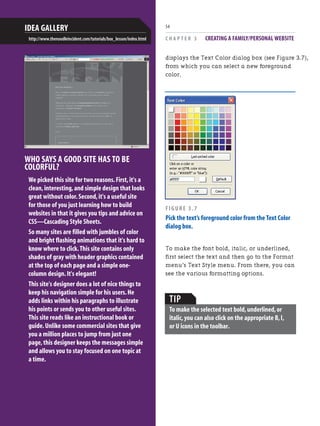
  • 40.
    FINDING A WEBHOST PROVIDER 31 If you want to save the hassle of searching for a web host provider through a search engine or a host index-type site, consider asking your Internet service provider (ISP) if it offers web hosting. web server. This number can range from web host to web host, but typically a web host allows you to store anywhere from 1 to 100 gigabytes (GB) on the web server. The amount of web space you need depends on what you plan on storing on your website. If you plan on just having web pages and some pictures, 1GB should be more than enough. Realize that each picture taken from a digital camera can consume anywhere from 50 kilo- bytes (KB) to 2,500KB, depending on the quality and settings of the camera. (1,000 kilo- bytes are, approximately, one megabyte (MB). A gigabyte (GB) is approximately 1,000MBs. Therefore, a GB is roughly 1,000,000KB!) So, assuming your digital camera takes pictures that are 1,000KB, the upper bound, you could store one thousand pictures per giga- byte. If you wanted to share, say, 250 pictures, then you’d need 250MB, or 0.25GB. As you can see, a 1GB account is sufficient for most peoples’ websites, but if you anticipate posting large amounts of pictures or other files that are exceptionally large in size, you want to choose a web host that provides your anticipated disk space needs. NOTE Your ISP is the company that provides your computer with Internet access.If you have a broadband connection to the Internet,either through DSL or a cable modem,chances are your ISP is your cable company or phone company.If you use a dial-up connection,your ISP may be your phone company or one of the popular ISPs, such as AOL,EarthLink,or MSN. Important Web Hosting Metrics When researching web hosting companies, you find that they all toss around various technical- sounding facts, like, “We offer 10GB of disk space and a monthly transfer limit of 300GB!” To help make sense of this technical and marketing mumbo-jumbo, let’s take a moment to examine some of the common technical benchmarks used. Disk Space Often web hosting companies limit you to storing only a certain amount of data on their TIP Many ISPs include a web hosting account in the monthly price paid for Internet service.Check with your ISP to see if you’re already paying for a web hosting account. TIP If you plan on sharing a large number of pictures, consider using a free image sharing service like Snapfish.With these image sharing sites,you can upload your digital pictures and invite friends and family to view the images and,optionally, order prints.Chapter 7,“Sharing Images Online with Snapfish,”provides a detailed look at posting your pictures online with SnapFish.
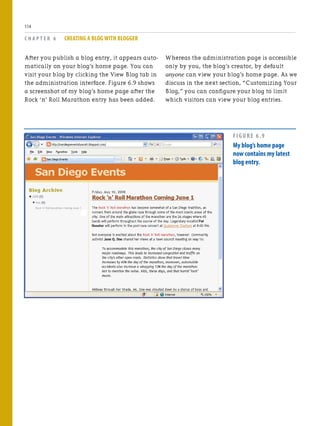
  • 41.
    C H AP T E R 2 CREATING A WEBSITE 32 If you plan to create your own website using the templates in this book’s accompanying CD, you need to use a web hosting provider to have your website accessible on the Internet.If, however,you plan on building your site using one of the web applications discussed in Chapters 5 through 10,your site and its content will be hosted on the web servers of the company whose services you utilize. For example,in Chapter 5,“Selling Products with an eBay Store,”you learn how to sell inventory through eBay Stores.eBay Stores is a web application provided by eBay that makes it easy to list products for sale and collect payment from interested buyers for a small percentage of the sale.With an eBay Store,the web pages that comprise your website are automatically created by eBay and hosted on eBay.com’s web servers.In this case you don’t need to worry about finding a web hosting provider because eBay acts as the hosting provider. DO YOU NEED A WEB HOSTING PROVIDER? Monthly Transfer Limit Every time someone visits a web page from a website, the website must transfer the contents of the web pages, and any pictures on the web page, to the requesting web browser. The more data transferred from a web server, the more cost is incurred by the web host provider. Therefore, to keep costs down, many web host providers specify some sort of monthly transfer cap for a website. “For small personal sites,a 1GB monthly transfer limit is typically more than enough.” NOTE The monthly transfer limit is sometimes referred to as the monthly bandwidth. Typical monthly transfer limits are in the range of 1 gigabyte (GB) to 500GB. Some web hosts use the monthly transfer limit as a hard limit. That is, if the monthly bandwidth exceeds the limit, the website is shut down for the remain- der of the month. Other web hosts use the limit as a soft limit, meaning that after the monthly limit is exceeded, a specified cost per exceeded GB is tacked on to the monthly web hosting service fees. And other websites don’t impose a monthly transfer limit at all. For small personal sites, a 1GB monthly trans- fer limit is typically more than enough. To put things in perspective, assume that each visitor to your website ends up viewing on average 2MB worth of pictures and other content. Now,
  • 42.
    REGISTERING A DOMAINNAME 33 assume that you have 250 visitors per month; that knocks the monthly bandwidth up to 500 MB, or 0.5GB. Of course if you expect a deluge of visitors, a 1GB monthly transfer limit might not be suffi- cient. If you think your site will be heavily traf- ficked, or you plan on hosting content that is large in file size (such as home videos, MP3s of songs you’ve written, or other large files), you might want to choose a web hosting company that does not impose a monthly bandwidth limit. FTP Support At some point you need to move the web pages you create with Composer from your local machine to the web host company’s web server. A common means for transferring files from one computer to another over the Internet is FTP. FTP stands for File Transfer Protocol and is the de facto protocol for transfer- ring files between remote computers. Composer uses the FTP protocol to upload files from your local computer to the host’s web server. Therefore, it is vital that the web hosting company you choose to go with supports FTP access. “…A number of free web hosting companies,such as GeoCities (http://geocities.yahoo.com),offer a free website but require that you pay a nominal monthly fee for FTP access.” Virtually all web host companies provide FTP access. The thing to watch out for, though, is that a number of free web hosting companies, such as GeoCities (http://geocities.yahoo.com), offer a free website but require that you pay a nominal monthly fee for FTP access. Therefore, make sure that the plan you choose to go with includes FTP support so that you can transfer your web pages from Composer to the web server. Table 2.1 Important Web Host Terms Metric Description Disk Space Web hosts typically limit the number of web pages,images,and other files that you can have on your website.If you plan on storing many large images on your site,be sure to choose a web hosting plan with adequate disk space. MonthlyTransfer Limit To help manage data transfer costs, web hosting companies typicall place a limit on your site’s band- width.For small websites,1 GB of monthly bandwidth is typically more than sufficient.However,if you’re planning on building a highly trafficked site,make sure you choose a web hosting plan with sufficient transfer limits. FTP Access To upload your web pages from Composer to your web server,the web hosting company needs to provide FTP access. Picking a Web Hosting Company After you research a variety of web hosting companies, it is time to pick one of them and sign up! Web host companies typically charge an initial setup fee along with a recurring monthly fee. Most large ISPs provide web hosting support along with the paid Internet connectivity, so
  • 43.
    you might firstwant to check with your ISP and see what it can offer web hosting-wise. Before you sign up with a web hosting company, I would strongly encourage you to first check—and then double-check—that the company provides FTP support for the plan you are signing up for. Remember, FTP support is needed so that Composer can be used to upload the web pages. Registering a Domain Name Recall from Chapter 1 that to visit a website, you just need to type the website’s domain name into the browser’s Address bar. If you want a domain name for your website, such as www.MyFirstWebSite.com, you need to register the domain name you want and configure the domain name to point to the web hosting company’s web server. C H A P T E R 2 CREATING A WEBSITE 34 NOTE Realize that you do not need to associate a domain name with your website.If you do not, though,your website’s address will be something like:www.WebHostCompanyName.com/ YourWebSiteName.Withadomainname,however, yourwebsitewillbeaccessiblebysomethingmore personalized,likewww.YourWebSiteName.com. To register a domain name, perform the follow- ing two steps: 1. Choose and then purchase an available domain name. 2. Configure the domain name so that it references the correct website. In the next two sections, you see how to accomplish these two steps. Don’t worry if these sound like daunting tasks; as you’ll learn shortly, they both are relatively simple to perform, even for the computer layperson. TIP If you are concerned about performing these two steps on your own,the good news is that most web hosting companies perform these steps for you for a nominal charge.If you’d rather leave this to a professional,simply ask your web host if it can register a domain name for you. Choosing and Buying a Domain Name When registering a domain name, you can only choose a domain name that has not been registered by someone else. That is, you cannot take an existing domain name—say www.microsoft.com—and register that domain name, having it point to your website. So, the first step in registering a domain name is finding and selecting an available domain name. Domain names can be purchased from a variety of domain name registrars. A domain name registrar is a company that is sanctioned by the nternet Corporation for Assigned Names and Numbers (ICANN) to allow registration of domain names. There are dozens of such companies available, varying in price and quality of service.
  • 44.
    REGISTERING A DOMAINNAME 35 A commonly used registrar is Go Daddy (www.godaddy.com). At the time of this writing, it was charging $9.99 to register the domain name for one year, or less per year if register- ing for multiple years. Before a domain name can be registered, though, it must be available. NOTE When purchasing a domain name,you are not buying the domain name outright.Rather,you are essentially leasing the domain name for a specified period of time (between one and ten years).After this period of time has ended,as the registrant of the domain name you can reregister the domain name,for another period of time,or you can release the domain name,returning it to the pool of available domain names. To determine if a domain name is available, start by going to any domain name registrar company’s website, such as www.godaddy.com. These companies typically have a search box on their site to search for available domain names. Figure 2.1 shows the Go Daddy homepage. Notice that there is a text box that lets you enter a domain name, along with a drop-down list from which you can choose what extension you want to search on (.com, .org, .net, .info, and so forth). During your search for a domain name, you see whether or not the domain names are available. If they are, you can register for them, choosing how long to register the domain name. If the name is already taken, a list of similar domain names is suggested. Figure 2.2 shows the results of a search for the domain name ScottsFirstWebSite.com, which is available! FIGURE 2.1 The Go Daddy home page lets you search for avail- able domain names.
  • 45.
    To register thechecked domain names, scroll down to the bottom of the web page and click the Proceed to Checkout button. This takes you through a checkout process, where you specify the duration of the domain name registration and provide payment information. Configuring the Domain Name After registering the domain names, you need to provide the IP address for the name servers you want the domain name to point to. While C H A P T E R 2 CREATING A WEBSITE 36 these terms may sound like Greek to you, the web hosting company is familiar with these terms and can help you out. Simply ask the web hosting company what name server IP addresses to use—it will provide you with, typically, two IP addresses that you can enter as the primary and secondary name server addresses. (An IP address is a number of the form XXX.XXX.XXX.XXX, where XXX is a number between 0 and 255.) FIGURE 2.2 Searching on a domain name indicates whether that domain name is available. NOTE Realize that there can be a 24- to 72-hour delay after registering and configuring a domain name and before the domain name officially points to the appropriate web server.That means that it can take a few days after registering and config- uring your domain name before anyone can visit your website by directly entering the domain name into his web browser.
  • 46.
    UPLOADING WEB PAGESFROM COMPOSER TO YOUR WEBSITE 37 At this point, you have chosen a web hosting provider and, perhaps, registered a domain name. The only piece of the puzzle that’s left is adding web pages, images, and other files to the web server. This is accomplished by upload- ing the web pages we create in Composer to the web server. Uploading Web Pages from Composer to Your Website To upload web pages from Composer to your public website, you first need to procure some information from your web hosting company. The pertinent information, which was likely emailed to you when you signed up with the web hosting company, is . The FTP server to upload your files . Your username and password to access the FTP server Armed with this information, you are ready to upload a web page from Composer to your website. First, you must have a web page to upload. Chapters 3 and 4 examine two different website templates. Each template is composed of a series of web pages. To create a website, you take the template from the CD, customize it for your site, and then upload the modified template to your website. Since you’ve yet to examine these templates, for now upload the practice web page you created (and saved) in Chapter 1. Start by opening the web page we created in Chapter 1 by launching Composer and then going to the File menu and choosing the Open File menu option. When you open this web page, your screen should look similar to Figure 2.3. Now, upload this web page to your public web server. To do so, go to the File menu and choose the Publish menu option (see Figure 2.4). This displays the Publish Page dialog box. The Publish Page dialog box has two tabs: Publish and Settings. When first publishing a page to a public website, you are taken to the Settings tab (shown in Figure 2.5), where you are prompted for the website’s name, its FTP server, the web address, and the FTP server login information (username and password). The configuration information you specify in the Settings tab is stored under the name you provide in the Site Name text box. Enter the site name “My First Website.” Next, enter the name of the FTP server your web host provider told you to use in the Publishing Address text box. In the HTTP address of your home page text box, enter the URL for your website. In the User name and Password text boxes, enter the username and password you were given to access the FTP server. After you provide this information once, you will not need to enter it again. TIP Remember,if you get overwhelmed with regis- tering the domain name and specifying the name servers,you can always ask your web hosting company to perform these tasks for you.
  • 47.
    C H AP T E R 2 CREATING A WEBSITE 38 FIGURE 2.3 The first web page we created in Chapter 1. FIGURE 2.4 To upload a web page, choose File,Publish.
  • 48.
    UPLOADING WEB PAGESFROM COMPOSER TO YOUR WEBSITE 39 PAINT SHOP PRO PHOTO If you haven't heard about Paint Shop Pro Photo yet,you should.This program that costs only $79.99 has almost as many features as Adobe Photoshop at a fraction of the price.It has effects packed into the program so that you can create halftones,3D bubbles,different kinds of image distortions,and more.Their Art Gallery is especially cool.Users present some of their favorite projects that they completed in Paint Shop Pro Photo.It's a great place to get ideas.And their Paint Shop Pro Photo Tutorials offer online tutorials for beginners.Download a trial version from its website. Gina:I don't have an indexing code for this one.Please proceed laying out this chapter today.I'll get this from Tim later.San Dee Idea Gallery http://www.corel.com/ FIGURE 2.5 Specify FTP server settings in the Publish Page dialog box’s Settings tab. Upon entering this information into the Settings tab, click on the Publish tab. This tab, shown in Figure 2.6, allows you to optionally specify the web page’s title and requires that you specify a filename for the web page. Remember from our discussions in Chapter 1 that web pages are actually stored as files on the web server. Therefore, you need to provide a filename for this web page. For the web pages you create throughout this book, be sure to name your files with the extension .htm or .html. NOTE Recall from Chapter 1 that the title of a web page appears in the title of the web browser when visiting the page.
  • 49.
    After you haveuploaded the web page, you can visit the web page through a web browser. To do so, enter into the browser’s Address bar the URL to your website—either the domain name, if you have one, or the URL provided by your web hosting company, such as www.webhostingcompany.com/YourWebSite—followed by the name of the web page you uploaded. So, to visit Bob’s web page, which was named Bob’sFirstWebPage.html, you could visit the page by entering www.YourDomainName.com/ Bob’sFirstWebPage.html or www.webhostprovider.com/ YourWebSite/Bob’sFirstWebPage.html. Figure 2.8 shows a screenshot of visiting Bob’s web page on my public website, whose domain name is www.ScottAndJisun.com. C H A P T E R 2 CREATING A WEBSITE 40 FIGURE 2.6 Set the web page’s title and filename in the Publish Page dialog box’s Publish tab. After providing a title and filename, click the Publish button. This uploads the file to the FTP server. The Publishing dialog box is displayed and reports the status of the web page upload. Figure 2.7 shows the Publishing dialog box after the file has been successfully uploaded. FIGURE 2.7 Bob’s web page has been successfully uploaded. NOTE If you get an error when trying to publish a web page,the error may be due to an incorrect FTP server name or invalid login credentials.Go to File,Publish As,and re-enter the FTP location and FTP credentials in the Settings tab.If you still experience problems,contact your web hosting provider for further assistance.
  • 50.
    BUILDING A WEBSITEFROM A TEMPLATE 41 FIGURE 2.8 Bob’s website is now online,accessible by anyone with an Internet connection! Building a Website from a Template The CD accompanying this book contains web pages for two templates. When creating your own websites, you want to start with one of these templates, customizing the template’s pages for your site’s particular content. Chapters 3 and 4 discuss various tips for modi- fying these templates. For now, it is important to understand the process you need to take to modify a template on the CD. “The CD accompanying this book contains web pages for two templates. When creating your own websites,you want to start with one of these templates,customizing the template’s pages for your site’s particular content.” To start, copy the template’s files from the CD to your computer’s hard drive. From there, you can use Composer to tweak each template file, saving the changes. Also, you can add addi- tional pages to your site, using the provided template’s look and feel. To summarize the process when building a site from a template, perform the following steps:
  • 51.
    1. Create anew folder on your computer’s hard drive. 2. Copy all of the template’s files from the CD to the folder created in step 1. 3. Launch Composer. Recall that this is accomplished by running SeaMonkey and then going to the Window menu and choosing the Composer menu option. 4. Open one of the template files copied to the folder in step 2. You can also add a new web page to your site by creating a page in Composer based on the template. We’ll discuss how to do this in the “Customizing the Template” section in Chapter 3. 5. Customize the template file’s contents for your website. 6. Save the changes made to the template file. You want to repeat steps 4 through 6 for each of the files in the template. After you customize and save each of the pages in the template, the final step is to publish the website to a web server so that anyone with an Internet connec- tion can view your site. The publishing process is described at the end of Chapters 3 and 4. C H A P T E R 2 CREATING A WEBSITE 42 Summary In this chapter you learned the steps necessary for creating a public website, which include . Finding a web host provider . Registering a domain name (optional) . Uploading web pages from Composer to the web server As discussed, there are innumerous web host providers that you can choose from, varying in price, service, and features offered. Thankfully there are entire websites—like TopHosts.com and HostIndex.com—that act as search engines for web host providers. Rather than using a separate web hosting company, your Internet service provider (ISP) might also provide web hosting capabilities for free. When selecting a web hosting company, be sure to choose one whose disk space and monthly transfer limits meet your site’s needs, and one that provides FTP access. NOTE In Chapters 5 through 10 you learn how to use existing web applications to sell items,publish content,share pictures online,and get involved in social networks.For these chapters you do not need to FTP web pages to a web server because the web pages will be automatically created and hosted by the web application service provider.
  • 52.
    SUMMARY 43 After choosing acompany to host your website, you can optionally register a domain name, giving your website a personalized, memorable name, like www.YourWebSite.com. A domain name can be leased for one to ten years using a domain name registrar, like Go Daddy. When registering a domain name, you need to know the IP address of your web host company’s name servers. This information associates your domain name with your website. (For more information on this process, refer to the “Understanding How the Internet Works” section in Chapter 11.) After you select a web host provider, you can upload web pages from your personal computer to your website so that anyone with an Internet connection can view your pages. If you followed along in acquiring a web hosting provider, registering a domain name, and uploading files, you should now have a publicly accessible website that can be visited by anyone in the world with an Internet connection! With the information covered in this chapter and the previous one, you have enough knowl- edge to start creating your own website! Chapters 3 and 4 explore different templates that you can quickly and easily modify to build different types of websites!
  • 53.
  • 54.
    C H AP T E R 3 Creating a Family/Personal Website
  • 55.
    C H AP T E R 3 CREATING A FAMILY/PERSONAL WEBSITE 46 with the book’s accompanying CD offers a template that contains the following pages: . A home page that gives a brief description of the site and has links to the other web pages . A photo gallery index page, which provides a list of links to various family pictures . A recent news page, which lists the latest family events . The family’s favorite recipes In this chapter, you’ll examine how you can tailor the family/personal template. As you’ll see, it’s quite easy to take the provided template and change the look and feel, as well as add and remove content. For example, the pages provided in the template are just a few of many potential web pages that you may want to add to your family/personal website. Other potential pages include . Pictures and scores from your child’s soccer games. . Information about children’s after-school activities, such as cheerleading or debate. . Any other bit of information your extended family or friends might care to hear about! In the “Customizing the Template” section of this chapter you’ll see just how easy it is to add new pages to your family/personal website. Before you can start customizing the template, you’ll need to understand how to start working with the template files. Essentially, you’ll need to copy the template’s files from the CD to your computer’s hard drive. The book’s first two chapters looked at the pieces that make up the Internet and websites and showed how to create simple web pages with Composer. At this point, you’re ready to examine how to use Composer to build a complete website. While you can create a website from scratch, it’s much easier and quicker to start working with a website template. A website template, often referred to as just a template, is a collection of generic, premade web pages that can be easily customized to create a specific site. Web designers typically start with an appropri- ate template and then tailor the template’s pages accordingly. In this chapter and the next one, you’ll examine two different templates: a template for a family/personal website and a template for an online storefront. This book’s CD includes three additional templates that you can use to build other types of websites. Examining the Family/Personal Template Friends and families today are increasingly distant, spread around the country and world. Fortunately, keeping your families and friends up to date with what’s going on in your life is made remarkably easier with a family/personal website, which provides those important people a one-stop location to catch up on your life. Most family/personal websites have similar features: pictures of the family or person the website is about, a list of recent happenings, and important upcoming dates, such as anniversaries, birthdays, and weddings. As you can see in Figure 3.1, the family/personal website template provided
  • 56.
    CUSTOMIZING THE TEMPLATE 47 Thischapter concludes with a discussion on how to publish your website after you tailor the template. Publishing a website involves copying the web pages from your computer to the web server where your public website is hosted. As we’ll see, Composer makes this process a simple one. Customizing the Template The family/personal website template shown in Figure 3.1 provides bare-bone web pages that you can add to and customize to create your own unique family/personal website. If you like the look and feel of the template, all that’s left to do is to customize the template’s content, FIGURE 3.1 The family/personal website template.
  • 57.
    C H AP T E R 3 CREATING A FAMILY/PERSONAL WEBSITE 48 . Composer is like any other word processor. If you want to customize the page by centering some text, for example, simply select the text to center and click on the Center icon in the toolbar, just like you would to center text with Microsoft Word. . Have fun customizing the templates, and don’t be afraid to experiment! Keep in mind that since you’re working with the template files on your computer’s hard drive, no matter what you do, you can’t irreparably screw up the template. There is always a pristine copy of the website’s template files on the book’s CD that you can recopy to your computer should the need arise. With that, it’s time to get started examining how to use Composer to customize the family/personal website template! Changing the Upper-Left Image Each page in the family/personal website contains an image in the upper-left corner of my dog, Sam. You are invited to add your own image here, such as a picture of yourself, your family, or your family’s pet. To replace the picture of Sam with a picture of your own, you’ll need to have the picture on your computer’s hard drive. In the “Customizing the Family Pictures Page” section, you’ll learn how to get pictures of yourself or family onto your computer so that you can add them to your website’s pages. To customize the upper-left image, first copy the image you want to replace it with into the same folder that you copied the website template files to. Next, launch Composer if you have not already done so. (Recall that this replacing the current text with the text perti- nent to you and your family and the image in the upper-left corner with an image of your own choosing. “When working with the template,you may find that you want to customize certain aspects....Fortunately, Composer makes customizing the template quick,fun,and easy.” NOTE Recall that to customize a template,you need to copy the template files from the book’s accompa- nying CD to your computer’s hard drive.The “Building a Website from a Template”section in Chapter 2,“Creating a Website,”provides more details on this process. When working with the template, you may find that you want to customize certain aspects. For example, you might want to change the template’s font or alter the text or background colors. You might want to add additional web pages to the template, such as a web page that lists important dates (anniversaries, birthdays, and so on). Alternatively, you might want to remove pages from the template; perhaps you don’t want a favorite recipes page. Fortunately, Composer makes customizing the template in any of these ways quick, fun, and easy. In this section, we’ll be examining a myriad of ways to customize your template. When working with the template files, keep the following two things in mind:
  • 58.
    CUSTOMIZING THE TEMPLATE 49 involvesstarting the SeaMonkey browser and then going to the Window menu and choosing the Composer option.) Next, open the template’s home page file, index.html, in Composer. This is accomplished by either click- ing the Open icon in the Toolbar or by going to the File menu and selecting the Open File menu option. When you have opened the index.html page in Composer, your screen should look similar to Figure 3.2. To change the image of Sam to an image of your own, you’ll need to open the Image Properties dialog box for the image. This can be done in one of a number of ways: by right- clicking on the image and selecting the Image Properties menu option; by double-clicking the image; or by single-clicking the image and then clicking on the Image icon in the toolbar. Using any of these approaches displays the Image Properties dialog box (see Figure 3.3), from which you can customize the information about the displayed image. The next section, “Specifying Image Properties,” steps through the four tabs in the Image Properties dialog box and discusses how to replace the image of Sam with an image of your own. Keep in mind that you’ll need to replace the image of Sam with your own image for each web page in the family/personal website template. Specifying Image Properties The Image Properties dialog box contains four tabs: Location, Dimensions, Appearance, and Link. These tabs contain settings to customize the selected image’s properties. Let’s look at each of these tabs one at a time. GETTING THE RIGHT COLOR It can be difficult to get the right color for your website.VisiBone provides a website that shows different color values,but it also offer products you can purchase to help match colors.You can purchase mouse pads,color cards,and posters.It also offers the Color Lab that provides an easy way to pick color combi- nations that complement each other. IDEA GALLERY http://html-color-codes.com/
  • 59.
    C H AP T E R 3 CREATING A FAMILY/PERSONAL WEBSITE 50 The Location Tab The Location tab, shown in Figure 3.3, allows you to specify the file to display. To change the upper-left image from one of my dog to one of your own, click on the Choose File button and select the image you want to display. Upon doing so, a small preview of the image selected appears in the lower-left corner of the Image Properties dialog box. FIGURE 3.2 The index.html file has been opened with Composer. FIGURE 3.3 Customize the image from the Image Properties dialog box.
  • 60.
    CUSTOMIZING THE TEMPLATE 51 Next,from the Location tab, you can set the alternate text for the image. This is the text that is displayed in the image’s place for those visi- tors who are using text-only browsers or who have configured their browsers to not display images. Realistically, few web surfers fall into this category, so feel free to omit the alternate text. If you decide not to provide alternate text, be sure to select the Don’t Use Alternate Text radio button. two radio buttons: Actual Size and Custom Size. If you leave Actual Size selected, the image will be displayed in its actual size. If you click Custom Size, you can specify the image size in either pixels or as a percentage of the browser’s window. CAUTION Make sure that the image file you choose exists in the same folder as the template web page file. That is,if the image file resides in a different directory,first copy it to the same directory where you’ve saved the web page template files. Also,make sure that the URL is Relative to Page Location check box remains checked. We’ll discuss why the folder that the image file exists in is important and why the URL is Relative to Page location check box must be checked in the“Publishing Your Family/Personal Website” section. NOTE If you don’t provide alternate text and leave the Alternate Text radio button selected,you are shown a warning when you click the Image Properties dialog box’s OK button. The Dimensions Tab The next tab, Dimensions, allows you to customize the width and height of the image. As Figure 3.4 shows, the Dimensions tab has FIGURE 3.4 The image’s size can be configured in the Dimensions tab. The picture of Sam is scaled to a width of 170 pixels and a height of 166 pixels. As shown in the Image Preview section at the bottom of the dialog box in Figure 3.4, the actual image size is 321 pixels by 313 pixels. Oftentimes an image will be resized so that it fits nicely on a page. The full-sized image of Sam is too large to fit nicely in the web page, hence it is scaled down to 170 by 166. When scaling images yourself, make sure to check the Constrain check box. This check box, if checked, makes sure that the ratio between the resized width and height remains the same as the original image’s width and height ratio. By
  • 61.
    C H AP T E R 3 CREATING A FAMILY/PERSONAL WEBSITE 52 leaving this check box checked you ensure that resizing your image won’t result in an image that is squished too fat or too thin. When adding your own image, scale it so that it is at least 166 high. The family/personal website was designed to display an image precisely 166 pixels high. If you make the image shorter than 166 pixels, there will be whitespace beneath the image. When adding your own image, I would recommend that you 1. Select the Custom Size radio button. 2. Check the Constrain check box. 3. Enter 166 as the height. NOTE Realize that sizing the image smaller than its original size in the Dimensions tab only specifies to the browser to display the image as a certain size.Specifying a smaller size than the original does not reduce the image’s file size.If you want to make the image a smaller file size,you need to use the resizing techniques discussed in the section“Resizing Digital Images,”which can be found in Chapter 11,“Bonus Material.” The Appearance Tab The Appearance tab (shown in Figure 3.5) allows you to configure how the image appears within text. The Spacing section lets you specify how much spacing should appear between the left and right and top and bottom of the image and the text around the image. The Solid Border text box permits you to specify whether the image should have a border and, if so, how many pixels wide it should be. Additionally, you can choose how to have the text aligned with the image. You can have the following text appear at the bottom of the image, the center, or the top. Alternatively, you can have the image flow within the text on the left or right. For the family/personal website, I’d recom- mend not changing the values in the Appearances tab as the template was designed to have no spacing around the image. FIGURE 3.5 The Appearance tab specifies how the text and image coexist. The Link Tab The final tab, the Link tab, allows you to specify a hyperlink for the image. That is, you can indi- cate that when the image is clicked, the user be whisked to a particular URL. A screenshot of the Link tab is shown in Figure 3.6.
  • 62.
    CUSTOMIZING THE TEMPLATE 53 Table3.1:A Summary of the Image Properties Dialog Box’s Tabs Tab Description Location Choose the image to display from the Location tab.You can provide aToolTip, which is displayed when a visitor hovers her mouse over the image.Also,the Location tab allows you to specify alter- nate text,which is displayed in place of the image for those visitors whose browsers don’t support images. Dimensions From the Dimensions tab,you can indicate a custom height and width for the image. Appearance The Appearance tab allows you to indicate the top,bottom,left,and right spacing around the image (if any),along with how text flows around the image. Link You can configure your image so that when a visitor clicks it,he is whisked to a different web page.If you want to enable this behavior,specify the URL to send the user in the Link tab. Removing the Image Altogether While some readers like having a picture shown on each page, others might not want a picture shown at all. Fortunately, Composer makes it a cinch to remove the image from the upper-left corner. To strike the image from the web page altogether, simply right-click on the image and choose the Delete menu option. Changing the Font The text in the web page templates is displayed using a Verdana font. You can change the font for any text in Composer with the following steps: 1. Select the text whose font you want to change. The easiest way to do this is to place the mouse at the beginning of the text you want to select, and, holding down the mouse button, drag the mouse cursor until the text you want to modify is completely selected. 2. With the text selected, go to the Format menu. Choose the Font menu option and then pick a font from the list. You can also change other text properties— such as the text color and style—through the Format menu. For example, imagine that you wanted to change the foreground color of the header text for a web page. (The header text in the home page is “Welcome to the Mitchell Family Website!” and is displayed in a turquoise color.) To change this text’s fore- ground color to, say, red, you’d first select the text and then go to the Format menu and choose the Text Color menu option. This FIGURE 3.6 Use the Link tab to link the image to a URL.
  • 63.
    C H AP T E R 3 CREATING A FAMILY/PERSONAL WEBSITE 54 WHO SAYS A GOOD SITE HAS TO BE COLORFUL? We picked this site for two reasons.First,it's a clean,interesting,and simple design that looks great without color.Second,it's a useful site for those of you just learning how to build websites in that it gives you tips and advice on CSS—Cascading Style Sheets. So many sites are filled with jumbles of color and bright flashing animations that it's hard to know where to click.This site contains only shades of gray with header graphics contained at the top of each page and a simple one- column design.It's elegant! This site's designer does a lot of nice things to keep his navigation simple for his users.He adds links within his paragraphs to illustrate his points or sends you to other useful sites. This site reads like an instructional book or guide.Unlike some commercial sites that give you a million places to jump from just one page,this designer keeps the messages simple and allows you to stay focused on one topic at a time. IDEA GALLERY http://www.thenoodleincident.com/tutorials/box_lesson/index.html displays the Text Color dialog box (see Figure 3.7), from which you can select a new foreground color. FIGURE 3.7 Pick the text’s foreground color from the Text Color dialog box. To make the font bold, italic, or underlined, first select the text and then go to the Format menu’s Text Style menu. From there, you can see the various formatting options. TIP To make the selected text bold,underlined,or italic,you can also click on the appropriate B,I, or U icons in the toolbar.
  • 64.
    CUSTOMIZING THE TEMPLATE 55 Addingand Removing Pages from the Template The family/personal website template comes with four web pages: a home page, a family pictures page, a recent events page, and a favorite recipes page. As we discussed earlier, though, you might want to add additional pages or remove some of the prepackaged pages. Removing a page from the site simply entails removing the links from the other web pages to the page you wish to snip from the site. For example, imagine that you didn’t want to have a favorite recipes page on your family/personal website. To accomplish this, you’d need to open the home page, family pictures page, and recent events page in Composer and remove the link at the top to the Favorite Receipes page. Removing the link is as simple as selecting the link text and press- ing Delete. To add a new page to the template, you need to create a new web page whose look and feel mimics that of the other pages in the template. Creating a new web page using the template can be done in one of two ways: . By creating a new web page in Composer and then copying and pasting the entire contents of a template page to the new page . By going to the File menu and choosing the Save As menu option, which has the effect of saving an existing template web page with a different filename After you create the new web page and inherit the template’s look and feel, you can customize the page’s content as needed. For example, if you added an additional page that listed important dates for your family, the content for this page would include the dates and their meanings (anniversaries, birthdays, gradua- tions, and so on). After you have created the content for the new page, save the web page by going to the File menu and choosing the Save menu option. After you have created and saved the new page, the next step is to add a link from all other web pages in the site to the new page. As Figure 3.1 showed, each page has a list of links along the top. You’ll need to add a link at the top of the new page you created. NOTE Keep in mind that you need to remove all links to the page you want to remove.Be sure to open all other pages in Composer and remove any links you find pointing to the page to be removed.
  • 65.
    C H AP T E R 3 CREATING A FAMILY/PERSONAL WEBSITE 56 Customizing the Family Pictures Page While family/personal websites are great for sharing recent events, recipes, and important dates, the main attraction to these types of websites is the family pictures. With digital cameras and scanners, it’s incredibly easy to share pictures of your family, pets, vacations, and special events with friends and extended family. “The family/personal website template contains a Family Pictures page where you can share your family’s photographs with others.” The family/personal website template contains a Family Pictures page where you can share your family’s photographs with others. To get started posting your pictures online, you need to have the pictures you want to share in a digital format. If you own a digital camera, the photos stored on the camera are already in the needed format. If you want to put film pictures online, you have a couple options. If the picture already exists, you need to get your hands on a scanner. To add a link, start by clicking your mouse where you want the link to appear, perhaps between the Family Pictures and Recent Events links. Next, type in the text for the link, such as “Important Dates,” followed by a period, which is used as a separator between each link. The final step is to link the text you just entered to the new web page you created. To accomplish this, select the text you just added, go to the Insert menu, and choose the Link menu option. This displays the Link Properties dialog box, shown in Figure 3.8. FIGURE 3.8 Select the page to link to using the Choose File button. From the Link Properties dialog box, choose the file you want the user whisked to when they click the link. Since this link needs to take the user to the newly created page, click the Choose File button and select the page you added just a moment ago. Finally, click the OK button to create a hyperlink to the newly created page. NOTE Don’t forget to add a link to the newly created page in all of the web pages in the site.If there are no links to the newly created page,your visi- tors won’t be able to get to the new page unless they manually enter the URL of the page in their browser’s Address bar.
  • 66.
    CUSTOMIZING THE FAMILYPICTURES PAGE 57 If you have taken pictures that you’ve yet to develop, you can get the photographs devel- oped as digital images. For an extra few bucks, photo developers include a CD of your pictures along with the developed photos. Properties dialog box, you can select the image you want to display and scale it accordingly. (All images shown on the Family Pictures page, for instance, were scaled so that they were no greater than 200 pixels wide or 200 pixels tall.) In the next section you’ll see how you can add your own images to the Family Pictures page. Before you add your own pictures, though, you’ll likely want to take a minute to remove those pictures included with the template. To accomplish this, open the Family Pictures page in Composer and select the image(s) you want to delete. Delete the selected image(s) by press- ing the Delete button or by going to the Edit menu and choosing the Delete menu option. Adding New Images Adding a new image to the Family Pictures web page involves two steps: 1. Copy the images from your digital camera or scanner to the same folder where you copied the template web pages. 2. Insert the image into the page via the Insert menu’s Image menu option. Copying files from your digital camera or scanner differs depending on what brand of camera or scanner you have, so you’ll have to refer to your camera or scanner’s instructions to accomplish step 1. If you had your film developed into a CD, copy the images from the CD to the appropriate folder on your hard drive. Many digital cameras save their pictures with a high resolution,resulting in a large file size. NOTE A scanner is a piece of equipment that takes papers,pictures,or other paper-based documents and makes a digital copy.Scanners are like copier machines,but rather than printing a copy of the document being scanned,a scanner saves the image to a computer.Scanners are available at numerous stores like Best Buy,Circuit City, and so on,and can range in price from $50 to $500.Many higher-end printers include scanning capabilities. NOTE Check out Chapter 11 for a more in-depth discus- sion on digital images,including important digital imaging terminology and techniques for optimizing digital images. Figure 3.9 shows a screenshot of the Family Pictures page when viewed through Composer. Notice that the Family Pictures page contains a collage of pictures. Each image was added by going to the Insert menu and choosing the Image menu option. This displays the Image Properties dialog box, which we saw back in Figures 3.3 through 3.6. From the Image
  • 67.
    C H AP T E R 3 CREATING A FAMILY/PERSONAL WEBSITE 58 TIP Large files take longer for the visitor to download and can quickly eat up the disk space and monthly bandwidth limits imposed by your web hosting company.You should consider shrinking the image files before adding them to your web page.Refer to Chapter 11 for information and tools on shrinking digital images. When the images have been copied, open the Family Pictures page in Composer, if you haven’t already. To insert an image, go to the Insert menu and select the Image menu option (or, optionally, click the Image icon in the toolbar). This displays the Image Properties dialog box. From the Locations tab (refer to Figure 3.3), click the Choose File button and pick the image file you want to display. From the Dimensions tab (refer to Figure 3.4), you can scale the image’s height and width. FIGURE 3.9 The Family Pictures page when viewed in Composer.
  • 68.
    PUBLISHING YOUR FAMILY/PERSONALWEBSITE 59 I'M READY FOR MY OWN DOMAIN NAME If you're starting a business online or you want to own a domain name,you need to know which ones are already taken.InterNIC runs a page called WhoIs,where you can type in a domain that you want to own and find out if it's in use or for sale.As an example,let's say that we might want to create a domain for this book.If you type in“createwebsite.com”into the WhoIs search window,you find that Domain Name Sales Corp.owns that particular domain name.The domain name was created in August 2001,and the name expires in August 2010.Happy searching. IDEA GALLERY http://www.internic.net/whois.html Publishing Your Family/Personal Website At this point you have customized the web pages for the family/personal template, but these web pages still reside on your local computer and are not accessible to others via the Internet. As discussed in Chapter 2, these files must be placed on a computer that has a dedicated connection to the Internet. Recall that there are a couple of steps you must go through to obtain a public Internet website. Assuming you have completed these steps, publishing your Composer-created web pages is a breeze. To publish a particular page, go to the File menu and choose Publish. This displays the NOTE Make sure that the image file you add exists in the same folder as the web page.You’ll see why this is important in the“Publishing Your Family/Personal Website”section,but for now realize that it is vital to having the image display properly for users visiting your website. As Figure 3.9 shows, you can place images either side by side, or beneath one another. To place images side by side, simply insert one image right after the other. To create some space between the images, use the spacebar to add space on the same line, or press the Enter key to have the image appear on the following line. You can also add spacing around the top, bottom, left, and right of an image through the Appearance tab (refer to Figure 3.5).
  • 69.
    Publish Page dialogbox, which contains two tabs: Publish and Settings. As discussed in Chapter 2, the Settings tab allows you to specify information about the FTP server for the website as well as username and password information for the FTP server. You’ll need to enter the FTP information provided by your web hosting provider in the Settings tab. After you fill out the Settings tab, go to the Publish tab, which is shown in Figure 3.10. The Publish tab allows you to customize how the web page is published on the server. The default settings shown in Figure 3.10 are typically sufficient. To publish the web page, simply click the Publish button. C H A P T E R 3 CREATING A FAMILY/PERSONAL WEBSITE 60 Note that the dialog box in Figure 3.11 shows that two files have been uploaded to the web server—index.html and LongHair-Chewing.jpeg. What about the other web pages, such as pictures.html, events.html, and recipes.html? Those need to be uploaded, too. Unfortunately, with Composer you have to manually publish each of these files separately. That is, you need to open each file to publish in Composer, go to the File menu, and choose the Publish menu option. FIGURE 3.10 The Publish Page dialog box is used for publishing a web page to a public web server. If the page is published successfully, you should see a dialog box like the one shown in Figure 3.11. This dialog box indicates the success or failure of publishing the web page and any associated files. FIGURE 3.11 The index.html page has been published successfully! NOTE Notice that when you publish a file to the web server,any image files in the web page are auto- matically published as well.For example,when the homepage,index.html, is published,two files are uploaded to the web server:index.html and LongHair-Chewing.jpeg.The LongHair-Chewing.jpeg is the image file of Sam that is in the upper-left corner of the home page.
  • 70.
    PUBLISHING YOUR FAMILY/PERSONALWEBSITE 61 Placing Linked Files in the Same Folder Throughout this chapter when adding hyper- links to other web pages or image files, I have stressed the importance of placing the web pages or image files being linked to in the same folder as the page you are currently working on. If you do not do this, when users visiting your site click on the link, they will not be taken to the desired page. Rather, they will see an error message informing them that the file requested could not be found. Additionally, underneath the filename in the Link Properties dialog box there is an option called URL Is Relative to Page Location. When adding a link, this check box should be checked. After choosing a file by clicking the Choose File button, if the check box is unchecked, the text that appears in the drop- down list will look like file://pathToTheFile/FileName. If the check box is checked, the text in the drop-down list will have just the filename and not the file://pathToTheFile/ prepended. It is important that the file://pathToTheFile/ text does not appear before the filename. If it does, either uncheck the URL Is Relative to Page Location option, which gets rid of the offend- ing text, or simply click on the text and delete the offending text manually. You may be wondering why it is so important to have the URL Is Relative to Page Location check box checked. If you leave this unchecked, or leave in the file://pathToTheFile/ text, when the web page is published to the publicly available web server, these hyperlinks that were not successfully created will render as broken links in your visitors’ web browsers. “Be sure to check the URL Is Relative to Page Location check box for each hyper- link you create,and your hyperlinks will work properly for all web visitors.” A broken link is a hyperlink that, when clicked, displays an error informing the users that the web page cannot be found. This error occurs because for links created without URL Is Relative to Page Location checked, the hyper- link’s URL is published as file://pathToTheFile/FileName, which is the path and file name on your desktop computer. When users click this link, their web browser will see the file:// and attempt to locate a file on their computer’s hard drive located in the specified path and with the specified filename. This file will likely not exist on their computer, and, hence, they will get an error message inform- ing them the file could not be found. What is important to realize is that since the file exists on your computer, if you are testing your website from your computer, these links render fine because you have these files on your computer! However, others cannot navi- gate through your website via these improperly created hyperlinks. The short of it is, be sure to check the URL Is Relative to Page Location check box for each hyperlink you create, and your hyperlinks will work properly for all web visitors. Testing the Website After you have published each web page for the family/personal website, take a moment to check out your website through a web browser. Launch your web browser and enter the URL to
  • 71.
    your website. Indoing so you should see your family/personal website’s home page. Click around on the hyperlinks and make sure all pages are accessible. If you get an error message when clicking on a hyperlink, chances are the error is due to one of two causes. First, the error might have occurred because you forgot to publish the web page that the hyperlink was pointing to. Remember that every web page that you created with Composer must be published to the public website. So make sure that the web page you are having trouble accessing was, indeed, published (and published successfully). If you are certain that the web page you are requesting has indeed been published, then the error might be due to a broken link. That is, the hyperlink you clicked on is directing the user to a URL of a web page that does not exist. This could be due to having created a hyperlink to an existing file but then later changing the filename and not updating the hyperlink’s URL. Also, it might be due to not having checked the URL Is Relative to Page Location check box in the Link Properties dialog box. (See the “Placing Linked Files in the Same Folder” section earlier in this chapter for more details on this check box.) In either case, you’ll need to reopen the web page that contains the offending link, fix the link problem, and republish the page. C H A P T E R 3 CREATING A FAMILY/PERSONAL WEBSITE 62 Summary Customizing a website template with Composer can be both fun and easy. The family/personal website template presented in this chapter had a home page and three sections: a series of digital photographs, the latest family news, and favorite family recipes. As you saw, customizing the existing pages— changing the text content, altering the colors, selecting a different font or formatting, and so on—is easy to accomplish with Composer. You can edit a web page just like you would edit a document with a word processor program. In addition to working with the provided template web pages, you are encouraged to add additional pieces to your family/personal website so that the site is customized for you and your family. As discussed in this chapter, to add new pages, you start by creating a new web page with the layout as another page in your template. From there, you can customize the new page’s content. After this, all that remains is to update the other pages so that they provide a hyperlink to the newly created page. We also looked at how to publish the template to a web server when the customizations had been completed. To publish your web pages, you need to load each web page in Composer and choose the Publish menu option from the File menu. Publishing your web page uploads the actual web page along with any images displayed in the page. When all of your web pages have been uploaded to the website, anyone with an Internet connection can view your site through a browser!
  • 72.
    C H AP T E R 4 Creating an Online Storefront
  • 73.
    As the popularityof the Internet has ballooned over the years, many businesses have made their inventory available for purchase online. These types of websites marry commerce and the Internet and are hence referred to as eCommerce websites. There is a plethora of eCommerce websites selling a wide range of products online. Amazon.com, one of the most well-known eCommerce sites, sells a vast array of products, from books to video games and DVDs to kitchenware and garden tools. “As the popularity of the Internet has ballooned over the years,many busi- nesses have begun making their inven- tory available for purchase online. These types of websites marry commerce and the Internet and are hence referred to as eCommerce websites.” Successful eCommerce websites have been built for both companies choosing to sell strictly online and those companies who have had decades of history selling products in tradi- tional brick and mortar stores. For example, Amazon.com is one of many companies that sell products exclusively on the Internet. There are no Amazon.com stores where you can stroll in and peruse the inventory. Wal-Mart, the world’s largest brick and mortar retailer with more than 7,500 stores worldwide, also has an eCommerce site—www.WalMart.com—which attracts more than 300 million visitors per year. An eCommerce website must provide the following functionality: C H A P T E R 4 CREATING AN ONLINE STOREFRONT 64 . Display the items for sale along with their prices. . Provide a means for a user to add one or more items to his “shopping cart.” . Accept payment information from a customer. (This typically involves the customer providing his credit card information.) In this chapter, you build your own eCommerce website that implements these features. NOTE The three requirements for an eCommerce site— listing the items for sale,providing a shopping cart,and accepting payment—are the minimum needed.Many eCommerce websites offer addi- tional functionality,such as searching the prod- ucts for sale,sorting the products by price or name,and allowing users to leave feedback about various products. The eCommerce site we create in this chapter does not include any of these more advanced features.The site is,however,fully functional, allowing visitors to buy products online. Accepting credit card payments and maintain- ing a shopping cart are anything but trivial tasks. Fortunately, PayPal provides a Premier Account with merchant services that provides a means for processing credit card payments and for supporting a shopping cart interface. There are no upfront costs associated with using the PayPal Premier Account—the only cost is a small percentage of the total sales. The “Creating a PayPal Premier Account” section discusses these fees and how to get started creating a PayPal Premier Account.
  • 74.
    EXAMINING THE ECOMMERCEWEBSITE TEMPLATE 65 Examining the eCommerce Website Template All eCommerce websites provide a core set of functionality. Since the purpose of an eCommerce website is to provide a means for visitors to purchase products online, the eCommerce site must list the products for sale, allow users to add one or more products to their shopping cart, and finally provide a means for users to purchase the products. The eCommerce site template is one for a fictional company—eFlags Direct. eFlags Direct sells both flags and flag accessories, such as flag poles, ropes, clips, and so on. The eFlags Direct template breaks up its products for sale into two categories: Flags and Flag Accessories. By visiting these categories, users can add flag accessories to their shopping cart. In addition to listing the products for sale, shoppers must be able to add products to their shopping cart. Creating a shopping cart is not a trivial task; it requires advanced computer programming skills that are far beyond the scope of this book. Fortunately, PayPal offers a shopping cart that can be plugged into the eCommerce website template by inserting a few lines of HTML. The last vital piece of an eCommerce website is accepting payment, which involves showing users their balance due. The amount they owe is typically the sum of the products purchased, any sales tax that needs to be added, plus any shipping costs. After reviewing their shopping cart and balance due, users are prompted to enter their credit card information and complete the transaction. Creating a web page to provide a bill, to accept payment informa- tion, and to properly bill it, is a complex task. The good news is that PayPal also provides a means for payment that can be plugged into our eCommerce website. The eCommerce website template is shown in Figure 4.1. Notice that it’s composed of two pages: a list of the flags for sale and a list of the flag accessories for sale. Each item for sale includes a picture, a description, and an Add to Cart button. Clicking the Add to Cart button adds the item to the user’s PayPal shopping cart. A user can check out by clicking the View Cart hyperlink. Working with the eCommerce website template requires a little more customization than required with previous templates. First, you need to create a free Premier Account through PayPal.com. Then, based on your information, you have to tailor the Add to Cart button and View Cart hyperlink. NOTE In the next chapter,“Selling Products with an eBay Store,”you’ll see how to use eBay Stores to list your products for sale as well as process payment from customers.eBay Stores make getting started selling online easier but limit the flexibility you have in customizing the online store front’s appearance.Before deciding which approach to use—creating a custom online store-front or using eBay Stores—I’d encourage you to read both this chapter and the next,and then make an educated decision based upon your business’s needs.
  • 75.
    Customizing the HomePage The eCommerce website template’s home page starts by listing the company’s name, address, and contact information at the top of the page. Underneath that, there is a series of naviga- tional hyperlinks listing the product categories, along with a View Cart button. To change the name of one of the product categories, click the product category text and, C H A P T E R 4 CREATING AN ONLINE STOREFRONT 66 using the keyboard, alter the link’s text. To change the URL that the hyperlink points to, right-click on the link and choose the Link Properties menu option. This, as you’ve seen in previous chapters, displays the Link Properties dialog box, from which you can change the link’s location. FIGURE 4.1 The eCommerce website template.
  • 76.
    CONFIGURING THE ADDTO CART BUTTONS 67 The View Cart button links to PayPal.com’s website and, when clicked, displays the items in the user’s shopping cart and provides a checkout process. You’ll need to configure this View Cart button based on your own PayPal.com account. The next section exam- ines the steps necessary to create a Premier Account with merchant services and to config- ure the View Cart button. Underneath the navigation hyperlinks are two table cells. The one on the left lists the flags for sale. The one on the right lists recent site news. The template contains descriptions and pictures for flags. You’ll need to change the description and pictures to match the products you’re selling. To edit the picture, right-click on the picture and choose the Image Properties menu option. This displays the Image Properties dialog box from which you can specify the image file to use, along with its dimensions and other aesthetic properties. At the end of each product description, there’s an Add to Cart button. This button ties into PayPal.com to integrate a shopping cart with the eCommerce site. To have this button work correctly, you’ll need to first create a PayPal.com Premier Account. Configuring the Add to Cart Buttons The Add to Cart button allows visitors to add a specific flag or flag accessory to their shopping cart. Note that there is an Add to Cart button next to each item for sale. Users can add multi- ple items to their cart by clicking the Add to Cart button for each item they want to buy. After filling their cart, the shoppers can pay for their purchased items. Your task is to create an appropriately config- ured Add to Cart button for each item you are selling. Before we examine the steps for creat- ing the Add to Cart buttons, you need to regis- ter for a PayPal Premier Account. There are no costs or fees associated with creating a PayPal Premier Account, so feel free to follow along in creating your own PayPal account! Creating a PayPal Premier Account PayPal—on the Web at www.paypal.com—was founded in 1998 to allow individuals and busi- nesses to send and receive online payments easily, reliably, and securely. Anyone can create a free PayPal account and then transfer money into the account by sending PayPal a check, by having the money drafted from the bank or through a credit card transaction. After the money is in your account, you can send the money to another PayPal member by simply supplying that person’s email address and the amount you want to send. You can, at any time, withdraw all or part of the funds in your PayPal account, either through a direct deposit into your bank account or via a check. TIP To create a new navigational link,set the focus to the point where you want the new link to be placed.Then go to the Insert menu and choose the Link menu option.This displays the Link Properties dialog box,prompting you for the link’s text and location.
  • 77.
    C H AP T E R 4 CREATING AN ONLINE STOREFRONT 68 If you’ve ever purchased something online,you likely are familiar with online shopping carts. For those who have not yet purchased some- thing online,though,an online shopping cart is similar in concept to a grocery store shop- ping cart—it simply serves as a receptacle into which you can place your items prior to purchasing. The user experience of an online shopping cart goes as follows:A visitor browses through the eCommerce website,checking out the products for sale.If she finds a particular item she’d like to purchase,she clicks the Add Item to Cart button next to the item of interest.This adds the item to the shopping cart.At this point the shopper can continue to browse through the items for sale,adding additional items to the shopping cart. Once our shopper has finished browsing and is ready to check out,she can click a Checkout button that will present her with a bill and ask for payment information.At this time our shopper would enter her credit card informa- tion. WHAT IS AN ONLINE SHOPPING CART? Since its inception, PayPal has continued to offer more features to facilitate its main goal of allowing online payments. One such feature is the PayPal Premier Account, which is designed to allow individuals and small businesses to accept payments online. The Premier Account provides a shopping cart and a payment process, both of which reside on PayPal’s website. The Premier Account works as follows: 1. Users visit your site and find a product they are interested in buying. 2. They click the Add to Cart button next to the desired product’s name, which takes them to PayPal’s website, adds the item to the shopping cart, and displays the shop- ping cart. They can, at that point, check out by paying for the item, or they can return to your website to continue shopping. 3. When customers have finished shopping, they return to the shopping cart on PayPal’s website and enter their payment information. After successfully providing their payment information, they are sent back to your website. If a customer makes a purchase from your website of, say, $10, what happens is the following: PayPal charges the user’s credit card for $10. After the monies have been cleared, PayPal takes a small percentage of the sale— 2.9% plus a 30 cent transaction fee. The NOTE In 2002,PayPal was acquired by eBay.Not surpris- ingly,eBay strongly encourages using PayPal as a means for paying for auctions on eBay.
  • 78.
    CONFIGURING THE ADDTO CART BUTTONS 69 remainder of the balance is then credited into your PayPal account. Also, after a payment has been processed, you are sent an email informing you of the purchase so that you can ship the buyer’s goods to her. Figure 4.2 provides an illustration of the process of a visitor making a purchase from your website. What’s important to realize is that the shopping cart and payment processing are done entirely on PayPal’s website. This has several advantages, the big ones being that you can sell products on your site without needing to process credit card transactions or concern yourself with the complexities involved in setting up an online shopping cart and payment processing. FIGURE 4.2 PayPal handles the shop- ping cart and payment processing on its website.
  • 79.
    PayPal offers accountsfor both individuals and businesses. Business accounts have access to the Premier Account features by default. The accounts tailored for individuals are broken into two classes: . Personal Accounts . Premier Accounts Personal Accounts do not impose any sort of fee on receiving or sending money, but they do not offer the capability to receive credit card payments. With a Personal Account, you can only receive payment from another PayPal member’s balance. Upgrading to a Premier account grants you access to the merchant tools, but beware—all payments—not just credit card payments—are subject to a fee off the top. C H A P T E R 4 CREATING AN ONLINE STOREFRONT 70 If you have an existing PayPal account, the first step is to determine what type of account you have. To do this, log in to PayPal. In the Account Overview screen, you see what type of account you have. As Figure 4.3 shows, I have a Premier Account. If you do not have a Premier Account, you need to upgrade your account. In the Account Overview screen, you should find a link titled Upgrade Account. Click this to begin the upgrade process. FIGURE 4.3 The Account Overview screen informs existing PayPal members what type of account they have.
  • 80.
    CONFIGURING THE ADDTO CART BUTTONS 71 If you do not have a PayPal account at all, you need to create a new Premier Account. This process is free and only takes a few moments of your time. Start by going to PayPal’s home page—www.paypal.com—and click on one of the Sign Up links shown in Figure 4.4. You are first asked whether you want to create a Personal Account, Premier Account, or Business Account, and for which country and in which language (see Figure 4.5). Create a Premier Account. Next, you are asked for information such as your name, address, phone number, email address, and so on (see Figure 4.6). The final step involves sending a confirmation email to the email address you supplied. Follow the instructions in the email you receive to complete the registration process. Congratulations! At this point you have created a PayPal Premier Account that has access to the merchant features. You’re one step closer to building your eCommerce website. FIGURE 4.4 Click on one of the Sign Up links to create a new PayPal account.
  • 81.
    Getting the Addto Cart Button HTML To allow your visitors to add an item to their shopping cart, you need to add an Add to Cart button next to each product for sale on your website. The button, when clicked, directs the users to PayPal’s website, adding the item to the their shopping cart. C H A P T E R 4 CREATING AN ONLINE STOREFRONT 72 “PayPal offers a wizard that steps you through the process of generating the Add to Cart button.” FIGURE 4.5 Choose to create a business or personal account. NOTE In the template,there already is an Add to Cart button.To customize the template for your site, you’ll need to delete this button and add in your customized button.
  • 82.
    CONFIGURING THE ADDTO CART BUTTONS 73 In previous chapters you saw how hyperlinks can be used to transfer a user from one web page to another. In addition to hyperlinks, there are more involved techniques for trans- ferring a user from one page to another. One such technique involves the use of forms. A thorough discussion of forms is beyond the scope of this book—it is mentioned solely because this is the technique used to transfer the user from our website to PayPal’s website when adding an item to the shopping cart and when checking out. Don’t worry, you don’t have to be a computer expert to create the Add to Cart buttons. PayPal offers a wizard that steps you through the process of generating the Add to Cart button. At the end of the wizard, you are given a snippet of HTML, which can be directly pasted into your web page where you want the Add to Cart button to appear. The first step to generating the Add to Cart button HTML is to go to PayPal’s website and log in. Next, click on the Merchant Services tab at the top of any PayPal web page. This takes you to the Merchant Services home page, FIGURE 4.6 Provide your personal information.
  • 83.
    C H AP T E R 4 CREATING AN ONLINE STOREFRONT 74 shown in Figure 4.7. From the Merchant Services home page, click the Add to Cart Button hyperlink. This begins a two-page process where you are asked several questions about the product being sold, such as its title, price, item number, and other information. Let’s create the button HTML for the United States of America flag. The first page of the two-page wizard starts by asking you to supply the Item Name, Item ID, Price, and Currency. LOOKING FOR A WEB HOSTING SITE— SHOP AROUND Some great sites are out there for hosting your website.We found Alentus to have a range of services and an online catalog of features. Shop around for the best deal and the types of services that you want.You might need only a small amount of space for a family or hobby website,which you can usually get from your Internet provider.Most accounts offer FTP access and more than 1 gigabyte of space for your own little website.But if you want to create a larger website,especially one that involves selling products or services,you might want to let a hosting site do most of the work for you.These sites take care of mass emailing, shopping carts,online catalogs,and newslet- ters for you.They also have security for your site,which can be difficult to program by your- self if you're a beginner.They have firewalls to prevent hackers from destroying your website as well as SSL (Secure Sockets Layer) that allows your visitors to perform transactions in a secure environment. IDEA GALLERY http://www.alentus.com/hosting/ TIP The Item ID field is optional but is useful if you are selling a large number of items.When a user makes a purchase from your site,you receive an email with a list of what products she bought. This includes the product name,along with the Item ID (if provided).So,if you keep track of your products by some ID,enter this ID into the Item ID field. Figure 4.8 shows a screenshot of the first page of the wizard after suitable values have been entered into these fields for the United States flag. (Note that I arbitrarily chose 311 as the Item ID for the U.S. flag.) After you have entered the product’s name, ID, price, and so on, scroll down to the bottom of this first page. You’ll be prompted to select the Add to Cart button and to choose your ship- ping and sales tax preferences. PayPal provides two buttons (shown in Figure 4.9), but if you have a custom-made button, you can supply the URL of this button image. I am going to use PayPal’s 96x21 Add to Cart image.
  • 84.
    CONFIGURING THE ADDTO CART BUTTONS 75 FIGURE 4.7 From the Merchant Services home page,click on the Add to Cart Button link. FIGURE 4.8 The first step involves providing information about the product for sale.
  • 85.
    To provide aflat shipping cost, enter the amount in the text box. If you have more complex shipping cost calculations, you need to configure these options from your PayPal account profile. PayPal allows for highly customized shipping cost charges. For instance, you can define different shipping costs based on the buyer’s ship-to address and the ship- ment method selected. The shipping rates can be based on the cost of the purchased item, its weight, or the quantity of items purchased; they can be fixed amounts or based on percentages of these metrics. Similarly, you can enter a flat sales tax amount or set up more custom rules in your profile. Figure 4.9 shows the wizard when entering a flat shipping cost of $5.00 and a flat sales tax of $3.75. C H A P T E R 4 CREATING AN ONLINE STOREFRONT 76 When the customer checks out, his bill totals the sum of the prices of items purchased, plus the shipping costs, if specified, plus any sales tax, if specified. FIGURE 4.9 Click the Add More Options button to provide information on sales tax and shipping costs. TIP I encourage you to specify shipping costs and sales tax information in your profile.Not only does this allow for more customization on how shipping costs and sales taxes are computed,but this information is also remembered.If you enter flat shipping costs and sales tax information in the Add to Cart Wizard,you must re-enter it every time you create a new Add to Cart button.
  • 86.
    CONFIGURING THE ADDTO CART BUTTONS 77 There are two buttons at the bottom of the Add to Cart Wizard screen: Create Button Now and Add More Options. The Add More Options button takes you to another page with addi- tional Add to Cart configuration options. These extra options are not covered here, as they’re only necessary in more advanced shopping cart scenarios. To complete the Add to Cart Wizard, click the Create Button Now button. This takes you to a page that displays the button’s HTML. Viewing the Add to Cart Button’s HTML After you have clicked the Create Button Now button, you are taken to a page that contains the HTML for the Add to Cart button. Figure 4.10 shows a screenshot of this page. FIGURE 4.10 PayPal generates the HTML for the Add to Cart and the View Cart buttons.
  • 87.
    C H AP T E R 4 CREATING AN ONLINE STOREFRONT 78 After you have deleted the Add to Cart button in the template, you’re ready to add your custom Add to Cart button. To accomplish this, you’ll need to copy and paste the HTML from the PayPal.com wizard’s Add to Cart Button Code text box to the appropriate location in the web page. First go to the PayPal web page and copy the HTML in the first text box to your computer’s Clipboard. (This is accomplished by first select- ing the text in the text box and then going to the Edit menu and choosing Copy.) Now, return to the Composer window. To insert the HTML copied from the PayPal web page, go to the Insert menu and choose the HTML menu option. This displays the Insert HTML dialog box (shown in Figure 4.11). Paste the HTML from your computer’s Clipboard into this dialog box by pressing the Control (Ctrl) and V keys on your keyboard simultaneously. After you have pasted in the HTML from the PayPal web page, click the Insert button to paste this HTML content into the web page. There are actually two snippets of HTML on this page. The first one is in the text box labeled Add to Cart Button Code. This HTML is what you place next to the United States Flag product. Doing so displays an Add to Cart button. The second snippet of HTML is in the text box labeled View Cart Button Code. The HTML in this second text box takes the user to his shopping cart. Specifically, it displays a button titled View Cart. In the “Viewing the Shopping Cart” section, you see how to add this View Cart button. TIP At the bottom of this page,you find a button called Create Another Button.Clicking this button takes you back to the first page of the wizard with your previous values pre-entered into the various text boxes.Because you need to create an Add to Cart button for each product for sale,click the Create Another Button to quickly return to the Add to Cart Wizard. Adding the Add to Cart Button into the Template To customize the template’s Add to Cart button with your own PayPal.com merchant informa- tion, you’ll need to first delete the existing Add to Cart button. Notice that around the button is a green, dashed border. To remove the Add to Cart button, right-click on this border and choose the Delete menu option. NOTE After deleting the Add to Cart button,the green, dashed border should disappear.If you still see the green,dashed border,but without the button,try again,making sure to right-click on the dashed border.
  • 88.
    VIEWING THE SHOPPINGCART 79 HOW DO PEOPLE FIND YOUR SITE? If you want to know which search engines are most popular,go to Search Engine Watch,and you'll discover where most people go to find sites.The majority of searchers,almost 50%,go to Google.com to look for websites.If you want to get noticed or advertise to your customers, the majority of your time and resources should go into making sure that Google knows your site and lists it properly.On the other hand, more people visit the Yahoo.com portal every day—almost 24%.It's a good home page for any browser because it offers up-to-date news, a link to email,stock reports,and other useful links.Find out from Search Engine Watch how to submit your site to these portals and opti- mize your listing. IDEA GALLERY http://searchenginewatch.com/show FIGURE 4.11 The Insert HTML dialog box allows you to add HTML markup to a specific section of the web page. Congratulations! You have added your first Add to Cart button! Repeat this process for each of the other products for sale. You’ll need to return to the PayPal website and repeat the Add to Cart Wizard, entering in a different product’s title, price, and other pertinent infor- mation. Do this for all the flag and flag acces- sories for sale. Viewing the Shopping Cart The final step in creating the eCommerce site is to add a View Cart button to the navigational bar at the top of each web page in the site template. Recall that when generating the HTML markup for an individual Add to Cart button in the PayPal.com wizard, there were two text boxes of HTML—the first one contained the HTML markup for the Add to
  • 89.
    Cart button, whilethe second text box contained the HTML markup for the View Shopping Cart button. (Refer to Figure 4.10 for a screenshot.) You need to paste the HTML from the second text box where you want the View Shopping Cart button to appear. “The final step in creating the eCommerce site is to add aView Cart button to the navigational bar at the top of each web page in the site template.” Like with the Add to Cart button, to accom- plish this, you’ll first need to delete the View Cart button from each template page. Following that, you’ll need to paste in the HTML from the wizard using the Insert menu’s HTML option. After you have added your customized View Cart button, users can view their cart’s contents at any time by clicking on the View Cart button. Viewing the shopping cart lists the visitors’ items along with a button that allows them to check out. Tying It All Together— A True Online Shopping Experience At this point, you have created the essential pieces of an eCommerce site: You have listed the products for sale; each product has an Add C H A P T E R 4 CREATING AN ONLINE STOREFRONT 80 to Cart button next to it, which adds it to the shopping cart; customers can provide their credit card information and purchase the goods in their shopping cart. Your task was made infinitely easier thanks to the Merchant Account tools provided by PayPal. You’re now ready to go live with your site! As discussed in the three previous chapters, this involves publishing each page. Take a moment to open the template’s two web pages and publish them by clicking the Publish icon in the toolbar or by going to the File menu and selecting the Publish menu item. Now that you’ve published your site, let’s take a moment to look at the shopper’s experience—from browsing the products, to adding items to the shopping cart, to paying for an order. Figure 4.12 shows the View Flags for Sale web page. Note that each flag for sale has an Add to Cart button. If a visitor clicks, say, the Austrian Flag Add to Cart button, a new browser window opens showing the user her shopping cart (see Figure 4.13). As Figure 4.13 shows, the shopping cart lists the current items the user has added to her cart. From this page, the user can update the quantity of items in her cart or remove items. By clicking the Continue Shopping button, the user is returned to the View Flags for Sale web page, where she can add additional flags to her shopping cart. Figure 4.14 shows the shop- ping cart after the user returns to the View Flags for Sale web page and clicks the Add to Cart button for the United States Flag.
  • 90.
    TYING IT ALLTOGETHER—A TRUE ONLINE SHOPPING EXPERIENCE 81 The user completes her purchase by clicking the Checkout button in the shopping cart. Doing so takes the shopper to a page that spells out the payment details and offers her the opportunity to pay through an existing PayPal account (if she has one), or via a credit card. Figure 4.15 shows the first screen of the Payment Details page. After progressing through the payment screens, which involves either logging in to an existing PayPal account or providing credit card infor- mation, the user is billed and your PayPal account is credited with the amount of the transaction less the percentage PayPal takes off the top. After the transaction has completed, you receive an email indicating what items the user has purchased and the shipping address. It is then your responsibility to send the user her purchased goods in a timely manner. FIGURE 4.12 A shopper would first visit the View Flags for Sale web page.
  • 91.
    C H AP T E R 4 CREATING AN ONLINE STOREFRONT 82 FIGURE 4.13 Clicking the Add to Cart button takes the user to her shopping cart. FIGURE 4.14 The user has added the United States Flag to her shopping cart.
  • 92.
    SUMMARY 83 Summary In this chapteryou learned how to create a fully functioning online store with the aid of PayPal’s merchant services. All the complicated work of creating and maintaining a shopping cart and processing credit card payments is handled by PayPal for a small commission on sales. The eCommerce site we built was a relatively simple one, containing just the bare features required: a listing of the products; an Add to Cart button for each product that, when clicked, added the item to the shopping cart; and a means for customers to check out and pay for their order. More advanced eCommerce sites typically contain additional features, such as customization features, search capabilities, and customer feedback. Unfortunately, adding these sorts of features would require more advanced technologies than HTML, and there- fore fall outside the scope of this book. Don’t let the simplicity of the eCommerce website we created, though, take away from what we accomplished. In the span of one chapter, we went from nothing to a website that provides a fully functioning online storefront. FIGURE 4.15 The user can pay for her purchase via an existing PayPal account or with a credit card.
  • 93.
  • 94.
    C H AP T E R 5 Selling Products with an eBay Store
  • 95.
    Over the pastseveral years, online shopping has evolved from a novelty to a standard means of business. A vast number of tradi- tional, brick and mortar stores have an online presence, and an incalculable number of busi- nesses operate solely on the Web, forgoing any sort of physical store presence. A June 2, 2005, article by Shihoko Goto for United Press International expresses the importance of online commerce in today’s economy: “Online shopping is ‘here to stay, no matter what sector,’ said Dan Freeman, an assistant profes- sor at the business department of the University of Delaware. ‘There’s really no particular product’ that would not be a good item to buy online these days….” As you learned in Chapter 4, “Creating an Online Storefront,” selling items online is possi- ble even if you’re not a computer expert. The main challenges of selling online are having an online shopping cart that customers can fill with your products and providing a means to collect payment. In Chapter 4, you saw how to integrate PayPal’s services within your own website to achieve these two aims. The techniques discussed in Chapter 4 require that you create your own website from the ground up. This has its advantages—you can highly customize the look and feel of your online store—but it also carries with it a bit of legwork to start selling online. For starters, you have to create pages for each of your items for sale and, after an item sells, you have to manually remove it from your website’s pages. And although the online storefront from Chapter 4 is completely functional, it lacks features that entrepreneurs selling many items C H A P T E R 5 SELLING PRODUCTS WITH AN EBAY STORE 86 online want, such as being able to easily add, edit, and remove the items for sale; view reports breaking down sales numbers; and so on. If you are selling only a few items online, the website created in Chapter 4 likely fits your needs, but if you want to move hundreds of items each month, you’ll quickly find that the custom online storefront from Chapter 4 does not scale. “Over the past several years,online shopping has evolved from a novelty to a standard means of business.” This chapter looks at an alternative to creating a custom online storefront. Rather than build- ing the web pages for the website yourself, you can use eBay Stores, a web application offered by eBay for individuals or businesses interested in a professional online storefront that can be set up easily and quickly. Since its creation in 1995, eBay has grown from a small auction site originally designed to sell Pez dispensers to a publicly traded multibillion dollar venture that hosts millions of auctions from around the world each and every day. With its millions of ongoing auctions, it’s no surprise that eBay has the infrastructure to handle order processing. With an eBay Store, you are essentially paying to utilize this infra- structure, which includes a web-based interface to add items to your store, a search engine for your store, and order processing. For this service eBay charges a monthly fee, a minimal insertion fee for each item for sale, and a percentage of the final sales price.
  • 96.
    SIMPLIFY THE SALESPROCESS WITH EBAY STORES 87 find that customers are buying the New York Times bestseller books in droves while the self- help books remain unsold, you can use that information to increase your inventory of bestsellers and think of new ways to market your slow-moving self-help books. In Chapter 4, you saw how to list the inventory for sale by extending the online storefront web page templates included on the book’s CD and how to integrate PayPal to handle the online shopping cart and payment processing. Such a bare-bones website lacks marketing and busi- ness analysis features. And you’ll likely find that marketing is one of the most difficult chal- lenges with any online venture. If you are planning on selling dozens of items from your online store or are especially concerned about the marketing and business analysis aspects of your online business, you’ll find eBay Stores to be superior to a custom online storefront website. With an eBay Store, you can list and remove items for sale through eBay’s user-friendly web interface. eBay Stores also provide an assortment of marketing tools, including email lists, search engine keywords, and promotional flyers. eBay Stores also offers traffic and sales reports to better help you analyze sales patterns and trends. Best of all, eBay Stores are hosted on eBay’s website using eBay’s familiar buying process. Customers who visit your store who are already familiar with eBay will feel at home when browsing your inventory or making a purchase. Additionally, your eBay Store merchandise can, optionally, appear in the standard eBay auctions, meaning when visitors are searching eBay for a particular item, your store’s inventory will show up in the results. Simplify the Sales Process with eBay Stores There are many facets to running a successful online store. The most vital aspects, of course, are those directly tied to selling your product, which includes listing the items for sale, providing an easy user experience for online shoppers to purchase one or more items, and collecting and processing customers’ payment information. In addition to these vital aspects, successful online businesses also excel in other areas. Marketing is an important aspect for any busi- ness, online or not. After all, a customer must know that your store and products exist before she can buy them! Also important in any busi- ness is being able to analyze customer trends. If you run an online discount bookstore and NOTE When deciding whether to use a custom online storefront website or an eBay Store,consider your business’s anticipated needs.If you expect that you’ll have dozens of unique items in inven- tory or will be selling hundreds of items or more per month,you should use an eBay Store.If, however,you are only selling a small number of unique items or expect to sell only a handful of items per month,the custom online storefront is a more attractive option,in part because eBay Stores impose a monthly fee and in part because such a site affords greater customization in the site’s appearance and layout.
  • 97.
    C H AP T E R 5 SELLING PRODUCTS WITH AN EBAY STORE 88 Your eBay Store is created using a three-page process. The first step in creating your eBay Store is choosing the subscription level and name for your store. Three subscription levels are available, each offering different features and costs: . Basic Store— Ideal for beginning sellers interested in learning more about eBay Stores, this account provides a basic set of features ideal for low-volume sellers. At $15.95 per month, it’s the most affordable option, and, if you decide you need to upgrade to a more professional plan in the future, you can do so. . Premium Store—Premium stores have access to all of eBay’s services that other sellers must pay for. This includes things such as eBay’s Selling Manager Pro and advanced traffic and sales reports. Additionally, featured stores gain increased exposure by occasionally appearing on the eBay Stores home page. The cost per month for a featured store is $49.95. Creating and Customizing Your eBay Store The first step in selling online using an eBay Store is to create your eBay Store. To do so visit the eBay Stores home page at http://stores.eBay.com and find and click the Open a Store hyperlink. This prompts you to log in to eBay. If you already have an eBay account, go ahead and enter your username and password; if not, take a moment to create a free eBay account. NOTE If something sounds too good to be true,it prob- ably is,and eBay Stores are no exception. Although eBay Stores make it easy to sell items online,the ease of use comes at the expense of customizability.With eBay Stores you are afforded a certain amount of customization,but your store still has an eBay-like look and feel.If you want a unique store that can be tailored to your particular aesthetic tastes,you need to build your own online storefront from the ground up, as discussed in Chapter 4. Additionally,eBay Stores do not provide payment processing.As with regular eBay auctions,as the seller you must indicate how you want to accept payment—checks,money orders,PayPal,and so on—and withhold shipping the goods until payment has been rendered.With the online storefront in Chapter 4,PayPal automatically handles payment collection.With eBay Stores this is now your responsibility as the store owner. NOTE If you don’t already have an eBay seller’s account you need to create one to start an eBay Store.A seller account is a standard eBay user account but requires additional identification including,but not limited to:valid credit card information; valid checking account information; an ID-verified PayPal account; and phone number and address verification. It may seem like a lot to ask a seller to provide, and it can take a while to go through the entire process.But keep in mind that this safeguard is designed to help stop fraudulent sellers,which increases the benefit of eBay for both buyers and sellers alike.
  • 98.
    CREATING AND CUSTOMIZINGYOUR EBAY STORE 89 . Anchor Store—At nearly $300 per month, it’s clear that anchor stores are designed for high-volume, professional online sellers. Anchor stores come with all the benefits of featured stores along with expo- sure on eBay’s home page. As Figure 5.1 shows, I’ve decided to set up a Basic Store named Scott’s Technology Bookshelf, where I plan to sell computer and technology-related books. Before opening your eBay Store,I highly encourage you to first become familiar with eBay,if you're not already.Create a free account,find a couple of items you are inter- ested in buying,and make a bid.This will familiarize you with the process your customers will undergo when making a bid or buying one of your store's items. Next,find some items around the house to sell and become comfortable with listing these items for auction.As you'll see later in this chapter,the process for adding items to your online store is identical to listing items for auction. The more comfortable you are with the eBay website and its user interface,the more profi- cient a seller you'll be with your online store. This chapter does not provide an in-depth look into buying and selling items on eBay; rather, it focuses on establishing,customizing,and working with an eBay Store.If you are new to eBay and are concerned that you'll quickly become overwhelmed,don't worry.The eBay user experience is well known for its ease of use,so don't be afraid to dive in head first.And if you do need some additional assistance,a number of great books are available that explain step-by-step how to buy and sell items on eBay.For those new to eBay,I recommend Que Publishing's Absolute Beginner's Guide to eBay,by Michael Miller. BE FAMILIAR WITH EBAY TIP eBay offers a free 30-day trial for the Basic and Premium Stores for first-time subscribers. After choosing your subscription level and naming your store, click the Continue button to advance to the second step, where you can choose which additional products to add to your eBay Store. eBay offers a number of extra features, such as selling tools and reports that you can add to your store to help maximize its potential. The third and final step summarizes your configuration information and shows you how much you will be charged per month for the store and any additional products you added from the second step. Congratulations! At this point you have successfully created your own eBay Store.
  • 99.
    Managing Your Store Afteryou have created your eBay Store, you can manage the store by clicking on the Manage My Store link from your My eBay page. To reach the My eBay page, simply click the My eBay button located at the top of any page. (The button is circled in Figure 5.2.) The Manage My Store link is in the left-hand column of the My eBay page. Clicking this link takes you to the Manage My Store page, shown in Figure 5.2. The Manage My Store page is divided into two portions: a left-hand column with links to customize your store’s settings, and a summary of your store in the main portion of the page. As Figure 5.2 shows, the summary lists your subscription level, how many active listings are C H A P T E R 5 SELLING PRODUCTS WITH AN EBAY STORE 90 in your store, whether a listing header is used, and your email marketing campaigns. The listing header and email marketing informa- tion summarizes data configurable through the eBay Stores marketing tools. You learn about these tools later in this chapter in the “Taking Advantage of Marketing Tools” section. For now, pay particular attention to the left- hand column. This contains a bevy of links that, when clicked, allow you to configure a particular part of your store. For example, under the Store Design heading, if you click the Display Settings link, you are taken to a page where you can change the store name, descrip- tion, logo, and theme you selected when creat- ing your store. FIGURE 5.1 Choose a subscription level and name for your store.
  • 100.
    CREATING AND CUSTOMIZINGYOUR EBAY STORE 91 when someone views your store, she can optionally view just the products that belong to a particular category. For this reason I encour- age you to add categories to your store prior to adding items for sale. To specify your store’s categories, start by click- ing on the Store Categories link under the Store Design heading. You should then see a page similar to the one shown in Figure 5.3 listing your store’s categories. From this screen you can reorder the categories or rename them. To rename a category, click the Edit Category Names link in the upper-right corner. To reorder a category, simply click the up or down arrow to the right of the category to adjust its position. FIGURE 5.2 Configure your store through the Manage My Store page. NOTE In addition to the Store Design links,there are a number of other settings that are covered in future sections of this chapter.For example,the Store Marketing settings are discussed in the “Taking Advantage of Marketing Tools”section. The Reports links—Traffic Reports and Sales Reports—are discussed in the“Sales and Traffic Reports”section,also later in this chapter. One setting that you should take a moment to configure is Store Categories. When adding items to your eBay Store, you are prompted to select what category the items belong to; then,
  • 101.
    C H AP T E R 5 SELLING PRODUCTS WITH AN EBAY STORE 92 FIGURE 5.3 Create a few categories for your store before adding items for sale. While an eBay Store does not offer the level of customization possible with creating your own online storefront, as discussed in Chapter 4, it is possible to specify a number of formatting properties. To customize your store’s appear- ance, click the Display Settings link found in the left column of the Manage My Store page. This takes you to a page where you can upload a logo for your store, specify the store’s descrip- tion, and choose the store’s theme, colors, and layout. Figure 5.4 shows the appearance customiza- tions I’ve applied to my store. As you can see, I’ve added a description for my store, picked a store logo, and changed my store’s theme from the default to a striped red theme.
  • 102.
    ADDING PRODUCTS TOYOUR EBAY STORE 93 Adding Products to Your eBay Store Now that you have your eBay Store set up, the next step is your inventory. To add an item to your eBay Store, click on the Sell button at the top of any page on eBay. This takes you to the Sell page (shown in Figure 5.5). eBay’s Sell page includes a pair of radio buttons that allow you to specify whether to use eBay’s simple auction listing interface or one that affords greater customizability. Selecting the Keep It Simple radio button causes eBay to prompt you for only the most essential information, while selecting the Customize Your Listing option provides more choices for listing your item. The Keep It Simple option does not include options specific to eBay Stores, such as what store category to place the item in. Therefore, select Customize Your Listing and click Start Selling. FIGURE 5.4 Customize your store’s appearance from the Display Settings page.
  • 103.
    C H AP T E R 5 SELLING PRODUCTS WITH AN EBAY STORE 94 When listing an item using an online auction, you provide a starting bid price and auction duration. During the auction’s duration, users can bid on the item, with the highest bidder winning the item. For example, imagine that I wanted to sell a copy of my book Teach Yourself ASP.NET 3.5 in 24 Hours using my eBay Store with the auction format. I might decide to make the starting price $5.00 and the duration seven days. After I completed listing this item, the auction would begin, and, over the next seven days, users could place bids on the book. What’s nice about listing an item using the online auction is that the item appears in both your eBay Store and the main eBay website. That is, if someone searches eBay for ASP.NET, my auction will appear in the search results. This auction also shows up when someone visits my eBay Store directly. Although auctions can lead to competitive bidding and, therefore, a higher sales price, many sellers (and buyers) don’t like the uncer- tainty of an auction. Instead, they’d rather just list the item for a fixed price. As with online auctions, fixed price items are listed for a speci- fied duration, and items added using the fixed price option appear in both your eBay Store and the general eBay listings. After you decide how your item should be listed, the process for adding the item is virtu- ally identical to the process for adding a normal auctioned item. The only difference is that when you have an eBay Store you are prompted to select what category you want the item to be listed under in your eBay Store. GET COMFORTABLE FAST WITH EBAY If you're not entirely comfortable with buying and selling on eBay,there's help.eBay offers several tutorials through the eBay University Learning Center.Services range from selling basics to beyond selling basics.You can also find online tutorials and in person courses to get you started.Finally the site offers an online community discussion board where experts will fill you in on important topics regarding selling and buying on eBay. IDEA GALLERY http://pages.ebay.com/university/
  • 104.
    ADDING PRODUCTS TOYOUR EBAY STORE 95 potential customers can use to search for items within my store. Beneath that is the list of cate- gories that have items for sale. By clicking a category link, the visitor sees those items for sale in that category. After you complete the listing process, the item is automatically added to your eBay Store, and—if you select to list the item using the online auction or fixed price options—it also appears in eBay’s general listings. Figure 5.6 shows my eBay Store with several books listed for sale. This is the main page of my eBay Store, which lists items for sale across all categories ordered by the items’ ending times. In the left-hand portion of my store, there’s a search box that FIGURE 5.5 To list items for sale, click the Sell button. NOTE After adding a new item,it may take several minutes before the item appears within your eBay Store.
  • 105.
    Collecting Payments and OrderFulfillment After you have added items to your eBay Store, the next step is, unfortunately, a bit out of your control. You must now wait for customers to come and buy your products! eBay offers a variety of marketing tools to help bring poten- tial customers to your eBay Store; these tools are discussed in the next section, “Taking Advantage of Marketing Tools.” But for now let’s assume that you have a customer at your store who’s interested in making a purchase. What’s the process, from a user’s purchase and payment to order fulfillment? C H A P T E R 5 SELLING PRODUCTS WITH AN EBAY STORE 96 How the customer makes the purchase depends on how the item for sale was listed. If the item was listed as an online auction, the customer may make a bid on the item, but the item is not actually purchased by that customer until the auction ends, at which point the customer with the highest bid receives the item. (When creating an auction, you can, optionally, add a Buy It Now price, which allows an interested customer to prematurely end the auction by agreeing to buy the item at the Buy It Now price.) FIGURE 5.6 Each item listed appears in your eBay store.
  • 106.
    TAKING ADVANTAGE OFMARKETING TOOLS 97 If the item being purchased was listed as a fixed price item or added to the store inventory, the user agrees to pay the item’s price, thereby purchasing the item immediately. Keep in mind that eBay Stores do not handle payment processing. eBay Stores simply provide an easy way to list items for sale and a way for a customer to specify that she wants to buy a particular item. Collecting payment, however, falls squarely on your shoulders, the eBay Store owner. When listing an item for sale, you are prompted to select what methods of payment you accept—PayPal, credit cards, personal checks, money orders, and so on. When a buyer agrees to purchase one of your items, you and the buyer must coordinate to have payment made. This might involve giving the buyer an address to mail a money order or information on how to deposit funds into your PayPal account. After an item’s purchase is completed—that is, either after a fixed price item has been bought or an auction has ended with a winning bidder—you receive an email informing you of the purchase, and the item is automatically deducted from your online store’s inventory. (When adding items to your store, you can indicate how much inventory you have of that particular item. When the inventory runs out, the item is removed completely from your eBay Store.) Upon receiving email notification that a sale has been made, you and the buyer must collaborate to finalize payment. After you receive the buyer’s payment, it is your responsi- bility to ship the purchased item. After you’ve received payment and shipped the goods, the transaction is complete. Congratulations! Taking Advantage of Marketing Tools As any businessperson knows, having the best products available for the lowest prices around means absolutely nothing if no customers visit your store. Collectively, businesses spend billions of dollars each year on advertising, letting you know they exist and encouraging you to visit their stores. Ads in the yellow pages or newspapers, radio spots, and billboards are all mediums used by traditional businesses to drive potential customers to their doors. With online businesses, however, attracting customers involves the same techniques but utilizes different tools. To aid with your marketing effort eBay Stores provide a number of marketing tools. These marketing tools can be found in the Manage My Store page and are listed in the left-hand column under the Store Marketing link (see Figure 5.7). These marketing tools include . Listing frame—Add a link back to your eBay Store in all your item descriptions. This provides instant exposure to your eBay Store for those who search and find your listings through eBay’s general list- ings. . Email marketing—When visiting your store, customers can sign up for your store’s newsletter. You can then send out targeted messages to those who have signed up, alerting your interested clientele of sales and specials. . Promotional flyers—When shipping a purchased item to a customer, you can include a promotional flyer along with the
  • 107.
    item. This flyer,which eBay Stores can help you generate, can inform the buyer of additional items on your store he might be interested in. C H A P T E R 5 SELLING PRODUCTS WITH AN EBAY STORE 98 These marketing tools can be used to help promote your site and attract new customers. Before you begin using these tools, however, I encourage you to work on building up your store’s inventory. After your store is well stocked and ready for business, it’s time to start marketing, but not before then. FIGURE 5.7 Promote your eBay Store with a wealth of market- ing tools.
  • 108.
    SALES AND TRAFFICREPORTS 99 Sales and Traffic Reports After you’ve stocked your store and started attracting customers through your marketing efforts, you can take a moment to breathe a sigh of relief and give yourself a well-deserved pat on the back. However, running your own online business is not for the weak or weary, and even a store that’s selling well could always sell better. One way to maximize your sales is to analyze current and past sales and trends in your store. Is a particular type of item outselling another? If so, maybe you need to do a better job marketing the underperforming product. Or perhaps you need to stop selling the other type of item altogether and focus like a laser on your top-selling items. Traffic trends can illus- trate how users are browsing your site—are they arriving through searching eBay’s general listings or through search engines? Is there a particular page that has the lion’s share of the page views? If so, do you have links to your top-selling items from that popular page? To be able to perform such analyses, it’s imper- ative that you have the necessary data. eBay Stores provide this important data through Traffic Reports and Sales Reports, both of which are available from the left-hand column of the Manage My Store page. HTML GOODIES AND MORE! You just can't have too many places to visit for good web-building tutorials.HTML Goodies,by Que author Joe Burns ,offers primers for HTML, ad banners,JavaScript,Perl,CGI,ASP,database- SQL,XML,and much more.Joe assumes that you're a beginner and a nonprogrammer.For example,if you click the ASP tutorial,he starts out by explaining what ASP is and why you might want to use it for your site.Then he gives you a short bit of code to type in and see if it works.You don't have to worry about understanding what the code means at first, but you can slowly learn the basics of ASP code as you follow the tutorial.What we liked about this site is that the information is not over- whelming to a beginner. IDEA GALLERY http://www.htmlgoodies.com
  • 109.
    Inspecting Your Site’sTraffic Each time a visitor visits a web page on your eBay Store, that information is saved by eBay. This information can then be examined at a later date to analyze information about your site’s traffic. You can see what pages are the most popular and how customers are finding your eBay Store. To view your store’s Traffic Report, click the Traffic Report link from the Manage My Store page’s left-hand column. The eBay Stores Traffic Report is hosted by a third-party company separate from eBay. Before viewing your Traffic Report, you must agree to the privacy terms presented by this company. After C H A P T E R 5 SELLING PRODUCTS WITH AN EBAY STORE 100 you have done this, you are taken to the report. As Figure 5.8 shows, this report lists the daily number of page views, the number of unique visits, the number of home page views for the current month, and the most popular pages— all for the current month. More detailed reports are available in the Your Key Reports section, and additional reports are available from the Traffic Reports menu in the left-hand column. These additional reports can show you what the most popular search terms in your store are along with how people are arriving at your site: through search engines, through links in other websites, or through eBay’s general listings. FIGURE 5.8 Inspect the traffic patterns of your eBay Store.
  • 110.
    SALES AND TRAFFICREPORTS 101 Your eBay Store’s Traffic Reports won’t be of interest until your store has been around for a number of months. It’s not until this point that the reports illustrate any sort of patterns or show any trends that can be used to fine-tune your marketing. As you can see in Figure 5.8, the data is pretty sparse, as this is the Traffic Report for my relatively new eBay Store. Tracking Sales In the day-to-day grind of selling online, you are focused on adding new items to your store, receiving payment, and shipping those items already sold. You are more concerned with the latest emergency—a buyer says his product never arrived!—then having a more global view of your store’s sales. However, to properly market your store, you need to, at some point, have a good grasp of the overall sales trends for your store. Is a certain type of product vastly outselling another? Do you see a large spike in sales the week after sending out an email through the eBay Stores email marketing tool? “To properly market your store,you need to,at some point,have a good grasp of the overall sales trends for your store.” This high-level view of your sales can help you focus your attention, money, and energy into increasing sales and determining what market- ing techniques are leading to successful sales. To view the Sales Report, click the Sales Report link in the Manage My Store page. At this point, you may be prompted whether you want to sign up for the Basic Sales reporting package or the Sales Plus package. Sales Plus is free to those with an eBay Store, so choose the Sales Plus option. The Sales Report, shown in Figure 5.9, can be customized to view sales for a particular month or week, showing the total number of sales and average sales price. If you are selling items using the auction model, you may be inter- ested to learn whether there is any correlation between the duration or ending date of the auction and the ending sales price. The Sales Report can assist in this analysis because you can view sales by duration and sales by ending day or time. As with the Traffic Reports, the Sales Reports are really only useful after you have had enough sales to extract meaning from the data. After your store has been established and at least several weeks have passed with sales, I would encourage you to view your store’s Sales Reports at least once a month, looking for trends or other interesting bits of information that may help you sell better. TIP The Sales Report also shows how much in eBay fees you are paying on a monthly or weekly basis. You can use this data to keep track of your store’s overhead.
  • 111.
    Summary From books toclothes to electronics to DVDs, millions of people are buying merchandise online. If you are ready to take your business online, you have two options for selling your product: Use a custom-built online storefront website, as examined in Chapter 4, or create your own eBay Store. A customized website gives you much greater flexibility over the look and feel of your site and can integrate payment processing using PayPal, but eBay Stores make the process of adding inventory to your online store much simpler. Additionally, eBay Stores come equipped with a user-friendly interface. If your customers are already among the millions of eBay users, C H A P T E R 5 SELLING PRODUCTS WITH AN EBAY STORE 102 they’ll find the buying process on your store to be familiar. Also, because your store is located on eBay, your store’s inventory can be added to the general eBay listings, increasing the likeli- hood of new customers finding your store. What’s more, eBay Stores offer a variety of tools to help market your store, including tools for sending emails to interested customers and printing out promotional flyers that can be included when shipping customers their purchased products. Along with these market- ing tools, there are reports to view your store’s traffic and sales histories. eBay provides a plethora of tools to make your online business a successful venture. FIGURE 5.9 Put your finger on the pulse of your store’s sales with the Sales Report.
  • 112.
    C H AP T E R 6 Creating a Blog with Blogger
  • 113.
    In the earlydays of the World Wide Web, publishing content online required a level of technical know-how common only among computer experts. This has changed over the years, though, thanks to a variety of tools and programs that have made publishing online a simple task. As this book has shown, creating your own website is as easy as formatting a document with a word processor program such as Microsoft Word. Even though this book provides a number of website templates and software to easily customize them, creating your own website could be even simpler still. Creating your own website involves two steps: 1. Procuring your website. As discussed in Chapter 2, “Creating a Website,” this involves contacting your ISP or a web host provider, as well as registering a domain name. 2. Creating the site’s content. Chapter 3, “Creating a Family/Person Website,” and Chapter 4, “Creating an Online Storefront,” showed how to modify the provided website templates to create the pages that make up your site. And the book’s CD includes additional templates. In talking with readers, most have found the first step to be an administrative nuisance, one that they might not feel technologically comfortable with. Although there are readers who find learning about the inner plumbing of the Internet interesting and exciting, most are interested solely in building their site and sharing it with the world. For those who want to quickly and easily publish content on the web without having to work with a web host provider or register a domain name, a blog might be more suitable. C H A P T E R 6 CREATING A BLOG WITH BLOGGER 104 A blog is a sort of online journal, a website whose content can easily be added to by the blog’s creator. With a blog you do not have to create your own website or register a domain name; rather, your blog is hosted on an exist- ing company’s website. Blogs strive to make setting up, configuring, customizing, and adding content to the blog as simple as possi- ble. As you see in this chapter, all facets of working with a blog can be handled through a web browser. You don’t need to use SeaMonkey Composer to customize or add new content to your blog. All you need is Internet Explorer (or any other web browser). Although blogs are easy to create and update, they are really an ideal option only for sites whose visitors are interested in just the most recent additions to the site. Typically, a blog’s home page lists the 10 or 15 most recent addi- tions made to the blog. Whenever you add a new blog entry through the web-based inter- face, that entry is automatically added to the blog’s home page, replacing the oldest entry. For this reason you probably wouldn’t want to use a blog for an organizational site or eCommerce site. For these types of sites, you likely want to have more control over the site’s home page and don’t want older content to necessarily drop off the front page. Blogs are a great choice, though, for family/personal sites. Many people use blogs as an online journal, one that can be added to from any computer with a connection to the Internet and can be viewed by anyone in the world. A number of companies offer blogs, and these companies’ offerings vary on the price and features provided. Although each company’s blogs provide different feature sets, in general blogs typically provide the following features:
  • 114.
    CREATING A BLOG 105 .A way for visitors to the blog to view the most recent content, as well as older, archived content . An easy, quick way for you, the blog creator, to add new content to the blog . A means for you to customize the appear- ance of the blog This chapter shows how to build a blog using Blogger.com, illustrating how these features are provided. What Do You Blog About? Over the past few years the popularity of blog- ging has exploded. A study done in July 2006 estimates that there are more than 50 million blogs online, with more than 175,000 new blogs being created each day! Blogs are so popular because they enable anyone, regard- less of computer skills, to become an online publisher with just the click of a mouse. Most individuals use blogs as an online diary, sharing glimpses into their daily lives. Others create blogs focused on a particular topic, such as the latest happenings of their favorite sports team or commentary on local politics. Even businesses are getting into blogs as a means to communicate more intimately with their customers. For example, at www.blogsouthwest.com you find Southwest Airline’s official blog, where the company shares the latest news, new programs and features being offered, along with fun information like pictures, videos, and trivia. Popular online search engine Google keeps surfers aware of their latest offerings through their company’s blog at http:// googleblog.blogspot.com/. Before creating your own blog, take a moment to decide what your blog will be about. Will you use your blog as an online journal to share with friends and family? Will you focus on a particular topic? If you run a business, might a blog be a useful marketing tool for communicating with current and prospective customers? TIP Two maladies can ruin any blog:stale content and off-topic content.Visitors to your blog are interested in recent entries and will be put off if they see that your last entry was from six months ago.Similarly,if you are creating a blog focused on a particular topic,try your best to refrain from making off-topic entries.Folks who visit a focused blog do so because they are interested in that topic; don’t frustrate your readers by delving into tangential topics. Creating a Blog The first step in creating a blog is deciding what company to use. There are a variety of companies in the blog space, each boasting different features and pricing plans. Some companies offer a free basic service and charge for premium features; others provide no free plans but do offer a free trial period for their services. Some of the major blog providers (to name just a few) are . Blogger (www.Blogger.com) . LiveJournal (www.LiveJournal.com) . SquareSpace (www.SquareSpace.com) . MyBlogSite (www.MyBlogSite.com)
  • 115.
    . TypePad (www.TypePad.com) .WordPress (www.WordPress.com) . MovableType (www.MovableType.com) This chapter shows how to create a blog using Blogger. I chose Blogger because it offers a free basic blog package that provides a nice mix of features and ease of use. When creating your first blog, I encourage you to follow along and use Blogger, but afterward, if you are not satis- fied with the user experience offered by Blogger, feel free to explore the other blog providers. To get started, fire up your web browser of choice and visit Blogger’s home page, www.Blogger.com (see Figure 6.1). To create a new Blogger account, simply click the Create Your Blog Now arrow in the bottom-right corner. C H A P T E R 6 CREATING A BLOG WITH BLOGGER 106 NOTE The upper-right corner of the Blogger home page contains the sign-in interface for those who have already created an account.After you have created your blog on Blogger and want to add content to the blog,you need to visit the Blogger home page and enter your username and pass- word into the appropriate text boxes. Clicking the Create Your Blog Now arrow takes you through a three-step process. The first screen, shown in Figure 6.2, asks for account information. From this screen you need to specify an email address and password; you use this information to sign into Blogger. You’re also asked to choose a display name, which appears after each blog entry. FIGURE 6.1 Create a new blog from the Blogger home page.
  • 116.
    CREATING A BLOG 107 Thesecond screen in the blog creation process asks for information specific to your blog, such as your blog’s title and the URL you want to use for your blog (see Figure 6.3). The blog title appears at the top of your blog’s home page. In this chapter, I create a blog that provides information about local events happening in San Diego and have decided to give it the title, “San Diego Events.” The Blog Address (URL) field indicates the URL to your blog. Note that by default your blog is hosted on Blogger’s web servers at the domain name http://YourBlogName.blogspot.com. If you already have a public web server available that supports FTP access, you can configure your blog to be hosted on your own web server by clicking on the Advanced Blog Setup link and following the instructions. For my “San Diego Events” blog, I chose the name SanDiegoEventsByScott, meaning that my blog is publicly available to anyone in the world with an Internet connection at http://SanDiegoEventsByScott.blogspot.com. The last screen in the setup process allows you to choose the template used for your blog. As you can see in Figure 6.4, Blogger offers a number of templates. For my blog I’ve chosen the Sand Dollar template, but feel free to pick a template that matches your personal aesthetic taste and style. After you have selected a template, click the Continue arrow to complete the setup process. Congratulations! At this point, you now have your own blog. In the remainder of this chapter, we look at how to add new content to your blog as well as how to customize the look and feel. THE SECRETS OF COLOR COMBINATIONS Adam Polselli, the creator of this site,is very talented.We chose this site because he reveals how he chooses color combinations,but it's just a great site in general.Browse around and you find all kinds of goodies,including good writing,beautiful photographs,and some links to the tools he uses to create such a wonderful site. IDEA GALLERY http://adampolselli.com/tags/color/
  • 117.
    C H AP T E R 6 CREATING A BLOG WITH BLOGGER 108 FIGURE 6.2 Choose a username, password,and display name. FIGURE 6.3 Choose a title and address for your blog.
  • 118.
    ADDING CONTENT TOYOUR BLOG 109 Adding Content to Your Blog Immediately after creating your new account, you see a Start Blogging arrow that, if clicked, takes you to your blog’s administration page. The administration page is a web page accessi- ble only by you, the blog’s creator. From the administration page, you can post new content, edit existing content, and customize your blog’s settings. You can reach this admin- istrative page at any time by visiting the Blogger home page—www.Blogger.com—and logging in with the username and password you chose when creating your account. Figure 6.5 shows a screenshot of the adminis- tration page. Notice that the administration page has four tabs along the top of the page: FIGURE 6.4 Customize the appear- ance of your blog by selecting one of the provided templates. NOTE The“Customizing the Blog’s Template”section at the end of this chapter shows how to customize the template you select when creating your blog.
  • 119.
    . Posting—Allows youto add new posts to your blog or edit existing posts. . Settings—Allows you to configure your blog’s configuration settings. . Layout—Enables advanced users to customize their blog’s appearance. . View Blog—Opens a new browser window showing your blog’s home page. We examine the Settings and Template tabs in the next section, “Customizing Your Blog.” For now, though, let’s focus on the Posting tab. Clicking on the Posting tab loads the Posting user interface, which is the interface shown in Figure 6.5. Notice that underneath the Posting tab are three additional subtabs relating to posting actions: C H A P T E R 6 CREATING A BLOG WITH BLOGGER 110 . Create—To add a new entry, click on the Create tab. This loads the interface shown in Figure 6.5, allowing you to add a new entry to your blog. . Edit Posts—Clicking this tab lists the exist- ing entries in your blog, allowing you to edit or delete past content. . Moderate Comments—Many blogs allow visitors to leave comments. Blogger allows you to ban comments, allow all comments, or show only approved comments. If you configure your blog to use this last option, the Moderate Comments tab enables you to review and approve visitors’ comments. See the “Managing Comment Settings” section later in this chapter for more information on comments. FIGURE 6.5 Only you,the blog creator,can access your blog’s administration page.
  • 120.
    ADDING CONTENT TOYOUR BLOG 111 Now that you are familiar with the Posting tab, it’s time to create your first blog entry. Each blog entry includes a title and the actual content of the entry. As Figure 6.5 showed, the Create subtab interface has two text boxes: one for the blog entry’s title and one for the actual content of the entry. The title can only be plain, unformatted text, but the content can be richly formatted. The text box for the blog entry’s content allows you to optionally select a font, a font size, whether you want the text to be bold or italic, the text’s color and justification, and so on. You can also easily turn selected text into a hyperlink to another website or web page. The formatting of the text can be controlled through the formatting options along the top of the blog entry text box. (This formatting toolbar is circled in Figure 6.6.) FIGURE 6.6 Enter a new,nicely formatted blog entry through the Posting tab.
  • 121.
    C H AP T E R 6 CREATING A BLOG WITH BLOGGER 112 CAN'T BEAT FREE WEB GRAPHICS Not artistic? Find free web graphics on the web to download for your own use.We found a site that categorizes free web graphics for you (www.freegraphics.com).You can find buttons, bars,backgrounds,and clip art on many sites. Make sure to read the licensing information with each site.Sometimes the graphic images are only free if you use them on a nonprofit or personal basis.Here is a small list of cool sites we found: AmboGraphics.com-Offers lots of beautiful patterned backgrounds MikeBonnell.com-Has surreal-looking back- grounds and images freeFoto.com-Where you can download stock quality photos for free IDEA GALLERY http://www.freegraphics.com Adding and formatting a blog entry’s content is similar to typing and formatting a letter in a word processor program such as Microsoft Word. Figure 6.6 shows a screenshot of the blog entry screen after I have added a new entry. Notice that I have certain text in bold, such as Pat Benatar and Jane Q. Doe; the quote from Jane Q. Doe is in italic. Also, I’ve changed the text color of Rock ‘n’ Roll Marathon to red and linked the text Qualcomm Stadium to the stadium’s official website, www.sandiego.gov/ qualcomm. Specifying these format settings for your blog entry’s content is straightforward. Simply use the mouse to select the text you want to apply the formatting to and then click the appropri- ate formatting icon in the toolbar. For example, to have the text Qualcomm Stadium link to www.sandiego.gov/qualcomm, I first selected the text and then clicked the link button in the toolbar (the picture of a globe with a chain link, to the right of the text color icon and to the left of the left align icon). This displayed a dialog box that prompted me for the URL that the user should be taken to when the link is clicked, into which I entered http://www.sandiego.gov/qualcomm (see Figure 6.7).). FIGURE 6.7 Add a hyperlink by selecting the text to link and clicking the hyperlink icon.
  • 122.
    ADDING CONTENT TOYOUR BLOG 113 In addition to specifying the title and content for a blog entry, you can also indicate whether comments are allowed for the blog entry and the date and time the blog entry was made. (These settings can be made by clicking the Post Options link immediately beneath the blog entry content text box.) If comments are allowed, visitors to your blog may leave a comment for the blog entry. The date and time setting, which defaults to the current date and time, is simply displayed next to the blog entry on the home page. Finally, to publish your blog entry, click the Publish Post button at the bottom of the page. This takes you to the Status tab, informing you of the status of the posting. Figure 6.8 shows the Status tab after I published the Rock ‘n’ Roll Marathon entry. TIP If you aren’t yet ready to publish your blog entry but don’t want to lose the content you’ve already entered,you can click the Save Now button.This saves a copy of your blog entry but does not yet publish it to the blog’s home page.This saved draft can be edited later from the Edit Posts tab. FIGURE 6.8 Publishing your blog entry is as simple as clicking a button!
  • 123.
    After you publisha blog entry, it appears auto- matically on your blog’s home page. You can visit your blog by clicking the View Blog tab in the administration interface. Figure 6.9 shows a screenshot of my blog’s home page after the Rock ‘n’ Roll Marathon entry has been added. C H A P T E R 6 CREATING A BLOG WITH BLOGGER 114 Whereas the administration page is accessible only by you, the blog’s creator, by default anyone can view your blog’s home page. As we discuss in the next section, “Customizing Your Blog,” you can configure your blog to limit which visitors can view your blog entries. FIGURE 6.9 My blog’s home page now contains my latest blog entry.
  • 124.
    CUSTOMIZING YOUR BLOG 115 CustomizingYour Blog As you saw in the “Adding Content to Your Blog” section earlier in the chapter, Blogger makes it easy to add and edit blog entries. Additionally, Blogger makes it just as easy to customize your blog’s appearance. Through the Settings tab, you can specify your blog’s title and description, how various portions of the blog are formatted, whether your blog allows readers to add comments, how frequently to archive content, and a plethora of other options. In this section we examine the gaggle of customizations offered through the Settings tab. To begin, start by clicking on the Settings tab in the blog’s administration page. The Settings tab has nine subtabs: . Basic—The Basic tab includes rudimentary blog settings. Here you can specify your blog’s title and description, along with whether you want your blog added to the official Blogger blog listings and other settings. . Publishing—Blogger allows you to host your blog on its servers (through BlogSpot.com) or on your own website. The Publishing tab provides settings that specify where the blog should be hosted. . Formatting—The Formatting tab includes settings to tweak the look and feel of your blog. You can specify how date and times should be formatted, what time zone you are publishing from, whether the title field should be shown on each blog entry, and so on. . Comments—By default, your blog accepts comments from readers who may stop by your blog and are registered with Blogger. You can change these default settings— perhaps not allowing any comments, or allowing any reader to leave a comment— through the Comments tab. . Archiving—Recall that your blog’s home page includes only the more recent post- ings. Older posts are relegated to archived pages. The Archiving tab provides a means to customize how often archiving occurs. . Site Feed—Most blogs provide a site feed, which is a specially formatted file that contains the most recent blog entries. These feeds are automatically generated and can be used by programs called blog aggregators, allowing readers to subscribe to your blog and receive notification when- ever new entries are posted. You can specify whether you want your blog to include a site feed through this tab. . Email—One of the cooler features of Blogger is that you can, optionally, post new blog entries simply by sending an email to a specified email address. The Email tab explains how to set up this func- tionality. Additionally, you can configure your blog to automatically email you a copy of any blog content published on your blog. . OpenID—With each online service you use—be it a blog, an email account, or your online banking account—you must remember a new username and password. OpenID is a relatively new initiative designed to reduce the need for multiple accounts. In short, with OpenID you can create one account and use that account to sign into many different websites. For more information on OpenID, check out this subtab. . Permissions—By default, only you, the blog creator, may post new entries to your blog, but anyone can view them. You can enable other registered users to add content to your blog and only display your blog’s content to a certain set of registered users.
  • 125.
    C H AP T E R 6 CREATING A BLOG WITH BLOGGER 116 . Let search engines find your blog?—If this option is set to Yes, your blog is added to Google’s Blog Search, making it easier for other people to find your blog. If you want to keep your blog out of the search engines’ indexes, choose No. . Show Quick Editing on Your Blog?—If this option is set to Yes, when you are logged on to Blogger and visit your blog’s home page, you can see a pencil icon next to each blog entry. If you click this icon, you are taken directly to the Edit Post screen. . Show Email Post Links?—If this option is set to Yes, each blog entry on the blog’s home page has a mail icon next to it that any visitor can see. If a visitor clicks this icon, he can email the particular blog entry to a friend. . Adult content?—If your blog contains material not suitable for children, set this option to Yes, which displays a warning message to users upon reaching the blog. . Show Compose Mode for All Your blogs?—This setting determines, when writing a new blog entry or editing an existing one, whether the WYSIWYG editor is used. Unless you are familiar with HTML, leave this option as Yes; otherwise, you need to write your blog entries using HTML as opposed to the word processor- like interface shown back in Figure 6.6. Let’s take a moment to examine some of these subtabs in more detail. TIP Many of the settings fields in the various subtabs have a question mark icon next to them.Clicking this icon displays a help page describing the setting’s purpose.Be sure to read this help infor- mation if you get stuck! Examining the Basic Tab Recall that when creating your blog you were prompted to choose a title. If, at any time, you decide you want to change your blog’s title, you can do so through the Basic tab. As you saw in Figure 6.9, the blog’s title appears at the top of the blog’s home page. Figure 6.10 shows the Basic tab. In addition to setting your blog’s title, the Basic tab provides a setting for the blog’s description. The description, if provided, appears beneath the title on the blog’s home page. Along with setting the title and description, the Basic tab includes the following settings (some of which are not visible in Figure 6.10 because they appear further down in the page): . Add Your Blog to Our Listings?—Blogger maintains a master list of blogs on its site. This setting indicates whether you want your blog to appear in this master listing.
  • 126.
    CUSTOMIZING YOUR BLOG 117 Atthe bottom of each of the Settings subtabs you find a Save Settings button. After making any changes to the settings in the subtab, be sure to click on Save Settings to save the changes you made. Altering the Blog’s Appearance Through the Formatting Tab Whenever you post a new entry to your blog, it appears on your blog’s home page. As the number of total entries increases, the home page can become cluttered. Hence, Blogger allows you to specify how many posts to display on the home page. From the Formatting tab, you can specify either an absolute number of posts to show on the home page, or you can opt to show all posts within a specified number of days. The Formatting tab also includes settings to indicate the date and time formats to use for headers, archive links, and the time stamps added to each blog entry, along with the language to use for the date/time settings. You can also specify what time zone you live in, so that the time listed with each post is relative to your local time zone. Figure 6.11 shows about half the Formatting tab’s available settings. Other than the Date Language setting, those settings not shown in Figure 6.11 should simply use the default values provided. GREAT PERSONAL WEBSITE Itseemslikeeveryonehasablogthesedays. Mostofthesearchingwedidforpersonalsites wereactuallyweblogscreatedonsitessuchas Blogger.com,Tripod.com,BlogStudio.com, LiveJournal.com,oranumberofotherhosting sites.Others,likethis,werecreatedwith MovableType.Blogslooklikeotherwebpages exceptthattheyworkmorelikeanonlinediary orjournal.Youcanmakeentriesasoftenasyou like,andvisitorscanleavecommentsifyouallow them.Wealsochosethissitebecauseithasgreat informationandlinksforyouasbeginningweb developers.Herecommendssomegoodweb designbooksandsendsyoutoothersitesthat hethinksarecoolorinformative. If you want to find out more about Movable Type,visititswebsiteatwww.movabletype.org. It offers some great templates to use if you don't feel like designing your own columns and layout.You can also copy code for common things like RSS feeds,indexing features, comments listings. IDEA GALLERY http://www.andybudd.com/
  • 127.
    Managing Comment Settings Althougha blog allows only a specified set of users to make posts, many blogs permit readers to leave comments. Comments turn a blog from a one-way communication medium into more of a dialogue. By default, your blog can accept comments only from visitors registered with Blogger, although you can change this behavior through the Comments tab (see Figure 6.12). By default, comments are shown, although you can opt to hide them, thereby making your blog comment free. If you decide to allow comments, you can dictate who, exactly, can leave comments, through the Who Can Comment? option. The choices are . Anyone—If this option is chosen, anyone can leave a comment on your blog. . Registered Users—If this option is selected, only visitors who are registered with Blogger can leave comments on your blog. . Users with Google Accounts—If this option is selected, any user with a Google Account can leave a comment. Those users who signed up with Blogger have a Google Account, as well as people who use any of Google’s other services, such as their email service, GMail. . Only Members of This Blog—You can easily configure your blog to have addi- tional users who can post to your blog. These special users are referred to as C H A P T E R 6 CREATING A BLOG WITH BLOGGER 118 FIGURE 6.10 Adjust your blog’s title and description through the Basic tab.
  • 128.
    CUSTOMIZING YOUR BLOG 119 membersand are added through the Members tab. When this option is selected in the Comments tab, only members may leave comments. In addition to specifying who can leave comments, you can specify how the comment time stamp is formatted, whether comments are displayed on the same page as the blog entry or are shown in a new browser window, and whether profile images are shown on comments. (Profile images are images that are links back to the commenter’s Blogger profile. There is only a profile image for those who have an account with Blogger.) Another cool feature of Blogger is the Comment Notification setting. Here you can specify an email address that will receive a message each time a new comment is added to your blog. You can add your own email address here so that you are alerted immediately when readers add a comment to an entry, as opposed to having to continuously check your blog to see whether any new comments have been added. FIGURE 6.11 Alter the look of the elements on the blog’s home page through the Formatting tab.
  • 129.
    Archiving Old Content Inthe Formatting tab, you specified how many posts to display on your blog’s home page. As the home page fills up with new posts, eventu- ally old posts need to be removed from the home page. These older entries can still be accessed, though, because Blogger archives older posts. From the Archiving tab, you can specify how often the archiving should occur: daily, weekly, monthly, or not at all (see Figure 6.13). Additionally, you can indicate whether you want each post to have a unique web page. If you set this option to No, a visitor can’t view a particular blog entry. Rather, he can only view the home page and the archived pages (which C H A P T E R 6 CREATING A BLOG WITH BLOGGER 120 would have all blog entries for a particular day, week, or month, depending on the archiv- ing frequency you specified). However, if you set the Enable Page Posts setting to Yes (the default), each blog entry will have a unique web page. For example, the blog entry I made about the Rock ‘n’ Roll Marathon in the “Adding Content to Your Blog” section can be viewed directly at http://sandiegoeventsbyscott. blogspot.com/2008/05/rock-n-roll-marathon-coming- june-1.html. By having the blog entry as its own web page, I can easily share a particular blog entry either as a link in a web page or by emailing the web page URL to friends and family. FIGURE 6.12 Use the Comments tab to indicate whether your blog accepts users’ comments.
  • 130.
    CUSTOMIZING YOUR BLOG 121 Workingwith Postings via Email In the “Adding Content to Your Blog” section, we saw how to use Blogger’s WYSIWYG editor to compose a blog entry. In addition to this, Blogger allows you to post blog content by simply sending an email to a predefined email address. To be able to post via email, you need to first visit the Email tab (see Figure 6.14) and complete the Mail-to-Blogger Address section, choosing a secret name. After you have chosen this secret name and clicked the Save Settings button, you can then post content to your blog by simply emailing to username.secretName@ blogger.com. For example, suppose that for my blog I chose the secret name “email”; I could then post content to my blog by simply email- ing the content I wanted to appear to scottin- sandiego.email@blogger.com. FIGURE 6.13 Specify the archive frequency from the Archiving tab. TIP Blogger uses the subject of the email as the title for the blog entry,and the body of the email as the blog entry’s content.To get the hang of it, after you have configured your blog to accept email posts,try sending a few test email messages and observe how various email subjects and bodies affect the content of the post.(Don’t worry,you can always delete these test posts through the Posting tab’s Edit Posts subtab.) Along with posting blog content by email, you can opt to automatically receive any new blog posts made to a specified email address. If you want to receive an email copy of your posts, provide your email address in the BlogSend Address field.
  • 131.
    Customizing the Blog’s Template Recallthat when creating your blog you were asked to pick a template; for my blog, I chose the Sand Dollar template. The template provides a standardized look and feel for your blog, but you can customize your blog’s template or even choose a new template through the Layout tab. The Layout tab, which is one of the top-level tabs located next to the Settings tab, has four subtabs: Page Elements, Fonts and Colors, Edit HTML, and Pick New Template. C H A P T E R 6 CREATING A BLOG WITH BLOGGER 122 The Page Elements subtab allows you to define what content appears within the template. Take a moment to refer to Figure 6.9, which shows my blog when viewed through a browser. Note that the page is divided into two columns: The left column lists the blog’s content organized chronologically; the right column displays the most recent blog entries. You can include addi- tional information in the left column, such as a poll, a picture, text, a list of hyperlinks, or infor- mation about yourself. Let’s add a list of links to FIGURE 6.14 Who needs a web browser? Post your blog entries using email!
  • 132.
    CUSTOMIZING THE BLOG’STEMPLATE 123 the left column. From the Page Elements tab, click the Add a Page Element link. This brings up the window shown in Figure 6.15, where you can choose what page element to add. Click the Add to Blog button for the Link List. Next, you are prompted for the list of links to display. As Figure 6.16 shows, I added three hyperlinks to my new page element. After you have added the links for your site, click the Save Changes button to update your blog with the new page element. After creating your links and saving your blog’s layout, visit your blog’s home page. As Figure 6.17 shows, the links added in Figure 6.16 are now displayed in the blog’s home page. Customizing the fonts and colors used to display the text in your blog is also possible. The Fonts and Colors tab, shown in Figure 6.18, provides an easy and intuitive way to change the fonts and colors for specific regions in the template, such as the page’s text color and font, the blog title’s color and font, and so on. Choose the region of your template to edit from the drop-down list in the upper-left corner, and then select the color or font from the choices on the right. A preview of the changes is displayed below. Because Blogger lets you supply a blog entry date and time,you may naturally think that by setting the date and time to a future date,you would be able to have the blog entry not appear in your blog’s home page until the spec- ified date and time.However,this is not how the date and time setting is used.After you publish a blog entry,the entry appears auto- matically in your blog,regardless of the date and time setting. The date and time setting is used in two ways: first,on the blog home page each blog entry’s date and time published are shown.This date and time is precisely the date and time setting you specify; second,as the number of entries in your blog content continues to grow,Blogger automatically starts listing links in the blog home page to view older entries,ones that have slipped off the home page.These links to older entries are listed by month and year. Therefore,when the user opts to see past entries for,say,August 2005,Blogger displays those blog entries whose date and time were set to fall within that month. THE PURPOSE OF THE DATE AND TIME SETTINGS
  • 133.
    C H AP T E R 6 CREATING A BLOG WITH BLOGGER 124 FIGURE 6.15 Add the Link List page element to your blog’s template. FIGURE 6.16 Enter the links to appear in the Link List element.
  • 134.
    CUSTOMIZING THE BLOG’STEMPLATE 125 FIGURE 6.17 The blog’s home page now displays the My Links in the left column. FIGURE 6.18 You can customize the template’s colors and fonts from the Layout tab.
  • 135.
    Summary This chapter examinedhow to create a blog using the free Blogger service. Blogs are an increasingly popular medium for publishing information online and are used by individu- als, families, small businesses, and even large corporations as a way to quickly and easily post entries to a website. Blogs are composed of a series of blog entries. By default, only you, the blog’s creator, can add, edit, or delete entries. However, Blogger allows you to optionally invite other individu- als to participate in your blog, granting them access to add their own entries. This feature is especially useful for a small business or family, where you want to allow select employees or members of the family to contribute to a single blog. C H A P T E R 6 CREATING A BLOG WITH BLOGGER 126 In addition to making it a cinch to add, edit, and delete blog entries, Blogger provides many other features: . Visitors can leave comments for a particu- lar blog entry. . Your blog can provide a site feed for visi- tors who use aggregator programs. . You can post to your blog by simply sending an email to a particular, secret email address. Blogger also makes it easy to customize your blog. There are a bevy of settings you can tweak to tailor your blog to meet your particu- lar needs. If you are familiar with HTML, you can even customize your blog’s template, meaning that your blog’s appearance is totally customizable. Blogs are a fun and easy way to share your thoughts, views, or knowledge online. Why not get started blogging today? TIP If you want to replace the template you selected when creating your blog with one of the other premade Blogger templates,click the Pick New Template subtab.This lists the predefined Blogger templates,allowing you to choose a different one than your current template.Do realize,however,that choosing a new template causes you to lose any customizations made to your existing template.
  • 136.
    C H AP T E R 7 Sharing Images Online with Snapfish
  • 137.
    There will comea time in the not-so-distant future where your children, or perhaps your children’s children, will look at you and, with incredulity, stammer, “Pictures used to be stored on film? What is this film, and why did it need to be developed?” Although we were raised with film-based cameras being the staple for any vacation or family gathering, over the past decade, film-based cameras have been going the way of the Dodo bird. Today, it seems, everyone has a digital camera, and why not? Quality, entry-level digital cameras can be had for $100–$200 and come packed with more capacity and features than those more expensive models from years past. One nice feature of film-based cameras is that after you develop your pictures you have a physical print that you can put in an album. For many years, getting a physical print from a digital camera was not a trivial task because only a few up-scale photography stores offered such services. Today, however, virtually all stores that develop film can create prints from digital images. Many also can, for a few dollars extra, provide you with a CD that contains your images. There are even special- ized image printers that you can buy that you can use to create prints directly from a digital camera in the comfort of your own home. Because a digital camera stores its images digi- tally, these image files can be uploaded to a home computer. From there you can manipu- late the images with the appropriate software, resizing them, reducing red-eye, or applying other effects. You can move these images from your computer to your website, email the images directly to friends and family, or use web applications such as Snapfish to share your images online. C H A P T E R 7 SHARING IMAGES ONLINE WITH SNAPFISH 128 In previous chapters, you learned how to use the templates included on this book’s CD to create your own website, including how to add images to your website. For example, if you recently vacationed in Hawaii and took a slew of pictures with your digital camera, on return- ing you might want to build a “My Trip to Hawaii” website with various web pages describing your trip and the activities you enjoyed, accompanied by pictures you took on vacation. To create such a site, you would use the techniques learned in previous chapters. What if you didn’t want an entire, “My Trip to Hawaii” website, though? What if all you wanted was to share the pictures you took with friends and family, enabling them to order prints of those photos they liked best? A number of free web applications are available that make ordering prints and sharing photos with friends and family a breeze. In this chapter, we’ll examine one such web applica- tion in detail, Snapfish. “A number of free web applications are available that make ordering prints and sharing photos with friends and family a breeze.” Choosing an Online Image Sharing Service The first step in sharing your digital photos online is to create an account with a photo sharing service such as Snapfish. Snapfish is just one of a multitude of websites that provide digital image processing and photo sharing.
  • 138.
    CHOOSING AN ONLINEIMAGE SHARING SERVICE 129 Other popular image sharing web applications include . MyPhotoAlbum.com (www.myphotoalbum.com) . ShutterFly (www.shutterfly.com) . WebShots (www.webshots.com) . Flickr (www.flickr.com) All these sites basically have the same core set of features: They make it easy to upload and share your digital images, allowing you and your friends and family to order prints. Although any of these sites would likely meet your needs, I suggest that if you’re interested in sharing your photos online you use Snapfish because you can follow along with this chapter. Creating an Account on SnapFish Before you can upload your digital photos to Snapfish and share them with friends and family, you need to create a free account. Start by firing up your browser and heading over to www.snapfish.com. On the home page is a link to get you started using Snapfish. Clicking on this takes you to the registration page (shown in Figure 7.1), where you are prompted for your name, email address, and a password. Along with sharing digital photos and ordering TIP In addition to being able to order prints,most of these online photo sharing web applications— including Snapfish—allow you or friends and family to buy photo-related gifts.For example, you can buy Dad a coffee mug with a picture of his grandchildren on it,or a mouse pad with a picture of your family for yourself. NOTE Along with sharing digital photos and ordering prints and photo-related items,Snapfish will develop film and mail you the prints.If you plan on using this feature you are prompted to provide your mailing address when creating your account. Congratulations! You now have an account on Snapfish! That was easy. After creating your account you see your customized Snapfish home page, where you can upload digital photos, order prints, or share your photos with friends and family (see Figure 7.2). Take a moment to examine the Snapfish home page shown in Figure 7.2. Along the top are tabs that, when clicked, take you to various pages on the site:
  • 139.
    . Home— Whenlogging on to Snapfish, you are taken to this tab, your customized home page. From the home page, you can easily accomplish the most common tasks: upload images, order prints, and share photos. . Photos—The Photos tab allows you to work with the photos you’ve already uploaded. You can delete photos from your Snapfish account, organize them into albums, email photos to friends and family, order a photo CD, and so on. . Store—After you’ve uploaded your photos, you may want to order photo-related items, such as a photo book, calendar, C H A P T E R 7 SHARING IMAGES ONLINE WITH SNAPFISH 130 coffee mug, or handbag adorned with pictures of your choice. These transactions can be carried out through the Stores tab. There is also a link in the upper-right corner titled “Your Account” that you can use to edit your account settings—name, email address, mailing address, and so on—record commonly used email addresses in an Address Book, and set account-level preferences. Throughout the remainder of this chapter, you’ll learn how to use Snapfish to upload and manage your digital pictures, invite friends and family to view your online photo albums, and order prints and gifts. FIGURE 7.1 To get started,create an account on Snapfish.
  • 140.
    UPLOADING AND MANAGINGYOUR DIGITAL PICTURES 131 Uploading and Managing Your Digital Pictures Snapfish organizes your digital pictures using albums. An album in Snapfish is similar to a physical picture album: Just like you may have multiple photo albums at home, your Snapfish account may have multiple albums, and each album can hold many pictures. As you’ll see shortly, when uploading images to Snapfish, you can specify that they be added to an exist- ing album or be placed in a new one. After your images have been added to an album, you can edit the albums through the Photos tab, adding or removing pictures from the album, renaming the album, and so on. When you created your Snapfish account, a Demo Album was added automatically. This album is a noneditable album—you can’t add new images to this album or edit those pictures within. (You can, however, remove the album from your account, which you see how to do in the “Editing and Deleting Your Pictures and Albums” section.) The albums in your account are listed in two places: Your Snapfish home page lists the most recently created albums; the Photos tab lists all your albums. If you just created your account, your home page should list only one album in the recently created albums section, the Demo Album (refer to Figure 7.2). To work with the images inside a particular album, simply click the album. This lists the album’s images as well as provides a quick list of things you can do. Figure 7.3 shows the screen after I clicked the Demo Album from my home page. FIGURE 7.2 Welcome to your Snapfish home page.
  • 141.
    C H AP T E R 7 SHARING IMAGES ONLINE WITH SNAPFISH 132 Each of the album’s photos is displayed as a small, thumbnail image, but you can click on the image to see a larger version. The Want To list on the right provides a list of actions you can take. For example, if you want to add new photos to the currently selected album, simply click the Add Photos link. WHAT MAKES YOUR SITE STAND OUT FROM THE CROWD? WHY TO INVEST IN SEARCHING AND BROWSING This site is a good one to review when you have lots of items or information to display.This major retailer has thousands of items that are organized under many categories.Those cate- gories are then broken into subcategories, which provide easier site navigation.The items are often under more than one category,offer- ing the user an efficient way to get to the same item.Clicking on the Men category displays all the subcategories for Men.Clicking on Pants brings up all the categories of pants on the left side of the screen.This structure makes it easier for users to find the products they're looking for and even easier for them to buy,which after all is the goal of the site. IDEA GALLERY http://www.eddiebauer.com NOTE You cannot upload images to or edit the pictures in the Demo Album. Adding Pictures to Your Account Snapfish provides two ways to add digital pictures to your account. You can upload t hem directly from your home computer, or you can email them as attachments to save@mysnapfish.com. TIP If you have a camera-enabled,Internet connected mobile phone,you can email pictures taken from your mobile phone directly to your Snapfish account.This involves associating your mobile phone number with your Snapfish account and configuring your phone to email pictures to save@mysnapfish.com.This discussion is beyond the scope of this book,but you can learn more about sending in pictures from your mobile at www.snapfish.com/infoemailupload. To upload pictures directly from your computer, click the Upload Photos link in the upper-right corner. This link is found both on the Home and
  • 142.
    UPLOADING AND MANAGINGYOUR DIGITAL PICTURES 133 Photos tabs. Clicking this link displays the Upload Photos screen, which has two steps. The first step is to choose which album you want the uploaded photos to be saved under. By default, you are prompted to create a new album. If you have existing albums in your account, you can opt to have the photos placed there instead of in a new album. The next step is to select those files you want to upload. Figures 7.4 and 7.5 show these two steps. To select the files to upload, click the Select Photos button. This displays the file dialog box shown in Figure 7.5 where you can select the image files from your computer to upload to Snapfish. After you’ve selected the files from your computer, click OK to initiate the upload- ing process. Depending on the number and size of your photos and the speed of your Internet connection, this process can take from a few seconds to several minutes. As mentioned earlier, Snapfish also allows you to add pictures by sending them in an email. This option is useful for uploading pictures from mobile phones or when you are working offline. That is, if you are at your laptop or computer and are not connected to the Internet, you cannot upload your images through the Upload Images web page because you’ll be unable to connect to Snapfish. You can, however, create an email message for each image that you want to upload to your account. Granted, these email messages are not sent until the next time you connect to the Internet, but on connecting, you do not need to use the Snapfish website to upload your images—they are sent directly from your email program. FIGURE 7.3 Click on an album to view or edit its photos.
  • 143.
    C H AP T E R 7 SHARING IMAGES ONLINE WITH SNAPFISH 134 FIGURE 7.4 Choose or create the album where your photos will be saved. FIGURE 7.5 Choose the files you want to upload.
  • 144.
    UPLOADING AND MANAGINGYOUR DIGITAL PICTURES 135 To add pictures to your account through email, simply send an email to save@mysnapfish.com with each image you want to add included as an email attachment. When Snapfish receives this email with your images, it sends an email back to you with a link that, when clicked, allows you to select which of the emailed images you want added to your account and which ones you want to discard. Figure 7.6 shows the email Snapfish sent back to me after receiving images I sent to save@snapfish.com. “To add pictures to your account through email,simply send an email to save@mysnapfish.com with each image you want to add included as an email attachment.” Editing and Deleting Your Pictures and Albums After uploading pictures to your account, take a moment to review them. To do so, go to the Photos tab, which lists the albums in your account. Click on the album whose pictures you want to review. Are there pictures that are laid out vertically but need to be displayed horizontally? Would a particular photo look better with a border around it? Do your images have descriptive captions, or is each picture identified with some cryptic caption such as IMG 4277? Perhaps there are images that you no longer want in your album. Fortunately, Snapfish makes editing and delet- ing pictures as easy as adding them. If you FIGURE 7.6 When you email save@snapfish.com,you are sent a confirmation email.
  • 145.
    want to editor delete a single image, first click on the album it exists in and then on the picture itself. In the right column, you find an assortment of links for editing or deleting the specific image under the Edit & Organize heading (see Figure 7.7). If you want to edit or delete multiple pictures in an album, click on the album that contains the photos you want to edit or delete. In the right column, you see a series of links similar to those shown in Figure 7.7. The difference is that when you click on these links from the album view, you are asked to choose which pictures in the album you want to edit or delete. When viewing an individual photo, the links under the Edit & Organize heading include C H A P T E R 7 SHARING IMAGES ONLINE WITH SNAPFISH 136 . Add Borders—Allows you to choose a border to add to your picture. Realize that adding a border creates a new, bordered picture in your album. The original picture, sans the border, remains untouched. Figure 7.8 shows the Add Borders screen. . Rotate and Flip—If an image is laid out incorrectly and needs to be flipped, click on this link. . Caption Photos—If your pictures have nondescript titles (such as IMG_4277), click on this link to provide more intelligible captions. . Move Photos—Click this link to move the photo to a different album. FIGURE 7.7 The right toolbar lists the links for editing or deleting images.
  • 146.
    UPLOADING AND MANAGINGYOUR DIGITAL PICTURES 137 . Copy Photos—Click this link to send a copy of the picture to a different album. . Delete Photos—If you have a photo you want to remove from the album, click this link. When viewing all the pictures within a particu- lar album, the options under the Edit & Organize heading include those from the preceding list along with three additional options that allow for editing or deleting the album: . Rename Album—Click this link to rename the selected album. . Rearrange—By default, the order of images within an album is based on the order in which the images were uploaded. You can, however, reorder the images within an album by clicking on the Rearrange link. . Remove Album—If you want to delete an album and all the pictures within, click on this link. In the next section, you learn how to share your pictures and albums with selected friends and families. Following that, you see how to use Snapfish to order prints and photo-related gifts. Before doing either of these things, it would be wise to make sure that your pictures are properly positioned, have germane captions, and belong in appropriately named albums. Using the techniques discussed in this section, you should be able to deftly rotate, add borders, and edit picture captions. IF YOU BUILD IT,THEY WILL COME (RIGHT?) Marketing Find was the best site we found that tells you how to let people know about your website.There are so many ways to reach customers through the Internet[md]email newsletters and promotions,online ads,and paying for words on search engines such as Google.How do you know what's cost-effec- tive? How do you measure success? This site is like a mini Internet marketing class. Want to do email marketing but don't know how to get your customers' attention? This site has an entire section devoted to email marketing and newsletters.Even the ads on this site are a great resource for beginning web developers. We found advertisers who will measure your site traffic for you; others who will create, send,and track your email campaigns; and companies who will drive targeted traffic to your website. Navigate to www.marketingfind.com/pages/roiform.html where it provides an online ROI calculator for you.Just plug some metrics on your advertis- ing campaign and your revenue,and the calcu- lator tells you if you received a fair return for your investment. IDEA GALLERY http://www.marketingfind.com/
  • 147.
    Sharing Your Picturesand Albums with Friends and Family After you upload pictures to your Snapfish account, you can share them with select friends and family. You can share an entire albums or specific pictures. To start sharing your photos, click the Share link from the Snapfish home page or, from the Photos tab, click the Share Albums or Share a Photo link in the Things You Can Do toolbar on the right side of the screen. Additionally, when viewing a particular album or photo, there are Share links in the toolbar on the right. C H A P T E R 7 SHARING IMAGES ONLINE WITH SNAPFISH 138 If you click the Share link from the home page or choose to share an album, you are taken to a page where you can indicate what albums you want to share (see Figure 7.9). If you clicked on a link to share a particular photo, you are prompted to first choose which album the picture resides in and then select the specific photo (see Figure 7.10). After you select the albums or photo to share, you are taken to the screen shown in Figure 7.11, where you can enter the email addresses of the FIGURE 7.8 Add a border to your pictures.
  • 148.
    SHARING YOUR PICTURESAND ALBUMS WITH FRIENDS AND FAMILY 139 friends and family with whom you want to share your pictures. For each email address you provide, that person receives an email from Snapfish inviting him to view the albums or picture you have shared. You can customize the email your friends and family receive through the Subject and Message text boxes. You can also include gift prints for each person you’re sharing your photos with. By adding gift prints, you are offering to buy a specified number of prints for the recipient viewing your shared pictures. When adding gift prints, you can specify how many gift prints to give to each recipient; you will be charged based on the total number of gift prints you include. (At the time of this writing, 4"×6" gift prints cost $0.09 each, with a minimal shipping and handling charge related to the total number of prints issued per recipient.) FIGURE 7.9 If you decide to share an album,you can choose which albums to share. TIP Snapfish offers an address book feature to quickly access email addresses of friends and family.To add email addresses to the address book,click on the Address Book link above the Addresses text box in Figure 7.11. Whenever you share pictures with people,they are automatically added to the address book.You can also manually add or remove friends and family from your address book by going to the Account tab and clicking on the Edit Address Book link. “You can also include gift prints for each person you’re sharing your photos with.”
  • 149.
    C H AP T E R 7 SHARING IMAGES ONLINE WITH SNAPFISH 140 FIGURE 7.10 When sharing a photo, you must select a single photograph to share. FIGURE 7.11 Provide the email addresses of those with whom you want to share your pictures.
  • 150.
    SHARING YOUR PICTURESAND ALBUMS WITH FRIENDS AND FAMILY 141 After you have specified the email addresses of the friends and family you want to share your albums or photos with and customized the subject and message, finish by clicking the Share Photo Now link at the bottom of the page. This sends out an email to the recipients you have specified inviting them to view your album. Figure 7.12 shows the email invitation sent to those recipients you decided to share your pictures with. FIGURE 7.12 Your friends and family receive an email invita- tion to view your pictures.
  • 151.
    C H AP T E R 7 SHARING IMAGES ONLINE WITH SNAPFISH 142 Ordering Prints and Gifts Although being able to view pictures online is a neat feature, there’s no substitute for a print. A print can be put in a picture book, hung up in a cubicle at work, or slapped up on the refrigerator. Snapfish makes it easy to order prints from the digital images in your account. Simply select those images you want prints for, pay for each print (along with a nominal ship- ping and handling charge), and within a few days you’ll receive the prints in the mail. And not only can you order prints for yourself, but your friends and family also can order prints from albums or pictures you share. To order prints, click the Order Prints link in the home page or from the Photos tab. When ordering prints, proceed through the following steps: 1. Select which digital pictures you want printed. 2. Specify the dimensions, quantities, and print quality for each print. Snapfish offers a variety of print dimensions: wallet sets, 4×6, 5×7, 8×10, and additional poster print sizes (see Figure 7.13). 3. Provide payment information, shipping options, and the shipping address. Like virtually all online stores, Snapfish accepts THINK LIKE A CUSTOMER West Elm is a contemporary home furnishing site that offers more than attractive home furniture.It offers users a shopping experience similar to one they would have at an actual store with one advantage[md]users can go directly to the item they are interested in purchasing without going through the entire store.The site is organized by item,such as sofas,accessories,and so on,or you can shop by room,such as living room,office,and so forth. It is quite simple in its design,offering a clean, clear way to shop for home furnishings. Selected items can be displayed in a larger format or in your chosen color,taking the guesswork out when looking only at a color swatch.The site is very usable,which is impor- tant to keep in mind when designing a site. Simply,the easier navigation is,the cleaner your design makes a better experience for your visitor.Making things complex when they don't need to be only frustrates your visitor. And most often the goal is repeat visitors,so providing a pleasant experience at first click is an important goal for any website designer. IDEA GALLERY http://www.Westelm.com NOTE For friends and family to view your shared photos on Snapfish,they need to have a Snapfish account.When they attempt to view your pictures they are prompted to log in to Snapfish. If they do not yet have an account,they are given instructions on how to create a free account.
  • 152.
    ORDERING PRINTS ANDGIFTS 143 all major credit cards and offers various shipping speeds, from standard speed (3–5 business days) to overnight delivery. In addition to being able to order prints, Snapfish sells various gifts that can have your pictures imprinted on them. By clicking on the Store tab, you are taken to the Snapfish store, which lists all photo-related items for sale (see Figure 7.14). You can order photo books, mugs, calendars, t-shirts, mouse pads, handbags, and other assorted gifts that come preprinted with a select image from your albums. The prices and shipping and handling for these gifts vary, so be sure to check out the Snapfish store for more details. NOTE When choosing the pictures to print,you may notice that certain images in your album have a little orange triangle next to them.Similarly, when selecting the print dimensions,you may find that certain print dimensions have an orange triangle next to them.This orange trian- gle warns that the digital image’s resolution is too low for the specified print dimension. Snapfish still lets you order prints where this warning applies,but the quality of the print may be low. FIGURE 7.13 Order prints of the photos you’ve uploaded to Snapfish.
  • 153.
    Summary If you havedigital images that you want to share with friends and family, you have a number of options: You can simply email those friends and family your images; you can build a family/personal website, as discussed in Chapter 3, “Creating a Family/Personal Website,” adding the assorted images to web pages on your site; or you can use a service such as Snapfish to upload your images and share them with select friends and family. C H A P T E R 7 SHARING IMAGES ONLINE WITH SNAPFISH 144 Each of these approaches has its advantages and disadvantages. If you want to share your pictures with a specific group of people, you should either email your pictures to those people or use a service such as Snapfish. The advantage of Snapfish is that those who are invited to view your photos can order prints and gifts, which is not possible when emailing pictures. If, however, you want to let anyone view your pictures, you want to create a public website, as discussed in earlier chapters. FIGURE 7.14 Have your photos imprinted on mugs, calendars,towels,and more!
  • 154.
    SUMMARY 145 As you sawin this chapter, Snapfish makes sharing pictures with friends and family incredibly easy. Simply upload the images you want to share and then send out an invitation to friends and family. It’s that easy! After you’ve uploaded your photos, those you’ve invited to view your pictures can order prints or photo-related gifts, such as calendars, coffee mugs, and mouse pads. Services such as Snapfish show the future of personal photogra- phy. There will be a day—and it’s not far away—when a child will look at you dumb- founded when you mention the words camera and film in the same sentence.
  • 155.
  • 156.
    C H AP T E R 8 Hanging Out and Making Friends at MySpace
  • 157.
    C H AP T E R 8 HANGING OUT AND MAKING FRIENDS AT MYSPACE 148 There are many social networking websites. Most are free and allow anyone to join, while some are more exclusive or charge a member- ship fee. One of the most popular social networking sites is MySpace. A study by Hitwise in July 2006 reported that MySpace was the Internet’s most visited site, surpassing search giants Yahoo! and Google. As of May 2008, MySpace boasts over 117 million regis- tered users and serves upward of 2 billion page views per day. NOTE MySpace is just one of several social networking sites.In Chapter 10,“Staying Connected with Facebook,”you will learn how to get started with Facebook,another popular online destination for building and maintaining social networks. Along with its social networking features, MySpace makes it easy for its users to express themselves through personalized profile pages, video and picture sharing, blogs, and other features. This chapter shows you how to use MySpace to stay in touch with old friends and meet new and interesting people through your social network. “MySpace boasts over 117 million registered users and serves upward of 2 billion page views per day.” In the 1960s, psychologist Stanley Milgram hypothesized that while there may be billions of people, everyone on Earth can be connected through a relatively short series of social acquaintances. Surprisingly, his experiments found that people in the United States are connected, on average, by just six degrees of separation. In other words, although I have never met Angelina Jolie, perhaps I know someone who has a friend who is a coworker of someone who’s a relative of Angelina’s hair stylist! This collection of acquaintances—your friends, your friends’ friends, their friends, and so on—makes up your social network, which is a great place to make new friends and expand your list of contacts (see Figure 8.1). Before the emergence of the World Wide Web, social networks grew rather slowly. Maybe you met some of your friend’s pals at a party, or you met your sibling’s buddies when visiting, but expanding your social network typically required planned meetings and in-person intro- ductions. Today, however, making new friends through your social network is as easy as going online to any number of “social networking” sites, creating an account, and adding your friends to your network. With your new network, you can start making new friends by chatting and sharing pictures with your friend’s friends.
  • 158.
    JOINING MYSPACE 149 Joining MySpace Gettingstarted on MySpace is free and easy. Fire up your web browser, surf over to www.MySpace.com, and click the Sign Up link from the home page to join the MySpace community. The sign-up process creates your profile and is broken down into three steps. In the first step, shown in Figure 8.2, you supply your general, account-related information, such as your email address, name, and pass- word. After entering the requested information, click Sign Up to proceed to the second step. Next, you can optionally associate a picture with your profile (see Figure 8.3). If you don’t want to upload a picture, click the Skip for Now link to bypass this step. To get your social network started, invite your friends to join MySpace. You can invite as many or as few friends as you want. After your friends join, they are automatically added to your social network. Congratulations, you are now part of the MySpace community! Friend’s Friend Friend’s Friend Friend Friend FriendFriend Friend’s Friend Friend’s Friend You Friend’s Friend Friend’s Friend Friend’s Friend Friend’s Friend Friend’s Friend Friend’s Friend FIGURE 8.1 Your social network is made up of your friends, your friends’friends, their friends,and so on.
  • 159.
    C H AP T E R 8 HANGING OUT AND MAKING FRIENDS AT MYSPACE 150 FIGURE 8.2 Sign up to get started with MySpace. FIGURE 8.3 Include a picture with your profile.
  • 160.
    JOINING MYSPACE 151 When youlog in to MySpace or click the Home link at the top of any page on MySpace, you are taken to your account page (see Figure 8.5). There you can update your profile, change your account settings, upload photos, manage your blog, and much more. In addition to your account page, you have a profile page where friends can view your profile, leave a comment, and read your blog (see Figure 8.6). To view your profile page, click the View My Profile link on your account page. The remainder of this chapter explores ways to customize your profile page, upload and share photos, and build your social network. SIMPLE IS GOOD What's so great about this knitting page? It's simple.We love this site because it has every- thing you'd ever want to find about one thing—knitting.The first page is a jumping off place for just about everything you might need[md]videos,the community,a store, patterns,and even a glossary.That's it. We've seen other sites that offer plenty of information,but why bother visiting when the pages are so complicated and busy that you can't find what you want? You've seen those kinds of sites—different font sizes all over the place,pictures everywhere,flashing images, and an obnoxious array of colors. So what's the lesson? Your site doesn't have to be fancy or beautiful to be great.Fill it with content that people want and make it easy for them to find things[md]that's it. IDEA GALLERY http://www.knittinghelp.com/ TIP Your account page includes a Control Panel in the left column,which includes links to manage the various aspects of your MySpace profile.For example,from the Control Panel,you can edit your profile,adjust your account settings, manage and upload photos,create a blog entry, view your calendar,and so on. TIP On your account page,you’ll find a box labeled Tell People About Your MySpace,”which provides the URLs to your MySpace profile and blog.Your profile’s URL will look like www.MySpace.com/ AccountNumber.AccountNumber is a large number (such as 963146654).You can point your friends and family to your MySpace profile by sending them this URL. To make your profile’s URL more memorable,you can create a MySpace username,so that your profile can be accessed using a URL such as www.MySpace.com/ScottsHomePage.See “Configuring Your Name Information”for more information.
  • 161.
    C H AP T E R 8 HANGING OUT AND MAKING FRIENDS AT MYSPACE 152 FIGURE 8.4 Broaden your social network by inviting your friends to MySpace. FIGURE 8.5 Manage your profile, blog,photos,and more from your account page.
  • 162.
    EXPANDING YOUR PROFILE 153 ExpandingYour Profile Your profile can include all sorts of informa- tion—your interests, your hobbies, your home- town, your favorite movies and TV shows, the schools you’ve attended, the companies you’ve worked for, and other related information. When you sign up, MySpace collects only the information necessary to join the MySpace community. To expand your profile, click the “Edit Profile” link from your account page. The Profile Edit page is broken down into various sections—Interests & Personality, Name, Basic Info, Background & Lifestyle, and so on—with each section having its own set of questions. In the Basic Info section, for example, you can share your gender, birth date, occupation, location, and ethnicity. You can fill out as many or as few of the questions as you like. To jump to a particular section, simply click the section name in the list of links along the top of the page (see Figure 8.7). Take a moment to flesh out your profile. For now, just answer the questions in the Interests & Personality, Basic Info, and Background & Lifestyle sections. Next, click the View My Profile link in the upper-right corner of the Profile Edit page. This takes you to your public profile page. As Figure 8.8 shows, the values entered for your profile are displayed here. FIGURE 8.6 All MySpace users can view your profile page.
  • 163.
    C H AP T E R 8 HANGING OUT AND MAKING FRIENDS AT MYSPACE 154 FIGURE 8.7 Update and expand your profile FIGURE 8.8 Update and expand your profile.
  • 164.
    EXPANDING YOUR PROFILE 155 CustomizingYour Profile Page’s Layout and Colors By default, all MySpace profile pages have the same layout—black text on a white back- ground with light gray borders (see Figure 8.8). However, if you view other MySpace users’ profile pages, you’ll quickly find that many people have customized their profiles with different backgrounds, fonts, and colors. Unfortunately, personalizing your profile page is not as easy as selecting colors and back- grounds from a drop-down list. Instead, you must manually enter the appropriate Hypertext Markup Language (HTML) in the text boxes within the Interests & Personality section in the Profile Edit page. To customize your profile page so that it displays a yellow background with red borders, go to the Profile Edit page and, in the About Me text box, add the following markup: <style> body { background-color:red;} table,tr,td { background-color:yellow;} </style> Next, click the Save All Changes button at the top of the Profile Edit page and click the View My Profile link to view your modified profile. As Figure 8.9 shows, the yellow background with red borders is a bit hard on the eyes, but it highlights the personalization possibilities. FIGURE 8.9 The profile page now has a yellow background with red borders.
  • 165.
    C H AP T E R 8 HANGING OUT AND MAKING FRIENDS AT MYSPACE 156 For help with customizing your MySpace profile page, you can post your questions at the MySpace Customizing Forum. Simply click the Forum link at the top of any page, open the MySpace Customizing Forum, and post your questions! As the MySpace Frequently Asked Questions page says, “If you do not know HTML, you can reach out and make a new friend by asking someone who has color, graphics, and/or sound on their Profile page how they did it. People on MySpace are friendly and always willing to help, so just ask! This is a great way to meet new people!” Many websites provide tutorials and step-by- step guides for customizing your profile page. Just head over to your favorite search engine and search on keywords “MySpace,” “HTML,” and “profile.” Configuring Your Name Information Your profile page is available online at www.MySpace.com/AccountNumber. AccountNumber is a large number, such as 381561689. Such a URL is hard for you and your friends and family to remember. Thankfully, MySpace allows you to create a MySpace username, THE ART OF NAVIGATION Shopping on the Web is easy if the site you visit offers different ways to browse its prod- ucts.Barewalls.com lets you find its artwork in a variety of ways—by style,by subject,and by artist.They also categorize artwork into museum art,contemporary art,pop culture, and photography.When you click a category, you can sort your choices by popularity,size, price,and so on.This site knows how to exploit its advantages over brick-and-mortar art galleries and other art websites that don't offer such a variety of ways to find artwork. If you're planning an e-commerce website, think about ways that customers will want to search your site.Make it as easy as possible for them to find the right products. IDEA GALLERY http://www.barewalls.com/ TIP Any formatting changes you make to your profile through this mechanism appear only when viewing your public profile and not when viewing your account page.To change the appearance of your account page,select a theme from the Page Theme list by clicking the Page Themes link in the upper-right corner of your account page.
  • 166.
    EXPANDING YOUR PROFILE 157 whichis a name or phrase associated with your profile page. After you’ve established your MySpace username, your profile page can be visited at www.MySpace.com/UserName. In addition to a username, your MySpace account contains a display name (see Figure 8.10). The display name is shown on your profile page. Your User Name is not shown anywhere, but rather is solely used as a short- cut to your profile page (www.MySpace. com/UserName). You can change your display name as often as you want, but your user- name can only be set once and is permanent. “You can change your display name as often as you want,but your user name can only be set once and is permanent.” To create a user name, click on the Pick your MySpace User Name/URL link located at the top of your account page. This link takes you to a page where you can select your user name. After you’ve picked a user name, your profile can be reached at either www.MySpace.com/ UserName or www.MySpace.com/AccountNumber. NOTE Each MySpace member’s user name must be unique.With more than 117 million users, chances are your first choice for user name has already been taken.To help maximize the chances of finding an available user name,try adding numbers,such as Scott_92101. FIGURE 8.10 Manage your Display Name and User Name settings.
  • 167.
    Creating a Blogand Sharing Your Pictures The previous two chapters examined how to create a blog using Blogger and how to create and share digital pictures using Snapfish. If you want a professional-level blog with all the bells and whistles, or you want to allow friends and family to order prints and other memora- bilia from your online photos, then Blogger and Snapfish are excellent choices. If, however, you only need simple blog and photo sharing capabilities, MySpace can provide you with these services. Uploading and Sharing Your Photos To start sharing photos, click the Photos link from the Control Panel in your account page. To add a new picture, click the Upload Photos button. This displays a list of folders and files on your computer; select those pictures you want to upload (see Figure 8.11). MySpace arranges your photos into albums. When you created your MySpace account, a default album—My Photos—was created. You can place your uploaded photos in this album by selecting it from the drop-down list in the lower-left corner. Alternatively, you may create a new album by entering its name in the text box. After picking the pictures to upload and choosing an album, click the Upload button. After uploading your photos, you can enter a caption for each one. Following that, you are taken to a listing of the photos you just uploaded. From here you can edit the caption, C H A P T E R 8 HANGING OUT AND MAKING FRIENDS AT MYSPACE 158 move the photos to another album, delete the photos, or create a slideshow (see Figure 8.12). By default, all registered MySpace users can view your uploaded pictures. To limit access to your pictures, click the My Albums link at the top of the photo edit page. The My Albums page lists your photo albums and allows you to specify viewing permissions on an album-by- album basis. There are three visibility options: . Me . Friends Only . Everyone If you set the album’s visibility to Me, the pictures within are private, meaning that only you can view them. Choosing Friends Only makes the pictures accessible only to other MySpace members who you’ve designated as your friend. The Growing Your Social Network section discusses how to add friends. If you choose Everyone, then all registered MySpace members can view your pictures. TIP By default,your photos can be viewed by all MySpace members.To make your photo album private (meaning it can only be viewed by you), scroll down until you reach the Allow Your Photos to be viewable By section and choose the Only You option. After you add your pictures, visitors to your profile can click the View My Pics link to explore your photo albums.
  • 168.
    CREATING A BLOGAND SHARING YOUR PICTURES 159 FIGURE 8.11 Add your favorite photos to MySpace. FIGURE 8.12 Manage your uploaded pictures.
  • 169.
    Expressing Yourself withYour Blog Your blog is like an online journal—a place to keep friends and family up to date with the latest news. To start blogging, click the Blog C H A P T E R 8 HANGING OUT AND MAKING FRIENDS AT MYSPACE 160 link from the Control Panel in your home page. This takes you to the Blog Control Center where you can . Post a new blog entry . Customize your blog’s appearance . Examine which other MySpace readers have subscribed to your blog . View the latest posts from the blogs to which you’ve subscribed To make your first blog entry, click the Post New Blog link. This link takes you to the Post a New Blog Entry page, where you can enter content for your blog entry (see Figure 8.13). NOTE In addition to photos,MySpace allows you to upload and share videos.To start sharing your videos,click the Videos link from the Control Panel in your account page. FIGURE 8.13 Add a new entry to your blog.
  • 170.
    CREATING A BLOGAND SHARING YOUR PICTURES 161 All blog entries require a subject and a body. When viewing your profile, users see the subjects of your most recent blog entries; click- ing on the subject displays the blog’s body. When entering the blog’s body, you can use the formatting controls to change the text color or style and to insert smileys, links, and images. A GOOD PICTURE IS WORTH A THOUSAND WORDS This site's pictures are great.Not only does it sell tiny objects (diamonds),but also its pictures are large enough and clear enough to view even the smallest details and cuts of each stone.If you want to sell products through your website or through a site like eBay,get a good digital camera and practice uploading photos to make sure they're attractive,but still small enough to load quickly for the viewer.If your page doesn't load within 4 seconds,visi- tors will probably leave. JPEG is a good format for the Web because it compresses images so that they can load faster.Some photo programs such as Adobe's Photoshop Elements have the capabilities to help you save pictures for the Web.They give you choices in a dialog box,and they handle the rest—the right compression,image sizing, and color features to make your pictures look great on your site.If you're going to edit photos,here are a few guidelines.Most product pictures on websites are no larger than 400 x 400 pixels.Thaigems's largest pictures are about 200 x 200.The size of the file is important,too.Aim for 50KB or smaller. IDEA GALLERY http://www.diamonds.com TIP Unlike your profile,you don’t have to be an HTML mastermind to personalize your blog’s back- ground and colors.From your Blog Control Center, click the Customize Blog link to choose display options for your blog page. By default, other MySpace members can add comments to your blog entries. If you want to prevent this, click the Disable Kudos & comments check box. There are also four privacy options that determine who can read your blog entry: . Public—Registered MySpace users can read your blog entries. . Diary—Only you can read your blog entries. . Friends—Limit access to your MySpace friends; you learn how to add friends to your network in the “Growing Your Social Network” section. . Preferred List—From the Blog Control Center, you can maintain a Preferred List of MySpace users; this option limits access to the blog entry to only those specifically noted in this list.
  • 171.
    To post yourblog entry, click the Preview & Post button. After you establish your blog, your profile page will list the subjects of your most recent blog entries. Visitors can read one of your blog entries by clicking on the subject from your profile page or by visiting your blog page directly at http://blog.MySpace.com/AccountNumber (or http://blog.MySpace.com/UserName, if you’ve created a User Name). C H A P T E R 8 HANGING OUT AND MAKING FRIENDS AT MYSPACE 162 To edit or remove a blog entry, go to your blog web page and click the Edit or Remove links (see Figure 8.14). If you check out another MySpace member’s blog, you’ll find a subscribe link at the top of the page. From your Blog Control Center, click on My Subscriptions to view the most recent blog entries from the list of blogs to which you’ve subscribed. To see which users have subscribed to your blog, click the My Readers link. FIGURE 8.14 Your blog page lists your most recent blog entries.
  • 172.
    GROWING YOUR SOCIALNETWORK 163 Growing Your Social Network At MySpace, your social network is made up of friends. There are various ways to add friends to your network. Recall that when you first joined MySpace, you could invite people to also join MySpace (see Figure 8.4). If those invitees join MySpace, they automatically become your friends. You can ask other MySpace members to become your friend by visiting their profiles and clicking the Add to Friends link. This action sends a message to the user asking her whether she wants to become your friend. If she accepts, you’ll have added a new friend to your network! Conversely, you may receive messages from other MySpace users who have found your profile and would like to become friends. Even if you didn’t invite anyone when register- ing, and even if you haven’t requested to add users as your friends, you already have one TIP You can send messages to MySpace users,send a mass email to all of your friends,and manage friend requests from your Mail Center Inbox.Click the Inbox link in your Control Panel to read and manage your messages and friend requests. friend. Tom, the creator of MySpace, is automati- cally added as a friend to every new MySpace member’s account (see Figure 8.15). He’s a popular guy! Your friends are listed on your account page. If you have many friends, your account page will only list the first few. To view all of your friends, click the View All of My Friends link. You can also see which friends have birthdays this week by clicking the View Upcoming Birthdays link. To remove friends from your list, click the Edit Friends link, select the friends you want to remove from your network, and click the Delete Selected Friends button. FIGURE 8.15 View and manage your friends list.
  • 173.
    Making New Friends MySpacemakes it easy to meet new people. The concept of social networking sites is that your friends’ friends are likely to be people who share similar interests, hobbies, and personali- ties with you, and therefore make good candi- dates for new friends. When viewing a friend’s profile, you can see his list of friends. Clicking on one of your friends’ friends takes you to his profile page, where you can learn about him. If you’d like to get to know him better, you can drop him a line by clicking on the Send Message link or by adding him to your friends network. “The concept of social networking sites is that your friends’friends are likely to be people who share similar interests, hobbies,and personalities with you, and therefore make good candidates for new friends.” MySpace also includes a powerful search mechanism for finding people with similar interests and digging up long-lost friends and classmates. From any MySpace page, click the Search link at the top. The search page, shown in Figure 8.16, offers four search modes: . Find a Friend . Find a School . Search Profile for People with Similar Personal Interests . Search Profiles for People with Similar Career Interests C H A P T E R 8 HANGING OUT AND MAKING FRIENDS AT MYSPACE 164 If you are looking for a particular MySpace user or are curious if an old friend might also be a member of MySpace, use the Find a Friend search option. Here you can search for a user by her real name, her display name, or her email address. Another great way to find old friends is to use the Find a School option. Start by entering the school name to search for along with the country and state or province. MySpace will then list any matching schools in that region. If you see your old school there, click on it to see a list of MySpace users who have also attended that school. You can further narrow the search results by gender, age range, major or minor, status as a current student or an alum, graduation year or years attended, and other parameters. TIP Want to let old or current classmates find you through the Classmate Finder search? If so,make sure you specify the schools you attended in your profile.From the Profile Edit page,click on the Schools section to specify which schools you’ve attended or are attending as well as major, minor,graduation date,and other related information. If you’ve joined MySpace for networking with peers in your business or avocation, use the Search Profiles for People with Similar Career Interests interface to find others on MySpace who are also interested in networking. Choose the field, subfield, and role of interest—such as
  • 174.
    GROWING YOUR SOCIALNETWORK 165 Nightlife, Marketing, and Promoter—along with any keywords—and click Find to search for others interested in networking in the same area. If you are interested in networking, be sure to specify your networking categories through your profile. From the Profile Edit page, go to the Networking section. There you can choose any number of fields, subfields, and roles that interest you, along with any description. FIGURE 8.16 Search MySpace to find friends who went to the same school or who have similar interests.
  • 175.
    C H AP T E R 8 HANGING OUT AND MAKING FRIENDS AT MYSPACE 166 Summary Social networking websites such as MySpace offer a degree of interconnectedness not possi- ble before the advent of the Internet. With a few clicks of the mouse, you can add your latest vacation photos to your MySpace site, send a message to all of your friends, blog about your new cat, and make new friends from around the world who share similar inter- ests and hobbies. As we saw in this chapter, getting started with MySpace is free and easy. After you’ve created an account, you can manage a blog, upload and share pictures or video, grow your social network, send emails to other MySpace users, and search for long-lost friends or past class- mates. In addition to these features, there are many more offerings, including calendars, address books, forums, groups, and events, along with an entire section dedicated to music and music videos from both well-known and independent artists. MySpace is a fun place to hang out, to keep in touch with old friends, and to make new ones. With its large user base, chances are many people you know are already members at MySpace. So, go ahead and give MySpace a try! WEB RESOURCES GALORE We thought this was a great resource site for those of you getting into web design and development.The links are divided into cate- gories such as basic tags,formatting,frames, tables,and images.This is a page that you can bookmark and visit whenever you need some- thing for your site or when you're ready to learn some new trick.When you're comfortable with HTML,you can move onto other topics offered on the site such as XML,JavaScript,or other programming environments. IDEA GALLERY http://www.w3schools.com/html/
  • 176.
    C H AP T E R 9 Posting Your Videos on YouTube
  • 177.
    Chapter 1, “CreatingYour First Web Page,” discussed how web pages are composed of HTML and how tools like SeaMonkey Composer make crafting this HTML as easy as using a word processor program like Microsoft Word. The HTML specification clearly defines how images are to be displayed. As a consequence, tools like Composer can offer straightforward options for adding images to a web page. Composer includes an Image icon in the toolbar that, when clicked, displays a dialog box that prompts for the image’s location, size, alternate text, and other information. Unfortunately, the HTML specification does not include any mention of how to display videos. Therefore, there’s no universal way to show a video clip from within a web page. Over the years, various companies have offered different solutions, but many of these approaches have required special software both for the content producer to upload the video and for the visitor to view it. These hindrances have made it diffi- cult for average people to share videos with friends and families. In 2005 three friends—Steve Chen, Chad Hurley, and Jawed Karim—created a video- sharing website called YouTube, which makes it incredibly easy to upload, share, and watch videos. This ease of use, coupled with the fact that YouTube allows anyone to upload videos, led to its meteoric growth. As of April 2008, YouTube hosts nearly 85 million videos uploaded from people around the world and was ranked by Alexa the third most popular site on the Internet. Thanks to YouTube, it is now easy to upload and share videos of your vacations, your baby’s first steps, or your daughter’s winning goal at her soccer game. Best of all, YouTube is a completely free service—there’s no charge to watch or upload videos. “YouTube makes it incredibly easy to upload,share,and watch videos.” Getting Started with YouTube Before we look at how to upload a video to YouTube, let’s take a quick tour of the site. The YouTube home page lists featured videos and a list of videos being watched right now by other YouTube users. To view a video, simply click the video image or link. This takes you to that video’s page. The video, which starts playing automatically, is shown in the left column. It includes controls for pausing the video, adjust- ing the volume, displaying the video’s total length, and so on. The right column offers information about the video along with links to related videos. Figure 9.1 shows the video page for Evolution of Dance. At the time of this writing, Evolution of Dance is the most popular video on YouTube, having been viewed more than 86 million times! YouTube also enables viewers to rate videos and leave comments. In the left column, you’ll find the video’s average rating and comments that other users have made about the video. To leave your own rating or comment, you must first create a user account. 168 C H A P T E R 9 POSTING YOUR VIDEOS ON YOUTUBE
  • 178.
    The Standard accounttype enables you to rate videos, leave comments, and upload videos. The other four account types are intended to be used by performers who are uploading videos of their own performances. They allow addi- tional performer information to be associated with the account, including biographical infor- mation and upcoming shows. Unless you are a performer and plan to upload videos of your own performances, choose the Standard account type. The YouTube username you select here is what you will use (along with your password) to log in to the site. It is also displayed alongside any comments you make or videos you upload. Creating an Account Although you do not need to create an account to view videos on YouTube, you do need one to rate videos, leave comments, or upload videos. To create an account, click the Sign Up link in the upper-right corner. This takes you to a page that prompts for your account type, email address, YouTube username, password, and other demographic information (see Figure 9.2). There are five different types of YouTube accounts: . Standard . Director . Musician . Comedian . Guru 169 GETTING STARTED WITH YOUTUBE FIGURE 9.1 Watching a video in YouTube is as easy as pointing and clicking.
  • 179.
    After filling inthe registration form fields and clicking the Sign Up button, YouTube sends an email with instructions on how to activate your C H A P T E R 9 POSTING YOUR VIDEOS ON YOUTUBE 170 account. After activating your account, you can sign into YouTube and start interacting with the YouTube community through posting comments and sharing videos. FIGURE 9.2 Before you can share your videos,you must create an account.
  • 180.
    UPLOADING YOUR VIDEOS 171 UploadingYour Videos Before you can upload a video, you must first transfer the video from your video recording device to your computer’s hard drive. This process depends on your video camera. Virtually all modern video cameras include a port that you can use to connect the camera to your computer. Refer to your video camera’s instructions for more information. TIP Many cell phones include video recording capabil- ities.If you have a cell phone that can record video and has Internet access,you can upload your recorded videos directly from your cell phone to YouTube.To configure your account to support uploads from a cell phone,visit www.youtube.com/my_profile_mobile. When you have a video to upload on your computer, visit the YouTube website and click the Upload button in the upper-right corner. This takes you to the Video Upload page. Uploading a video is a two-step process. In the first step, shown in Figure 9.3, you are asked to title the video, provide a description, categorize it, and include one or more keywords, called tags, that help others find your video. NOTE YouTube does not allow its users to upload videos that are longer than ten minutes.Also,make sure that you own the copyright to the videos you upload or that you have the permission of the copyright holder. FIGURE 9.3 Choose a title,descrip- tion,category,and tags for your video.
  • 181.
    C H AP T E R 9 POSTING YOUR VIDEOS ON YOUTUBE 172 In addition to these required fields, there are several optional settings. You’ll find these optional settings under the following headings: . Broadcast Options . Date and Map Options . Sharing Options To view and change these options, click the Choose Options link to the right of the title. Let’s take a look at the two most important sets of optional settings: the Broadcast Options and the Sharing Options. By default, all uploaded videos are public, meaning that anyone in the world can view them. You can mark your uploaded video as private, meaning that only you and up to 25 other people you specify can view the video. Use the Broadcast Options settings to choose whether your video is public or private. “By default,all uploaded videos are public,meaning that anyone in the world can view them.You can mark your uploaded video as private, meaning that only you and up to 25 other people you specify can view the video.” The creator of an original work has exclusive rights to the work.It is illegal to make copies, adaptations,or financially benefit from such works without the consent of the creator. These rights are referred to as copyright. Uploading videos of commercial work—such as TV shows,music videos,movies,commer- cials,or recordings of live performances— without the copyright holder’s permission can get you banned from YouTube. For more information on copyright and for tips on ensuring that your videos do not infringe on others’copyrights,check out YouTube’s Copyright Tips page at www.youtube.com/t/ howto_copyright. RESPECT OTHERS’COPYRIGHTS
  • 182.
    UPLOADING YOUR VIDEOS 173 YouTubeincludes many features designed to encourage its users to communicate and inter- act with one another. As we have already discussed, users can comment on and rate videos. Along with making comments, users can vote on others’ comments, giving a comment a thumbs up or a thumbs down. And YouTube makes it easy for its members to post video responses to other videos. By default, all of these community-building features are allowed on every video uploaded to YouTube. You can, however, limit which features are permitted on your video via the Sharing Options. As Figure 9.4 shows, you can turn off comments completely or configure the comments system so that only comments you approve are displayed. You can also disable comment voting and ratings. In addition to viewing videos from YouTube’s website, it is possible to embed a YouTube video into a web page on another website. This means that you can show videos directly from your own websites, such as your blog. You can indicate whether external embedding of your video is allowed from the Sharing Options. After specifying your video’s title, description, category, tags, and other options, click the Upload a Video button to proceed to step 2 of the video upload process. In this final step, you are asked to select the movie file on your computer’s hard drive to upload. Select the file you copied over from your video camera and click the Upload button (see Figure 9.5). Keep in mind that it may take several minutes to upload your video file to YouTube’s servers. After your video has been uploaded, YouTube needs to process the video so that it can be viewed from its video player. This processing can take several minutes. NOTE We examine how to embed a YouTube video into a blog later in this chapter in the“Embedding YouTube Videos into Your Website”section.
  • 183.
    C H AP T E R 9 POSTING YOUR VIDEOS ON YOUTUBE 174 FIGURE 9.4 You can limit how other users interact with your video from the Sharing Options. FIGURE 9.5 Choose the video to upload from your computer’s hard drive and click Upload.
  • 184.
    VIEWING AND MANAGINGYOUR VIDEOS 175 Viewing and Managing Your Videos If you uploaded a video and forgot to mark it as private, don’t worry—YouTube makes it easy to view and manage your videos’ settings. To see the list of videos you’ve uploaded to YouTube, hover your mouse over the Account link in the upper-right corner and click the My Videos link. This takes you to the My Videos page, which lists the videos you’ve uploaded. Figure 9.6 shows the My Videos page after my Sam in the Morning video has been uploaded and processed. To remove the video from YouTube, click the Remove Video button. To edit the video’s title, description, category, tags, Broadcast Options, and Sharing Options, click the Edit Video Info button. This takes you to a page similar to step 1 of the Video Upload process (see Figure 9.3). To view the video, click the video link. This takes you to the two-column video page you saw in Figure 9.1. Your video appears on the left and starts playing immediately. The title, description, category, and tags information is listed in the right column. FIGURE 9.6 Manage your videos from the My Videos page.
  • 185.
    Customizing Your Channel Everyuser on YouTube has a personalized channel, which is a web page that lists informa- tion about the user, the public videos they’ve uploaded, their favorite videos, and other information. To view a user’s channel, visit www.YouTube.com/Username. For example, my channel is available online at www.YouTube.com/ ScottInSD92101. C H A P T E R 9 POSTING YOUR VIDEOS ON YOUTUBE 176 Figure 9.8 shows my channel. It lists informa- tion about me in the upper-left corner along with my most recent video in the upper-right corner. From my channel, visitors can send me a private message or leave a public comment. YouTube makes it easy to customize your channel. You can choose a different title, enter a description, specify who can leave comments, and modify your channel’s look and feel. To get started, click the Edit Channel button in the upper-left corner. This takes you to the Edit Channel Info page shown in Figure 9.9. The various channel settings are broken down into FIGURE 9.7 Anyone in the world can now view my video,Sam in the Morning. TIP After you have logged onto YouTube,you can view your channel by clicking your username listed at the top of every page.
  • 186.
    CUSTOMIZING YOUR CHANNEL 177 differentcategories, which are listed along the left column: . Channel Info . Channel Design . Organize Videos . Personal Profile . Location Info . Channel URL Let’s examine some of the more relevant cate- gories. Customizing Your Channel Info All channels have a title and description, which are displayed in the upper-left corner in Figure 9.8. By default, your channel’s title is your username; therefore, my channel’s title is ScottInSD92101. As Figure 9.9 shows, I’ve changed my channel’s title to “Scott’s Home Videos” and included a description. In addition to customizing the title and description, you can indicate whether to allow channel comments. If you set the Channel Comments option to Display Comments on Your Channel (the default), visi- tors can leave a comment when visiting your channel. You can also specify who can leave comments. Use the Who Can Comment option to specify if all visitors can comment (the default) or if comments are available only to your friends. You can also specify whether bulletins are displayed on your channel. Channel bulletins are short announcements you can leave on your channel for your visitors to see. For example, if you are in a band and post videos of your performances, you might use the bulletins feature to list breaking news. FROM THE CAMERA TO THE COMPUTER TO YOUTUBE With millions of videos available for viewing, I often wonder how so many people can figure out how to get their videos on YouTube.This article tells you what you need to know to get your videos from your camera to your computer.And the author does it with tools that are probably already on your computer.He provides pointers that include the best choice for video resolution and frames per second and has some suggestions for overall file size.After reading this page,it should be a lot easier to post your valuable videos out on YouTube. IDEA GALLERY http://computershopper.com/howto/
  • 187.
    Recall that, whencreating your account, you were asked to select an account type, which included options like Standard, Director, Musician, and so forth. You can change your account type from the Channel Info screen by clicking the Change Channel Type link. C H A P T E R 9 POSTING YOUR VIDEOS ON YOUTUBE 178 Changing Your Channel’s Colors and Layout On the Internet, function is more important than form. YouTube has grown into the third most visited site on the Internet despite its dull color scheme and boxy layout. The good news is that you can customize your channel’s color scheme and decide which features to include on your channel and which ones to hide. To make these customizations, click the Channel Design link from the left column. At the top of the Channel Design page, you’ll find a swath of color themes. Beneath that is a long list of sections that can appear on your channel. As you choose a color theme and pick and choose which sections to display, the Channel Preview provides a glimpse of how your channel would look with the various selections. FIGURE 9.8 Your channel displays information about you and your public videos. NOTE If you configure your channel to only allow comments from friends,you need to specify which YouTube users are your friends.To manage your friends list,hover your mouse over the My Account link at the top of the page and select Contacts.
  • 188.
    CUSTOMIZING YOUR CHANNEL 179 Figure9.10 shows the Channel Design screen after I have chosen an orange color theme and removed the Contents Box, Playlist Box, and Videos Rated Box sections, among others. Organizing Your Videos Your channel displays video players for up to nine of your videos, enabling visitors to view these videos directly from your channel. By default, YouTube displays the nine most recently uploaded videos to your channel, but you can manually pick the videos to display on your channel. To do so, click the Organize Videos link from the left column and select the videos to display on your channel. FIGURE 9.9 Customize your channel’s title,description,and comment and bulletin settings. TIP If none of the color themes listed at the top of the Channel Design page catch your eye,you can specify the precise colors used for your channel’s background,links,labels,and content boxes. These settings are available under the Advanced Design Customization section farther down the page.
  • 189.
    Sharing Personal andLocation Information Unless you specify otherwise, your channel displays your YouTube username, age, and location. If you’d like to share more (or less) information with your channel viewers, check out the Personal Profile and Location Info links. From the Personal Profile section, you can share your first and last name, gender, age, relationship status, occupation, interests and hobbies, favorite music, and other personal factoids. C H A P T E R 9 POSTING YOUR VIDEOS ON YOUTUBE 180 To share your hometown and current city, postal code, and country, go to the Location Info category. Note the differences between Figure 9.11—which shows my channel after customizing the title, description, color theme, layout, and personal and location information—and Figure 9.8— which shows my initial channel appearance. My channel now sports a new design and includes more personal information in the upper-left content box. FIGURE 9.10 It’s easy to customize the look and feel of your channel.
  • 190.
    EMBEDDING YOUTUBE VIDEOSINTO YOUR WEBSITE 181 Embedding YouTube Videos into Your Website Displaying a video on a website used to be a challenging endeavor. Because of a video file’s large size and the lack of video standards in the HTML specification, hosting a video from a website involved a number of complex and detailed steps best left to the pros. As we saw in the “Uploading Your Videos” section earlier in this chapter, YouTube has greatly simplified the process of uploading videos. In short, YouTube handles the complexities involved with hosting and displaying videos. One of YouTube’s most ingenious features is the capability to embed its video player into external websites. With this embedding feature, you can add YouTube’s video player to one of your web pages, allowing your visitors to watch videos hosted by YouTube directly from your website. In other words, you can upload a video of your son’s first birthday party to YouTube and then display that video directly from the blog you created in Chapter 6, “Creating a Blog with Blogger.” FIGURE 9.11 My channel has a customized title,descrip- tion,color theme,and layout.
  • 191.
    C H AP T E R 9 POSTING YOUR VIDEOS ON YOUTUBE 182 “One ofYouTube’s most ingenious features is the capability to embed its video player into external websites. With this embedding feature,you can addYouTube’s video player to one of your web pages,allowing your visitors to watch videos hosted byYouTube directly from your website.” To embed a YouTube video into an external website, you need to copy a snippet of HTML from YouTube’s website and paste it into a web page on your site. The HTML to copy and paste is accessible from any video on YouTube that has been configured to be embedded in exter- nal sites. Figure 9.7 shows a screenshot of my Sam in the Morning video. The right column contains two text boxes, one labeled URL and the other labeled Embed. The URL text box lists the URL to this video page. That information is useful if you want to add a hyperlink from your website to the video page. The Embed text box contains the HTML needed to display the video player directly within an external website. Embedding a Video in a Blog To embed a YouTube video into a blog post, open two browser windows. In the first, visit the YouTube video you want to display in your blog entry. In the second, visit Blogger.com, log into your blog, and create a new post. Blogger includes both a WYSIWYG and a raw HTML interface for editing a blog post’s HTML. You can toggle between these two interfaces by selecting the Edit Html and Compose tabs in the upper-right corner. Click the Edit Html tab in the upper-right corner to display the blog post’s NEWSLETTERS 101 Depending on the type of website you develop, you might want to send email newsletters to people who register on your site.There are all kinds of things to consider when you're going to build a list and email people. 1) How many email blasts can I send from my Internet provider? Is there a limit? 2) How do I prevent my messages from being filtered as spam? 3) How do I know if people are even opening my messages? 4) Should I create plain-text messages or HTML messages? 5) What is the most effective way to communi- cate with people via email? IDEA GALLERY http://www.constantcontact.com
  • 192.
    EMBEDDING YOUTUBE VIDEOSINTO YOUR WEBSITE 183 Figure 9.12 shows a screenshot of Blogger after the YouTube HTML has been pasted into my blog post. Make sure you select the Edit Html tab before you paste the HTML from YouTube into your blog post. If you have the Compose tab selected when you paste the HTML into your blog post, your post will display the HTML rather than the embedded video. After you paste in the HTML, click the Compose tab to return to the WYSIWYG view. As Figure 9.13 shows, the video appears as an outlined square with a red X in the upper-left corner. Unfortunately, Blogger’s WYSIWYG interface does not display the embedded video player. However, after you publish your post, the video is displayed to people visiting your blog. Figure 9.14 is a screenshot of my blog after this latest entry has been published. As you can see, the Sam in the Morning video is playing directly from my blog! underlying HTML content (see Figure 9.12). Return to the first browser window and copy the HTML from the video’s Embed text box. Paste this HTML into the second browser window, adding it to the content of your blog post. TIP I typically write my blog posts using the WYSIWYG interface,as it makes it easy to apply formatting, add images,and create hyperlinks.To add the embedded video player,however,you need to use the raw HTML editing interface.I suggest that you start by writing your blog post using the WYSIWYG interface and then switch over to the raw HTML interface when you finish and are ready to add the video. FIGURE 9.12 Paste the HTML into the blog’s raw HTML inter- face.
  • 193.
    C H AP T E R 9 POSTING YOUR VIDEOS ON YOUTUBE 184 FIGURE 9.13 The WYSIWYG interface displays the video player as a box with a red X in the upper left corner. FIGURE 9.14 Visitors can watch the Sam in the Morning video directly from my blog!
  • 194.
    SUMMARY 185 Summary Hosting videos onlineused to be a specialized process too complex for novice computer users. Websites like YouTube have made uploading, viewing, and managing videos so easy that today anyone with a video camera can share his videos with the world. To upload your videos to YouTube, you must first create an account. After that, use the two-step Video Upload process. The first step prompts you for your video’s title, description, category, tags, and other options; the second step has you select the video file to upload from your computer’s hard drive. After the video has been uploaded and processed by YouTube, it can be viewed online at the click of the mouse. YouTube includes a number of features that facilitate a sense of community. Viewers can rate your videos and leave comments. All YouTube users have their own channel from which they can post bulletins, share informa- tion about themselves, and list their favorite videos. And with a few clicks of the mouse, you can customize your channel’s colors and layout. Perhaps the most impressive feature offered by YouTube is the capability to display videos on YouTube from an external website. Each YouTube video includes a snippet of HTML that can be pasted into a web page to display the video. In this chapter you learned how to use this feature to embed a video in a blog posting.
  • 195.
  • 196.
    C H AP T E R 1 0 Staying Connected with Facebook
  • 197.
    Facebook is asocial networking website that attracts more than 70 million visitors per month. Like MySpace (see Chapter 8, “Hanging Out and Making Friends at MySpace”), Facebook is a place where you can create a profile, post news and pictures about yourself, and stay in touch with friends both near and far. Although MySpace and Facebook share a lot in common, they differ in some key areas. As you’ll recall, your profile on MySpace can be seen by everyone, and new friends are usually added to your social network by meeting the friends of your friends (and their friends). Facebook profiles, on the other hand, are accessible only to your friends and to the people in your networks. Building your social network in Facebook is more about finding people who went to your high school or college or who work at the same company or live in the same city as you. Facebook was created in 2004 by Mark Zuckerberg, a student at Harvard University, as an online community for Harvard students. At the time, only Harvard students could create an account and log on to the site. Before long, more than half of the Harvard student body had profiles on Facebook. Zuckerberg expanded Facebook’s reach to other Ivy League schools and, later, to high schools and large corporations. Only people who could prove they belonged to these select colleges, high schools, or corporations were allowed to join. Today, anyone at least 13 years old who has a valid email address can join Facebook, but Facebook’s policies, tools, and user interface still encourage its use as a communication tool for members in a shared group, such as alumni from a particular college or residents of a particular town. Because of its large user C H A P T E R 1 0 STAYING CONNECTED WITH FACEBOOK 188 base and its focus on bringing together members of large groups, Facebook is an ideal place to reconnect with past classmates or to get to know your coworkers or residents in your city or town. “Because of its large user base and its focus on bringing together members of large groups,Facebook is an ideal place to reconnect with past classmates.” Building a Social Network on Facebook The three main ingredients that make up your social network on Facebook follow: . Your profile . Your friends . Your networks Your profile is the conglomeration of personal information that you provide to Facebook. It can include your gender, birth date, political and religious views, contact information, rela- tionship status, and a picture. You can include information about your hobbies, interests, and favorite movies, books, and music. You can share information about your current employer and where you went to high school and college. Like MySpace, Facebook allows you to denote other users as friends. The next section of this book, “Finding Friends on Facebook,” walks through the process of locating and adding friends from Facebook’s vast user database.
  • 198.
    FINDING FRIENDS ONFACEBOOK 189 Finding Friends on Facebook Finding friends through Facebook is as simple as answering a few questions about where you went to high school, where you went to college, and where you work. To get started, go to the Facebook home page at www.facebook.com and sign up for a new account by entering your name, email address, password, and birth date in the text boxes shown in Figure 10.1. After providing this initial information, Facebook sends an email to the address you specified, which includes instructions and a link to visit to complete the registration process. This link takes you to a page that begins a three-step process for adding friends to your Facebook account. “Finding friends through Facebook is as simple as answering a few questions about where you went to high school, where you went to college,and where you work.” Facebook helps facilitate communications among members of a shared group through networks. A network is a collection of users who share something in common. For example, there are networks whose members all attended a particular university as well as networks for people who work at a particular company. There are networks for specific towns and cities, too. You can join multiple Facebook networks and search for users within a particu- lar network. Who your friends are and what networks you belong to are important because Facebook limits who can see your profile. By default, only friends and people in your networks can view your profile page. Your profile page also restricts the more personal information—your gender, birth date, hometown, education, and work history—to friends only. Because of these restrictions, Facebook provides a more private environment than most other social network- ing sites. If you want to build a social network, it is your responsibility to find friends and join the appropriate networks. NOTE When you add a friend to your social network,the person is sent an email informing him that you want to become his friend.Similarly,you may receive an email from another Facebook user who wants to add you to her list of friends.The friend status is not in effect until both people agree to be friends. NOTE Facebook makes it easy to configure who can see your profile page and what profile information is presented.The“Configuring Your Privacy Settings”section in this chapter examines these options in more detail.
  • 199.
    The first twosteps streamline the process of adding friends to your new Facebook account. Step 1 helps you add friends from your email address book (see Figure 10.2). Enter your email address and password, and Facebook will connect to the email service and retrieve the contacts in your address book. After retrieving this information, Facebook lists those contacts who have an account on Facebook. Simply click on the picture of the contacts you want to add as friends on Facebook. (If you do not want to add any email contacts as friends, click the Skip link to proceed to step 2.) C H A P T E R 1 0 STAYING CONNECTED WITH FACEBOOK 190 The second step makes it easy to reconnect and stay in touch with friends from high school and college. To look up other Facebook users who graduated from the same high school or FIGURE 10.1 Sign up for a new Facebook account by supplying your name, email address,password, and birth date. TIP If you use AOL Instant Messenger (AIM),you can add the people in your Buddy List as friends on Facebook.Click the Do You Use AIM? link,enter your AIM screen name and password,and follow the onscreen instructions.
  • 200.
    FINDING FRIENDS ONFACEBOOK 191 college that you attended, enter the name of your high school and college along with your graduation year (see Figure 10.3). You can also enter the name of the company you work for to add coworkers to your social network. After supplying this information, Facebook lists other users who attended the same schools or who work for the same company. Click the picture or name of those contacts you want to add as friends. Figure 10.4 shows those Facebook users who attended the same high school or college that I did. I’ve added Michael Blair and Kim Fees as friends. FIGURE 10.2 Add friends by importing your email address book.
  • 201.
    C H AP T E R 1 0 STAYING CONNECTED WITH FACEBOOK 192 Steps 1 and 2 focused on adding new friends; step 3 lets you join your first network. Recall that profiles in Facebook are private by default. However, your profile is visible to your friends and other users in your networks. Step 3 invites you to join a network specific to your city. If you’d like to allow others who live in your city to view your profile, type your city name in the text box and then choose the corresponding network to join. As Figure 10.5 shows, I am joining the San Diego, CA network. Facebook and MySpace are two popular social networking sites that share a lot in common. Both sites let their users create profiles,upload pictures,and expand their social network.The two sites primarily differ in the way their users grow their social networks. MySpace is set up so that anyone can view your profile.Social networks are most frequently grown by meeting your friends’friends.Also, MySpace attracts a younger crowd and is popular among high school students and young adults in their 20s. Unlike MySpace,Facebook profiles are accessi- ble only to people who are already part of your social network.To help grow your social network,Facebook includes tools for finding others who went to the same high school or college that you did or who work at the same company or live in the same city as you do. Facebook’s audience is older than that of MySpace. Which social networking site you use is totally up to you.There’s no wrong or right answer.In fact,many people maintain a profile on both sites.I encourage you to try out both MySpace and Facebook and decide which one better meets your needs. WHICH SOCIAL NETWORKING SITE SHOULD I USE—FACEBOOK OR MYSPACE? NOTE If you are not ready to join a network,click the Skip link at the top center of the page to bypass this step.Likewise,you can use the Skip button in steps 1 and 2 to forego entering your email address or high school,college,or company infor- mation.
  • 202.
    FINDING FRIENDS ONFACEBOOK 193 FIGURE 10.3 Add friends who attended the same high school or college or who work for the same company. FIGURE 10.4 Click a person’s picture or name to add him or her as a friend.
  • 203.
    After completing thesethree introductory steps, you are taken to your Facebook home page. An Overview of Your Facebook Home Page Whenever you log in to Facebook, you are first taken to your home page. You can reach your home page from anywhere within Facebook by clicking the Home link in the upper left corner. Your home page serves as a starting point for exploring Facebook, editing your profile, and keeping up with the latest news from your friends. The home page prominently displays the following three links in the middle column: C H A P T E R 1 0 STAYING CONNECTED WITH FACEBOOK 194 . Find Friends . View Your Existing Friends’ Profiles . View and Edit Your Profile Beneath these links you’ll find a News Feed, which shows the latest changes and updates to your friends’ profiles. Click the Preferences link to specify how often various types of stories are displayed in the feed. The home page’s left column includes a Search box. Type in the name of a friend and click the Search button to reach his profile page. Beneath the Search box are links to several Facebook tools. As Figure 10.6 shows, Facebook enables its users to upload photos and videos, manage events, write notes, and more. The FIGURE 10.5 Enter your city name to join a local network.
  • 204.
    AN OVERVIEW OFYOUR FACEBOOK HOMEPAGE 195 “Using Facebook’s Applications” section of this delves into these tools in more detail. At the top of the right column there’s a Notifications section that lists how many unread notifications you have received. You receive a notification whenever a friend sends you a message, adds you as a friend, or agrees to be your friend. You can configure what actions result in notifications from your account page. Notifications are discussed in more detail in the “Receiving Notifications” section of this chapter. The right column also includes Status Updates and People You May Know. In the Status Updates section, you can enter a short message explaining what you are doing right now, such as “Listening to a CD and reading the paper” or “Getting ready for my two o’clock meeting.” The People You May Know section lists other Facebook users who are not currently in your social network but who may be people you know. They may be other Facebook users who attended the same high school or college, or they may be friends of friends. You can click the Add as Friend link to add one of these users as a friend. FIGURE 10.6 Your home page includes links to the most used features on Facebook.
  • 205.
    C H AP T E R 1 0 STAYING CONNECTED WITH FACEBOOK 196 A FEW WORDS ABOUT CSS—CASCADING STYLE SHEETS If you're going to be a professional web devel- oper,you'll eventually want to move away from tables and start implementing CSS. Adactio was the best place we found to help you make this leap.Many resources are on the Web to help you.Mezzoblue is great,too (www.mezzoblue.com/css/cribsheet).We chose Adactio,though,because this site's designer took the time to create a great introduction into the discipline of CSS.He takes you through the Web that you already know and into the future of web design with style sheets.He explains why it's a good thing to separate your content from your layout and structure.In the end,you'll find that CSS may take some plan- ning and a little more setup time,but the results are worth the effort.In a nutshell, here's what he says: “Just imagine all the benefits that come with separating your presentation from your content. “Your pages will be smaller,much smaller. Without the bloat that comes with nested tables,spacer images and font tags,your markup will be leaner and meaner.That will appeal to search engines. IDEA GALLERY http://adactio.com/articles/1109/ Viewing and Editing Your Profile Your Facebook profile contains the information about you that your friends and people in your networks can see. It includes your name, your friends, your education and work history, your contact information, your picture, and other nuggets of information about you. To view your profile, click on the Profile link at the top of every Facebook page or, from your home page, click the View and Edit Your Profile link. To edit your profile, click the Edit link next to the Profile link at the top of each Facebook page. You will notice that the information conveyed in the Edit My Profile screen is divided into seven categories: . Basic . Contact . Relationships . Personal . Education . Work . Picture When you edit your profile, you are initially taken to the Basic category, as shown in Figure 10.7. Here you can specify your gender, birthday, home- town, and political and religious views.
  • 206.
    VIEWING AND EDITINGYOUR PROFILE 197 you are single and looking for a relationship, you can indicate if you are interested in men or women and if you are looking for friends, casual dating, a relationship, or networking. The Personal category, shown in Figure 10.8, allows you to enter more detailed personal information. Here you can share information about the activities you enjoy along with your favorite music, TV shows, books, and movies. When you first signed up for Facebook, you were asked to enter your high school, college, and work information. If you need to update that information, or if you bypassed that step when getting started with Facebook, you can enter it through the Education and Work categories. You can keep your friends abreast of your latest contact information by filling out the text boxes in the Contact category. There are inputs for your instant messenger (IM) screen names, your mobile and land phone numbers, and your home address. From the Relationships category, you can indi- cate your current relationship status—Single, In a Relationship, Engaged, Married, and so on. If NOTE All profile fields are optional.If you don’t feel comfortable sharing your hometown or religious or political views,leave the text boxes blank. FIGURE 10.7 The Basic category prompts you for your gender,birthday,home- town,and political and religious views.
  • 207.
    The final profilecategory, Picture, allows you to upload an image file from your computer to use as your profile picture. After editing your profile, click the Profile link at the top of the page to view your profile. Your profile page shows . Your name . Your picture . The information you entered when editing your profile . Your friends . Your Mini-Feed C H A P T E R 1 0 STAYING CONNECTED WITH FACEBOOK 198 Your Mini-Feed summarizes your most recent activity. You can see in Figure 10.9 that I’ve added a couple of friends, updated my rela- tionship status to married, and changed my profile picture. Configuring Your Privacy Settings Most social networking sites—including MySpace—allow any user to view another user’s profile. Facebook, however, was designed with a strong emphasis on privacy. Only your friends or people in your networks can view your profile. What’s more, the information displayed on your profile depends on who’s FIGURE 10.8 Share information about your hobbies,interests, and favorite books,TV shows,music,and movies.
  • 208.
    VIEWING AND EDITINGYOUR PROFILE 199 viewing it. For example, only friends can see your gender, birth date, hometown, religious and political views, educational and work information, and contact information. Facebook lets you specify what profile features are visible to what types of users. With a few clicks of the mouse, you can instruct Facebook to share your information with more people than just your friends. Alternatively, you can set up Facebook so that only certain friends can see particular sections of your profile. To configure these privacy settings, click the Privacy link in the top-right corner. This takes you to the Privacy page, where you can choose to configure privacy rules for your profile, for search, for your News Feed and Mini-Feed, and for your applications. “With a few clicks of the mouse,you can instruct Facebook to share your infor- mation with more people than just your friends.Alternatively,you can set up Facebook so that only certain friends can see particular sections of your profile.” Figure 10.10 shows the Profile privacy settings. The first option, titled Profile, indicates who can view your profile. This defaults to My Network and Friends, meaning that your profile is visible to your friends and everyone in your networks. FIGURE 10.9 Your profile page lists information about you and lists the friends in your social network.
  • 209.
    C H AP T E R 1 0 STAYING CONNECTED WITH FACEBOOK 200 ANIMATE YOUR SITE What if you want animations for your site but you're not a Macromedia Flash designer? Check out Animation Factory and buy animations that you can customize for your site.Some of the components require you to have Flash on your computer,so it still might not be an inex- pensive proposition.If you want a cheaper alternative,download the program Swish, which creates animations as well.Most of the components and templates on www.swish- shop.com were $50 and under.To purchase Swish,visit www.swishzone.com. Different products on the site will allow you to create your own animations and templates. IDEA GALLERY http://www.animationfactory.com NOTE The My Network and Friends privacy option is only present if you belong to one or more networks. Choosing My Network and Friends makes the feature available to your friends and everyone in your network. Selecting Friends of Friends grants access to your friends and their friends. The Only Friends option limits the visibility to just your friends. Choosing Customize opens a pop-up window where you can customize the access rights further. The exact customization options depend on the privacy setting. For example, for the Basic Info option, you can exclude certain friends; for the Work Info option, you can either exclude specific friends or explicitly indicate which friends can view your work information. NOTE Click the Contact Information tab at the top of the page to specify privacy settings for your email address,IM screen names,and physical address.By default only friends can view your contact information. You can change this setting, or any of the other privacy settings, by picking from one of the following four drop-down list options: . My Network and Friends . Friends of Friends . Only Friends . Customize
  • 210.
    RECEIVING NOTIFICATIONS 201 Receiving Notifications Whenyour friends perform certain actions on Facebook involving you, you may be sent a notification. The notifications you receive are automatically emailed to you; they are also available from your Facebook home page. You receive a notification when someone performs any of the following actions (among others): . Sends you a message . Adds you as a friend . Confirms your friendship request . Suggests a friend to you . Invites you to join a group . Invites you to an event Email notifications can quickly lead to a deluge for users with large social networks. The good news is that you can choose which actions result in an email notification. To configure these settings, click on the Account link in the upper-right corner. This displays the Account Settings page, which is broken up into four categories. Select the Notifications cate- gory. As Figure 10.11 shows, this page lists the various actions that trigger notifications. To disable an email notification for a particular action, choose the Off option. FIGURE 10.10 Specify what Facebook users can view you profile and other information. TIP You can also view your notifications from the Facebook website.Click the Inbox link from the top of the page and then choose the Notifications section.Here you’ll find a list of all the notifica- tions you’ve received and sent.
  • 211.
    Using Facebook’s Applications In additionto managing your profile and viewing your friends’ profiles, you can share photos, videos, events, notes, and other content with your social network. These additional features are called applications and are a great way to keep in touch with your friends. C H A P T E R 1 0 STAYING CONNECTED WITH FACEBOOK 202 Let’s examine the Photos application. From the Photos application, you can view and comment on the pictures in your friends’ photo albums. You can also create your own photo albums and upload pictures. The Photos appli- cation, along with the other applications, is listed in the left column of every page on Facebook. FIGURE 10.11 Configure which actions result in notifications.
  • 212.
    USING FACEBOOK’S APPLICATIONS 203 Whenyou first visit the Photos application, you see a list of your friends’ most recently created photo albums (see Figure 10.12). Click on an album to view its pictures. To add your own photo album, click the Create a Photo Album button in the upper-right corner. This takes you to a page where you can choose your album’s name and enter a loca- tion and description. You can also indicate whether the album is accessible to everyone or if it is limited to just friends, friends of friends, or your networks and friends (see Figure 10.13). After creating your photo album, you are taken to a page where you can select which files to upload from your computer to your new album. Figure 10.14 shows my Hike to the Summit of Half Dome album, containing several uploaded pictures from the day’s hike. FIGURE 10.12 The Photos application lists your friends’photo albums.
  • 213.
    C H AP T E R 1 0 STAYING CONNECTED WITH FACEBOOK 204 FIGURE 10.13 You can create your own photo albums. FIGURE 10.14 After creating your photo album,upload digital pictures from your computer.
  • 214.
    SUMMARY 205 Be sure tocheck out Facebook’s other applica- tions: Video, Groups, Events, and Notes. Use the Video application to share home videos with other Facebook users. The Groups applica- tion is a great way to form interest groups with other Facebook members. There are countless different groups, from political groups to groups for fans of certain TV shows and sports teams. You can also start your own group. The Events application is a useful tool for organizing and scheduling activities with your friends. The Notes application acts like a public bulletin board, where you can post notes and announcements to those in your social network. Summary Thanks to social networking sites like Facebook, staying connected with friends, family, and coworkers is easier today than it has ever been before. Like virtually every social networking site, Facebook allows its users to create a profile and grow their social network by denoting other Facebook users as friends. Facebook is more unique in that users’ profiles are accessible only to those within the users’ social networks. You can even restrict access to certain parts of your profile to specific friends. As a result, the social networks maintained within Facebook are typically smaller than those maintained in other social networking sites and are more closely knit. Facebook encourages its users to grow their social networks by finding other users who graduated from the same high schools or colleges, who work at the same companies, or who live in the same towns. For instance, when you set up your account, Facebook prompts you for your educational background and place of work. It then lists other Facebook users who attended those schools or who share that place of employment and lets you add them as friends. You can also search for potential friends by importing your email address book or AOL Instant Messenger (AIM) Buddy List. After you establish your social network, you can share many types of content, including your profile and the profiles of your friends, which provide general information, contact information, and education and work history. You can also view and share photos, videos, events, and notes within your social network.
  • 215.
  • 216.
    C H AP T E R 1 1 Bonus Material (2) This data is routed to a router in Dallas, TX. (3) Next, the data is routed to a router in Chicago, IL. (1) Computer 134.56.100.76 wants to send some data over the Internet to computer 87.213.20.119. The data is first sent to a router in San Diego. (5) The Washington, D.C. router sends the data to the final destination, computer 87.213.20.119. (4) The data is then routed to a router in Washington, D.C. 87.213.20.119 134.56.100.76 Router Router Router Router
  • 217.
    When writing thisbook, I wanted to focus on the task at hand: showing how to easily create your own websites by customizing provided templates using SeaMonkey Composer. There were some peripheral topics that I wanted to include but felt that their inclusion into the book’s text detracted from its main purpose. Instead, these tangents are presented here. There are also bonus templates available on the book’s CD. This bonus chapter contains three sections: . HTML—The Language of Web Pages— Although Composer makes creating and editing web pages as simple as editing or creating a document with a word proces- sor, underneath the covers Composer is generating pages. This section provides a discussion on HTML and its purpose. . Understanding How the Internet Works—To visit a website, all you have to do is enter the site’s name into your browser’s Address window. But how does your computer, based on a website name alone, know how to get the specified web page from the appropriate web server? This section examines how Internet- connected computers are addressed and how special computers called DNS servers act as a phone book on the Internet, tying domain names to web server addresses. C H A P T E R 1 1 BONUS MATERIAL 208 . Optimizing Your Digital Pictures—Many digital cameras take high-resolution photographs that are often far too large in both dimensions and file size for down- loading from the web. After taking images from a digital camera, you’ll likely want to resize the images to a smaller dimension before uploading them to your website. This section discusses some important digital picture terminology and shows you how to resize those large image files. As with the rest of the book, if you have any comments or questions regarding the bonus material, send me an email at mitchell@4GuysFromRolla.com. HTML—The Language of Web Pages Whenever you navigate to a web page through a web browser, the browser requests the page from the appropriate web server and displays the retrieved page. Recall that the web page is nothing more than a file on the web server. The file’s contents describe how the page should display in the browser. “A web page defines how it is to display using a markup language called Hypertext Markup Language,or HTML.”
  • 218.
    HTML—THE LANGUAGE OFWEB PAGES 209 Specifically, a web page defines how it is to display using a markup language called Hypertext Markup Language, or HTML. HTML uses tags to indicate formatting. For example, the bold tag, denoted <b>, indicates that its inner text should be displayed in a bold font. The italic tag, <i>, indicates that its inner text should be displayed in italic. Given the following HTML in a web page, Figure 11.1 shows what would be displayed in a web browser. This is <b>bold</b> while this is <i>italic</i>. This,you’ll see,is both <b><i>bold and italic</i></b>. The important thing to realize is that every web page you visit with your browser is composed of HTML. It is this markup that describes how to display the web page in your browser. When you visit a web page through a web browser, you can view the web page’s HTML. In Internet Explorer, go to the View menu and then choose the Source option; if you are using the SeaMonkey browser, click on the View menu and choose the Page Source menu option. This will display the web page’s HTML content. To fully appreciate how complex this HTML can become, take a moment to visit Kellogg’s website at www.kelloggs.com. This website, shown in Figure 11.2, is fairly simple looking, but the HTML required to display this page is daunting. Listing 11.1 lists only a portion of the HTML for Kellogg’s home page. FIGURE 11.1 HTML specifies how content should be formatted.
  • 219.
    Listing 11.1 APortion of the HTML Markup for Kellggs Home Page <body id=”home”> <div id=”wrapper”> <div id=”header”> <a href=”/”><img src=”/images/logo_kelloggs.gif” alt=”Kel- logg’s” border=”0” id=”logo-kelloggs”></a> <p id=”nav-utility”><a href=”/Contac- tUs.aspx”>contact us/FAQs</a> | <a href=”/prod- uct/wheretobuy.aspx?mtcPromotion=W2B%3EUtility Nav” title=”Where to buy Kellogg products”>where to buy</a> | <a href=”https://myaccount.kelloggcompany.com/MyA ccountLogin.aspx” target=”_blank”>my account</a><!— | <a href=”http://www.kellog- gsenespanol.com/” target=”_blank”>espa&ntilde;ol</a> —></p> <div id=”search-global”> <form action=”/Search/Search.aspx?langtype=1033” method=”post”> <p> <input type=”text” name=”keywords” class=”text”> <input type=”submit” value=”Search” class=”button”> </p> </form> C H A P T E R 1 1 BONUS MATERIAL 210 </div> <!— #search-global —> </div> <!— #header —> ... <div id=”splash”><noscript><img alt=”Home Page Image A No Ribbon” src=”/uploadedImages/Kel- logg/Home/LargeImages/Home-Image-No-White- A.jpg” /></noscript> </div> <!— #splash —> <br class=”clear”> <div id=”content_main”><div id=”feature”><a onclick=”MonitorFlash(‘HomePage:Promotion:WACF eature’, ‘HomePage:Promotion:WACFeature’)” href=”http://www.wildanimalcrunch.com/” tar- get=”_blank”><img title=”Wild Animal Crunch” height=”148” alt=”Wild Animal Crunch” src=”/uploadedImages/Kellogg/Home/HomeProm_Wil dAnimal.jpg” width=”236” border=”0” /></a></div> <div id=”products”> <h1 class=”heading”><a href=”/product/prod- uct.aspx”>Products and Nutrition</a></h1> <p class=”promocopy”>From nutritious breakfast foods to wholesome snacks, look to us for products and nutrition information that can help you live a healthy lifestyle.</p> ...
  • 220.
    UNDERSTANDING HOW THEINTERNET WORKS 211 This HTML represents only a small percentage of the entire HTML markup for Kellogg’s hom page! Clearly, having to write the HTML for a web page by hand is not an easy task. With tools like Composer, you can specify the formatting and appearance of a web page just like you would with a word processor such as Microsoft Word. When you create or modify a web page with Composer, it automatically generates the HTML for you based on the text, images, and formatting you add to the page. FIGURE 11.2 The Kellogg’s website home page. NOTE If you are interested in learning the actual markup language of web pages—HTML— consider picking up a copy of SamsTeachYourself HTML & XHTML in 24 Hours (ISBN 0-672-32520-9).
  • 221.
    C H AP T E R 1 1 BONUS MATERIAL 212 lot like the U.S. Postal Service. In the next two sections, you’ll see how the postal service works and how the Internet’s functionality mirrors that of the postal service. Examining How the Postal Service Works The U.S. Postal Service allows individuals to send a piece of mail to any address in the world. To send a piece of mail, you must do two things: 1. Specify the address to which the mail is to be sent. 2. Drop off the mail at a post office or in a mailbox. Imagine that you want to send a postcard from your vacation in San Diego, California to your friend in Albany, New York. You’d first need to write the address of your friend on the post- card: Let’s say it’s 123 Elm Street, Albany, NY 12201. Then, you drop the postcard in a mailbox. Sometime later that day, a postal employee will drop by the mailbox, pick up the postcard, and take it back to the post office. Your post- card will get sorted with other incoming mail and will be placed in a box with other mail that’s addressed to residents east of California. Understanding How the Internet Works In Chapter 2, “Creating a Website,” you learned of the steps necessary for making the web pages you create accessible to anyone with a connection to the Internet. Recall that you need to host your site with a web host provider, which will make your website content available on a computer that has a direct and persistent connection to the Internet. Although Chapter 2 covered the steps you need to take to get started publishing your website content, it didn’t delve into the specifics of how a web host provider makes your website available to all. Nor did it examine the sequence of steps that happen when a visitor enters your website’s URL into her browser’s Address bar. This bonus mate- rial explores these areas. With a deeper understanding of how the Internet works, you’ll not only better understand why you need a web host provider to create a publicly accessible website, but you’ll also be able to impress all of your friends and family with your knowledge on this topic! The secret to understanding how the Internet functions is to realize that the Internet is a
  • 222.
    UNDERSTANDING HOW THEINTERNET WORKS 213 The next day a mail truck will take the post- card from the San Diego post office up north to the Los Angeles post office. There, the postcard might travel by plane to the post office in New York City, New York, USA, 12201. From there, a postal truck will take the postcard up to the Albany post office. Finally, a postal employee in the Albany post office will deliver the mail to your friend’s home. As shown in Figure 11.3, the delivery of mail from San Diego to Albany travels through a number of post offices. What is important to realize is that oftentimes a letter passes through many post offices before reaching its final recipient. In summary, the U.S. Postal Service has post offices all around the world. A piece of mail is delivered by the sender dropping off an addressed piece of mail to one of these post offices. The piece of mail is then routed through various post offices and finally is delivered directly to the addressed recipient. The Internet as a Virtual Postal Service The Internet is setup in a similar fashion to the U.S. Postal Service. The post office can only deliver mail to locations that have a unique address. For postal mail, the address is usually a combination of country, zip code, state or province, street address, and possibly an apart- ment or suite number. Computers on the Internet are uniquely identified by an IPaddress. (2) Postcard is sent to L.A. post office. (1) Postcard originates from San Diego. (3) Postcard is transported from L.A. post office to New York City post office. (4) Postcard is taken to Albany post office, where it is then delivered to intended recipient. FIGURE 11.3 Mail travels through many post offices on its way to Albany.
  • 223.
    Recall that thepostal service has post offices established around the globe to route mail across this planet as needed. The Internet analogy to post offices is routers. Routers are specialized computers that do nothing but route Internet traffic from an initial sender to a final receiver. In traversing the Internet, data might travel through upward of 20 routers before reaching its final destination. Figure 11.4 depicts the path a web page might take when being sent from a web server in San Diego with IP address 134.56.100.76 to your personal computer in Washington, D.C. with IP C H A P T E R 1 1 BONUS MATERIAL 214 address 87.213.20.119. Note the similarities between Figures 11.3 and 11.4. What About Domain Names? In Chapter 1, “Creating Your First Web Page,” we discussed that a website is uniquely identi- fied by a domain name, which looks something like www.SomeName.com, or www.SomeOtherName.org. However, just a few paragraphs ago, I said that computers on the Internet are addressed by an IP address, which has the form XXX.XXX.XXX.XXX, where XXX is a number between 0 and 255. You might rightfully be wondering what relationship there is between domain names and IP addresses. Recall from Chapter 1 that a website is a collection of web pages that are hosted on a web server. A web server is an Internet- connected computer that does nothing other than wait to serve up web pages to requesting web browsers. Since the web server is connected to the Internet, it must be uniquely identified by some IP address. NOTE An IP address is a series of four numbers,where each number is between 0 and 255.An example of an IP address is 45.102.3.211.The IP in IP address stands for Internet Protocol,which, among other things,specifies how computers are addressed on the Internet. FIGURE 11.4 Internet traffic travels through routers in its trip from sender to receiver. (2) This data is routed to a router in Dallas, TX. (3) Next, the data is routed to a router in Chicago, IL. (1) Computer 134.56.100.76 wants to send some data over the Internet to computer 87.213.20.119. The data is first sent to a router in San Diego. (5) The Washington, D.C. router sends the data to the final destination, computer 87.213.20.119. (4) The data is then routed to a router in Washington, D.C. 87.213.20.119 134.56.100.76 Router Router Router Router
  • 224.
    UNDERSTANDING HOW THEINTERNET WORKS 215 In fact, you can visit a website by typing its web server’s IP address into your browser’s Address bar. For example, I can visit the website of my Alma matter—the University of California, San Diego—by either typing in the domain name—www.ucsd.edu—or its associated IP address—132.239.180.101. Figures 11.5 and 11.6 illustrate that using either the domain name or the IP address takes me to the same website. Now, imagine that the only way to access a website was by entering in its IP address. Do you think you could remember the IP address for more than just one or two websites? If you called your parents on the phone and wanted to tell them about the new family website you and your wife were starting, do you think your parents would remember the website IP address if you said, “Just visit 64.123.99.7.”? The IP addressing system was designed with computers in mind. Computers work very well with numbers. Humans, however, remember words and phrases much better. Therefore, to make website addresses more memorable, a domain name system was established. FIGURE 11.5 The UCSD website, visited by entering its domain name.
  • 225.
    C H AP T E R 1 1 BONUS MATERIAL 216 Figure 11.7 shows the sequence of steps your web browser actually goes through when you type the domain name of a website into the Address bar. Armed with a better understanding of how the Internet works, hopefully it is becoming clearer as to what steps are needed to create a public website, and why. To have others be able to view your web pages from their computers, you need to copy your web pages to a computer that has a persistent connection to the Internet. This is done by finding a web host provider, a company that offers such services. Next, you’ll probably want to create a domain name for the site, which, as we saw in Chapter 2, can be accomplished by leasing a domain name with any domain name registrar, such as Go Daddy. When registering the domain name you’ll need to configure the domain name, to point to your web server. Finally, you’ll need to upload your web pages from your computer to the web server. This concludes the examination of how the Internet works. The next section examines how to optimize the digital pictures you show on your website. NOTE The domain name system,or DNS,is a very big telephone book-like listing.In this big telephone book are the names of all registered domain names.Next to each domain name is the IP address associated with the website’s web server. When you type a domain name into your web browser’s Address bar,your browser first looks up the IP address of the domain name in that big telephone book.When it finds the IP address,it then makes its request to the web server. This big telephone book listing that maps domain names to IP addresses is maintained on a number of servers across the Internet.These servers are known as DNS servers.When a computer is first configured to access the Internet,one step includes specifying the IP address for the DNS server to use to look up the IP addresses for domain names.
  • 226.
    UNDERSTANDING HOW THEINTERNET WORKS 217 FIGURE 11.6 Visiting the UCSD website by IP address. (1) The PC wants to visit www.ucsd.edu, so it asks the DNS server for UCSD.edu’s IP address (2) The DNS server responds that UCSD.edu’s IP address is 132.239.180.101 (3) The PC can now request web pages from UCSD’s website by directly querying 132.239.180.101 Personal Computer DNS Server UCSD.edu Web Server (132.239.180.101) Internet FIGURE 11.7 A DNS server is consulted to discover the IP address for a given domain name.
  • 227.
    Optimizing Your Digital Pictures InChapter 3, “Creating a Family/Personal Website,” you learned how to customize the website templates by adding your own digital images. With today’s technology, adding a digital image is as simple as taking a picture with a digital camera or scanning a printed image with a scanner. In either case, the result- ing digital image may not be ideal—it may be too wide or too tall, or it might be a very large file, which will increase the amount of time it takes for your visitors to load your website’s pages. Fortunately, optimizing your digital images is relatively straightforward, as you’ll see in this section. When talking about digital images, there are a couple of units of measurement that are essen- tial to understand: . The image’s file size . The image’s width and height Like any file in a computer, a digital image has a file size. The file size specifies how much space the image takes up on the computer’s hard drive. The larger an image file is the longer it takes for visitors to download it. In addition to its file size, a digital image has a certain width and height. For digital images, the width and height are measured in a unit called pixels rather than in inches or centime- ters. There is no direct translation from pixels to inches, or vice versa because a given image’s height and width in inches varies on the computer monitor being used to view the image. That is, even though an image might be 200 pixels wide by 150 pixels high, one C H A P T E R 1 1 BONUS MATERIAL 218 person’s computer monitor might show the image as 3 inches by 2 inches, while another’s might show the same image as 3.5 inches by 2.75 inches. “Because the physical dimensions and resolution can differ from monitor to monitor,there’s no universal translation from pixels to inches or the other way around.” This discrepancy is due to a number of factors. First, monitors vary in height and width from one another. For example, my laptop screen is 18" wide and 14" high, while my desktop computer’s monitor is 21" wide by 19” high. Furthermore, monitors can run at different resolutions. NOTE A computers monitor’s resolution indicates how many pixels are displayed horizontally and verti- cally.Common resolutions are 640×480,800×600, 1024×768,1280×1024,and 1600×1200. Because the physical dimensions and resolution can differ from monitor to monitor, there’s no universal translation from pixels to inches or the other way around. When displaying digital images online, both the image’s file size and height and width can impact the user’s viewing experience. Digital images with a large file size can take an extraordinarily long time to download, espe- cially over slower dial-up connections.
  • 228.
    OPTIMIZING YOUR DIGITALPICTURES 219 Therefore, if your website has numerous large digital images shown on a particular page, it may take tens of seconds, if not minutes, for users to be able to view all of the pictures. The image’s height and width are important too. If the image is larger than 640 pixels wide by 480 pixels high, for users whose monitors are at the 640×480 resolution, the image will be larger than the browser window, meaning they’ll have to scroll vertically or horizontally to view all parts of the image. Also, if you are displaying many images in a page in a storyboard-like format, exceptionally wide or tall images can make the web page look crowded and hard to read and enjoy. There are a number of software tools that can be used to resize a digital image. If you own a digital camera, chances are it came with such a program. If you do not own a digital camera, or if your camera did not come with such soft- ware, you can either download the appropriate software or use online tools to resize images. TIP An image’s file size and width and height are correlated.That is,images with a smaller width and height typically have a smaller file size. Therefore,by making your images less wide and tall,you’ll be making the file’s image size smaller too,which decreases the amount of time it will take your visitors to download your images. Resizing Digital Images Depending on the quality of digital camera you own, the digital images saved by the camera might be quite large in both their height and width and their file size. More often than not, you’ll want to resize these images so that they’re smaller both in file size and in their dimensions. TIP A good,free software program for resizing digital images is IrFanView,which is available for down- load at its website,www.irfanview.com. There are also websites online that will resize images for you.For example,at www. shrinkpictures.com there’s an image resize tool. The resizing occurs by selecting an image from your computer,which is then uploaded to their web server and automatically resized.You are then shown the resized image in your browser and can save it back to your computer’s hard drive. Let’s take a look at resizing an image using the image resize tool at www.shrinkpictures.com. Figure 11.8 shows a digital image I took of my dog Sam at Glacier National Park. My digital camera saves its photo at a rather high resolution—2816 pixels wide by 2112 pixels high. Also, the image clocks in at over 880 kilobytes.
  • 229.
    C H AP T E R 1 1 BONUS MATERIAL 220 Let’s look at how to resize this image to a more acceptable height and width. Start by visiting www.shrinkpictures.com. This web page, shown in Figure 11.9, prompts you to select an image to upload for resizing along with the desired size of the new image. Click the Browse button to select a file from your computer’s hard drive. Next, pick the new maximum image dimensions. For this picture, let’s resize it to a maximum of 350 pixels wide. You can optionally apply grayscale or sepia effects and adjust the image quality. After you choose the file to resize and configure the options, click the Resize button. NOTE A kilobyte,often abbreviated KB,is a common unit of measurement for computer files—one kilobyte is approximately 1,000 bytes.To put things into perspective,dial-up users can opti- mally download about 56 kilobits per second. There are 8 bits per byte,so a 56kbps modem can download around 7 kilobytes per second. Therefore,a 880KB file would take over two minutes to download on a dial-up connection! This is why it’s important to resize your large digital images. FIGURE 11.8 A picture of Sam (taken with a digital camera).
  • 230.
    221 OPTIMIZING YOUR DIGITALPICTURES After clicking Resize, you are taken to a page that displays the resized image along with additional information (see Figure 11.10). Click the Download This Picture Now link to save the resized image to your hard drive. When you plan on displaying digital images from your digital camera or scanner on your website, be sure to take a few minutes to first optimize these images. It will make your site look better to have properly sized images and will improve your visitors’ experience by decreasing the time it takes for them to fully download your web pages. NOTE Clicking the Upload Image button will cause the image to be uploaded from your computer to the web server.If you are connecting over a dial-up connection,this could take upward of two minutes! Therefore,resizing large images online is only an option for those who have a broadband connection or much patience.If you have a dial- up connection,consider downloading and using IrFanView to resize your images. FIGURE 11.9 The ShrinkPictures.com website helps you resize your digital images.
  • 231.
    C H AP T E R 1 1 BONUS MATERIAL 222 Summary In this chapter, you learned that web pages are, in fact, composed of a markup language called HTML. While editors like Composer make creating and editing web pages a breeze, under the covers they are really creating and editing HTML documents. You also learned about how the Internet works, how each computer on the Internet is assigned an IP address, and how routers on the Internet direct traffic much like post offices do with mail. Additionally, the Internet contains a number of DNS servers, which provide a mapping from domain names to IP addresses. These DNS servers allow you to associate a domain name, like www.msn.com, with an IP address. This chapter also examined techniques for optimizing your digital images. If you plan on displaying pictures you took with a digital camera or ones that you created by using a scanner, it behooves you to first optimize these images to ensure that they have ideal dimen- sions and file sizes. By optimizing your images you ensure your visitors will have a more enjoyable experience at your website. FIGURE 11.10 The image has been resized to 350×262 pixels.
  • 232.
  • 233.
    A Adactio,196 Add a Borderoption (Snapfish photo sharing service),136 Add to Cart button (eCommerce website template),67 customizing, 72 deleting, 78 PayPal HTML, generating, 73-74 sales taxes, 74-76 shipping costs, configuring, 74-76 Add Your Blog to Our Listings? option (Basic tab),116 adding images to Family Picture web page (Family/Personal website template), 57-59 photo albums to Facebook, 203-205 web pages to Family/Personal website template, 55-56 administration pages (Blogger) accessing, 109 Layout tab, 110, 122 Posting tab, 110 Settings tab, 110 Archiving tab, 115, 120 Basic tab, 115-116 Comments tab, 115, 118 Email tab, 115, 121 Formatting tab, 115-117 OpenID tab, 115 Permissions tab, 115 CREATE YOUR OWN WEBSITE Publishing tab, 115 Site Feed tab, 115 View Blog tab, 110 aligning images/text in Family/Personal website template,52 AmboGraphics.com,112 Anchor Stores (eBay Stores),89 Animation Factory,200 Anyone option (Comments tab),118 Appearances tab (Image Properties dialog),52-53 Archiving tab (Blogger),115,120 authoring tools (web pages) SeaMonkey Composer downloading, 14 installing, 15-16 launching SeaMonkey Composer, 17 popular tool websites, 14 prices of, 14 B background colors,changing in SeaMonkey Composer,24 bandwidth,32 barewalls.com,156 basic personal accounts (PayPal),70-71 Basic tab (Blogger) options,115-116 billing,eCommerce websites,65 Blog Address (URL) field (Blogger),107 224
  • 234.
    INDEX Blogger,106 accounts, creating, 106 administrationpage Layout tab, 110, 122 Posting tab, 110 Settings tab, 110, 115-120 View Blog tab, 110 Blog Address (URL) field, 107 content, adding to blogs, 111 creating blogs selecting display name, 106 selecting passwords, 106 selecting template, 107 selecting URL addresses, 107 selecting username, 106 customizing blogs, 115 archives, 120 comments, 118-119 email postings, 121 formatting, 117 saving changes, 117 templates, 122, 125 titles/descriptions, 116 date/time setting, 123 formatting entries, 112 hyperlinks, adding to entries, 112 naming blogs, 107 publishing entries, 113-114 Start Blogging arrow, 109 titling entries, 111 blogs,117 adding content, 111 administration pages, accessing, 109 blog creation websites, 105 creating selecting display name, 106 selecting passwords, 106 selecting template, 107 selecting URL addresses, 107 selecting username, 106 customizing, 115 archives, 120 comments, 118-119 email postings, 121 formatting, 117 saving changes, 117 templates, 122, 125 tiles/descriptions, 116 date/time information, 123 defining, 104 format of, 104 formatting entries, 112 hyperlinks, adding to entries, 112 naming, 107 on MySpace, 160-162 Privacy options, 161 publishing entries, 113-114 titling entries, 111 topics, determining, 105 uses for, 105 videos, embedding, 182-183 bold text effects,adding to text in Family/Personal website template,54 borders,adding to photos,136 broken links,61 225
  • 235.
    Burns,Joe,99 buying.See also eCommerce domainnames, 34 items from eBay Stores, 97 C Caption This Photo option (Snapfish photo sharing service),136 cell phones,uploading photos to Snapfish photo sharing service,132 changing fonts,SeaMonkey Composer web page creation,20-22 channels (YouTube),customizing,176-179 Chen,Steve,168 classmates,locating through Facebook,191,194 color schemes background color changes (SeaMonkey Composer), 24 customizing on your YouTube channel, 178-179 text color changes (SeaMonkey Composer), 23 Comment Notification option (Comments tab),119 comments,customizing in blogs,118-119 Comments tab (Blogger),115 Anyone option, 118 Comment Notification option, 119 Only Members of this Blog option, 118 Registered Users option, 118 Users with Google Accounts option, 118 CREATE YOUR OWN WEBSITE comparing Facebook and Myspace,192 configuring domain names, 36-37 Facebook privacy settings, 198-200 name information on MySpace, 157 content publishing websites,6 Copy This Photo option (Snapfish photo sharing service),137 copyrighted material,172 creating YouTube accounts,169-170 credit card payments.See PayPal CSS (Cascading Style Sheets),54,196 customizing Add to Cart button (eCommerce website template), 72 blogs, 115 archives, 120 comments, 118-119 email postings, 121 formatting, 117 saving changes, 117 selecting templates, 107 templates, 122, 125 titles/descriptions, 116 Family/Personal website template adding bold/italic/underlined effects to text, 54 adding/removing web pages, 55-56 changing fonts, 53 changing upper-left image, 48-50 Family Pictures web page, 56-59 profile pages on MySpace, 153-156 YouTube channels, 176-179 226
  • 236.
    INDEX D date/time,adding to blogentries,123 Delete This Photo option (Snapfish photo sharing service),137 deleting Add to Cart button, 78 images from Family/Personal website template, 53 photo albums, 137 photos from Snapfish photo sharing service, 135-137 Demo Album (Snapfish photo sharing service),131 descriptions (blogs),customizing,116 development (Web) authoring tools, 14 Mozilla web browser downloading, 14 installing, 15-16 launching SeaMonkey Composer, 17 digital images,57 file size, 218 height/width, 218-219 pixels, 218 resizing, 219-221 Dimensions tab (Image Properties dialog),53 images, sizing, 51-52 disk space,web host provider selection require- ments,31 display names,blog creation,106 Display Settings link (Manage My Store page),90 DNS (domain name systems),defining,215 domain names,7,214 buying, 34 configuring, 36-37 DNS, defining, 215 extensions, 9 ICANN website, 34 registering, 34-36 searching, 59 downloading free web graphics, 112 Mozilla web browser, 14 E eBay,68,87 Anchor Stores, 89 categories, adding, 91 collecting payment, 97 configuring settings, 90-91 creating, 88 subscription level selection, 88-90 template selection, 88 development of, 86 fixed price items, 97 listing items, 94 Manage My Store page, 90 Display Settings link, 90 Store Categories link, 91 marketing tools, 97 Premium Stores, 88 purchasing items, 97 Sales Reports, 101 Sell page, 93 Traffic Reports, 99-100 227
  • 237.
    eBay University LearningCenter,94 eCommerce website template,65.See also eCommerce websites Add to Cart button, 67 configuring shipping costs, 74-76 customizing, 72 deleting, 78 generating PayPal HTML, 73-74 sales taxes, 74, 76 creating navigational links, 67 naming product categories, 66 online shopping process overview, 80-81 shopping carts, 67-68 View Cart button, 67, 79-80 eCommerce websites billing, 65 online shopping carts, 68 View Cart button, 67, 79-80 viewing, 79-80 PayPal website, 64-65 requirements for, 64 sales tax, 65 shipping, 65 editing Facebook profile, 196-198 photos in Snapfish, 132, 135 email blogs, configuring to accept email post- ings, 121 mailing photos via Snapfish photo sharing service, 133 photo sharing, 141 CREATE YOUR OWN WEBSITE Email tab (Blogger),115,121 embedding videos on a blog, 182-183 videos on your website, 181-182 extensions (domain names),9 F Facebook,188-189 and Myspace, 192 friends, 188 locating, 189-191, 194 home page, 194-195 networks, 189 notifications, receiving, 201-202 photo albums, adding, 203-205 Photos application, 202 privacy settings, configuring, 198-200 profile, editing, 196-198 Family/Personal website template,46-47 Family Pictures web page, 56-57 adding images to, 57, 59 images adding to, 57-59 linking to URL, 52 sizing, 51-52 text alignment, 52 text spacing, 52 publishing, 59-60 placing linked files in folders, 61 testing, 61-62 228
  • 238.
    INDEX text adding bold/italic/underlined effects, 54 changingfonts, 53 upper-left image, changing, 48-50, 53 web pages, adding/removing, 55-56 family/personal websites,6 file sizes (digital images),218 files,defining,9 fixed price items (eBay Stores),97 flat shipping costs,76 flipping photos,136 flyers (eBay Stores),97 fonts,changing SeaMonkey Composer, 20-22 Family/Personal website template, 53 formatting blog entries,112,117 Formatting tab (Blogger),115-117 forms,73 free web graphics,downloading,112 freeFoto.com,112 friends adding to Facebook social network, 189 locating on Facebook, 189-191, 194 MySpace, 163 FTP (File Transfer Protocol) support,web host provider selection requirements,33 G-H Go Daddy,registering domain names,34-36 graphics,free,downloading,112 hard limits,32 height of digital images,218-219 high school classmates,locating through Facebook, 191,194 Home tab (Snapfish photo sharing service),130 Home pages Facebook, 194-195 YouTube, 168 HTML (Hypertext Markup Language),155,208 Add to Cart button configuring shipping costs, 74-76 generating, 73-74 sales taxes, 74-76 viewing, 209-211 Hurley,Chad,168 hyperlinks adding to blog entries, 112 broken links, 61 folder placement, 61 navigational links, creating in eCommerce website templates, 67 NBA.com website example, 10 web pages, accessing, 10 229
  • 239.
    I ICANN (Internet Corporationfor Assigned Names and Numbers) website,34 Image Properties dialog (SeaMonkey Composer) Appearances tab, 52-53 Dimensions tab, sizing images, 51-53 Link tab, 52-53 Location tab, adding text to Family/Personal website template, 50 image sharing services choosing, 128 Snapfish account creation, 129 Add a Border option, 136 Caption This Photo option, 136 Copy This Photo option, 137 Delete This Photo option, 137 deleting photos, 135-137 Demo Album, 131 editing photos, 135 emailing photos, 133 Home tab, 130 Move This Photo option, 136 ordering prints, 142-143 photo albums, editing photos, 132 photo albums, viewing photos, 132 Photos tab, 130 Rearrange option, 137 Remove Album option, 137 Rename Album option, 137 Rotate and Flip option, 136 Select Photos screen, 133 CREATE YOUR OWN WEBSITE sharing photos, 138, 141 Store tab, 130 uploading photos, 132-135 images adding borders, 136 captioning, 136 copying, 137 deleting, 137 digital images, 57 Family/Personal website template changing upper-left image, 48-50 deleting upper-left image, 53 Family Picture web page, adding to, 57-59 linking images to URLs, 52 setting image/text alignment, 52 setting image/text spacing, 52 sizing in, 51-52 file sizes, 218 height/weight, 218-219 moving, 136 ordering prints, 142-143 pixels, 218 resizing, 219-221 rotating/flipping, 136 scanners, defining, 56 sharing, 138 email addresses, 141 installing SeaMonkey Composer,15-17 Internet domain names, 214 DNS, 215 IP addresses, defining, 213-215 230
  • 240.
    INDEX operation of, 212 USPSexample, 212-214 web host providers, defining, 216 InterNIC,WhoIs,59 IP addresses,defining,213-215 ISPs (Internet Service Providers) defining, 7 web host providers, 31-34 italic text effects,adding to text in Family/Personal website template,54 Item ID field (PayPal Merchant Account home page),74 J-K-L Jefferson,Thomas,20 joining MySpace,149 Karim,Jawed,168 launching SeaMonkey Composer,17 Layout tab (Blogger administration page),110,122 Link Properties dialog,URL is relative to page loca- tion check box,61 Link tab (Image Properties dialog),52-53 linking broken links, 61 files, folder placement, 61 images to URLs in Family/Personal website template, 52 web pages, Family/Personal website template, 56 links adding to blog entries, 112 navigational links, creating in eCommerce website templates, 67 listing headers (eBay Stores),97 listing items in eBay Stores,94 LiveJournal,106 Location tab (Image Properties dialog),53 text, adding to Family/Personal website template, 50 M Manage My Store page (eBay Stores),90 Display Settings link, 90 Store Categories link, 91 marketing tools (eBay Stores),97 Merchant Accounts (PayPal) creating, 67-69 Item ID field, 74 Mezzoblue,196 MikeBonnel.com,112 Milgram,Stanley,148 mobile phones,uploading photos to Snapfish photo sharing service,132 monitors,resolution,218 monthly transfer limits hard limits, 32 soft limits, 32 web host provider selection require- ments, 32-33 Movable Type,117 231
  • 241.
    Move This Photooption (Snapfish photo sharing service),136 MySpace,148 blogs, 160-162 Privacy options, 161 Facebook, 192 friends, 163 joining, 149 networking, 164 profile pages configuring name information, 157 customizing, 153-156 viewing, 151 profiles, expanding, 153 social networks, 163 making new friends, 164-165 uploading and sharing photos, 158 usernames, creating, 157 N naming blog entries, 111 blogs, 107 product categories (eCommerce website template), 66 websites domain name purchases, 34 domain name registration, 34-36 ICANN website, 34 navigational links,creating in eCommerce website templates,67 NBA.com website,hyperlinks example,10 CREATE YOUR OWN WEBSITE networking,MySpace and,164 newsletters,182 Nielson,Jakob,20 O notifications (Facebook),receiving,201-202 online image sharing services choosing, 128 Snapfish account creation, 129 Add a Border option, 136 Caption This Photo option, 136 Copy This Photo option, 137 Delete This Photo option, 137 deleting photos, 135, 137 Demo Album, 131 editing photos, 135 emailing photos, 133 Home tab, 130 Move This Photo option, 136 ordering prints, 142-143 photo albums, editing photos, 132 Photos tab, 130 Rearrange option, 137 Remove Album option, 137 Rename Album option, 137 Rotate and Flip option, 136 Select Photos screen, 133 sharing photos, 138 sharing photos, email addresses, 141 Store tab, 130 uploading photos, 132-135 232
  • 242.
    INDEX online shopping,process overview,80-81 onlineshopping carts,68 Add to Cart button, 67 configuring shipping costs, 74-76 customizing, 72 generating PayPal HTML, 73-74 sales taxes, 74-76 View Cart button, 67, 79-80 viewing, 79-80 online stores,eBay.See eBay Only Members of this Blog option (Comments tab),118 OpenID tab (Blogger),115 ordering photo prints from Snapfish,142-143 organizing your YouTube videos,179 P Paint Shop Pro,39 passwords,blog creation,106 PayPal,64-65 Add to Cart button HTML configuring shipping costs, 74-76 generating, 73-74 sales taxes, 74, 76 Merchant Accounts creating, 67-69 Item ID field, 74 personal accounts basic accounts, 70-71 creating, 71 Premier accounts, 71 Premier Accounts, creating, 68 percentage shipping costs,76 Permissions tab (Blogger),115 personal accounts (PayPal) basic accounts, 70-71 creating, 71 Premier accounts, 71 personal information,sharing on YouTube,180 phones (mobile),uploading photos to Snapfish photo sharing service,132 photo albums adding to Facebook, 203-205 deleting, 137 rearranging, 137 renaming, 137 sharing, 138 Snapfish photo sharing service deleting photos, 135, 137 editing photos, 132, 135 emailing photos, 133 ordering prints, 142-143 uploading photos, 132-135 viewing photos, 132 photo sharing services choosing, 128 Snapfish account creation, 129 Add a Border option, 136 Caption This Photo option, 136 Copy This Photo option, 137 Delete This Photo option, 137 deleting photos, 135, 137 Demo Album, 131 editing photos, 135 233
  • 243.
    emailing photos, 133 Hometab, 130 Move This Photo option, 136 ordering prints, 142-143 photo albums, editing photos, 132 photo albums, viewing photos, 132 Photos tab, 130 Rearrange option, 137 Remove Album option, 137 Rename Album option, 137 Rotate and Flip option, 136 Select Photos screen, 133 sharing photos, 138 Store tab, 130 uploading photos via computer, 132-135 photos adding borders, 136 captioning, 136 copying, 137 deleting, 137 moving, 136 ordering prints, 142-143 rotating/flipping, 136 sharing, 138 email addresses, 141 uploading and sharing on MySpace, 158 Photos application (Facebook),202 Photos tab (Snapfish photo sharing service),130 pictures,adding to website,161 pixels,218 Polselli,Adam,15,107 positioning text,SeaMonkey Composer,25 CREATE YOUR OWN WEBSITE Postal Service,212-214 posting content to blogs,111 Posting tab (Blogger administration page),110 Premier Accounts (PayPal),creating,68,71 Premium Stores (eBay Stores),88 privacy settings Facebook, 198-200 MySpace, 161 product categories,naming (eCommerce website template),66 profile (Facebook),editing,196-198 profile pages (MySpace) name information, configuring, 157 customizing, 153-156 viewing, 151 promotional flyers (eBay Stores),97 Publish tab (SeaMonkey),39 publishing blog entries, 113-114 Family/Personal website template, 59- 61 Publishing tab (Blogger),115 purchasing items from eBay Stores,97 R Rearrange option (Snapfish photo sharing service), 137 receiving Facebook notifications,201-202 Registered Users option (Comments tab),118 registering domain names,34-36 234
  • 244.
    INDEX Remove Album option(Snapfish photo sharing service),137 removing web pages from Family/Personal website template,55-56 Rename Album option (Snapfish photo sharing service),137 resizing digital images,219,221 resolution (monitors),218 ROI calculator,137 Rotate and Flip option (Snapfish photo sharing service),136 S Sales Reports (eBay Stores),101 sales taxes Add to Cart button (Paypal), specifying in, 74-76 eCommerce websites, 65 saving blog customizations, 117 web pages in SeaMonkey Composer, 25 scanners,defining,56 SeaMonkey Composer downloading, 14 Family/Personal website template adding bold/italic/underlined effects to text, 54 adding/removing web pages, 55-56 changing fonts, 53 changing upper-left image, 48-50 customizing Family Pictures web page, 56-57 customizing Family Pictures web page, adding images to, 57-59 deleting upper-left image, 53 linking images to URLs, 52 publishing, 59-61 setting image/text alignment, 52 setting image/text spacing, 52 sizing images, 51-52 testing, 61-62 Image Properties dialog Appearances tab, 52 Dimensions tab, 51-52 Link tab, 52 Location tab, 50, 58 installing, 15-17 launching, 17 Link Properties dialog, URL is relative to page location check box, 61 web page creation, 19, 55 background color changes, 24 entering content, 19 font changes, 20-22 text color changes, 23 text positioning, 25 undoing actions, 19 website uploads, 37, 40 Search Engine Watch,79 security,passwords,106 Select Photos screen (Snapfish photo sharing service),133 235
  • 245.
    Sell page (eBayStores),93 Settings tab (Blogger administration page),110 Archiving tab, 115, 120 Basic tab, 115 Add Your Blog to Our Listings? option, 116 Show Compose Mode for All Your blogs? option, 116 Show Email Post Links? option, 116 Show Quick Editing on Your Blog? option, 116 Comments tab, 115 Registered Users option, 118 Anyone option, 118 Comment Notification option, 119 Only Members of this Blog option, 118 Users with Google Accounts option, 118 Email tab, 115, 121 Formatting tab, 115-117 OpenID tab, 115 Permissions tab, 115 Publishing tab, 115 Site Feed tab, 115 sharing personal information on YouTube, 180 photos, 138 email addresses, 141 on MySpace, 158 shipping costs Add to Cart button (Paypal), specifying in, 74-76 flat costs, 76 percentage costs, 76 CREATE YOUR OWN WEBSITE shopping online,process overview,80-81 shopping carts,68 Add to Cart button, 67 configuring shipping costs, 74-76 customizing, 72 generating PayPal HTML, 73-74 sales taxes, 74-76 View Cart button, 67, 79-80 viewing, 79-80 Show Compose Mode for All Your blogs? option (Basic tab),116 Show Email Post Links? option (Basic tab),116 Show Quick Editing on Your Blog? option (Basic tab),116 Site Feed tab (Blogger),115 sizing digital images, 219-221 Family/Personal website template images, 51-52 Snapfish photo sharing service,128 accounts creating, 129 Add a Border option, 136 Caption This Photo option, 136 Copy This Photo option, 137 Delete This Photo option, 137 deleting photos, 135, 137 Demo Album, 131 editing photos, 135 emailing photos, 133 Home tab, 130 Move This Photo option, 136 ordering prints, 142-143 236
  • 246.
    INDEX photo albums editing photos,132 viewing photos, 132 Photos tab, 130 Rearrange option, 137 Remove Album option, 137 Rename Album option, 137 Rotate and Flip option, 136 Select Photos screen, 133 sharing photos, 138 email addresses, 141 Store tab, 130 uploading photos via computer, 132-133 via email, 135 via mobile phones, 132 social networking sites,148 Facebook, 188-189 friends, 188 friends, locating, 189-191, 194 home page, 194-195 networks, 189 notifications, receiving, 201-202 photo albums, adding, 203-205 Photos application, 202 privacy settings, configuring, 198-200 profile, editing, 196-198 MySpace. See MySpace soft limits,32 Standard account (YouTube),169 Start Blogging arrow (Blogger),109 starting SeaMonkey Composer,17 stock images,25 Store Categories link (Manage My Store page),91 Store tab (Snapfish photo sharing service),130 subscription level (eBay Stores),selecting,88-90 Swish,200 T tax,sales tax,specifying in PayPal Add to Cart button (PayPal),74-76 templates (website) eCommerce, 65 Add to Cart button, 67, 72-78 creating navigational links, 67 naming product categories, 66 online shopping process overview, 80-81 shopping carts, 67-68, 79-80 View Cart button, 67, 79-80 Family/Personal, 46-47 adding bold/italic/underlined effects to text, 54 adding/removing web pages, 55-56 changing fonts, 53 changing upper-left image, 48-50 deleting upper-left image, 53 Family Pictures web page, 56-59 linking images to URLs, 52 publishing, 59-61 setting image/text alignment, 52 setting image/text spacing, 52 sizing images, 51-52 testing, 61-62 237
  • 247.
    testing Family/Personal websites,61-62 text color,changing in SeaMonkey Composer, 23 entering in SeaMonkey Composer, 19 Family/Personal website template adding bold/italic/underlined effects to text, 54 changing fonts, 53 setting image/text alignment, 52 setting image/text spacing, 52 positioning in SeaMonkey Composer, 25 Text Color dialog,color changes,23 titling blog entries, 111, 116 blogs, 107 Traffic Reports (eBay Stores),viewing,100 traffic trend analysis,99 transfer limits hard limits, 32 soft limits, 32 web host provider selection require- ments, 32-33 U underlined text effects,adding to text in Family/Personal website template,54 undoing actions in SeaMonkey Composer,19 uploading photos to MySpace, 158 to Snapfish photo sharing service, 132-135 CREATE YOUR OWN WEBSITE videos to YouTube, 171-173 web pages to websites, 37, 40 URL (Uniform Resource Locators) blogs, selecting for, 107 Family/Personal website template linking images to, 52 web pages, accessing, 9 URL is relative to page location check box (Link Properties dialog),61 user account (YouTube),creating,169-170 usernames,creating on MySpace,157 Users with Google Accounts option (Comments tab),118 USPS (United States Postal Service),212-214 V veer.com,25 videos embedding on a blog, 182-183 on your website, 181-182 YouTube options, 172 organizing, 179 uploading to, 171, 173 viewing, 175 View Blog tab (Blogger administration page),110 View Cart button (eCommerce website template), 67,79-80 238
  • 248.
    INDEX viewing HTML, 209, 211 photos,Snapfish photo albums, 132 profile pages on MySpace, 151 shopping carts, 79-80 Traffic Reports (eBay Stores), 100 videos on YouTube, 175 W web browsers,7 SeaMonkey Composer. See SeaMonkey Composer Web servers, relationship to, 8 web development authoring tools popular tool websites, 14 prices of, 14 SeaMonkey Composer downloading, 14 installing, 15-16 launching SeaMonkey Composer, 17 web host providers defining, 216 finding ISP, 31-34 white pages websites, 30 selection requirements disk space, 31 FTP support, 33 monthly transfer limits, 32-33 web logs.See blogs web pages,7,9,12 accessing hyperlinks, 10 URL, 9 authoring tool websites, 14 creating in SeaMonkey Composer, 55 displaying, 8 Family Picture (Family/Personal website template), 56-57 adding images to, 57-59 Family/Personal website template, adding/removing from, 55-56 HTML, 208-211 hyperlinks, 10 linking, Family/Personal website template, 56 navigating, 10 SeaMonkey Composer, creating via, 19 background color changes, 24 entering content, 19 font changes, 20-22 text color changes, 23 text positioning, 25 undoing actions, 19 URL, 9 web servers, 7 websites, uploading to, 37, 40 web servers,7,12,27,214 defining, 8 web browsers, relationship to, 8 weblogs.See blogs website templates eCommerce, 65 Add to Cart button, 67, 72-74, 76, 78 creating navigational links, 67 239
  • 249.
    naming product categories,66 online shopping process overview, 80-81 shopping carts, 67-68, 79-80 View Cart button, 67, 79-80 Family/Personal, 46-47 adding bold/italic/underlined effects to text, 54 adding/removing web pages, 55-56 changing fonts, 53 changing upper-left image, 48-50 deleting upper-left image, 53 Family Pictures web page, 56-57 Family Pictures web page, adding images to, 57-59 linking images to URLs, 52 publishing, 59-61 setting image/text alignment, 52 setting image/text spacing, 52 sizing images, 51-52 testing, 61-62 websites,12 accessing, 7 blog creation, 105 creation process overview, 30 domain names, 7 buying, 34 configuring, 36-37 extensions, 9 ICANN website, 34 registering, 34-36 templates, creating via, 41-42 videos, embedding, 181-182 CREATE YOUR OWN WEBSITE web host providers finding, ISP, 31-34 finding, white pages websites, 30 selection requirements, disk space, 31 selection requirements, FTP support, 33 selection requirements, monthly transfer limits, 32-33 web pages, 7-9, 12 accessing, 9-10 navigating, 10 uploading to, 37, 40 web servers, 7 West Elm,142 white pages websites,30 WhoIs,59 width of digital images,218-219 X-Y-Z YouTube,168 accounts, creating, 169-170 channels, customizing, 176-179 home page, 168 personal information, sharing, 180 videos embedding, 181-183 options, setting, 172 organizing, 179 uploading, 171, 173 viewing, 175 Zuckerberg,Mark,188 240
  • 250.
  • 252.
    Try Safari BooksOnline FREE Get online access to 5,000+ Books and Videos Find trusted answers, fast Only Safari lets you search across thousands of best-selling books from the top technology publishers, including Addison-Wesley Professional, Cisco Press, O’Reilly, Prentice Hall, Que, and Sams. Master the latest tools and techniques In addition to gaining access to an incredible inventory of technical books, Safari’s extensive collection of video tutorials lets you learn from the leading video training experts. WAIT, THERE’S MORE! Keep your competitive edge With Rough Cuts, get access to the developing manuscript and be among the first to learn the newest technologies. Stay current with emerging technologies Short Cuts and Quick Reference Sheets are short, concise, focused content created to get you up-to-speed quickly on new and cutting-edge technologies. FREE TRIAL—GET STARTED TODAY! www.informit.com/safaritrial
  • 253.
    What’s on theCD-ROM The companion CD-ROM contains the SeaMonkey Suite and the templates developed for the book. Windows Installation Instructions 1. Insert the disc into your CD-ROM drive. 2. From the Windows desktop,double-click the My Computer icon. 3. Double-click the icon representing your CD-ROM drive. 4. Double-click the icon titled start.exe to run the installation program. 5. Follow the on-screen prompts to finish the installation. Mac OS X Installation Instructions 1. Insert the disc into your CD-ROM drive. 2. From the Mac desktop,double-click the icon representing your CD-ROM drive. 3. Double-click the icon titled Start to run the installation program. 4. Follow the onscreen prompts to finish the installation. NOTE If you have the AutoPlay feature enabled,the START.EXE program starts automatically whenever you insert the disc into your CD-ROM drive.