
Google Analytics:
Actionable Insights & Custom Reports
Advanced Features & Settings

By Kate Hamilton-Miller
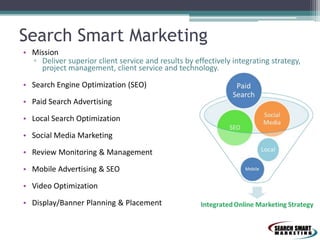
Search Smart Marketing
• Mission
▫ Deliver superior client service and results by effectively integrating strategy,
project management, client service and technology.
• Search Engine Optimization (SEO)
• Paid Search Advertising
• Local Search Optimization

• Social Media Marketing
• Review Monitoring & Management
• Mobile Advertising & SEO
• Video Optimization
• Display/Banner Planning & Placement
Kate Hamilton-Miller
• Graphic Designer

• Started Digital Marketing, 2004
• Joined Search Smart in 2008

• Certifications

▫ Google
▫ Bing
▫ Social Media

• Memberships

▫ SEMPO
▫ National Association of Professional
Women (NAPW)
▫ Women Centric
What Is Analytics?
• Definition
▫ Analytics is the discovery and communication of
meaningful patterns in data
▫ Web analytics is the measurement, collection,
analysis and reporting of internet data for
purposes of understanding and optimizing web
usage

Source: Wikipedia
Types of Analytics
• Onsite
▫
▫
▫
▫
▫
▫

Visitors
# of Pages Viewed
Time on Site
Popular Content
Common Exit Pages
Actions Completed

• Offsite
▫ Potential customer pool (search opportunity)
▫ Share of Voice (visibility)
▫ Commentary (reviews, social engagement)
Google Analytics 101
• Terminology
• Proper Set-up
• Top 5 Reports
• Turning Findings into Actions
Analytics Lingo
• Tracking Code
▫ JavaScript placed on each page of your site

• Tracking URL
▫ Web Address of the page on your site you want to
direct visitors to + relevant marketing info

• Campaign
▫ Marketing initiative; Email Blast; Paid Search Ads
Google Analytics Setup
• Free account
▫ www.google.com/analytics

• Link to AdWords
▫ Adwords.Google.com

• Webmaster Tools Integration

USE THE
SAME
LOGIN
ACROSS
ALL
GOOGLE
PRODUCTS

▫ www.google.com/webmasters/tools

• Define Goals and Conversion Funnels
Analytics Tracking – Tag Everything!
• What
▫
▫
▫
▫

Pay-Per-Click (CPC)
Email
Social Buttons, Posts
Display

• How
▫ AdWords Auto-Tagging
▫ Tracking URL Generator
 SEARCH: Google Analytics Tracking URL Builder
 http://support.google.com/analytics/answer/1033867?hl=en
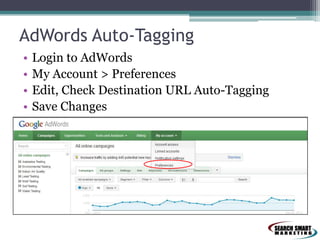
AdWords Auto-Tagging
•
•
•
•

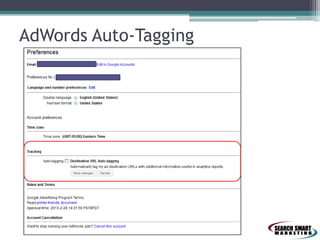
Login to AdWords
My Account > Preferences
Edit, Check Destination URL Auto-Tagging
Save Changes
AdWords Auto-Tagging
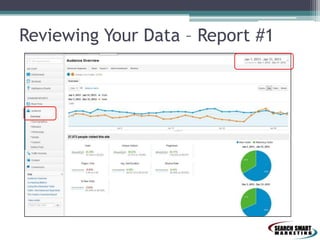
Reviewing Your Data – Report #1
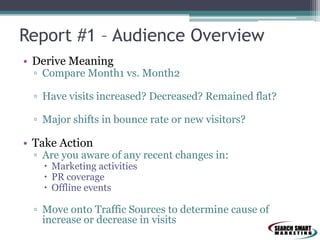
Report #1 – Audience Overview
• Derive Meaning

▫ Compare Month1 vs. Month2
▫ Have visits increased? Decreased? Remained flat?
▫ Major shifts in bounce rate or new visitors?

• Take Action

▫ Are you aware of any recent changes in:
 Marketing activities
 PR coverage
 Offline events

▫ Move onto Traffic Sources to determine cause of
increase or decrease in visits
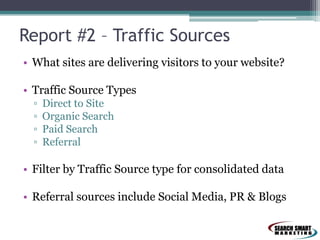
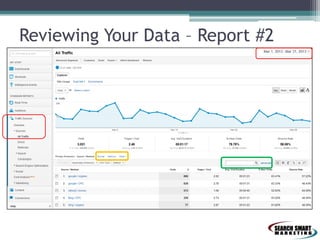
Report #2 – Traffic Sources
• What sites are delivering visitors to your website?
• Traffic Source Types
▫
▫
▫
▫

Direct to Site
Organic Search
Paid Search
Referral

• Filter by Traffic Source type for consolidated data
• Referral sources include Social Media, PR & Blogs
Reviewing Your Data – Report #2
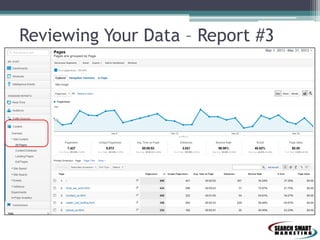
Reviewing Your Data – Report #3
Report #3 – Popular Site Content
• Derive Meaning
▫ What pages of your site are visitors drawn to?
▫ What pages do people visit, then immediately leave
your site?

• Take Action
▫ Popular Content
 Create more content of a similar nature
 Send relevant paid search traffic here

▫ High Bounce Rate
 Revise the text on the page
 Misleading keywords?
 Try a new layout
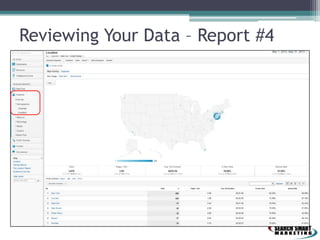
Reviewing Your Data – Report #4
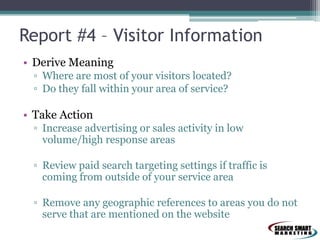
Report #4 – Visitor Information
• Derive Meaning
▫ Where are most of your visitors located?
▫ Do they fall within your area of service?

• Take Action
▫ Increase advertising or sales activity in low
volume/high response areas
▫ Review paid search targeting settings if traffic is
coming from outside of your service area
▫ Remove any geographic references to areas you do not
serve that are mentioned on the website
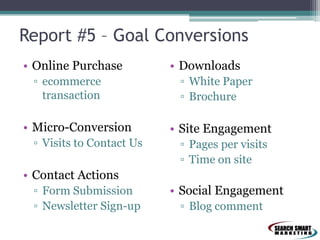
Report #5 – Goal Conversions
• Online Purchase
▫ ecommerce
transaction

• Micro-Conversion
▫ Visits to Contact Us

• Downloads
▫ White Paper
▫ Brochure

• Site Engagement
▫ Pages per visits
▫ Time on site

• Contact Actions
▫ Form Submission
▫ Newsletter Sign-up

• Social Engagement
▫ Blog comment
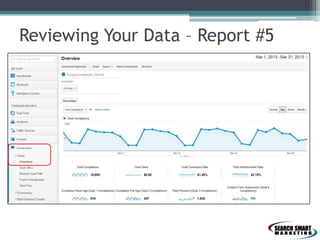
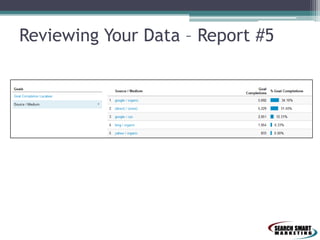
Reviewing Your Data – Report #5
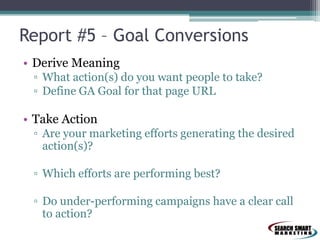
Report #5 – Goal Conversions
• Derive Meaning
▫ What action(s) do you want people to take?
▫ Define GA Goal for that page URL

• Take Action
▫ Are your marketing efforts generating the desired
action(s)?
▫ Which efforts are performing best?
▫ Do under-performing campaigns have a clear call
to action?
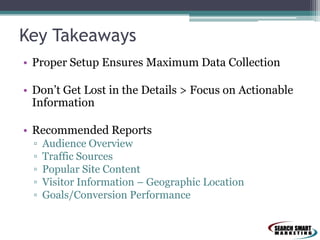
Key Takeaways
• Proper Setup Ensures Maximum Data Collection
• Don’t Get Lost in the Details > Focus on Actionable
Information
• Recommended Reports
▫
▫
▫
▫
▫

Audience Overview
Traffic Sources
Popular Site Content
Visitor Information – Geographic Location
Goals/Conversion Performance
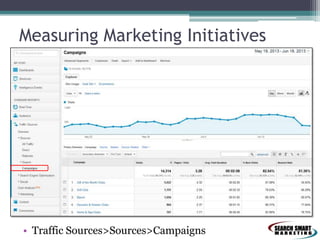
Measuring Marketing Initiatives

• Traffic Sources>Sources>Campaigns
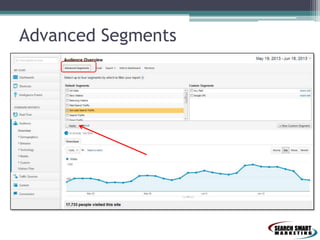
Advanced Segments
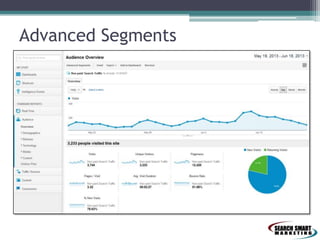
Advanced Segments
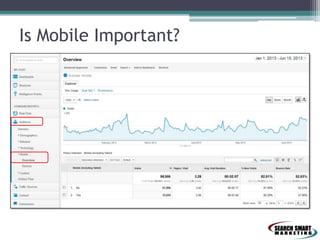
Is Mobile Important?
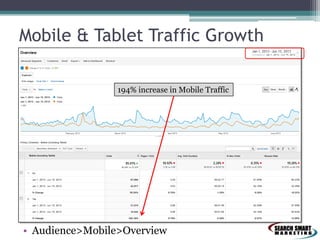
Mobile & Tablet Traffic Growth
194% increase in Mobile Traffic

• Audience>Mobile>Overview
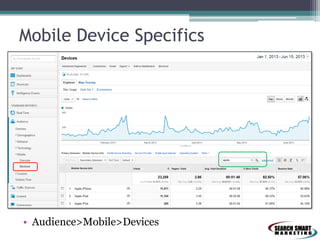
Mobile Device Specifics

• Audience>Mobile>Devices
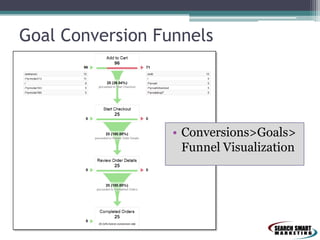
Goal Conversion Funnels

• Conversions>Goals>
Funnel Visualization
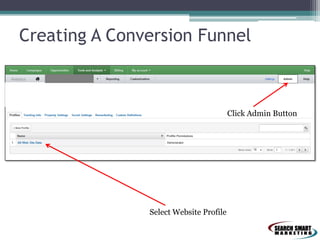
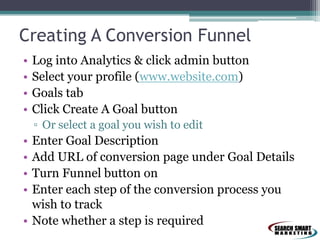
Creating A Conversion Funnel

Click Admin Button

Select Website Profile
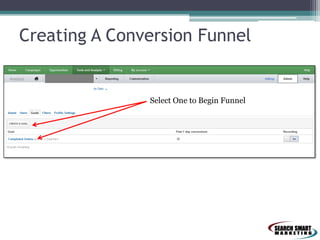
Creating A Conversion Funnel

Select One to Begin Funnel
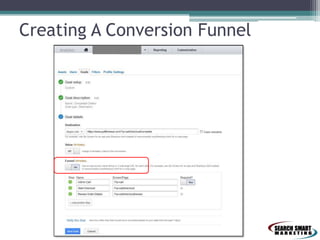
Creating A Conversion Funnel
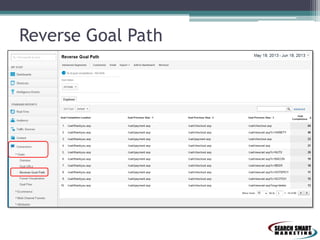
Reverse Goal Path
Creating A Conversion Funnel
•
•
•
•

Log into Analytics & click admin button
Select your profile (www.website.com)
Goals tab
Click Create A Goal button
▫ Or select a goal you wish to edit

•
•
•
•

Enter Goal Description
Add URL of conversion page under Goal Details
Turn Funnel button on
Enter each step of the conversion process you
wish to track
• Note whether a step is required
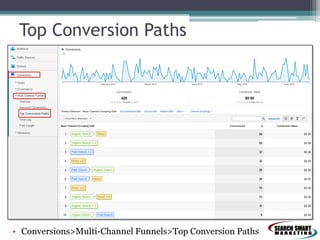
Top Conversion Paths

• Conversions>Multi-Channel Funnels>Top Conversion Paths
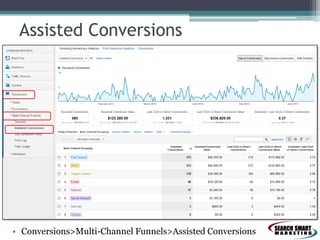
Assisted Conversions

• Conversions>Multi-Channel Funnels>Assisted Conversions
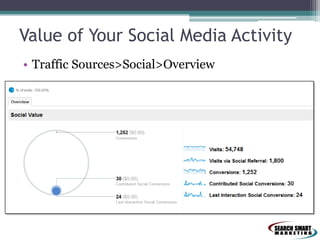
Value of Your Social Media Activity
• Traffic Sources>Social>Overview
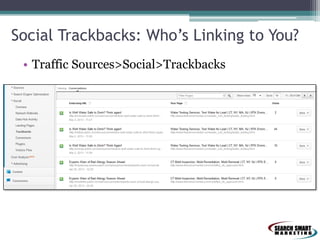
Social Trackbacks: Who’s Linking to You?
• Traffic Sources>Social>Trackbacks
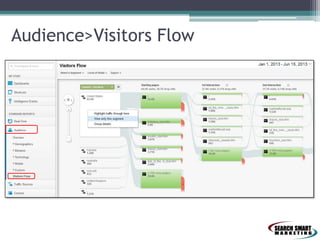
Audience>Visitors Flow
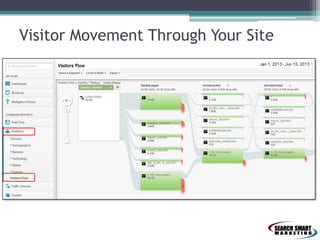
Visitor Movement Through Your Site
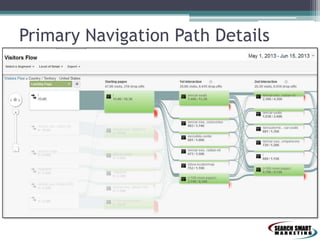
Primary Navigation Path Details
Real-Time Events & Widgets
• Overview of real-time activity on site
• Traffic Sources
• Location of Visitor
• Content Visited

• Events & Conversions Currently in Beta
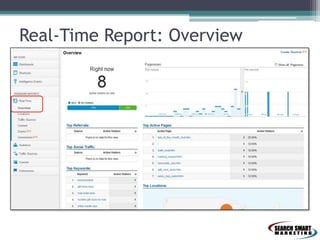
Real-Time Report: Overview
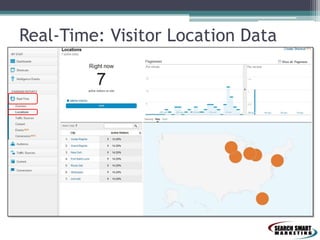
Real-Time: Visitor Location Data
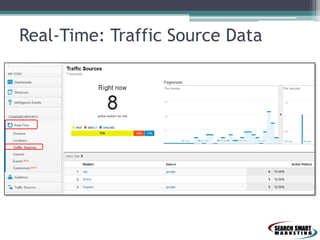
Real-Time: Traffic Source Data
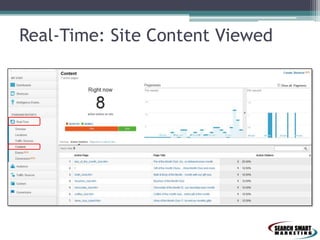
Real-Time: Site Content Viewed
Key Takeaways
• Conversion funnels help identify drop-off points in
your sign-up/checkout process
• Mobile & Tablet site visits are on the rise – make
sure your content is mobile friendly

• Understand how your different marketing efforts are
working together with multi-channel funnels
• Real Time Analytics – Fun to watch, but avoid knee
jerk decisions based on small data sets
• Presentation available online at
http://www.slideshare.net/SearchSmartMarketing
Thank You!
Kate Hamilton-Miller
khamilton@isearchsmart.com
@KateHMiller
Questions or Suggest A Topic: Use #SSMGA
Search Smart Marketing
www.isearchsmart.com
@iSearchSmart

Facebook.com/SearchSmartMarketing

Google Analytics: Advanced Features & Settings

  • 1.
    Google Analytics: Actionable Insights& Custom Reports Advanced Features & Settings By Kate Hamilton-Miller
  • 2.
    Search Smart Marketing •Mission ▫ Deliver superior client service and results by effectively integrating strategy, project management, client service and technology. • Search Engine Optimization (SEO) • Paid Search Advertising • Local Search Optimization • Social Media Marketing • Review Monitoring & Management • Mobile Advertising & SEO • Video Optimization • Display/Banner Planning & Placement
  • 3.
    Kate Hamilton-Miller • GraphicDesigner • Started Digital Marketing, 2004 • Joined Search Smart in 2008 • Certifications ▫ Google ▫ Bing ▫ Social Media • Memberships ▫ SEMPO ▫ National Association of Professional Women (NAPW) ▫ Women Centric
  • 5.
    What Is Analytics? •Definition ▫ Analytics is the discovery and communication of meaningful patterns in data ▫ Web analytics is the measurement, collection, analysis and reporting of internet data for purposes of understanding and optimizing web usage Source: Wikipedia
  • 6.
    Types of Analytics •Onsite ▫ ▫ ▫ ▫ ▫ ▫ Visitors # of Pages Viewed Time on Site Popular Content Common Exit Pages Actions Completed • Offsite ▫ Potential customer pool (search opportunity) ▫ Share of Voice (visibility) ▫ Commentary (reviews, social engagement)
  • 7.
    Google Analytics 101 •Terminology • Proper Set-up • Top 5 Reports • Turning Findings into Actions
  • 8.
    Analytics Lingo • TrackingCode ▫ JavaScript placed on each page of your site • Tracking URL ▫ Web Address of the page on your site you want to direct visitors to + relevant marketing info • Campaign ▫ Marketing initiative; Email Blast; Paid Search Ads
  • 9.
    Google Analytics Setup •Free account ▫ www.google.com/analytics • Link to AdWords ▫ Adwords.Google.com • Webmaster Tools Integration USE THE SAME LOGIN ACROSS ALL GOOGLE PRODUCTS ▫ www.google.com/webmasters/tools • Define Goals and Conversion Funnels
  • 10.
    Analytics Tracking –Tag Everything! • What ▫ ▫ ▫ ▫ Pay-Per-Click (CPC) Email Social Buttons, Posts Display • How ▫ AdWords Auto-Tagging ▫ Tracking URL Generator  SEARCH: Google Analytics Tracking URL Builder  http://support.google.com/analytics/answer/1033867?hl=en
  • 11.
    AdWords Auto-Tagging • • • • Login toAdWords My Account > Preferences Edit, Check Destination URL Auto-Tagging Save Changes
  • 12.
  • 13.
    Reviewing Your Data– Report #1
  • 14.
    Report #1 –Audience Overview • Derive Meaning ▫ Compare Month1 vs. Month2 ▫ Have visits increased? Decreased? Remained flat? ▫ Major shifts in bounce rate or new visitors? • Take Action ▫ Are you aware of any recent changes in:  Marketing activities  PR coverage  Offline events ▫ Move onto Traffic Sources to determine cause of increase or decrease in visits
  • 15.
    Report #2 –Traffic Sources • What sites are delivering visitors to your website? • Traffic Source Types ▫ ▫ ▫ ▫ Direct to Site Organic Search Paid Search Referral • Filter by Traffic Source type for consolidated data • Referral sources include Social Media, PR & Blogs
  • 16.
    Reviewing Your Data– Report #2
  • 17.
    Reviewing Your Data– Report #3
  • 18.
    Report #3 –Popular Site Content • Derive Meaning ▫ What pages of your site are visitors drawn to? ▫ What pages do people visit, then immediately leave your site? • Take Action ▫ Popular Content  Create more content of a similar nature  Send relevant paid search traffic here ▫ High Bounce Rate  Revise the text on the page  Misleading keywords?  Try a new layout
  • 19.
    Reviewing Your Data– Report #4
  • 20.
    Report #4 –Visitor Information • Derive Meaning ▫ Where are most of your visitors located? ▫ Do they fall within your area of service? • Take Action ▫ Increase advertising or sales activity in low volume/high response areas ▫ Review paid search targeting settings if traffic is coming from outside of your service area ▫ Remove any geographic references to areas you do not serve that are mentioned on the website
  • 21.
    Report #5 –Goal Conversions • Online Purchase ▫ ecommerce transaction • Micro-Conversion ▫ Visits to Contact Us • Downloads ▫ White Paper ▫ Brochure • Site Engagement ▫ Pages per visits ▫ Time on site • Contact Actions ▫ Form Submission ▫ Newsletter Sign-up • Social Engagement ▫ Blog comment
  • 22.
    Reviewing Your Data– Report #5
  • 23.
    Reviewing Your Data– Report #5
  • 24.
    Report #5 –Goal Conversions • Derive Meaning ▫ What action(s) do you want people to take? ▫ Define GA Goal for that page URL • Take Action ▫ Are your marketing efforts generating the desired action(s)? ▫ Which efforts are performing best? ▫ Do under-performing campaigns have a clear call to action?
  • 25.
    Key Takeaways • ProperSetup Ensures Maximum Data Collection • Don’t Get Lost in the Details > Focus on Actionable Information • Recommended Reports ▫ ▫ ▫ ▫ ▫ Audience Overview Traffic Sources Popular Site Content Visitor Information – Geographic Location Goals/Conversion Performance
  • 27.
    Measuring Marketing Initiatives •Traffic Sources>Sources>Campaigns
  • 28.
  • 29.
  • 30.
  • 31.
    Mobile & TabletTraffic Growth 194% increase in Mobile Traffic • Audience>Mobile>Overview
  • 32.
    Mobile Device Specifics •Audience>Mobile>Devices
  • 33.
    Goal Conversion Funnels •Conversions>Goals> Funnel Visualization
  • 34.
    Creating A ConversionFunnel Click Admin Button Select Website Profile
  • 35.
    Creating A ConversionFunnel Select One to Begin Funnel
  • 36.
  • 37.
  • 38.
    Creating A ConversionFunnel • • • • Log into Analytics & click admin button Select your profile (www.website.com) Goals tab Click Create A Goal button ▫ Or select a goal you wish to edit • • • • Enter Goal Description Add URL of conversion page under Goal Details Turn Funnel button on Enter each step of the conversion process you wish to track • Note whether a step is required
  • 39.
    Top Conversion Paths •Conversions>Multi-Channel Funnels>Top Conversion Paths
  • 40.
  • 41.
    Value of YourSocial Media Activity • Traffic Sources>Social>Overview
  • 42.
    Social Trackbacks: Who’sLinking to You? • Traffic Sources>Social>Trackbacks
  • 43.
  • 44.
  • 45.
  • 46.
    Real-Time Events &Widgets • Overview of real-time activity on site • Traffic Sources • Location of Visitor • Content Visited • Events & Conversions Currently in Beta
  • 47.
  • 48.
  • 49.
  • 50.
  • 51.
    Key Takeaways • Conversionfunnels help identify drop-off points in your sign-up/checkout process • Mobile & Tablet site visits are on the rise – make sure your content is mobile friendly • Understand how your different marketing efforts are working together with multi-channel funnels • Real Time Analytics – Fun to watch, but avoid knee jerk decisions based on small data sets • Presentation available online at http://www.slideshare.net/SearchSmartMarketing
  • 52.
    Thank You! Kate Hamilton-Miller khamilton@isearchsmart.com @KateHMiller Questionsor Suggest A Topic: Use #SSMGA Search Smart Marketing www.isearchsmart.com @iSearchSmart Facebook.com/SearchSmartMarketing