SAS UE Visual Palette
craigtrim@gmail.com
May 2017
Updated July 2017
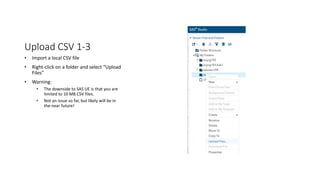
Upload CSV 1-3
• Import a local CSV file
• Right-click on a folder and select “Upload
Files”
• Warning:
• The downside to SAS UE is that you are
limited to 10 MB CSV files.
• Not an issue so far, but likely will be in
the near future!
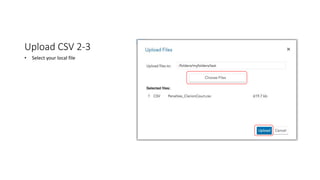
Upload CSV 2-3
• Select your local file
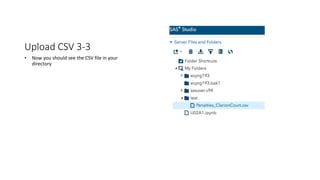
Upload CSV 3-3
• Now you should see the CSV file in your
directory
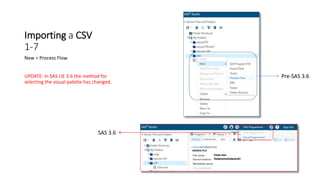
Importing a CSV
1-7
New > Process Flow
UPDATE: In SAS UE 3.6 the method for
selecting the visual palette has changed.
Pre-SAS 3.6
SAS 3.6
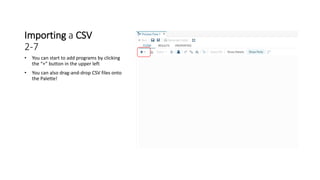
Importing a CSV
2-7
• You can start to add programs by clicking
the “+” button in the upper left
• You can also drag-and-drop CSV files onto
the Palette!
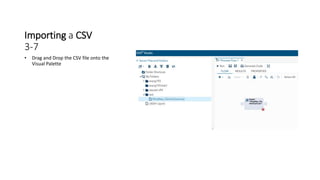
Importing a CSV
3-7
• Drag and Drop the CSV file onto the
Visual Palette
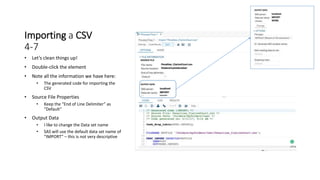
Importing a CSV
4-7
• Let’s clean things up!
• Double-click the element
• Note all the information we have here:
• The generated code for importing the
CSV
• Source File Properties
• Keep the “End of Line Delimiter” as
“Default”
• Output Data
• I like to change the Data set name
• SAS will use the default data set name of
“IMPORT” – this is not very descriptive
Importing a CSV
5-7
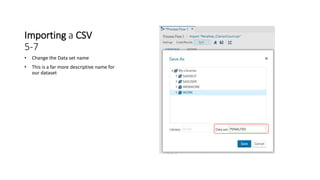
• Change the Data set name
• This is a far more descriptive name for
our dataset
Importing a CSV
6-7
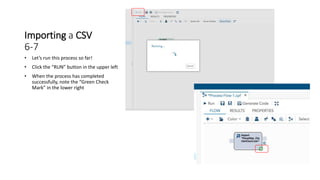
• Let’s run this process so far!
• Click the “RUN” button in the upper left
• When the process has completed
successfully, note the “Green Check
Mark” in the lower right
Importing a CSV
7-7
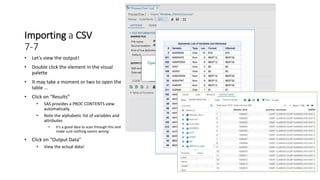
• Let’s view the output!
• Double click the element in the visual
palette
• It may take a moment or two to open the
table …
• Click on “Results”
• SAS provides a PROC CONTENTS view
automatically
• Note the alphabetic list of variables and
attributes
• It’s a good idea to scan through this and
make sure nothing seems wrong
• Click on “Output Data”
• View the actual data!
FREQ 1-5
• Let’s run a PROC FREQ on some key
columns!
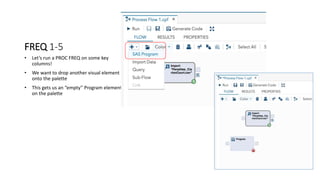
• We want to drop another visual element
onto the palette
• This gets us an “empty” Program element
on the palette
FREQ 2-5
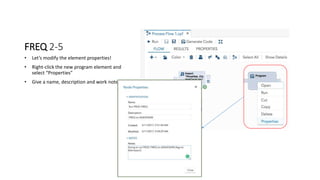
• Let’s modify the element properties!
• Right-click the new program element and
select “Properties”
• Give a name, description and work notes
FREQ 3-5
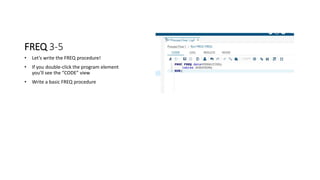
• Let’s write the FREQ procedure!
• If you double-click the program element
you’ll see the “CODE” view
• Write a basic FREQ procedure
FREQ 4-5
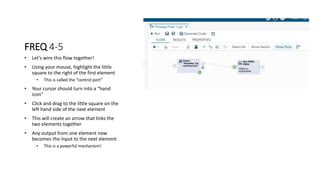
• Let’s wire this flow together!
• Using your mouse, highlight the little
square to the right of the first element
• This is called the “control port”
• Your cursor should turn into a “hand
icon”
• Click and drag to the little square on the
left hand side of the next element
• This will create an arrow that links the
two elements together
• Any output from one element now
becomes the input to the next element
• This is a powerful mechanism!
FREQ 5-5
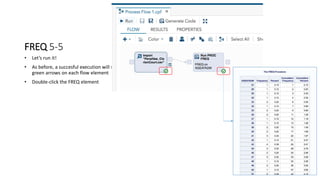
• Let’s run it!
• As before, a succesful execution will show
green arrows on each flow element
• Double-click the FREQ element
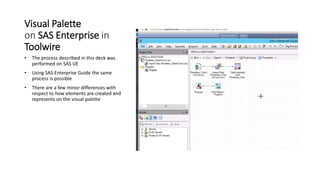
Visual Palette
on SAS Enterprise in
Toolwire
• The process described in this deck was
performed on SAS UE
• Using SAS Enterprise Guide the same
process is possible
• There are a few minor differences with
respect to how elements are created and
represents on the visual palette
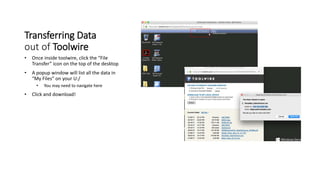
Transferring Data
out of Toolwire
• Once inside toolwire, click the “File
Transfer” icon on the top of the desktop
• A popup window will list all the data in
“My Files” on your U:/
• You may need to navigate here
• Click and download!

SAS Visual Process Flows

  • 1.
    SAS UE VisualPalette craigtrim@gmail.com May 2017 Updated July 2017
  • 2.
    Upload CSV 1-3 •Import a local CSV file • Right-click on a folder and select “Upload Files” • Warning: • The downside to SAS UE is that you are limited to 10 MB CSV files. • Not an issue so far, but likely will be in the near future!
  • 3.
    Upload CSV 2-3 •Select your local file
  • 4.
    Upload CSV 3-3 •Now you should see the CSV file in your directory
  • 5.
    Importing a CSV 1-7 New> Process Flow UPDATE: In SAS UE 3.6 the method for selecting the visual palette has changed. Pre-SAS 3.6 SAS 3.6
  • 6.
    Importing a CSV 2-7 •You can start to add programs by clicking the “+” button in the upper left • You can also drag-and-drop CSV files onto the Palette!
  • 7.
    Importing a CSV 3-7 •Drag and Drop the CSV file onto the Visual Palette
  • 8.
    Importing a CSV 4-7 •Let’s clean things up! • Double-click the element • Note all the information we have here: • The generated code for importing the CSV • Source File Properties • Keep the “End of Line Delimiter” as “Default” • Output Data • I like to change the Data set name • SAS will use the default data set name of “IMPORT” – this is not very descriptive
  • 9.
    Importing a CSV 5-7 •Change the Data set name • This is a far more descriptive name for our dataset
  • 10.
    Importing a CSV 6-7 •Let’s run this process so far! • Click the “RUN” button in the upper left • When the process has completed successfully, note the “Green Check Mark” in the lower right
  • 11.
    Importing a CSV 7-7 •Let’s view the output! • Double click the element in the visual palette • It may take a moment or two to open the table … • Click on “Results” • SAS provides a PROC CONTENTS view automatically • Note the alphabetic list of variables and attributes • It’s a good idea to scan through this and make sure nothing seems wrong • Click on “Output Data” • View the actual data!
  • 12.
    FREQ 1-5 • Let’srun a PROC FREQ on some key columns! • We want to drop another visual element onto the palette • This gets us an “empty” Program element on the palette
  • 13.
    FREQ 2-5 • Let’smodify the element properties! • Right-click the new program element and select “Properties” • Give a name, description and work notes
  • 14.
    FREQ 3-5 • Let’swrite the FREQ procedure! • If you double-click the program element you’ll see the “CODE” view • Write a basic FREQ procedure
  • 15.
    FREQ 4-5 • Let’swire this flow together! • Using your mouse, highlight the little square to the right of the first element • This is called the “control port” • Your cursor should turn into a “hand icon” • Click and drag to the little square on the left hand side of the next element • This will create an arrow that links the two elements together • Any output from one element now becomes the input to the next element • This is a powerful mechanism!
  • 16.
    FREQ 5-5 • Let’srun it! • As before, a succesful execution will show green arrows on each flow element • Double-click the FREQ element
  • 17.
    Visual Palette on SASEnterprise in Toolwire • The process described in this deck was performed on SAS UE • Using SAS Enterprise Guide the same process is possible • There are a few minor differences with respect to how elements are created and represents on the visual palette
  • 18.
    Transferring Data out ofToolwire • Once inside toolwire, click the “File Transfer” icon on the top of the desktop • A popup window will list all the data in “My Files” on your U:/ • You may need to navigate here • Click and download!

Editor's Notes

  • #3 You can use a “split” program e.g. on OS X use split -b 10m ”myfile.csv” and this will create multiple 10 MB CSV files. Each can be imported individually and merged as a single SAS dataset. However, this process is cumbersome and error prone.