Slide 2
Presentation Outline
ElectronicPresentation
• Introduction to Electronic Presentation
• Working with Presentation Software
• Developing a Presentation
• Charts
• Graphical Objects
• Presentation Output
• Slide Show
3.
Slide 3
Sub Topic10.1: Introduction to Electronic
Presentation
Sub topic Objectives:
1. Meaning of presentation
2. Examples of presentation software
3. Functions of presentation software
4. Purpose of a presentation
5. Principles of a good presentation.
6. Features of a presentation software interface
7. Application areas of a presentation
4.
Slide 4
Meaning ofpresentation
• Presentations usually
involve a speaker
conveying information to
an audience.
• Presentation software is
used to organise and
deliver presentations.
• The presentation can be
viewed as a slide show
which usually displays on a
monitor or on a projection
screen.
5.
Slide 5
Examples ofpresentation software
Popular presentation software include:
• Microsoft PowerPoint,
• Lotus Freelance Graphics,
• KPresenter, OpenOffice.org Impress,
• Corel Presentations,
• Celframe Power Presentation,
• Ability Presentation,
• Kingsoft Presentation,
• Apple Keynote, etc.
6.
Slide 6
Functions ofpresentation software
Presentation software usually plays three major functions:
• A slide editing that allows text and graphics to be inserted
and formatted,
• Inserting and manipulating animations and
• A slide-show system to display the content.
7.
Slide 7
Purpose &merits of electronic
presentations
The main purpose of an electronic presentation is to act as
an aid during a speech presentation in the following ways
• It encourages and supports teaching learning process by
displaying the content of the presentation.
• Electronic presentations are usually fun to watch. They
improve the audience’s learning motivation, increasing
materials for study, encouraging interaction between the
speaker and the audience.
• Electronic Presentations can be saved in softcopy and
reused in future.
• Presentation software is able to perform a variety of
manipulations, such as editing text before printing it out.
8.
Slide 8
Purpose &merits of electronic
presentations
• Presentation software usually provides a wide
variety of presentation formats and layouts for the
slides to organise content appropriately.
• Multimedia components such as clipart images,
video clips and audio clips can be incorporated into
the slides.
• The timing of the slides can be set so that the
presentation automatically displays the next
slides / items after a predetermined period of
time.
9.
Slide 9
Purpose &merits of electronic
presentations
However, using computer
presentations can have the
following drawbacks/demerits:
• Equipment failure: Relying
on electronic presentations
can be frustrating in case the
computer system sometimes
does not work as expected
during delivery. The speaker
has to be prepared with
alternative strategy, such as
keeping printed hand-outs to
use in case of such a failure
or power blackout.
• File Corruption: The presentation
file can be damaged and fail to
run.
• Incompatible Media and devices:
Some computers and projectors
can not connect or work together,
and the presenter has to do testing
before hand.
• Distractions: Some members of the
audience may be distracted by the
animations and graphics in the
presentation instead of focusing on
the content.
10.
Slide 10
Principles ofa good presentation
1. Keep it Simple
• Don’t let your message and your
ability to tell a story get derailed by
slides that are unnecessarily
complicated, busy, or jumbled. Do
not feel compelled to fill empty
areas on your slide with other
unnecessary graphics or text boxes
that do not contribute to better
understanding. The less clutter you
have on your slide, the more
powerful your visual message will
become.
11.
Slide 11
Principles ofa good presentation
2. Limit Text
• Remember, the slides are meant to
support the narration of the speaker,
not to make the speaker redundant.
Try to avoid text-heavy
slides like this one.
Aim for something simple like
this slide.
12.
Slide 12
Principles ofa good presentation
3. Limit animations
• Use slide animations sensibly. Some animation is a good
thing, but stick to the most subtle and professional (similar
to what you might see on the evening TV news broadcast).
• A simple “Wipe Left-to-Right” (from the “Animations”
menu) is good for a bullet point, but a “Move” or “Fly” for
example is too tedious and slow (and yet, is used in many
presentations today).
• Listeners will get bored very quickly if they are asked to
endure slide after slide of animation. For transitions
between slides, use one to no more than three different
types of transition effects.
13.
Slide 13
Principles ofa good presentation
4. Use high-quality graphics
• Use high-quality graphics including photographs.
You can take your own high-quality photographs
with your digital camera, purchase professional
stock photography, or use the plethora of high-
quality images available on line (be cautious of
copyright issues, however).
• Never simply stretch a small, low-resolution photo
to make it fit your layout – doing so will degrade the
resolution even further.
14.
Slide 14
Principles ofa good presentation
5. Have a visual theme, but avoid using PowerPoint
templates
• You clearly need a consistent visual theme throughout your
presentation, but most templates included in PowerPoint have
been seen by your audience countless times (It may have been
interesting in 2007, but today the use of those common themes
often undermines the professionalism of the presenter).
• Your audience expects a unique presentation. You can make
your own background templates which will be more tailored to
your needs. You can then save the PowerPoint file as a Design
Template (.pot) and the new template will appear among your
standard Microsoft templates for your future use.
15.
Slide 15
Principles ofa good presentation
6. Choose clearly visible colors
• Color evokes feelings. Color is emotional. The
right color can help persuade and motivate.
• There should be a sharp, clear contract
between background and foreground colors
on a slide.
This is a bad mix of
colors. Low contrast.
Unreadable!
This is a good mix of
colors. Readable!
16.
Slide 16
Principles ofa good presentation
7. Choose easy-to-read fonts
• Fonts communicate subtle messages in and of themselves, which is
why you should choose fonts deliberately.
• Use no more than two complementary fonts (e.g., Arial and Arial
Bold).
• Make sure you know the difference between a Serif font (e.g., Times
New Roman) and a Sans-Serif font (Arial). Serif fonts were designed
to be used in documents filled with lots of text. Serif fonts are said to
be easier to read at small point sizes, but for on screen presentations
the serifs tend to get lost due to the relatively low resolution of
projectors.
• San-serif fonts are generally best for PowerPoint presentations, but
regardless of what font you choose, make sure the text can be read
from the back of the room.
17.
Slide 17
Principles ofa good presentation
8. Use charts and tables appropriately
• In general, tables are good for side-by-side comparisons of
quantitative data. However, tables can lack impact on a visceral level.
If you want to show how your contributions are significantly higher
than two other parties, for example, it would be best to show that in
the form of a bar chart (below, right).
18.
Slide 18
Principles ofa good presentation
Summary- A good
presentation should have:
• Font sizes that the audience can read
from a distance.
• Suitable charts and graphs with
understandable labels.
• High contrast between background color
and text color.
• Proper spelling and grammar.
• Appropriate art and graphics to help
convey your message.
• A consistent and simple design. This can
be achieved using a slide master.
• Have good quality images that reinforce
and complement your message. Ensure
that your image maintains its impact and
resolution when projected on a larger
screen.
Summary- A good presentation
should NOT have:
• Not have unnecessary
CAPITALISATION.
• Not have distracting flashy transitions
such as text fly-ins. These features may
seem impressive at first, but are
distracting and get old quickly.
• Not have too many animations and
sounds that could negatively impact
the credibility of the presentation.
• Not have too many words on each
slide. and include only essential
information.
• Not have too many slides. Presenters
who constantly “flip” to the next slide
are likely to lose their audience. A
good rule is one slide per minute.
19.
Slide 19
Principles ofa good presentation
Delivery Tips:
• Know how to and practice moving forward AND backward
within your presentation. Audiences often ask to see the
previous screen again.
• Have a Plan B in the event of technical difficulties.
Remember that transparencies and handouts will not show
animation or other special effects.
• Practice with someone who has never seen your
presentation. Ask them for honest feedback about colors,
content, and any effects or graphical images you’ve
included.
20.
Slide 20
Principles ofa good presentation
Delivery Tips (cont):
• Do not read from your slides. The content of your slides is
for the audience, not for the presenter.
• Do not speak to your slides. Many presenters face the
direction of their presentation rather than their audience.
• Do not apologize for anything in your presentation. If you
believe something will be hard to read or understand, don’t
use it.
21.
Slide 21
Features ofa presentation software
interface
Below is a screenshot of the PowerPoint 2007 interface with
some
common
components
labelled..
22.
Slide 22
Features ofa presentation software
interface
Below are some of the unique features of presentation
software
• Animations: Visual effects on individual items on the slide.
• Slide Show: display / projection of all the digital slides
created, shown one after the other, or as set in a custom
show.
• Notes Area: Section which allows the speaker to keep notes
for personal reference during the presentation.
• Summary slide: One new slide with a list of all the titles of
the slides in the presentation
• Transition: Visual effects as one slide changes to another.
23.
Slide 23
Features ofa presentation software
interface
Below are some of the unique features of presentation
software
• Slide Master: Manages layouts, effects, colors and fonts for all slides
at once.
• Graphs and Charts: You can add various types of graphics, such as bar
charts, line charts, clip art, and photographs to your presentation.
• The Pack and Go / Export Wizard leads you step-by-step through
preparing your presentation delivery in various export formats.
• Footers, & Slide Numbering: Allows you to specify customized
footers that the presentation file will put at the top and bottom of
every presentation. The presentation automatically keeps track of
slide numbers so that the correct number appears on each slide.
24.
Slide 24
Application areasof a presentation
Presentation software is commonly used in
• Classes and lecture rooms for lesson delivery (in
schools)
• Conferences
• Churches for displaying order of service, song lyrics
and scriptures
• Advertisement of goods and services on displays
• Business / Board Meetings
QN: Identify any other areas where electronic
presentations are used.
25.
Slide 25
Sub Topic:Working with Presentation
Software
Sub topic Objectives:
• Opening and closing of presentation
software
• Creation of slides in a presentation
• Creating presentations based on different
appropriate templates
• Saving presentations in different formats
26.
Slide 26
Opening andclosing of presentation
software
• You can launch a
presentation program like
Microsoft PowerPoint to
create slides. Click >start
menu > All Programs >
Microsoft Off ice >
Microsoft Office
PowerPoint.
• To Create a New Presentation:
Click the Office Button, select
New, and click Create, or press
<Ctrl> + <N>.
Slide 28
Opening andclosing of presentation
software
• To Open an existing Presentation: Click the Office
Button and select Open, or press <Ctrl> + <O>.
• To Save a Presentation: Click the Save button on the
Quick Access Toolbar, or press <Ctrl> + <S>.
• To Save a Presentation with a Different Name: Click
the Office Button, select Save As, and enter a new
name for the presentation.
• To Close a Presentation: Click the File/ Office
Button and select Close, or press <Ctrl> + <W>.
29.
Slide 29
10.2.2 Creationof slides in a presentation
To create a new slide within Slide view, follow these steps:
• 1. Click an existing slide in the thumbnail pane.
• 2. Click the Home tab.
• 3. Click the New Slide icon in the Slides group.
PowerPoint inserts your new slide after the slide you selected
in Step 1.
• To delete a slide, follow these steps:
• 1. In the thumbnail pane, click the slide that you want to
delete.
• 2. Press the Delete key.
• PowerPoint deletes your chosen slide.
30.
Slide 30
10.2.3 Creatingpresentations based on
different appropriate templates
• Each time you create a new file, you have the option of
choosing different types of templates that are already
formatted and designed for specific purposes, such as a
corporate slide-show presentation, as shown in the figure.
31.
Slide 31
10.2.3 Creatingpresentations based on
different appropriate templates
To create a new file, follow these steps:
• 1. Click the File tab.
• 2. Click New. A list of templates appears.
• 3. Double-click the template you want to use.
• Office creates a new file based on your chosen
template.
• NB: For some templates, you may need internet
connectivity to access the templates from
Microsoft’s website.
32.
Slide 32
10.2.4 Savingpresentations in different
formats
You can save your presentation in different formats such as PDF, Video,
Package Presentation for CD, Slides as Images (ie PNG or JPG), and other
file types (with extensions .pptx, .ppt, .potx ,.pps, etc). 1. Click the File
tab. 2. Click Export. The middle pane displays different formats.
33.
Slide 33
Sub Topic: Developing a Presentation
Sub topic Objectives:
• Presentation views:
– using different presentation
views: -normal view, -slide sorter,
view, -slide show view
– changing between presentation
views.
• Slide design:
– choosing most appropriate slide layout.
– copying, moving slide(s) within
presentation or between presentations.
– deleting slides.
• Slide master
– Formatting slide: changing
background on specific/all
slides.
– inserting footer on specific
slides, all slides in
presentation.
– editing slides through slide
master.
– setting automatic slide
numbering, automatic
dates, non-updating dates
into footer of slide master
34.
Slide 34
Presentation views
PowerPointhas four main views:
Normal view, Slide Sorter view, Notes
Page view, and Slide Show view.
Normal view is the main editing view,
where you write and design your
presentation. This view has four
working areas:
1. Outline tab (shows slide text in outline
form)
2. Slides tab (shows slide thumbnails)
3. Slide pane (shows a large view of current
slide)
4. Notes pane (for private speaker notes)
35.
Slide 35
Presentation views
•Slide Sorter view. In the
slide sorter view, you can
see the thumbnails of all the
slides in the presentation to
easily rearrange them.
• To go to slide sorter view,
Click View > in the
Presentation Views group >
click Slide Sorter.
36.
Slide 36
Presentation views
•Notes Page view
• This view is used when
if you want to view and
work with your notes in
full page format.
• On the View tab, in the
Presentation Views
group, click Notes Page.
37.
Slide 37
Presentation views
•Slide Show: Projects all the slides in full screen
view, shown one after the other, or as set in a
custom show.
• You can press F5 to launch the slide show from
beginning or Shift+F5 to start from current slide. ( Or
use buttons under Slide Show tab > in the Start Slide Show group > )
• You can also use the buttons on the bottom bar located before the zoom slider to
change between the various presentation views.
38.
Slide 38
Slide design
•A slide is designed by choosing an appropriate slide layout for it first, then adding
necessary content and formation. You can use layouts to arrange objects and text
on a slide. The following diagram shows all of the layout elements that you can
include on a PowerPoint slide.
39.
Slide 39
Slide design
•Placeholders are Boxes with dotted or hatch-marked
borders that are part of most slide layouts. These boxes
hold title and body text or objects such as charts, tables,
and pictures.
• A layout defines positioning information for content that
will later appear on a slide. Layouts contain placeholders
which in turn hold text, such as titles and bulleted lists, and
slide content such as SmartArt graphics, tables, charts,
pictures, shapes, and clip art.
• While you can add text and object placeholders to a layout
or slide master, you cannot add placeholders directly to a
slide.
40.
Slide 40
Slide design
•Underthe Home
Tab (Slides
group),
PowerPoint
includes some
built-in, standard
layouts , or you
can create
custom layouts
that meet your
specific
organizational
needs.
41.
Slide 41
Slide master
•Aslide master
controls the general
layout and
appearance of many
slides in a
presentation.
•The following
picture shows
a single slide
master that
contains three
layouts.
42.
Slide 42
Slide master
•Apresentation can contain one or more slide
masters which can be applied to different slides.
•Each slide master contains one or more layouts,
which make up a template saved as a template file
(.potx) .
•Each template can contain theme information, such
as color, effects, fonts, slide background style, and
default information describing how the theme and
other formatting information are applied to the
content in your slides.
43.
Slide 43
Slide master
HowEdit a slide master
• On the View tab, in the Presentation Views group, click Slide Master.
• If you want to remove an unwanted, default placeholder, click the
border of the placeholder, and then press DELETE.
• If you want to add a placeholder, do the following:
• Click a thumbnail slide layout below the slide master that you added.
• On the Slide Master tab, in the Master Layout group, click the arrow
next to Insert Placeholder, and then click a placeholder.
• Click a location on the slide master, and then drag to draw the
placeholder.
• Tip: To resize a placeholder, drag one of its corner borders.
• You can also apply suitable formatting and add graphics and images
to the slide master and alter its layout.
44.
Slide 44
Slide master
ModifyingFooters, Dates, Slide Numbers using the Slide Master
• On the slide master, you can set/modify automatic slide
numbering, dates, footer, etc by placing / manipulating the
various placeholders on the slide master.
– To resize a placeholder, click the placeholder you want to change,
point to one of its sizing handles, and when the pointer becomes a
two-headed arrow, drag the handle.
– To reposition a placeholder, click the placeholder you want to
change, point to one of its borders, and when the pointer
becomes a four-headed arrow, drag the placeholder to a new
position.
– To change the font, size, case, color, or spacing for text within a
placeholder, select the text, and then in the Font group, click the
options that you want.
45.
Slide 45
Slide master
ModifyingFooters, Dates, Slide Numbers using the Slide Master
Note: To exit master view, on the Slide master tab, in the
Close group, click Close Master View.
46.
Slide 46
Sub Topic: Charts
Sub topic Objectives:
• creating a chart from data entered within a slide in
a presentation.
• importing data from other applications such as
spreadsheets to create charts.
• importing charts from some applications.
• identifying chart types of a presentation software.
• inserting an organization chart.
• modifying an organization chart.
47.
Slide 47
To createa chart:
• In the PowerPoint working window / content placeholder,
click the Insert chart icon to launch the Insert Chart Dialog
box, or Click on Insert Menu>Chart.
Creating Charts
48.
Slide 48
• Afterselecting your desired chart type, PowerPoint
activates a data worksheet with labels and numbers.
Change these labels and numbers to reflect your data.
Creating Charts
49.
Slide 49
Creating Charts
Ifyou want to
change a
column chart to
a horizontal bar
chart, choose
that chart type
from the Chart
Type tool on
the toolbar.
50.
Slide 50
• PowerPointis compatible with charts created by other
Microsoft Office packages like Excel and Word.
• Simply copy the existing chart and paste it within the slide.
• You can also import external data by simply copying and
pasting it in the chart data worksheet and then editing it
accordingly.
Importing data/charts from other applications such
as spreadsheets.
51.
Slide 51
• Thereare numerous types of charts to help you
display data in ways that are more meaningful to
your audience as listed below:
• Column charts are useful for showing data changes
over a period of time or for illustrating comparisons
among items.
• Column charts
subtypes are
Clustered, Stacked,
3-D column, Cylinder,
cone, and pyramid
Chart types of a presentation software
52.
Slide 52
• Barcharts
• Data that is
arranged in
columns or rows
on a worksheet
can be plotted in a
bar chart. Bar
charts illustrate
comparisons
among individual
items.
Chart types of a presentation software
Bar chart subtypes include:
• Clustered bar and clustered bar in 3-D
• Stacked bar and stacked bar in 3-D
• 100% stacked bar
• Horizontal cylinder, cone, and pyramid
53.
Slide 53
• Piecharts: Pie
charts show the
size of items in one
data series,
proportional to the
sum of the items.
The data points in
a pie chart are
displayed as a
proportion of the
whole pie.
Chart types of a presentation software
Pie chart subtypes include:
• Pie and pie in 3-D
• Pie of pie and bar of pie
• Exploded pie and exploded pie in 3-D
54.
Slide 54
Consider usinga pie chart when:
• You only have one data series that you want to plot.
• None of the values that you want to plot are
negative.
• Almost none of the values that you want to plot are
zero values.
• You don't have more than seven categories.
• The categories represent parts of the whole pie.
Chart types of a presentation software
55.
Slide 55
• Linecharts are ideal for showing trends in data at
equal intervals.
• Line charts have the following chart subtypes: Line
with markers , Stacked line and stacked line with
markers, 100% stacked line, 3-D line
Chart types of a presentation software
You should use a line
chart if your category
labels are text, and
are representing
evenly spaced values
such as months,
quarters, or fiscal
years.
56.
Slide 56
• Areacharts
• Area charts emphasize
the magnitude of
change over time, and
can be used to draw
attention to the total
value across a trend.
E.g. , data that
represents profit over
time can be plotted in
an area chart to
emphasize the total
profit
Chart types of a presentation software
Bar chart subtypes include:
• Area and area in 3-D
• Stacked area and stacked area in 3-D
• 100% stacked area
• 3-D area
57.
Slide 57
• XY(scatter) charts
• Scatter charts show
the relationships
among the numeric
values in several data
series, or plots two
groups of numbers as
one series of xy
coordinates.
Chart types of a presentation software
Scatter chart subtypes include:
• Scatter with smooth lines and scatter
with smooth lines and markers
• Scatter with only markers
• Scatter with straight lines
58.
Slide 58
Other charttype include:
Chart types of a presentation software
Surface charts
Doughnut charts
Bubble charts
Radar charts
59.
Slide 59
• Anorganization
chart graphically
represents the
management
structure of an
organization,
such as
department
managers and
all employees
within a
company.
Organization charts
To create an organization chart,
Go to Insert menu> SmartArt>
Hierarchy then choose
Organization Chart
60.
Slide 60
• Tocreate an organization chart quickly and easily, you can
type or paste text in your organization chart and then have
the text automatically positioned and arranged for you.
• Although you can use other hierarchy layouts to create an
organization chart, the assistant shape and the hanging
layouts are available only with organization chart layouts.
• To quickly add a designer-quality look and polish to your
SmartArt graphic, you can change the colors or apply a
SmartArt Style to your organization chart. You can also add
effects, such as glows, soft edges, or 3-D effects. In
PowerPoint presentations, you can animate your
organization chart.
Organization charts
61.
Slide 61
Sub Topic5: Graphical Objects
Sub topic Objectives:
1. identifying different types of graphics (ClipArt,
picture, auto shapes) that can be used in
presentation software.
2. inserting the different types of graphics on a slide.
3. manipulating the position and size of the graphic
and organising graphics on a slide.
4. applying shape effects on graphics on the slide.
5. inserting text boxes on a slide.
62.
Slide 62
• TheseInclude:
• ClipArt,
• pictures,
• auto shapes (lines, polygons,
arrows flow charts, etc)
• WordArt,
• Charts
• Smart Art
• Button and Action buttons
• Videos, etc
10.5.1 Different types of graphics that can
be used in presentation software
• PowerPoint has a set of
drawing tools used to
place lines, shapes,
figures, WordArt, and
text on a slide.
PowerPoint's drawing
tools are similar to
drawing tools in other
graphics programs. To
use these tools, make
sure you are in Slide
View.
63.
Slide 63
10.5.2 Insertingthe different types of
graphics on a slide
• To Insert a Picture: Click the Insert tab on the Ribbon and
click the Picture button in the Illustrations group. Browse to
the picture you want to insert and click Insert.
• To Draw a Shape: Click the Insert tab on the Ribbon, click
the Shapes button in the Shapes group, and select the
shape you want to insert. Then, click where you want to
draw the shape and drag until the shape reaches the
desired size. Hold down the <Shift> key while you drag to
draw a perfectly proportioned shape or straight line.
64.
Slide 64
10.5.3 Manipulatingand organizing
graphics on a slide
• To Format an Object: Double-click the object and use the
commands located on the Format tab.
• To Move an Object: Click the object and drag it to a new
location. Release the mouse button when you’re finished.
• To Resize an Object: Click the object to select it, click and drag
one of its sizing handles (0), and release the mouse button
when the object reaches the desired size. Hold down the
<Shift> key while dragging to maintain the object’s proportions
while resizing it.
• To apply advanced effects, right click and select “Format …”
then use the options in the Format task pane.
• To Delete an Object: Select the object and press the <Delete>
key.
65.
Slide 65
10.5.4 Insertingtext boxes on a slide
• You can use text boxes to place text anywhere on a
slide, such as outside a text placeholder.
• For example, you can add a caption to a picture by
creating a text box and positioning it near the
picture.
• Also, a text box is handy if you want to add text to a
shape, but you don't want the text to attach to the
shape.
• You can add a border, fill, shadow, or three-
dimensional (3-D) effect to text in a text box.
66.
Slide 66
10.5.4 Insertingtext boxes on a slide
• To add a text box:
1. On the Insert tab, in the Text group, click Text Box.
2. Click the slide, and then drag the pointer to draw the text box.
3. Click inside the text box, and then type or paste the text.
NB: You can add text to the
following areas in a slide:
4. Placeholder
5. Shape
6. Text box
67.
Slide 67
Sub Topic6: Presentation Output
Sub topic Objectives:
1. Using transitional effects
2. Using animation effects
3. Adding presenter notes on a
slide.
4. Navigation:
– creates links between slides
and other files.
– re-arranging slides.
5. Checking
spelling.
6. saving a
presentation in
appropriate
output formats.
7. choosing printer
options and
printing a
presentation.
68.
Slide 68
10.6.1 Usingtransitional effects
• Slide transitions are visual effects that occur in Slide Show
view when you move from one slide to the next. You can
control the speed of each slide transition effect, and you
can also add sound. PowerPoint includes many different
types of slide transitions, including (but not limited to) the
following:
1 No transition 2. Blinds Horizontal, 3-Blinds Vertical, 4-Box
In, 5-Box Out, 6-Checkerboard Across, 7-Checkerboard
Down, 8-Comb Horizontal, 9-Comb Vertical, etc.
NB: To see more transition effects, on the transitions menu, click the More button, as
shown in the diagram above.
69.
Slide 69
10.6.1 Usingtransitional effects
• You can choose from
the variations of a
transitions from the
available Effect Options.
• To set the slide
transition speed, in the
Timing group, enter the
duration you want.
• To Add the same slide
transition to all of the
slides in your
presentation,
click Apply to All.
70.
Slide 70
10.6.2 Usinganimation effects
• Animations are motion effects applied to particular objects on a slide.
You can animate the text, Charts, pictures, shapes, tables, SmartArt
graphics, and other objects in your PowerPoint presentation. Effects
can make an object appear, disappear, or move. They can make an
object change size or color.
• To apply an animation:
– Select the object or text on the slide that you want to animate.
– On the Animations tab of the ribbon, click Add Animation, and choose an
animation effect to apply to the selected object.
71.
Slide 71
10.6.2 Usinganimation effects
• Animations are motion effects applied to particular objects on a slide.
You can animate the text, Charts, pictures, shapes, tables, SmartArt
graphics, and other objects in your PowerPoint presentation. Effects
can make an object appear, disappear, or move. They can make an
object change size or color.
• To apply an animation:
– Select the object or text on the slide that you want to animate.
– On the Animations tab of the ribbon, click Add Animation, and choose an
animation effect to apply to the selected object.
72.
Slide 72
10.6.3 Addingpresenter notes on a
slide
• You can use the notes pane in Normal view to write
additional private notes about your slides, (which will not
be seen by your audience.)
You can type and format
your notes as you work in
Normal view, but to see
how your notes pages will
be printed and to see the
full effect of any text
formatting, such as font
colors, you have to switch
to Notes Page view.
Notes area below the slide
73.
Slide 73
10.6.3 Addingpresenter notes on a
slide
• The Notes page View shows an
image of a slide, along with the
notes that go with that slide.
1. Notes pages include your notes
and each slide in the
presentation.
2. Each slide is printed on its own
notes page.
3. Your notes accompany the slide.
4. Data such as charts or pictures
can be added to your notes
pages.
74.
Slide 74
10.6.4 Navigationusing action
buttons and hyperlinks
• A hyperlink is a
connection from one
slide to another slide
in the same
presentation or to a
slide in another
presentation, an e-
mail address, a Web
page, or a file.
• You can create a
hyperlink from text or
from any object, such
as a picture, graph,
shape, or WordArt .
• To create a hyperlink to a slide in the same
presentation
– In Normal view, select the text or the object that you
want to use as a hyperlink.
– On the Insert tab, in the Links group, click Hyperlink. Or
press Ctrl+K.
– Under Link to, click A place in this document, click the
slide that you want to use as the hyperlink destination.
75.
Slide 75
10.6.4 Navigationusing action
buttons and hyperlinks
• An action button is a button that you can insert into
your presentation and define hyperlinks for. Action
buttons contain shapes, such as right and left
arrows, and commonly understood symbols for
going to home, next slides, etc and for playing
movies or sounds on mouse-click or on mouse-over.
• Action buttons are most commonly used for self-
running presentations — for example, presentations
that are shown repeatedly at a booth or kiosk.
76.
Slide 76
• Onthe Insert tab, click the
arrow under Shapes and
Scroll to the bottom, under
Action Buttons, click the
button that you want to add.
• Click a location on the slide,
and then drag to draw the
shape for the button.
• In the Action Settings dialog
box, choose the behaviour of
the action button when you
click it or when you move
the pointer over it, (this is
under the Mouse Over tab.)
10.6.4 Navigation using action
buttons and hyperlinks
77.
Slide 77
• Tofind and fix spelling mistakes in
your document more quickly and
easily, press F7 or on the Review
tab, in the Proofing group, click
the Spelling Icon.
• If the program finds spelling
mistakes, a dialog box or task
pane is displayed, and the first
misspelled word found by the
spelling checker is selected. You
decide how you want to resolve
each error that the program finds.
10.6.5 Checking spelling
78.
Slide 78
• With
Microsoft
Office
PowerPoint
youcan save
your
presentation
into various
file types as
shown in the
save as
dialog box
below:
10.6.6 Saving a presentation in
appropriate output formats
79.
Slide 79
Save Asfile type Extension Use to save
PowerPoint
Presentation
.pptx A PowerPoint 2007+ presentation
PowerPoint
Macro-Enabled
Presentation
.pptm A presentation that contains Visual Basic for Applications
(VBA) (Visual Basic for Applications (VBA): A macro-
language version of Microsoft Visual Basic that is used to
program Microsoft Windows-based applications and is
included with several Microsoft programs.) code.
PowerPoint 97-
2003
Presentation
.ppt A presentation that you can open in PowerPoint 97 to
Office PowerPoint 2003.
PDF Document
Format
.pdf A file format developed by Adobe that preserves
document formatting.
XPS Document
Format
.xps A new Microsoft electronic paper format for exchanging
documents in their final form.
PowerPoint
Design
Templates
.potx A presentation as a template that you can use to format
future presentations.
10.6.6 Saving a presentation in
appropriate output formats
80.
Slide 80
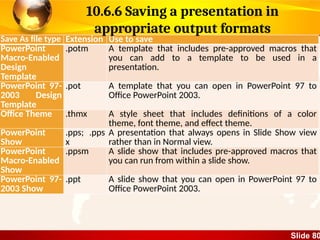
Save Asfile type Extension Use to save
PowerPoint
Macro-Enabled
Design
Template
.potm A template that includes pre-approved macros that
you can add to a template to be used in a
presentation.
PowerPoint 97-
2003 Design
Template
.pot A template that you can open in PowerPoint 97 to
Office PowerPoint 2003.
Office Theme .thmx A style sheet that includes definitions of a color
theme, font theme, and effect theme.
PowerPoint
Show
.pps; .pps
x
A presentation that always opens in Slide Show view
rather than in Normal view.
PowerPoint
Macro-Enabled
Show
.ppsm A slide show that includes pre-approved macros that
you can run from within a slide show.
PowerPoint 97-
2003 Show
.ppt A slide show that you can open in PowerPoint 97 to
Office PowerPoint 2003.
10.6.6 Saving a presentation in
appropriate output formats
81.
Slide 81
Save Asfile type Extension Use to save
Single File Web
Page
.mht; .mht
ml
A Web page as a single file with an .htm file and all
supporting files, such as images, sound files, cascading
style sheets, scripts, and more. Good for sending a
presentation in e-mail
Web Page .htm; .htm
l
A Web page as a folder with an .htm file and all
supporting files, such as images, sound files, cascading
style sheets, scripts, and more. Good for posting on a site
or editing with a web authoring software.
GIF (Graphics
Interchange
Format)
.gif The GIF file format is limited to supporting 256 colors. GIF
can be good for line drawings, black and white images,
and small text that is only a few pixels high. GIF supports
animation and transparent backgrounds.
JPEG (Joint
Photographic
Experts Group)
FileFormat
.jpg The JPEG file format supports 16 million colors and is
best suited for photographs and complex graphics.
10.6.6 Saving a presentation in
appropriate output formats
82.
Slide 82
Save Asfile type Extension Use to save
PNG (Portable
Network
Graphics)
Format
.png PNG was approved as a standard by the World Wide Web
Consortium (W3C) to replace GIF. PNG does not support
animation as GIF does, and some older browsers do not
support this file format.
TIFF (Tag Image
File Format)
.tif TIFF graphics can be any resolution, and they can be
black and white, gray-scaled, or color.
Device
Independent
Bitmap
.bmp A bitmap is a representation, consisting of rows and
columns of dots, of a graphics image in computer
memory. The value of each dot (whether it is filled in or
not) is stored in one or more bits of data.
Outline/RTF .rtf A presentation outline as a text-only document tha
provides smaller file sizes and the ability to share macro-
free files with others who may not have the same version
of PowerPoint or the operating system that you have.
PowerPoint
slide
.sldx An autonomous slide file.
MPEG 4 Video .mp4 A video file (Converts an automatically running
presentation into a video)
10.6.6 Saving a presentation in
appropriate output formats
83.
Slide 83
10.6.7 Choosingprinter options and
printing a presentation
• In PowerPoint, you can create and print slides,
handouts, and notes pages.
• Most presentations are designed to be presented in
color, but slides and handouts are typically printed
in black and white or shades of gray, also known as
grayscale.
• When you print in grayscale, color images are
printed in variations of gray tones between black
and white.
84.
Slide 84
10.6.7 Choosingprinter options and
printing a presentation
• Printing the slides
– Click the Office Button or File Tab, and then click
Print or Press Ctrl+P
– In the settings section or Print Dialog, choose
from the options
– the printer,
– whether you intend to print all slides or only the
current slide,
– choose Slides if you want full page slides or
many slides per page (handouts), or notes pages
or the outline view.
– Also select from Color/Grayscale/Pure Black and
White, and then click the Print button.
85.
Slide 85
10.6.7 Choosingprinter options and
printing a presentation
• Printing the slides
– Click the Office Button or File Tab, and then
click Print or Press Ctrl+P
– In the settings section or Print Dialog, choose
from the options
– the printer,
– whether you intend to print all slides or only
the current slide,
– choose Slides if you want full page slides.
Other options are many slides per page
(handouts), or notes pages or the outline view.
– Also select from Color/Grayscale/Pure Black
and White, and then click the Print button.
86.
Slide 86
10.6.7 Choosingprinter options and
printing a presentation
• An emphasis on printing as handouts
– To save paper, most of the times the students
are required to print handouts having many
slides per sheet.
– You can print your presentation in the form of
handouts — with one, two, three, four, six, or
nine slides on a page — that your audience can
use to follow along as you give your
presentation or keep for future reference.
– The three-slides-per-page handout includes
lined space for note taking by the audience.
– You can also select a layout for your handouts in
print preview.
87.
Slide 87
Sub TopicSlide Show
Sub topic Objectives:
• Setting up a slide show to run manually or
automatically.
• Running a slide show from current slide.
88.
Slide 88
•Before delivering
apresentation to
an audience, we
can specify /
setup the show
type, the
transition looping,
pen color, slide
advance method
monitors, etc.
These options are
under the Setup
Show dialog box
launched by
clicking Slide
Show
Menu>Setup
Slide Show)
Setting up a slide show to run manually or
automatically
Select Manually in order to run the slide show at your pace as a speaker,
or Select to use timings, which need to be recorded using the Rehearse
Timings feature also under the slide show menu, to enable automation.
89.
Slide 89
Running aslide show from current
slide
• In PowerPoint, we can use the options under the slide show tab, start slide show
group to run a slide show of all slides available in a presentation or to create a
custom show (A subset of slides in an existing presentation to be shown to a
particular audience).
• To show all slides in your presentation from the beginning, click Slide Show>From
Beginning or press the F5 function key.
• To run the slide show from the current position, you can click on Slide Show>From
Current Slide or press Shift+F5 on the keyboard.
• To start a custom slide presentation that derives from another PowerPoint
presentation, click Custom Slide Show, and then click the presentation that you
want to view as a custom show or click on New to make a new custom section of
slides for the custom show.
Editor's Notes
#1 Guidance to the Teacher
Introduce a class presentation project from the beginning and continue working on the project as the topic progresses
Emphasise correct use of images and text (font size and style) depending on the end users for whom the presentation is intended. The font size and type of images meant for a presentation to children is different from the presentation to adults.
You should prepare presentations for learners to critique and generate ideas on what a good presentation should be, with reasons.
You are advised to use demonstrations for each of the skills being introduced.
Give learners an opportunity to observe, and allow them to practise and develop the skills individually or in groups if the equipment allow. As much as possible, give each learner a chance to develop the skills in the topic.
Give assignments where learners prepare and deliver presentations to the rest of the class so that they can develop confidence in delivering a presentation.
Suggested Competences for Assessment
Assess the learners’ ability to create an informative presentation, deliver a presentation to an audience and customise a presentation to meet end user needs.